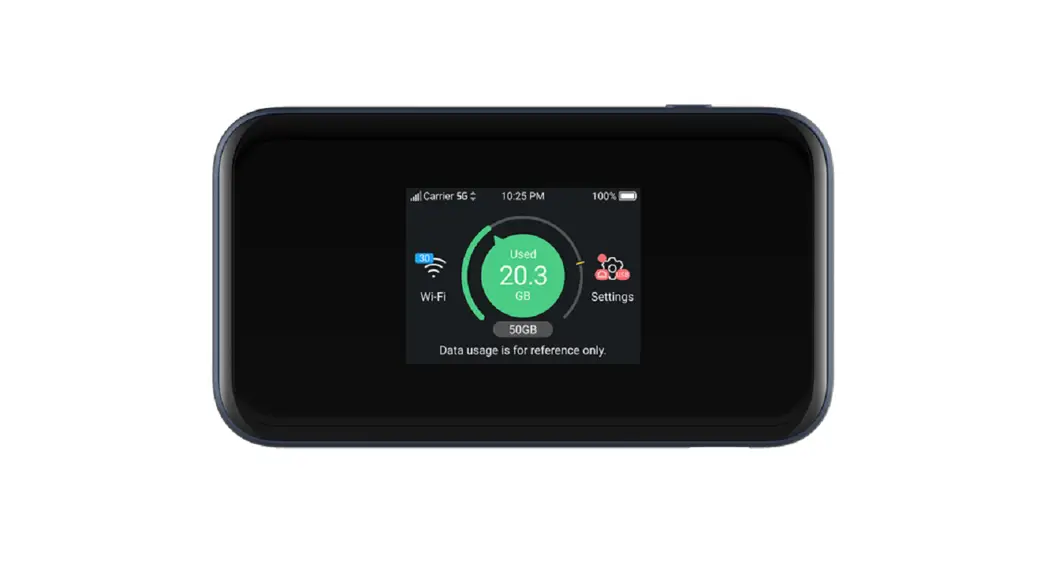
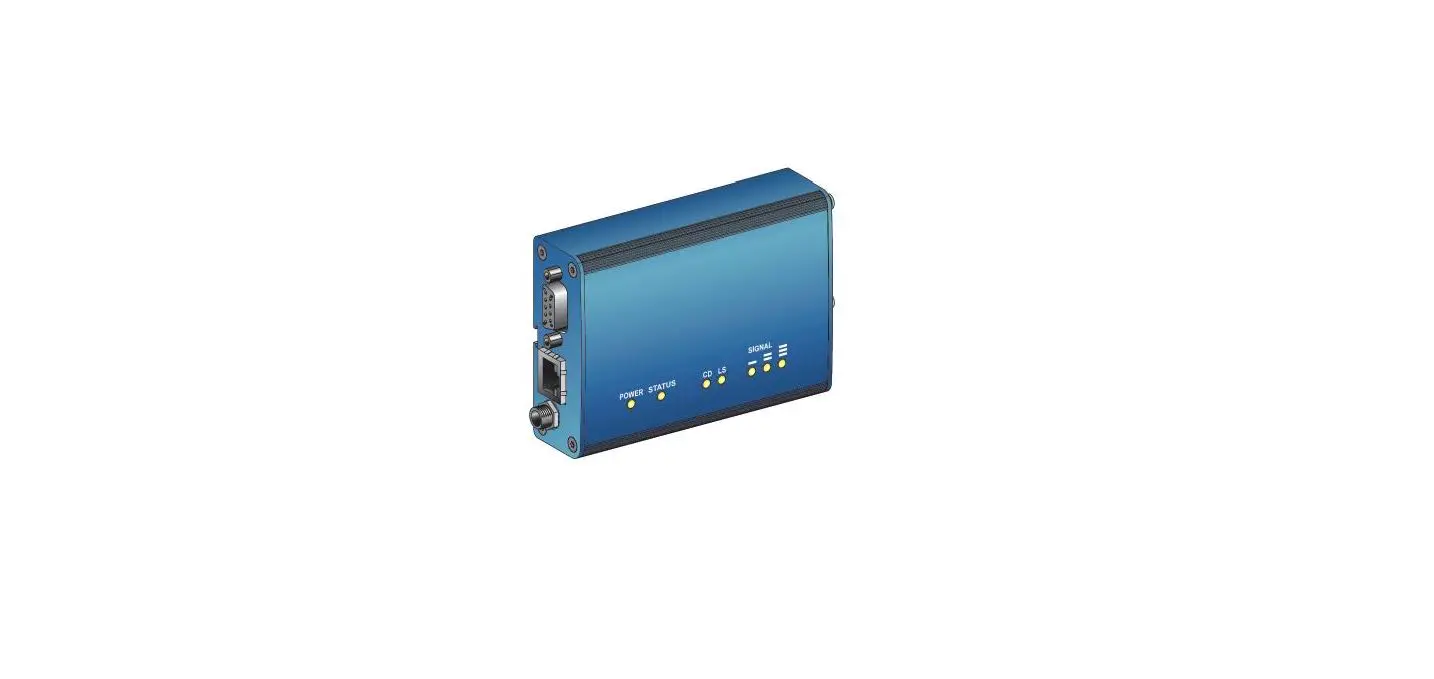
UNX-05G Portable 5G Modem
Product Information:
The UNX-05G Portable 5G Modem is an online device designed for
users who need mobile internet access. It allows users to connect
to the internet anywhere and at any time.
Part Names and Functions:
- A label with IMEI information is attached to the bottom of the
product. Do not remove this sticker as the IMEI number is required
for repair and after-sales service. - Place the product with the logo side facing up to improve the
radio wave condition of the 5G/4G antenna. - To reset the product to its factory default settings, insert
the tip of the SIM eject pin into the RESET button hole while the
product is powered on. Hold down the RESET button for at least 5
seconds.
Indicator Lamp:
The indicator lamps on the product provide information about its
communication status.
High Temperature Lamp:
- Red Lighting: Product Condition – Stop Operation (Functional
limitation) - Orange Flashing (Lights on, lights off at the same interval):
Product Condition – Normal Operation - OFF: Power Lamp
Power Lamp:
- Cyan Lighting: Product Condition – Boot Sequence
- Blue Lighting: Product Condition – 15W mode
- Green Lighting: Product Condition – 7.5W mode
- Orange Lighting: Product Condition – 4.5W mode
- Red Lighting: Product Condition – Lack of supply capacity
- Cyan Flashing (Lights on, lights off at the same interval):
Product Condition – Factory Reset
5G/4G Connection Lamp:
- Blue Lighting: 5G Antenna Level – 2 bars
- Blue Flashing (Long light on, short light off): 5G Antenna
Level – 1 bar - Blue Flashing (Lights on, lights off at the same interval): LTE
Antenna Level – 2 bars - Blue Flashing (Short light on, Long light off): LTE Antenna
Level – 1 bar - Green Lighting: Network searching
- Green Flashing (Long light on, short light off): Network
searching - Green Flashing (Lights on, lights off at the same interval):
Network searching - Green Flashing (Short light on, Long light off): Network
searching - Cyan Flashing: Out of service Standby State for Modem SIM PIN
Lock State / SIM Error ME-PIN Lock State APN Error - Red Flashing (Lights on, lights off at the same interval): Red
Lighting – Wi-Fi connection lamp - Orange Lighting: Wi-Fi mode – 2.4GHz
Wi-Fi Connection Lamp:
- Blue Lighting: Wi-Fi mode – 2.4GHz5GHz DFS
- Orange Lighting: Wi-Fi OFF
- Red Flashing (Lights on, lights off at the same interval):
Ethernet port connection lamp
Ethernet Port Connection Lamp:
- Green Lighting: Link speed – 1000Mbps
- Orange Lighting: Link speed – 100Mbps
- OFF: Ethernet No Link / Disable
Product Usage Instructions:
Inserting the SIM Card:
- Before inserting or removing the SIM Card, ensure that the
product is turned off. - Insert the tip of the SIM eject pin into the SIM Card tray hole
and push it firmly until the tray comes out. Avoid pushing it in at
an angle to prevent damage or malfunction. - Pull out the SIM Card tray.
- Place the nano SIM (4FF) Card into the tray with the IC (metal)
side facing down. Ensure that the IC Card is securely placed in the
tray.
UNX-05G User’s Manual
1
About Portable 5G Modem
Portable 5G Modem is a kind of online device which designed for the user who may use mobile internet to get online, and the user may access to the internet at anywhere and anytime.
2
Part Names and Functions
3
nano SIM Card tray Reset button The product settings can be restored to the factory default settings. USB Type-C port Connect USB Type-C cable (sample). Ethernet Connect LAN cable. Temperature rise warning indicator This LED indicates that the temperature of this product has risen and communication is restricted or stopped. Power indicator Indicator for power supply status. Ethernet indicator Indicator for LAN status. Wi-Fi indicator Indicator for Wi-F status. 5G/4G indicator This indicator indicates the type and strength of the radio wave being received. Special Screws SSID, encryption key, etc. can be confirmed.
A label printed with IMEI information (product identification number) and other information is attached to the bottom of this product. Do not remove the sticker, as the IMEI number will be required for repair requests and after-sales service.
Place the product with the logo side turned up. The radio wave condition of the 5G/4G antenna is improved.
With the product powered on, insert the tip of the SIM eject pin (sample) into the RESET button hole. Hold down the RESET button for at least 5 seconds. The product will automatically restart and the settings will be restored to its factory default settings.
4
Indicator lamp
The following indicator lamps inform you of the communication status of the product.
High Temperature lamp Product Condition
Stop Operation Functional limitation
Normal Operation
Color and Lighting Pattern Red Lighting Orange Flashing (Lights on lights off at the same interval) OFF
Power lamp
Product Condition
Boot Sequence
15W mode
Power Rule
7.5W mode
4.5W mode
Lack of supply capacity
Factory Reset
Color and Lighting Pattern Cyan Lighting Blue Lighting Green Lighting Orange Lighting Red Lighting Cyan Flashing (Lights on lights off at the same interval)
5G/4G connection lamp
Product Condition Antenna Level : 4 5ber Antenna Level : 3ber
5G
Antenna Level : 2ber
Antenna Level : 1ber
Antenna Level : 4 5ber Antenna Level : 3ber
LTE
Antenna Level : 2ber
Antenna Level : 1ber
Network searching
Color and Lighting Pattern Blue Lighting Blue Flashing (Long light on short light off) Blue Flashing (Lights on lights off at the same interval) Blue Flashing (Short light on Long light off) Green Lighting Green Flashing (Long light on short light off) Green Flashing (Lights on lights off at the same interval) Green Flashing (Short light on Long light off) Cyan Flashing
2
Out of service Standby State for Modem SIM PIN Lock State / SIM Error ME-PIN Lock State APN Error
(Lights on lights off at the same interval) Red Flashing (Lights on lights off at the same interval) Red Lighting Orange Lighting Red
Wi-Fi connection lamp
Product Condition
Wi-Fi mode
2.4GHz 2.4GHz5GHz
DFS
Wi-Fi OFF
Color and Lighting Pattern Blue Lighting Orange Lighting Red Flashing (Lights on lights off at the same interval) OFF
Ethernet port connection lamp
Product Condition
Link speed
1000Mbps 100Mbps
Ethernet No Link / Disable
Color and Lighting Pattern Green Lighting Orange Lighting OFF
3
Inserting the SIM Card
Before inserting/removing the SIM Card, ensure you turn off the product. Insert/remove the card with the logo side of the product turned up.
1 Insert the tip of the SIM eject pin (sample) into the SIM Card tray hole.
Push the tool firmly in until the SIM card tray comes out. Pushing this other than straight in may cause damage or malfunction.
2 Pull out the SIM Card tray.
4
3 Put the nano SIM (4FF) Card into the SIM Card tray with the IC (metal) side facing down.
Check the direction of the IC Card, and place it security in the SIM Card tray.
IC (metal) side
Notches
4 Insert the SIM Card tray fully into the product straight and horizontally with logo side facing up.
5
Set the connection destination
1 Connect the USB Type-C cable (sample) to the USB Type-C port on this product and the USB Type-C port on the
PC. Insert the cable straight to the back.
USB Type-C cable (sample)
2 Launch the Web browser 3 Input the URL
Enter “http://192.168.0.1/” in the URL entry field and press “Enter”.
4 Enter the user name and password on the login screen
Enter “admin” in the User Name field and “admin” in the Password field and click “LOGIN”. Enter lower-case single-byte alphanumeric characters.
5 Set the connection destination
Select “WAN Settings” “Profile Management” and click “New Profile”. Set the connection destination (APN), user name, and password obtained from your provider. Click “Save” to save the profile.
6 Select the connection destination
If multiple profiles are registered, select a profile from “Carrier Name” and click “Apply”.
6
Troubleshooting
This product does not turn on Is the USB TYPE-C cable (sample) correctly plugged into the product? Is the USB TYPE-C cable (sample) correctly plugged into the PC? Some energy-saving PCs may have the power to this product turned off. If the indicator lamp of this product is off, the power to this product may not be supplied, so check the power status according to the instruction manual of the PC.
The product becomes hot during operation This product and the USB TYPE-C cable (sample) may become warm during operation, but there is no problem with operation.
Unable to communicate Is the 5G/4G connection lamp lit in red? Make sure the SIM card is installed correctly. The SIM card PIN code may be valid, PIN locked, or completely locked. Check your PIN code settings. Is the 5G/4G connection lamp blinking in red? Disconnect the USB TYPE-C cable (sample) connected to this product and then reinsert it to restart this product. If the problem persists, relocate this product in a location where radio waves are more likely to reach. Depending on the nature of radio waves or the congestion of radio waves depending on the time of day, communication may be interrupted or the service may not be able to be used normally. Please wait for a while before using.
Trademarks
Microsoft®, Windows®, Internet Explorer®, and Microsoft Edge are trademarks or registered trademarks of Microsoft Corporation in the United States and other countries.
Mac, macOS, Safari are trademarks or registered trademarks of Apple Inc. in the United States and other countries.
Intel and Intel are trademarks of Intel Corporation in the United States and other countries. QR Code is a registered trademark of DENSO WAVE INCORPORATED. Ethernet and Ethernet are registered trademarks of FUJIFILM Business Innovation Corporation. USB Type-CTM is a trademark of USB Implementers Forum. Wi-Fi®, Wi-Fi Alliance®, Wi-Fi CERTIFIED®, Wi-Fi Protected Access® (WPA), WPA2TM, WPA3TM
and Wi-Fi Protected SetupTM are trademarks or registered trademarks of Wi-Fi Alliance. LTE is a registered trademark of the European Telecommunications Standards Institute (ETSI). Google, Android, and Google Chrome are trademarks of Google LLC. Adobe Reader and Acrobat Reader are trademarks or registered trademarks of Adobe Systems
Incorporated in the United States and other countries. All other company and product names are trademarks or registered trademarks of their
respective owners. The TM and ® marks may be omitted in the text.
7
FCC Regulations
This device complies with part 15 of the FCC Rules. Operation is subject to the following two conditions:
(1) This device may not cause harmful interference. (2) This device must accept any interference received, including interference that may cause undesired operation.
This equipment has been tested and found to comply with the limits of a Class B digital device, pursuant to Part 15 of the FCC Rules. These limits are designed to provide reasonable protection against harmful interference in a residential installation. This equipment generates, uses and can radiate radio frequency energy and, if not installed and used in accordance with the instructions, may cause harmful interference to radio communications. However, there is no guarantee that interference will not occur in a particular installation; if this equipment does cause harmful interference to radio or television reception, which can be determined by turning the equipment off and on, the user is encouraged to try to correct the interference by one or more of the following measures:
Reorient/relocate the receiving antenna. Increase the separation between the equipment and receiver. Connect the equipment into an outlet on a circuit different from that to which the receiver is connected. Consult the dealer or an experienced radio/TV technician for help.
Caution: Changes or modifications not expressly approved by the party responsible for compliance could void the user`s authority to operate the equipment.
Radio Wave Exposure Information
This Product meets the government’s requirements for exposure to radio waves. The guidelines are based on standards that were developed by independent scientific organizations through periodic and thorough evaluation of scientific studies. The standards include a substantial safety margin designed to assure the safety of all persons regardless of age or health. FCC RF Exposure Information and Statement the SAR limit of USA (FCC) is 1.6 W/kg averaged over one gram of this Device MiFi (FCC IDSLKUNX-05G ) has been tested against this SAR limit. The SAR value of the device is 1.12 W/kg, meet the standards. SAR information on this can be viewed on-line at http://www.fcc.gov/oet/ea/fccid/. Please use the device FCC ID number for search. This device was tested for typical operations 10mm from the body. To maintain compliance with FCC RF exposure requirements, 10mm separation distance should maintain to the user’s bodies.
8
European RF Exposure Information
This device meets guidelines for exposure to radio waves. Your device is a 5G Portable Modem. As recommended by international guidelines, the device is designed not to exceed the limits for exposure to radio waves. These guidelines were developed by the International Commission on Non-Ionizing Radiation Protection (ICNIRP), an independent scientific organization, and include safety measures designed to ensure the safety of all users, regardless of age and health. The Specific Absorption Rate (SAR) is the unit of measurement for the amount of radio frequency energy absorbed by the body when using a device. The SAR value is determined at the highest certified power level in laboratory conditions, but the actual SAR level during operation can be well below the value. This is because the device is designed to use the minimum power required to reach the network. The SAR limit adopted by Europe is 2.0W/kg averaged over 10grams of tissue, the SAR value of the device is 1.54W/kg, meet the standards.
Regulatory conformance
Statement Hereby, NCXX Inc. declares that this device UNX-05G is in compliance with the following. Directive: RED 2014/53/EU, RoHS 2011/65/EU, The full text of the EU declaration of conformity information and most recent information about accessories & software are available at the following internet address: https://www.ncxx.co.jp/ Frequency Bands and Power Frequency bands in which the radio equipment operates: Some bands may not be available in all countries or all areas. Please contact the local carrier for more details. LTE Band: 1/2/3/4/5/7/8/18/19/20/26/28/41/42: 25.7 dBm, 5G NR n1/n3/n28/n77/n78/n79: 25.7 dBm, Wi-Fi 2.4G: 20 dBm, Wi-Fi 5G 5150-5350 MHz: 23 dBm, Wi-Fi 5G 5470-5725 MHz: 23 dBm. W52/ 53 Indoor Use only.
9
 株式会社ネクス