 User manual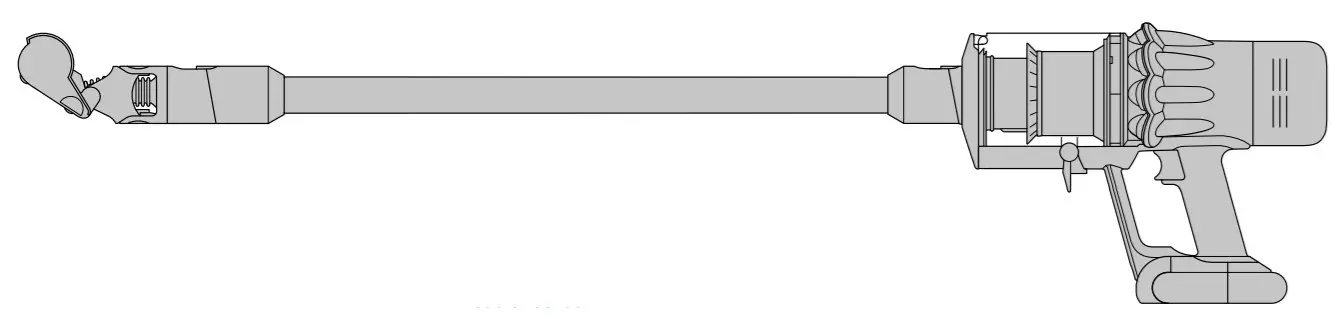
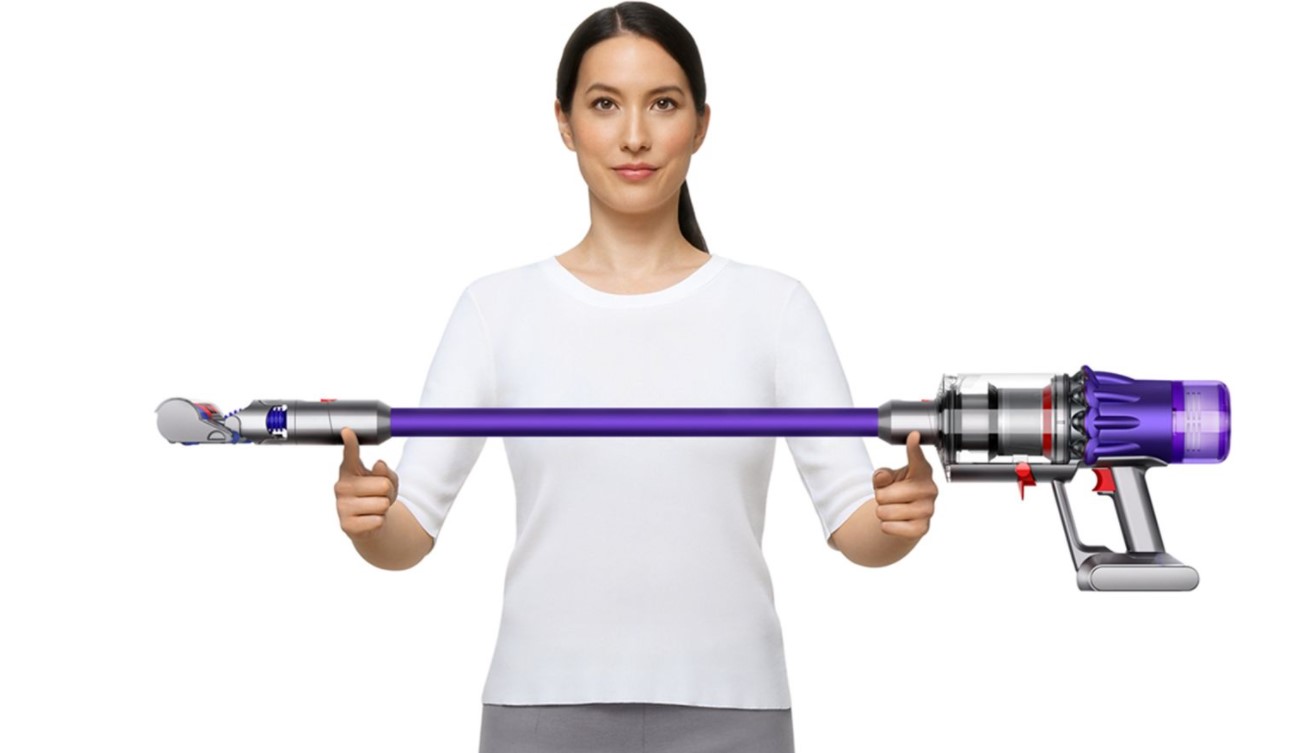
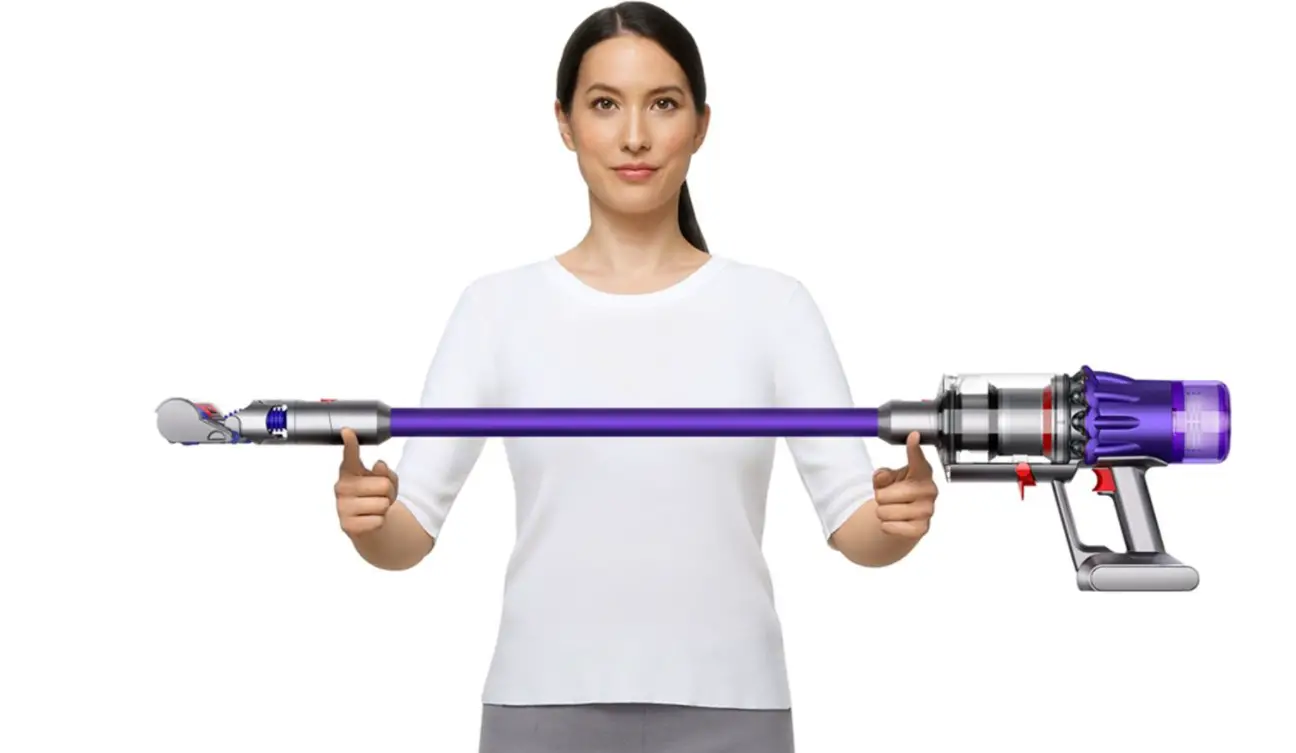
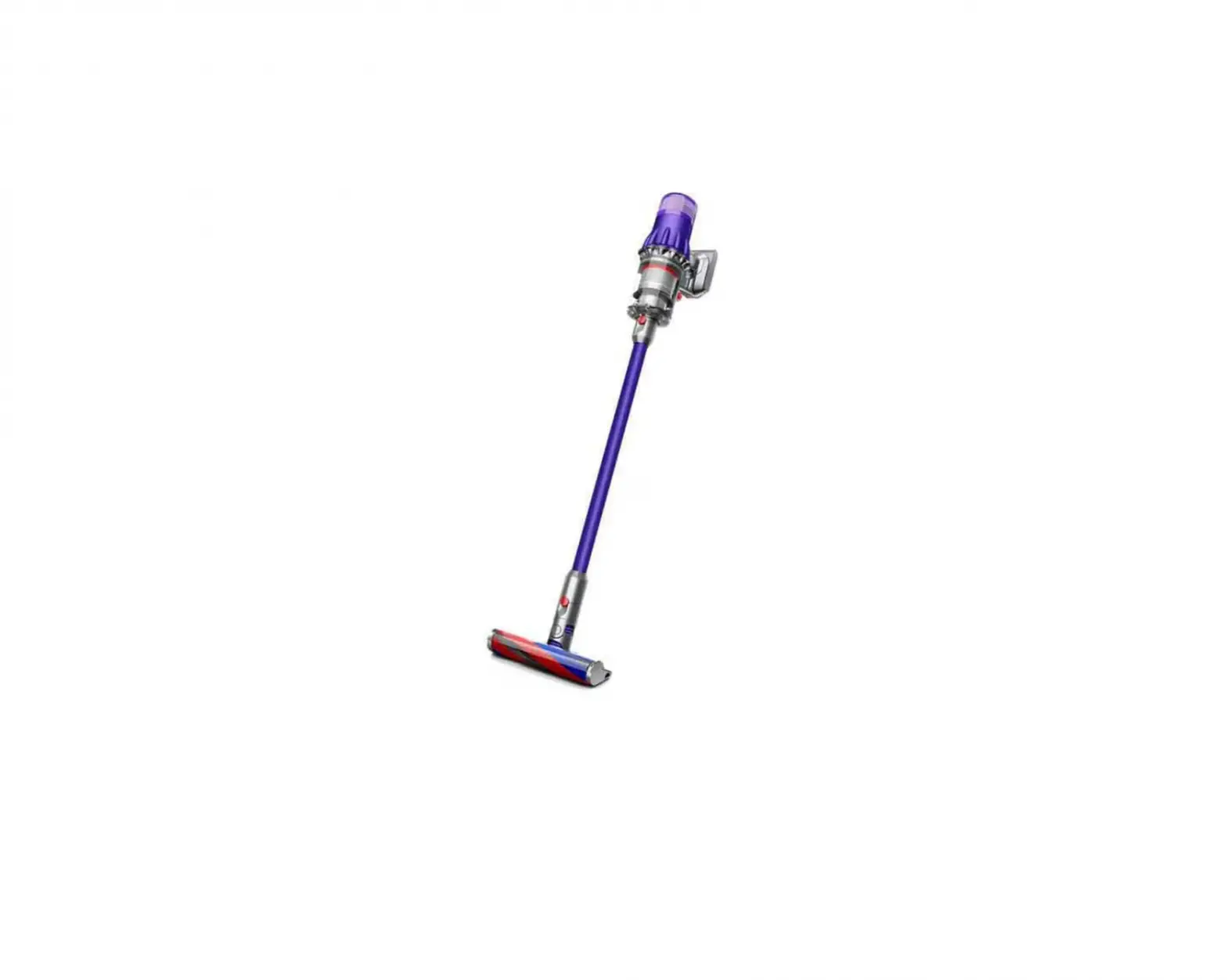
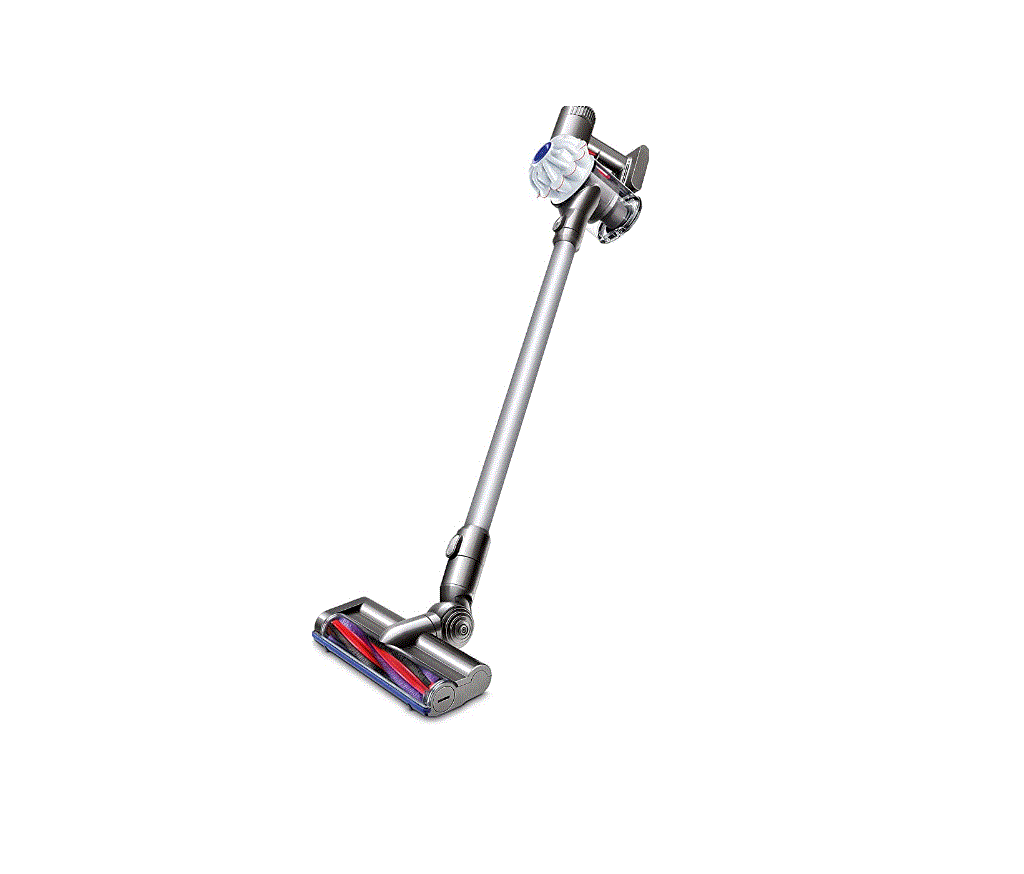
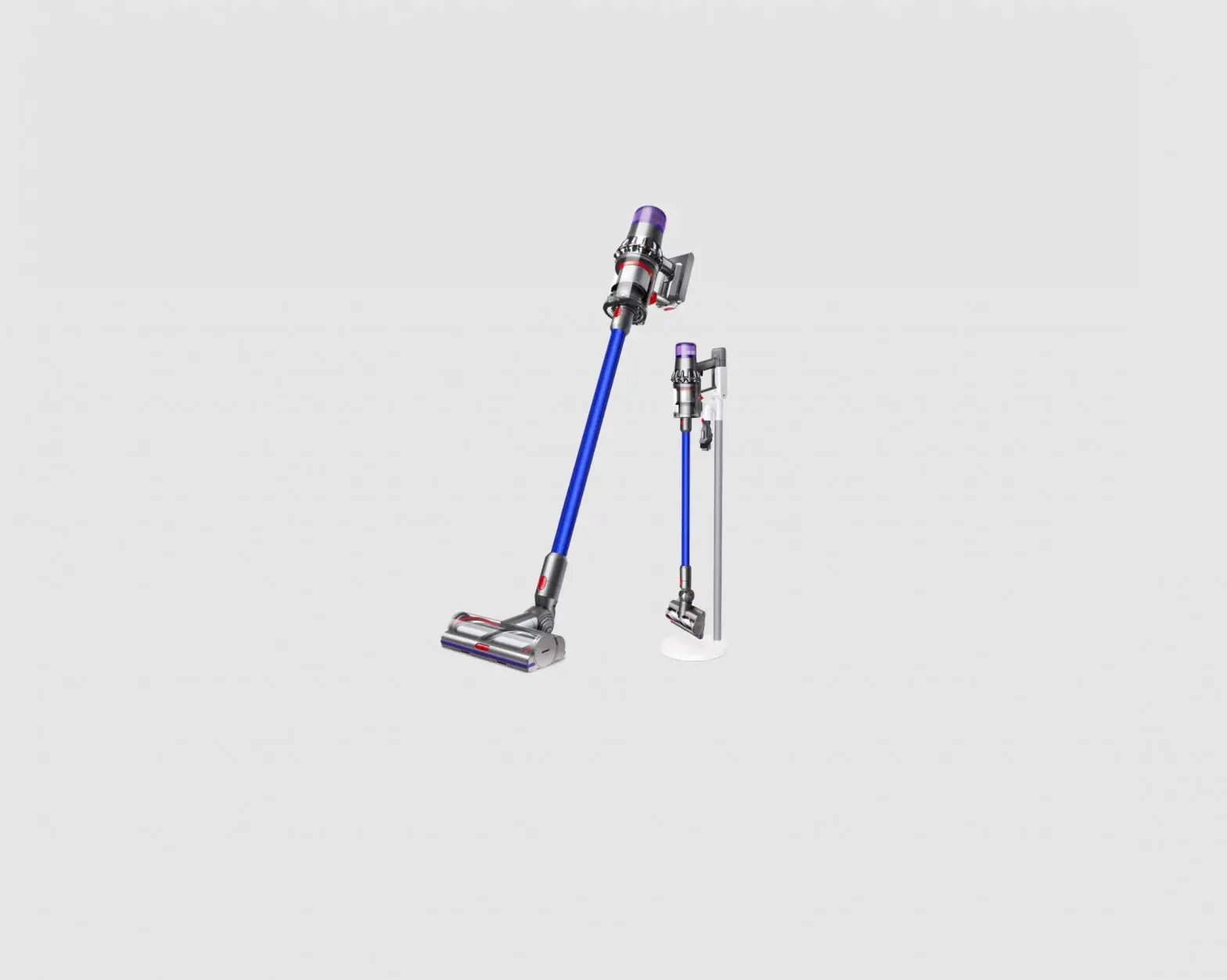
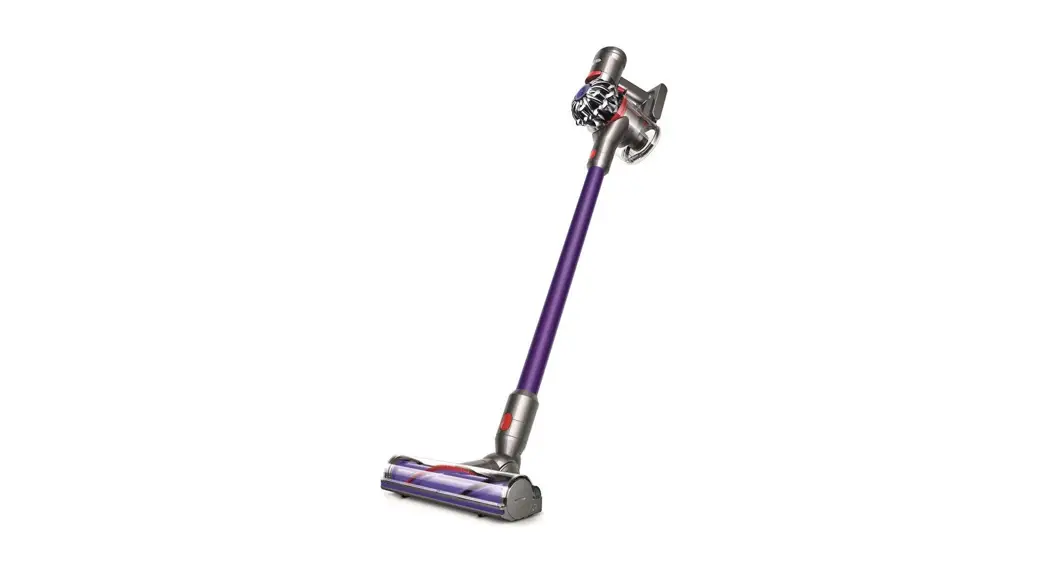
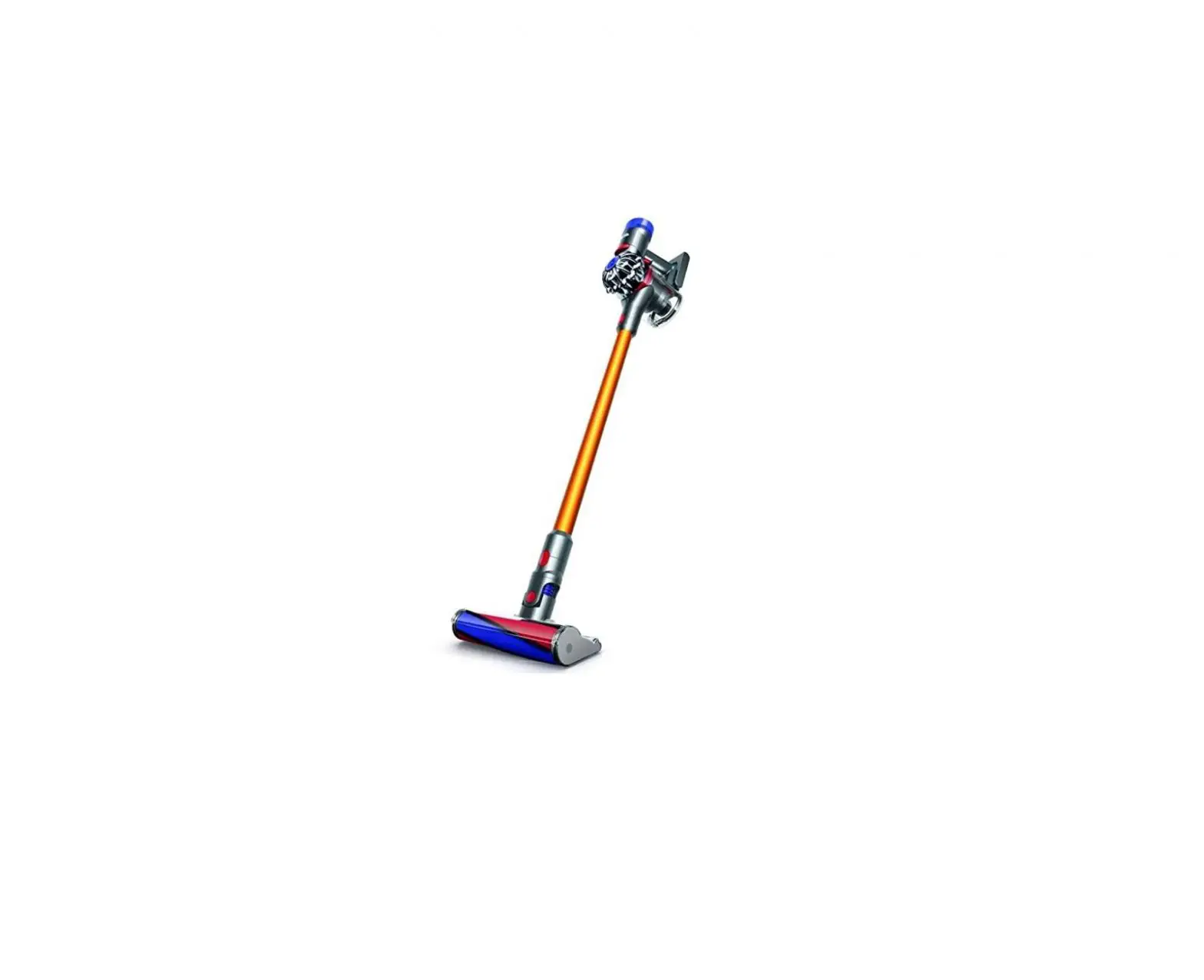
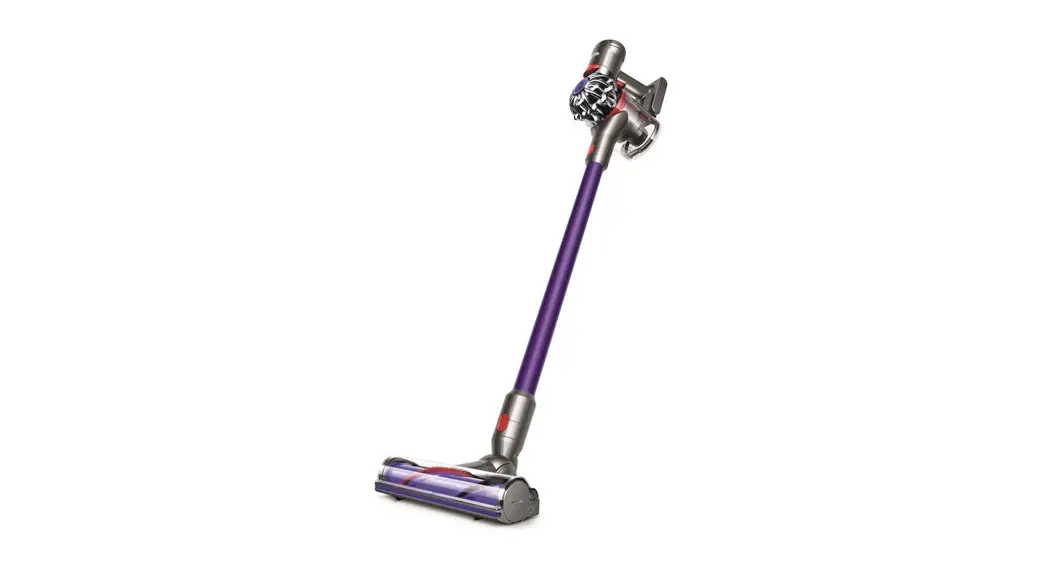
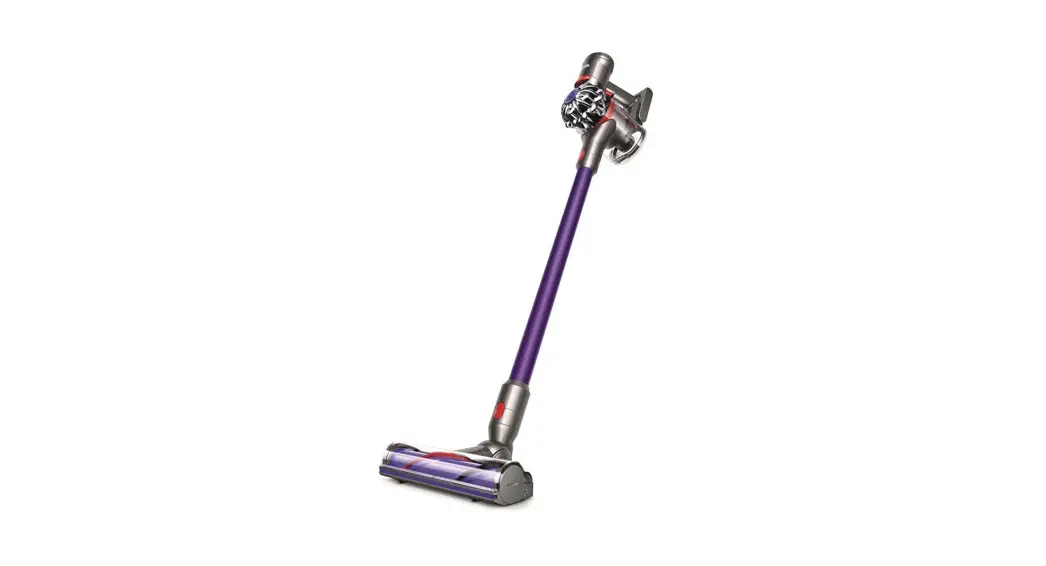
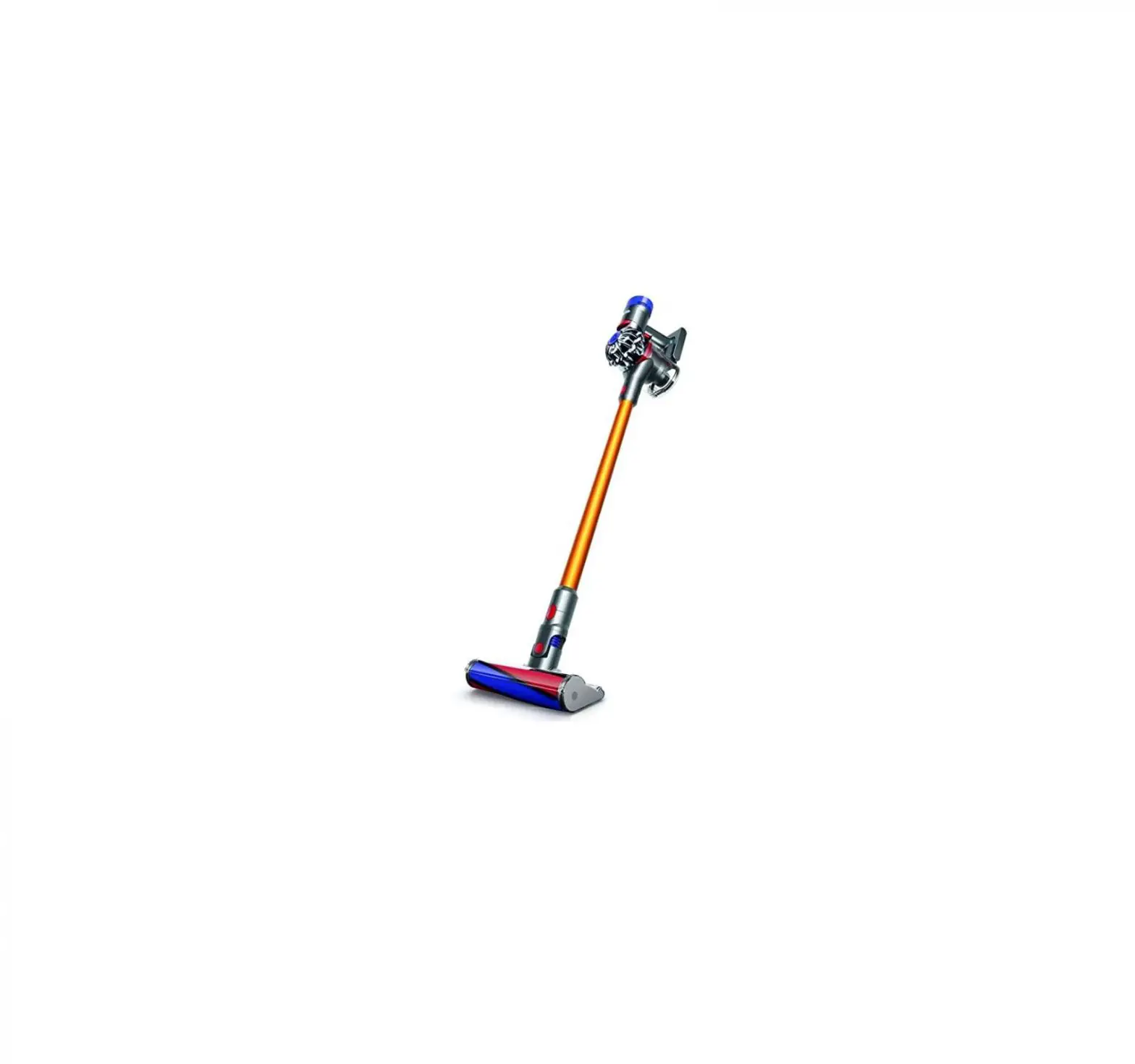
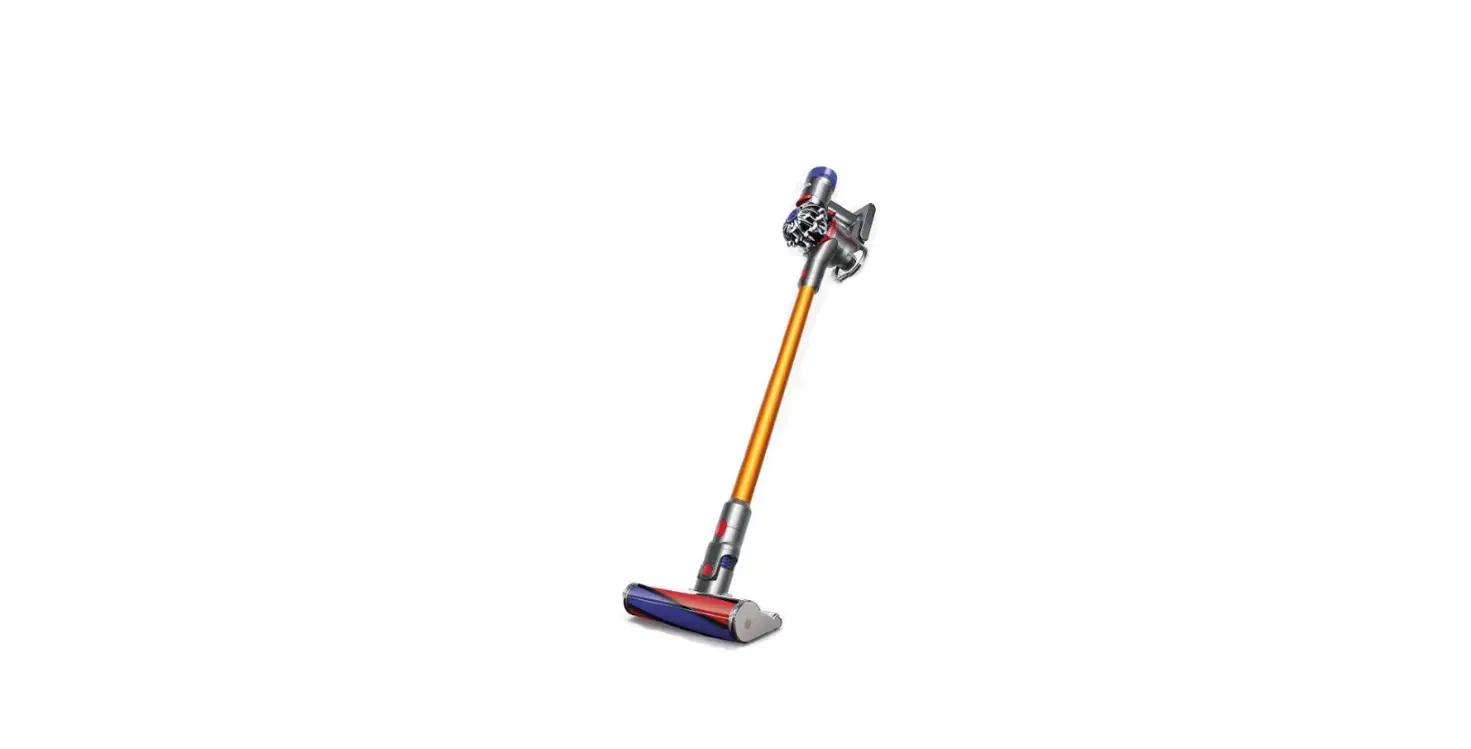
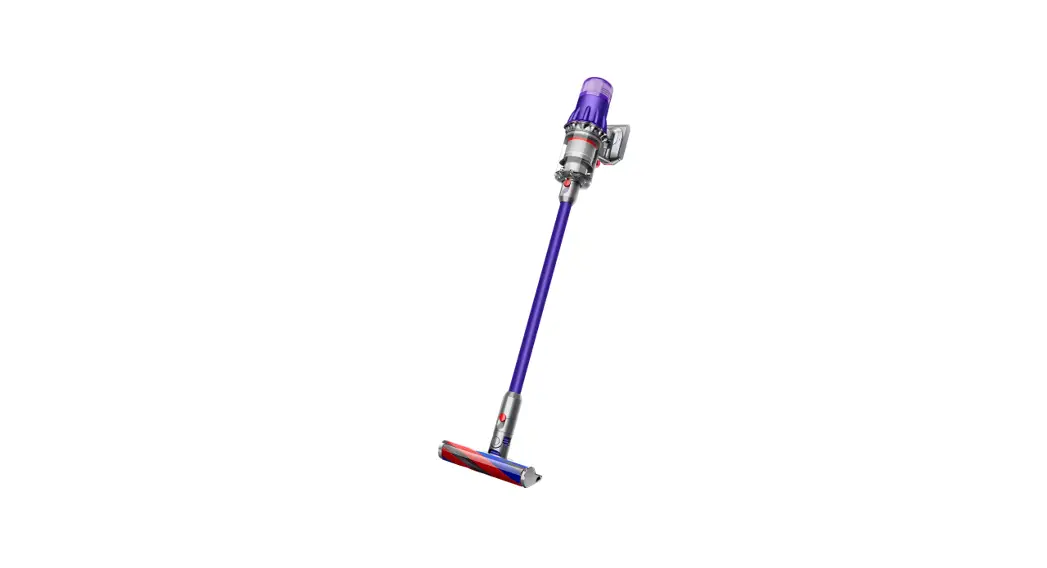
The Dyson cordless vacuum cleaner in a horizontal position with the wand and cleaner head attached.
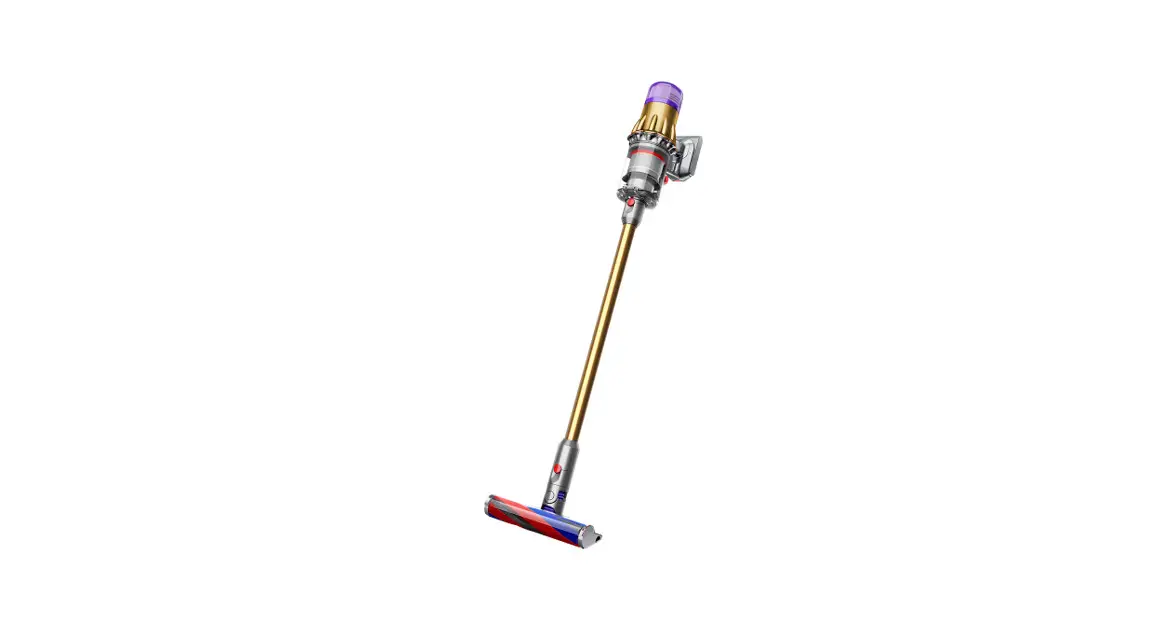
In the box
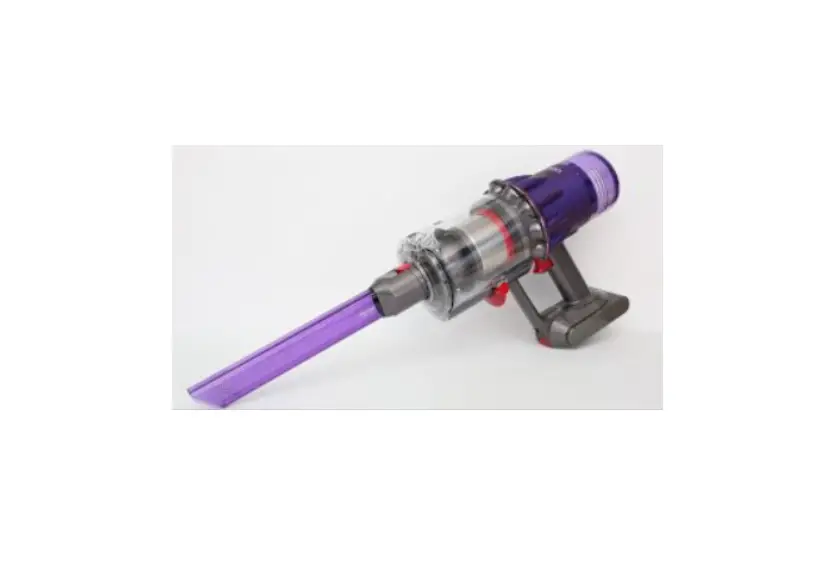
Main body showing the handle and bin attached.
A soft fluffy brush bar is housed within the cleaner head. There is an electrical connecter end that can attach to the end of the wand or directly to the machine.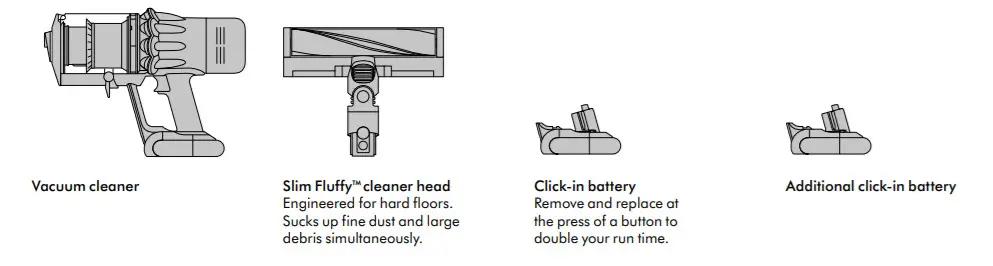
A charger is a one-piece unit with the plug, connector end, and cable.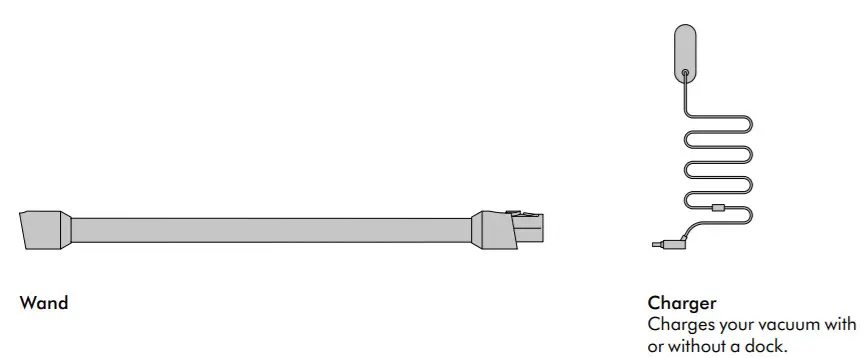
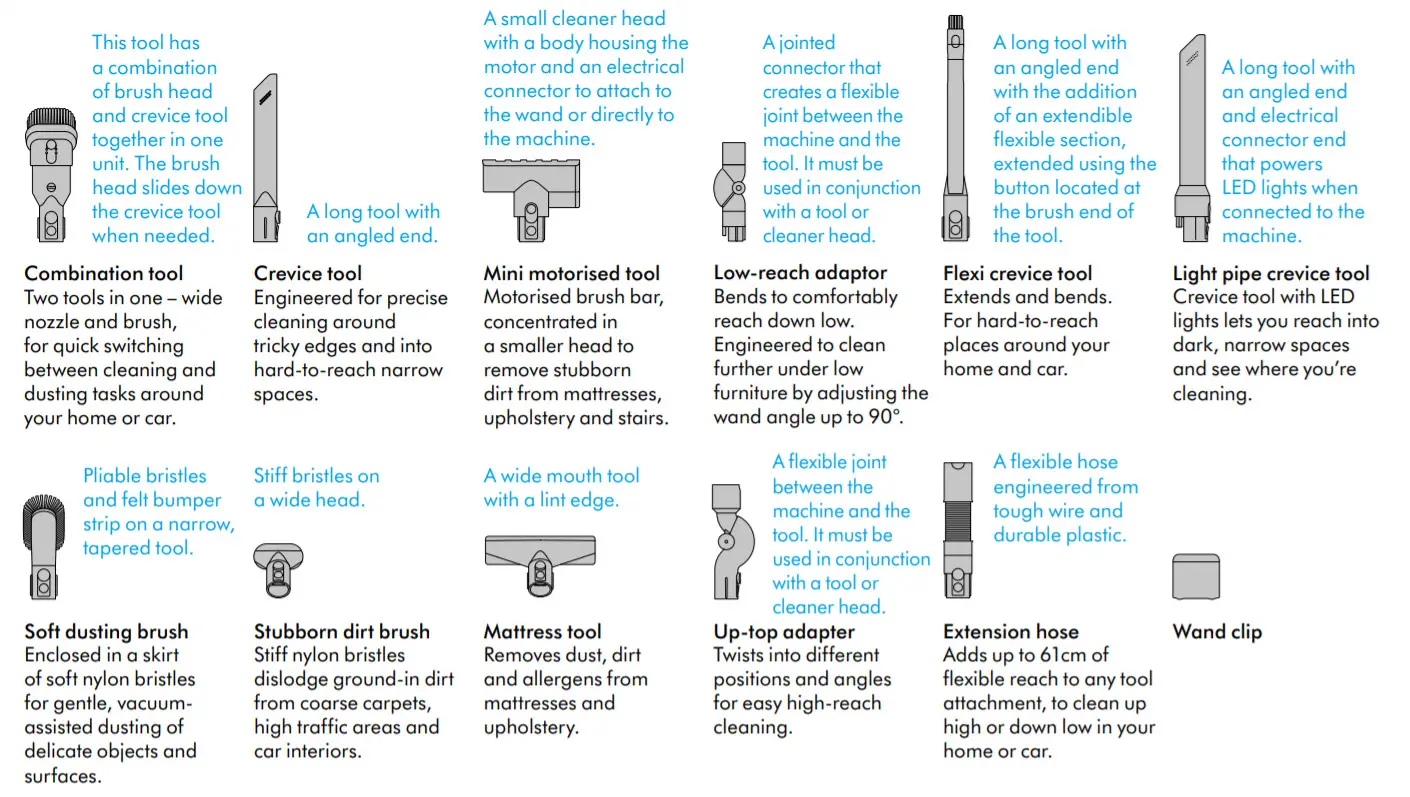
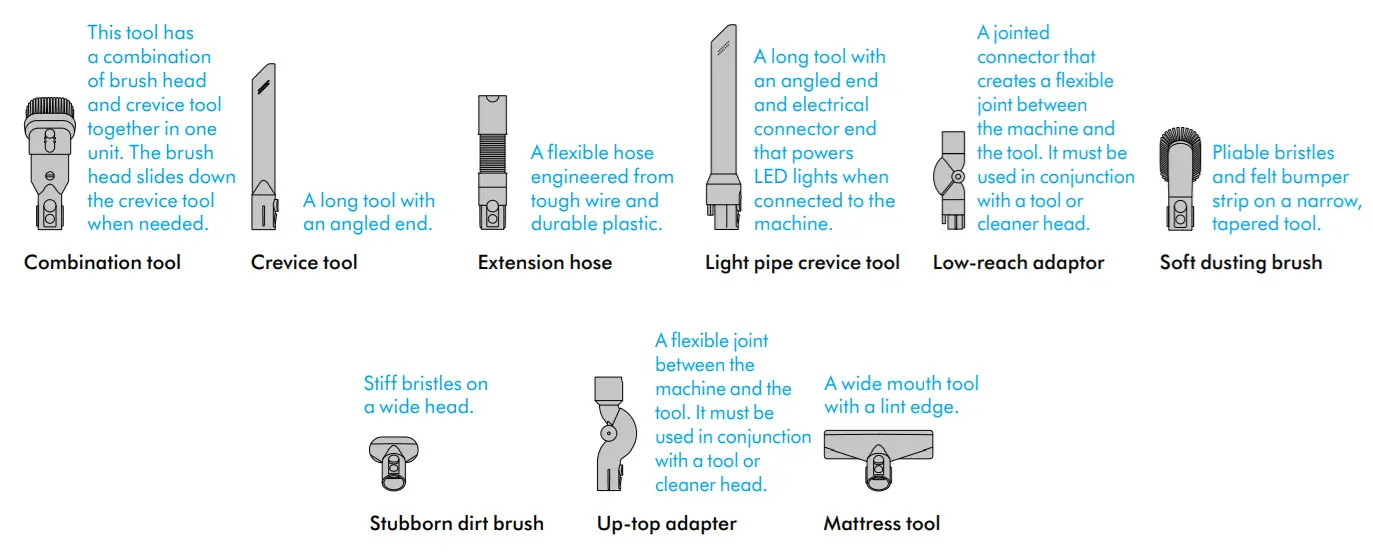
Some tools may not be included.
You can buy additional tools at www.dyson.vn.
Getting started
Fully charge your machine before using for the first time.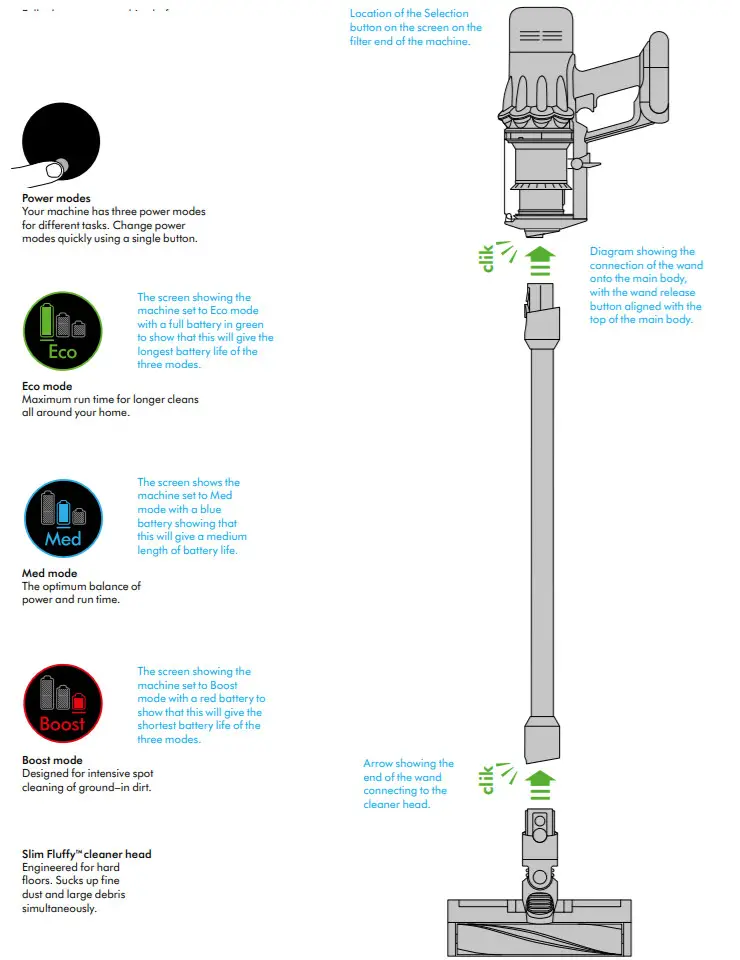
Charging your machine
It’s important to fully charge your new machine before using it for the first time and after every clean. This is because the battery and monitoring
system’s algorithm ‘learns’ over time, and fully charging your machine helps it to more accurately calculate and display the remaining run time.
Connect to the charger either directly or in the dock.
The blue LEDs on either side of the battery will flash during charging.
When the battery is fully charged, both LEDs will light for 5 seconds.
Your battery is fully charged when the display shows 100%.
Your machine won’t operate or charge if the ambient temperature is below 5°C(41°F). This is designed to protect both the motor and battery.
You can help prolong the battery life by leaving your machine to cool down before recharging.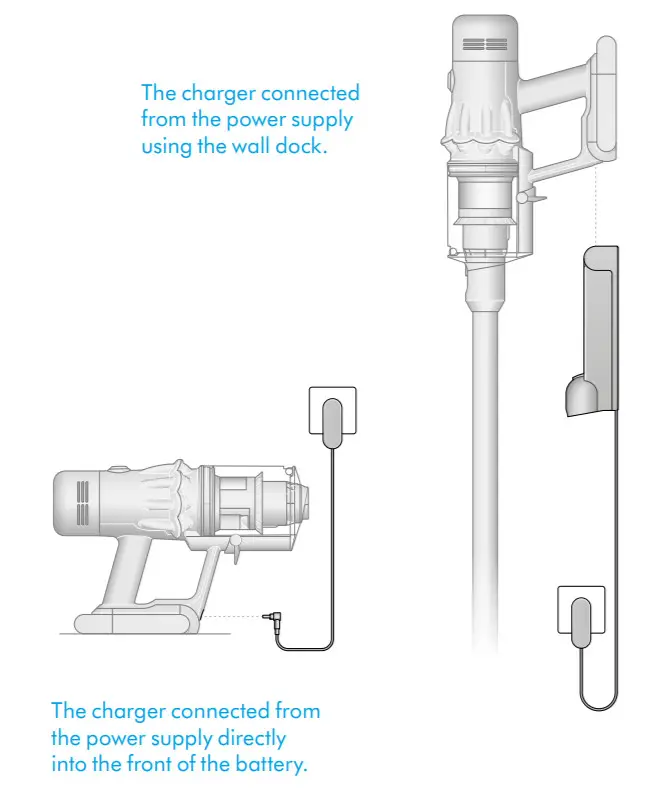
Changing your click-in battery
If you have additional click-in batteries, we recommend that you alternate the batteries to maintain even performance.
Removing your battery
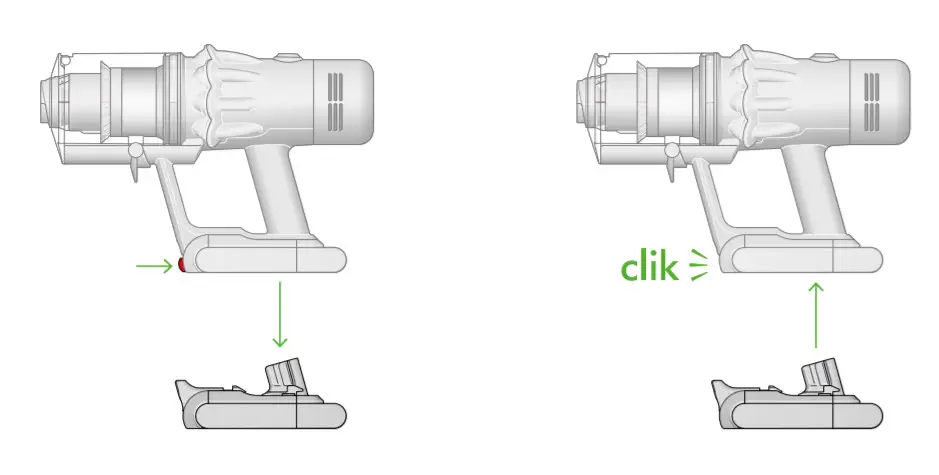
Push the Battery release button on the handle and slide the battery off your machine.
Charge the battery.
Refitting your battery
Align your battery with the handle and slide it in. Push firmly until it clicks into place.
Arrows show the location of the battery release button and the battery coming off the handle when the button is pressed.
The battery is then shown being replaced on the base of the handle, clicking into place.
Caring for your floors
Check that the underside of the cleaner head or tool is clean and free from any objects that may cause damage.
Before vacuuming your flooring, rugs, and carpets, check the manufacturer’s recommended cleaning instructions.
The brush bar on your machine can damage certain carpet types and floors.
Some carpets will fuzz if a rotating brush bar is used when vacuuming. If this happens, we recommend vacuuming without the motorized floor tool and consulting with your flooring manufacturer.
The LCD screen
The LCD screen shows current performance, including selected cleaning mode, remaining run time, filter maintenance and blockage reports.
Settings menu
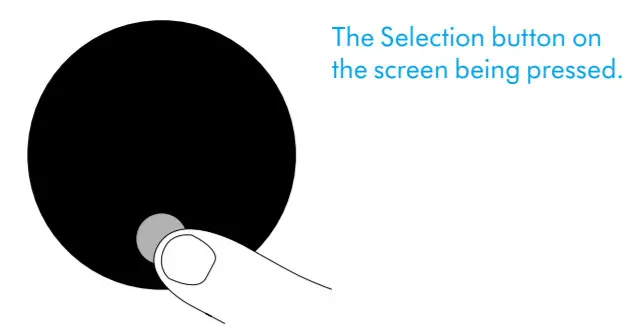
Control the settings on your machine using the button.
To enter the settings menu, press and hold the button until the menu screen appears. Tap to scroll through the options available.
For more information and support for your machine go online: https://www.dyson.vn/en-VN/support/contact-us.
Change language
To change the language on your screen, press the button and hold until the language list appears. Release the button.
Tap the button to scroll through the language list to your preferred language.
Press and hold the button until the countdown ends.
A green tick will appear on the screen to show your language selection is complete.
To cancel your selection, release the button during the countdown.
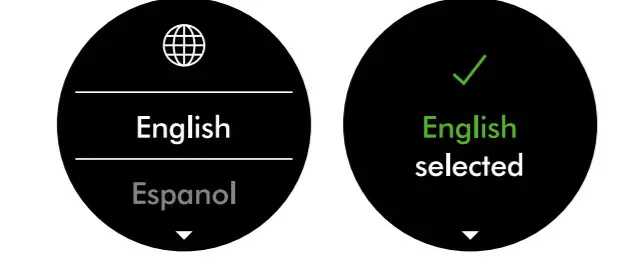
Two screens, the first with the language list and then the tick screen to show that the language has been successfully changed.
Change alert settings
You can turn the alert motor pulse off. Your motor will no longer pulse but run time alert information will continue to be displayed on the LCD screen
when your machine needs your attention.
Turning off alerts will not turn off the blockage alert pulsing. This is to ensure you clear any blockages, preventing damage to your machine.
Tap to scroll through the settings menu. Select the ‘Alerts’ option.
Scroll to select on or off. Hold the button until the countdown ends and a tick appears on the screen. To cancel your selection, release the button during the countdown.
The screen with an amber warning triangle to demonstrates an alert.
Run time countdown
When the battery needs charging, your machine will pulse three times and a low run time icon will appear on the screen.
When your battery is empty, a red warning icon will appear on the screen.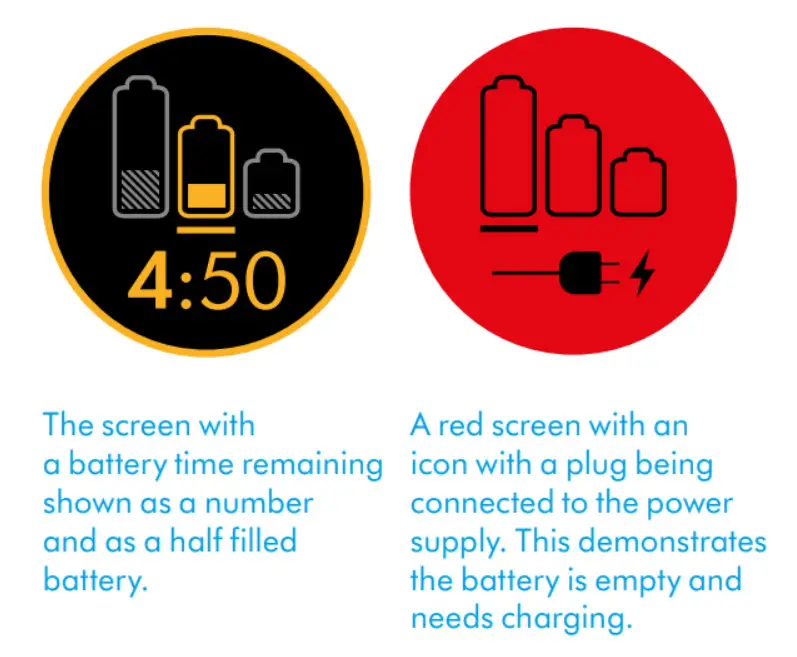
Battery health
To get the best performance and life from your battery, use Eco or Med mode.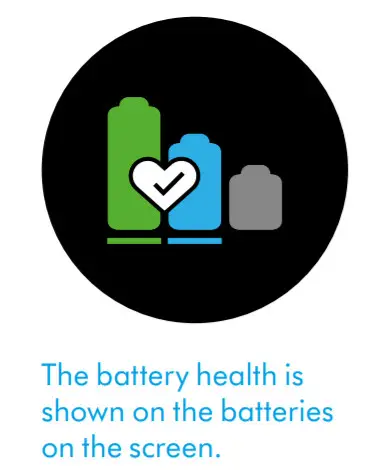
Alerts
The alerts you might see are:
Filter – the filter isn’t fitted correctly or needs cleaning.
Blockage – your machine has a blockage that needs removing.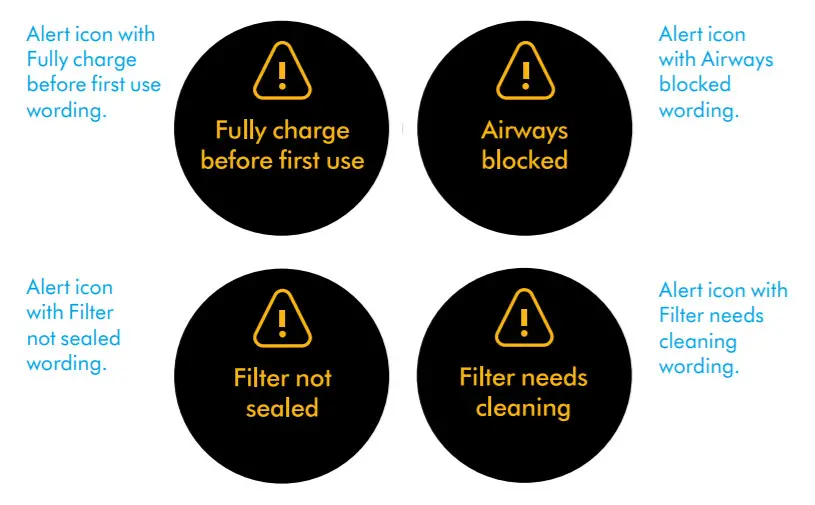
Exit settings menu
To exit the settings menu. Tap to scroll through the selection menu.
Select ‘Exit menu’.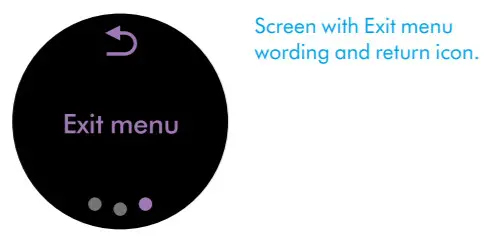
Emptying your bin
Empty as soon as the dirt reaches the MAX level – don’t overfill. Using your machine, when the dirt is above the MAX line, may affect the performance and require more frequent filter washing.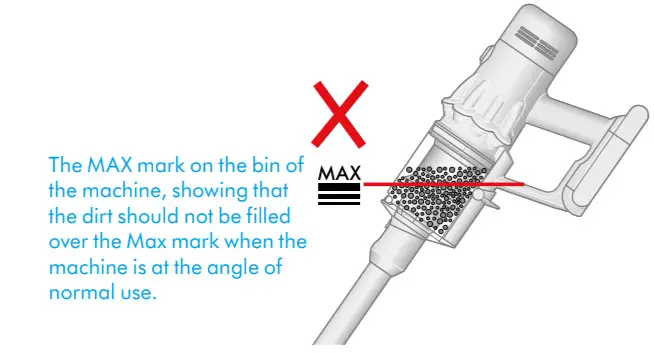
Remove your wand
Press the red wand release button, on the top of the wand, and pull the wand away from the bin.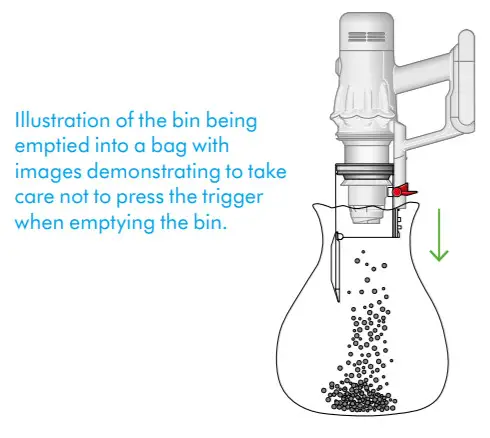
Release the dirt
Hold the machine over the bin, pointing downwards.
Firmly push the red bin release button. The bin will slide down, cleaning the shroud as it goes, and the bin base will open.
The bin base won’t open if the red bin release button isn’t pushed down all the way.
Minimize dust contact
Cover your bin tightly in a dust-proof bag while you empty. Remove the bin carefully, seal the bag tightly and dispose of.
Close your bin
Push the bin base upwards until the bin and bin base click into place.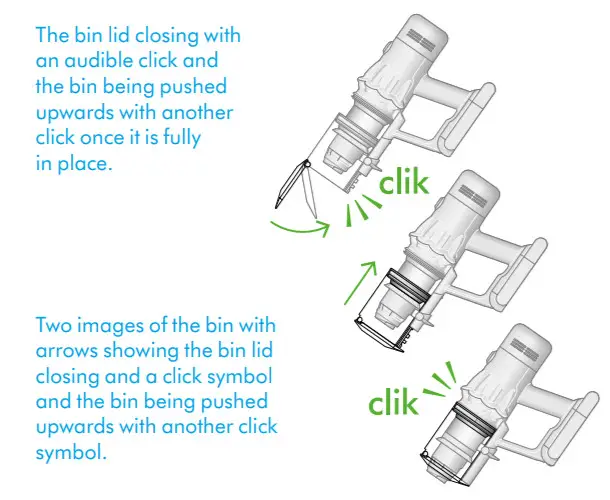
Cleaning your bin
Remove your bin
If it is necessary to clean your bin, empty it as shown in the ‘Emptying your bin’ section.
Press the red button located on the bin runner to release the bin and slide your bin off the runner.
Only clean your bin with a damp cloth.
Make sure that the bin and seals are completely dry before replacing.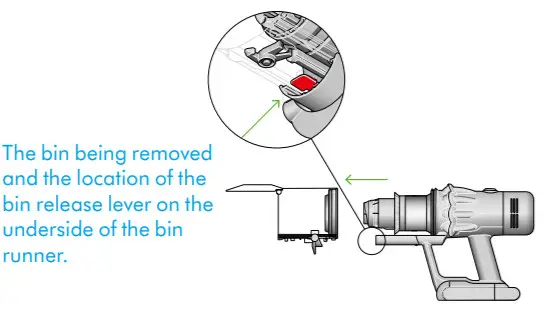
Refit your bin
Insert the spine onto the bin runner.
Close your bin by pushing the bin base upwards until the bin and bin base click into place.
Your bin isn’t dishwasher safe and the use of detergents, polishes, or air fresheners to clean your bin isn’t recommended, as it may damage your machine.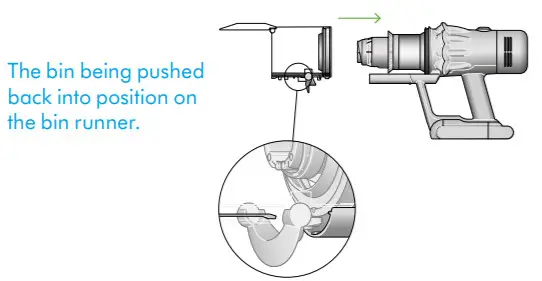
Washing your filter
For more information and support for your machine go online: https://www.dyson.vn/en-VN/support/contact-us.
Wash your filter at least once a month to maintain optimum suction power.
Twist off your filter
Twist your filter anti-clockwise and pull it away from your machine.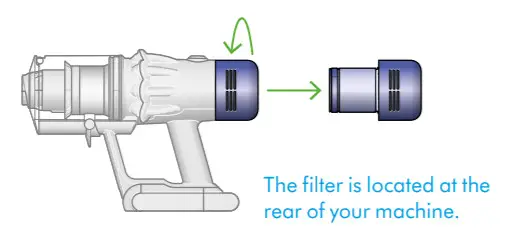
Tap your filter
Before washing your filter, tap it gently over a bin to remove any loose dust and debris.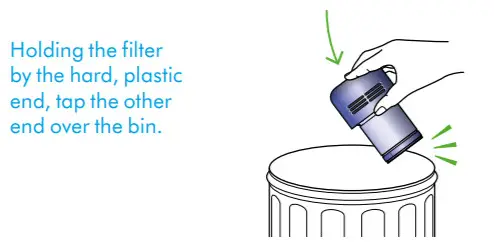
Wash your filter
Wash with warm, running tap water – gently rub your filter with your fingers to remove the dirt.

Fill and shake
Place your hand over one end of your filter.
Fill the filter with warm tap water.
Place your hand over the open end of the filter and shake it firmly to remove trapped dirt and debris.
Repeat these steps until the water runs clear.
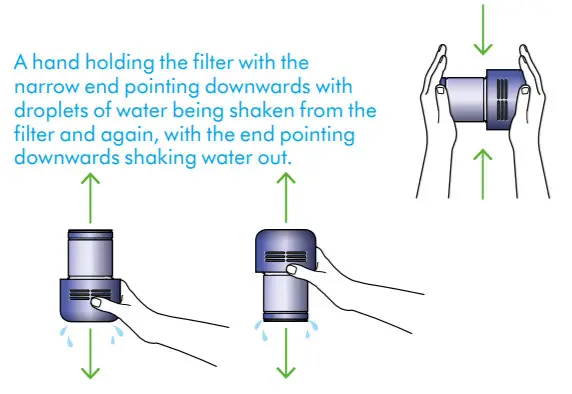
Shake out the water
Empty the filter and shake firmly to remove excess water.
Shake with the filter in both an upward and downward position.
Keep shaking until there’s no water coming from the filter.
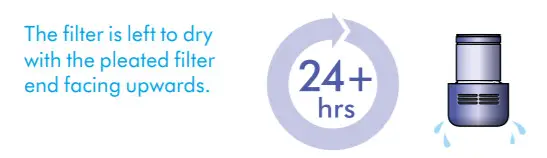
Dry your filter
Leave your filter to dry for at least 24 hours in a well-ventilated, warm place.
Don’t dry your filter in a tumble dryer, microwave or near a naked flame.
Important: your filter must be completely dry before you put it back into the machine. Your machine could be damaged if used with a damp filter.
Clearing blockages
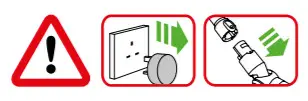
Disconnect your machine from the charger before looking for blockages. Be careful not to touch the trigger and be aware of sharp objects.
Leave your machine to cool down before looking for blockages.
Don’t use your machine when looking for blockages as this could cause injury.
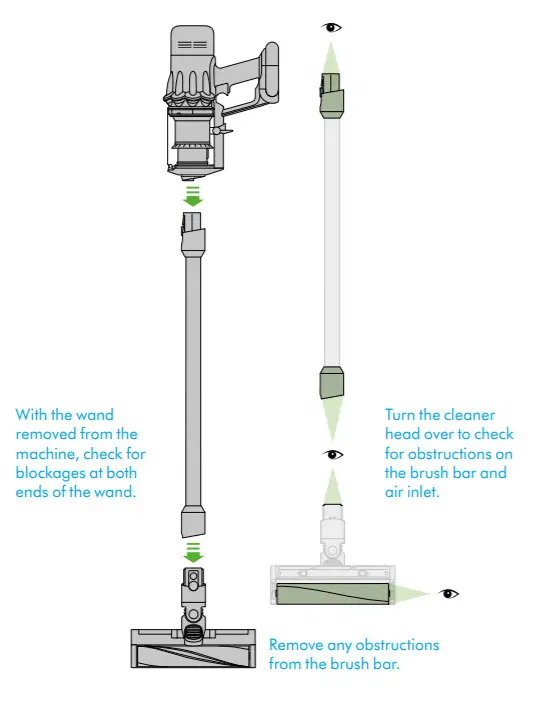
If your machine detects a blockage, the motor will pulse six times. You won’t be able to use your machine until the blockage has been cleared.
If you try to use your machine when the motor is pulsing, it will automatically cut out.
Leave your machine to cool down before looking for blockages and, for your safety, take care not to touch the trigger.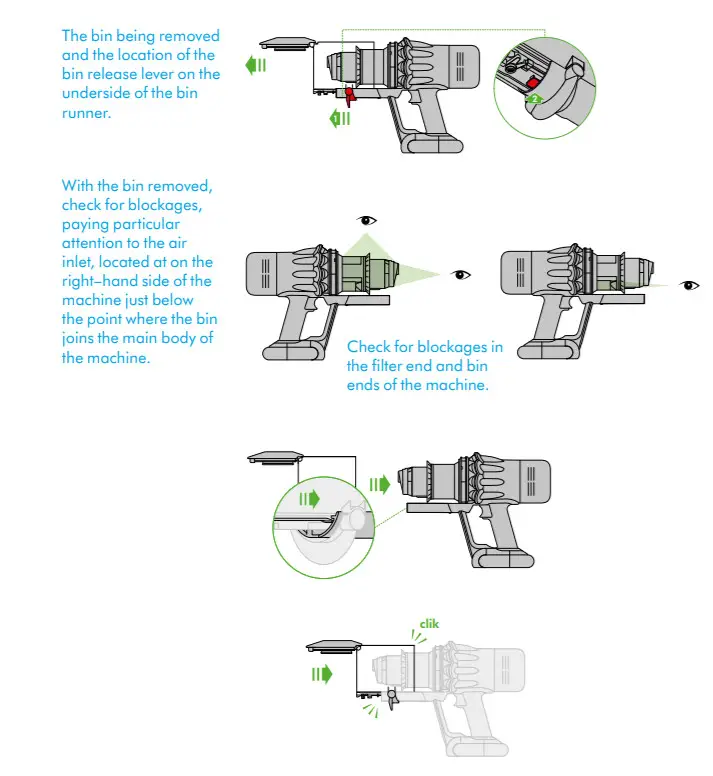
Washing your brush bar
To maintain optimum performance, check and wash the brush bar regularly.
Remove brush bar
Don’t put any part of your machine in a dishwasher or use detergents, polishes or air fresheners.
Press the cleaner head release button to remove it from the wand.
Pull the brush bar off the end cap and put the end cap to one side, don’t wash it.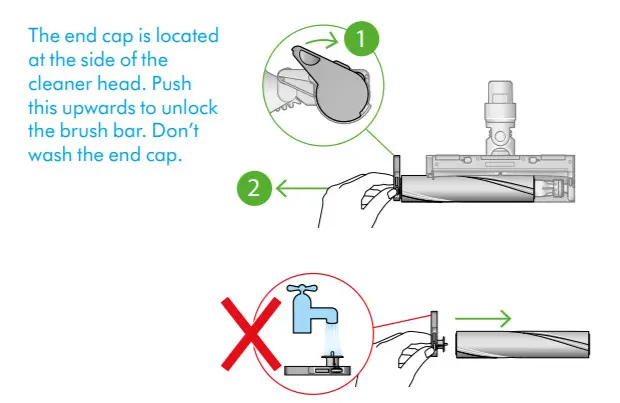
Wash and dry brush bar
Hold your brush bar under cold tap water and gently rub to remove any lint or dirt. Keep washing until the water runs clear.
Stand the brush bar upright and leave for at least 24 hours to dry.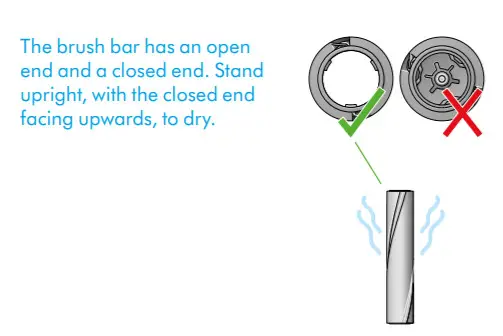
Replace your brush bars
Make sure your brush bar is completely dry before refitting.
Reattach the end cap to the brush bar and slide it back into the cleaner head.
Rotate the end cap until it clips securely back into position.
The cleaner head housing is not washable and should only be wiped over with a damp lint-free cloth.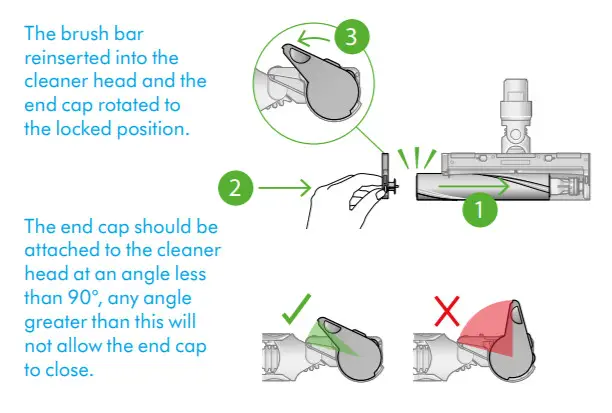
Cleaning your tools
Don’t put any part of your machine in a dishwasher or use detergents, polishes, or air fresheners.
Wipe with a damp, lint-free cloth, without touching the connector end.
Make sure your tools are completely dry before using.
Looking after your machine
To always get the best performance from your machine, it’s important to clean it regularly and check for blockages.
Look after your machine
If your machine is dusty, wipe with a damp lint-free cloth.
Check for blockages in the cleaner head, tools, and main body of your machine.
Wash your filter regularly and leave it to dry completely.
Don’t use detergents or polishes to clean your machine.
Look after your battery
To get the best performance and life from your battery, use Eco or Med mode.
Your machine won’t operate or charge if the ambient temperature is below 5°C(41°F).
This is designed to protect both the motor and battery.
Your serial numbers
You can find your serial numbers on your machine, battery, and charger.
Use your serial number to register.
You can register your machine using the serial number found on the bottom of your machine.
SV12 JN.00000 PN.000000-00-00
00.00.00 VERSION NO.01