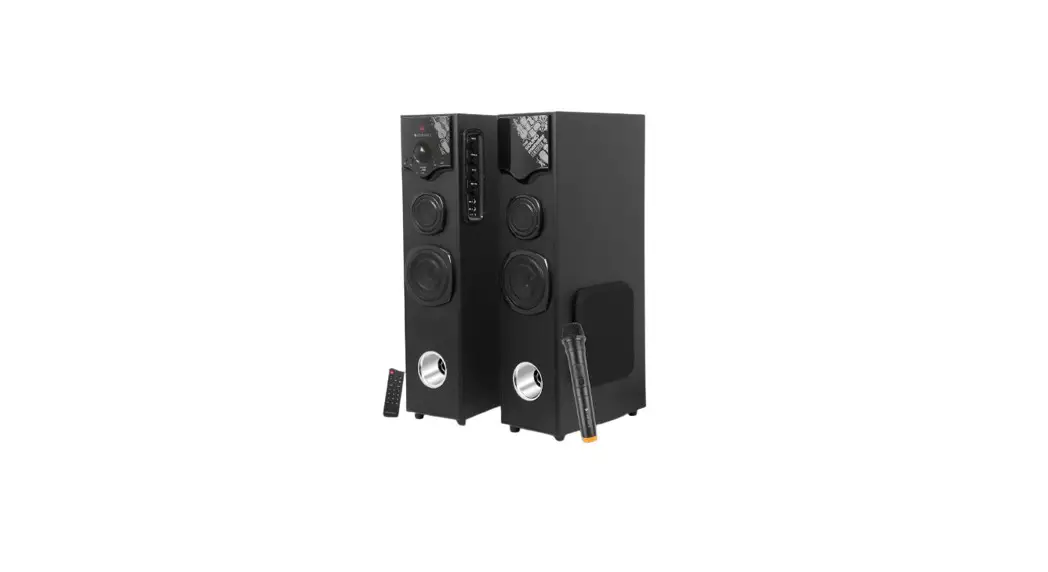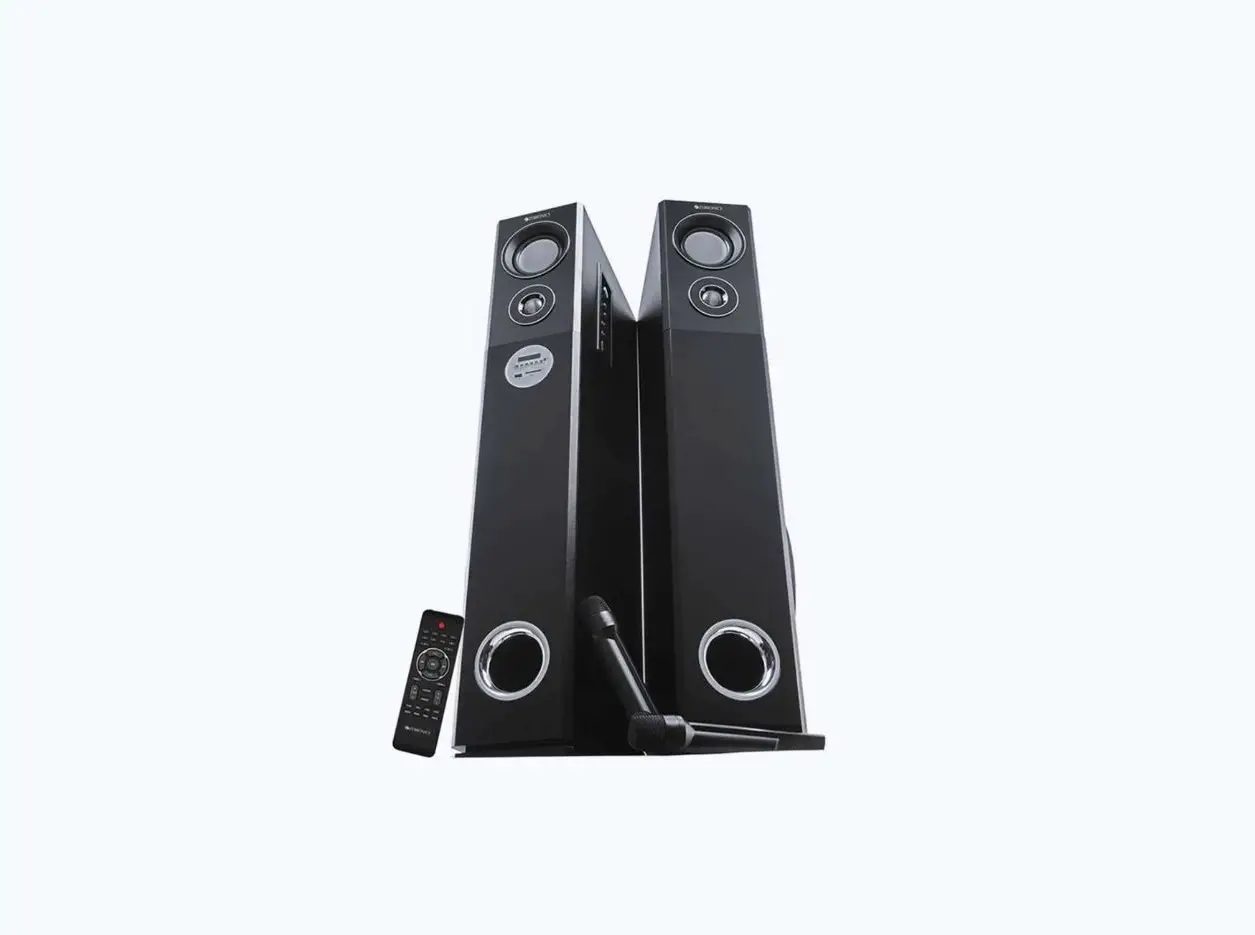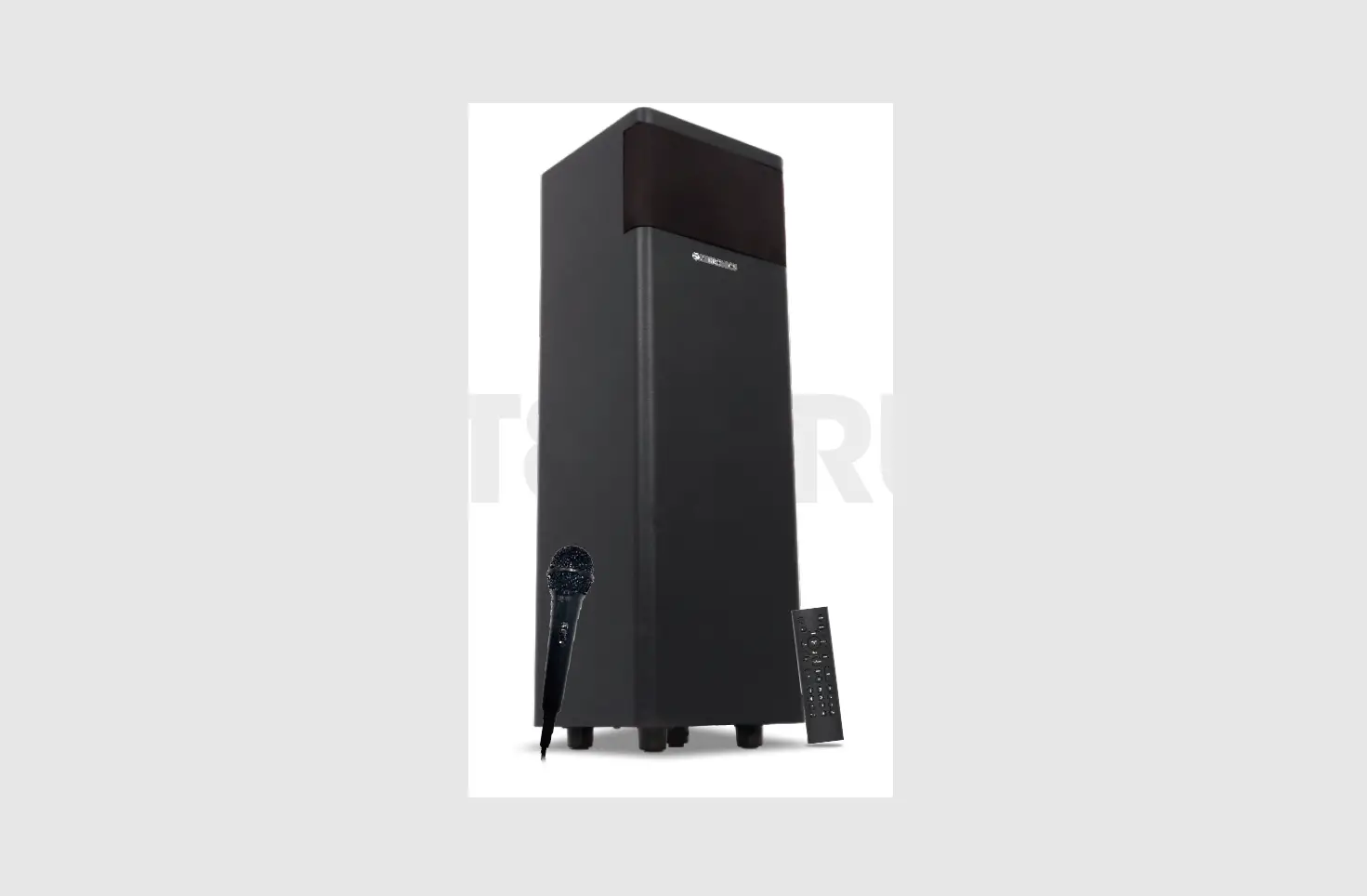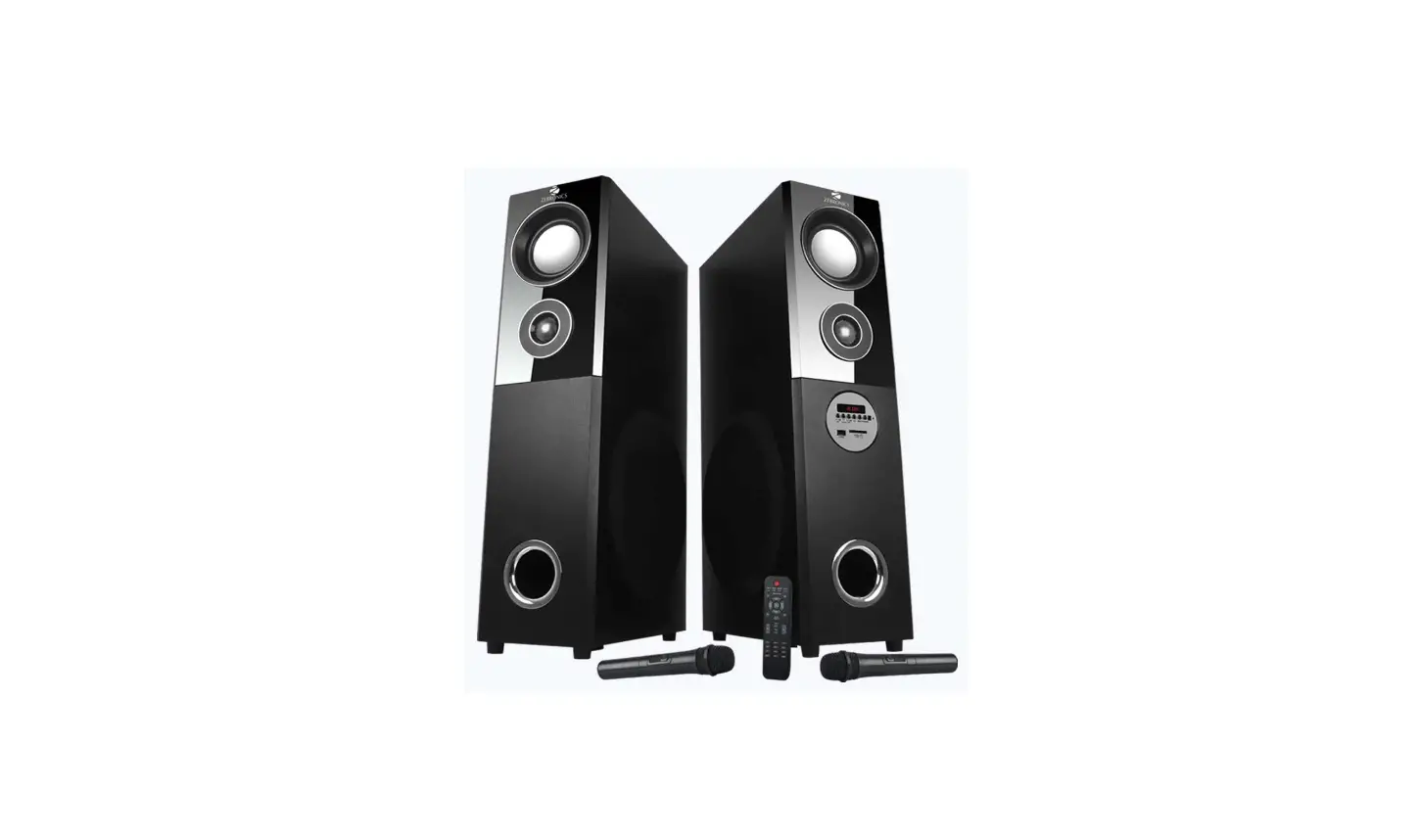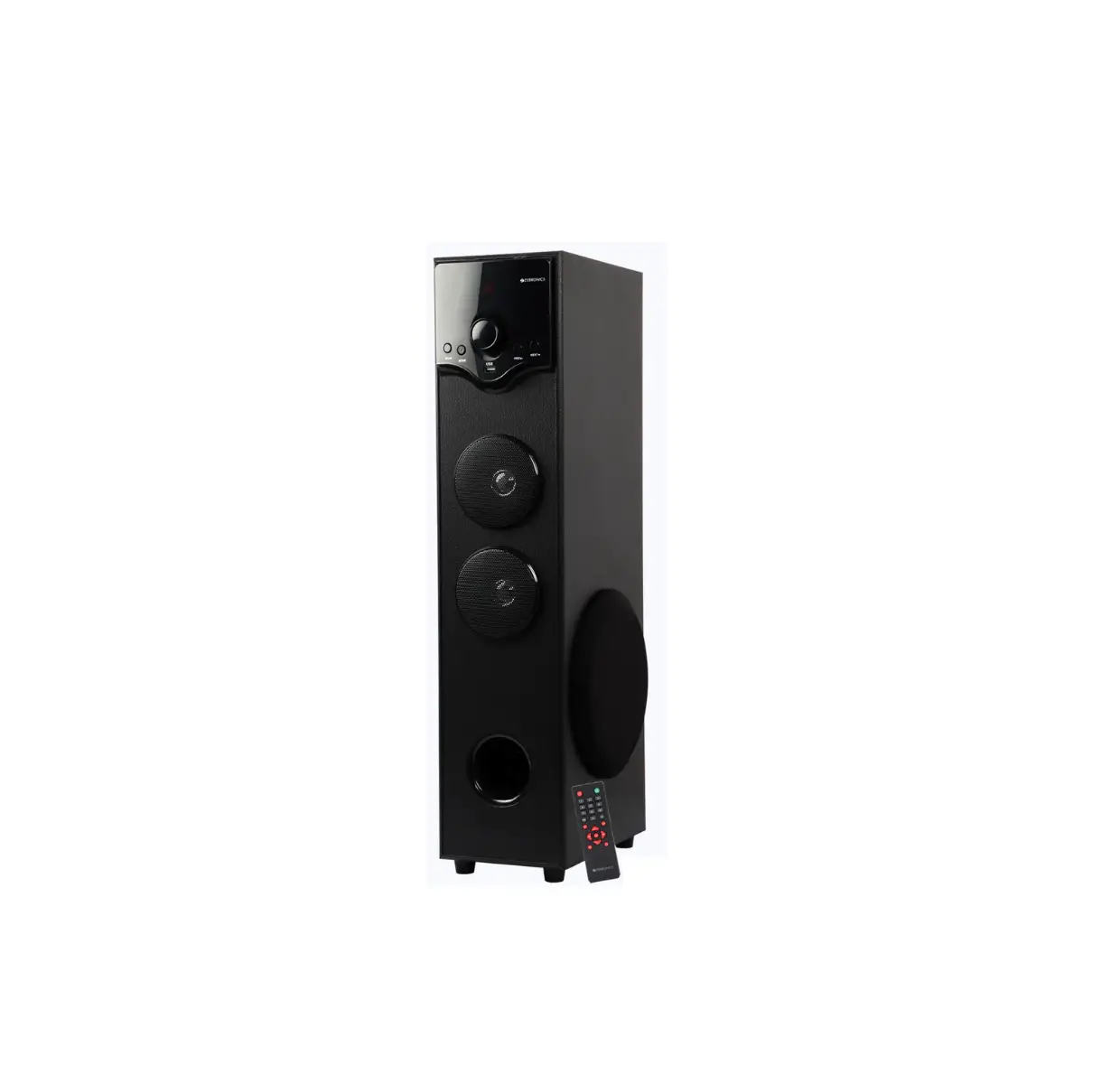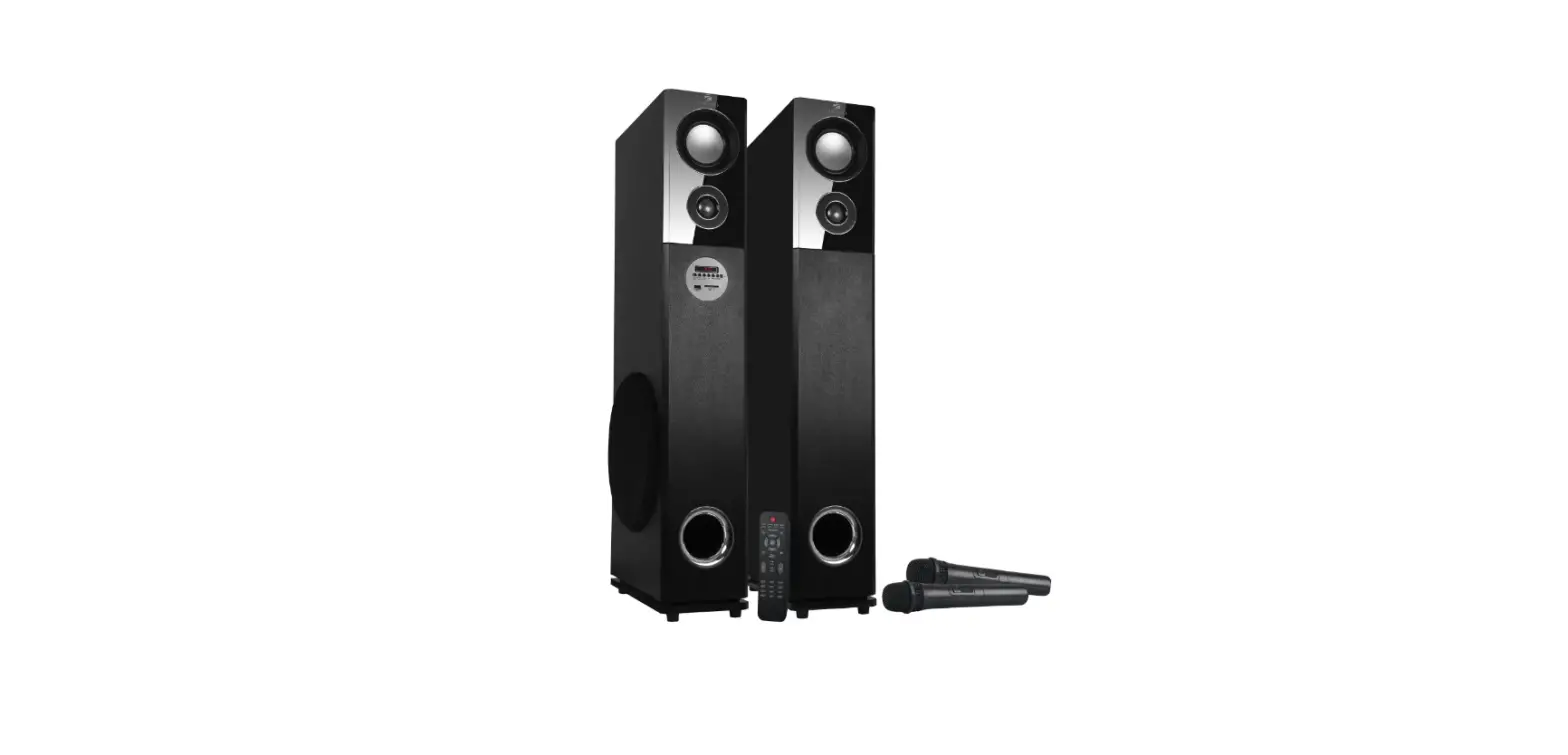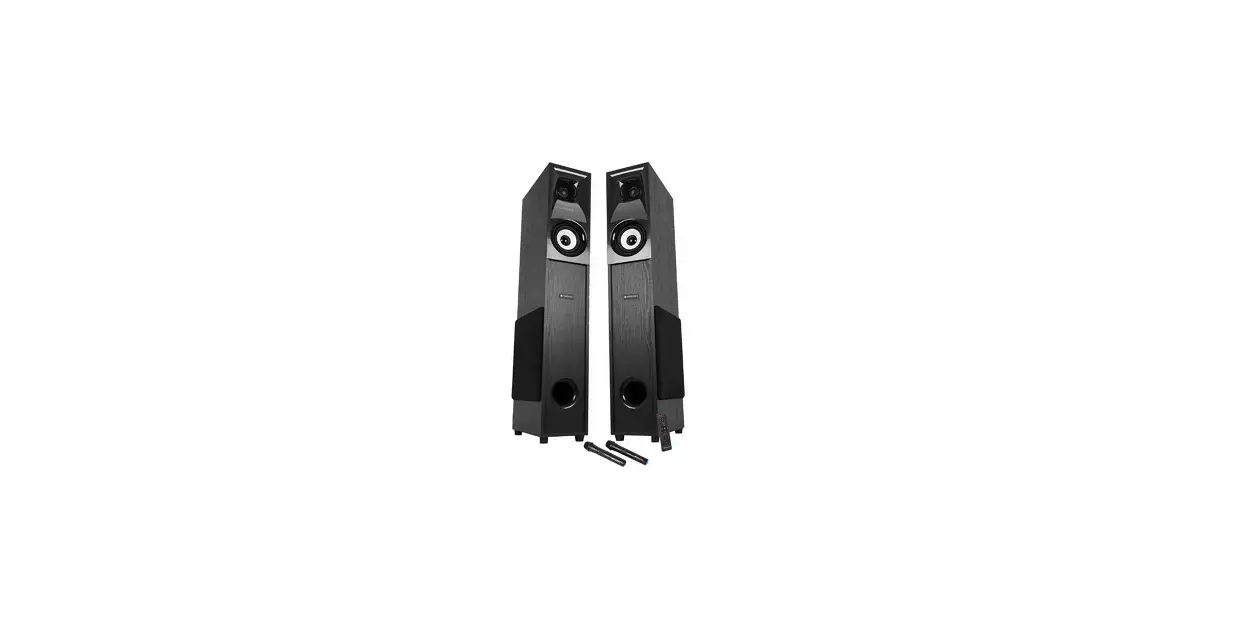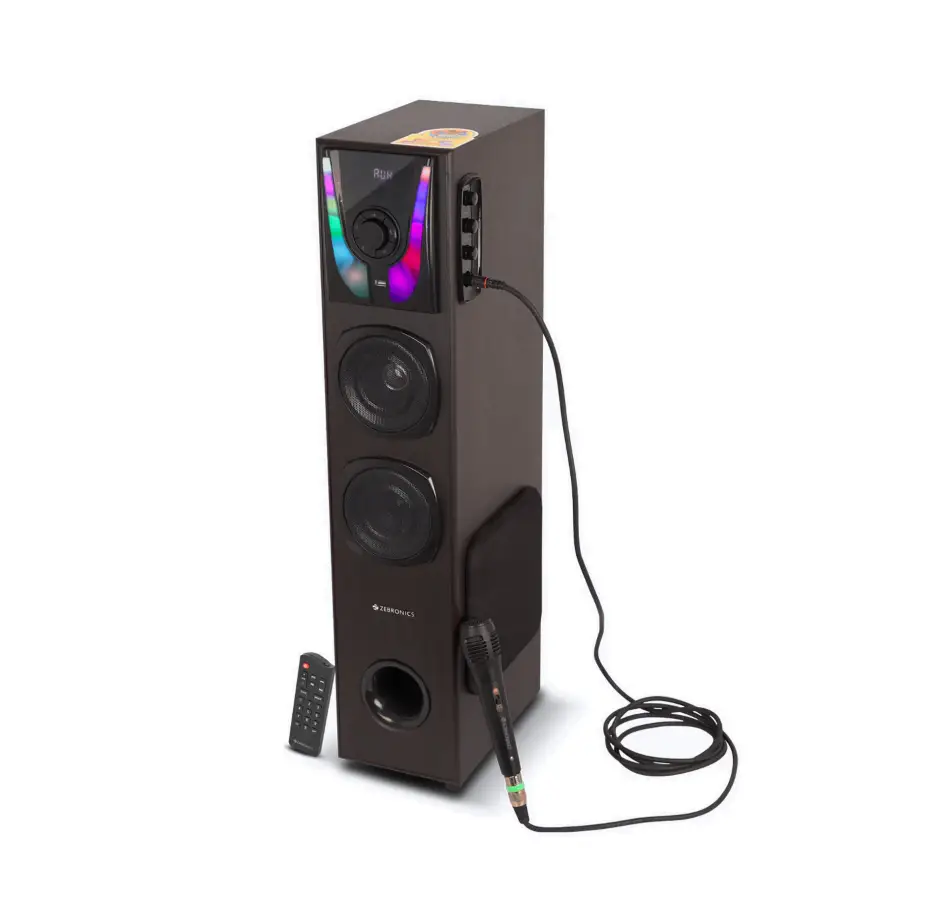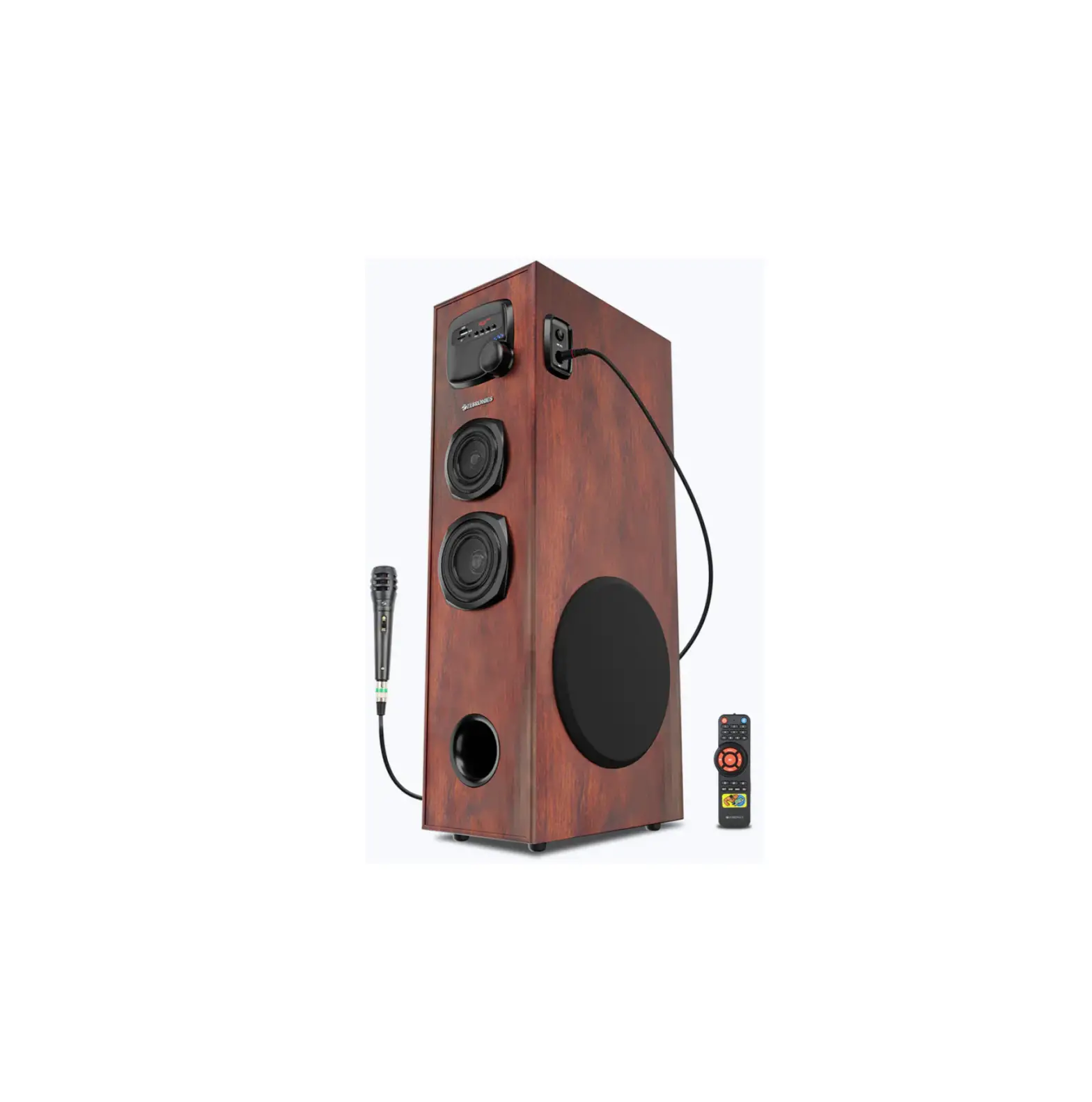
ZEBRONICS ZEB-BT909RUCF Tower Speaker
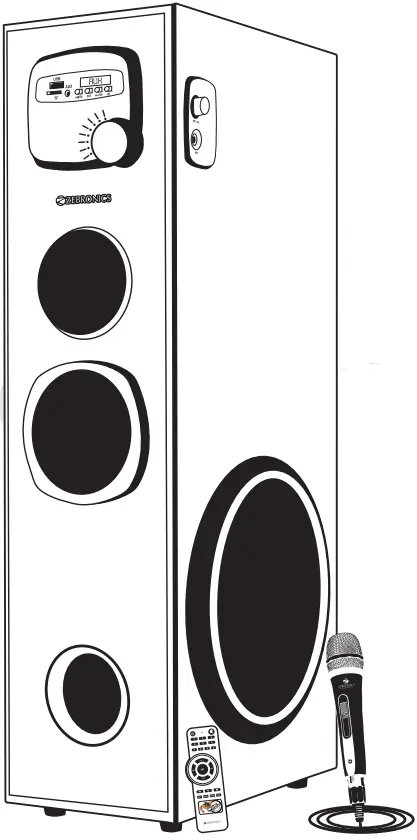
Thank you for purchasing ZEB-BT909RUCF Tower Speaker. Please read the user manual carefully before usage & save it for future reference.
Note:
- Avoid the usage of this product at the high temperature and high humidity environment.
- Avoid the self-disassembly of the product as it results in the failure of Warranty.
Features
- Wireless BT/USB/mSD/FM/AUX/MIC Input
- LED display
- 20.32 cm Subwoofer
- Remote control
- Karaoke
- Wired Mic
- Volume Control with LED Indicator
Specification
| Output Power(RMS) | 80W |
| Driver size | |
| Subwoofer | 20.32cm |
| Mid | 10.16cm |
| Tweeter | 7.62cm |
| Impedance | |
| Subwoofer | 80Ω |
| Mid | 4Ω |
| Tweeter | 4Ω |
| Frequency response | 40Hz-20kHz |
| S/N Ratio | ≤70dBA |
| File format support | MP3 (USB/mSD) |
| Line input | 2ch RCA |
| Max. supported USB/mSD | |
| memory size | 32GB |
| FM frequency | |
| scan range | 88MHz-108MHz |
| BT Name | Zebronics |
| BT version | 5.0 |
| Product dimension (WxDxH) | 195x320x700mm |
Package content
Speaker :1 U
Remote :1 U
Input Cable :1 U
Wired Microphone :1 U
QR Code Guide : 1 U
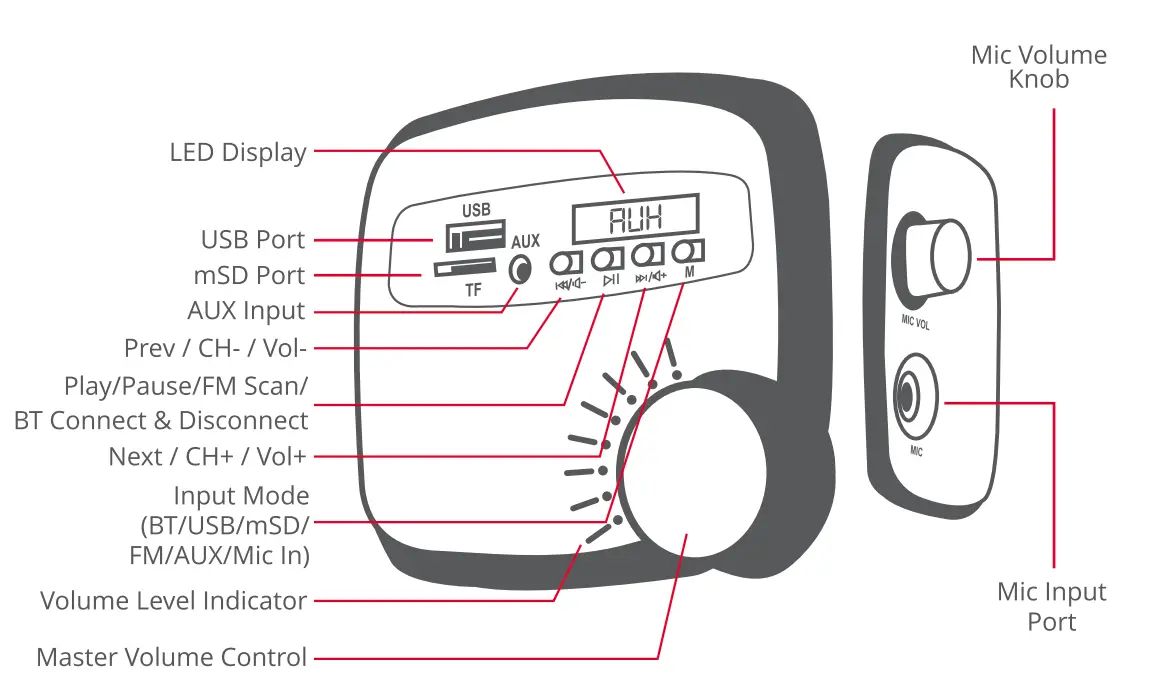
Control Panel Description
Remote Control
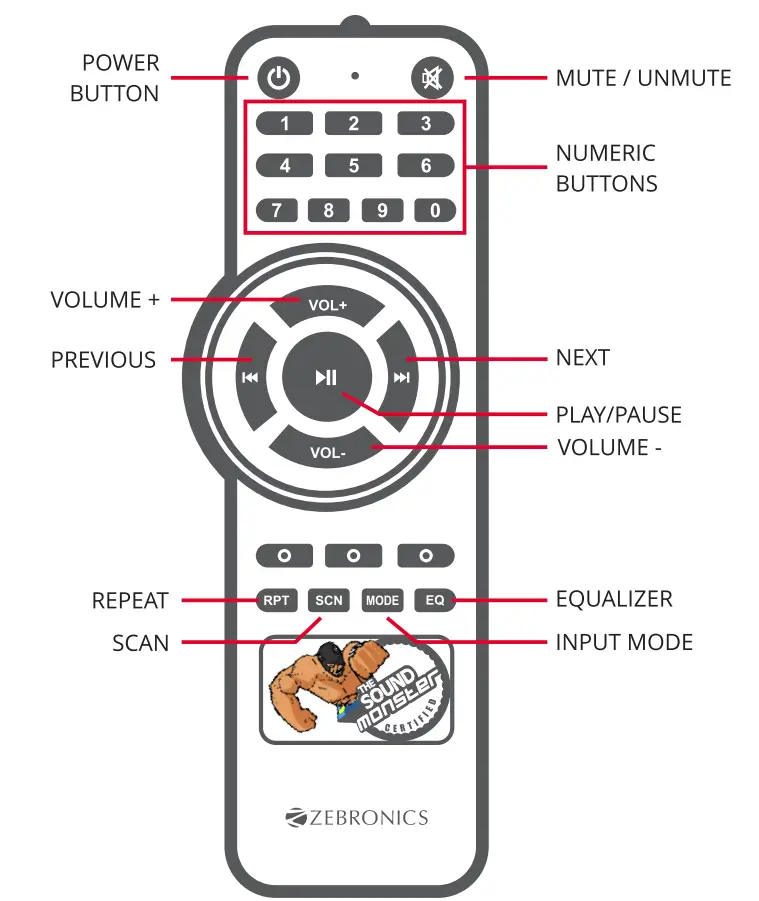
Power: standby ON/OFF
Numeric Pad( 0-9) : To select direct tracks from USB/mSD and to select two digits and above, by consecutively pressing
Vol+ : To increase the volume
Prev: To select the previous songs in BT/USB/mSD or channels in FM mode
Vol-: To decrease the volume
RPT: To Switch between REP Alltracks or REP 1 track
Scan : To scan all FM channels available
Mode : Mode Selection(BT/AUX/USB/FM/mSD/Mic Input)
EQ : Equalizer / Mic settings (Echo, Mic Volume, MicPriority)
Play/Pause To Play/ Pause for current song
Next : To select the next songs in BT/USB/mSD or channels in FM mode
Mute To Mute/ Un mute for currently playing song
Instructions for Use
- Press the “Mode” button to change the input mode (BT/AUX/USB/mSD/FM/MIC-IN) of the speaker.
- Short press the “Next” button to change the Next track or channel when in BT/USB/mSD and in FM mode.
- Short press the “Prev” button to change the previous track or channel when in BT/USB/mSD and in FM mode.
- Long press the “Next” or “Prev.” button to change the volume(+/-).
- Short Press the “Play/Pause” button to play or pause the track being played BT/USB/mSD mode.
- Long Press the “Play/Pause” button to scan the available FM channels.
- Long Press the “Play/Pause” button in BT Mode to disconnect a paired device.
General Instructions
BT Mode
Power ON the speaker, press “Mode” button to switch to BT Mode. Switch ON BT on your phone or tablet and search for nearby BT devices, Search for the BT name “Zebronics” and tap to connect it,
USB/mSD Mode:
The speaker automatically switches to USB/mSD input mode with the LED display when a USB/mSD card is inserted (this mode isn’t selectable on the speaker or remote control unless a USB/mSD card is connected).
Ensure that your USB/mSD card contains MP3 audio f i les (other file types not supported)
FM Radio
Switch the speaker to FM mode. In FM mode, long press the Play/Pause button in the control panel or use the SCN button in the remote to scan for the available FM channels.
Once the scanning is done, the scanned channels will begin to play. Use Next/Previous button on the control panel or remote can be used to change the FM channels.
AUX-IN
The speaker can be connected to an audio device using an RCA to 3.5mm cable. Connect the one end of the cable to the speaker and the other end to an audio source. The songs from the audio source can be heard through the speaker.
Instructions for Mic Settings
Press & Hold the EQ button on the remote control to enter Mic settings.
- In Mic settings, the following setup will appear on the LED display (press & hold again to switch between the Mic settings)
- To adjust Mic Echo, Press & hold EQ it’ll direct you to ECHO volume “E”, now short press ‘Vol+’ or ‘Vol-‘ button on remote control.
- To adjust Mic volume, Press & hold EQ twice it’ll direct you to MIC volume “M”, now short press ‘Vol+’ or ‘Vol-‘ button on remote control and also you can use Mic volume control Knob.
- To change the Mic priority, Press & hold EQ thrice it’ll direct you to PRIORITY setting “C”, now short press ‘Vol+’ or ‘Vol-‘ button on remote to set the MIC priority.
ISO 9001:2015 Certified Company
www.zebronics.com