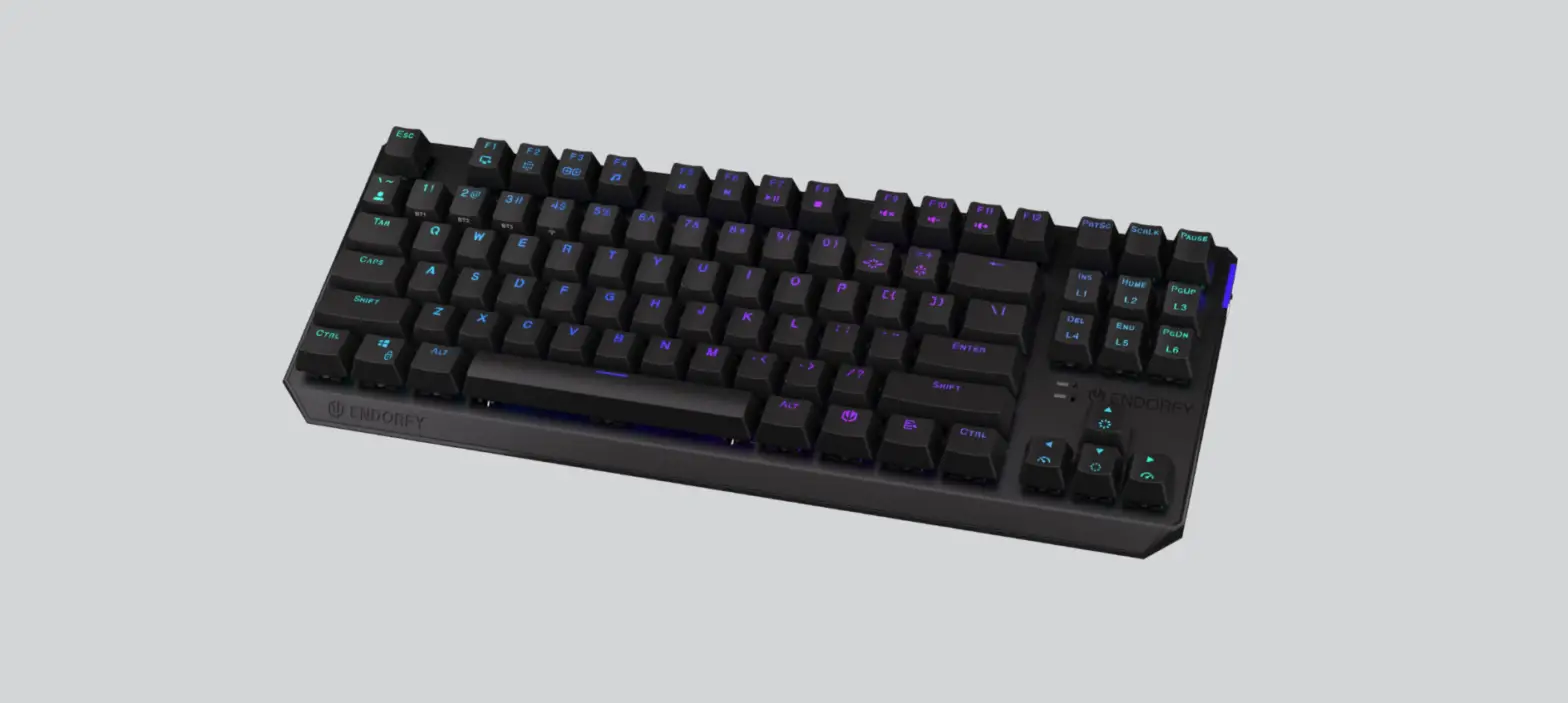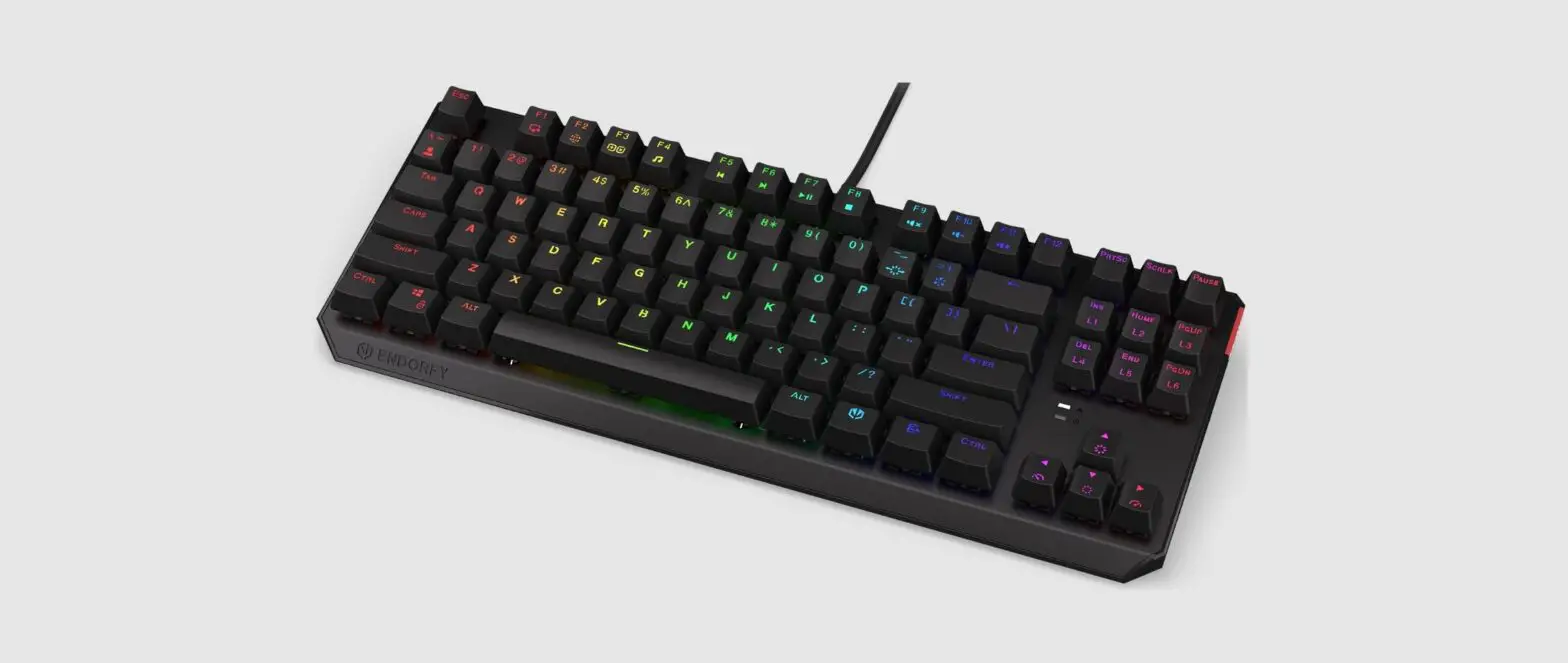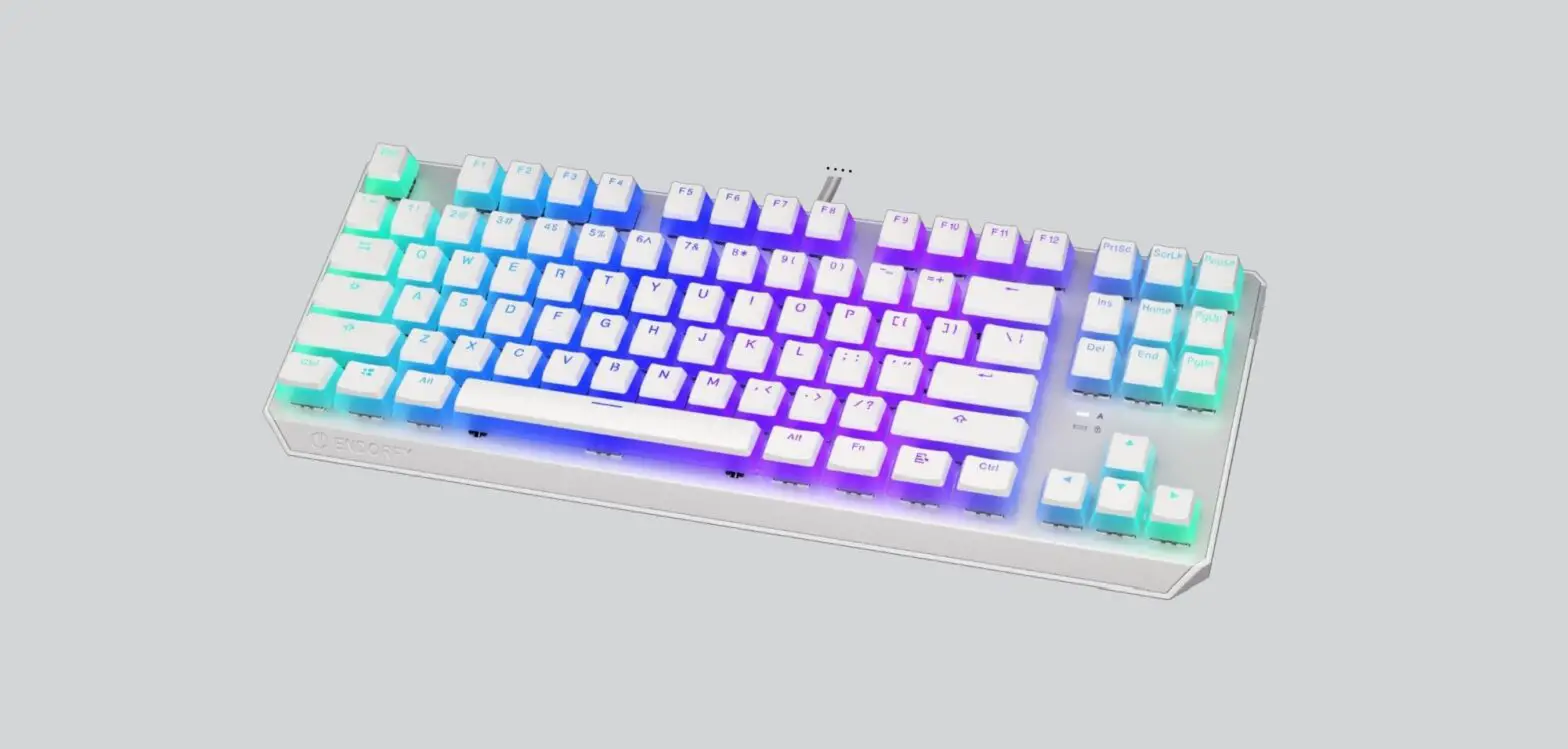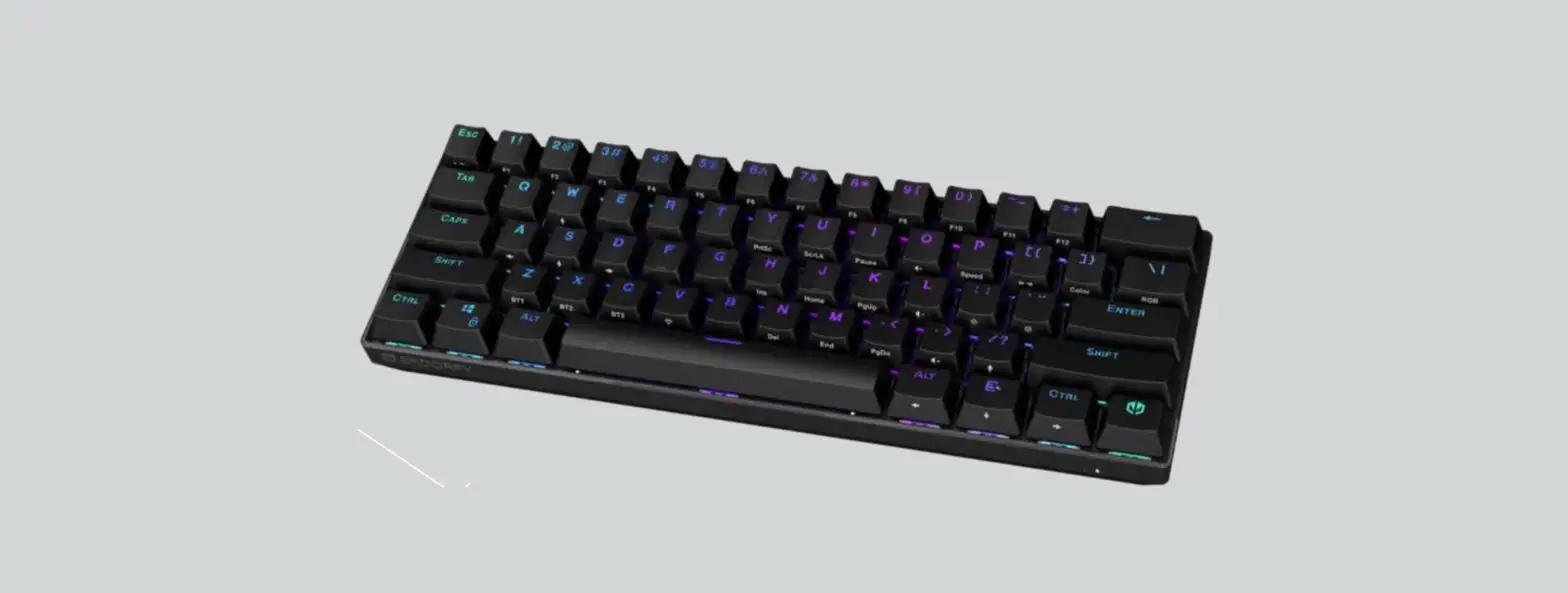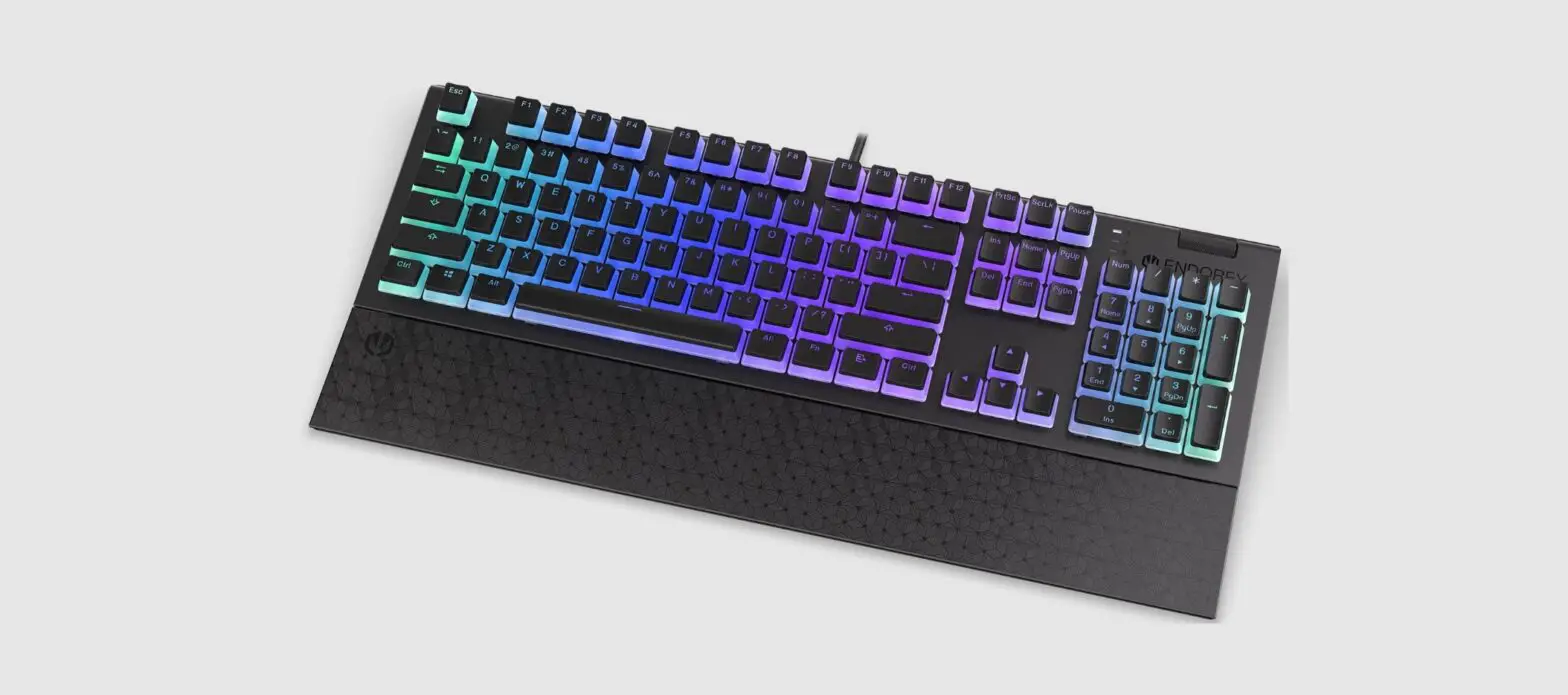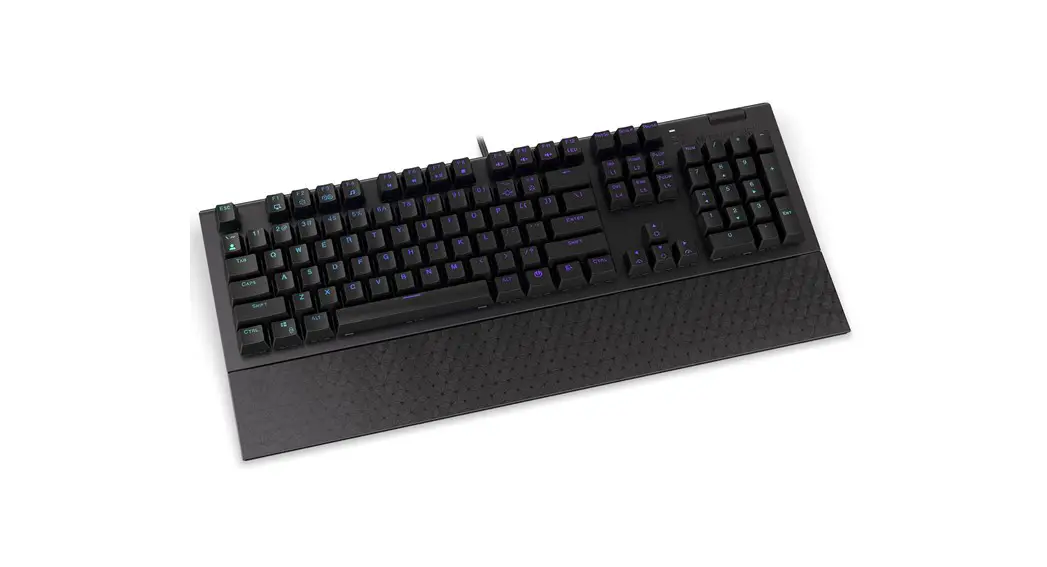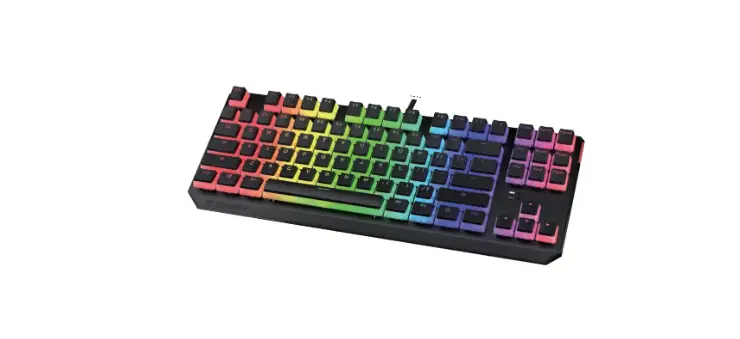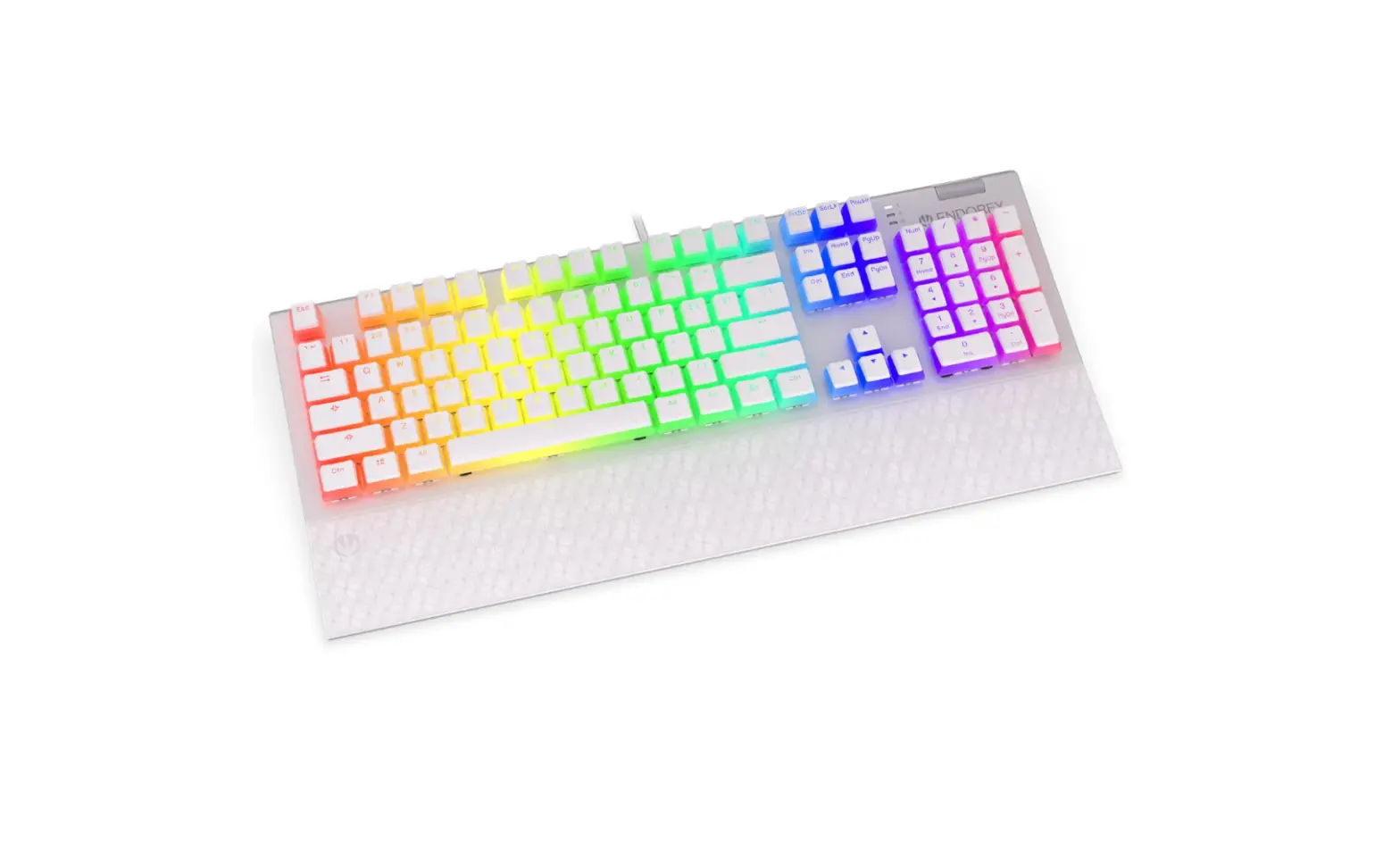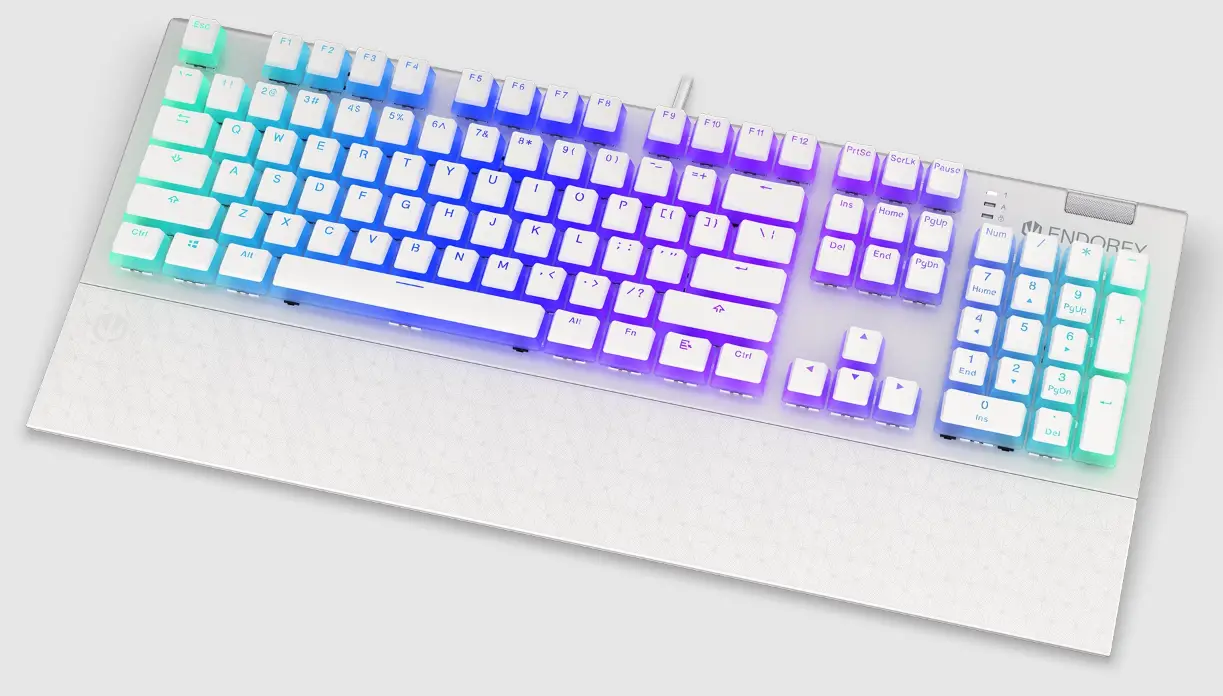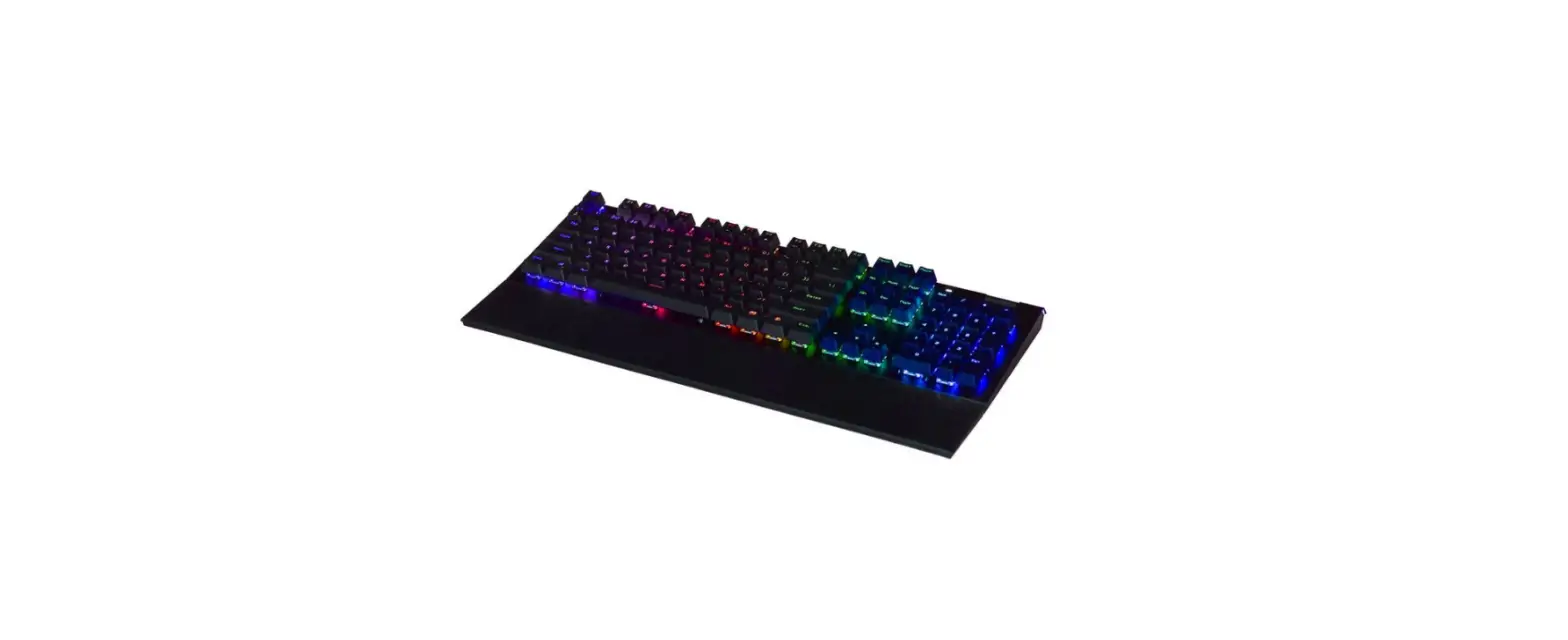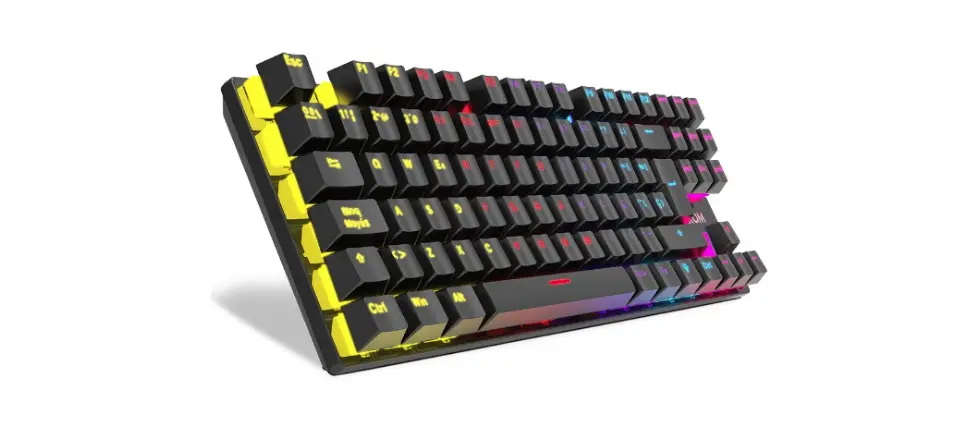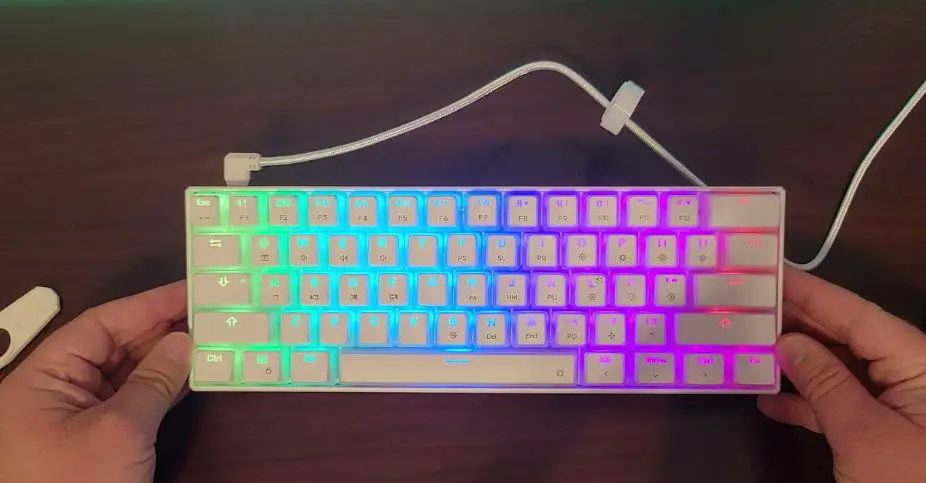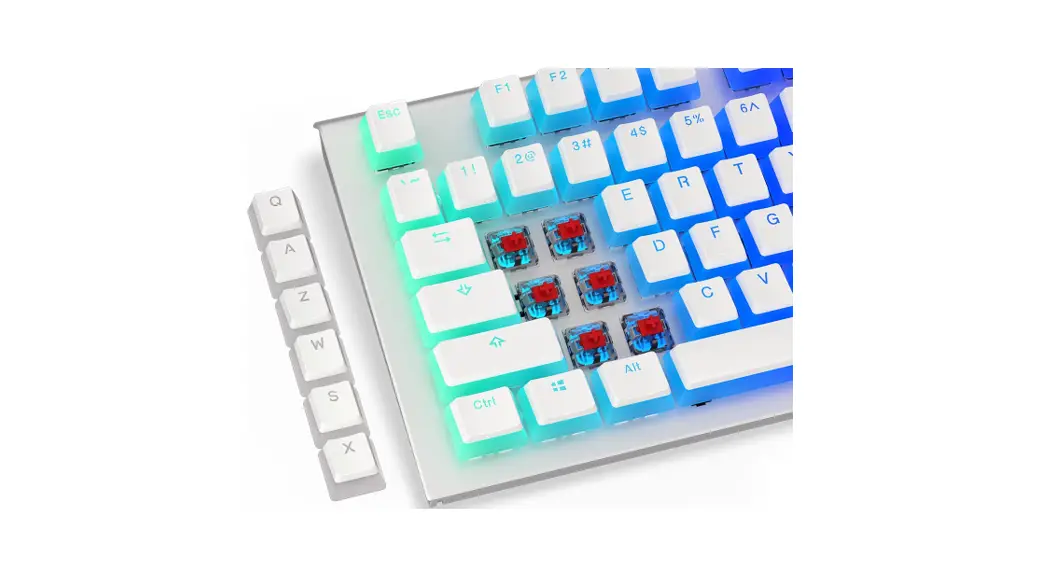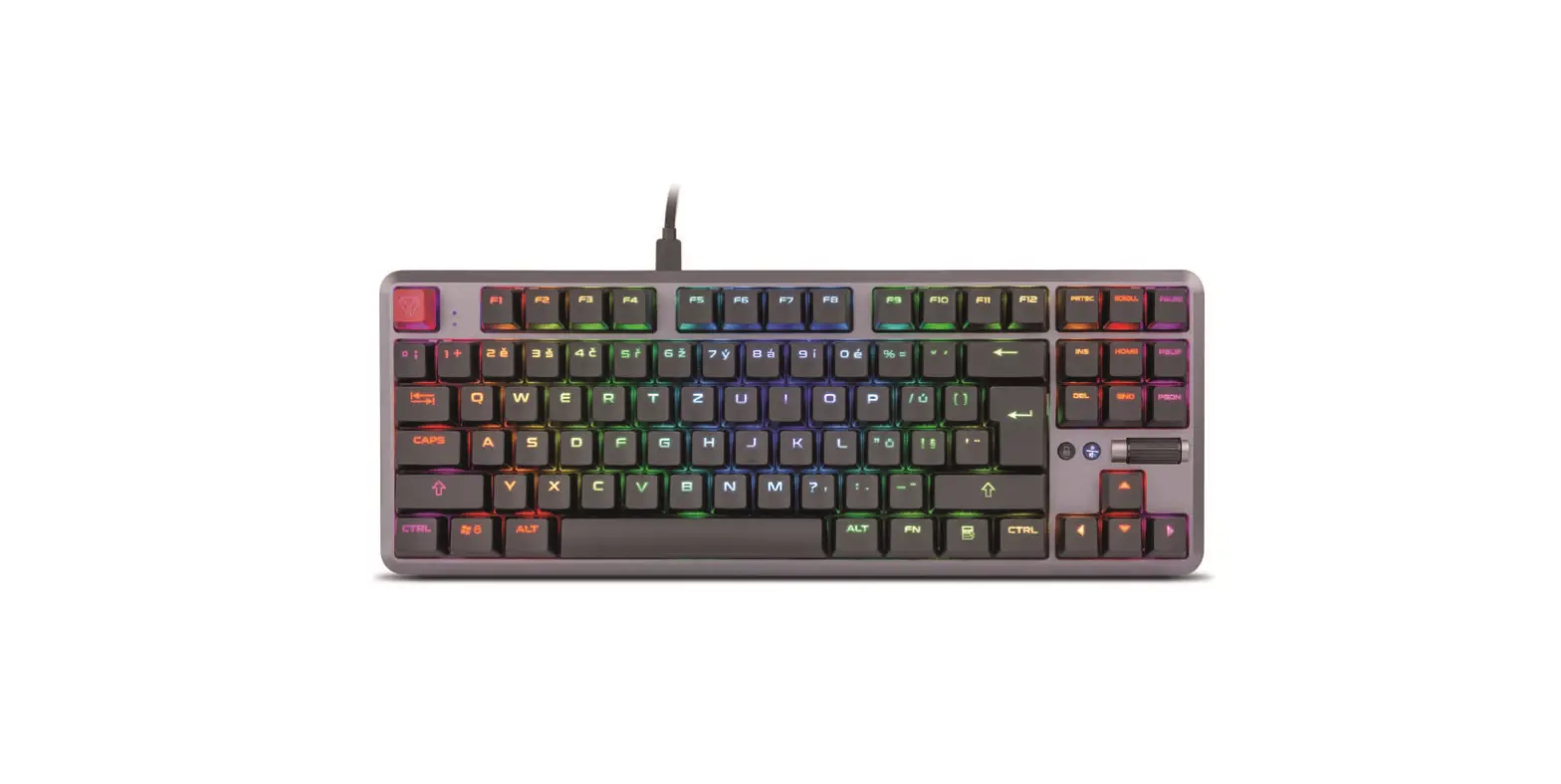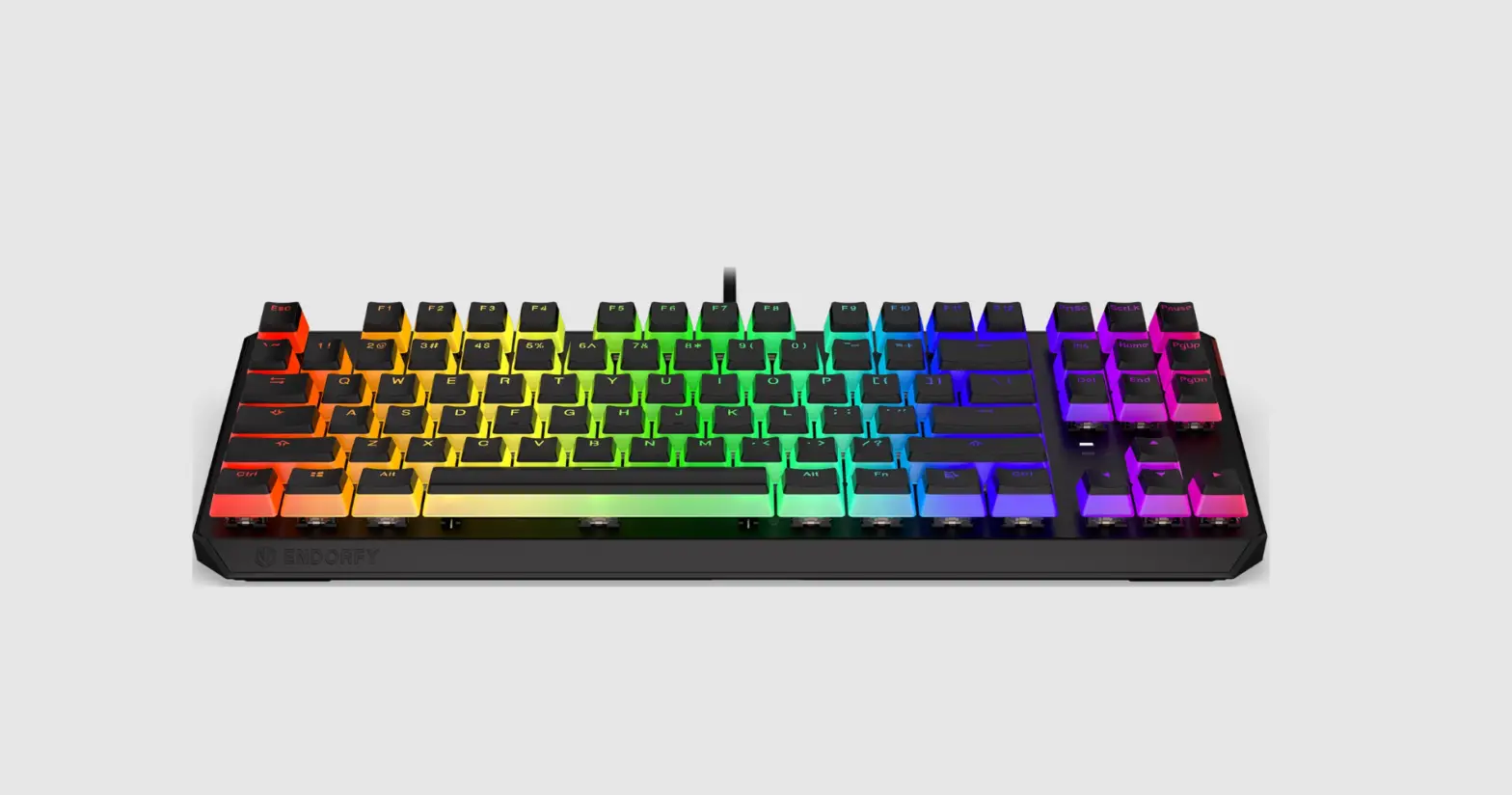
ENDORFY EY5A006 Thock TKL Pudding Mechanical Gaming Keyboard User Guide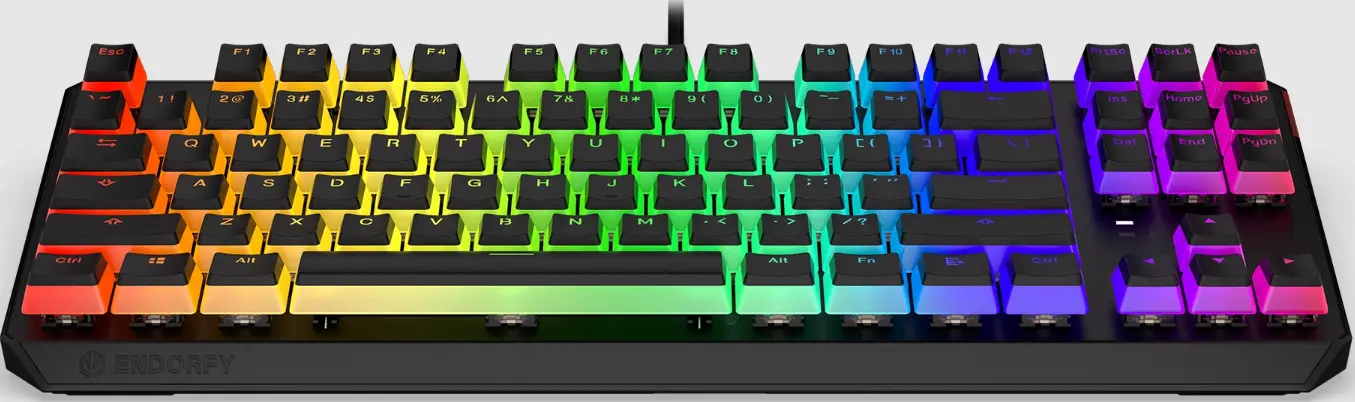
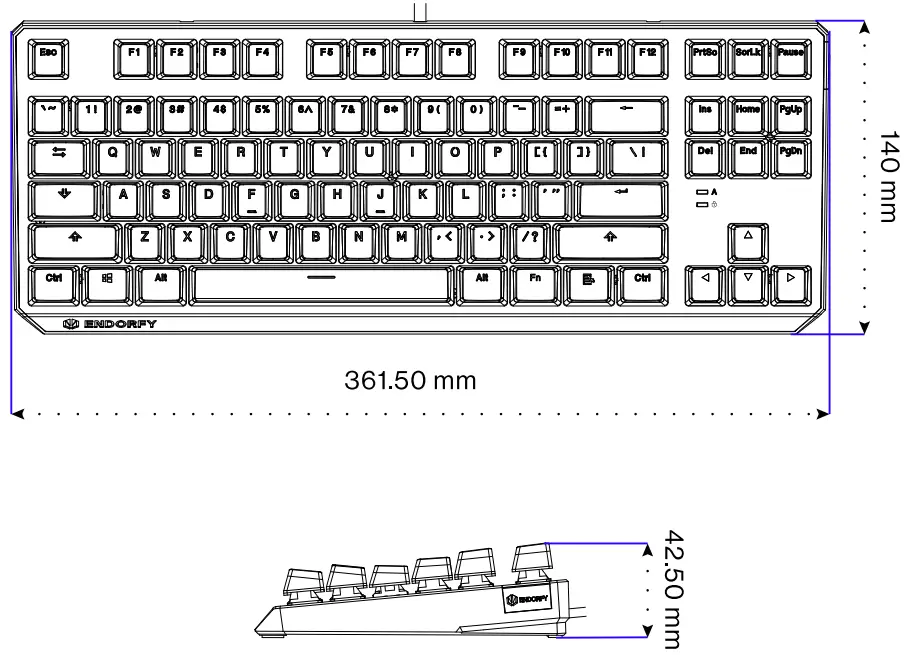
DIMENSION
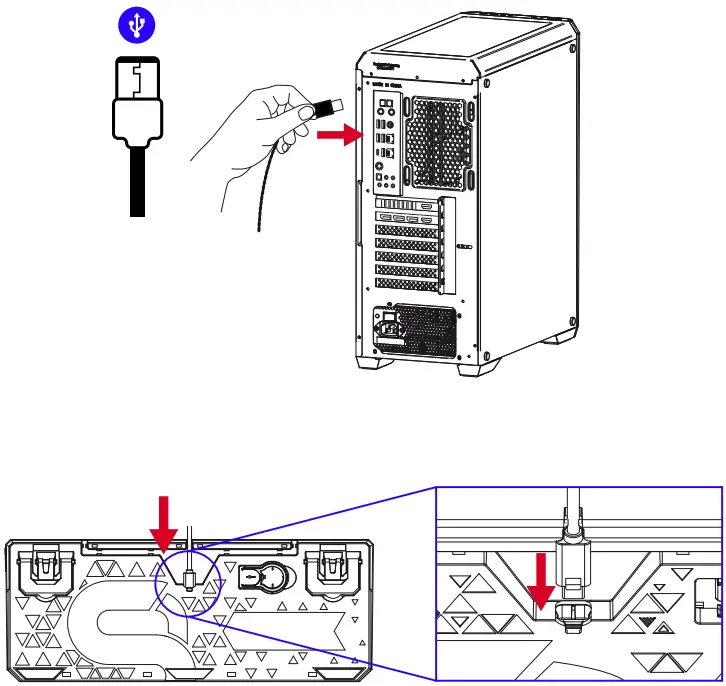
USB
SOFTWERE
SCAN THE QR CODE
WWW.ENDORFY.COM/SOFTWARE
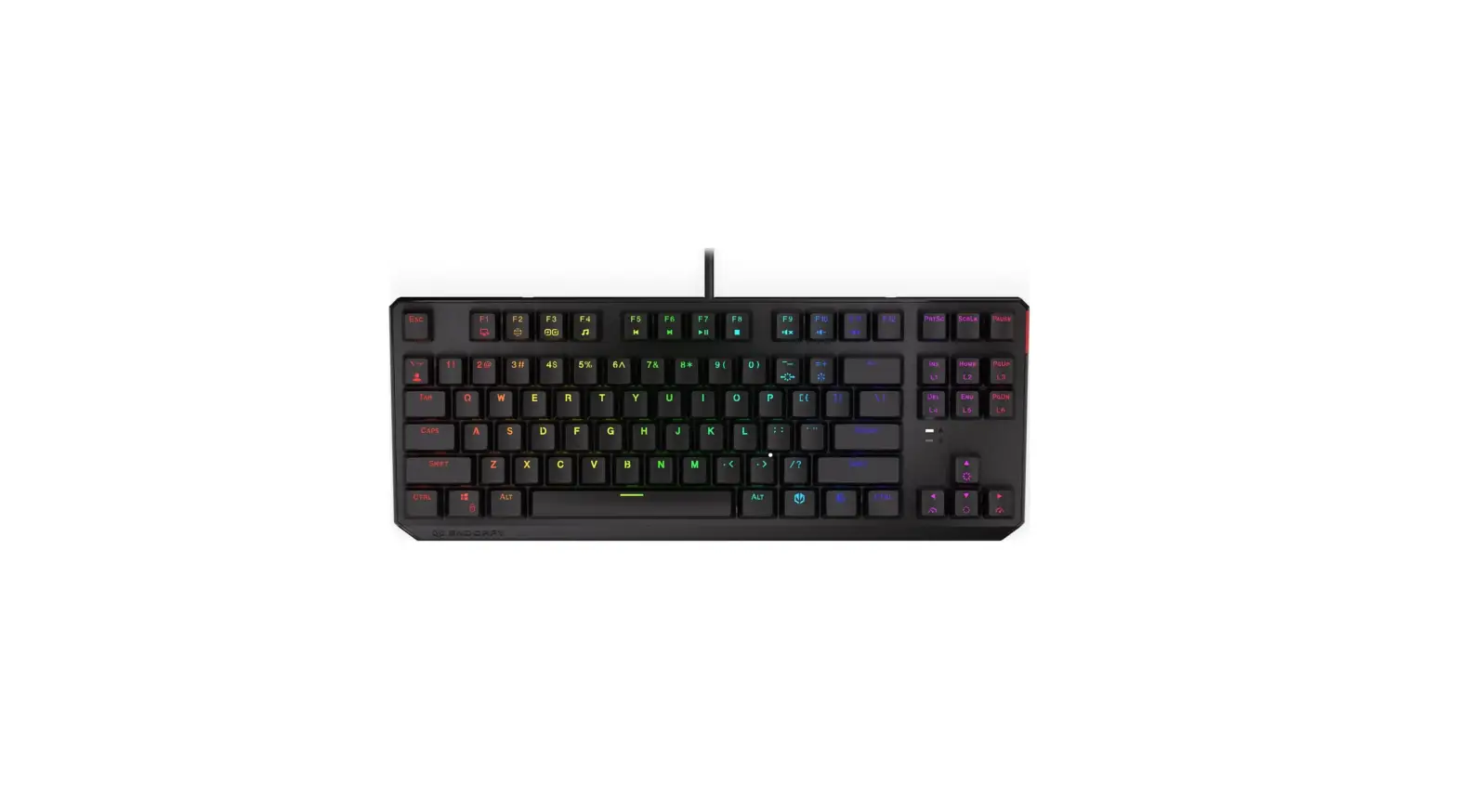
SOFTWARE/MULTIMEDIA KEYS
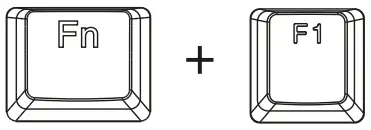 = Computer
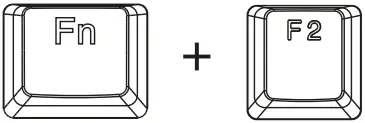 = Web browser
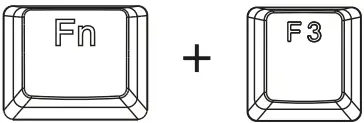 = Calculator
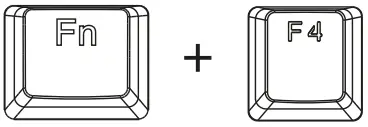 = Music player Previous
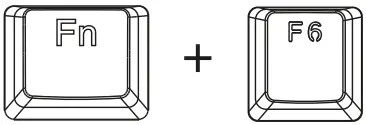 = track Next track
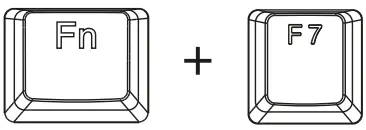 = Play/Pause
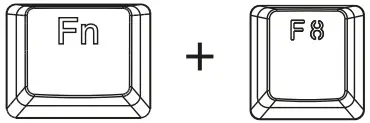 = Stop
 = Mute
 = Volume Down
 = Volume Up
HOTKEYS
 = Gaming mode (WIN Lock)
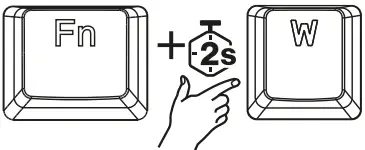 = WASD and arrow Keys Swap
FACTORY RESET
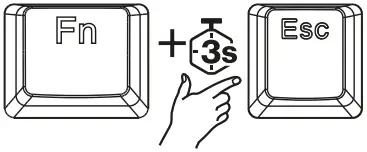 = Press [FN] + (key with the ENDORFY logo) + [Esc] for 3 seconds to restore user settings.
LED BACKLIGHT EFFECTS
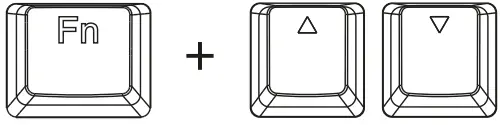 = Lighting brightness up/down
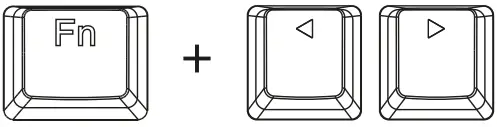 = Backlight effect speed
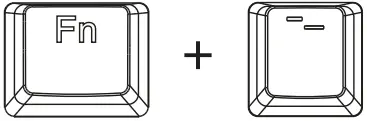 = Effect direction
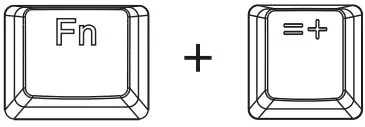 = Backlight color change
LED BACKLINGHT EFECTS
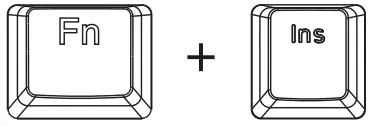 = Modes 1-3
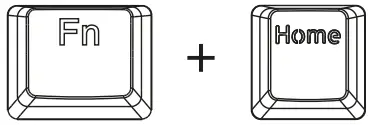 = Modes 4-6
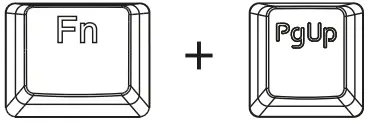 = Modes 7-9
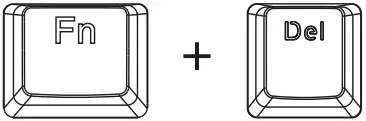 = Modes 10-12
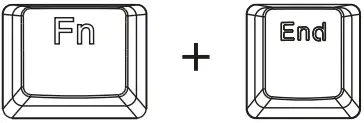 = Modes 13-15
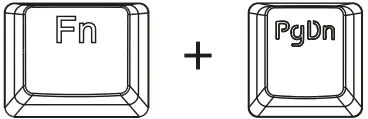 = Modes 16-18
CREATING A CUSTOM BACKLIT MODE
- Press [FN] (key with the ENDORFY logo) + [‘ 1 to enter the user mode.
- In user mode, press [FN] + [‘ -] again to enter edit mode (the LED indicators will start to blink). Click any buttons to turn LEDs on/off. Switch between colors using [FN] + [=+] . You can switch off key LED completely while is not blinking. Make you own LED combination.
- Press [FN] + [‘ -] to save the user mode, indicator LEDs will stop blinking.