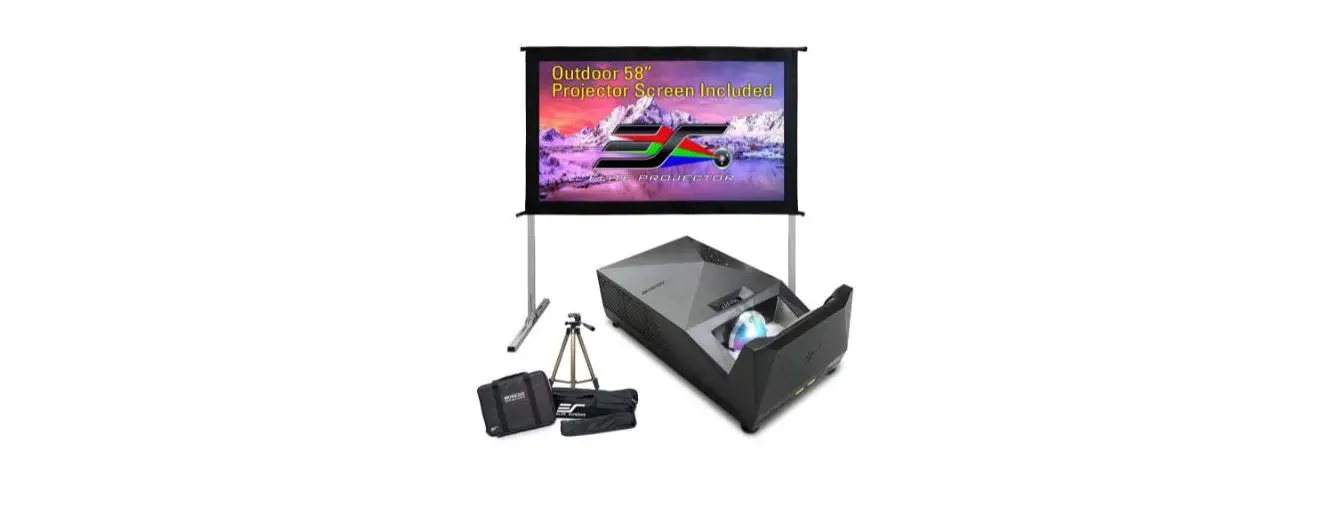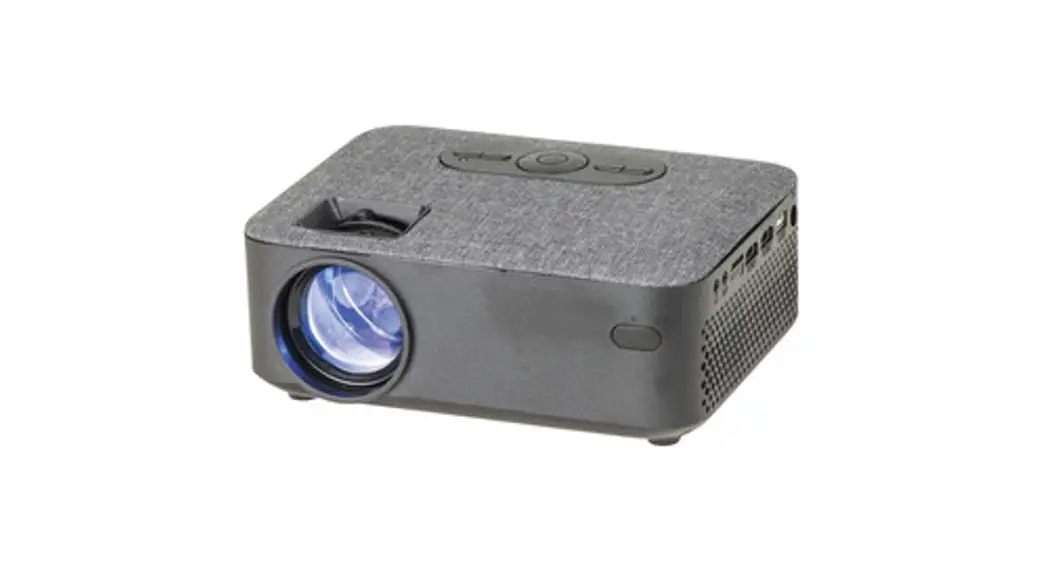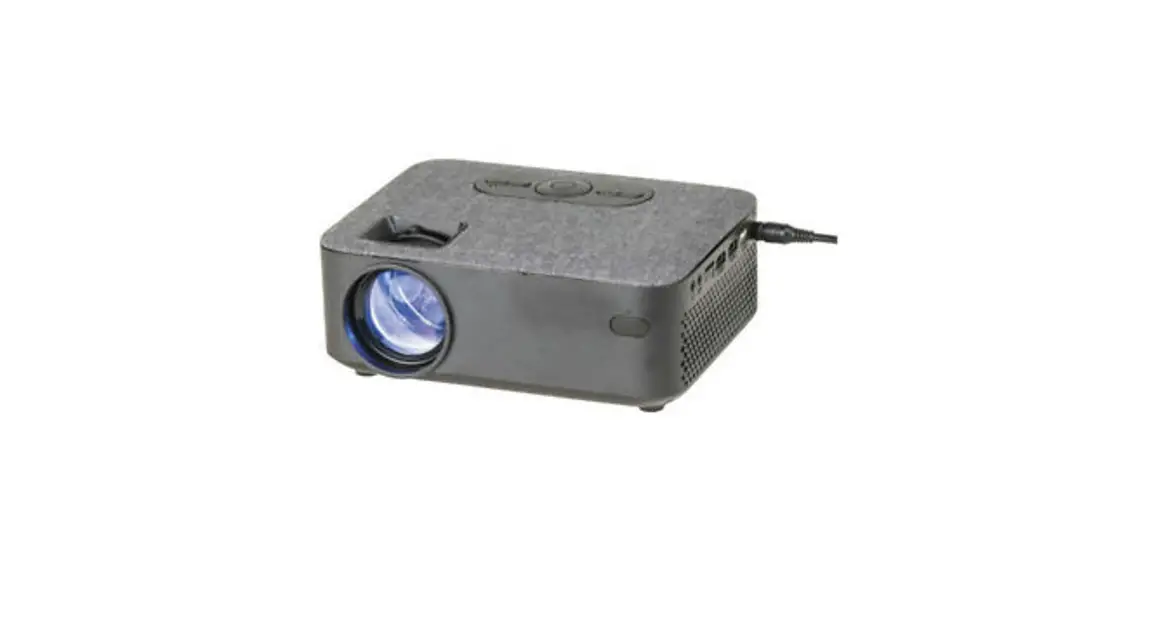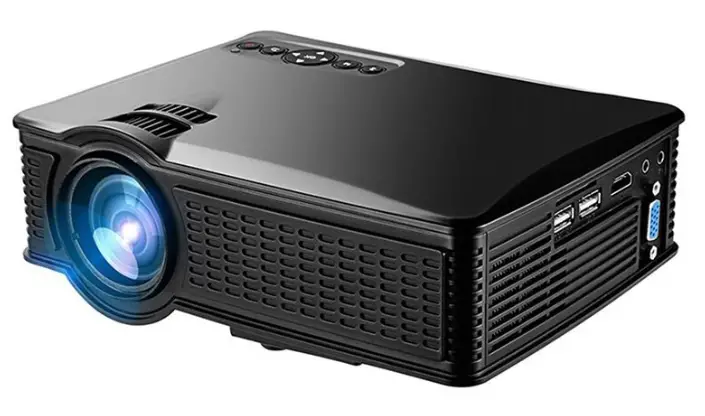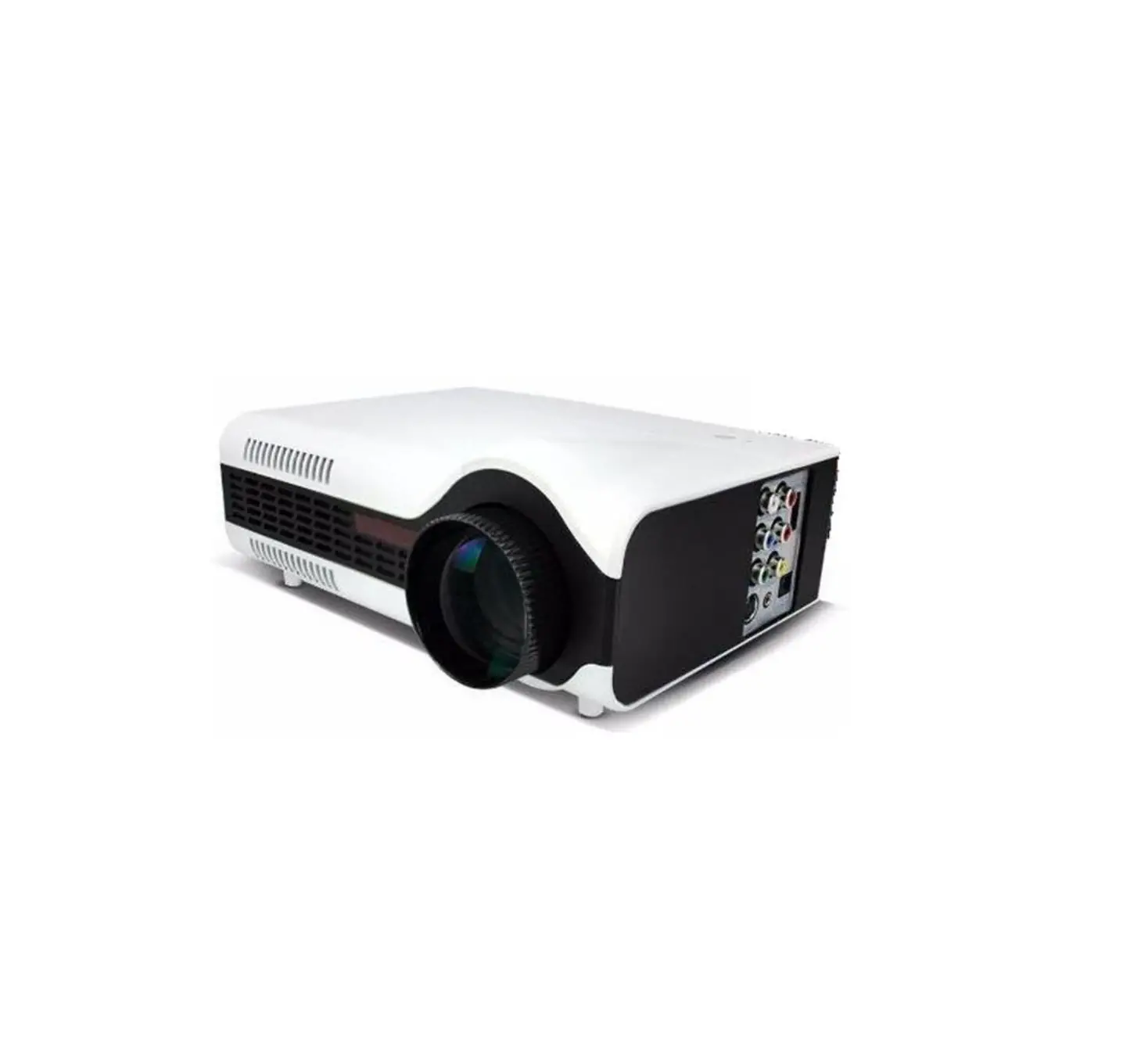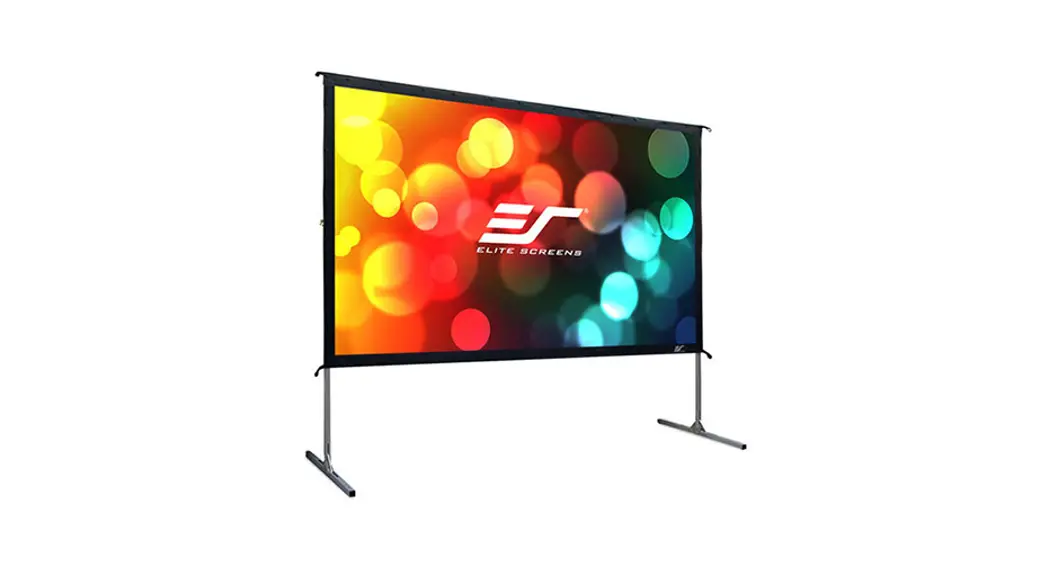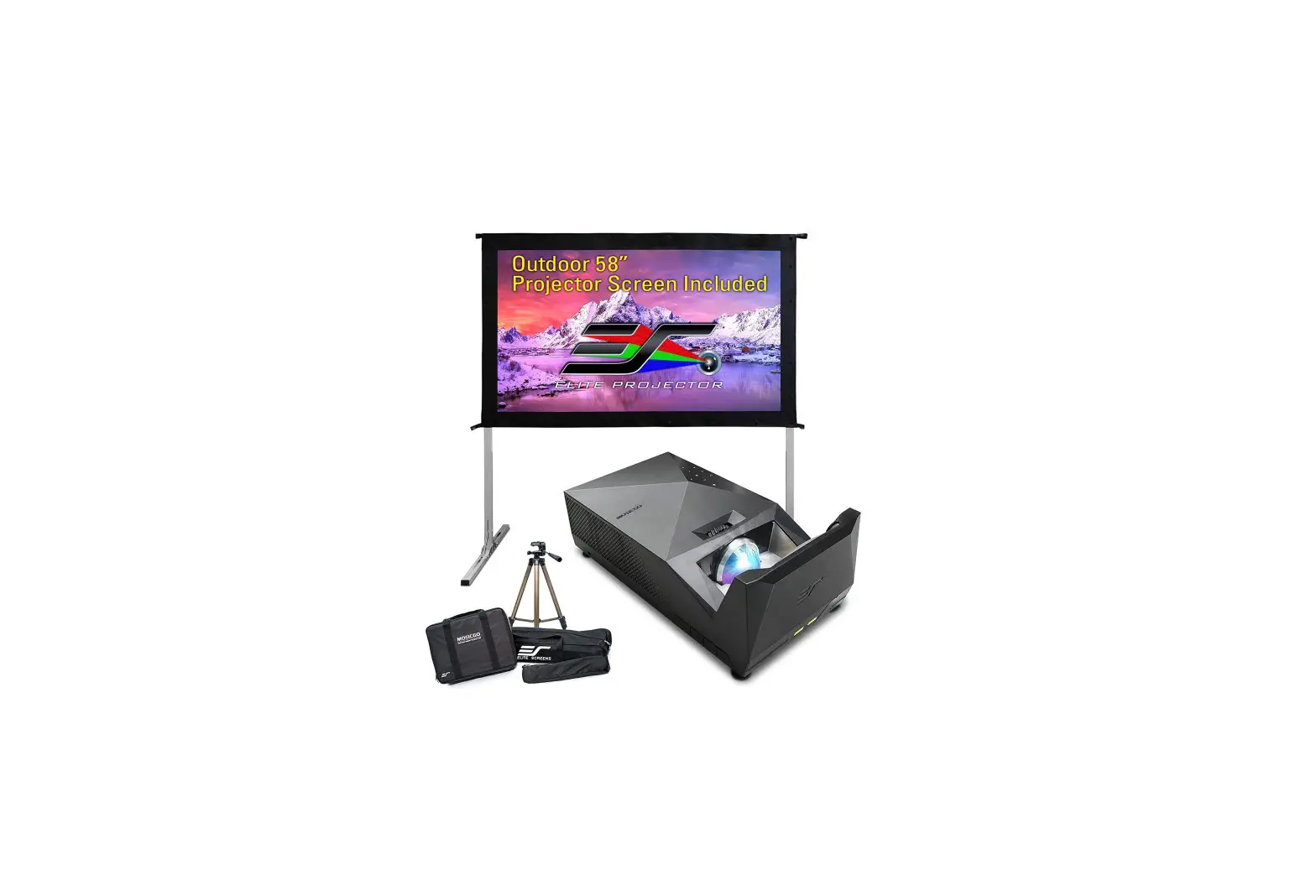
Elite Screens Visual Sound MG2U UST Outdoor LED Projector User Manual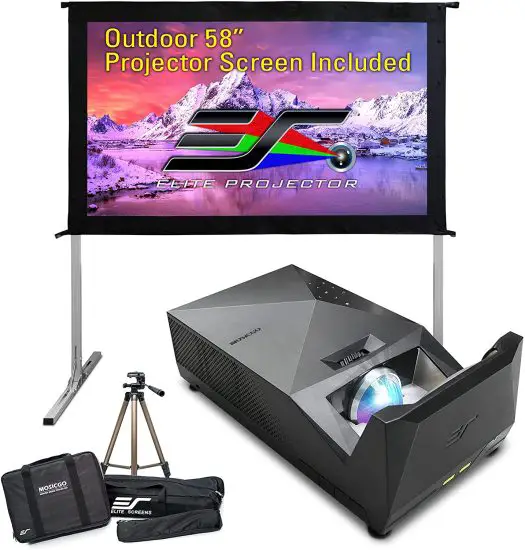
MOBILE PHONE WIRELESS PROJECTION
- Press Wifi Display icon.
(*Note: Please move to the far right)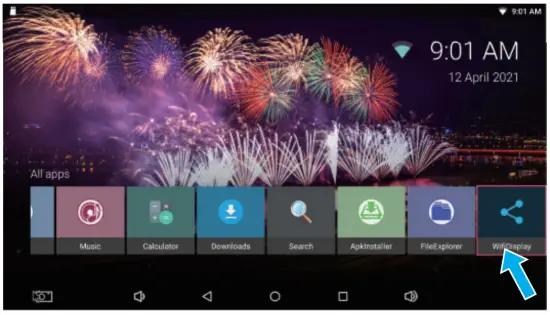
- Waiting for connection.
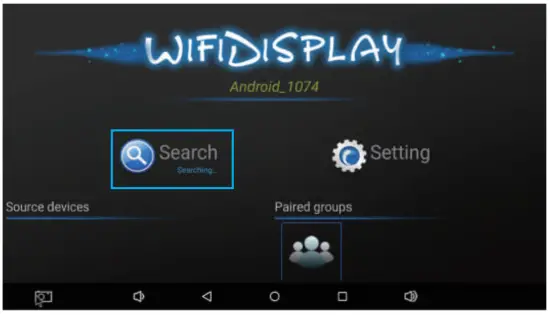
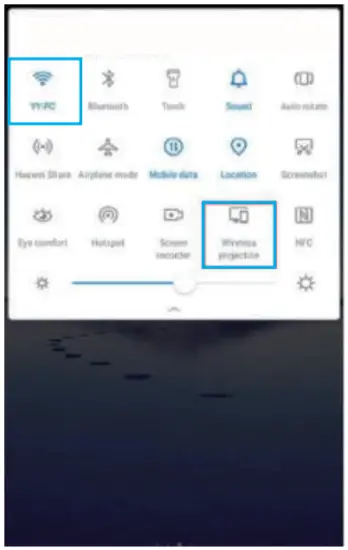
- Press the wifi icon and wireless projection icon on the phone.
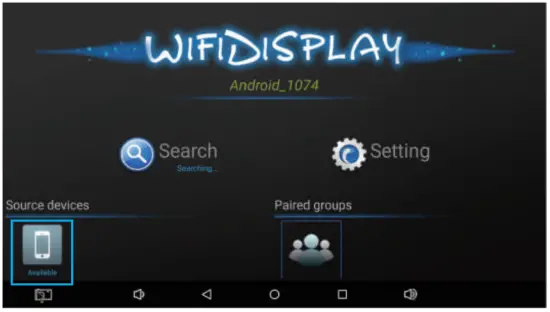
- After successful connection, you can see the connected device on the projection screen.
OSD
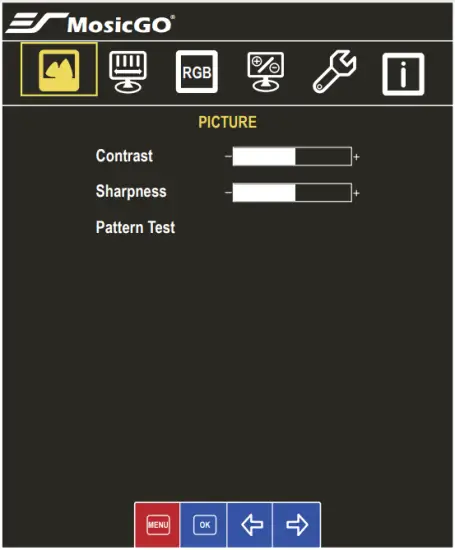
- Contrast: adjust color contrast.
- Sharpness: adjust picture sharpness.
- Pattern Test: present pattern picture to verify focus and color situation of display. Press “OK” will return to current video port.
Note:
- Contrast and Sharpness can be configured only when video signal is ready.
- Reset to default setting by selecting ‘Menu’->’Other’->’Reset
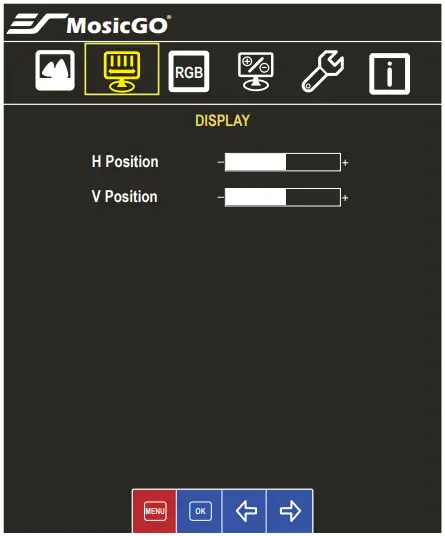
- H / V Position: Adjust the display position
Note:
- H Position and V Position can be configured only when video signal is ready.
- Reset to default setting by selecting ‘Menu’->’Other’->’Reset’
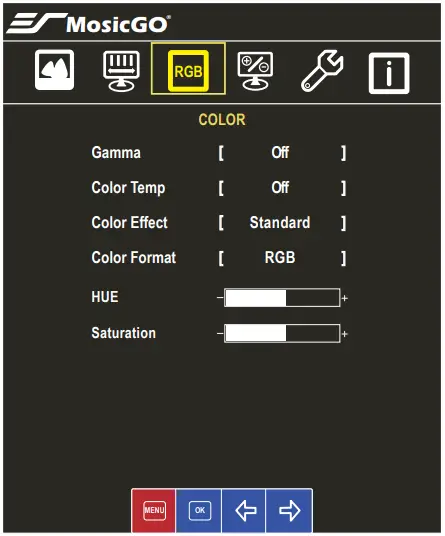
- Configure color properties.
Note:
- All COLOR Menu can be configured only when video signal is ready.
- Some features might not be supported in current model.
- Reset to default setting by selecting ‘Menu’->’Other’->’Reset’
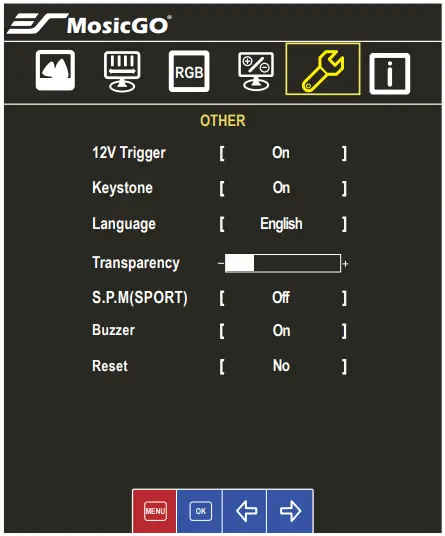
- Set other configuration.
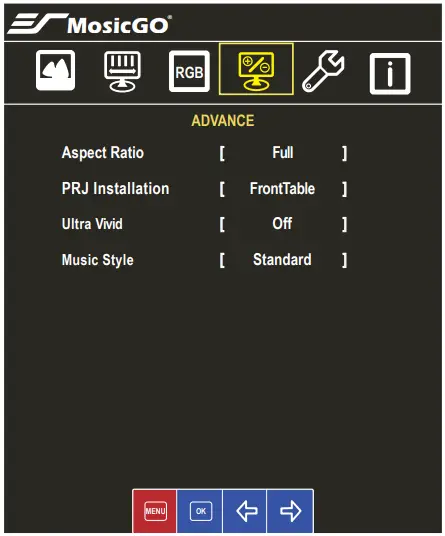
- Aspect Ratio: configure ratio of display area.
- PRJ Installation: according to your projector installation, configure the orientation of display.
- Ultra vivid: enable/disable supporting vivid color.
- Music Style: Select music style among Standard/Pop/-
- Jazz/Classic/Rock
Note:
- Aspect Ratio and Ultra Vivid can be configured only when video signal is ready
- Some features might not be supported in current model.
- Reset to default setting by selecting ‘Menu’->’Other’->’Reset’
- 12V Trigger: Enable/disable the output of 12V Trigger Out.
- Keystone: adjust the rectangle shape of display.
- Language: configure language
- Transparency: configure the transparency of OSD(on-screen display).
- S.P.M: enable/disable Smart Projector Mode. If enable, MosicGO® will automatically adjust brightness according current battery and power situation.
- Buzzer: enable/disable “beep” alert sound.
- Rest: reset to default setting.
Note:
- Brightness cyclic MAX/ECO/MIN will be disabled when S.P.M is ON.
- If Keystone is enabled , the projector will automatically adjust the image display within 2-3 seconds. Press up/down key to adjust slightly also.
- Reset to default setting by selecting ‘Menu’->’Other’->’Reset’
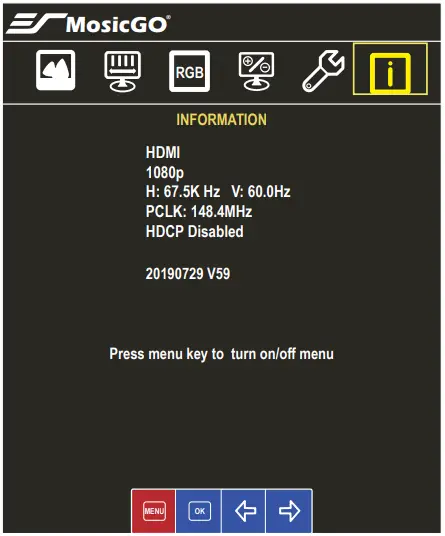
- Present current video signal information.
SPECIFICATIONS
| Item | Description |
| Imager | DLP |
| Native Resolution | 1920 x 1080 Full-HD |
| Projection Distance | 0.39m ~ 0.66m ( 15.4” ~26”) (from screen to lens) |
| Projection Image Size | 1.78~3.05 m (70”~120”) diagonal |
| Focus | Manual |
| Throw Ratio | 0.25 (90″@0.5m) |
| Keystone | Vertical keystone |
| Projection Modes | Front Table, Rear Table, Front Ceiling, Rear Ceiling |
| Standard Input Resolution | Up to FHD (1920 x 1080) |
| SDTV/EDTV/ HDTV | 480i, 480p, 576i, 576p, 720p, 1080p |
| Horizontal Frequency | 30.5 – 91.1kHz |
| Vertical Frequency | 50 – 85Hz |
| Operating Temperature | -10 ~ 40°C |
| Dimensions (WxHxD) | 365 x 212 x 130mm (14.4” x 8.35” x 5.12”) |
| AC adapter | 100 – 240V, 50 – 60Hz |
| Power Input | 19V DC, 9.47A |
| Power Consumption | Less than 180W |
| Lamp | RGB LED |
| Lamp Life | 25,000 Hours |
| Speakers Battery Capacity | 8W x 2 music power |
| 37200mAH (135 Watt-Hours) | |
| Battery Life (for MG2U-S model) | Up to 3 hours play time . |
| Eco Mode: Lowest brightness and low volume. | |
| Input/ Output Ports | Alt-DP Video Input (USB type C connector) x 1 |
| HDMI 1.4 x 2 | |
| USB type A power charging port (5V1A) x 2 | |
| USB type C PD power source port x 2 (Note) | |
| Line out | |
| 12V Trigger Out (0.1A output max.) | |
| Wireless audio in x 1 | |
| Wireless audio out x 1 | |
| Aux In | |
| Waterproof | IPX2z |
| Security | Kensington Slot |
Note:
Power Delivery (PD): maximum 5V/3A,9V/3A,15V/3A,20V/4.35A for port (23) USB type-C port maximum 5V/3A,9V/3A,15V/2A,20V/1.5A for port (13) USB type-C port
TROUBLESHOOTING
If you experience a problem with your projector, please refer to the following information. If a problem persists, please contact your local retailer or service center.
No image appears on screen
- Ensure the power cord is correctly and securely connected.
- Ensure the cable is fine.
- Make sure the projector is switched on.
Image is out of focus
- Make sure the projection distance is in valid range (refer to page 10).
- Projecting test pattern (“Menu” -> “Picture”, press “OK”-> “Pattern Test”, press “OK”)
- Adjust the focus F+/F-, make the line pattern on four corners and center clear. Exit “Pattern test” by press “OK” again.
Image is too small or too large
- Move the projector closer to or further frame the screen.
No sound
- During music playback, press
 on the remote control.
Lens with dust or water drops
- Use a hairdryer on a low heat setting to clear away dust, water or other particles. To Prevent Damaging the Surface Coating, DO-NOT Touch, Wipe or Clean the Lens. If the projection surface is heavily soiled, contact the manufacturer for further assistance.
Frequently asked questions
Note:
When the projector’s temperature is too high, the projector automatically shuts down due to the built-in temperature protection. This is not a malfunction. Let the projector cool down before switching it on again.
Note:
MG2U-S/MG2U-L is splash resistant and was tested under controlled laboratory conditions with a rating of IPX2 under IEC standard 60529. Splash resistance are not permanent conditions and resistance might decrease as a result of normal wear. Do not attempt to charge a wet MG2U-S/MG2U-L; Liquid damage not covered under warranty. “To Prevent Damaging the Surface Coating, DO NOT Touch, Wipe or Clean the Lens.*Consult the manufacturer for special cleaning instructions.”
Supported HDMI input video signal
| Resolution | Horizontal Frequency (kHz) | Vertical Frequency (Hz) |
| 640 x 350 | 31.468 | 70.09 |
| 720 x 400 | 31.469 | 70.08 |
| 640 x 480 | 31.469 | 59.94 |
| 800 x 600 | 37.879 | 60.31 |
| 1024 x 768 | 48.363 | 60.00 |
| 1152 x 864 | 54.348 | 60.053 |
| 1360 x 768 | 47.712 | 60.015 |
| 1280 x 1024 | 63.981 | 60.020 |
| 1920 x 1080 | 67.5 | 60 |
- If an invalid signal is input into the projector, it will not be displayed properly on the screen or a message such as ‘not support’ will be displayed.
- To provide the best picture quality, 1920 x 1080 (1080p) resolution is recommended.
3 continuous beep sound
You may hear 3 continuous beep sound accompany following icon on the screen

Low battery: projector is turned off immediately. Please plug power adapter to charge the battery. You can turn on the projector during charging.
Battery fail: if the power adapter is plugged. You can turn on and use projector. If you pull out the power adapter, the projector may be turned off without any warning. If the problem still occurs, please check your vendor.
Over heat: projector is turned off immediately. Suggest to let projector be off for a while before it is turned on again.
Fan error: projector is turned off immediately. If the problem still occurs, please check your vendor.
Note:
Projector may be over heat and turned off immediately. Suggest to let projector be off for a while before it is turned on again.
13 Months Warranty Card
| Customers name: | ||
| Phone number: | ||
| Email: | ||
| Address | ||
| Date of purchase: | ||
| Model No: S/N: | ||
| Dealer’s Stamp: | |

Elite Screens Visual & Sound Co., Ltd.
for more update user manual:
Electronic file link
www.eliteprojector.com/downloads.html