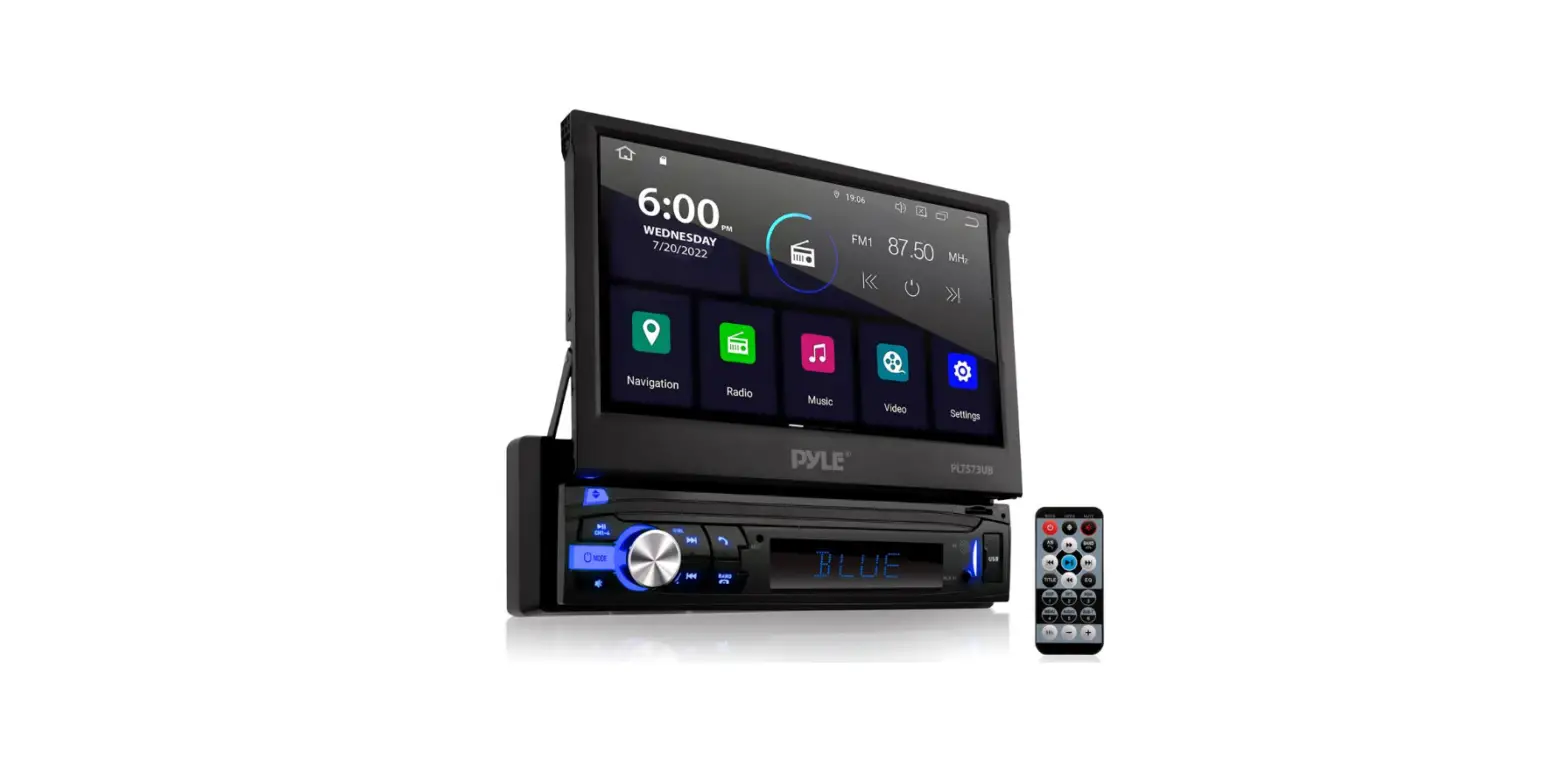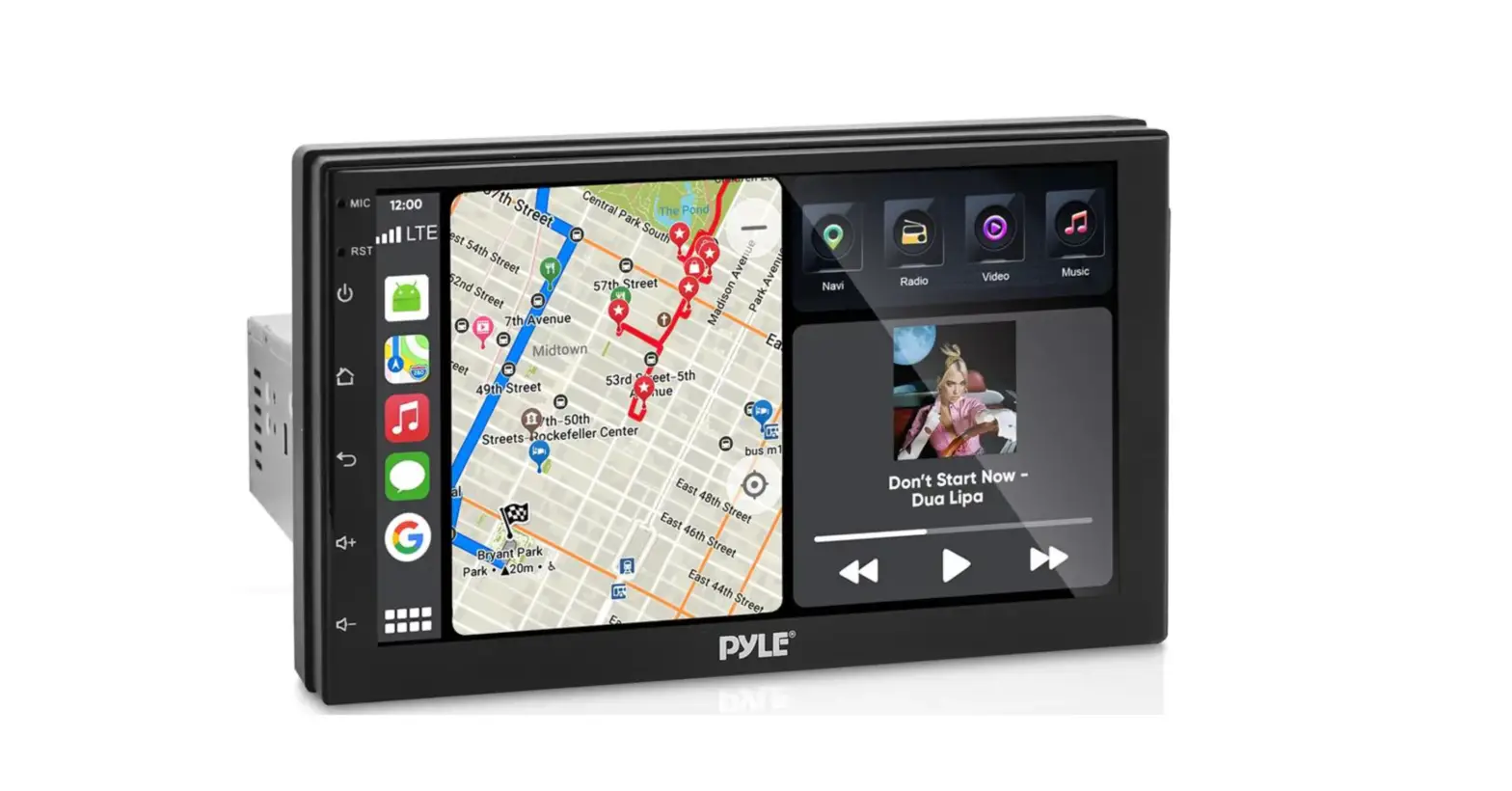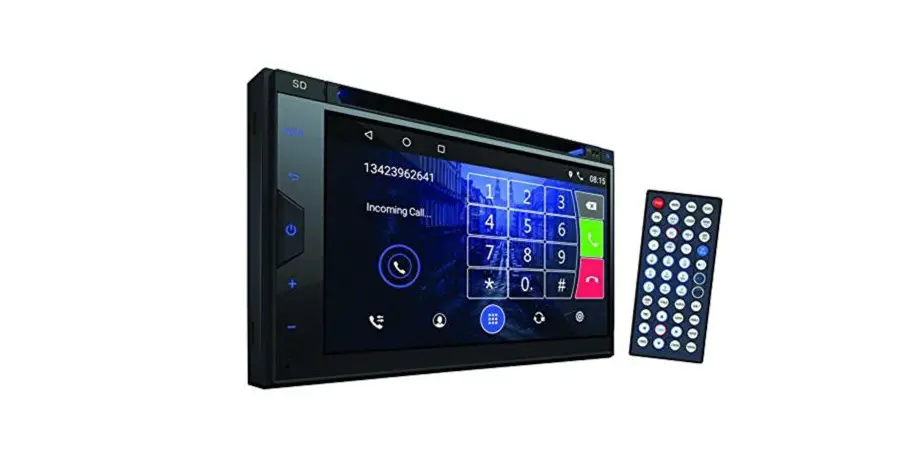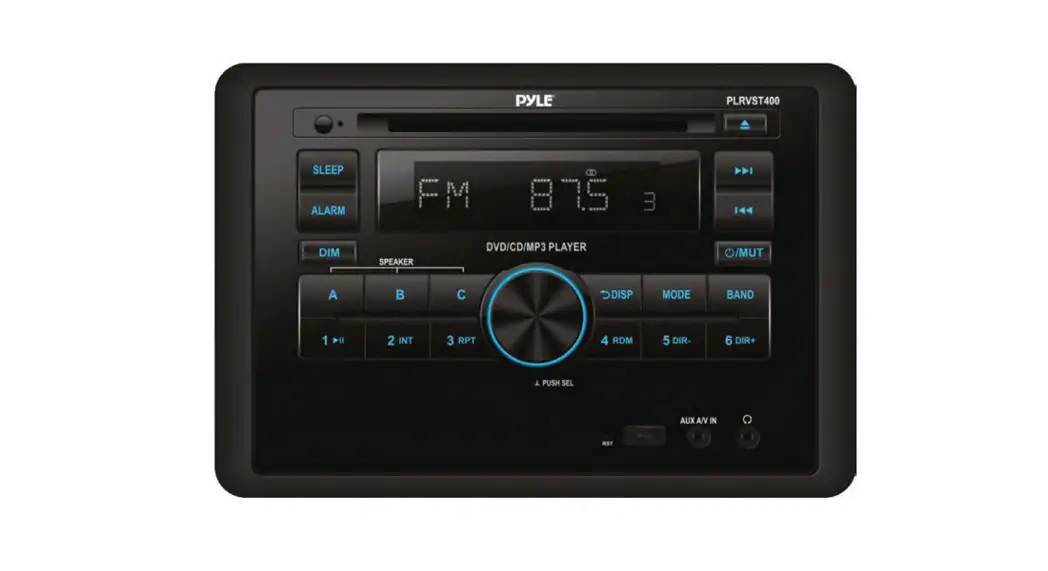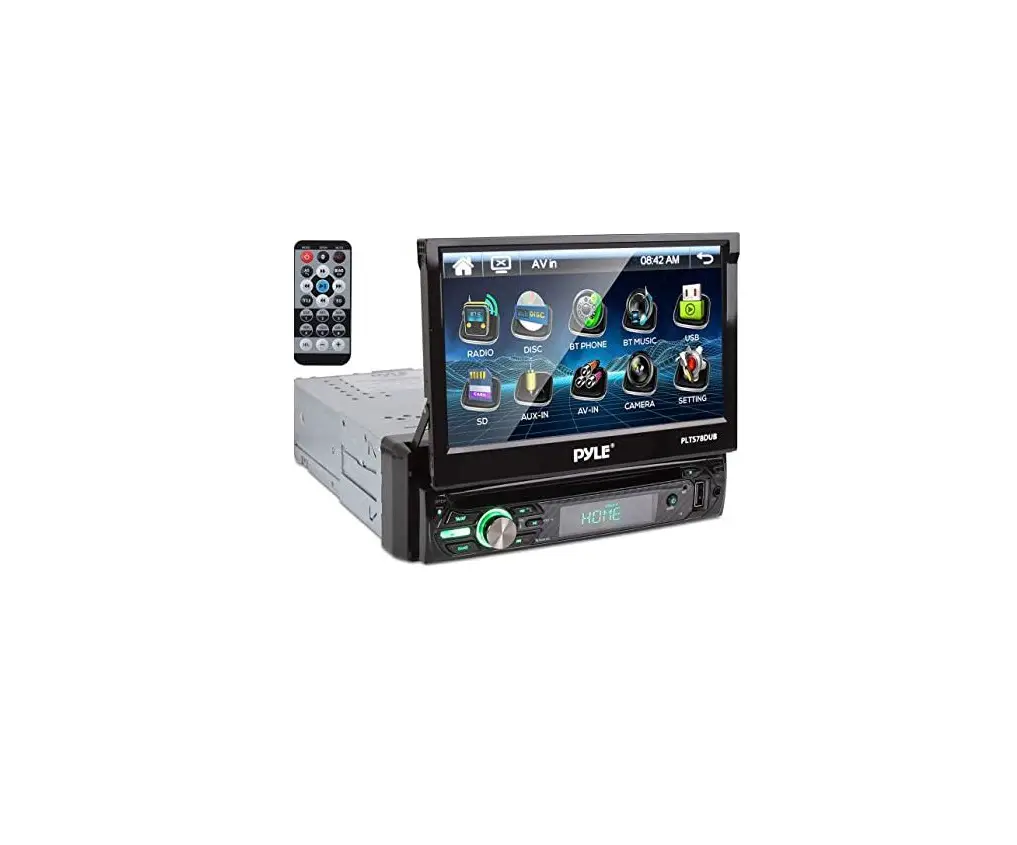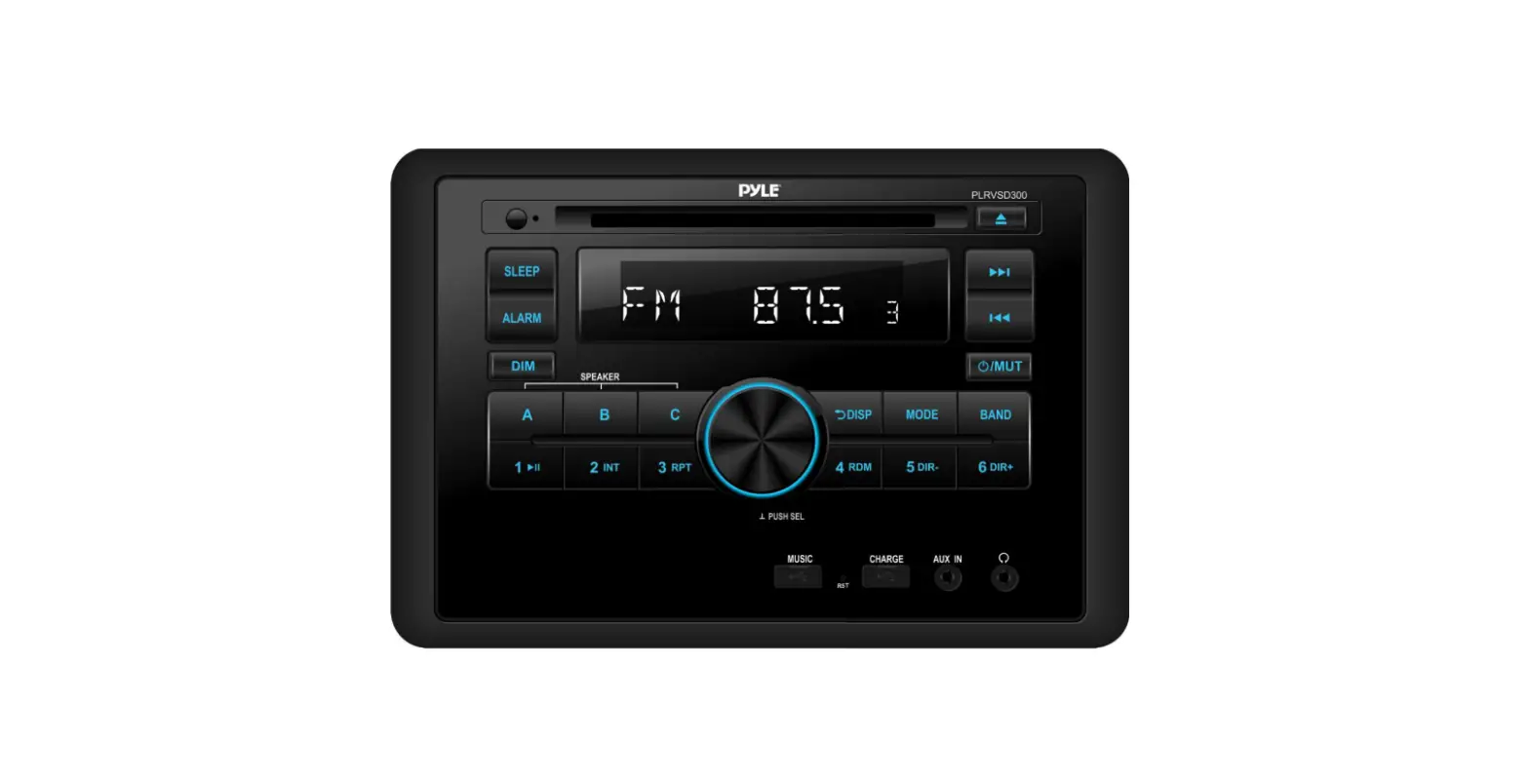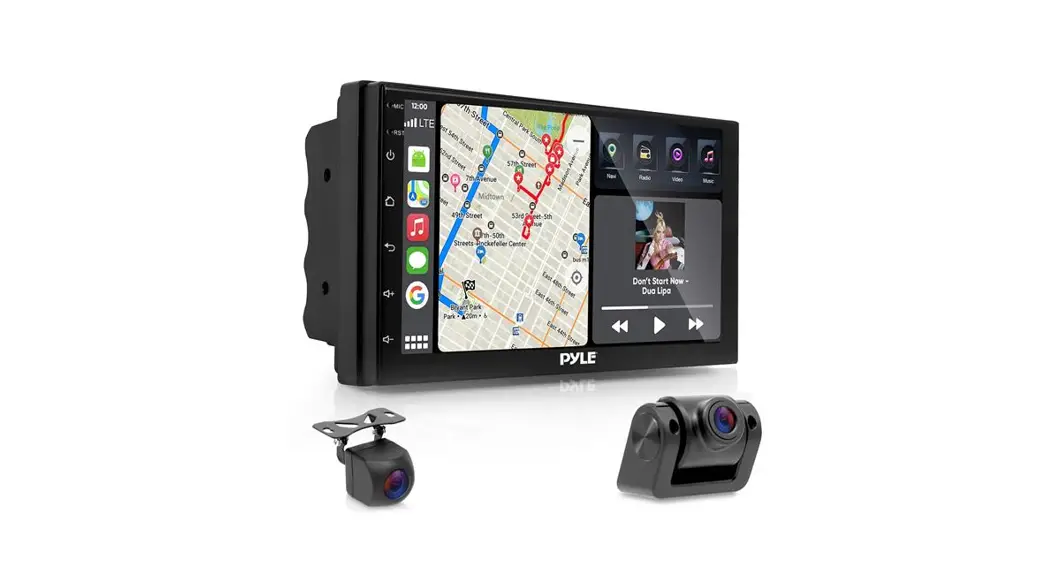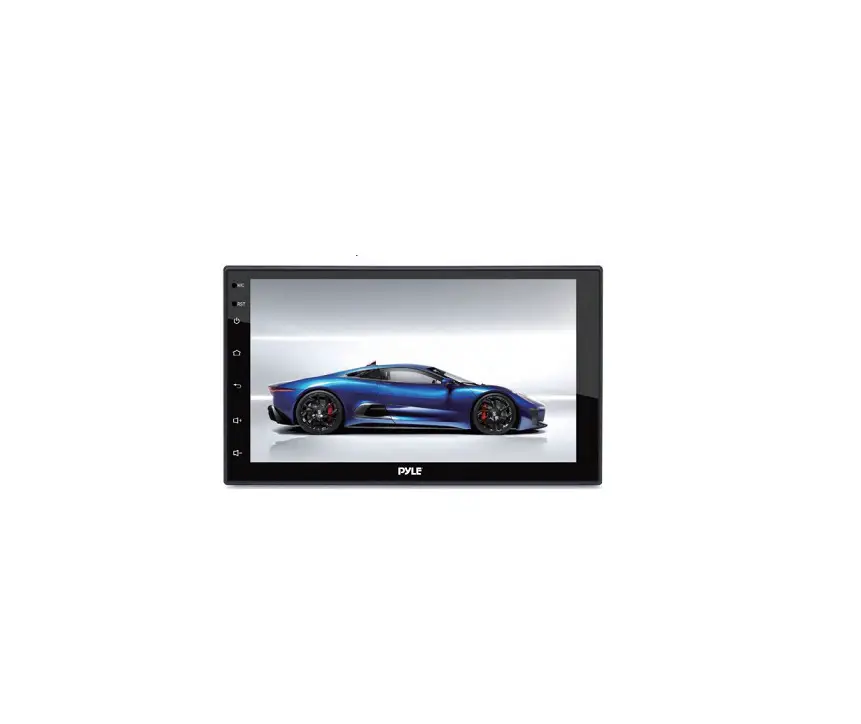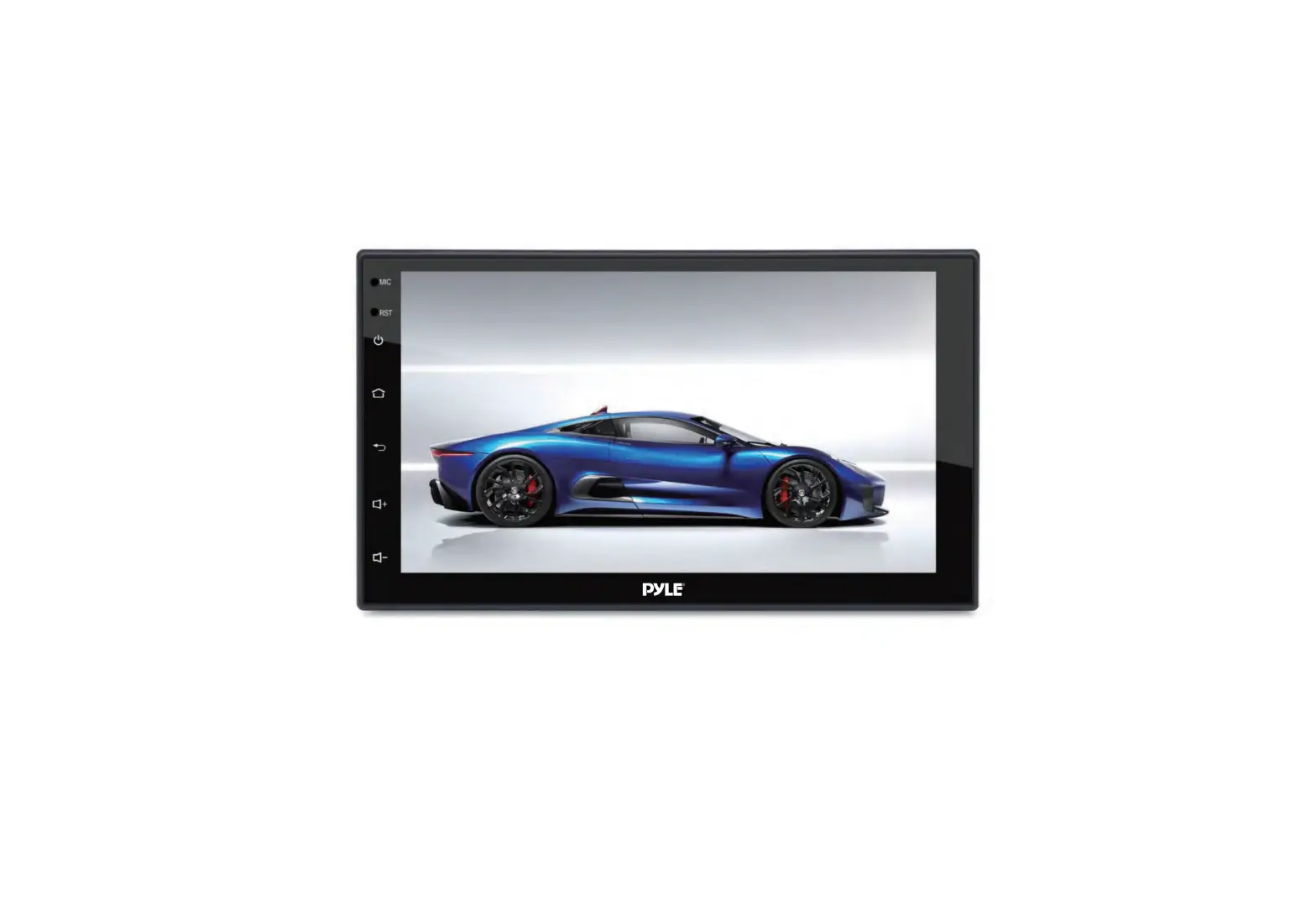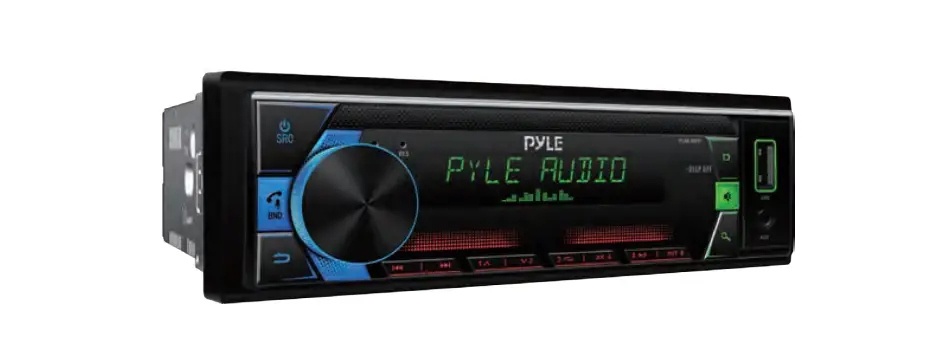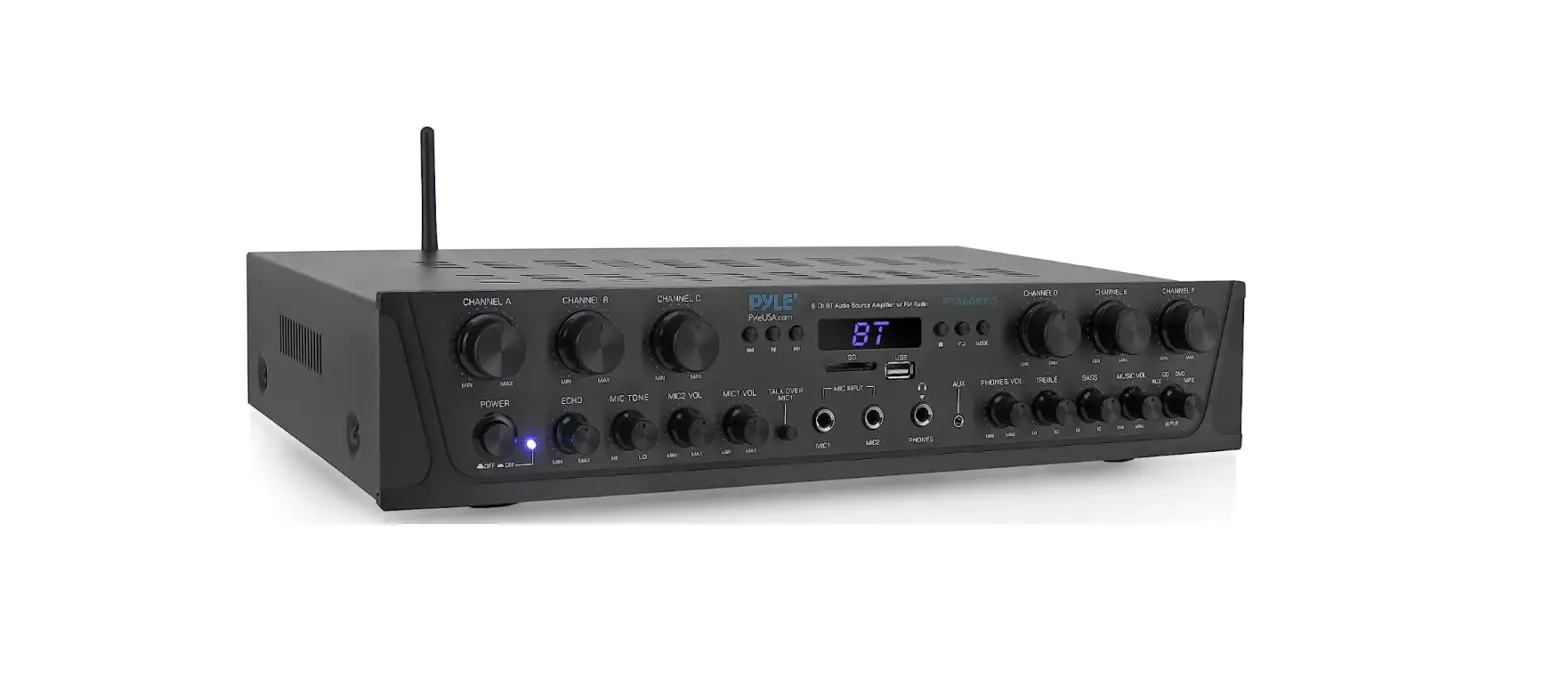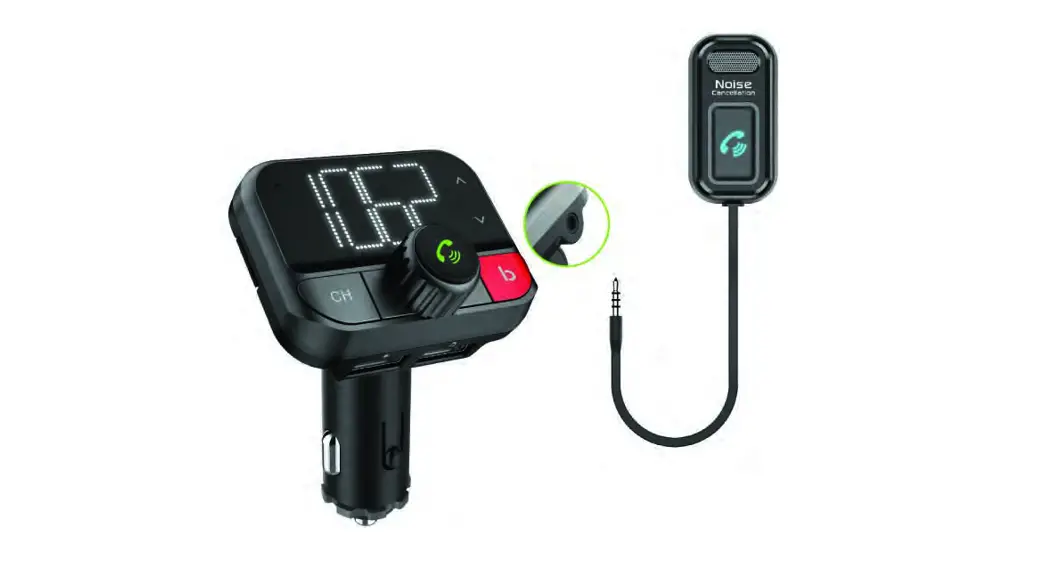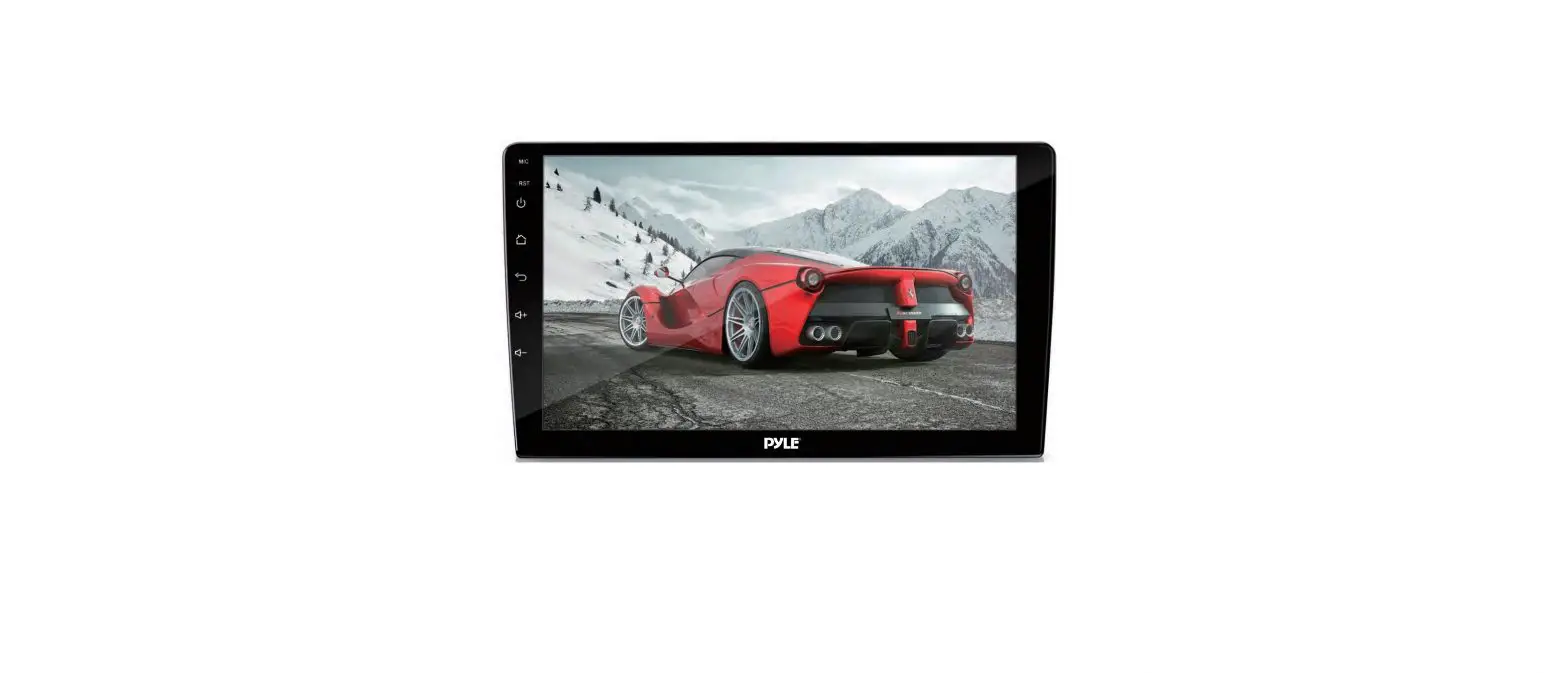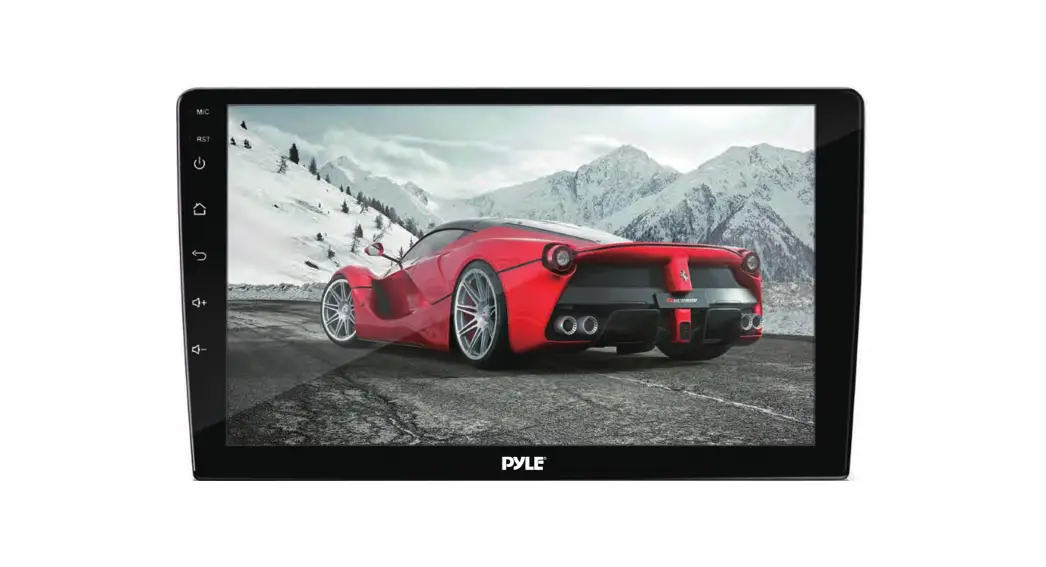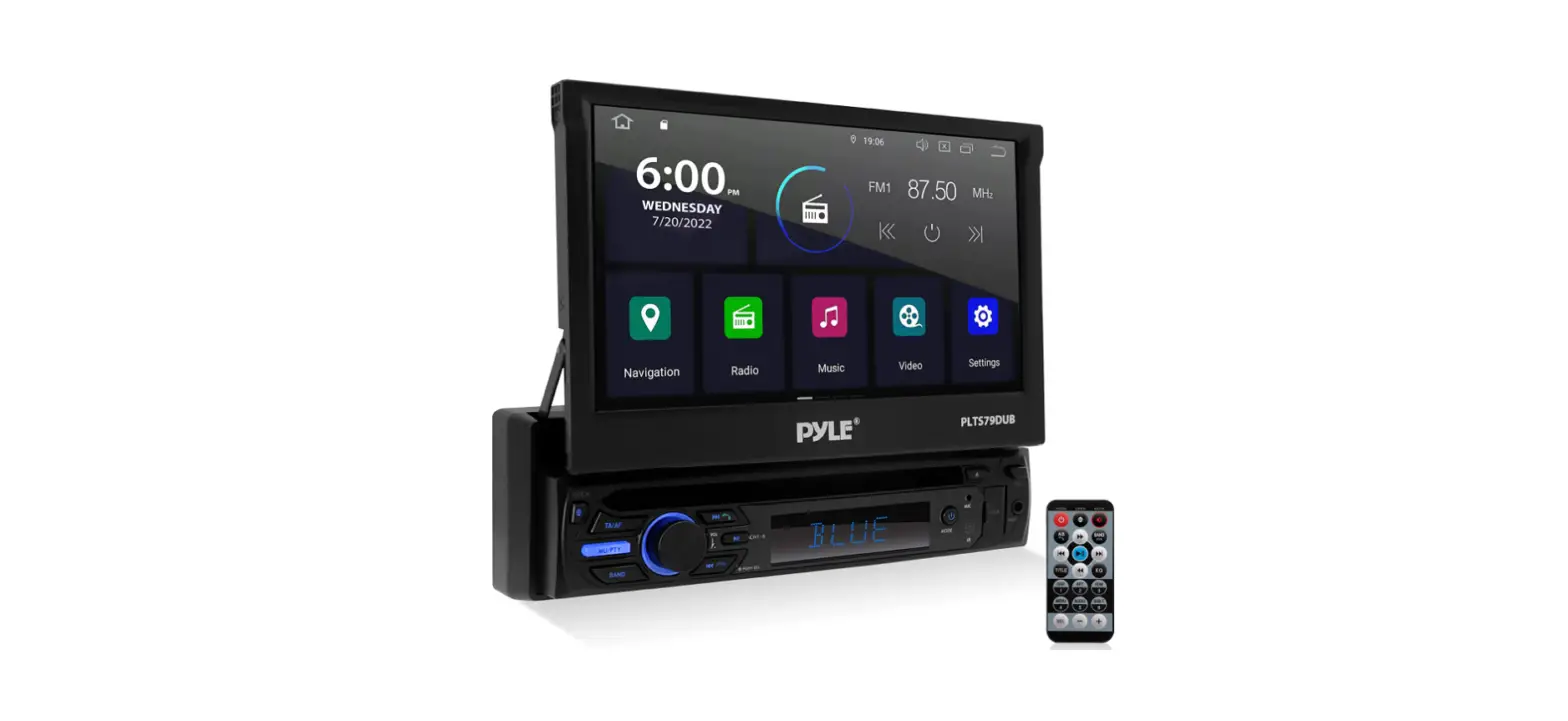
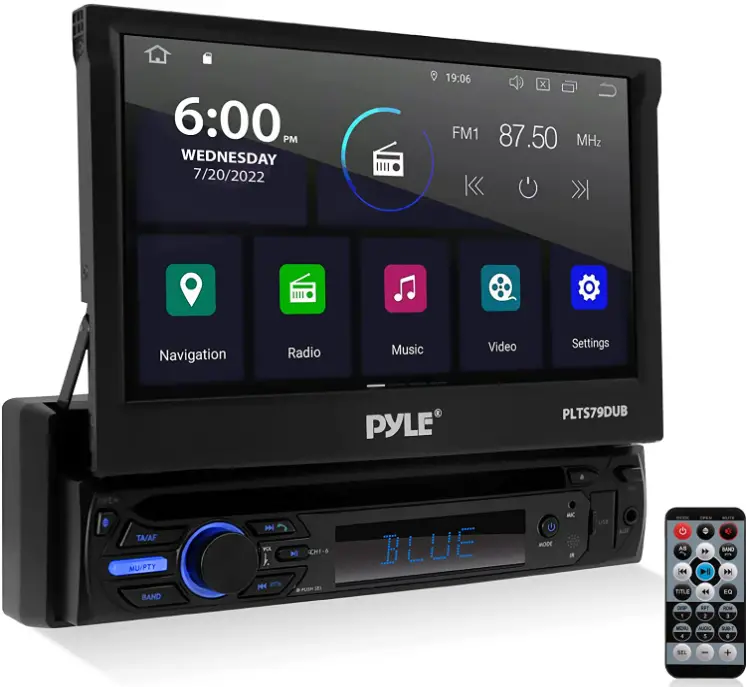
 Pyle PLTS79DUB Car Stereo Video Receiver

Safety Information
IMPORTANT:
- Do not operate this digital video player while the vehicle is moving.
- This is a safety feature to prevent driver distraction.
- It’s illegal in most country for the driver to view video while the vehicle is moving.
- The digital video functions will only be operated when vehicle is parked and the parking brake is engaged.
To establish a safe level:
Start your volume control at a low setting.
- Slowly increase the sound until you can hear it comfortably and clearly, and without distortion.
- Once you have established a comfortable sound level, set the dial and leave it there.
How to Handle Discs: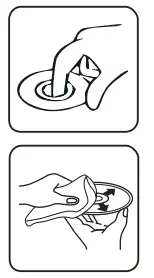
- Handle disc by its edges. Do not touch the playing side.
- Before inserting a disc, wipe the disc outward from the disc center with a clean, soft, dry and lint-free cloth. Do not use solvents or thinners such a petrol/bezene or clearners.
- After removing disc from the disc slot, place the disc in a sleeve or case to keep it clean and prevent scratches.
- Do not stick paper or tape on the disc surface. If there is glue (or adhesive) on the disc surface, remove it before using the disc.
Precautions:
- To reduce the risk of fire, electric shock, and interference, do not attempt to repair this product yourself. Refer all servicing to a qualified technician.
- This digital video player is compatible with VIDEO/AUDIO discs with 12 cm size:
- Digital video disc
- VCD disc
- CD, CD-R, CD-RW disc
- MP3 disc
- Do not switch ON this digital video player for a long time when the vehicle’s motor is switched o. This could cause the vehicle’s battery to discharge and battery may not be able to provide enough power to re up the engin
- Do not apply strong mechanical stress like drop, shock or any force to the TFT LCD. Do not hard hit, press or rub the TFT LCD display surface. If the display surface is dirty, please wipe the surface softly with cotton swab or clean cloth.
- Never place any foreign objects into the openings of this product such as disc slot, USB port, SD card slot, AUX IN jack. Otherwise you might damage the slots and connectors.
- Do not throw the battery cell of remote control into fire as this may cause an explosion. Keep battery cells out of reach of children.
Copyright Notes:
This product incorporates copyright protection technology that is protected by method claims of certain U.S. patents and other intellectual property rights owned by Macrovision Corporation and other rights owners.
Use of this copyright protection technology must be authorized by Macrovision Corporation, and is intended for home and other limited viewing uses only unless otherwise authorized by Macrovision Corporation. Reverse engineering or disassembly is prohibited.
Region Management information:
This product is designed and manufactured to respond to the Region Management Information that is recorded on a digital video disc. If the Region number describled on the digital video disc does not correspond to the Region number of this digital video player. the disc cannot be played on by this digital video player.
INSTALLATION
Before Installation:
- We recommend you to let a professional technician install the unit in the vehicle.
- Disconnect negative battery terminal of vehicle.
- Remove 2 transit screws lacated on top of the unit.
Installation Process:
- Carefully remove the existing head unit.
- Before finally installing this product, connect wiring harness temporarily and make sure it’s all connected up properly and test the head unit if it can work properly. (Consult a qualified technician if you unsure)
- Lift the left or right top corner of the plastic outer trim ring then pull it off to
remove it. - Insert the two bracket keys into the left and right side of the chassis to separate the chassis from the housing.
- Insert the mounting sleeve into the dashboard and bend the mounting tabs out with a screwdriver. Make sure that the lock lever is flush with the mounting sleeve and it dose not project beyond it.
- Slide the digital video player carefully into the already fixated mounting sleeve till it clicks into place.
- Use a metal strap to fix the rear part of the chassis.
- Connect wires as illustrated in the “wiring diagram”.
- Install the plastic outer trim ring.
Note: If you need other screws to fix other terminal, please buy from your dealer according to the drilling of holes size.
INSTALLATION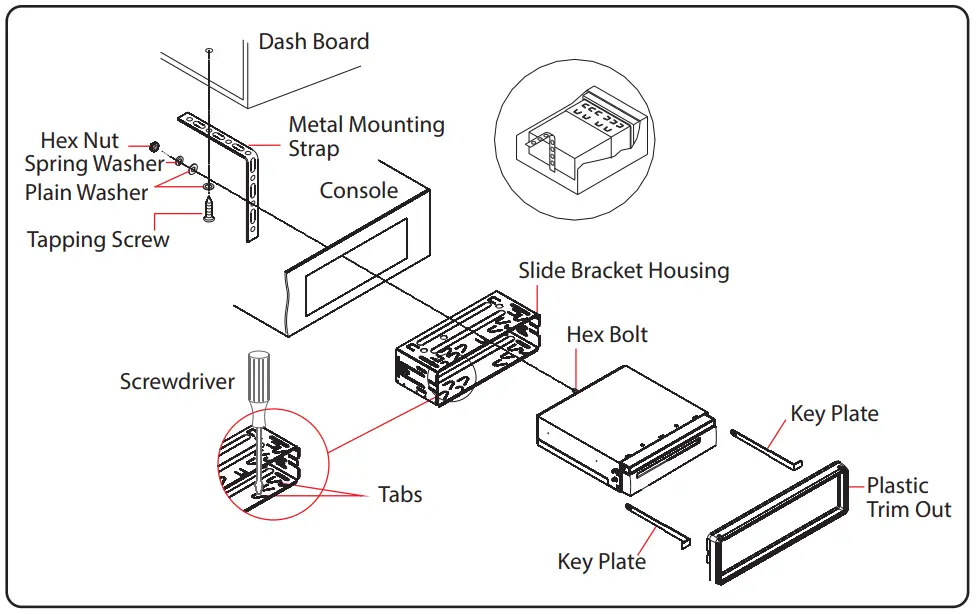
Wiring Connections
RADIO ANTENNA JACK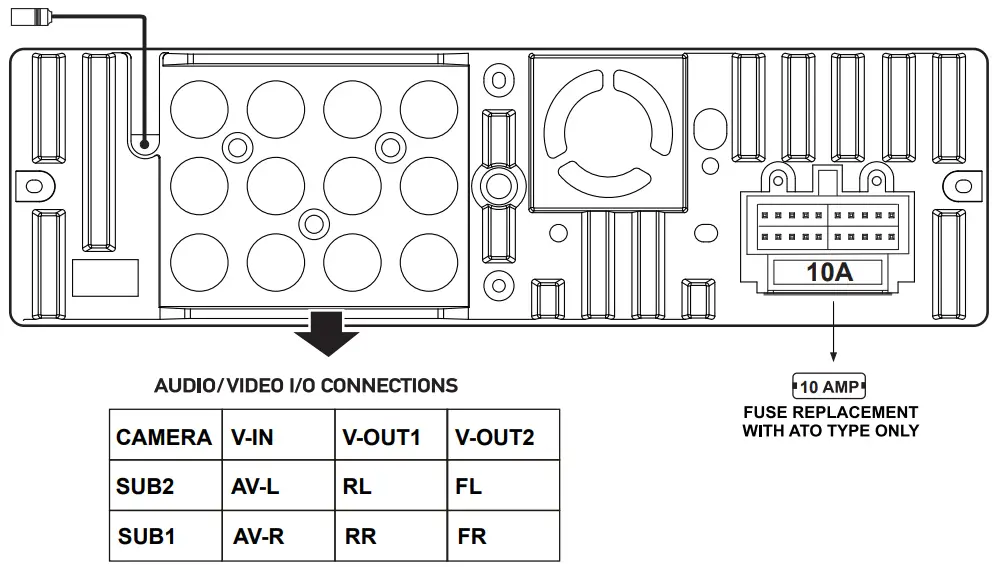
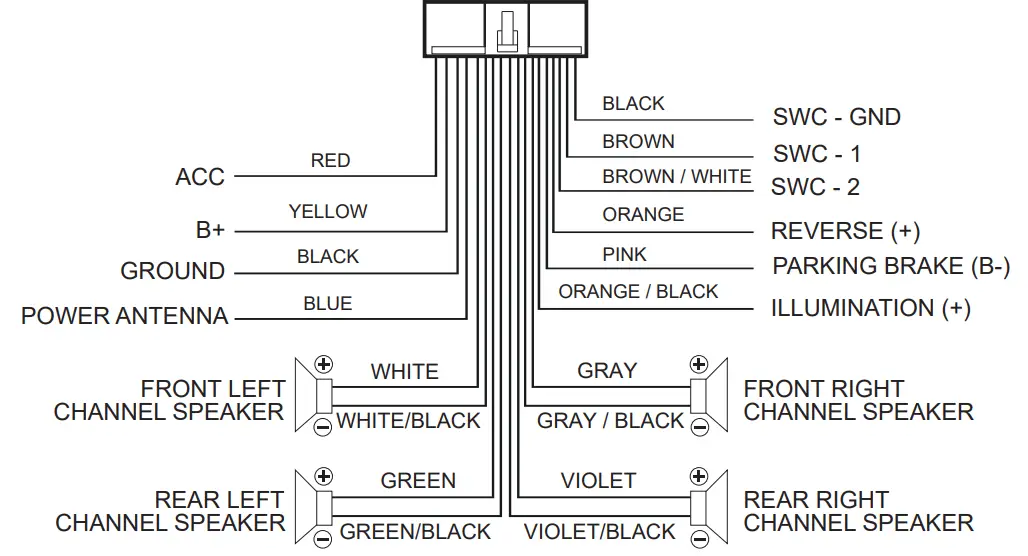
Note: the ground connection cable (parking brake B-) must be connected in order for pictures to be played back to the monitor. If the cable has not been correctly connected, warning message appears on the monitor.
AUDIO/VIDEO I/O CONNECTIONS
- CAMERA: Rear Camera Video input Socket (Yellow)
- SUB2: Subwoofer Output Socket 2 (Green)
- SUB1: Subwoofer Output Socket 1 (Green)
- V-IN: AV IN Video input Socket (Yellow)
- AV-L: AV IN Left CH Audio input Socket (White)
- AV-R: AV IN Right CH Audio input Socket (Red)
- V-OUT1: Video Output Socket 1 (Yellow)
- RL: Rear Left CH RCA Output Socket (White)
- RR: Rear Right CH RCA Output Socket (Red)
- V-OUT2: Video Output Socket 2 (Yellow)
- FL: Front Left CH RCA Output Socket (White)
- FR: Front Right CH RCA Output Socket (Red)
Control Panel Buttons
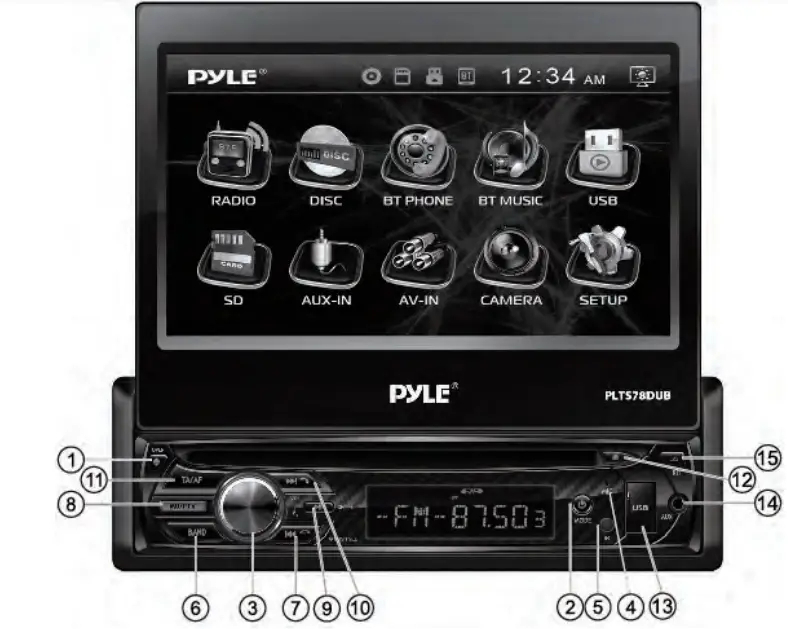
- OPEN/ BUTTON
Briefly press to slide the monitor out of slot or slide the monitor inside of slot.
Press and hold this button to tilt up and down the monitor. - /MODE BUTTON
In power FF mode, press it to turn ON the unit. Long press to turn o the unit.
In power on mode, short press it repeatedly to select one mode of the RADIO,
DISC, USB, SD, AUX IN, AV IN and BT. - Volume KNOB / SELECT BUTTON
Rotate the VOL knob to increase or decrease the volume level.
Press the SEL button to turn to EQ settings. - Handsfree Microphone
Uses the bluetooth handsfree system to receive your voice when calling. - IR REMOTE SENSOR
- BAND
In radio model, press BAND to select between FM1, FM2, FM3, AM1 and AM2 bands. - Tune Previous/ Skip Previous track, Reject and End Call ( )
In Radio mode, press to tune radio frequency downward one step at a time.
Press and hold to scan strong singal radio station downward step by step.
In Disc/USB/SD/BT music playback, press to skip previous track.
Press and hold to fast backward playback.
In BT mode, press to reject an income call or end a call. - MUTE ON/OFF, PTY (Program Types)
In power on mode, press the MUTE button to toggle mute on or o.
In radio mode, press and hold the PTY button, you can select specic stations of a certain program type such as News, Info, sports, Talk, Rock etc.. - (PLAY/PAUSE) /CH 1-6 (PRESET RADIO STATION)
In Disc/USB/SD/BT music playback mode
Press this button to pause playback, touch again to resume playback.
In Radio Mode
Press repeatedly to preset radio station. With this system a total of 30 stations can be stored in the memory. Each band store up to six preset stations.
The stations might be FM1, FM2, FM3, AM1 (MW1) and AM2 (MW2) band.- To Memorize a station
- Select the frequency band.
- Press repeatedly this range to select the desired memory key.
- Select the station.
- Keep the desired memory key touched in until the station is heard again after a brief interruption.
- To retrieve a preset station
Press repeatedly to retrieve a station that had been stored in the memory in
advance the chosen number is shown on display.
- Tune Nest/ Skip Next track, Make a Call, Receive and Redial Last Call ( )
In Radio mode, press to tune radio frequency upward one step at a time.
Press and hold to scan the strong singal radio station upward step by step.
In Disc/USB/SD/BT music playback, press to skip next track.
Press and hold to fast-forward playback.
In BT phone mode, press the button to make a call / receive a call / redial the last dialed phone number. - TA (traffic Announcement Settings)/AF(Alternative Frequencies)
In Radio mode, briefly press the TA/AF button to toggle TA on or oF.- ON: TA symbol will be displayed if this function is activated. In the TA mode, once a traffic message is received, the unit switches to the radio station from a different mode(e. g. USB mode).
- OFF: The function is deactivated.
In Radio mode, press and hold the TA/AF button to toggle AF on or oF, and the device searches the best frequency for the selected station. - ON: If a certain broadcast station has bad reception, the device switches automatically to a broadcast station broadcasting the same program via the same RDS broadcast chain.
- OFF: The function is deactivated.
- (EJECT) BUTTON
Insert the disc, and label the side facing up, until the mechanism senses its presence and draws the disc in. Press it to eject the disc. - USB PORT
Open the cover for USB device use. The USB port is designed for media playback from FLash memory devices and 2.1 Amp charging for most iPhone / Andriod mobile phones. - AUXILIARY INPUT JACK
Insert an external device into this 3.5mm auxiliary jack in order to have an audio output of the device through the unit. - Release the detachable front panel
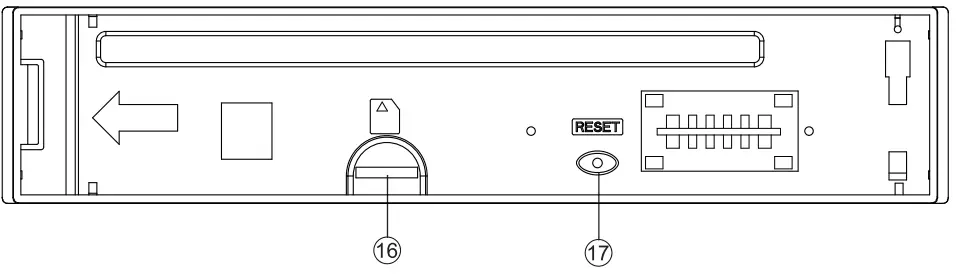
If you want to insert or remove the SD card, remove the front panel form the chassis, press the release button to detach this little front panel. - Mini SD Card Slot
This Mini SD card slot is designed for media playback from a Mini SD cards.
After removing the front panel, you can insert or remove the mini SD card.
- RESET SYSTEM
The RESET button is used to reset all paramenters to factory default setttings. This function may be used when the LCD does not display normally or sound is distorted, or when any of controls are disabled. Gently press the RESET button to reset your system with a thin object with a pointed end.
REMOTE CONTROLS
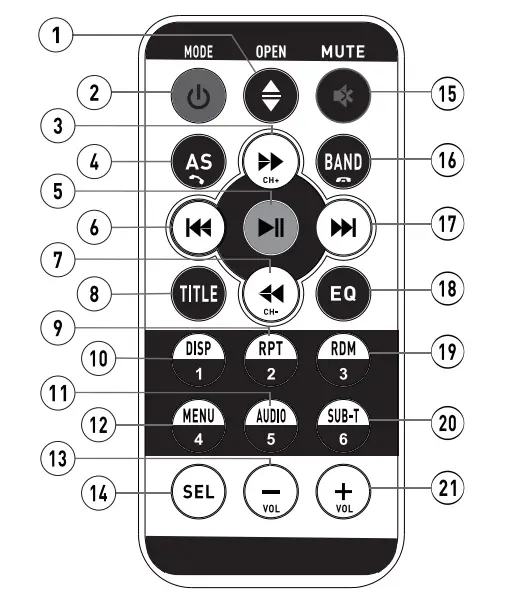
- OPEN /
Briefly press to slide the monitor out of slot or slide the monitor inside of slot.
Press and hold this button to tilt up and down the monitor. - Power ON/OFF, MODE
Press it to turn the unit ON , press and hold to turn the unit OFF.
During power on, press it briey to select between RADIO, DISC, USB, SD, AUX IN, AV IN and BT. 3 & 7. /
In Disc/USB/SD Playback mode, press for fast forward or fast backward playback.
In Radio mode, press to scan radio station step by step. - AS /
In Radio mode, press and hold AS for more than 2 seconds to store 18 FM stations and 12 AM stations automatically. Press it briey to recall each preset station that stored in memories in each band.
Press the button to make a call / receive a call / redial the last dialed phone number. - (Play/Pause)
In Disc/USB/SD/BT music playback mode, press to pause playback. Press again to
start where playback stopped. 6 & 17. / . In Disc/USB/SD/BT music playback, press both buttons to skip next or previous track. In Radio mode, press to tune radio frequency down or up one step at a time. - TITLE
When playing a digital video, pressing this button will open the TITLE menu which is recorded on the media. When playing a VCD disc, press this button to create a PBC(Playback Control) menu for the disc to assist in making playback selections. - RPT (Repeat playback) / 2
In Disc/USB/SD card playback mode, press to repeat playback. In radio mode, press to store or recall the preset station 2. - DISP / 1
In video playing mode, press to show OSD menu. In radio mode, press to store or recall the preset station 1. - AUDIO / 5
In Disc/USB/SD card playback mode, press for making changes to the way the soundtrack is reproduced. In radio mode, press to store or recall the preset station 5. - MENU / 4
In Disc/USB/SD card playback mode to display the root level directory of a digital video disc. In radio mode, press to store or recall the preset station 4. - VOL+/VOL
Use these controls to adjust the volume level. - SEL
Press to turn to EQ settings. In Radio mode. - MUTE
In power-on mode, press the MUTE button to toggle mute on or o. - BAND /
Press BAND to select between FM1, FM2, FM3, AM1, and AM2 bands. In BT mode, press to reject an income call or end a call. www.PyleUSA.com - EQ
Press repeatedly to cycle through the different equalizer curve presets you may wish to use. - RDM / 3
In Disc/USB/SD card Playback mode, press to play tracks in random order, and press again to cancel the RDM function. In radio mode, press to store or recall the preset station 3. - SUB-T/6
In Disc/USB/SD card Playback mode, press to change the subtitle language on discs that have this as an option. In radio mode, press to store or recall the preset station 6.
Setup Operations
Main Menu:
In each mode, touch the icon to enter the main menu as below image. In the main menu screen, press the desired icon to enter each of the following settings : Radio, Disc(CD/VCD/DVD), USB, SD, Bluetooth Phone, Bluetooth Music, Aux In, AV In, RearView Camera, and Setup.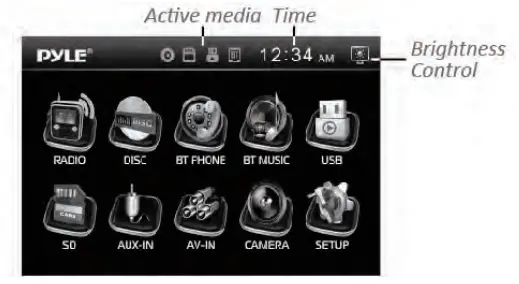
In the main menu, touch the icon to enter the setup menu, as below image.
The user can set up or adjust the general settings for the digital video player.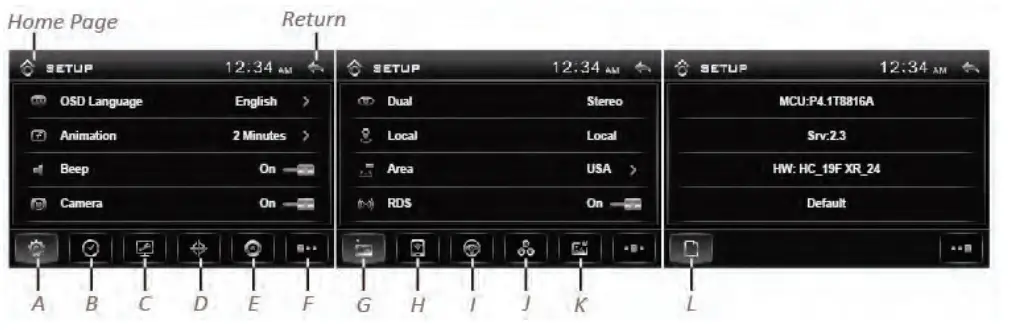
General: OSD Language, Animation, Key Beep, RearView Camera, Parking Guideline)
- OSD Language: English, French, Portuguese, German, Spanish, Italian
- Animation: 10, 30, 60, 90 Seconds, 2, 3, 4 Minutes, Off
- Key Beep: Enables or Disables beep buzzer signal to confirm use.
- RearView Camera: Enables or Disables the video input from the rearview camera.
- Parking Guideline: Enables or Disables the parking guideline of the reverse rear view.
Time (Adjust Time and Time format)
Tap the  icon to enter the clock and time format adjusting interface, tap the
 and
and  button to choose 12/24 hours; and adjust the hour or minute.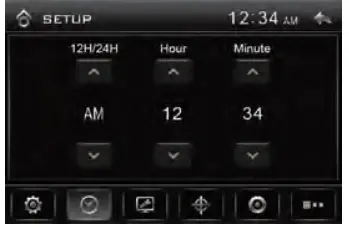
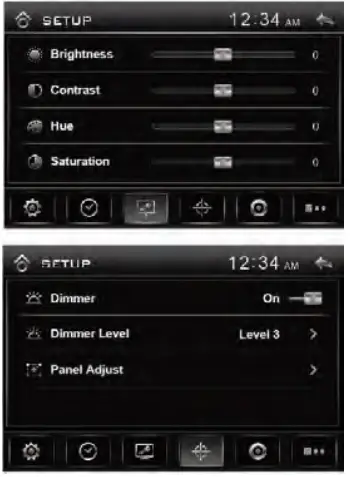
Video parameter(Adjust Brightness, Contrast, Hue)
Tap the icon to adjust the video parameter.
- Brightness: -20,~, 0, ~, +20
- Contrast: -20,~, 0, ~, +20
- Hue: -20,~, 0, ~, +20
- Saturation: -20,~, 0, ~, +20
- Sharpness: 0,1,~, 14,15

- Calibration(Dimmer, Dimmer level and Touch screen Calibration)
Tap the icon to adjust dimmer and calibrate the touchscreen. - Dimmer: Enables or Disables dimmer.
- Dimmer level: Allows you to choose dimmer level:
Level 1, Level 2, Level 3 - Calibration TFT Touchscreen:
Touch this item to enter touchscreen calibration mode, Tap the cursor “+” continuously untill it move to next position. Follow the cursor to finish the calibration of touch screen.
Language (Select Language)
Tap the icon to set up the system language.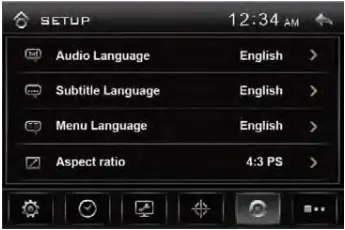
- Audio Language: English, French, Portuguese, German, Spanish, Italian
- Subtitle Language: English, French, Portuguese, German, Spanish, Italian, Off
- Menu Language: English, French, Portuguese, German, Spanish, Italian, O
- Aspect Ratio: 4:3 PS, 4:3 LB, 16:9
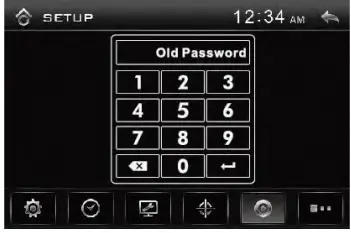
This is to select the appropriate TV aspect (4:3 Pan Scan, 4:3 letter box or 16:9) according to the connected TV set. - Change Password:
The first time, input old password, then you can change the password for rating as your favour.
The factory default password is “0000”. - Rating:
Every time changing parental control rating, user have to input password. User can select one of below suitable parental control rating: 1 Kid Safe, 2 G, 3 PG, 4 PG 13, 5 PG-R, 6 R, 7NC-17, 8 Adult
Switch to next page
Tap the icon switch to the next setup interface.
Radio Settings
Tap the icon to set up the same radio function.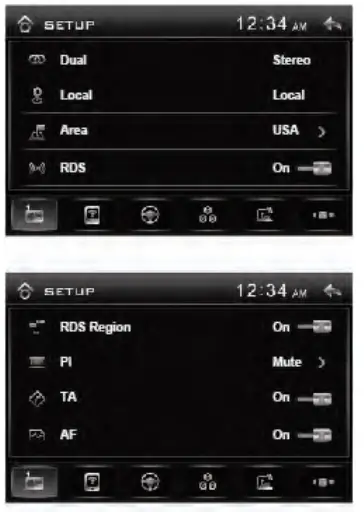
- DUAL: STEREO and MONO mode.
- Local: Local/Distant broadcast mode.
- Area: To choose the radio area: Europe, USA, American 1, American 2, OIRT
- RDS: Enables or Disables RDS function.
- RDS Region: Enables or Disables RDS region.
- PI Sound / Mute: To choose the PI Sound or PI Mute.
- TA On/Of: Enables or Disables Traffic Announcement.
- AF On/Off: Enables or Disables Alternative Frequencies
- Clock Sync On/Off: Enables or Disables clock synchronization function.
Bluetooth Settings
Tap the icon to set up the Bluetooth function.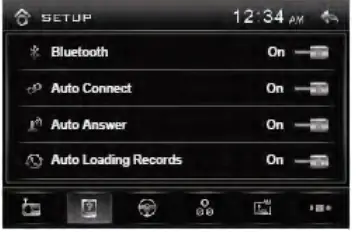
- Bluetooth: Enables or Disables Bluetooth function.
- Auto Connect: Enables or Disables this bluetooton handsfree automatically connects to a mobile phone.
- Auto Answer: Enables or Disables auto receiving a coming call.
- Auto Loading Records: Enables or Disables auto-loading records.
- Auto Loading Phonebooks: Enables or Disables auto loading Phonebooks.
Steering Wheel
Tap icon to set up the steering wheel function.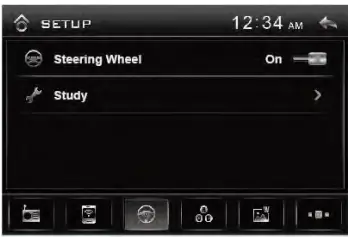
- Steering wheel: Enables or Disables the steering wheel.
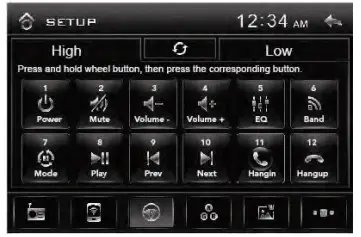
- Study: Tap “Study” to enter the stary operation menu. First, make sure the SWC connecting wires have been connected to this unit.
- High: This means high impedance. Tap to reduce the magnitude of voltage.
- Low: This means low impedance. Tap to increase the magnitude of voltage.
- Both Keys for avoiding the voltage is too high or too low that the car system can not differentiate the input key set for some cars.
Before the study, tap the icon to clear all previous settings. Long press the steering wheel button, at the same time, tap the function button on touch screen that you want to set on to the steering wheel.
RGB Illumination (Backlight and Buttons color)
Tap icon to adjust the RGB level of touch screen and all buttons.
- Red: Drag the slider left or right to adjust the red value for touch screen and all buttons.
- Green: Drag the slider left or right to adjust the green value for touch screen and all buttons.
- blue: Drag the slider left or right to adjust the blue value for touch screen and all buttons.
- AUTO: Tap “AUTO” icon, the color will be changed automatically.

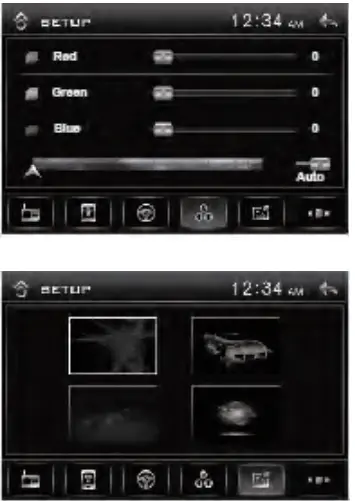
Wall Paper Setting
Tap icon to change the wall paper.
Software version
Tap the icon to view the hardware & software version.
Default:
Tap “Default” to restore to all parameters to factory default settings.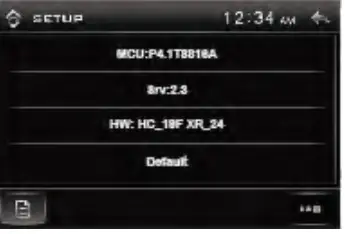
QR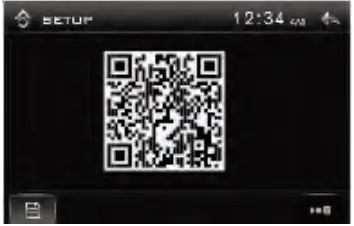
Tap “QR” to view QR code. Then user can scan QR code and access the Google Play Store to free download APP. You can also log onto this link to download the APK: https://play.google.com/store/apps/details?id=com.sharp.plye&hl=en Smart Phone Control Car Audio(For Android Only) Connect your phone to this digital video player through Bluetooth, then tap the APP and turn on it on your phone, now you can control the audio of this digital video player by your smartphone.
Audio Settings Operations
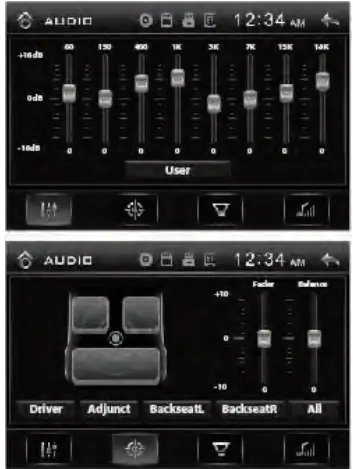
- EQ Presets:
Press SEL button (Volume knob) on faceplate or press the SEL button on the remote control, ortap the icon to turn to EQ settings.
Tap “User” icon repeatedly to preset audio EQ:
User -> Classic -> Rock -> Pop -> Jazz -> Electric
- fader / Balance:
Tap the icon to adjust the fader and balance. - FAD: To adjust the front-to-rear audio strength.
- BAL: To adjust the left-to-right audio strength.
Tap the “Driver”, “Adjunct”, “BackseatL”, and “BacksetatR” buttons to quickly preset audio effect for Driver, Adjunct, left back passenger, and right back passenger in car. - Subwoofer / Loudness:
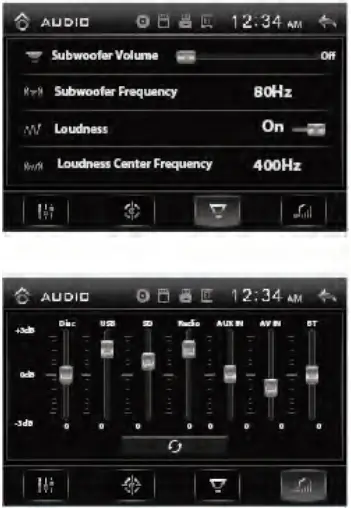
Tap icon to adjust the subwoofer and loudness. - Subwoofer: To adjust the subwoofer volume levels and Subwoofer frequency (80Hz,120Hz, 160Hz).
- Loudness: The loudness feature provides better overall sound at low volume levels by increasing low and high frequencies.
User can turn on/off loudness and adjust the loudness center frequency: 400Hz, 800Hz, 1200Hz.
- Preset Volume Level for different modes:
Tap the icon to preset a proper volume level for Disc, USB, SD Radio, AUX IN, AV IN, and BT(Bluetooth). Tap the icon to clear all previous settings.
Radio Operations
Press MODE button on the control panel or on the remote control, or tap the “Radio” icon on touch screen until Tuner is selected.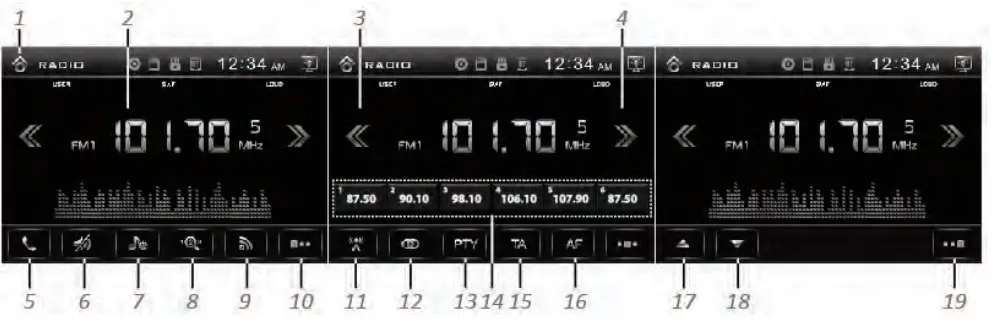
- Home Page
- Information Display
- Tune/Seek Down
- Tune/Seek Up
- Shortcuts for switch BT (Bluetooth) mode
- Mute On/off
- EQ Setting
- AS/PS (Automatic Memory Storing & Preset Scanning)
- BAND
- Next Page
- Local/Dx(Distant)
- Stereo/Mono
- PTY(Program Types)
- Preset Station Display
- TA (Traffic Announcement)
- AF (Alternative Frequencies)
- tilt up monitor
- Tilt down monitor
- Previous Page
Disc Operations
Video Playback:
Insert a video disc in the disc slot for video disc playback. Press MODE button on the control panel or on the remote control, or tap the “DISC” icon on the touch screen until Disc is selected.
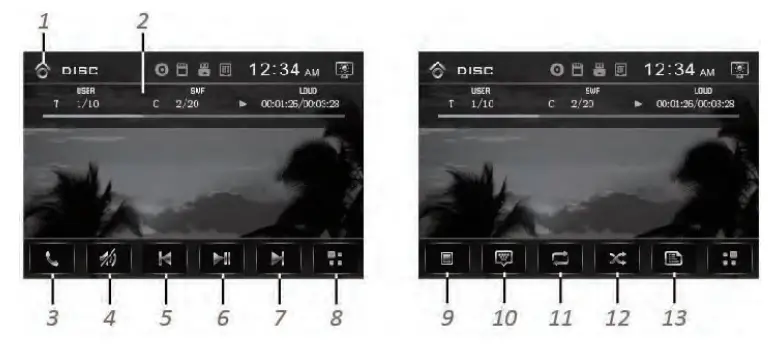
- Home Page
- Information Display
- Shortcuts for switch BT (Bluetooth) mode
- Mute On/o
- Previous Track / Fast backward
- Play/Pause
- Next Track / Fast foward
- Next Page
- Stop Playback
- Goto(Video Search)
- Repeat Play
- Random Play
- Menu
- Title
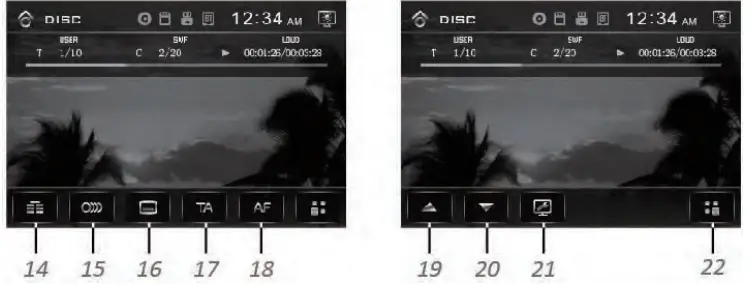
- Multi-Audio Language
- Multi-Subtitle Language
- TA(Trac Announcement)
- AF(Alternative Frequencies)
- Tilt up monitor
- Tilt down monitor
- Video parameter (Adjust Brightness, Contrast, Hue, Saturation, Shapness)
- Previous Page
CD, CD-R/CD-RW/ MP3 Disc Playback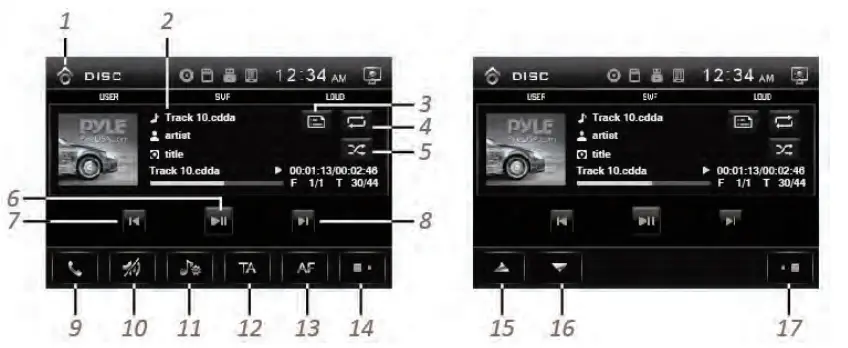
- Home Page
- Information Display
- File/Folder list
- Repeat Play
- Random Play
- Play/Pause
- Previous Track/ Fast backward
- Next Track / Fast foward
- Shortcuts for switch BT (Bluetooth) mode
- Mute On/oFF
- EQ Setting
- TA(TraFFIc Announcement)
- AF(Alternative Frequencies)
- Next Page
- Tilt up monitor
- Tilt down monitor
- Previous Page
USB/Mini SD Card Operations
- USB Playback:
First, open the plastic lid, then connect your USB device to the control panel USB port. If it is properly connected, the USB device will be mounted and start playing automatically. Press MODE button on the control panel or on the remote control, or tap the “USB” icon on touch screen until USB mode is selected. - Mini SD Card Playback:
Remove the front panel, then insert your Mini SD card into the Mini SD card slot of this digital video player. If it is properly connected, the Mini SD card will be mounted and start playing automatically. Press MODE button on the control panel or on the remote control, or tap the “SD” icon on touch screen until SD mode is selected.
- Home Page
- Information Display
- File/Folder list
- Repeat Play
- Random Play
- Play/Pause
- Previous Track /Fast backward
- Next Track / Fast forward
- Shortcuts for switch BT(Bluetooth) mode
- Mute On/oFF
- EQ Setting
- TA (Traffic Announcement)
- AF (Alternative Frequencies)
- Tilt up monitor
- Tilt down monitor
- Audio FIle list
- JPEG picture list
- Video FIle list
- Sort the list of File/Folder


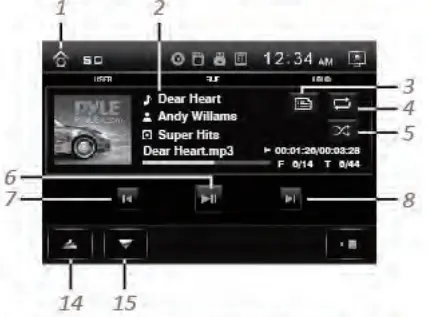
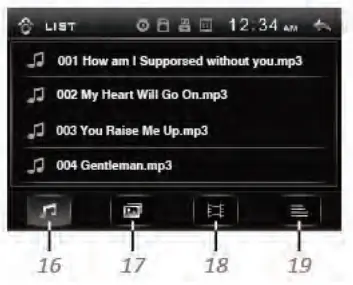
Photo Playback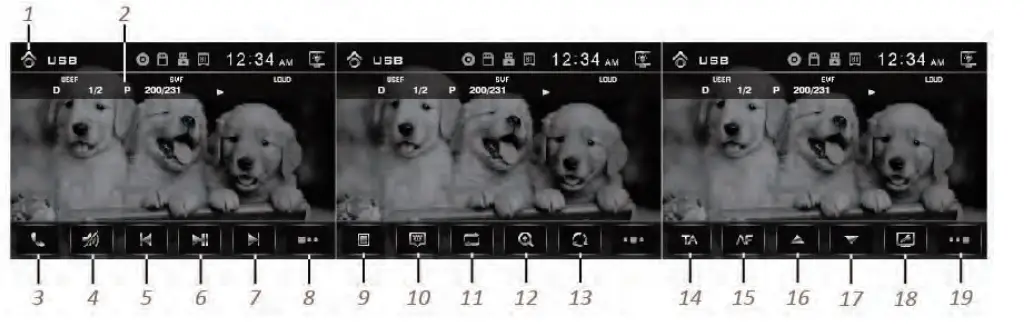
- Home Page
- Information Display
- Shortcuts for switch BT (Bluetooth) mode
- Mute On/oFF
- Previous Photo
- Play/Pause
- Next Photo
- Next Page
- Stop Playback
- Goto (Photo Search)
- Repeat Play
- Zoom In/Out
- Rotate Photo
- TA(TraFFIc Announcement)
- AF(Alternative Frequencies)
- Tilt up the monitor
- Tilt down monitor
- Video parameter (Adjust Brightness, Contrast, Hue, Saturation, Shapness)
- Previous Page
Bluetooth Operations
Pairing and Connecting
Before using a Bluetooth phone with this unit, the phone must be paired and connected.
The Bluetooth signal of the unit will broadcast when the power is on.
This digital video player will display as “PyleUSA” on your phone.
When prompted, enter the passcode “0000” on your phone.
Once paired, the Bluetooth phone should automatically connect this unit whenever the unit is in range.
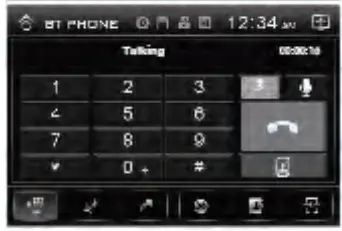
- Make a call
Tap to display keypad and dial a number.

- Making and Ending a Call
Tap to make a call, and tap to end a call. - Redial last dialed number
Tap to redial the last dialed phone number. - Accessing Recent Call List
Tap the icon to view the income calls.
Tap the icon to view the outgoing calls.
Tap the icon to view the missed calls.
Tap the icon to view the contacts(phonebook).
Tap the icon to download the contacts from the phone.
Tap the icon to view the connected phone name.
Tap the phone name to disconnect the phone.
PTT (Push to Talk) Function
The digital video player has a PTT button to allow you to access Siri or Google Voice through the head unit when connected via BT.
Your mobile phone must support Siri or Google Voice in order for this feature to be supported on the head unit.
NOTE: Samsung “S” Voice and other third-party apps may not be supported.
Transferring Audio
Tap the icon to transfer audio between this digital video player and your mobile phone.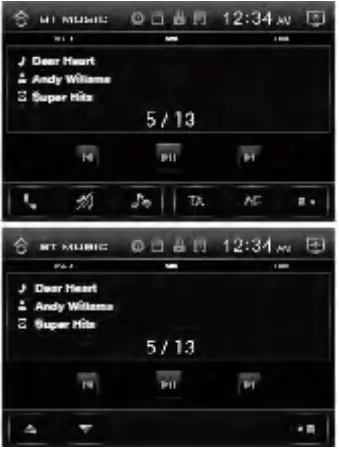
Streaming Audio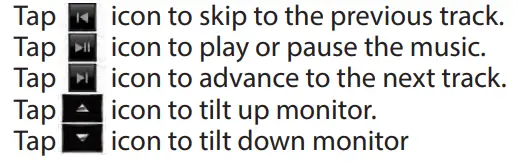
Smart Phone APP Control car audio (For Android Only)
Download APP from this link:
https://play.google.com/store/apps/details?id=com.sharp.plye&hl=en
You can also scan below QR code with your smartphone and access the Google
Play Store to free download this APP.
Connect your phone to this digital video player through Bluetooth, then tap the APP and turn on it on your phone, now you can control the audio of this digital video player on your smartphone.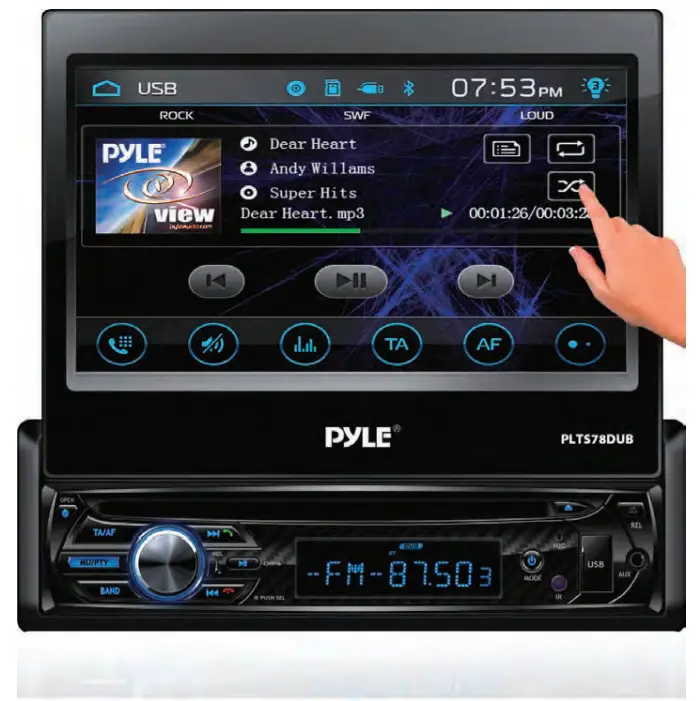
PLTS78DUB
Car Stereo Video Receiver with Wireless BT Streaming, Hands-Free Talking, Motorized Fold-Out Touchscreen, 7’’ Display,MP3/USB/SD/AM/FM Radio, Single DIN
Features
- Versatile Stereo Radio System
- 7’’ -inch HD Video Display
- Bluetooth Wireless Music Streaming
- Built-in Microphone for Hands-Free Talking
- CD/DVD Player
- Touchscreen Control
- User-Friendly Control Interface
- AM/FM Radio with LCD Display
- Connect & Stream Audio from External Devices
- USB Flash Drive & SD Memory Card Readers
- MP3 Digital Audio File Playback
- Front Panel Aux (3.5mm) Jack
- Motorized Fold-Out Video Screen Display Panel
- Backup Camera Support: Rear Camera/Parking Video Input
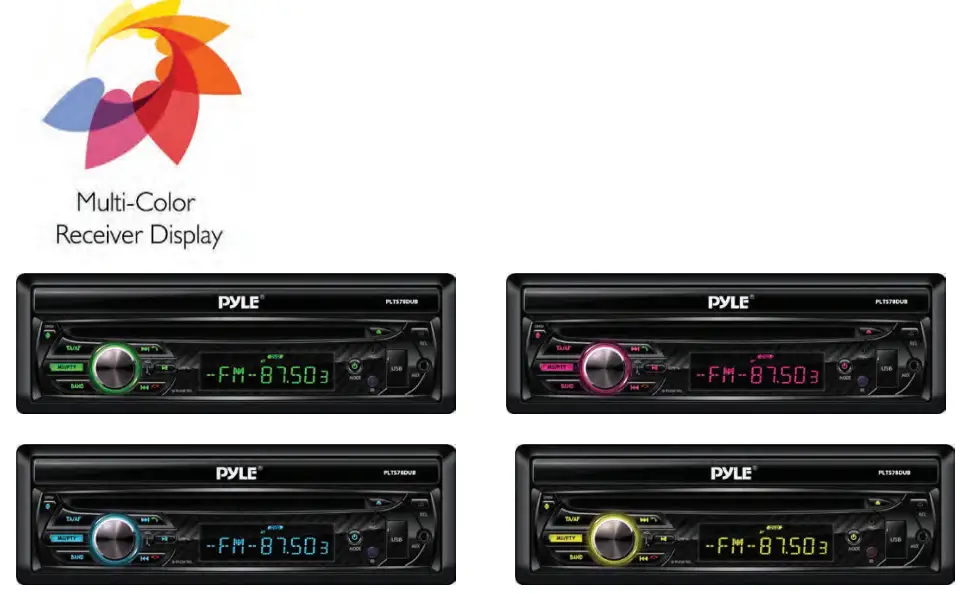
- Multi-Color Receiver Illumination Display
- Detachable Stereo Face
What’s in the Box:
- Single DIN Receiver
- Detachable Radio Face
- Remote Control
- Power & Wiring Harness
Bluetooth Connectivity:
- Built-in Bluetooth for Wireless Music Streaming
- Hands-Free Calling Ability with Built-in Microphone
- Compatible with All of Your Favorite Bluetooth Devices
- (iPhone, Androids, Smartphones, iPad, Tablets, etc.)
- Convenient Contact List Import Ability
- Digital Phone Dial Pad Display
- Bluetooth Version: 2.0 +EDR
- Bluetooth Network Name: ‘PyleUSA’
- Bluetooth Network Password: ‘0000’
- Wireless Range: 15’ ft. www.PyleUSA.com
Technical Specs:
- Single DIN Size Universal Standard
- Power Output: 4 x 80 Watt (320 Max.)
- Wide Screen TFT – LCD Display
- Pixel Resolution: 800 x 480 Pixels
- Brightness: 400 Nits
- Aspect Ratio 16:9 High Definition
- Video System: NTSC/PAL (Auto Recognition)
- Response Time: Up 30 ms, Down 50 ms
- AM/FM-MPX 2 Band Radio – Auto Store, Preset, Scan
- Bluetooth A2DP, AVRCP Support
- Impedance: 4 Ohm
- Signal to Noise Ratio: 70dBA
- Frequency Response: 20Hz – 20kHz
- PLL Synthesizer Tuner – 30 Station Memory
- ESP (Electronic Shock Protection) – Anti-Shock Mechanism
- Anti-Shock Mechanism-ESP Function
- LO/DX & ST/MO Selector
- PLL Synthesizer Tuner
- Clock – Mute – Preset EQ
- Treble/Bass/Balance/Fader/Encoder Volume
- Connection Interface: AV (RCA) Inputs/Outputs – MP3/DVD/CD, Subwoofer
- Multimedia Disc Support: DVD/VCD/CD/CD-R/CD-RW/VCD/MP3/MPEG
- File Compatibility: JPEG, MP3, MP4, AVI, WAV and More
- Maximum USB/SD Flash Memory Card Support: 64GB
- Working Voltage: DC 12V
- Chassis Dimensions (W x H X D): 7.01” x 1.98” x 6.54” -inches
FAQS
How much does VLC cost?
VLC is a free and open source cross-platform multimedia player and framework that plays most multimedia files, and various streaming protocols.
Why is video not playing on Drive?
While cache and cookies enhance your browsing experience, they can overwhelm your browsers if you don’t regularly clean them. So, clear the browser cache and cookies to resolve the “Google Drive video” error and other browser issues. From there, sign in to Google Drive again and try playing your videos.
Can a receiver work without an antenna?
Antennas are required by any radio receiver or transmitter to couple its electrical connection to the electromagnetic field. Radio waves are electromagnetic waves which carry signals through the air (or through space) at the speed of light with almost no transmission loss.
What are the three types of receivers?
The most common types of receiver are administrative receivers (see paragraph 56.2. 3), fixed charge receiver (see paragraph 56.2. 4), Law of Property Act receivers (see paragraph 56.2. 5), and court-appointed receiver (see paragraph 56.2.
Can VLC play everything?
VLC plays Files, Discs, Webcams, Devices and Streams. No spyware, No ads, No user tracking.
Why do people use VLC?
Power DVD is the best choice for a VLC Media Player alternative out of the five we reviewed. It supports an extensive range of audio and video formats, offers screencasting and Blu-ray support, and will play 3D and 360° videos.
Can we play video in the drive?
You can store and play videos directly from Google Drive. On your Android phone or tablet, open your photos app.
How much does it cost to install a car receiver?
There isn’t a more widely used video player within the Windows crowd than the VLC player. It doesn’t matter what video file users throw at it; the open-sourced app supports MKV, MP4, MOV, AVI, and Ogg files alongside others.
What is the difference between a tuner and a receiver?
Adding touchscreens, Android Auto, Apple CarPlay, backup cameras, and other features can boost the price to $150–2,000. With parts and labor, you’re looking at $75 for a simple single-DIN unit to well over $2,000 for a high-end double-DIN unit and custom installation.
What format does my USB need to be for car stereo?
HDTV (High Definition TV) tuner and HDTV receiver are two names with the same purpose. HDTV tuners and/or receivers let you tune in and receive HDTV and DVT (Digital TV) broadcasts
Can we play video in drive?
Unlike a computer, your car radio is very limited in its ability to interpret different USB drive formats and the subsequent file structure. Most systems require that the USB drive be formatted using the FAT or FAT32 file format.