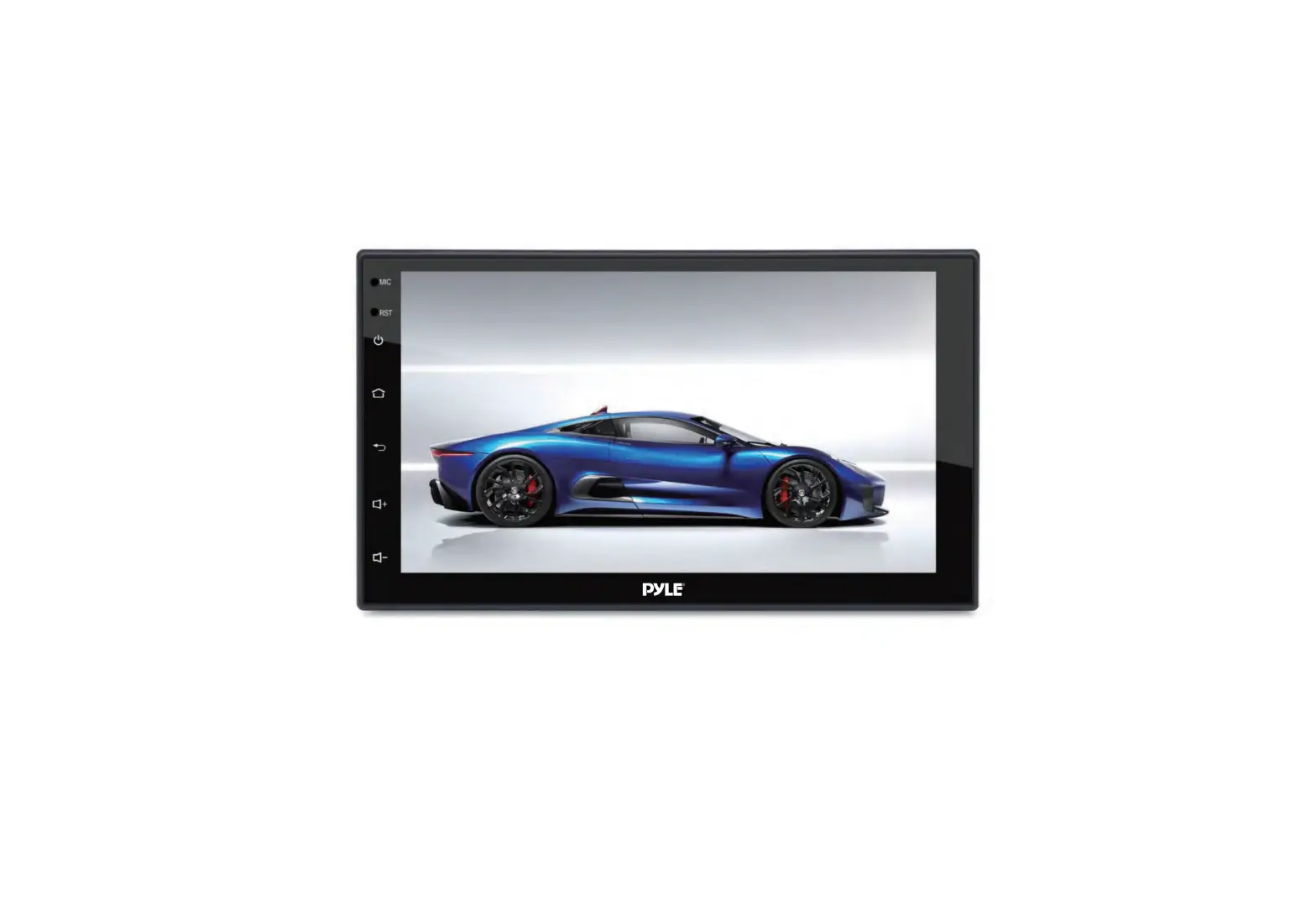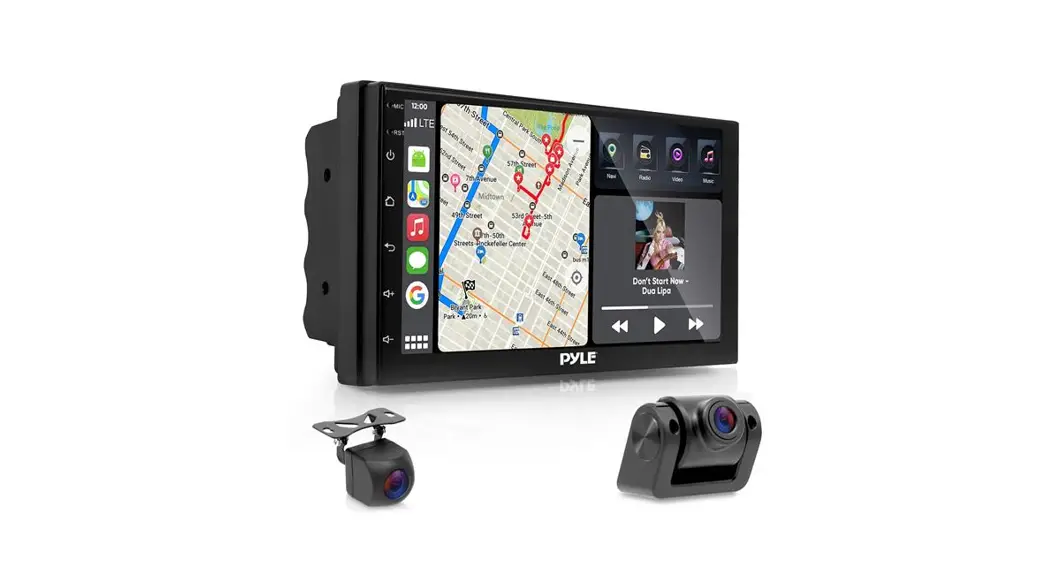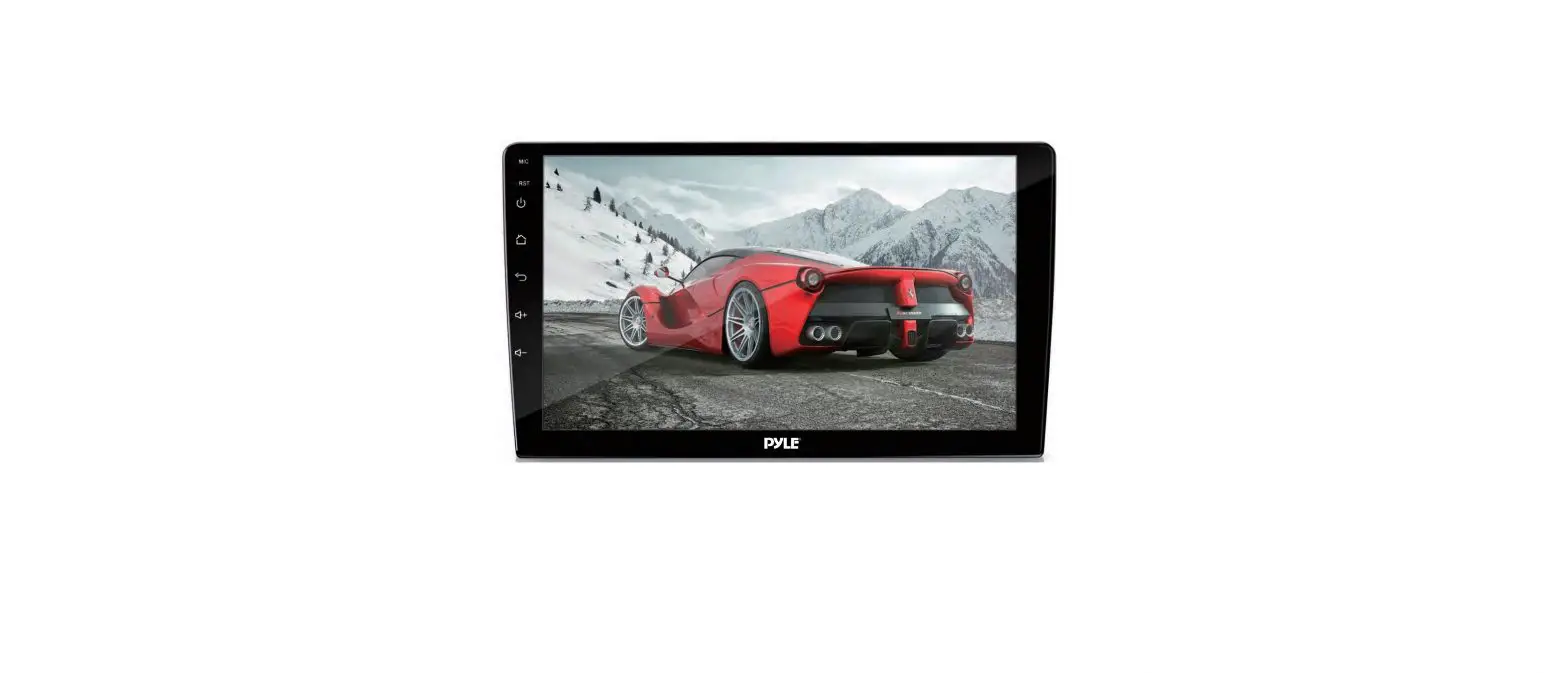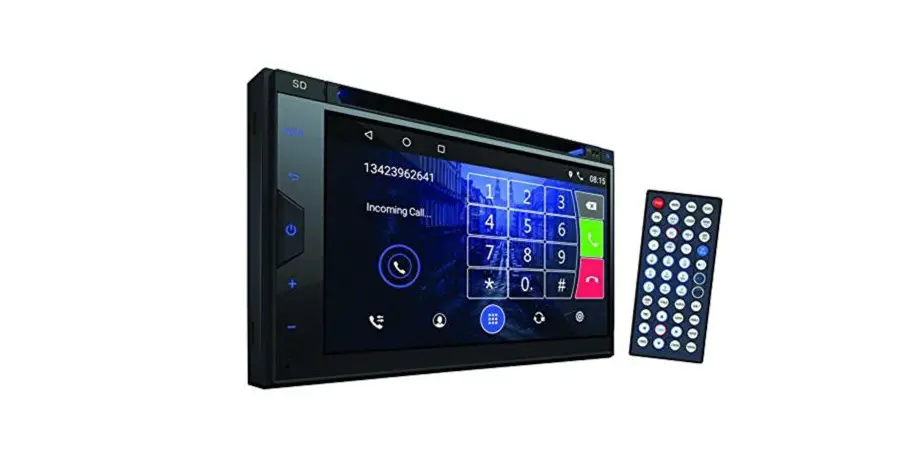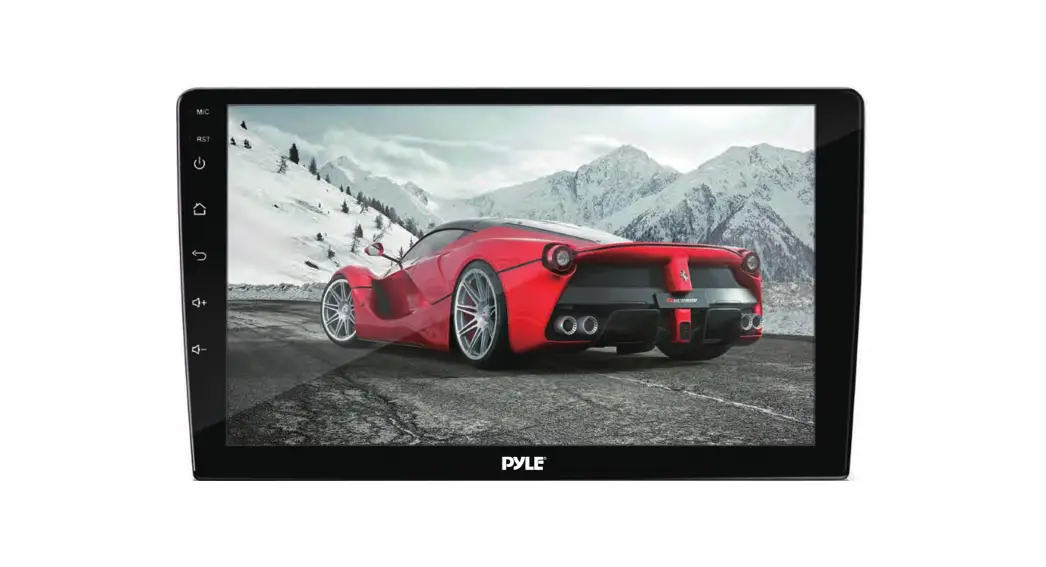

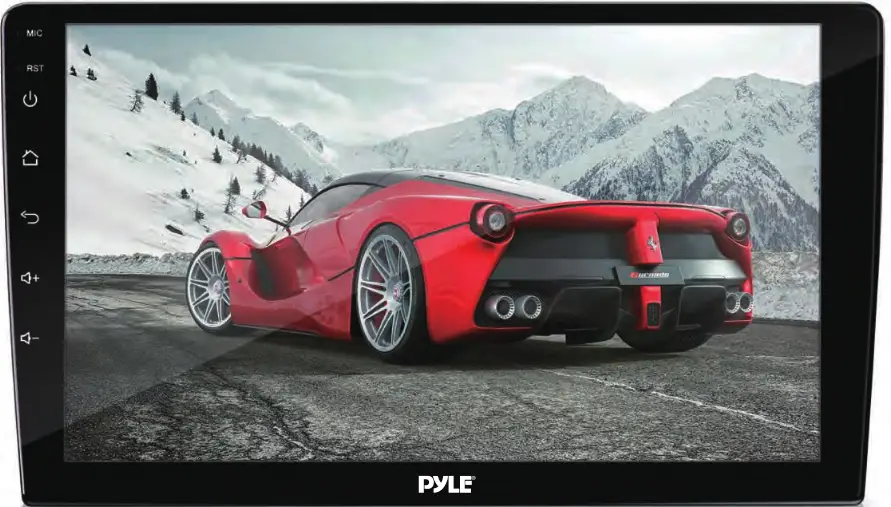
PLINTBL10 10.1 Inch Double DIN Car Stereo Receiver with Wireless BT
User Guide
WIFI/GPS/AM/FM, Car Radio with 1080P HD Touch Screen, Multimedia Player + Mirror link for Android/iOS, Support Rearview Cam and Dual USB
PLINTBL10 10.1 Inch Double DIN Car Stereo Receiver with Wireless BT
Note: This unit is based on the Android platform. Besides the standard Apps we provided with the unit, you can also download thousands of Apps and install them on our platform. Please kindly note NOT all Apps are compatible with this platform. If you have any compatibility problems with a 3rd party App, please contact your App provider. For the operation instruction of a certain 3rd party App, please also contact your App provider. We are not responsible for any problem with your 3rd party Apps.
To enjoy the unit’s features, along with the proper and safe operation, please be sure to read through this manual before use. It is especially important to thoroughly understand and follow all system warnings and precautions. Keep the manual in a safe location for future reference when necessary. Contact your dealer or the nearest authorized repair center for any service, repair, or technical support assistance.
Note:
We are constantly aiming to improve the customer experience and your receiver’s features and specifications are continually changing for the better, with improvements to the user interface experience, software updates, bug fixes, etc. System descriptions and features reflected as herein stated by this user manual serve to express our Headunit Receiver features at the current production period. We reserve the right to change the terms and conditions of system specifications, features, and descriptions at any time, as we continue to improve and provide our customers with upgrades in safety, performance, and system operation in general.
System Installation:
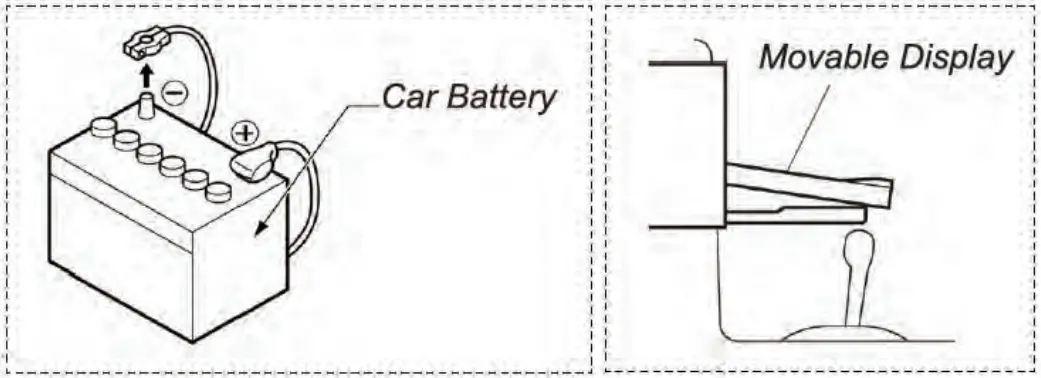
Before starting: To prevent short circuits, be sure to disconnect the battery terminal before starting.
Installation Guide
Caution:
- Consult your vehicle dealership before making any modifications to your car’s body (ex. Drilling holes)
- Use included screws in installation. Improper operation may damage the machine or cause accidents.
Do not install the unit in any area where:
- It may obstruct the steering wheel and gearshift lever operations
- It may obstruct the operation of safety devices such as airbags
- It may obstruct visibility
Button & Feature LayoutRST Use a pin to insert into the reset port to trigger the unit reset. (Hold for 20 secs. to reset) 
Hold to power up. 
Home 
Return 
Volume up 
Volume down
Turning Power On
- Turn on the engine key to the “ACC” or “ON” position
- Press and hold the power button for 3 seconds
• When the engine key is turned to the off position, the unit Status Bar is turned off(on the top of the radio screen and app screen) you can swipe down for more.
App Screen – Interface Layout
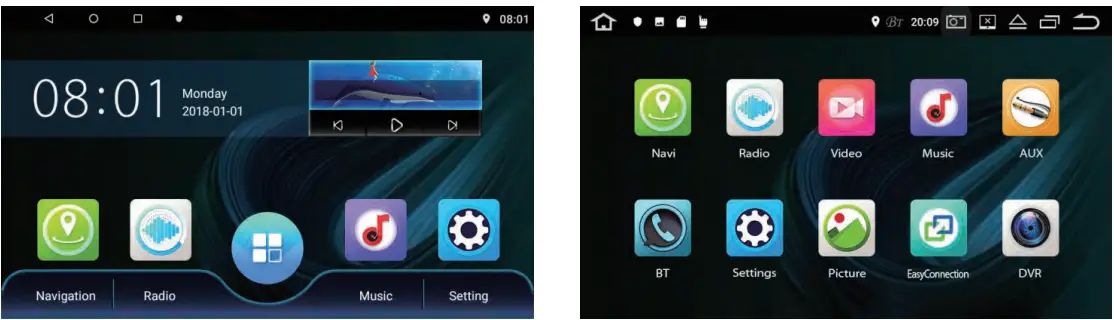
Swipe UP/DOWN to access more apps
Navigation 
Radio 
All Apps list 
Music 
Settings Navi Loads Navigation software (if you have several maps in this device, you can set the default map. Setting > Car setting→ Navi setting.) Radio AM/FM Tuner Bluetooth® Wireless BT Clock Shortcut to Time Setting Calculator Opens Calendar app Clear cache Clear Cache
Navigation
Click the main interface “navigation” to enter the navigation interface.
If the memory card does not have map data, it will prompt download and enter the map management interface after confirming.
Clicking icon description
- Map download: Click the top left corner, “
 ” then click offline data, and then click on the offline map, select the city map data you need to download.
 - Download Management: Download all or pause, also you can click the city to cancel or pause the download.
- Download Manager: You can update all apps, click the city to select “delete data” or “update”. Top left corner, “
 ” Return to the previous level interface.
 ” then click offline data, and then click on the offline map, select the city map data you need to download.
 ” Return to the previous level interface.
Local Music
Click the main interface “music” to enter the local music interface.
This operation is valid when the unit has an SD card or USB interface and the corresponding media files.
Online music
Click on the main interface “online music” to enter the online music interface.
Need to connect to the internet.
Music player button function description
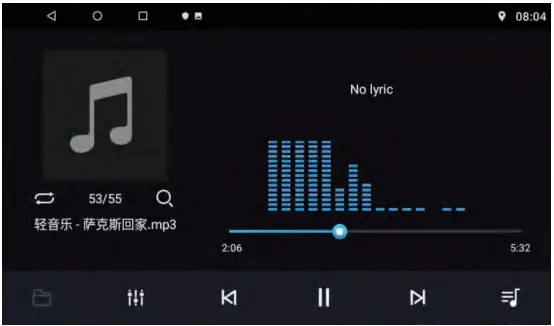
 | Folder |
 | Enter the sound settings |
 | Loop playback mode switch |
 | Previous/next song |
 | Pause (Play) |
Video playback
Click “Video Player” to enter the video player interface (which supports 1080P HD video).
This operation is valid when the unit has an SD card or USB interface and the corresponding media files.
Click the “All icon” to switch between All/SD/U Disk/File Browser. When the video file is read, the system automatically plays the file that has not been played the last time the video player has opened again.
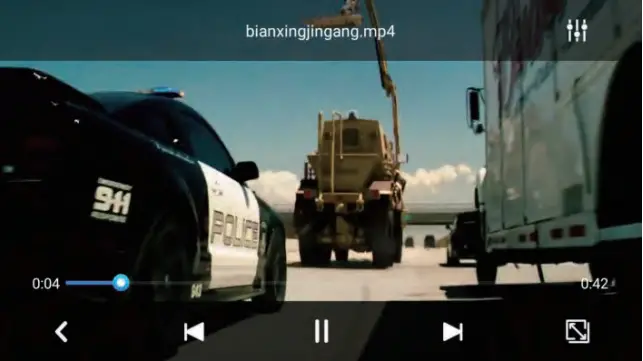
 | Menu |
 | Last track |
| Play/Pause |
 | Next song |
 | Fullscreen |
Calendar
Displays the day, month, and year. Use forward and back arrows the view past or future months. Selected dates are highlighted in blue.
Radio
Click the main interface “radio” to enter the local radio
Clicking icon description interface (FM / AM band can store 40 effective platforms each)
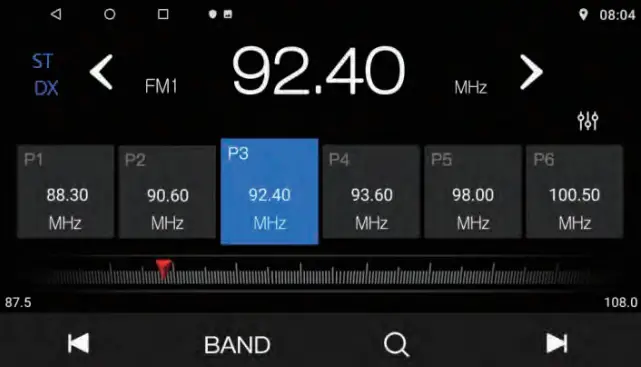
| Click to search channel backward then stop when finding a clear channel. |
 | BAND to switch between mode FM1/FM 2 |
 | Search for radio station |
| Click to search channel forwards then stop when finding strong and clear channe1. |
| Forward tuning radio |
 | Backward tuning radio |
 | Locate and DX |
| Audio settings |
Wireless BT
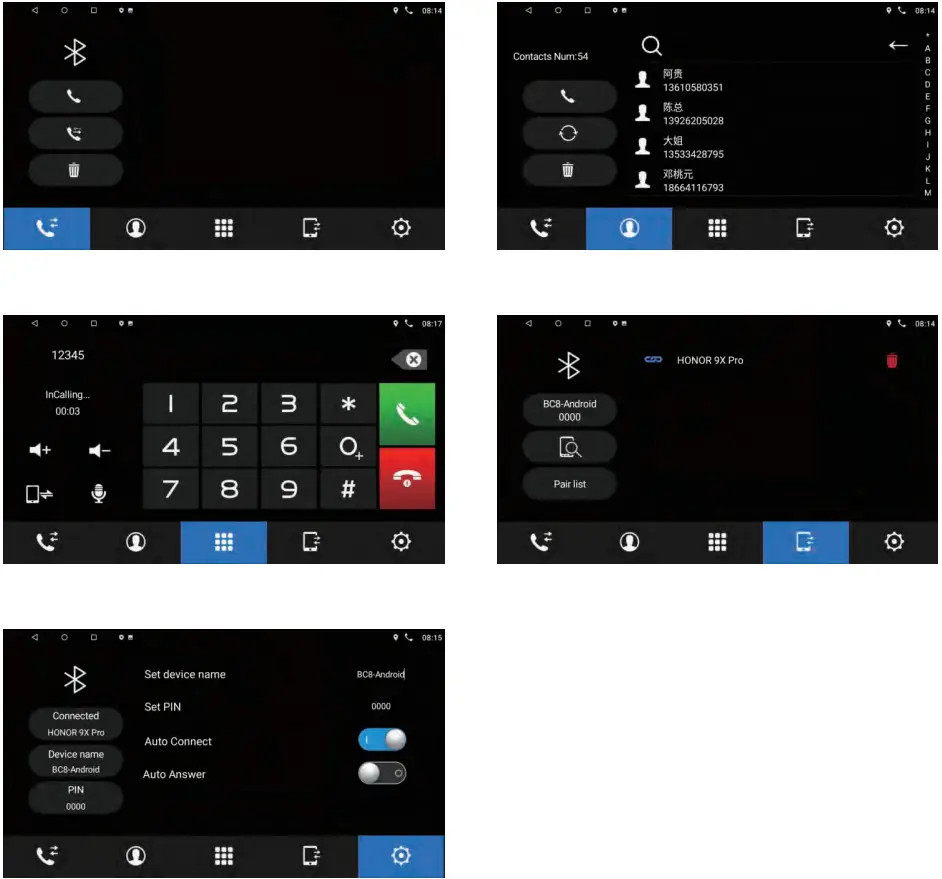
Click the main interface “Bluetooth®” to enter the Wireless BT connection interface.
When the BT is not connected: Enter the Wireless BT interface, there is no BT connection device displayed. Click the Wireless BT interface, such as the dial key, you will be prompted to “Please connect HFP.”
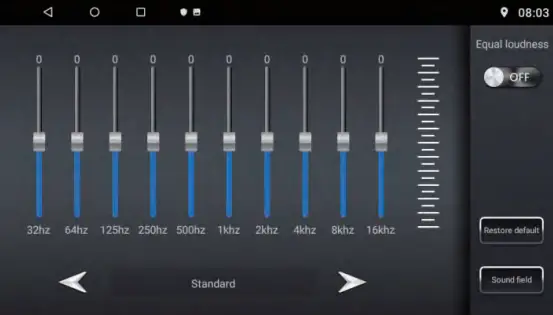
EQ – Equalizer
Phone Link APP
For the detailed operation instruction for Phone Link, please follow the instruction on the actual unit.
Third-Party Apps
For detailed operation instructions for a certain 3rd party App, such as Google Maps, Youtube, etc., please contact your 3rd party App provider for further service.
Steering wheel learning
Steering wheel learning steps are as follows:
- Press any key on the steering wheel, and the interface will display “please long-press and hold a direction key”, pressing the steering wheel button for a certain period of time will lead to failure.
- Click on the screen to access the docking function
- Press the corresponding function button on the steering wheel.
Follow steps 1 – 3 until all control buttons on the steering wheel is finished.
Note: Click ”  ” will reset all the saved keys.
If you perform a “System Reset” operation in “Factory Mode Settings”, please resave the steering wheel before using it again.
The realization of this feature:
- For non-bus control of the original car steering wheel.
- The original car steering wheel keys need to be voltage input control.
Brightness setting: Click the “+” or “ – ” icon to adjust the value.
Volume settings: Slide the button directly to adjust the media volume and call volume.
GPS monitoring: View related GPS information, and click ” ” to restart GPS.
Sound settings
- Click the slider to adjust Subwoofer, bass, midrange, and treble.
- Settings can be made in Rock/Custom/Classic/Jazz/Pop by clicking the corresponding icon.
- Click the upper right comer of the speaker to “
 ” et four icons or dick the center dot to adjust the speaker position settings.
 - Click the “default” icon will restore the sound settings parameters to the system’s default state.
 ” et four icons or dick the center dot to adjust the speaker position settings.
Memory Clean
Cleaning up memory speeds up the system.
Desktop wallpaper
According to your personal preference, you can go from “wallpaper” to “dynamic wallpaper” the “gallery” sets the wallpaper as prompted.
WLAN (Wi-Fi settings)
Click “  ” to switch from OFF to ON.
After searching for nearby wireless Wi-Fi, select the Wi-Fi hotspot you want to connect from the list.
Enter your wireless connection password in the pop-up password box, then click “Connect”. Enter the correct password, it will connect successfully after a while and display “connected.”
Reset
Reset Network: This will reset all network settings, including (WLAN, Mobile Data Network, and Wireless BT)
Restore factory settings: This will restore the system to factory settings and clear all data in your device’s memory.
Time setting
Determining the date and time automatically can be turned on, optionally using the network or provided by GPS. If you need to adjust the time manually, it needs to be switched off, click directly to mobilize the time or date. Determining the time zone automatically can also be opened. It can be manually adjusted after switching it off. It can also open or close the 24-hour system.
Troubleshooting
– A: Use a multimeter to check for 12v+ to red and yellow wires. Check for proper Ground on the Black wire.
– A: Attach the “PARK” wire to the parking brake. When this wire is grounded the video will play (Grounding trigger of the parking brake)
– A: Attach “BACK UP CAMERA” wire to reverse tail light 12v+ (Make sure camera is sending video signal)
– A: Key 1 and Key 2 wires need to be wired to your vehicle’s steering wheel column
– A: Are other settings saved? If not: Check that the yellow memory wire is attached to a 12v+ constant
– A: Turn off GPS auto-update
– Go to radio settings > Set Time > switch off auto-update
– A: Check if the antenna is properly connected.
– A: Mount Antenna directly to your vehicle (GPS antenna is to be magnetically mounted, it will boost GPS reception when attached)
– A: Check alternate antenna placement to test for interference
– A: System setting, set time
– A: Change GPS sound settings
– Go to Navi > Settings > Sounds > Set GPS voice level to max > Set radio volume to min (Adjust accordingly)
– A: This unit’s hardware does not allow it to be updated with new OS or firmware.
– A: Check that nothing is covering the microphone port.
– Check to see if closer proximity to the mic affects its pickup
– Check that the phone connection is good
– Make sure the call recipient has speaker volume set to an appropriate level
– Check that the mic is not picking up too much background noise
– Note: The built-in mic cannot be changed, replaced, or upgraded.
– A: Check that your device is Wireless BT compatible 4.0+
– Check if you are able to pair with alternate devices via Wireless BT.
– Clear out your device history in your Wireless BT setting menu and attempt to pair/connect again
– A: Make sure the SD card is compatible
– A: Check the file format of your file. (You may need to convert your video file to an alternate file format)
You have entered the ‘Touch Screen Calibration Menu’. For optimum touchscreen performance, this feature enables you to enjoy the best functionality of your device’s touchscreen.
To complete the touchscreen calibration, an “X” will appear in the circles on the screen in numbered order, continue to press the center of the “X” as it passes through each numbered circle.
(In circle number one, you will see an “X”, touch the center of the “X”, then the “X” will move to circle number two. Continue to touch the center of the “X” as it will move to the other circles in numbered order. If calibration senses an error, the process may restart; Repeat if necessary.)
Wiring
Back Panel:
- For power cable
- For radio antenna
- For GPS antenna

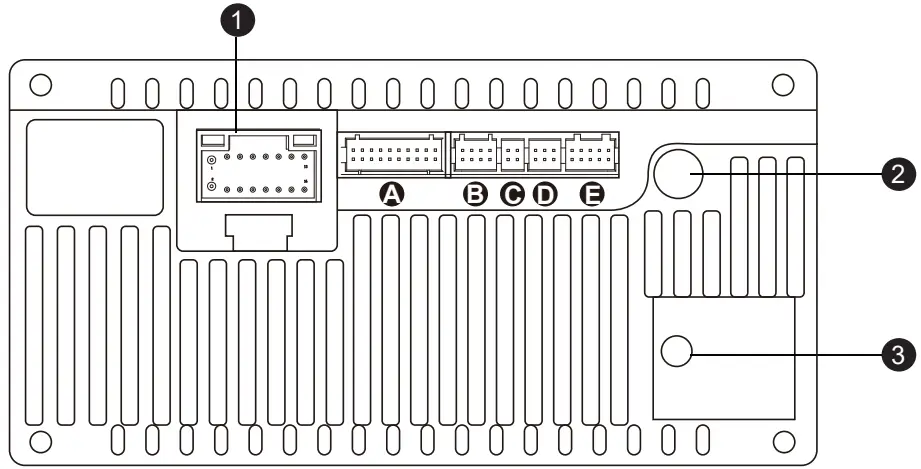
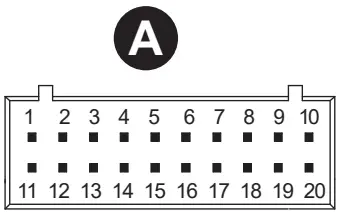 | 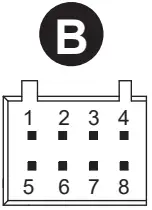 |  | |
| 1. AMP_+12V 2. R_AXU_R 3. R_AXU_L 4. NC 5. NC 6. NC 7. NC 8. NC 9. DVR_CVBS 10. MIC | 11. GND 12. RCA_FL 13. RCA_FR 14. GND 15. GND 16. GND 17. CVBS_OUT1 18. SUB_OUT 19. AUXINCVBS 20. MIC+ | 1. GND 2. RCA_RL 3. FRONT_IR 4. CAN_TXD 5. NC 6. RCA_RR 7. NC 8. CAN_RXD | 1. USB_5V 2. GND 3. USB0+ DP0 4. USB0- DM0 |
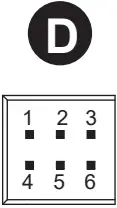 | 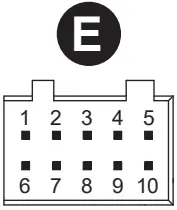 | ||
| 1. USB_5V 2. GND 3. USB2- DM2 4. USB1+ DP1 5. USB1- DM1 6. USB2+ DP2 | 1. TXD_TPMS 2. RXD_TPMS 3. IR 4. CAM_12V 5. PBK 6. WIFI_ANT 7. GND 8. CAM_CVBS 9. GND 10. BT_ANT |
- For power cable

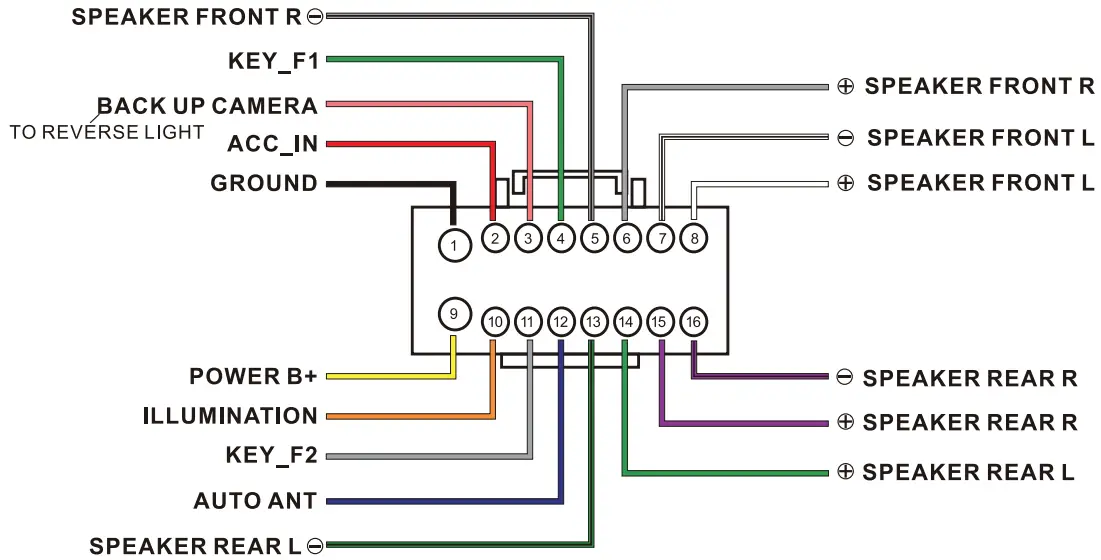
WIRING
| 1 | Black | GROUND | Connect to the (—) side of the car battery | ||
| 2 | Red | ACC | Ignition Accessory 12V+ | ||
| 3 | Pink | BACK UP CAMERA | 12 volt + trigger from reverse lights | ||
| 4 | Green | SW-KEY-F 1 | Steering wheel control Key 1 interface wire | ||
| 5/6 | Gray | Speaker Front R | Front right speaker | Gray (+) | Gray/Black (-) |
| 7/8 | White | Speaker Front L | Front left speaker | White (+) | White/Black (-) |
| 9 | Yellow | FUSE/ POWER B+ | Connect to the (+) side of the car battery | ||
| 10 | Orange | ILLUMINATION | 12 volt + trigger dashboard illumination | ||
| 11 | Gray | SW-KEY-F 2 | Steering wheel control Key 2 interface wire | ||
| 12 | Blue | AUTO ANTEN NA | 12 volt + trigger output | ||
| 13/14 | Green | Speaker Rear L | Rear left speaker | Green (+) | Green/Black (-) |
| 15/16 | Purple | Speaker Rear R | Rear right speaker | Purple (+) | Purple/Black (-) |
* Pink wire tells the monitor when to activate and display the rearview camera on the display (optional)

PyleUSA.com.VISIT US ONLINE:
Have a question? Need service or repair?
Want to leave a comment?
PyIeUSA.com/ContactUs
Questions? Issues?
We are here to help!
Phone: (1) 718-535-1800
Email: [email protected]
 Pyle USA Electronics | Home Audio | Car Audio & More