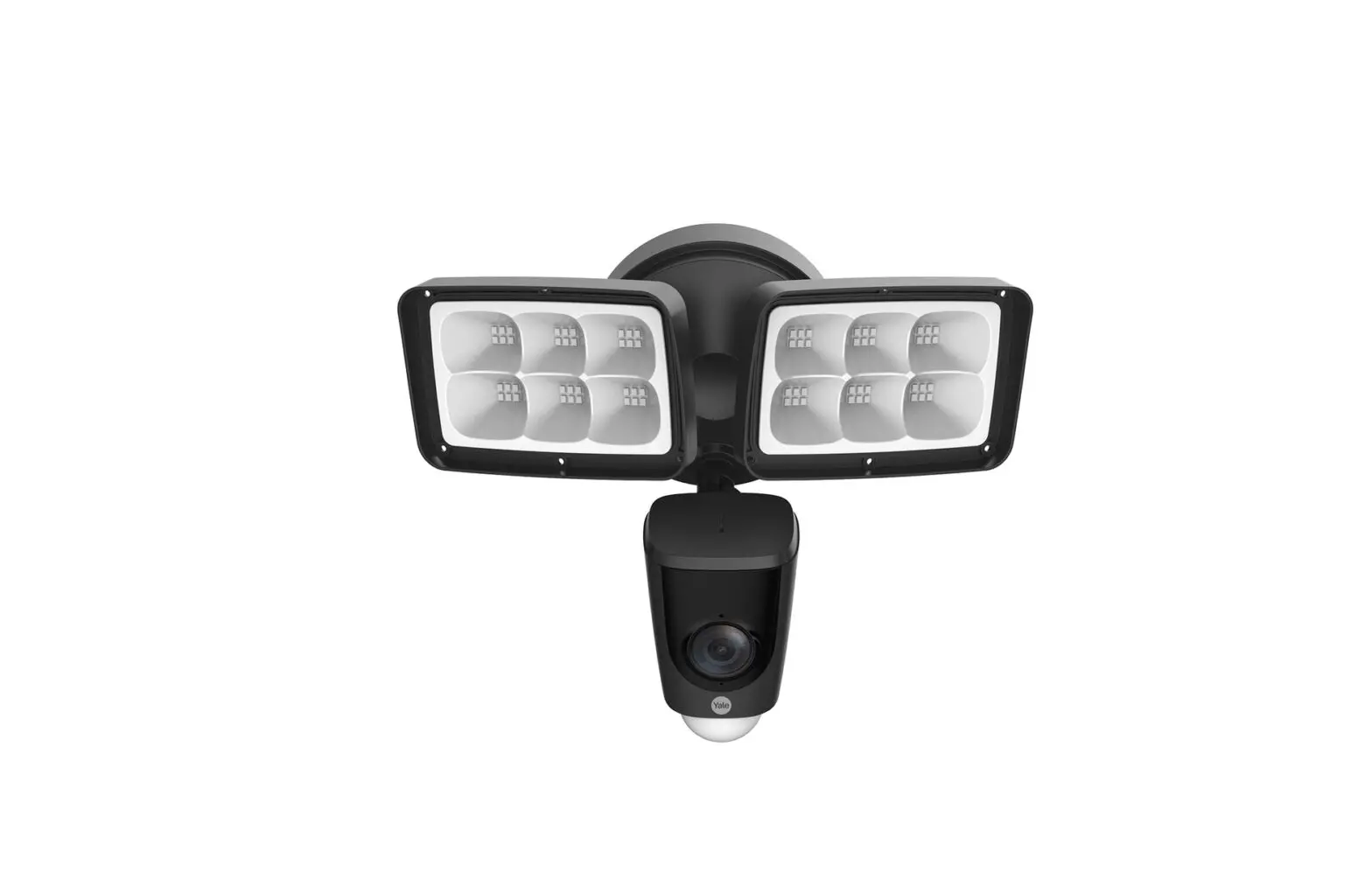
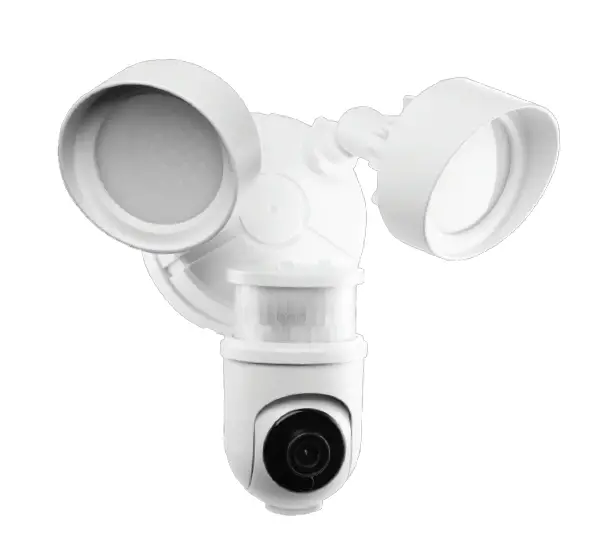
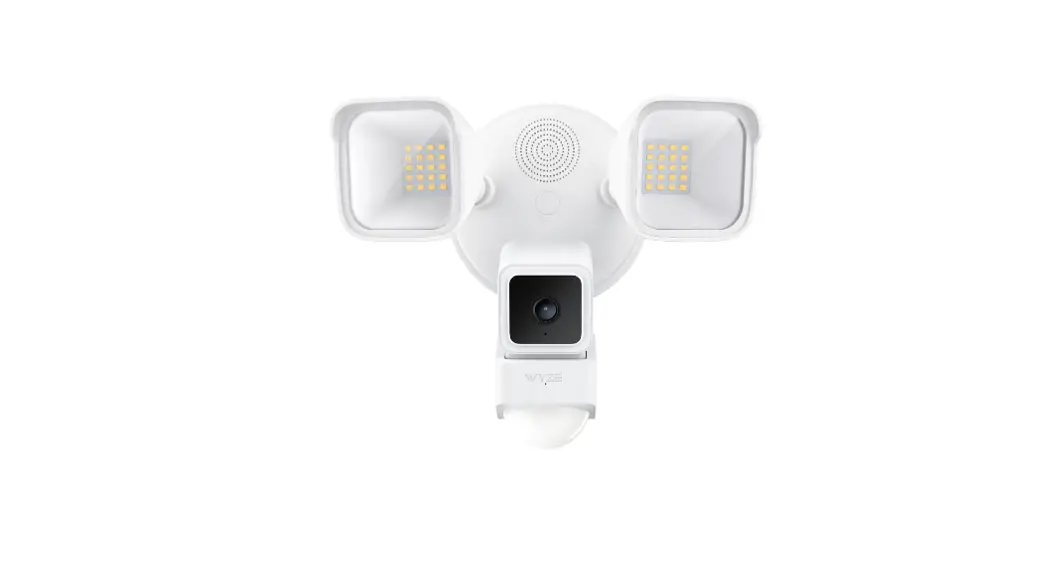
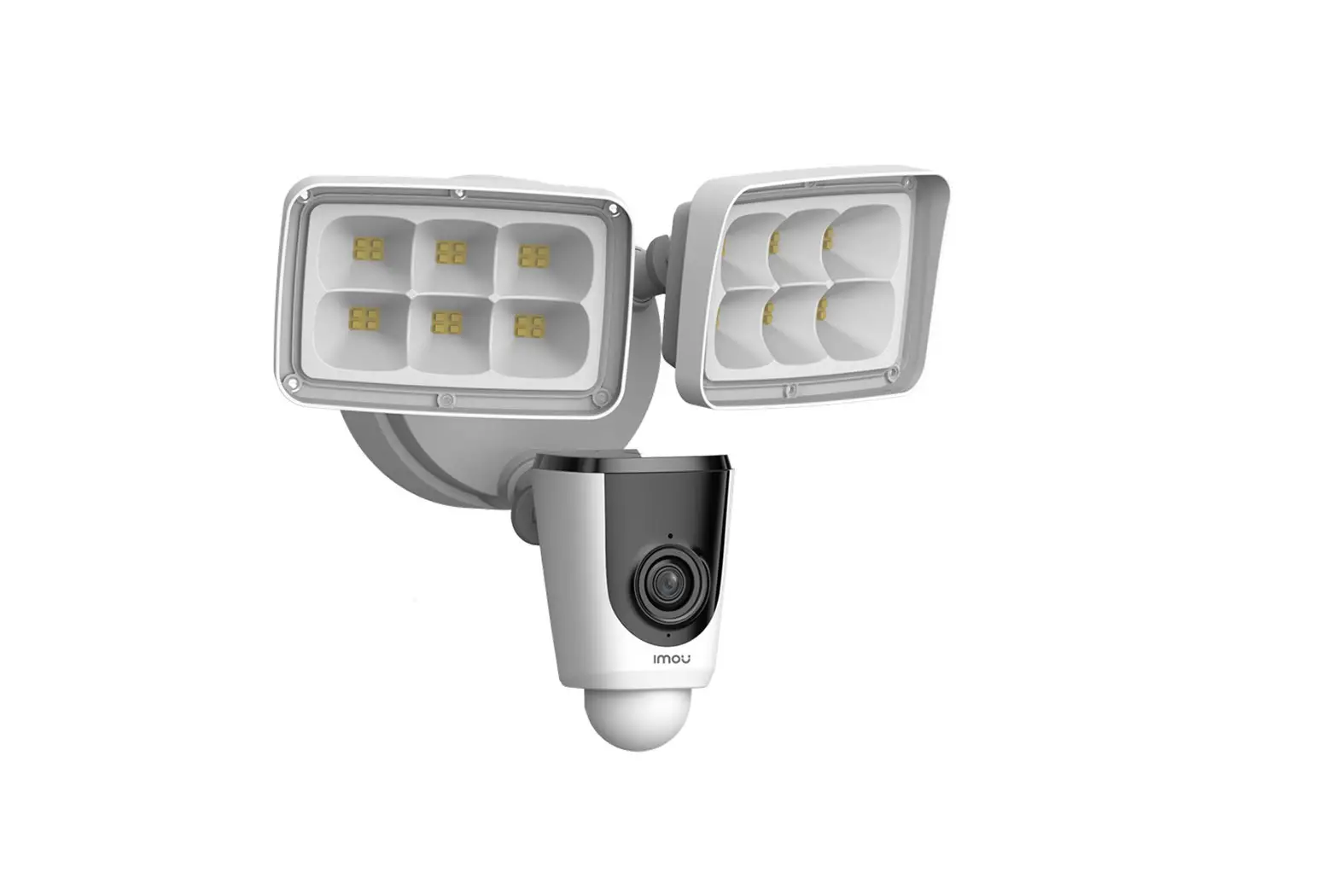
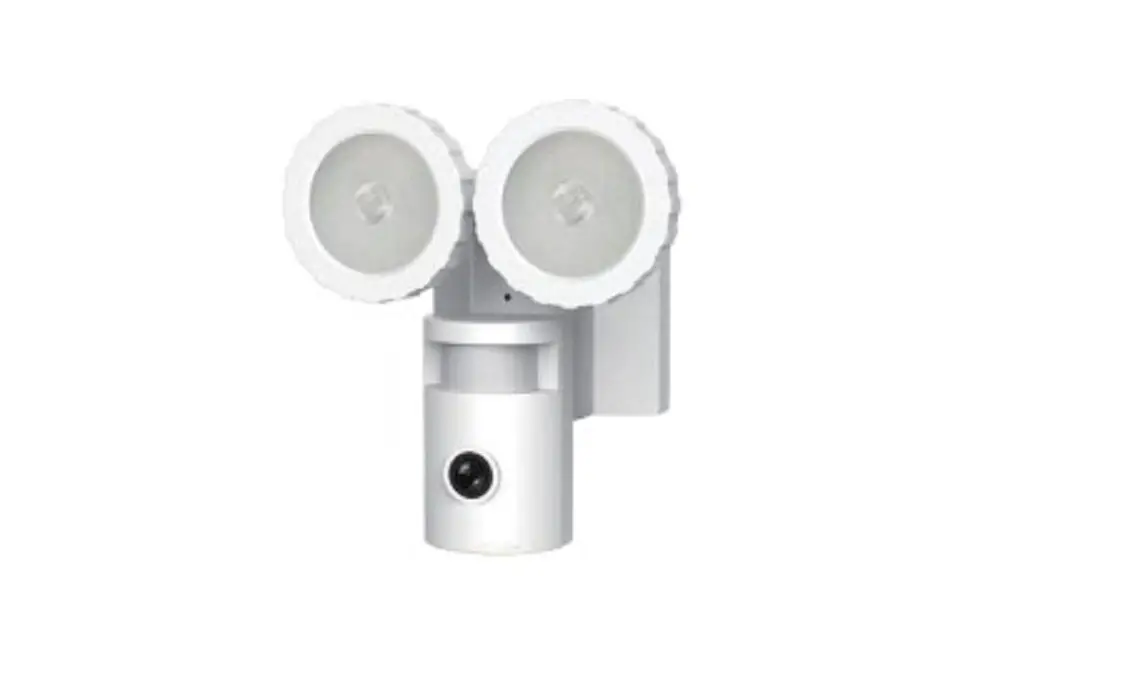
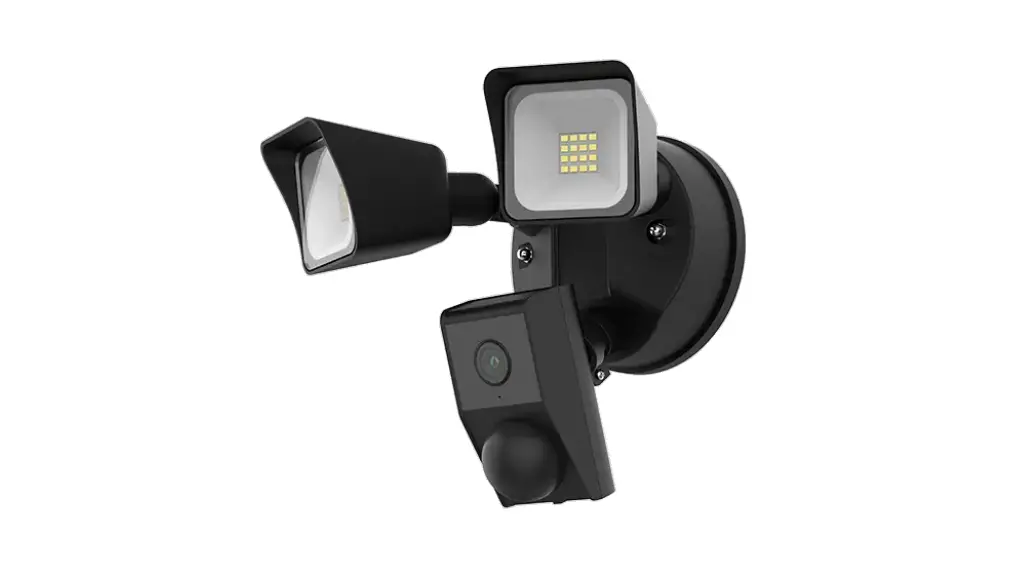
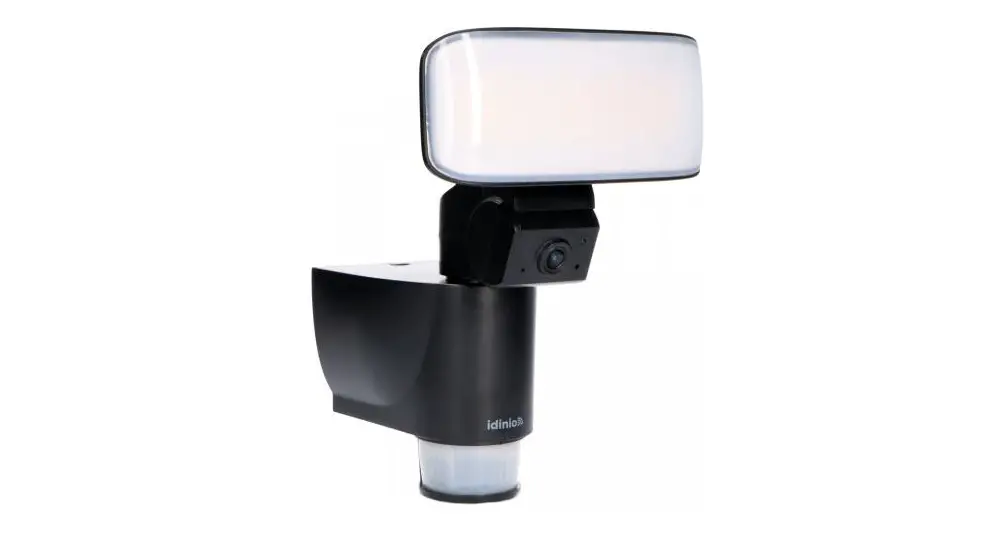
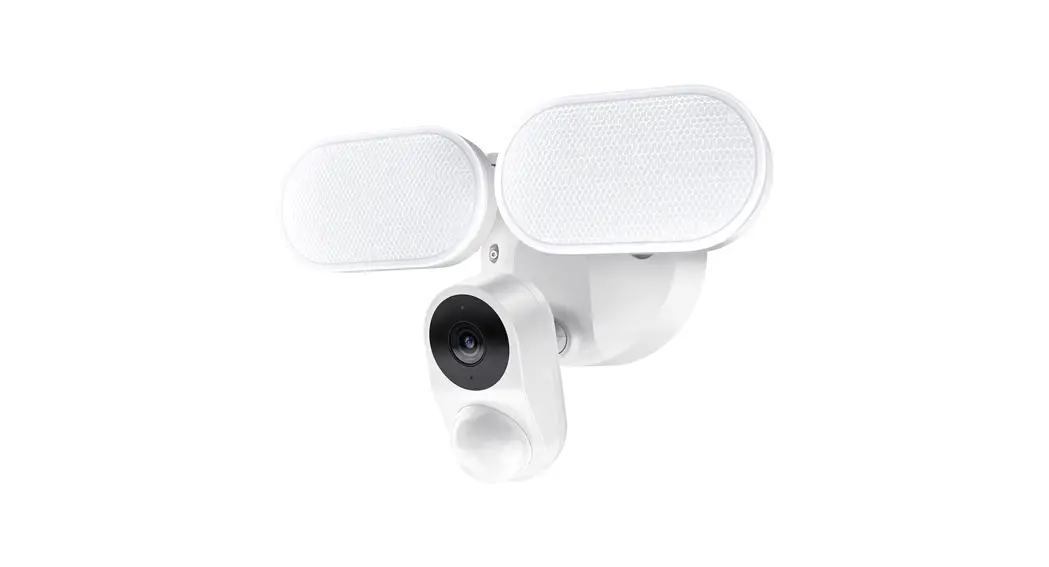
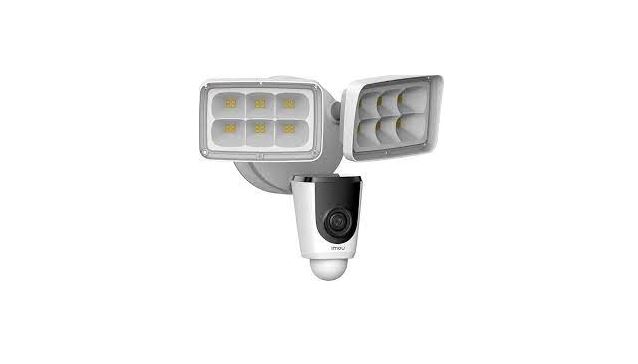
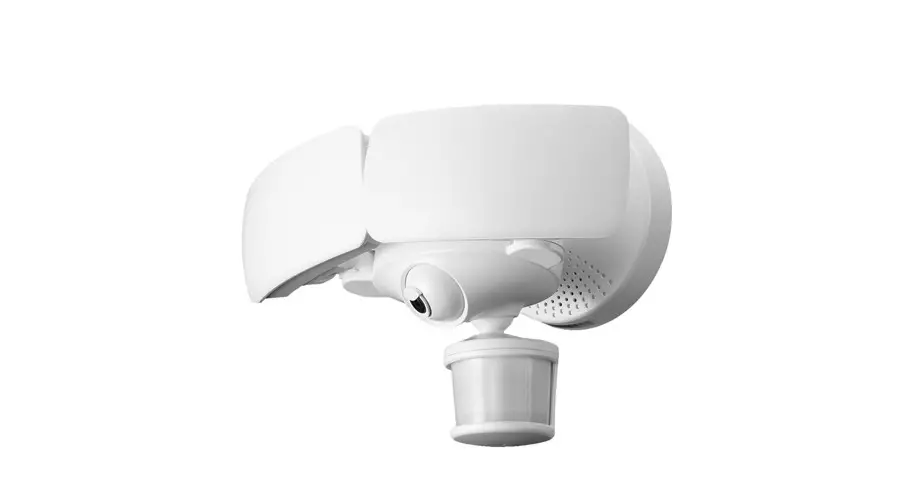
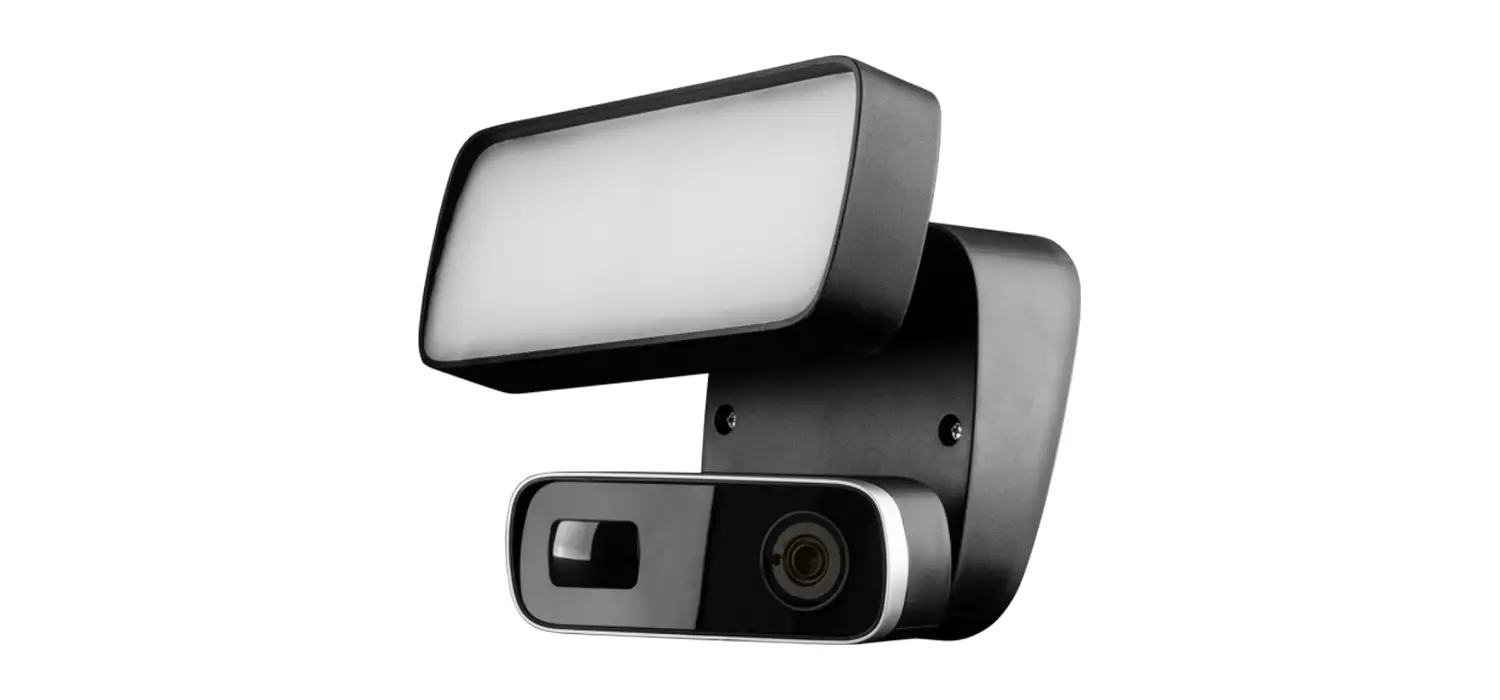
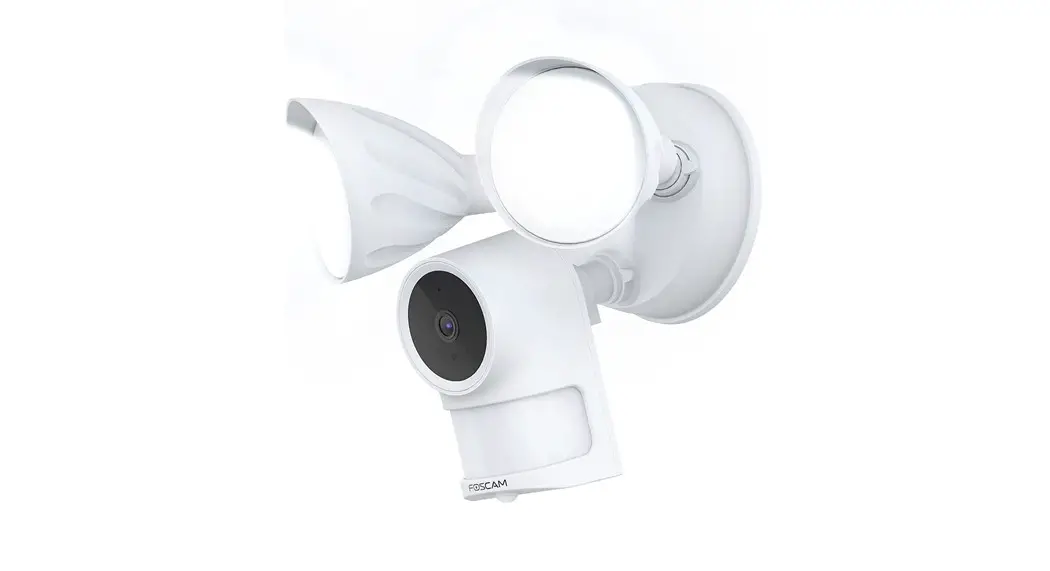
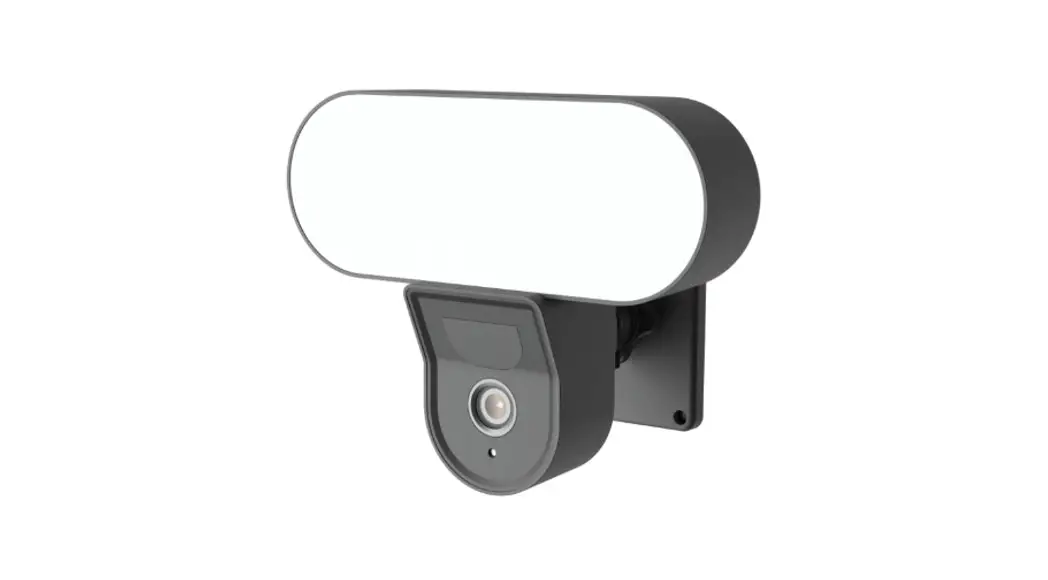
D002 Floodlight Camera
Product Information
The product is a floolight camera designed for security
purposes. It comes with a manual that provides information and
safety instructions for installing and operating the camera. The
product requires electrical connection and should be installed by a
licensed electrician to ensure safety.
Disclaimer
Working with electricity can be dangerous unless proper safety
precautions are taken. If you are not comfortable or are
inexperienced with the processes and tools described in this
manual, we recommend that you hire a licensed electrician.
Installation
The camera should be installed on a strong wall surface with a
distance of 110mm between the two holes. The installation involves
drilling holes, attaching the mounting box to the wall, connecting
the wires, and fixing the camera with mounting screws. It is
important to follow code standards when installing wired
connections and to ground the fixture properly. Do not install the
camera near combustible or flammable surfaces.
Step-by-Step Installation Instructions
- Insert drilling template where you want the floolight camera to
be installed. Using the drilling template drill the two holes
indicated on the template. - Turn the adjusting knobs to loosen the lights, and adjust the
light angles to give space to the mounting screw. Loosen the
mounting screw to open the mounting box, and then loosen the screw
on the ground terminal to remove the ground wires. - Attach the mounting box to the wall with the self-tapping
screws as the UP arrow shows. Before using the self-tapping screws,
attach the wall plugs to the self-tapping screws. - Hook one end of the hook into the hole on the mounting box, and
the other end to the edge of the camera, so you can free your both
hands for the installation. - Take out the terminal board from the mounting box. Connect the
blue wires (neutral wires) to the terminals N, and the brown wires
(live wires) to terminals L, and then the yellow and green strip
wire to ground terminal on the board. - Put away all the wires, attach the camera to the mounting box,
and fix the camera with mounting screws. - Adjust the light and lens angle, and keep the PIR detector
parallel to the ground to ensure optimal detection.
Operating with Yale View App
The camera can be operated using the Yale View app, which can be
downloaded from Google Play or App Store. The app allows you to
view live streams and recorded video footage from your camera.
Step-by-Step Operating Instructions
- Power on the camera.
- Scan the QR code or search Yale View app in Google Play or App
Store to download and install the Yale View app. If you have
installed the app, update it to the latest version.
Disclaimer
This guide is for informational purpose only. Working with electricity can be dangerous unless proper safety precautions are taken. If you are not comfortable or are inexperienced with the processes and tools described in this manual, we recommend that you hire a licensed electrician.
About the Guide
– All the design and software here are subject to change without prior
written notice.
– All trademarks and registered trademarks mentioned are the prop-
erties of their respective owners.
– Please visit our website or contact your local service engineer for more
information.
– If there is any uncertainty or controversy, please refer to our final
explanation.
Part of ASSA ABLOY
Installing Camera
WARNING
Risk of electrical shock.
– Be sure to disconnect the power at the fuse or circuit breaker before installation.
– Verify that the supply voltage is correct. Connect fixture to a 100240VAC 50/60 Hz power source.
– Properly ground fixture.
– Always follow code standards when installing wired connection.
– We strongly suggest that you hire a licensed electrician to install the camera.
– For permanently connected equipment, a readily accessible disconnect device shall be incorporated external to the equipment.
– For pluggable equipment type B or permanently connected equipment, the maximum rating of an overcurrent protective device to be provided external to the equipment is 20A.
Risk of fire. Do not install the camera near combustible or flammable surfaces.
Note
– Do not connect this light fixture to a dimmer switch or timer. – Make sure that the mounting surface is strong enough to hold at
least three times of the device weight.
Step 1
Insert drilling template where you want the floolight camera to be install. Using the drilling template drill the two holes indicated on the template.
If there is no holes in the wall, drill two parallel holes on the wall (the distance is 110 mm between the two holes), and then put in the wall plugs.
Step 2 Turn the adjusting knobs to loosen the lights, and adjust the light angles to give space to the mounting screw. Loosen the mounting screw to open the mounting box, and then loosen the screw on the ground terminal to remove the ground wires.
Step 3 Attach the mounting box to the wall with the self-tapping screws as the UP arrow shows.
Note : Before using the self-tapping screws, attach the wall plugs
to the self-tapping screws.
Step 4 Hook one end of the hook into the hole on the mounting box, and the other end to the edge of the camera, so you can free your both hands for the installation.
Step 5 Take out the terminal board from the mounting box. Connect the blue wires (neutral wires) to the terminals N, and the brown wires (live wires) to terminals L, and then the yellow and green strip wire to ground terminal on the board.
Step 7 Put away all the wires, attach the camera to the mounting box, and fix the camera with mounting screws.
LN
Step 8 Adjust the light and lens angle, and keep the PIR detector parallel to the ground to ensure optimal detection.
Operating with Yale View app
Step 1
Power on the camera.
Step 2
Scan the following QR code or search Yale View app in Google Play or App Store to download and install the Yale View app.
Note If you have installed the app, update it to the latest version.
Step 6 Connect the two removed yellow and green striped wire (ground wires) to the ground terminal again, tighten the screw on the ground terminal, and then put back the terminal board with the insulating gasket in the mounting box.
Step 3
Run the Yale View app, and then register an account for first use.
Step 4
Wait for booting to be finished, and then the camera indicator flashes with green light.
Step 5
Connect your smart phone to your Wi-Fi network, and make sure that your smartphone is connected to Wi-Fi network with 2.4 GHz band, and then do the following operations to finish adding camera.
Note
If you have more than one camera, do step 5 to add them one by one.
If the Wi-Fi network changed or the indicator status goes wrong, reset the camera, and then do step 5 to add it again.
Quick Start Guide
Version 1.0.2
Identifying the parts
Assembly
Adjusting Knob
Ground Terminal Terminal Board Bracket Screw
Floodlight Camera ×1
Mounting Box ×1 Screw Package ×1
Mounting Screws
QSG ×1
Hook ×1
Mounting Screw ×1
Drilling Template ×1
Note In the screw package, there are 3 expansion bolts, 3 silicone gaskets, and 3 self-tapping screws.
Camera
Mounting Box
Terminal Board
Insulating Gasket Cable Entry
Application
Ground Terminal Mounting Hole
When mounted at 3 m (10 feet) off the ground, with the PIR lens parallel to the ground, the motion detector is optimized to detect human-sized objects at up to 10 m (33 feet).
Camera Introduction
Floodlight
10 Meters (33 feet)
3 Meters (10 feet)
Lens PIR Detector
Reset Button Floodlight
Micro SD Card Slot Photosensor
Built-in Speaker
Built-in Mic LED Indicator
Note: Press and hold the reset button for 10 s to reset the camera.
The pattern of the LED indicator is included in the following table.
LED Indicator Status
Device Status
Off
Red light on Green light flashing Green light on Red light flashing Green and red light flashing alternately
Powered off/LED turned off Rebooting after reset Booting Device malfunction Waiting for network Operating properly Network connection failed
Firmware updating