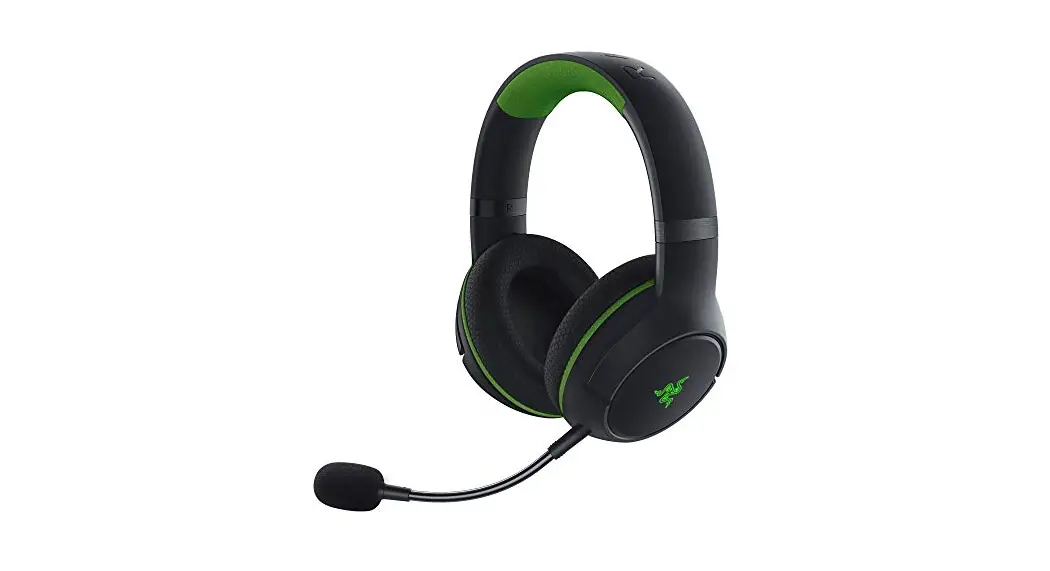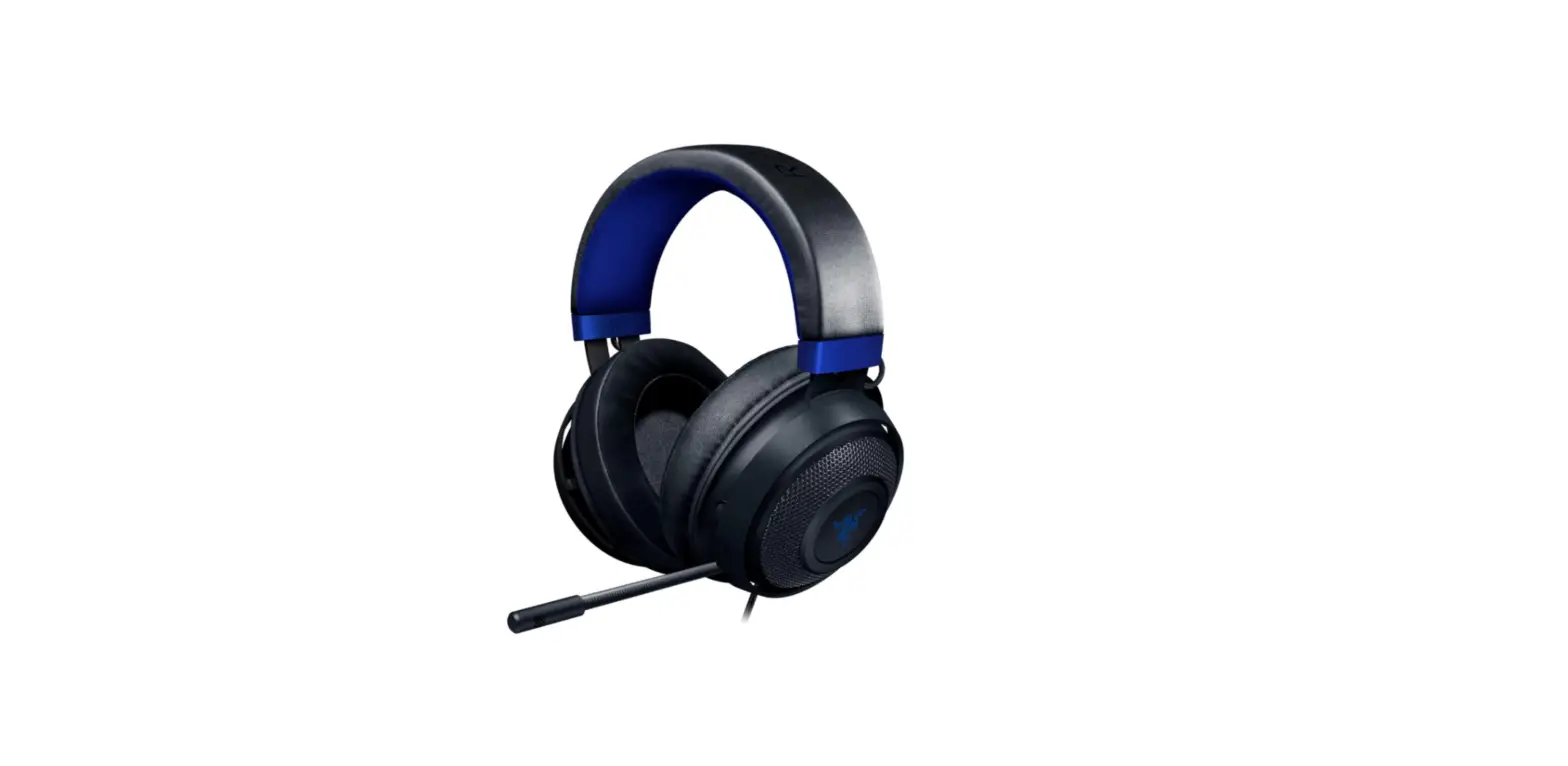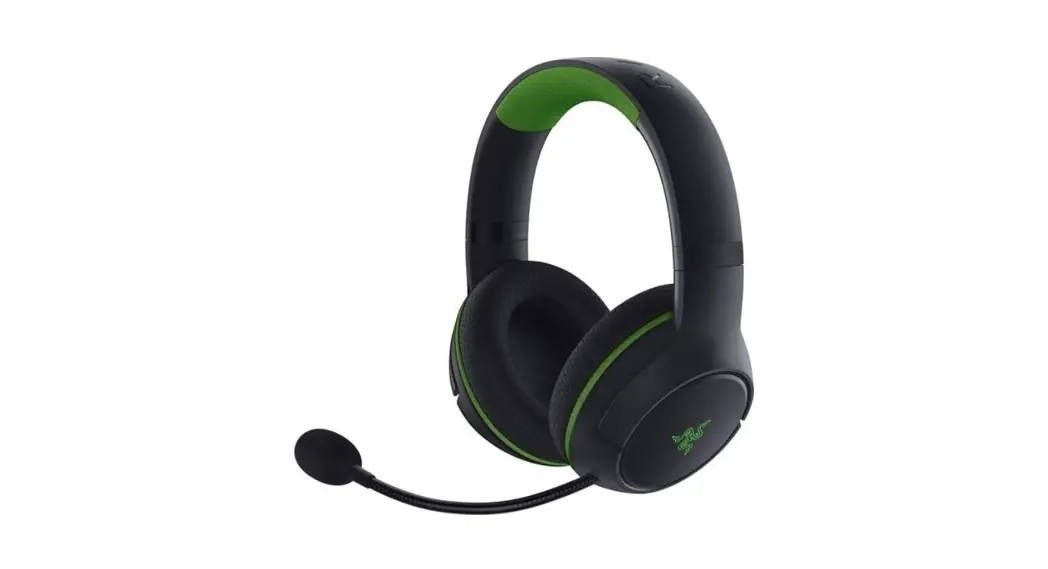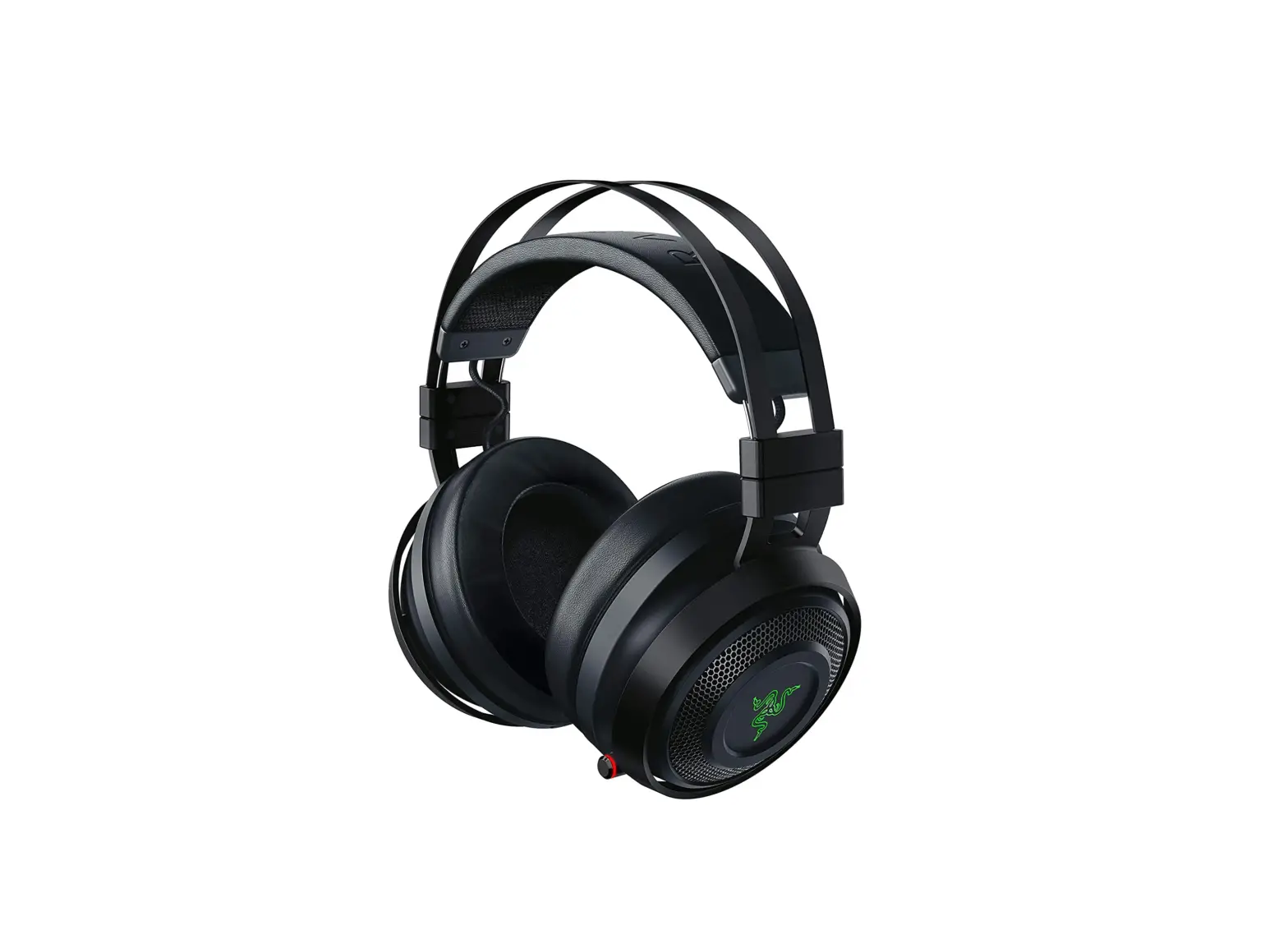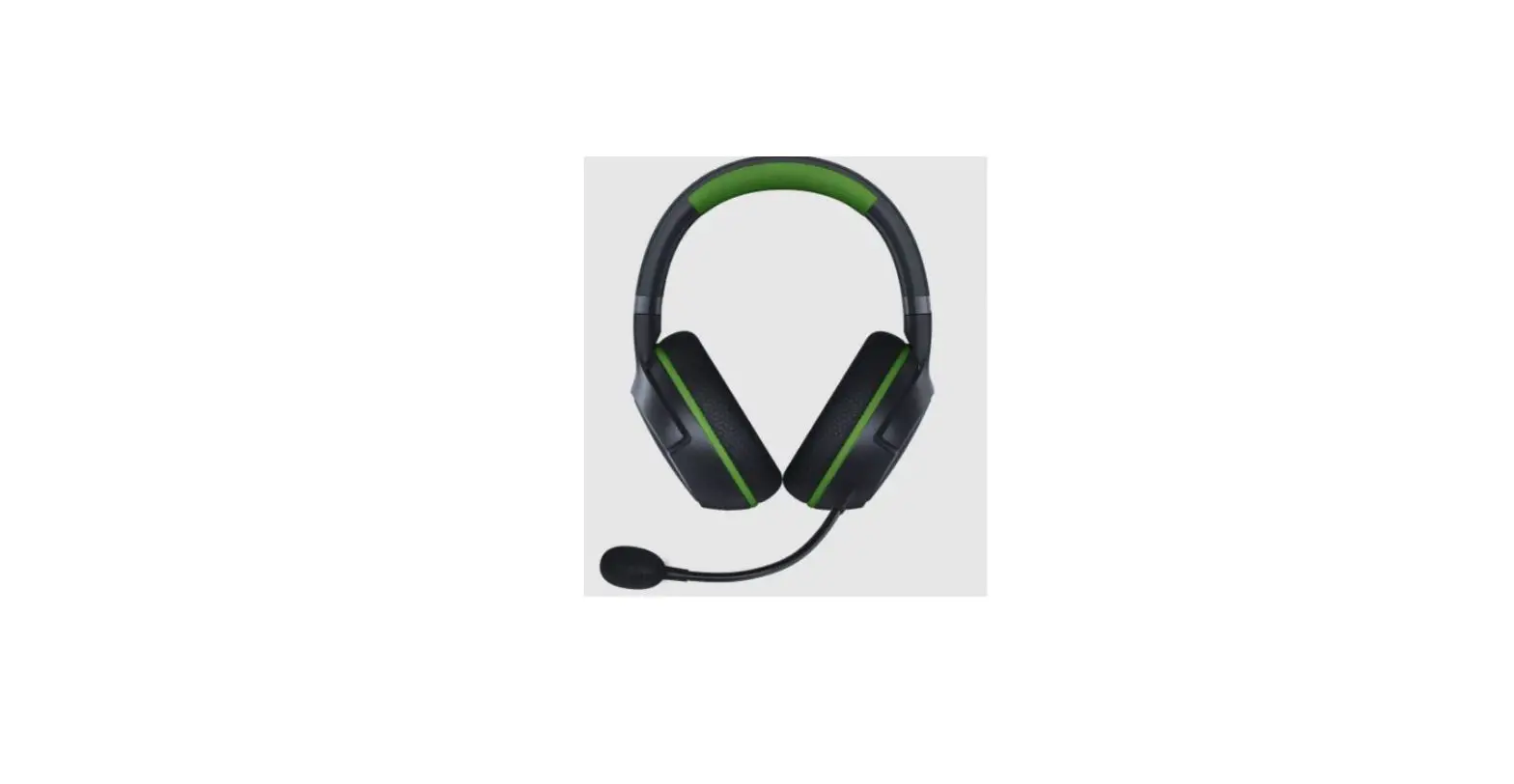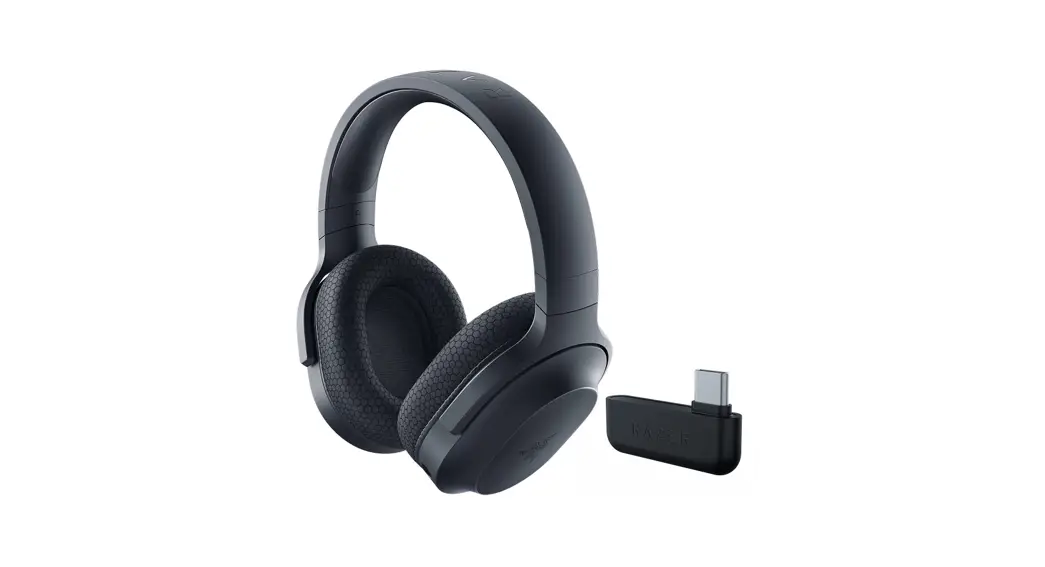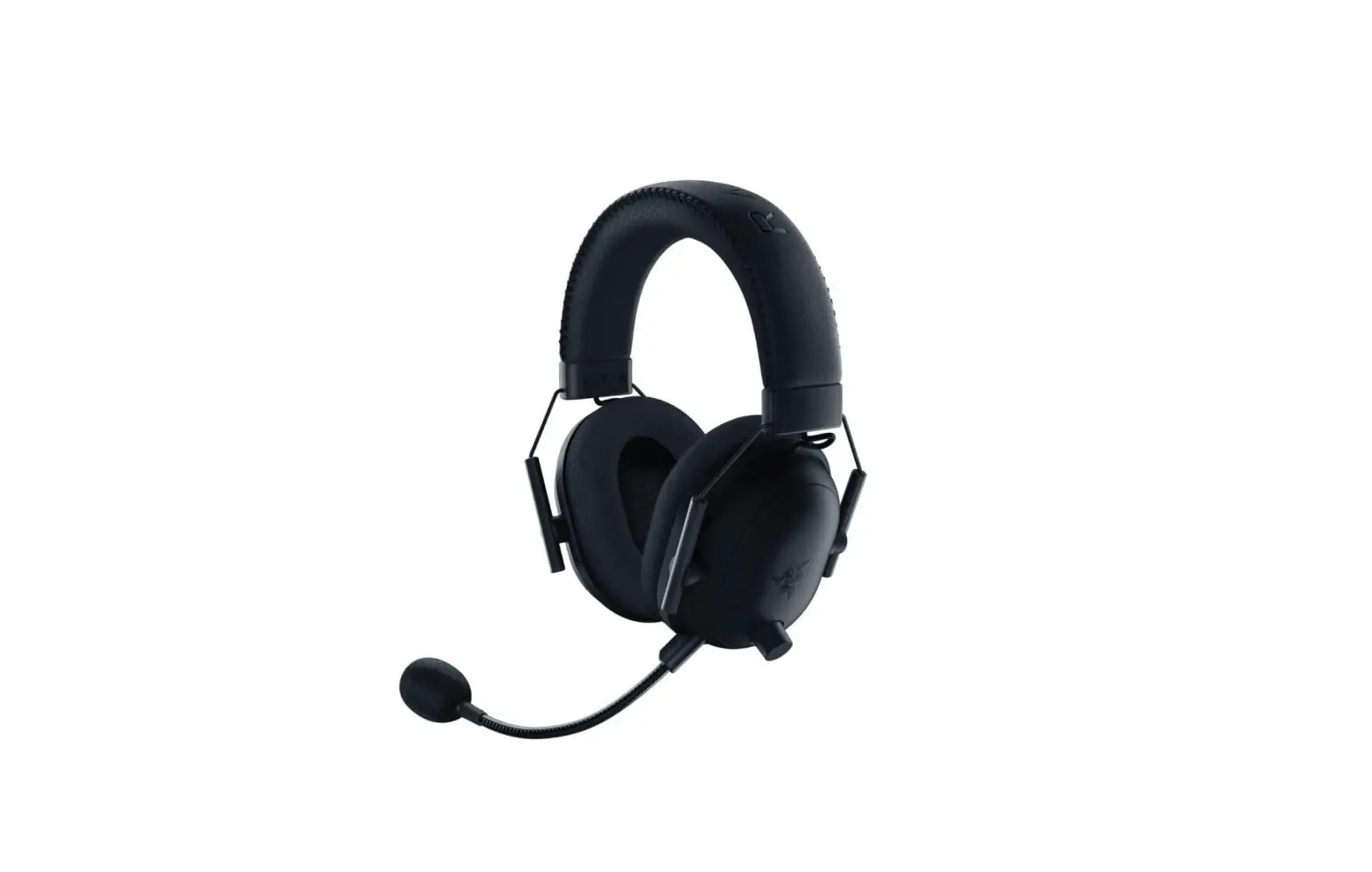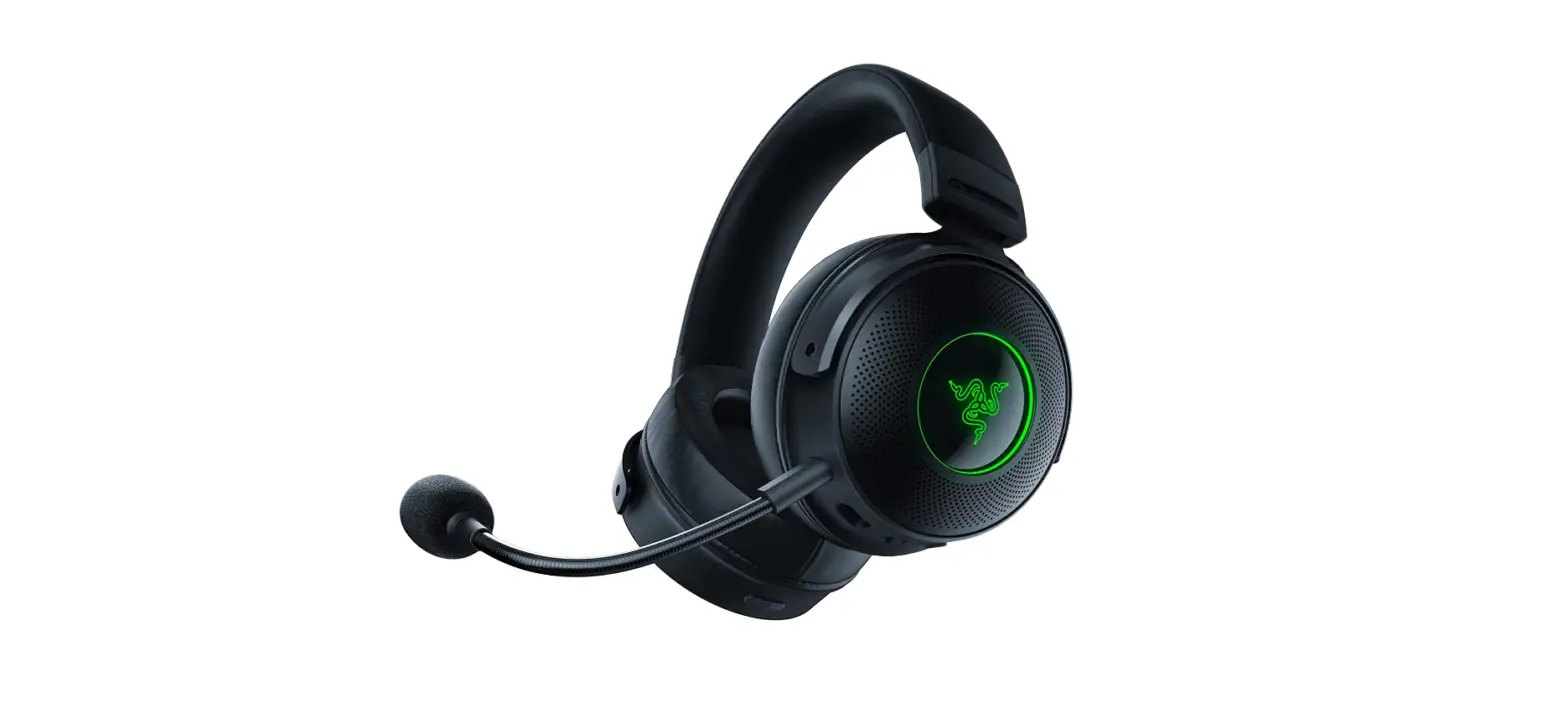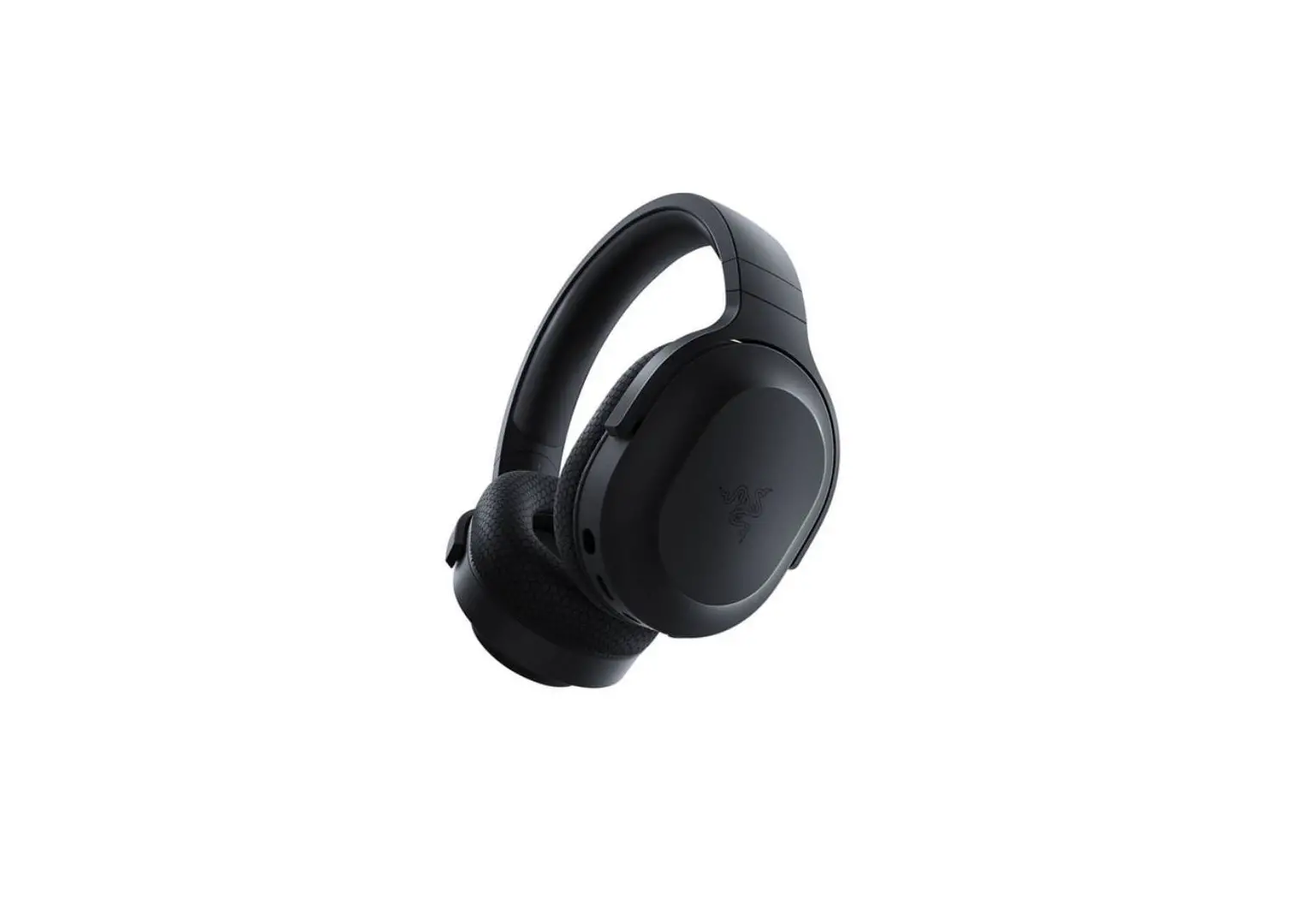
 RZ040398RWO GAMING HEADSET
User Guide
WHAT’S INSIDE/WHAT’S NEEDED
WHAT’S INSIDE
- Gaming headset (RZ04-0398)

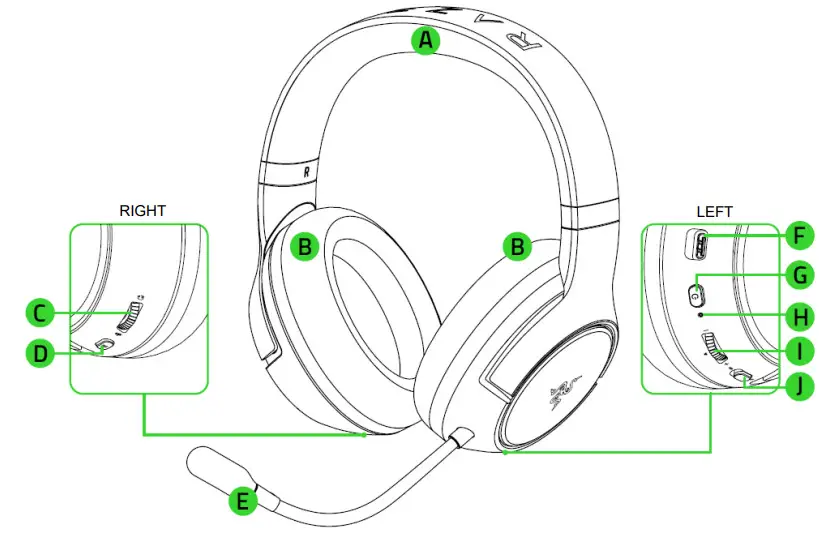
| A. Auto-adjusting headband | F. Charging port |
| B. FlowKnit memory foam ear cushions | G. Power button |
| C. Sidetone wheel | H. Status indicator |
| D. Multi-function button | I. Volume wheel |
| E. Bendable Razer™ HyperClear cardioid mic | J. Mic mute switch |
- Type-C wireless dongle [image placeholder]
- Type-A to Type-C charging cable

- Type-A to Type-C adapter cable

- Important Product Information Guide

WHAT’S NEEDED
PRODUCT REQUIREMENTS
- PlayStation®4 / PlayStation®5 or PC (Windows® 10 64-bit or higher)
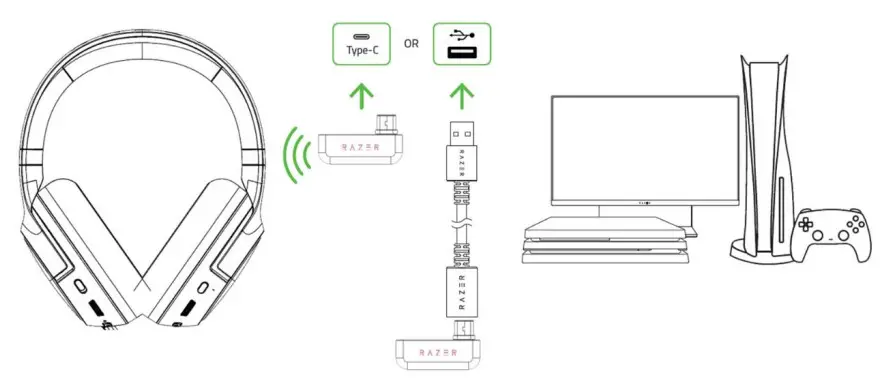
- USB Type-C or Type-A port
- Devices with Bluetooth audio capability
RAZER AUDIO APP REQUIREMENTS
- iOS 12 / Android 8.1 Oreo (or higher) device with Bluetooth connectivity
- Internet connection for app installation
 PC compatibility is not tested nor endorsed by Sony Interactive Entertainment Inc.
LET’S GET YOU COVERED
You’ve got a great device in your hands, complete with 2-year limited warranty coverage.
Now maximize its potential and score exclusive Razer benefits by registering at
razerid.razer.com
Your product’s
serial number
can be found
here.
Got a question? Ask the Razer Support Team at support.razer.com
GETTING STARTED
CHARGING THE HEADSET
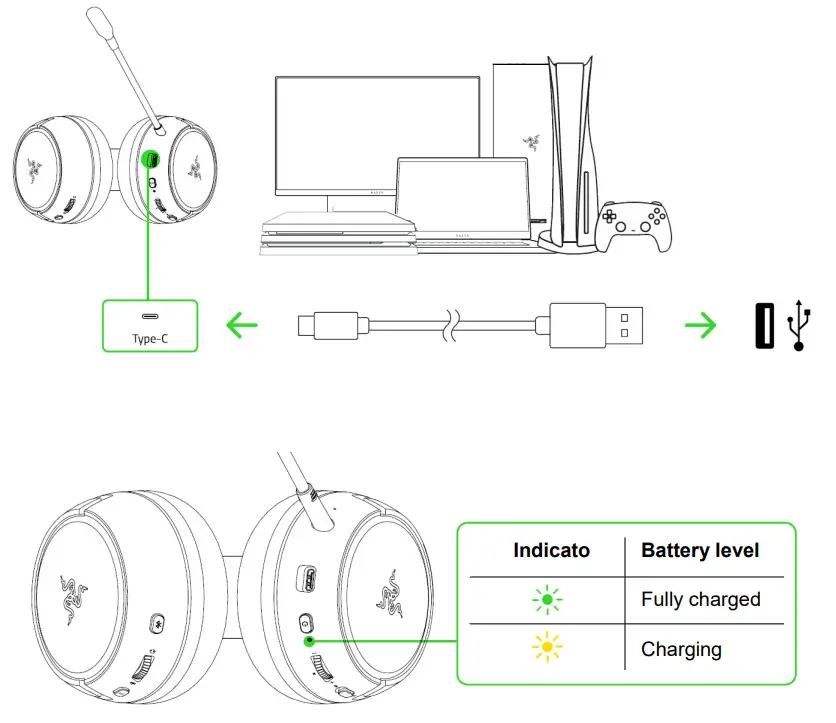
Connect the Gaming headset to a powered USB port using the charging cable. For best results, please fully charge the headset before using it for the first time. A depleted headset will fully charge in about 4 hours.
CONNECTING YOUR HEADSET
A. VIA 2.4GHZ WIRELESS MODE
- Plug the Type-C wireless dongle into your PlayStation console or PC.

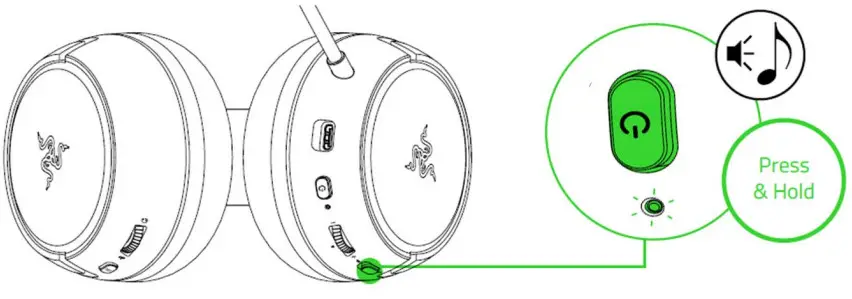
- Press and hold the Power button until the status indicator is briefly lit or until you hear a voice prompt.

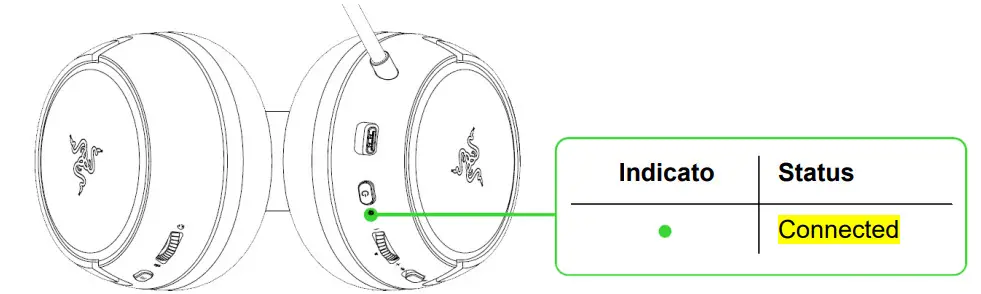
- Wait until the status indicator briefly becomes static green indicating that the headset is now connected to the Type-C wireless dongle.

- On your PlayStation console or PC, set the Gaming headset as the default Input and Output Device.
On PlayStation 5, go to Settings > Sound
- On Microphone, set the Input Device to Razer Kaira.
- On Audio Output, set the Output Device to Razer Kaira.
On PlayStation 4, go to Settings > Devices > Audio Devices
- Set the Input Device and Output Device to Razer Kaira.
On PC / Laptop
a. Right click on the sound icon on the system tray and then select Open Sound settings.
b. On the Sound window, set Razer Kaira as the default Output and Input device.
The Gaming headset is now ready for use in wireless mode.
B. TO OTHER DEVICES VIA BLUETOOTH
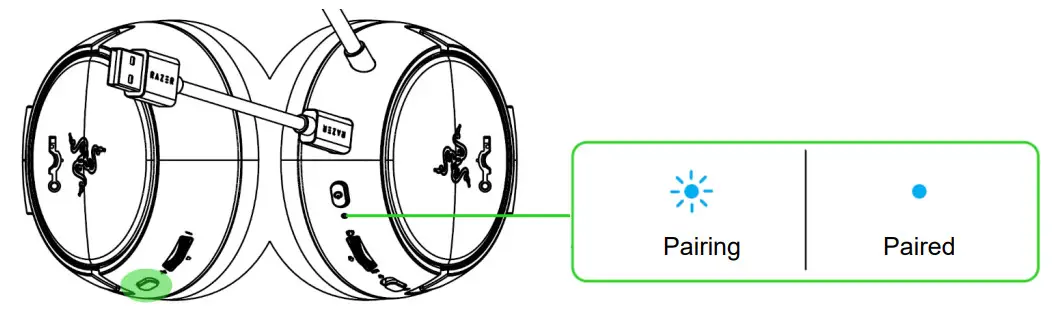
While powered on, press the Multi-function button for 5 seconds to activate Bluetooth pairing mode. Follow your device’s instructions and select “Razer Kaira” from the list of found devices. The status indicator will briefly change to static blue to indicate that the headset is now paired with your device.
RAZER SMARTSWITCH
With the Gaming headset connected to a PC or PlayStation console (via Type-C wireless dongle) and a mobile device (via Bluetooth), you’ll be able to manage calls from your mobile device even while gaming on your PC or PlayStation console. The status indicator will briefly show static white to indicate that the headset is connected to both audio sources.
USING YOUR HEADSET
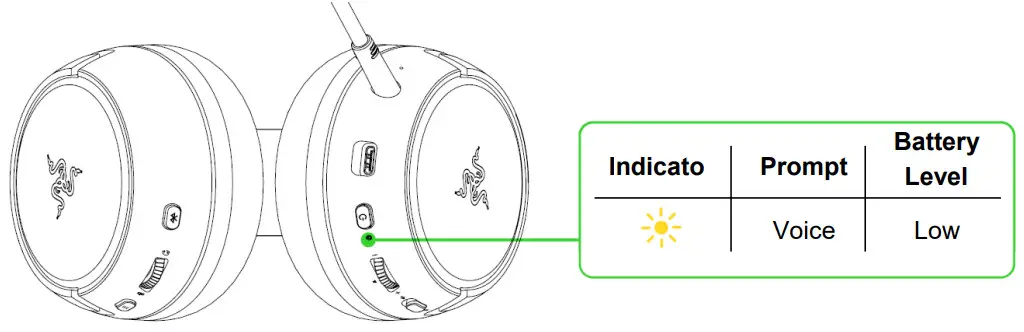
BATTERY LEVEL
When unplugged and powered on, the status indicator will show the connection and battery status.
While in use, you’ll hear a voice prompt when the headset needs to be recharged; during such time, the indicator will continue showing the battery level until you charge the headset.
POWER BUTTON
Power ON / OFF
Power on the headset by holding the Power button until the status indicator is on, and holding the Power button again to turn off. An audio prompt will help notify you when the headset is powered on or off. 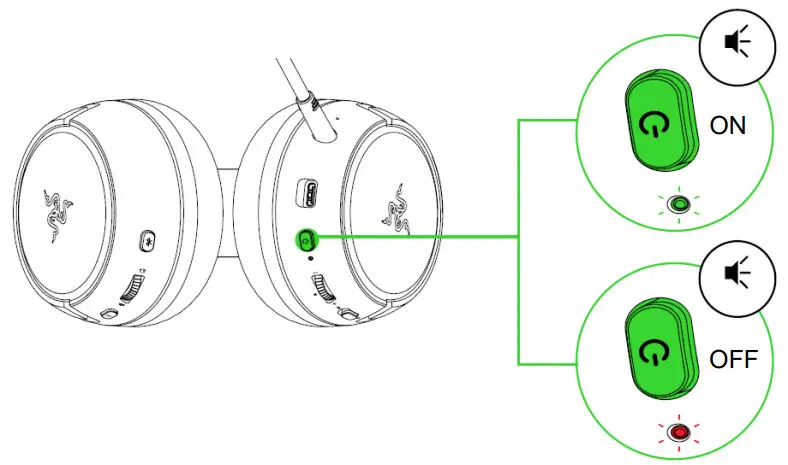
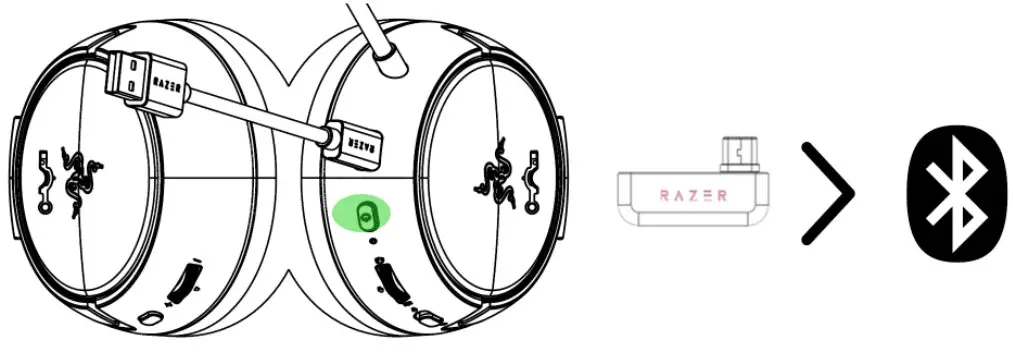
Use Type-C wireless dongle as audio source
When powered on and using Bluetooth as an audio source, press the Power button to switch to the Type-C wireless dongle.
MULTI-FUNCTION BUTTON
Use Bluetooth as an audio source
When powered on and using the Type-C wireless dongle as an audio source, press the Multifunction button to switch to Bluetooth.
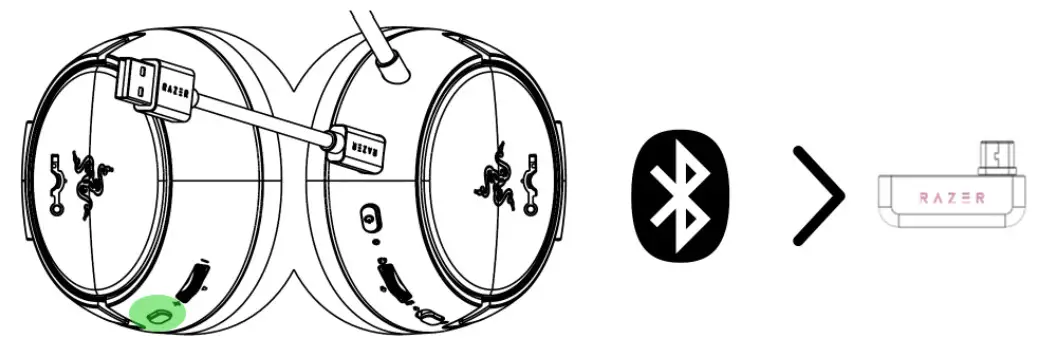
Using Bluetooth as the audio source will reconnect the headset to the last known device.
Pairing mode will be activated if no device is found.
Enable/Disable Gaming Mode
While connected via Bluetooth, triple press the Multi-function button then hold the last press for 2 seconds to activate Gaming Mode. Once enabled, the headset will function at a lower latency; giving you real-time audio feedback while gaming. Repeat to disable gaming mode.
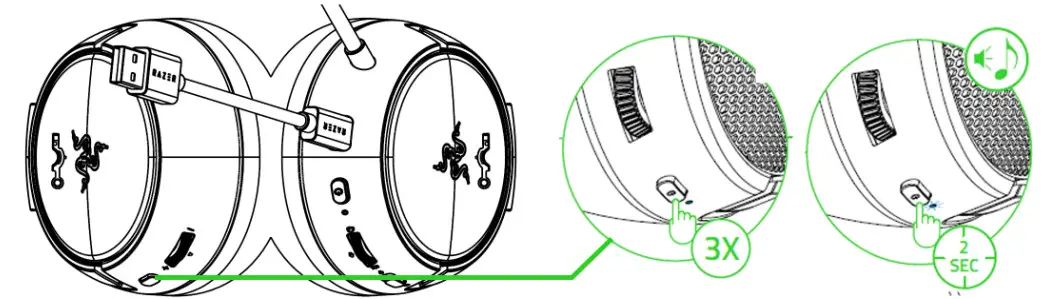
This feature is only available on Bluetooth connections. For best performance, it is recommended to keep the headset within a very close distance of the audio source.
Other functions are available when the headset is powered on and connected to your device via Bluetooth. These functions operate based on your device’s current activity.Some features listed here may not be applicable to certain devices.
| Single press | Play/pause |
| Accept incoming calls or end the current call | |
| Put call on hold and accept an incoming call | |
| End call and swap to on-hold call | |
| Set Bluetooth as an audio source | |
| Press and hold for 2 seconds | Reject incoming call |
| Swap calls | |
| Press and hold for 5 seconds | Activate Bluetooth pairing mode |
| Double press | Skip track |
| Triple press | Previous track |
| Triple press then hold the last | Enable or disable Gaming Mode |
| press for 2 seconds | |
VOLUME WHEEL
Rotate the Volume wheel to increase or decrease the volume. 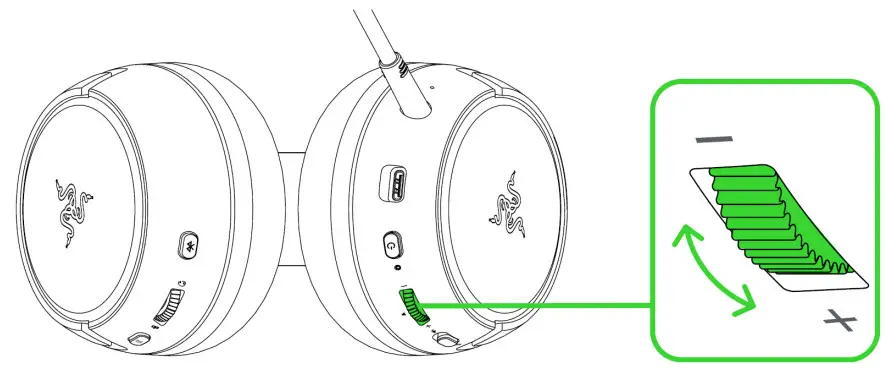
SIDETONE WHEEL
Rotate the Sidetone wheel to adjust the volume of your voice that you can hear through the headset. [image placeholder]
RAZER™ HYPERCLEAR CARDIOID MIC
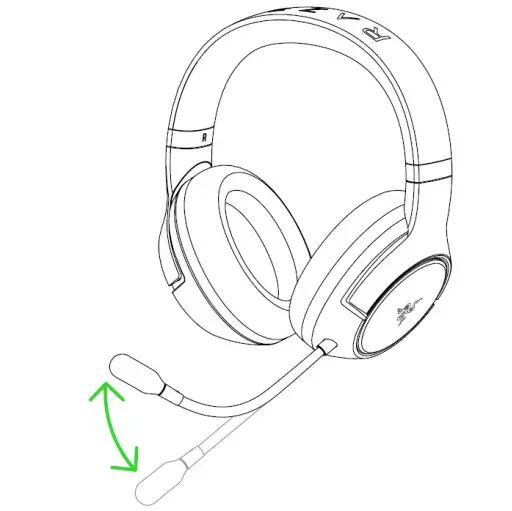
Bend the Razer™ HyperClear Cardioid mic until it is parallel to your mouth. Make sure the mic diaphragm is in front and the air vent is facing away from your mouth.
Slide the mic mute switch to mute or unmute the microphone.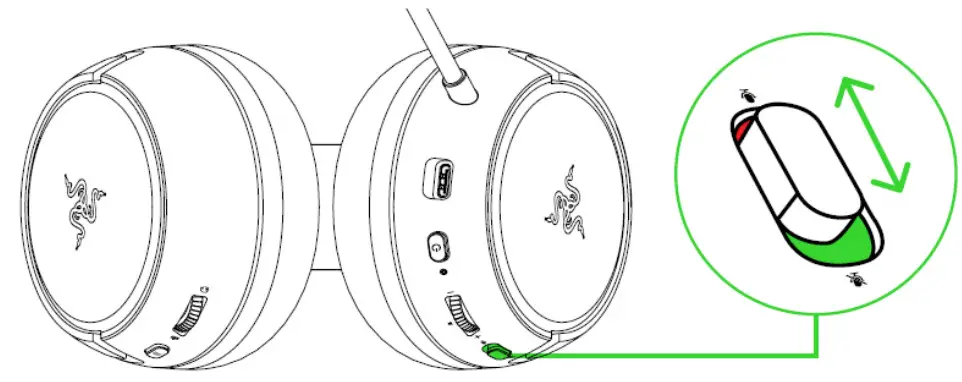
COMFORT
It’s recommended to gently stretch the headset before placing it over your head to minimize headband stress, however, don’t stretch the headset beyond its limits. 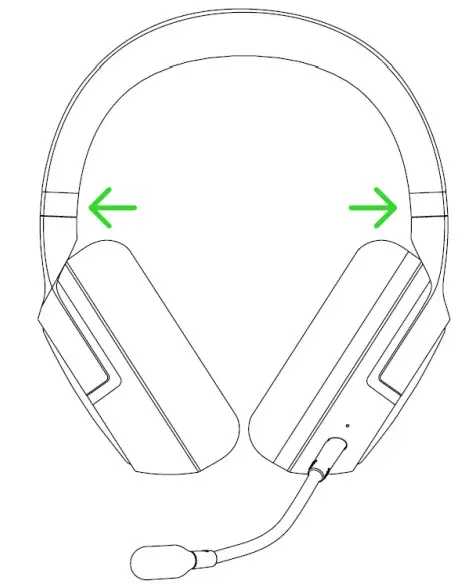
RAZER AUDIO APP
Making advanced customization just got a whole lot easier for your Gaming headset. With the Razer Audio app, personalize your own EQ setting or cycle through presets, customize its auto-shutoff feature, update to the latest firmware, and much more — anytime, anywhere. 
Find out more about your brand-new wireless headset at support.razer.com.
SAFETY AND MAINTENANCE
SAFETY GUIDELINES
In order to achieve maximum safety while using your Gaming headset, we suggest that you adopt the following guidelines:
Should you have trouble operating the device properly and troubleshooting does not work, unplug the device and contact the Razer hotline or go to for assistance.
Do not take apart the device (doing so will void your warranty) and do not attempt to operate it under abnormal current loads.
Keep the device away from liquid, humidity, or moisture. Operate the device only within the specific temperature range of 0°C (32°F) to 40°C (104°F). Should the temperature exceed this range, unplug and/or switch off the device in order to let the temperature stabilize to an optimal level.
The device isolates external ambient sounds even at low volumes, resulting in lowered awareness of your external surroundings. Please remove the device when engaging in any activities that require active awareness of your surroundings.
Listening to excessively loud volumes over extended periods of time can damage your hearing. Furthermore, legislation of certain countries permits a maximum sound level of 86db to affect your hearing for 8 hours a day. We, therefore, recommend that you reduce the volume to a comfortable level when listening for prolonged periods of time. Please, take good care of your hearing.
MAINTENANCE AND USE
The Gaming headset requires minimum maintenance to keep it in optimum condition. Once a month we recommend you clean it using a soft cloth or cotton swab to prevent dirt buildup. Do not use soap or harsh cleaning agents.
BATTERY WARNING
The Gaming headset contains a Li-ion rechargeable battery. In general, the life expectancy of such batteries is dependent upon usage. If you suspect that the Li-ion rechargeable battery inside the Gaming headset may be drained (has a low charge), try charging it.
Caution: Do not open, mutilate, or expose to conducting materials (metal), moisture, liquid, fire, or heat. Doing so may cause batteries to leak or explode, resulting in personal injury. Battery life varies with usage.
LEGALESE
COPYRIGHT AND INTELLECTUAL PROPERTY INFORMATION
©2021 Razer Inc. All rights reserved. Razer, the triple-headed snake logo, Razer logo, “For Gamers. By Gamers.” and “Razer Chroma” are trademarks or registered trademarks of Razer Inc. and/or affiliated companies in the United States and other countries. The actual product may differ from the pictures. All other trademarks are the property of their respective owners. Warranty not valid outside of product’s intended region.
©2018 Google LLC All rights reserved. Android, Google, Google Logo, Google Play, and the Google Play logo are registered trademarks of Google LLC.
Apple, the Apple logo, and iPhone are trademarks of Apple Inc., registered in the U.S. and other countries. App Store is a service mark of Apple Inc. iOS is a trademark or registered trademark of Cisco in the U.S. and other countries and is used under license.
The Bluetooth® word mark and logos are registered trademarks owned by Bluetooth SIG, Inc., and any use of such marks by Razer is under license.
”  “, “PlayStation”, ”
 ”, and “
 ” are registered trademarks of Sony Interactive Entertainment Inc. All rights reserved. Manufactured and distributed under license from Sony Interactive Entertainment LLC.
Windows and the Windows logo are trademarks of the Microsoft group of companies.
Razer Inc. (“Razer”) may have copyright, trademarks, trade secrets, patents, patent applications, or other intellectual property rights (whether registered or unregistered) concerning the product in this guide. Furnishing of this guide does not give you a license to any such copyright, trademark, patent or another intellectual property right. The Gaming headset (the “Product”) may differ from the pictures whether on the packaging or otherwise. Razer assumes no responsibility for such differences or for any errors that may appear. Information contained herein is subject to change without notice.
LIMITED PRODUCT WARRANTY
For the latest and current terms of the Limited Product Warranty, please visit razer.com/warranty.
LIMITATION OF LIABILITY
Razer shall in no event be liable for any lost profits, loss of information or data, special, incidental, indirect, punitive or consequential or incidental damages, arising in any way out of the distribution of, sale of, resale of, use of, or inability to use the Product. In no event shall Razer’s liability exceed the retail purchase price of the Product.
GENERAL
These terms shall be governed by and construed under the laws of the jurisdiction in which the Product was purchased. If any term herein is held to be invalid or unenforceable, then such term (in so far as it is invalid or unenforceable) shall be given no effect and deemed to be excluded without invalidating any of the remaining terms. Razer reserves the right to amend any term at any time without notice.
FCC Radiation Exposure Statement
This device complies with FCC radiation exposure limits set forth for an uncontrolled environment and it also complies with Part 15 of the FCC RF Rules. This equipment must not be co-located or operating in conjunction with any other antenna or transmitter. End-users and installers must be provided with antenna installation instructions and consider removing the no-collocation statement.
FCC DECLARATION OF CONFORMANCE
This equipment has been tested and found to comply with the limits for a Class B digital device, pursuant to part 15 of the FCC Rules. These limits are designed to provide reasonable protection against harmful interference in a residential installation. This equipment generates, uses, and can radiate radio frequency energy and, if not installed and used in accordance with the instructions, may cause harmful interference to radio communications.
However, there is no guarantee that interference will not occur in a particular installation. If this equipment does cause harmful interference to radio or television reception, which can be determined by turning the equipment off and on, the user is encouraged to try to correct the interference by one or more of the following measures:
- Reorient or relocate the receiving antenna.
- Increase the separation between the equipment and the receiver.
- Connect the equipment into an outlet on a circuit different from that to which the receiver is connected.
- Consult the dealer or an experienced radio TV technician for help.
For more information, refer to the online help system on razer.com.
FCC CAUTION STATEMENT
This device complies with Part 15 of the FCC Rules. Operation is subject to the following two conditions:
- This device may not cause harmful interference, and
- This device must accept any interference received, including interference that may cause undesired operation.
Any changes or modifications not expressly approved by the party responsible for compliance could void the user’s authority to operate this equipment.
NOTICE FOR CANADA
This device complies with Industry Canada’s license-exempt RSS.
Operation is subject to the following two conditions:
- This device may not cause interference; and
- This device must accept any interference, including interference that may cause undesired operation of the device.
 EU PRODUCT AND BATTERY DISPOSAL INFORMATION
BATTERY WARNING
The Gaming Headset contains a Li-ion rechargeable battery. In general, the life expectancy of such batteries is dependent upon usage. If you suspect that the Li-ion rechargeable battery inside the Gaming Headset may be drained (has a low charge), try charging it. Caution: Do not open, mutilate, or expose to conducting materials (metal), moisture, liquid, fire, or heat. Doing so may cause batteries to leak or explode, resulting in personal injury. Do not leave the rechargeable battery discharged or unused for extended periods. Battery life varies with usage.
This equipment is for home use and has acquired electromagnetic conformity registration, so it can be used not only in residential areas but also in other areas.
BATTERY INFO
Risk of fire or explosion or defeat the safeguard of equipment if the battery is replaced by an incorrect type. Replace only with the same or equivalent type. Disposal of a battery into fire or a hot oven, or mechanically crushing or cutting of a battery, can result in an explosion.
High or low extreme temperatures or low air pressure at high altitude that the battery can be subjected to during use, storage or transportation. Leaving the battery in an extremely high temperature and/or low air pressure surrounding environment that can result in an explosion or the leakage of flammable liquid or gas.
 STATEMENT OF COMPLIANCE WITH EU DIRECTIVE
STATEMENT OF COMPLIANCE WITH EU DIRECTIVE
Hereby, Razer (Europe) GmbH, declares that this Gaming Headset: RZ04-0398, USB
Wireless Transceiver: RC30-0403 is in compliance with the essential requirements and other relevant provisions of Directive 2014/53/EU and 2015/865/EU.
Gaming Headset
Radio Frequency: 2.4GHz SRD/Bluetooth
Operating Frquency: 2402MHz – 2480MHz
Max. Output Power: <12dBm
USB Wireless Transceiver:
Radio Frequency: 2.4GHz SRD
Operating Frquency: 2402MHz – 2480MHz
Max. Output Power: <12dBm
The full Declaration of Conformity can be requested via the following:
Company: Razer (Europe) GmbH
Address: Essener Bogen 23, 22419 Hamburg, Germany
E-mail: [email protected]
Internet address: razer.com
 Razer United States | For Gamers. By Gamers.
 Razer ID