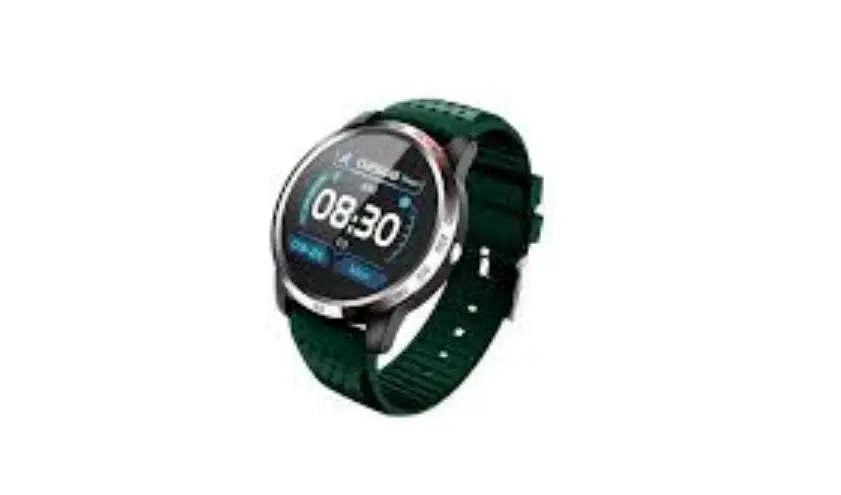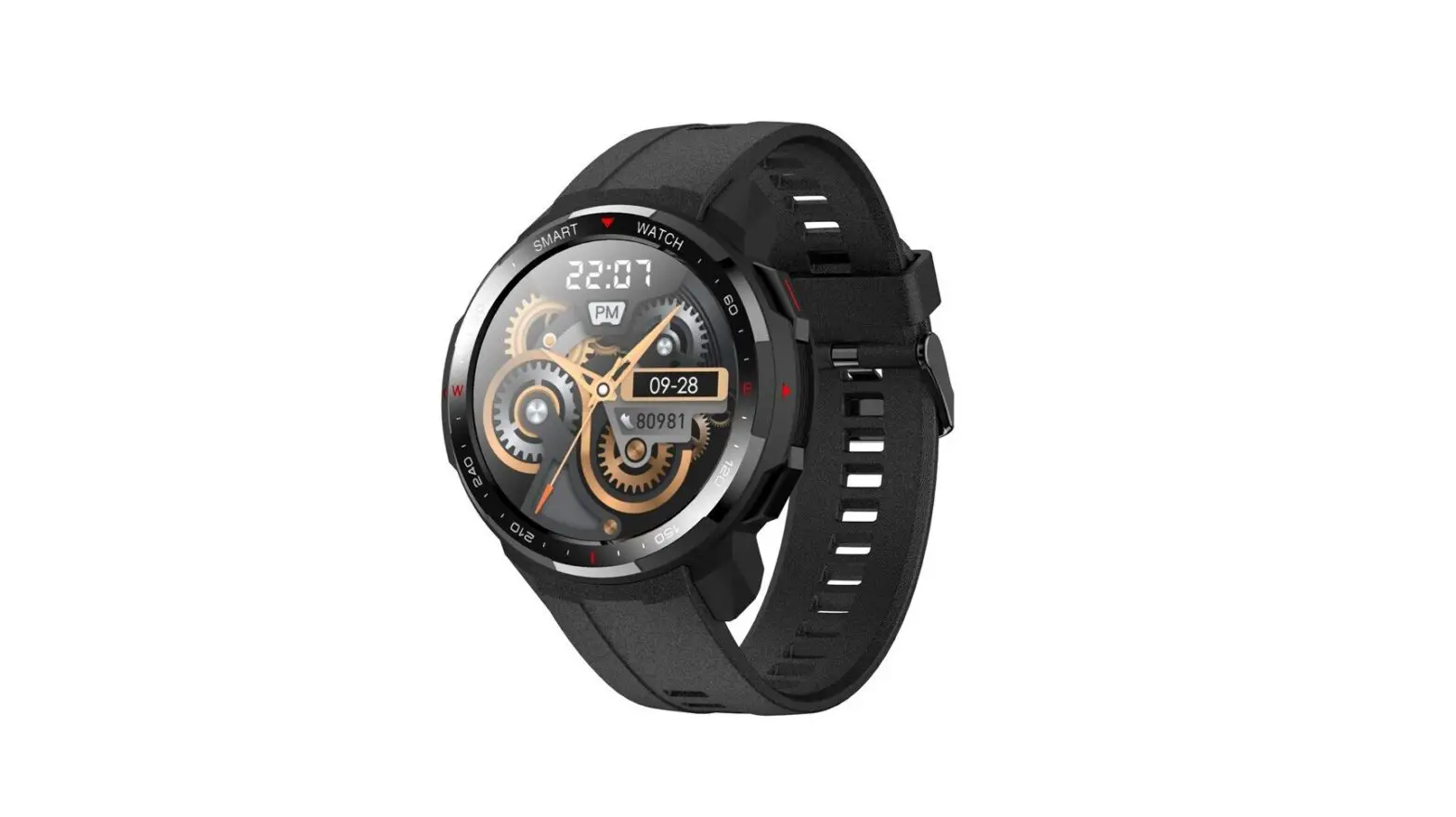
HOMMIE L12 Operation Guide
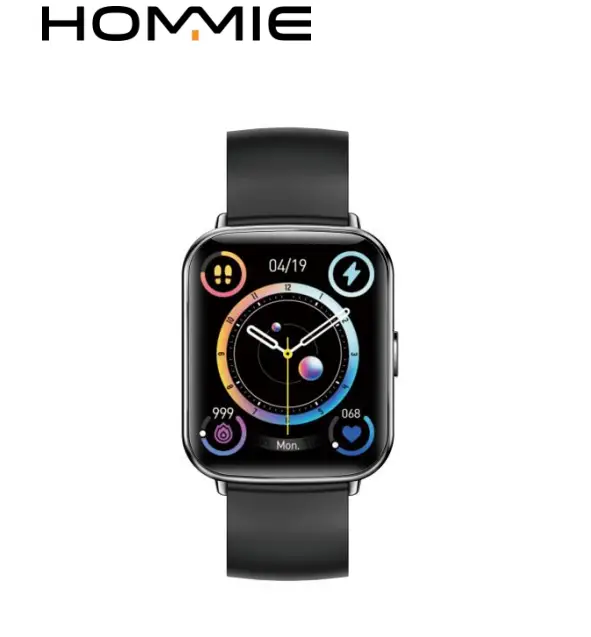
Model: L12
Thank you for purchasing this product. Please read this user manual carefully before use and keep this instruction for future reference. If you have any problem about this product, please feel free to contact us at [email protected].
Recommendation of Wearing Watch
Please wear the bracelet on the wrist, approx. 2cm away from the ulna. The heart rate sensor is close to the skin and cannot be shaken. It is not recommended to wear too tight. That will affect the blood flow, and then affect the accuracy of heart rate measurement.
Download GloryFit App
Scan the QR code below to download and install the user app.
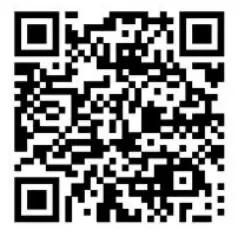
Please scan the code to download the app.
Charging Watch
The watch must be charged and activated before using it for the first time:
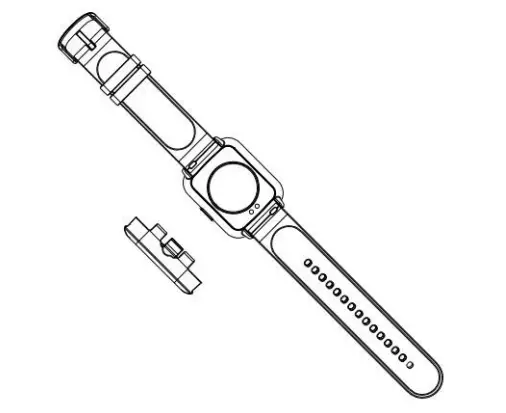
Attach the included magnetic charger to the metal charging plates on the back of the watch, then connect the other end of the charging cable to a USB electric socket plug or a computer USB port.
Binding Watch to App
Slide down the watch face to access the shortcut page, tap to enter the “Settings” page, and then tap “Info” to display the watch’s MAC address. You can identify your watch by listing the watch’s MAC address on your phone.
Once the watch is successfully paired, it will automatically connect to your phone in the future, and data can be refreshed by pulling down on the App’s data page.
Notes on Bluetooth Connection
- Turn on the mobile phone’s location service and GloryFit positioning.
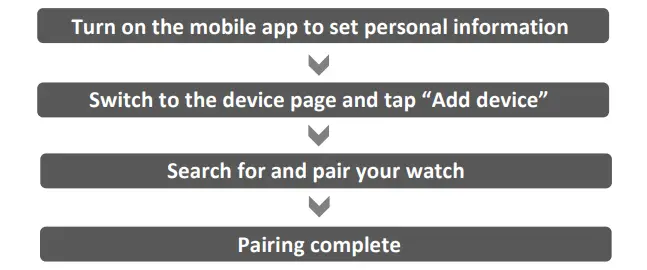
- Turn on the GloryFit App → Device → Add device → Search for Bluetooth devices, and then pair the devices.
- Do not connect via Bluetooth in the phone’s system. Search for and connect to the watch via the app.
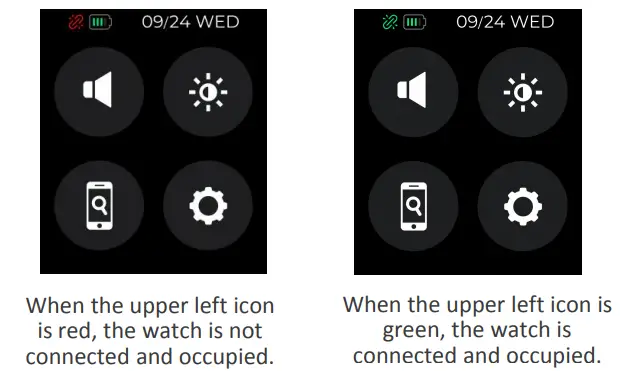
If incorrect operation causes the watch Bluetooth connection to be occupied, the GloryFit App will not be able to locate it via Bluetooth. If this happens, ignore the phone system’s Bluetooth connection and release the device. Then, go back to the GloryFit App to search and connect.
- Do not connect via Bluetooth in the phone’s system. Search for and connect to the watch via the app.
Watch Operation Guide
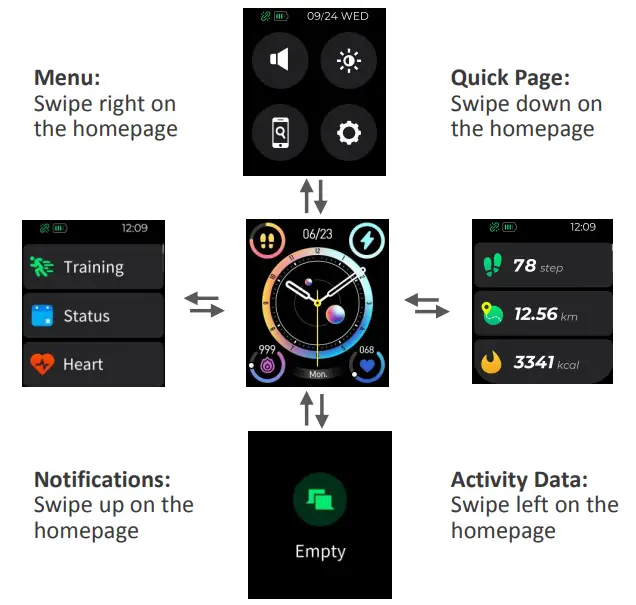
Features
Sport Mode
24 Sport modes with real-time display of heart rates, calories and other data, timely pause supported.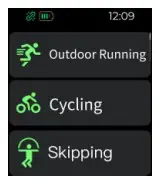
Activity Report
Motion sensors of walking steps, distance, and calories.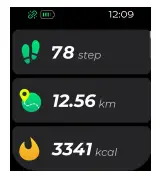
Sleep Quantity
Turn on the app to automatically keep track of your sleep status, including deep and light sleep time. More detailed analysis and data are available in the app.
Note: Sleep judgement standard based on step counting: during the sleeping testing time, the number of steps is within 20 in 5 minutes, and it is judged to be sleeping.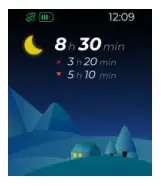
Heart Rates and Blood Oxygen Levels
Keep track of your heart rates and blood oxygen levels. Data can be synchronized to the app.
Monitoring data for reference only, cannot be used for medical purposes. If you need medical help, please contact a medical professional.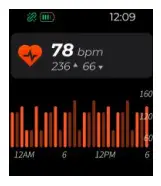
Weather
Current weather, minimum and maximum temperature records on the Weather page. Scroll down to the next page for weather preview in the next three days.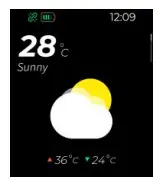
Pushes
Notifications can be pushed to the phone. Select the social applications to be pushed through the app. Multiple messages can be stored in the Information page.
Note: Text messages can be read up to 60 characters, and it will not be displayed if there are more than 60 characters.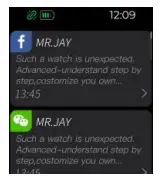
Bluetooth Music
After being connected to your phone, you can control the music in your phone to play the previous or next song.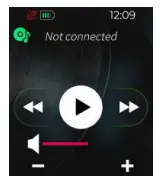
Flashlight
Screen turns white after click.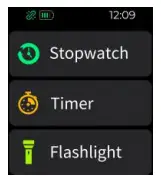
Stopwatch
The stopwatch can be used to keep time, start or reset.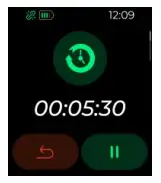
Timer
The timer can be set, started, or reset.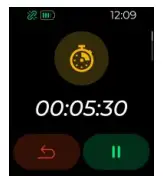
Find Your Mobile Phone
Click on the cell phone icon, and you can find your cell phone.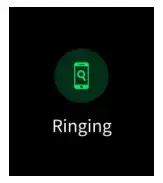
Settings
Through the watch settings, you can change the dial, adjust the brightness, view the watch information, turn off the watch, and restore the factory settings.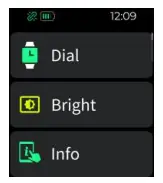
Goal Accomplished
You can set a target number of steps on the APP and the watch will notify you if the total number of steps for the day exceeds your goal.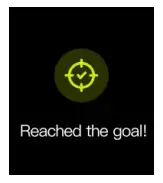
Incoming Call Notification
When the device is connected to the APP, if someone is ringing you, the watch will have an incoming call notification interface.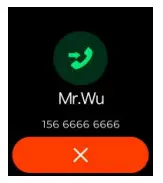
Sedentary Reminder
You can set a sedentary reminder through the mobile APP and set the reminder period, and the watch will remind you to get up and move on time.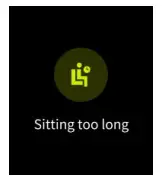
Low Battery
When the battery of watch runs low, it will show a low power alert.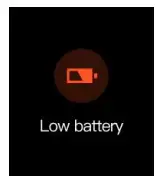
Alarm Clock
The app allows you to set the alarm time, synchronize your watch to show the time, or turn the alarm on or off.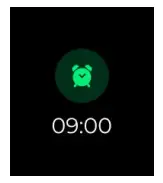
FAQ
- Why can’t you wear the watch and take a hot shower?
The temperature of the bath water is high, which will produce a lot of steam. And steam is a gas with a small molecular radius, which is easy to infiltrate into the gap of the watch shell. It will condense into water when the temperature drops. It is easy to cause short circuit in the internal circuit of the watch, and damage the watch circuit board, thus damaging the watch.
Note: It supports immersion in normal temperature water with a depth of 1 meter for 30 minutes
- Why can’t the watch receive a push message?
Android phone settings:
- Make sure to turn on the message push switch in the mobile app;
- Make sure that all messages can be displayed normally in the notification bar of the mobile phone. If there is no message in the notification bar of the phone, the watch will not be able to receive the notification. (You need to find the notification settings in the mobile application settings, and turn on the notification switch for WeChat, QQ, telephone, SMS and mobile applications.)
Apple phone settings:
- Make sure to turn on the message push switch in the mobile app;
- Make sure that all messages can be displayed normally in the notification bar of the mobile phone.
(You need to find the notification settings in the mobile application settings, and turn on the notification switch for WeChat, QQ, telephone, SMS and mobile applications.)
EU REP C&E Connection E-Commerce (DE) GmbH
 Tel: +49 (069) 27246648
 E-mail: [email protected]
 Address: Zum Linnegraben 20, 65933, Frankfurt am Main, Germany
 Made In China
 Connection | Sugata & Freunde: Das Blog fürs Wesentliche