
QUICK START GUIDE
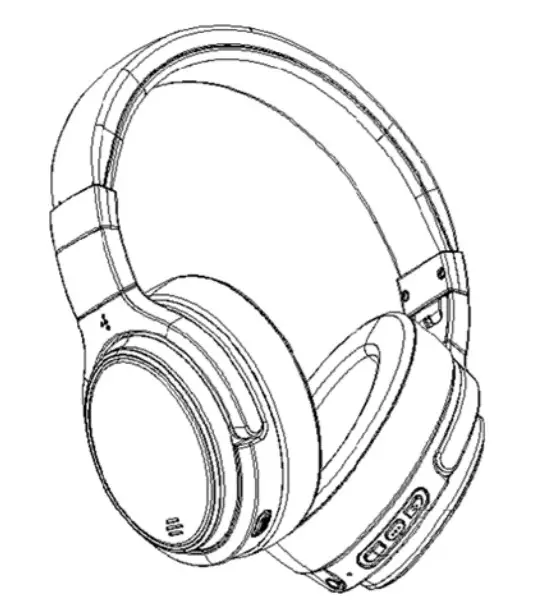
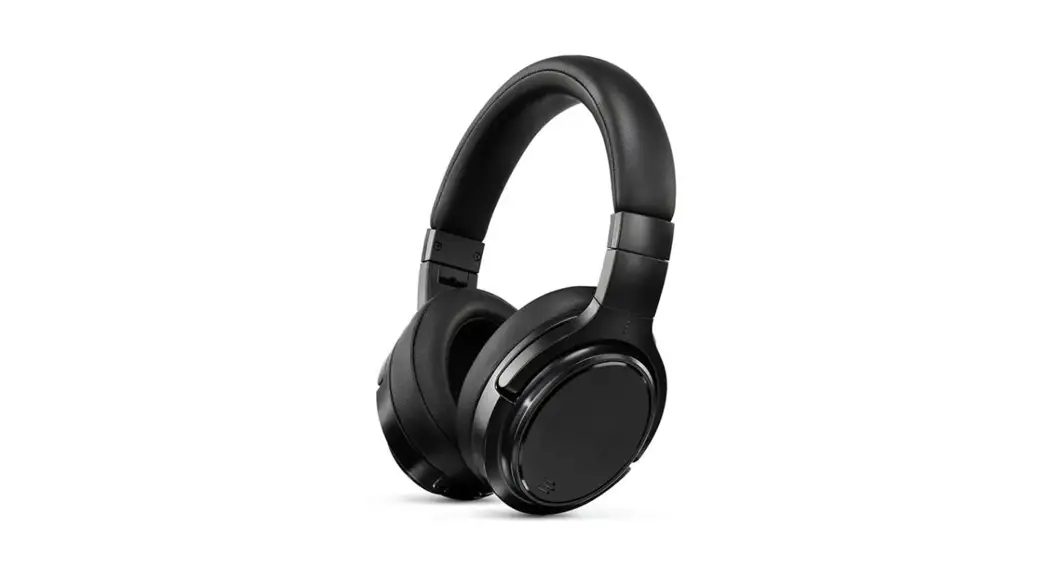
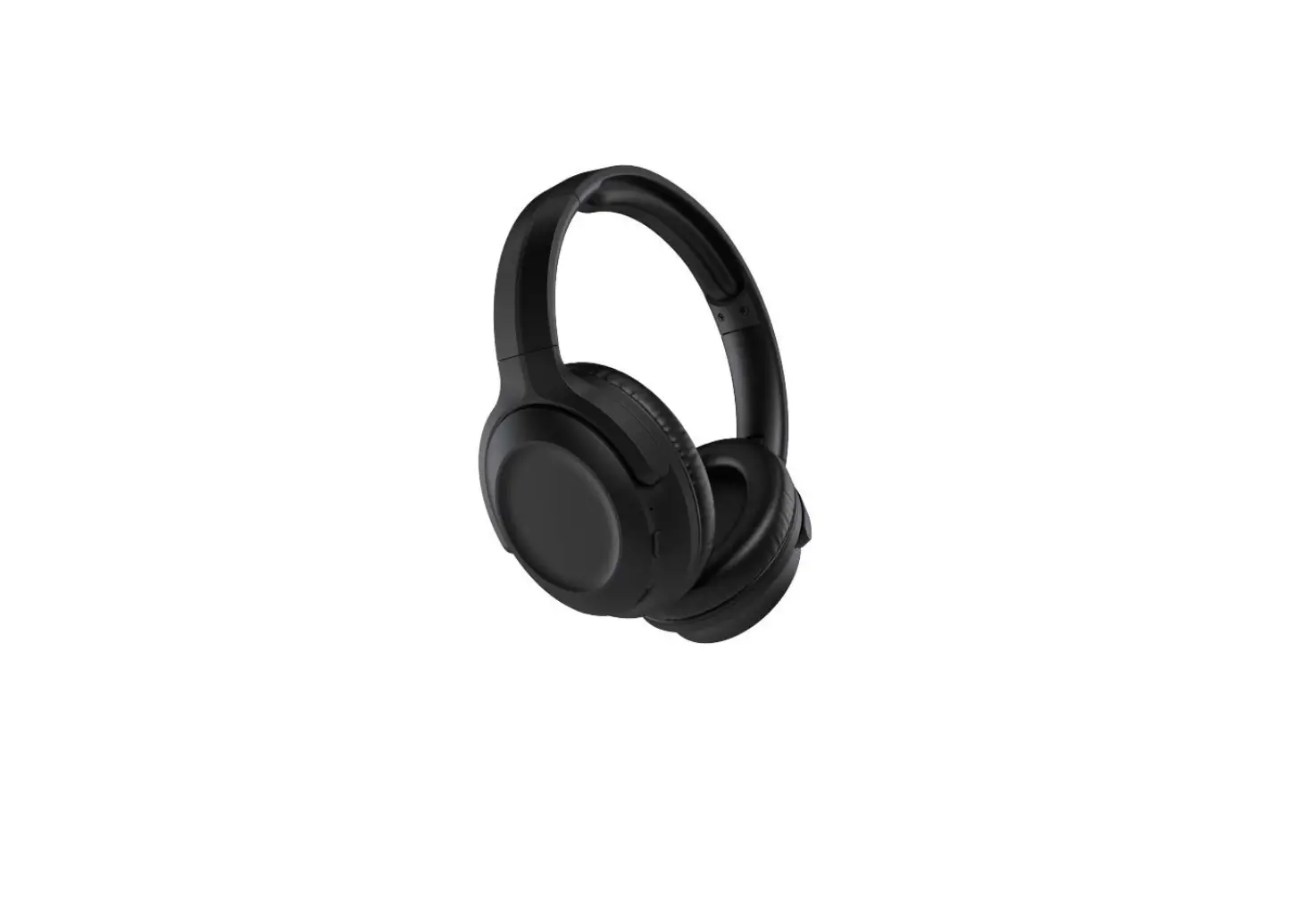
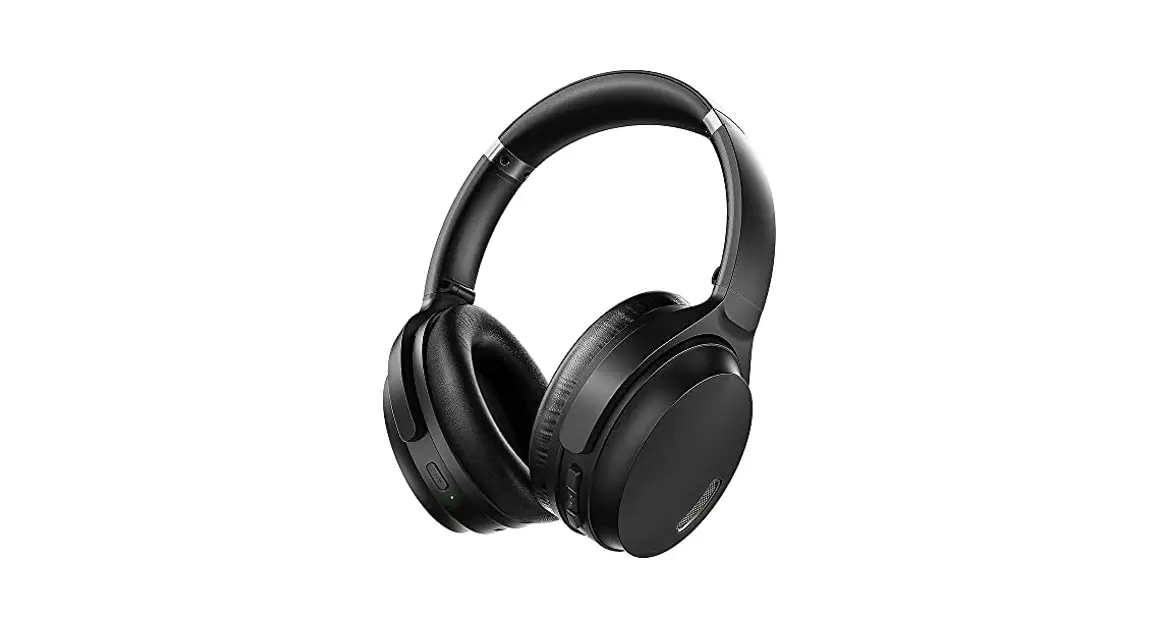
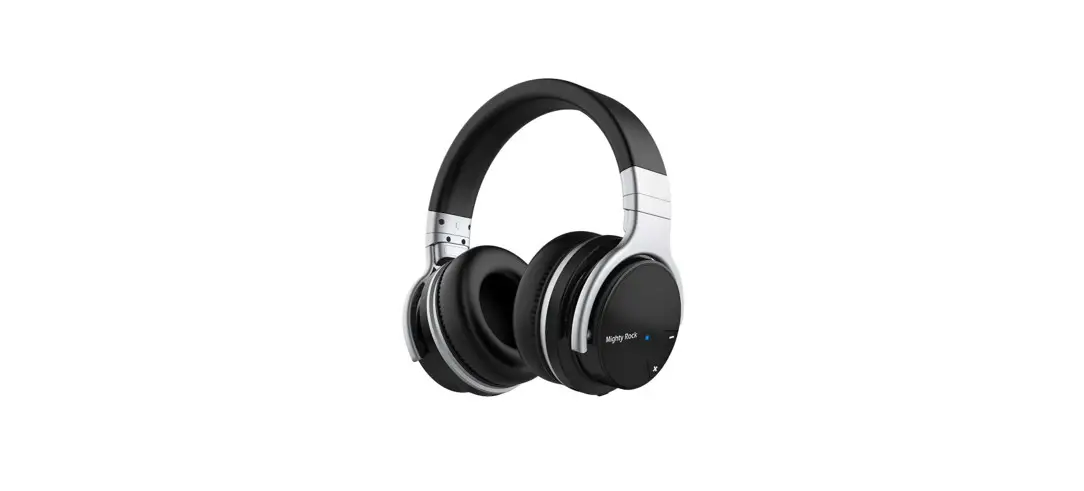
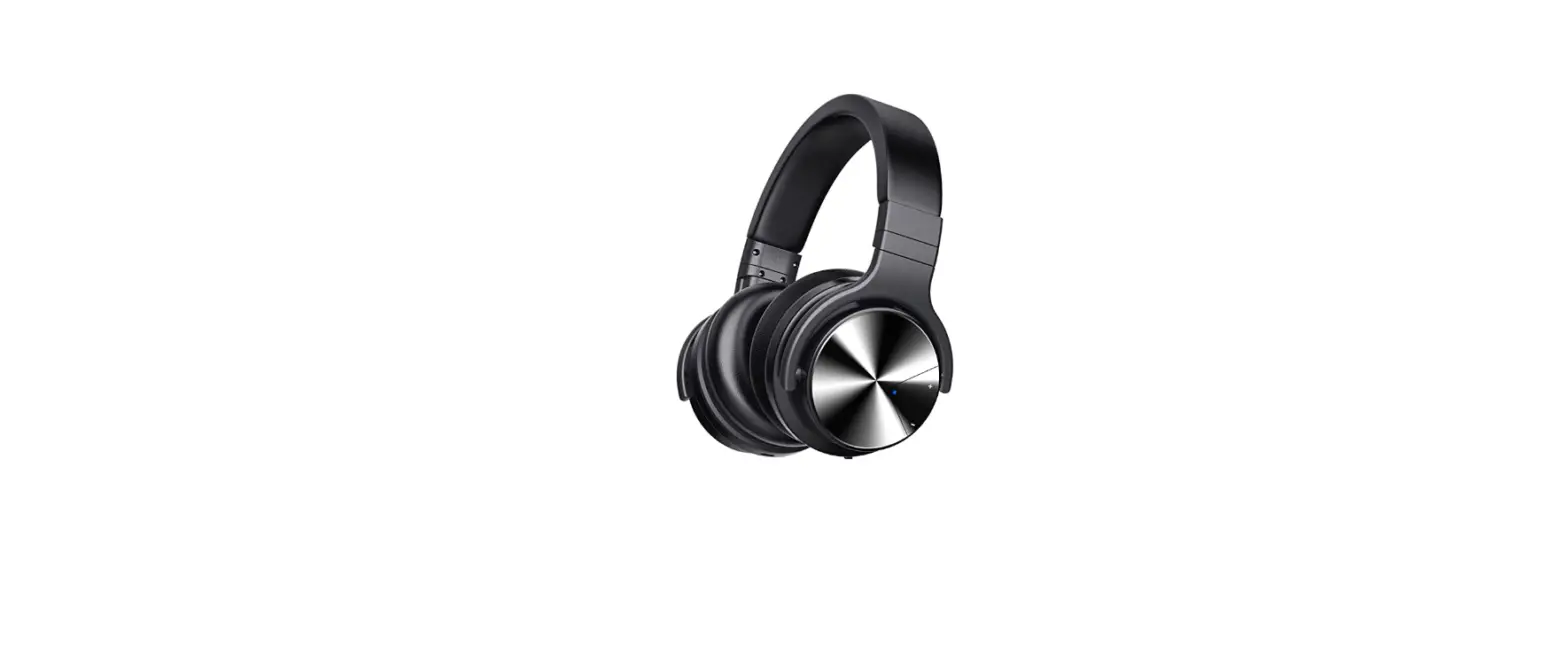
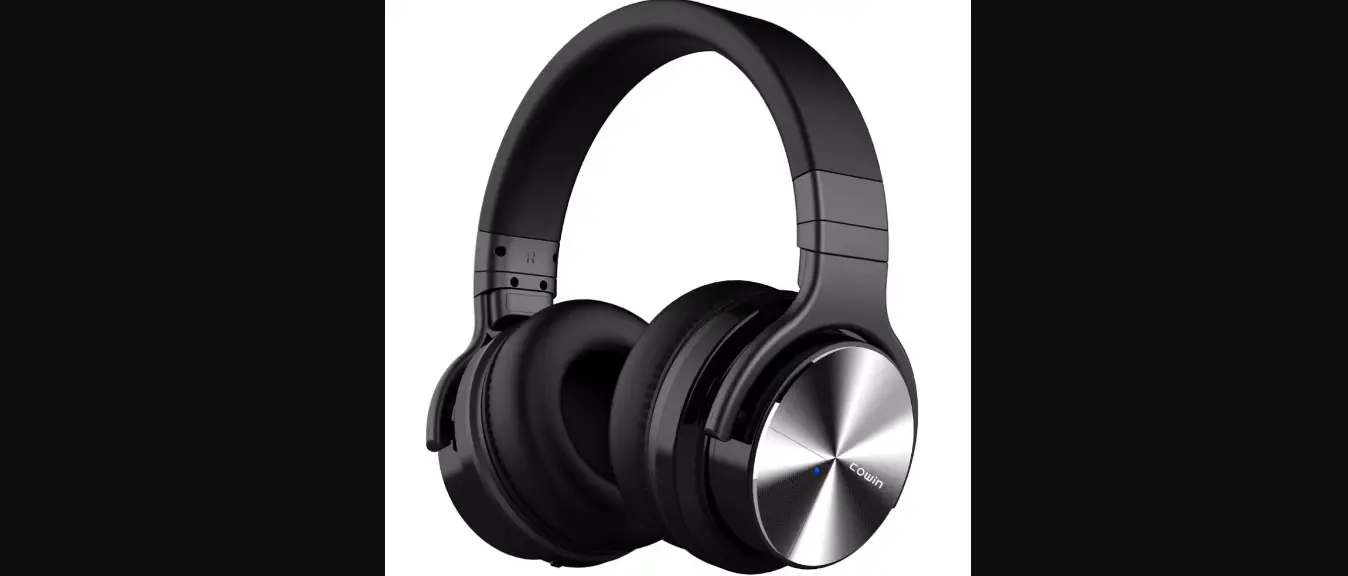
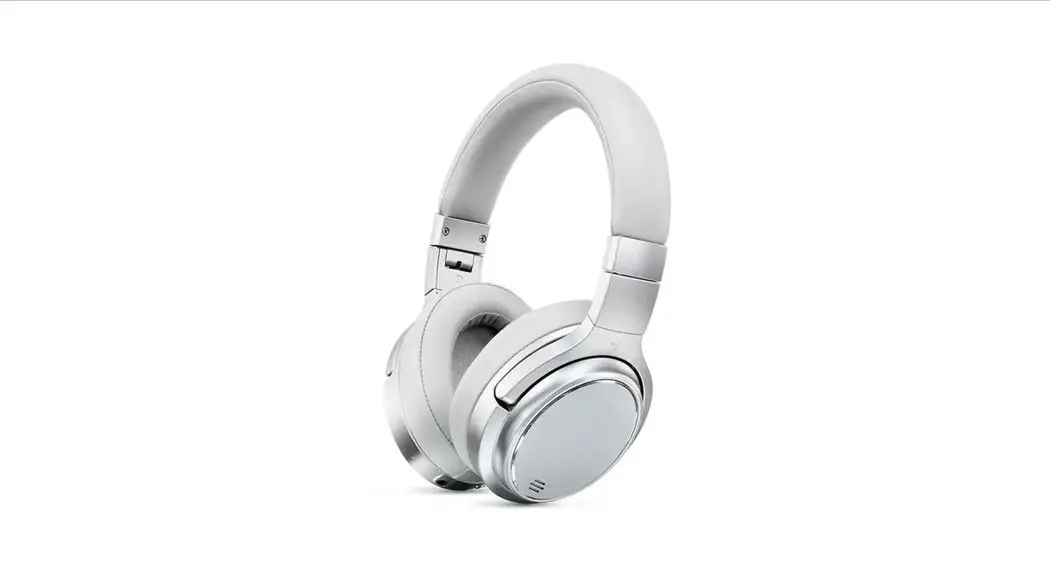
EC-65 II PRO ACTIVE NOISE-CANCELLING HEADPHONES
(MATTE BLACK/SILVER GREY)
KAEC65ANCBA & KAEC65ANCSA
OVERVIEW
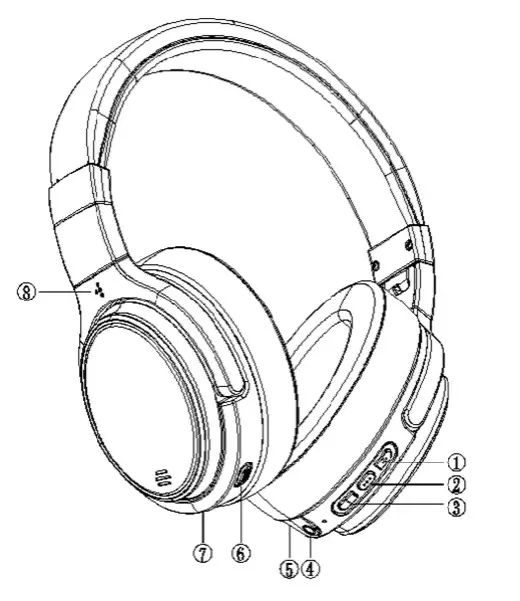
| No | Name | Function |
| 1 | Volume+/Next Track | Short press to turn volume up. Press and hold to skip to next track. |
| 2 | MFB (Multifunction Button) | Press and hold for 2s to power ON. Press and hold for 3s to power OFF. |
| Phone Call Control: Press to answer/hang up. Press and hold to refuse. Press to pause/ stop music. Double-press to start Siri. | ||
| 3 | Volume-/Skip Backward | Short press to turn the volume down. Press and hold to play the previous track. |
| 4 | 3.5mm Earphone Jack | Allows physical connection with an auxiliary cable. |
| 5 | Mic | Microphone for calling. |
| 6 | Active Noise Cancellation Control | Press to activate/deactivate the active noise cancelling function. |
| 7 | USB-C | LED indicator turns red while charging, and turns blue when fully charged. |
| 8 | Orientation Indicator (raised extrusion) | The indicator on the headset can assist in recognising the left and right sides. |
OPERATION
- Press and hold the MFB for 2 seconds to power the headphones After 5s, the LED indicator will flash blue and red alternate indicating that the pairing mode is active. The headphones will power OFF after minutes I no Blueto device is connected.
- Activate Bluetooth on your phone (or another device) and set it to search for new
iPhone Settings > Bluetooth > On
Android Settings > Bluetooth > On > Scan for devices
NOTE: Menus may vary by device. - Select “Kogan EC65 II Pro”.
If prompted for a passcode, enter four zeros (0000) and accept the connection. Once successfully paired, the LED indicator will flash blue.
- Two Phones Connection: Your headphones can pair with two devices simultaneously. After you connect with Phone A, turn the headphones and Bluetooth on Phone A off. Then restart the headphones and pair with Phone B and maintain the connection with Phone Finally, open Bluetooth on Phone A and select “M1” in the menu.
Note: The headphones can only play music from one device even if two phones are successfully connected at the same time. - Wired connection: Use the included audio cable to connect. Bluetooth, battery, controls and microphone are disabled automatically in AUX
Noise conce\Motio
Press the ANC button once to activate active noise cancelling. The LED will turn green. Press once again to disable the ANC function, and the LED will switch off.
Charging
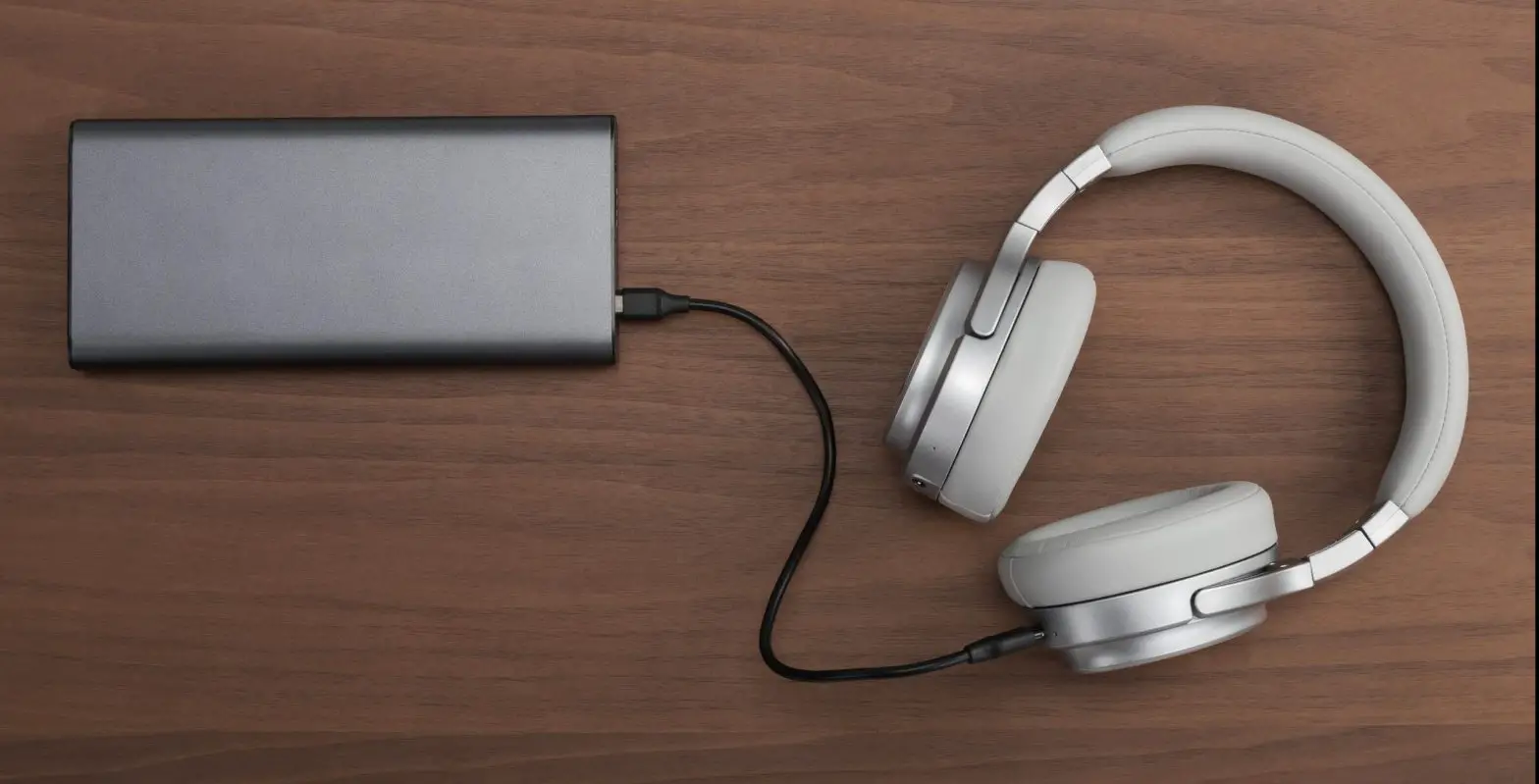
Wired charging: Plug a Micro USB cable into the headphones’ charging port and connect the other side with a USB wall cha in adapter or computer. The LED indicator turns red while charging and turns blue when charged.
The headphones will sound a “low battery” warning every 15 minutes when the remaining charge is below 10%.
Avoid using the headphones whilst charging is in progress
CLEANING & CARE
- Do not use non-original accessories, as this may cause performance degradation or electrical short-circuiting.
- Do not attempt to disassemble the device, as this may damage the headphones and void applicable
- Do not allow children under 3 years old to play with the
- Avoid placing the product in a dusty, overheated or super-cooled
- Wipe the headphones clean with a soft, dry Do not use solvents or detergents.
- Place headphones in the original package, or keep them in a safe place when they are not in
Battery maintenance
- Do not attempt to remove or replace the
- The charging temperature of the rechargeable battery is from 10 to 45′
- Ensure to charge the headphones at least once per month if not being used for an extended
- Battery usage time and standby time are related to specific conditions of Operational time and standby time provided are only for reference.
Notes
- Other Bluetooth devices will automatically save the “MI” information after first- time connection. If you are unable to connect to the headphones, please remove “M1” from your device list, then search and reconnect to
- If the headphones will not turn on, fully charge them and try
- Avoid excessive volume levels and take regular listening breaks to prevent aurally
- Human voices (high-frequency waves) and part of the medium frequency wave spectrum cannot be eliminated by the Active Noise Cancellation
SPECIFICATIONS
Bluetooth Headphones | |||
| Bluetooth version | V5.0 | Talking time | 50 hours |
| Speaker | 320 40mm 20-20KHz | Music playing time | 50 hours |
| Standby time | 90 days | ANC music playing time | 26 hours |
| Frequency | 2.4Hz-2.48KHz | Charge current | 1A |
| Microphone | Sensitivity: -38±3dB Frequency: 30-16KHz | Charge voltage | 5V |
| ANC function | Yes | Charging time | 2-3 hours |
| Protocol supported | HFP, A2DP and HSP, AVRCP | Bluetooth distance | 10m |
| Battery capacity | 1050mAh | ||
TROUBLESHOOTING
| Problem | Steps to Resolve |
| The indicator blinks red quickly (every 2s) or continuously | Headphone battery is low – please charge as soon as possible. |
| Headphones will not power on | The battery is likely drained; charge the headphones to full and try again. |
| No indicator when charging | There may be no charge indications for the first few minutes. If the battery is completely exhausted or charged for the first time after not being used for a long period, the indicator glows red to indicate the charging state after a while. |
| No sound from headphones |
|
| No sound from headphones when using a wired connection |
|
| Bluetooth connection is unsuccessful |
|
Need more information?
This is a Quick Start Guide and we hope that this has given you the assistance needed for a simple set-up.
For the most u -to-date guide for your product, as well as any additional assistance you may require,
head online to help.kogon.com