 User Manual
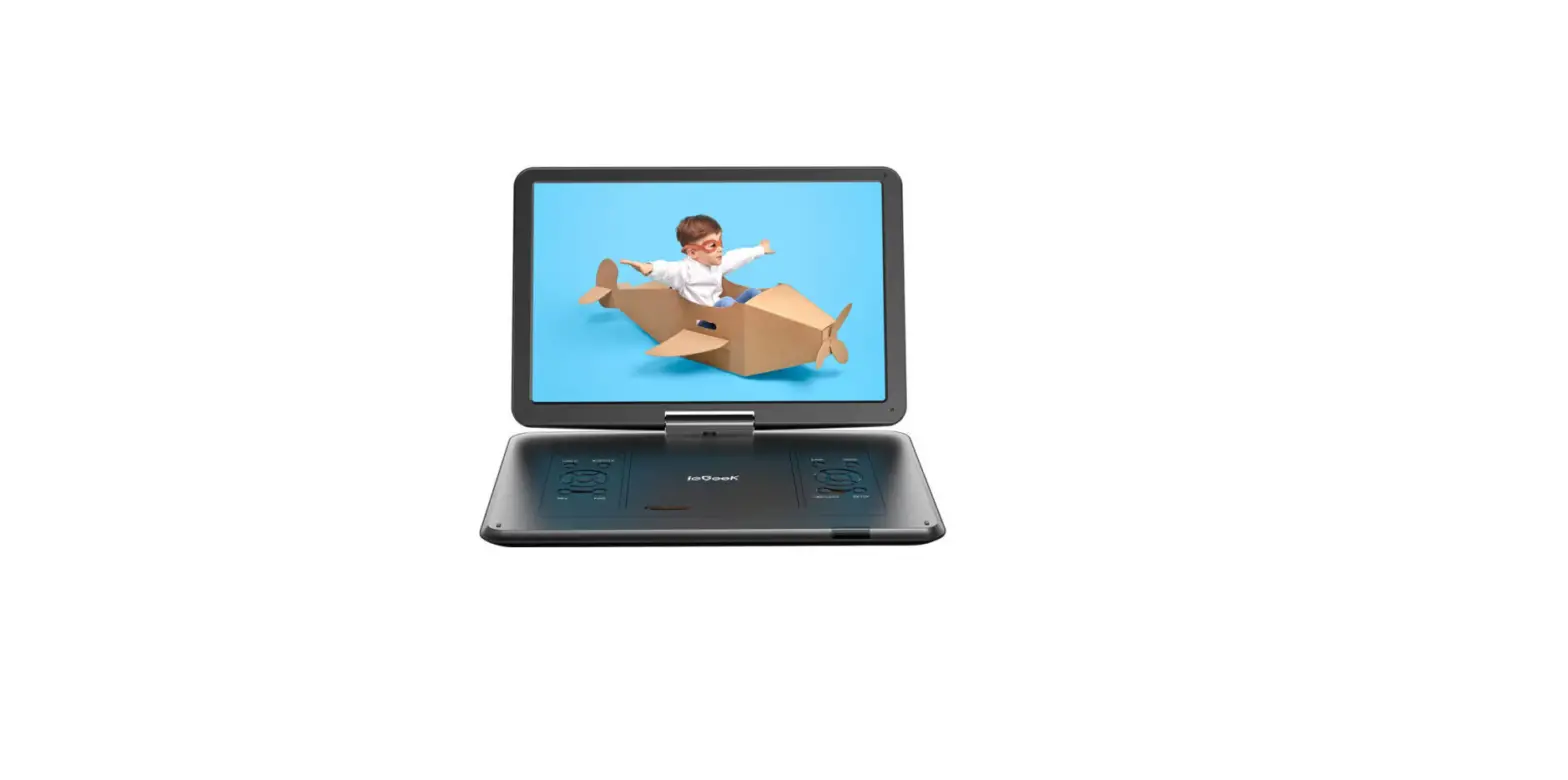
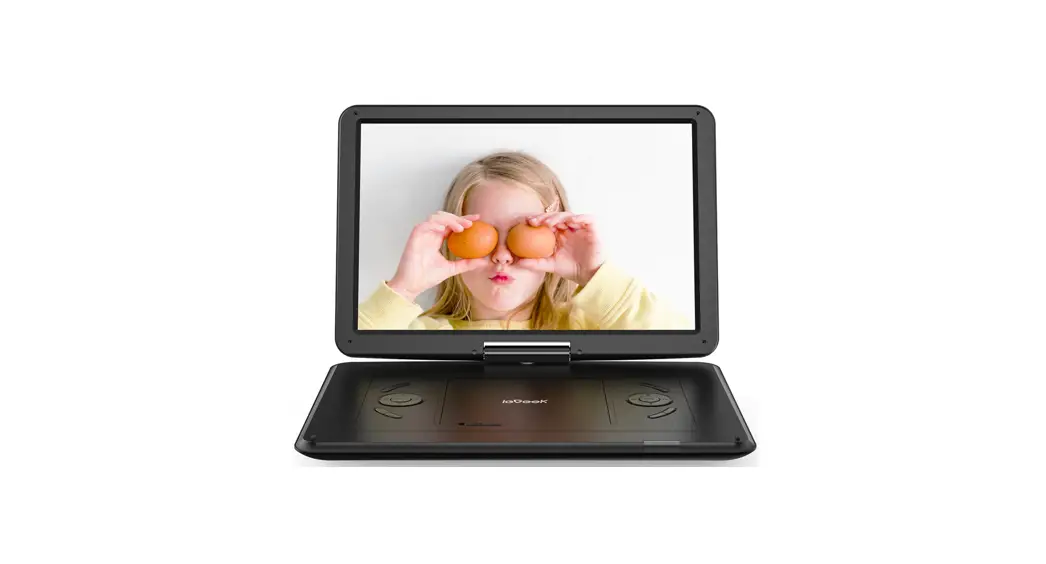
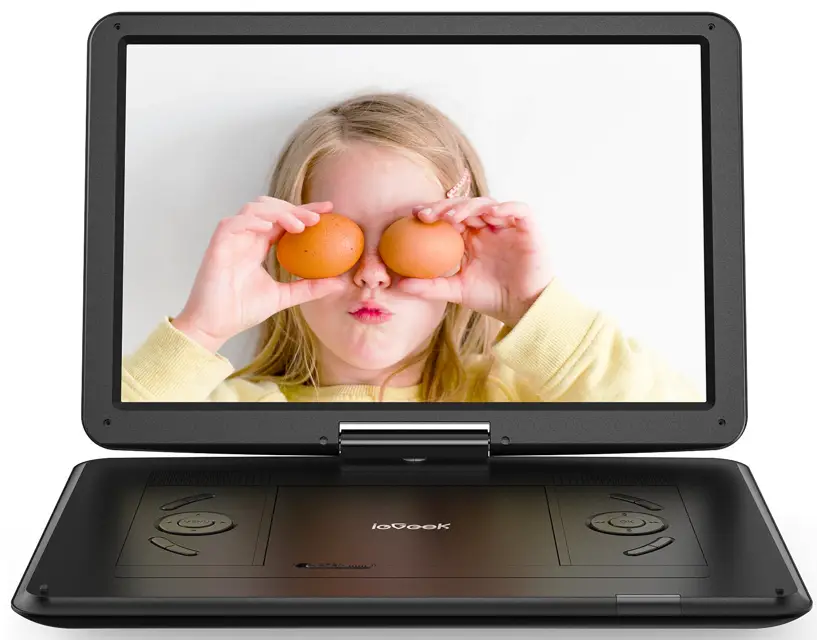
Portable Video Player
Model IK-121
ieGeek, Makes Your Life Better.
If you have any questions, please contact: [email protected]
Warm Tips
How to Get a 12-Month Warranty Contact us to register it within 3 weeks after receiving your player.
Enjoy Your New DVD Player!
USEFUL TIPS
- Battery. Please recharge the Battery for at least 6 hours before the initial use. If you connect this player with AC power, you can use it directly.
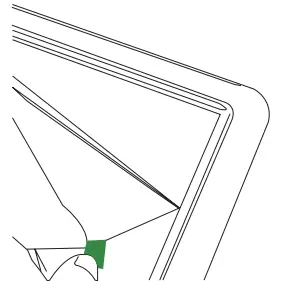
Note: Make sure you switch off the unit before charging. The charging indicator LED will change from RED to OFF to indicate that the battery has been fully charged. When the unit is on, the LED turns GREEN. - LCD Screen. If you find scratches on the screen , just remove the screen protector.

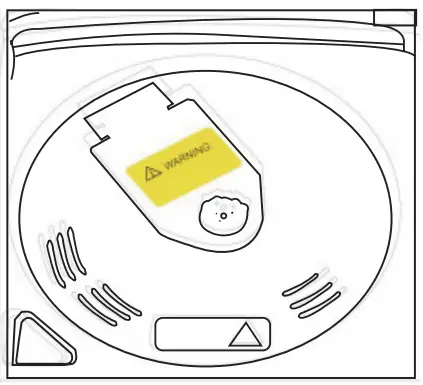
- Laser Pickup. There is a yellow card inside the player. Before you insert a disc, please remove the card. Please DO NOT touch the laser pick up or other parts with your hand.

- Disc Format
Disc Format Supported CD, DVD, DVD + R/-R, DVD + RW/-RW, VCD, SVCD, CD-R/RW Disc Format NOT Supported Blu-ray, HD DVD, Discs recorded in the AVCHD format, DVD-Audio, Version 1.0 of DVD-RW, DVD-ROM, CD-ROM, CDV, CD-G, SACD, Photo CD, DVD-RAM that cannot be removed from their cartridges, 2.6-GB and 5.2-GB DVD-RAM, PAL discs. - Language Settings. Press key [SET UP] —> [OSD language] → Change the display language. It is the same procedure for Audio, Subtitles and Menu.
- About the Game. If you want to play games on our device, please check the free drop box link below: https://sourl.cn/XVcBpM
- About the Maintenance.
- • Wipe with a soft, dry cloth to clean this unit.
• Use eyeglass cleaner to remove stubborn dirt from the LCD.
• Do not use alcohol, paint thinner or benzine to clean it.
• Do not press onto the LCD screen or drop the product from a high place.
• This unit is not waterproof. To prevent a fire, do not place any container filled with liquid near this unit (such as a vase or flower pot) or expose it to dripping, splashing, rain or moisture.
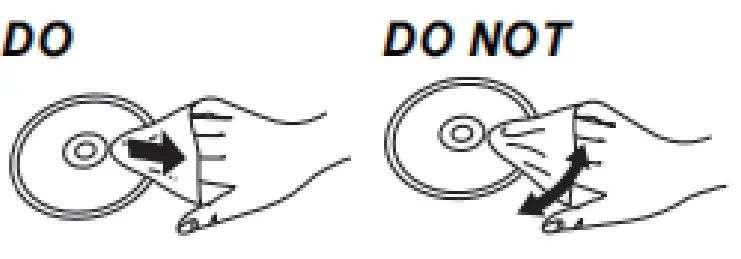
• To clean discs, wipe with a damp cloth and then wipe dry.
• Do not attach labels or stickers to any discs (This may cause disc warping, making it unusable).
• Do not write on the discs with a ball-point pen or any other writing instrument.
• To protect discs from scratches and dirt, please return them to their cases or cartridges when they are not in use.
• Do not use discs that are badly warped or cracked, or irregularly shaped discs, such as heart shapes.
PRODUCT DESCRIPTION
Package Contents
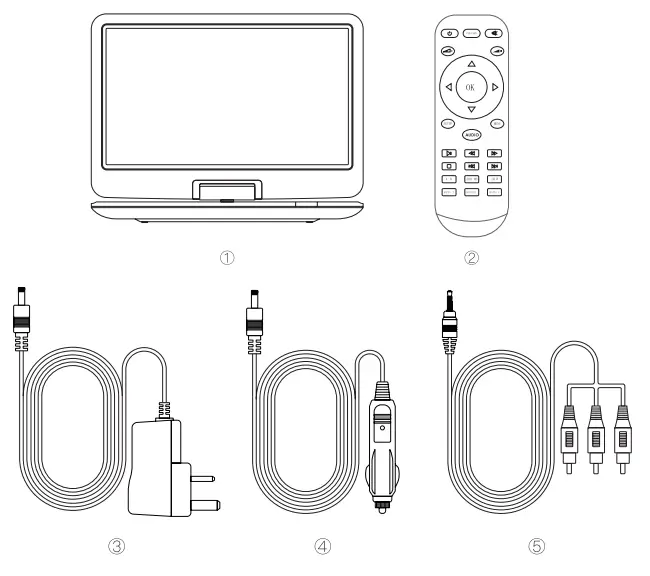
- Portable Video Player
- Remote Controller
- AC Adapter
- Car Charger
- 3-in-1 AV Cable
Button Introduction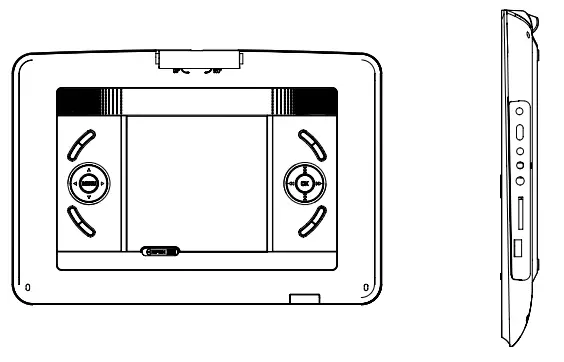
| LCD ON/OFF | Turn the unit screen on and off. |
| VOL -/VOL + | Controls the volume up or down. |
| STOP | Press to stop current video. |
| MENU | Press to return to the root menu for DVD. |
| MODE | Press repeatedly to switch the mode for AV IN or DVD. |
| SETUP | Press to enter the setup menu, then use the direction keys and OK to set the system menu. |
| Direction Keys | Use direction keys for: previous/next, fast forward/ fast rewind. |
| OK | Press to enter the selected item or the choice. |
| DVD/USB/SD | Press repeatedly to switch input source: Disc/USB mode/SD card. |
| FED/REV | Press to achieve fast/rewind forward. |
Remote Control Instruction
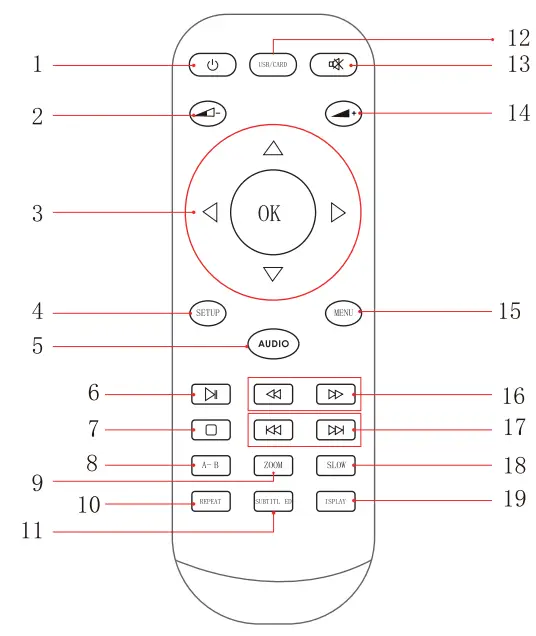
 Turn the unit on and off
 Decrease volume, minimum to 0
 Selection/Enter, Frame-by-frame
-To select: Press up, down, left, or right ( )
)
-To enter: Press [OK]
-Frame forward/ Frame backward: (while paused) press left or right ( )
)- SETUP: Show Setup menu directly (except the AV mode)
- AUDIO: Press to switch left and right channels
 Play or pause the audio/ movie playback. Confirms the selection or press it to select the file to play
 Short press to stop the audio/ video/ photo playback
- ZOOM: Short press to select 2X, 3X, 4X, 1/2, 1/3
- REPEAT: Repeat the loaded disc
- SUBTITLE: Change subtitle mode
- USB/CARD: Switch between DVD, CARD and USB modes
 Mute the sound (Press again to activate the sound)
 Increase volume, maximum to 20
- MENU: View the main menu on a loaded DVD
 Select fast forward/ rewind speed
 Play previous/next chapter/title/track
- SLOW: Press to achieve 1/2,1/4,1/8,1/16 times slow playback
- DISPLAY: Turn on or off the LCD screen
 Turn the unit on and off
 Decrease volume, minimum to 0
 Selection/Enter, Frame-by-frame
 )
) )
) Play or pause the audio/ movie playback. Confirms the selection or press it to select the file to play
 Short press to stop the audio/ video/ photo playback
 Mute the sound (Press again to activate the sound)
 Increase volume, maximum to 20
 Select fast forward/ rewind speed
 Play previous/next chapter/title/track
Range of use
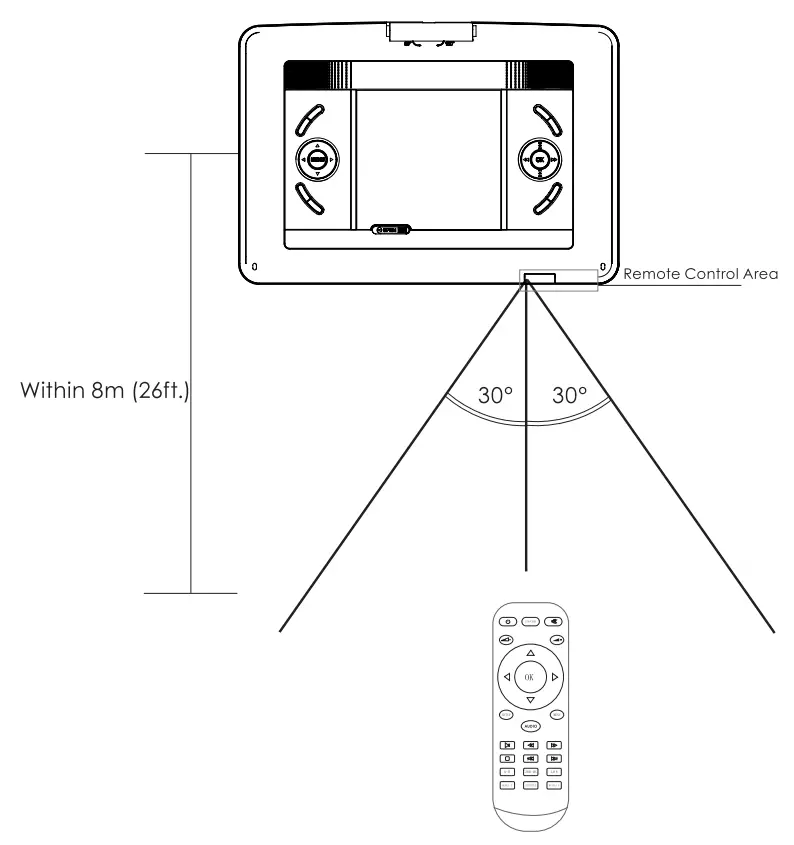
The distance and angles are approximate.
Within 8m (26ft.) in front
Within 30 degrees angle either left or right
CONNECTION
Enjoy Fun with a Game Controller You can play multiple classic games with a game controller(not included in the package). Before playing, please download games via this website below. https://sourl.cn/XVcBpM
Here are the instructions about how to play games on a DVD player:
- Use your PC to download games from the attachment file.
- Unzip the NES file folder to your PC, and copy the folder to a USB stick (16GB to 32GB).
- Plug the USB stick into the right-side USB slot and plug the game joystick into the backside USB slot.
- Turn on the player and press “USB/SD card”, choose “USB” mode.
- Find “NES_game” from the “menu” then select the game to start playing.
- If you want to play other games, press the “SELECT” and “START” buttons for the joystick to exit back to the game menu.
Enjoy Fun with a Television
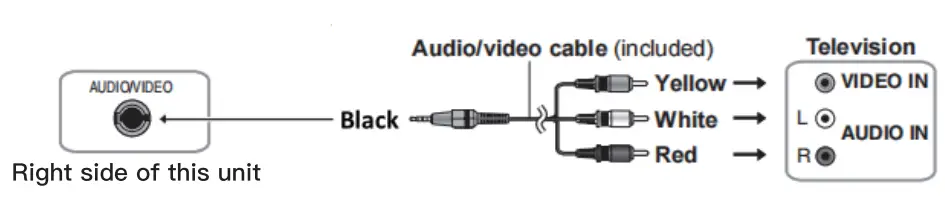
SETUP PAGE
Menu Operation
- Press [SETUP] on the remote control or on the unit to show the setupmenu.
- Press [LEFT] / [RIGHT] to select an item. The submenu of the selected item will be instantly shown.
- Press [UP] / [DOWN] to select an item in the submenu, then press [OK]/ [ENTER] to enter. Use [UP] / [DOWN] to select an option, then press [OK] / [ENTER] to confirm it or press [LEFT] to cancel.
- Press [UP] / [DOWN] to continue to set other items in the submenu.
- Press [LEFT] to go back to the superior menu of the current one.
- Press [SETUP] again and press [ENTER] / [OK] to exit the setup menu.
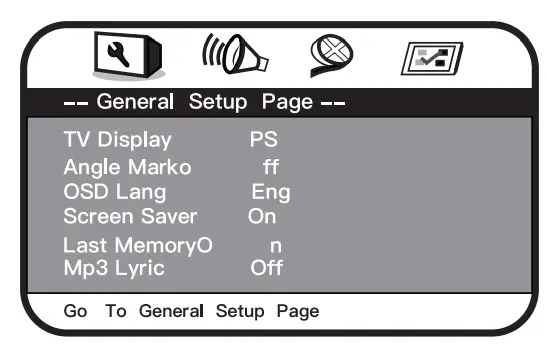
General Setup Page
[TV Display]
- 4:3 Normal / PS PANSCAN
If the unit is connected to a conventional TV set, the wide-screen image will be displayed on the screen in its native aspect ratio with some part on the left and right cut off. - 4:3 Normal / LB LETTERBOX
If the unit is connected to a conventional TV set, the wide-screen image will be displayed in its native aspect ratio with black borders on the top and the bottom side. - 16:9 wide
Select this option if the unit is connected to a wide-screen TV set. The wide-screen image will be displayed in full screen in its native aspect ratio while the 4:3 image will be stretched out horizontally to fit in the screen.
[ANGLE MARK]
- Set this item to ON. When a disc encoded with multiple camera angles is playing, the angle mark will display on the screen. Then you can view the video of different camera angles by pressing [ANGLE] on the remote control.
- Set this item to OFF to disable this function.
NOTE: This function only works with those discs encoded with multiple camera angles.
[OSD LANGUAGE] (on-screen display language)
Set this on-screen display language in this item.
[SCREEN SAVER]
- ON: If the image remains motionless on the screen, for several minutes, a screen saver will appear on the screen. You can press any key or button to wake it up.
- OFF: Turn off the screen saver function.
[LAST MEMORY]
- ON: Each time you turn off the unit or stop the disc, it will memorize the last play duration. Next time you turn on the unit and play the same disc, the unit will play from that memorized point.
- OFF: Disable the last memory function.
[MP3 LYRIC]
If you want to show the lyrics of a song, please load lyrics and music as the same name in a USB or Memory card before performing this function.
- Choose MP3 file.
- Download the corresponding lyrics with the extension “Arc” from the Internet or create it with lyric file editor (not included).
- Rename the lyrics file. Make sure that the lyrics filename is the same as the music file name.
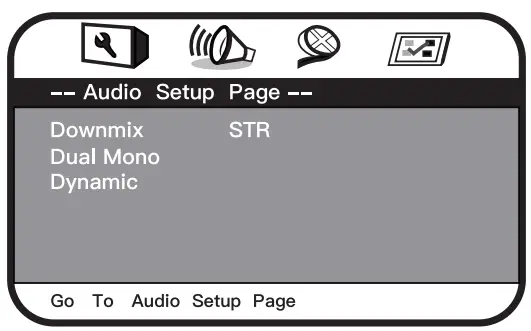
Audio Setup Page
The Audio menu allows you to change the audio setup of the DVD.
[Down mix] Set down mix to LT/RT, Stereo.
[Dual Mono] Set down Stereo, L-Mono, R-Mono or Mix-Mono.
[Dynamic] Full 3/4, 1/2, 1/4, OFF
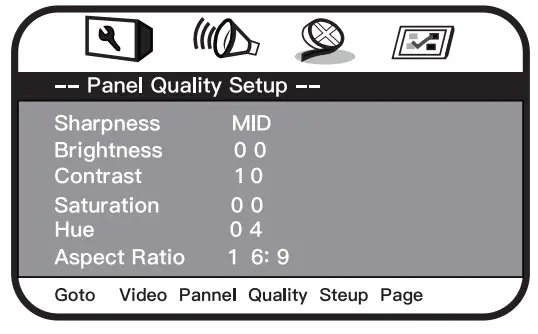
Panel Quality Setup
The video menu allows you to change the display properties of the DVD.
[Sharpness] Adjusts the screen sharpness.
[Brightness] Adjusts the screen brightness.
[Contrast] Adjusts the screen contrast.
[Saturation] Adjusts the screen saturation.
[Hue] Adjusts the screen hue. [Aspect Ratio] Setup panel display to 16:9 or 4:3.
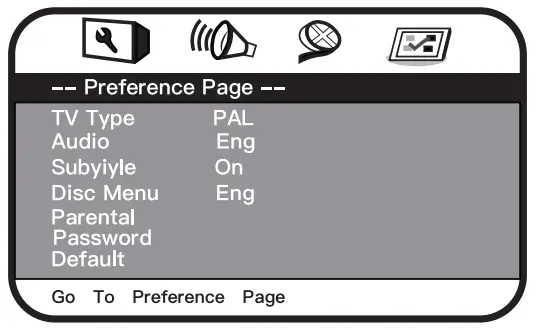
Preference Page
The preference menu option allows you to adjust the default DVD disc setting. (The setting is only available when no media is inside the unit.)
[TV Type] Set TV Type to PAL, AUTO, or NTSC.
[Audio] Set the default audio language.
[Subtitle] Set the subtitle language.
[Disc Menu] Set the disc menu language.
[Parental] When setting a rating level, a password screen is shown. Follow the on-screen instructions. Do not forget your password.
[Password] Enter the default password “0000” then set your password.
[Default] Return the portable DVD to factory default beyond the maximum output of the speaker in sound effects processing.
SPECIFICATIONS
DIVX Playback
DIVX is a video (movies and video) recording format, which is commonly known as AVI. DIVX disc features high quality that is comparable with the DVD’s and larger capacity. For example:
| 1.5H movie | In MPEG-1/2 format | In DivX |
| DVD(MPEG-2) | About 1.5-2GB | About 600-800MB |
| VCD (MPEG-1) | About 800MB-1G | About 600-800MB |
Difference among MPEG 1, MPEG 2 and MPEG 4
| MPEG 1 | MPEG 2 | MPEG 4 | |
| Speed(kb/s) | 1380kb/s (352*288) | 6500kb/s | 8800kb/s (720*576) |
| Quality | Good | Excelled | Perfect |
| Hardware | Low | Medium | High |
Supported format for different files
| File | Supported Format |
| Compatible Disc | CD-R, CD-RW, VCD, SVCD, CVD, DVD±R, DVD±RW |
| Audio | MP3, WMA, OGG, AAC (Bit rates: 32-192kbps) |
| Video | AVI, MPG, MP4, VOB, FLV, RMVB (Resolution must be within 720*576) |
| Picture | JPG |
| E-book | TXT(Code: ANSI) |
| Compatible DISC | CD, DVD, CD-R(RW), DVD±R, DVD±RW, VCD, SVCD(RW) |
| Frequency response | 20HZ to 20KHZ |
| Video output | 1 Vp-p75 Ohm unbalanced |
| Audio output | 1.4 Vrms/10 kohm |
| Dynamic range | Better than 85dB |
| Laser | Semiconductor laser, Waver length:650 |
| Power source | DC9-12V 1.5A |
| Battery Type | Li polymer |
TROUBLESHOOTING
Before contacting the customer service, please kindly check by yourself with the following chart.
| Troubleshooting | Solution |
| The player can’t read discs | • Please clean the laser and DVDs with the alcohol first.( P2 ) • Ensure the disc is in the right format for our DVD player. Our player doesn’t support Dolby, pirate, burnt and blu rays DVDs. • Find your product order and email to “Contact seller” ([email protected]) |
| The player doesn’t work | Make sure the power switch has been set to the “ON” position. Check connections to the AC adaptor or battery pack. Check the status of the indicator light. Under the premise of power connection, if it’s on, there is a problem with the motherboard; if it’s off, there is a problem with the motherboard or power adapter. Find your product order and email to “Contact seller” ([email protected]) |
| Picture is distorted | The disc might be damaged. Try another disc. It is normal for some distortion to appear during forward or reverse scaning. |
| The player doesn’t read MP4 on the USB or SD card | DVD player supports MP4 files in your USB Drive/SD card, but you need to convert the formats first. You can download a converter, FormatFactory, to complete the conversion. Any questions please contact customer service for more help. ([email protected]) |
WARRANTY
Our company provides customers with a warrant of 12 MONTHS from the date of purchase. Should you experience any problems not covered by the FAQ, please don’t hesitate to email us at [email protected]
WARRANTY EXCLUSION
The warranty will not be valid if:
- The product has not been installed, operated or maintained in accordance with the manufacturers operating instructions provided with the product.
- The product has been used for purposes other than its intended function.
- The product has been used for purposes other than household use.
- The damage or malfunction of the product is caused by any of following conditions:
• Incorrect voltage.
• Accidents (including liquid or moisture damage).
• Misuse or abuse of the product
• Faulty or improper installation
• Mains supply problems including power spikes or lightning damage
• Infestation by insects
• Tampering or modification of the product by persons other than authorized service person
• Exposure to abnormally corrosive materials
• Insertion of foreign objects into the unit
• Used with accessories not pre-approved
Email us:
[email protected]