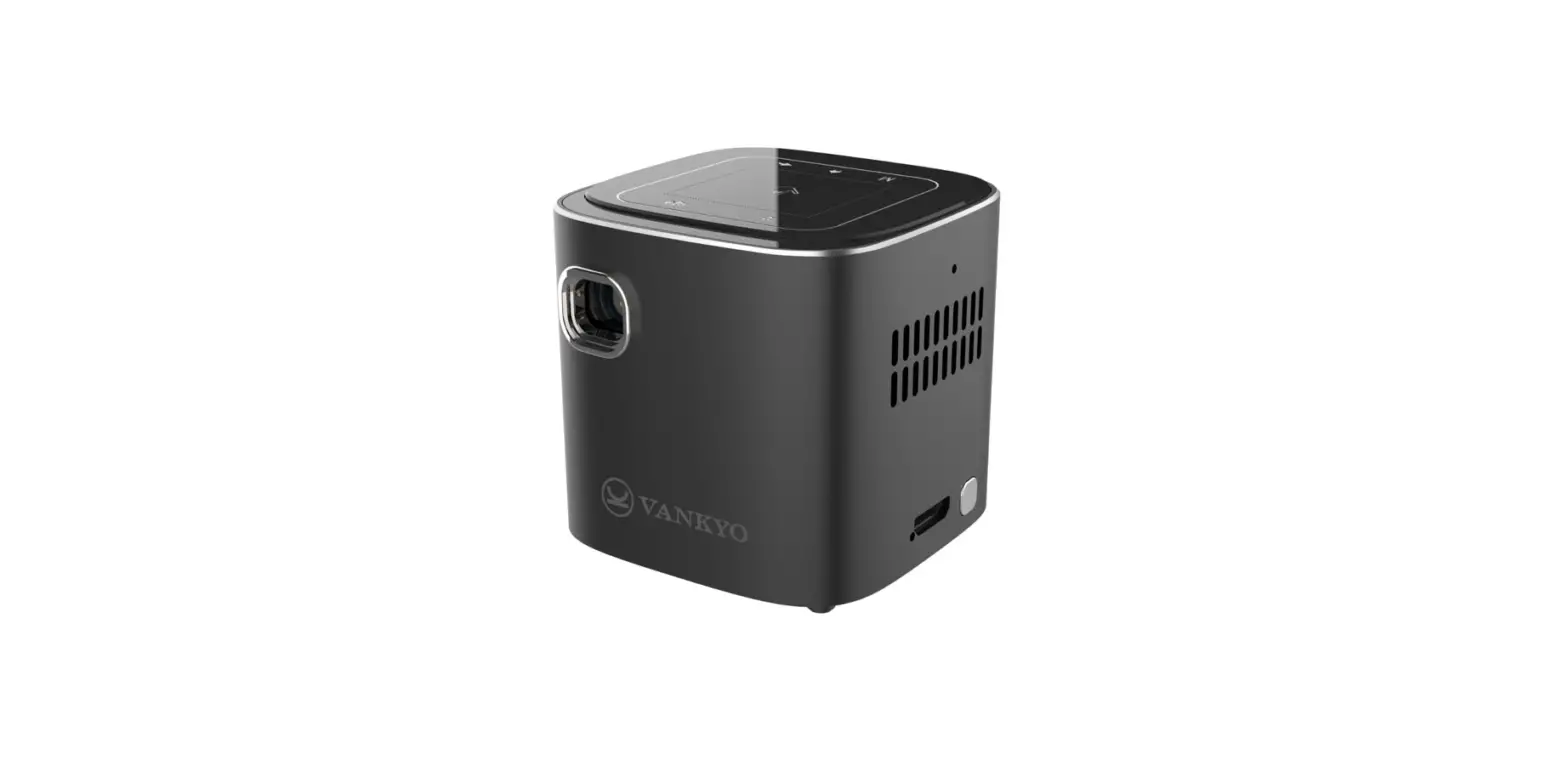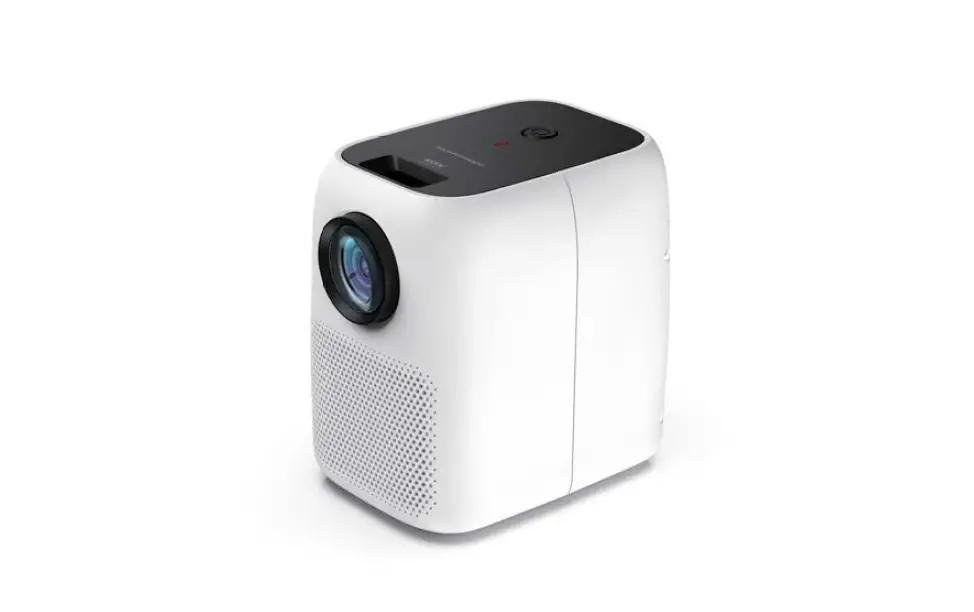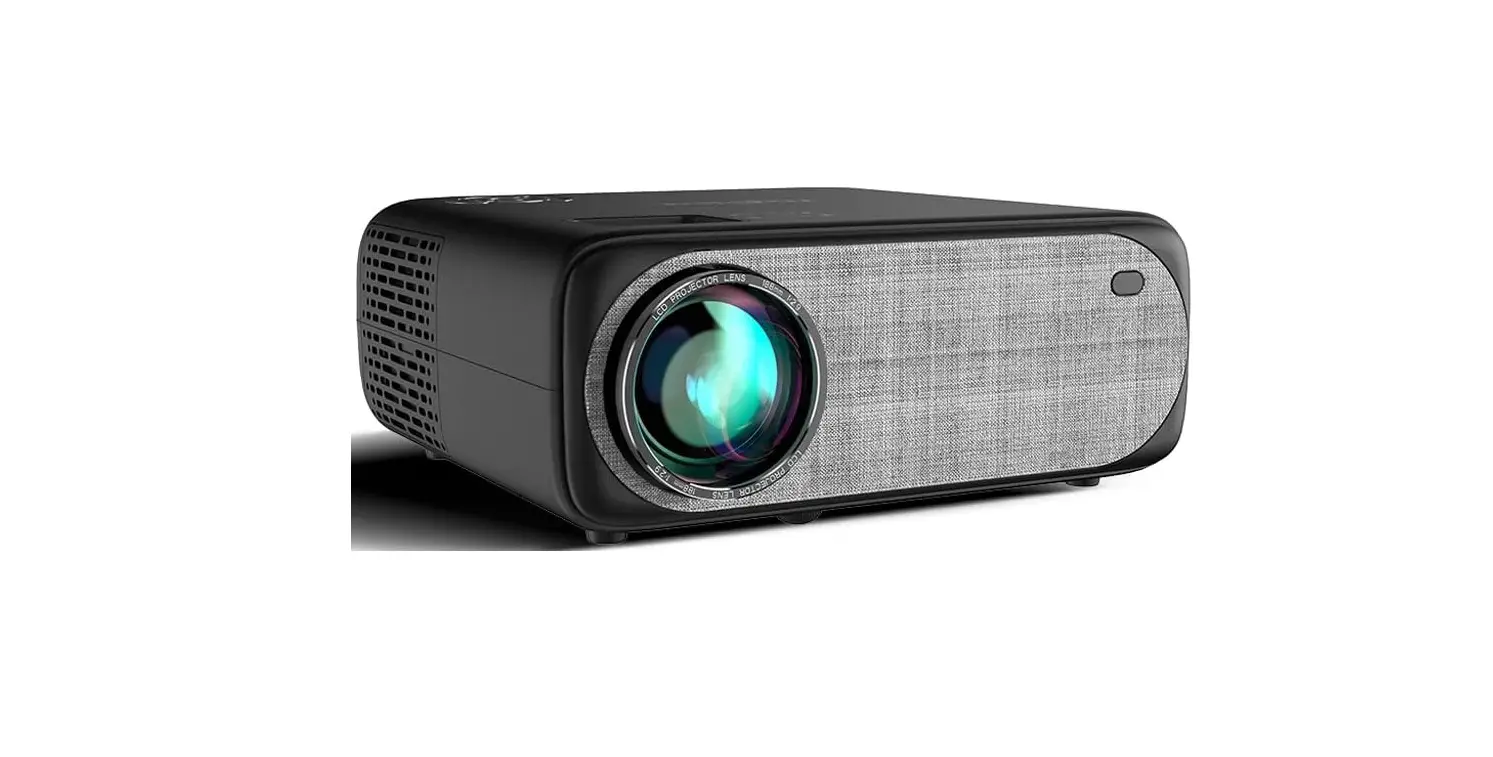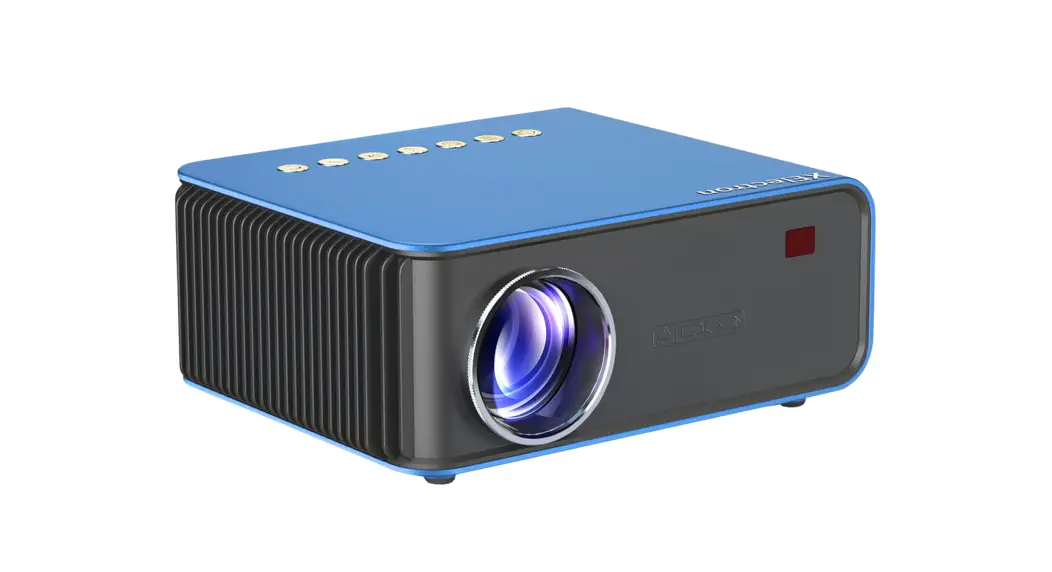
 CINEMOOD 360 -Smart wi-fi Cube Projector
 CINEMOOD 360 -Smart wi-fi Cube Projector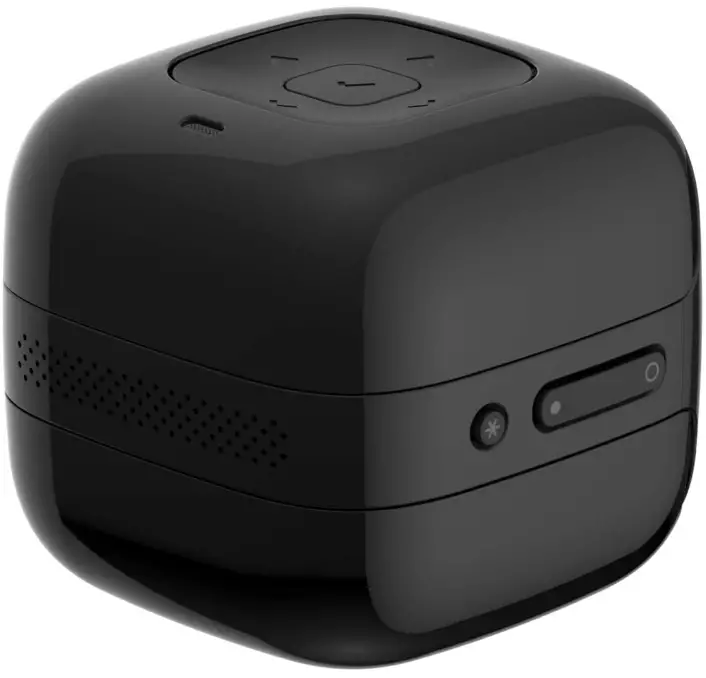
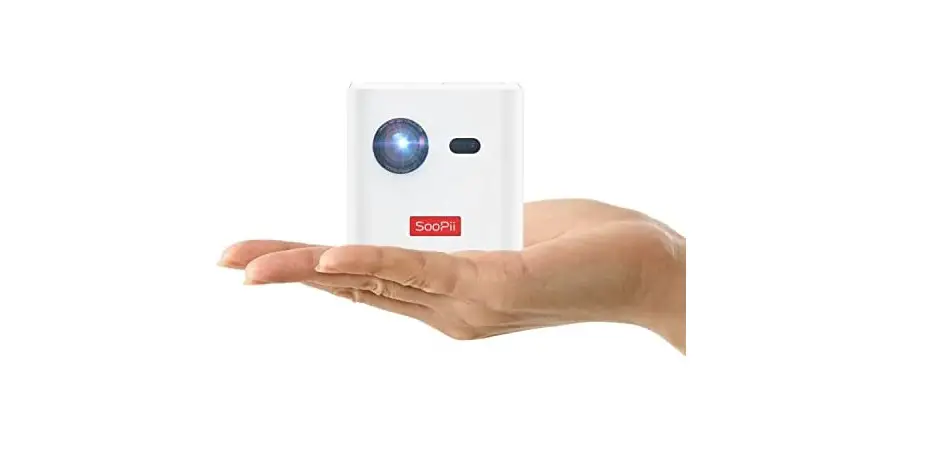
- SIZE:14’’ х 3.14’’ х 3.14’’ Weight: 300 gm Performance
- DIAGONAL: up to 70’’
- BATTERY LIFE: Up to 5 hours
- SUPPORT: Micro-USB support
- AUDIO OUTPUT:5 mm
- INTERNAL MEMORY: 16 GB
- SPEAKER: Built-In 2.5W speaker
- CONNECTIVITY: Wi-Fi 802.11 b/g/n 2,4 GHz Bluetooth 4.0
- MAX CHARGING: 2 A
INTRODUCTION
Access and stream material from Prime Video, Netflix, YouTube, Disney+ (in beta), CBS, ESPN, and HULU directly from the cinemood menu screen. This puts a world of content at your fingertips. To view videos anywhere, without Wi-fi, you can directly download them from streaming apps onto the tiny projector.
You finally got your hands on the CINEMOOD — the first mini cinema projector for family entertainment. We developed this product with inspiration and care so that you can enjoy more time with your family. We have put our heart and soul into this project, but this is just the beginning of our long journey. You are just one button away from bringing magic into your home. To get the most out of CINEMOOD, carefully read this Quick Start Guide.
GET STARTED
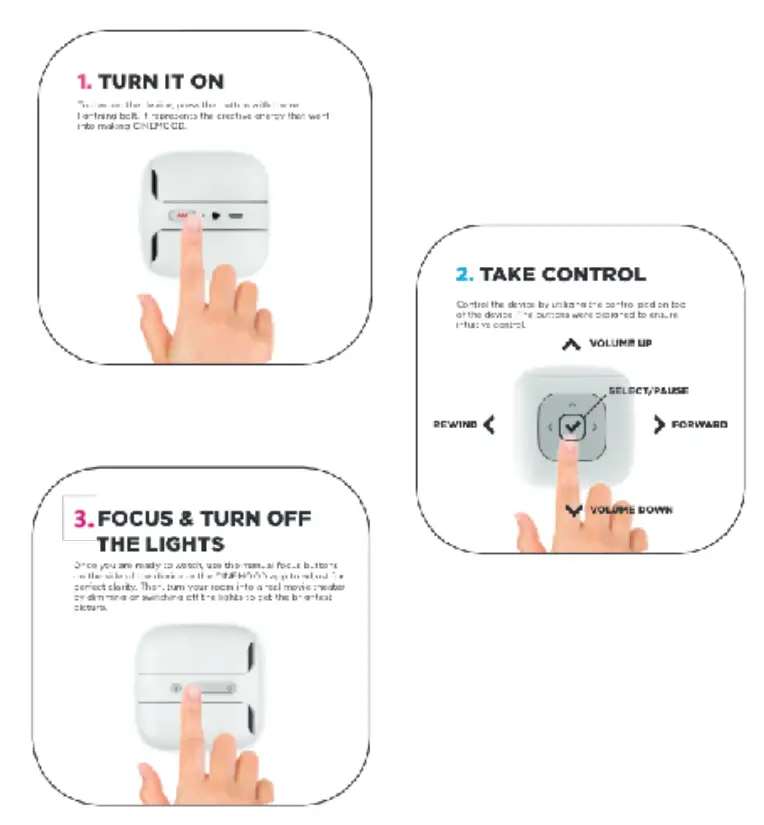
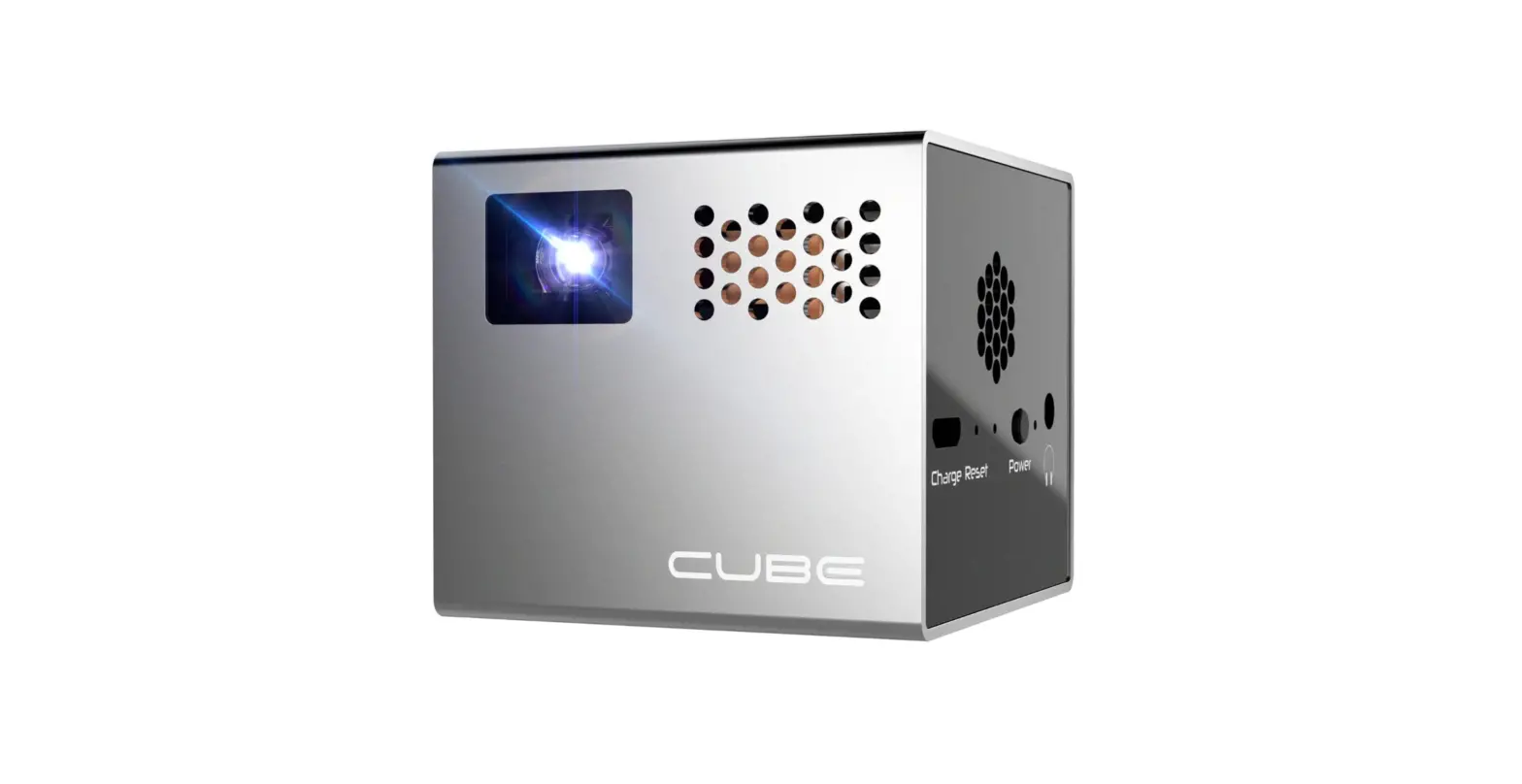
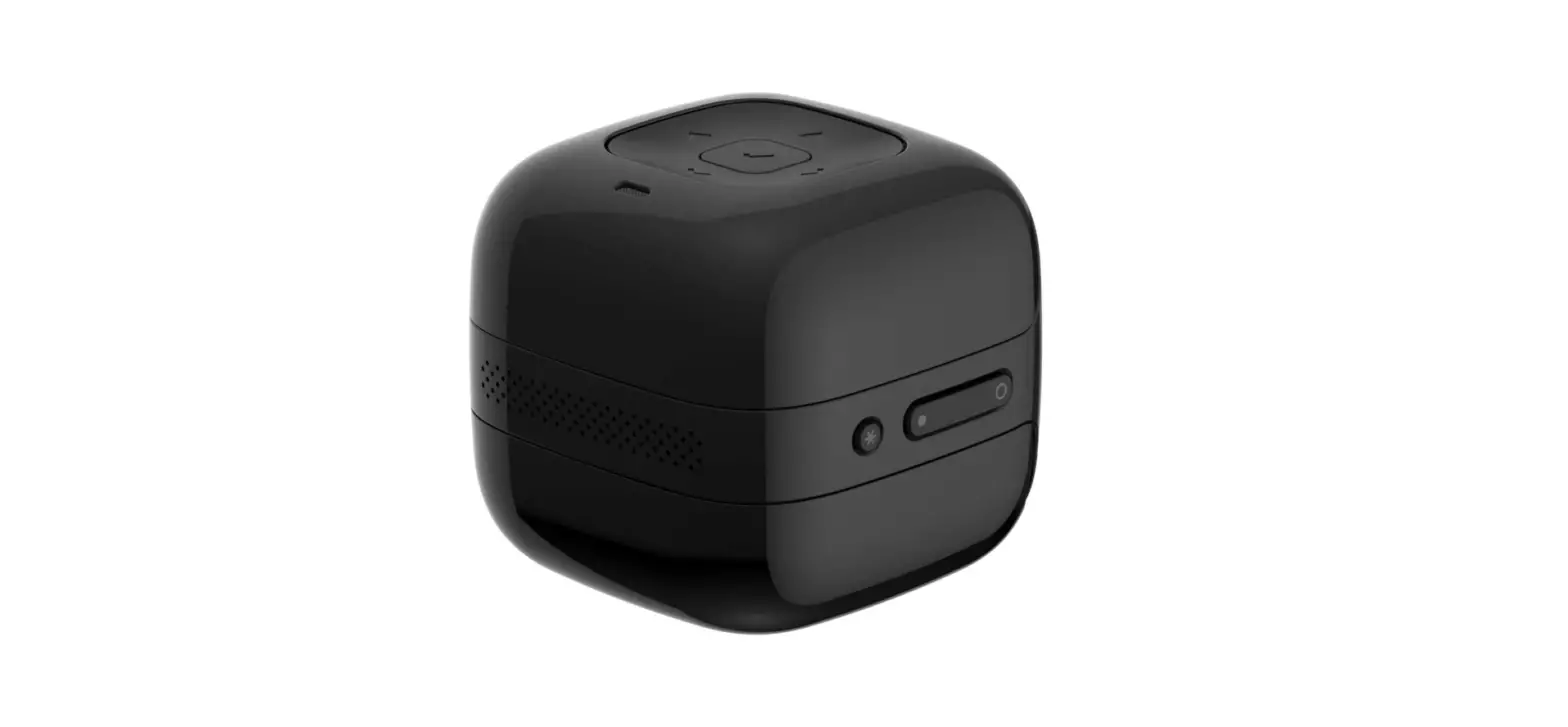
- Press and hold the Lightning Bolt button (pic 1) to switch the device on or off.
- Turn off or dim your room’s lights to get the best quality video resolution.
- Direct the projector beam of the CINEMOOD onto the surface you want to watch with, such as a wall or ceiling and adjust focus using the buttons on the right side of the device (pic 3).
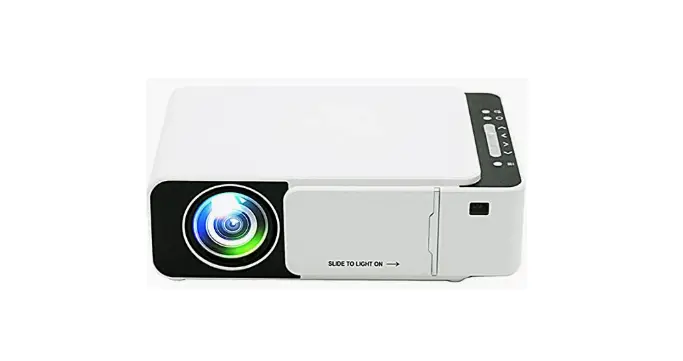
- You can control your CINEMOOD using buttons on the top of the device (pic 2).
SETUP
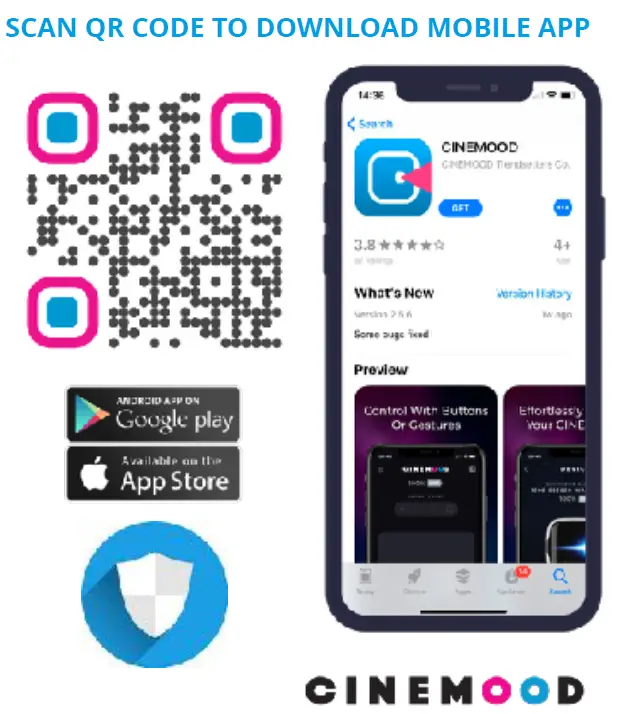
- You can download the CINEMOOD App from Apple Store or Google Play to set up your device much easier. Follow the in-App instructions to connect the App to the device.. If you have problems connecting – see our video tutorial or contact our Support Team.
- Follow the onscreen instructions in the CINEMOOD App or on the device.
- During setup you can connect your CINEMOOD device to your Wi-Fi network. With internet connection you can update software, watch preloaded content from the cloud, download embedded content, please install applications like Netflix or Prime Video immediately after setup.
- When setting up the device your phone number is requested in order to create a CINEMOOD account. You will receive a SMS code to confirm the account. Your information is 100% secured.
- You can provide your email address to get latest updates, news and promos. No spam.
- Adding your bank card information allows you to subscribe to some stream services and to make it easier to purchase additional content. It’s completely secured.
USING THE DEVICE
You can control the device using the buttons on the top of your CINEMOOD or by using CINEMOOD App on your mobile phone.
Use LEFT and RIGHT buttons to navigate in the menu, press the CENTER button to select menu item. In some cases you can press and hold central button for 2 seconds to open the options menu.
When watching, you can control the volume with UP and DOWN buttons and move backward or forward with LEFT and RIGHT buttons.
To exit content, press with CENTER button to pause and the UP button to go back to the main menu.
You must use the CINEMOOD App on your mobile device to control Netflix and Amazon Prime Apps.
DOWNLOAD APPS & CONTENT

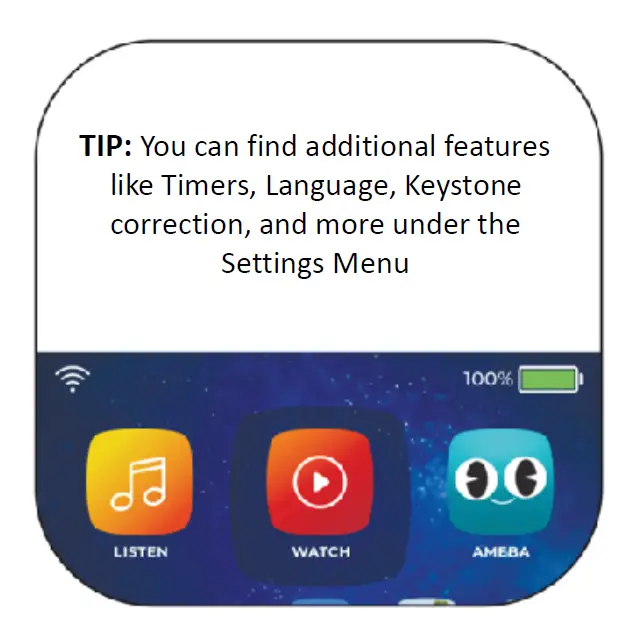
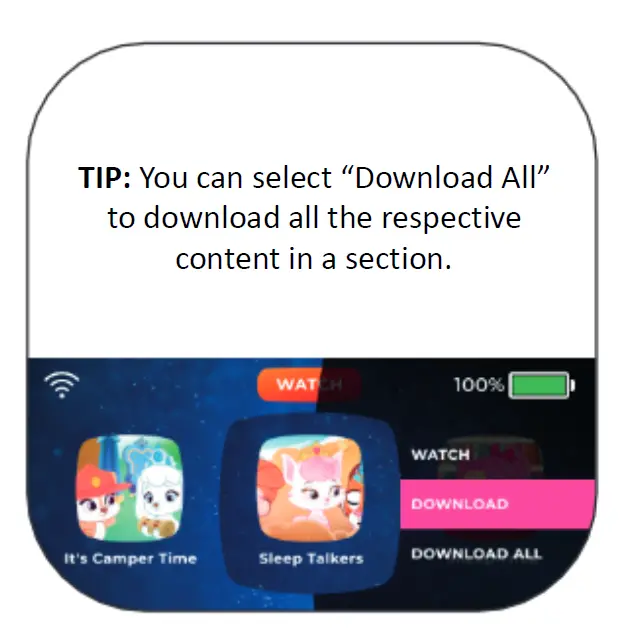
To access free content when you are offline, you need to download it. This applies to Netflix, Amazon Prime Video and YouTube as well.
If content has not been downloaded, you will see a transparent cloud icon on the bottom of the related content icon.
To download Netflix or other Apps, go to Main Menu>Apps, choose App’s icon, press and hold the center button. Select “Download” from the pop-up menu. Complete the same steps for any Apps or any content where you see a “Cloud” icon over a content option.
Only downloaded content is available without internet connection.
STREAM WITH YOUR VIDEO ACCOUNT
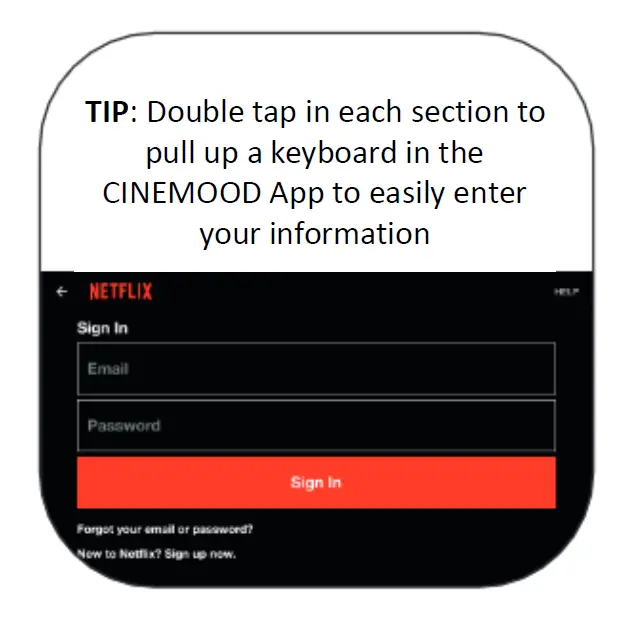
After downloading Netflix and Prime Video, open the CINEMOOD App on your iOS device and select the APP you would like to stream. Sign In using your Netflix or Prime Video account information. Use the CINEMOOD App as a remote control to scroll and select videos to watch using the hand pointer.
You can download videos from both applications to watch without internet access. These videos will be found in the “Downloaded Videos” section of the Netflix or Prime Video Apps when accessed without Wi-Fi.
If you have trouble accessing these Apps, please ensure you have the latest software updates using Settings>About menu. If issues continue, please contact our Support Team.
TROUBLESHOOTING
If you are having issues with your device, please call or email our Support Team at [email protected] or 1-800-350-6107.
CONNECTING TO NETFLIX OR PRIME VIDEO
Ensure you have the latest software update. To download software updates, ensure the CINEMOOD is connected to your home Wi-Fi network. You can check the latest software that your CINEMOOD has installed by visiting Menu>Settings>About. There will be a box at the bottom that will search for an tell you if you need to download and then install a new update. Large updates may take a few minutes. It is a good idea to restart your device after installing the update.
UNABLE TO CONNECT PHONE
You can use your mobile device as a remote control CINEMOOD or for the Screen Mirroring feature. To use remote control, please pair and connect your CINEMOOD device ONLY in CINEMOOD App. You cannot connect to the CINEMOOD using regular mobile device’s Bluetooth settings. Screen Mirroring is only available for Apple mobile devices. If you have Android mobile device – don’t worry it will be available soon.
SCREEN MIRRORING IS NOT WORKING
If you cannot find CINEMOOD device in the Screen Mirroring Devices list, you need connect your CINEMOOD device and mobile device to the same Wi-Fi network.
If you receive an error when trying to play movies such as Netflix, iTunes, etc. when in mirroring mode, this is expected. Our mirroring supports use of some apps but was developed for user created content only. iTunes, HULU, HBO, and other apps stream DRM (Digital Rights Management) protected content and this is not supported with our mirroring feature. You can watch some of protected content from iTunes, Google Play, VUDU using Movies Anywhere service. Please ask our Support Team about this feature.
LOW PICTURE BRIGHTNESS AND CONTRAST
For the best viewing experience, watch your content in a dark or dimmed room on a white reflective surface. Turn off or dim the lights and direct the beam onto the white surface. Adjust the picture using the focus buttons. If the picture is still blurred, the lens may need cleaning. Carefully clean the lens with a non-abrasive dry cloth.
CINEMOOD DOES NOT TURN ON
Your device may have run out of battery; try charging the CINEMOOD again. If your CINEMOOD is still experiencing problems after being fully charged, please contact our Support Team at [email protected].
CAN’T CONNECT TO A USB HARD DISC
The CINEMOOD can use some external USB flash drives. External HDD and SSD disks support not guaranteed.
SAFETY RULES
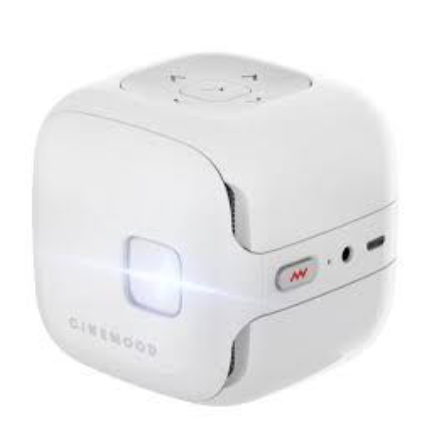
- Do not block the ventilation grids of your CINEMOOD. This may cause overheating.
- Do not expose your CINEMOOD to direct sunlight for extended periods of time.
- Keep your CINEMOOD away from water, other liquids, and dust.
- Do not disassemble your CINEMOOD without professional assistance.
- Be careful with your projector lens. Scratches are possible from the excess force and may affect your overall viewing experience.
- Store your CINEMOOD in room temperature, stable, and safe area.
- Do not look directly into the beam.
ADDITIONAL INFORMATION
ALL CINEMOOD PRODUCTS HAVE THE REQUIRED CERTIFICATES AND ARE FULLY COMPLIANT WITH THE RELEVANT NORMS AND STANDARDS. CINEMOOD TRENDSETTERS CO. 2711 CENTERVILLE ROAD, SUITE 400, WILMINGTON, NEW CASTLE COUNTRY, DELAWARE 19808. ASSEMBLED IN CHINA. FOR MORE DETAIL ON THE PRODUCT’S CERTIFICATES, SEE WWW.CINEMOOD.COM DATE OF PRODUCTION IS THE FIRST FOUR CHARACTERS OF THE SERIAL NUMBER (YYMM).
CINEMOOD STORYTELLER CNMD0016
FCC ID:2AKIN-CNMD0016
Model:CNMD0016
This device complies with part 15 of the FCC rules. Operation is subject to the following two conditions:
- This device may not cause harmful interference, and
- this device must accept any interference received, including interference that may cause undesired operation.
Frequently Asked Questions
Exist any parental controls or settings that would allow you to disable YouTube?
Yes, you may uninstall the YouTube app from your smartphone and then reinstall it after changing your mind.
Is darkness necessary to see the images or videos? Does it operate in the daytime?
CINEMOOD operates in daylight, however for a more immersive experience and a larger, brighter image quality, we recommend a darkened or dim area.
Can you use an Xbox One to use this?
CINEMOOD was created as a stand-alone gadget. We don’t currently have connectivity with Xbox.
Is there a way for me to access Hulu?
Hulu and ESP are now available in beta upon request, and we are thrilled to announce this.
What makes this one different from the first one?
CINEMOOD 360 can broadcast 360-degree videos, is two times faster, and features motion sensors. In addition, it integrates Disney+ and offers a library of motion-based interactive games with 32GB of storage.
Is the Disney Plus app already installed on this device?
All CINEMOOD 360 users can now access the Disney+ beta version of the app.
Complied with the app’s installation instructions. Device not detected. On the list, there was no gadget. Any advice?
When attempting to pair, kindly verify that CINEMOOD and your iPhone or Android are connected to the same Wi-Fi network.
Does this function on an iPhone?
Yes, it is iPhone compatible. When pairing your CINEMOOD and iPhone, you must make sure they are both on the same Wi-Fi network.
Can apps like YouTube TV be downloaded?
Preloaded apps like Netflix, YouTube, YouTube Kids, and Prime Videos are already included with Cinemood 360, Moolt and AmebaTV. Additionally, it offers Zoom and other apps that our product team is working on releasing, as well as Disney+, Hulu, and ESPN in beta.
What is the difference between Cinemood and Cinemood 360?
The CINEMOOD 360’s hardware advancements include technology that allows the 360-degree content to track twice as quickly as preceding models’ projections.
Can you download movies on Cinemood?
Simply log into your account is all that is required. Additionally, you can watch movies without Wi-Fi by simply downloading them from the streaming services to CINEMOOD.
Can you connect Cinemood to Bluetooth speaker?
Yes, you can always use Bluetooth or an audio jack port to connect your speakers or headphones for louder, better sound.
Is Cinemood a good projector?
It is an excellent projector. It can effortlessly explore the menus and the device fits in the palm of your hand.
Can you connect a mini projector to the TV?
A video in jack will be on the projector, and a video out jack will be on the television. Utilize the proper cable to join the two together. The projector and television models will determine the cable.