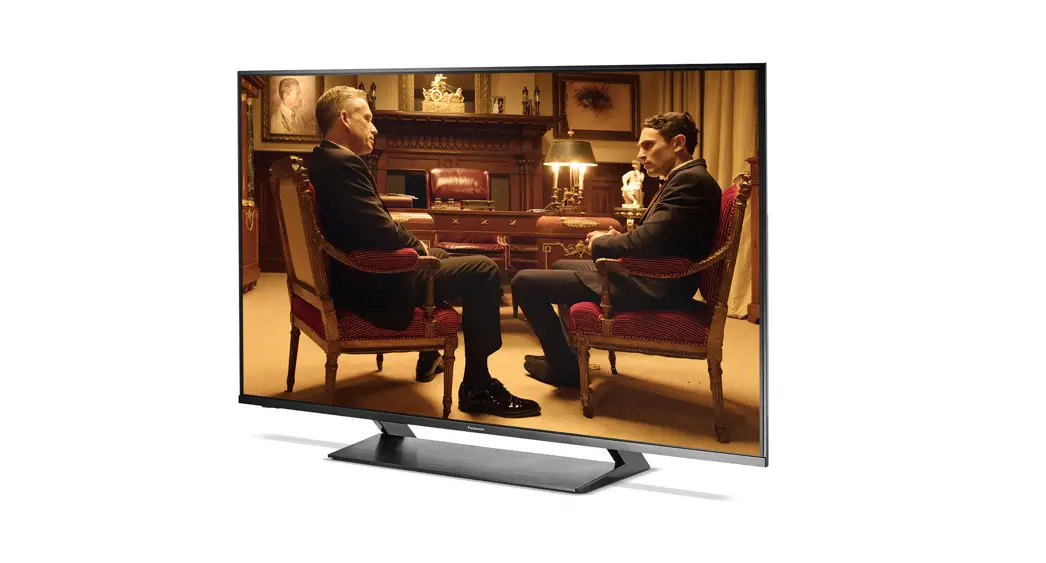
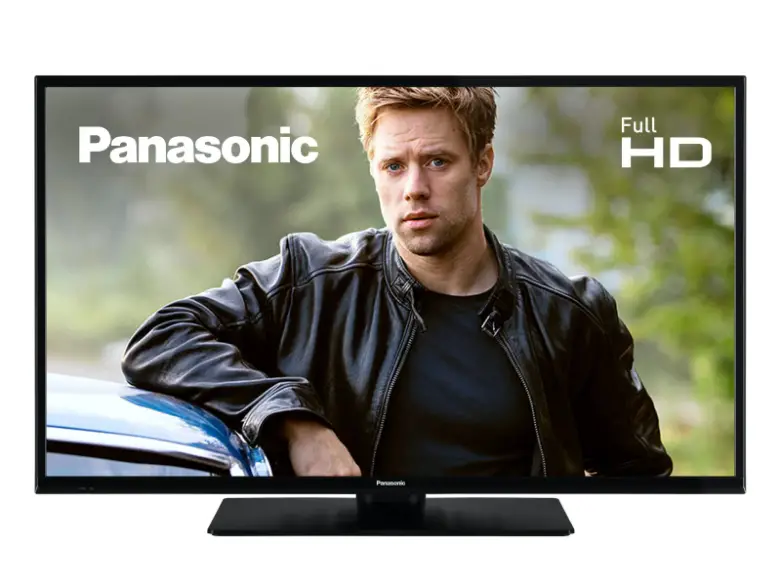
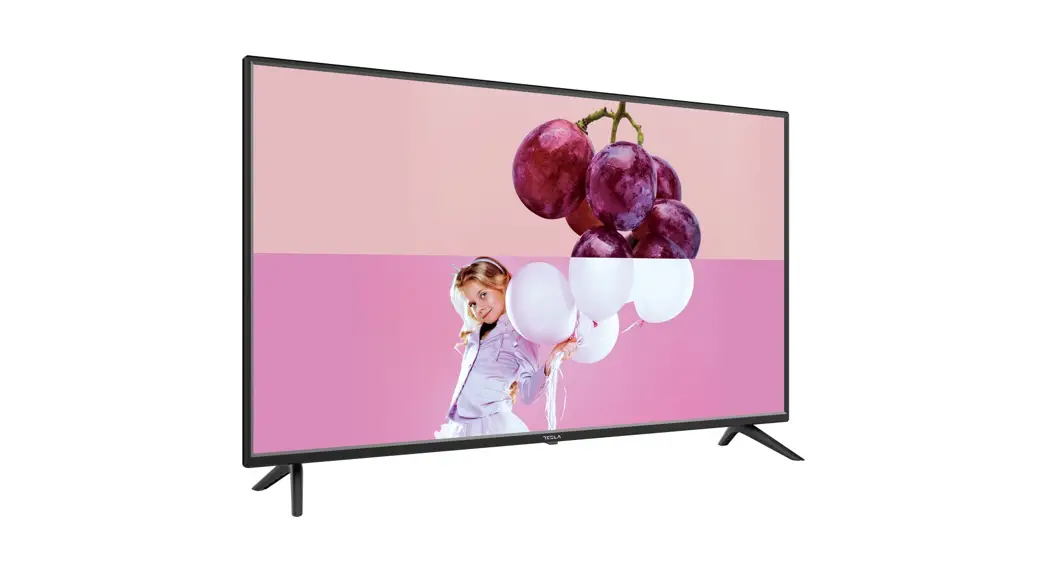
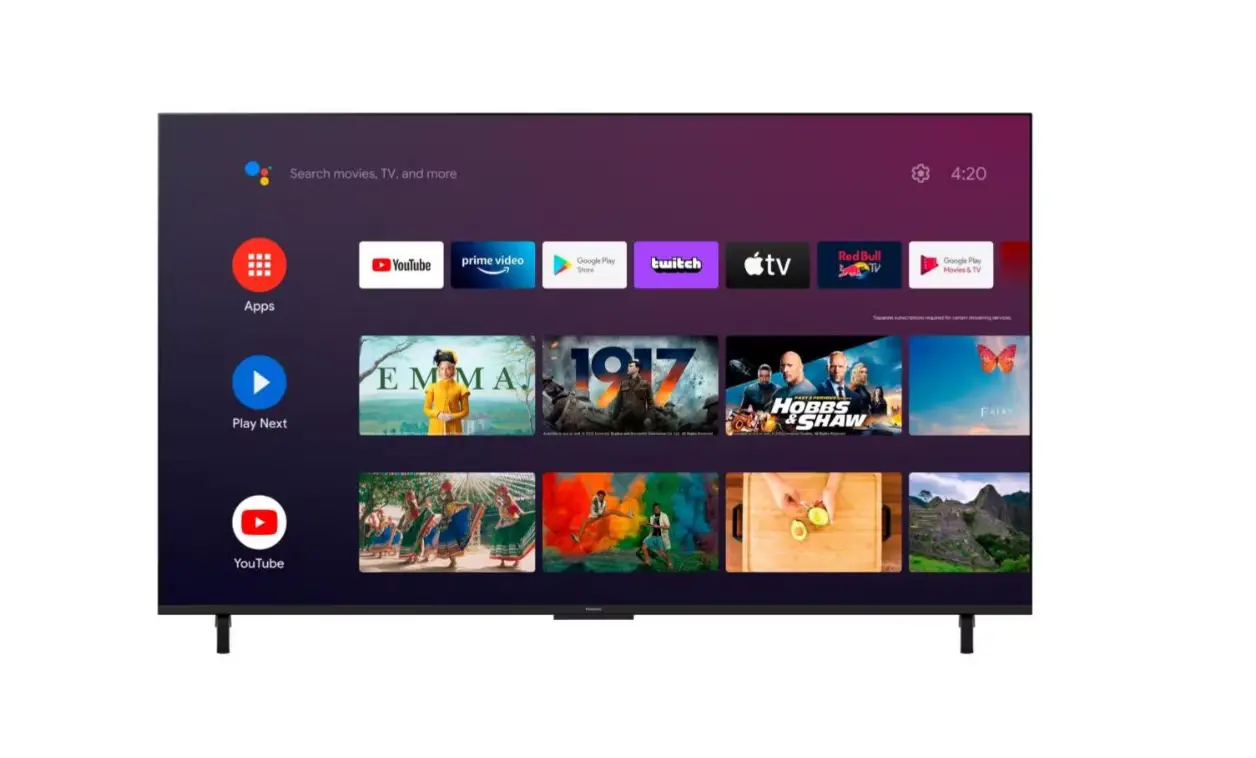
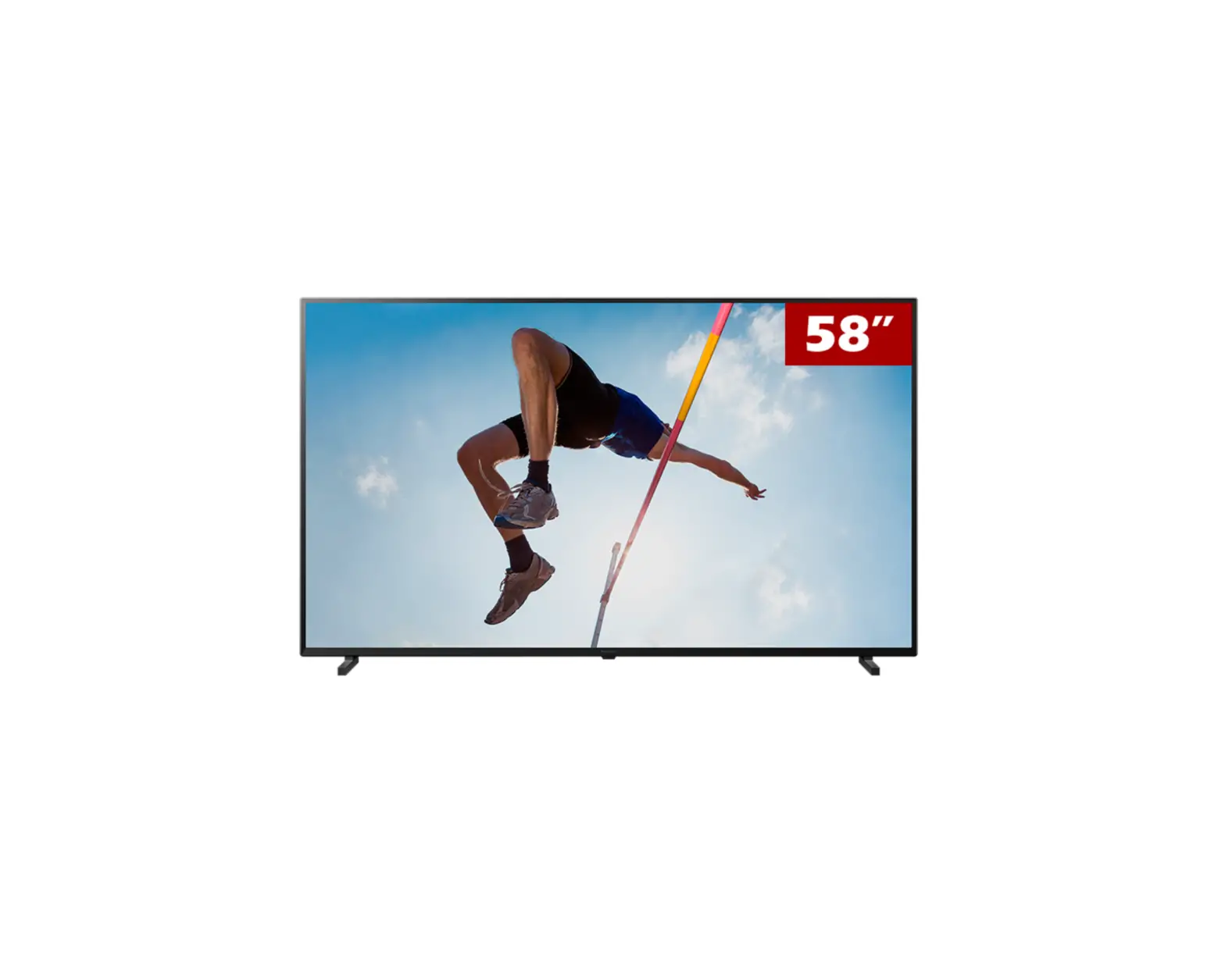
TX-43MX600E 43 Inch 4K LED Smart TV
Product Information
The TX-43MX600E, TX-50MX600E, TX-55MX600E, and TX-65MX600E are
television sets made by Panasonic. The product comes with an
E-Manual that provides instructions for the TV’s features. The TV
set has various safety features that must be followed to avoid
electric shock and injuries. The product is designed in such a way
that it does not require a safety connection to electrical earth.
It also contains a Class 1 laser source that is safe under
reasonably foreseeable conditions of operation.
Product Usage Instructions
Before installing or operating the TV set, please read the
instructions provided in the manual carefully. Follow the
instructions below for proper usage of the product:
- To access the E-Manual, enter the Settings menu, select
Manuals, and press OK. For quick access, press the Home/Menu button
and then Info button. - In extreme weather conditions like storms and lightning, or
during long inactivity periods like going on holidays, disconnect
the TV set from the mains. - Do not let anyone, especially children, push or hit the screen
or push anything into holes, slots, or any other openings in the TV
to avoid serious injury or death risk. - If you plan to retain and relocate an existing television set,
apply the same precautions as mentioned above. - Contact your local Panasonic dealer to purchase the recommended
wall-hanging bracket if you plan to use it for wall-mounting. The
holes for wall-hanging bracket installation are at the rear of the
TV.
By following these instructions, you can ensure safe and proper
usage of your Panasonic TV set.
OPERATING INSTRUCTIONS / BEDIENUNGSANLEITUNG / MODE D’EMPLOI / MANUAL DE FUNCIONAMIENTO /
ISTRUZIONI DI FUNZIONAMENTO / BRUGSANVISNING/ KÄYTTÖOHJE / DRIFTINSTRUKTIONER / BRUKSANVISNING
TX-43MX600E TX-50MX600E TX-55MX600E TX-65MX600E
LED TV / Téléviseur LED / Televisor LED / TV a LED
You can find instructions for your TV’s features in the E-Manual. To access the E-Manual, enter Settings menu, select Manuals and press OK. For quick access press Home/Menu button and then Info button.
Im E-Manuel können Sie Anweisungen über die Eigenschaften Ihres TV-Gerätes finden. Um auf die E-Manuel zuzugreifen, rufen Sie das Einstellungenmenü auf, wählen Sie Anleitungen und drücken Sie OK. Für einen schnellen Zugriff drücken Sie die Home/ Menu-Taste und dann die Info-Taste.
Vous pouvez accéder aux instructions relatives aux fonctions de votre téléviseur à partir du E-Manuel. Pour accéder au E-Manual, accédez au menu Réglages, sélectionnez Manuels et appuyez sur OK. Pour un accès rapide, appuyez sur le bouton Home/Menu, puis sur le bouton Info.
e-MANUAL
Puede encontrar instrucciones sobre las funciones de su televisor en el E-Manual. Para acceder al E-Manual o manual electrónico, ingrese al menú de Settings Configuración, seleccione Manuales y presione OK. Para un acceso rápido, presione el botón Home/ Menu y luego el botón Info.
Sarà possibile trovare istruzioni per le caratteristiche della TV nel E-Manual (Manuale elettronico). Per accedere al E-Manual, aprire il menu Impostazioni, selezionare Manuali e premere OK. Per un accesso rapido premere il pulsante Home/Menu e il pulsante Info.
Du kan finde en vejledning til TV`ets funktioner i E-Manualen. For at bruge E-Manualen, skal du indtaste menuen Indstillinger, vælge Manualer og trykke på OK. For hurtig adgang til E-Manual skal du trykke på Home/Menu-knappen og derefter Info-knappen.
Löydät TV:n käyttöohjeet E-oppaasta. E-oppaan käyttämiseksi, avaa Asetukset-valikko, valitse Oppaat ja paina OK. Avataksesi E-oppaan nopeasti, paina Home/Menu-painiketta ja sitten Info-painiketta.
Du kan hitta instruktionerna för Tv:ns funktioner i E-manualen. För att komma till E-manualen, gå in i inställningsmenyn, välj Manualer (Handböcker) och tryck på OK. För snabb åtkomst, tryck på Home/Menu-knappen och sedan Info-knappen.
Du kan finne anvisninger for TV-funksjonen i den E-Manual (elektroniske håndboken). For å få tilgang til den E-Manual (elektroniske håndboken), gå inn i Instllinger-menyen, velg Bruksanvininger (Håndbøker) og trykk OK. For rask tilgan, trykk på Home/Menuknappen og deretter Info-knappen.
Contents Safety Information …………………………………………… 2 Markings on the Product…………………………………… 2 Assembling / Removing the pedestal …………………. 4 When using the wall-hanging bracket…………………. 4 Environmental Information………………………………… 5 Features ………………………………………………………… 5 Accessories Included……………………………………….. 5 TV Control & Operation ……………………………………. 5 Using Main TV Menu ……………………………………….. 5 Inserting the Batteries into the Remote ………………. 6 Power Connection …………………………………………… 6 Antenna Connection ………………………………………… 6 Switching On/Off……………………………………………… 6 First Time Installation……………………………………….. 7 Media Playback via USB Input ………………………….. 7 E-Manual ……………………………………………………….. 7 Software Upgrade……………………………………………. 7 Specification …………………………………………………… 8 Remote Control …………………………………………….. 10 Troubleshooting & Tips…………………………………… 11 Connectivity ………………………………………………….. 11 Wired Connectivity…………………………………………. 11 Wireless Connectivity …………………………………….. 12 Handling of the customer information……………….. 13 Licence Notification ……………………………………….. 14 Disposal of Old Equipment and Batteries………….. 14 Declaration of Conformity (DoC) ……………………… 14 More Information …………………………………………… 14
English – 1 –
Safety Information
CAUTION
RISK OF ELECTRIC SHOCK DO NOT OPEN
CAUTION: TO REDUCE THE RISK OF ELECTRIC SHOCK DO NOT REMOVE COVER (OR BACK). NO USER-SERVICEABLE PARTS INSIDE. REFER SERVICING TO QUALIFIED SERVICE PERSONNEL.
In extreme weather (storms, lightning) and long inactivity periods (going on holiday) disconnect the TV set from the mains.
The mains plug is used to disconnect TV set from the mains and therefore it must remain readily operable. If the TV set is not disconnected electrically from the mains, the device will still draw power for all situations even if the TV is in standby mode or switched off. Note: Follow the on screen instructions for operating the related features.
IMPORTANT – Please read these instructions fully before installing or operating
WARNING: This device is intended to be used by persons (including children) who are capable / experienced of operating such a device unsupervised, unless they have been given supervision or instruction concerning the use of the device by a person responsible for their safety.
· Use this TV set at an altitude of less than 5000 metres above the sea level, in dry locations and in regions with moderate or tropical climates.
· The TV set is intended for household and similar indoor use but may also be used in public places.
· For ventilation purposes, leave at least 5cm of free space around the TV.
· The ventilation should not be impeded by covering or blocking the ventilation openings with items, such as newspapers, table-cloths, curtains, etc.
· The power cord/plug should be easily accessible. Do not place the TV, furniture, etc. on the power cord. A damaged power cord/plug can cause fire or give you an electric shock. Handle the power cord by the plug, do not unplug the TV by pulling the power cord. Never touch the power cord/plug with wet hands as this could cause a short circuit or electric shock. Never make a knot in the power cord or tie it with other cords. When damaged it must be replaced, this should only be done by qualified personnel.
· Do not expose the TV to dripping or splashing of liquids and do not place objects filled with liquids, such as vases, cups, etc. on or over the TV (e.g. on shelves above the unit).
· Do not expose the TV to direct sunlight or do not place open flames such as lit candles on the top of or near the TV.
· Do not place any heat sources such as electric heaters, radiators, etc. near the TV set.
· Do not place the TV on the floor or inclined surfaces.
· To avoid danger of suffocation, keep plastic bags out of the reach of babies, children and domestic animals.
· Carefully attach the stand to the TV. If the stand is provided with screws, tighten the screws firmly to prevent the TV from tilting. Do not over-tighten the screws and mount the stand rubbers properly.
· Do not dispose of the batteries in fire or with hazardous or flammable materials.
WARNING
· Batteries must not be exposed to excessive heat such as sunshine, fire or the like.
· Excessive sound pressure from earphones or headphones can cause hearing loss.
ABOVE ALL – NEVER let anyone, especially children, push or hit the screen, push anything into holes, slots or any other openings in the TV.
Caution
Serious injury or death risk
Risk of electric shock Dangerous voltage risk
Maintenance
Important maintenance component
Markings on the Product
The following symbols are used on the product as a marker for restrictions and precautions and safety instructions. Each explanation shall be considered where the product bears related marking only. Note such information for security reasons.
Class II Equipment: This appliance is designed in such a way that it does not require a safety connection to electrical earth.
Hazardous Live Terminal: The marked terminal(s) is/are hazardous live under normal operating conditions.
i Caution, See Operating Instructions: The marked area(s) contain(s) user replaceable coin or button cell batteries.
CLASS 1 LASER PRODUCT
Class 1 Laser Product: This product contains Class 1 laser source that is safe under reasonably foreseeable conditions of operation.
English – 2 –
WARNING
· Do not ingest the battery, Chemical Burn Hazard.
· This product or the accessories supplied with the product may contain a coin/button cell battery. If the coin/button cell battery is swallowed, it can cause severe internal burns in just 2 hours and can lead to death.
· Keep new and used batteries away from children.
· If the battery compartment does not close securely, stop using the product and keep it away from children.
· If you think batteries might have been swallowed or placed inside any part of the body, seek immediate medical attention.
A television may fall, causing serious personal injury or death. Many injuries, particularly to children, can be avoided by taking simple precautions such as:
· ALWAYS use cabinets or stands or mounting methods recommended by the manufacturer of the television set.
· ALWAYS use furniture that can safely support the television set.
· ALWAYS ensure the television set is not overhanging the edge of the supporting furniture.
· ALWAYS educate children about the dangers of climbing on furniture to reach the television set or its controls.
· ALWAYS route cords and cables connected to your television so they cannot be tripped over, pulled or grabbed.
· NEVER place a television set in an unstable location.
· NEVER place the television set on tall furniture (for example, cupboards or bookcases) without anchoring both the furniture and the television set to a suitable support.
· NEVER place the television set on cloth or other materials that may be located between the television set and supporting furniture.
· NEVER place items that might tempt children to climb, such as toys and remote controls, on the top of the television or furniture on which the television is placed.
· The equipment is only suitable for mounting at heights 2 m.
If the existing television set is going to be retained and relocated, the same considerations as above should be applied.
Apparatus connected to the protective earthing of the building installation through the MAINS connection or through other apparatus with a connection to protective earthing and to a television distribution system using coaxial cable, may in some circumstances create a fire hazard. Connection to a television distribution system has therefore to be provided through a device providing electrical isolation below a certain frequency range (galvanic isolator).
WALL MOUNTING WARNINGS
· Read the instructions before mounting your TV on the wall.
· The wall mount kit is optional. You can obtain from your local dealer, if not supplied with your TV.
· Do not install the TV on a ceiling or on an inclined wall.
· Use the specified wall mounting screws and other accessories.
· Tighten the wall mounting screws firmly to prevent the TV from falling. Do not over-tighten the screws.
· Using other wall-hanging brackets, or installing a wall-hanging bracket by yourself have the risk of personal injury and product damage. In order to maintain the unit’s performance and safety, be absolutely sure to ask your dealer or a licensed contractor to secure the wall-hanging brackets. Any damage caused by installing without a qualified installer will void your warranty.
· Carefully read the instructions accompanying optional accessories, and be absolutely sure to take steps to prevent the TV from falling off.
· Handle the TV carefully during installation since subjecting it to impact or other forces may cause product damage.
· Take care when fixing wall brackets to the wall. Always ensure that there are no electrical cables or pipes in the wall before hanging bracket.
· To prevent fall and injury, remove the TV from its fixed wall position when it is no longer in use.
Figures and illustrations in these operating instructions are provided for reference only and may differ from the actual product appearance. Product design and specifications may be changed without notice.
English – 3 –
Assembling / Removing the pedestal
Preparations Take out the pedestal(s) and the TV from the packing case and put the TV onto a work table with the screen panel down on the clean and soft cloth (blanket, etc.) · Use a flat and firm table bigger than the TV. · Do not hold the screen panel part. · Make sure not to scratch or break the TV. Assembling the pedestal 1. The stand of the TV consists of two pieces. Install
these pieces together.
Removing the pedestal from the TV Be sure to remove the pedestal in the following way when using the wall-hanging bracket or repacking the TV. · Put the TV onto a work table with the screen panel
down on the clean and soft cloth. Leave the stand(s) protruding over the edge of the surface. · Unsrew the screws that fixing the stand(s). · Remove the stand(s).
When using the wall-hanging bracket
Please contact your local Panasonic dealer to purchase the recommended wall-hanging bracket. Holes for wall-hanging bracket installation; Rear of the TV
a
b
43″ 50″ 55″ 65″
2. Place the stand(s) on the stand mounting a (mm) 100
200
200
400
pattern(s) on the rear side of the TV.
b (mm) 100 200 200 200
View from the side
VESA Bracket
c
d
e
3. Insert the screws (M4 x 12) provided and tighten them gently until the stand is properly fitted.
Diameter min.
Depth of screw (c) max.
(d) 43″ 50″
55″ M4 M6
7 mm 10 mm
(e) 43″ 50″
55″ M4 M6
5 mm 6 mm
min. Depth of screw (c) max. Diameter
(d)
(e)
65″
7 mm
10 mm
M6
Note: The screws for fixing the TV onto the wall-hanging
bracket are not supplied with the TV.
x4
English – 4 –
Environmental Information
This television is designed to be environmentally friendly. To reduce energy consumption, you can follow these steps:
If you set the Energy Saving to Minimum, Medium, Maximum or Auto the TV will adjust the energy consumption accordingly. Set as Off to turn this setting off. If you like to set the backlight to a fixed value set as Custom, highlight the Backlight (will be located under the Energy Saving setting) and then adjust manually using Left or Right directional buttons on the remote.
Note: Available Energy Saving options may differ depending on the selected Mode in the Settings>Picture menu.
The Energy Saving settings can be found in the Settings>Picture menu. Note that some picture settings will be unavailable to be changed.
You can also turn the screen off using the Screen Off option, if you want to hear the sound only and don’t need to watch. If pressed Right button or Left button consecutively Screen Off option will be selected and “Screen will be off in 15 seconds.” message will be displayed on the screen. Select Proceed and press OK to turn the screen off immediately. If you don’t press any button, the screen will be off in 15 seconds. Press any button on the remote or on the TV to turn the screen on again.
Note: Screen Off option is not available if the Mode is set to Game.
When the TV is not in use, please switch off or disconnect the TV from the mains plug. This will also reduce or stop the energy consumption.
Features
· Remote controlled colour TV
· Fully integrated digital terrestrial/cable/satellite TV (DVB-T-T2/C/S-S2)
· HDMI inputs to connect other devices with HDMI sockets
· USB input
· OSD menu system
· Stereo sound system
· Teletext
· Headphone connection
· Automatic programming system
· Manual tuning
· Automatic power down after up to eight hours.
· Sleep timer
· Child lock
· Automatic sound mute when no transmission.
· NTSC playback
· AVL (Automatic Volume Limiting)
· PLL (Frequency Search) · Game Mode (Optional) · Picture off function · Ethernet (LAN) for Internet connectivity and service · 802.11 a/b/g/n built in WLAN Support · Audio Video Sharing · HbbTV Accessories Included · Remote Control · Batteries: 2 x AA · Operating Instructions · Power Cord · Detachable stand · Stand mounting screws (M4 x 12) TV Control & Operation
This TV has a joystick as shown in the above drawing. It allows you to control the Volume / Programme / Source and Turn Off – On functions of the TV. Note: The position of the joystick may differ depending on the model. Using Main TV Menu When the Home button is pressed, the main TV menu will appear on the screen. You can navigate through the menu items using the directional buttons on the remote. To select an item or see the sub-menu options of the highlighted menu press OK button. When you highlight a menu option some of the submenu items of this menu may appear on the upper or lower side of the menu bar for quick access. To use a quick access item highlight it, press OK and set as desired using the Left/Right directional buttons. When finished press OK or Back/Return button to exit. When the Netflix application (if available) is highlighted, recommendations will be displayed in the same way as the sub-menu items. If you have already signed in to your Netflix account personalised recommendations will be seen. You can also see information on location, weather, time and date on the main TV menu screen. The green small icons indicate the current status for time, network and sync for apps. If these icons appear in green, it
English – 5 –
means that the time information is updated, network is connected and sync is successfully completed. Otherwise the icons will appear in white.
Depending on the country selection made during first time installation, TV’s life time information in hours can be displayed by pressing the Home button and then the Blue button. Concerned about the quality of our products, televisions are subject to rigorous checks before being put on the market, therefore it is possible that this value is not at 0 during the first installation.
Press Exit button to close the main menu.
Inserting the Batteries into the Remote
Remove the back cover to reveal the battery compartment. Insert two size AA batteries. Make sure the (+) and (-) signs match (observe correct polarity). Do not mix old and new batteries. Replace only with same or equivalent type. Place the cover back on.
A message will be displayed on the screen when the batteries are low and must be replaced. Note that when the batteries are low, the performance of the remote control may be impaired.
Batteries should not be exposed to excessive heat such as sunshine, fire or the like.
Plug one end (the two-hole plug) of the supplied detachable power cord into the power cord inlet on the rear side of the TV as shown above. Then plug the other end of the power cord into the mains socket outlet.
Note: The position of the power cord inlet may differ depending on the model.
Antenna Connection
Connect the aerial or cable TV plug to the aerial input (ANT) socket or satellite plug to the satellite input (LNB) socket located on the rear-left side of the TV. Rear-left side of the TV
1. Satellite 2. Aerial or cable
If you want to connect a device to the TV, make sure that both the TV and the device are turned off before making any connection. After the connection is done, you can turn on the units and use them.
Switching On/Off
Power Connection
IMPORTANT: The TV set is designed to operate on a 220-240V AC, 50 Hz supply. After unpacking, allow the TV set to reach the ambient room temperature before you connect the set to the mains.
To Switch the TV On
Connect the power cord to a power source such as a wall socket (220-240V AC, 50 Hz).
To switch on the TV from standby
· Press the Standby button, Programme +/- or a numeric button on the remote control.
· Press the centre of the joystick on the TV in or push it up/down.
To switch on the TV from hard standby
· Press the centre of the joystick on the TV in.
To switch the TV into standby
Press the Standby button on the remote control, the TV will switch into standby mode.
To switch the TV into hard standby
Press the centre of the joystick on the TV in and hold it down for more than 3 seconds, the TV will switch into hard standby mode.
To switch off the TV
English – 6 –
To power down the TV completely, unplug the power cord from the mains socket.
Note: When the TV is switched into standby mode, the standby LED can blink to indicate that features such as Standby Mode Search, Over Air Download or Timer is active. The LED can also blink when you switch on the TV from standby mode.
First Time Installation
When turned on for the first time, the language selection screen is displayed. Select the desired language and press OK. In the following steps of the installation, set your preferences using the directional buttons and OK button. The installation wizard will guide you through the setup process. You can perform first time installation anytime using the option in the Settings>Installation menu.
Media Playback via USB Input
You can connect 2.5″ and 3.5″ inch (HDD with external power supply) external hard disk drives or USB memory stick to your TV by using the USB input(s) of the TV.
IMPORTANT! Back up the files on your storage devices before connecting them to the TV. Manufacturer will not be responsible for any file damage or data loss. Certain types of USB devices (e.g. MP3 Players) or USB hard disk drives/memory sticks may not be compatible with this TV. The TV supports FAT32 and NTFS disk formatting.
Wait a little while before each plugging and unplugging as the player may still be reading files. Failure to do so may cause physical damage to the USB player and the USB device itself. Do not pull out your drive while playing a file.
You can use USB hubs with your TV’s USB input(s). External power supplied USB hubs are recommended in such a case.
It is recommended to use the TV’s USB input(s) directly, if you are going to connect a USB hard disk.
Note: When viewing media files the Media Browser menu can only display a maximum of 1000 media files per folder.
E-Manual
You can find instructions for your TV’s features in the E-Manual. To access the E-Manual, enter Settings menu, select Manuals and press OK. For quick access press Home button and then Info button. By using the directional buttons select a desired topic and press OK to read instructions. To close the E-Manual screen press the Exit or Home button.
Note: Depending on model, your TV may not support this function. The content of the E-Manual may vary according to the model.
Software Upgrade
Your TV is capable of finding and updating the software automatically via the broadcast signal or via Internet.
Software upgrade search via user interface
On the main menu select Settings, then navigate to Software Upgrade and press the OK button. Then select Scan for upgrade and press OK button to check for a new software upgrade. You can select the satellite, which is used for updating process by setting Edit upgrade for Satellite option. The Software Upgrade option is also available in the Settings>System>More menu.
If a new upgrade is found, it starts to download the upgrade. After the download is completed, a warning will be displayed, press OK button to complete software upgrade process and restart TV.
3 AM search and upgrade mode
Your TV will search for new upgrades at 3:00 o’clock if Automatic scanning option is set to Enabled and if the TV is connected to an aerial signal or to the Internet. If a new software is found and downloaded successfully, it will be installed at the next power on.
Note: Do not unplug the power cord while led is blinking during the reboot process. If the TV fails to come on after the upgrade, unplug, wait for two minutes then plug it back in.
All updates are automatically controlled. If a manual search is carried out and no software is found then this is the current version.
English – 7 –
Specification
TV Broadcasting
Receiving Channels
PAL BG/I/DK SECAM BG/DK
VHF (BAND I/III) – UHF (BAND U) – HYPERBAND
Digital Reception
Fully integrated digital terrestrial-cable-satellite TV (DVB-T-C-S) (DVB-T2, DVB-S2 compliant)
Number of Preset Channels
11 000
Channel Indicator On Screen Display
RF Aerial Input
75 Ohm (unbalanced)
Operating Voltage 220-240V AC, 50Hz.
Audio
A2 Stereo+Nicam Stereo
Headphone
3.5 mm mini stereo jack
Networked Standby
Mode Power
< 2
Consumption (W)
TX-43MX600E
TX-50MX600E
Audio Output Power (WRMS.) (10% THD)
2 x 10 W
2 x 10 W
Power Consumption (W)
150 W
135 W
Weight (kg)
9 Kg
12,5 Kg
TV Dimensions DxLxH (with stand) 235 x 965 x 619 (mm)
235 x 1120 x 706
TV Dimensions DxLxH (without stand) (mm)
87 x 965 x 561
87 x 1120 x 648
Display
16/9 43″
16/9 50″
Operation temperature and 0ºC up to 40ºC, 85% humidity max operation humidity
TX-55MX600E 2 x 10 W 140 W 16 Kg 235 x 1233 x 770
87 x 1233 x 712 16/9 55″
TX-65MX600E 2 x 12 W 200 W 24,5 Kg 275 x 1453 x 896
82 x 1453 x 836 16/9 65″
For more product information, please visit EPREL: https://eprel.ec.europa.eu. EPREL registration number is available on https://eprel.panasonic.eu/product.
English – 8 –
Wireless LAN Transmitter Specifications
Frequency Ranges 2400 – 2483,5 MHz (CH1 – CH13)
Max Output Power
< 100 mW
5150 – 5250 MHz (CH36 – CH48) < 200 mW
5250 – 5350 MHz (CH52 – CH64) < 200 mW
5470 – 5725 MHz (CH100 – CH140) < 200 mW
Country Restrictions
This device is intended for home and office use in all EU countries (and other countries following the relevant EU directive). The 5.15 – 5.35 GHz band is restricted to indoor operations only in the EU countries.
Country
Restriction
Bulgaria
General authorisation required for outdoor use and public service
If used outside of its own premises, general
Italy
authorisation is required. Public use is subject to general authorisation by the
respective service provider
Greece
In-door use only for 5470 MHz to 5725 MHz band
Luxembourg
General authorisation required for network and service supply (not for spectrum)
Norway
Radio transmission is prohibited for the geographical area within a radius of 20 km from the centre of Ny-Ålesund
Russian Federation
In-door use only
Israel
5 GHz band only for 5180 MHz-5320 MHz range
The requirements for any country may change at any time. It’s recommended that user checks with local authorities for the current status of their national regulations for 5 GHz wireless LAN’s.
Standard
IEEE 802.11.a/b/g/n
Host Interface
USB 2.0
Security
WEP 64/128, WPA, WPA2, TKIP, AES, WAPI
English – 9 –
Remote Control
1
25
2
G
1
24
3
4
23
HOME
2
5
22
6
EXIT
7
BACK
21
8
9
20
10
11
12
19
LANG.
13
18
14
17
15
16
(*) Standby Button
Press and hold the Standby button to see additional actions for this button. Highlight one of the Reset (Restart), Standby (Normal Standby), and Power off (Forced Standby) options and press OK to perform the selected action. If your TV stops responding to commands and the actions menu can not be displayed, the TV will be forced to restart when the button is kept pressed for about five seconds.
Press briefly and release the button to switch the TV into standby mode or to switch it on when it’s in standby mode.
(**) My Button 1 & My Button 2
These buttons may have default functions depending on the model. However you can set a special function to these buttons by pressing on them for more than three seconds when on a desired source or channel. You can also set My Button 1 to launch an application. A confirmation message will be displayed on the screen. Now the selected My Button is associated with the selected function.
Note that if you perform First Time Installation, My Button 1&2 will return to their default function.
1. Standby (*): Standby / On (press briefly) Reset / Power Off (press and hold)
2. Info: Displays information about on-screen content, shows hidden information (reveal – in TXT mode)
3. Guide: Displays the electronic programme guide
4. Home: Displays TV menu
5. Directional buttons: Helps navigate menus, content, etc. and displays the subpages in TXT mode when pressed Right or Left
6. OK: Confirms user selections, holds the page (in TXT mode), views Channels menu (DTV mode)
7. Exit: Closes and exits from displayed menus or returns to previous screen
8. Coloured Buttons: Follow the on-screen instructions for coloured button functions
9. Volume +/-
10. Mute: Completely turns off the volume of the TV
11. Numeric buttons: Switches the channel, enters a number or a letter in the text box on the screen, switches the TV on when in standby mode
12. Language: Switches among sound modes (analogue TV), displays and changes audio/subtitle language and turns subtitles on or off (digital TV, where available)
13. Rewind: Moves frames backwards in media such as movies
14. Stop: Stops the media being played
15. Play: Starts to play selected media
16. Pause: Pauses the media being played 17. No function
18. Fast Forward: Moves frames forward in media such as movies
19. Text: Displays teletext (where available), press again to superimpose the teletext over a normal broadcast picture (mix)
20. Programme +/-: Programme up-down, Page updown (in TXT mode), switches the TV on when in standby mode
21. Back/Return: Returns to previous screen, previous menu, opens index page (in TXT mode). Quickly cycles between previous and current channels or sources
22. My Button 2 (**)
23. Netflix: Launches the Netflix application
24. My Button 1 (**)
25. Source: Shows available broadcast and content sources
English – 10 –
Troubleshooting & Tips
TV will not turn on
Make sure the power cord is plugged in securely to a wall outlet. Press the Standby button on the remote.
Poor picture
· Check if you have correctly tuned the TV.
· Low signal level can cause picture distortion. Please check antenna connections.
· Check if you have entered the correct channel frequency if you have performed manual tuning.
No picture
· TV is not receiving any signal. Make sure the correct source has been selected.
· Is the antenna connected properly?
· Is the antenna cable damaged?
· Are suitable plugs used to connect the antenna?
· If the content is received through an HDMI input, try changing the related HDMI source input setting to Enhanced or Regular from the Source Settings option in the Sources menu or the Sources option in the Settings>System menu.
· If you are in doubt, consult your dealer.
No sound
· Check if the TV sound is muted. Press the Mute button or increase the volume to check.
· Sound is coming from only one speaker. Check the balance settings from the Sound menu.
· Check if the Sound Output option is set correctly from the Sound menu.
· If the content is received through an HDMI input, try changing the related HDMI source input setting to Enhanced or Regular from the Source Settings option in the Sources menu or the Sources option in the Settings>System menu.
Remote control – no operation
· The batteries may be exhausted. Replace the batteries.
· The batteries maybe inserted incorrectly. Refer to the section “Inserting the Batteries into the Remote”.
No signal on an input source
· It is possible that no device is connected.
· Check the AV cables and connections from your device.
· Check the device is switched on.
Connectivity
Wired Connectivity To Connect to a Wired Network · You must have a modem/router connected to an
active broadband connection. · Connect your TV to your modem/router via an
Ethernet cable. There is a LAN port at the rear-left side of your TV.
1
2
3 1 Broadband ISP connection 2 LAN (Ethernet) cable 3 LAN input on the rear-left side of the TV · You might be able to connect your TV to your LAN depending on your network’s configuration. In such a case, use an Ethernet cable to connect your TV directly to the network wall outlet.
1
2 1 Network wall socket 2 LAN input on the rear-left side of the TV Configuring Wired Device Settings To configure wired connection settings go to the Settings>Network menu.
English – 11 –
Network Type Set Network Type as Wired Device if you are connecting via an Ethernet cable. Internet Speed Test Highlight Internet Speed Test and press the OK button. TV will check the internet connection bandwidth and display the result when complete. Advanced Settings Highlight Advanced Settings and press the OK button. On the next screen you can change the IP and DNS settings of the TV. Highlight the desired one and press Left or Right button to change the setting from Automatic to Manual. Now you can enter the IP and / or DNS values manually. Select the related item in the drop down menu and enter the new values using the numeric buttons of the remote. Highlight Save and press the OK button to save settings when complete. Other Information The status of the connection will be displayed as Connected or Not Connected and the current IP address, if a connection is established. The MAC address of your TV will also be displayed on the screen. Wireless Connectivity To Connect to a Wireless Network · You must have a wireless modem/router connected
to an active broadband connection.
1
1 Broadband ISP connection A Wireless-N router (IEEE 802.11a/b/g/n) with simultaneous 2.4 and 5 GHz bands is designed to increase bandwidth. These are optimised for smoother and faster HD video streaming, file transfers and wireless gaming.
The frequency and channel differ depending on the area.
The transmission speed differs depending on the distance and number of obstructions between the transmission products, the configuration of these products, the radio wave conditions, the line traffic and the products that you use. The transmission may also be cut off or may get disconnected depending on the radio wave conditions, DECT phones or any other WLAN 11b appliances. The standard values of the transmission speed are the theoretical maximum values for the wireless standards. They are not the actual speeds of data transmission.
The location where the transmission is most effective differs depending on the usage environment.
The TV supports 802.11 a, b, g & n type modems. It is highly recommended that you should use the IEEE 802.11n communication protocol in order to avoid any possible problems while watching videos.
You must change your modem’s SSID when there are any other modems around with the same SSID. You can encounter connection problems otherwise. Use a wired connection if you experience problems with a wireless connection.
Configuring Wireless Device Settings
To configure wireless connection settings go to the Settings>Network menu.
Network Type
Set Network Type as Wireless Device to start connection process.
Scan Wireless Networks
Highlight Scan Wireless Networks option and press OK to start a search for available wireless networks. All found networks will be listed. Highlight your desired network from the list and press OK to connect. A network with hidden SSID can not be detected by other devices. If you want to connect to a network with hidden SSID, scroll down the list of detected wireless networks, highlight the Add New Network option and press OK. Enter the name of the network and select the security type using the related options to connect.
Note: If the modem supports N mode, you should set N mode settings.
If the selected network is password-protected, enter the correct key by using the virtual keyboard. You can use this keyboard via the directional buttons and the OK button on the remote control.
Wait until the IP address is shown on the screen. This means that the connection is now established.
Disconnect
If you have connected to a wireless network Disconnect option will appear in the Network menu and your wireless network profile will also be saved, thus
English – 12 –
your TV will connect to the same network automatically whenever you switch to wireless connection. To disconnect from a wireless network and delete the saved wireless network profile, highlight Disconnect and press OK.
Press WPS on your wifi router
If your router has WPS, you can directly connect to the modem/router without entering a password or adding the network first. Highlight Press WPS on your wifi router option and press OK. Go to your modem/router device and press the WPS button on it to make the connection. You will see a connection confirmation on your TV once the devices have paired. Select OK to proceed. No further configuration is required.
Internet Speed Test
Highlight Internet Speed Test and press the OK button to check your internet connection speed.
Advanced Settings
Highlight Advanced Settings and press the OK button to open the advanced setting menu. Use directional and numeric buttons to set. The procedure is the same as explained for wired connectivity. Highlight Save and press the OK button to save settings when complete.
Networked Standby Mode
You can enable or disable the Networked Standby Mode feature by setting this option accordingly. Refer to Networked Standby Mode section for further information.
Other Information
The status of the connection will be displayed as Connected or Not Connected and the current IP address, if a connection is established. The MAC address of your TV will also be displayed on the screen.
Connecting to your mobile device via WLAN
· If your mobile device has WLAN feature, you can connect it to your TV via a router, in order to access the content in your device. For this, your mobile device must have an appropriate sharing software.
Connect your TV to your router by following the steps mentioned in the sections above.
Afterwards, connect your mobile device to the router and then activate the sharing software on your mobile device. Then, select files that you want to share with your TV.
If the connection is established correctly, you will be able to access the shared files installed on your mobile device via the Audio Video Sharing feature of your TV.
Highlight the Audio Video Sharing option in the Sources menu and press OK, available media server devices in the network will be displayed. Select your mobile device and press the OK button to continue.
· If available, you can download a virtual remote controller application from the server of your mobile device application provider.
Note: This feature may not be supported on all mobile devices.
Handling of the customer information
When using Internet connecting function of this TV, after agreeing to Panasonic’s terms of service / privacy policy (hereinafter referred to as terms and conditions etc.), Customer Information on the use of this unit may be collected and used according to terms and conditions etc.
For details of terms of service / privacy policy, refer to [HOME] Settings>System>Privacy>Privacy Settings
Customer’s personal information may be recorded on this TV by broadcasting organisation or application provider. Before repairing, transferring or discarding this TV, erase all the information recorded on this TV according to the following procedure.
[HOME] Installation>First time installation
Customer information may be collected by provider via application provided by third parties on this TV or website. Please confirm the terms and conditions etc. of provide in advance.
· Panasonic will not be held responsible for collecting or using customer Information via application provided by third party on this TV or website.
· When entering your credit card number, name, etc., pay special attention to the trustworthiness of the provider.
· Registered information may be registered in the server etc. of provider. Before repairing, transferring or discarding this TV, be sure to erase the information according to the terms and conditions etc. of provider.
English – 13 –
Licence Notification
The terms HDMI, HDMI High-Definition Multimedia Interface, HDMI trade dress and the HDMI Logos are trademarks or registered trademarks of HDMI Licensing Administrator, Inc.
Dolby, Dolby Vision, Dolby Atmos, and the double-D symbol are registered trademarks of Dolby Laboratories Licensing Corporation. Manufactured under licence from Dolby Laboratories. Confidential unpublished works. Copyright © 2012-2022 Dolby Laboratories. All rights reserved.
YouTube and the YouTube logo are trademarks of Google Inc. This product contains technology subject to certain intellectual property rights of Microsoft. Use or distribution of this technology outside of this product is prohibited without the appropriate licence(s) from Microsoft. Content owners use Microsoft PlayReadyTM content access technology to protect their intellectual property, including copyrighted content. This device uses PlayReady technology to access PlayReady-protected content and/or WMDRM-protected content. If the device fails to properly enforce restrictions on content usage, content owners may require Microsoft to revoke the device’s ability to consume PlayReady-protected content. Revocation should not affect unprotected content or content protected by other content access technologies. Content owners may require you to upgrade PlayReady to access their content. If you decline an upgrade, you will not be able to access content that requires the upgrade. The “CI Plus” Logo is a trademark of CI Plus LLP. This product is protected by certain intellectual property rights of Microsoft Corporation. Use or distribution of such technology outside of this product is prohibited without a licence from Microsoft or an authorised Microsoft subsidiary.
Disposal of Old Equipment and Batteries
Only for European Union and countries with recycling systems
These symbols on the products, packaging, and/or accompanying documents mean that used electrical and electronic products and batteries must not be mixed with general household waste.
For proper treatment, recovery and recycling of old products and batteries, please take them to applicable collection points in accordance with your national legislation.
By disposing of them correctly, you will help to save valuable resouces and prevent any potential negative effects on human health and the environment.
For more information about collection and recycling, please contact your local municipality.
Penalties may be applicable for incorrect disposal of this waste, in accordance with national legislation.
Note for the battery symbol (bottom symbol):
This symbol might be used in combination with a chemical symbol. In this case it complies with the requirement set by the Directive for the chemical involved.
Declaration of Conformity (DoC)
Hereby, Panasonic Marketing Europe GmbH, declares that this TV is in compliance with the essential requirements and other relevant provisions of the Directive 2014/53/EU.
If you want to get a copy of the original DoC of this TV, please visit the following website:
http://www.ptc.panasonic.eu/compliance-documents
Authorized Representative:
Panasonic Testing Centre
Panasonic Marketing Europe GmbH
Winsbergring 15, 22525 Hamburg, Germany
Web Site: http://www.panasonic.com
More Information For more information, please visit the Support page on Panasonic website, where you can find the full manual instuction.
English – 14 –
Inhalt Sicherheitsinformationen ………………………………….. 2 Kennzeichnungen auf dem Gerät………………………. 3 Montage / Entfernen der Standfüße …………………… 4 Bei der Verwendung einer Wandhalterung………….. 5 Umweltinformationen……………………………………….. 5 Eigenschaften…………………………………………………. 6 Zubehör im Lieferumfang …………………………………. 6 TV-Steuerung & Betrieb……………………………………. 6 Verwenden des Haupt-TV-Menüs………………………. 6 Einlegen der Batterien in die Fernbedienung ………. 7 Netzanschluss ………………………………………………… 7 Anschluss der Antenne…………………………………….. 7 Ein-/Ausschalten……………………………………………… 7 Erstinstallation ………………………………………………… 8 Medien Abspielen über USB-Eingang ………………… 8 E-Handbuch……………………………………………………. 8 Softwareaktualisierung …………………………………….. 8 Technische Daten ……………………………………………. 9 Fernbedienung ……………………………………………… 11 Fehlerbehebung & Tipps ………………………………… 12 Konnektivität …………………………………………………. 12 Drahtgebundene Konnektivität ………………………… 12 Drahtlose Verbindung …………………………………….. 13 Umgang mit den Kundeninformationen …………….. 15 Lizenzhinweise ……………………………………………… 15 Entsorgung von Altgeräten und Batterien………….. 16 Konformitätserklärung (DoC)…………………………… 16 Mehr Informationen ……………………………………….. 16
Deutsch – 1 –
Sicherheitsinformationen
VORSICHT
STROMSCHLAGGEFAHR NICHT ÖFFNEN
Kurzschluss oder elektrischen Schlag verursachen kann. Machen Sie niemals Knoten in das Netzkabel, und binden Sie es nie mit anderen Kabeln zusammen. Wenn es beschädigt ist, muss das Kabel ersetzt werden. Diese Arbeit darf ausschließlich durch eine qualifizierte Fachkraft ausgeführt werden.
VORSICHT: TO REDUCE THE RISK OF ELECTRIC SHOCK DO NOT REMOVE COVER (OR BACK). IN DIESEM GERÄT BEFINDEN SICH KEINE TEILE, DIE VOM BENUTZER GEWARTET WERDEN KÖNNEN. WENDEN SIE SICH AN QUALIFIZIERTES SERVICEPERSONAL.
In extremen Wetterbedingungen (Stürme, Blitzschlag) und wenn das TV-Gerät über einen langen Zeitraum nicht benutzt wird (im Urlaub) trennen Sie den das Gerät vom Netz
Der Netzstecker wird verwendet, um das TV-Gerät vom Netz zu trennen und muss daher stets gut zugänglich sein. Wenn das Gerät nicht vollständig vom Netz getrennt wird, wird es auch im Standby-Modus oder sogar im ausgeschalteten Zustand weiter Strom ziehen. Hinweis: Für die entsprechenden Eigenschaften befolgen Sie bitte die Instruktionen auf dem Bildschirm.
· Setzen Sie das TV-Gerät möglichst keinen tropfenden oder spritzenden Flüssigkeiten aus, und stellen Sie keine mit Flüssigkeiten gefüllte Objekte, wie z.B. Vasen, Tassen usw. auf dem bzw. oberhalb (z. B. in Regalfächern darüber) des TV-Geräts ab.
· Setzen Sie das TV-Gerät nicht direkter Sonneneinstrahlung aus, und stellen Sie keine offenen Flammen (wie z. B. erleuchtete Kerzen) auf oder neben das TV-Gerät.
· Stellen Sie keine Hitzequellen, wie z. B. Elektroheizer, Radiatoren usw. in die unmittelbare Nähe des Geräts.
· Stellen Sie das TV-Gerät nicht auf dem Fußboden oder geneigte Unterlagen.
Bitte lesen Sie diese Anleitung vollständig vor der Installation oder Inbetriebnahme durch.
WARNUNG: Dieses Gerät ist nur zur Benutzung von Personen (einschl. Kindern) gedacht, die in der Lage (körperlich oder geistig) bzw. erfahren genug sind, mit dem Gerät unbeaufsichtigt umzugehen. Andernfalls sind solche Personen unter Aufsicht eines für ihre Sicherheit verantwortlichen Erwachsenen zu stellen.
· Dieses TV-Gerät ist für den Einsatz in einer Höhe von weniger als 5000 Metern über dem Meeresspiegel, an einem trockenen Standort und in Regionen mit gemäßigtem oder tropischem Klima vorgesehen.
· Das TV-Gerät ist für den Hausgebrauch und ähnliche Zwecke in Innenräumen vorgesehen, kann jedoch auch an öffentlichen Orten verwendet werden.
· Lassen Sie für Lüftungszwecke mindestens 5 cm Abstand um das TV-Gerät herum.
· Die Ventilation darf nicht durch Abdecken oder Verstellen der Ventilationsöffnungen durch Gegenstände wie Zeitungen, Tischdecken, Gardinen o.ä. behindert werden.
· Der Stecker des Stromkabels sollte leicht zugänglich sein. Stellen Sie keine Gegenstände auf das Netzkabel (weder das Gerät selbst, noch Möbel usw.), und klemmen Sie das Kabel nicht ein. Beschädigungen am Netzkabel/Netzstecker können zu Bränden oder Stromschlägen führen. Handhaben Sie das Netzkabel immer am Stecker, trennen Sie das TV-Gerät nicht durch Ziehen des Netzkabels vom Netz. Berühren Sie niemals das Netzkabel / den Stecker mit nassen Händen, da dies einen
· Um Erstickungsgefahr zu vermeiden, müssen Sie Kunststofftüten aus der Reichweite von Säuglingen, Kindern und Haustieren halten.
· Befestigen Sie den Ständer sorgfältig am TV-Gerät Sollten der Ständer mit Schrauben geliefert worden sein, müssen Sie die Schrauben fest nachziehen, um das TV-Gerät vor dem Kippen zu bewahren. Ziehen Sie die Schrauben nicht zu fest und montieren Sie die Gummistopfen vorschriftsmäßig.
· Entsorgen Sie die Batterien niemals im offenen Feuer oder zusammen mit gefährlichen bzw. entflammbaren Stoffen.
WARNUNG
· Batterien dürfen nicht zu großer Hitze, wie direkter Sonneneinstrahlung, Feuer oder Vergleichbarem ausgesetzt werden.
· Zu hoher Schalldruck oder zu hohe Lautstärken von Kopf- oder Ohrhörern können zu Gehörschäden führen.
VOR ALLEM ABER lassen Sie NIEMALS zu, dass jemand, insbesondere Kinder, gegen den Bildschirm drückt oder dagegen schlägt oder irgendwelche Gegenstände in Löcher, Schlitze oder andere Öffnungen in der Abdeckung steckt.
Vorsicht Stromschlaggefahr Wartung
Schweres oder tödliches Verletzungsrisiko
Gefährliches Spannungsrisiko
Wichtige Wartungskomponente
Deutsch – 2 –
Kennzeichnungen auf dem Gerät
Die folgenden Symbole werden auf dem Gerät
als Kennzeichnungen für Einschränkungen und Vorsichtsmaßnahmen sowie Sicherheitshinweise
verwendet. Jede Kennzeichnung ist nur dann zu beachten, wenn diese auf dem Gerät angebracht worden ist. Beachten Sie diese Informationen aus Sicherheitsgründen.
Gerät der Schutzklasse II: Dieses Gerät ist
so gebaut, das es keinen Schutzleiter (elektrische Erdung) für die Verbindung zum Stromnetz erfordert.
Lebensgefährdende Klemme: Die
markierte(n) Klemme(n) ist/sind im normalen Betriebszustand lebensgefährdend.
Vorsicht. Bitte beachten Sie die
i Bedienungsanleitung: Der markierte Bereich bzw. die markierten Bereiche enthalten durch den
Benutzer auszutauschende Knopfzellenbatterien.
CLASS 1 LASER PRODUCT
Gerät der Laserklasse 1: Dieses Gerät enthält eine Laserquelle der Klasse 1, die unter vernünftigerweise vorhersehbaren Betriebsbedingungen
ungefährlich ist.
WARNUNG
· Batterien dürfen nicht verschluckt werden, es besteht chemische Verätzungsgefahr.
· Dieses Gerät bzw. das zum Gerät mitgelieferte Zubehör enthält möglicherweise eine Knopfzellenbatterie. Wenn die Knopfzellenbatterie verschluckt wird, führt dies innerhalb 2 Stunden zu schweren internen Verätzungen mit möglicher Todesfolge.
· Halten Sie gebrauchte und neue Batterien von Kindern fern.
· Wenn das Batteriefach nicht sicher geschlossen ist, stoppen Sie die Verwendung des Geräts und halten Sie Kinder fern.
· Falls Sie den Verdacht haben, dass Batterien verschluckt wurden oder in irgendeinen Körperteil platziert wurde, suchen Sie sofort medizinische Hilfe auf.
Ein TV-Gerät kann umfallen und dabei ernste Verletzungen mit möglicher Todesfolge verursachen. Viele Verletzungen, insbesondere bei Kindern, können vermieden werden, wenn die folgenden einfachen Vorsichtsmaßnahmen getroffen werden:
· Verwenden Sie IMMER vom Hersteller des TVGeräts empfohlene TV-Möbel oder Standfüße oder Montagemethoden.
· Verwenden Sie IMMER Möbelstücke, die das Gewicht des TV-Geräts sicher tragen können.
· Stellen Sie IMMER sicher, dass das TV-Gerät nicht über die Ränder des Möbelstücks hinausragt.
· Klären Sie IMMER Ihre Kinder darüber auf, dass es gefährlich ist, auf hohe Möbelstücke zu klettern, um das TV-Gerät oder die Fernbedienung zu erreichen.
· Verlegen Sie Kabel und Leitungen, die an Ihr TVGerät angeschlossen sind, IMMER so, dass sie nicht darüber gestolpert, gezogen oder ergriffen werden können.
· Stellen Sie das TV-Gerät NIEMALS auf eine instabile Unterlage.
· Stellen Sie das TV-Gerät NIEMALS auf hohe Möbelstücke (z.B. Regale oder Bücherregale), ohne das Möbelstück selbst und das TV-Gerät an einem sicheren Halt abzustützen.
· Das TV-Gerät NIEMALS auf Stoff oder andere Materialien stellen, die sich möglicherweise zwischen TV-Gerät und Möbel befinden.
· Stellen Sie NIEMALS Gegenstände auf das TV-Gerät oder die Möbel, auf denen das TV-Gerät aufgestellt ist, die Kinder zum Klettern verleiten könnten, z. B. Spielzeug und Fernbedienungen.
· Das Gerät ist nur für die Montage in Höhen 2 m geeignet.
Wenn Sie Ihr vorhandenes TV-Gerät weiterhin nutzen und an einen neuen Platz stellen, sind die gleichen Vorsichtsmaßnahmen zu beachten.
Der Anschluss von Geräten, die über die Netzverbindung oder andere Geräte an die Schutzerdung des Gebäudes angeschlossen sind, über Koaxialkabel an ein TV-Verteilersystem kann unter Umständen eine mögliche Feuergefahr darstellen. Eine Verbindung über einen Kabelverteilersystem ist nur dann zulässig, wenn die Vorrichtung eine Isolierung unterhalb eines gewissen Frequenzbereichs liefert (Galvanische Isolation)
WARNHINWEISE ZUR WANDMONTAGE
· Lesen Sie sich die Bedienungsanleitung durch, bevor Sie das Gerät an der Wand befestigen.
· Das Set für Wandbefestigung ist optional. Sie können es bei Ihrem lokalen Händler kaufen, falls es nicht dem Gerät gekauft wurde.
· Installieren Sie das TV-Gerät nicht an der Decke oder einer geneigten Wand.
· Verwenden Sie für die Wandmontage nur die dazu vorgesehenen Schrauben und Zubehörteile
· Ziehen Sie die Schrauben zu Wandmontage fest nach, um das TV-Gerät vor dem Herabfallen zu bewahren. Ziehen Sie die Schrauben nicht zu stark an.
Deutsch – 3 –
· Der Einsatz anderer Halterungen für die Wandmontage oder eine eigenständige Installation der Halterung kann zu Verletzungen und Sachschäden führen. Um das Betriebsbereitschaft des Geräts zu gewährleisten sowie aus Sicherheitsgründen müssen Sie die Montage unbedingt durch den entsprechenden qualifizierten Kundendiensts des Händlers oder eine geeigneten Fachmann durchführen lassen. Sämtliche durch die Montage verursachten Schäden, sofern diese durch nicht befugte Personen erfolgte, führen zum Verlust der Gewährleistungsgarantie.
· Lesen Sie sich die Bedienungsanleitung aller optionalen Zubehörteile sorgfältig durch und achten Sie unbedingt darauf, alle Maßnahmen zu ergreifen, die ein Herunterfallen des TV-Geräts verhindern können.
· Behandeln Sie das TV-Gerät während der Montage mit Vorsicht, Stöße oder rohe Gewalt zu Schäden am Gerät führen können.
· Seien Sie vorsichtig, wenn Sie die Halterungen an der Wand befestigen. Stellen Sie dabei stets sicher, dass an der betreffenden keine elektrischen Leitungen oder Rohre in der Wand dahinter verlaufen.
· Um ein Herabfallen und Verletzungen zu verhindern, sollten Sie das TV-Gerät von der Wand abnehmen, wenn es nicht länger verwendet wird.
Montage / Entfernen der Standfüße
Vorbereitung
Nehmen Sie den/die Standfüße und das TV-Gerät aus der Verpackung und legen Sie das Gerät auf eine ebene Arbeitsfläche mit der Bildschirmseite nach unten, die auf ein sauberes und weiches Tuch gelegt werden muss (Decke usw.).
· Die Ablagefläche muss größer als das TV-Gerät sein.
· Halten Sie das Gerät nicht an der Bildschirmplatte.
· Achten Sie darauf, das TV-Gerät weder zu zerbrechen noch zu zerkratzen.
VORSICHT: Bitte setzen Sie keine der abgebildeten Schrauben in das TV-Gehäuse ein, wenn Sie den TV-Ständer nicht verwenden, z.B. Wandbehang. Das Einsetzen von Schrauben ohne Sockel kann das TV-Gerät beschädigen.
Montage der Standfüße
1. Der Stand des TV-Geräts besteht aus zwei Teilen. Installieren Sie diese Teile zusammen.
Abbildungen und Illustrationen in diesem Benutzerhandbuch dienen nur der Anschauung und können sich in der Erscheinung vom eigentlichen Gerät unterscheiden. Das Produktdesign und die Technischen Daten können ohne vorherige Ankündigung geändert werden.
2. Positionieren Sie den auf der markierten Stelle an der Rückseite des TV-Geräts.
3. Setzen Sie die mitgelieferten Schrauben ein (M4 x 12) und ziehen Sie sie vorsichtig an, bis der Standfuß richtig sitzt.
x4 Deutsch – 4 –
Entfernen des Standfußes vom TV-Gerät Achten Sie darauf, den Standfuß in der folgenden Weise zu entfernen, wenn Sie eine Wandhalterung verwenden oder das TV-Gerät wieder verpacken wollen. · Legen Sie das Gerät auf eine Arbeitsfläche mit der
Bildschirmseite nach unten, die auf ein sauberes und weiches Tuch gelegt werden muss. Lassen Sie den Standfuß über den Rand der Fläche hinausragen. · Drehen Sie die Schrauben heraus, mit denen Standfuß fixiert ist. · Entfernen Sie den Standfuß.
Bei der Verwendung einer Wandhalterung.
Bitte wenden Sie sich an Ihren örtlichen PanasonicHändler, um die empfohlene Wandhalterung zu kaufen. Löcher für die Installation der Wandhalterung; Rückseite des TV-Geräts
a
b
43″ 50″ 55″ 65″ a (mm) 100 200 200 400 b (mm) 100 200 200 200
Seitenansicht VESAHalterung
a
d
e
Hinweis: Die Schrauben zur Befestigung des TV-Geräts an der Wandhalterung werden nicht mit dem TV-Gerät geliefert.
Umweltinformationen
Bei der Entwicklung dieses TV-Geräts wurde auf eine umweltfreundliche Funktionsweise Wert gelegt. Um den Energieverbrauch zu senken, gehen Sie wie folgt vor:
Wenn Sie die Energiespar-Option auf Minimum, Medium, Maximum oder Auto einstellen, wird das TV-Gerät seinen Energieverbrauch unverzüglich entsprechend einstellen. Stellen Sie diese Einstellung zum Abschalten auf Aus. Wenn Sie das Backlight auf einen festen Wert wie Benutzerdefiniert stellen und das Backlight (angesiedelt unter den EnergiesparEinstellungen) mit Hilfe der Links- oder Rechts-Taste der Fernbedienung manuell einstellen möchten.
Hinweis: Die verfügbaren Energie sparen-Optionen können abhängig vom gewählten Modus im System>Bild-Menü variieren.
Die Energiespar-Einstellungen finden sich im System>Bild-Menü. Ist dies nicht der Fall, können die Einstellungen nicht geändert werden.
Sie können den Bildschirm auch mit der Option Bildschirm aus ausschalten, wenn Sie nur den Ton hören möchten und nicht sehen müssen. Wenn die rechte Taste und linke Taste nacheinander gedrückt wird, wird die Option Bildschirm aus ausgewählt und die,,Bildschirm schaltet sich in 15 Sekunden aus.” Meldung wird auf dem Bildschirm angezeigt. Wählen Sie Fortfahren und drücken Sie OK, um den Bildschirm umgehend auszuschalten. Wenn Sie keine Taste drücken, wird der Bildschirm nach 15 Sekunden ausgeschaltet. Drücken Sie eine beliebige Taste auf der Fernbedienung oder auf dem TV-Gerät, um den Bildschirm wieder einzuschalten.
Hinweis: Die Bildschirm Aus-Option is nicht verfügbar, wenn der Modus auf Spielen gestellt ist.
Schalten Sie das Gerät aus oder ziehen Sie den Netzstecker, wenn das TV-Gerät nicht verwendet wird. Dies wird auch den Energieverbrauch senken oder stoppen.
Durchmesser
Schraubenlänge (c)
min. max.
(d) 43″ 50″
55″ M4 M6
7 mm 10 mm
(e) 43″ 50″
55″ M4 M6
5 mm 6 mm
Schraubenlänge (c) Durchmesser
min. max.
(d)
(e)
65″
7 mm
10 mm
M6
Deutsch – 5 –
Eigenschaften · Fernbedienbares Farbfernsehgerät · Vollintegriertes digitales terrestrisches/Kabel-/
Satelliten-TV (DVB-T-T2/C/S-S2) · HDMI Eingänge, um andere Geräte mit HDMI-
Anschlüssen zu verbinden · USB-Eingang* · OSD-Menüsystem · Stereo-Audiosystem · Teletext · Kopfhöreranschluss · Automatische Programmierung · Manuelle Sendereinstellung · Automatische Abschaltung nach bis zu acht Stunden. · Ausschalttimer · Kindersicherung · Automatische Stummschaltung, wenn keine
Übertragung stattfindet. · NTSC-Wiedergabe · AVL (Automatische Lautstärkebegrenzung) · PLL (Frequenzsuche) · Spielemodus (Optional) · Bild-Aus-Funktion · Ethernet (LAN) für Internetverbindungen und
-Dienste · 802.11 a/b/g/n integrierte WLAN-Unterstützung · Audio-Video-Teilen · HbbTV Zubehör im Lieferumfang · Fernbedienung · Batterien: 2 X AA · Handbuch · Netzkabel · Abnehmbarer Ständer · Schrauben zur Montage des Ständers (M4 x 12)
TV-Steuerung & Betrieb
Dieser Fernseher verfügt über einen Joystick wie in der obigen Zeichnung gezeigt. Es ermöglicht Ihnen die Funtionen Lautstärke/Programm/Quelle und Ein- und Ausschalten des TV-Geräts zu steuern.
Hinweis: Abhängig vom jeweiligen Modell kann sich der Joystick an einer anderen Stelle befinden.
Verwenden des Haupt-TV-Menüs
Wenn die Home-Taste gedrückt wird, erscheint das Haupt-TV-Menü unten auf dem Bildschirm. Sie können mit den Navigationstasten auf der Fernbedienung durch die Menüpunkte navigieren. Um ein Punkt auszuwählen oder die Untermenüoptionen des markierten Menüs anzuzeigen, drücken Sie die Taste OK. Wenn Sie eine Menüoption markieren, werden einige der Untermenüpunkte dieses Menüs möglicherweise auf der oberen-oder unteren-Seite der Menüleiste angezeigt, um einen schnellen Zugriff zu ermöglichen. Um ein Element mit Schnellzugriff zu verwenden, markieren Sie es, drücken Sie OK und stellen Sie es wie gewünscht mit den Navigationstasten Links / Rechts ein. Wenn Sie fertig sind, drücken Sie OK oder Back/Return, um fortzusetzen. Wenn die Netflix-Anwendung (falls verfügbar) markiert ist, werden Empfehlungen auf die gleiche Weise wie die Untermenüelemente angezeigt. Wenn Sie sich bereits in Ihrem Netflix-Konto angemeldet haben, werden personalisierte Empfehlungen angezeigt.
Sie können auch Informationen zu Ort, Wetter, Uhrzeit und Datum auf dem Hauptbildschirm des TV-Menüs anzeigen. Die grünen kleinen Symbole zeigen den aktuellen Status für Zeit, Netzwerk und Synchronisierung für Apps an. Wenn diese Symbole grün angezeigt werden, bedeutet dies, dass die Zeitinformationen aktualisiert, das Netzwerk verbunden und die Synchronisierung erfolgreich abgeschlossen wurde. Andernfalls werden die Symbole in Weiß angezeigt.
Abhängig von der Erstinstallation vorgenommenen Länderauswahl können die Informationen zur Lebensdauer des Fernsehers in Stunden durch Drücken der Taste Homeund dann der blauen Taste angezeigt werden. Betreffend der Qualität unserer Produkte werden TV-Geräte strengen Kontrollen unterzogen, bevor sie auf den Markt gebracht werden, daher ist es möglich, dass dieser Wert bei der ersten Installation nicht auf 0 steht.
Drücken Sie die Exit-Taste, um das Hauptmenü zu schließen.
Deutsch – 6 –
Einlegen der Batterien in die Fernbedienung
Entfernen Sie die hintere Abdeckung Ihrer Fernbedienung, um das Batteriefach zu öffnen. Setzen Sie zwei AA-Batterien ein. Vergewissern Sie sich, dass die (+) und (-) Zeichen sich einander entsprechen (korrekte Polarität). Verwenden Sie niemals alte und neue Batterien zusammen. Ersetzen Sie diese ausschließlich durch solche des gleichen oder eines gleichwertigen Typs. Setzen Sie die Abdeckung wieder auf.
Eine Meldung auf dem Bildschirm wird angezeigt, wenn die Batterien fast leer sind und müssen ersetzt werden. Beachten Sie, dass die Leistung der Fernbedienung beeinträchtigt sein kann, wenn die Batterien schwach sind.
Batterien dürfen niemals zu großer Hitze wie direkter Sonneneinstrahlung, Feuer od. dgl. ausgesetzt werden.
Hinweis: Die Position des Netzkabeleinlasses kann je nach Modell unterschiedlich sein.
Anschluss der Antenne
Schließen Sie die Antenne oder den Kabel-TV-Stecker an die ANTENNENEINGANG (ANT)-Buchse oder den Satellitenstecker an die SATELLITENEINGANG (LNB)-Buchse auf der linken Rückseite des TVGerätes. Linke Rückseite TV-Gerät
1. Satellit 2. Antenne oder Kabel
Netzanschluss WICHTIG: Das TV-Gerät ist nur für den Betrieb mit 220-240V Wechselstromquelle mit 50 Hz ausgelegt. Geben Sie Ihrem Gerät nach dem Auspacken genug Zeit, sich der Raumtemperatur der Umgebung anzupassen, bevor Sie es einstecken.
Stecken Sie ein Ende (den Zwei-Loch-Stecker) des mitgelieferten abnehmbaren Netzkabels wie oben gezeigt in den Netzkabeleinlass auf der Rückseite des TV-Geräts. Stecken Sie dann das andere Ende des Netzkabels in die Steckdose.
Wenn Sie ein externes Gerät an das TV-Gerät anschließen wollen, vergewissern Sie sich, dass sowohl das TV-Gerät als auch das externe Gerät ausgeschaltet sind. Nachdem Sie alle Geräte angeschlossen haben, können Sie die Geräte wieder anschalten.
Ein-/Ausschalten
Um das TV-Gerät einzuschalten
Verbinden Sie das Netzkabel mit einer Stromquelle wie z.B. einer Wandsteckdose (220-240V AC, 50 Hz).
So schalten Sie das TV-Gerät aus dem StandbyModus ein
· Drücken Sie entweder die Standby-Taste, Programme +/- oder eine Zifferntaste auf der Fernbedienung.
· Drücken Sie die Mitte des Joysticks am TV-Gerät ein oder nach oben/unten.
So schalten Sie das TV-Gerät aus dem StandbyModus
· Drücken Sie die Mitte des Joysticks am TV-Gerät ein.
So schalten Sie das TV-Gerät in den StandbyModus
Drücken Sie die Standby -Taste auf der Fernbedienung. Das TV-Gerät schaltet in den Standby-Modus.
So schalten Sie das TV-Gerät in den Hard-Standby
Halten Sie die Mitte des Joysticks für mehr als 3 Sekunden nach unten gedrückt, bis das TV-Gerät sich in den Standby-Modus schaltet.
Deutsch – 7 –
TV Gerät ausschalten
Ziehen Sie den Netzstecker, um das TV-Gerät ganz auszuschalten.
Hinweis: Wenn das TV-Gerät im Standby-Modus ist, kann die Standby-LED blinken um anzuzeigen, dass Funktionen wie Standby-Modus-Suche, Over-Air-Softwareaktualisierung oder Timer eingeschaltet sind. Die LED kann auch blinken, wenn Sie das TV-Gerät aus dem Standby-Modus einschalten.
Erstinstallation
Nach dem Einschalten zum ersten Mal, erscheint das “Sprachauswahl”-Menü. Wählen Sie die gewünschte Sprache und drücken Sie OK. Stellen Sie in den folgenden Schritten der Installationsanleitung Ihre Einstellungen mit den Richtungstasten und der OKTaste ein. Der Installations-Assistent wird Sie durch die einzelnen Einstellungen führen. Sie können die Erstinstallation jederzeit mit Hilfe der entsprechen Option im Einstellungen->Installationsmenü erneut durchführen.
Medien Abspielen über USB-Eingang
Über die USB-Eingänge am TV-Gerät können Sie 2,5 “und 3,5″ Zoll (HDD mit externer Stromversorgung), externe Festplatten oder einenUSB-Speicherstick an das TV-Gerät anschließen.
WICHTIG! Sichern Sie die Dateien Ihres Speichergerätes, bevor Sie es mit dem Gerät verbinden. Der Hersteller übernimmt keinerlei Haftung für beschädigte Dateien oder Datenverluste. Unter Umständen sind bestimmte Arten von USB-Geräten (z. B. MP3-Player) oder USB-Festplattenlaufwerke/Speichersticks mit diesem TV-Gerät nicht kompatibel. Das TV-Gerät unterstützt mit FAT32 oder NTFS formatierte Laufwerke.
Warten Sie jeweils etwas vor dem Anschließen bzw. Trennen, da der Player eventuell noch Daten ausliest. Andernfalls können Schäden am USB-Player und USB-Gerät verursacht werden. Ziehen Sie niemals während des Aufnehmens oder Wiedergebens Ihr Gerät heraus.
Sie können USB-Hubs mit den USB-Eingängen Ihres TV-Gerätes benutzen. In einem solchen Fall sind USBHubs mit externer Stromversorgung zu empfehlen.
Es wird empfohlen, den USB-Eingang/die USBEingänge direkt zu verwenden, wenn Sie eine USBFestplatte anschließen werden.
Hinweis: Bei der Anzeige von Mediendateien kann das Medienbrowser-Menü nur maximal 1000 Mediendateien pro Ordner anzeigen.
E-Handbuch
Im E-Handbuch können Sie Anweisungen über die Eigenschaften Ihres TV-Gerätes finden. Um auf die E-Anleitung zuzugreifen, rufen Sie das Einstellungsmenü auf, wählen Sie Manuals und drücken Sie OK. Für einen schnellen Zugriff drücken Sie die Home-Taste und dann die Info-Taste. Wählen Sie mit den Richtungstasten ein gewünschtes Thema aus und drücken Sie OK, um die Anweisungen zu lesen. Um das E-Handbuch zu schließen, drücken Sie die Exit-oder Home-Taste.
Hinweis: Je nach Modell unterstützt Ihr Fernsehgerät diese Funktion möglicherweise nicht. Der Inhalt des E-Handbuchs kann je nach Modell variieren.
Softwareaktualisierung
Ihr TV-Gerät kann automatisch Aktualisierungen für die Firmware über die Sendesignale oder das Internet finden und installieren.
Suche nach Softwareaktualisierungen über die Benutzerschnittstelle
Wählen Sie im Hauptmenü Einstellungen, navigieren Sie dann zu Softwareaktualisierungen und drücken Sie die OK-Taste. Wählen Sie dann Nach Aktualisierung suchen und drücken Sie OK, um nach einer neuen Softwareaktualisierung zu suchen. Sie können den Satelliten auswählen, der für den Aktualisierungsprozess verwendet werden soll, indem Sie die Option Aktualisierung des Satelliten bearbeiten einstellen. Die Option Softwareaktualisierungen ist auch im Menü Einstellungen>System>Mehr verfügbar.
· Wird eine neue Softwareaktualisierung gefunden, beginnt das Gerät mit dem Herunterladen. Nachdem der Herunterlagen abgeschlossen wurde, wird eine Warnmeldung angezeigt, drücken Sie die OK-Taste, um das Software-Upgrade abzuschließen und das TV-Gerät neu zu starten.
3 Hintergrundsuche und Aktualisierungsmodus
Ihr TV-Gerät sucht um 3:00 Uhr nach neuen Upgrades, wenn die Option Automatisches Scannen aktiviert ist und das TV-Gerät an ein Antennensignal oder an das Internet angeschlossen ist. Wenn eine neue Software gefunden und erfolgreich heruntergeladen wurde, wird diese nach dem nächsten Einschalten installiert.
Hinweis: Ziehen Sie nicht den Netzstecker, solange während des Neustarts die LED blinkt. Wenn das Gerät nach der Aktualisierung nicht einschaltet, stecken Sie es aus und stecken es nach zwei Minuten wieder ein.
Alle Updates werden automatisch gesteuert. Wenn eine manuelle Suche ausgeführt wird und keine Software gefunden wird, ist dies die aktuelle Version.
Deutsch – 8 –
Technische Daten
TV-Übertragung
Empfang von Kanälen
PAL BG/I/DK SECAM BG/DK
VHF (BAND I/III) – UHF (BAND U) – HYPERBAND
Digitaler Empfang
Vollintegriertes Digital-/Kabel/Satelliten TV (DVB-T-C-S) (DVB-T2, DVB-S2 kompatibel)
Anzahl der voreingestellten Kanäle
11 000
Kanalanzeige
Bildschirmanzeige
RF-Antenneneingang 75 Ohm (nicht geregelt)
Betriebsspannung 220-240V AC, 50Hz.
Audio
A2 Stereo+Nicam Stereo
Kopfhörer
3.5 mm mini Stereo-Klinke
Stromverbrauch im Netzwerk-Standby- < 2 Modus (W)
TX-43MX600E
TX-50MX600E
AudioAusgangsleistung (WRMS.) (%10 THD)
2 x 10 W
2 x 10 W
Leistungsaufnahme (W)
150 W
135 W
Gewicht (kg)
9 Kg
12,5 Kg
TV-Abmessungen TxBxH (Mit Standfuß) 235 x 965 x 619 (mm)
235 x 1120 x 706
TV-Abmessungen TxBxH (ohne Standfuß) (mm)
87 x 965 x 561
87 x 1120 x 648
Bildschirm
16/9 43″
16/9 50″
Betriebstemperaturen
und
0ºC bis 40ºC, max. 85% Feuchtigkeit
Betriebsfeuchtigkeit
TX-55MX600E 2 x 10 W 140 W 16 Kg 235 x 1233 x 770
87 x 1233 x 712 16/9 55″
TX-65MX600E 2 x 12 W 200 W 24,5 Kg 275 x 1453 x 896
82 x 1453 x 836 16/9 65″
Weitere Informationen zu diesem Produkt, besuchen Sie EPREL: https://eprel.ec.europa.eu. EPREL die Registrierungsnummer ist am verfügbar https://eprel.panasonic.eu/product.
Deutsch – 9 –
Spezifikationen des drahtloses LAN-Transmitters (WLAN)**
Frequenzbereiche
Max. Ausgangsleistung
2400 – 2483,5 MHz (CH1 – CH13) < 100 mW
5150 – 5250 MHz (CH36 – CH48) < 200 mW
5250 – 5350 MHz (CH52 – CH64) < 200 mW
5470 – 5725 MHz (CH100 – CH140) < 200 mW
Länderbeschränkungen
Dieses Gerät ist für Nutzung im Haushalt bzw. Büro in allen EU-Ländern (und weiteren Ländern, sofern diese die entsprechende EU-Richtlinie anwenden) gedacht. Das 5,15-5,35-GHz-Band ist in den EU-Ländern nur für den Betrieb in Innenräumen beschränkt.
Land
Beschränkung
Bulgarien
Italien
Griechenland Luxemburg Norwegen Russische Föderation
Für den Außenbereich und den öffentlichen Dienst ist eine allgemeine Genehmigung erforderlich
Wenn Sie das Gerät in Ihren eigenen Räumen verwenden, ist eine allgemeine Genehmigung erforderlich. Die öffentliche Nutzung unterliegt einer allgemeinen Genehmigung durch den jeweiligen Dienstanbieter
Nutzung in geschlossenen Räumen nur für den Bereich 5470 MHz bis 5725 MHz
Allgemeine Genehmigung für Netzwerkund Diensteangebote (nicht für Spektrum)
Die Übertragung von Funkwellen ist in einem geografischen Umkreis von 20 km um das Zentrum von Ny-Ålesund, nicht erlaubt
Nutzung nur in geschlossenen Räumen zulässig
Israel
5-GHz-Band nur für den Bereich von 5180 MHz bis 5320 MHz
Die Vorschriften der einzelnen Länder können sich jederzeit ändern. Es wird empfohlen, dass die Nutzer sich bei den zuständigen Stellen zum gegenwärtigen Stand der nationalen Bestimmungen für 5 GHz WLAN erkundigen.
Standard
IEEE 802.11.a/b/g/n
Host Interface
USB 2.0
Sicherheit
WEP 64/128, WPA, WPA2, TKIP, AES, WAPI.
Deutsch – 10 –
Fernbedienung
1
25
2
G
1
24
3
4
23
HOME
2
5
22
6
EXIT
7
BACK
21
8
9
20
10
1. Standby (*): Standby / Ein (kurz drücken), Reset / Ausschalten (lang drücken)
2. Info: Zeigt Informationen über auf dem Bildschirm gezeigte Inhalte, zeigt versteckte Informationen (reveal- im TXT-Modus)
3. Guide: Zeigt den Elektronischer Programmführer
4. Startseite: Zeigt das TV-Menü
5. Navigationstasten: Hilft beim Navigieren durch Menüs, Inhalt usw. und zeigt die Unterseiten im TXT-Modus an, wenn sie nach rechts oder links gedrückt werden
6. OK: Bestätigt Benutzerauswahl, hält die Seite (im TXT-Modus), zeigt das Menü Kanäle an (DTVModus)
7. Verlassen: Schließt sich und verlässt angezeigte
11
Menüs oder kehrt zum vorherigen Bildschirm
zurück
12 LANG.
19
8. Farbtasten: Folgen Sie der Anleitung zu den Farbtasten auf dem Bildschirm
13
18
9. Lautstärke +/-
14
17
10. Stummschaltung: Schaltet die Lautstärke des TV-Geräts ganz aus
15
16
11. Nummerntasten: Wechselt den Kanal, gibt eine
Nummer oder einen Buchstaben in das Textfeld auf
dem Bildschirm ein, schaltet das TV-Gerät aus den
Standby-Modus ein.
(*) Standby-Taste
Halten Sie die Standby-Taste gedrückt, um zusätzliche Aktionen für diese Taste anzuzeigen. Markieren Sie eine der Optionen Zurücksetzen (Neustart), Standby (Normaler Standby) und Ausschalten (Erzwungener Standby) und drücken Sie OK, um die ausgewählte Aktion durchzuführen. Wenn Ihr TV-Gerät nicht mehr auf Befehle reagiert und das Aktionsmenü nicht angezeigt werden kann, wird das TV-Gerät zum Neustart gezwungen, wenn Sie die Taste etwa fünf Sekunden lang gedrückt halten.
12. Sprache: Schaltet zwischen den Tonmodi (analoges Fernsehen) um, zeigt und ändert die Audio- / Untertitelsprache und schaltet die Untertitel ein oder aus (digitales Fernsehen, wo verfügbar)
13. Rücklauf: Bewegt Einzelbilder rückwärts in Medien wie Filme
14. Stopp: Stoppt die wiedergegebenen Medien
15. Wiedergabe: Beginnt das Abspielen von ausgewählten Media
16. Pause: Hält die abspielenden Medien an
17. Keine Funktion
Drücken Sie die Taste kurz und lassen Sie sie wieder los, um das TV-Gerät in den Standby-Modus zu schalten oder um es einzuschalten, wenn es sich im Standby-Modus befindet.
(*) Meine Taste 1 & Meine Taste 2: Entsprechend dem jeweiligen Modell haben diese Tasten voreingestellte Standardfunktionen. Allerdings können Sie dieses Knöpfen besondere Funktionen zuweisen, in dem Sie auf sie, während Sie sich auf der gewünschten Quelle, Kanal befinden, für mehr als 3 Sekunden lang drücken. Sie können auch Meine Schaltfläche 1 festlegen, um eine Anwendung zu starten. Auf dem Bildschirm erscheint dann eine Bestätigungsmeldung. Jetzt ist die ausgewählte MEINE TASTE mit der gewählten Funktion belegt.
Beachten Sie, dass bei der Erstinstallation MEINE TASTE 1 & 2 auf die Standardfunktionen zurückgesetzt werden.
18. Schneller Vorlauf: Bewegt Einzelbilder vorwärts in Medien wie Filme
19. Text: Zeigt Teletext an (sofern verfügbar), erneut drücken, um den Videotext über das normale Fernsehbild (Mix) zu überlagern
20. Programm +/-: Programm hoch-unten, Seite hochunten (im TXT-Modus) schaltet das TV-Gerät in den Standby-Modus.
21. Zurück/Zurückkehren: Kehrt zum vorherigen Bildschirm zurück, öffnet die Index-Seite (im TXTModus) Sucht schnell zwischen vorherigen und aktuellen Kanälen bzw. Quellen
22. Meine Taste 2 (**)
23. Netflix: Startet die Netflix-App.
24. Meine Taste 1 (**)
25. Quelle: Zeigt alle verfügbaren Sender-und InhaltQuellen
Deutsch – 11 –
Fehlerbehebung & Tipps
Das TV-Gerät schaltet sich nicht ein Vergewissern Sie sich, dass das Netzkabel sicher in eine Steckdose eingesteckt ist. Drücken Sie die Standby-Taste auf der Fernbedienung. Schlechte Bildqualität · Prüfen Sie, ob Sie das TV-Gerät richtig eingeschaltet
haben. · Niedriger Signalpegel kann Bildverzerrungen
verursachen. Bitte Überprüfen Sie die Antennenanschlüsse. · Überprüfen Sie, ob Sie die richtige Frequenz eingegeben haben, wenn diese durch manuelle Einstellung erfolgt sein sollte. Kein Bild · Das Fernsehgerät empfängt keine Übertragung. Stellen Sie sicher, dass die richtige Eingangsquelle ausgewählt ist. · Ist die Antenne richtig angeschlossen? · Ist das Antennenkabel beschädigt? · Wurden geeignete Stecker verwendet, um die Antenne anzuschließen? · Wenn der Inhalt über einen HDMI-Eingang empfangen wird, versuchen Sie, die entsprechende HDMI-Quelleneingangseinstellung über die Option Quelleneinstellungen im Menü Quellen oder die Option Quellen im Menü Einstellungen>System auf Erweitert oder Normal zu ändern. · Wenn Sie nicht sicher sind, fragen Sie Ihren Händler. Kein Ton · Sehen Sie nach, ob der Ton des Fernsehgeräts stumm geschaltet ist. Drücken Sie die Stumm-Taste oder erhöhen Sie zur Prüfung die Lautstärke. · Nur ein Lautsprecher funktioniert. Überprüfen Sie die Balance-Einstellung im Ton-Menü. · Überprüfen Sie, ob die Option Tonausgabe im Menü Ton korrekt eingestellt ist. · Wenn der Inhalt über einen HDMI-Eingang empfangen wird, versuchen Sie, die entsprechende HDMI-Quelleneingangseinstellung über die Option Quelleneinstellungen im Menü Quellen oder die Option Quellen im Menü Einstellungen>System auf Erweitert oder Normal zu ändern. Fernbedienung – keine Funktion · Möglicherweise sind die Batterien leer. Ersetzen Sie diese. · Möglicherweise wurden die Batterien nicht richtig eingesetzt Lesen Sie dazu den Abschnitt ,,Einlegen der Batterien in die Fernbedienung”. Signal an der Eingangsquelle · Es ist möglich, dass kein Gerät angeschlossen ist. · Überprüfen Sie das AV-K und die Anschlüsse Ihres Geräts. · Überprüfen Sie, ob das Gerät eingeschaltet ist.
Konnektivität
Drahtgebundene Konnektivität Verbindung mit einem kabelgebundenen Netzwerk herstellen · Sie müssen über ein Modem bzw. einen Router mit
einem aktiven Breitbandanschluss verfügen. · Verbinden Sie Ihr TV Gerät mit Ihrem Modem / Router
über ein Ethernet Kabel. An der linken Rückseite des TV-Geräts befindet sich ein LAN-Anschluss.
1
2
3 1 Breitband ISP-Verbindung 2 LAN (Ethernet)-Kabel 3 LAN-Eingang an der linken Rückseite des TVGeräts · Abhängig von Ihrer Netzwerkkonfiguration können Sie möglicherweise Ihren Fernseher mit Ihrem LAN verbinden. Verwenden Sie in diesem Fall ein Ethernet -Kabel, um Ihren Fernseher direkt mit der Netzwerk-Steckdose zu verbinden.
1
2 1 Netzwerk- Wandsteckdose 2 LAN-Eingang an der linken Rückseite des TVGeräts
Deutsch – 12 –
Konfiguration der Einstellungen für kabelgebundene Geräte Um die Einstellungen für die Kabelverbindung zu konfigurieren, gehen Sie zum Menü Einstellungen> Netzwerk. Netzwerktyp Stellen Sie die Kabelgebundenes Gerät als Netzwerk-Typ, ein wenn Sie die Einstellung über ein Ethernet herstellen. Internet-Geschwindigkeitstest Wählen Sie die Option Internetgeschwindigkeitstest, und drücken Sie die OK-Taste. Das TV-Gerät überprüft nun die Internetverbindungsbandbreite und zeigt anschließend die Resultate an. Erweiterte Einstellungen Markieren Sie Erweiterte Einstellungen, und drücken Sie die OK-Taste. Auf dem nächsten Bildschirm können Sie die IP- und DNS-Einstellungen des TVGeräts ändern. Markieren Sie gewünschten Optionen, und drücken Sie die Links- oder Rechts-Taste, um die Einstellung von Automatisch auf Manuell zu ändern. Sie können nun die IP und / oder die DNS-Werte eingeben. Wählen Sie den entsprechenden Punkt im Dropdown-Menü, und geben Sie die neuen Werte mit Hilfe der nummerischen Tasten der Fernbedienung ein. Markieren Sie Speichern und drücken Sie die OK-Taste, um die Einstellungen zu speichern. Andere Informationen Der Status der Verbindung wird als Verbunden oder Nichtverbunden angezeigt, wie auch die aktuelle IP-Adresse, wenn eine Verbindung herstellt worden ist. Die MAC-Adresse Ihres TV-Geräts wird ebenfalls auf dem Bildschirm angezeigt. Drahtlose Verbindung Anschluss an ein kabelgebundenes Netzwerk · Sie müssen über ein WLAN-Modem bzw. einen
Router mit einem aktiven Breitbandanschluss verfügen.
1
1 Breitband ISP-Verbindung
Ein WLAN-N-Router (IEEE 802.11a/b/g/n) mit den simultanen Frequenzbändern von 2,4 und 5 GHz ist darauf ausgelegt, eine größtmögliche Bandweite zu ermöglichen. Optimiert für zügiges und schnelleres HD Video Streaming, schnellere Dateiübertragung sowie Wireless Gaming.
Die Frequenz und der Kanal unterscheiden sich je nach Gebiet.
Die Übertragungsgeschwindigkeit ist abhängig von der Entfernung und Anzahl der Hindernisse zwischen der übertragenen Produkte, die Konfiguration dieser Produkte, die Funkwellen, der Linienverkehr und die Produkte, die Sie verwenden. Abhängig von den Funkwellen der DECT Telefone oder anderen WLAN 11b Geräten, kann die Übertragung auch abgebrochen oder unterbrochen werden. Die Richtwerte der Übertragungsgeschwindigkeit sind die theoretischen Maximalwerte für die Wireless Standards. Sie sind nicht die tatsächlichen Geschwindigkeiten der Datenübertragung.
Welcher Ort die beste Übertragungsqualität bietet, hängt von den jeweiligen Bedingungen ab.
Das TV-Gerät unterstützt Modems vom Typ 802.11 a, b, g & n. Es wird dringend empfohlen, dass Sie das IEEE 802.11n-Kommunikationsprotokoll nutzen, um Probleme bei der Videowiedergabe zu vermeiden.
Sie müssen die SSID Ihres Modems ändern, wenn in der Umgebung andere Modems mit der gleichen SSID vorhanden sind. Sonst können Verbindungsprobleme auftreten. Verwenden Sie eine Kabelverbindung, wenn Sie Probleme mit einer drahtlosen Verbindung haben.
Konfiguration der kabelgebundenen GeräteEinstellungen
Um die Einstellungen für die kabellose Verbindung zu konfigurieren, gehen Sie zum Menü Einstellungen> Netzwerk.
Netzwerktyp
Legen Sie den Netzwerktyp als drahtloses Gerät fest, um den Verbindungsprozess zu starten.
Scannen Sie drahtlose Netzwerke
Markieren Sie die Option Drahtlosnetzwerke suchen und drücken Sie OK, um eine Suche nach verfügbaren drahtlosen Netzwerken zu starten. Alle gefundenen Netzwerke werden aufgelistet. Markieren Sie Ihr gewünschtes Netzwerk aus der Liste, und drücken Sie OK. Ein Netzwerk mit versteckter SSID kann von anderen Geräten nicht erkannt werden. Wenn Sie eine Verbindung zu einem Netzwerk mit versteckter SSID herstellen möchten, scrollen Sie in der Liste der erkannten drahtlosen Netzwerke nach unten, markieren Sie die Option Neues Netzwerk hinzufügen und drücken Sie OK. Geben Sie den Namen des Netzwerks ein und wählen Sie den Sicherheitstyp mit Hilfe der zugehörigen Verbindungsoptionen aus.
Deutsch – 13 –
Hinweis: Wenn das Modem den N-Modus unterstützt, sollten Sie die N-Modus-Einstellungen bevorzugen.
Falls das gewählte Netzwerk passwortgeschützt, geben Sie das richtige Passwort bitte über die virtuelle Tastatur ein. Sie können diese Tastatur über die Navigationstasten und die OK-Taste auf der Fernbedienung steuern.
Warten Sie, bis die IP-Adresse auf dem Bildschirm angezeigt wird. Dies bedeutet, dass die Verbindung nun hergestellt ist.
Trennen
Wenn Sie eine Verbindung zu einem drahtlosen Netzwerk hergestellt haben, wird im Menü Netzwerk die Option Verbindung trennen angezeigt und Ihr drahtloses Netzwerkprofil wird ebenfalls gespeichert. Daher wird Ihr TV-Gerät automatisch mit demselben Netzwerk verbunden, wenn Sie zur drahtlosen Verbindung wechseln. Um die Verbindung zu einem drahtlosen Netzwerk zu trennen und das gespeicherte drahtlose Netzwerkprofil zu löschen, markieren Sie Verbindung trennenund drücken Sie OK.
Drücken Sie WPS auf Ihrem WLAN-Router
Wenn Ihr Router über eine WPS-Taste verfügt, können Sie Ihren Bildschirm, mit dem Modem/Router verbinden, ohne zuvor das Passwort einzugeben oder das Netzwerk hinzuzufügen. Wählen Sie die WPS drücken auf Ihrem WLAN-Router Option aus und drücken Sie die OK-Taste. Gehen Sie zu Ihrem Modem/ Router und drücken Sie die dortige WPS-Taste, um die Verbindung herzustellen. Ihnen wird in Ihrem TVGerät eine Verbindungsbestätigung angezeigt, sobald die Geräte gekoppelt wurden. Wählen Sie OK, um fortzufahren. Weitere Einstellungen sind nicht nötig.
IP-Adresse, wenn eine Verbindung herstellt worden ist. Die MAC-Adresse Ihres TV-Geräts wird ebenfalls auf dem Bildschirm angezeigt.
Ihr Mobilgerät überWLAN verbinden
· Wenn Ihr Mobilgerät WLAN-fähig ist, können Sie es über einen Router an Ihren Fernseher anschließen, um auf die dort verfügbaren Inhalte zuzugreifen. Dazu muss Ihr Mobilgerät über eine geeignete Sharing-Software verfügen.
Verbinden Sie Ihr Fernsehgerät mit Ihrem Router, indem Sie die in den obigen Abschnitten beschriebenen Schritte ausführen.
Anschließend verbinden Sie Ihr Mobilgerät mit dem Router und aktivieren Sie die Sharing-Software auf dem Mobilgerät. Dann wählen Sie die Dateien, welche Sie mit Ihrem Fernseher teilen möchten.
Wenn die Verbindung ordnungsgemäß hergestellt wurde, können Sie über die AVS-Funktion (Audio Video Sharing) Ihres Fernsehgeräts auf die freigegebenen Dateien zugreifen, die auf Ihrem Mobilgerät installiert sind.
Markieren Sie die Option AVS (Audio Video Sharing) im Menü Quellen und drücken Sie OK. Verfügbare Medienserver im Netzwerk werden angezeigt. Wählen Sie Ihr Mobilgerät, und drücken Sie OK, um fortzufahren.
· Falls verfügbar, können Sie eine virtuelle Fernbedienung-Anwendung vom Server Ihres Anbieters für Mobilgeräte-Apps herunterladen.
Hinweis: Diese Funktion wird möglicherweise nicht für alle Mobilgeräte unterstützt.
Internet-Geschwindigkeitstest
Wählen Sie die Option Internetgeschwindigkeitstest, u n d d r ü c k e n S i e d i e O K – Ta s t e , u m I h r e
Internetgeschwindigkeit zu testen.
Erweiterte Einstellungen
Markieren Sie Erweiterte Einstellungen und drücken Sie die OK-Taste, um das Menü Erweiterte Einstellungen zu öffnen. Nehmen Sie die Einstellungen mit Hilfe der Navigations- und der Nummerischen Tasten vor. Das Verfahren ist das gleiche wie für die kabelgebundene Konnektivität. Markieren Sie Speichern und drücken Sie die OK-Taste, um die Einstellungen zu speichern.
Netzwerk-Standby-Modus
Sie können die Funktion für den Netzwerk-StandbyModus aktivieren oder deaktivieren, indem Sie diese Option entsprechend einstellen. Weitere Informationen finden Sie im Abschnitt zu Netzwerk-Standby-Modus.
Andere Informationen
Der Status der Verbindung wird als Verbunden oder Nichtverbunden angezeigt, wie auch die aktuelle
Deutsch – 14 –
Umgang mit den Kundeninformationen
Wenn Sie die Internetverbindungsfunktion dieses Fernsehgeräts nutzen, können Sie nach der Zustimmung zu Panasonics Nutzungsbedingungen / Datenschutzrichtlinien (im Folgenden als Geschäftsbedingungen bezeichnet) Kundeninformationen über die Nutzung dieses Geräts gemäß den allgemeinen Geschäftsbedingungen usw. sammeln und verwendet.
Einzelheiten zu den Nutzungsbedingungen / Datenschutzbestimmungen finden Sie unter [HOME] Einstellungen>System>Datenschutz> Datenschutzeinstellungen
Die persönlichen Daten des Kunden können auf diesem Fernsehgerät von der Sendeorganisation oder dem Anwendungsanbieter aufgezeichnet werden. Bevor Sie das Fernsehgerät reparieren, weitergeben oder verwerfen, löschen Sie alle auf diesem Fernsehgerät gespeicherten Informationen gemäß dem folgenden Verfahren.
[HOME] Installation> Erstinstallation
Kundeninformationen können vom Anbieter über eine Anwendung erfasst werden, die von Dritten auf diesem TV oder dieser Website bereitgestellt wird. Bitte bestätigen Sie die Allgemeinen Geschäftsbedingungen usw. im Voraus.
· Panasonic übernimmt keine Verantwortung für die Erfassung oder Nutzung von Kundeninformationen über Anwendungen, die von Dritten auf diesem TV oder dieser Website bereitgestellt werden.
· Achten Sie bei der Eingabe Ihrer Kreditkartennummer, Ihres Namens usw. besonders auf die Vertrauenswürdigkeit des Anbieters.
· Registrierte Informationen können im Server usw. des Anbieters registriert sein. Vor dem Reparieren, Weitergeben oder Verwerfen dieses Fernsehgeräts müssen Sie die Informationen gemäß den Allgemeinen Geschäftsbedingungen usw. des Anbieters löschen.
Lizenzhinweise
Die Begriffe HDMI, HDMI High-Definition Multimedia Interface, HDMI Trade Dress und die HDMI Logos sind Marken oder eingetragene Marken von HDMI Licensing Administrator, Inc.
Dolby, Dolby Vision, Dolby Atmos und das Doppel-DSymbol sind Warenzeichen der Dolby Laboratories Licensing Corporation. Hergestellt unter Lizenz von Dolby Laboratories. Vertrauliches, nicht veröffentlichtes Material. Copyright © 2012-2022 Dolby Laboratories. Alle Rechte vorbehalten.
“YouTube und das YouTube-Logo sind Marken von Google Inc.”
Dieses Produkt enthält Technologien, die durch bestimmte geistige Eigentumsrechte von Microsoft geschützt sind. Die Verwendung oder Distribution dieser Technologie außerhalb dieses Produktes ohne entsprechende Lizenz(en) von Microsoft ist untersagt.
Inhaltseigentümer verwenden die Inhaltszugriff stechnologie Microsoft PlayReadyTM, um ihre geistigen Eigentumsrechte, einschließlich des urheberrechtlich geschützten Inhalts, zu wahren. Dieses Gerät nutzt die PlayReady-Technologie, um auf PlayReady-geschützte Inhalte und/oder WMDRMgeschützte Inhalte zuzugreifen. Falls das Gerät die Beschränkungen bezüglich der Verwendung von Inhalten nicht ordnungsgemäß durchsetzen kann, können die Inhaltseigentümer von Microsoft fordern, die Fähigkeit des Geräts zur Wiedergabe von PlayReady-geschützten Inhalten zurückzunehmen. Diese Rücknahme sollte sich nicht auf ungeschützte Inhalte oder durch andere Inhaltszugriffstechnologien geschützte Inhalte auswirken. Inhaltseigentümer können eventuell von Ihnen fordern, ein Upgrade von PlayReady durchzuführen, um auf ihre Inhalte zuzugreifen. Wenn Sie ein Upgrade ablehnen, können Sie nicht auf Inhalte zugreifen, für die ein Upgrade erforderlich ist.
Das “CI Plus” -Logo ist eine Marke von CI Plus LLP.
Dieses Produkt ist durch bestimmte Rechte des geistigen Eigentums der Microsoft Corporation geschützt. Die Nutzung oder der Vertrieb dieser Technologie ist ohne eine Lizenz von Microsoft oder einer autorisierten Microsoft-Tochtergesellschaft untersagt.
Deutsch – 15 –
Entsorgung von Altgeräten und Batterien
Nur für die Europäische Union und Länder mit Recyclingsystemen
Dieses Symbol auf den Produkten, der Verpackung und/oder den Begleitdokumenten, bedeutet, dass gebrauchte elektrische und elektronische Produkte sowie Batterien nicht in den allgemeinen Hausmüll gegeben werden dürfen.
Bitte führen Sie alte Produkte und verbrauchte Batterien zur Behandlung, Aufarbeitung bzw. zum Recycling gemäß den gesetzlichen Bestimmungen den zuständigen Sammelpunkten zu.
Zusätzlich ist die Rückgabe unter bestimmten Voraussetzungen auch bei Vertreibern (Verkaufsfläche für Elektround Elektronikgeräte von mindestens 400 m² und Lebensmitteleinzelhändler, die über eine Gesamtverkaufsfläche von mindestens 800 m² verfügen und mehrmals im Kalenderjahr oder dauerhaft auch Elektro- und Elektronikgeräte anbieten und auf dem Markt bereitstellen) möglich. Die Rücknahme hat kostenlos beim Kauf eines gleichartigen Neugerätes zu erfolgen (1:1 Rücknahme). Unabhängig davon, gibt es die Möglichkeit, die Altgeräte kostenlos an den Vertreiber zurückzugeben (0:1 Rücknahme; Abmessungen kleiner als 25 cm und weniger als drei Altgeräte).
Vertreiber, die unter Verwendung von Fernkommunikationsmitteln ihre Produkte verkaufen, sind zur Rücknahme von Altgeräten verpflichtet, wenn die Lager- und Versandflächen für Elektro- und Elektronikgeräte mindestens 400 m² betragen.
Onlineverzeichnis der Sammel- und Rücknahmestellen: https://www.ear-system.de/ear-verzeichnis/sammelund-ruecknahmestellen.
Enthalten die Produkte Batterien und Akkus oder Lampen, die aus dem Altgerät zerstörungsfrei entnommen werden können, sind Sie als Endnutzer gesetzlich dazu verpflichtet, diese vor der Entsorgung zu entnehmen und getrennt als Batterie bzw. Lampe zu entsorgen. Batterien können zusätzlich im Handelsgeschäft unentgeltlich zurückgegeben werden.
Indem Sie diese Produkte und Batterien ordnungsgemäß entsorgen, helfen Sie dabei, wertvolle Ressourcen zu schützen und eventuelle negative Auswirkungen, insbesondere beim Umgang mit lithiumhaltigen Batterien, auf die menschliche Gesundheit und die Umwelt zu vermeiden.
Für mehr Informationen zu Sammlung und Recycling, wenden Sie sich bitte an Ihren örtlichen Abfallentsorgungsdienstleister.
Gemäß Landesvorschriften können wegen nicht ordnungsgemäßer Entsorgung dieses Abfalls Strafgelder verhängt werden.
Datenschutz
Wir weisen alle Endnutzer von Elektro- und Elektronikaltgeräten darauf hin, dass Sie für das Löschen personenbezogener Daten auf den zu entsorgenden Altgeräten selbst verantwortlich sind.
Hinweis für das Batteriesymbol (Symbol unten):
Dieses Symbol kann in Kombination mit einem chemischen Symbol abgebildet sein. In diesem Fall erfolgt dieses auf Grund der Anforderungen derjenigen Richtlinien, die für die betreffende Chemikalie erlassen wurden.
Konformitätserklärung (DoC)
Hiermit erklärt Panasonic Marketing Europe GmbH, dass dieses TV-Gerät die grundlegenden Anforderungen und anderen relevanten Vorschriften der Richtlinie 2014/53/EU einhält. Wenn Sie eine Kopie der originalen Konformitätserklärung zu diesem TV-Gerät wünschen, gehen Sie bitte auf die folgende Website:
http://www.ptc.panasonic.eu/compliance-documents
Bevollmächtigter Vertreter: Panasonic Testing Centre Panasonic Marketing Europe GmbH Winsbergring 15, 22525 Hamburg, Germany
Website: http://www.panasonic.com
Mehr Informationen
Für weitere Informationen besuchen Sie bitte die Support-Seite auf der Panasonic-Website, wo Sie die vollständige Bedienungsanleitung finden.
Deutsch – 16 –
Table des matières Consignes de sécurité ……………………………………… 2 Symboles sur le produit ……………………………………. 3 Montage/Retrait du socle………………………………….. 4 Lors de l’utilisation de la fixation murale……………… 5 Informations sur l’environnement ………………………. 5 Fonctions ……………………………………………………….. 6 Accessoires inclus …………………………………………… 6 Commande et fonctionnement du téléviseur ……….. 6 À l’Aide de Menu Principal TV …………………………… 6 Insertion des piles dans la télécommande ………….. 7 Alimentation électrique …………………………………….. 7 Branchement de l’antenne………………………………… 7 Marche/Arrêt…………………………………………………… 7 Première Installation………………………………………… 8 Lecture de média via entrée USB………………………. 8 E-Manuel ……………………………………………………….. 8 Mise à jour logicielle ………………………………………… 8 Spécifications …………………………………………………. 9 Télécommande……………………………………………… 11 Dépannage et astuces……………………………………. 12 Connectivité………………………………………………….. 12 Connexion avec fil …………………………………………. 12 Connexion sans fil …………………………………………. 13 Traitement des informations clients………………….. 14 Notification de licence…………………………………….. 15 Mise au rebut des vieux équipements et des piles 15 Déclaration de conformité (DoC) ……………………… 15 Plus d’information ………………………………………….. 15
Français – 1 –
Consignes de sécurité
ATTENTION
RISQUE DE CHOC ÉLECTRIQUE : NE PAS OUVRIR
ATTENTION: TO REDUCE THE RISK OF ELECTRIC SHOCK DO NOT REMOVE COVER (OR BACK). L’ENTRETIEN DES PIÈCES INTERNES EST INTERDIT AUX UTILISATEURS. VEUILLEZ CONFIER L’ENTRETIEN À UN PERSONNEL QUALIFIÉ.
Pendant des phénomènes météorologiques extrêmes (tempêtes, foudre) et de longues périodes d’inactivité (aller en vacances), débranchez le téléviseur du secteur.
La prise d’alimentation est utilisée pour débrancher le téléviseur de l’alimentation secteur et doit donc rester facilement accessible. Lorsque vous ne débranchez pas le téléviseur du secteur, il continue d’absorber de l’énergie, quel que soit son état même s’il est en mode Veille ou éteint. Remarque : Respectez les consignes à l’écran afin d’utiliser les fonctions y relatives.
IMPORTANT – Veuillez lire attentivement ces instructions avant d’installer ou de faire fonctionner votre appareil.
AVERTISSEMENT : Cet appareil n’a pas été fabriqué pour être utilisé par des personnes (y compris les enfants) aux capacités physiques, sensorielles ou intellectuelles réduites ou manquant d’expérience et de connaissances, à moins d’avoir été encadrées ou formées à l’utilisation de l’appareil par une personne responsable de leur sécurité.
· Utilisez cet appareil à une altitude inférieure à 5000 mètres au-dessus du niveau de la mer, dans des endroits secs ou des régions ayant un climat modéré ou tropical.
· Le poste de TV est destiné à un usage domestique et à un usage intérieur similaire, mais peut également être utilisé dans des lieux publics.
· Pour des besoins d’aération, laissez un espace d’au moins 5 cm autour du téléviseur.
· Ne gênez pas la ventilation en la recouvrant ou en bloquant les ouvertures avec des objets tels que des journaux, des nappes de table, des rideaux, etc.
· Le cordon d’alimentation doit être facilement accessible. Ne posez pas le téléviseur ou le meuble, etc., sur le cordon d’alimentation. Un cordon/une fiche d’alimentation endommagé(e) peut provoquer un incendie ou un choc électrique. Tenez le cordon d’alimentation par la fiche et évitez de le tirer pour débrancher le téléviseur. Ne touchez jamais le cordon/la fiche d’alimentation avec les mains mouillées, cela peut causer un court-circuit ou un choc électrique. Ne nouez et n’attachez jamais le cordon d’alimentation à d’autres cordons. Lorsqu’il
est endommagé, faites-le remplacer par un personnel qualifié.
· N’exposez pas le téléviseur à des gouttes ou des éclaboussures de liquide et ne posez pas d’objets contenant du liquide tels que les vases, les tasses, etc. sur ou au-dessus du téléviseur (par exemple sur les étagères au-dessus de l’appareil).
· N’exposez pas le téléviseur à la lumière directe du soleil ou ne placez/ne dirigez pas des flammes nues telles que les bougies allumées au-dessus ou à proximité du téléviseur.
· Ne placez pas des sources de chaleur telles que les chauffages électriques, les radiateurs, etc. à proximité du téléviseur.
· Ne posez pas le téléviseur à même le sol et sur des surfaces inclinées.
· Pour éviter des risques de suffocation, tenez les sacs plastiques hors de la portée des bébés, enfants et des animaux domestiques.
· Fixez soigneusement le support au téléviseur. Si le support est fourni avec des vis, serrez-les fermement pour éviter que le téléviseur ne s’incline. Ne serrez pas trop les vis et montez convenablement les supports en caoutchouc.
· N’éliminez pas les batteries dans le feu ou avec des matériaux dangereux ou inflammables.
AVERTISSEMENT
· N’exposez pas les piles à une chaleur excessive telle que celle du soleil, du feu ou autre.
· Une pression excessive du son provenant des écouteurs et haut-parleurs peut entraîner une perte de l’ouïe.
AVANT TOUTE CHOSE NE JAMAIS laisser quiconque, les enfants en particulier, pousser ou porter des coups sur l’écran, insérer des objets dans les trous, les fentes ou les autres ouvertures du boîtier.
Attention Risque d’électrocution Entretien
Blessures graves ou risque de mort
Risque de tension dangereuse
Composant d’entretien important
Français – 2 –
Symboles sur le produit
Les symboles suivants sont utilisés sur le produit pour marquer les instructions relatives aux restrictions, aux précautions et à la sécurité. Chaque explication se rapporte uniquement à l’endroit du produit portant le symbole correspondant. Veuillez en tenir compte pour des raisons de sécurité.
Équipement de classe II : Cet appareil, de par sa conception, ne nécessite pas de branchement sécurisé à un système électrique de mise à la terre.
Terminal sous tension dangereux : Les bornes marquées, dans des conditions normales d’utilisation, sont dangereuses lorsqu’elles sont sous tension.
i Mise en garde, voir instructions d’utilisation : Les zones marquées contiennent des piles en forme de bouton ou de pièce de monnaie remplaçables par l’utilisateur.
CLASS 1 LASER PRODUCT
Produit Laser de Classe 1 : Ce produit est équipé d’une source laser de Classe 1 sans danger dans des conditions d’utilisation raisonnablement prévisibles.
AVERTISSEMENT
· N’avalez pas la pile. Les produits chimiques y contenus pourraient vous brûler.
· Ce produit ou les accessoires fournis avec celui-ci pourraient contenir une pile bouton. L’ingestion d’une pile bouton peut causer non seulement de sévères brûlures internes en seulement 2 heures, mais aussi le décès.
· Gardez les nouvelles et anciennes piles hors de portée des enfants.
· Si le compartiment à piles ne se ferme pas correctement, arrêtez d’utiliser le produit et tenez-le hors de la portée des enfants.
· Si vous pensez que des piles ont été avalées ou logées n’importe où à l’intérieur du corps, consultez de toute urgence un médecin.
Un téléviseur peut tomber, causant des blessures graves ou mortelles. Vous pouvez éviter de nombreuses blessures, notamment aux enfants, en prenant des précautions simples telles que :
· TOUJOURS utiliser les armoires ou les supports ou les méthodes de montage recommandées par le fabricant du téléviseur.
· TOUJOURS utiliser des meubles qui peuvent supporter le téléviseur en toute sécurité.
· TOUJOURS vous assurer que le téléviseur ne dépasse pas le bord du meuble de support.
· TOUJOURS informer les enfants des dangers de grimper sur les meubles pour atteindre le téléviseur ou ses commandes.
· Acheminer TOUJOURS les cordons et les câbles reliés à votre téléviseur de façon à ce qu’ils ne puissent pas être trébuchés, tirés ou saisis.
· Ne JAMAIS placer un téléviseur dans un endroit instable.
· Ne JAMAIS placer le téléviseur sur un meuble haut (par exemple, une armoire ou une bibliothèque) sans ancrer à la fois le meuble et le téléviseur sur un support approprié.
· Ne JAMAIS placer le téléviseur sur du tissu ou d’autres matériaux qui pourraient se trouver entre le téléviseur et les meubles de support.
· Ne JAMAIS placer d’objets qui pourraient inciter les enfants à grimper, comme des jouets et des télécommandes, sur le dessus du téléviseur ou du meuble sur lequel le téléviseur est placé.
· L’équipement est uniquement adapté pour un montage en hauteur 2m.
Si le téléviseur existant doit être conservé et déplacé, les mêmes considérations que ci-dessus doivent être appliquées.
Lorsque l’appareil est connecté à la mise à la terre de protection du bâtiment par l’alimentation SECTEUR ou par d’autres appareils avec un branchement à la mise à la terre de protection ou à un système de distribution de télévision via un câble coaxial, cela peut dans certaines circonstances comporter un risque d’incendie. Par conséquent, assurez-vous que le branchement à un système de distribution de télévision soit assuré par un dispositif garantissant une isolation électrique inférieure à une certaine gamme de fréquences (isolateur galvanique)
Français – 3 –
AVERTISSEMENTS LIÉS À LA FIXATION MURALE
· Lisez les instructions avant de monter votre téléviseur au mur.
· Le kit de fixation murale est en option. Vous pouvez vous en procurer chez votre vendeur local, s’il n’est pas fourni avec votre téléviseur.
· N’installez pas le téléviseur au plafond ou sur un mur incliné.
· Utilisez les vis de fixation murale et autres accessoires recommandés.
· Serrez fermement les vis de fixation murale pour éviter la chute du téléviseur. Ne serrez pas trop les vis.
· En faisant recourt à d’autres supports de fixation murale ou en en installant un par vous-même, vous courrez le risque de vous blesser ou d’endommager l’appareil. Pour une performance et une sécurité optimales de l’appareil, pensez à vous rapprocher de votre magasin ou d’un technicien agréé pour la fixation des supports. Tout dommage provoqué à la suite d’une installation effectuée par des mains inexpertes annulera votre garantie.
· Lisez attentivement les instructions fournies avec les accessoires en option et veillez scrupuleusement à ce que le téléviseur ne tombe pas.
· Faites preuve de prudence pendant l’installation du téléviseur. Sinon, il pourrait s’endommager au contact d’autres objets.
· Faites attention pendant la fixation des supports au mur. Prenez toujours la peine de vérifier qu’aucun câble ni tuyau électrique ne passe dans le mur, avant d’y fixer le support.
· Pour éviter tout risque de chute ou de blessure, déplacez le téléviseur de sa position fixe sur le mur lorsque sa présence à cet endroit n’est plus nécessaire.
Montage/Retrait du socle Préparations Retirez le(s) socle(s) de l`emballage et posez le téléviseur sur une table de travail, avec le panneau de l`écran couché sur un tissu propre et doux (couverture, etc.) · Utilisez une table plate et solide, plus grande que
le téléviseur. · Ne tenez pas le panneau de l`écran. · Évitez de rayer ou de briser le téléviseur. ATTENTION Veuillez vous abstenir d`insérer des vis illustrées dans le corps de la télévision lorsque vous n`utilisez pas le support de la TV, par exemple pour l`accrocher au mur. L`insertion de vis sans socle peut endommager la TV. Montage du socle 1. Le support du téléviseur se compose de deux
pièces. Installez ces pièces ensemble.
2. Installez le(s) support(s) sur le modèle de montage du support à l’arrière du téléviseur.
3. Insérez les vis fournies (M4 x 12), puis serrez-les tout doucement jusqu’à ce que le support soit correctement fixé.
Les schémas et les illustrations dans ce Manuel d’utilisateur sont fournis à titre de référence uniquement et peuvent différer de l’aspect réel de l’appareil. La conception et les caractéristiques de l’appareil peuvent être modifiées sans notification.
x4 Français – 4 –
Retrait du socle du téléviseur Assurez-vous de retirer le socle de la manière suivante lors de l`utilisation de la fixation murale ou du remballage du téléviseur. · Posez le téléviseur sur une table de travail, avec le
panneau de l`écran couché sur un tissu propre et doux. Laissez le(s) support (s) en saillie sur le bord de la surface. · Dévissez les vis qui fixent le(s) support(s). · Retirez le(s) support(s). Lors de l’utilisation de la fixation murale Veuillez contacter votre vendeur Panasonic local pour l’achat de la fixation murale recommandée. Orifices pour l’installation de la fixation murale ; Dos du téléviseur
a
b
43″ 50″ 55″ 65″ a (mm) 100 200 200 400 b (mm) 100 200 200 200
Vue de côté
Supports de disque dur VESA
a
d
e
Remarque : Les vis pour positionner le téléviseur sur la fixation murale ne sont pas fournies avec celui-ci.
Informations sur l’environnement
Ce téléviseur a été conçu conformément aux normes environnementales. Pour réduire effectivement votre consommation électrique, veuillez suivre les étapes ci-après :
Le téléviseur ajuste sa consommation d’énergie en fonction du niveau choisi, entre Minimum, Moyen, Maximum ou Auto. Réglez sur Désactiver pour désactiver cette option. Si vous souhaitez régler le rétroéclairage sur une valeur fixe définie comme Personnalisée, mettez le Rétroéclairage en surbrillance (il sera situé sous le paramètre Économie d’Énergie) puis réglez-le manuellement à l’aide des touches directionnelles Gauche ou Droite de la télécommande.
Remarque : Les options d’Économie d’énergie disponibles peuvent varier en fonction du Mode sélectionné dans le menu Paramètres>Image.
Vous pouvez accéder aux paramètres d’Économie d’énergie dans le menu Paramètres>Image. Sachez que les réglages de certaines images ne pourront pas être accessibles pour modification.
Vous pouvez également éteindre l’écran à l’aide de l’option Écran désactivé, si vous voulez entendre uniquement le son et n’avez pas besoin de regarder. Si vous appuyez successivement sur le bouton droit ou gauche, l’option Écran éteint sera sélectionnée et le message “Écran éteint dans 15 secondes” s’affichera à l’écran. Sélectionnez Continuer et appuyez sur OK pour éteindre immédiatement l’écran. Si vous n’appuyez sur aucun bouton, l’écran va s’éteindre après 15 secondes. Appuyez sur n’importe quelle touche de la télécommande ou sur le téléviseur pour allumer l’écran à nouveau.
Remarque : L’option d’extinction d’écran n’est pas disponible si le mode Game est activé.
Veuillez mettre le téléviseur hors tension et le débrancher du secteur lorsque vous ne vous en servez pas. Cela permettra également de réduire ou d’arrêter la consommation d’énergie.
Diamètre
Profondeur de la vis (c)
min. max.
(d) 43″ 50″
55″ M4 M6
7 mm 10 mm
(e) 43″ 50″
55″ M4 M6
5 mm 6 mm
Profondeur de la min.
vis (c)
max.
Diamètre
(d)
(e)
65″
7 mm
10 mm
M6
Français – 5 –
Fonctions · TV couleur avec télécommande · TV numérique / par câble / satellite entièrement
intégrée (DVB-T-T2/C/S-S2) · Entrées HDMI pour connecter d’autres appareils
aux prises HDMI · Entrée USB · Système de menu OSD · Système de son stéréo · Télétexte · Connexion de casque · Système de programmation automatique · Réglage manuel · L’arrêt est automatique après plus de huit heures
de temps · Minuteur de mise en veille · Verrouillage enfant · Coupure automatique du son en l’absence de
transmission. · Lecture NTSC · AVL (Limitation automatique du volume) · PLL (Recherche de fréquences) · Mode Jeu (en option) · Fonction de coupure de l’image · Ethernet (LAN) pour la connectivité et le service
Internet · 802.11 a/b/g/n Support WLAN intégré · Partage Audio/Vidéo · HbbTV Accessoires inclus · Télécommande · Piles : 2 x AA · Manuel d’instructions · Cordon d’alimentation · Support amovible · Vis de montage du support (M4 x 12) Commande et fonctionnement du téléviseur
Ce téléviseur est doté d’un joystick, comme illustré dans le dessin ci-dessus. Il vous permet de contrôler le Volume / le Programme / la Source et d’Allumer et d’Éteindre la TV.
Remarque : La position du bouton joystick varie selon le modèle.
À l’Aide de Menu Principal TV
Lorsque vous appuyez sur le bouton Home, le menu principal du téléviseur s’affiche à l’écran. Vous pouvez naviguer dans les éléments de menu en utilisant les boutons directionnels de la télécommande. Pour sélectionner un élément ou voir les options du sousmenu, appuyez sur le bouton OK. Lorsque vous sélectionnez une option de menu, certains éléments du sous-menu de ce menu peuvent apparaître dans la partie supérieure ou inférieure de la barre de menus pour un accès rapide. Pour utiliser un élément d’accès rapide, mettez-le en surbrillance, appuyez sur OK et réglez comme vous le souhaitez en utilisant les boutons directionnels Gauche / Droite. Lorsque vous avez terminé, appuyez sur OK ou Précédent / Retour pour quitter. Lorsque l’application Netflix (si disponible) est mise en surbrillance, les recommandations s’afficheront de la même manière que les éléments du sous-menu. Si vous êtes déjà connecté à votre compte Netflix, des recommandations personnalisées s’afficheront.
Vous pouvez également voir des informations sur le lieu, la météo, l’heure et la date sur l’écran du menu principal de la télévision. Les petites icônes vertes indiquent l’état actuel pour l’heure, le réseau et la synchronisation des applications. Si ces icônes apparaissent en vert, cela signifie que l’information sur l’heure est mise à jour, que le réseau est connecté et que la synchronisation s’effectue avec succès. Sinon, les icônes apparaîtront en blanc.
En fonction de la sélection du pays effectuée lors de la première installation, les informations sur la durée de vie du téléviseur en heures peuvent être affichées en appuyant sur le bouton Accueil, puis sur le bouton Bleu. Soucieux de la qualité de nos produits, les téléviseurs font l’objet de contrôles rigoureux avant d’être mis sur le marché, il est donc possible que cette valeur ne soit pas à 0 lors de la première installation..
Appuyez sur le bouton Quitter pour fermer le menu principal.
Français – 6 –
Insertion des piles dans la télécommande
Ouvrez le compartiment des piles en retirant le couvercle à l’arrière. Insérez deux piles AA. Assurez-vous que les signes (+) et (-) correspondent (respectez la polarité). Ne confondez pas les nouvelles piles aux piles usées. Remplacez uniquement par une pile identique ou de type équivalent. Replacez le couvercle.
Un message s’affiche à l’écran lorsque les piles sont faibles et doivent être remplacées. Notez que lorsque les batteries sont faibles, les performances de la télécommande peuvent être altérées.
Les piles ne doivent pas être exposées à une chaleur excessive comme le rayonnement solaire ou autre phénomène similaire.
Branchement de l’antenne
Branchez l’antenne ou le câble du téléviseur à la prise d’ENTRÉE D’ANTENNE (ANT) ou la fiche de satellite à la prise d’ENTRÉE SATELLITE (LNB) situées à l’arrière-gauche du téléviseur. Côté arrière gauche du téléviseur
1. Satellite 2. Antenne ou câble
Alimentation électrique
Si vous souhaitez connecter un appareil au téléviseur, assurez-vous que le téléviseur et l’appareil sont hors tension avant de les relier. Une fois les connexions terminées, vous pouvez allumer les différents dispositifs et les utiliser.
IMPORTANT: Le téléviseur a été conçu pour fonctionner avec une alimentation électrique de 220-240V CA, 50 Hz. Après le déballage, laissez le téléviseur atteindre la température ambiante de la pièce avant de le brancher sur la prise secteur.
Marche/Arrêt
Pour mettre le téléviseur sous tension
Connectez le cordon d’alimentation à une source d’alimentation telle qu’une prise murale (220-240 V AC, 50 Hz).
Pour allumer le téléviseur à partir du mode veille
· Appuyez sur le bouton Veille, Programme +/- ou un autre bouton numérique de la télécommande.
· Appuyez sur le centre du joystick du téléviseur ou poussez-le vers le haut/bas.
Pour allumer la télévision en mode veille
· Appuyez sur le centre du joystick de la télévision.
Pour faire basculer le téléviseur en mode veille
Appuyez sur la touche Standby de la télécommande, le téléviseur passe en mode veille.
Pour mettre le téléviseur en veille permanente
Branchez une extrémité (la fiche à deux trous) du cordon d’alimentation détachable fourni dans l’entrée du cordon d’alimentation située à l’arrière de la TV, comme indiqué ci-dessus. Branchez ensuite l’autre extrémité du cordon d’alimentation dans la prise de courant.
Remarque : La position de l’entrée du cordon d’alimentation peut différer selon le modèle.
Appuyez sur le centre de la manette du téléviseur et maintenez-la enfoncée pendant plus de 3 secondes, le téléviseur se met en mode veille dur.
Pour mettre le téléviseur hors tension
Pour arrêter complètement le téléviseur, débranchez le cordon d’alimentation du secteur.
Remarque : Lorsque le téléviseur passe en mode veille, le voyant de veille à LED clignote pour indiquer que les fonctions comme Standby Search Mode (Recherche en
Français – 7 –
mode veille), Over Air Download (téléchargement OTA), ou Timer (Minuterie) sont actives. Le voyant à LED peut également clignoter lorsque vous allumez le téléviseur à partir du mode veille.
Première Installation
Lorsque l’appareil est mis en marche pour la première fois, le menu de sélection de la langue apparaît. Sélectionnez la langue désirée et appuyez sur OK. Dans les étapes suivantes du guide d’installation, définissez vos préférences à l’aide des boutons directionnels et du bouton OK. L’assistant d’installation vous guide tout au long de l’installation. Vous pouvez procéder à l’installation initiale à tout moment à l’aide de l’option connexe du menu Réglages >Installation.
Lecture de média via entrée USB
Vous pouvez connecter des disques durs externes de 2,5 et 3,5 pouces (disques durs avec câble d’alimentation externe) ou une carte mémoire USB à votre TV via les entrées USB de votre TV.
IMPORTANT: Sauvegardez les fichiers sur vos périphériques de stockage avant de les raccorder au téléviseur. La responsabilité du fabricant ne saurait être engagée en cas de dommage de fichier ou de perte de données. Certains types de périphériques USB (à l’exemple des lecteurs MP3) ou des lecteurs de disque dur/cartes mémoires USB peuvent être incompatibles avec ce téléviseur. Le téléviseur prend en charge le formatage des disques NTFS et FAT32.
Patientez un moment avant de brancher ou de débrancher l’appareil, car la lecture des fichiers peut être inachevée. Le cas échéant, cela peut physiquement endommager le lecteur USB et le périphérique USB lui-même. Ne déconnectez pas votre périphérique USB au cours de la lecture d’un fichier.
Vous pouvez utiliser les concentrateurs USB avec l’entrée USB de téléviseur. Les concentrateurs USB qui sont équipés l’alimentation externe sont recommandés dans ce cas.
Nous vous recommandons d’utiliser directement le(s) entrée(s) USB du téléviseur, si vous désirez connecter un disque dur USB.
Remarque : Lors de l’affichage de fichiers multimédias, le menu Navigateur de Médias ne peut afficher qu’un maximum de 1000 fichiers multimédias par dossier.
E-Manuel
Vous pouvez accéder aux instructions relatives aux fonctions de votre téléviseur à partir du E-Manuel. Pour accéder au Manuel électronique, accédez au menu Paramètres, sélectionnez Manuels et appuyez sur OK. Pour un accès rapide, appuyez sur le bouton Home, puis sur le bouton Info. En utilisant les boutons directionnels, sélectionnez un sujet souhaité et appuyez sur OK pour lire les instructions. Pour quitter l’écran du E-Manuel, appuyez sur la touche Quitter ou Home.
Remarque : Selon le modèle, votre téléviseur peut ne pas supporter cette fonction. Le contenu du E-Manuel varie selon le modèle.
Mise à jour logicielle
Votre TV peut automatiquement rechercher et effectuer des mises à jour du progiciel via le signal de diffusion ou via Internet.
Recherche de mise à jour de logiciels à travers l’interface utilisateur
Dans le menu principalselectionnez Réglages, puis naviguez jusqu’à Mise à jour du logiciel et appuyez sur le boutonOK. Ensuite, sélectionnez Recherche de mise à jour puis appuyez sur le bouton OK pour lancer une nouvelle mise à jour du logiciel. Vous pouvez sélectionner le satellite qui sert à mettre à jour le processus en sélectionnant l’option Edit Upgrade for Satellite . L’option Mise en forme du logiciel est aussi disponible dans le menu Réglages>Système>plus.
Si une mise à jour est disponible, il commence à la télécharger. Une fois le téléchargement terminé, un message d’avertissement s’affiche, appuyez sur le bouton OK pour terminer le processus de mise à niveau du logiciel et rallumez le téléviseur.
3 Recherche et mode de mise à niveau
Votre téléviseur va rechercher de nouvelles mises à jour à 3 : 00 heure si l’option Recherche automatique est Activée et si le téléviseur est connecté à un signal d’antenne ou àl’Internet. Si un nouveau logiciel est détecté et téléchargé avec succès, il sera installé au prochain démarrage.
Remarque : Ne débranchez pas le cordon d’alimentation lorsque le voyant DEL clignote pendant le processus de redémarrage. Si le téléviseur ne s’allume pas après la mise à niveau, débranchez-le, patientez deux minutes, puis rebranchez-le.
Toutes les mises à jour sont automatiquement contrôlées. Si une recherche manuelle est effectuée et aucun logiciel n’est trouvé, alors c’est la version actuelle.
Français – 8 –
Spécifications
Télédiffusion
Réception des chaînes
PAL BG/I/DK SECAM BG/DK
VHF (BAND I/III), UHF (BAND U), HYPERBAND
Réception numérique
TV satellite numérique terrestre intégré/câble (DVB-T-C-S)(DVB-T2, DVB-S2 conforme)
Nombre de chaînes prédéfinies
11 000
Indicateur de chaîne
Affichage à l’écran
Entrée d’antenne RF
75 Ohm (déséquilibrée)
Tension de fonctionnement
220-240 V CA, 50 Hz.
Audio
A2 Stereo + Nicam Stereo
Casque
Mini-jack stéréo de 3,5 mm
Consommation
d’énergie en mode veille en réseau
< 2
(W)
TX-43MX600E
TX-50MX600E
TX-55MX600E
Puissance de sortie Audio (WRMS.) (10 % THD)
2 x 10 W
2 x 10 W
2 x 10 W
Consommation électrique (W)
150 W
135 W
140 W
Poids (Kg)
9 Kg
12,5 Kg
16 Kg
Dimensions TV DxLxH (avec pied) (mm)
235 x 965 x 619
235 x 1120 x 706
235 x 1233 x 770
Dimensions TV DxLxH (sans pied) 87 x 965 x 561 (mm)
87 x 1120 x 648
87 x 1233 x 712
Affichage
16/9 43 po
16/9 50 po
16/9 55 po
Température de fonctionnement et humidité
0 ºC à 40 ºC, soit 85 % d’humidité maximale
TX-65MX600E 2 x 12 W
200 W 24,5 Kg 275 x 1453 x 896
82 x 1453 x 836 16/9 65 po
Pour de plus amples informations, veuillez visiter EPREL: https://eprel.ec.europa.eu. Le numéro d’enregistrement EPREL est disponible sur https://eprel.panasonic.eu/product.
Français – 9 –
Spécifications du transmetteur LAN sans fil
Gammes de fréquence 2400 – 2483,5 MHz (CH1 – CH13)
Puissance max de sortie
< 100 mW
5150 – 5250 MHz (CH36 – CH48)
< 200 mW
5250 – 5350 MHz (CH52 – CH64)
< 200 mW
5470 – 5725 MHz (CH100 – CH140) < 200 mW
Restrictions pays
Cet appareil est destiné à un usage domestique et de bureau dans tous les pays de l’UE (ainsi que d’autres pays qui appliquent les directives européenne en la matière). La bande 5,15 – 5,35 GHz est réservée aux opérations en intérieur dans les pays de l’UE.
Pays
Restrictions
Bulgarie Italie Grèce Luxembourg Norvège
Autorisation générale requise pour l’usage extérieur et le service public
Une autorisation générale est requise en cas d’utilisation à l’extérieure de ses propres installations. L’utilisation publique est soumise à l’autorisation générale du fournisseur de services concerné.
Usage interne uniquement pour les bandes de 5470 à 5725 MHz
Une autorisation générale est requise pour la fourniture réseau et les opérations d’entretien (pas pour le spectre)
La transmission radio est interdite dans les zones situées dans un rayon de 20 km à partir du centre de Ny-Ålesund
Fédération de Russie
Israël
Utilisation interne uniquement
Bande 5 GHz uniquement pour la plage 5180 MHz-5320 MHz
Les exigences peuvent changer à tout moment pour tous les pays Il est recommandé à l’utilisateur de vérifier auprès des autorités locales l’état actuel de leurs réglementations nationales concernant les réseaux locaux sans fil de 5 GHz.
Norme
IEEE 802.11.a/b/g/n
Interface hôte
USB (2.0)
Sécurité
WEP 64/128, WPA, WPA2, TKIP, AES, WAPI
Français – 10 –
Télécommande
1
25
2
G
1
24
3
4
23
HOME
2
5
22
6
EXIT
7
BACK
21
8
9
20
10
11
12
19
LANG.
13
18
14
17
15
16
(*) Bouton Veille (Standby)
Appuyez et maintenez le bouton Veille pour voir des actions supplémentaires pour ce bouton. Mettez en surbrillance l’une des options Réinitialisation (Redémarrage), Veille (Veille Normale) et Mise Hors Tension (Veille Forcée) et appuyez sur OK pour effectuer l’action sélectionnée. Si votre téléviseur ne répond plus aux commandes et que le menu d’actions ne peut pas être affiché, le téléviseur sera obligé de redémarrer si vous maintenez le bouton enfoncé pendant environ cinq secondes.
Appuyez brièvement et relâchez la touche pour mettre le téléviseur en mode veille ou pour l’allumer lorsqu’il est en mode veille.
(*) Mon Bouton 1 Et Mon Bouton 2
Ces boutons sont dotés de fonctions par défaut, selon le modèle. Cependant, vous pouvez attribuer une fonction spéciale à ces boutons en appuyant dessus pendant plus de trois secondes lorsqu’ils sont sur une source ou un canal souhaité. Vous pouvez également régler Mon Bouton 1 pour lancer une application. Un message de confirmation s’affiche à l’écran. La fonction MON BOUTON est maintenant associée à la fonction sélectionnée.
Remarque : si vous procédez à l’installation initiale, MON BOUTON 1 et 2 retournent à leurs fonctions par défaut.
1. Veille(*): Veille / Marche (appuyer brièvement), Réinitialisation / Arrêt (appuyer et maintenir)
2. Info : Affiche des informations sur le contenu à l’écran, affiche des informations cachées (affiche – en mode TXT)
3. Guide : Affiche le guide électronique des programmes
4. Accueil : Affiche le menu du téléviseur
5. Boutons de direction : Permet de naviguer entre les menus, les contenus, etc., et d’afficher les souspages en mode TXT lorsque vous appuyez sur le bouton droit ou gauche
6. OK : Confirme les sélections de l’utilisateur, maintient la page (en mode TXT), affiche le menu des Chaînes (en mode DTV)
7. Retour : ferme et quitte les menus affichés ou retourne à l’écran précédent.
8. Boutons de Couleur : suivez les instructions qui s’affichent à l’écran pour les fonctions des boutons de couleur.
9. Volume +/-
10. Muet: Réduit complètement le volume du téléviseur
11. Boutons numériques : Permettent de changer de chaîne, de saisir un chiffre ou une lettre dans la zone de texte qui apparaît à l’écran, d’allumer le téléviseur lorsqu’il est en mode veille.
12. Langue : Bascule entre les modes sonores (TV analogique), affiche et change la langue audio/des sous-titres et active ou désactive les sous-titres (le cas échéant, en TV numérique)
13. Rembobiner : Lecture rapide en arrière des médias comme les films
14. Arrêt : suspend définitivement la lecture du média en cours.
15. Lire: démarre la lecture du média sélectionné
16. Pause : Suspend la lecture du média en cours
17. Aucune fonction
18. Avance Rapide : Permet d’avancer la lecture des fichiers multimédia comme les films
19. Texte: Affiche le télétexte (si disponible), appuyez de nouveau pour superposer le télétexte sur une image normalement retransmise (mélange)
20. Programme +/-: Programme haut/bas, Page haut/ bas (en mode TXT), allume le téléviseur lorsqu’il est en mode veille
21. Précédent/Retour : Retourne à l’écran précédent, le menu précédent, ouvre la page index (en mode TXT) Défile rapidement entre les chaînes ou les sources précédentes et actuelles
22. Mon Bouton 2 (**)
23. Netflix : Lance l’application Netflix.
24. Mon Bouton 1 (**)
25. Source : Affiche les sources de diffusion et de contenu disponibles
Français – 11 –
Dépannage et astuces
La TV va s’allumer
Assurez-vous que le câble d’alimentation est correctement branché dans une prise murale. Appuyez sur la touche Veille de la télécommande.
Mauvaise qualité d’image
· Assurez-vous que vous avez effectué tous les réglages nécessaires sur votre téléviseur.
· Un niveau de signal faible peut impacter négativement sur la qualité de l’image. Veuillez vérifier les branchements de l’antenne.
· Si vous avez effectué un réglage manuel, vérifiez que vous avez entré la bonne fréquence de la chaîne.
Pas d’image
· Le téléviseur ne reçoit aucun signal. Assurez-vous également que la bonne source d’entrée a été sélectionnée.
· L’antenne est-elle correctement connectée ?
· Est-ce que le câble d’antenne est endommagé ?
· Les fiches appropriées sont-elles utilisées pour brancher l’antenne ?
· Si vous recevez le contenu via une entrée HDMI, essayez de modifier les paramètres d’entrée de la source HDMI associés en Amélioré ou Régulier à partir de l’option Paramètres source dans le menu Sources ou l’option Sources dans le menu Paramètres>Système.
· En cas de doute, demandez conseil à votre vendeur.
Pas de son
· Vérifiez si le téléviseur est en mode Muet. Appuyez sur le bouton Muet ou augmentez le volume pour vérifier.
· Un seul haut-parleur émet le son Vérifiez les paramètres d’équilibre à partir du menu de Son.
· Vérifiez que l’option Sortie Sonore est correctement réglée dans le menu son.
· Si vous recevez le contenu via une entrée HDMI, essayez de modifier les paramètres d’entrée de la source HDMI associés en Amélioré ou Régulier à partir de l’option Paramètres source dans le menu Sources ou l’option Sources dans le menu Paramètres>Système.
Télécommande – ne fonctionne pas
· Les piles peuvent être déchargées. Remplacez les piles.
· Il est possible que les piles ne soient pas insérées comme il convient. Reportez-vous à la section « Insertion des piles dans la télécommande ».
Pas de signal sur une source d’entrée · Il est possible qu’aucun périphérique ne soit
connecté. · Vérifiez les câbles AV et les connexions à partir de
votre appareil. · Vérifiez que l’appareil est sous tension.
Connectivité
Connexion avec fil Connexion à un réseau câblé · Vous devez avoir un modem / routeur alimenté par
une connexion à large bande active. · Connectez votre téléviseur à votre modem / routeur
via un câble Ethernet. Un port LAN se trouve sur le côté arrière gauche de votre téléviseur.
1
2
3
1 Connexion FSI à large bande 2 Câble LAN (Ethernet) 3 Entrée LAN à l’arrière latéral du téléviseur · Vous pourrez réussir à connecter votre téléviseur à votre réseau LAN en fonction de la configuration de votre réseau. Dans ce cas, utilisez un câble Ethernet pour connecter votre téléviseur directement à la prise murale du réseau.
1
2
1 Réseau prise murale 2 Entrée LAN à l’arrière latéral du téléviseur
Français – 12 –
Configuration des paramètres des périphériques câblés Pour configurer les paramètres de la connexion câblée, allez dans le menu Paramètres>Réseau. Type de réseau : Définissez le Type de Réseau sur Périphérique Filaire si vous connectez via un câble Ethernet. Test de Débit Internet Sélectionnez le bouton Test de débit Internet et appuyez sur le bouton OK. La TV vérifie la largeur de bande de la connexion Internet TV et affiche le résultat à la fin. Paramètres Avancés Sélectionnez l’option Paramètres Avancés puis appuyez sur le bouton OK. À l’écran suivant, vous pouvez modifier les paramètres IP et DNS du téléviseur. Sélectionnez les paramètres souhaités et appuyez sur le bouton Gauche ou Droite pour modifier le paramètre d’Automatique à Manuel. Vous pouvez maintenant entrer les valeurs IP et / ou DNS. Sélectionnez l’élément correspondant dans le menu déroulant et saisissez les nouvelles valeurs à l’aide des boutons numériques de la télécommande. Mettez en surbrillance Enregistrer et appuyez sur le bouton OK pour enregistrer les paramètres lorsque vous avez terminé. Autres informations L’état de la connexion s’affiche à l’écran soit Connecté ou Non Connecté ainsi que l’adresse IP actuelle, si une connexion est établie. L’adresse MAC de votre téléviseur sera également affichée à l’écran. Connexion sans fil Connexion à un réseau sans fil · Vous devez avoir un modem / routeur sans fil
connecté à une connexion haut débit active.
1
1 Connexion FSI à large bande Un routeur sans fil-N (IEEE 802.11a/b/g/n) avec des bandes simultanées de 2,4 et 5 GHz est conçu pour
augmenter la bande passante. Ces fonctions sont optimisées pour une transmission vidéo en HD plus claire et plus rapide et un transfert de fichiers et jeux sans fil faciles.
La fréquence et le
 Panasonic North America | Technologies that Move Us
 Panasonic Testing Centre
 EPREL Product Registration Lookup