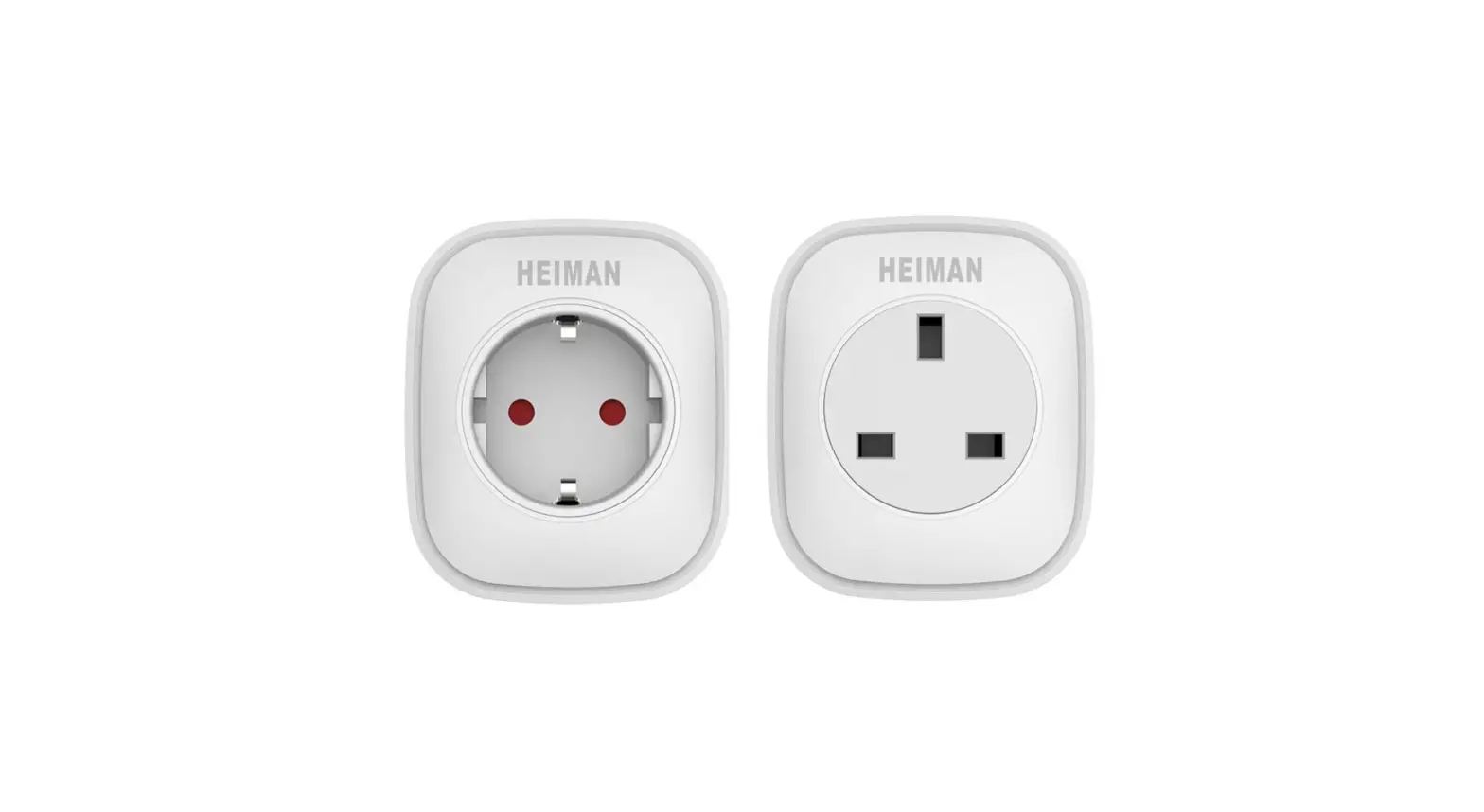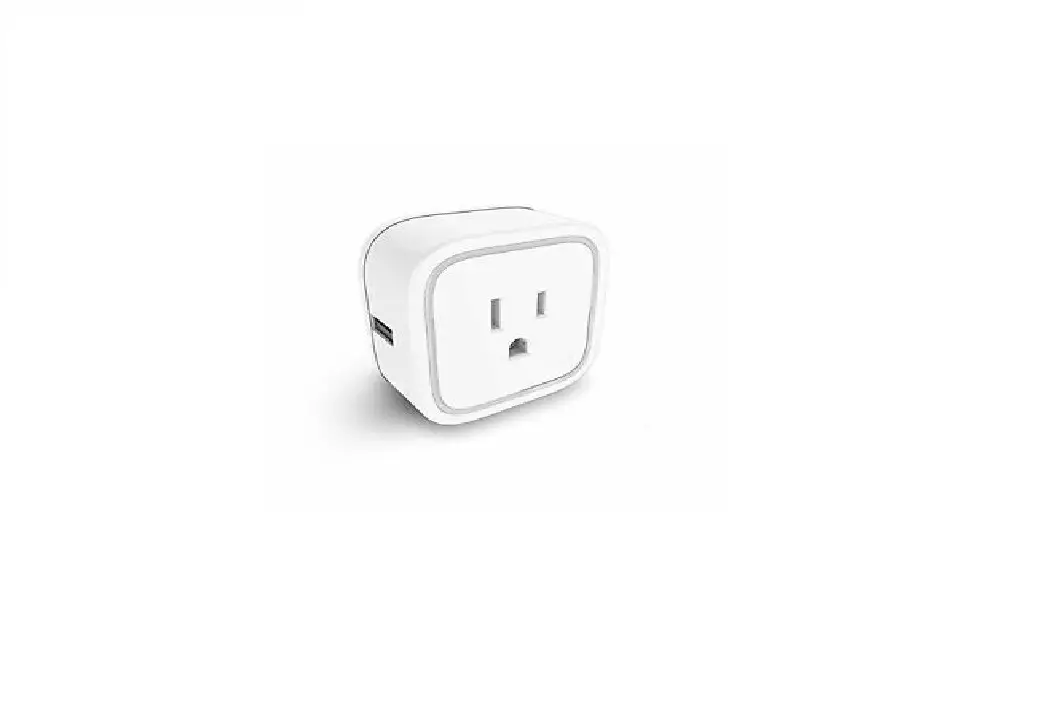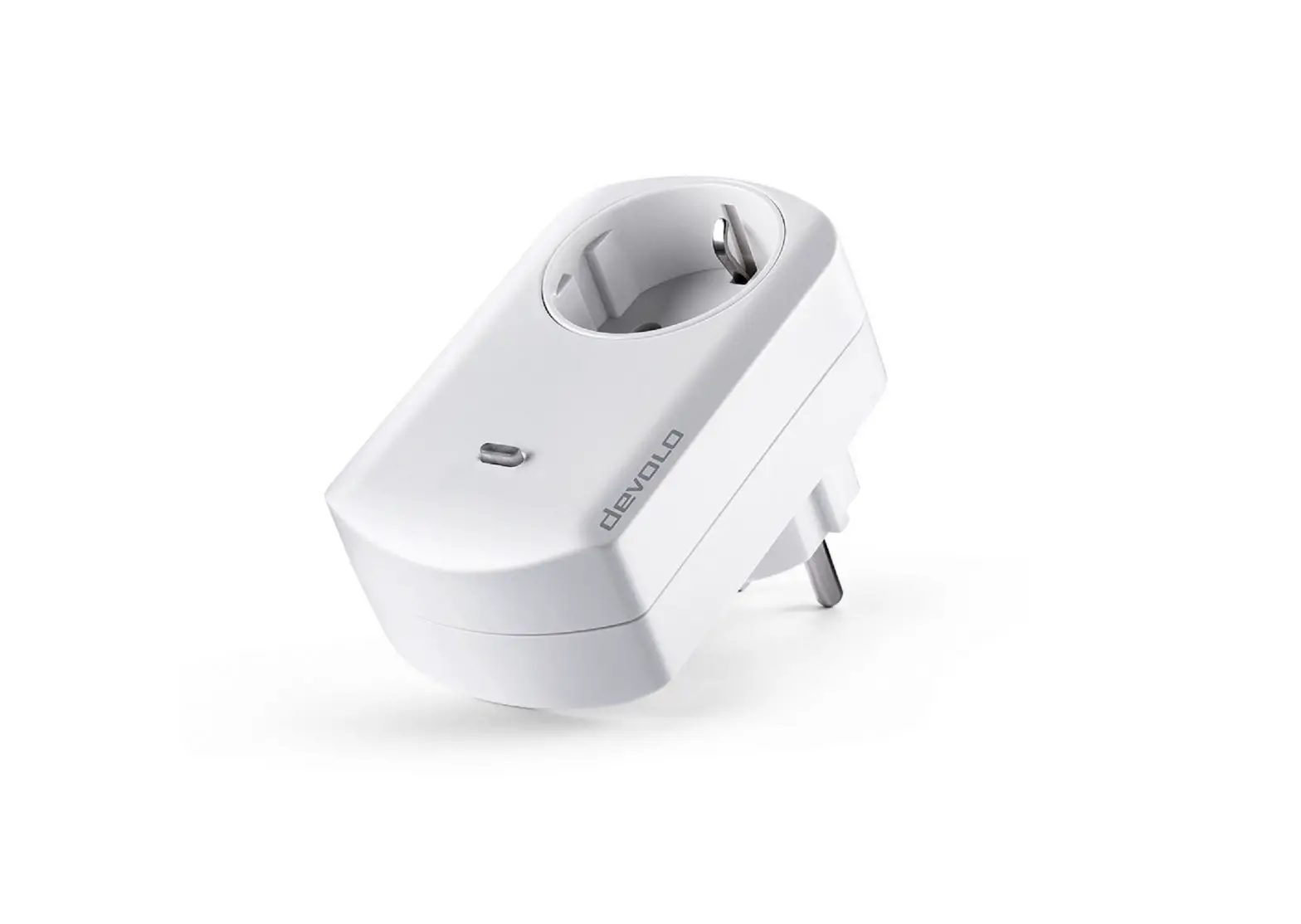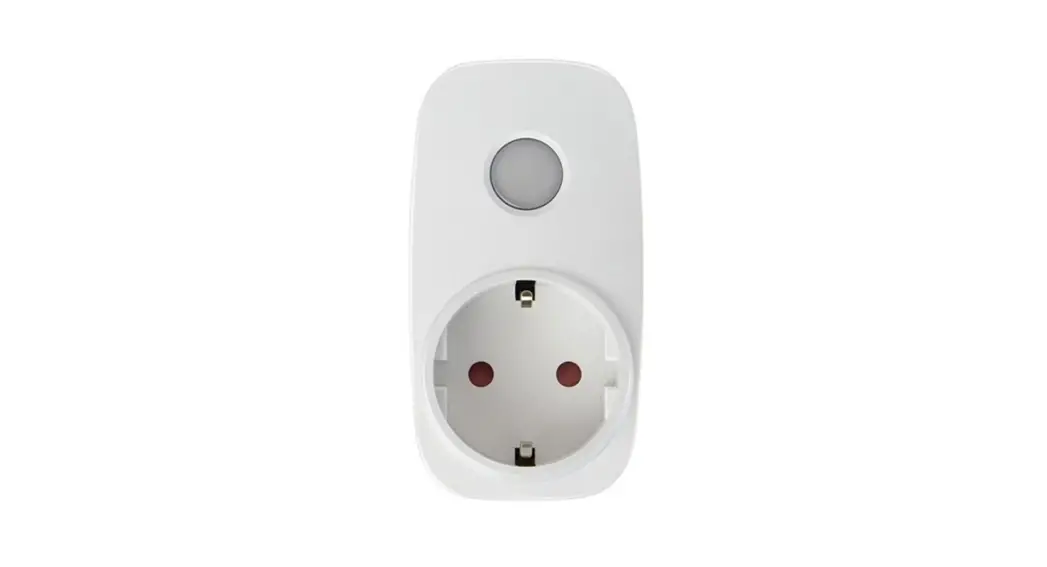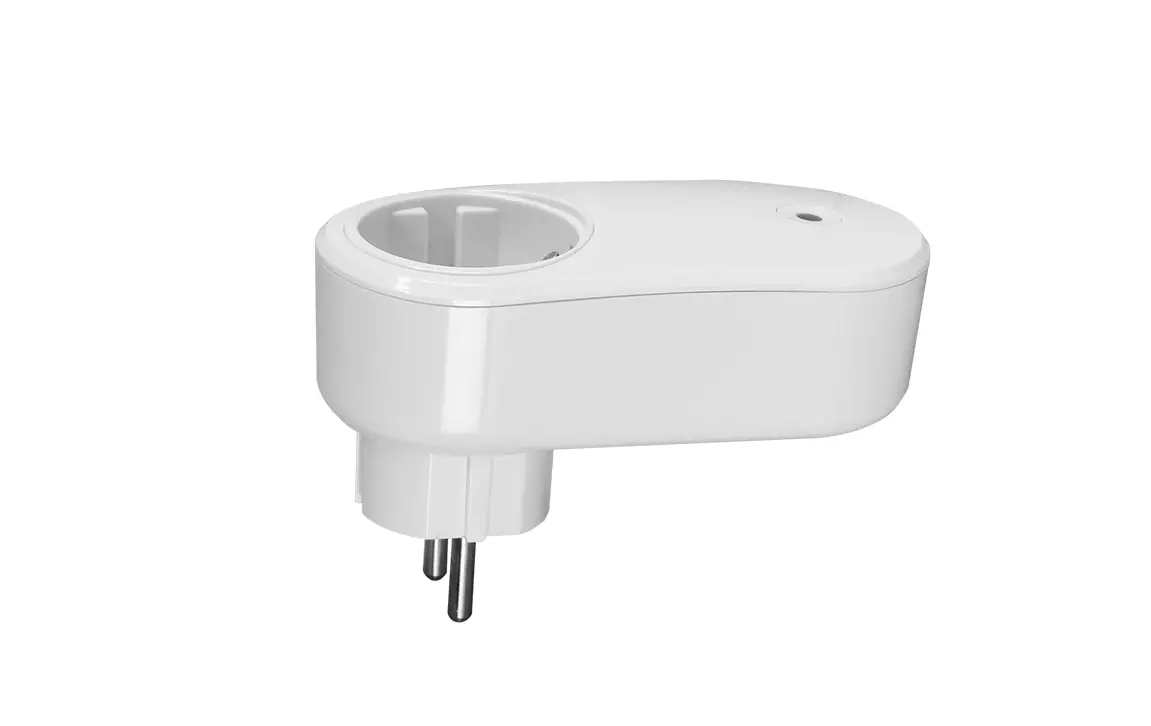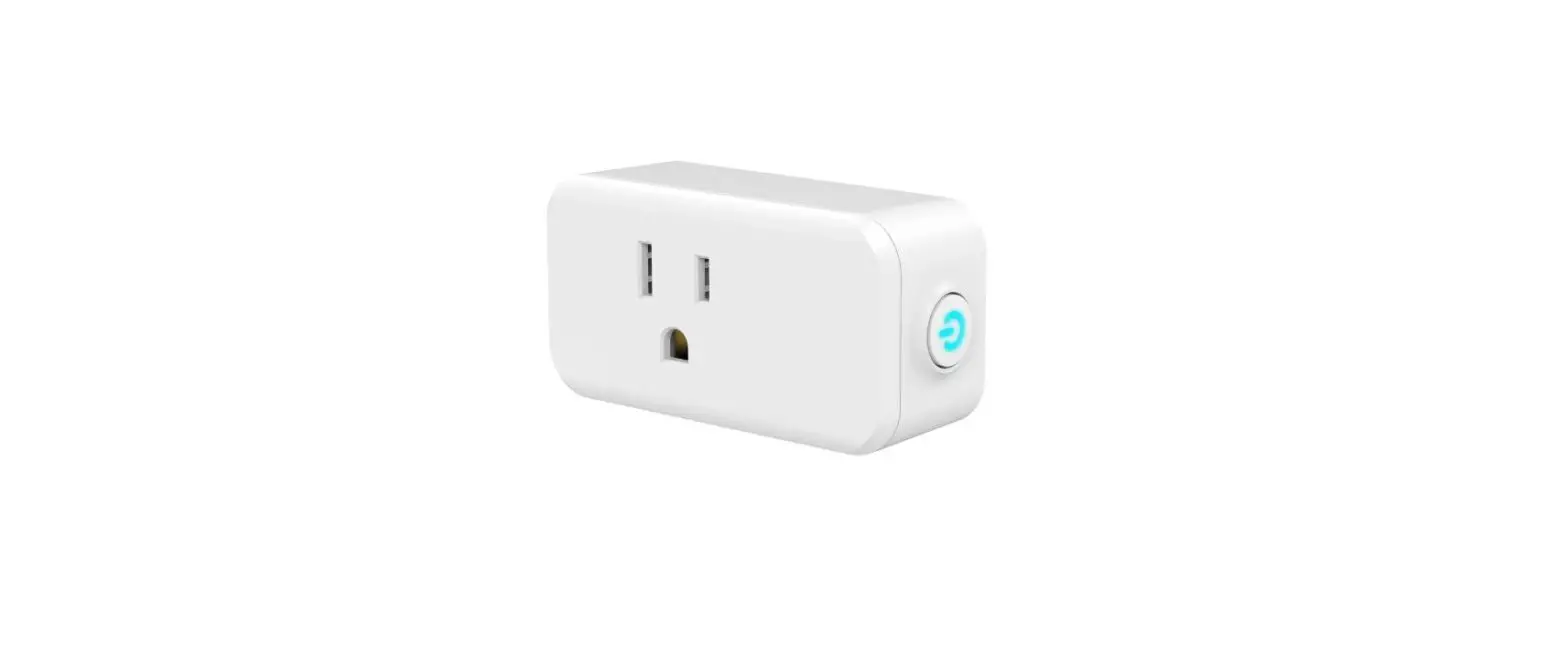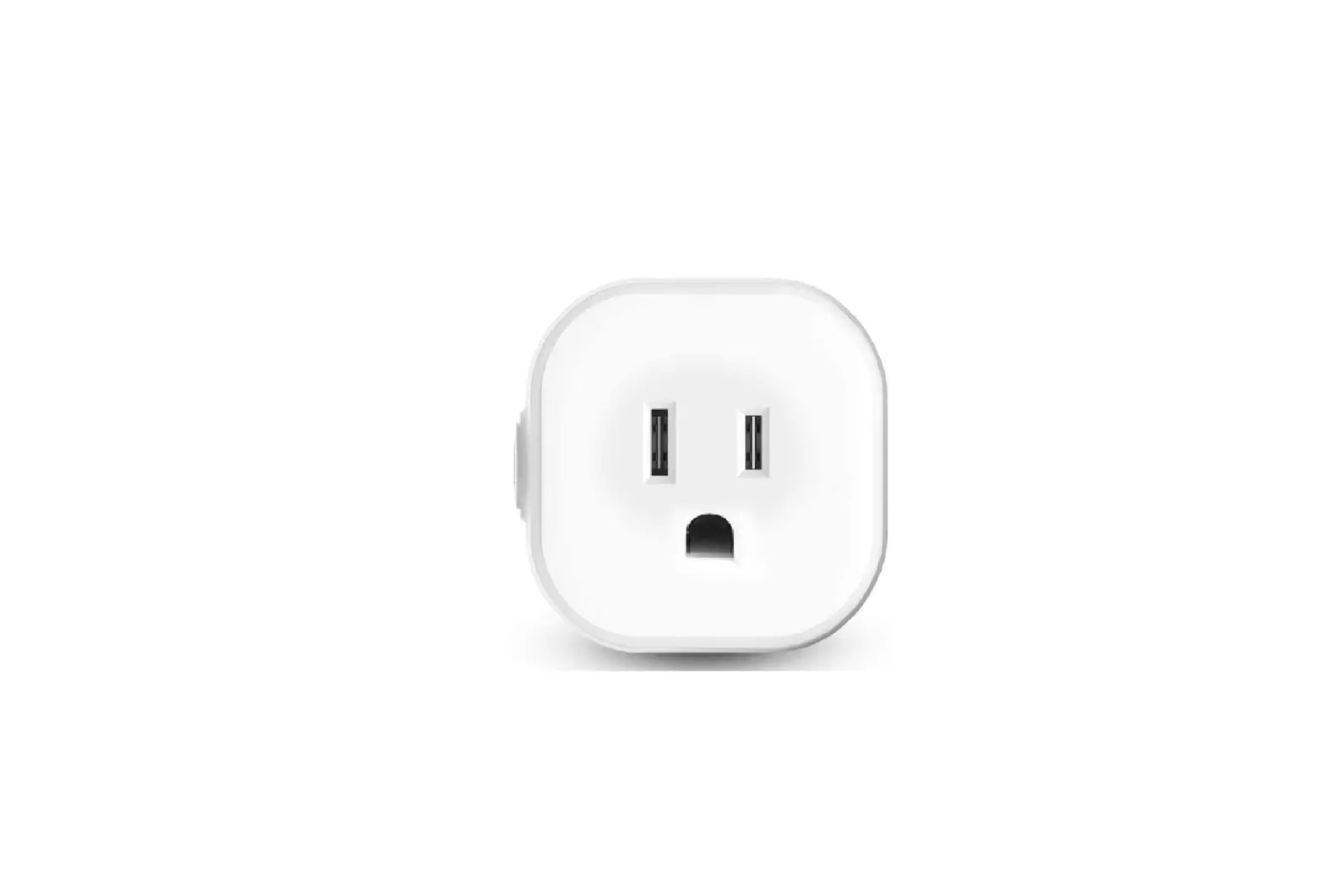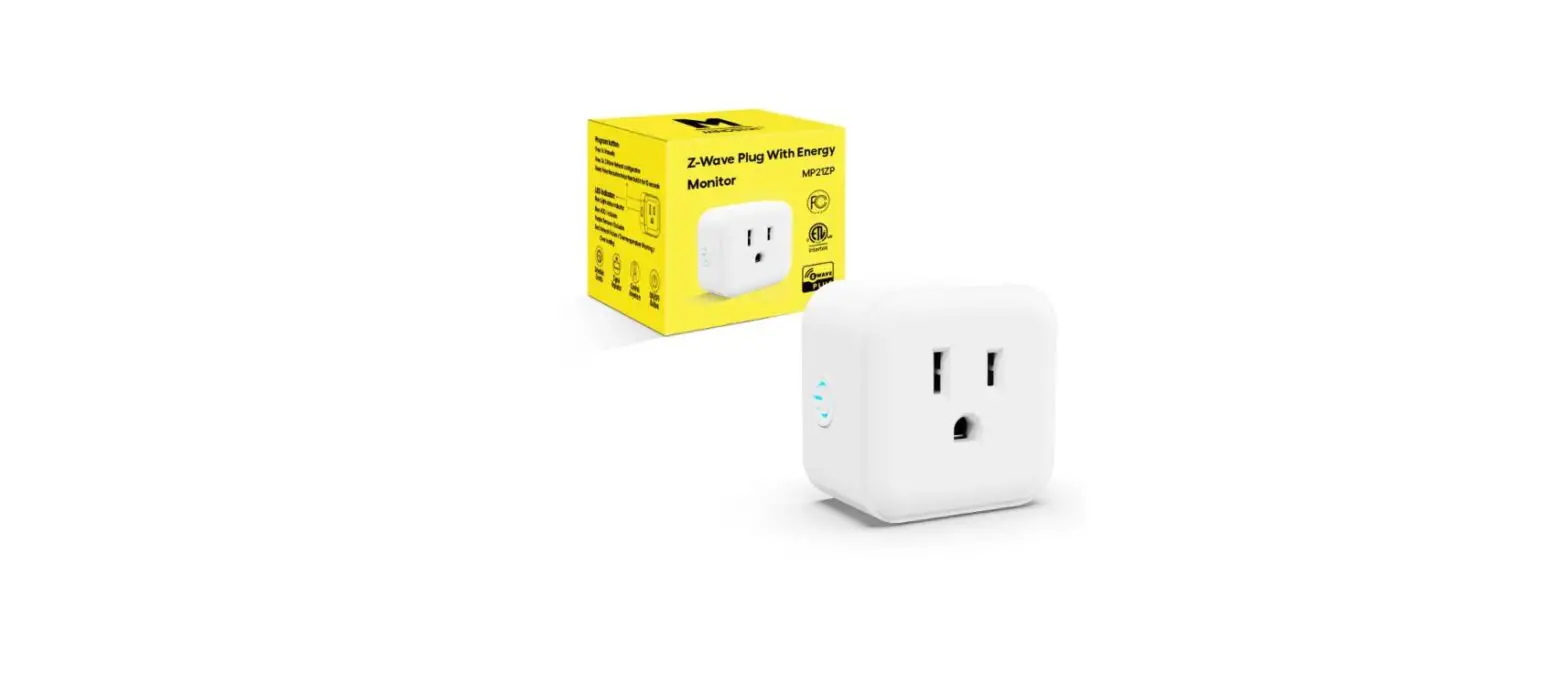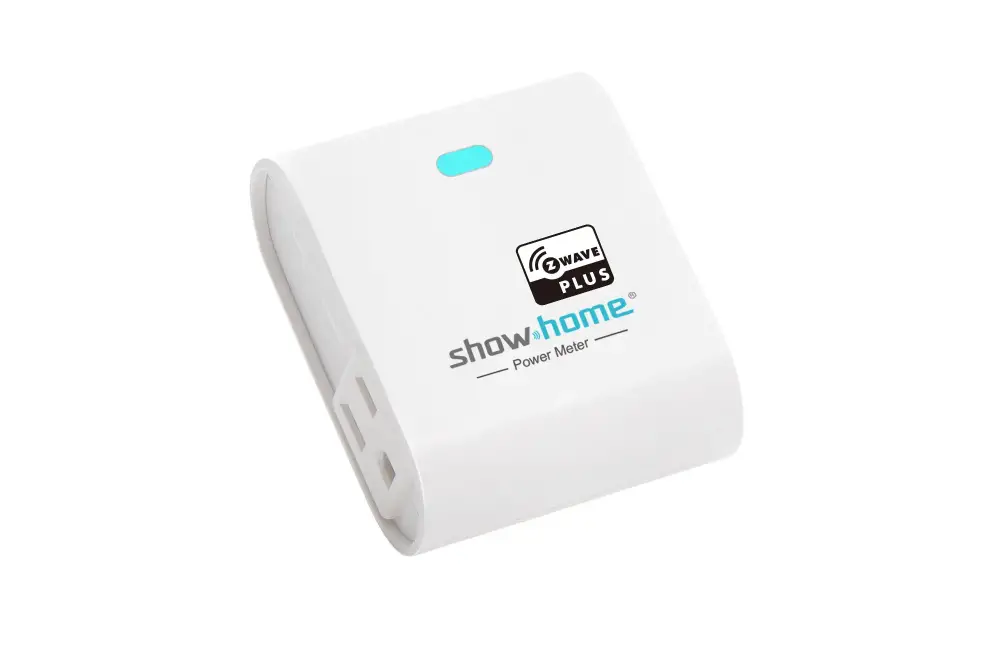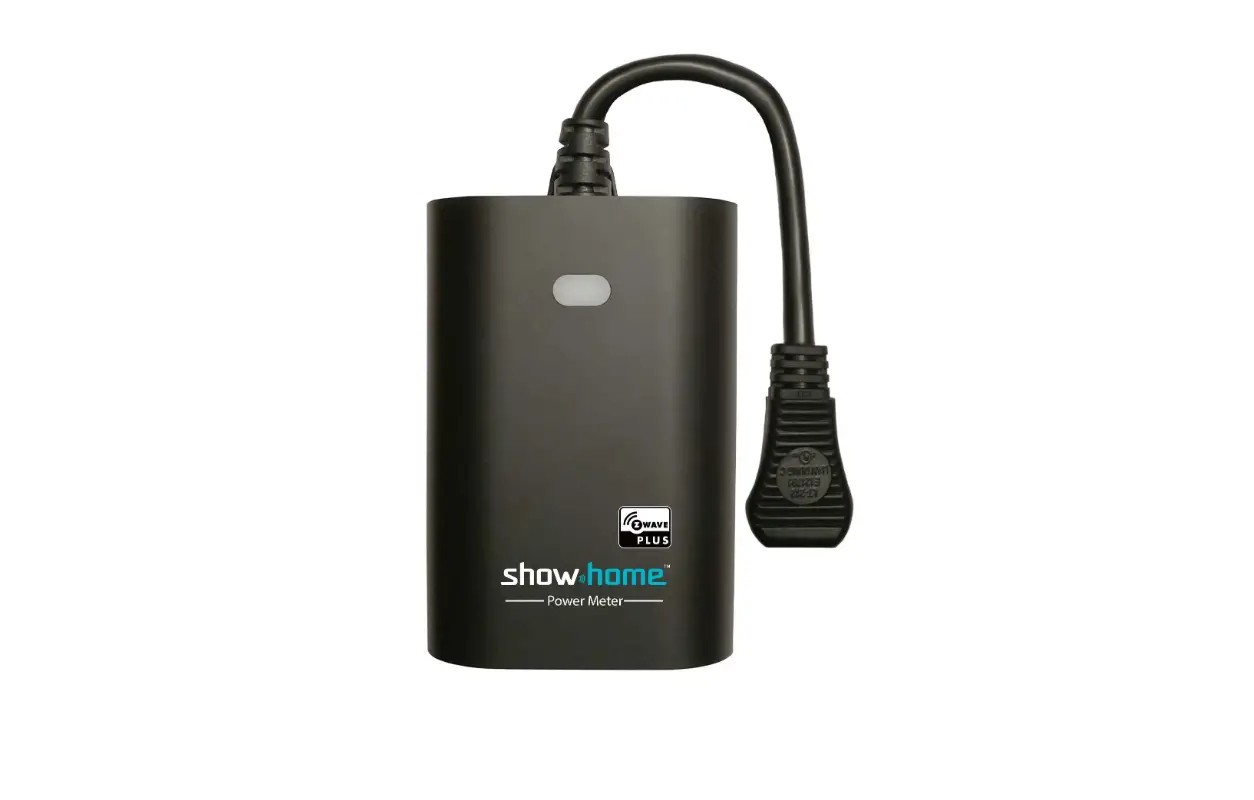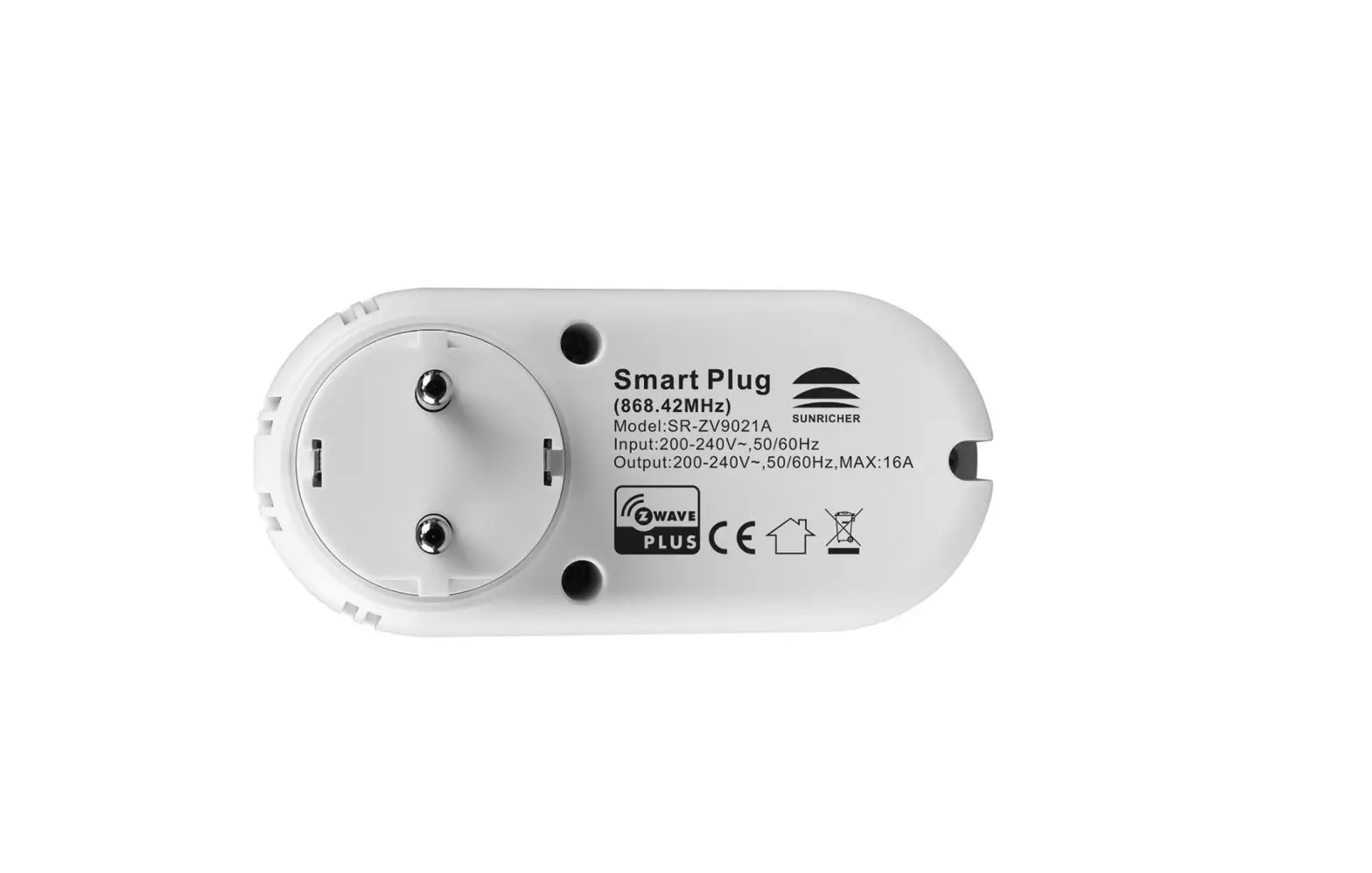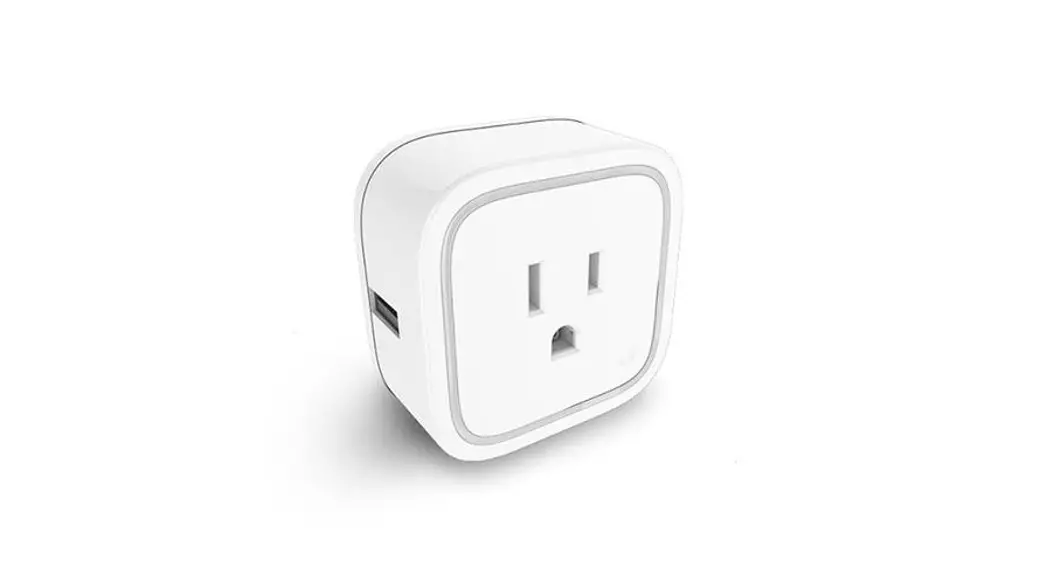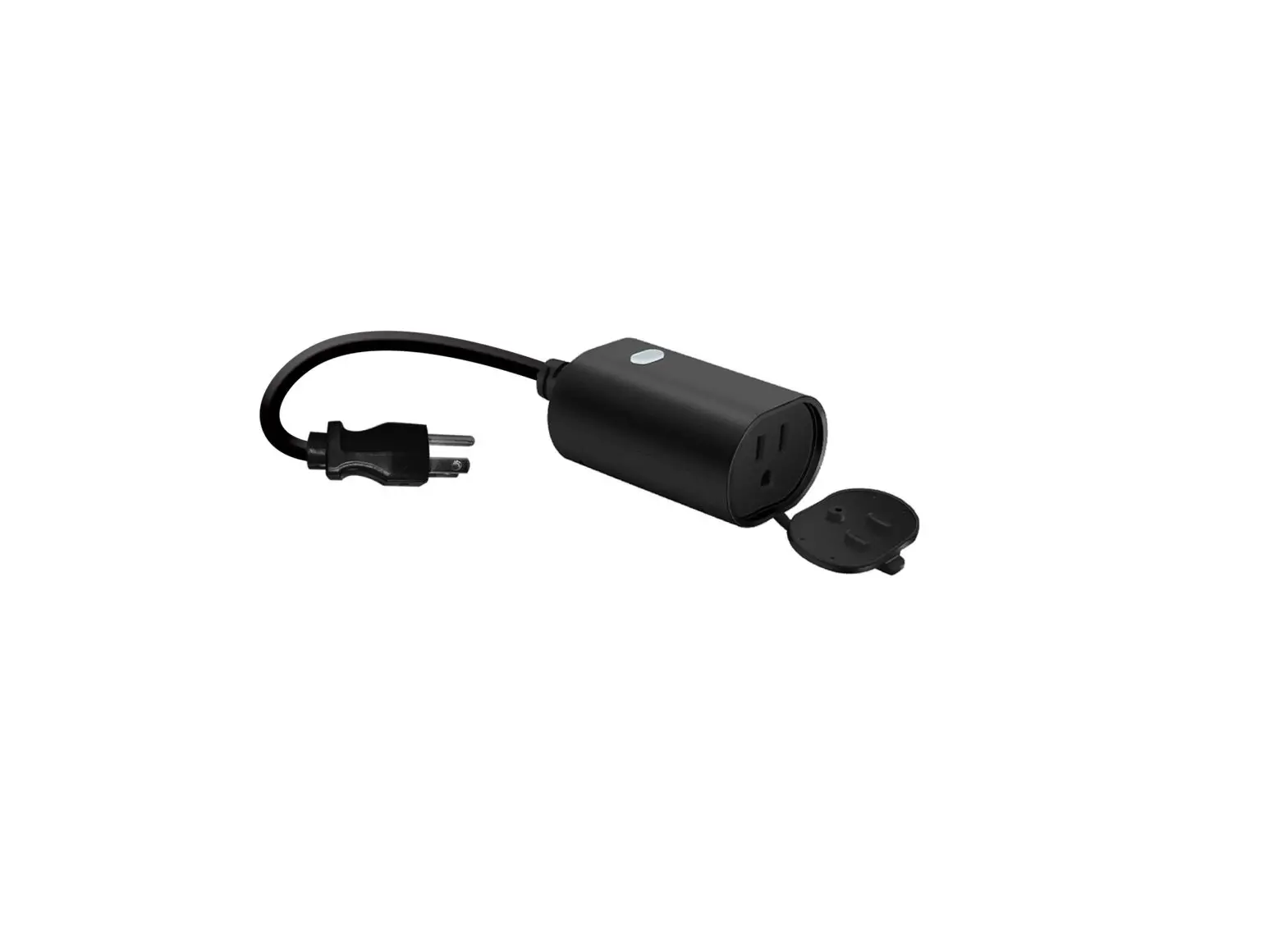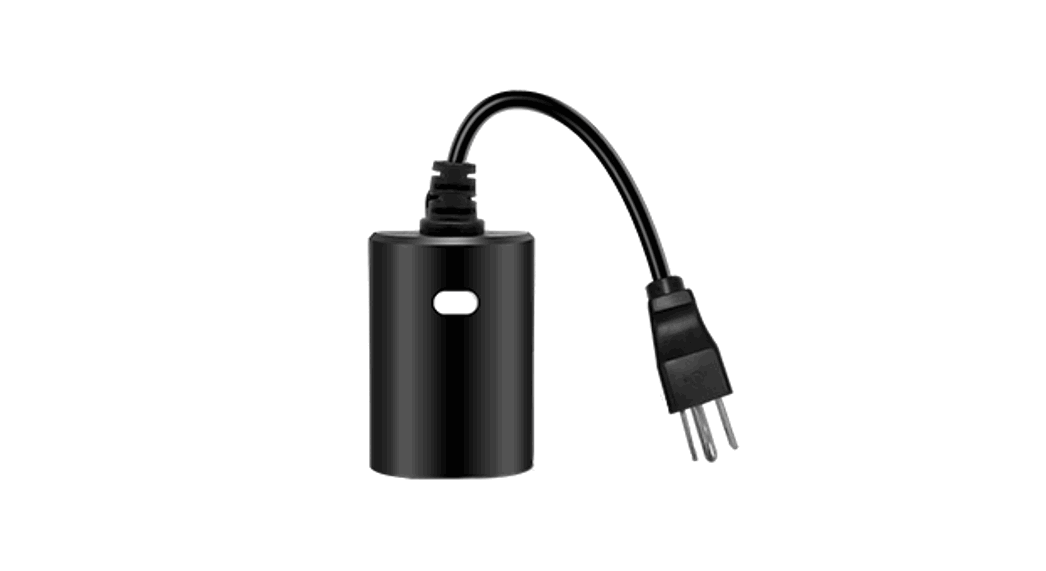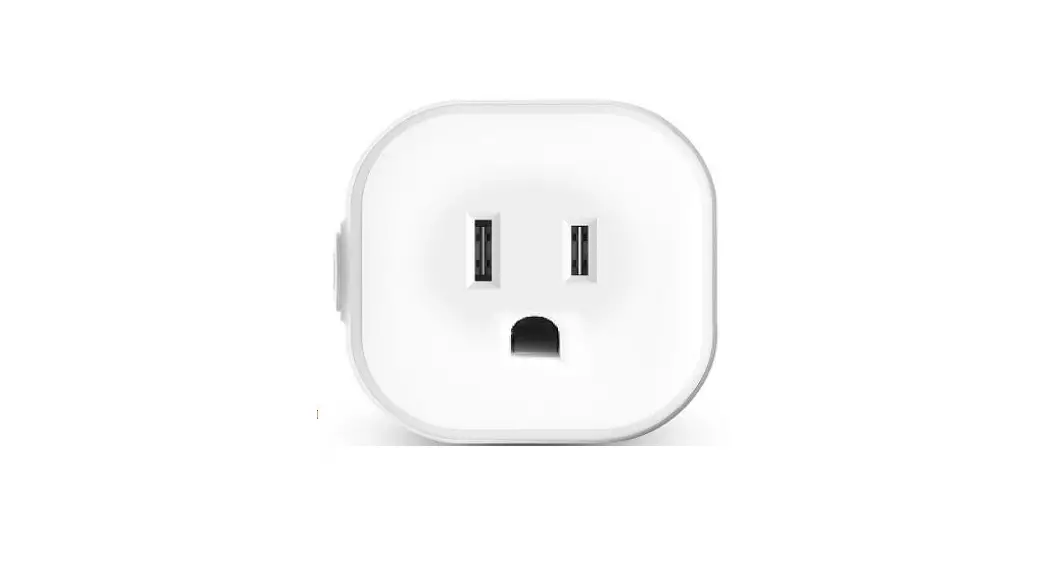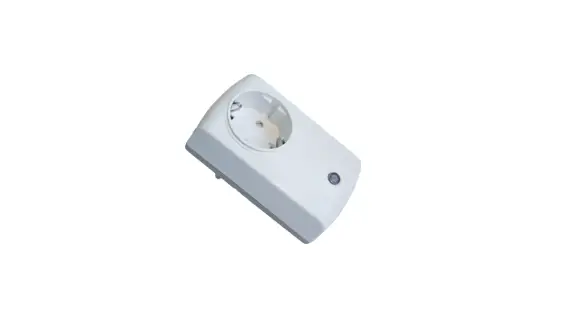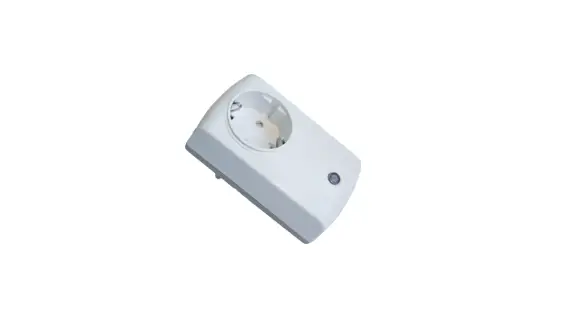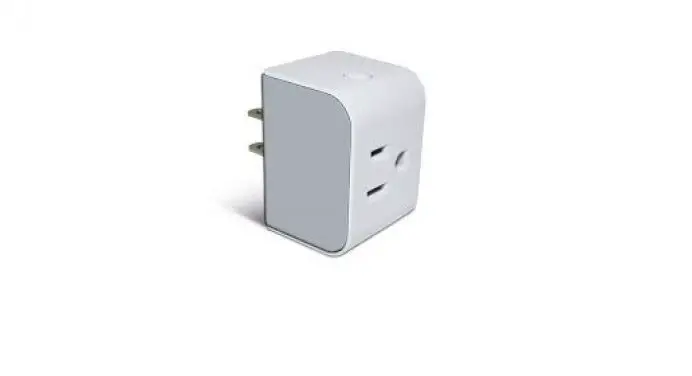
Z-Wave HS2SK-Z Smart Metering Plug
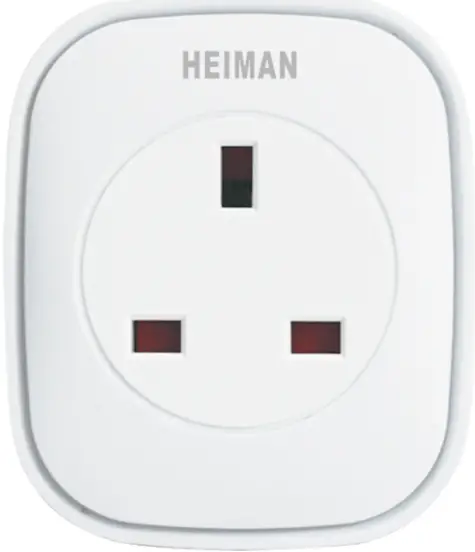
Overview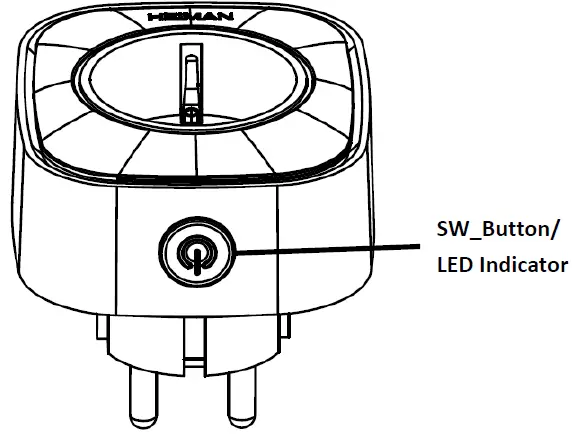
Product Description
- Product is S2 Unauthenticated devices.
- This device is a security enable Z‐Wave Plus product that is able to use encrypted Z‐Wave Plus messages to communicate to other security enable Z‐Wave Plus products.
Note: A “Security Enable Z‐Wave Controller” must be used in order to fully utilize this function.
- Device ADD for Inclusion
- Click [Add] icon in Z‐Wave Controller.
- Press the SW_Button 3 times within 1.5s, Blue LED is Blinking 3 times within 1 second.
- If add Process is successful, Blue LED will turn off.
- Device Remove for Exclusion
- Click [Remove] icon in Z‐Wave Controller.
- Press the SW_Button 3 times within 1.5s
- If remove Process is successful, blue LED is Blinking 6 times, then turn off.
- Device normal mode
Press button to power plug on and Blue LED turns on, press button again to power plug off and blue LED turns off. Plug reports power consumption(Unit: KWH) every 60s seconds when plug is outputting power. A power(W) change of 2 watts is reported immediately. - Device Factory Reset
- Long press SW_Button at least 10 seconds in HS2SK‐Z.
- Device Reset Locally notification is Transmitted.
- Please use this procedure only when the network primary controller is missing or otherwise inoperable.
- Association & Association Group Information
- Lifeline between controller and HS2SK‐Z
- Maximum supported node is 5
- Association Group description
Association group 1: Lifeline association group
Include command classes: Switch Binary report, Meter Report and Device Reset Locally notification.
- Binary Switch Report and Meter Report
- Press SW_Button, Switch Report is transmitted
Switch TYPESwitch Type Value Status Binary Switch Report 0x00 OFF 0xFF ON Meter Type
Meter Type Assortment Status Electric meter KWH 0X00 WATT 0X02
- Press SW_Button, Switch Report is transmitted
- Basic Command Class description
- Support command class version is 2 .
- Gateway can set device turn on and shutdown
- Press SW_Button, Switch Report is transmitted
- Binary Switch Report is 0xff to turn on
- Binary Switch Report is set to 0x00 to shutdown
Basic Type Value Status Basic Set 0x00 OFF 0xFF ON
- Devices from multiple manufacturers in one network
- This product can be included and operated in any Z‐Wave network with other Z‐Wave certified devices from other manufacturers and/or other applicants. All non‐battery operated nodes within the network will act as repeaters regardless of vendor to increase reliability of the network.
- Z‐Wave Specifications
- Device Type : On/Off Power Switch
- Role Type : AOS (Always on slave)
- Command Class Support/Control
- Z‐Wave plus InfoVersion 2
- Switch Binary Version 1
- Association Version 2
- Multi Channel Association Version 3
- Association Group Info Version 1
- Transport Service Version 2
- Version Version 3
- Manufacturer Specific Version 2
- Device Reset Locally Version 1
- Power level Version 1
- Security 2 Version 1
- Supervision Version 1
- Meter Version 4
- The below listed Command Class are all Supported the Security S2
- Switch Binary Version 1
- Association Version 2
- Multi Channel Association Version 3
- Association Group Info Version 1
- Version Version 3
- Manufacturer Specific Version 2
- Device Reset Locally Version 1
- Power level Version 1
- Meter Version
Technical Specifications
| Model No. | HS2SK‐Z |
| RF frequency | 868.40‐ 869.85 MHz |
| RF operating distance | Up to 100m outdoor line of sight Up to 40m indoor |
| Temperature | ‐10℃~ 50℃ |
| Humidity | 95% max |
| Weight | 148g |