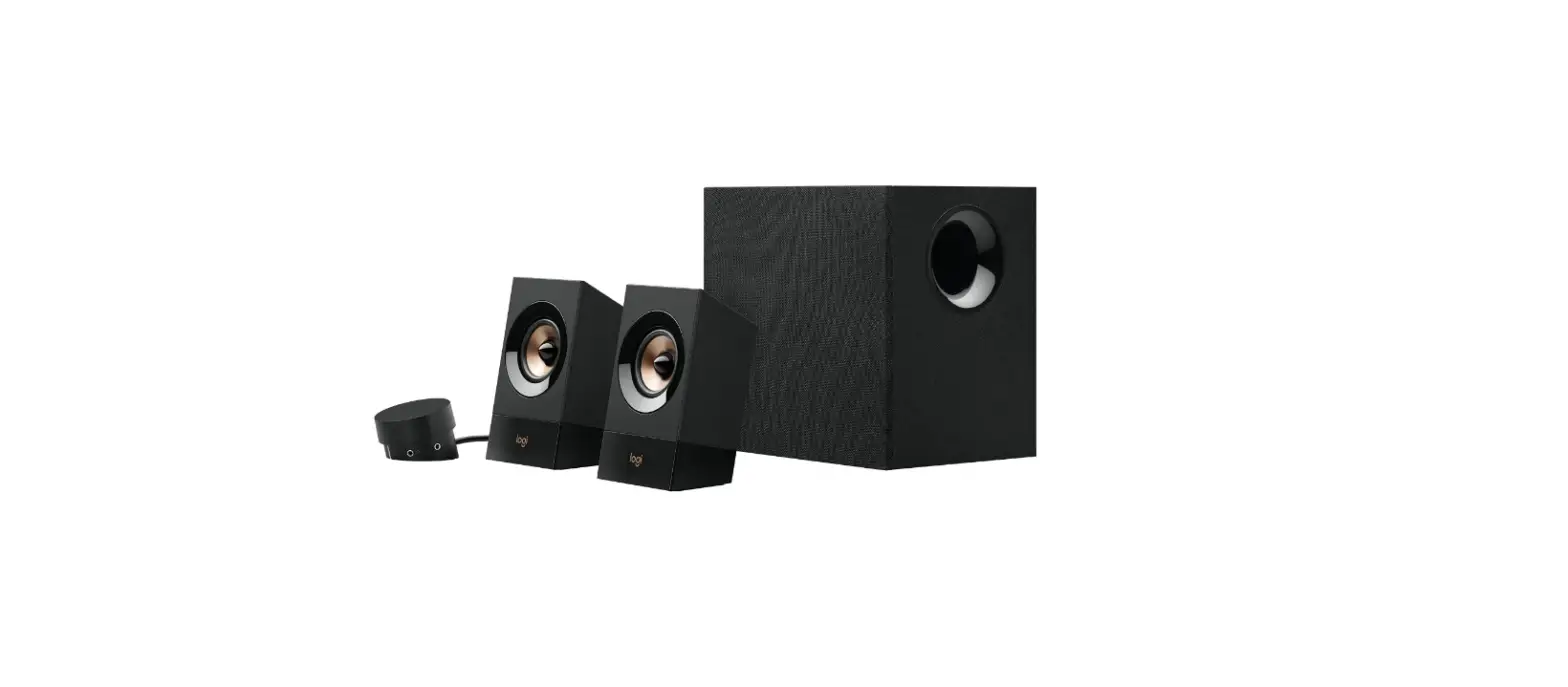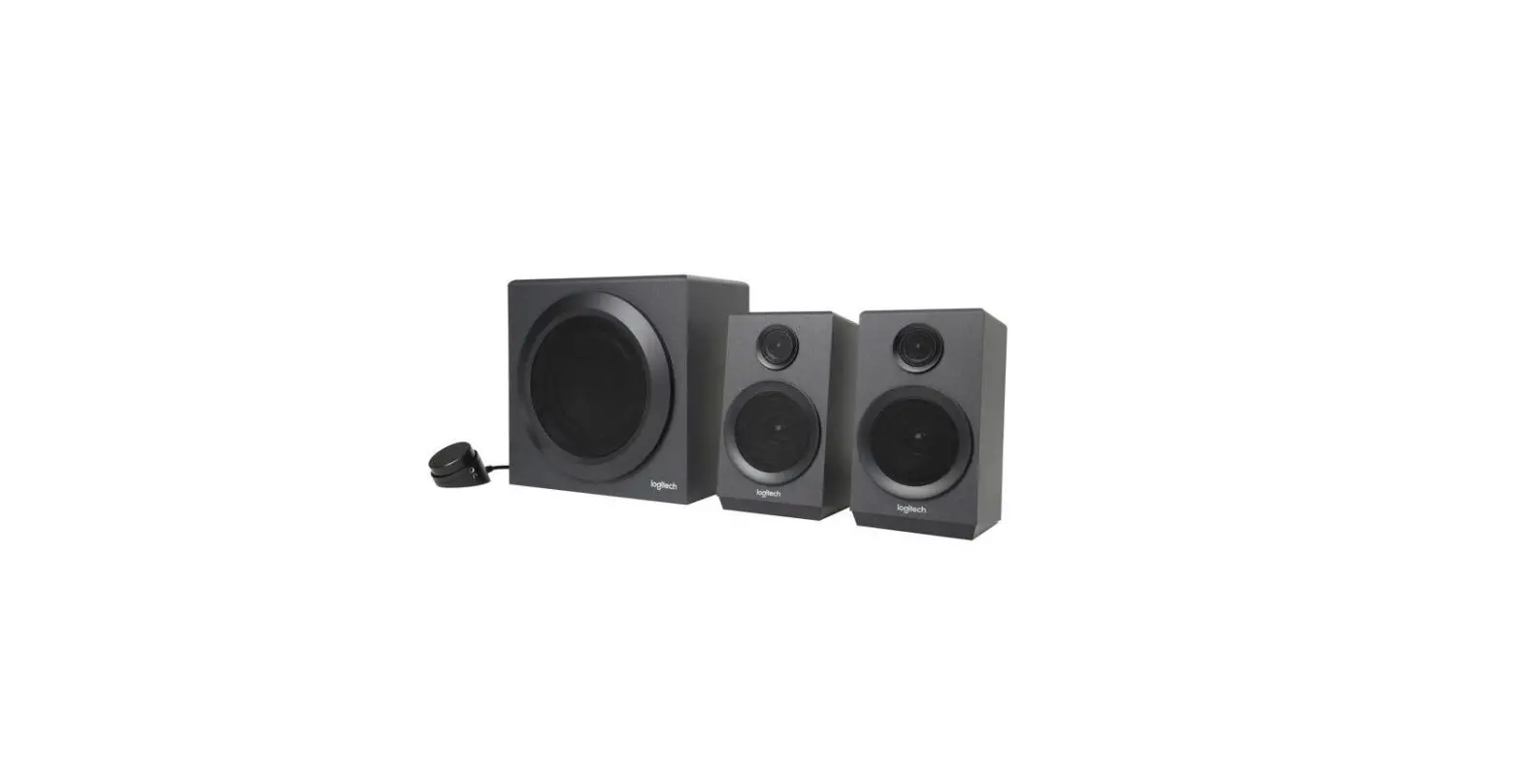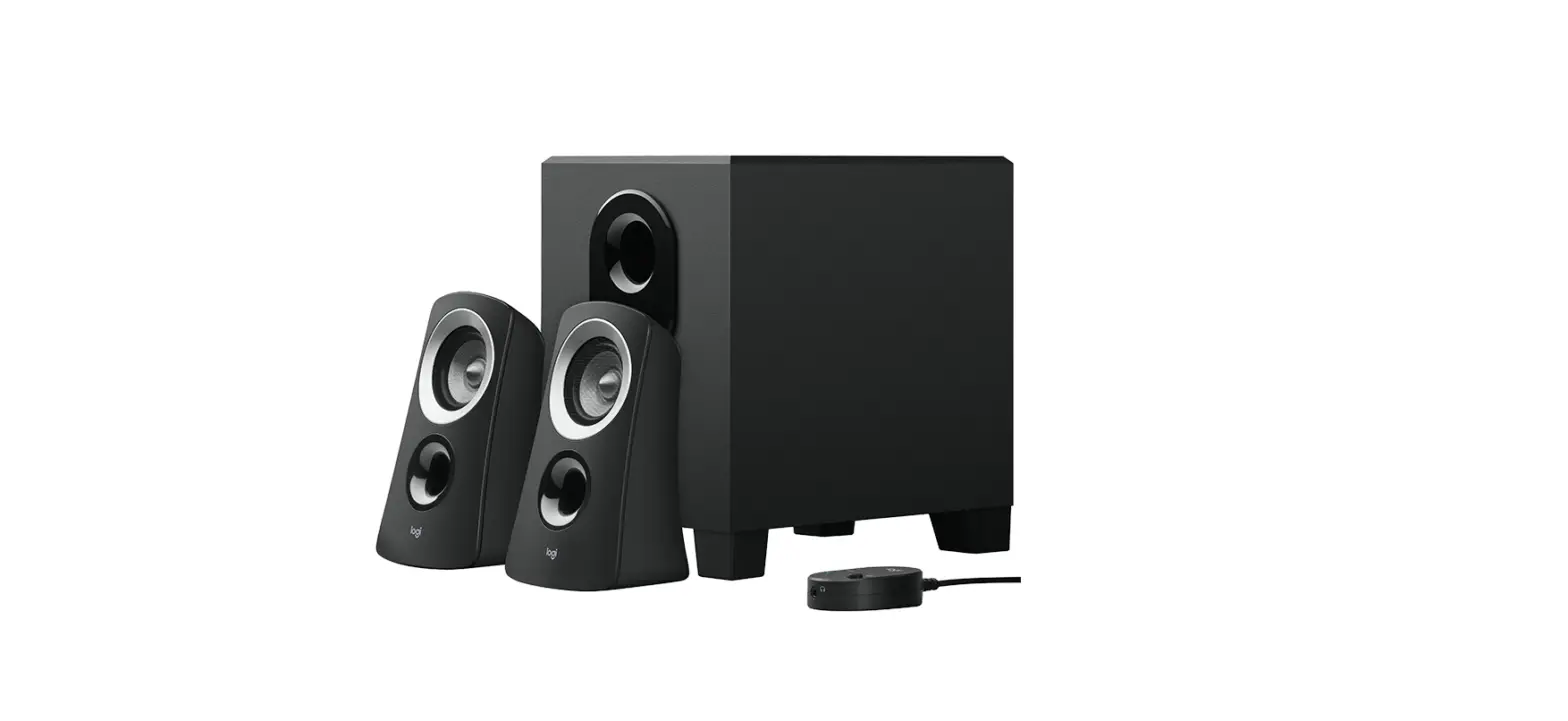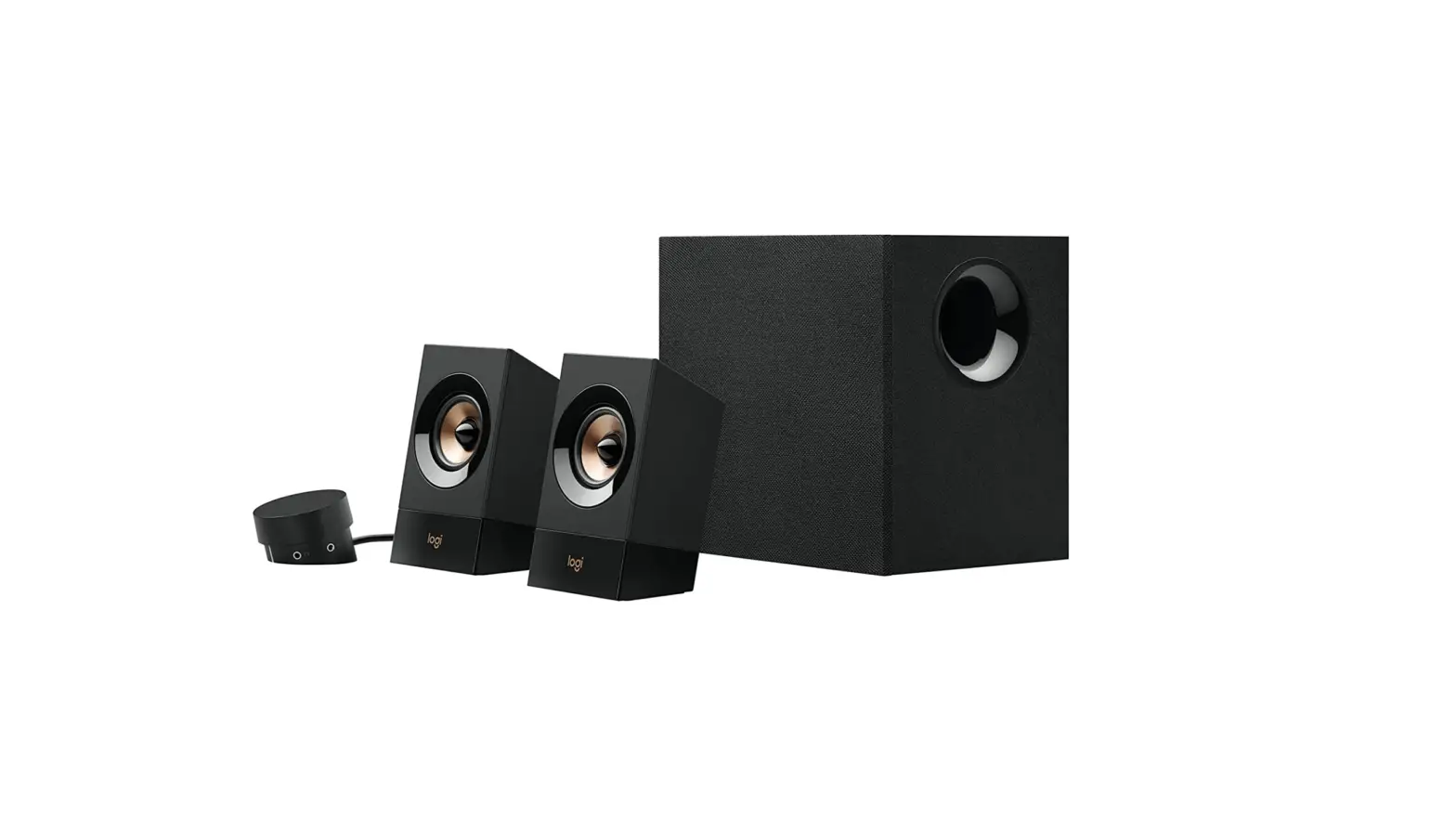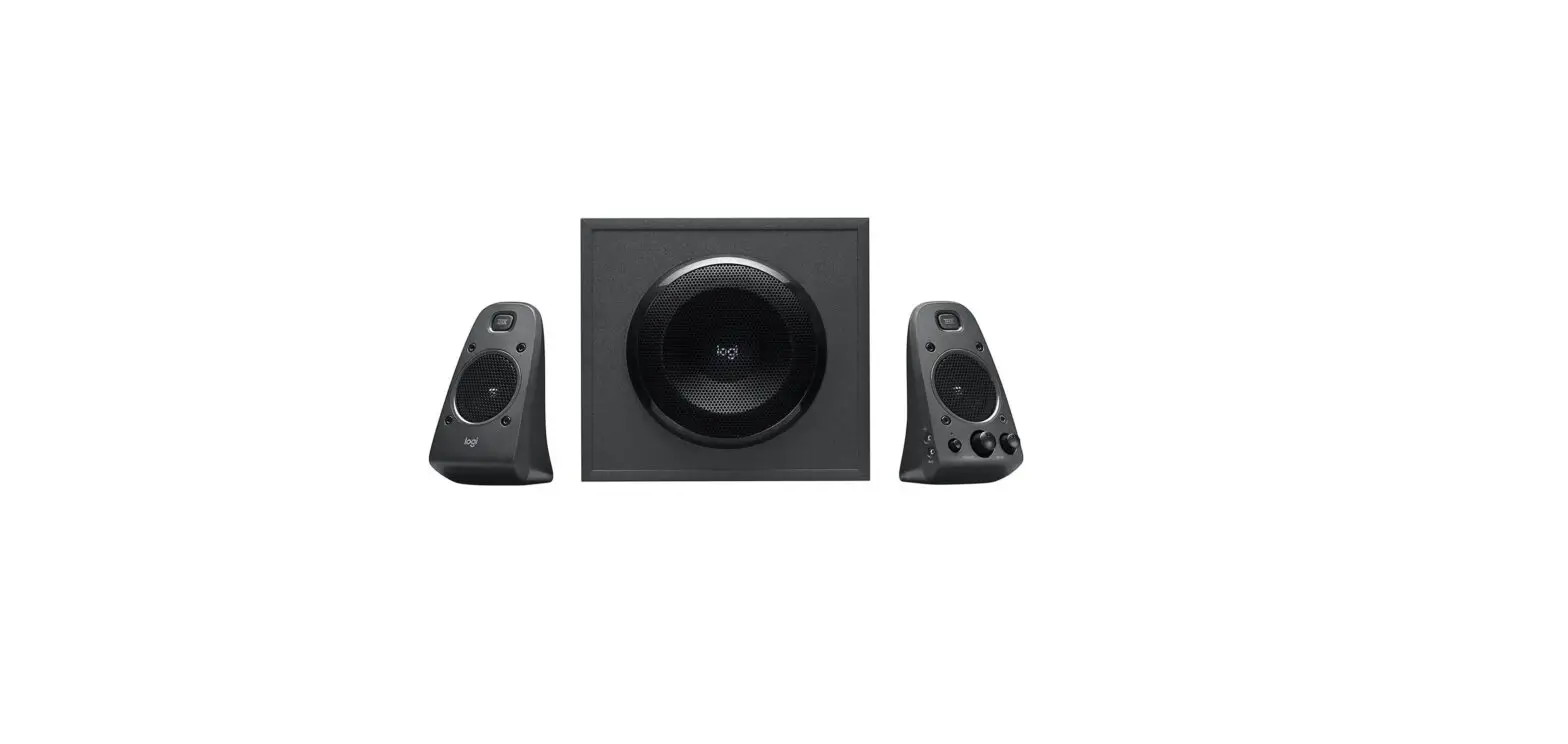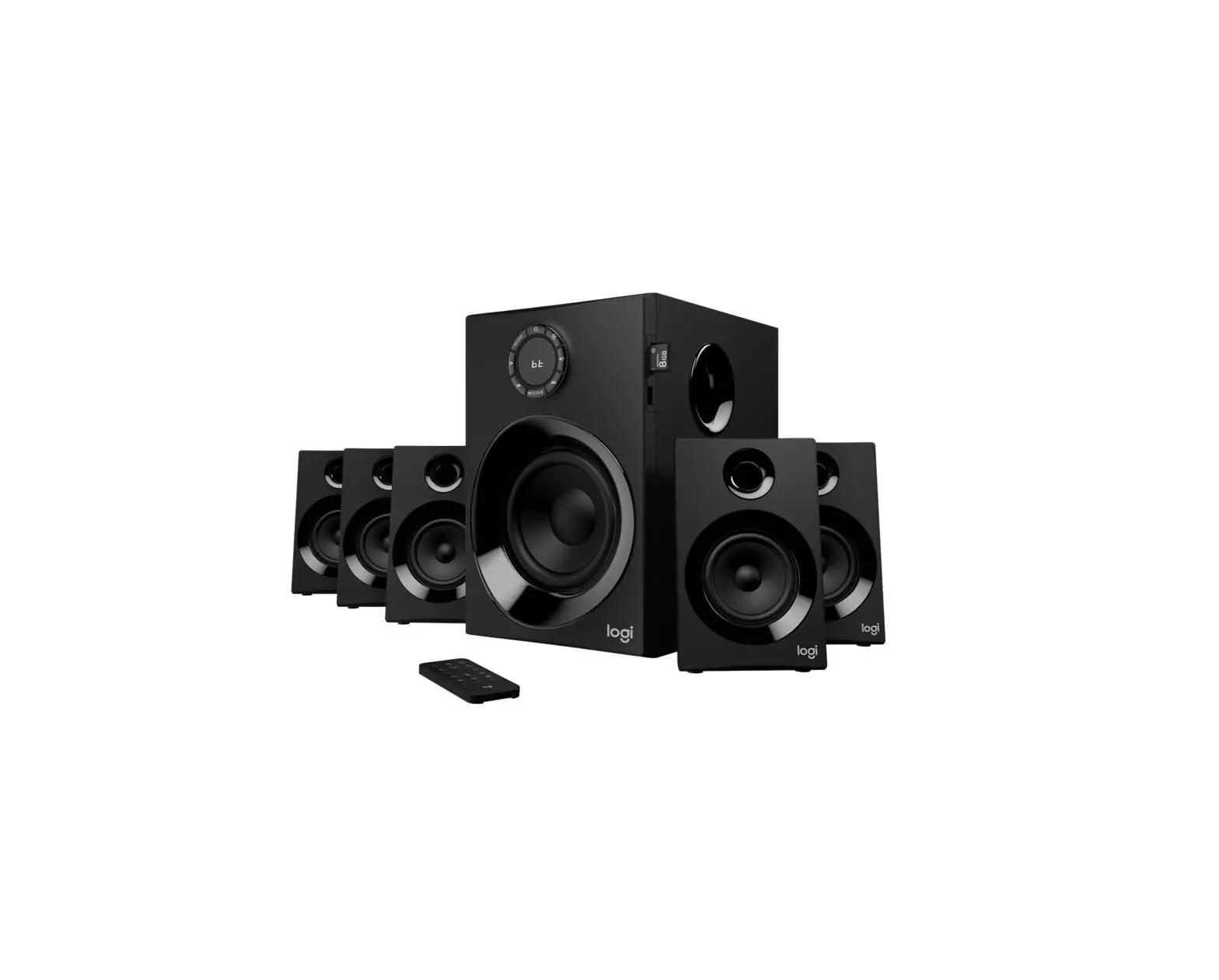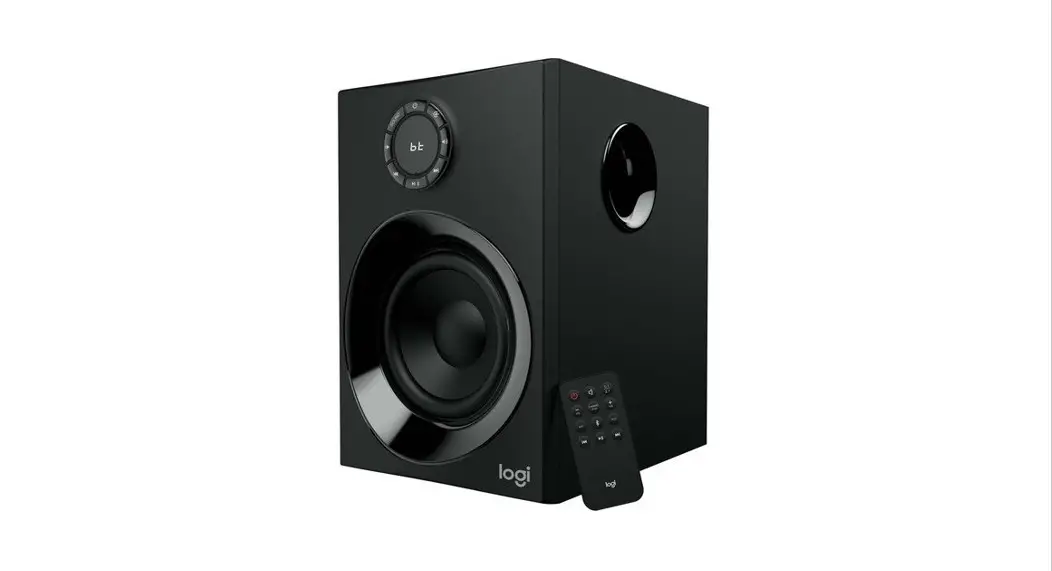

logitech Z407 Bluetooth Computer Speakers with Subwoofer
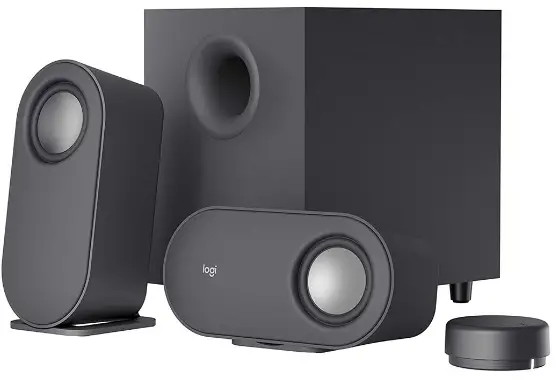
KNOW YOUR PRODUCT
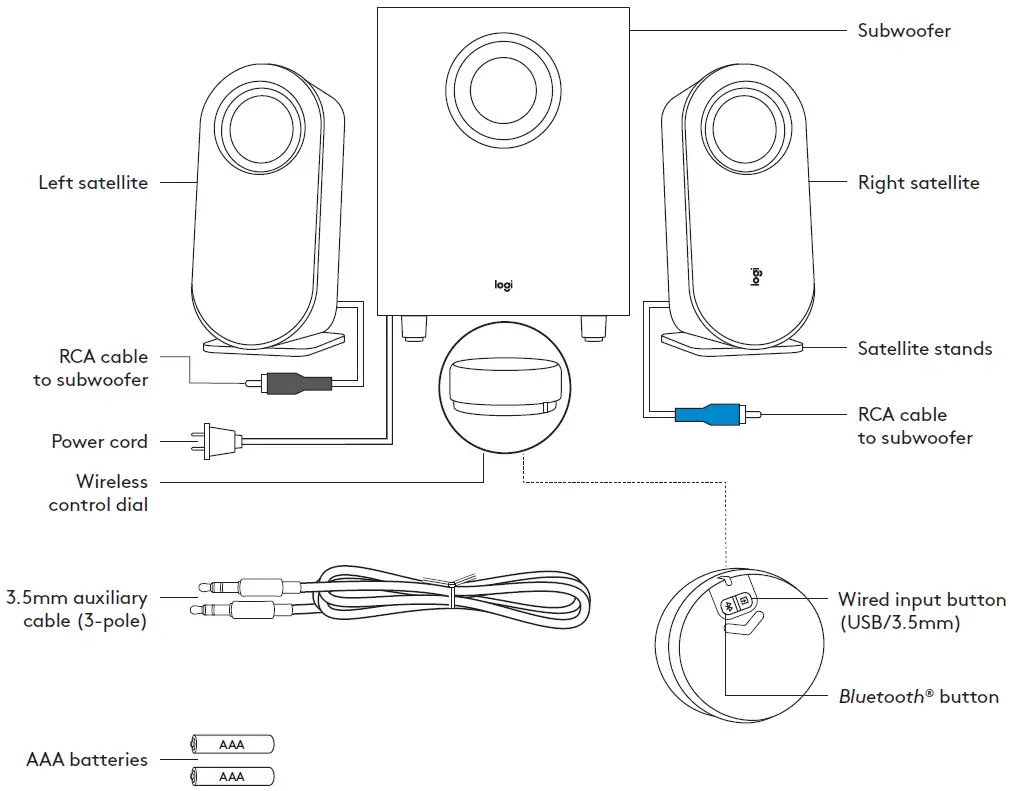
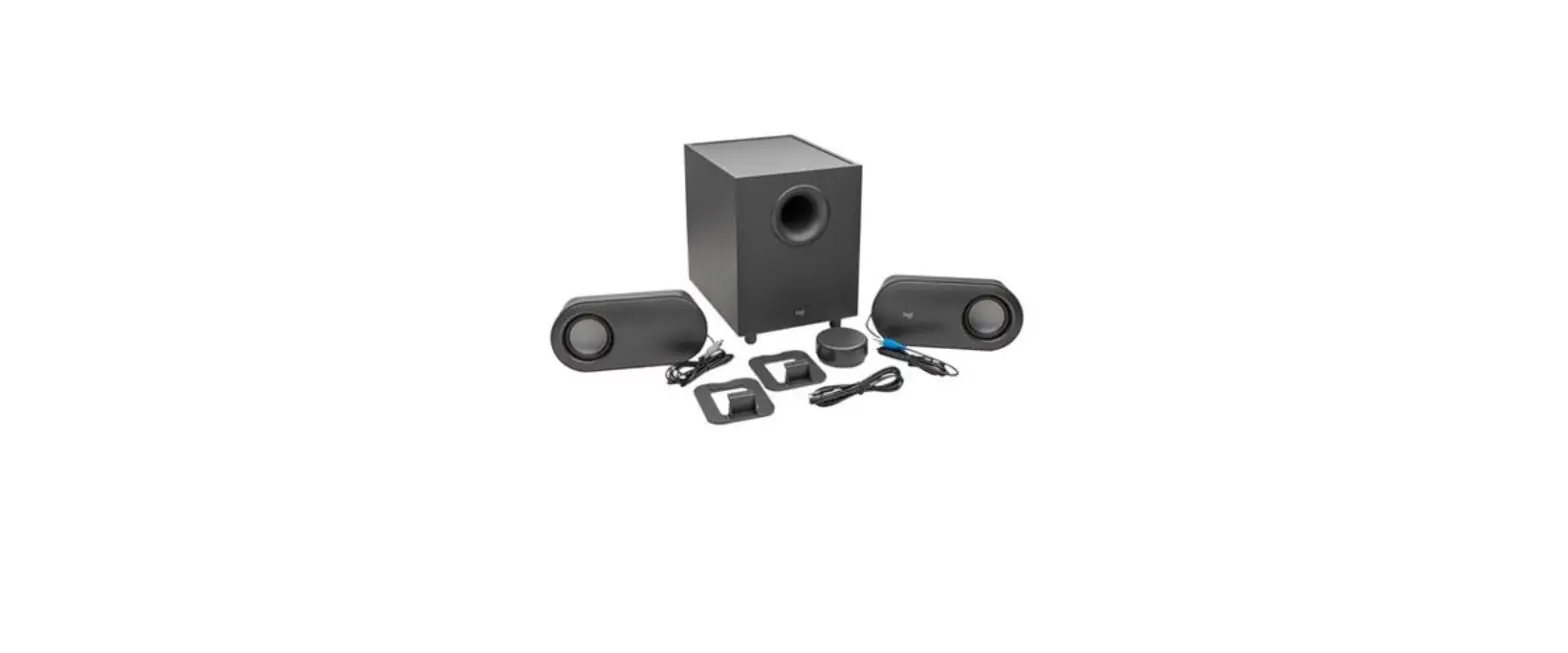
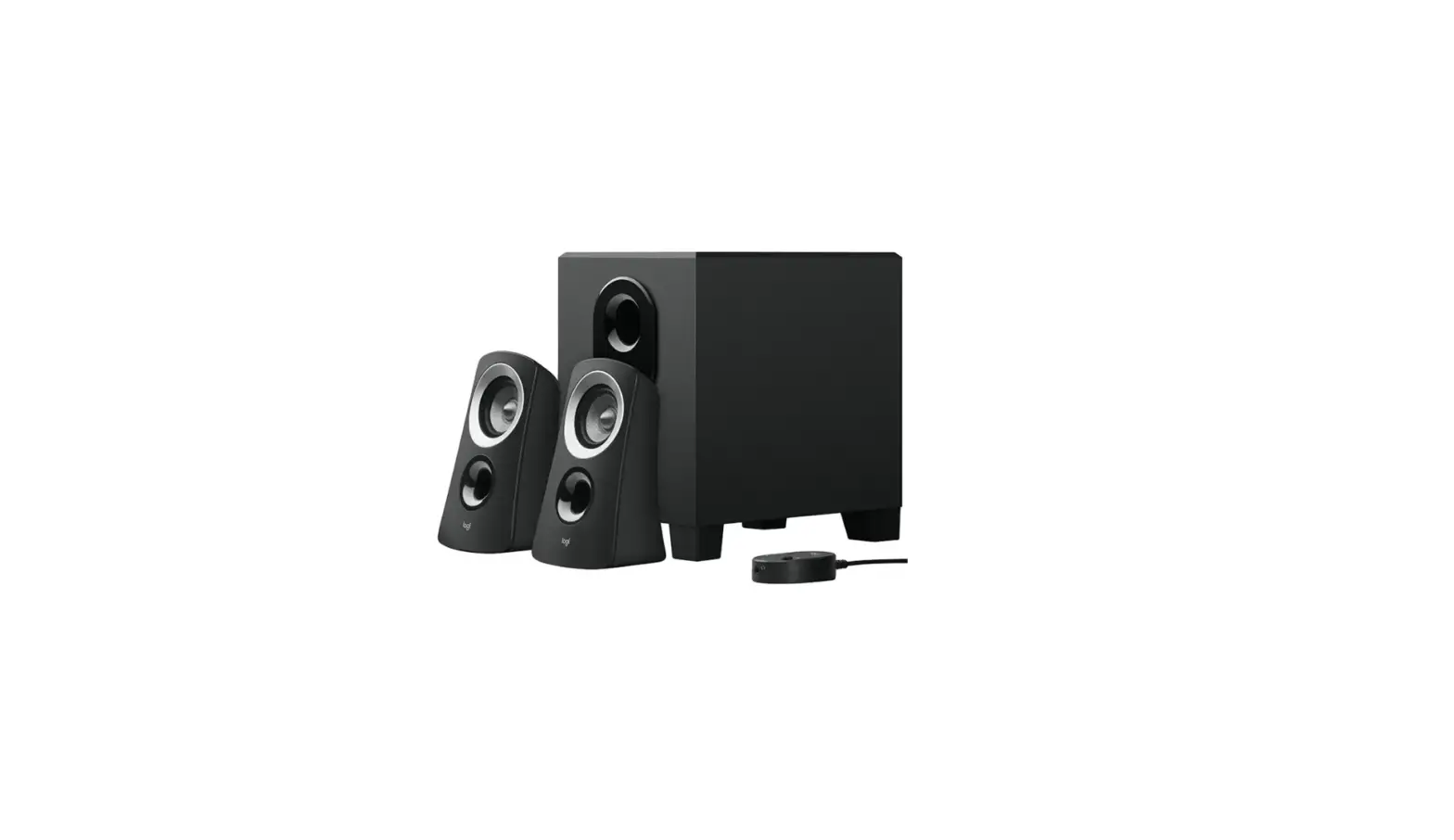
BOX CONTENT
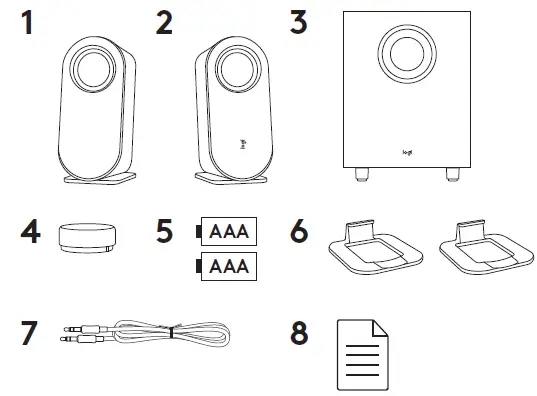
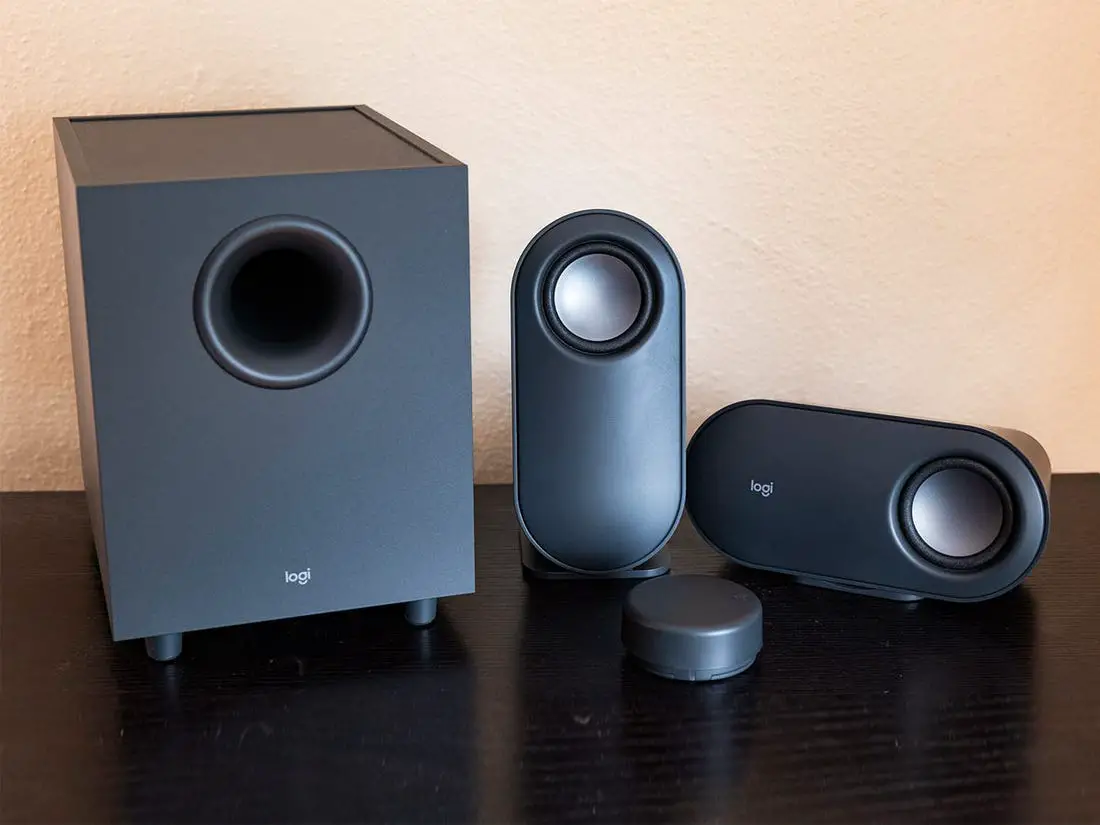
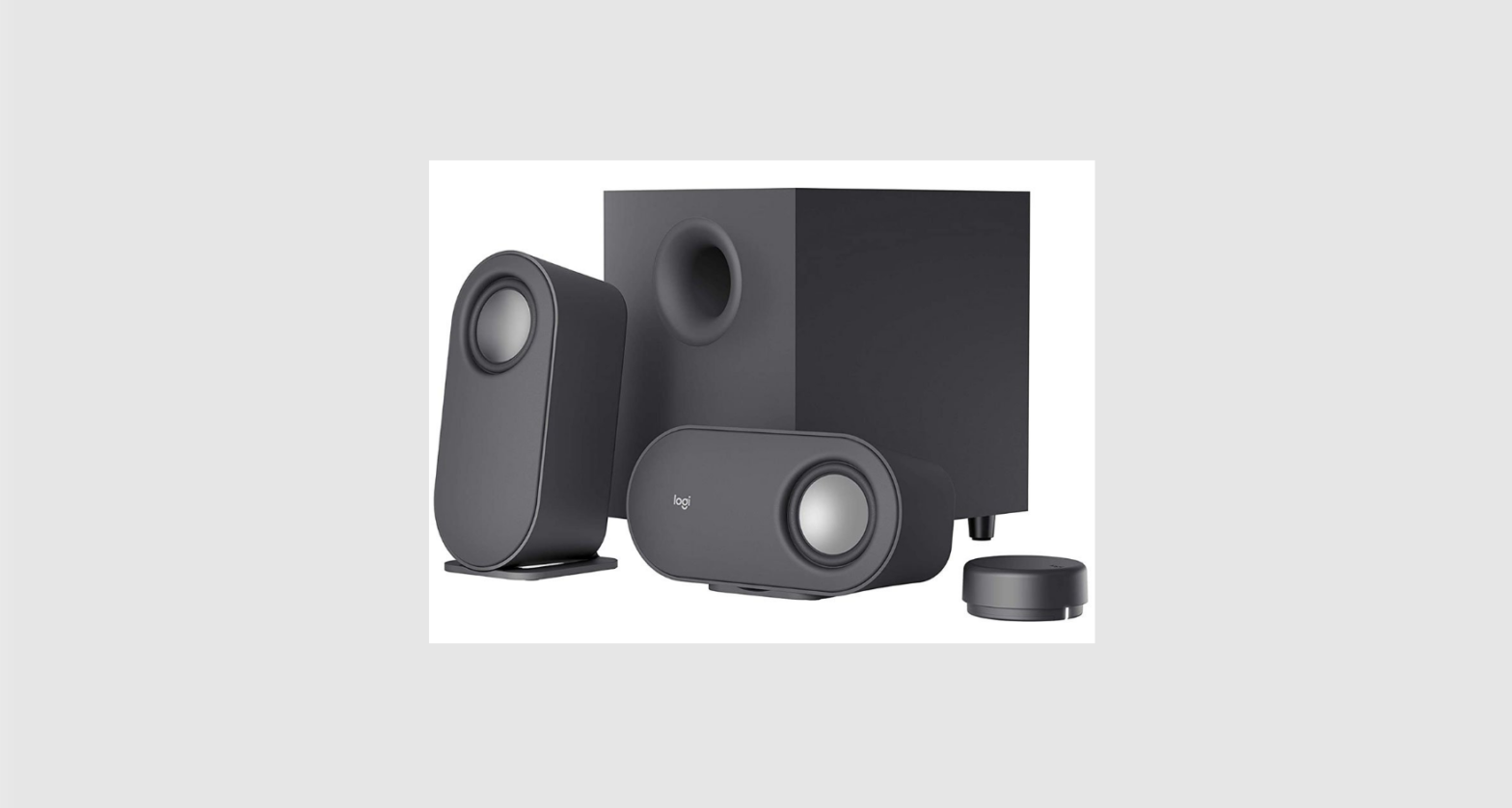
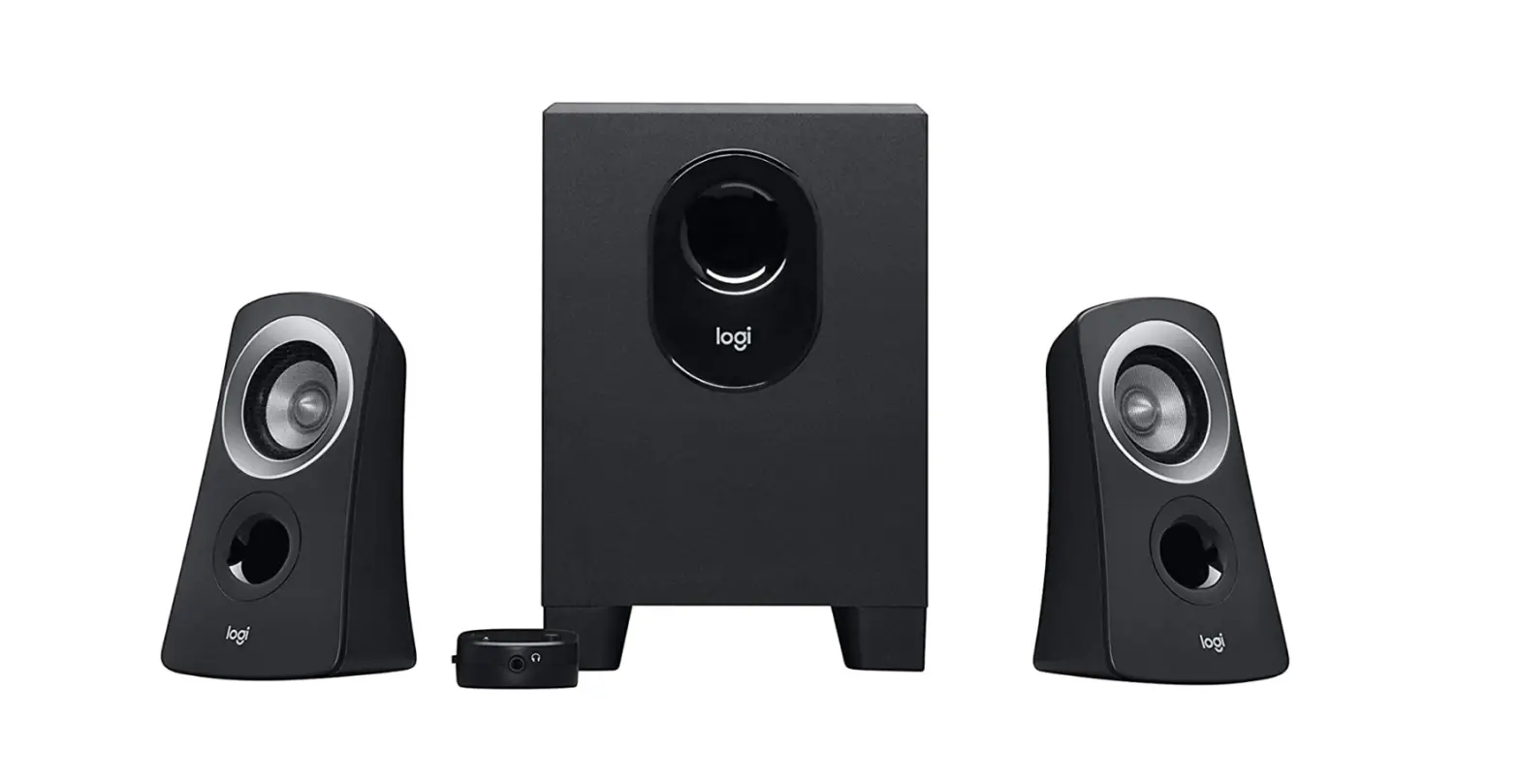
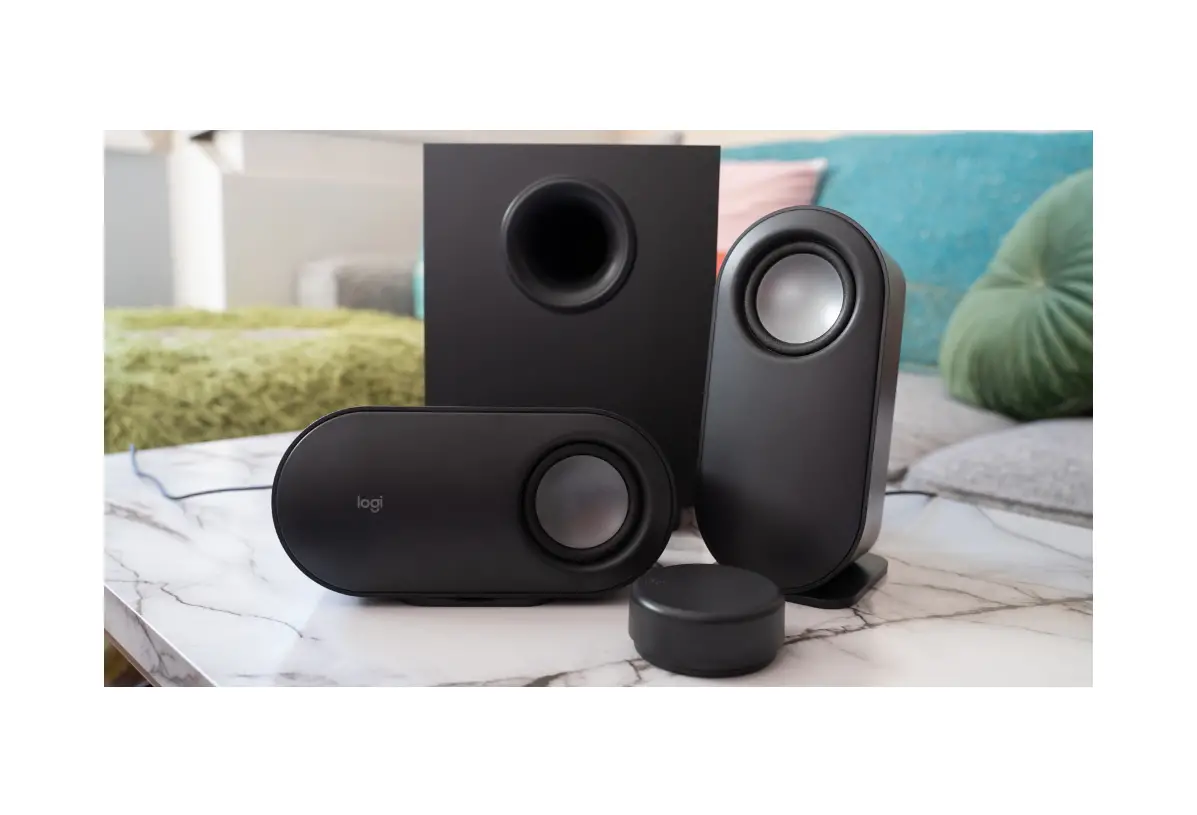
- Left satellite
- Right satellite
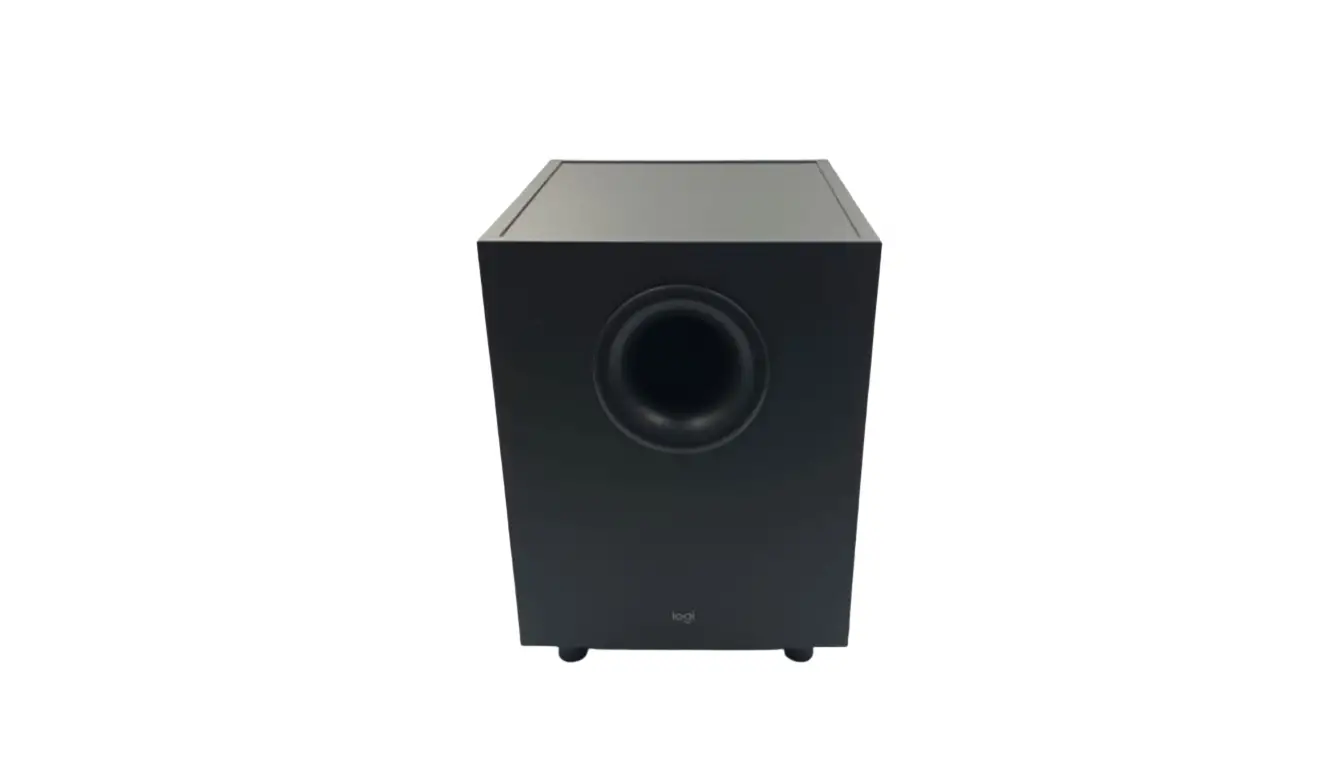
- Subwoofer
- Wireless control dial
- 2 AAA batteries
- Satellite stands
- 3.5 mm cable
- User documentation
CONNECT THE SPEAKERS
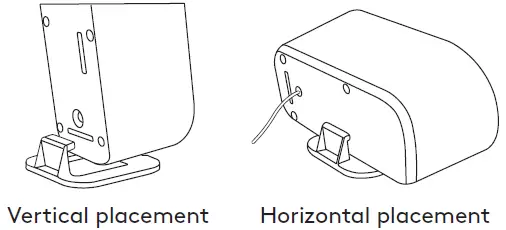
Place the stands to each satellite separately. Lay the speakers vertically or horizontally as per your preference. Make sure that the stands fit tightly in the speakers.
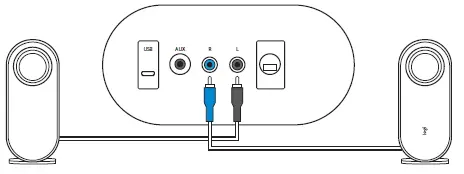
- Plug the right satellite cable into the blue subwoofer jack.
- Plug the left satellite cable into the gray subwoofer jack.
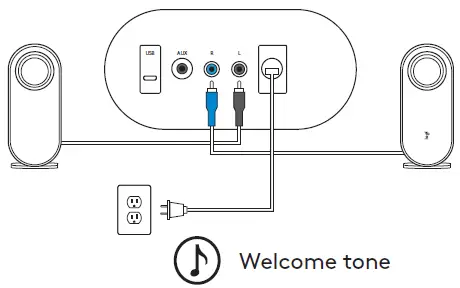
Plug the power cord into an electrical outlet. You will hear a welcome notification sound.
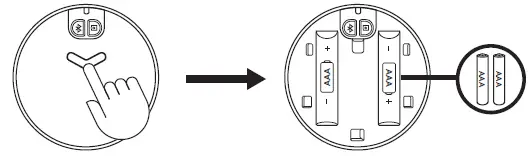
Long press and push downwards to open the back lid, place two AAA batteries to the corresponding space.
- Do not mix using akaline battery with rechargeable battery.
- Do not mix using new and old batteries.
- Do not leave the batteries unused in the product for extended periods.
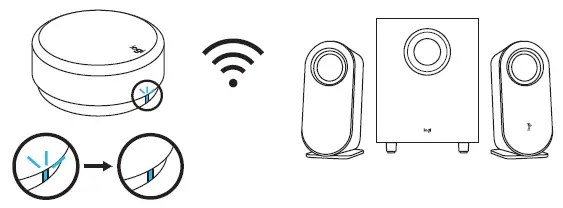
The LED indicator will then start blinking in blue. Once the wireless control dial is successfully connected to the speaker, the LED will turn into
a steady blue light.
CONNECT TO AUDIO SOURCE
The LED on the control dial will change correspondingly when connected to different connectivity.
- The LED will turn blue when connected via Bluetooth.
- The LED will turn purple when connected via 3.5 mm.
- The LED will turn white when connected via USB.
CONNECT VIA BLUETOOTH®
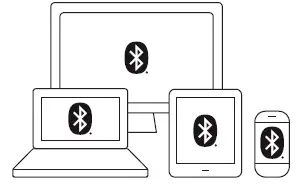
Make sure Bluetooth® is activated on the source device.
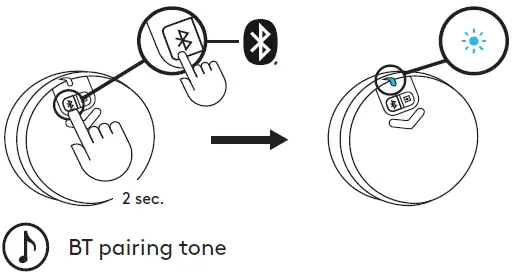
- Press and hold (2sec.) the Bluetooth® button on the bottom of the dial to activate pairing mode.
- The LED indicator will blink quickly. You will start to hear a pairing sound notification.
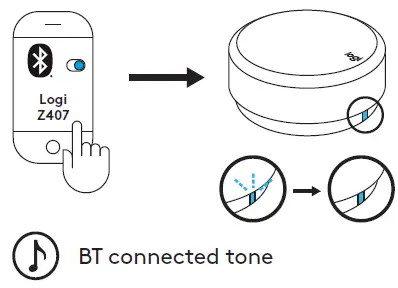
Select and connect to “Logi Z407” on your Bluetooth® device list. You will hear a connected tone.
The LED will turn into a steady blue light.
CONNECT VIA 3.5MM CABLE
Connect one end of the provided 3.5 mm cable to the auxiliary input on the back of the subwoofer.
Then connect the other end of the cable to the 3.5 mm audio jack on your device.
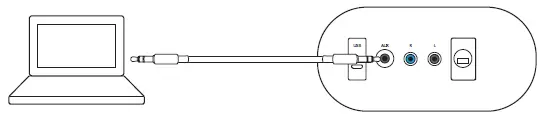
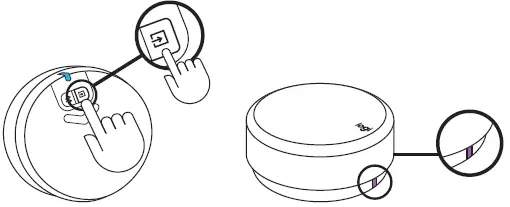
The default connectivity is Bluetooth®. To play through 3.5 mm connectivity, press the wired input button on the back of the dial.
The LED light will turn purple.
CONNECT VIA USB CABLE
Connect one end of the USB cable to the micro USB input on the back of the subwoofer.
Then connect the other end of the cable to USB-A input on your device.
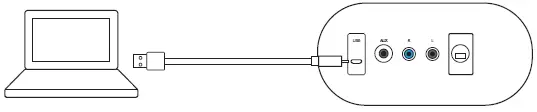
NOTE: USB cable is not included in the box and must be purchased separately.
The default connectivity is Bluetooth®.
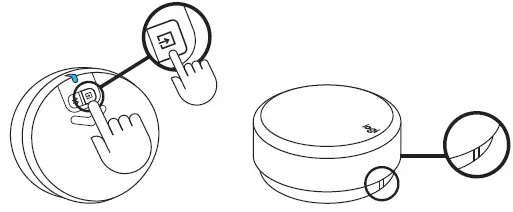
To play through USB connectivity, press the wired input button on the back of the dial.
The LED light will turn white.
CONNECT TO THREE DEVICES SIMULTANEOUSLY
Connect up to three devices at the same time through the micro USB input, 3.5 mm input on the back of the subwoofer, and Bluetooth®.
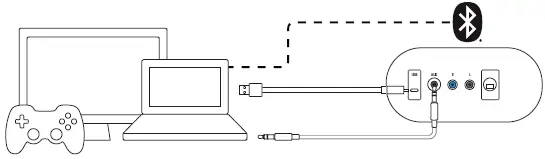
You can pair up to eight Bluetooth® source devices with your speakers.
To switch between wired and wireless audio sources, press the Bluetooth® button and the wired input button on the back of the wireless control dial.
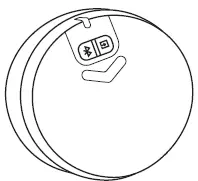
SWITCH BETWEEN DIFFERENT
AUDIO SOURCES
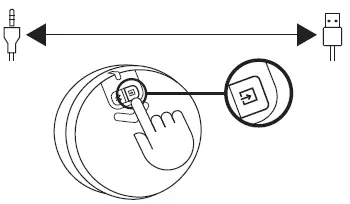
SWITCH BETWEEN TWO WIRED CONNECTIVITY
To switch between wired connection (3.5 mm and USB), press wired input button on the bottom of the dial.
The LED color will change correspondingly.
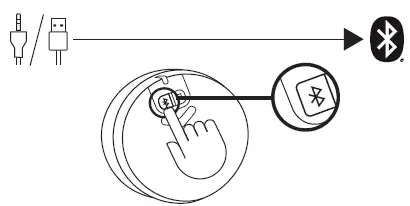
SWITCH BETWEEN WIRED AND WIRELESS CONNECTIVITY
To switch from wired connection to wireless connection (Bluetooth®), press Bluetooth® button on the bottom of the dial.
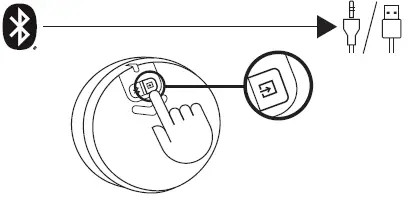
To switch from wireless connection to wired connection, press wired input button on the bottom of the dial.
CONTROL YOUR AUDIO CONTENT
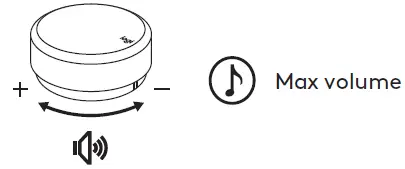
ADJUST THE VOLUME
- To adjust the volume of the speaker, rotate the wireless dial control clockwise (counterclockwise) to increase (decrease) the volume.
- When reaching to MAX volume, you will hear a notification tone.
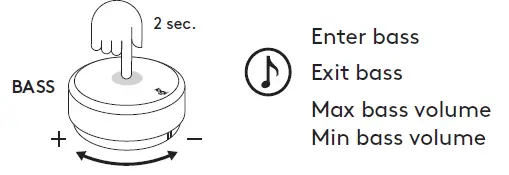
ADJUST THE BASS
- To adjust the bass level, long press the dial for 2 sec. and enter bass mode, you will hear a notification sound. Rotate clockwise (counterclockwise) to increase (decrease) the bass volume.
- Long press 2 sec. to exit bass mode, you will hear an exit notification sound.
- If you did not exit bass mode after adjusting the bass, the system will automatically change back to volume mode after 15 seconds without using.
- You will hear a notification sound when you reach Max and Min bass level.
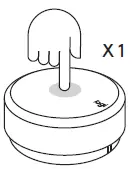
PLAY / PAUSE (MUTE/ UNMUTE)
- Press once on the dial to play/pause (mute/ unmute) your audio content.
- Play/pause (Mute/ unmute) will only be activated when the speaker is connected via Bluetooth® or USB input (3.5 mm).
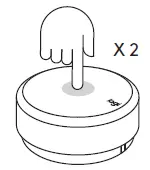
SKIP
- Press twice on the dial to skip your current track.
- Skip will only be activated when the speaker is connected via Bluetooth® or USB input.
REWIND
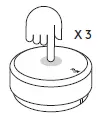
- Triple press on the dial to replay the soundtrack.
- Rewind will only be activated when the speaker is connected via Bluetooth® or USB input.
RESET ALL SETTINGS
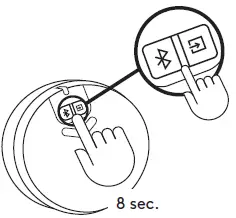
Long press the Bluetooth® button and the wired input button at the same time for 8 sec. to reset the system.
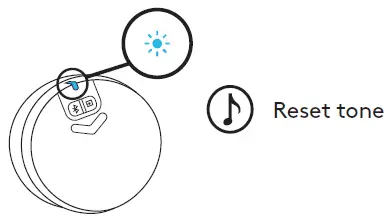
The LED will start to fast blink twice and then you will hear a reset tone. The LED will turn to solid blue after you successfully reset the speaker system.
CONTROL DIAL EXPERIENCE
| Usage | Description | LED Status | LED Color | Sonification | Actions | |
| 1 |
Connection (Dial – Speaker) | Default connected to the speaker | Solid | Blue | ||
| 2 | Waiting for connection to the speaker | Slow blink | Blue | |||
| 3 | Dial link lost | Slow blink | White (USB) / Blue (BT) / Purple (AUX) | |||
| 4 | New dial connects to the speaker | Solid | Blue | V | ||
| 5 |
Connection (Speaker – Device) | Connected / Normal Operation | Solid | White (USB) / Blue (BT) / Purple (AUX) | ||
| 6 | Bluetooth pairing to device | Fast blinking | Blue | V | Long press Bluetooth button for 2 sec | |
| 7 | Bluetooth connected | Solid | Blue | V | ||
| 8 | Bluetooth disconnected | Solid | Blue | V | ||
| 9 |
Media controls | Play / Pause |
Solid | White (USB) / Blue (BT) | One press | |
| 10 | Mute / Unmute | Purple (AUX) | One press | |||
| 11 | Track forward | White (USB) / Blue (BT) | Double press | |||
| 12 | Rewind (Track backward) | White (USB) / Blue (BT) | Triple press | |||
| 13 |
Volume controls | Adjust the system volume |
Solid |
White (USB) / Blue (BT) / Purple (AUX) | Rotate the dial | |
| 14 | Adjust the bass volume | Long press 2 sec to enter and exit bass mode | ||||
| 15 | Max volume | V | ||||
| 16 | Max bass | V | ||||
| 17 |
System | Low Battery | Solid | Red | ||
| 18 | Extreme low battery | Fast blink | Red | |||
| 19 | Reset all settings | Fast blink → Solid | Status color → Blue | V | Press & hold BT and wired input button for 8 sec |
© 2020 Logitech, Logi and the Logitech logo are trademarks or registered trademarks of Logitech Europe S.A. and/ or its affiliates in the U.S. and other countries. The Bluetooth® word mark and logos are registered trademarks owned by Bluetooth SIG, Inc. and any use of such marks by Logitech is under license. All other trademarks are the property of their respective owners.
WEB-621-001788.002
 Logitech Support + Download