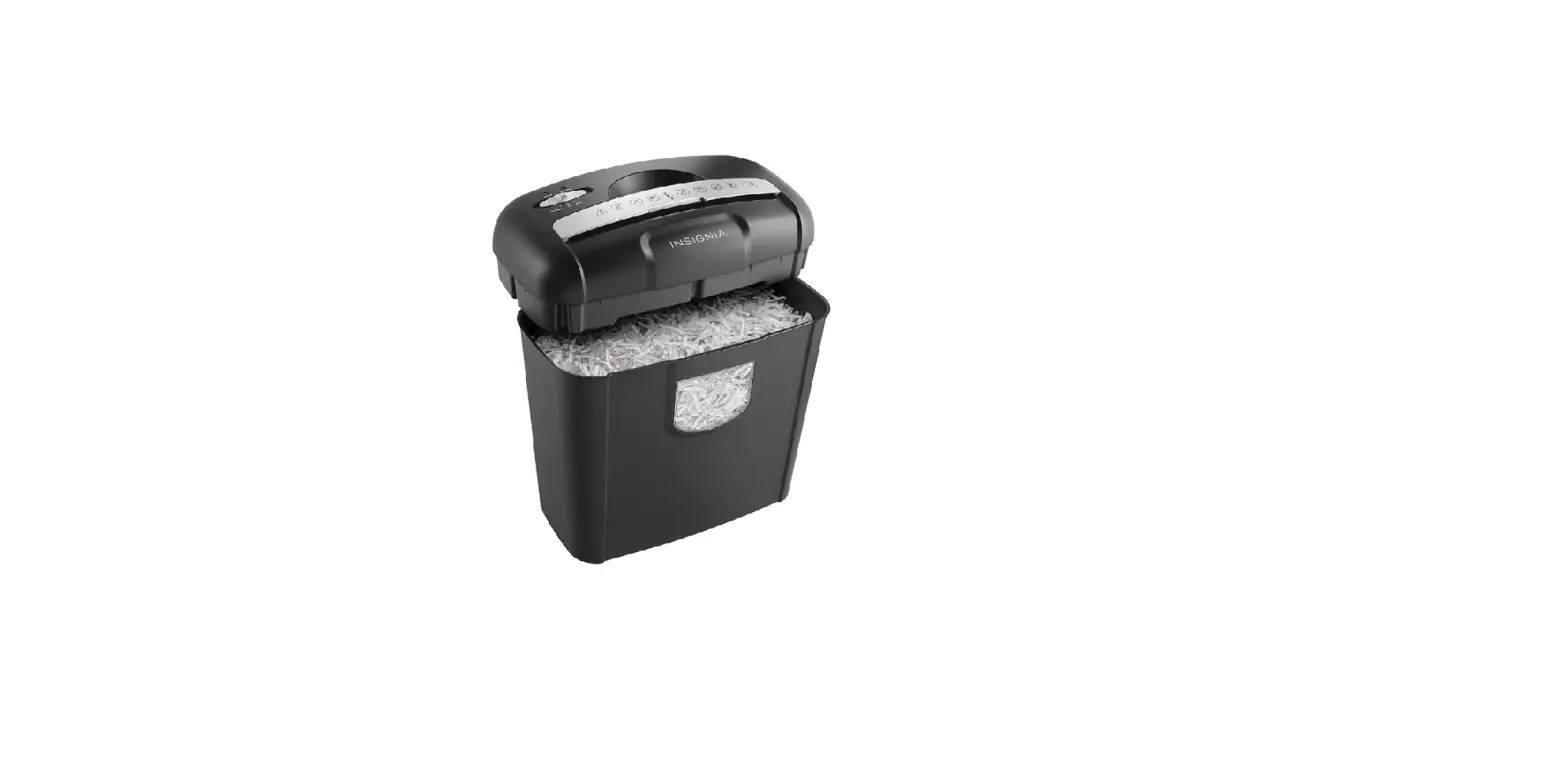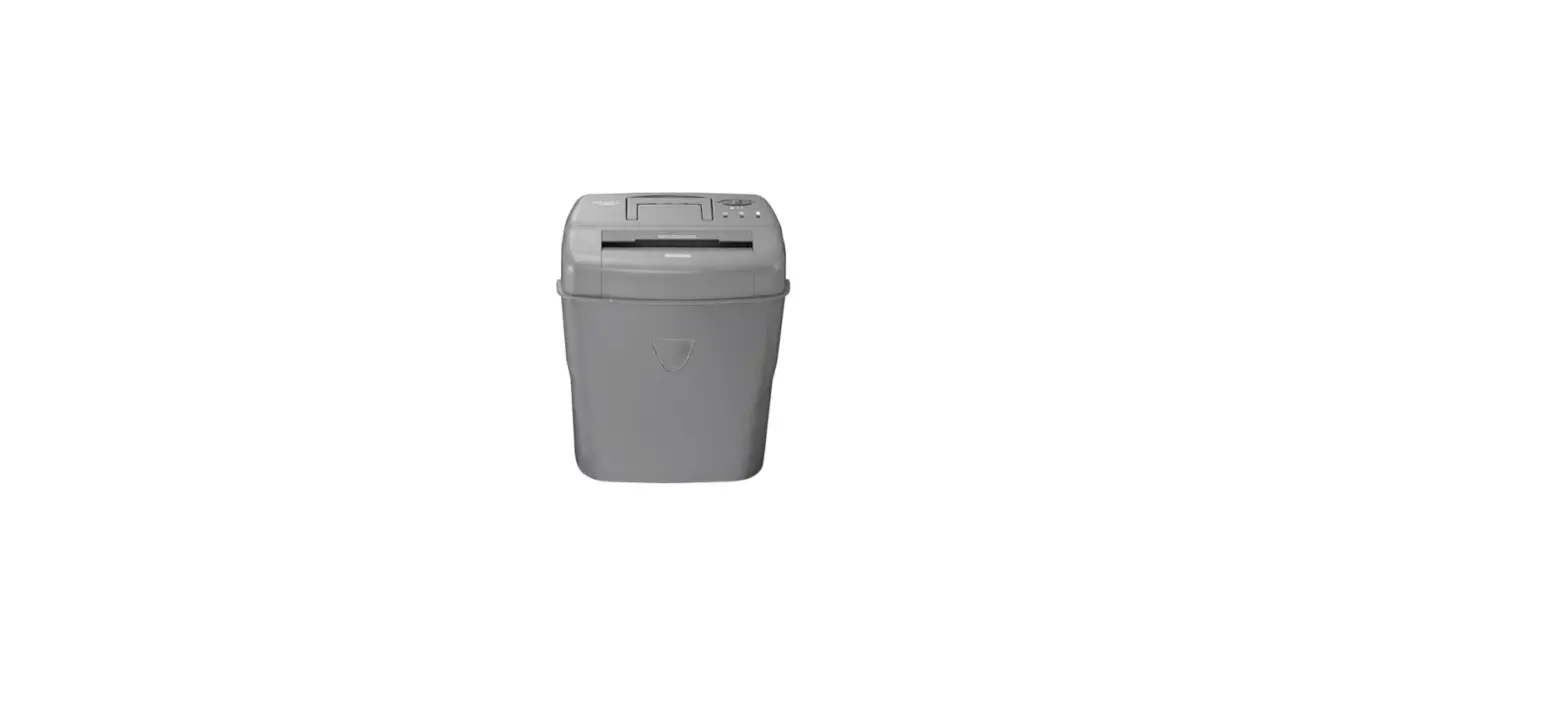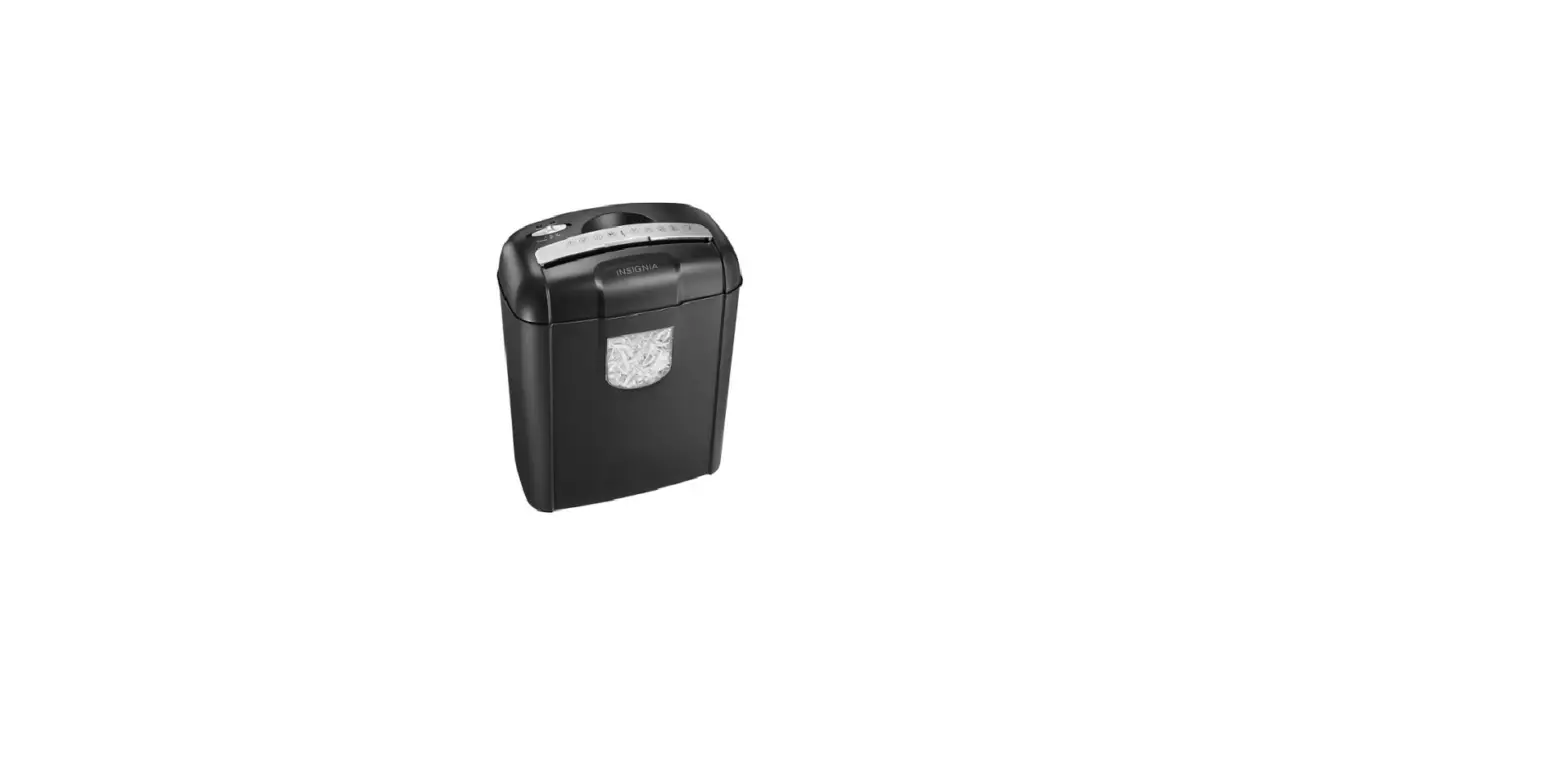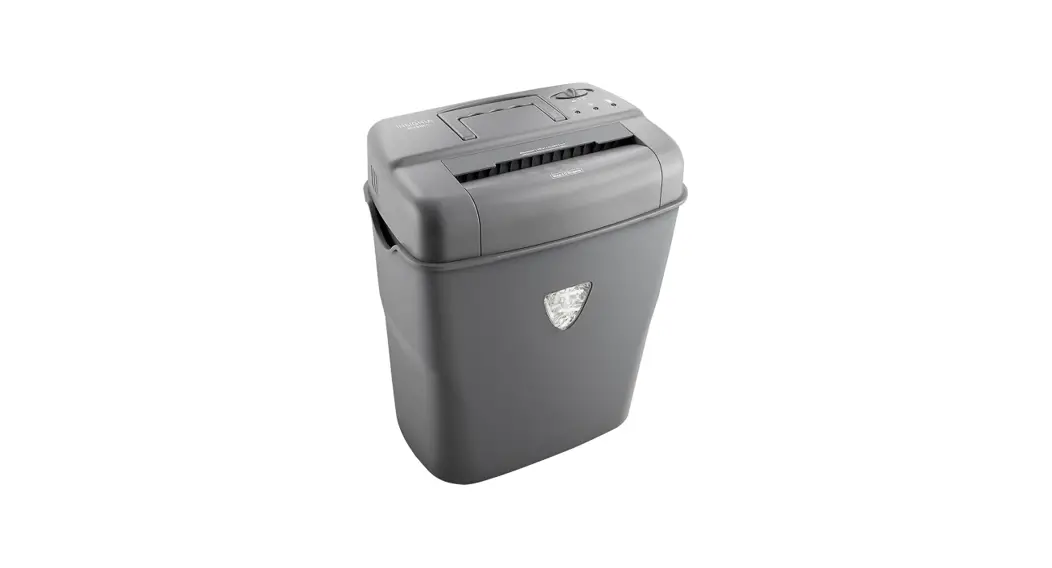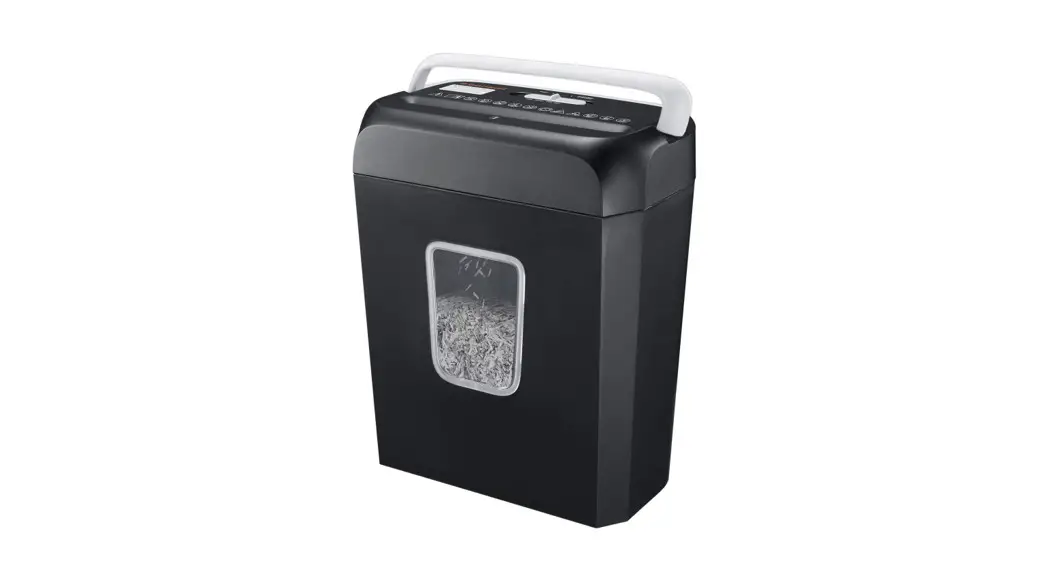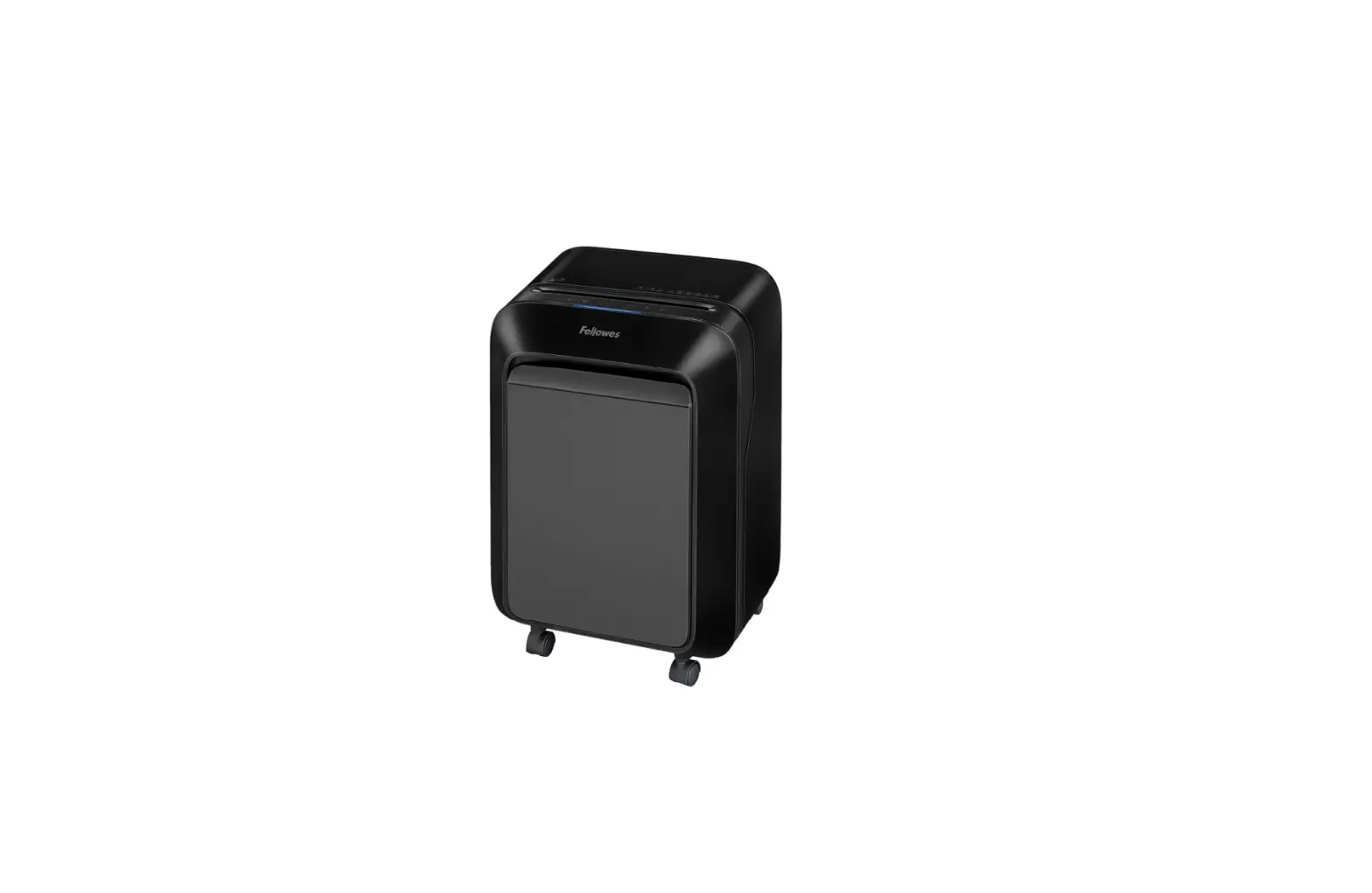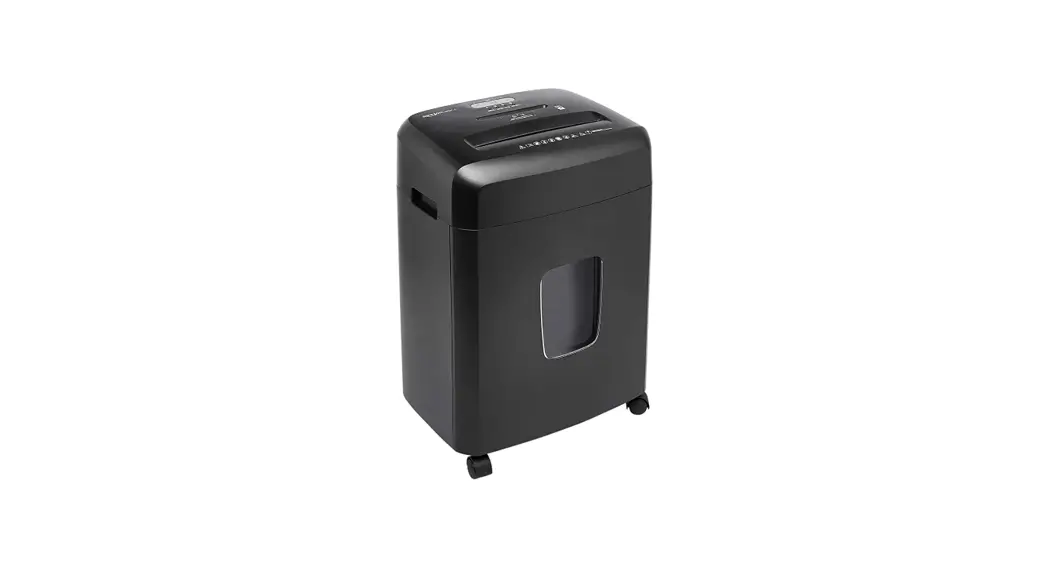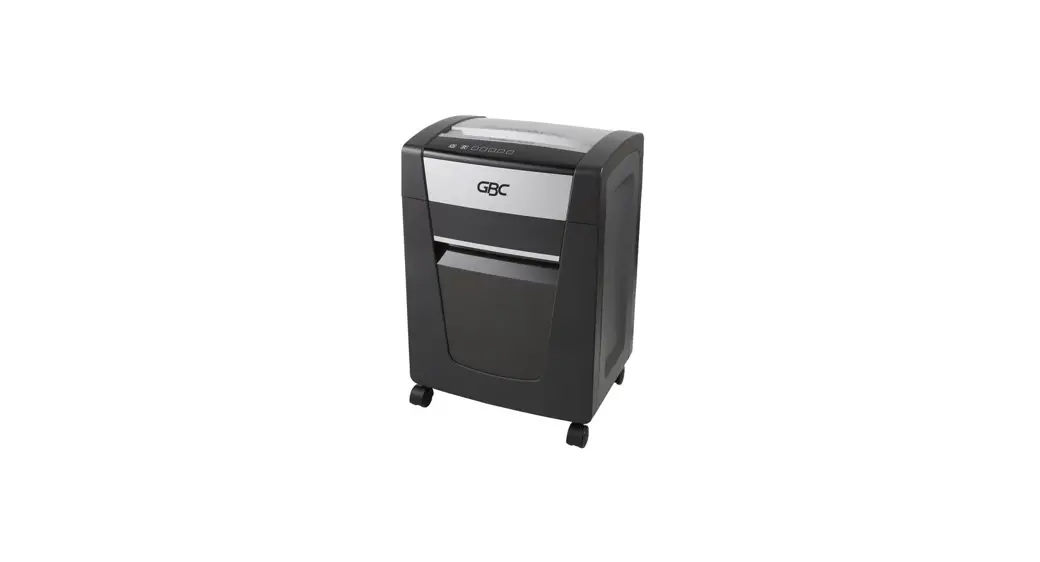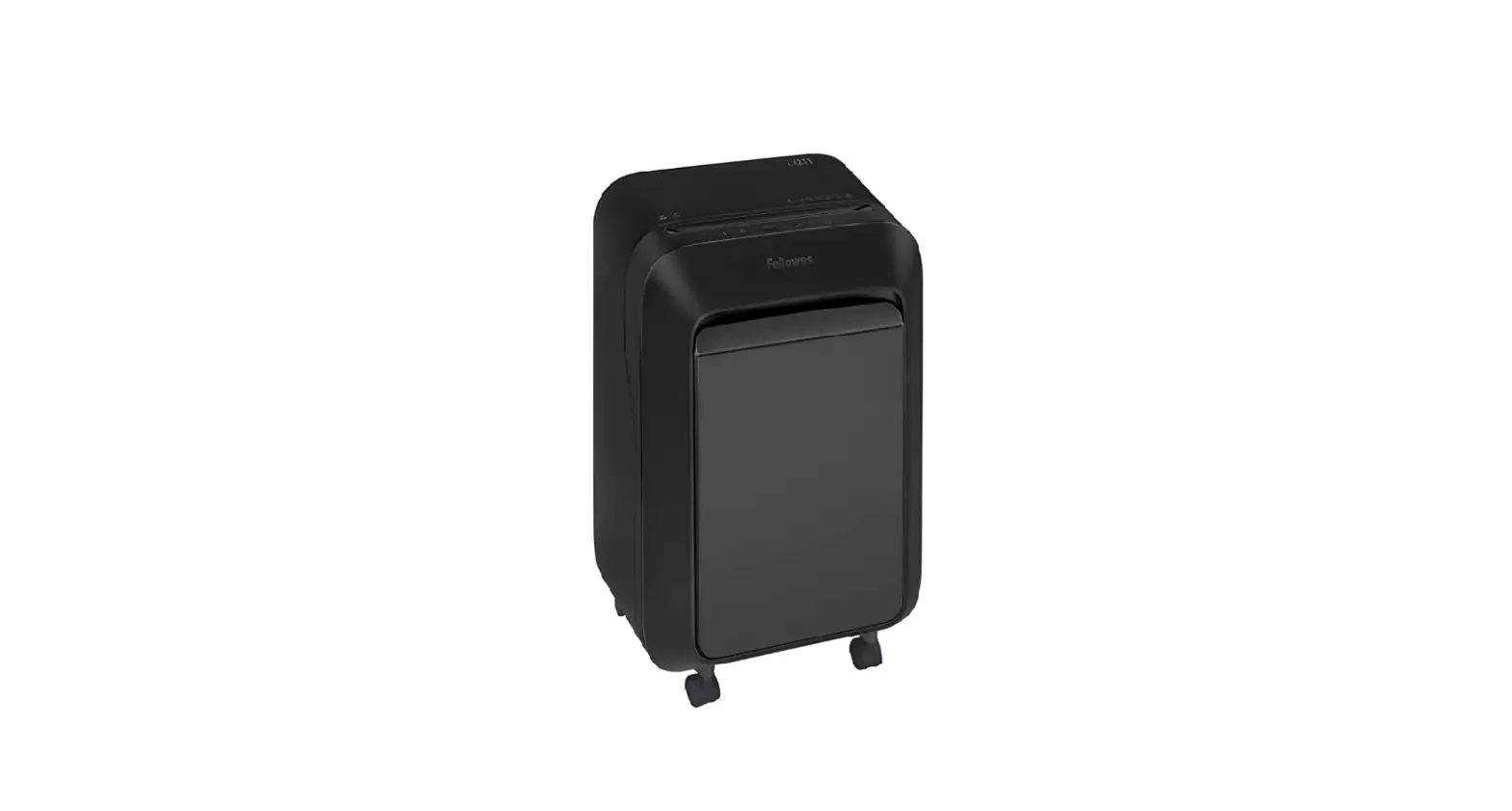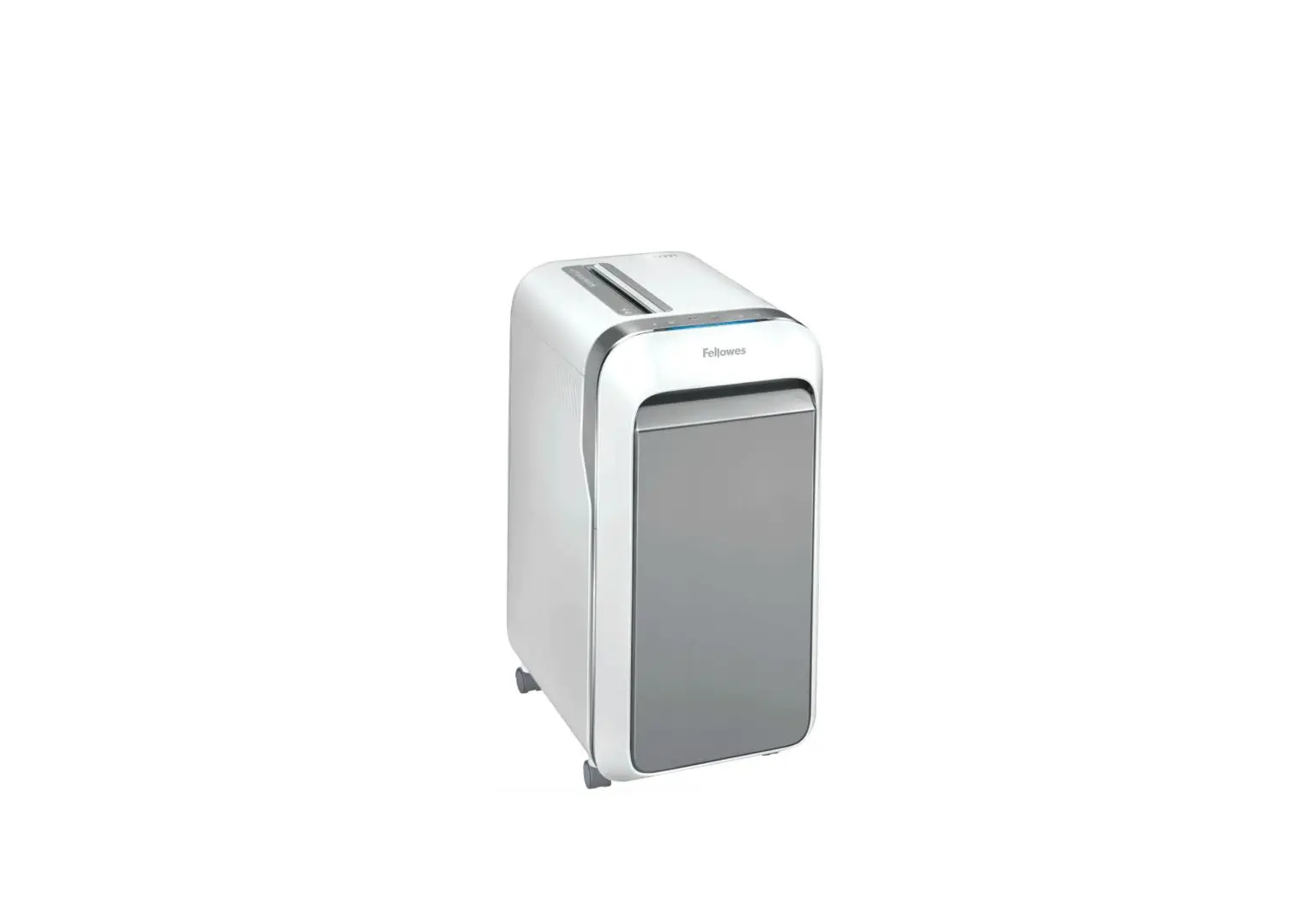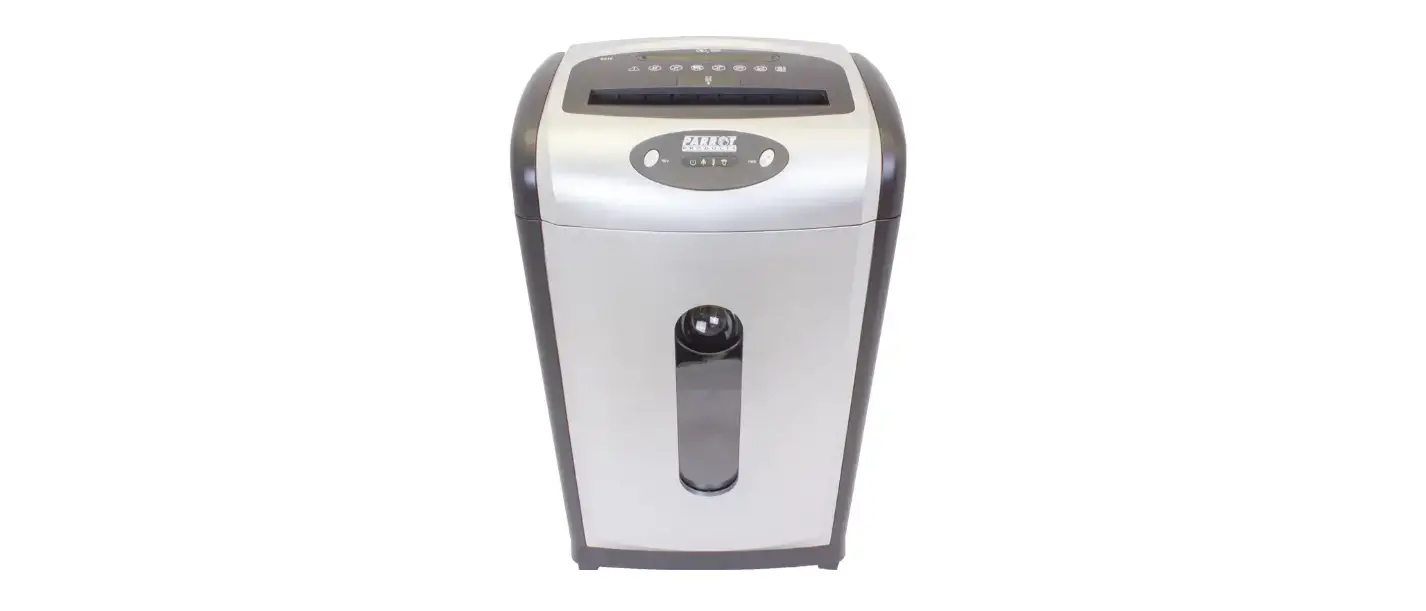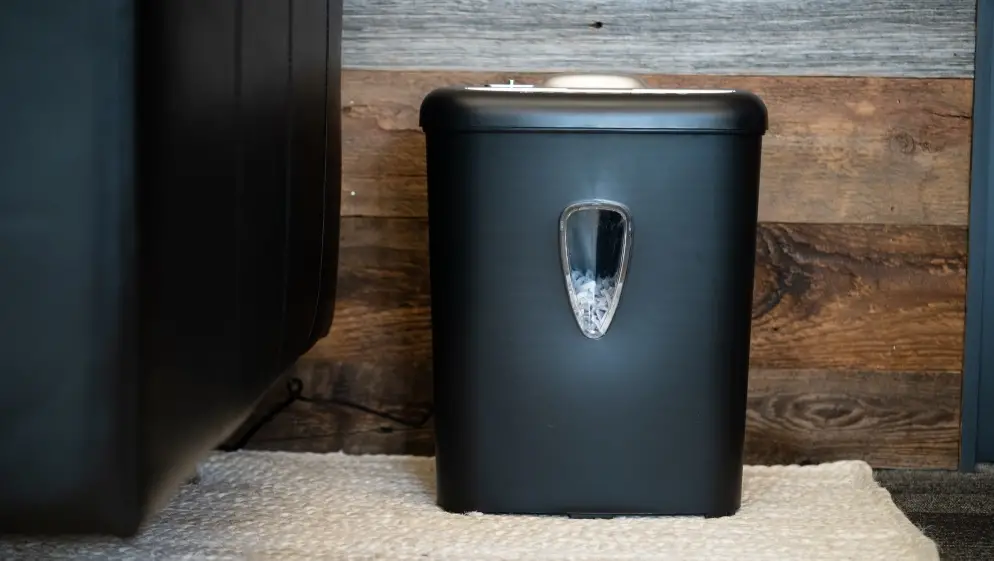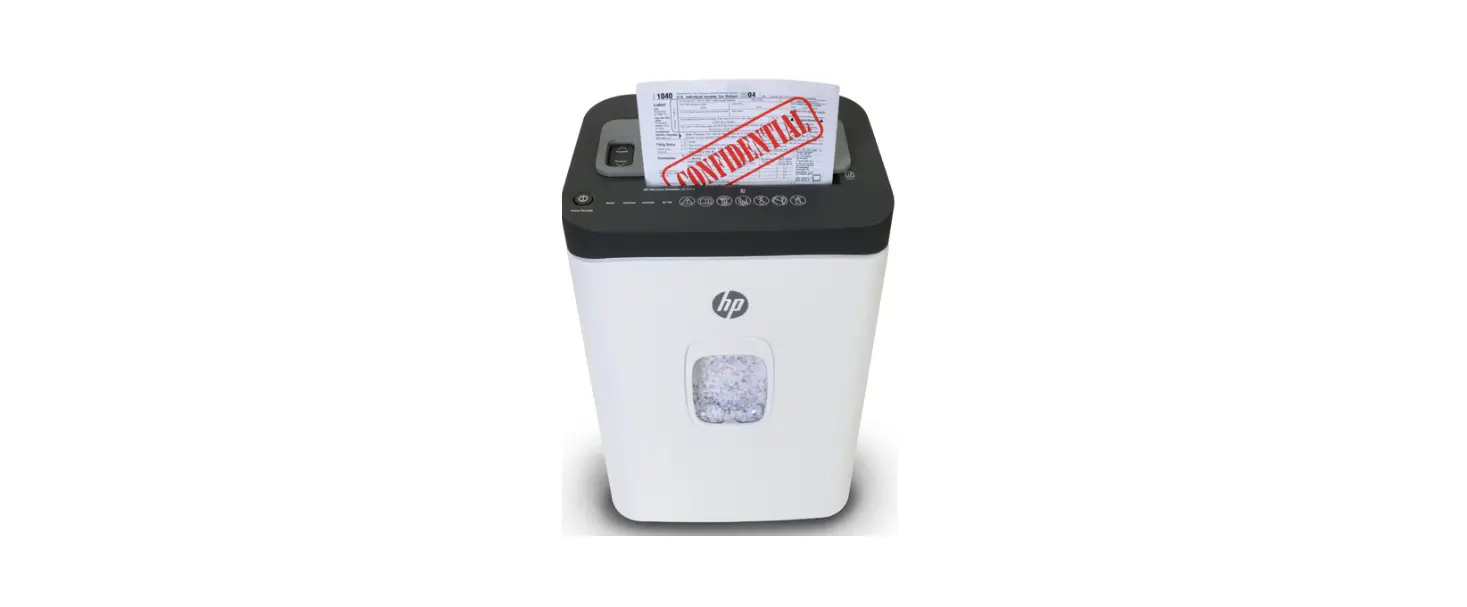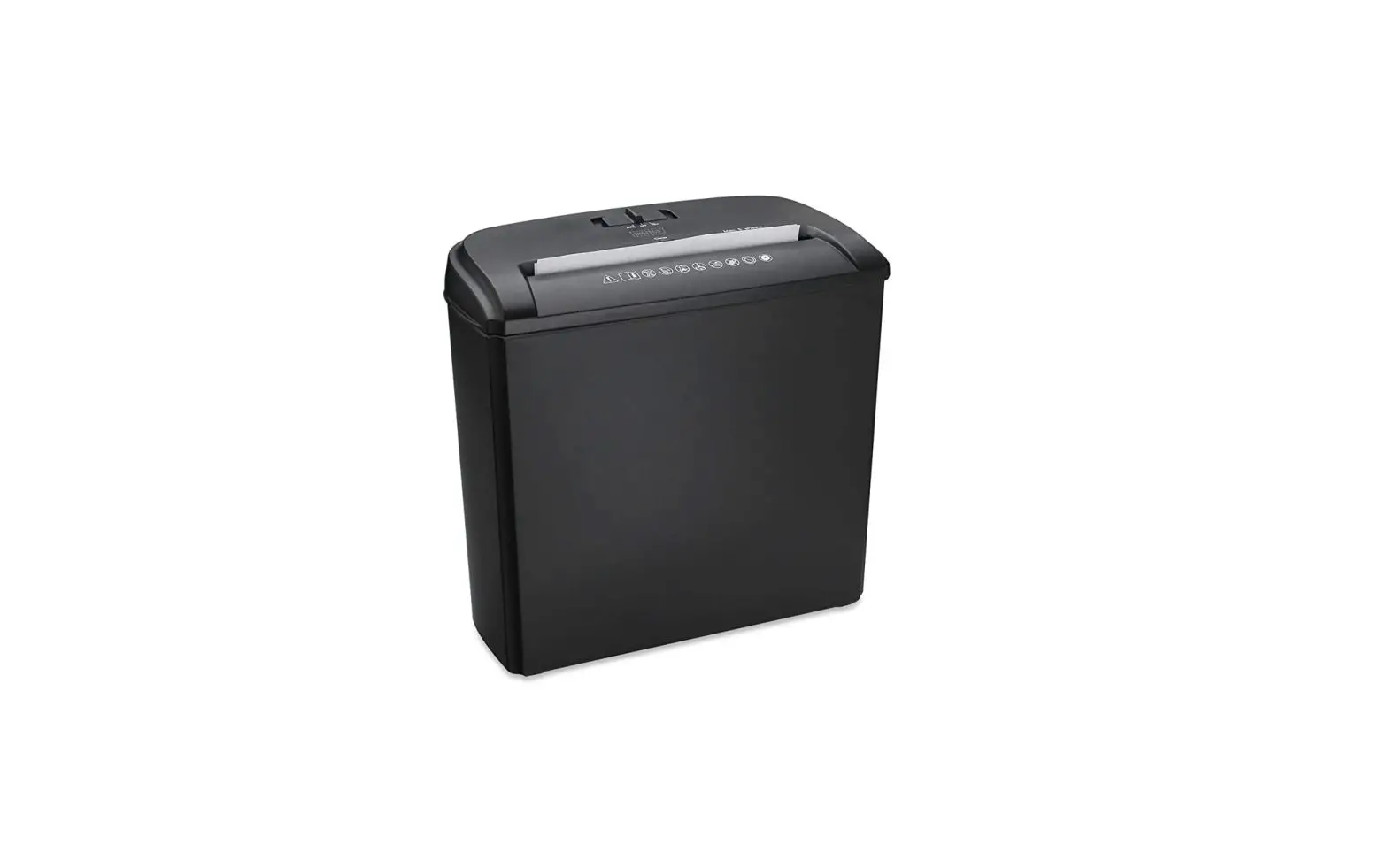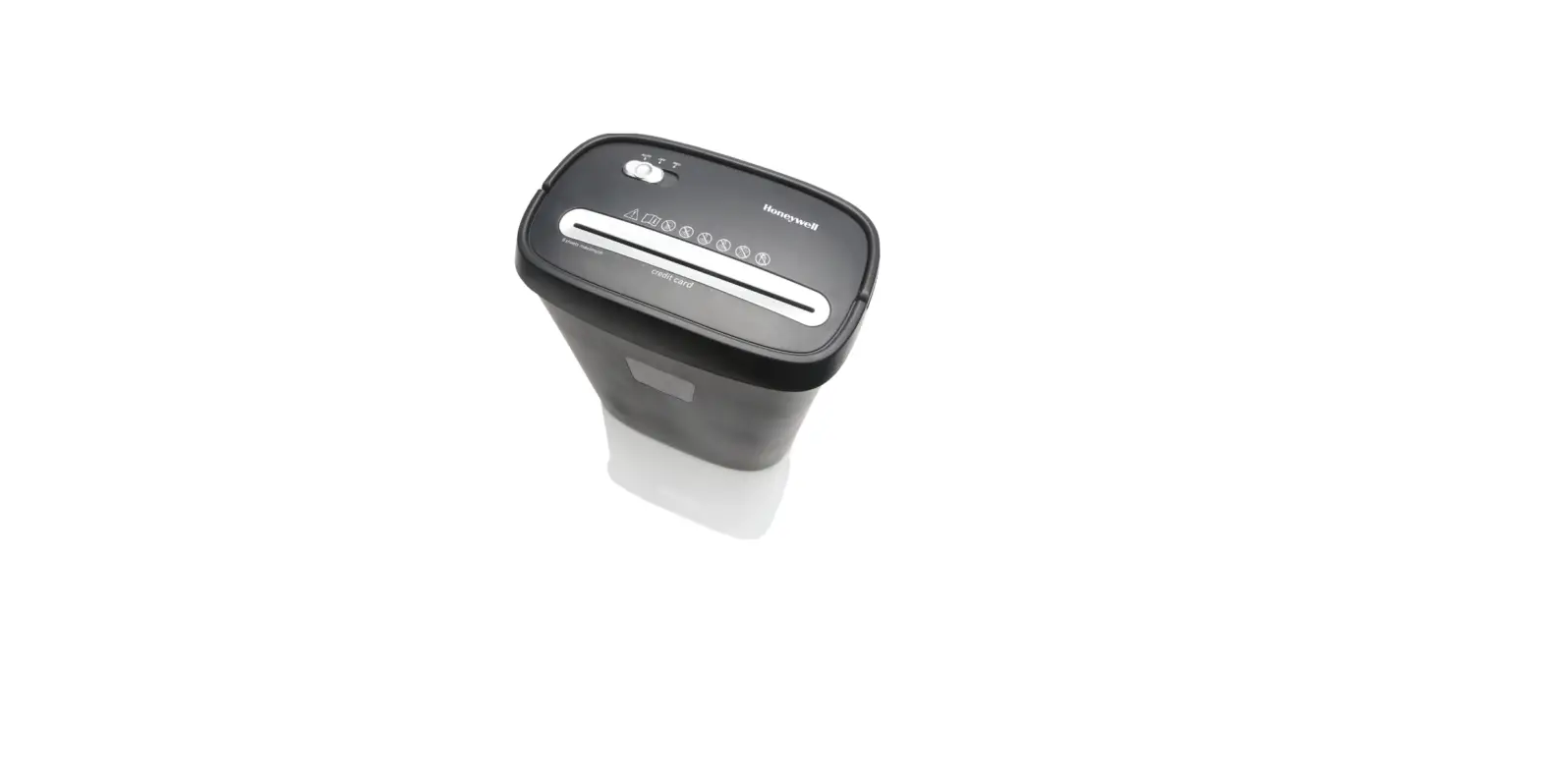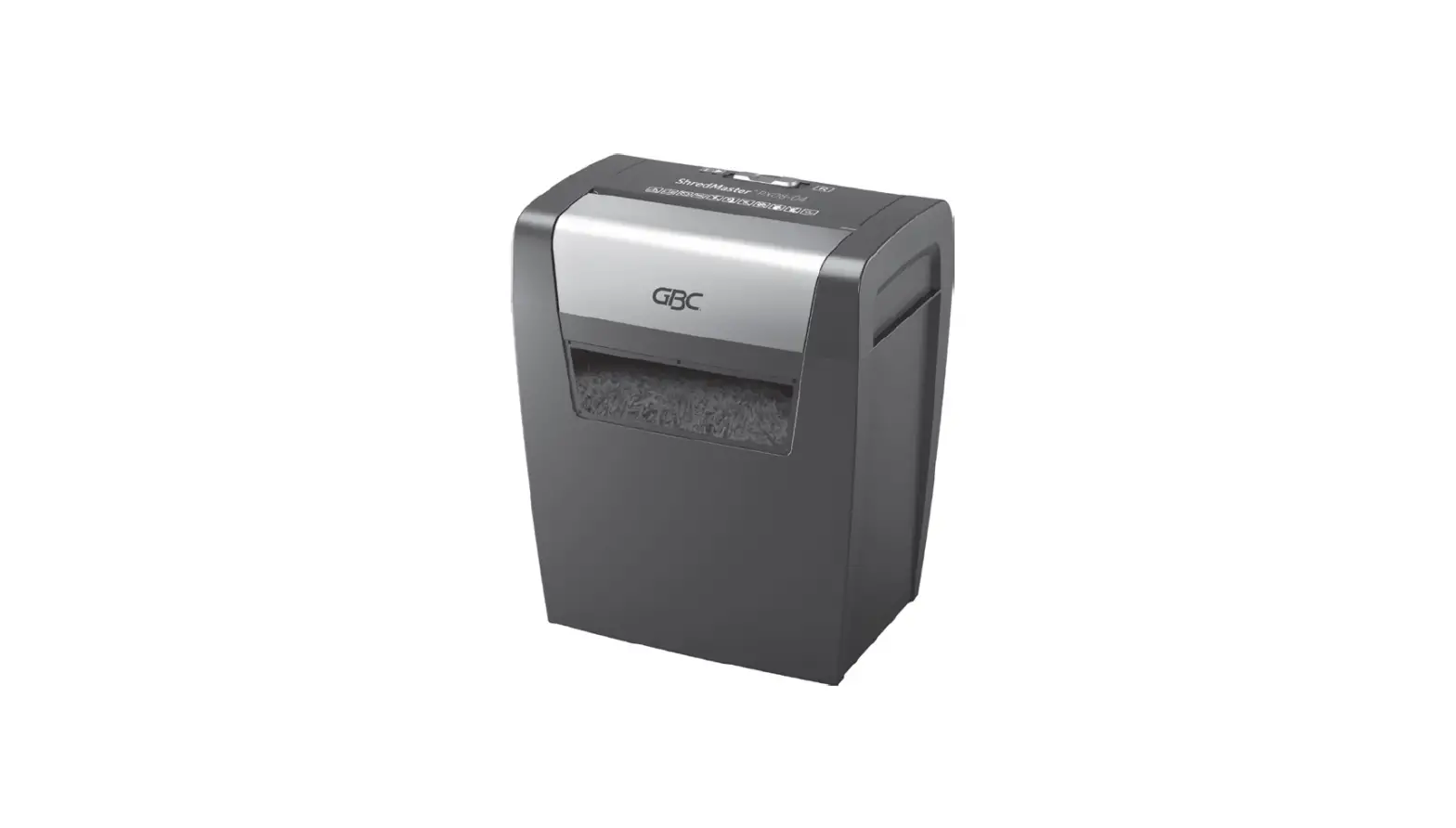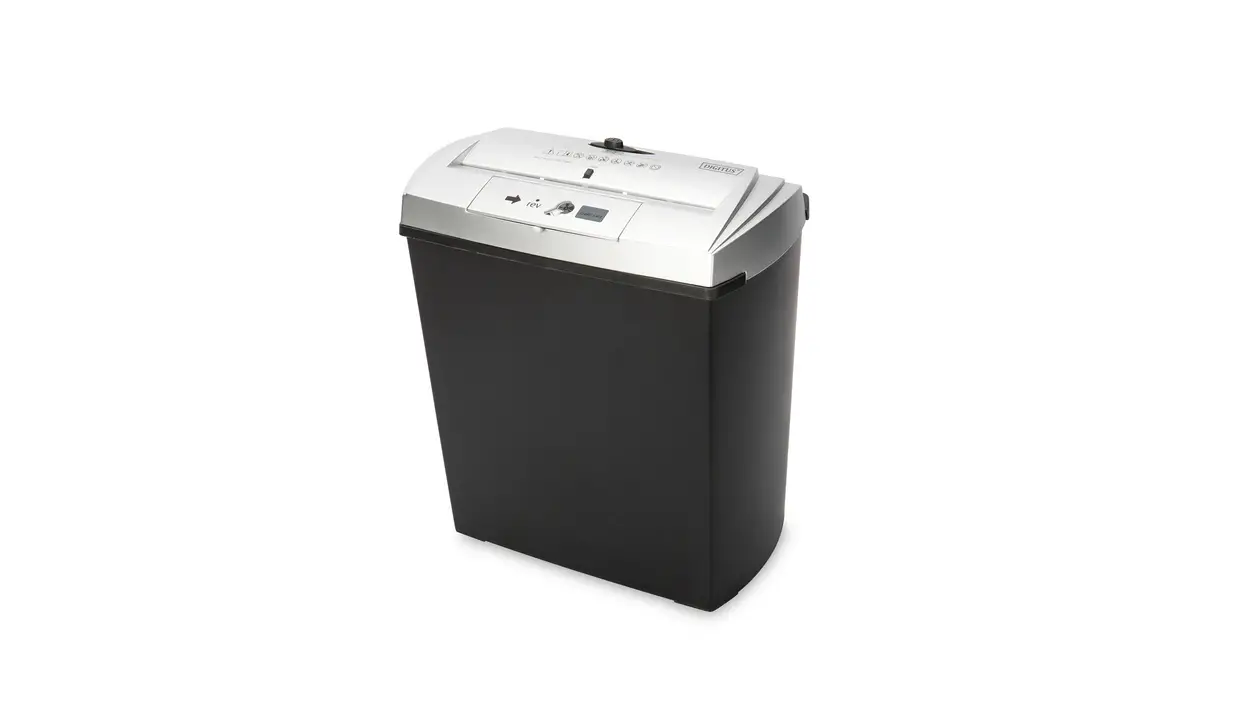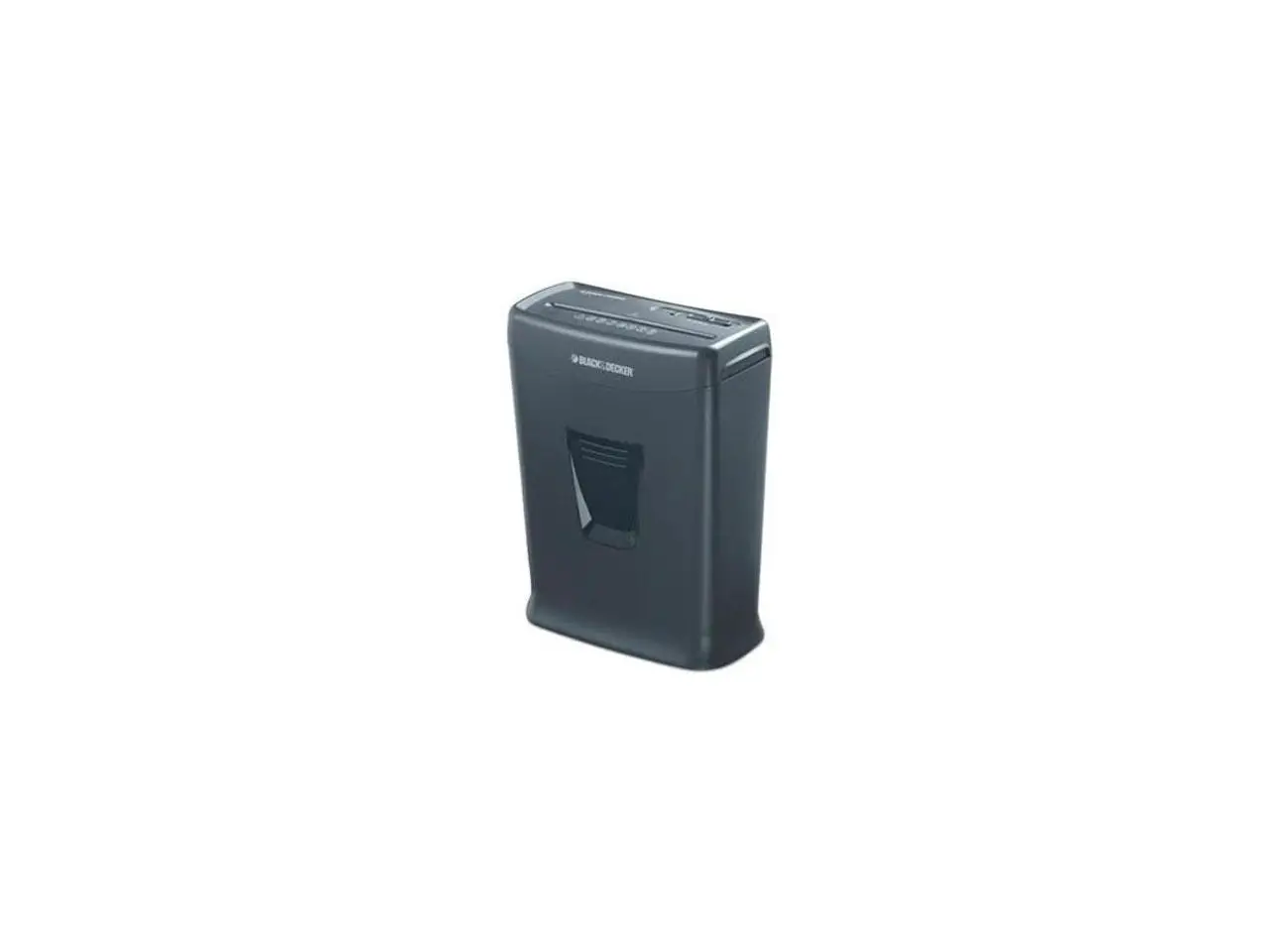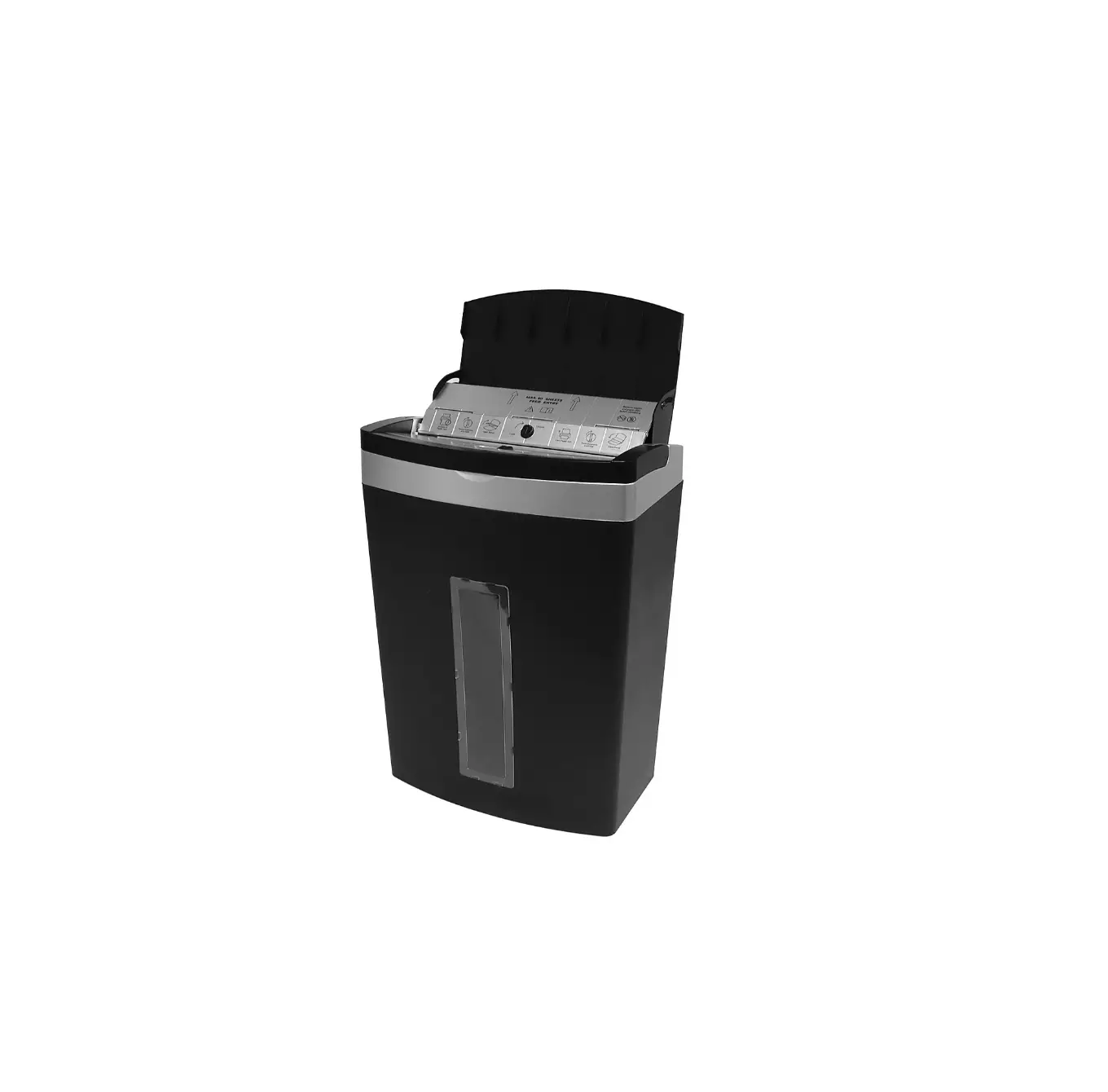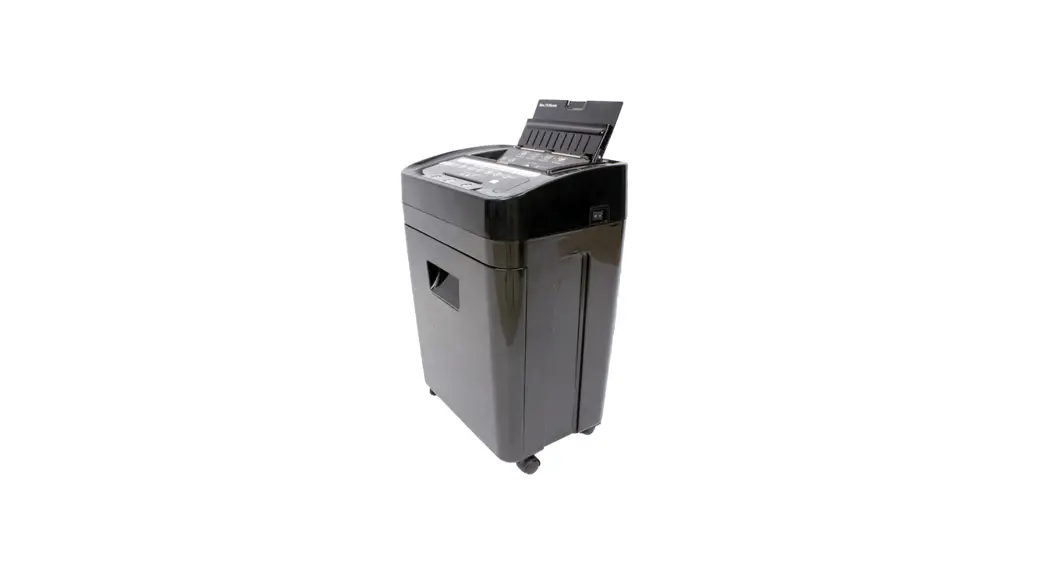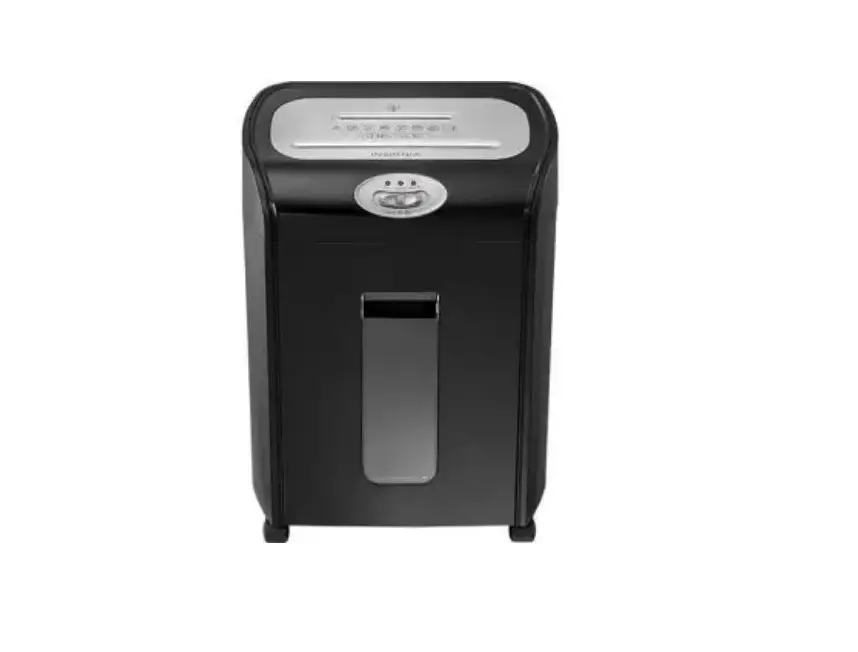
INSIGNIA NS-PS10MC/ NS-PS10MC-C 10-sheet Micro Cut Shredder
FEATURES
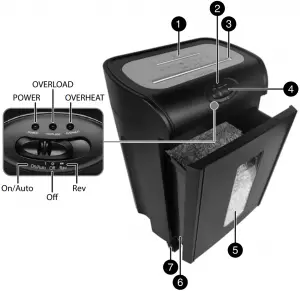
| # | ITEM | DESCRIPTION |
| 1 | Disc slot | For CDs and DVDs. Insert one at a time. |
| 2 | LED indicators | POWER: Lights when the shredder is in use. OVERLOAD: Lights when trying to shred over the maximum 10 sheets, or paper is folded. OVERHEAT: Lights when the shredder has overheated. If this light is on, unplug the shredder and let it cool for at least 50 minutes. |
| 3 | Paper/Credit card slot | Insert up to 10 sheets of paper at a time or one credit card at a time. |
| 4 | Switch | On/Auto ( | ): Shreds an item when inserted into the paper or disc slot, then stops when it is finished shredding. Off ( O ): Turns off the shredder. Rev (  ): Reverses the paper to clear a jam or remove unshredded paper. ): Reverses the paper to clear a jam or remove unshredded paper. |
| 5 | Window | Allows you to see when the wastebasket is full. |
| 6 | Wastebasket | Empty when 2/3 full. |
| 7 | Wheels | Allows you to easily move your shredder. |
SETTING UP YOUR SHREDDER
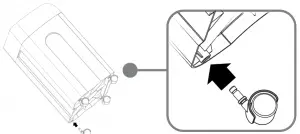
- Push the wheels into the holes on the bottom of your shredder.

- Place the wastebasket securely in the shredder.
Note: Do not use plastic bags to line the wastebasket. - Connect the power cord to a power outlet.
USING YOUR SHREDDER
- Slide the power switch to On/Auto.
- Insert paper (up to 10 pages) or one credit card into the paper/credit card slot, or insert disc into the disc slot. The shredder automatically shreds what you insert.
Note: Do not put paper clips, adhesive paper, or tape through the shredder. You can shred staples. - If the shredder jams, slide the switch to REV to return the paper, then slide the switch to OFF.
- When the wastebasket is 2/3 full, slide the switch to OFF, unplug it from the power outlet, then remove and empty the wastebasket. Replace the wastebasket
| PROBLEM | SOLUTION |
| The shredder does not stop running | • Slide the switch to OFF, unplug it from the power outlet, then empty the wastebasket. • Slide the switch to OFF, unplug it from the power outlet, then push the shredded paper down to make sure that it is away from the shredder head. • Slide the switch to REV to remove extra paper, disc, or credit card from the shredder. |
| The shredder is jammed | • Slide the switch to REV to remove the stuck paper, disc, or credit card. • Make sure that you only send 10 sheets of paper, one credit card, or one disc through the shredder at a time. |
| The shredder will not run | • Change the position of the paper as you insert it. • The paper may be too thin or crumpled for the shredder to recognize it. Fold the paper, then reinsert it. • Slide the switch to REV. • Make sure that you only send 10 sheets of paper, one credit card, or one disc through the shredder at a time. • Unplug the shredder from the power outlet and let it cool for at least 50 minutes. |
| The overheat LED indicator turned on | Unplug the shredder from the power outlet and let it cool for at least 50 minutes. |
| The overload LED indicator turned on | • Slide the switch to OFF, unplug the shredder from the power outlet, then empty the wastebasket. |
SPECIFICATIONS
| Cutting style | Micro cut |
| Entry width | 8.8 in. (225 mm) |
| Shred capacity | 10 sheets (75 g/m2 A4 paper) 1 disc or credit card |
| Shred size | 2 × .35 in. (3 × 9 mm) |
| Duty cycle | 5 mins ON / 50 mins OFF |
| Input | AC 120 V, 60 Hz, 2.3 A |
| Net weight | 18.2 lbs. (8.25 kg) |
| Basket capacity | 4.5 gal (17 L) |
IMPORTANT SAFETY INFORMATION
- Avoid touching the paper/credit card or disc slot with your hands.
- Keep pets and children away from the shredder.
- Keep loose clothing, jewelry, hair, and other personal items away from the shredder.
- Unplug the shredder before cleaning or emptying the wastebasket.
- Do not place the shredder near a heat source or store in a humid environment for long periods of time.
- Unplug the shredder if it will not be used for a long period of time.
- Do not use aerosol products near the shredder.
- The socket-outlet shall be near the shredder and shall be easily accessible.
 WARNING: To avoid injury to yourself and others, please follow safety instructions before operating this device.
 Read instructions before use
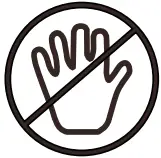 Avoid touching the document feed opening with your hands. Never insert your hand or fingers into the feed opening
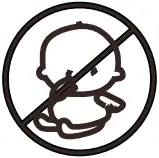 Product is not intended for use by children (product is not a toy).
 Do not spray or keep any aerosol products in or around shredder.
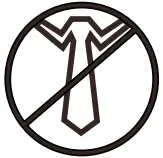 Avoid loose clothing or jewelry touching the document feed opening
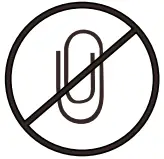 Avoid loose clothing or jewelry touching the document feed opening
 Avoid getting your hair or face near the document feed opening. Do not let hair touch the document feed opening. Serious injury may result
 Do not exceed the shredders maximum capacity of ten sheets.
ONE-YEAR LIMITED WARRANTY
Visit www.insigniaproducts.com for details.
CONTACT INSIGNIA:
For customer service, call 1-877-467-4289 (U.S. and Canada) or 01-800-926-3000 (Mexico) www.insigniaproducts.com
INSIGNIA is a trademark of Best Buy and its affiliated companies.
Distributed by Best Buy Purchasing, LLC 7601 Penn Ave South, Richfield, MN 55423 U.S.A. ©2019 Best Buy. All rights reserved.
INSIGNIA NS-PS10MC/ NS-PS10MC-C 10-sheet Micro Cut Shredder Quick Setup Guide – Download