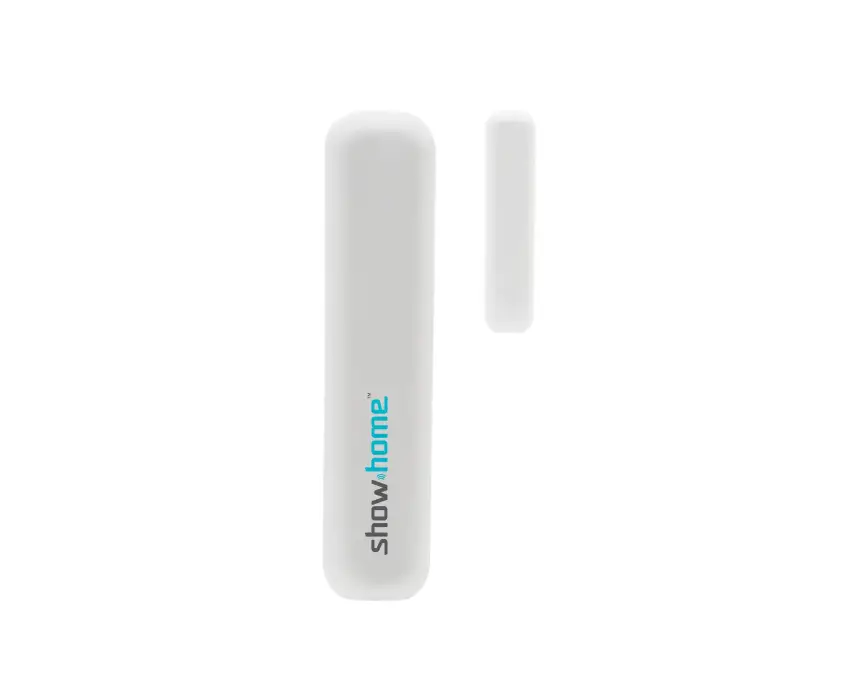
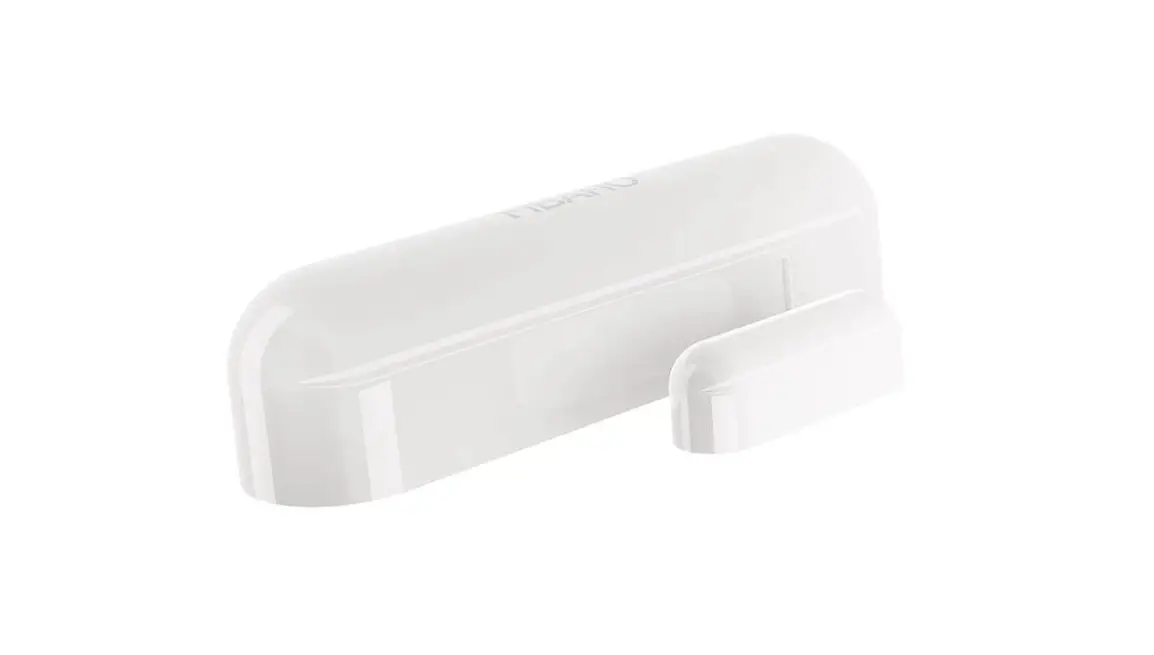
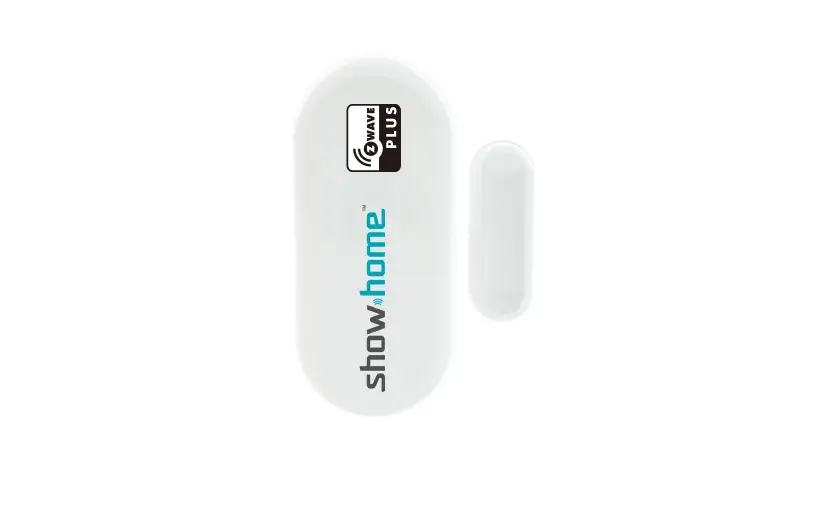
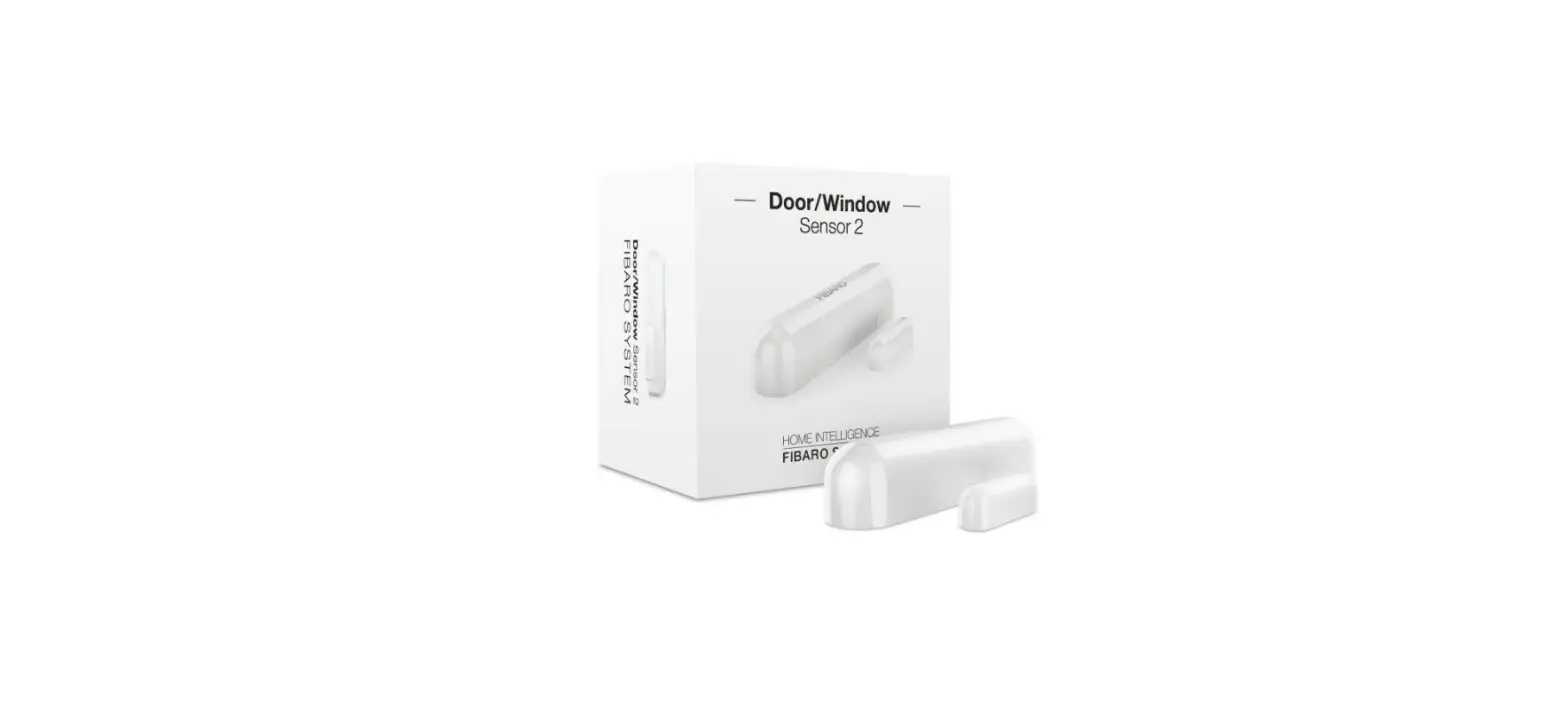
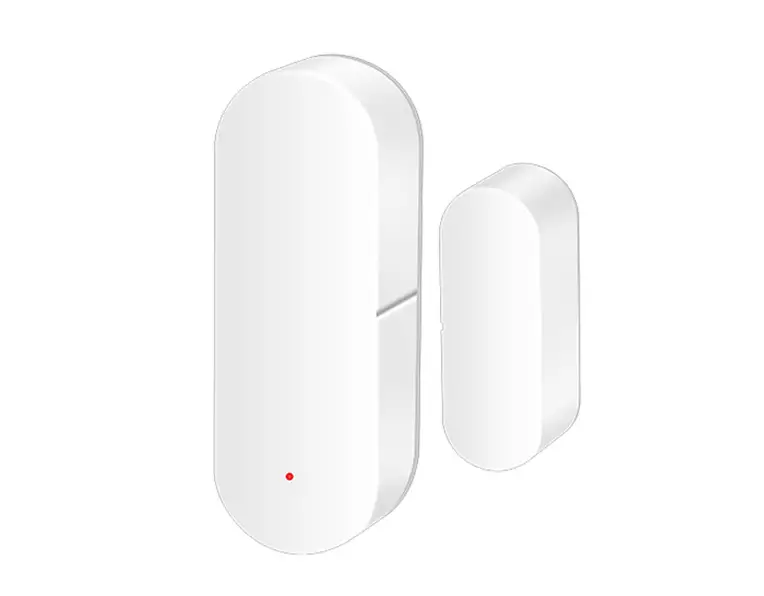
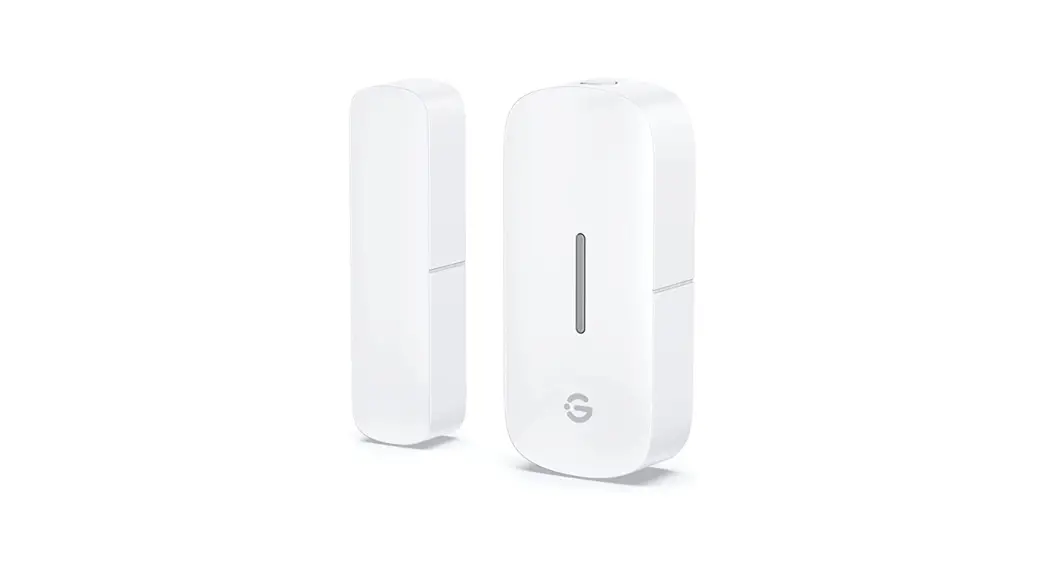
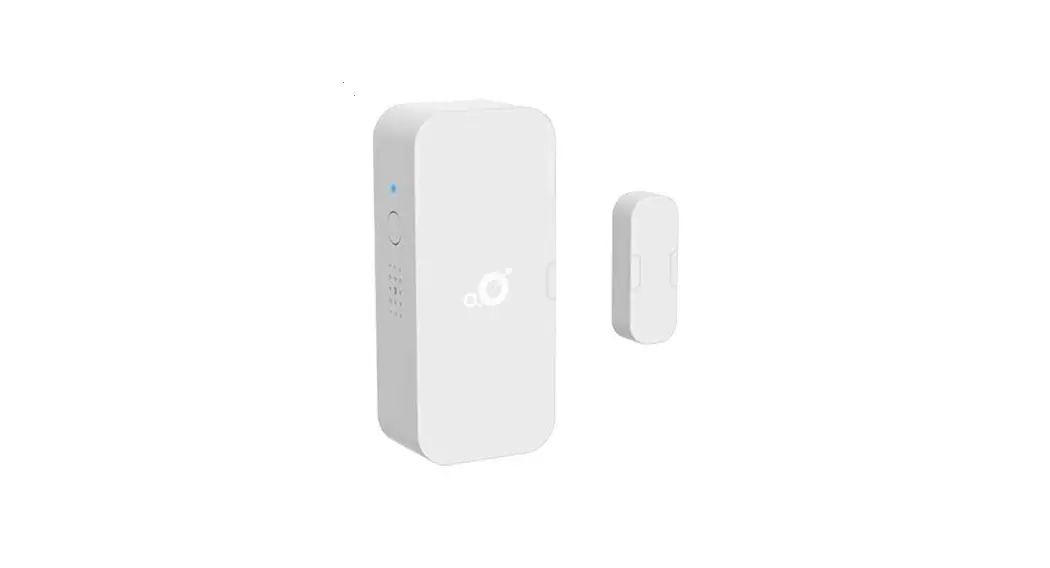
DWM1301 Door Window Sensor Add On Device
Product Information
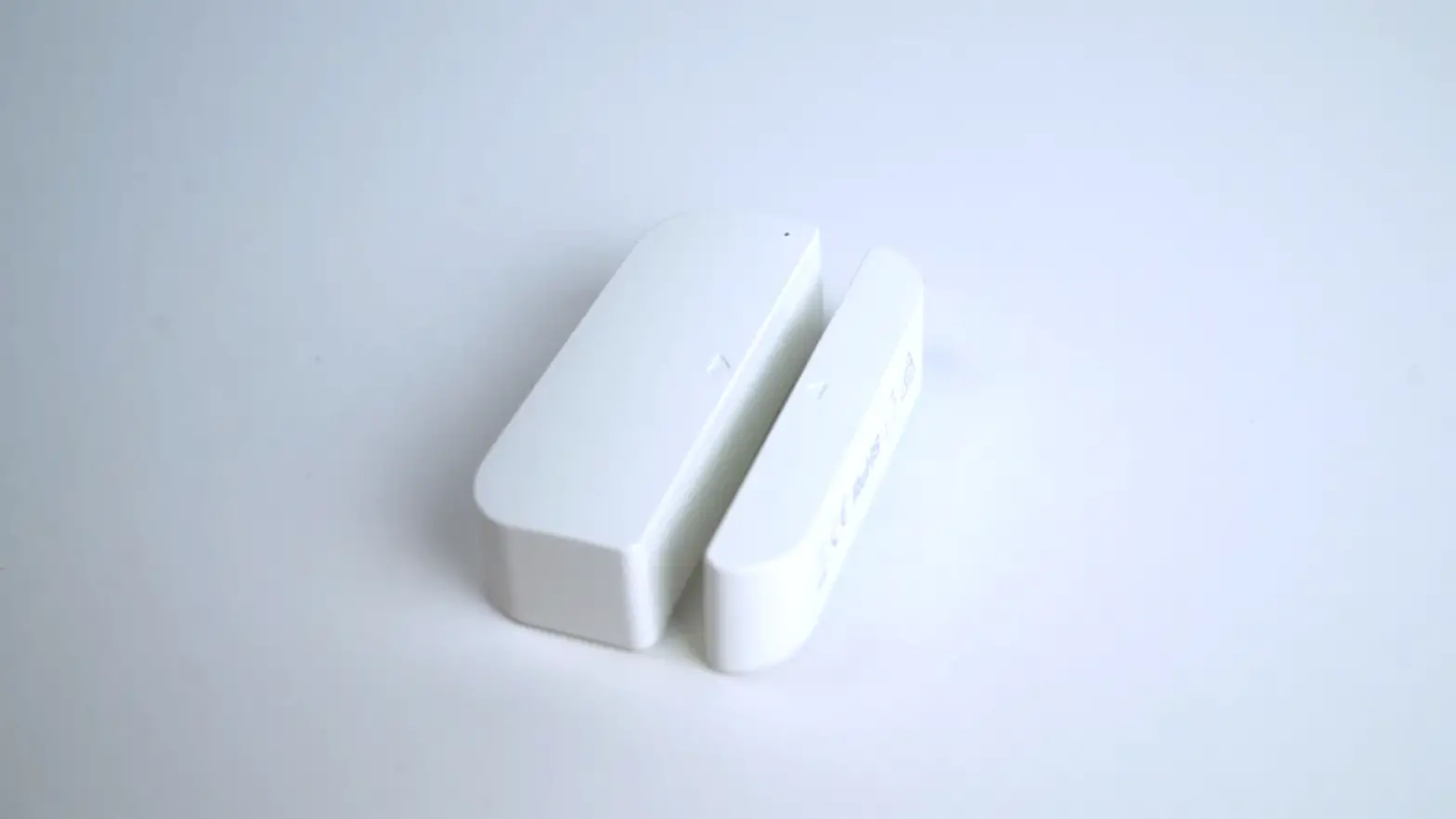
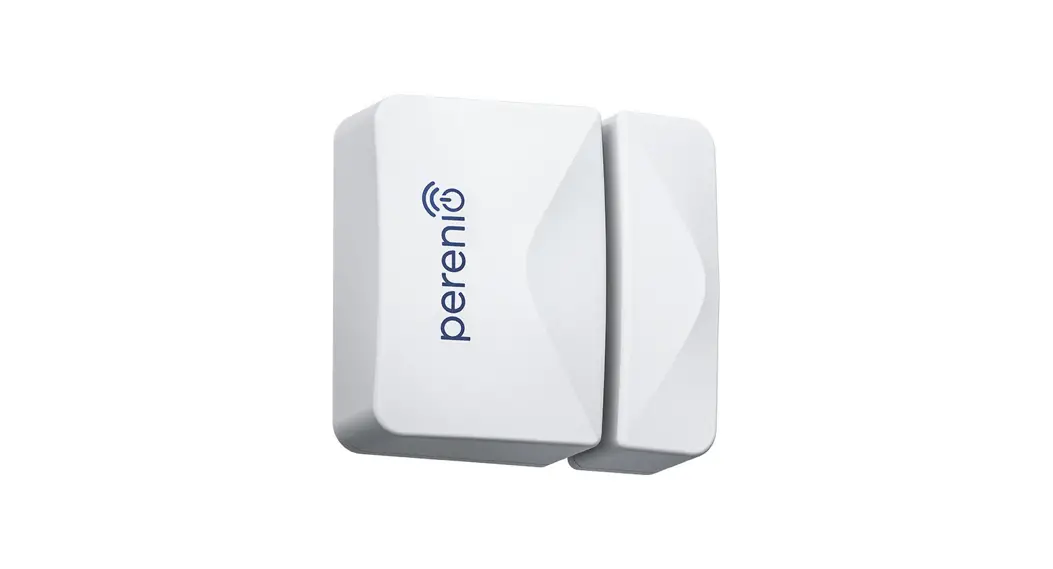
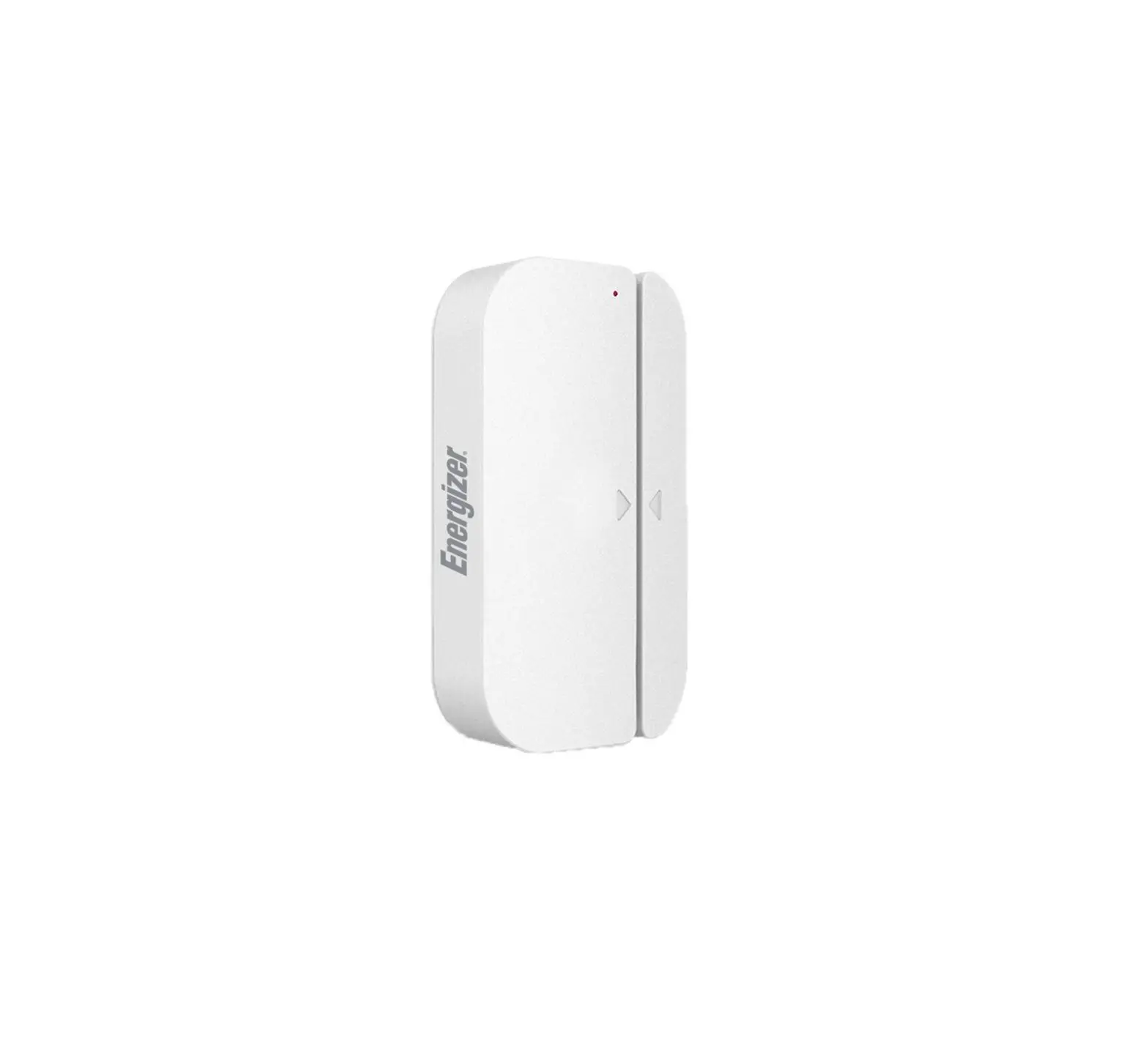
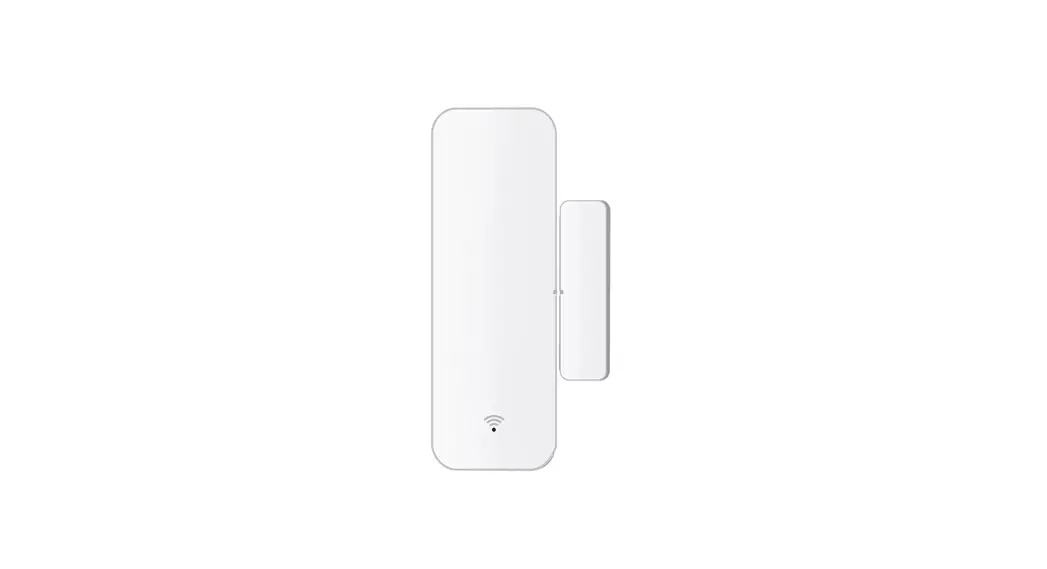
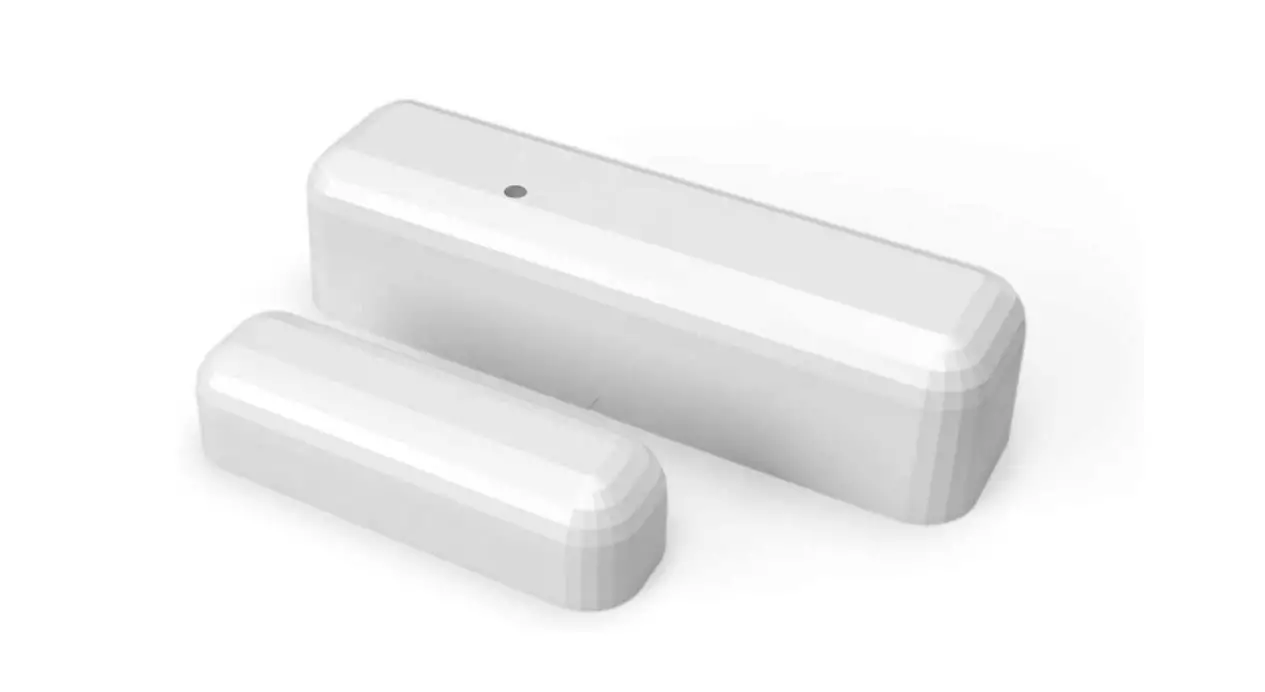
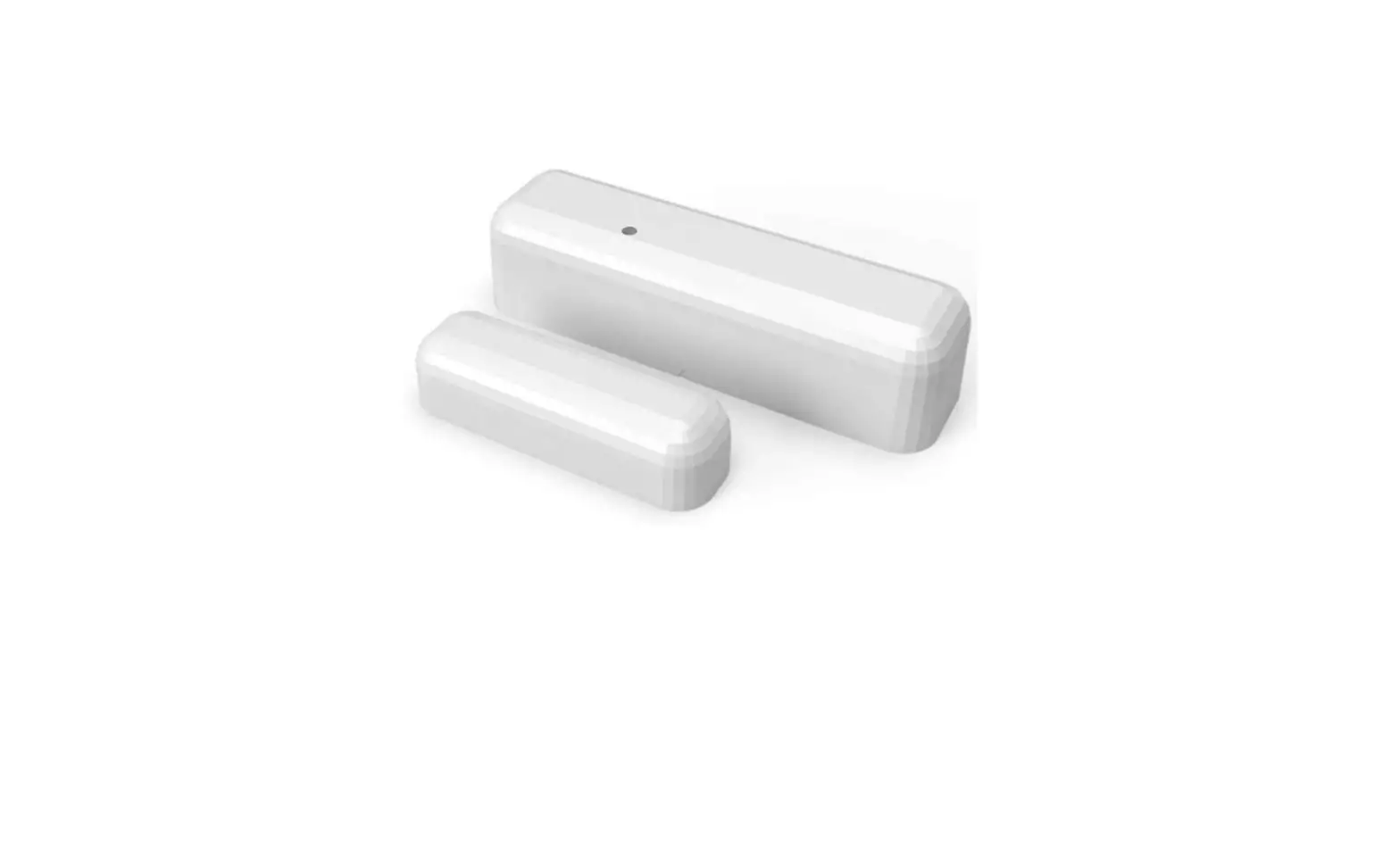
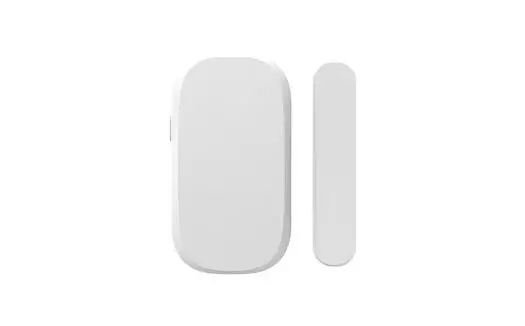
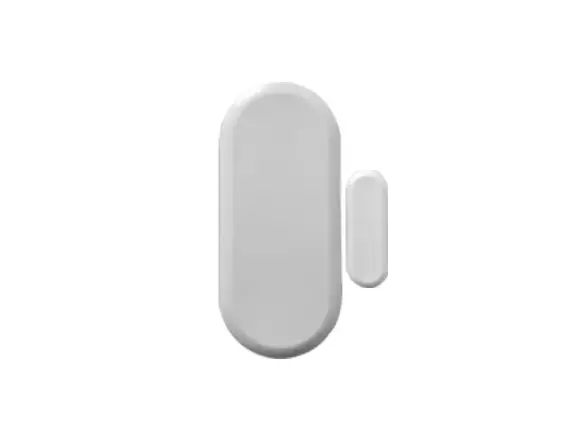
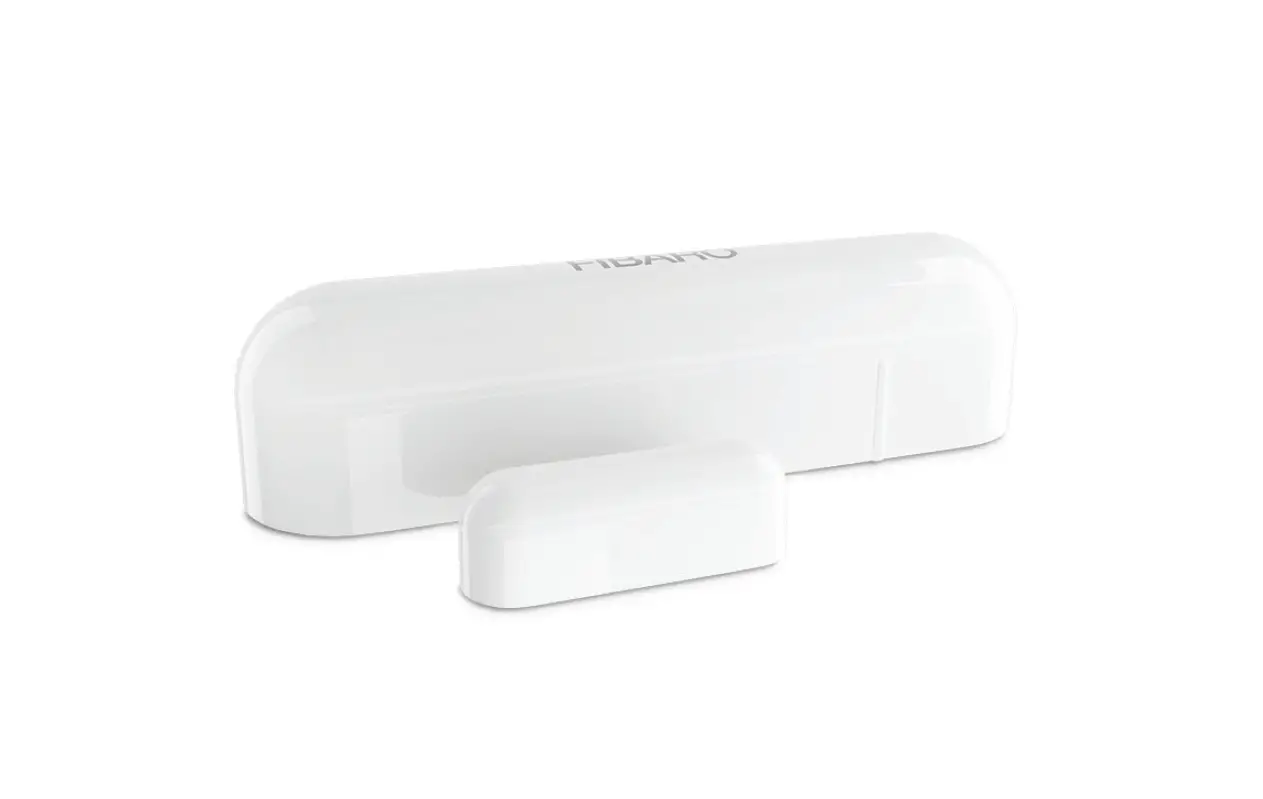
The Door + Window Sensor is an add-on device that is designed to
work with Home8 systems. It comes with a Model No. DWM1301 and
includes 1x Door + Window Sensor, 2x Double-Sided Tapes, and 1x
Battery (CR123A).
Product Usage Instructions
Step 1: Assemble your device and accessories
- Unpack your device and accessories.
- Pair the device with the Security Shuttle within 1-10 feet to
ensure a good connection. - Insert the provided battery into the Door + Window Sensor.
Step 2: Add a device
- Open the Home8 app and tap on the menu button, then select
Device Management. - Press the add button (+) next to Sensor List.
- Follow the app instructions to scan the QR code located on the
device. If the scan is incomplete, you may need to enter the serial
number (SN) of the device manually.
Step 3: Mount your devices
Before mounting your device, make sure it is within range of the
Security Shuttle.
- Take your device to the desired room.
- Open the battery cover of the Door + Window sensor you want to
install. - If you receive a tampering notification, it means the device is
within range. Place back the battery cover and mount the device
using the provided double-sided tape. It is recommended to mount
the Door + Window Sensor in a vertical/upright position. - Note: For the Door + Window Sensor, it doesn’t matter which
piece you place on the frame and which piece you place on the
moving part. Ensure the tops of the two pieces line up for proper
contact. Use the spacer if needed to elevate the smaller piece to
ensure proper contact.
FAQ
How can I backup recorded video?
You can backup recorded video by setting automatic backup to
Dropbox (Dropbox account needed) or by sharing the recorded video
from VideoGram to your preferred method.
How do I retrieve my Home8 Mobile app password?
To retrieve your Home8 Mobile app password, go to the sign-in
page of the app and tap “Forgot password?”. Follow the on-screen
instructions to enter your phone number. You will receive an access
code via SMS. After inputting the access code, you can reset your
password. A confirmation email will be sent after successfully
resetting your password.
How can I be certain my personal information is secured?
Personal information is secured through authentication and
encryption. Your password is encrypted when signing in, and
bank-level AES data encryption is used for all data transmission,
including videos, images, and account information.
To ensure privacy, all data is encrypted with bank-level
security. Each user has their own account to access the video, and
the system alerts you and authorized users of any unauthorized
login attempts from smart devices.
How many locations can I manage from my Home8 app?
The Home8 app supports multi-location management. You can manage
as many locations as you want, and there is no limit on the number
of Home8 Systems you can purchase.
What’s inside:
Door + Window Sensor Add-on Device Quickstart Guide
Model No. DWM1301
1x Door + Window Sensor 2x Double-Sided Tapes 1x Battery (CR123A) All Home8 add-on devices have to work with Home8 systems.
English
Step 1: Assemble your device and accessories
1 . Unpack your device and accessories. 2. Pair the device with the Security Shuttle within 1-10 feet to make sure the connection
is working well. 3. Insert a battery to Door+Window Sensor.
· Each Door + Window Sensor set consists of two pieces. Take the large piece and push the small tab on the back plate outward with slight force. Slide the back plate upward. Remove the back plate and insert a battery into each Door/Window Sensor set.
Tab Battery
Step 2: Add a device
1-10 ft
1 . Open the Home8 app, tap on the menu button ” ” and select “Device Management”. 2. Press the add button ` + ‘ next to Sensor List. 3. Follow the app instructions to scan the QR code located on the device.
Note: If the scan is incomplete, you will be asked to enter the serial number (SN) of the device.
English
Step 3: Mount your devices
Before you mount your device, see if it’s within Security Shuttle’s range. 1 . Take your device to the room you want to use it in. 2. Open the battery cover of the Door + Window sensor you want to install.
If you get a notification that says your device has been tampered with, it’s within range. Place back the battery cover and mount the device with the included double-sided tape. It is recommended that the Door + Window Sensor be mounted in a vertical/upright position.
Note: For the Door + Window Sensor, it does not matter which piece you place on the frame and which piece you place on the moving part. To create proper contact, ensure the tops of the two pieces line up. The Spacer is used in situations where the smaller piece needs to be elevated to the larger piece to ensure proper contact.
1/4 inch max.
FAQ
How can I backup recorded video?
You can backup your recorded video by using any of the following methods. – By setting automatic backup to Dropbox. (Dropbox account needed) – By sharing your recorded video from VideoGram to your appointed method.
How do I retrieve my Home8 Mobile app password?
Go to the sign-in page of your Home8 app and tap “Forgot password?”. Follow the instruction on screen to enter your phone number. You will then receive an access code via SMS. After input an Access Code that app requested, you can then reset the password by yourself. You will also receive a confirmation email after successfully reset your password.
How can I be certain my personal information is secured?
Our first level of security is authentication and your password is encrypted when you sign in to your account. At the next level where all data is transmitted, including videos, images, as well account information, bank-level AES data encryption is used.
How can I be sure unauthorized people are unable to look at my videos on the cloud?
With your privacy in mind, all data is encrypted with bank-level security, and each user has his/her own account to access the video. Our system alerts you and your authorized users when it detects login attempts from unauthorized smart devices.
How many locations can I manage from my Home8 app?
Home8 app is built to support multi-location management. You can manage as many locations as you would like, and we do not place a limit on the number of Home8 Systems you can purchase.
FAQ
If I lose my smart device, what should I do to protect my Home8 account?
We recommend you to change your password as soon as possible by using other smart device with Home8 App installed to sign in to your account to make the change to your password. Alternatively, you may also contact us to disable your account for you.
Is there a place I can view the user manual online?
Yes, visit www.home8alarm.com/download , and then access user manuals.
What are the requirements prior to purchasing an Home8 System?
Because Home8 System is a fully IoT interactive system, it will require the following: – Broadband Internet connection. (dial-up connections are not supported) – DHCP-enabled router with an available LAN port. – Smart devices with internet connection.
What can I do if a camera is offline?
If a camera is showing as “offline”, try power cycle on the camera first and wait approximately two minutes, if the offline situation persists, try moving the camera closer to the Security Shuttle and power cycle the device again. After tried the methods above, if the offline status is still not resolved, please contact our Technical Support for further troubleshooting assistance.
What can I do if my system is offline?
First, try checking your internet connection, if the connection is working properly, then unplug the network cable from your Security Shuttle for 10 seconds, and then reconnect it. If the Security Shuttle is still offline after 5 minutes, please contact our Technical Support for further troubleshooting assistance.
Troubleshooting Tips
Are your devices listed in your app?
If you’re having trouble installing your devices, see if they’re listed in your Home8 app: · Navigate to > Device Management to see if all your devices are listed · Tap + next to the device category and follow the on-screen instructions to add any missing devices
Are your devices communicating with Security Shuttle?
· If your devices don’t connect to Security Shuttle, they might be too far away. Take them to a location that’s closer to Security Shuttle and try again.
· If they do connect, you’ll know the range of your device and where to install a range extender. · Alternatively, you can move Security Shuttle closer to your device. · If your devices still don’t communicate with Security Shuttle, even when they’re in the same room,
navigate to > Device Management > + on the Home8 app to add your devices again.
Need help installing your Home8 system?
http://www.home8alarm.com/download/ [email protected]
V1.0
 Home8 Datasheets for Video-Verified Starter Kits I Home8