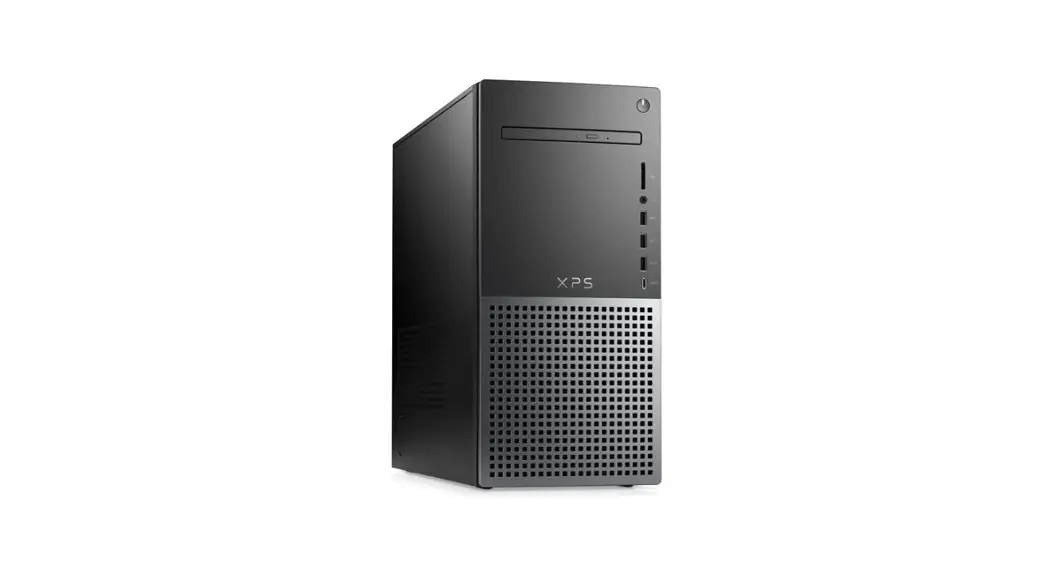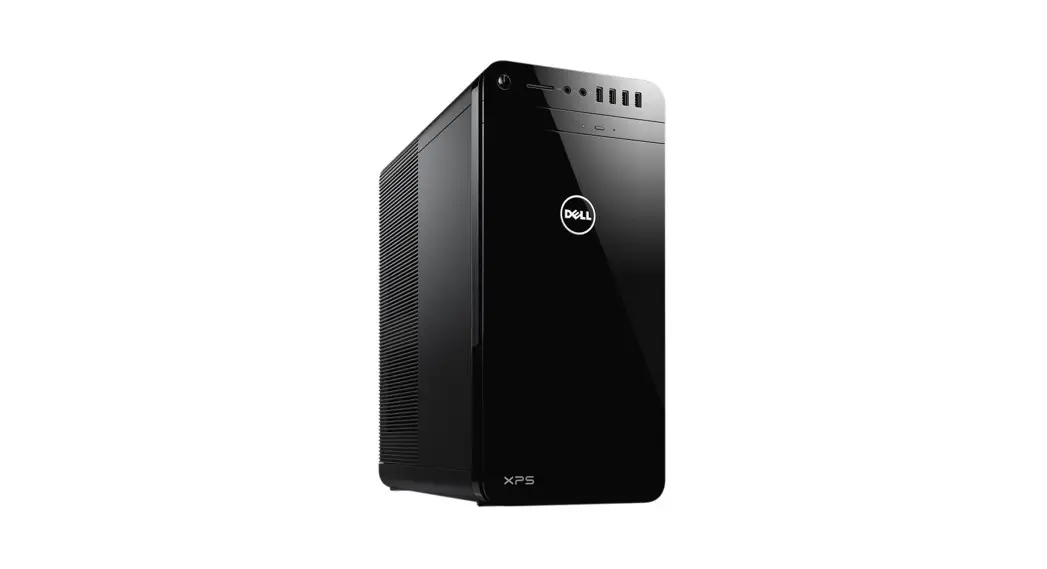

XPS 8910
Setup and Specifications
Regulatory Model: D24M
Regulatory Type: D24M001
Notes, cautions, and warnings NOTE: A NOTE indicates important information that helps you make better use of your product.
 CAUTION: A CAUTION indicates either potential damage to hardware or loss of data and tells you how to avoid the problem.
 WARNING: A WARNING indicates a potential for property damage, personal injury, or death.
Set up your computer
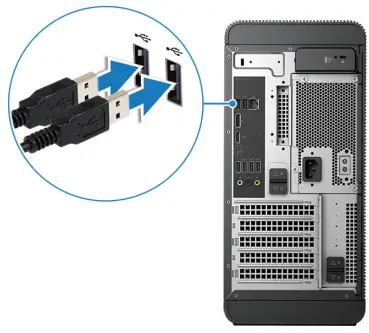
- Connect the keyboard and mouse.

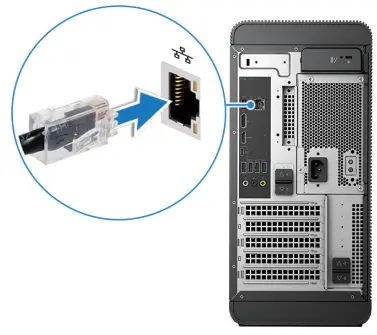
- Connect the network cable-optional.

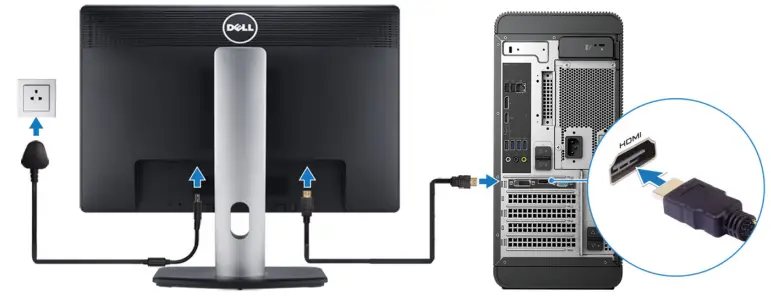
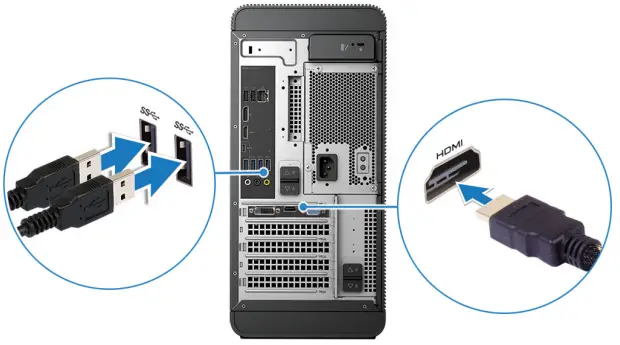
- Connect the display.

 NOTE: If you ordered your computer with a discrete graphics card, the HDMI and the display ports on the back panel of your computer are covered. Connect the display to the discrete graphics card.
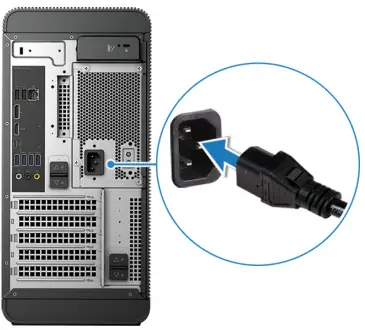
 - Connect the power cable.

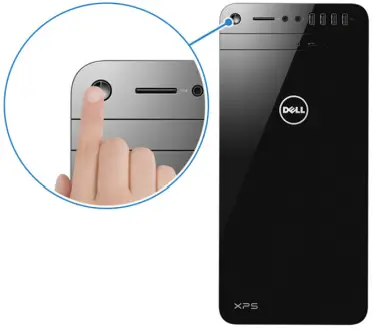
- Press the power button.

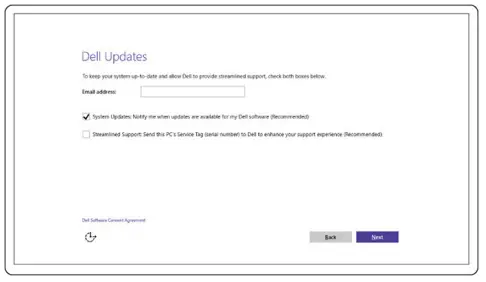
- Follow the instructions on the screen to finish Windows setup:
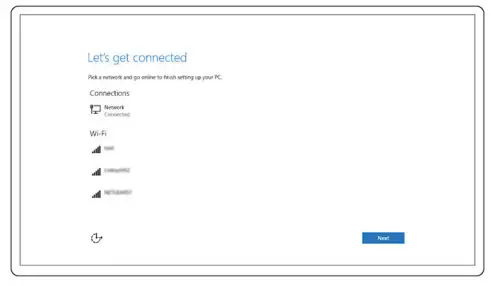
a) Enable security and Dell updates. b) Connect to a wireless network.
 c) Sign in to your Microsoft account or create a new account.
- Explore Dell resources on your desktop.
 b) Connect to a wireless network.
 c) Sign in to your Microsoft account or create a new account.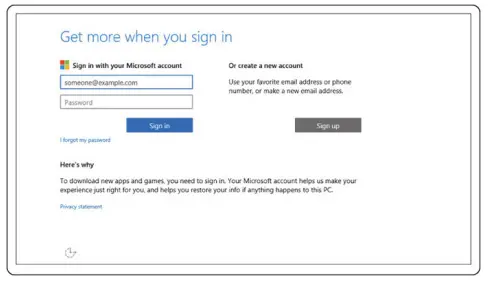
 Register your computer
 Dell Help & Support
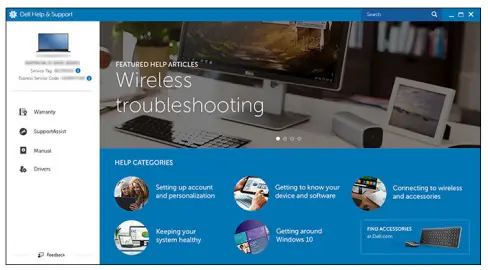
 SupportAssist — Check and update your computer
Create a USB recovery drive for Windows
Create a recovery drive to troubleshoot and fix problems that may occur with Windows. An empty USB flash drive with a minimum A capacity of 16 GB is required to create the recovery drive.
 NOTE: This process may take up to an hour to complete.NOTE: The following steps may vary depending on the version of Windows installed. Refer to the Microsoft support site for the latest instructions.
- Connect the USB flash drive to your computer.
- In Windows search, type Recovery.
- In the search results, click Create a recovery drive.
The User Account Control window is displayed. - Click Yes to continue.
The Recovery Drive window is displayed. - Select Back up system files to the recovery drive and click Next.
- Select the USB flash drive and click Next.
A message appears, indicating that all data in the USB flash drive will be deleted. - Click Create.
- Click Finish.
For more information about reinstalling Windows using the USB recovery drive, see the Troubleshooting section of your product’s
Service Manual at www.dell.com/support/manuals.
Topics:
- Reinstall Windows using a USB recovery drive
Reinstall Windows using a USB recovery drive
CAUTION: This process formats the hard drive and removes all data on your computer. Ensure that you back up data on your computer before beginning this task. NOTE: Before reinstalling Windows, ensure your computer has more than 2 GB of memory and more than 32 GB of storage space. NOTE: This process may take up to an hour to complete and your computer will restart during the recovery process.
- Connect the USB recovery drive to your computer.
- Restart your computer.
- Press F12 after the Dell logo is displayed on the screen to access the boot menu.
A Preparing one-time boot menu message appears. - After the boot menu loads, select the USB recovery device under UEFI BOOT.
The system reboots and a screen to Choose the keyboard layout is displayed. - Choose your keyboard layout.
- In the Choose an option screen, click Troubleshoot.
- Click Recover from a drive.
- Choose one of the following options:
• Just remove my files to do a quick format.
• Fully clean the drive to do a complete format. - Click Recover to start the recovery process.
Setting up the Virtual Reality (VR) headset —optional
- Download and run the setup tools for your VR headset at www.dell.com/VRsupport.
- Connect the VR headset to the designated USB and HDMI port on your computer, when prompted.
 NOTE: Connect the headset to the HDMI port on the discrete graphics card and connect the display to any available port on the card.
 - Follow the instructions on the screen to complete the setup.
Views
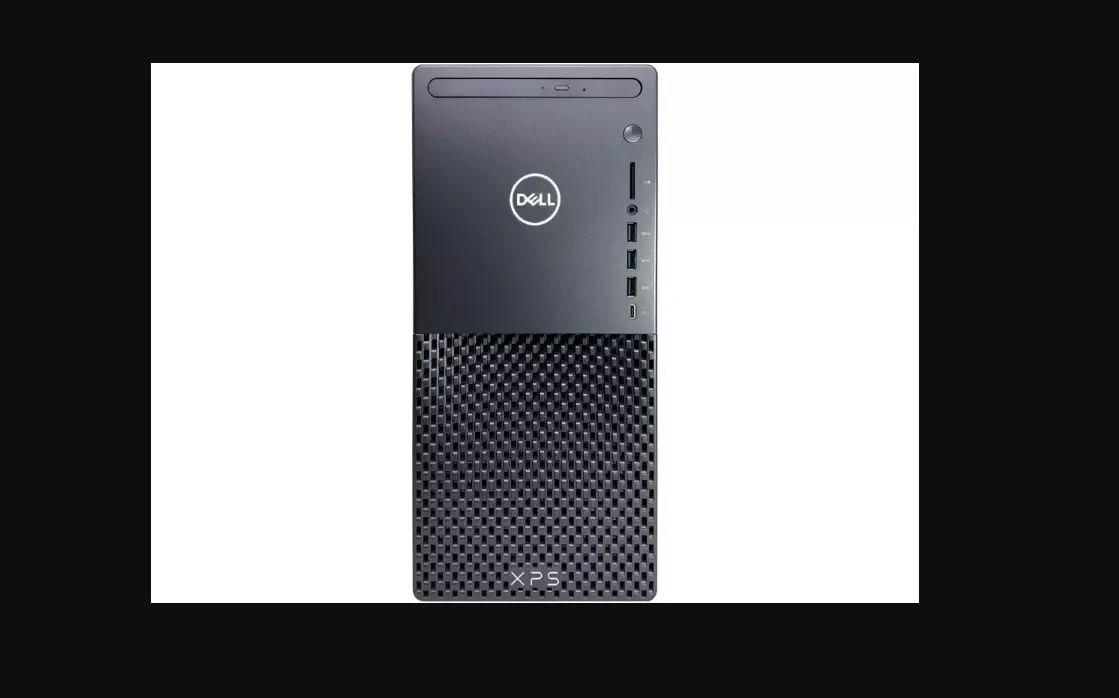
Front
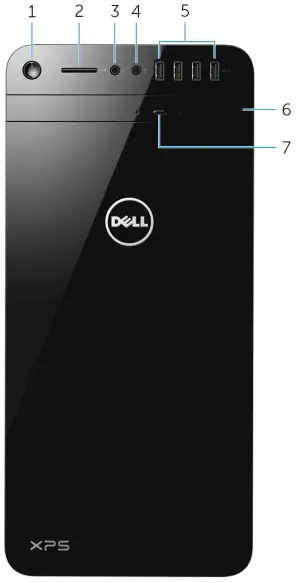
- Power button
Press to turn on the computer if it is turned off or in sleep state.
Press to shut down the computer if it is turned on.
Press and hold for 4 seconds to force shut down the computer. NOTE: You can customize the power‑button behavior in Power Options. For more information, see Me and My Dell at www.dell.com/support. - SD-card slot
Reads from and writes to SD card. - Headphone port
Connect a pair of headphones or speakers. - Microphone port
Connect an external microphone for recording sound, making audio calls, making video calls, and so on. - USB 3.0 ports (4)
Connect peripherals such as storage devices, printers, and so on. Provides data transfer speeds up to 5 Gbps. - Optical drive (optional)
Reads from and writes to CDs and DVDs. - Optical-drive eject button
Press to eject the media from the optical drive.
Back
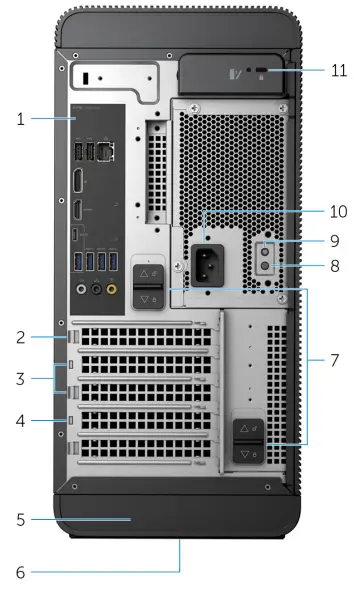
- Back panel
Connect USB, audio, video, and other devices. - PCI-Express x16 (graphics slot 1)
Connect a PCI-Express card such as graphics, audio, or network card to enhance the capabilities of your computer.
For optimal graphics performance, use this slot for connecting the graphics card. NOTE: If you have two graphics cards, the card installed in this slot is the primary graphics card. - PCI-Express x1 slots (2)
Connect a PCI-Express card such as graphics, audio, or network card to enhance the capabilities of your computer. - PCI-Express x4 slot
Connect a PCI-Express card such as graphics, audio, or network card to enhance the capabilities of your computer. - Service Tag label
Provides the Service Tag and Express Service Code needed when contacting Dell. - Regulatory label
Contains regulatory information about your computer. - Power supply unit release latches (2)
Allows you to remove the power supply unit from your computer. - Power supply light
Indicates the power-supply state. - Power-supply diagnostic button
Press to check the power‑supply state. - Power port
Connect a power cable to provide power to your computer. - Security-cable slot
Connect a security cable to prevent unauthorized movement of your computer.
Back panel
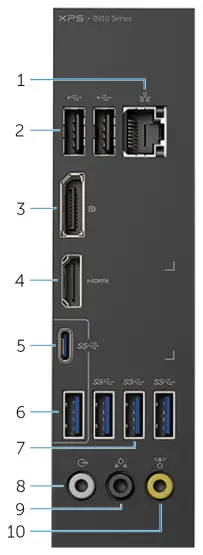
- Network port
Connect an Ethernet (RJ45) cable from a router or a broadband modem for network or internet access.
The two lights next to the connector indicate the connectivity status and network activity. - USB 2.0 ports (2)
Connect peripherals such as storage devices and printers. Provides data transfer speeds up to 480 Mbps. - DisplayPort
Connect an external display or a projector. NOTE: If you ordered your computer with a discrete graphics card, the DisplayPort on the back panel of your computer is covered. Connect the display to the discrete graphics card of your computer. - HDMI port
Connect a TV or another HDMI-in-enabled device. Provides video and audio output. NOTE: If you ordered your computer with a discrete graphics card, the HDMI port on the back panel of your computer is covered. Connect the display to the discrete graphics card of your computer. - USB 3.1 Type-C port
Connect peripherals such as external storage devices, printers, and external displays. Provides data transfer speeds up to 10 Gbps. - USB 3.1 portB
- Connect peripherals such as storage devices and printers. Provides data transfer speeds up to 5 Gbps.
- Front L/R surround line-out port
Connect audio-output devices such as speakers and amplifiers. In a 5.1 speaker channel setup, connect the front-left and front-right
speakers. - Rear L/R surround the port
Connect audio-output devices such as speakers and amplifiers. In a 5.1 speaker channel setup, connect the rear-left and rear-right
speakers. - Center/subwoofer LFE surrounds the port Connect the subwoofer. NOTE: For more information about the speaker setup, refer to the documentation that shipped with the speakers.
Specifications
Computer model
Table 1. Computer model
| Computer model | XPS 8910 |
System information
| Computer model | XPS 8910 |
| Processor | • 6th Generation Intel Core i5/i5k • 6th Generation Intel Core i7/i7k |
| Chipset | Intel Z170 |
Operating system
Table 2. Operating system
| Operating systems supported | • Windows 10 Pro 64-bit • Windows 10 Home 64-bit |
Dimensions and weight
| Height | 389 mm (15.32 in) |
| Width | 180 mm (7.09 in) |
| Depth | 356 mm (14.02 in) |
| Weight | 10 kg (22 lb) |
NOTE: The weight of your computer varies depending on the configuration ordered and the manufacturing variability.
Memory
Table 3. Memory specifications
| Slots | Four DIMM slots |
| Type | • UDIMM • DDR4 |
| Speed | 2133 MHz |
| Configurations supported | 8 GB, 16 GB, 24 GB, 32 and 64 GB |
Table 4. Memory configuration matrix
| Slot | ||||
| Configuration | DIMM1 | DIMM2 | DIMM3 | DIMM4 |
| 8 GB | 4 GB | 4 GB | ||
| 8 GB | 8 GB | |||
| 16 GB | 8 GB | 8 GB | ||
| 16 GB | 16 GB | |||
| 24 GB | 8 GB | 8 GB | 4 GB | 4 GB |
| 32 GB | 8 GB | 8 GB | 8 GB | 8 GB |
| 64 GB | 16 GB | 16 GB | 16 GB | 16 GB |
Intel Optane memory
Intel Optane memory functions as a storage accelerator. It accelerates the computer and any type of SATA-based storage media such as hard drives and solid-state drives (SSDs).
NOTE: Intel Optane memory is supported on computers that meet the following requirements:
- 7th generation or higher Intel Core i3/i5/i7 processor
- Windows 10 64-bit version or higher(Anniversary Update)
- Intel Rapid Storage Technology driver version 15.5.xxxx or higher
Table 5. Intel Optane memory
| Interface | PCIe NVMe 3.0 x2 |
| Connector | M.2 |
| Configurations supported | 16 GB |
NOTE: For more information about enabling or disabling the Intel Optane memory, see Enabling Intel Optane memory or Disabling Intel Optane memory.
Ports and Connectors
| Back panel ports: | |
| Network | One RJ45 port |
| USB | • Two USB 2.0 ports • Three USB 3.0 ports • One USB 3.1 Type-A port • One USB 3.1 Type-C port |
| Video/Audio | • One Surround Front Stereo port • One Surround Rear Stereo port • One Surround Center/Subwoofer port • One HDMI port for integrated graphics • One DisplayPort for integrated graphics |
| Front panel ports: | |
| Audio | • One Stereo Headphone jack • One Microphone jack |
| USB | Four USB 3.0 ports |
| Front panel ports: | |
| Card Reader | One 3-in-1 Card reader, supporting: • Secure Digital (SD) • Secure Digital Extended Capacity (SDXC) • Secure Digital High Capacity (SDHC) Classes 2,4 and 6 |
| Internal ports: | |
| PCIe Slots | • One PCIe x16 card slot • Two PCIe x1 card slots • One PCIe x4 card slot |
| M.2 Card | • One M.2 card slot for SSD • One M.2 card slot for Wi-Fi and Bluetooth combo card |
Communications
| Ethernet | 10/100/1000 Mbps Ethernet controller integrated on system board |
| Wireless | • Wi-Fi 802.11 b/g/n • Wi-Fi 802.11 ac • Bluetooth 4.0 |
Wireless module
Table 6. Wireless module specifications
| Transfer rate | Up to 867 Mbps (max) |
| Frequency bands supported | Dual-band 2.4 GHz/5 GHz |
| Encryption | • 64-bit and 128-bit WEP • SKIP • AES-CCMP |
Audio
| Controller | Integrated Realtek ALC3861 High Definition Audio with Waves MaxxAudio Pro |
Storage
| Interface | • SATA 6 Gbps for the optical drive • SATA 6 Gbps for hard drive • M.2 for SSD |
| Hard drive | Three 3.5-inch hard drives |
| Solid-state drive | One M.2 slot |
| Optical drive (optional) | One Slimline DVD+/-RW |
Video
| Integrated | Discrete | |
| Controller | Intel HD Graphics 530 | • NVIDIA GT 730 • NVIDIA GTX 745 • NVIDIA GTX 750 Ti • NVIDIA GTX 960 • NVIDIA GTX 970 • AMD Radeon R9 370 • NVIDIA GTX 980 |
| Memory | Shared system memory | Up to 4GB GDDR5 |
Power ratings
| Input current | 6 A | 8 A | 8 A |
| Output current | 3.3V/10A, 5V/13A, 12VA/9A, 12VB/12A, 12VC/8A, 5Vaux/3A | 3.3V/17A, 5V/25A, 12VA/18A, 12VB/16A, 12VC/8A, 5Vaux/3A | 3.3V/17A, 5V/25A, 12VA/18A, 12VB/16A, 12VC/8A, 5Vaux/3A |
| Rated output voltage | 3.3V, 5V, 12VA, 12VB, 12VC, 5Vaux | 3.3V, 5V, 12VA, 12VB, 12VC, 5Vaux | 3.3V, 5V, 12VA, 12VB, 12VC, 5Vaux |
| Type | 350 W APFC | 460 W APFC | 460 W Bronze |
| Input voltage | 100 VAC–240 VAC | ||
| Input frequency | 50 Hz–60 Hz | ||
| Temperature range: Operating | 5°C to 50°C (41°F to 122°F) | ||
| Temperature range: Storage | –40°C to 70°C (–40°F to 158°F) |
Computer Environment
Airborne contaminant level: G2 or lower as defined by ISA-S71.04-1985
| Operating | Storage | |
| Temperature range | 5°C to 35°C (41°F to 95°F) | –40°C to 65°C (–40°F to 149°F) |
| Relative humidity (maximum) | 10% to 90% (non-condensing) | 0% to 95% (non-condensing) |
| Vibration (maximum)* | 0.26 GRMS | 1.37 GRMS |
| Shock (maximum) | 40 G for 2 ms with a change in velocity of 20 in/s (51 cm/s)† | 105 G for 2 ms with a change in velocity of 52.5 in/s (133 cm/s)‡ |
| Altitude (maximum) | –15.20 m to 3048 m (–50 ft to 10,000 ft) | –15.20 m to 10,668 m (–50 ft to 35,000 ft) |
* Measured using a random vibration spectrum that simulates the user environment.
† Measured using a 2 ms half-sine pulse when the hard drive is in use.
Intel Optane memory
Enabling Intel Optane memory
- On the taskbar, click the search box, and then type Intel Rapid Storage Technology.
- Click Intel Rapid Storage Technology.
The Intel Rapid Storage Technology window is displayed. - On the Status tab, click Enable to enable the Intel Optane memory.
- On the warning screen, select a compatible fast drive, and then click Yes to continue enabling Intel Optane memory.
- Click Intel Optane memory > Reboot to complete enabling your Intel Optane memory. NOTE: Applications may take up to three subsequent launches after enablement to see the full performance benefits.
Disabling Intel Optane memory
CAUTION: After disabling Intel Optane memory, do not uninstall the driver for Intel Rapid Storage Technology as it will result in a blue screen error. The Intel Rapid Storage Technology user interface can be removed without uninstalling the driver. NOTE: Disabling Intel Optane memory is required before removing the SATA storage device accelerated by the Intel Optane memory module from the computer.
- On the taskbar, click the search box, and then type Intel Rapid Storage Technology.
- Click Intel Rapid Storage Technology.
The Intel Rapid Storage Technology window is displayed. - On the Intel Optane memory tab, click Disable to disable the Intel Optane memory.NOTE: For computers in which Intel Optane memory acts as primary storage, do not disable the Intel Optane memory. The Disable option will be grayed out.
- Click Yes if you accept the warning.
The disabling progress is displayed. - Click Reboot to complete disabling your Intel Optane memory and restart your computer.
Getting help and contacting Dell
Self-help resources
You can get information and help on Dell products and services using these self-help resources:
Table 7. Self-help resources
| Self-help resources | Resource location |
| Information about Dell products and services | www.dell.com |
| My Dell app | |
| Tips |  |
| Contact Support | In Windows search, type Contact Support, and press Enter. |
| Online help for operating system | www.dell.com/support/windows |
| Troubleshooting information, user manuals, setup instructions, product specifications, technical help blogs, drivers, software updates, and so on. | www.dell.com/support |
| Dell knowledge base articles for a variety of computer concerns. | 1. Go to www.dell.com/support. 2. Type the subject or keyword in the Search box. 3. Click Search to retrieve the related articles. |
| Learn and know the following information about your product: • Product specifications • Operating system • Setting up and using your product • Data backup • Troubleshooting and diagnostics • Factory and system restore • BIOS information | See Me and My Dell at www.dell.com/support/manuals. To locate the Me and My Dell relevant to your product, identify your product through one of the following: • Select Detect Product. • Locate your product through the drop-down menu under View Products. • Enter the Service Tag number or Product ID in the search bar. |
Contacting Dell
To contact Dell for sales, technical support, or customer service issues, see www.dell.com/contactdell. NOTE: Availability varies by country/region and product, and some services may not be available in your country/region. NOTE: If you do not have an active internet connection, you can find contact information on your purchase invoice, packing slip, bill, or Dell product catalog.
© 2016-2020 Dell Inc. or its subsidiaries. All rights reserved. Dell, EMC, and other trademarks are trademarks of Dell Inc. or its subsidiaries. Other trademarks may be trademarks of their respective owners.
2020 – 03
Rev. A01
Getting help and contacting Dell
References
 Computers, Monitors & Technology Solutions | Dell USA
-
Contact Support | Dell US
-
Support | Dell US
-
Manuals | Dell US
-
Windows Operating Systems | Dell US
-
Shop: Dell Site Map of All Products, Solutions & Services | Dell USA
 Microsoft Support
-
Computers, Monitors & Technology Solutions | Dell USA
-
Contact Support | Dell US
-
Support | Dell US
-
Manuals | Dell US
-
Windows Operating Systems | Dell US
-
Shop: Dell Site Map of All Products, Solutions & Services | Dell USA
 Computers, Monitors & Technology Solutions | Dell USA
 Microsoft Support