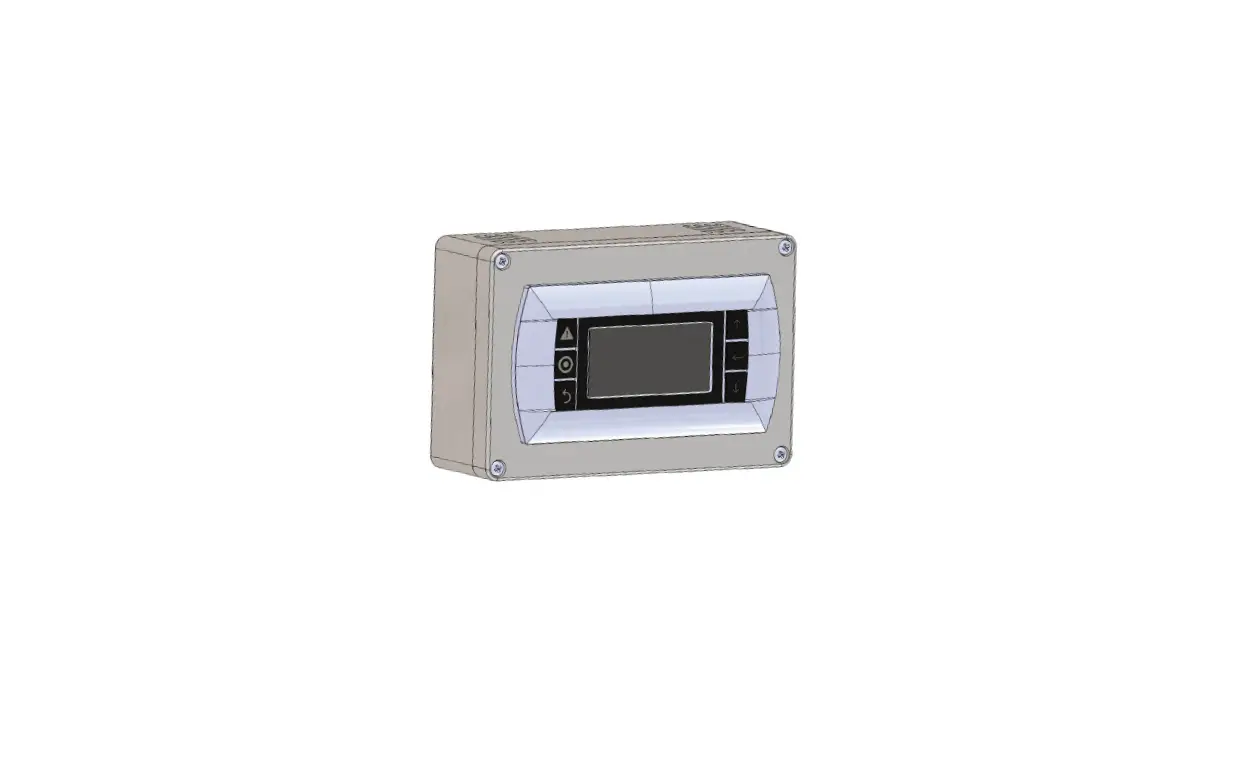
pGD1 Display Module
Modine Controls System Quickstart Guide
Model Number: 5H104617
WARNING
IMPORTANT
These instructions must also be used in conjunction with the
Installation and Service Manual (latest revision of AIR2-501) and
Controls Manual (latest revision of AIR74-525) that originally
shipped with the unit, in addition to any other accompanying
component supplier literature.
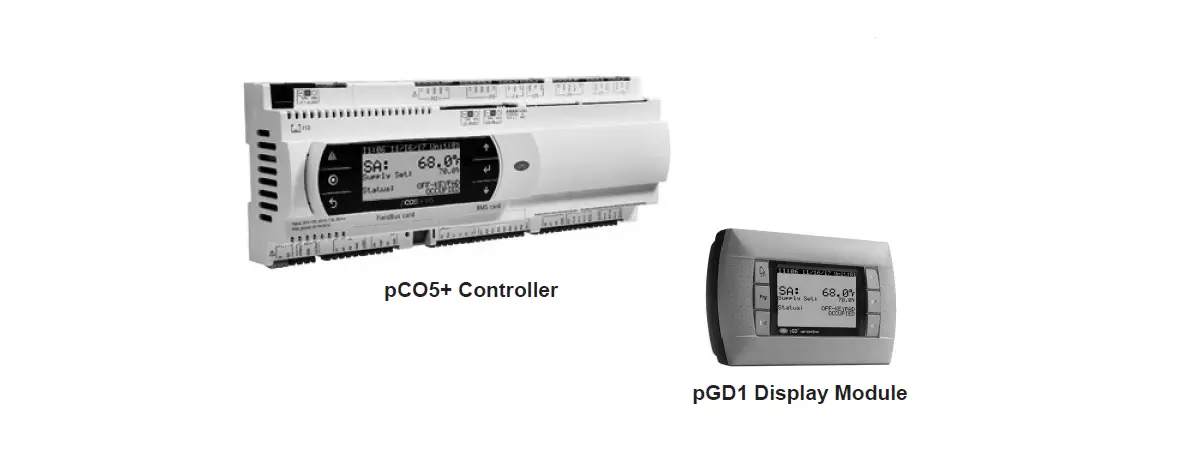
pGD1 Display Module
pCOOEM+ Controller
This guide is designed to walk through the basics of
establishing unit setpoints and scheduling for a ClassMate or
SchoolMate unit using the pGD1 display module. Every unit with
Modine Controls System is designed for either standalone or
networked operation. For units communicating on a BMS, the guide
will also explain how to adjust your unit’s device instance to
allow proper communication.
The pGD1 display module can be unit mounted, or handheld
depending on the customized order. The pGD1 allows for complete
visibility over the unit’s controls parameters. It is recommended
that at least one handheld device be available at the install site
if the need arises to change these settings.
Product Usage Instructions:
- Begin
- Install unit in desired location in accordance with appropriate
Modine Installation and Maintenance Manual. Note: Controller will
not be powered until unit has appropriate electrical connections
and disconnect switch in ON position. - If display module is not unit mounted, connect pGD1 handheld
module using RJ-12 communication cable provided in port J15 as
shown on unit mounted wiring diagram.
- Install unit in desired location in accordance with appropriate
- Navigating the Display Module Screen
The pGD1 display module has several buttons for navigation:
Controller Buttons Function Description ALARM PRG When one or more alarms are active the ALARM button will
blink/flash red. Pressing the ALARM button once will indicate
information regarding any active alarms. Pressing the ALARM button
twice will reset any active manual-reset alarms.PRG Pressing the PRG button will select the main navigation
menu.ESC Pressing the ESC button will return the user to the main
display screen showing unit status.UP, ENTER, DOWN Pressing the UP button can either: Scroll through the various
display screens, provided the cursor is in the top left position.
Increase the value of a setpoint adjustment.
Pressing the ENTER button will confirm any setpoint adjustments and
move the cursor to the next available setpoint.
Pressing the DOWN button can either: Scroll through the various
display screens, provided the cursor is in the top left position.
Decrease the value of a setpoint adjustment. - Main Screen and System Status
- The main screen is the default navigation page. Pressing the
appropriate button will recall the main screen. - By pressing the appropriate button, you can scroll through the
display screens which provide information about the current system
operation (examples include temperatures, output status, and space
demand).
- OVERRIDE MODE: Unit can be placed in override mode on the
‘Local Occ. Ovr.’ screen (unit will run in occupied mode,
regardless of clock schedule) by moving the cursor to the Clock
Override field and changing the value to ‘YES’. The override mode
duration can be set on this same screen, and is defaulted to 1
hour.
- The main screen is the default navigation page. Pressing the
Modine Controls System Quickstart Guide
Airedale ClassMate® (CMD/CMP/CMS) and SchoolMate® (SMG/SMW)
5H104617
WARNING
Installing, starting up and servicing heating, ventilation and air conditioning equipment poses significant hazards and requires specialized knowledge of Modine products and training in performing those services. Failure to have any service properly performed by, or making any modification to Modine equipment without the use of qualified service personnel could result in serious injury to person and property, including death. Therefore, only qualified service personnel should work on any Modine products.
IMPORTANT
These instructions must also be used in conjunction with the Installation and Service Manual (latest revision of AIR2-501) and Controls Manual (latest revision of AIR74-525) that originally shipped with the unit, in addition to any other accompanying component supplier literature.
pGD1 Display Module
pCOOEM+ Controller
This guide is designed to walk through the basics of establishing unit setpoints and scheduling for a ClassMate or SchoolMate unit using the pGD1 display module. Every unit with Modine Controls System is designed for either standalone or networked operation. For units communicating on a BMS, the guide will also explain how to adjust your unit’s device instance to allow proper communication.
The pGD1 display module can be unit mounted, or handheld depending on the customized order. The pGD1 allows for complete visibility over the unit’s controls parameters. It is recommended that at least one handheld device be available at the install site if the need arises to change these settings.
1
Begin
a. Install unit in desired location in accordance with appropriate Modine Installation and Maintenance Manual. Note: Controller will not be powered until unit has appropriate electrical connections and disconnect switch in “ON” position.
b. If display module is not unit mounted, connect pGD1 handheld module using RJ-12 communication cable provided in port J15 as shown on unit mounted wiring diagram.
2 Navigating the Display Module Screen
Controller Buttons
Function
Description
Controller Buttons
Function
Description
ALARM PRG
When one or more alarms are active the ALARM button will blink/flash red. Pressing the ALARM button once will indicate information regarding any active alarms. Pressing the ALARM button twice will reset any active manual-reset alarms.
Pressing the PRG button will select the main navigation menu.
ESC
Pressing the ESC button will return the user to the main display screen showing unit status.
UP ENTER DOWN
Pressing the UP button can either: Scroll through the various display screens, provided the cursor is in the top left position. Increase the value of a setpoint adjustment.
Pressing the ENTER button will confirm any setpoint adjustments and move the cursor to the next available setpoint.
Pressing the DOWN button can either: Scroll through the various display screens, provided the cursor is in the top left position. Decrease the value of a setpoint adjustment.
3
Main Screen and System Status
a. The main screen (shown at right) is the default navigation page, and can always be recalled by pressing . This may need to be pressed more than once depending on which menu is active.
b. By pressing you are able to scroll through the display screens which provide information about the current system operation (examples include temperatures, output status, and space demand).
i. OVERRIDE MODE: Unit can be placed in override mode on the ‘Local Occ. Ovr.’ screen (unit will run in occupied mode, regardless of clock schedule) by moving the cursor to the “Clock Override” field and changing the value to `YES’. The override mode duration can be set on this same screen, and is defaulted to 1 hour.
4
Turning Unit On / Off
a. Enter the main menu by pressing and scroll down to line `A. On/Off Unit’ and press . b. Press to move cursor, to `Power By Display’ line and the or arrow to change the value
between `ON’ and `OFF’. This parameter must be `ON’ for unit to have any functionality (shown at right).
5
Schedule
a. Customizing the 7-Day Schedule
i. For units running without BMS communication, the controller has a preset 7-day schedule defined by the internal timeclock. The unit will run in occupied mode from 6:00am to 4:00pm, Monday through Friday, with no holidays.
ii. Enter the main menu by pressing and scroll down to line `C. Clock/Scheduler’ (shown at right) and press . iii. The first screen displays the current date and time. If this is not correct press to highlight the field that needs
to be changed. Use the or arrows to adjust the number as needed. iv. Press to move through adjustable setpoints until cursor is at the upper left corner of the screen. Use the arrow to scroll to the next page. v. Select the amount of schedules desires by pressing to highlight `Number of Schedules’ field and adjust the number. Press until cursor is at the
upper left corner of the screen. Use the arrow to scroll to the next page.
(CONTINUED ON OTHER SIDE)
6
Schedule (CONTINUED FROM OTHER SIDE)
vi. The screen to the right will be the first programmable schedule. vii. Highlight the fields and adjust as needed to schedule the time and days of desired unit operation. To move
to the next time period, highlight the `Schedule #’ field and adjust this number by pressing .
b. Customizing Holiday Schedules
i. Scroll to the `Holidays’ screen in the `Clock/Scheduler’ menu. Use the or arrows to adjust the number of holidays as needed up to 16.
ii. Press to move the cursor to each date range and use the or arrows to adjust the number as needed. If not all four holiday ranges are required, the unused ranges can be left as `0/0-0/0′.
Note: The scheduling screens for steps 5a.v. through 5b.ii. will only appear if ‘Clock/Scheduler’ is selected as the Occupancy Input Type in the Service Menu. See Step 7 on how to access the Service Menu.
Changing Setpoints
a. Enter the main menu by pressing and scroll down to line B. Setpoint and press . b. Occupied Setpoints
i. Press to highlight `Cooling Set’. Use the or arrows to adjust the number as needed. ii. Press to highlight `Heating Offset’. Use the or arrows to adjust the number as needed. The heating setpoint is calculated by subtracting
the heating offset from the cooling setpoint automatically updating the heating setpoint (For example, if the cooling setpoint is 74°F, and the heating/cooling band is 4°F, the heating setpoint will automatically be set to 70°F). The unit uses the offset field for various control logic and it is not recommended to adjust this value below 3°F.
c. Unoccupied Setpoints
i. Press until cursor is at the upper left corner of the screen. Use the arrow to scroll to the `Unoccupied’ page. ii. Press to highlight the `Cooling Set’. Use the or arrows to adjust the setting as needed. iii. Press to highlight `Heating Set’. Use the or arrows to adjust the number as needed. iv. Press to highlight `Humidity Set’. Use the or arrows to adjust the number as needed.
d. Standby Setpoints
i. In standby mode, the clock is calling for the unit to run in occupied mode, but the optional occupancy sensor has detected the room is not occupied. Press until cursor is at the upper left corner of the screen. Use the arrow to scroll to the `Standby’ page.
ii. Press to highlight `Cooling Set’. Use the or arrows to adjust the number as needed. iii. Press to highlight `Heating Set’. Use the or arrows to adjust the number as needed.
iv. Press to highlight `Humidity Set’. Use the or arrows to adjust the number as needed.
e. Dehumidification Setpoints
i. If the unit has hot gas reheat with a space humidity sensor, a humidity control page will be visible in the setpoints menu. Press until cursor is at the upper left corner of the screen. Use the arrow to scroll to the `DeHum Setpoints page (shown at right).
ii. Press to highlight `desired field. Use the or arrows to adjust the number as needed. iii. `Differential’ field sets a requirement to satisfy and demand humidity control. iv. `Temp Low Diff’ field allows for certain amount of space overcooling if the unit is dehumidifying the space. This
value is calculated above the heating set point (minimum 1° F) with the maximum being the heating offset value.
7
Service
a. Enter the main menu by pressing and scroll down to line `G. Service’ and press . This menu allows access to several parameters for advanced setup or control. This includes BMS Setup, Control Settings such as temperature lockouts or stage delays, and Manual Control of controller inputs/outputs.
b. To enter directories of this menu, enter password `1500′ when prompted. Reference AIR74-525 for additional information.
8
BMS Setup – Changing Device Instance and Station Address
a. If you need to change your instance number on a Carel network card (BACnet), perform the following: i. Enter the main menu by pressing and scroll down to line `G. Service’ and press . ii. Scroll to `e.BMS config’ and press . iii. Scroll to the page that asks if the unit has a Plugin, and verify that this is set to `YES’. iv. On the next page, there will be an `Instance’ field referencing a 4-digit number. Press once to edit the thousand-digit of the number, and press again to edit the remaining digits using the or arrows.
v. On the next page, verify the BACnet function is set to ‘WRITE’, and change the update field to ‘YES’. Press . After seconds, the update field will automatically change to `NO’.
Note: If BMS connectivity is not achieved, consult controls manual AIR74-525 for additional information on BMS setup methods.
9
Advanced Information
a. The manufacturer menu provides access to parameters not typically required to be changed in the field. These parameters include unit configuration, controller input/output configuration, and reboot sequences. Please contact technical service for assistance if unit operation may be limited by one of these parameters, or see publication AIR74-525 for more information.
10
Viewing / Clearing Alarms
a. If the unit is sending an alarm signal, the alarm icon on the pGD1 display module will flash continuously: i. Press to display the active system alarms. If there are multiple alarms, they may be viewed by pressing the or arrows. ii. Details of the unit’s running conditions when the alarm occurred may be viewed by pressing after reaching the end of the alarm list. iii. Pressing and holding the button will clear the flashing icon and all active alarms, and indicate there are no active alarms in the system. iv. The alarm log can be viewed by pressing . Press to return to the main screen. If an alarm is persisting, the alarm light will begin to flash again.
AIR74-526.1
Modine Manufacturing Company
1500 DeKoven Avenue Racine, WI 53403 Phone: 1.866.823.1631 www.modinehvac.com
© Modine Manufacturing Company 2023
 Modine HVAC - Find Your Comfort Level