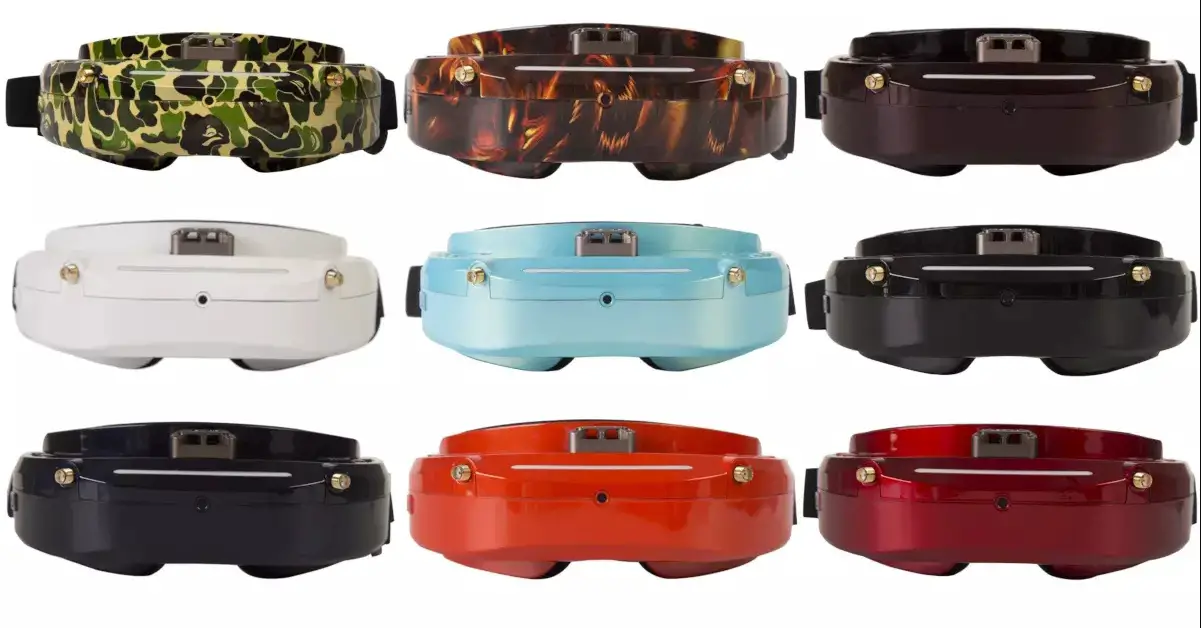
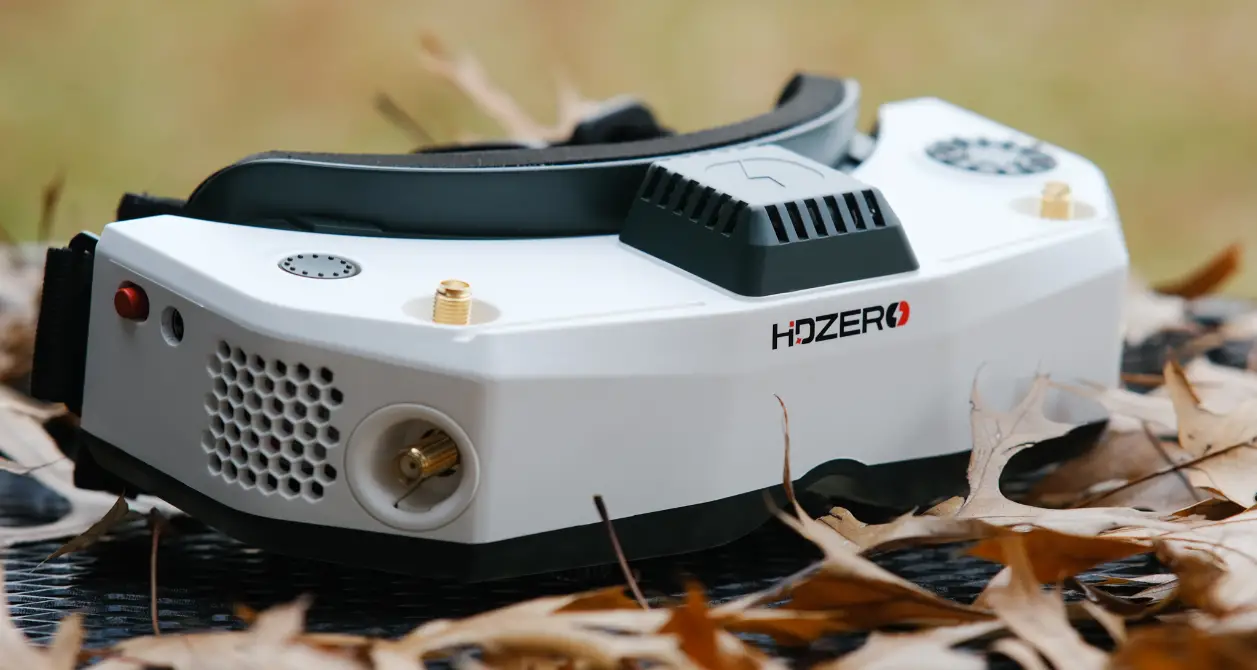
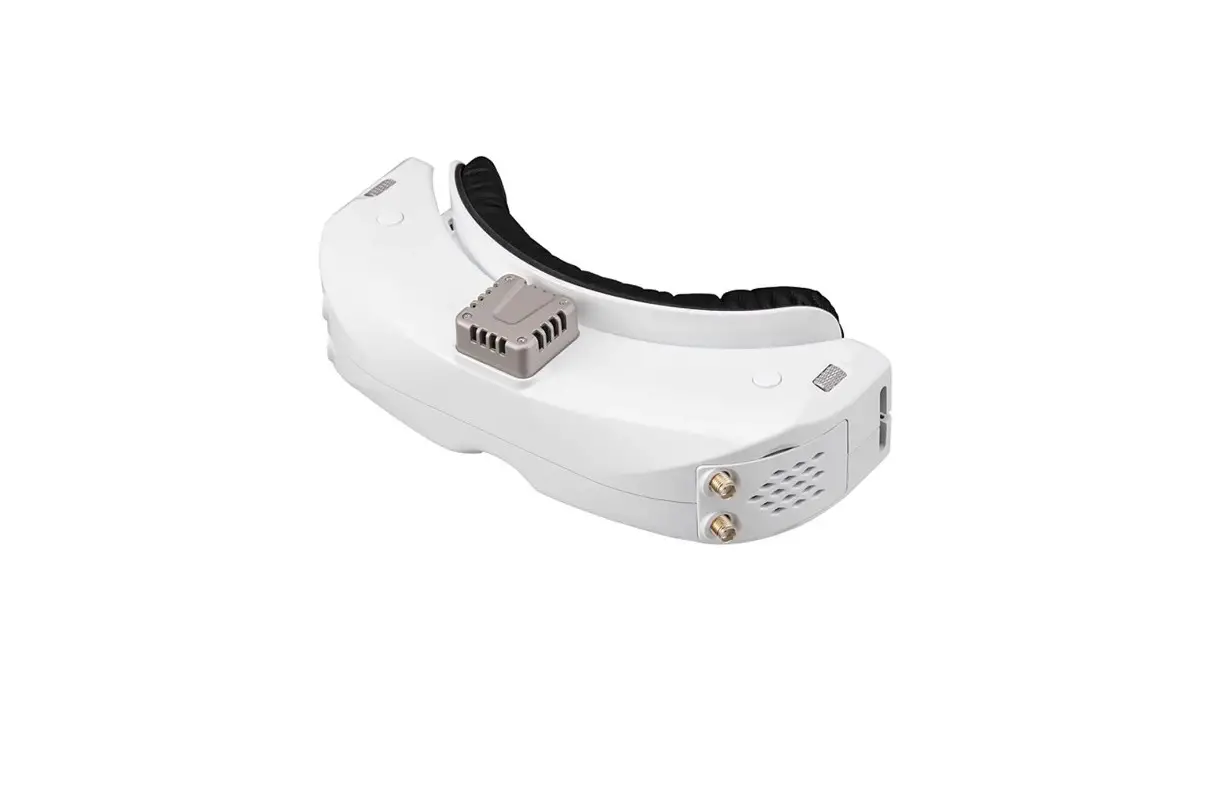
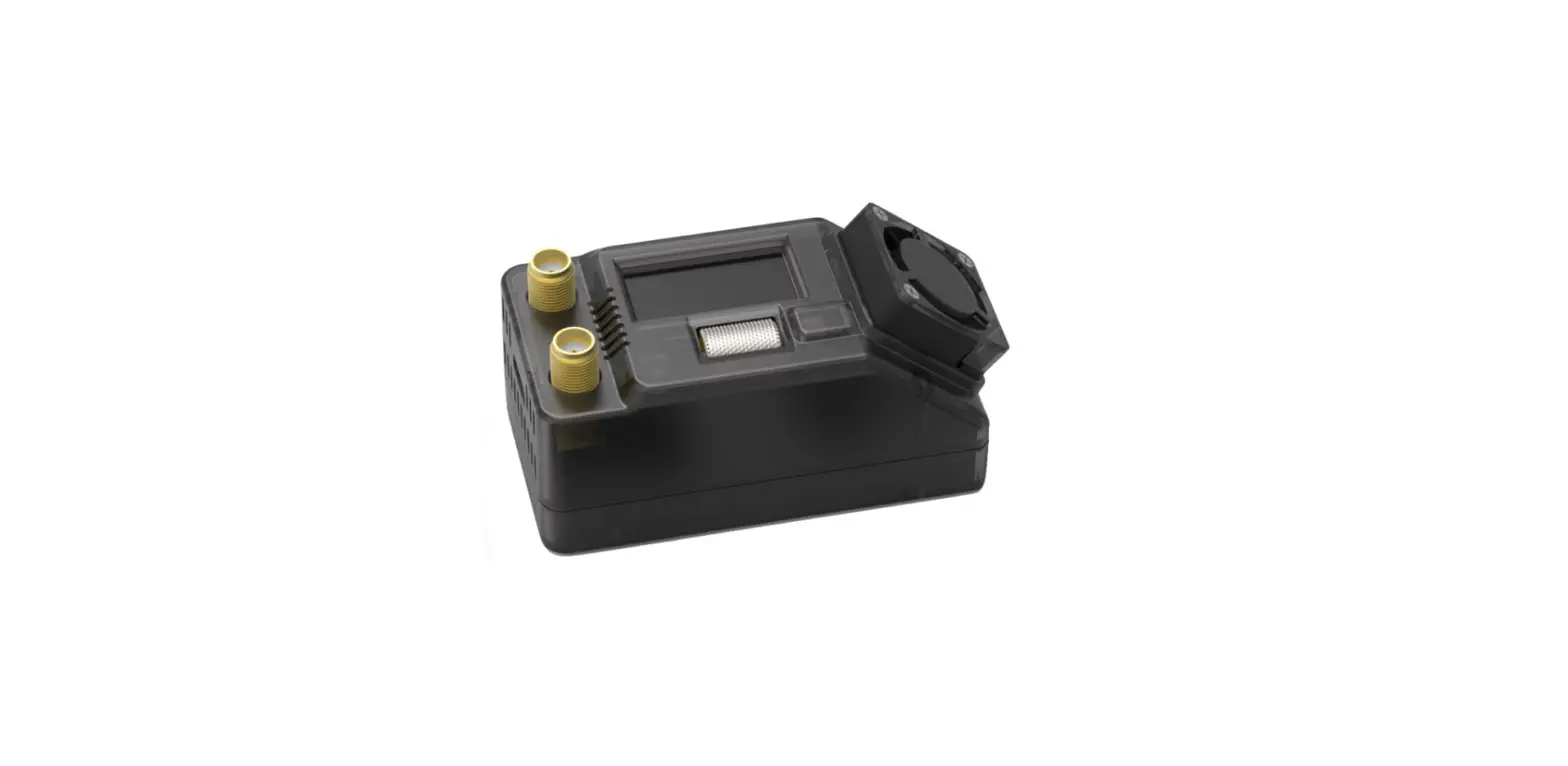
SkyVision HD HDZero Screen
Product Information:
The Skyvision is a video recording device with a 5.5 inch TFT
display. It has a 5.8G antenna port and can receive signals on
different channels. It has a DC input and XT30 battery input for
power, and an HDMI out port for playback. The device has a system
load LED, RF signal intensity LED, program flash LED, and power
LED. It also has a cooling fan and VTX upgrade port. The Skyvision
comes with a user manual that provides instructions on how to
access the menu, record video, select different signal channels,
and playback videos.
Product Usage:
How to access the Menu:
- Long press the up button to enter the menu
- Short press the up and down button to select the menu
target - Short press the middle button to confirm
How to record video:
- Select AUTO in the menu option Record Mode for automatic
recording when the device is turned on - Select Manual in the menu option Record Mode for manual
recording - In display mode, long press the middle button to start
recording and long press it again to stop recording
How to select different signal channels:
- In display mode, press up and down button to switch the current
signal channel
Playback:
- Playback the previous video using the Playback option in the
menu
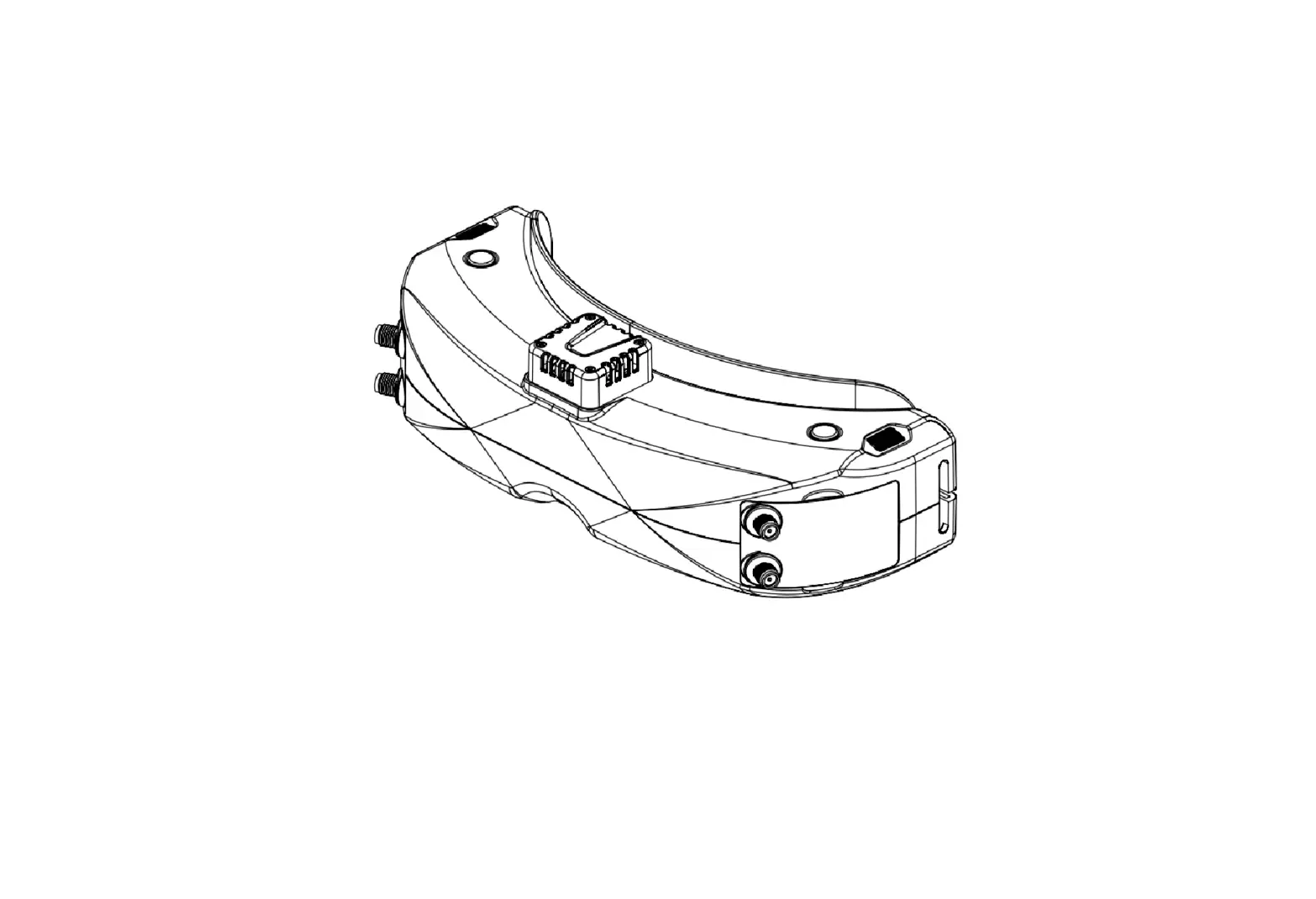
Port Definition:
- 1 – 1/4 screw
- 2 – SD card slot
- 3 – VTX upgrade port
- 4 – 5.8G antenna port
- 5 – 5.8G antenna port
- 6 – 5.5 inch TFT
- 7 – DC input (7V-26V)
- 8 – Power button
- 9 – XT30 battery input (7V-26V)
- 10 – HDMI out
- 11 – Cooling fan
- 12 – System load LED
- 13 – RF signal intensity LED
- 14 – Program flash LED
- 15 – Power LED
- 16 – Up button (long press to access the menu)
- 17 – Confirm button
- 18 – Down button
OSD:
- 12.0v
- CH:R2
System Settings:
- Playback – playback the previous video
- Record Mode – AUTO for automatic recording or MANUAL for manual
recording - Format SD-Card – format the SD card
- About – information about the Skyvision device and its version
information - User Manual – easy user manual
- Exit – exit the menu
If you have any technical support questions, you can contact
FrSky Electronic Co., Ltd. at [email protected] or
[email protected]. Their address is F-4, Building C, Zhongxiu
Technology Park, No.3 Yuanxi Road, Wuxi, 214125, Jiangsu,
China.
User Manual
01140218
Fast User Manual
How to access the Menu: – Long press the up button, enter the menu – Short press the up and down button to select the menu target – Short press the middle button to confirm
How to record video: – You can set AUTO/Manual record in the menu 1. Auto record. Select “AUTO” in the menu option “Record Mode”. In this mode, the Skyvision starts recording when it turns on. 2. Select “Manual” in the menu option “Record Mode”. In display mode, long press the middle button to start recording, long press middle button again to stop recording.
How to select different signal channels: – In display mode, press up and down button to switch the current signal channel Play Back: playback the previous video
Port definition
1
2
11
4
5
12 13 14 15
3 6
7
8
16
9
17
18
10
1 1/4 screw
2 SD card slot
3 VTX upgrade port
4 5.8G antenna port
5 5.8G antenna port
6 5.5 inch TFT
7 DC input (7V-26V) 8 Power button
9 XT30 battery input (7V-26V) 10 HDMI out
11 Cooling fan
12 System load LED 13 RF signal intensity LED 14 Program flash LED
15 Power LED
16 Up button (long press to access the menu) 17 Confirm button
18 Down button
OSD
12.0v 6
CH:R2 1
Menu functions
2345
1 Current Signal channel. Short press up and down button to switch the current signal channel.
2 Record status. When insert SD card to start recording, the status light will be red and flash, that means TF is in record mode.
3 Current signal intensity. The max is 8, the min is 0. 4 Antenna 1 received signal strength. 5 Antenna 2 received signal strength. 6 Input voltage Signal channel: F2-5760MHz F4-5800MHz
R1-5658MHz R2-5695MHz R3-5732MHz R4-5769MHz R5-5806MHz R6-5843MHz R7-5880MHz R8-5917MHz
Long press the up button to enter the menu
System Settings
1
Playback
2
Record Mode
3 Format SD-Card
4
About
5
User Manual
6
Exit
No SD Card! Auto
1 Playback: playback the previous video. 2 RecordMode:
Auto: Auto record. It starts recording when get video signal. If no video signal, it stops recording. Manual: Manual record. Long press the middle button to start recording. 3 Format SD-Card: Format SD card. 4 About: About this Skyvision info and version info. 5 User manual: Easy user manual. 6 Exit: Exit.
FrSky Electronic Co., Ltd.
www.frsky-rc.com
Contact us: [email protected]
Add: F-4,Building C, Zhongxiu Technology Park, No.3 Yuanxi Road, Wuxi, 214125, Jiangsu, China Technical Support: [email protected]
– – –
– 1. record mode AUTO skyvision 2. record mode manual
– play back
1
2
11
01140218
4
5
12 13 14 15
3 6
7
8
16
9
17
18
10
1 1/4
2 SD
6 5.5TFT
7 DC (7V-26V)
11
12
16 “”()
OSD
3 VTX 8 13 17 “”
4 5.8G 9 XT30 (7V-26V) 14 18 “”
5 5.8G 10 HDMI 15
12.0v 6
CH:R2 1
“”
System Settings
1
Playback
2
Record Mode
3 Format SD-Card
4
About
No SD Card! Auto
5
User Manual
6
Exit
2345
1 CH
2 SD
TF
3 8 0
4 1
5 2
6
F2-5760MHz R1-5658MHz R5-5806MHz
F4-5800MHz R2-5695MHz R6-5843MHz
R3-5732MHz R7-5880MHz
R4-5769MHz R8-5917MHz
1 Playback 2 RecordMode
Auto Manual 3 Format SD-Card SD 4 About 5 User Manual 6 Exit
FrSky Electronic Co., Ltd.
www.frsky-rc.com
Contact us: [email protected]
Add: F-4,Building C, Zhongxiu Technology Park, No.3 Yuanxi Road, Wuxi, 214125, Jiangsu, China Technical Support: [email protected]
 Robinson+Cole
 FrSky Top Rated RC Hobby Radio, Receiver and RC Model - Lets you set the limits