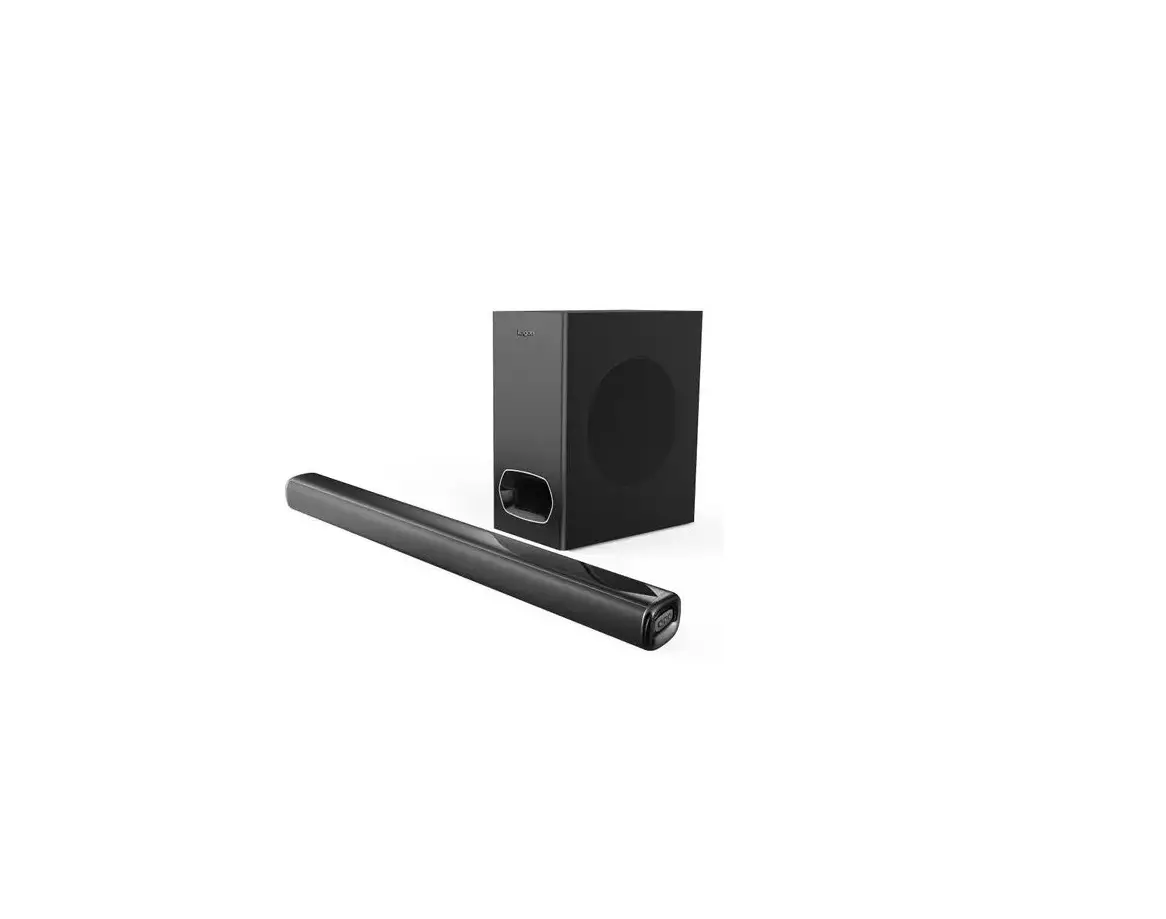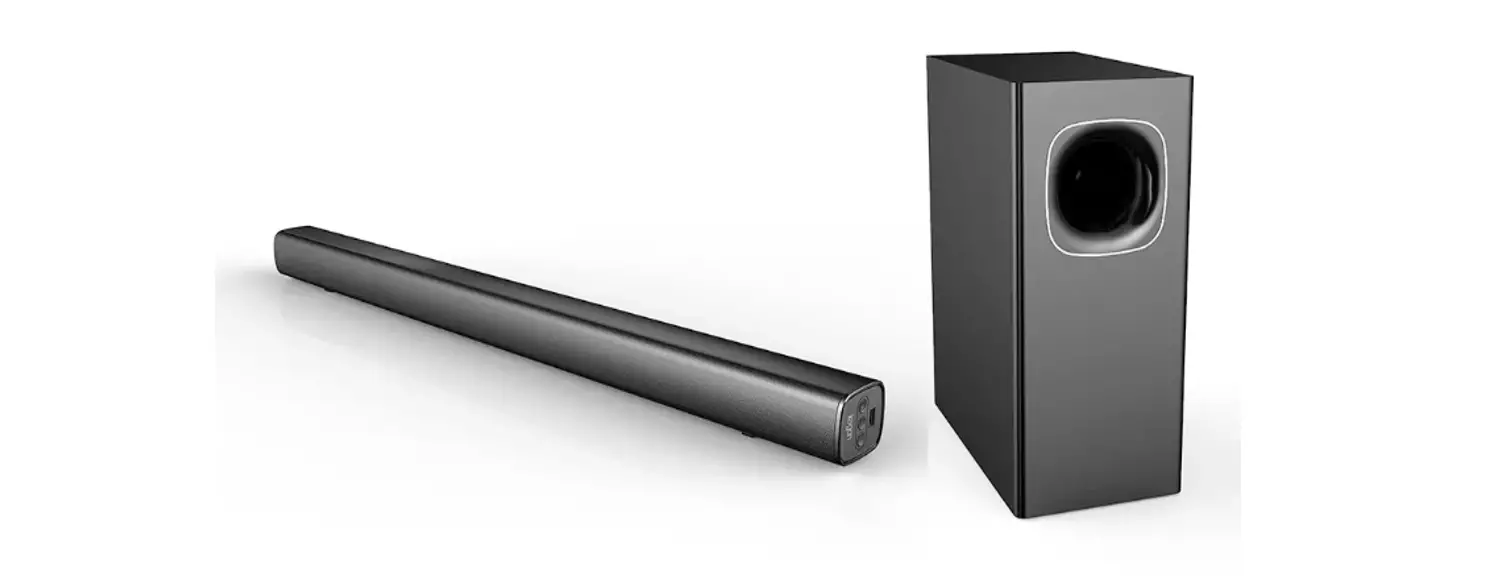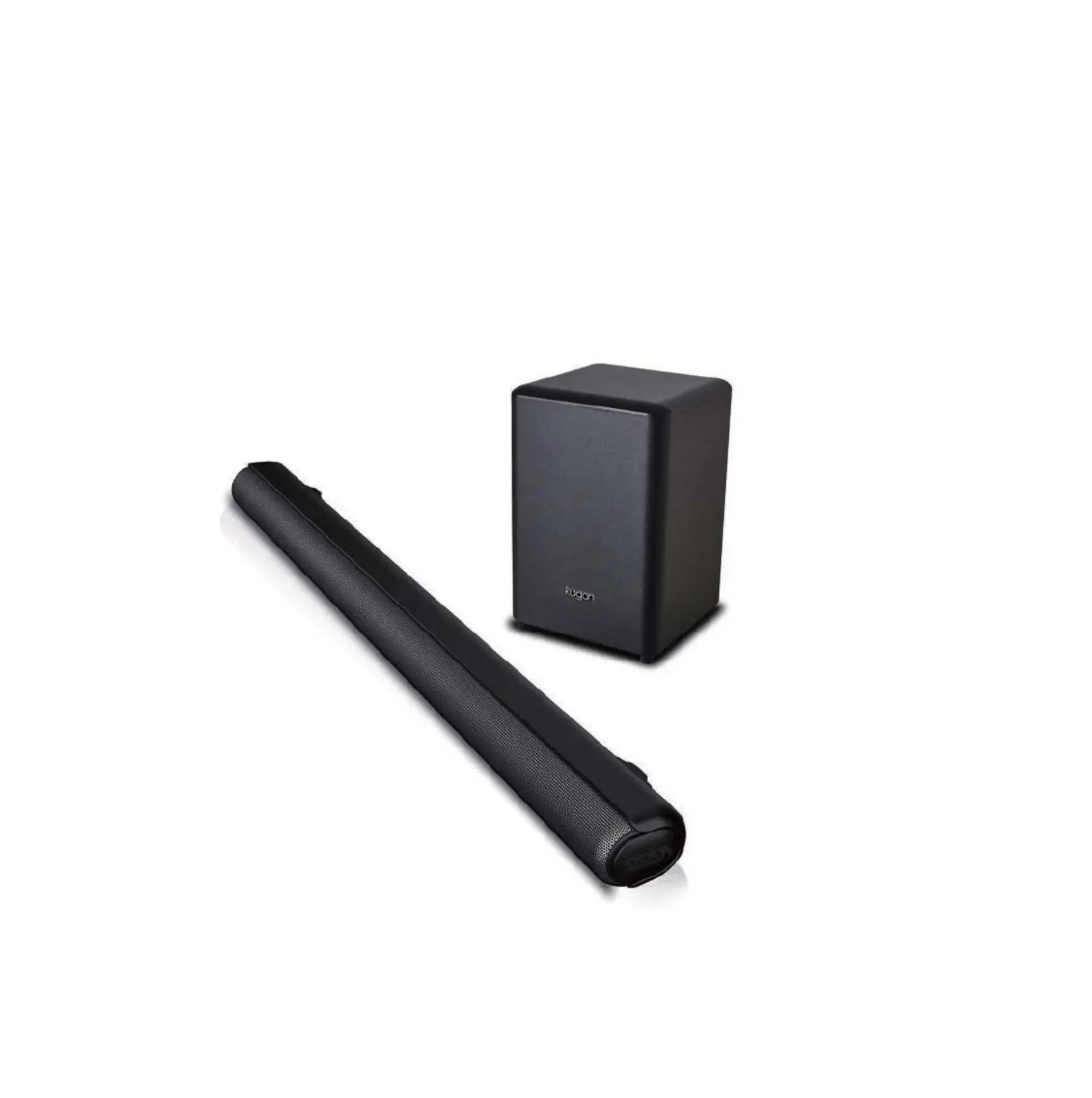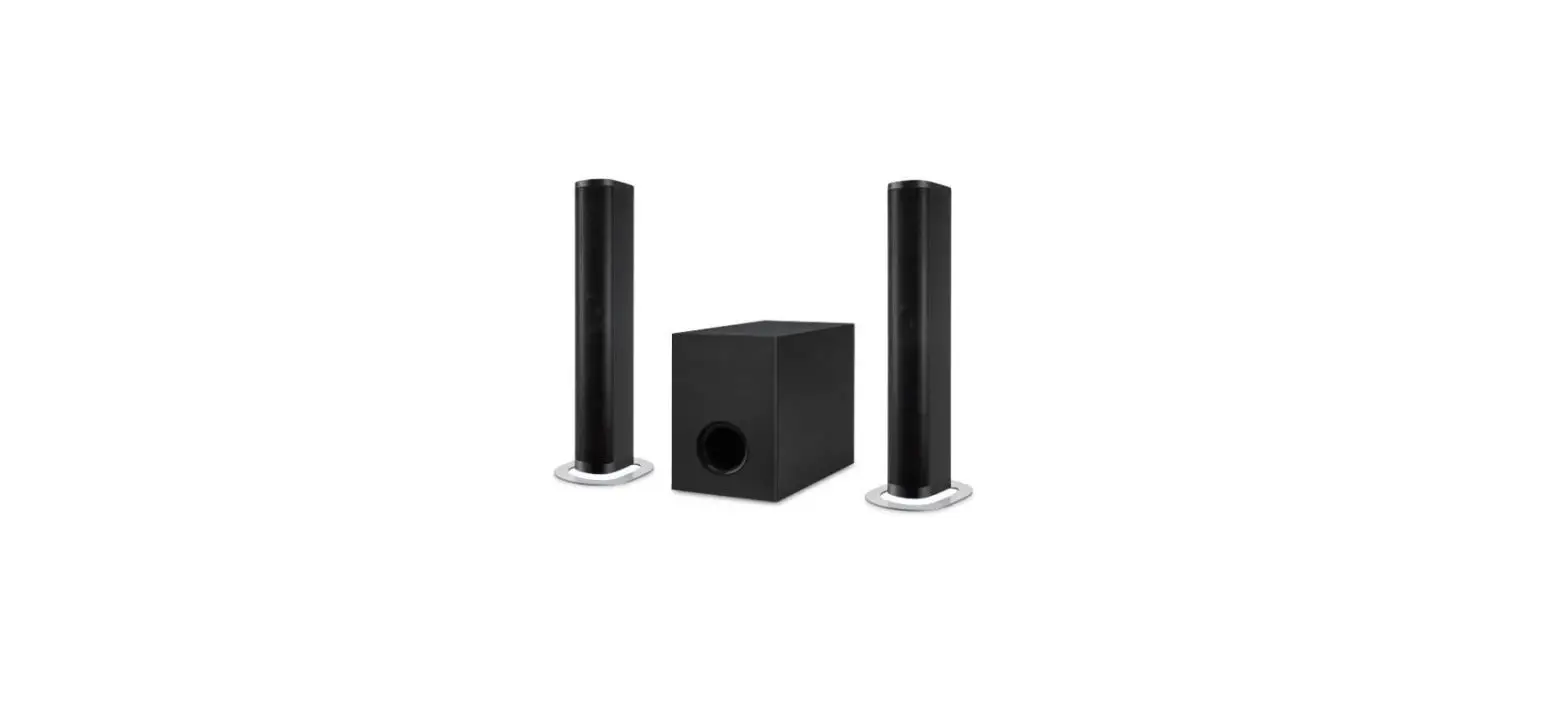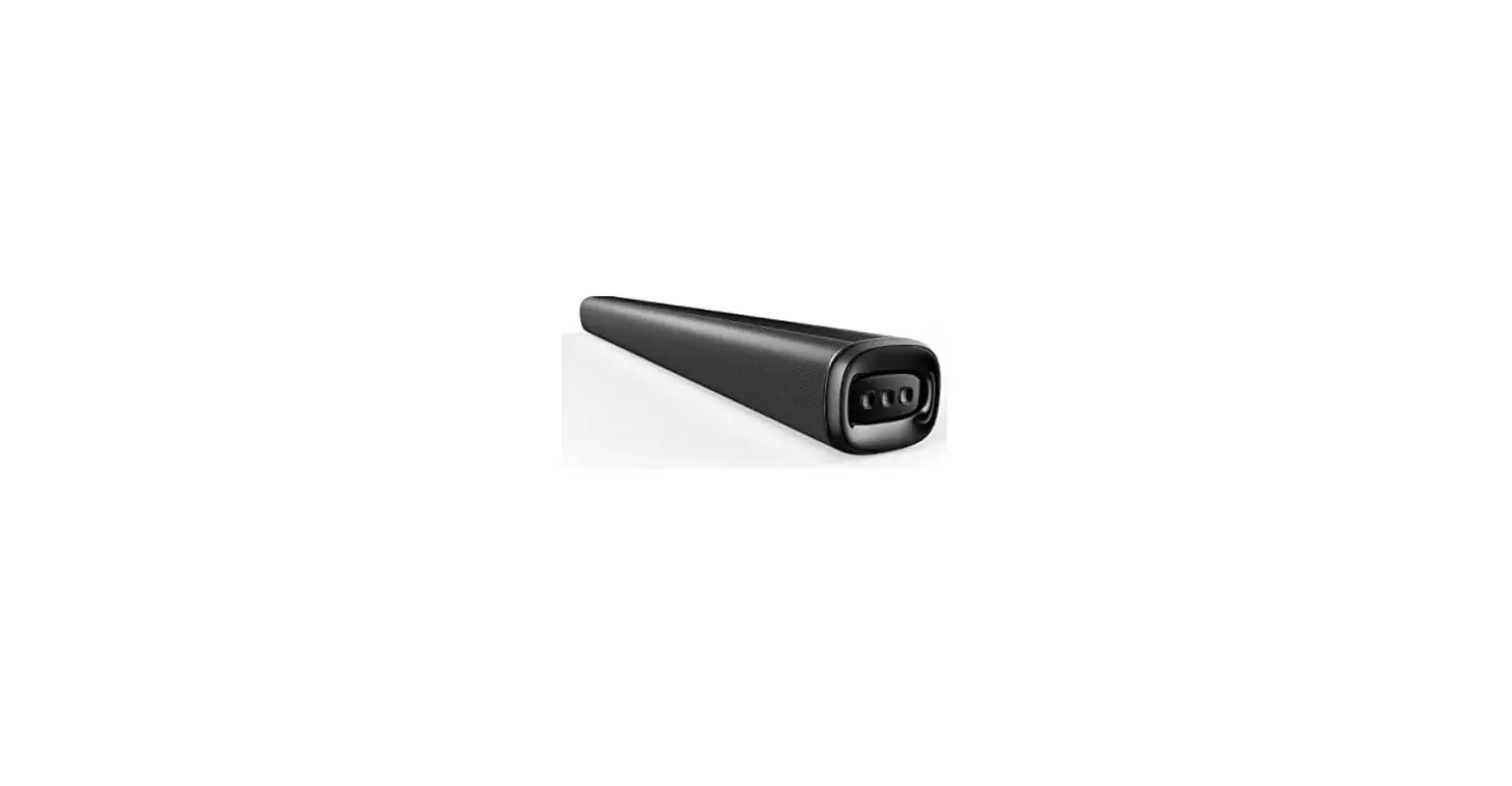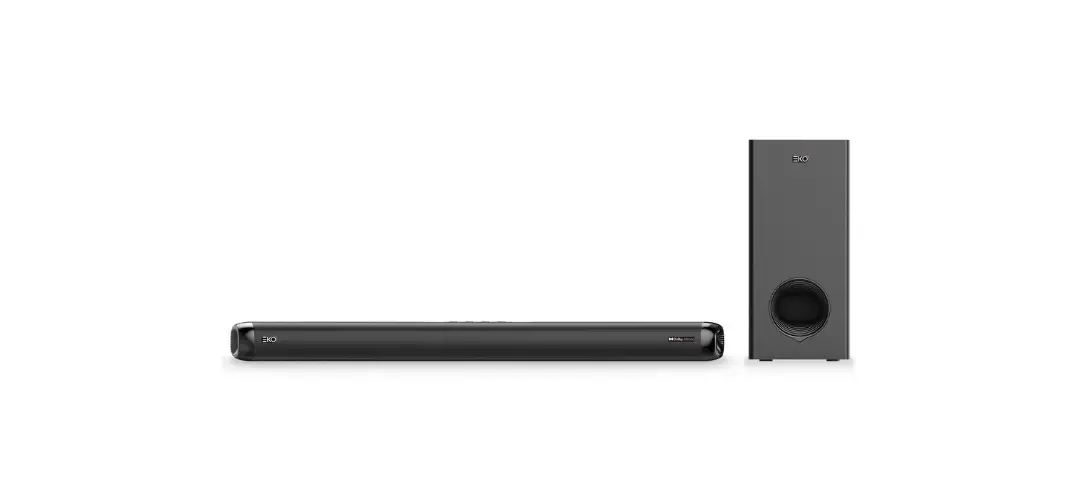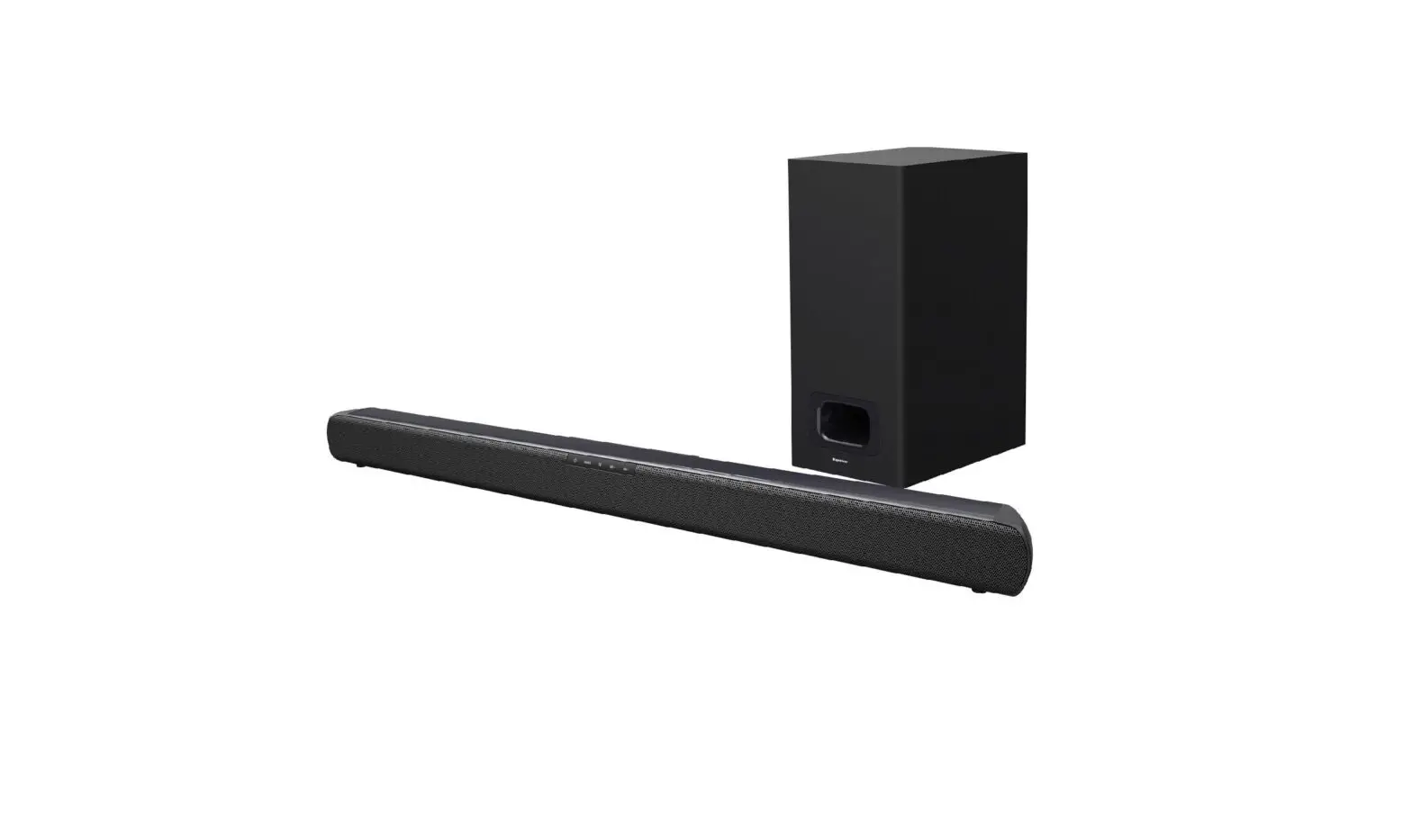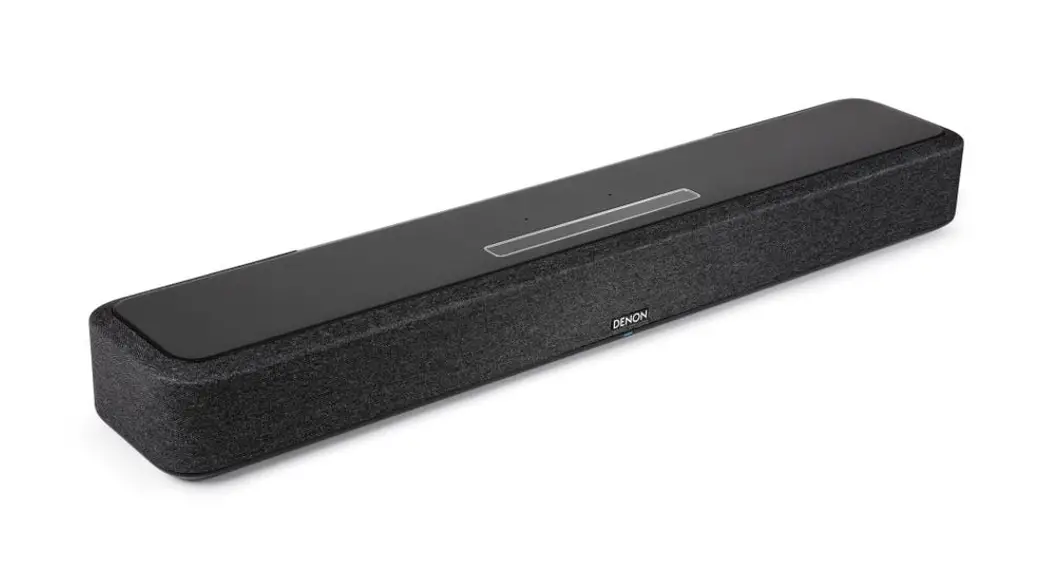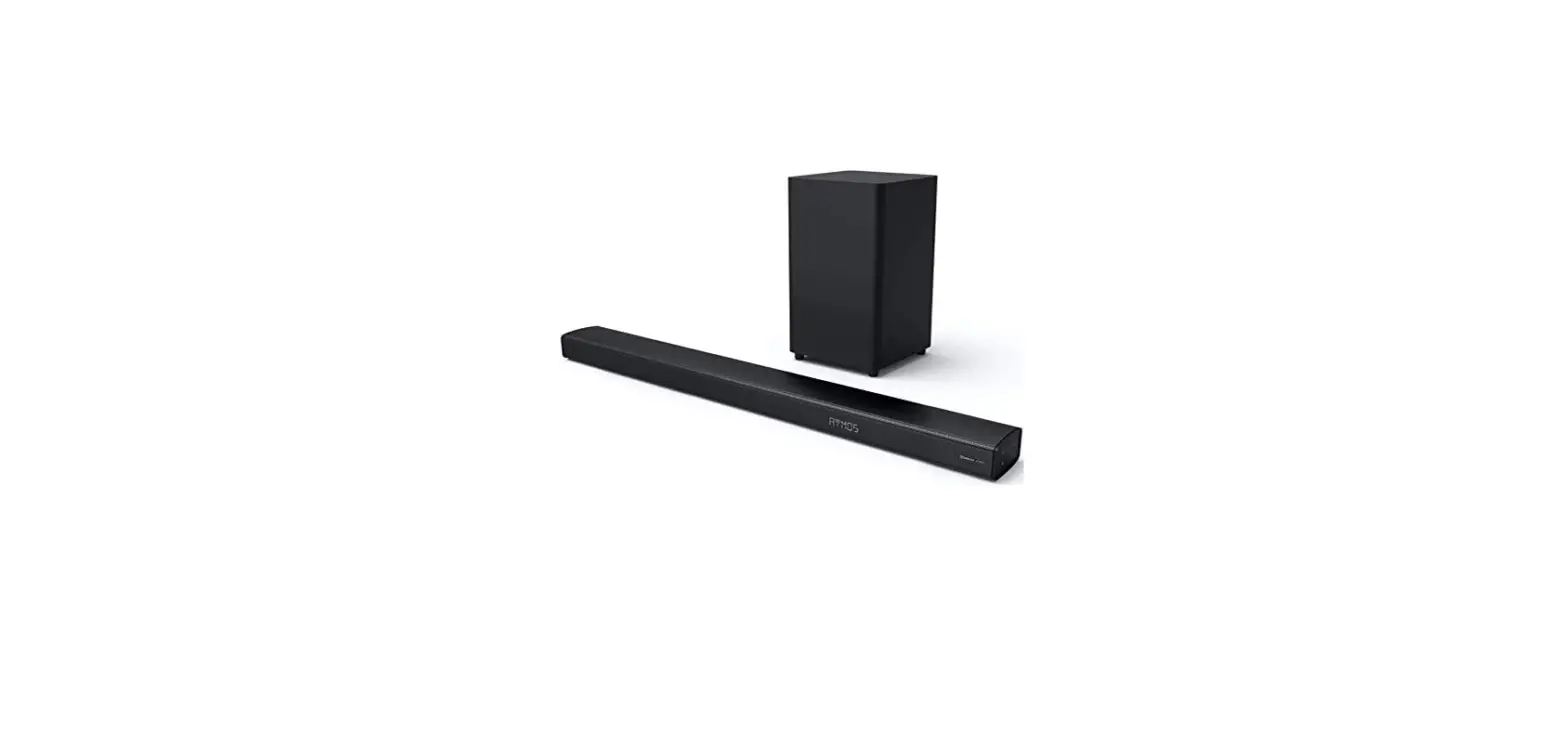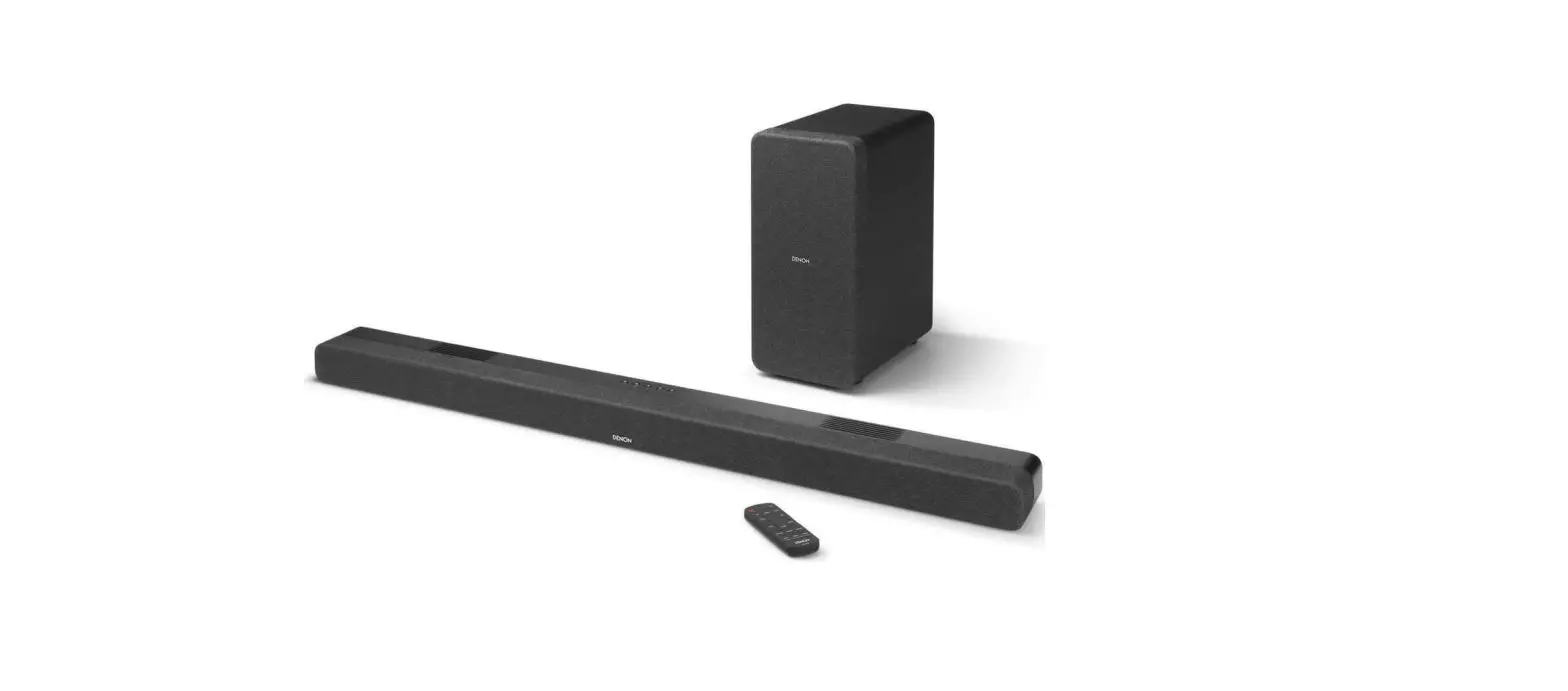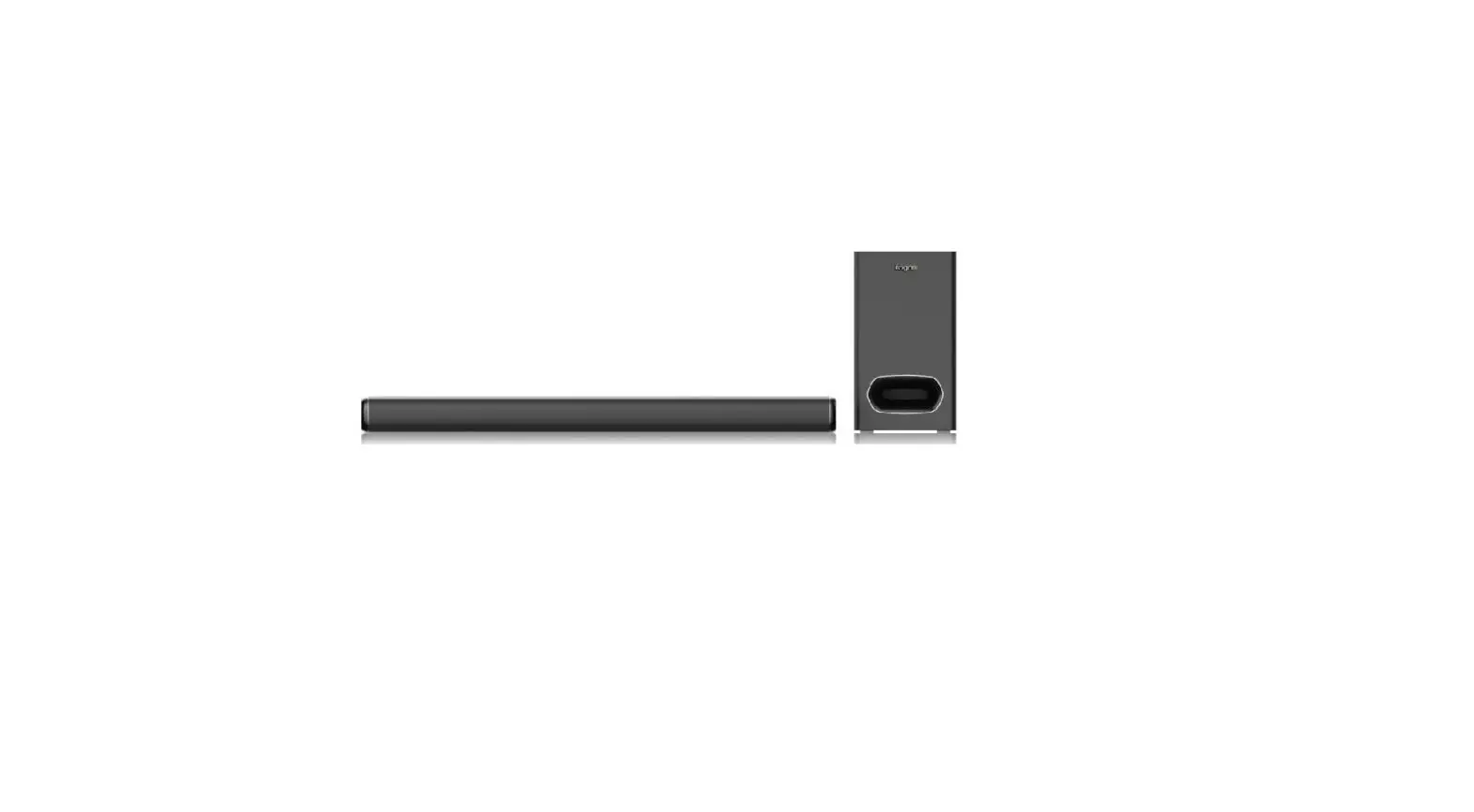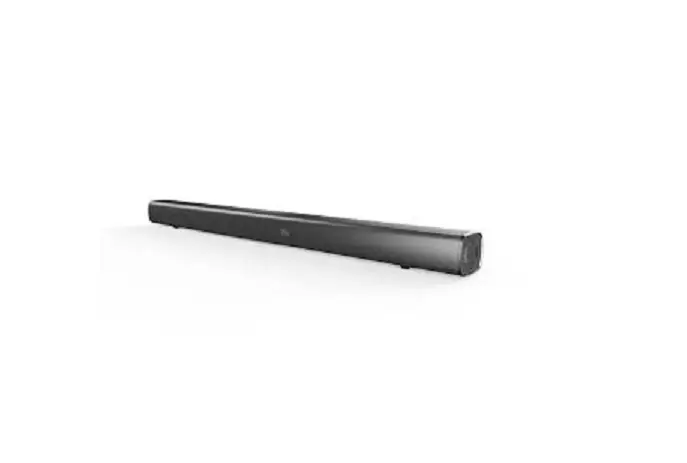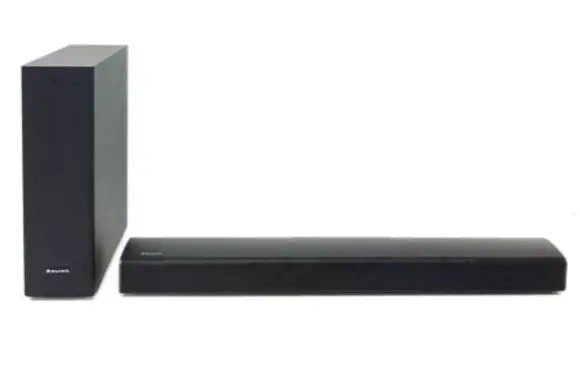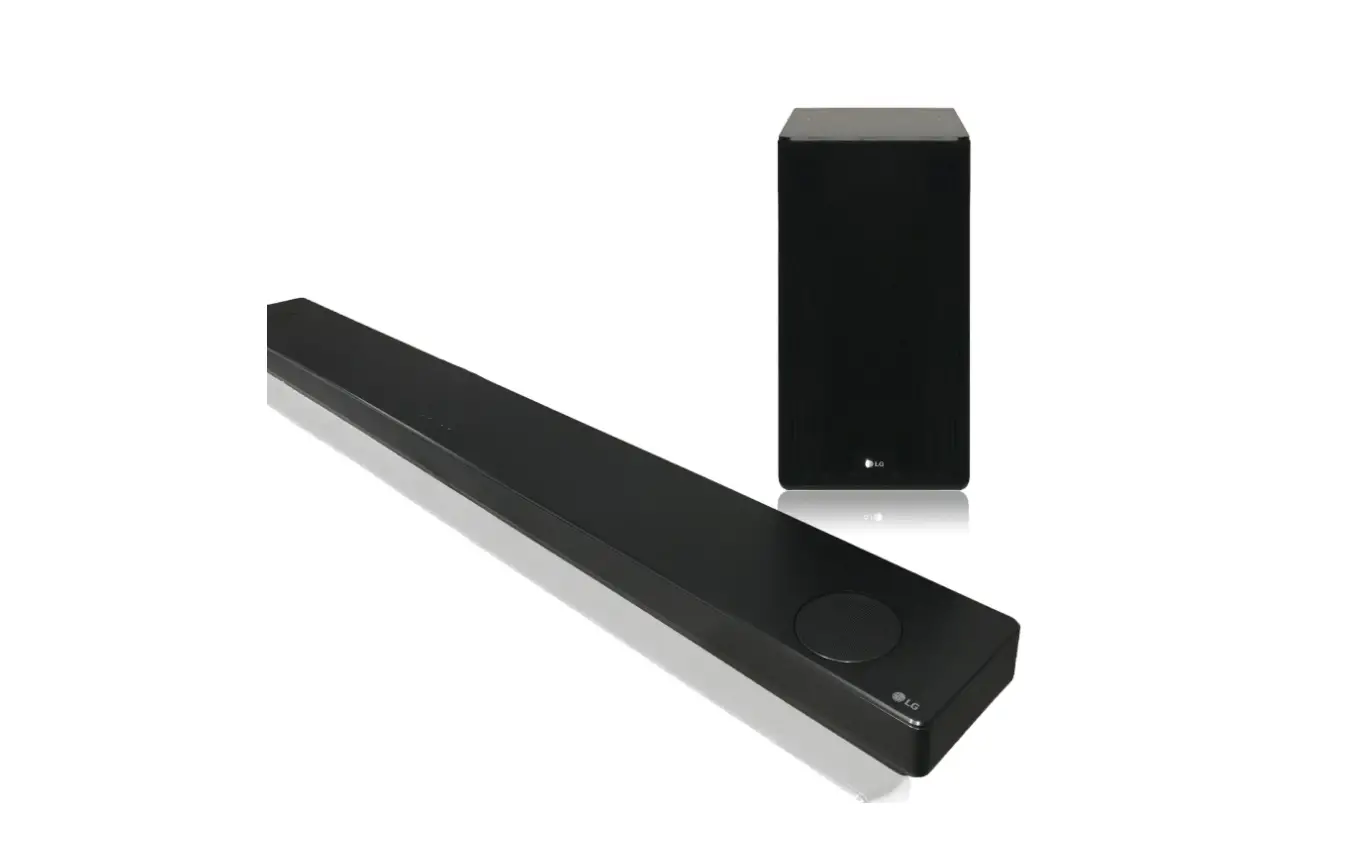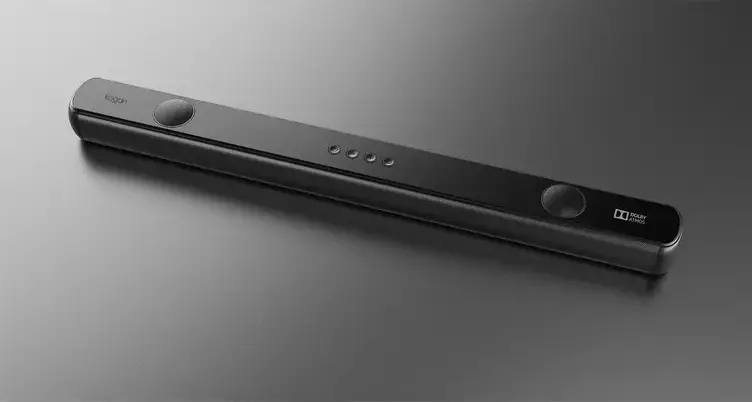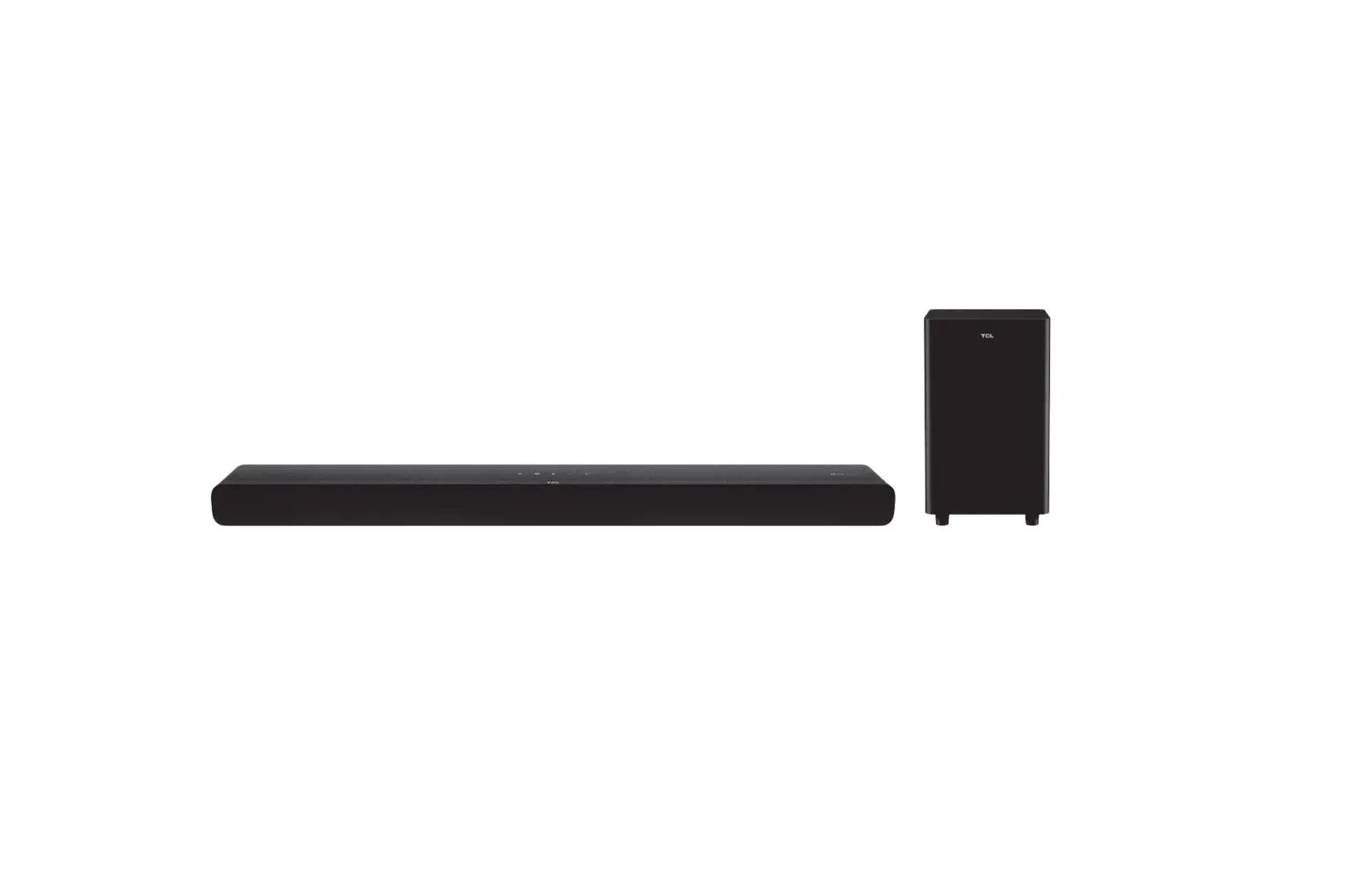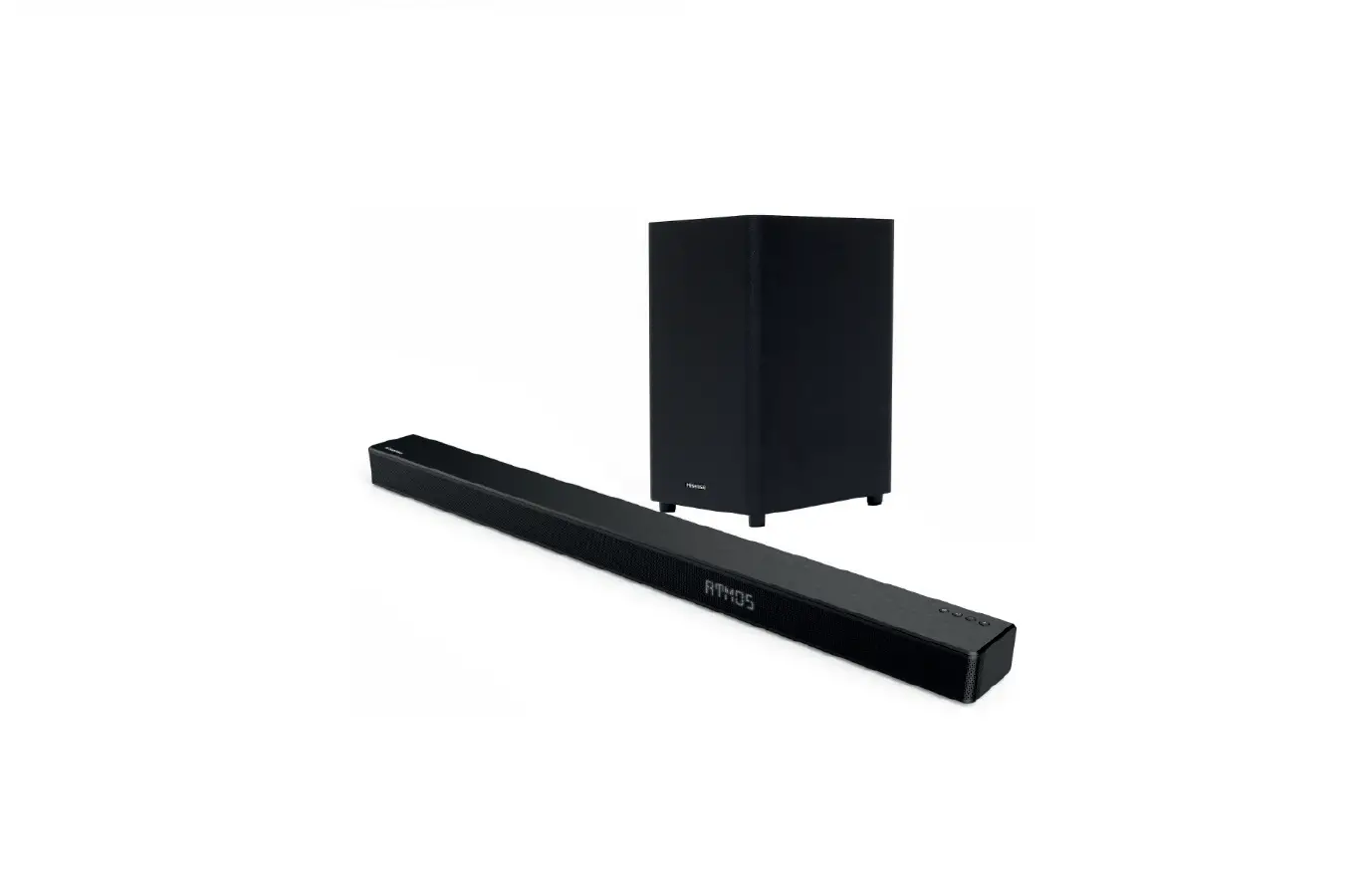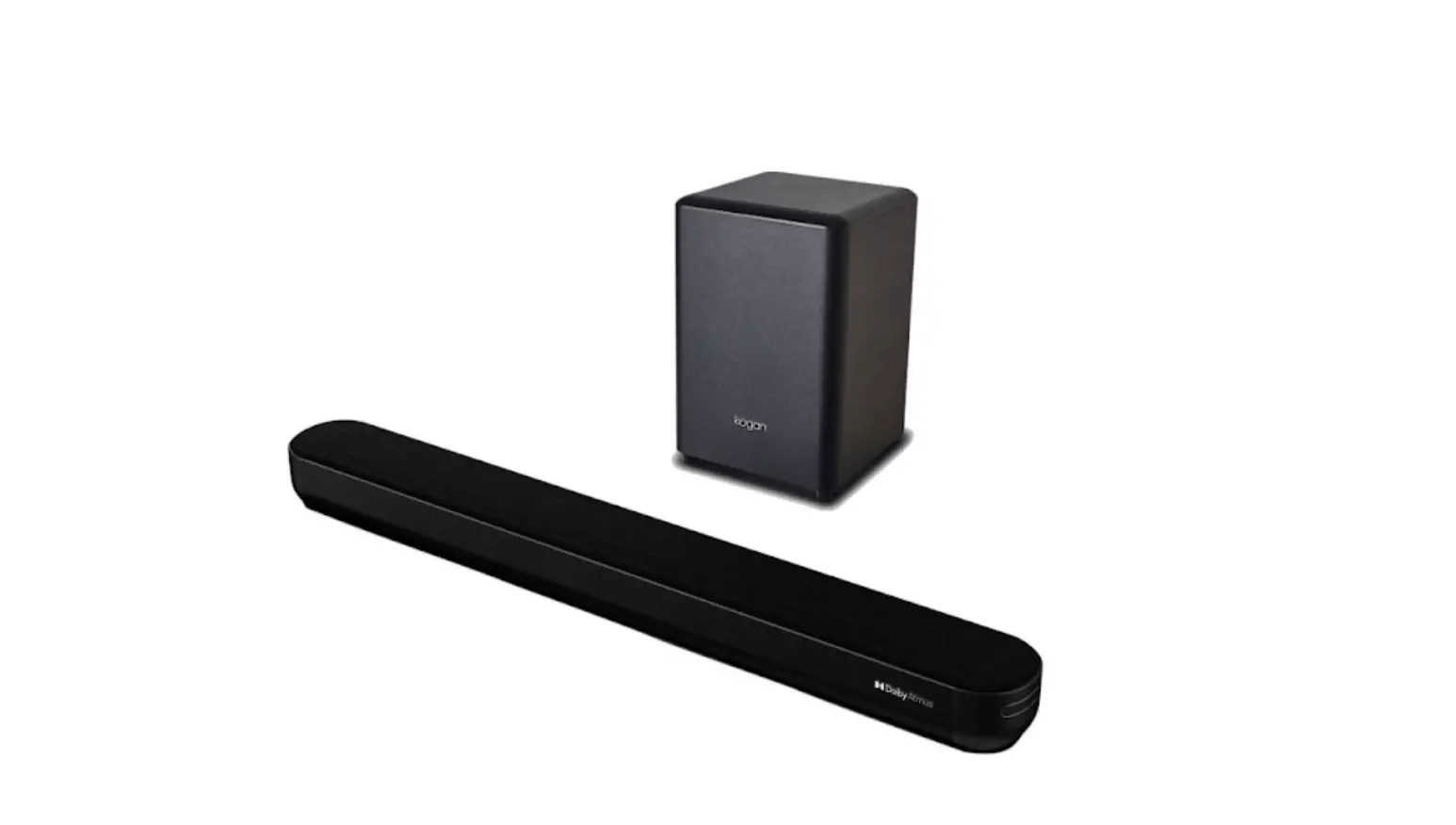
Kogan KASBDA312HA Dolby Atmos Soundbar with Wireless Subwoofer User Guide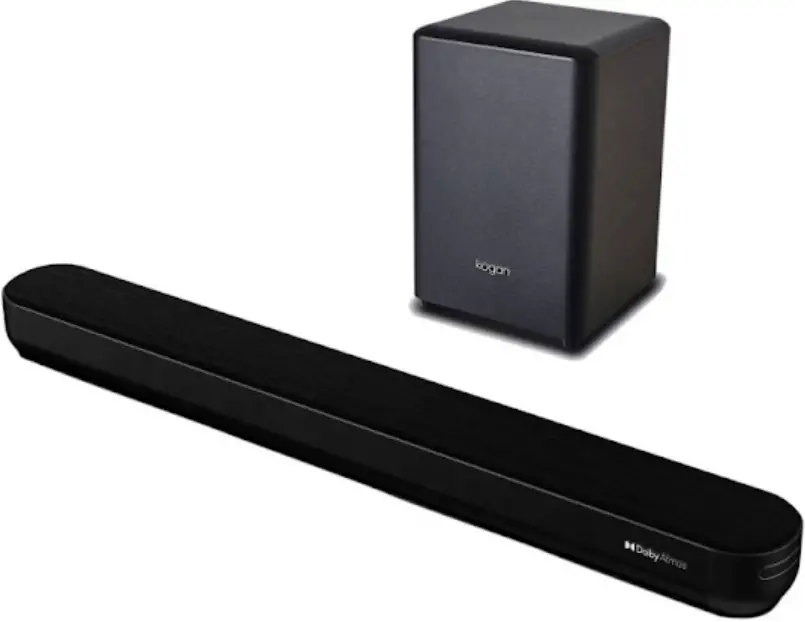
SAFETY & WARNINGS
Ensure to read all instructions and warnings in this user guide prior to first use. Retain this user guide for future reference.
- Do not place the sound bar or subwoofer in wet or high temperature areas.
- Do not place the sound bar or subwoofer in humid areas.
- Do not place the sound bar or subwoofer under direct sunlight.
- Do not attempt to disassemble the sound bar or subwoofer yourself.
- Do not allow any particles or liquids to fall into the soundbar or subwoofer. If any falls, cut off the power supply immediately. Stop use and contact a qualified professional.
- The sound bar and subwoofer do not contain any user-serviceable parts.
- Do not attempt to repair the sound bar or subwoofer yourself. If repairs are needed, stop use and contact a qualified professional.
- Do not block the vents or speakers on this sound bar with any obstructions.
- Ensure the power cords are always visible and do not pose a tripping hazard.
- If the power cord is damaged, stop use immediately and contact help.Kogan.com for assistance.
- Do not lift the sound bar or subwoofer by any attached cables.
COMPONENTS LIST
- Sound bar (x1)
- Wireless subwoofer (x1)
- Remote control (x1)
- Power cord for the sound bar (x1)
- Power cord for the subwoofer (x1)
- AUX cable (x1)
- AAA batteries (x2)
- User guide (x1)
OVERVIEW
Control panel (sound bar)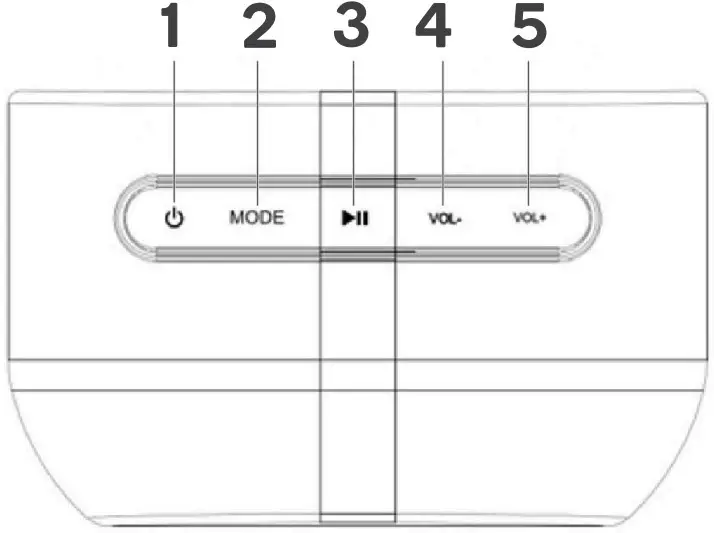
- Power button
- Mode button
- Play/pause button
- Volume decrease button
- Volume increase button
Ports (sound bar)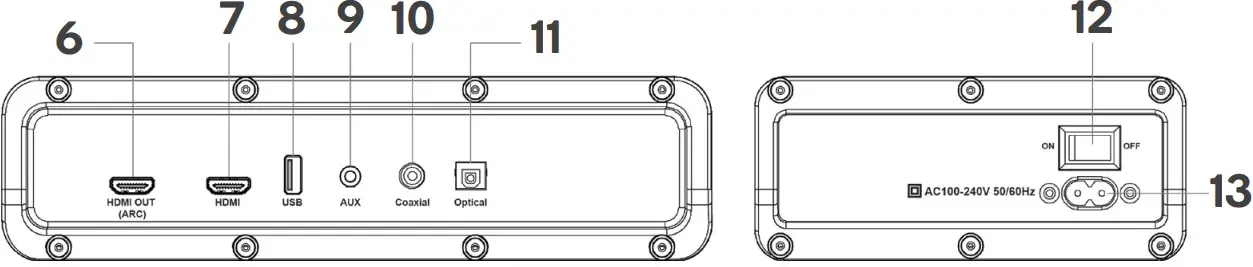
- HDMI OUT (ARC) port
- HDMI IN port
- USB port
- AUX port
- Coaxial port
- Optical port
- Power switch
- AC IN port
Back view (subwoofer)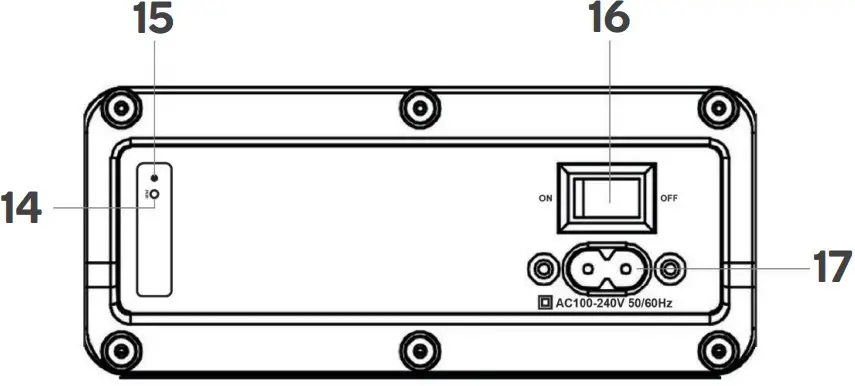
- Pair button
- Indicator light
- Power switch
- AC IN port
Remote control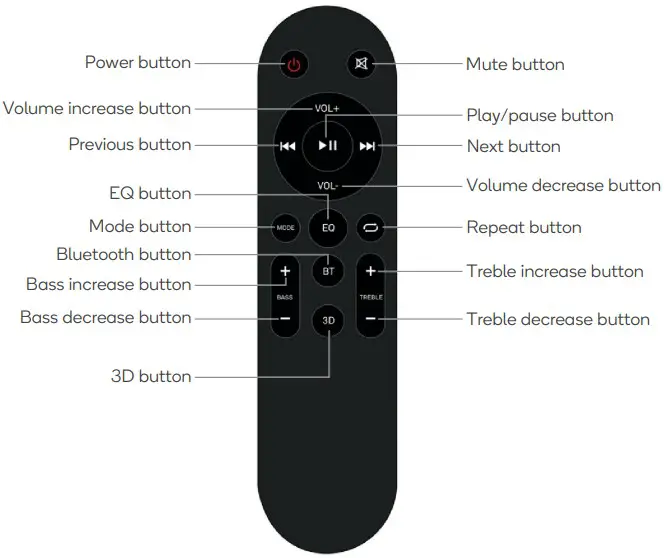
BEFORE FIRST USE
Remote control batteries
The remote control for the sound bar requires x2 AAA batteries.
- Slide the back cover off the remote control.
- Noting the polarity markings (+/–), insert x2 AAA batteries into the remote control. Once installed, slide the back cover on.
OPERATION
Remote control
| Name | Icon | Description |
| Power button |  | Press this button to turn the sound bar on/off |
| Mute button |  | Press this button to mute/unmute the sound bar. |
| Volume increase button | VOL+ | Press this button to increase the volume |
| Volume decrease button | VOL- | Press this button to decrease the volume. |
| Play/pause button |  | Press this button to play/pause tracks. |
| Previous button |  | Press this button to play the previous track |
| Next button |  | Press this button to play the next track. |
| Mode button | MODE | Press this button to switch between the connection modes (HDMI ARC, Optical, AUX, Coaxial, USB, Bluetooth, HDMI IN) |
| EQ button | EQ | Press this button to switch between the equalizer modes (Music, Movie, and News). |
| Track control button |  | When in USB mode, press this button to switch between the track controls. |
| Bass increase button | BASS + | Press this button to increase the bass (up to +5) |
| Bass decrease button | BASS – | Press this button to decrease the bass (up to –5). |
| Bluetooth button | BT | Press this button to activate Bluetooth mode on the sound bar. |
| 3D button | 3D | Press this button to activate the 3D audio mode. |
| Treble increase button | TREBLE + | Press this button to increase the treble (up to +5). |
| Treble decrease button | TREBLE – | Press this button to decrease the treble (up to –5). |
Powering
- Plug one end of the power cords for the sound bar and subwoofer into the AC IN ports on both devices, then plug the other end into two power sockets. Switch the power sockets on.
- Press the power button on the soundbar or remote control to turn the soundbar on.
- Press the power button again to turn the soundbar off.
Connection modes
This sound bar features seven connection modes. The display on the front of the sound bar will change when switching between modes.
| Connection mode | Display shows |
| HDMI ARC | ARC |
| Optical | OPT |
| AUX | AUX |
| Coaxial | COA |
| USB | USB |
| Bluetooth | BT |
| HDMI IN | HDMI |
HDMI ARC mode
This sound bar supports HDMI with an audio return channel (ARC). Many standard HDMI ports support ARC but if unsure, check with the TV’s manufacturer. This allows the sound from a TV to emit through the sound bar rather than the TV’s inbuilt speakers.
- Connect one end of an HDMI cable (not supplied) into the HDMI OUT (ARC) port of the sound bar. Connect the other end of the cable into your TV’s HDMI (ARC) port.
- Press the mode button on the sound bar or remote control and change the sound bar to HDMI ARC mode.
- Ensure ‘HDMI ARC’ is selected as the TV’s audio output and the sound of media from the TV should emit from the sound bar.
Use the remote control/sound bar to adjust to make audio adjustments.
Optical mode
- Connect one end of an optical cable (not supplied) into the optical port of the sound bar. Connect the other end of the cable into the optical port on your device (for example, TV, gaming console, or DVD player).
- Press the mode button on the sound bar or remote control and change the sound bar to optical mode. Sound from your device should now emit from the sound bar. Use the remote control/sound bar to adjust to make audio adjustments.
AUX mode
- Connect one end of an AUX cable into the AUX port of the sound bar. Connect the other end of the cable into the AUX port on your device (for example, TV, gaming console, or DVD player).
- Press the mode button on the sound bar or remote control and change the sound bar to AUX mode. Sound from your device should now emit from the sound bar. Use the remote control/sound bar to adjust to make audio adjustments.
Coaxial mode
- Connect one end of a coaxial cable (not supplied) into the coaxial port of the Sound bar. Connect the other end of the cable into your TV’s coaxial port.
- Press the mode button on the sound bar or remote control and change the sound bar to coaxial mode.
- Ensure ‘Coaxial’ is selected as the TV’s audio output and the sound of media from the TV should emit from the sound bar.
Use the remote control/sound bar to adjust to make audio adjustments.
USB mode
This sound bar supports FAT32 formatted USBs up to 64GB. Ensure the files stored in the USB are in the WAV or MP3 format.
- Insert the USB into the USB port on the sound bar.
- Press the mode button on the sound bar or remote control and change the sound bar to USB mode.
Use the remote control/sound bar to adjust to make audio adjustments.
Track control button
This button allows adjustments to the order or repetition of tracks played in USB mode. When the mode is changed, it will be reflected on the sound bar’s display.
| Description | Display shows |
| Repeating the current track | ONE |
| Playing the tracks in order | ORDER |
| Shuffle | SHUFF |
| Playing all tracks in order on repeat | ALL |
Bluetooth mode
This mode allows users to play files from a Bluetooth enabled device (for example, a phone or tablet).
- Press the mode button on the sound bar or remote control and change the sound bar to Bluetooth mode. Alternatively, press the Bluetooth button on the remote control. ‘BT’ will be flashing on the display indicating it the sound bar is ready to pair.
- Ensure Bluetooth is turned on in your device and search for ‘Kogan Dolby Atoms Sound bar’. Once found, tap to connect. Once connected, the display will stop flashing and the devices will be paired. Files can now be played on the device with sound emitting from the sound bar.
Notes:
- When in Bluetooth or USB mode, you can press and hold the volume increase button to skip to the next track.
- When in Bluetooth or USB mode, you can press and hold the volume decrease button to play the previous track.
HDMI IN mode
- Ensure the TV, sound bar, and external device are switched off. Connect one end of an HDMI cable (not supplied) into the TV. Connect the other end into the HDMI OUT (ARC) port on the sound bar.
- Connect another HDMI cable (not supplied) into the HDMI OUT port of your external device, then connect the other end into the HDMI IN port on the sound bar.
- Switch on the external device and sound bar, then change the sound bar to HDMI IN mode.
- Switch on the TV and change the audio source to the HDMI port the devices are connected to. The Tb V will now display visual from the external device, with the sound emitting from the sound bar.
Use the remote control/sound bar to adjust to make audio adjustments.
3D mode
Allows for audio optimization for listening to audio designed for a virtual surround sound effect.
Note:
If using Dolby Atmos®, you do not need to activate this mode.
Equalizer modes
This sound bar features three equaliser modes (Music, Movie, News). Press the EQ button on the remote control to switch to different modes. This will be reflected on the display in the front of the sound bar.
- Music – Adjusts the audio to be best suited when listening to music
- Movie – Adjusts the audio to be best suited when watching movies
- News – Adjusts the audio to be best suited when listening to the news
Using Dolby Atmos®
- Ensure the connected device and content supports Dolby Atmos®.
- Set the audio format on the connected device (for example, Blu-ray player, TV) to either ‘Bitstream’, Auto’, or ‘Bypass’ to skip the encoding process. This allows the soundbar to receive the non-decoded audio signa
Note:
Dolby Atmos® is only available in HDMI IN and HDMI ARC modes.
CLEANING & CARE
Ensure the sound bar and subwoofer are turned off before cleaning. Wipe the surface of the sound bar and subwoofer with a soft cloth.
Notes:
- Do not use harsh abrasives or chemicals on the sound bar and subwoofer.
- Do not submerge the sound bar and subwoofer in water or any other liquid.
Storage
Store the sound bar and subwoofer in a cool, dry place.
TROUBLESHOOTING
Pairing the subwoofer
The subwoofer should come pre-paired to the sound bar. However, if the subwoofer needs pairing, follow the steps outlined below:
- Press the mode button until the sound bar displays and is flashing ‘BT’.
- Plug one end of the power cord for the subwoofer into the AC IN port. Plug the other end into a power socket. Switch the power socket on.
- Press and hold the pair button on the subwoofer until the indicator light starts flashing rapidly.
- Press and hold the Play/pause button on the remote control, and ‘pair’ will appear on the display. The subwoofer will then begin pairing to the sound bar. When paired, the sound bar will display ‘SW connected’. The indicator light on the subwoofer will then illuminate.
SPECIFICATIONS
| Specification | Sound bar | Subwoofer |
| Dimensions | 960 x 112 x 78mm | 240 x 240 x 370mm |
| Drivers | x3 (58 x 90mm/2.28” x 3.54”) x2 High (63.5mm/2.5”) | x1 (165mm/6.5”) |
| Impedance | 8Ω | 4Ω |
| Power supply supported | AC 100–240V | AC 100–240V |
| Bluetooth | ||
| Version | 5.0 + EDR | |
| Range | Up to 15m | |
| Protocols | A2DP V1.3, AVRCP V1.6, HID V1.1, AVCTP V1.4, AVDTP V1.3, SPP V1.2 | |
| Other specifications | ||
| Power output | x5 30W + x1 80W | |
| Power consumption | 230W | |
| Frequency response | 50Hz–20KHz | |
| Distortion | 10% | |
| S/N | 70dB | |
| Ports | HDMI OUT (ARC), Optical, AUX, Coaxial, USB, HDMI IN | |
| HDMI version | 2.1 | |
| Net weight | 8.55kg | |
Need more information?
We hope that this user guide has given you the assistance needed for a simple set-up.
For the most up-to-date guide for your product, as well as any additional assistance you may require, head online to