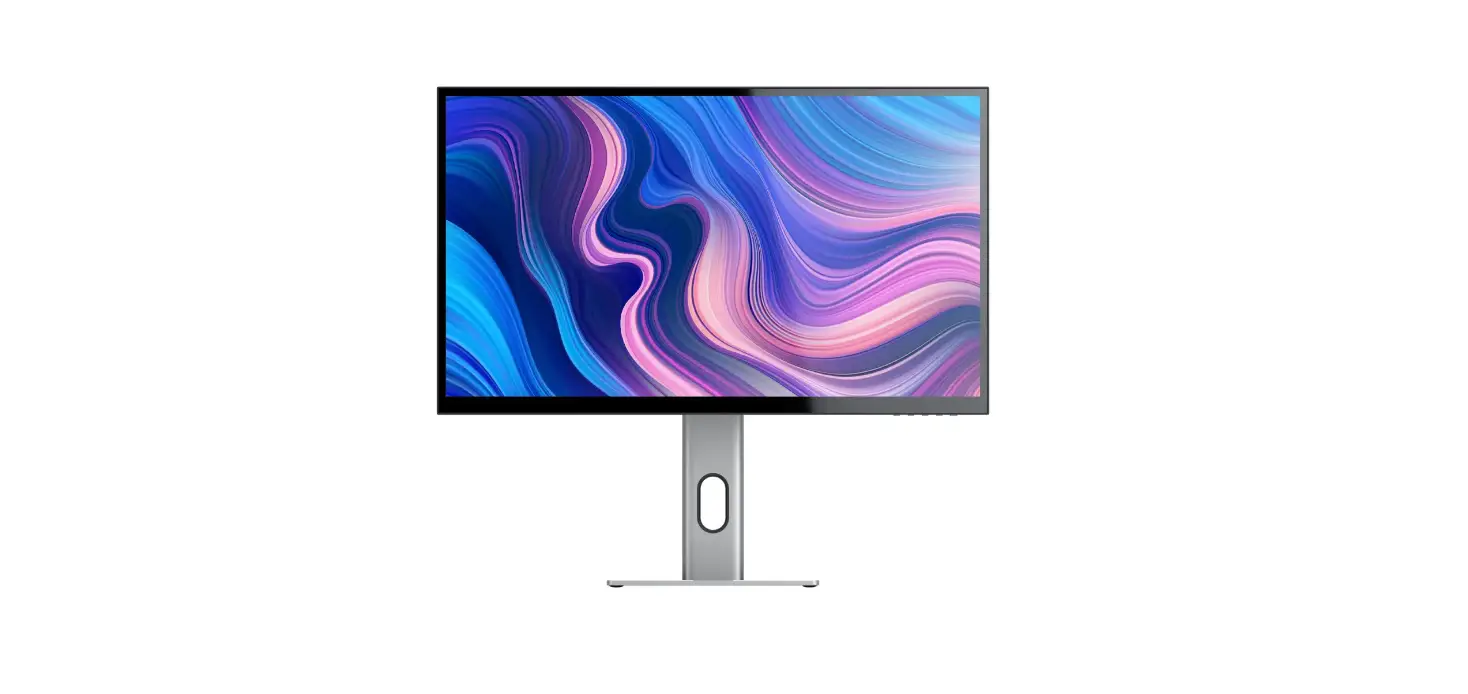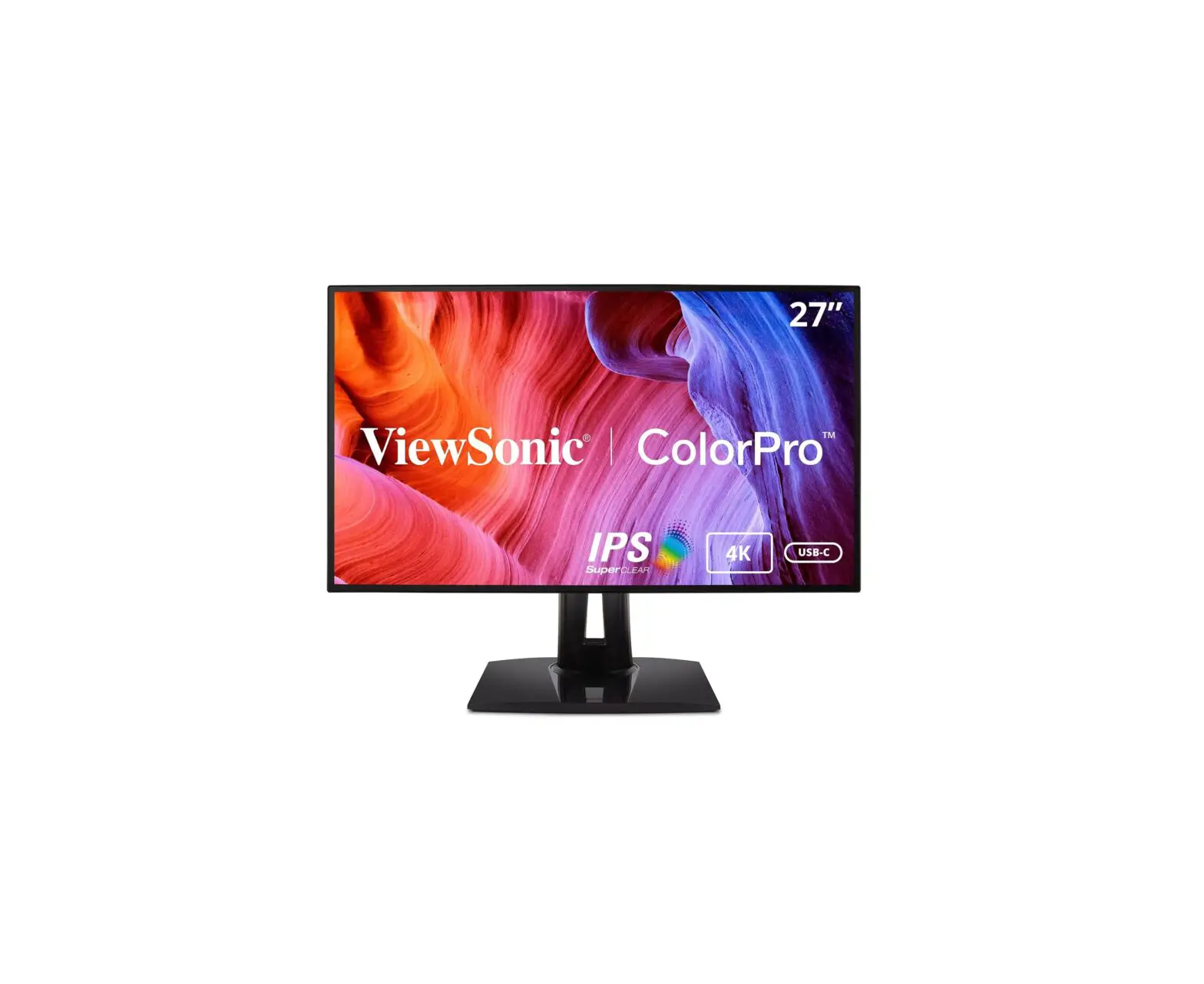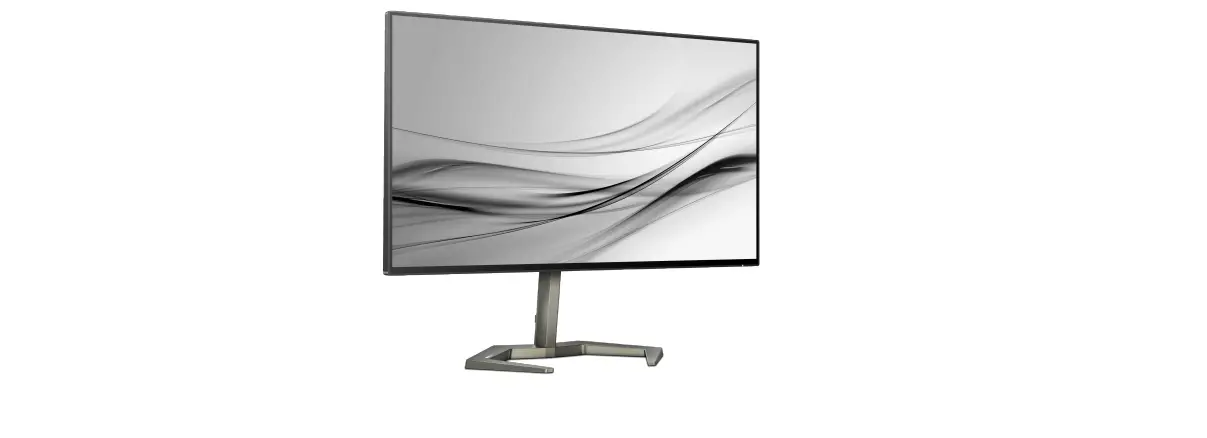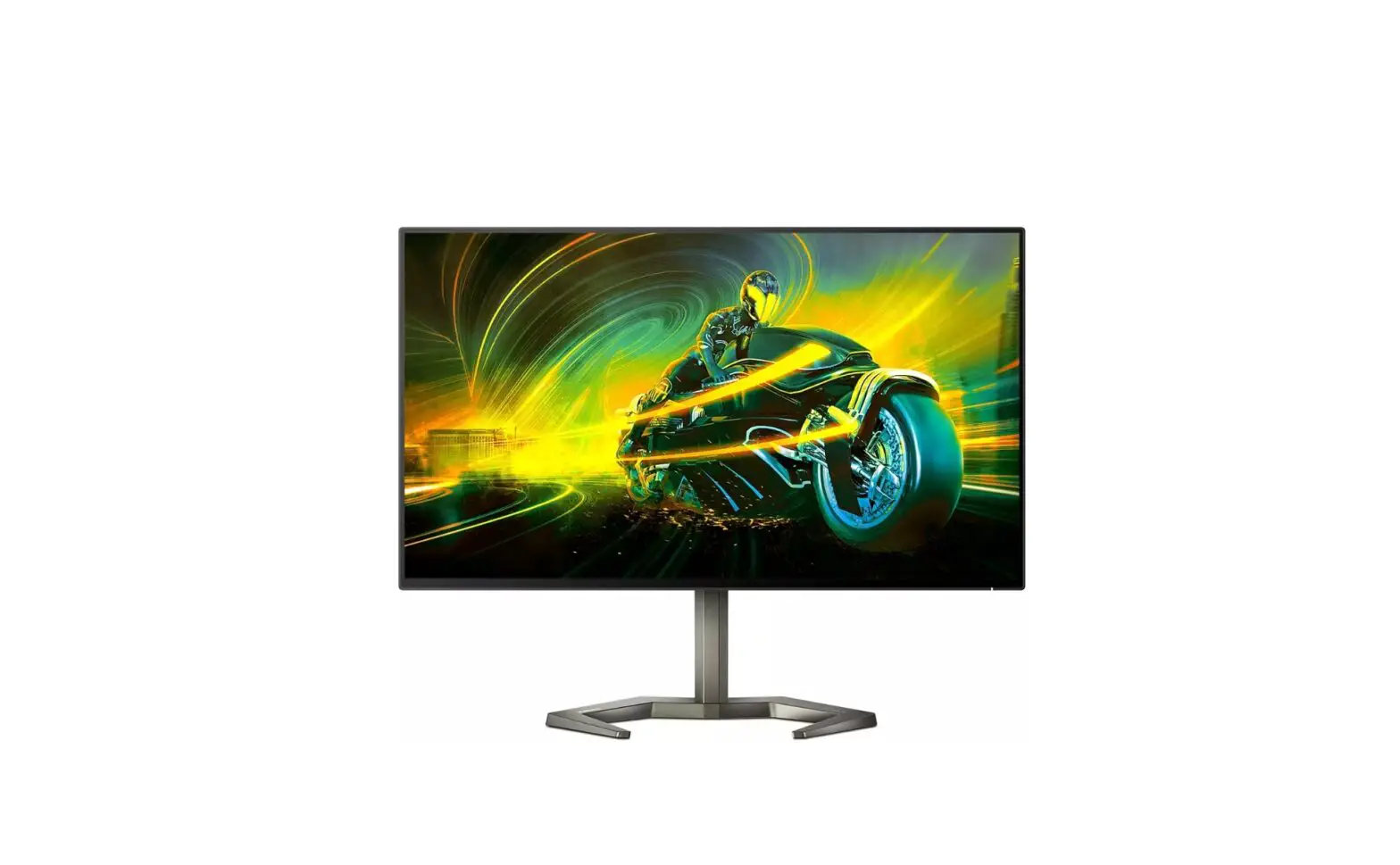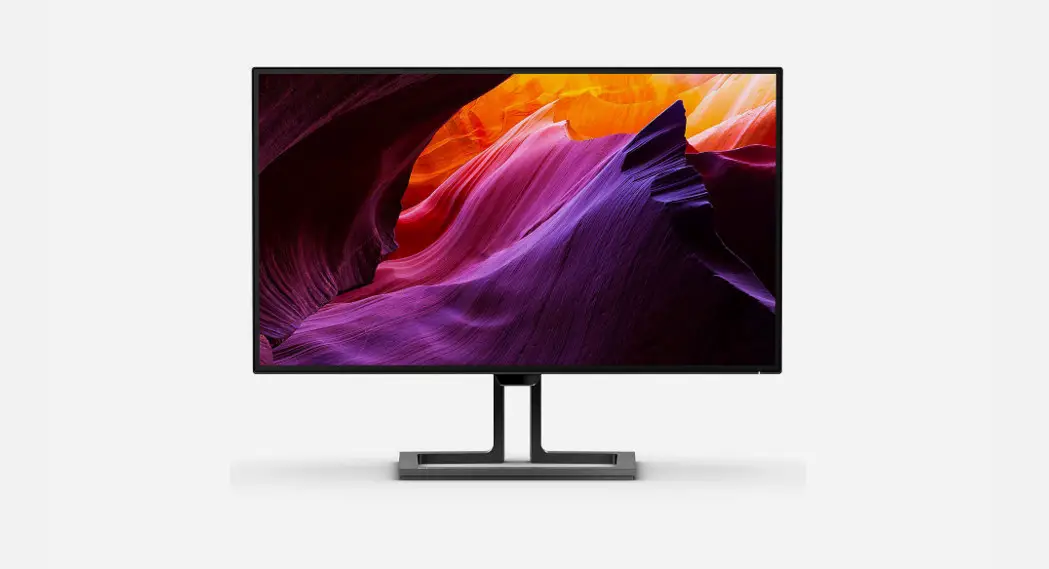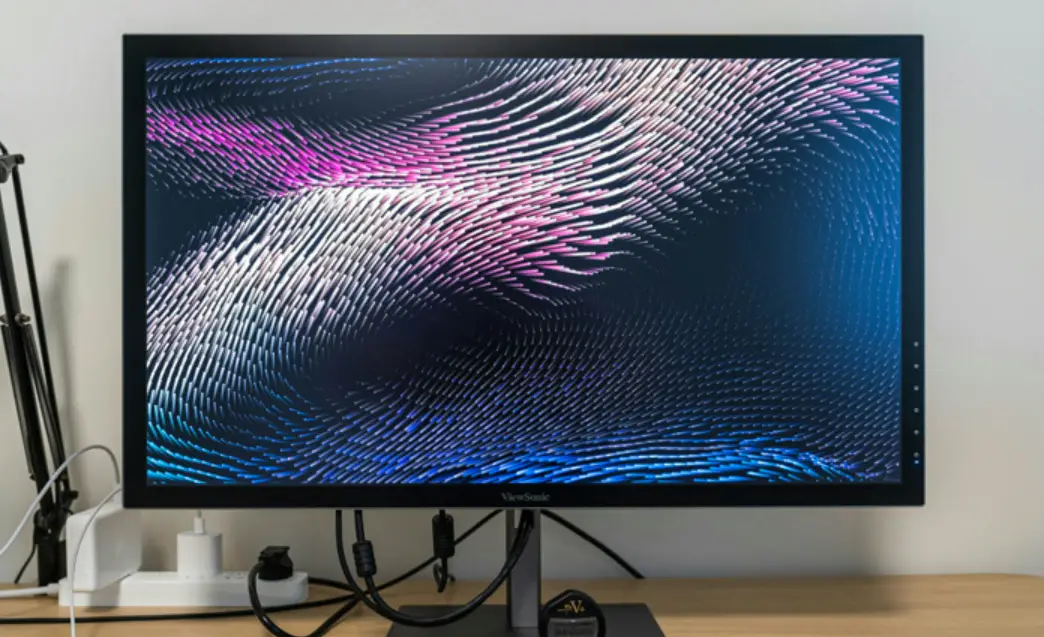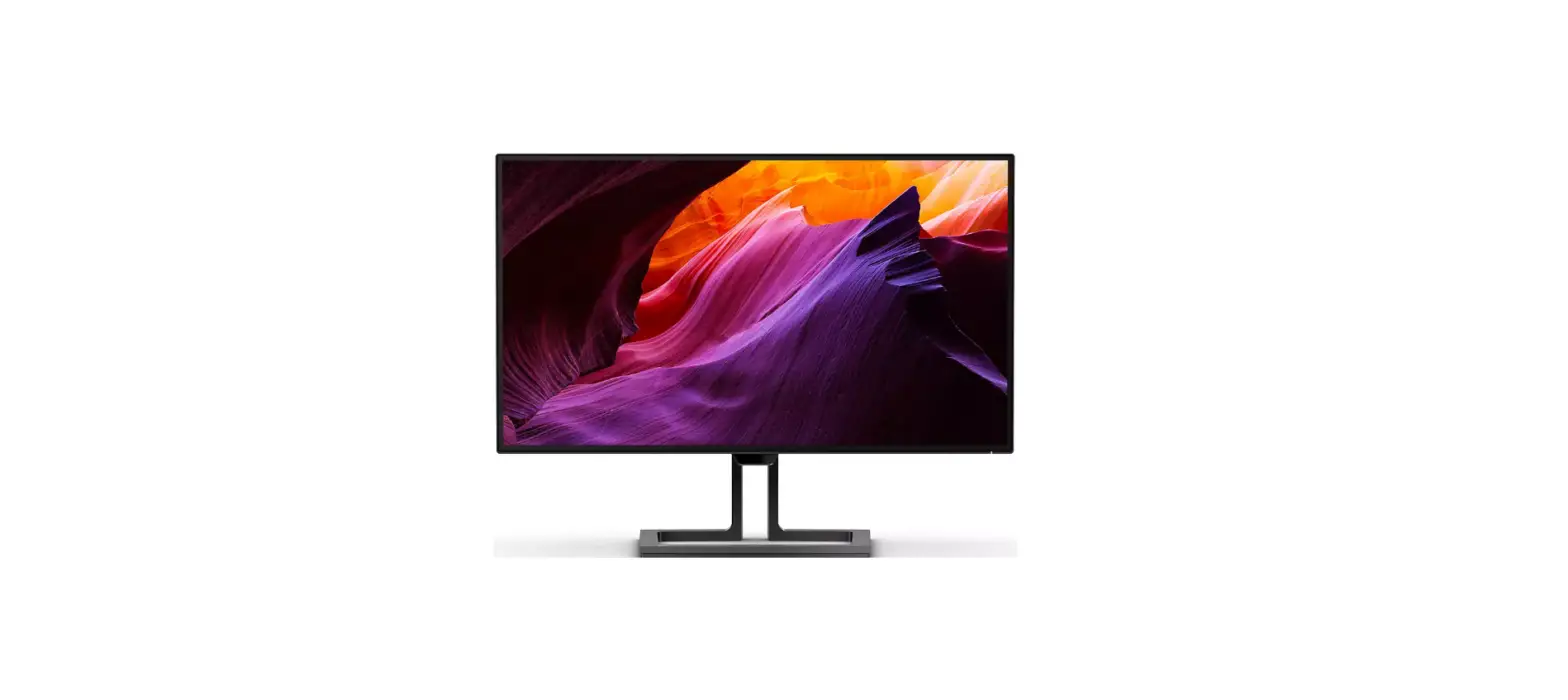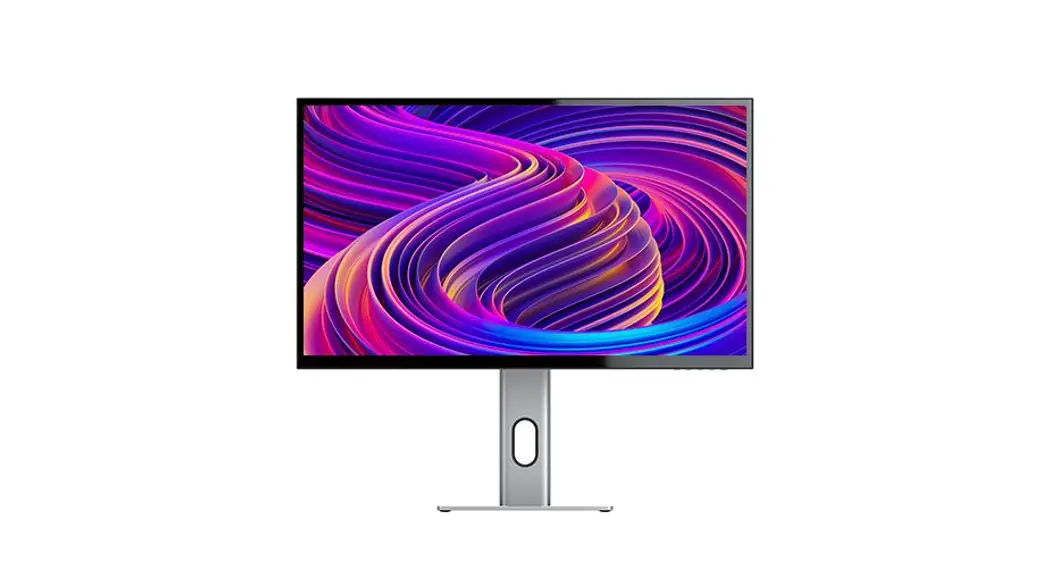

27F34KCPD Clarity 27-Inch UHD 4K Monitor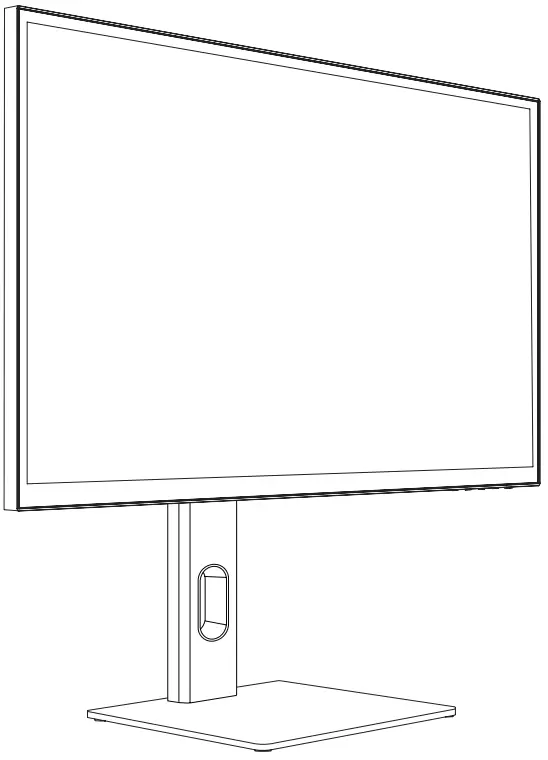 Quick User Guide
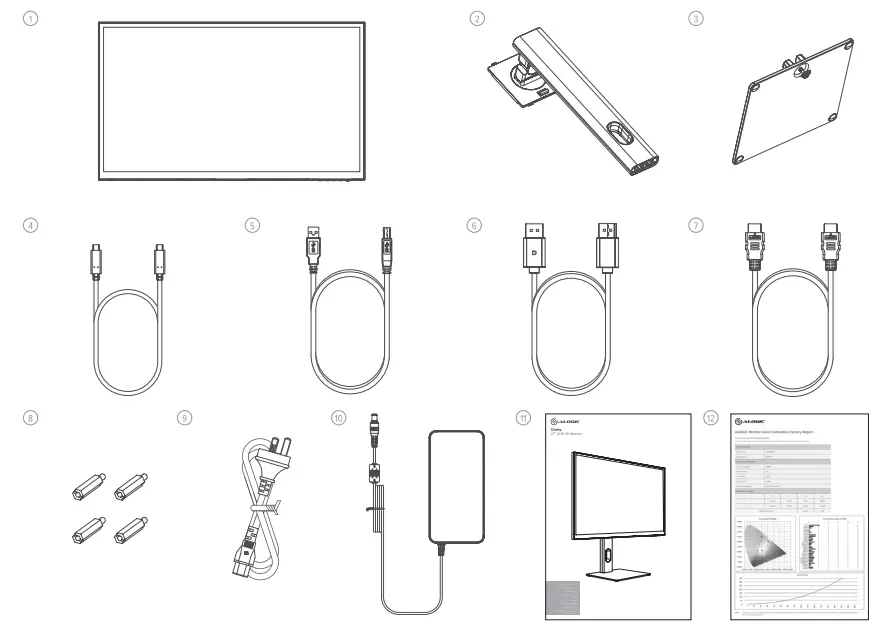
Package Contents
| 1 | Clarity 27″ UHD 4K Monitor |
| 2 | Stand Stem |
| 3 | Stand Base |
| 4 | lm USB-C to USB-C Cable (1)5133.2 – Gen1) |
| 5 | 1.5m Standard USB-A to USB-B Cable |
| 6 | 1.5m Standard DisplayPort to DisplayPort Cable |
| 7 | 1.5m HMI to HDMI Cable |
| 8 | Screws x 4 (for Wall Mounting) |
| 9 | Power Cable (AC 100-240V, 50/60H2) |
| 10 | Power Adapter |
| 11 | User Manual |
| 12 | Color Delta E Report |
Specifications
| Model | 27F34KCPD |
| Screen Size | 27″ |
| Dimensions | 624mm x 220mm x 565mm (L x W x H) |
| Weight | 7.6 kgs |
| Material | ABS, Glass, Aluminium |
| Power Adapter | Input AC 100-240V”, 50/60Hz Output DC 19.5V= 9.23A, 180W (Max) |
| Aspect Ratio | 16:09 |
| Backlight | OD |
| Brightness | 400cd/m2 (Typ.), 350cd/m2(Min.) |
| Panel | IPS |
| Resolution | DP1.4: 3840’2160060Hz HDMI2.0: 3840’2160060Hz |
| ‘Refresh Rate | 60Hz |
| wing Angle | 1781H) / 178W) |
| contrast Ratio | 1000:1 |
| VESA Mounting | 75 x 75mm |
| Display Colors | 1.07B |
| Interface | lx DP 1.4, 2x HDMI 2.0, lx Type-C, 2x USB-A, lx USB-B, lx Audio Out |
| power Input | DC 19.5V  9.23A 9.23A |
| Audio | Speakers: 5Wx2 Audio Out: Yes |
| Low Blue Light | Yes |
| Flicker Free | Yes |
| USB PD Power Delivery | Up to 90W (20V 4.5A) max. power to host computer |
 Monitor Controls
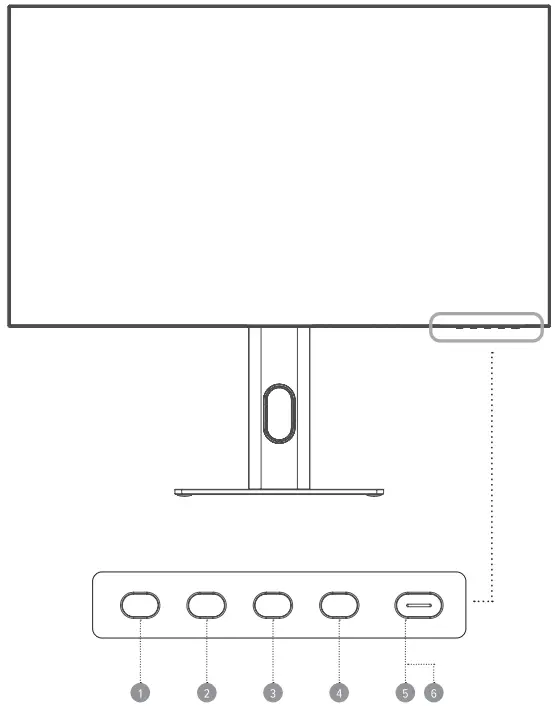 Monitor Controls
| 1 | Menu: Press to display OSD menu and enter sub-menus |
| 2 | Down: Press to move down in the menus |
| 3 | Up: Press to move up in the menus |
| 4 | Exit: Press to exit the OSD menu |
| 5 | Power: Press to turn to monitor on/off |
| 6 | LED indicator: LED indicator and power button are integrated |
Indicator Light
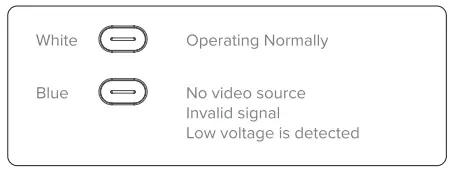
The indicator light shows steady white to indicate that the power is on and the monitor is operating normally. The steady blue light indicates that there is no video source, an invalid signal, or low voltage is detected. Please make sure that your computer is turned on and all video cables are fully plugged in or connected.
Monitor Ports
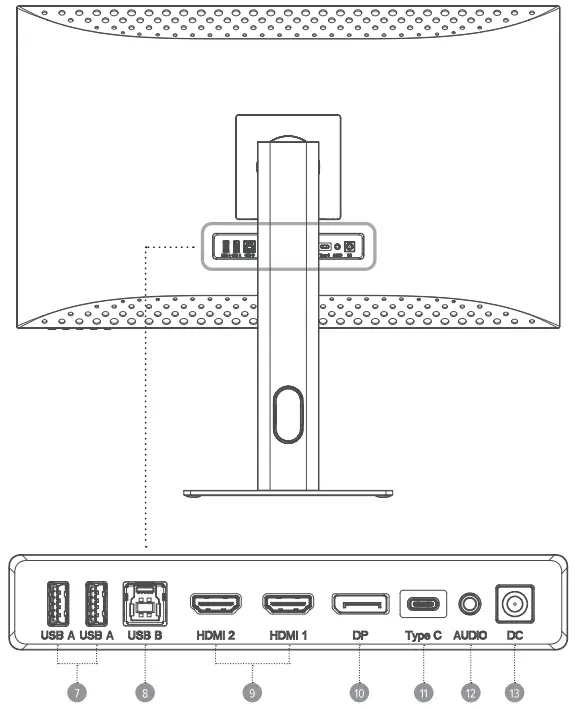
| 7 | USB-A Port |
| 8 | USB-B Port |
| 9 | HDMI Port |
| 10 | DisplayPort Port |
| 11 | USB-C Port |
| 12 | Audio Output For Headphones Or Powered Speakers |
| 13 | Power Input |
Unpacking and Assembly
Before unpacking the stand, ensure that the box is placed on a flat, clear surface.
- Open the lid of the monitor box, remove the upper Styrofoam tray containing the stand and place it to one side.

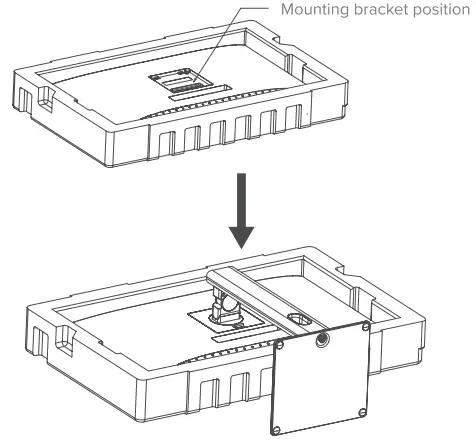
- Open the soft bag that protects the monitor to reveal where the stand attaches to the rear of the monitor. Leave the monitor laying in the Styrofoam tray to avoid damaging it while installing the stand. Insert the top of the monitor stand into the mount on the rear of the monitor and press downwards on the stand until it clicks into place. Do not use excessive force to ensure that the monitor is not damaged.

- Carefully lift the monitor out of the Styrofoam tray and stand it on the desk ready for use.

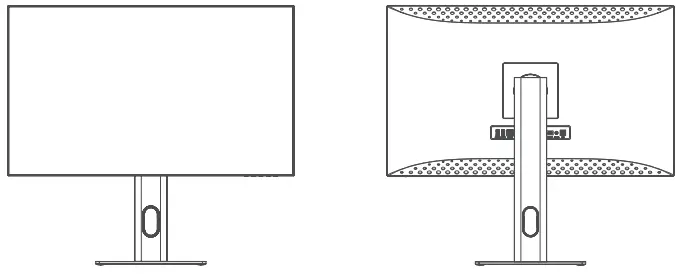
 Warning: Do not put pressure on the display area of the monitor while assembling or moving the monitor. The display screen is fragile – applying force to it will break the display. Keep the monitor box and Styrofoam packaging for future transportation and storage of the monitor.
Disassembly and Storage
Before disassembling the monitor, ensure that the box is placed on a flat, clear surface.
- Open the lid of the monitor box, remove the upper Styrofoam tray and place it
- Place the soft bag over the monitor and lay it in face down in the Styrofoam tray in the box. Ensure that the bag sits flat against the screen of the monitor and is not folded over itself or bunched up. Excessive bunching of the bag under the monitor screen may damage the screen when it is laid in the box.
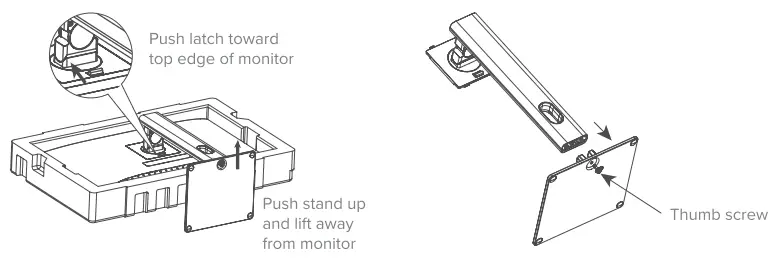
- Open the bag to reveal where the monitor attaches to the stand. Push the monitor stand latch toward the top edge of the monitor and lift the base of the stand upwards to release the stand from the monitor.

- Close the bag and fold it neatly over the rear of the monitor. Place the upper to one side. Styrofoam tray on top of the monitor in the box.
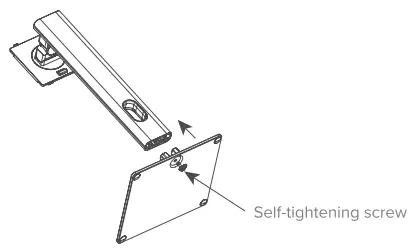
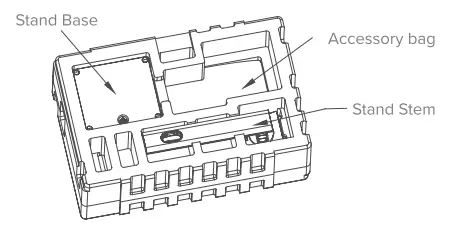
- Undo the screw, separate the base from the stand and place both pieces in the upper foam packaging tray.

Mounting Options
The monitor has 75 x 75mm spaced mounting holes to allow it to be mounted to any compatible 75mm VESA standard monitor arm or wall mount accessory (not included). The mounting holes are recessed in the region on the back of the monitor where the stand attaches and are hidden by the stand when it is installed. VESA mounts cannot be used with the monitor while the stand is attached.
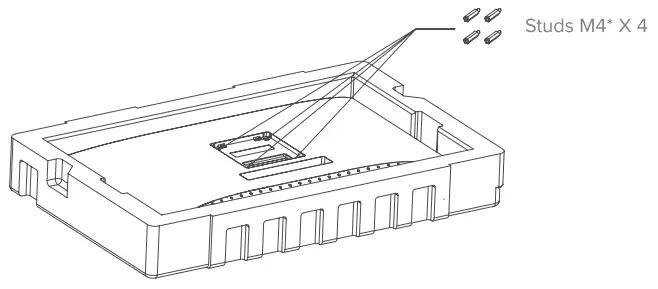
M4 threaded mounting spacers are included with the monitor which must be used when mounting the monitor to a monitor arm or other mount. Mount the monitor to a VESA mounting accessory as follows.
- Lay the monitor face down in its Styrofoam packaging tray.Do not attempt to lay the screen on any uneven surface including soft surfaces such as carpet and seating while attaching the mounting accessory – damage to the screen may occur.
- Locate the mounting spacers in the accessory bag that comes with the monitor. With the monitor laying in its Styrofoam tray, screw in the four spacers into the holes in the recess where the stand attaches. Do not over tighten – tightening the spacers too much may cause damage to the monitor.

- Screw the VESA mounting accessory into the mounting spacers.
 Do not apply pressure to the rear of the monitor while fitting the mounting accessory – downwards pressure on the screen may crack or otherwise damage it.
 - Carefully lift the monitor and mounting accessory out of the tray and place into position.
 Ensure there is 50mm clearance around all sides of the monitor when it is installed to ensure that is does not overheat.
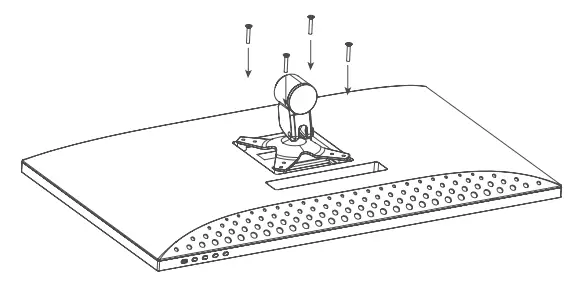
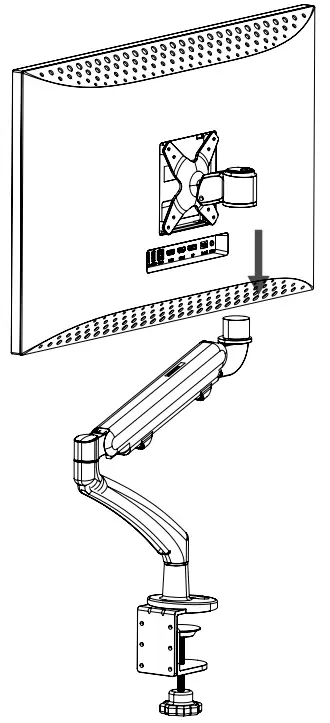 Ensure there is 50mm clearance around all sides of the monitor when it is installed to ensure that is does not overheat.
Connecting the Monitor
Connecting the Power Cable
Connect the included power cable to the power connector, and then plug the other end into a wall outlet.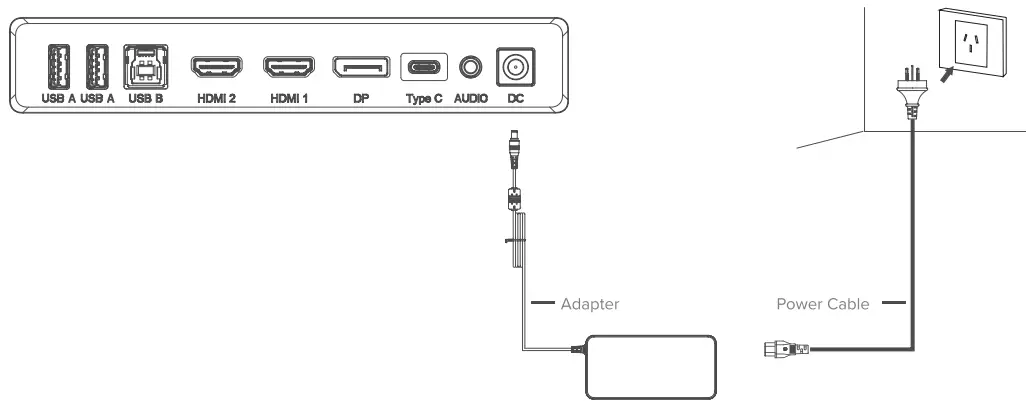 Connecting the Monitor
Connecting a Video Source
The monitor includes four video inputs which can be connected simultaneously. To connect a computer or other source device, plug one of the included HDMI. DisplayPort or USB-C cables into the computer and into a corresponding port on the monitor.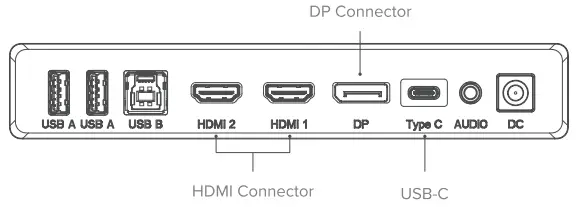 Notes: – The USB-C connection will provide up to 90W of power to computers that support USB Power Delivery (USB PD). This allows the computer to display video on the monitor while being charged over a single cable. As a result, the USB-C connection type is the best option if your computer has this capability.
– Depending on the capabilities of the computer it may not be able to provide 4K at a full 60Hz refresh rate if connected to the monitor using HDMI. The USB-C or DisplayPort connection should be used as a first preference if the computer supports these connection types.
– Not all USB-C ports on computers support video output and/or charging using USB PD. If your computer does not show video on the monitor or start charging when connected to the monitor using USB-C, check that the USB-C port on the computer supports DisplayPort Alternate Mode video output and USB PD charging.
– Not all USB-C cables support video transfer or charging above 60W. It is recommended that you use the USB-C cable supplied with the monitor to avoid potential issues with cables that have been obtained separately.
Audio Output
The display features inbuilt speakers as well as an audio output jack to allow headphones and external speakers to be connected. When an external audio device is connected, the display’s onboard speakers will be disabled.
 Connecting Audio Devices
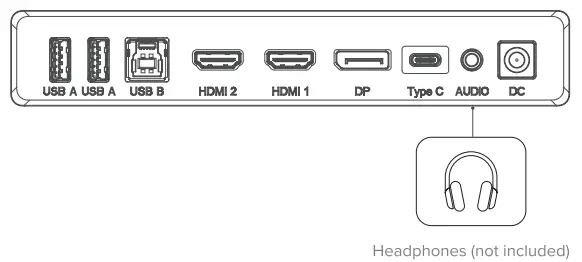 Connecting Audio Devices
The audio port on the display only supports output devices such as headphones and speakers. It is not possible to conned microphones or other input devices to this port. Headphones with built-in microphones can be connected to this port, however, the microphone will not function. To send audio from your computer to the display speakers or connected audio device, select “27F34KCPD” as the audio destination on your computer.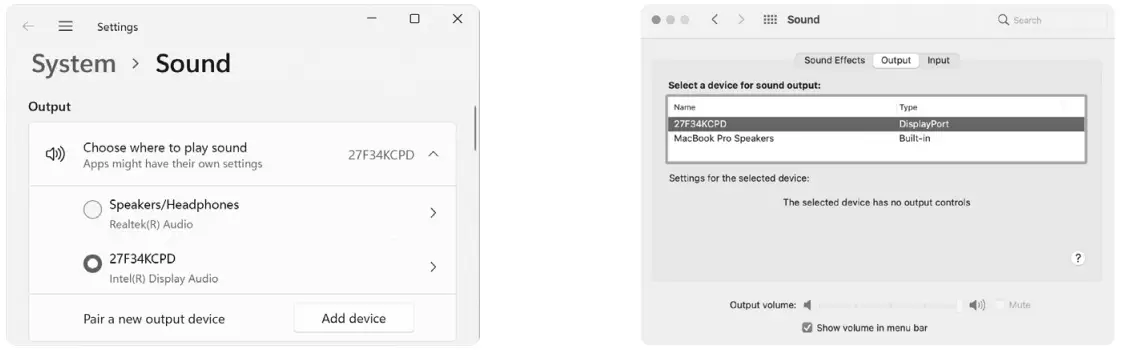 Connecting USB Devices
The display includes two USB type A ports that can be used to attach USB peripherals such as a keyboard, mouse or web camera to the computer. In order for the computer to see devices attached to these ports, the computer must be connected to either (or both) of the USB type C and/or USB type B ports.
Notes:
– If the computer is only connected to the USB-C port on the display the ports will operate at USB 2.0 speeds because video traffic shares the USB-C cable with the USB data. This speed is sufficient for most peripherals such as keyboards, mice, and web cameras.
– If the computer is connected to the USB-B port on the display, the ports will operate at USB 3.0 speeds. This is preferable if using high-speed storage devices such as external hard drives and USB flash drives.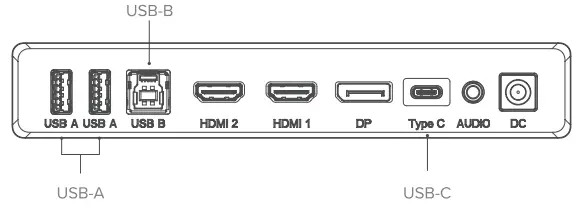
Key Operation
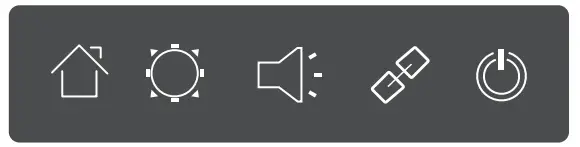
- Press one of the buttons ( M, Y,
 , E ,
, E ,  ) to activate the navigation window.
- Press button to adjust the brightness, you can adjust the brightness of the display according to your needs using the A and v keys.

- Press
 button to adjust the volume, you can adjust the volume of the display according to your needs using the A and v keys.
- ress E button to adjust the input source, you can switch display signal input according to your needs using the A and v keys.

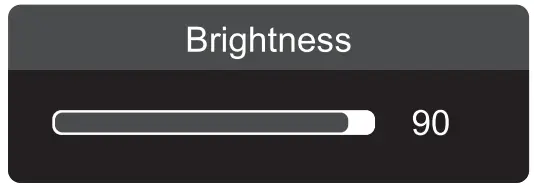
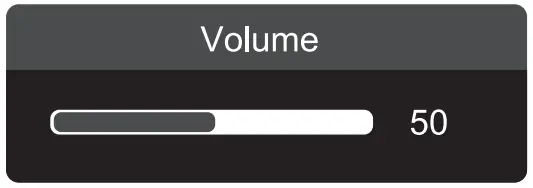
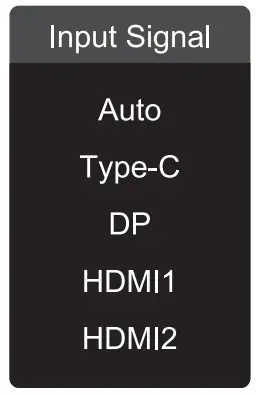
The On-Screen Display ( OSD) Menu may be used to adjust your monitor’s settings and appears on the screen after turning on the monitor and pressing the M button.When using the monitor for the first time, settings will automatically adjust to optimal settings for the signal coming from your computer.
- Press one of the buttons (
 ) to activate the navigation window.
 - Press M (
 ) to enter the OSD screen.
- Press or to navigate through the options.
• Select the desired function and press M to enter the submenu.
• Press or v to browse the submenu, and then press M to confirm the selection of the desired function.
• Press or to select an option, then press M to confirm the setting and enter the current menu. - Press E to exit the menu interface.
 ) to activate the navigation window.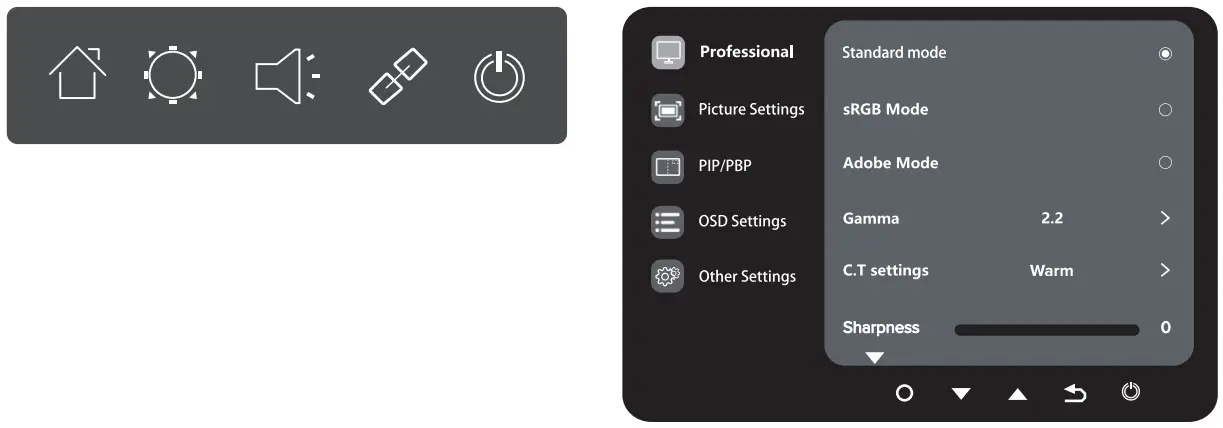
| Sub • Menu/Sub-Menu | Options | Description | |
| Professional | Standard Mode | N/A | |
| sRGB Mode | N/A | ||
| Adobe Mode | N/A | ||
| Uniformity Mode | N/A | ||
| Gamma | 1.6,1.8. 2.0. 2.2, 2.4. 2.6. 2.8, S.curve | Set gamma add-in | |
| C.T settings | Natural. Design. Warm. Cool. User C.71, User C.T2. User C.T3 | ||
| Sharpness | 0-5 | Adjust display sharpness | |
| Shadow Balance | 400 | Adjust the Shadow Balance of the monitor | |
| Low Blue Light | 0-100 | Set blue light filtering level | |
| Hue | R. G. B. C. M. Y | Adjust hue levels | |
| Saturation | R. G. B, C. M, Y | Adjust saturation levels | |
| Dynamic Brightness | Off. Standard. Expert. Elaboration | Adjust display dynamic brightness | |
| Picture Settings | Brightness | 0-100 | Adjust display brightness |
| Contrast | 0-100 | Adjust display contrast | |
| DCR | Off. On | Turn On/Off DCR function | |
| Contextual model | Off. Movie Mode. Reading Mode, Night Mode, Care eyes mode | Optimize display for different viewing conditions | |
| HDR | Off. HDR Standard, HDR Movie, HDR Design | Adjust the HOR mode | |
| Aspect ratio | Wide Screen 4.3.1:1. Auto | Select the on-screen aspect ratio | |
| PIP/PBP | PIP/PBP Mode | Off. PIP Mode, PBP 2Win 1:1 PBP 2Win 2:1, PBP 2Win 1:2 | Swap the PIP/PBP mode |
| Sub-Signal Source | Type-C. DP, HMI, HDMI2 | Select secondary signal Input via HDMI / DP or Type.0 | |
| Audio Source | Auto, Type-C, DP, HDMI1, HDMI2 | Select audio signal input via MOM’ / DP or Type-C | |
| PIP Position | Top Right, Top Left, Bottom Right, Bottom Left | Adjust the sub-screen position | |
| PIP Size | Small, Medium. Large | Adjust the size of the sub-screen | |
| Window Swap | N/A | ||
| OW Settings | Language | English, | Set OW language |
| OSO Time Out | 5-60 | Set how long the 050 stays on | |
| OSD H-Position | 0-100 | Adjust the OW’s horizontal position | |
| OSO V-Position | 0-100 | ||
| Adjust the OSD s vertical position | |||
| OSO Transparency | 0-5 | Adjust OSD’s overall transparency | |
| [ Main Menu | Sub – Menu | Options | Description |
| OSD Settings | Hotkey Setting | Brightness, Contrast, Volume, Mute, Shadow Balance, Contextual Model, PIP/PBP Mode, Input Signal, Dynamic Brightness, HDR, USB switch Light Sensor, Gravity Sensor, | Choose the function associated with the hotkeys |
| Hotkey2 Setting | |||
| Hotkey3 Setting | |||
| Other Settings | Input Signal | Auto, Type-C, DP, HDMI1, HDMI2 | Switch display signal input |
| Volume | 0-100 | Adjust audio volume | |
| Mute | Off, On | Turn mute mode on/off | |
| Auto Power | Off, On | Turn auto power mode on/off | |
| Eyeshield Remind | Off, On | Turn eyeshield remind mode on/off | |
| Light Sensor | Off, On | ||
| Gravity Sensor | Off, On | ||
| USB Switch | Type-B, Type-C | Switch between Type-C and Type-B function modes | |
| USB Power(Sleep) | Off, On | Turn USB power (sleep) on/off | |
| USB Upgrade | No, Yes | Initiates firmware upgrades from USB flash drive | |
| Reset | No, Yes | Resets the monitor configuration | |
| Information | Input Source, Resolution, Mode, HDR Ver, SN | Displays monitor information |
Troubleshooting
| Symptom | Solution |
| The power the button does not light up when pressed | • Verify that the mains power cord is securely attached to the power adapter, is connected to a paver outlet, and the power outlet is switched on. • Verify that the power adapter is securely connected to the rear of the monitor. |
| The power the button lights up, but nothing is displayed on the screen | • Disconnect the power adapter from the Monitor and reconnect in 2-3 minutes. • Press and hold the power button for 5 seconds to reset the monitor settings. • Contact ALOGIC Support If the points above do not work. |
| The monitor does not show HDMI or DisplayPort video from the computer | • Check that an appropriate video cable is connected between the computer and display and the correct input is selected on the monitor. • Check your computer’s settings to verify that it Is detecting the monitor and Is outputting video to It. |
| Monitor does not show USB-C video from the computer | • Verify that you are using the USB-C cable that came with the monitor. |
| The laptop computer does not charge when connected to the monitor using USB•C | • Verify that the USB-C port on your computer supports charging using the USB Power Delivery (USB-PD) standard. |
Warnings
- Only use the monitor indoors in dry locations. Do not use the monitor in damp places or near water sources such as in bathrooms and kitchens.
- Store and use in a cool, dry, ventilated place. Do not place close to heat sources or in direct sunlight
- Ensure that the equipment is installed on a flat, stable surface. If placed on an uneven or unsteady surface the monitor may fall and be damaged, cause personal injury or damage other items.
- It is normal for the device to be slightly warm to touch during operation. Provide adequate ventilation and do not cover the device while in operation.
- Do not cover or block the ventilation holes on the rear cover of the monitor. Do not use on a bed, sofa, blanket or similar where the monitor may fall over or become covered.
- The acceptable electrical supply voltage and frequency ranges are indicated on the label on the rear cover of the monitor. Do not connect the monitor to power sources which fall outside these limits.
- If the device will not be used for weeks or months, it is recommended that the power be disconnected to save energy and protect the equipment from damage caused by lightning strike-induced power surges if a thunderstorm occurs.
- Do not insert foreign objects into the ventilation holes in the cover of the monitor as damage, fire or electric shock could occur. The monitor contains no user-serviceable parts. Disassembling or attempting to repair this product yourself will void the warranty and expose you to the risk of electric shock. If you suspect a fault with the device, please contact the seller you purchased the product from or ALOGIC after sales support for assistance.
- Do not use the product if it becomes damaged as this could pose a risk of causing damage to connected devices and expose you to electric shock.
- Do not crush, cut, pull or twist the mains power cord excessively. If the power cord becomes damaged do not use the product until a replacement power cord can be obtained. Using a damaged power cord may result in electric shock.
- Do not spray liquids on the monitor. Do not use chemicals such as solvents on the surface of the monitor. Clean the monitor only by wiping with a clean, dry, soft, scratch-avoiding microfibre cloth.
- Disassembling or failing to properly use and care for your device will void the warranty on the product.
- ALOGIC bears no responsibility for damage to the device or incidental damages arising from improper use or lack of care and is not liable for repair/ replacement of the device or other damages in these circumstances.

The terms HDMI and HDMI High-Definition Multimedia Interface, and the HDMI Logo are trademarks or registered trademarks of HDMI Licensing Administrator, Inc. in the United States and other countries.
FCC Compliance Statement
This device complies with Part 15 of the FCC Rules. Operation is subject to the following two conditions:
(1) this device may not cause harmful interference, and (2) this device must accept any interference received, including interference that may cause undesired operation.
Changes or modifications not expressly approved by the party responsible for compliance could void the user’s authority to operate the equipment.
This equipment has been tested and found to comply with the limits for a Class B digital device. pursuant to Part 15 of the FCC Rules. These limits are designed to provide reasonable protection against harmful interference in a residential installation. This equipment generates, uses and can radiate radio frequency energy and, if not installed and used in accordance with the instructions. may cause harmful interference to radio communications. However, there is no guarantee that interference will not occur in a particular installation.
If this equipment does cause harmful interference to radio or television reception, which Can be determined by turning the equipment of and on, the user Is encouraged to try to correct the interference by one or more of the following measures:
- Reorient or relocate the receiving antenna.
- Increase the separation between the equipment and receiver.
- Connect the equipment into an outlet on a circuit different from that to which the receiver is connected.
- Consult the dealer or an experienced radio/TV technician for help.
Responsible Party – U.S. Contact Information
ALOGIC USA LLC
3730 Parish Ave
Fremont CA 94536 UF!,
EU Declaration of Conformity
Hereby, ALOGIC Corporation declares that this product Is in compliance with Directive 2014/53/EU. The full text of the EU declaration of conformity is available at the following internet address by clicking on the Compliance Documentation link at: www.alogic.co
Designed in Australia. Manufactured in China