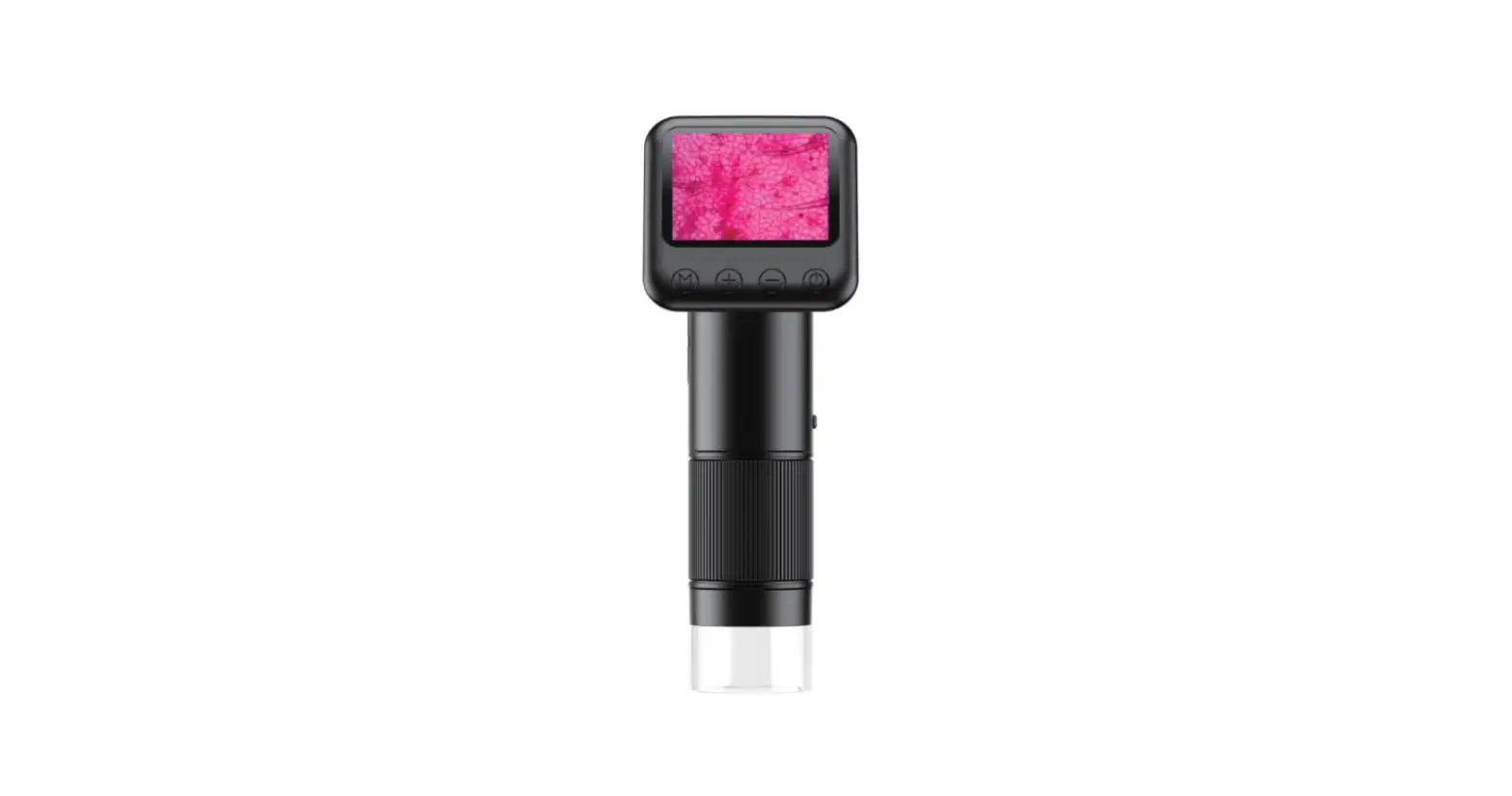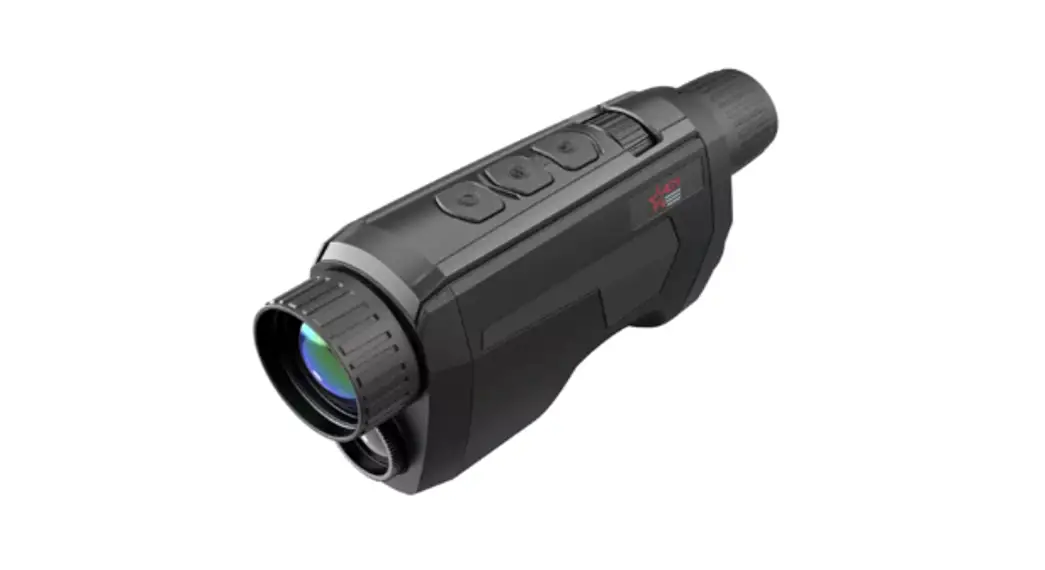
 Racer DM30-4MP Digital Monocular
User ManualAGM Racer DM30-4MP
Digital Monocular
Racer DM30-4MP Digital Monocular
Legal Information
About this Manual
The Manual includes instructions for using and managing the Product. Pictures, charts, images, and all other information hereinafter are for description and explanation only. The information contained in the Manual is subject to change, without notice, due to firmware updates or other reasons. Please find the latest version of this Manual at the company website Please use this Manual with the guidance and assistance of professionals trained in supporting the Product.
Trademarks Acknowledgement
Trademarks and logos mentioned are the properties of their respective owners.
LEGAL DISCLAIMER
TO THE MAXIMUM EXTENT PERMITTED BY APPLICABLE LAW, THIS MANUAL AND THE PRODUCT DESCRIBED, WITH ITS HARDWARE, SOFTWARE, AND FIRMWARE, ARE PROVIDED “AS IS” AND “WITH ALL FAULTS AND ERRORS”. OUR COMPANY MAKES NO WARRANTIES, EXPRESS OR IMPLIED, INCLUDING WITHOUT LIMITATION, MERCHANTABILITY, SATISFACTORY QUALITY, OR FITNESS FOR A PARTICULAR PURPOSE.
THE USE OF THE PRODUCT BY YOU IS AT YOUR OWN RISK. IN NO EVENT WILL OUR COMPANY BE LIABLE TO YOU FOR ANY SPECIAL, CONSEQUENTIAL, INCIDENTAL, OR INDIRECT DAMAGES, INCLUDING, AMONG OTHERS, DAMAGES FOR LOSS OF BUSINESS PROFITS, BUSINESS INTERRUPTION, OR LOSS OF DATA, CORRUPTION OF SYSTEMS, OR LOSS OF DOCUMENTATION, WHETHER BASED ON BREACH OF CONTRACT, TORT (INCLUDING NEGLIGENCE), PRODUCT LIABILITY, OR OTHERWISE, IN CONNECTION WITH THE USE OF THE PRODUCT, EVEN IF OUR COMPANY HAS BEEN ADVISED OF THE POSSIBILITY OF SUCH DAMAGES OR LOSS. YOU ACKNOWLEDGE THAT THE NATURE OF THE INTERNET PROVIDES FOR INHERENT SECURITY RISKS, AND OUR COMPANY SHALL NOT TAKE ANY RESPONSIBILITY FOR ABNORMAL OPERATION, PRIVACY LEAKAGE OR OTHER DAMAGES RESULTING FROM CYBER-ATTACKS, HACKER ATTACKS, VIRUS INSPECTION, OR OTHER INTERNET SECURITY RISKS; HOWEVER, OUR COMPANY WILL PROVIDE TIMELY TECHNICAL SUPPORT IF REQUIRED. YOU AGREE TO USE THIS PRODUCT IN COMPLIANCE WITH ALL APPLICABLE LAWS, AND YOU ARE SOLELY RESPONSIBLE FOR ENSURING THAT YOUR USE CONFORMS TO THE APPLICABLE LAW. ESPECIALLY, YOU ARE RESPONSIBLE, FOR USING THIS PRODUCT IN A MANNER THAT DOES NOT INFRINGE ON THE RIGHTS OF THIRD PARTIES, INCLUDING WITHOUT LIMITATION, RIGHTS OF PUBLICITY, INTELLECTUAL PROPERTY RIGHTS, OR DATA PROTECTION AND OTHER PRIVACY RIGHTS. YOU SHALL NOT USE THIS PRODUCT FOR THE ILLEGAL HUNTING OF ANIMALS, INVASION OF PRIVACY OR ANY OTHER PURPOSE WHICH IS ILLEGAL OR DETRIMENTAL TO THE PUBLIC INTEREST. YOU SHALL NOT USE THIS PRODUCT FOR ANY PROHIBITED END-USES, INCLUDING THE DEVELOPMENT OR PRODUCTION OF WEAPONS OF MASS DESTRUCTION, THE DEVELOPMENT OR PRODUCTION OF CHEMICAL OR BIOLOGICAL WEAPONS, ANY ACTIVITIES IN THE CONTEXT RELATED TO ANY NUCLEAR EXPLOSIVE OR UNSAFE NUCLEAR FUEL CYCLE, OR IN SUPPORT OF HUMAN RIGHTS ABUSES. IN THE EVENT OF ANY CONFLICTS BETWEEN THIS MANUAL AND THE APPLICABLE LAW, THE LATTER PREVAILS.
Regulatory Information
FCC Information
Please take attention that changes or modifications not expressly approved by the party responsible for compliance could void the user’s authority to operate the equipment. FCC compliance: This equipment has been tested and found to comply with the limits for a Class B digital device, pursuant to part 15 of the FCC Rules. These limits are designed to provide reasonable protection against harmful interference in a residential installation. This equipment generates, uses and can radiate radio frequency energy and, if not installed and used in accordance with the instructions, may cause harmful interference to radio communications. However, there is no guarantee that interference will not occur in a particular installation. If this equipment does cause harmful interference to radio or television reception, which can be determined by turning the equipment off and on, the user is encouraged to try to correct the interference by one or more of the following measures:
–Reorient or relocate the receiving antenna.
–Increase the separation between the equipment and receiver.
–Connect the equipment to an outlet on a circuit different from that to which the receiver is connected.
–Consult the dealer or an experienced radio/TV technician for help
This equipment should be installed and operated with a minimum distance of 20cm between the radiator and your body. FCC Conditions This device complies with part 15 of the FCC Rules. Operation is subject to the following two conditions:
1. This device may not cause harmful interference.
2. This device must accept any interference received, including interference that may cause undesired operation.
Note: Due to the device size limit, the above statement may not be disclaimed on the device. This equipment complies with FCC radiation exposure limits set forth for an uncontrolled environment.
EU Conformity Statement his product and – if applicable – the supplied accessories too are marked with “CE” and comply therefore with the applicable harmonized European standards listed under Directive 2014/30/EU (EMCD), Directive 2014/35/EU (LVD), Directive 2011/65/EU (RoHS).
 Directive 2012/19/EU (WEEE Directive): Products marked with this symbol cannot be disposed of as unsorted municipal waste in the European Union. For proper recycling, return this product to your local supplier upon the purchase of equivalent new equipment, or dispose of it at designated collection points. For more information see: www.recyclethis.info
According to the Waste Electrical and Electronic Equipment Regulations 2013: Products marked with this symbol cannot be disposed of as unsorted municipal waste in the United Kingdom. For proper recycling, return this product to your local supplier upon the purchase of equivalent new equipment, or dispose of it at designated collection points. For more information see: www.recyclethis.info. Directive 2006/66/EC and its amendment 2013/56/EU (Battery Directive): This product contains a battery that cannot be disposed of as unsorted municipal waste in the European Union. See the product documentation for specific battery information. The battery is marked with this symbol, which may include lettering to indicate cadmium (Cd), lead (Pb), or mercury (Hg). For proper recycling, return the battery to your supplier or to a designated collection point. For more information see: www.recyclethis.info.
According to the Batteries and Accumulators (Placing on the Market) Regulations 2008 and the Waste Batteries and Accumulators Regulations 2009: This product contains a battery that cannot be disposed of as unsorted municipal waste in the United Kingdom. See the product documentation for specific battery information. The battery is marked with this symbol, which may include lettering to indicate cadmium (Cd), lead (Pb), or mercury (Hg). For proper recycling, return the battery to your supplier or to a designated collection point. For more information see www.recyclethis.info.
Symbol Conventions
The symbols that may be found in this document are defined as follows.
| Symbol | Description |
Danger | Indicates a hazardous situation which, if not avoided, will or could result in death or serious injury. |
| Caution | Indicates a potentially hazardous situation which, if not avoided, could result in equipment damage, data loss, performance degradation, or unexpected results. |
Note | Provides additional information to emphasize or supplement important points of the main text. |
Safety Instruction
These instructions are intended to ensure that user can use the product correctly to avoid danger or property loss.
Laws and Regulations
Use of the product must be in strict compliance with the local electrical safety regulations.
Transportation
- Keep the device in its original or similar packaging while transporting it.
- Keep all wrappers after unpacking them for future use. In case of any failure occurred, you need to return the device to the factory with the original wrapper. Transportation without the original wrapper may result in damage on the device and the company shall not take any responsibility.
- DO NOT drop the product or subject it to physical shock. Keep the device away from magnetic interference.
Power Supply
- Please purchase the adapter by yourself. Input voltage should meet the Limited Power Source (5 VDC, 2A) according to the IEC62368 standard. Please refer to technical specifications for detailed information.
- Use the power adapter provided by the qualified manufacturer. Refer to the product specification for detailed power requirements.
- Make sure the plug is properly connected to the power socket.
- DO NOT connect multiple devices to one power adapter, to avoid overheating or fire hazards caused by overload.
- The battery charger is included in the package. The input voltage for the supplied battery charger should meet the Limited Power Source (5 VDC, 2 A).
- The power source should meet limited power source or PS2 requirements according to IEC 60950-1 OR ICE 62368-1 standard.
Battery
- Improper use or replacement of the battery may result in explosion hazards. Replace with the same or equivalent type only.
- The battery type is 18650 with a protection board. The battery size is 19 mm × 70 mm. The rated voltage is 3.6 VDC, and the battery capacity is 3200 mA. Dispose of used batteries in conformance with the instructions provided by the battery manufacturer.
- Make sure the battery temperature is between 0 °C to 45 °C (32 °F to 113 °F) when charging.
- For long-term storage of the battery, make sure it is fully charged every half year to ensure the battery quality. Otherwise, damage may occur.
- Do not charge other battery types with the supplied charger. Confirm there is no flammable material within 2 m of the charger during charging.
- DO NOT place the battery near heating or fire source. Avoid direct sunlight.
- DO NOT swallow the battery to avoid chemical burns.
- DO NOT place the battery in the reach of children.
- The battery cannot be charged with an external power source directly.
- The device cannot be charged, please use the supplied charger to charge the battery.
- Please purchase the adapter by yourself. The using environment of the adapter should be consistent with that of the device.
Maintenance
- If the product does not work properly, please contact your dealer or the nearest service center. We shall not assume any responsibility for problems caused by unauthorized repair or maintenance.
- Wipe the device gently with a clean cloth and a small quantity of ethanol, if necessary.
- If the equipment is used in a manner not specified by the manufacturer, the protection provided by the device may be impaired.
- Clean the lens with soft and dry cloth or wipe paper to avoid scratching it.
Using Environment
- Make sure the running environment meets the requirement of the device. The operating temperature shall be -30°C to 55°C (-22°F to 131°F), and the operating humidity shall be 95% or less.
- DO NOT expose the device to extremely hot, cold, dusty, corrosive, saline-alkali, or damp environments.
- This device can only be safely used in a region below 2000 meters above sea level.
- Avoid equipment installation on the vibratory surface or places subject to shock (neglect may cause equipment damage).
- DO NOT aim the lens at the sun or any other bright light.
Emergency
- If smoke, odor, or noise arises from the device, immediately turn off the power, unplug the power cable, and contact the service center.
Laser When any laser equipment is in use, make sure that the device lens is not exposed to the laser beam, or it may burn out. The laser radiation emitted from the device can cause eye injuries, burning of the skin, or inflammable substances. Before enabling the light supplement function, make sure no human or inflammable substances are in front of the laser lens. Do not place the device where minors can fetch it.
Manufacture Address
Room 313, Unit B, Building 2, 399 Danfeng Road, Xixing
Subdistrict, Binjiang District, Hangzhou, Zhejiang 310052, China
Hangzhou Microimage Software Co., Ltd.
COMPLIANCE NOTICE: The thermal series products might be subject to export controls in various countries or regions, including without limitation, the United States, European Union, United Kingdom and/or other member countries of the Wassenaar Arrangement. Please consult your professional legal or compliance expert or local government authorities for any necessary export license requirements if you intend to transfer, export, re-export the thermal series products among different countries.
Chapter 1 Overview
1.1 Device Description
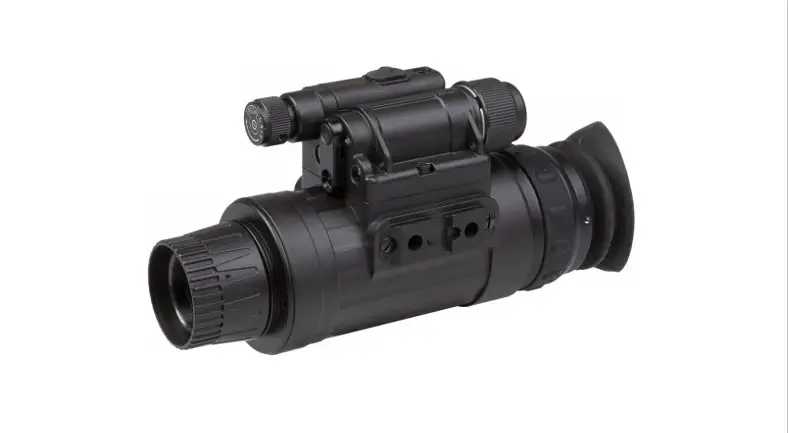
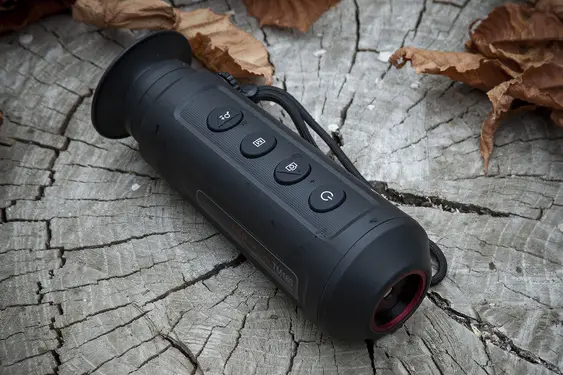
The digital night vision scope can perform in all ambient light. It has an advanced HD sensor and a high-resolution OLED display, which provides full-color clarity in the daytime and classic black & white viewing at night. The traditional-style tube meets the needs of professional hunters who value traditions and seek technological superiority.
1.2 Main Function
Distance Measurement: The device can detect the distance between the target and the device. Client Software Connection: The device can capture snapshots, record videos, and set parameters by T-Vision App after being connected to your phone via a hotspot. Reticle Correction: The reticle helps you to aim at the target fast and accurately. Display Mode: The device supports multiple display modes, and you can set day mode, night
mode, defog mode, or auto mode according to the scene.
1.3 Function
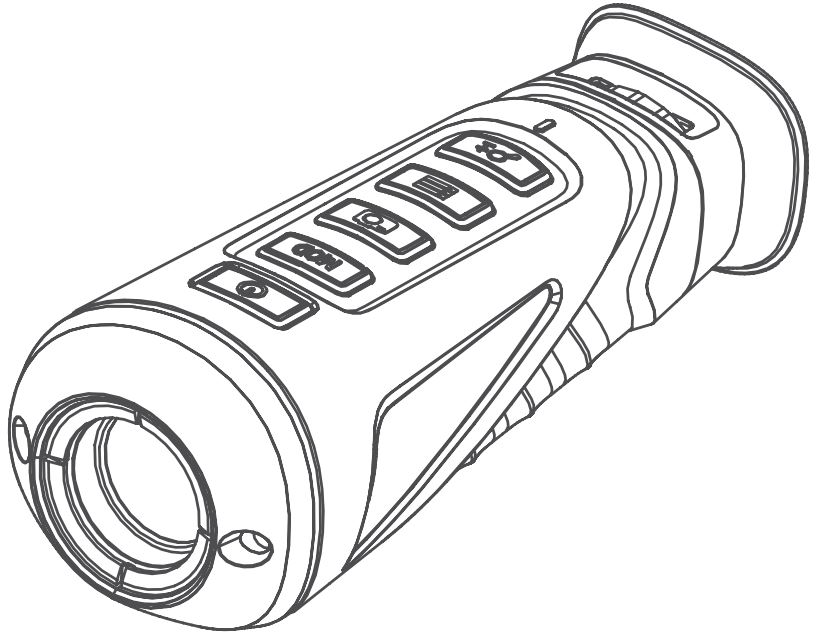
The appearance description of the digital night vision scope is shown below. Please take the actual product for reference.
| No | Description | Function |
| 1 | Lens Cover | Protect the lens. |
| 2 | Focus Ring | Adjust the focus to find clear targets. |
| 3 | Power Key | ● Press: standby mode/Wake up the device ● Hold: power on/off |
| 4 | Measure Key | ● Press: enable/disable PIP ● Hold: switch display modes |
| 5 | Wheel | ● Press: start/stop recording ● Hold: menu operation ● Rotate: switch digital zoom |
| 6 | Fixing Ring | Fix the eyepiece. |
| 7 | Diopter Adjustment Ring | Adjust the dioptric correction. |
| 8 | Eyepiece | View the target. |
| 9 | Data Exchange Interface | Connect the device to the power supply or transmit data with a type-C cable. |
| 10 | Laser Range Finder | Measure the distance with laser. |
| 11 | Battery Compartment | Install the battery in it. |
| 4+5 | Measure Key + Wheel | Press to capture snapshots. |
Chapter 2 Preparation
2.1 Cable Connection
Connect the device and power adaptor with a type-C cable to power on the device. Alternatively, connect the device and PC to export files.
Steps
- Lift the cable interface cover.
- Connect the device and power adapter with a Type-C cable to power on the device.
Alternatively, connect the device and PC to export files.
2.2 Install Battery
Insert the batteries into the battery compartment.
Steps
- Turn the battery cover anticlockwise to loosen it.
- Insert the battery into the battery compartment with the positive mark inward.
- Turn the battery cover clockwise to tighten it.
Note Remove the battery from the battery compartment if the device is not used for a long time.
2.3 Install Rail
Insert the batteries into the battery compartment.
Before You Start
- Turn off the device first. Use the Non-dust cloth to clean the device base and the rail.
Steps
- Align the installation holes on the device and the rail.
- Insert the screws.
- Tighten the screws to secure the device.
2.4 Power On/Off
Power On
When the battery is sufficiently charged, hold for about 2 seconds to power on the device.
Power Off
When the device is turned on, hold for 2 seconds to power off the device.
Auto Power Off
Set the auto power-off time for your device, and then the device will automatically shut down as the set time.
Steps
- Hold the wheel to go to the menu.
- Rotate the wheel to select, and press the wheel to select the auto power off time as required.
- Hold the wheel to save and exit.
Note
See the battery icon for the battery status.  means the battery is fully charged and
 means that the battery is low.
When the low power note shows, charge the battery. The auto power-off countdown will start again when the device exits standby mode or the device is restarted.
2.5 Menu Description
When the device is turned on, hold the wheel to show the menu. In the menu, you can rotate the wheel to select functions, press the wheel to configure the selected function, and hold the wheel to exit the menu.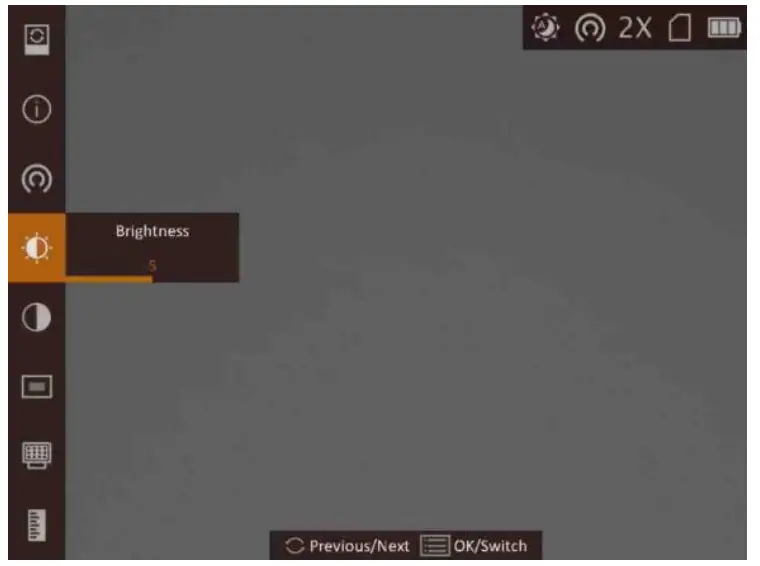 Figure 2-1 Menu Interface 4
Chapter 3 Image Settings
3.1 Adjust Diopter
Steps
- Power on the device.
- Open the lens cover.
- Hold the device and make sure the eyepiece covers your eye.
- Rotate the adjusting ring until the OSD text or image is clear.
 Note When adjusting the diopter, DO NOT touch the surface of lens to avoid smearing the lens.
3.2 Adjust Focus
Steps
- Power on the device.
- Hold the device and make sure the eyepiece covers your eye.
- Adjust the focus ring until the image is clear.Note When focusing, do not touch the surface of the lens to avoid smearing the lens.
3.3 Adjust Brightness
In menu mode, rotate the wheel to select  and press the wheel to adjust brightness.
3.4 Adjust Contrast
In menu mode, rotate the wheel to select  and press the wheel to adjust image contrast.
3.5 Set Smart IR
Image overexposure may occur in too bright environment. The smart IR function helps to adjust the overexposed images, and it can improve the image effect in night mode by adjusting the brightness of the supplement light. In menu mode, rotate the wheel to select and press the wheel to enable this function.
3.6 Set Display Mode
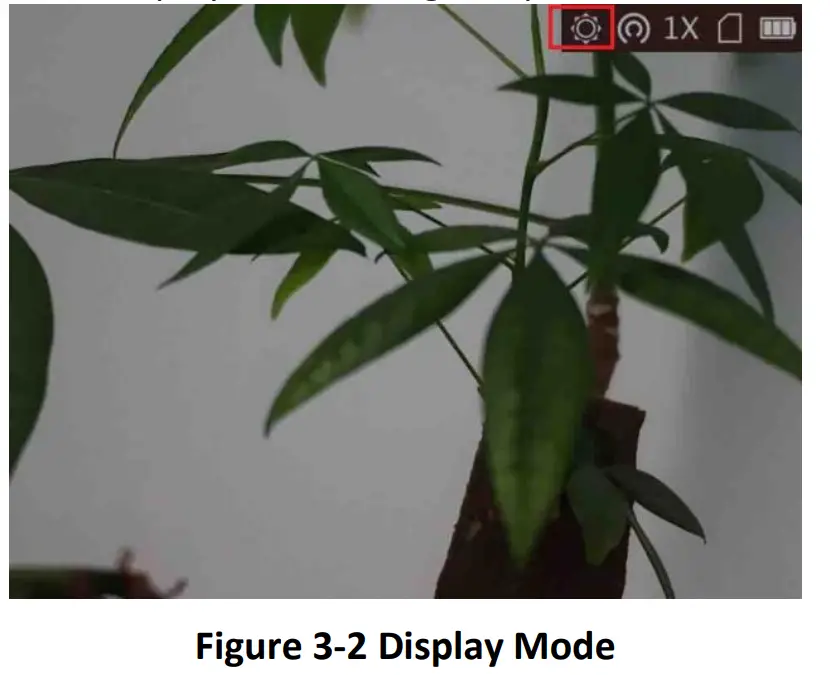
You can select different display modes in different scenes. Hold  in live view interface to switch display modes. Day, night, defog, and auto are selectable. The current mode is displayed on the right top of the interface.
 3.7 Adjust Digital Zoom
In the live view interface, rotate the wheel to switch the digital zoom of the device. The value of digital zoom can be set to 1×, 2×, 4×, and 8×.
3.8 Set Picture in Picture Mode
Steps
- In the view mode, hold the wheel to show the menu.
- Select,
 and press the wheel to enable the PIP function. The details are shown at the center of the image
You can also press the live view interface to enable/disable the PIP function.
 and press the wheel to enable the PIP function. The details are shown at the center of the image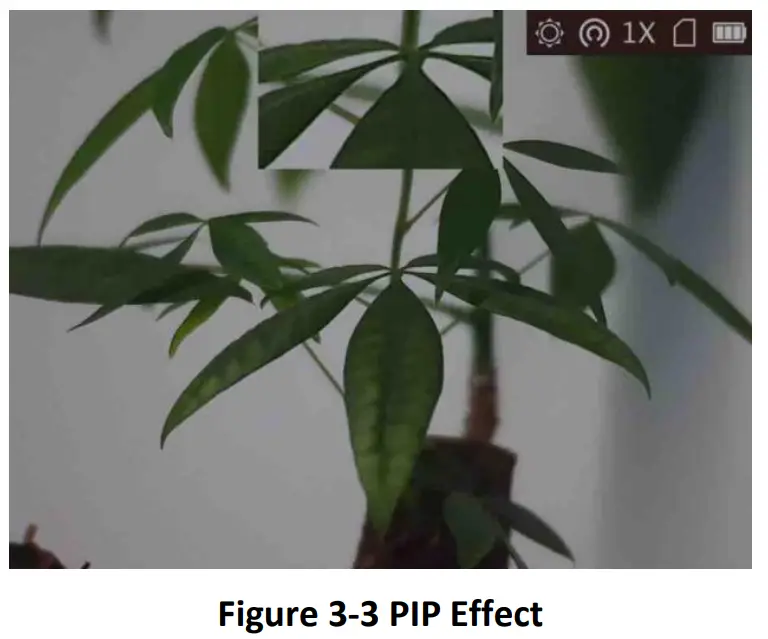
4. Hold the wheel to exit. Note
- When the reticle is enabled, the PIP view is the detail of the reticle. When the reticle is not enabled, the PIP view is the detail of the central part.
- If digital zoom is enabled, the PIP view also zooms. If the digital zoom ratio exceeds 4, the PIP does not zoom.
3.9 Set OSD
You can choose whether to display the OSD information on the live view interface in this function.
Steps
- Hold the wheel to show the menu.
- Rotate the wheel to select, and press the wheel to enter the OSD setting interface.
- Rotate the wheel to select the OSD information you want to display or not.
- Press the wheel to enable or disable the selected OSD information.
3.9.1 Synchronize Time
Steps
- Hold the wheel to show the menu.
- Rotate the wheel to select,
 and press the wheel to enter the time setting interface.
 - Press the wheel to switch the time system, and rotate the wheel to select the time and date to be synchronized.
- Press the wheel to select the hour, minute, second, year, month, or day to be synchronized.
- Rotate the wheel to change the hour, minute, second, year, month, or day selected, and press the wheel again to finish the setting.
 and press the wheel to enter the time setting interface.
5. Hold the wheel to save settings and exit.
3.10 Set Brand Logo
You can add the brand logo on the live view interface.
Steps
- Hold the wheel to show the menu.
- Rotate the wheel to select
 .
. - Press the wheel to enable the Brand Logo.
- Hold the wheel to save the settings and exit.
 .
.Result
The brand logo is displayed at the right bottom of the image and video.
Chapter 4 Measure Distance
The device can detect the distance between the target and the observation position.
Before You Start
When measuring the distance, keep the hand and the position steady. Otherwise, the accuracy may be affected.
Steps
- Hold the wheel to show the menu.
- Select
 and press the wheel to go to the setting interface.
1) Rotate the wheel to select the target from Deer, Grey Wolf, Brown Bear, and Custom.
2) Press the wheel and rotate it to set the target height. Note The available height ranges from 0.1 m to 9.9 m.
3) Press the wheel to confirm. - Hold the wheel to return to the distance measurement interface.
- Align the center of the top mark with the edge of the target top. Press the wheel. The cursor blinks on the top edge of the target.
- Align the center of the bottom mark with the edge of the target bottom. Press the wheel.
 and press the wheel to go to the setting interface.
Result
The left top of the image displays the distance measurement result and the height of the target.Note
Go to the distance measurement interface, and press the wheel to view the result of the previous measuring target.
Chapter 5 Picture and Video
You can manually record video or capture pictures when displaying live view.
5.1 Capture Picture
In the main live view interface, press and wheel at the same time to capture images. Note
When capturing succeeds, the image freezes for 1 second, and a prompt shows on the display. For exporting captured pictures, refer to Export Files.
5.2 Set Audio
If you enable the audio function, the sound will be recorded with the video. When there is too loud noise in the video, you can disable this function.
Steps
- In the main live view, hold the wheel to show the menu.
- Rotate the wheel to select
 .
. - Press the wheel to enable or disable this function.
- Hold the wheel to save and exit.
 .
.5.3 Record Video
Steps 1. In the live view interface, hold the wheel to start recording.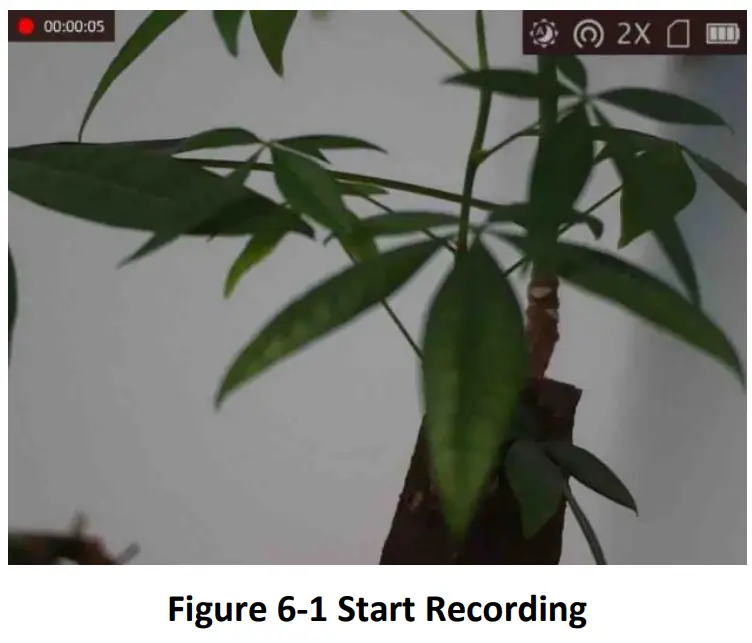 The left top of the image displays the information of recording time.
2. Press the wheel again to stop recording.
What to do next
For exporting recording files, refer to Export Files.
5.4 Prerecord Video
After you enable this function and select the prerecording time, the device can automatically start recording the 7, 10 or 15 seconds before the recoil activation and end recording the 7, 10 or 15 seconds after the recoil activation.
Steps
- In the main live view, hold the wheel to show the menu.
- Rotate the wheel to select
 .
. - Press the wheel to switch the prerecording time. 7 s, 10 s, and 15 s are selectable.
- Hold the wheel to save and exit. Note If you activate recoils continuously, the device will start recording the 7, 10 or 15 seconds before the first recoil and end recording the 7, 10, or 15 seconds after the last recoil.
 .
.What to do next
For exporting recording files, refer to Export Files.
5.5 Export Files
This function is used to export recorded videos and captured pictures.
Before You Start
Turn off the hotspot function. Turn on the device after connecting it to your PC, and keep the device on for 10 to 15 seconds before other operations.
Steps
- Connect the device and PC with a Type-C cable.Note Make sure the device is turned on when connecting the cable.
- Open the computer disk and select the disk of the device. Go to the DCIM folder and find the folder named after the capture year and month. For example, if you capture a picture or record a video on June 2021, go to DCIM 202106 to find the picture or video.
- Select and copy the files to PC.
- Disconnect the device from your PC.
Note
- The device displays images when you connect it to a PC, but functions such as recording, capturing, and hotspot are disabled.
- When you connect the device to PC for the first time, it installs the drive program automatically.
Chapter 6 Client Software Connection
Connect the device to the T-Vision App via hotspot, then you can capture pictures, record videos, or configure parameters on your phone.
Steps
- Hold
 to show the menu of the device.
 - Press
 to enable the hotspot function.
 - Turn on the WLAN of your phone and connect to the hotspot.
Hotspot Name: Wlan-IPTS Serial No.
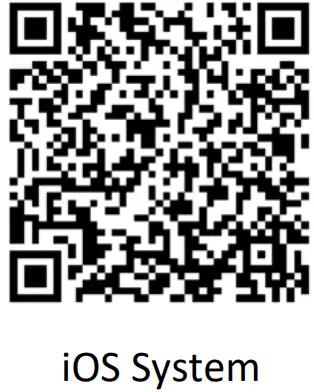
Hotspot Password: the last 9 digits of serial No. - Search the T-Vision on App Store (iOS System) or Google PlayTM (Android System) to download it, or scan the QR code to download and install the app.


https://play.google.com/store/apps/details?id=com.guardExpert.commercialvisionGoogle https://itunes.apple.com/cn/app/id1478705944?mt=8 - Open the App and connect your phone to the device. You can view the interface of the device on your phone.
 to show the menu of the device.
 to enable the hotspot function.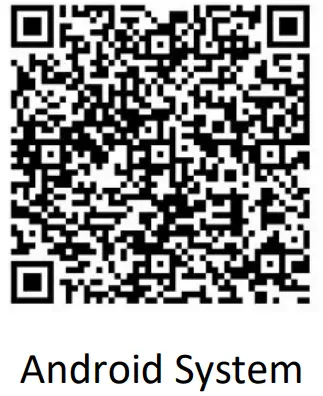
Note
The device cannot connect to the app if entering the wrong password several times. Refer to Restore Device to reset the device, and connect the app again.
The device should be activated for the first use. The default password must be changed after the activation.
Chapter 7 Language Settings
You can select the device language in this function.
Steps
- Hold the wheel to show the menu.
- Rotate the wheel to select,
 and press the wheel to enter the language configuration interface.
 - Rotate the wheel to select the language as required, and press the wheel to confirm.
 and press the wheel to enter the language configuration interface.
Chapter 8 Unit Settings
You can switch the unit for the distance measurement function and the reticle function.
Steps
- Hold the wheel to show the menu.
- Rotate the wheel to select
 , and press the wheel to switch the unit. Yard and m are selectable.
 - Hold the wheel to save settings and exit.
 , and press the wheel to switch the unit. Yard and m are selectable.
Chapter 9 Maintenance
This part introduces the operation of checking device information, upgrading the device and restoring to defaults, etc.
9.1 View Device Information
Steps
- Hold the wheel to show the menu of the device.
- Select
 , and press the wheel. You can view the device information such as version, and serial No.
 , and press the wheel. You can view the device information such as version, and serial No.
9.2 Upgrade Device
Before You Start
- Please get the upgrade package (including Main Firmware and FPGA Firmware) first.
- Make sure the hotspot function is disabled.
- Turn on the device after connecting it to your PC, and keep the device on for 10 to 15 seconds before other operations.
Steps
- Connect the device to your PC with a cable, and then turn on the device.
- Open the detected disk, copy the upgrade file and paste it to the root directory of the device.
- Hold to reboot the device, and the device upgrades automatically. The upgrading process will be displayed in the main interface. Note
During the upgrade, make sure the device is connected to your PC. Otherwise, it may cause unnecessary upgrade failure, firmware damage, etc. - Repeat the above steps to upgrade all firmware packages one by one.
9.3 Restore Device
Steps
- Hold the wheel to show the menu of the device.
- Rotate the wheel to select
 , and press the wheel to restore the device to defaults according to the prompt.
 , and press the wheel to restore the device to defaults according to the prompt.
Chapter 10 Frequently Asked Questions
10.1 Why is the monitor off?
– Check whether the device is off-battery. Check the monitor after charging the device for 5 minutes.
10.2 The image is not clear, how to adjust it?
– Adjust the diopter adjustment knob until the image is clear. Refer to section 3.1.
10.3 Capturing or recording fails. What’s the problem?
– Check the following items.
– Whether the device is connected to your PC. Capturing or recording is disabled in this status.
– Whether the storage space is full.
– Whether the device is low-battery.
10.4 Why the PC cannot identify the device?
– Check the following items.
– Whether the device is connected to your PC with supplied USB cable.
– If you use other USB cables, make sure the cable length is no longer than 1 m.
– Whether the hotspot function is turned on. If so, go to the device menu and turn off the hotspot.
 HOME
HOME