201085 USB-C KVM Switch for 2 Computers
Product Information
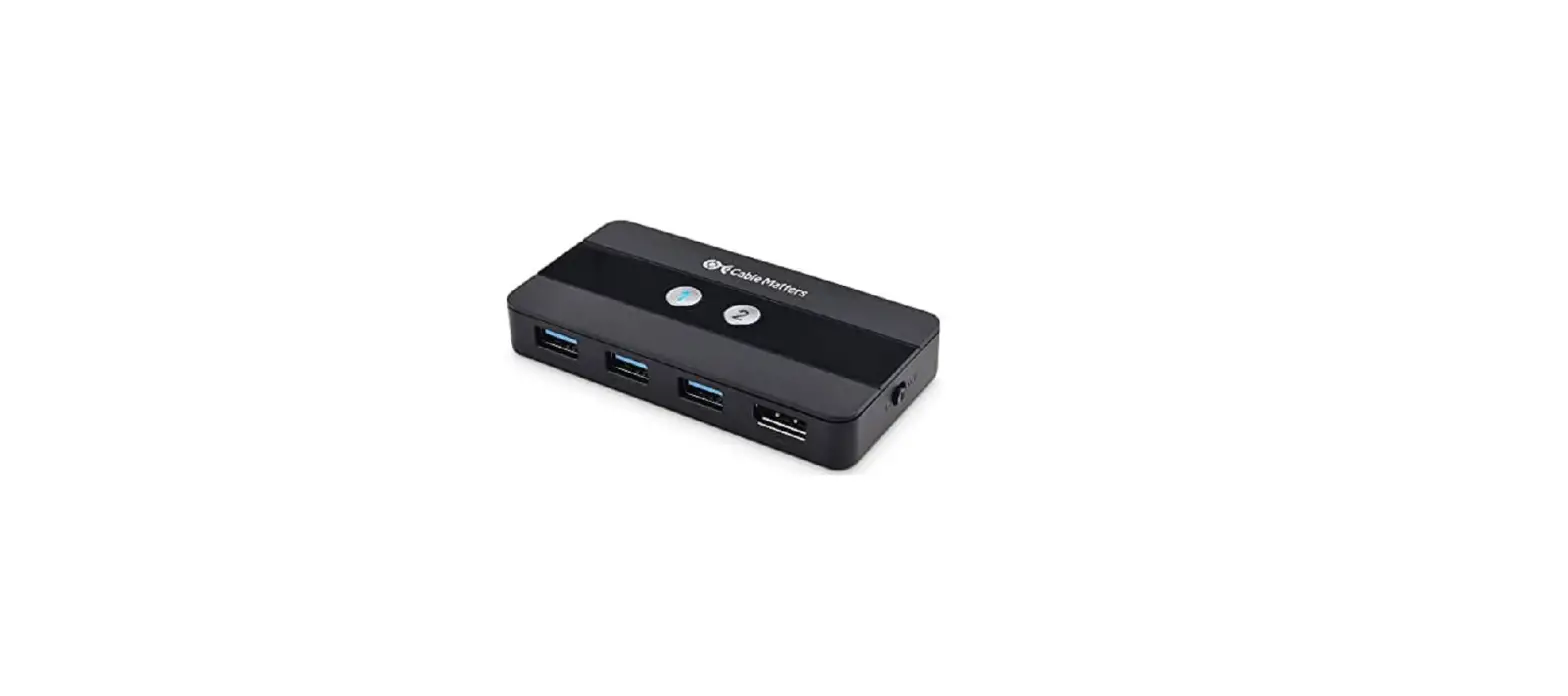
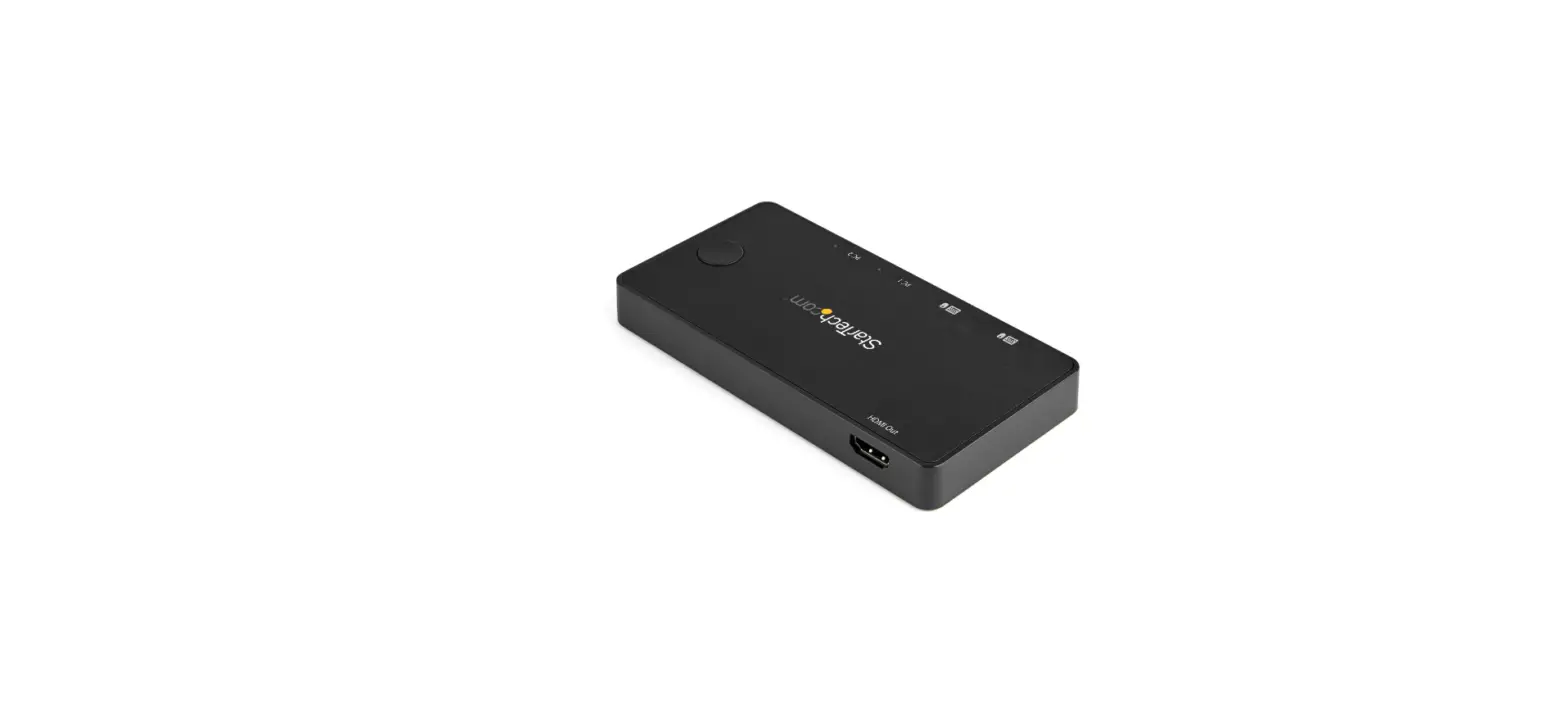
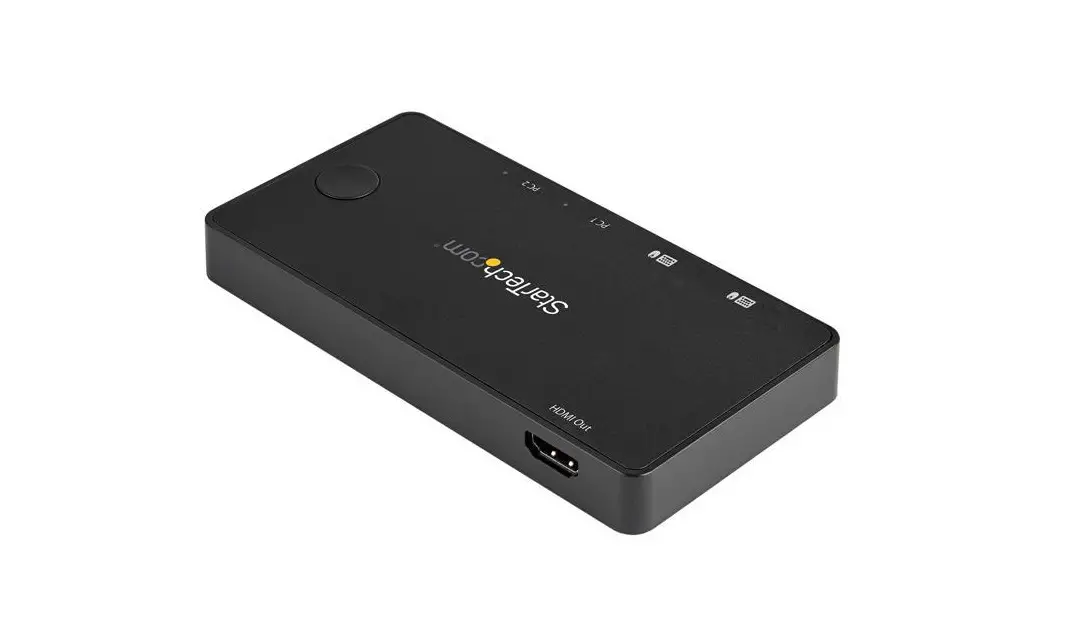
The Cable Matters USB-C KVM Switch is a versatile device that
allows you to connect up to 2 USB-C-equipped computers to multiple
displays and USB peripherals. It features 2 USB-C ports, 1 Micro-B
port for power, 1 HDMI port, 1 DisplayPort port, 2 buttons for
source switching, an on/off switch, and 4 USB-A ports for USB
peripherals. The switch supports a maximum resolution of 8K @30Hz
or 2x 4K @60Hz displays.
Dimensions: Switch (L x W x H): 4.3 x 2.1 x 0.6 inches (108 x 54
x 16 mm), Switch Weight: 1.9 oz (55 g), Remote (L x W x H): 3.3 x
1.5 x 0.24 inches (84 x 38 x 6 mm), Remote Weight: 0.5 ounces (14
g)
Regulatory Approvals: FCC, CE, RoHS, UKCA
Warranty: Limited One-Year
Product Usage Instructions
- Power off all source equipment.
- Make sure the switch is OFF before connecting any device.
- Optional: Connect a Micro-B charging cable to a wall charger
(charging cable not included). - Connect the switch box to up to 2 USB-C-equipped computers with
the provided USB-C cables. - Connect the switch box to up to 2 displays via HDMI and
DisplayPort. - Connect the switch box to up to 4 USB peripherals through the
USB-A ports.
Note: All cables to connect USB devices to the Switch are sold
separately. For troubleshooting or further assistance, please
contact [email protected].
Customer Support and Contact Information
Cable Matters offers lifetime technical support. For any
questions or support, please email us at
[email protected].
Limitation of Liability
In no event shall Cable Matters Inc. (including their officers,
directors, employees, or agents) be liable for any damages (whether
direct or indirect, special, punitive, incidental, consequential,
or otherwise), loss of profits, loss of business, loss of data, or
any pecuniary loss arising out of or related to the use of this
product exceeding the actual price paid for the product (as allowed
by state law).
USB-C® KVM Switch for 2 Computers
with HDMI®, DisplayPortTM, and 4x USB 3.0 Ports Model/Modèle/Modell/Modello/ Modelo/ 201085
User Manual
www.cablematters.com
USB-C® KVM Switch for 2 Computers
English………………………………………………….. 1 Français………………………………………………….9 Deutsch ……………………………………………….. 17 Español…………………………………………………. 25 Italiano………………………………………………….. 33 …………………………………………………….41
www.cablematters.com
2
USB-C® KVM Switch for 2 Computers
1. Introduction
1.1 Introduction
Thank you for your purchase from Cable Matters® Inc., the `Reliable Connectivity’ company. This User Manual provides an overview of the features and installation of the
USB-C® KVM Switch for 2 Computers with HDMI®, DisplayPortTM, and 4 x USB 3.0 Ports
Please read these instructions carefully before connecting, operating or configuring this product. Please keep this manual for future reference. Contact [email protected] for questions or product support.
1.2 Copyright and Trademarks Cable Matters is a registered trademark or trademark of Cable Matters Inc. All rights reserved. All other trademarks are the property of their respective owners. USB4TM, USB Type-C® and USB-C® are trademarks of USB Implementers Forum. ThunderboltTM is a trademark of Intel Corporation. The terms HDMI, HDMI HighDefinition Multimedia Interface, and the HDMI logo are trademarks or registered trademarks of HDMI Licensing Administrator, Inc. DisplayPortTM and the DisplayPortTM logo are trademarks owned by the Video Electronics Standards Association (VESA®) in the United States and other countries. This manual may make reference to trademarks, registered trademarks, and other protected names and/or symbols of third-party companies not related in any way to Cable Matters. Where they occur, these references are for illustrative purposes only and do not represent an endorsement of a product or service by Cable Matters, or an endorsement of the product(s) to which this manual applies by the third-party company in question. Regardless of any direct acknowledgement elsewhere in the body of this document, Cable Matters hereby acknowledges that all trademarks, registered trademarks, service marks, and other protected names and/or symbols contained in this manual and related documents are the property of their respective holders.
1.3 FCC Compliance Statement This device complies with Part 15 of the FCC Rules. Operation is subject to the following two conditions: 1) This device must not cause harmful interference, and 2) this device must accept any interference received, including interference that may cause undesired operation.
www.cablematters.com
1
USB-C® KVM Switch for 2 Computers
2. PRODUCT OVERVIEW
2.1 Package Contents Please check that the following items are contained in the box: 1 x USB-C® KVM Switch 2 x USB-C Cables 1x USB 2.0 Extension Cable 1 x Remote Control with Battery 1 x User Manual Note: All cables to connect USB devices to the Switch are sold separately
2.2 Product Description The Cable Matters® USB-C KVM Switch is an ideal solution for sharing displays and USB peripheral devices between 2 different computers. Connect the switch box over USB-C to USB-C equipped computers, and share up to two displays and four USB peripherals between two computers. Enjoy easy access to the connected devices with a single press button on the remote control. No hassle to unplug and re-plug your devices.
www.cablematters.com
2
USB-C® KVM Switch for 2 Computers
2.3 Product Features · Share two monitors and four USB devices with two computers.
Enjoy instant switching access to the connected USB peripherals, like a printer, scanner, keyboard, mouse, webcams, hard disks and more. · Connect to USB 3.0 devices for data transferring with transfer rate up to 5Gbps · Connect up to two monitors over HDMI and DisplayPort. · Supports a maximum of two 4K @60Hz displays (3840 x 2160) or one 8K @30Hz display (7680 × 4320) · Switch between 2 computers with a single press button on the lightweight remote controller or on the switch box · LED light on the switch box indicates which connected computer has access to all peripherals · Plug and play, no driver required · Turn off/on the remote control by pressing and holding down the #1 and #2 buttons on the Switch for 5 seconds
www.cablematters.com
3
USB-C® KVM Switch for 2 Computers
3. CONNECTION INSTRUCTIONS
3.1 Panel Diagram
1
4
3
2
5
6
7
1) 2x USB-C ports for computers connection 2) 1x Micro-B port for power 3) 1x HDMI Port 4) 1x DisplayPort Port 5) 2 Buttons on top for source switching, with blue LED light indicating
a valid control 6) On/Off Switch 7) 4x USB-A ports for USB peripherals
Note: All cables to connect USB devices to the Switch are sold separately
www.cablematters.com
4
USB-C® KVM Switch for 2 Computers
3.2 Remote Installation Remove the insulating tab from the end of the battery and check that the battery is installed correctly Troubleshooting tips: · Replace the battery · Make sure the Switch is turned on and remote control
is not turned off on the Switch 3.3 Connection Instructions 1. Power off all source equipment 2. Make sure the switch is “OFF” before connecting any device 3. Optional: Connect a Micro-B charging cable to a wall charger
(charging cable not included) 4. Connect the switch box to up to 2 USB-C-equipped computers
with the provided USB-C cables 5. Connect the switch box to up to 2 displays via HDMI and Display-
Port 6. Connect the switch box to up to 4 USB peripherals through the
USB-A ports
www.cablematters.com
5
USB-C® KVM Switch for 2 Computers
3.4 Troubleshooting Tips
· Verify that the Switch is On and all cables are securely connected · Verify that correct cables are connected:
– USB-C cable to the source computer – Micro-B charging cable to the Micro-B port on the Switch
(Optional) – Display cables to HDMI and/or DisplayPort ports on monitor(s) – USB devices to the USB-A ports on the Switch · The LED light turns blue when the connected computer has control to all connected USB devices · The rapidly-blinking LED lights indicate the remote control is turned off. The slowly-blinking LED lights indicate the remote control is turned on. · Connect a Micro-B cable to a wall charger if the USB device is not recognized by the computer · Connect an external power supply to a high power-consumption USB device such as hard drive, flash drive, card reader, etc. · Check if driver installation is required for the attached devices on the connected computers · Test each cable or equipment directly with other equipment · Restart or reconnect the Switch by unplugging and re-plugging it back in · If USB keyboards, mice, or other devices do not work or intermittently lose connection, connect the included USB 2.0 extension cable to the switch, and connect the device to the USB extension cable · Try a lower display resolution and refresh rate if monitors do not work · Host device(s) must support DisplayPort alternate mode (DP 1.2 or DP 1.4) for video · Try a different USB-C port on the host device · Apple M1 devices are limited to one external monitor · Some devices with Intel integrated graphics may require a graphics update from Intel’s website
Contact [email protected] with any questions
www.cablematters.com
6
USB-C® KVM Switch for 2 Computers
4. Technical Specifications Model 201085 Switch Connections
USB-C Input
USB-A Output Power
2 x USB-C Female 4 x USB-A 3.0 Female 1 x Micro-B Female (charging
cable not included)
Display
1 x HDMI Female, 1 x DisplayPort Female
Maximum Resolution
1x 8K @30Hz display (7680×4320)
-OR-
2x 4K @ 60Hz displays (3840×2160)
Remote Battery
CR2025
Dimensions
Switch (L x W x H) Switch Weight Remote (L x W x H) Remote Weight
4.3 x 2.1 x 0.6 Inches (108 x 54 x 16 mm) 1.9 Oz (55 g) 3.3 x 1.5 x 0.24 Inches (84 x 38 x 6 mm) 0.5 Ounces (14 g)
Environmental
Operating Temperature 32°F to 104°F
Storage Temperature
-4°F to 140°F
Max Power Consumption 1.0 W
Regulatory Approvals USB-C KVM Switch Warranty
FCC, C E, RoHS, UKCA Limited One-Year
www.cablematters.com
7
USB-C® KVM Switch for 2 Computers
5. Warranty and Support
5.1 Customer Support and Contact Information Cable Matters offers lifetime technical support as an integral part of our commitment to provide industry leading solutions.
Email us with any questions at [email protected].
5.2 Warranty Information This product is backed by a limited one-year warranty. In addition, Cable Matters warrants its products against defects in materials and workmanship for the periods noted, following the initial date of purchase. During this period, the products may be returned for repair, or replaced with equivalent products at our discretion. The warranty covers parts and labor costs only. Cable Matters does not warrant its products from defects or damages arising from misuse, abuse, alteration, or normal wear and tear.
5.3 Limitation of Liability In no event shall Cable Matters Inc. (including their officers, directors, employees or agents) be liable for any damages (whether direct or indirect, special, punitive, incidental, consequential, or otherwise), loss of profits, loss of business, loss of data, or any pecuniary loss, arising out of, or related to the use of this product exceeding the actual price paid for the product (as allowed by state law).
Cable Matters® is a registered trademark or trademark of Cable Matters Inc. All rights reserved.
www.cablematters.com
8
Commutateur KVM USB-C® pour 2 ordinateurs
1. Introduction
1.1 Introduction
Merci pour votre achat chez Cable Matters® Inc, l’entreprise de la « Connectivité fiable ». Ce manuel d’utilisateur présente une vue générale de toutes les fonctionnalités et de l’installation du
Commutateur KVM USB-C® pour 2 ordinateurs avec HDMI®, DisplayPortTM, et 4 x ports USB 3.0 Cable Matters® est une marque de commerce enregistrée ou une marque de commerce de Cable Matters Inc. Tous droits réservés. Veuillez lire attentivement ces instructions avant de brancher, d’utiliser ou de configurer ce produit. Conservez ce manuel pour vous y référer plus tard.
Pour toutes questions :[email protected]
1.2 Droits d’auteur et marque déposée
Cable Matters est une marque de commerce enregistrée ou une marque de commerce de Cable Matters Inc. Tous droits réservés. Toutes les autres marques de commerce sont la propriété exclusive de leurs propriétaires respectifs. USB4TM, USB Type-C® et USB-C® sont des marques commerciales de USB Implementers Forum. ThunderboltTM est une marque déposée d’Intel Corporation. Les termes HDMI, HDMI HighDefinition Multimedia Interface et le logo HDMI sont des marques commerciales ou des marques déposées de HDMI Licensing Administrator, Inc. DisplayPortTM et le logo DisplayPortTM sont des marques commerciales de la Video Electronics Standards Association (VESA®), enregistrées aux États-Unis et dans d’autres pays. Ce manuel peut faire mention de marques de commerce, de marques de commerce enregistrées et autres noms protégés et/ou symboles de sociétés tierces en aucun cas associées à Cable Matters. En pareil cas, lesdites mentions n’ont qu’une valeur illustrative et ne signifient en aucune manière que Cable Matters approuve ou conseille un produit ou un service, ni que la société tierce mentionnée approuve ou conseille le(s) produit(s) concerné(s) par le présent manuel. Indépendamment de toute reconnaissance directe dans le corps de ce document, Cable Matters reconnaît par la présence clause que toutes les marques commerciales, marques commerciales déposées, marques de service et autres noms protégés et/ou symboles figurant dans le présent manuel et les documents relatifs sont la propriété de leurs propriétaires respectifs.
1.3 Déclaration de conformité FCC Le présent dispositif est conforme à la section 15 de la réglementation de la FCC. Son fonctionnement est soumis aux deux conditions qui suivent : 1) le présent dispositif ne doit causer aucune interférence dangereuse, et 2) le présent dispositif doit accepter toutes les interférences reçues, y compris celles susceptibles de provoquer un fonctionnement non désiré.
www.cablematters.com
9
Commutateur KVM USB-C® pour 2 ordinateurs
2. PRÉSENTATION DU PRODUIT 2.1 Contenu de l’emballage Veuillez vérifier que les éléments suivants sont présents dans le paquet : 1 x commutateur KVM USB-C 2 x câbles USB-C 1x Câble d’extension USB 2.0 1 x Télécommande avec batterie 1 x Manuel de l’utilisateur Remarque : tous les câbles permettant de connecter des périphériques USB au commutateur sont vendus séparément.
2.2 Description du produit Le commutateur KVM USB-C à 2 ports de Cable Matters® est une solution idéale pour partager des écrans et des périphériques USB entre 2 ordinateurs différents. Connectez le commutateur par USB-C aux ordinateurs équipés d’USB-C, et partagez jusqu’à deux écrans et quatre périphériques USB entre deux ordinateurs. Profitez d’un accès facile aux appareils connectés grâce à une simple pression sur le bouton de la télécommande. Pas besoin de débrancher et rebrancher vos appareils.
www.cablematters.com
10
Commutateur KVM USB-C® pour 2 ordinateurs
2.3 Fonctionnalités du produit · Partagez deux moniteurs et quatre périphériques USB avec deux ordinateurs. Profitez d’un accès commuté instantané aux périphériques USB connectés, comme une imprimante, un scanner, un clavier, une souris, des webcams, des disques durs et plus encore. · Connectez-vous aux périphériques USB 3.0 pour le transfert de données avec un taux de transfert allant jusqu’à 5Gb/s. · Connectez jusqu’à deux moniteurs via HDMI et DisplayPort. · Prend en charge un maximum de deux écrans 4K @60Hz (3840 x 2160) ou un écran 8K @30Hz (7680 × 4320). · Passez d’un ordinateur à l’autre et jusqu’à 2 différents en utilisant simplement une télécommande ou en appuyant sur un bouton sur le commutateur · La lumière LED sur le commutateur indique l’ordinateur ayant accès à tous les périphériques · Plug-and-play, pas besoin de driver · Allumez et éteignez la télécommande en appuyant pendant 5 secondes sur les boutons #1 et #2 du Commutateur
www.cablematters.com
11
3. INSTRUCTION DE BRANCHEMENT
3.1 Schéma des panneaux
1
4
Commutateur KVM USB-C® pour 2 ordinateurs
3
2
5
6
7 1) 2x port USB-C pour la connexion des ordinateurs 2) 1x Port Micro-B pour l’alimentation 3) 1x Port HDMI 4) 1x port DisplayPort 5) 2 Boutons sur le dessus pour le changement de source, avec une lumière LED bleue
indiquant l’appareil utilisé 6) Interrupteur On/Off 7) 4 ports USB-A pour les périphériques USB
Remarque : tous les câbles permettant de connecter des périphériques USB au commutateur sont vendus séparément.
www.cablematters.com
12
Commutateur KVM USB-C® pour 2 ordinateurs
3.2 Mise en service de la télécommande
Retirez le capot isolant à l’arrière de la batterie et vérifiez que celleci est installée correctement
Conseils de dépannage :
·
Remplacez la batterie
·
Assurez-vous que le Commutateur est allumé et que la
télécommande n’est pas éteinte (lumières sur le Commutateur)
3.3 Instructions de branchement
1) Mettez hors tension tous les équipements sources 2) Assurez-vous que l’interrupteur est sur “OFF” avant de connecter un appareil. 3) Facultatif : Connectez un câble de charge Micro-B à un chargeur mural (câble
de charge non inclus). 4) Connectez le boîtier de commutation à un maximum de 2 ordinateurs équipés
d’USB-C à l’aide des câbles USB-C fournis. 5) Connectez le boîtier de commutation à un maximum de 2 écrans via HDMI et
DisplayPort. 6) Connectez le boîtier de commutation à un maximum de 4 périphériques USB
via les ports USB-A.
www.cablematters.com
13
Commutateur KVM USB-C® pour 2 ordinateurs
3.4 Conseils de dépannage
· Vérifiez que le Commutateur est bien allumé et que tous les câbles sont bien branchés
· Vérifiez que les câbles corrects sont connectés : Câble USB-C vers l’ordinateur source Câble de charge Micro-B vers le port Micro-B du commutateur (facultatif) Câbles d’affichage vers les ports HDMI et/ou DisplayPort du/des moniteur(s) Périphériques USB vers les ports USB-A du commutateur.
· La LED s’allume en bleu lorsque l’ordinateur branché a le contrôle sur tous les appareils USB
· Des LED qui clignotent rapidement indiquent que la télécommande est éteinte. Des LED qui clignotent lentement indiquent que la télécommande est allumée
· Connectez un câble Micro-B à un chargeur mural si le périphérique USB n’est pas reconnu par l’ordinateur.
· Branchez une alimentation externe à appareil USB à forte consommation électrique comme un disque dur, une clé USB Flash Drive, un lecteur de carte, etc.
· Vérifiez si les appareils branchés à l’ordinateur nécessitent l’installation de pilote · Testez chaque câble ou équipement directement sur d’autres équipements
· Relancez ou rebranchez le Commutateur en le débranchant puis en le rebranchant
· Si les claviers, souris ou autres appareils USB ne fonctionnent pas ou perdent leur connexion par intermittences, connectez le câble rallonge USB 2.0 au commutateur, puis connectez l’appareil au câble rallonge USB.
· Essayez une résolution d’affichage et une fréquence de rafraîchissement inférieures si les moniteurs ne fonctionnent pas.
· Le ou les périphériques hôtes doivent prendre en charge le mode alternatif DisplayPort (DP 1.2 ou DP 1.4) pour la vidéo.
· Essayez un autre port USB-C sur le périphérique hôte.
· Les appareils Apple M1 sont limités à un seul moniteur externe
· Certains appareils dotés de solution graphique intégrée Intel peuvent nécessiter une mise à jour graphique à partir du site Web d’Intel.
Pour toutes questions, adressez-vous à
[email protected]
www.cablematters.com
14
Commutateur KVM USB-C® pour 2 ordinateurs
4. Caractéristiques techniques Modèle 201085
Connexions des commutateurs
Entrée USB-C Sortie USB-A Alimentation Affichage
Résolution maximale
Pile pour télécommande
2 x USB-C femelle
4 x USB-A 3.0 femelle 1 x Micro-B femelle (câble de
charge non inclus) 1 x HDMI femelle,
1 x DisplayPort femelle 1x écran 8K @30Hz (7680×4320)
-OU2x écrans 4K @ 60Hz (3840×2160) CR2025
Dimensions Commutateur (L x l x H)
Poids du commutateur Télécommande (L x l x H)
Poids de la télécommande
108 x 54 x 16 mm (4,3 x 2,1 x 0,6 pouces)
55 g (1,9 Oz) 84 x 38 x 6 mm (3.3 x 1.5 x 0.24
pouces) 14 g (0,5 oz)
Environnement Température de fonctionnement Température de stockage
Consommation électrique maximale
0 ° à 40 °C (32°F à 104°F) -20 ° à 60 °C (-4°F à 140°F)
1,0 W
Approbations réglementaires Commutateur KVM USB-C Garantie
FCC, C E, RoHS, UKCA limitée d’un an
www.cablematters.com
15
Commutateur KVM USB-C® pour 2 ordinateurs
5. Garantie et assistance
5.1 Assistance client et coordonnées
Assistance client et coordonnées Cable Matters propose une assistance technique à vie. Cela fait partie de nos engagements en tant que fournisseur de solutions leader sur le marché.
Pour plus d’informations, veuillez nous contacter à [email protected].
5.2 Informations de garantie
Ce produit est couvert par une garantie limitée d’un an. De plus, Cable Matters garantit l’absence de défaut matériel et de fabrication pour tous ses produits au cours des périodes indiquées, à la suite de la date initiale d’achat. Au cours desdites périodes, les produits peuvent être retournés pour réparation ou remplacement par des produits équivalents, à notre discrétion. La garantie ne couvre que les pièces et les frais de main d’oeuvre. Cable Matters ne formule, concernant ses produits, aucune garantie relative aux défauts ou aux dommages résultant d’une utilisation erronée ou abusive, d’altération ou de l’usure normale.
5.3 Non-responsabilité
Cable Matters Inc. (y compris ses responsables, directeurs, employés ou agents) ne peut être tenue pour responsable en cas de dommages (directs, indirects, spécifiques, punitifs, consécutifs ou autres), en cas de perte de profits, de perte d’activité ou de toute perte financière concomitante ou relative à l’utilisation de ce produit au-delà du montant effectif versé lors de son acquisition (tel qu’autorisé par le droit du pays de résidence).
Cable Matters est une marque de commerce enregistrée ou une marque de commerce de Cable Matters Inc.
www.cablematters.com
16
USB-C®-KVM-Umschalter für 2 Computer
1.Einführung
1.1 Einführung
Vielen Dank für den Kauf eines Produkts von Cable Matters® Inc., des Unternehmens für ,,zuverlässige Konnektivität”. Diese Bedienungsanleitung enthält einen Überblick über Merkmale und Installation des
USB-C®-KVM-Umschalter für 2 Computer mit HDMI®-, DisplayPortTM- und 4 x USB 3.0-Anschlüssen
Bitte lesen Sie sich diese Anleitung vor Anschluss, Betrieb oder Konfiguration des Produkts gründlich durch. Bitte bewahren Sie diese Anleitung zur späteren Bezugnahme auf.
Für Fragen oder Kundendienst kontaktieren Sie bitte [email protected].
1.2 Copyright und Markenzeichen
Cable Matters ist eine eingetragene Marke oder ein Markenzeichen von Cable Matters Inc. Alle Rechte vorbehalten. Alle anderen Markenzeichen sind das Eigentum ihrer jeweiligen Inhaber.
USB4TM, USB Type-C® and USB-C® sind Marken von USB Implementers Forum. ThunderboltTM ist eine Marke der Intel Corporation. Die Begriffe HDMI, HDMI HighDefinition Multimedia Interface und das HDMI-Logo sind Markenzeichen oder eingetragene Marken von HDMI Licensing Administrator, Inc. DisplayPortTM und das DisplayPortTM-Logo sind Markenzeichen im Besitz der Video Electronics Standards Association (VESA®) in den USA und anderen Ländern.
In dieser Anleitung werden eventuell Markenzeichen, eingetragene Marken und andere geschützte Bezeichnungen und/oder Symbole von Drittanbietern erwähnt, die in keiner Weise mit Cable Matters in Verbindung stehen. In einem solchen Fall dienen diese Angaben ausschließlich Veranschaulichungszwecken und stellen keine Empfehlung eines Produkts oder einer Dienstleistung seitens Cable Matters oder eine Empfehlung des Produkts oder der Produkte, auf die sich diese Anleitung bezieht, seitens des jeweiligen Drittanbieters dar. Ungeachtet eventueller Angaben an anderer Stelle in diesem Dokument erklärt Cable Matters hiermit, dass alle in dieser Anleitung und verwandten Dokumenten enthaltenen Markenzeichen, eingetragenen Marken, Dienstleistungsmarken und anderen geschützten Bezeichnungen und/oder Symbole das Eigentum ihrer jeweiligen Inhaber sind.
1.3 Erklärung zur Einhaltung der FCC-Bestimmungen
Dieses Gerät erfüllt Teil 15 der FCC-Bestimmungen. Sein Betrieb unterliegt den beiden folgenden Bedingungen: 1) Dieses Gerät darf keine funktechnischen Störungen erzeugen, und 2) dieses Gerät muss mögliche empfangene Funkstörungen und dadurch verursachte Funktionsstörungen akzeptieren.
www.cablematters.com
17
USB-C®-KVM-Umschalter für 2 Computer
2. PRODUKTÜBERSICHT 2.1 Lieferumfang Bitte vergewissern Sie sich, dass die Box folgende Artikel enthält: 1 x USB-C®-KVM-Umschalter 2 x USB-C-Kabel 1 x USB-2.0-Verlängerungskabel 1 x Fernbedienung mit Batterie 1 x Bedienungsanleitung Hinweis: Alle Kabel zum Anschließen von USB-Geräten an den Umschalter sind separat erhältlich 2.2 Produktbeschreibung Der USB-C-KVM-Schalter mit 2 Anschlüssen von Cable Matters® ist eine ideale Lösung zur gemeinsamen Nutzung von USB-Peripheriegeräten durch 2 verschiedene Computer. Schließen Sie die Umschaltbox über USB-C an mit USB-C ausgestattete Computer an, und teilen Sie bis zu zwei Displays und vier USB-Peripheriegeräte zwischen zwei Computern. Genießen Sie den einfachen Zugriff auf die angeschlossenen Geräte mit einem einzigen Tastendruck auf der Fernbedienung. Kein lästiges Aus- und Einstecken der Geräte.
www.cablematters.com
18
USB-C®-KVM-Umschalter für 2 Computer
2.3 Produktmerkmale
· Teilen Sie zwei Monitore und vier USB-Geräte zwischen zwei Computern. Genießen Sie den sofortigen Umschalt -Zugriff auf die angeschlossene USB-Peripherie, zum Beispiel Drucker, Scanner, Tastatur, Maus, Webcams, Festplatten und mehr.
· Anschluss an USB-3.0-Geräte zur Datenübertragung mit einer Übertragungsrate von bis zu 5 Gbps
· Schließen Sie bis zu zwei Monitore über HDMI und DisplayPort an.
· Unterstützt maximal zwei 4K @60Hz-Displays (3840 x 2160) oder ein 8K @30Hz-Display (7680 × 4320)
· Umschalten zwischen 2 Computern mit einfachem Tastendruck auf der leichten Fernbedienung oder an der Schalterdose.
· Eine LED an der Schalterdose zeigt an, welcher angeschlossene Computer Zugriff auf alle Peripheriegeräte hat.
· Sofort betriebsbereit, kein Treiber erforderlich. · Zum Aus-/Einschalten der Fernbedienung werden die
Tasten Nr. 1 und 2 am Schalter 5 Sekunden lang gedrückt.
www.cablematters.com
19
USB-C®-KVM-Umschalter für 2 Computer
3. ANSCHLUSSHINWEISE 3.1 Panel-Diagramm
1
4
3
2
5
6
7
1) 2x USB-C-Ports für den Anschluss von Computern 2) 1 x Micro-B-Buchse für die Stromversorgung 3) 1x HDMI-Port 4) 1 x DisplayPort-Anschluss 5) 2 Tasten auf der Oberseite zur Quellenumschaltung, mit
blauem LED-Licht zur Anzeige einer gültigen Steuerung 6) Ein-/Ausschalter 7) 4 x USB-A-Anschlüsse für USB-Peripheriegeräte
Hinweis: Alle Kabel zum Anschließen von USB-Geräten an den Umschalter sind separat erhältlich
www.cablematters.com
20
USB-C®-KVM-Umschalter für 2 Computer
3.2 Fernbedienung Entfernen Sie die Isolierlasche vom Ende der Batterie und vergewissern Sie sich, dass die Batterie korrekt eingelegt ist Tipps zur Fehlerbehebung: · Tauschen Sie die Batterie aus. · Vergewissern Sie sich, dass der Schalter eingeschaltet und
die Fernbedienung am Schalter nicht ausgeschaltet ist.
3.3 Anschlusshinweise 1) Alle Quellgeräte ausschalten 2) Vergewissern Sie sich, dass der Schalter auf “OFF” steht, bevor Sie ein
Gerät anschließen 3) Optional: Schließen Sie ein Micro-B-Ladekabel an ein Netzladegerät an
(Ladekabel nicht im Lieferumfang enthalten) 4) Schließen Sie die Umschaltbox mit den mitgelieferten USB-C-Kabeln an
bis zu 2 mit USB-C ausgestattete Computer an 5) Schließen Sie die Umschaltbox über HDMI und DisplayPort an bis zu 2
Displays an 6) Schließen Sie die Schalterdose über die USB-A-Anschlüsse an bis zu 4
USB-Peripheriegeräte an.
www.cablematters.com
21
USB-C®-KVM-Umschalter für 2 Computer
3.4 Fehlerbehebung
· Vergewissern Sie sich, dass der Schalter eingeschaltet ist und alle Kabel sicher befestigt sind.
· Vergewissern Sie sich, dass die richtigen Kabel angeschlossen sind: USB-C-Kabel an den Quell-Computer Micro-B-Ladekabel an den Micro-B-Anschluss des Umschalters (optional) Display-Kabel an die HDMI- und/oder DisplayPortAnschlüsse des Monitors/der Monitore USB-Geräte an die USB-A-Anschlüsse des Umschalters
· Die LED leuchtet blau, wenn der angeschlossene Computer alle angeschlossenen USB-Geräte steuert.
· Schnell blinkende LEDs zeigen an, dass die Fernbedienung ausgeschaltet ist. Langsam blinkende LEDs zeigen an, dass die Fernbedienung eingeschaltet ist.
· Schließen Sie ein Micro-B-Kabel an ein Netzladegerät an, wenn das USB-Gerät vom Computer nicht erkannt wird
· Schließen Sie ein externes Netzteil an ein USB-Gerät mit hohem Stromverbrauch wie z. B. ein Festplattenlaufwerk, einen USBSpeicherstick, ein Kartenlesegerät usw. an.
· Überprüfen Sie, ob für die verbundenen Geräte an den angeschlossenen Computern ein Treiber installiert werden muss.
· Testen Sie jedes Kabel oder Gerät direkt mit anderen Geräten. · Starten Sie den Schalter neu oder ziehen Sie ihn ab und schließen ihn
neu an. · Wenn USB-Tastaturen, -Mäuse oder andere Geräte nicht funktionieren
oder die Verbindung zeitweise unterbrochen wird, schließen Sie das mitgelieferte USB 2.0-Verlängerungskabel an den Switch an und verbinden Sie das Gerät mit dem USB-Verlängerungskabel · Versuchen Sie eine niedrigere Bildschirmauflösung und Bildwiederholfrequenz, wenn die Monitore nicht funktionieren · Host-Geräte müssen DisplayPort-Alternate-Modus (DP 1.2 oder DP 1.4) für Video unterstützen · Versuchen Sie einen anderen USB-C-Anschluss am Host-Gerät · Apple-M1-Geräte sind auf nur einen externen Monitor beschränkt · Für einige Geräte mit integrierter Intel-Grafik ist möglicherweise ein Grafik-Update von der Intel-Website erforderlich
Mit Fragen wenden Sie sich bitte an [email protected].
www.cablematters.com
22
USB-C®-KVM-Umschalter für 2 Computer
4. Technische Daten für Modell 201085
Umschalteranschlüsse
USB-C Input USB-A Output Stromversorgung Anzeige Maximale Auflösung
Fernbedienung Batterie
2 x USB-C-Buchse 4 x USB-A 3.0-Buchse
1 x Micro-B-Buchse (Ladekabel nicht mitgeliefert)
1 x HDMI-Buchse, 1 x DisplayPortBuchse
1x 8K @30Hz-Display (7680×4320) -ODER-
2x 4K @ 60Hz-Displays (3840×2160) CR2025
Maße Umschalter (L x B x H) Gewicht des Umschalters
Fernbedienung (L x B x H) Gewicht der Fernbedienung
108 x 54 x 16 mm (4,3 x 2,1 x 0,6 Zoll) 55 g (1,9 oz)
84 x 38 x 6 mm (3,3 x 1,5 x 0,24 Zoll) 14 g (0,5 oz)
Umwelt Betriebstemperatur Lagertemperatur
Stromverbrauch:
0 °C bis 40 °C (32 °F bis 104 °F) -20 °C bis +40 °C (-4°F bis 140°F)
1,0 W
Behördliche Zulassungen
USB-C KVM Switch
FCC, C E, RoHS, UKCA
Garantie
eingeschränkte einjährige Garantie
www.cablematters.com
23
USB-C®-KVM-Umschalter für 2 Computer
5. Garantie und Kundendienst
5.1 Kundendienst und Kontaktinformationen
Cable Matters bietet lebenslange technische Betreuung als integralen Bestandteil seines Engagements für branchenführende Lösungen.
Falls Sie Fragen haben, schreiben Sie bitte an [email protected].
5.2 Garantiehinweise
Dieses Produkt wird von einer eingeschränkten einjährigen Garantie abgedeckt. Darüber hinaus garantiert Cable Matters, dass seine Produkte während der angegebenen Zeiträume ab Datum des Erstkaufs frei von Material- und Verarbeitungsschäden sind. Während dieses Zeitraums können die Produkte zur Reparatur zurückgeschickt oder auf unser Ermessen durch gleichwertige Produkte ersetzt werden. Die Garantie deckt nur Kosten für Teile und Arbeit ab. Cable Matters gibt keine Garantie auf Defekte oder Schäden seiner Produkte aufgrund von Fehlgebrauch, Missbrauch, Modifizierungen oder normalem Verschleiß.
5.3 Haftungsbeschränkung
Cable Matters Inc. (einschließlich seiner Vorstandsmitglieder, Leiter, Angestellten oder Vertreter) ist in keinem Fall haftbar für Schäden (unmittelbare oder mittelbare Schäden, konkrete Schäden, Schadenersatz, Nebenschäden, Folgeschäden oder andere), Gewinnverlust, Verlust von Geschäftsmöglichkeiten, Datenverlust oder jegliche finanziellen Verluste, die sich aus der Verwendung dieses Produkts ergeben oder damit in Zusammenhang stehen und über den tatsächlich für das Produkt gezahlten Preis hinausgehen (soweit gesetzlich zulässig).
Cable Matters® ist eine eingetragene Marke oder ein Markenzeichen von Cable Matters Inc. Alle Rechte vorbehalten.
www.cablematters.com
24
Interruptor USB-C® KVM para 2 ordenadores
1.Introducción
1.1 Introducción Gracias por comprar a Cable Matters® Inc., la compañía de la «conectividad fiable». Este Manual del Usuario proporciona una visión general de las características e instalación del
Interruptor USB-C® KVM para 2 ordenadores con HDMI®, DisplayPortTM y 4 puertos USB 3.0
Lee estas instrucciones atentamente antes de conectar, utilizar o configurar este producto. Guarda el manual para su consulta futura. Contacta con [email protected] para enviar preguntas o solicitar asistencia.
1.2 Derechos de autor y marcas registradas
Cable Matters es una marca registrada o marca comercial de Cable Matters Inc. Todos los derechos reservados. Todas las demás marcas comerciales son propiedad de sus respectivos titulares.
USB4TM, USB Type-C® y USB-C® son marcas comerciales de USB Implementers Forum. ThunderboltTM es una marca comercial de Intel Corporation. Los términos HDMI, HDMI High-Definition Multimedia Interface y el logotipo de HDMI son marcas comerciales o marcas comerciales registradas de HDMI Licensing Administrator, Inc. DisplayPortTM y el logotipo DisplayPortTM son marcas registradas propiedad de la Video Electronics Standards Association (VESA®) en Estados Unidos y otros países.
Este manual puede hacer referencia a marcas comerciales, marcas registradas y otros nombres o símbolos protegidos de terceros que no están relacionados en modo alguno con Cable Matters. En los casos en que aparezcan tales referencias, tendrán solamente fines ilustrativos y no representarán el aval de un producto o servicio por parte de Cable Matters, ni el aval del producto o productos a los que se aplica este manual por parte del tercero en cuestión. Independientemente de cualquier reconocimiento expreso en otras partes del presente documento, Cable Matters reconoce que todas las marcas comerciales, marcas registradas, marcas de servicio y otros nombres o símbolos protegidos contenidos en este manual y en los documentos relacionados son propiedad de sus respectivos titulares.
1.3 Declaración de cumplimiento de la FCC
Este dispositivo cumple la Parte 15 de las normas de la FCC. El funcionamiento está sujeta a las dos condiciones siguientes: 1) Este dispositivo no debe causar interferencias perjudiciales, y 2) este dispositivo debe aceptar cualquier interferencia recibida, incluidas las interferencias que puedan causar un funcionamiento no deseado.
www.cablematters.com
25
Interruptor USB-C® KVM para 2 ordenadores
2. VISTA GENERAL DEL PRODUCTO 2.1 Contenido del paquete Por favor, compruebe que los siguientes artículos se encuentran en el embalaje: 1 interruptor USB-C® KVM 2 cables USB-C 1 cable de extensión USB 2.0 1 mando a distancia con batería 1 manual de usuario Nota: todos los cables para conectar dispositivos USB al interruptor se venden por separado
2.2 Descripción del producto El interruptor de doble puerto USB-C KVM de Cable Matters® es una solución ideal para compartir pantallas y dispositivos periféricos USB entre 2 ordenadores diferentes. Conecte la caja de interruptor en USB-C en ordenadores equipados con USB-C y comparta hasta dos pantallas y cuatro periféricos USB entre dos ordenadores. Disfrute de un acceso sencillo a los dispositivos conectados con solo pulsar un botón en el mando a distancia. Se acabaron los problemas de desenchufar y reconectar sus dispositivos.
www.cablematters.com
26
Interruptor USB-C® KVM para 2 ordenadores
2.3 Características del producto · Comparta dos monitores y cuatro dispositivos USB con
dos ordenadores. Disfrute el acceso de conmutación instantáneo a los periféricos USB conectados, como una impresora, escáner, teclado, ratón, cámaras web, discos duros, etc. · Conéctese a dispositivos USB 3.0 para transferir datos con una velocidad de transferencia de hasta 5 Gbps · Conecte hasta dos monitores por HDMI y DisplayPort. · Admite un máximo de dos pantallas 4K a 60 Hz (3840 x 2160) o una pantalla 8K a 30 Hz (7680 × 4320) · Conmuta entre 2 ordenadores con un solo botón mediante el mando a distancia ligero o desde el conmutador · El LED del conmutador indica qué ordenador conectado tiene acceso a todos los periféricos · Conexión Plug and Play, no requiere controladores · Para apagar/encender el mando a distancia, mantén pulsados los botones n.º 1 y n.º 2 del conmutador durante 5 segundos
www.cablematters.com
27
Interruptor USB-C® KVM para 2 ordenadores
3 INSTRUCCIONES DE CONEXIÓN
3.1 Diagrama de paneles
1
4
3
2
5
6
7
1) 2 puertos USB-C para conectar ordenadores 2) 1 puerto de alimentación Micro-B 3) 1 puerto HDMI 4) 1 puerto DisplayPort 5) 2 botones en la parte superior para conmutar la fuente, con
una luz LED azul que indica un control válido 6) Interruptor encendido/apagado 7) 4 puertos USB-A para periféricos USB
Nota: Todos los cables para conectar los dispositivos USB al conmutador se venden por separado
www.cablematters.com
28
Interruptor USB-C® KVM para 2 ordenadores
3.2 Instalación del mando a distancia Retira la lengüeta aislante del extremo de la pila y comprueba que esté colocada correctamente Consejos para la solución de problemas · Cambia la pila · Comprueba que el conmutador esté encendido y el
mando no esté desactivado en el conmutador
3.3 Instrucciones de conexión 1) Apagar todo el equipo fuente 2) El interruptor debe estar en “OFF” antes de conectar cualquier dispositivo 3) Opcional: conecte un cable de carga Micro-B a un enchufe de pared
(cable de carga no incluido) 4) La caja de interruptor se puede conectar hasta a 2 ordenadores equi-
pados con puerto USB-C a través de los cables USB-C provistos. 5) Conecte la caja de interruptor con hasta 2 pantallas mediante HDMI y
DisplayPort 6) Conecte la caja de interruptor con hasta 4 periféricos USB a través de los
puertos USB-A
www.cablematters.com
29
Interruptor USB-C® KVM para 2 ordenadores
3.4 Consejos para la solución de problemas
· Comprueba que el conmutador esté encendido y que todos los cables estén bien conectados
· Compruebe que están conectados los cables correctos: Cable USB-C al ordenador fuente Cable de carga Micro-B al puerto Micro-B en el interruptor (opcional) Cables de pantalla a los puertos HDMI o DisplayPort en los monitores Dispositivos USB a los puertos USB-A en el interruptor
· El LED cambia a azul cuando el ordenador conectado tiene el control de todos los dispositivos USB conectados
· Si los LED parpadean rápidamente, el mando a distancia está apagado. Si los LED parpadean lentamente, el mando a distancia está encendido.
· Conecte un cable Micro-B a un enchufe de pared si el ordenador no es capaz de reconocer el dispositivo USB
· Conecta una fuente de alimentación externa a un dispositivo USB de alto consumo, como un disco duro, una unidad flash, un lector de tarjetas, etc.
· Comprueba si es necesario instalar controladores para los dispositivos en los ordenadores conectados
· Prueba cada cable o equipo directamente con otro aparato · Reinicia o reconecta el conmutador desconectándolo y volviéndolo a
conectar · Si hay dispositivos USB como teclados, ratones u otros dispositivos
que dejan de funcionar o lo hacen de forma intermitente, conecte el cable de extensión USB 2.0 includo al interruptor y, luego, conecte el dispositivo al cable de extensión USB · Pruebe con una resolución y tasa de actualización inferiores de pantalla si no funcionan los monitores · Los dispositivos hospedadores para vídeo deben ser compatibles con el modo DisplayPort alternativo (DP 1.2 o DP 1.4) · Pruebe con un puerto USB-C diferente del dispositivo hospedador · Los dispositivos Apple M1 están limitados a un monitor externo · Algunos dispositivos con gráficos integrados Intel pueden requerir una actualización de gráficos desde la página web de Intel
Envía tus preguntas a [email protected]
www.cablematters.com
30
Interruptor USB-C® KVM para 2 ordenadores
4. Especificaciones técnicas Modelo 201085
Conexiones del interruptor
Entrada USB-C Salida USB-A Alimentación Pantalla Máxima resolución
Batería del mando
2 x USB-C hembra 4 x USB-A 3.0 hembra
1 x Micro-B hembra (cable de carga no incluido)
1 x HDMI hembra, 1 x
DisplayPort hembra 1 pantalla 8K a 30 Hz (7680×4320)
-O2 pantallas 4K a 60 Hz (3840×2160)
CR2025
Tamaño Interruptor (L x An x H)
Peso del interruptor Mando (L x An x H)
Peso del mando
4,3 x 2,1 x 0,6 pulgadas (108 x
54 x 16 mm)
1,9 Oz (55 g) 3,3 x 1,5 x 0,24 pulgadas (84 x
38 x 6 mm) 0,5 onzas(14 g)
Medio ambiente Temperatura de funcionamiento
Temperatura de almacenamiento Consumo máximo
32 °F a 104 °F
-4 °F a 140 °F 1,0 W
Aprobaciones normativas Interruptor USB-C KVM
FCC, C E, RoHS, UKCA
Garantía
limitada de un año
www.cablematters.com
31
Interruptor USB-C® KVM para 2 ordenadores
5. Asistencia y garantía
5.1 Kundendienst und Kontaktinformationen
Atención al cliente e información de contacto En Cable Matters ofrecemos soporte técnico de por vida como parte integral de nuestro compromiso de proporcionar soluciones líderes del sector
Envía tus preguntas por correo electrónico a [email protected].
5.2 Información sobre la garantía
Este producto cuenta con una garantía limitada durante 1 año. Además, Cable Matters garantiza sus productos contra los defectos de materiales y de fabricación durante los períodos señalados, a partir de la fecha inicial de compra. Durante este período, los productos pueden devolverse para su reparación o ser sustituidos por productos equivalentes a nuestra discreción. La garantía solamente cubre las piezas y los costes de mano de obra. Cable Matters no garantiza sus productos contra defectos o daños derivados del mal uso, abuso, alteración o desgaste normal.
5.3 Limitación de la responsabilidad
En ningún caso Cable Matters Inc. (incluidos sus representantes, directores, empleados o agentes) será responsable de ningún daño (ya sea directo o indirecto, especial, punitivo, incidental, consecuente o de otro tipo), pérdida de beneficios, pérdida de negocio o cualquier pérdida monetaria que se derive o esté relacionada con el uso de este producto y supere el precio real pagado por él (según lo permita la legislación estatal).
Cable Matters® es una marca registrada o marca comercial de Cable Matters Inc. Todos los derechos reservados.
www.cablematters.com
32
Switch KVM USB-C® per 2 computer
1.Introduzione
1.1 Introduzione
Grazie per il vostro acquisto presso Cable Matters® Inc., l’azienda della “Connettività Affidabile”. Questo Manuale per l’uso fornisce una panoramica sulle funzioni e le modalità d’installazione dello
Switch KVM USB-C® per 2 computer con HDMI®, DisplayPortTM e 4 porte USB 3.0
Leggere attentamente le presenti istruzioni prima di collegare, mettere in funzione o configurare questo prodotto. Conservare il manale per eventuali riferimenti futuri.
Per qualsiasi domanda o per richiedere assistenza, rivolgersi a [email protected] .
1.2 Copyright e marchi di fabbrica
Cable Matters è un marchio di fabbrica registrato o un marchio di fabbrica di Cable Matters Inc. Tutti i diritti riservati. Tutti gli altri marchi di fabbrica sono di proprietà dei rispettivi titolari.
USB4TM, USB Type-C® e USB-C® sono marchi di USB Implementers Forum. ThunderboltTM è un marchio registrato di Intel Corporation. I termini HDMI, HDMI High-Definition Multimedia Interface e il logo HDMI sono marchi di fabbrica o marchi di fabbrica registrati di HDMI Licensing Administrator, Inc. DisplayPort TM e il logo DisplayPort TM sono marchi registrati di proprietà della Video Electronics Standards Association (VESA®) negli Stati Uniti e in altri Paesi.
Il presente manuale può fare riferimento a marchi di fabbrica, marchi di fabbrica registrati e altri nomi e/o simboli brevettati di terzi non collegati in alcun modo a Cable Matters. Quando presenti, tali riferimenti sono puramente illustrativi e non rappresentano l’approvazione di un prodotto o di un servizio da parte di Cable Matters, o una pubblicizzazione del prodotto di terzi in questione, menzionato dal manuale. Indipendentemente da qualsiasi riconoscimento diretto altrove nel corpo del presente documento, con la presente Cable Matters dichiara che tutti i marchi di fabbrica, i marchi di fabbrica registrati, i marchi di servizi e gli altri nomi e/o simboli protetti contenuti nel presente manuale e nei relativi documenti sono di proprietà dei rispettivi titolari.
1.3 Dichiarazione di conformità FCC
Questo dispositivo è conforme alla parte 15 delle norme FCC. Il funzionamento è soggetto alle seguenti due condizioni: (1) questo dispositivo non può causare interferenze dannose e (2) questo dispositivo deve accettare qualsiasi interferenza ricevuta, incluse le interferenze che potrebbero comprometterne il funzionamento.
www.cablematters.com
33
Switch KVM USB-C® per 2 computer
2. PANORAMICA DI PRODOTTO 2.1 Contenuti della confezione Verificare che la confezione contenga i seguenti elementi: 1 x switch KVM USB-C® 2 x cavi USB-C 1 x cavo di prolunga USB 2.0 1 x Telecomando con batteria 1 x Manuale di istruzioni Nota: tutti i cavi per collegare i dispositivi USB allo Switch sono venduti separatamente 2.2 Descrizione del prodotto Lo switch a 2 porte USB-C di Cable Matters® costituisce una soluzione ideale per condividere monitor e periferiche USB tra due diversi computer. Collega lo switch box via USB-C ai computer dotati di USB-C e condividi fino a due monitor e quattro periferiche USB tra due computer. Usufruisci di un facile accesso ai dispositivi collegati con un sola pressione del pulsante sul telecomando. Dì addio alla seccatura di dover scollegare e ricollegare i tuoi dispositivi.
www.cablematters.com
34
Switch KVM USB-C® per 2 computer
2.3 Caratteristiche del prodotto · Condividi due monitor e quattro dispositivi USB con due
computer. Usufruisci dell’accesso istantaneo alle periferiche USB collegate, come stampante, scanner, tastiera, mouse, webcam, dischi fissi e altro ancora. · Si collega a dispositivi USB 3.0 per il trasferimento di dati con velocità di trasferimento fino a 5Gbps · Collega fino a due monitor tramite HDMI e DisplayPort. Supporta un massimo di due display 4K @60Hz (3840 x 2160) o un display 8K @30Hz (7680 × 4320) · Possibilità di commutare tra 2 computer con la semplice pressione di un tasto sul telecomando leggero o sullo switch box · Il LED sullo switch box indica quale computer connesso ha accesso a tutte le periferiche · Plug and play, non richiede driver · Spegnere/accendere il telecomando premendo i tasti 1 e 2 sullo Switch e mantenendo la pressione per 5 secondi
www.cablematters.com
35
Switch KVM USB-C® per 2 computer
3 ISTRUZIONI PER LA CONNESSIONE
3.1 Schema
1
4
3
2
5
6
7
1) 2x porte USB-C per la connessione dei computer 2) 1x porta Micro-B per l’alimentazione 3) 1x porta HDMI 4) 1x porta DisplayPort 5) 2 pulsanti sulla parte superiore per la commutazione della
sorgente, con luce LED blu che indica un controllo valido 6) Interruttore On/Off 7) 4x porte USB-A per periferiche USB
Nota: tutti i cavi per collegare i dispositivi USB allo Switch sono venduti separatamente
www.cablematters.com
36
Switch KVM USB-C® per 2 computer
3.2 Installazione del telecomando Rimuovere la linguetta isolante dall’estremità della batteria e assicurarsi che quest’ultima sia installata correttamente Risoluzione di problemi: · Sostituire la batteria · Assicurarsi che lo Switch sia acceso e che il telecomando
non sia spento a livello dello Switc 3.3 Istruzioni di collegamento 1) Spegnere tutte le apparecchiature sorgente 2) Assicurarsi che lo switch sia “OFF” prima di collegare qualsiasi
dispositivo 3) Opzionale: collegare un cavo di ricarica Micro-B a un caricatore da
muro (cavo di ricarica non incluso) 4) Collegare lo switch box a un massimo di 2 computer dotati di USB-C
con i cavi USB-C in dotazione 5) Collegare lo switch box a un massimo di 2 monitor tramite HDMI e
DisplayPort 6) Collegare lo switch box a un massimo di 4 periferiche USB tramite le
porte USB-A
www.cablematters.com
37
Switch KVM USB-C® per 2 computer
3.4 Risoluzione di problemi
· Assicurarsi che lo Switch sia On e che tutti i cavi siano connessi correttamente
· Verificare che i cavi corretti siano collegati: Cavo USB-C al computer sorgente Cavo di ricarica Micro-B alla porta Micro-B dello switch (opzionale) Cavi monitor alle porte HDMI e/o DisplayPort del/i monitor Dispositivi USB alle porte USB-A dello Switch
· Il LED si accende di blu quando il computer connesso ha il controllo di tutti i dispositivi USB collegati
· Se i LED lampeggiano rapidamente, il telecomando è spento. Se i LED lampeggiano piano, il telecomando è acceso.
· Se il dispositivo USB non viene riconosciuto dal computer, collegare un cavo Micro-B a un caricatore a muro
· Collegare una fonte di alimentazione esterna a dispositivi USB ad alto consumo come hard drive, flash drive, lettori di schede, ecc.
· Verificare se è richiesta l’installazione di driver per i dispositivi collegati ai computer connessi
· Testare ciascun cavo o dispositivo direttamente con altri dispositivi · Riavviare o ricollegare lo Switch scollegandolo e ricollegandolo · Se tastiere USB, mouse o altri dispositivi non funzionano o perdono
connessione a intermittenza, collegare il cavo di prolunga USB 2.0 in dotazione allo switch e collegare il dispositivo al cavo di prolunga USB stesso · Se i monitor non funzionano, provare una risoluzione del display e una frequenza di aggiornamento inferiori · I dispositivi host devono supportare la modalità alternativa DisplayPort (DP 1.2 o DP 1.4) per il video · Provare una diversa porta USB-C sul dispositivo host · I dispositivi Apple M1 sono limitati a un monitor esterno · Alcuni dispositivi con grafica integrata Intel potrebbero richiedere un aggiornamento della grafica dal sito web di Intel
Per qualsiasi domanda, rivolgersi a [email protected]
www.cablematters.com
38
Switch KVM USB-C® per 2 computer
4. Specifiche tecniche Modello 201085
Collegamenti Switch
Ingresso USB-C Uscita USB-A Alimentazione Monitor Risoluzione massima
Batteria Telecomando
2 x USB-C femmina 4 x USB-A 3.0 Femmina
1 x Micro-B femmina (cavo di ricarica non incluso)
1 x HDMI femmina, 1 x DisplayPort
femmina 1x 8K @30Hz display (7680×4320)
-O2x display 4K @ 60Hz (3840×2160)
CR2025
Dimensioni
Switch (L x P x A)
4,3 x 2,1 x 0,6 pollici
(108 x 54 x 16 mm)
Peso dello Switch
1.9 Oz (55 g)
Telecomando (L x P x A) 3,3 x 1,5 x 0,24 pollici
(84 x 38 x 6 mm)
Peso del telecomando 0,5 once (14 g)
Ambientale Temperatura di funzionamento da
Temperatura di stoccaggio da Consumo massimo di energia
0°C a 40°C
-20°C a 60°F 1.0 W
Approvazioni Normative USB-C KVM Switch
FCC, C E, RoHS, UKCA
Garanzia
limitata di un anno
www.cablematters.com
39
Switch KVM USB-C® per 2 computer
5. Garanzia e assistenza
5.1 Assistenza clienti e contatti
Come parte integrante del suo impegno nel fornire soluzioni leader del settore, Cable Matters offre un’assistenza tecnica a vita.
Per qualsiasi domanda, inviaci un’e-mail all’indirizzo [email protected].
5.2 Informazioni sulla garanzia
Questo prodotto è coperto da una garanzia limitata di un anno. Cable Matters garantisce che i suoi prodotti sono privi di difetti di fabbrica e di manodopera per il periodo indicato, a partire dalla data di acquisto originale. Nell’ambito di questo periodo, i prodotti possono essere resi per essere riparati o sostituiti con prodotti equivalenti, a nostra discrezione. La garanzia copre unicamente parti di ricambio e manodopera. Cable Matters non garantisce i suoi prodotti contro difetti o danni derivanti da uso improprio, abuso, modifica o dalla normale usura.
5.3 Limiti di responsabilità
In alcun caso Cable Matters Inc, (inclusi i suoi funzionari, direttori, dipendenti o agenti) sarà responsabile per danni (diretti o indiretti, speciali, punitivi, incidentali, conseguenti o altro), mancato profitto, perdita di business o qualsiasi altra perdita pecuniaria derivante da o relativa all’uso del prodotto che superi il prezzo corrisposto per il prodotto stesso (come consentito dalla legge nazionale).
Cable Matters® è un marchio di fabbrica registrato o un marchio di fabbrica di Cable Matters Inc. Tutti i diritti riservati.
www.cablematters.com
40
2 USB-C® KVM
1.
1.1
Cable Matters® Inc.
2 USB-C® KVM HDMI®/DisplayPortTM/4 x USB 3.0 [email protected]
1.2
Cable MattersCable Matters Inc. USB4TMUSB Type-C®USB-C®USB Implementers ForumThunderboltTM Intel CorporationHDMI®HDMI®HDMI® High-Definition Multimedia InterfaceHDMI® Licensing Administrator,Inc. DisplayPortTMDisplayPortTMVideo Electronics Standards Association (VESA®) Cable Matters / Cable Matters Cable Matters /
1.3 FCC
FCC15 1 2
www.cablematters.com
41
2 USB-C® KVM
2.
2.1 1 x USB-C® KVM 2 x USB-C 1 x USB-C 2.0 1 x () 1 x USB
2.2 Cable Matters® 2 USB-C KVM USB-C USB-C USBC2 24USB
www.cablematters.com
42
2 USB-C® KVM
2.3
· 24USB USB
· USB 3.05Gbps · HDMIDisplayPort24K @60Hz (3840
x 2160) 18K @30Hz (7680 x 4320) · 2 · LED · · 125 /
www.cablematters.com
43
3.
3.1
1
2 USB-C® KVM
4
3
2
5
6
7
1. 2x USB-C 2. 1x Micro-B 3. 1x HDMI 4. 1x DisplayPort 5. 2LED
6. / 7. 4x USB-A USB
USB
www.cablematters.com
44
2 USB-C® KVM 3.2 · ·
3.3 1) 2) 3) Micro-B 4) USB-C2USB-C 5) HDMIDisplayPort2 6) USB-A 4USB
www.cablematters.com
45
2 USB-C® KVM
3.4
·
· USB-C Micro-BMicro-B DisplayPortHDMI USBUSB-A
· USBLED
· LED LED
· USBMicro-B
· USB
· USB
· · · USB
USB 2.0 ·
· DisplayPort alternate mode (DP 1.2/DP 1.4) · USB-C · Apple M11 · IntelIntelWeb
[email protected]
www.cablematters.com
46
2 USB-C® KVM
4. 201085
USB-C USB-A
(L x W x H) (L x W x H)
2x USB-C 4x USB-A 3.0 1x Micro-B () 1x HDMI/1x DisplayPort 1x 8K@30Hz(7680×4320) 2x 4K@60Hz(3840×2160) CR2025
10.8 x 5.4 x 1.6 cm 55 g 8.4 x 3.8 x 0.6 cm 14 g
32 ~ 104 -4 ~ 140 1.0 W
USB-C KVM
FCCC ERoHSUKCA
www.cablematters.com
47
2 USB-C® KVM
5.
5.1 Cable Matters [email protected]
5.2
5.3
Cable Matters Inc. Cable Matters
Cable Matters® Cable Matters Inc.
www.cablematters.com
48
www.cablematters.com