Global search
About global search
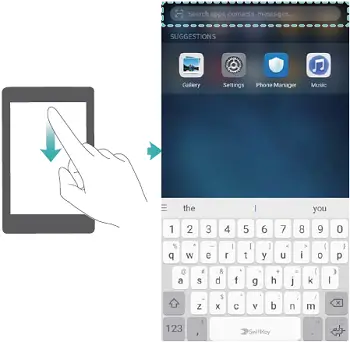
Use global search to find apps, contacts and messages on your device. Swipe down on the home screen to open the global search window, and then enter your search terms.
Searching for content on your device
Searching for contacts
1. Swipe down on the home screen to display the search bar.
2. Touch the search bar and enter the contact name, initials, phone number, email address, or other information. Matching results will be displayed underneath.
 To improve the accuracy of search results, enter more than one keyword. Each keyword should be separated by a space (for example “John Smith New York”).
Searching for SMS messages
1. Swipe down on the home screen to display the search bar.
2. Enter one or more keywords. The results will be displayed underneath the search bar.
Alternatively, open  Messaging and enter one or more keywords in the search bar.
Searching for emails
1. Swipe down on the home screen to display the search bar.
2. Enter one or more keywords (such as the email subject). The results will be displayed underneath
the search bar.
Searching for apps
1. Swipe down on the home screen to display the search bar.
2. Enter one or more keywords. The results will be displayed underneath the search bar.
When using the Drawer home screen layout, you can also search for apps by touching  and entering the app name in the search bar.
Searching for settings
1. Swipe down on the home screen to display the search bar.
2. Enter one or more keywords. Matching menu options from Settings will be displayed under the search bar.
Questions about your Huawei Mate 10? Post in the comments!
Huawei Mate 10 Manual [PDF]