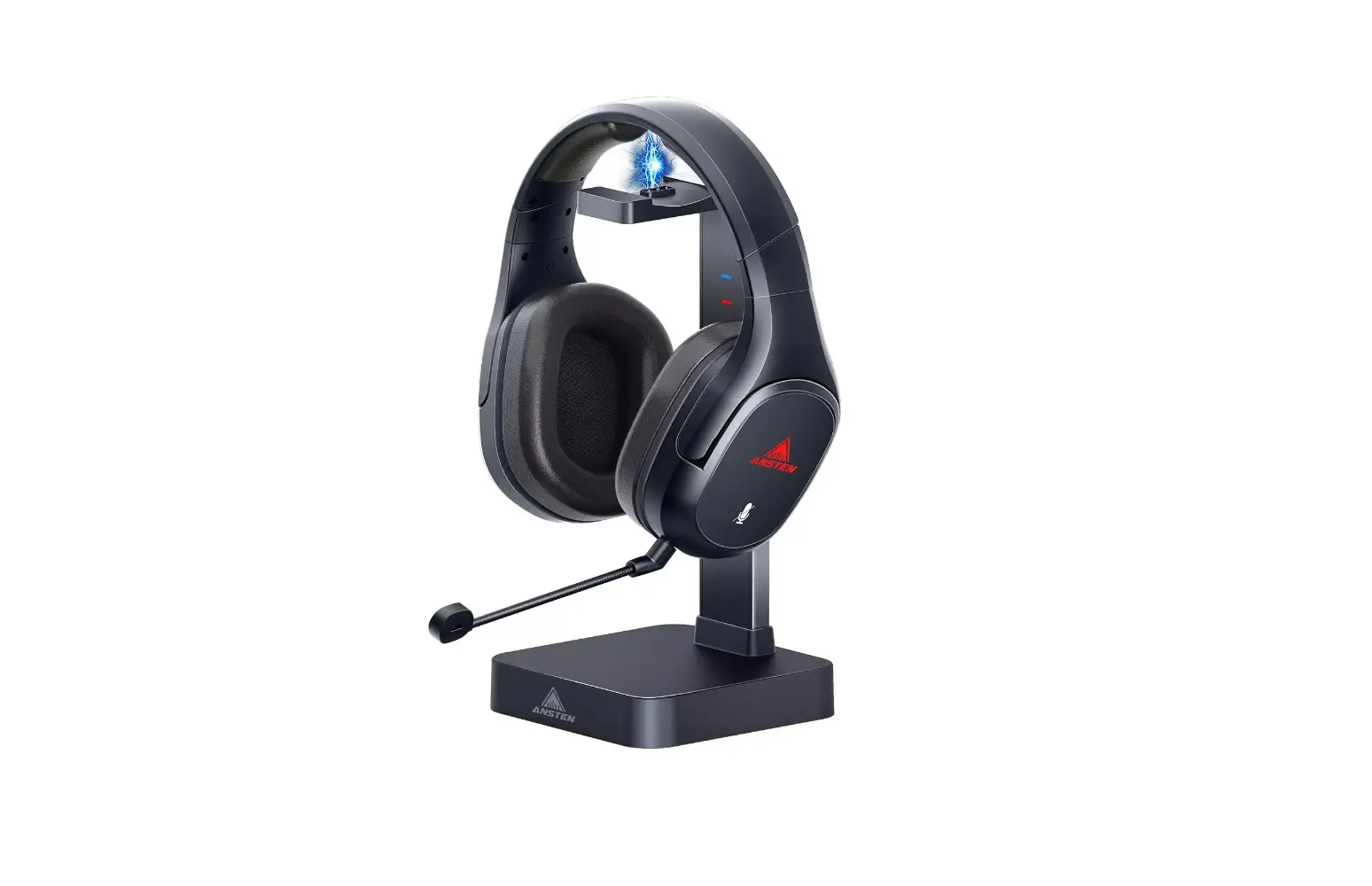
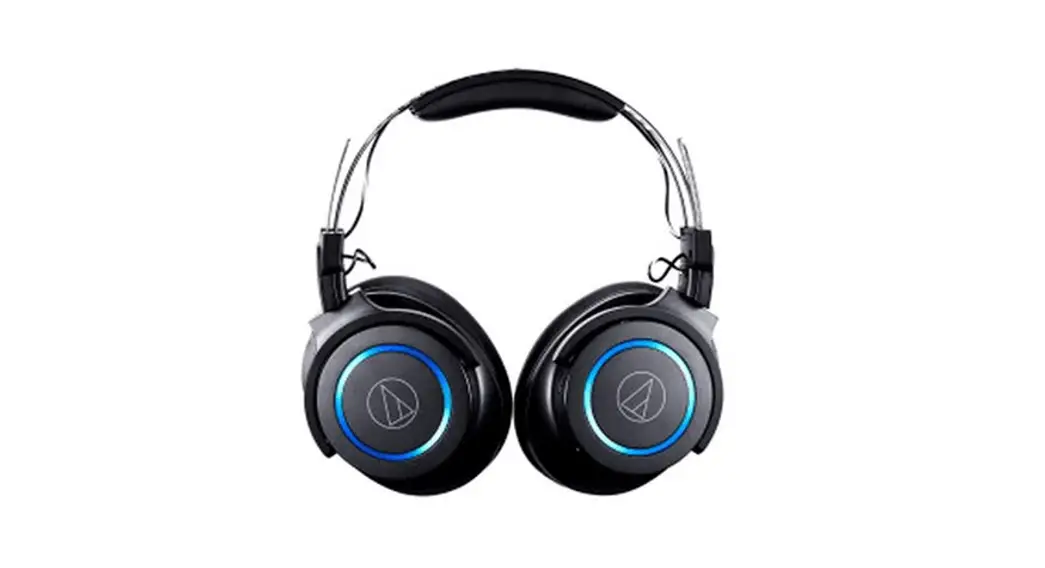
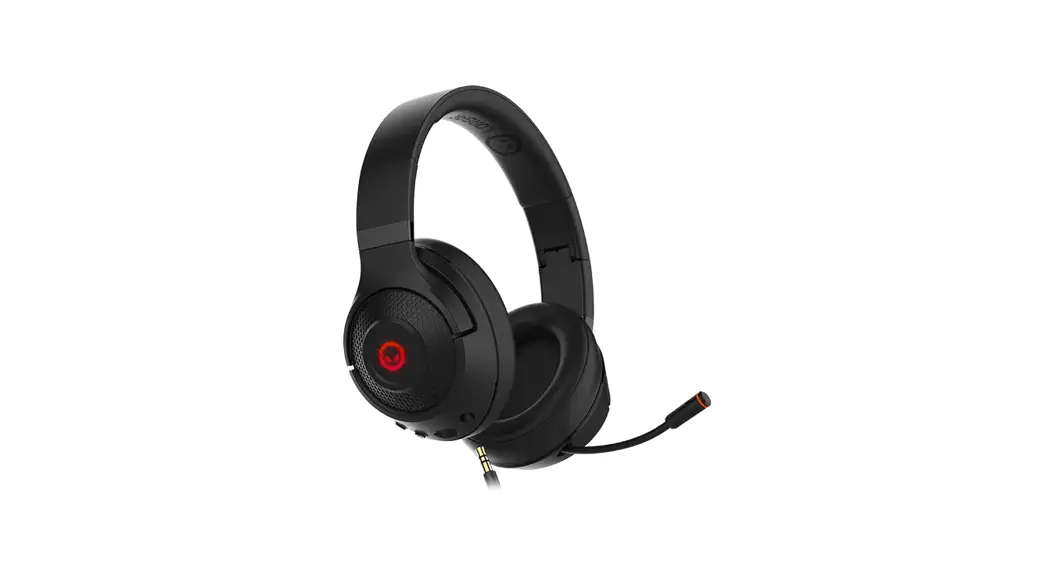
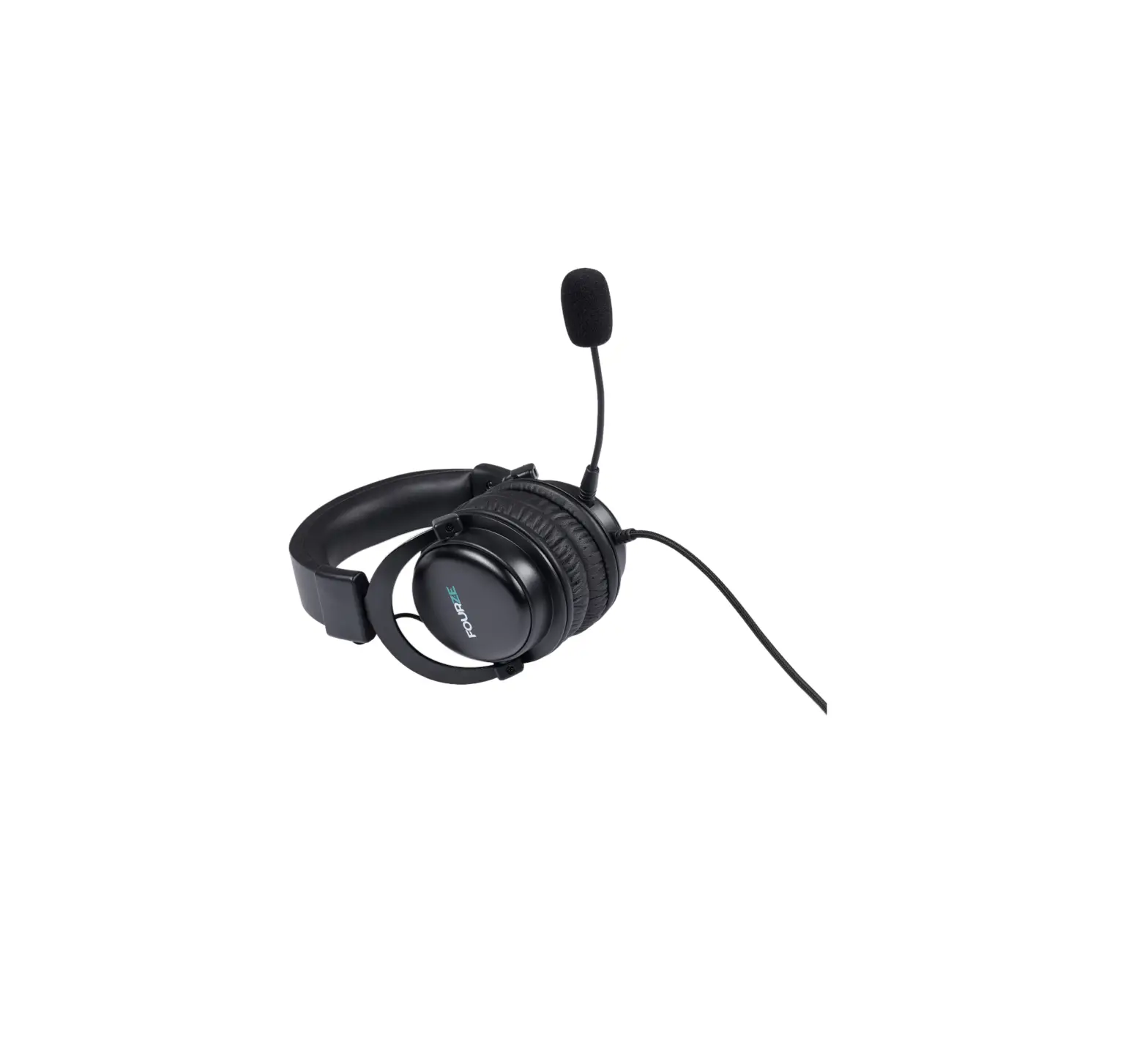
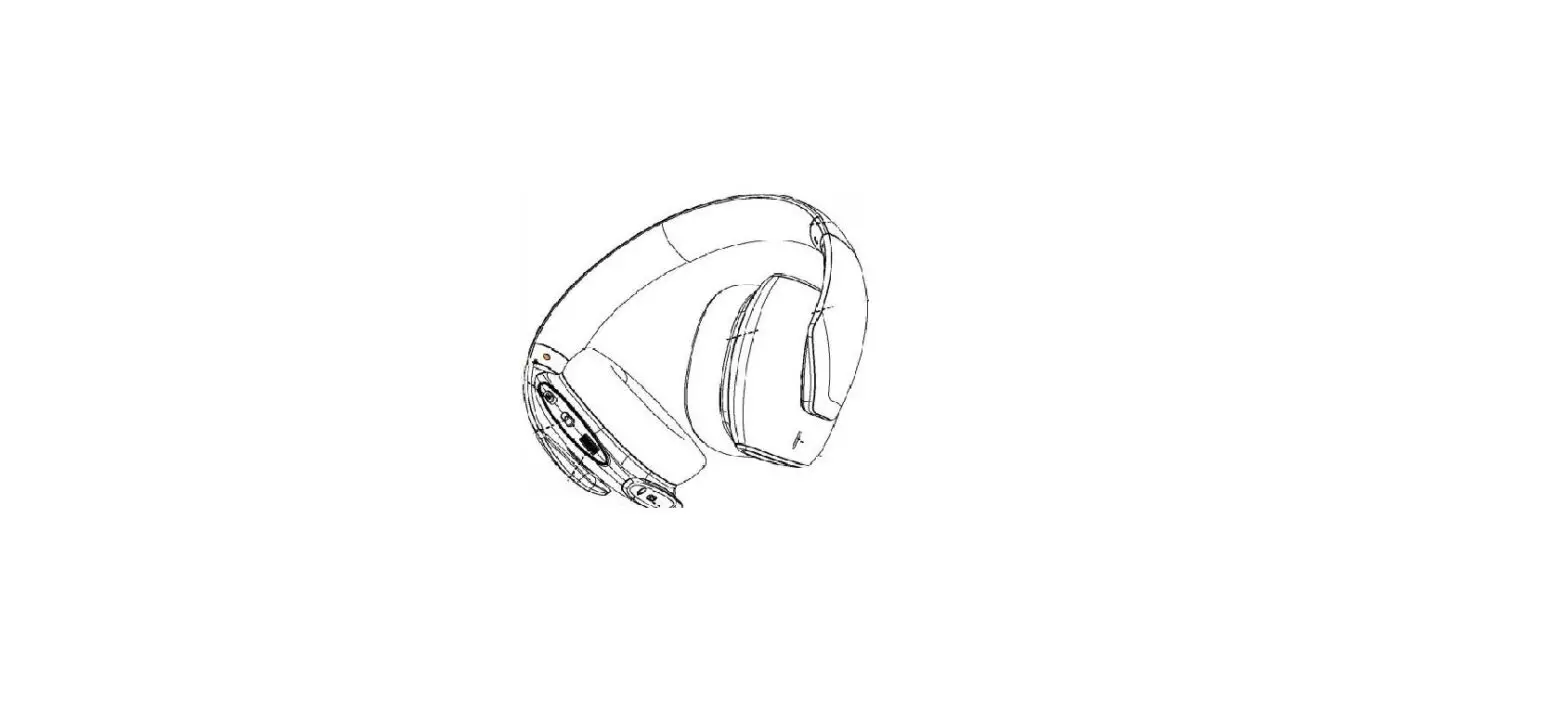
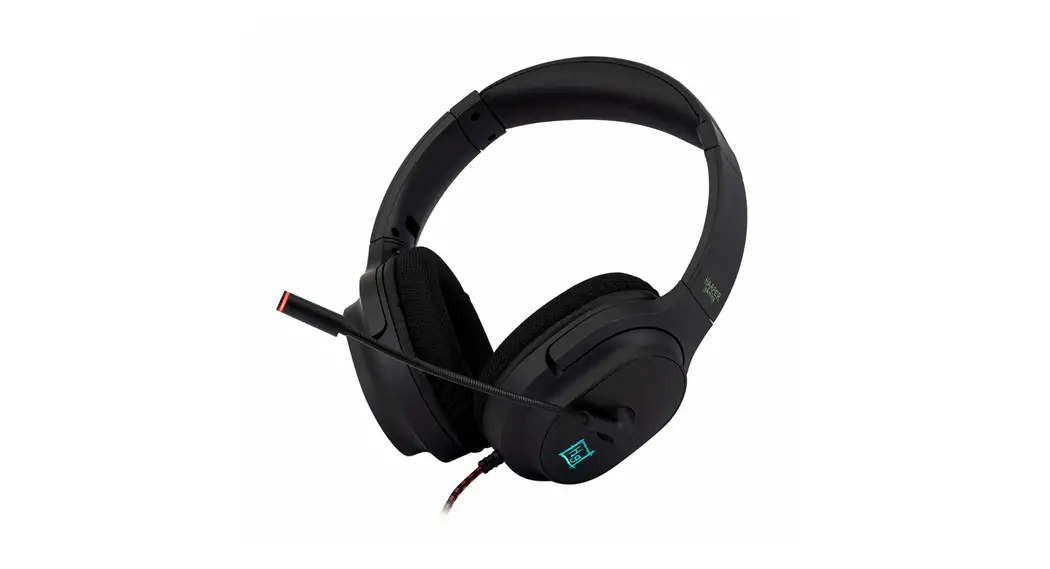
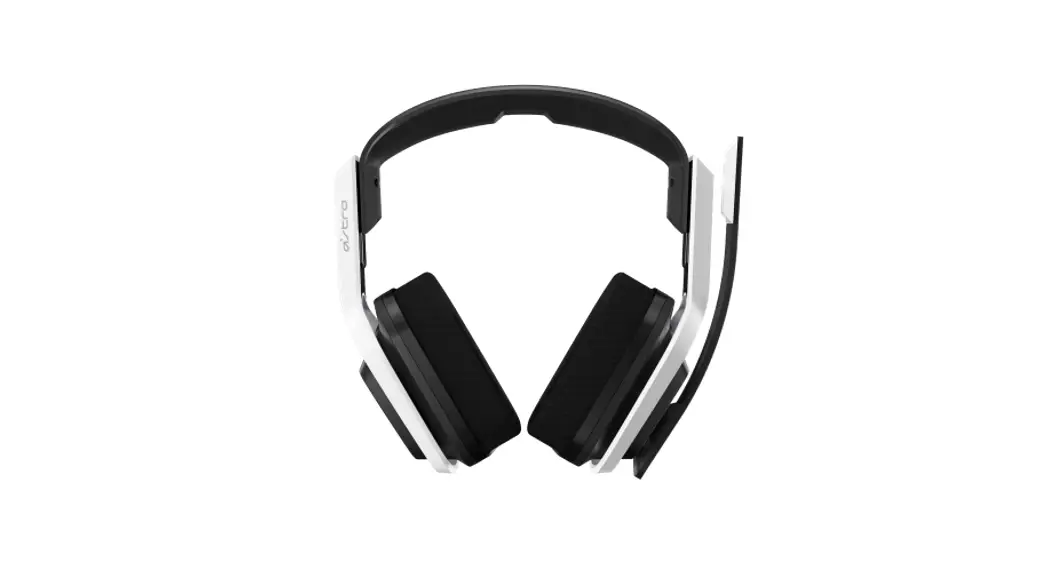
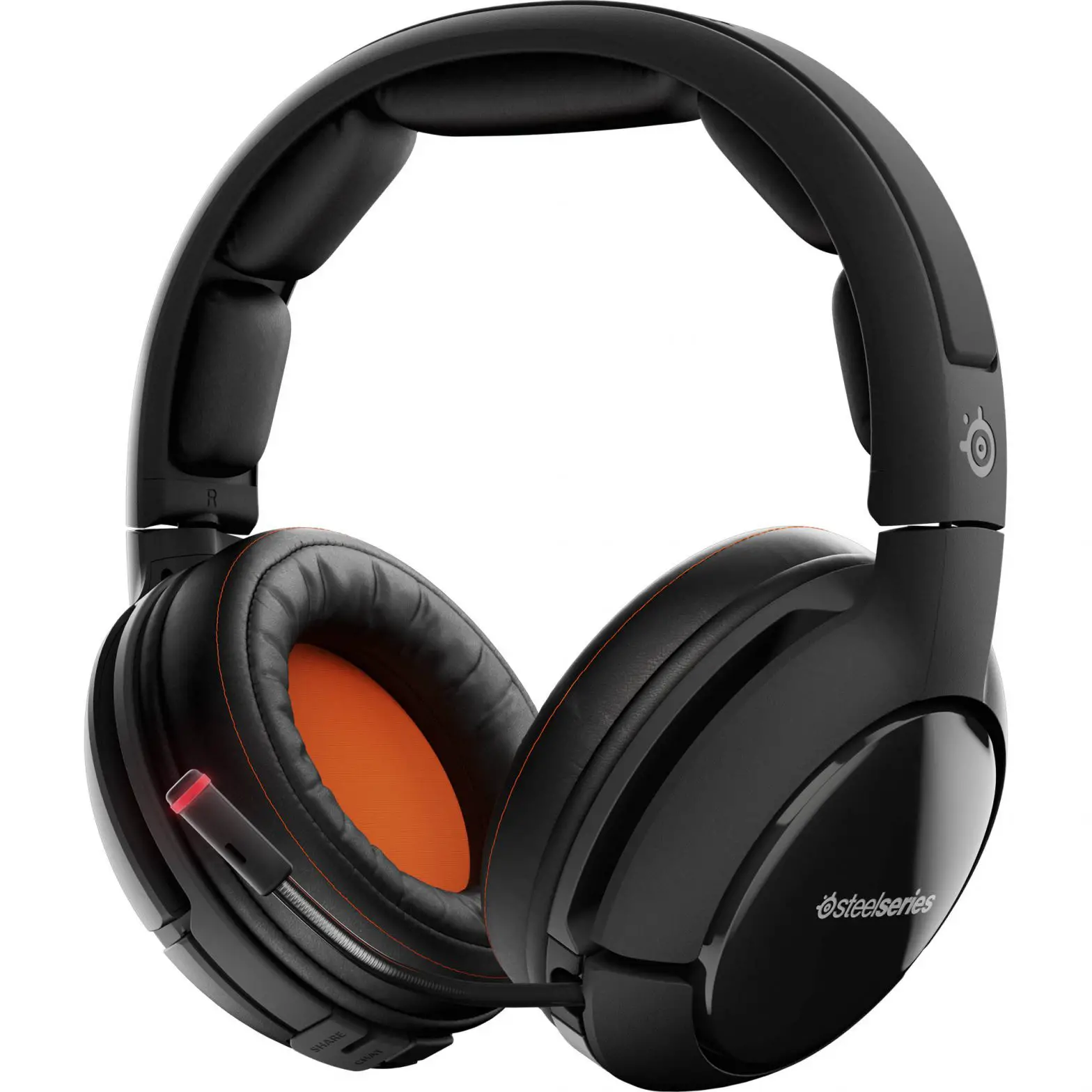
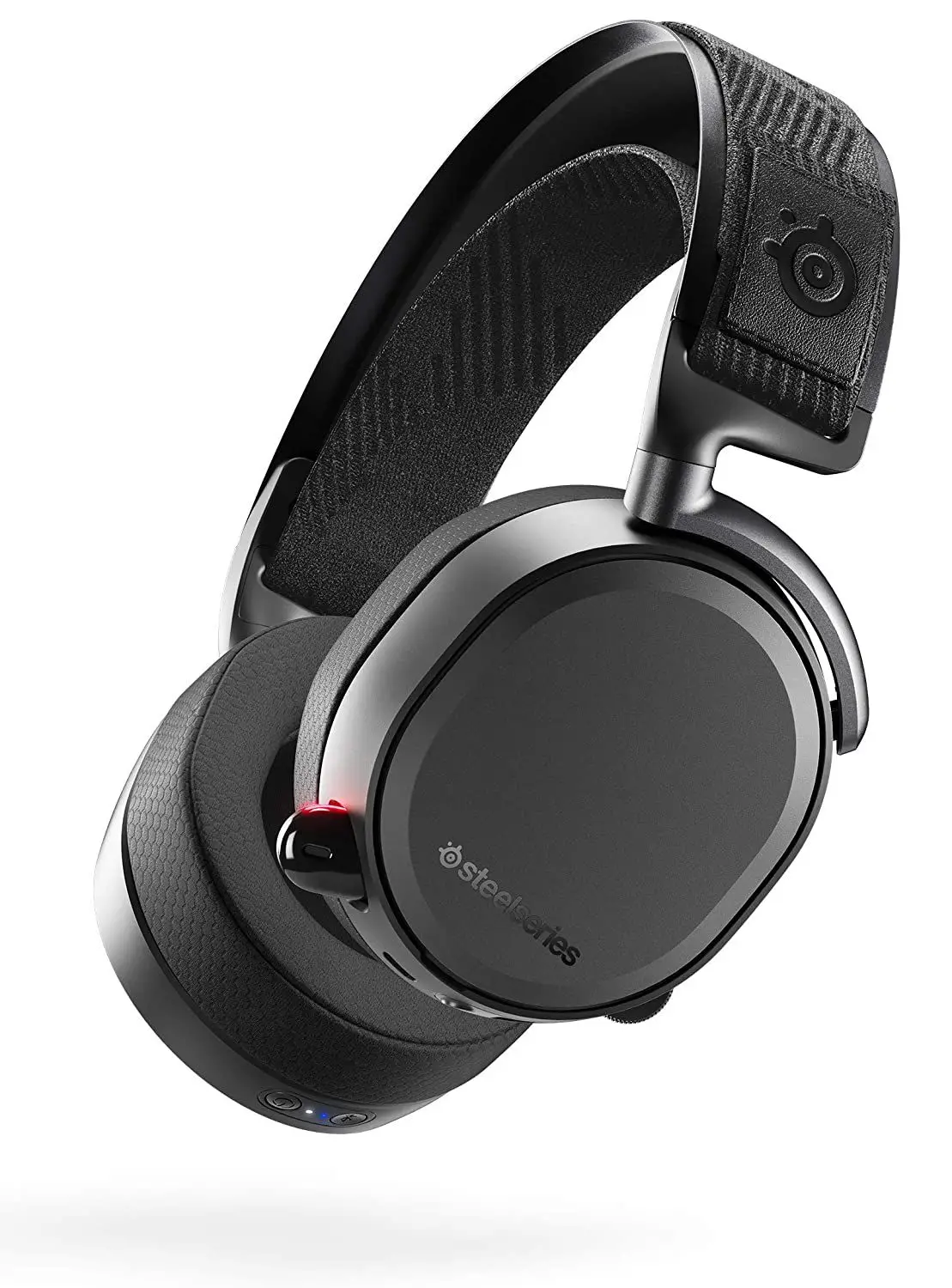
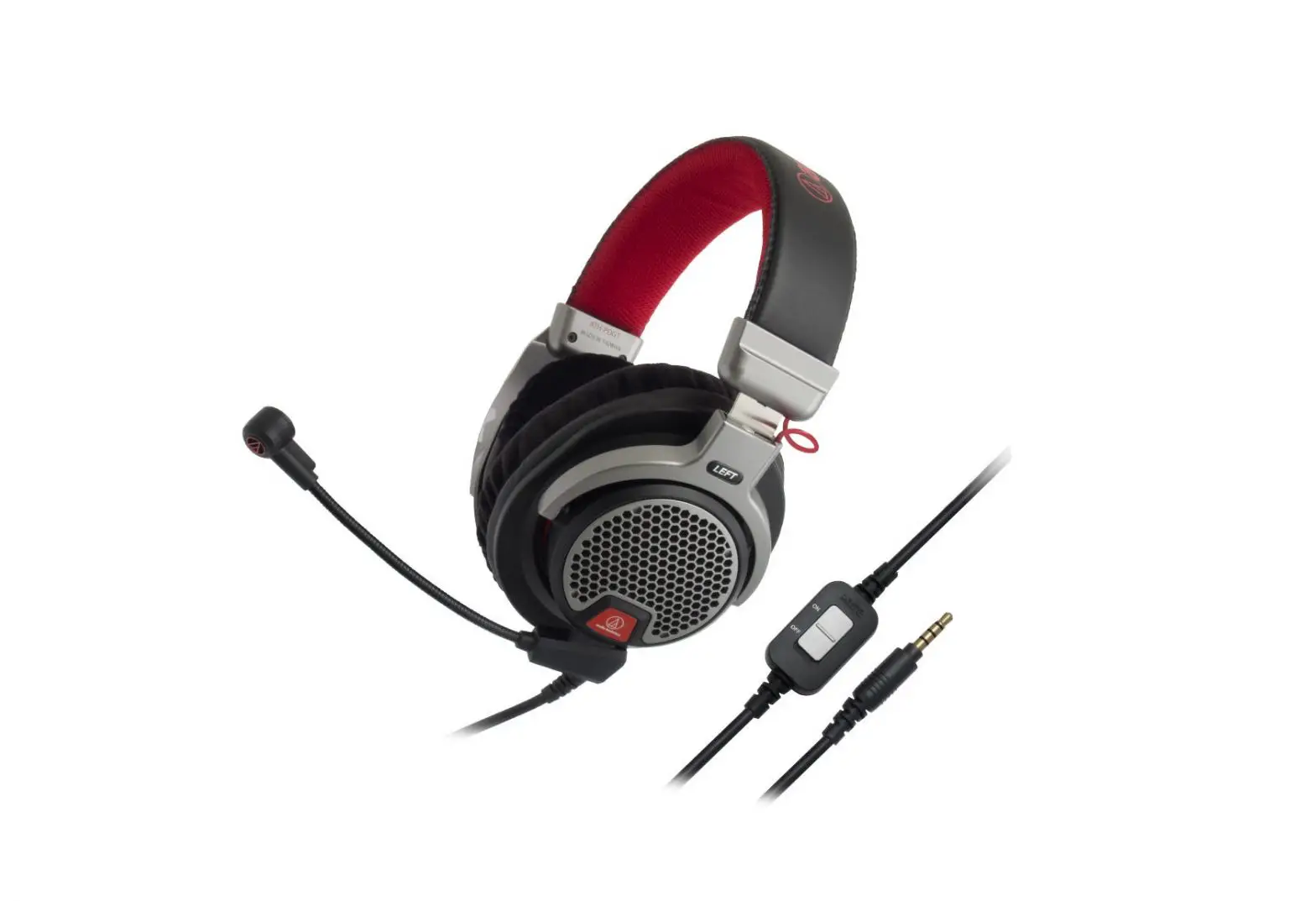
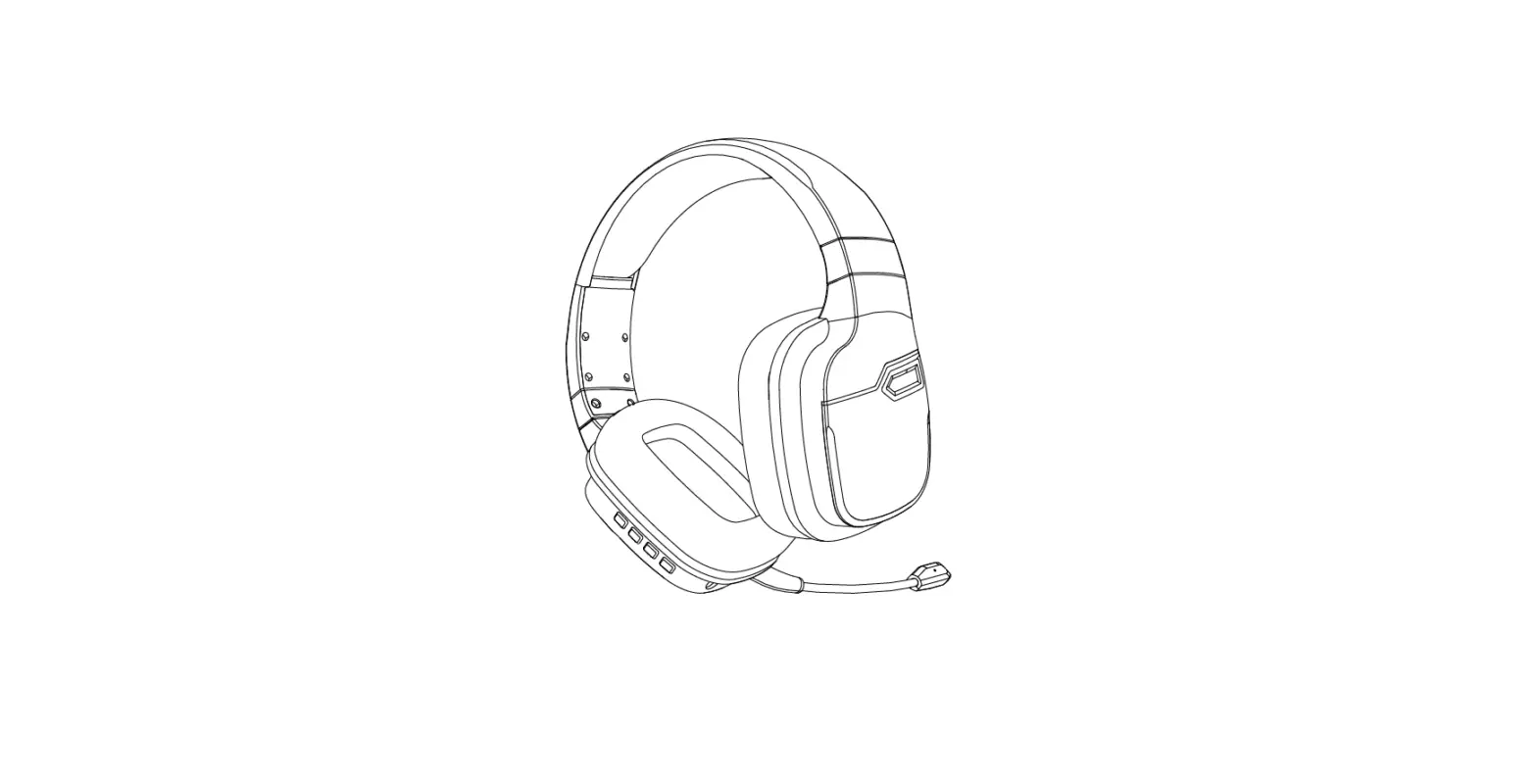
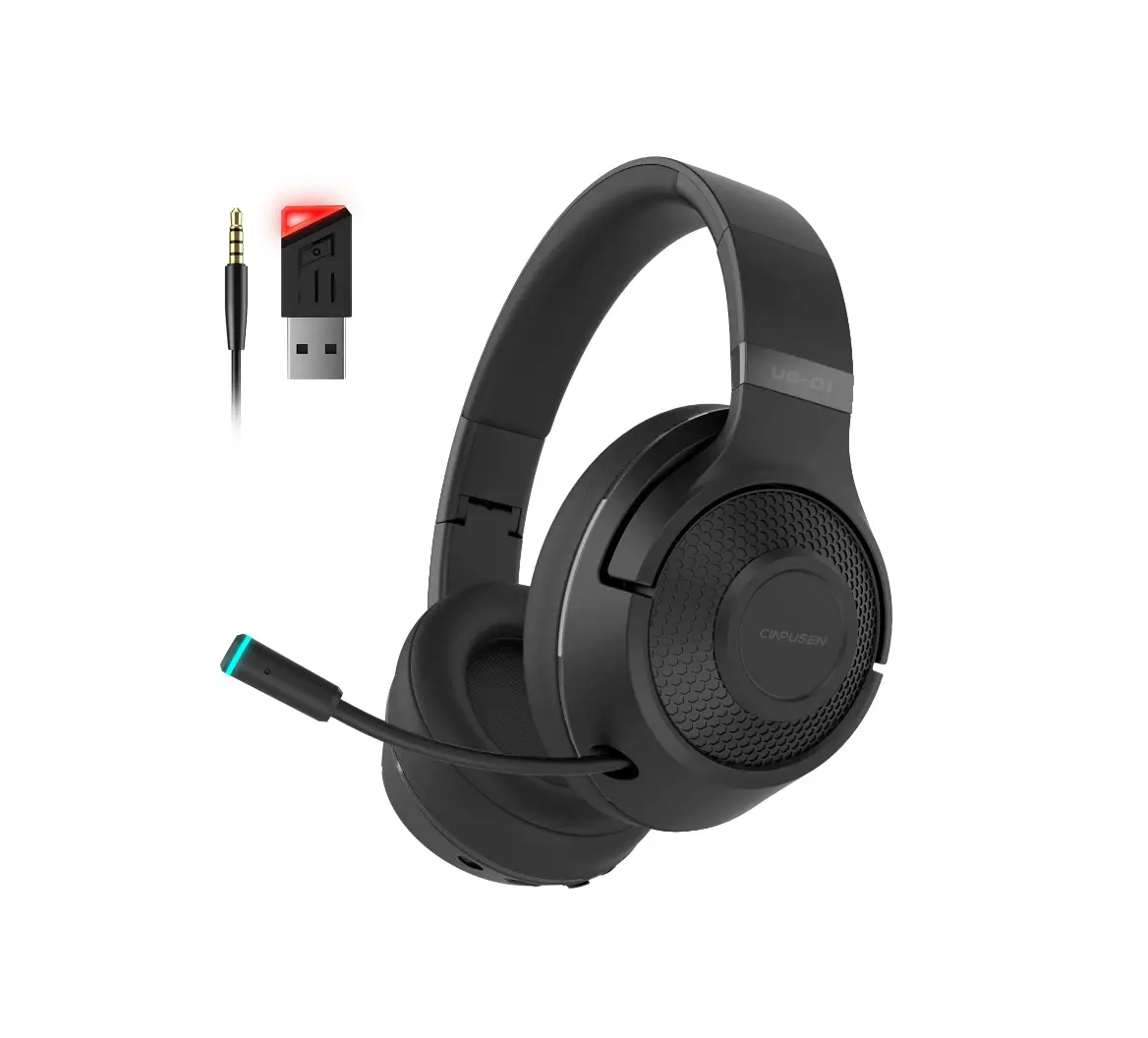
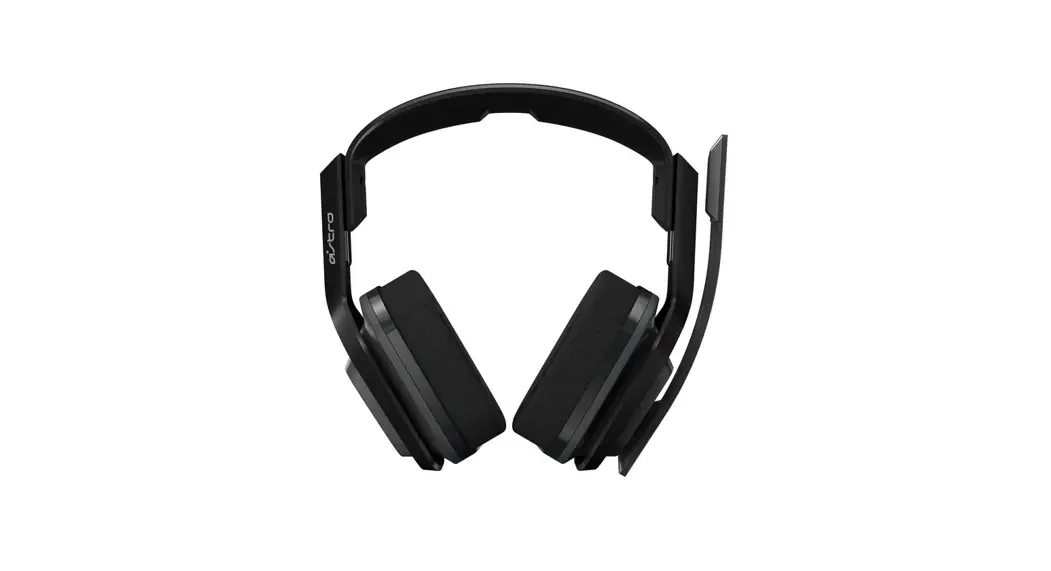
TA3000 Wireless Gaming Headset
Product Information
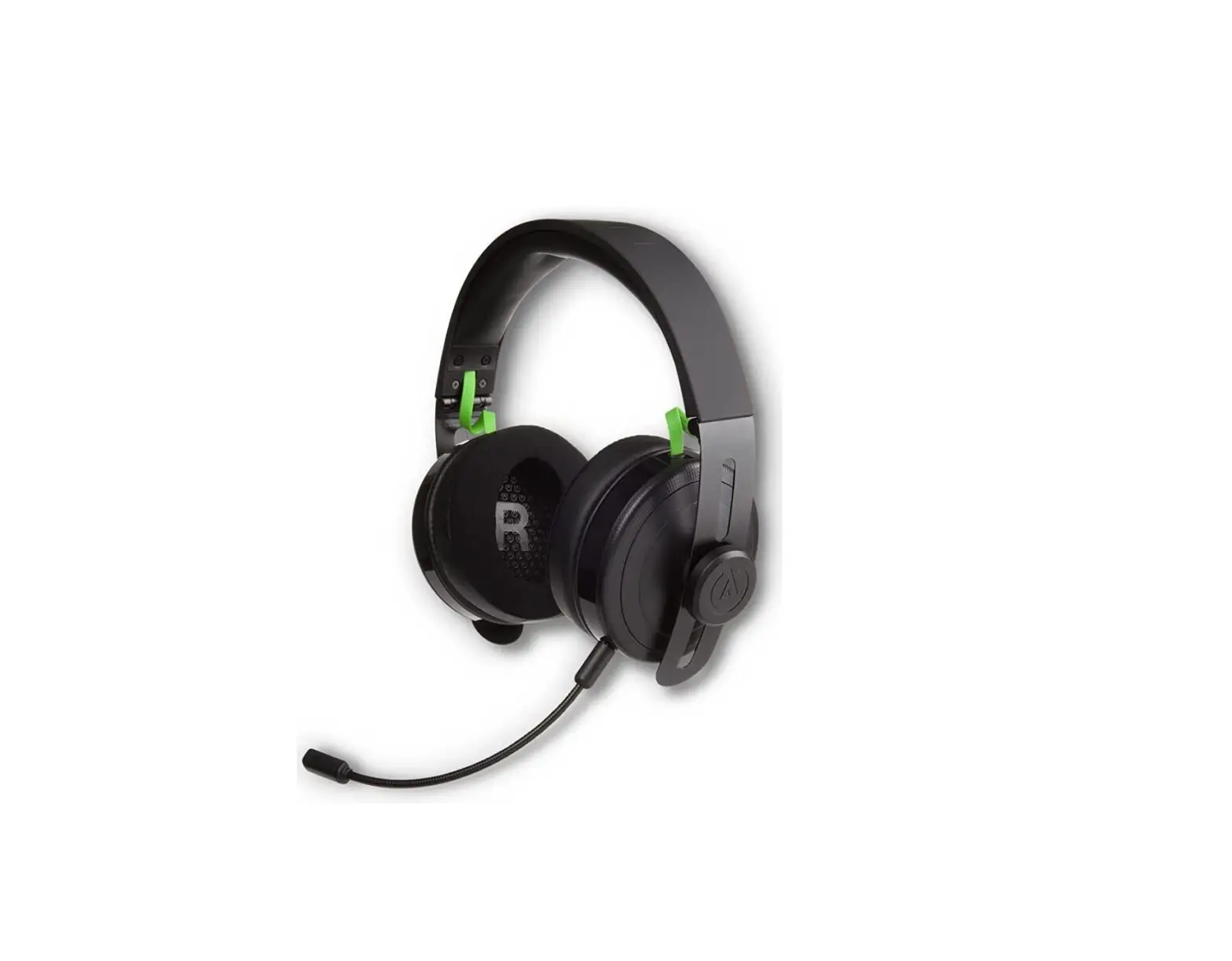
The WalfLawS TA3000 Wireless Gaming Headset is a high-quality
headset designed for gamers. It features a 50mm high precision
neodymium driver and soft leatherette ear cups, providing an
immersive sound quality and an extreme gaming experience. The
headset is compatible with PC/Laptop, PS4, Mac, and other devices
with a USB port. It also comes with an extra 3.5mm cable and
Bluetooth function for more versatility.
Product Usage Instructions
- Before first use, it is recommended to fully charge the
headset. - If the battery level is low, you will hear a “battery low”
notification on the headset. - To charge the headset, connect the Type-C cable to the charging
port on the headset and plug the other end into any USB power
source. - To power on/off the headset, hold down the power button for 3
seconds until you hear an indicating voice. Click the button to
switch between modes (wired or Bluetooth). - To mute the microphone, click on the Mic Mute button.
- Do not listen at high volume levels for long periods to prevent
possible hearing damage.
WalfLawS
WLilYlf;
USER MANUAL
TA3000 Wireless
Gaming Headset
1. It is recommended to fully charge the headset before first use. 2. When the headset remaining the battery level is low, you will hear a’battery low’on your headset. 3. Connect the Type-C cable to the charging port on the headset, and plug the other end into any USB power source.
– t
F
Introduct1on——————————————————-1 Product Overv1ew————————————————-1 Headset Power/Mic Button————————————— 2 Headset Charging————————————————- 3 Headset Connection ——————————————— 4-5 Operating Instruction ——————————————–6 Technical Specifications—————————————— 7 Troubleshooting Tips —————————————– — -8 Safety and Precautions —————————————— 9 Compatibility Information ————————————— 10
–
2.4G W(IinreclleusdseAdd) apter ,f’–,,,,
®— J
—-!
PC–
—e>
;;.::
PS4/PS5 notebook
——- 5: J 3(.I5nmclmudjeadc)k
XBOXONE/S Nintendo Mobile
E
®
“”””” ‘J:’:J
I
3.SmmJ”k
PS4
WolflawS TA3000 wireless gaming headset, equipped with a 50mm high precision neodymium drivers and soft leatherette ear cups, which offers a particularly immersive sound quality, delivers you an extreme gaming experience and greatly highlight your gaming atmosphere. Born for every FPS! With the USB connection, it could be perfectly compatible with PC/ Laptop, PS4, Mac and other devices with USB port. Extra 3.5mm cable and bluetooth function offer you more possibilities!!
To prevent possible hearing damage, do not listen at high volume levels for long periods.
6·———
r·v.
(!) Headset Power Button
A. Power On/Off: Hold down the power button for 3 seconds until you hear a indicating voice
of
l J, .
f
onI FF
..–iI—-….C..l..ic..k…t.h..e…B..u..t.t.o..n..
mode or bluetooth mode.
9 ……………..–· ©Power Button @ BT/2.4G Mode @volume+
®Volume ®Mic On/Off
®3.Smm Port 0 Charge Port ®Detachable Mic
©
Mic Mute Button
ClkkOn<e
ClkkOnce
Mk On MkOff
To use the wireless headset on your device (PC, PS4, PSS, laptop, Mac,XBOX ONE,Nintendo,Mobile ) : 1. Connect the wireless adapter(included) to a USB port on your device ((PC, PS4, PSS, laptop). 2. Plug the3.5mm audio cable (included) into the headset, then connect your device (XBOX ONE/S, Nintendo,Mobile). 3. Press the power button on the headset for 3 seconds to power on. 4. When the headset ear cup LED is solid, the headset is connected. * Note: If it is your first time using the headset, you may need to set the headset as the default input and output device.
;:::·;,;: “””New v,,.10, Xbo, o,,
1. Plug the 2.4G Wireless Adapter into the Gamepad. 2. Shake PS4 joystick to enter the System Settings. 3. Choose “Devices”, next choose “Audio Devices”, and then choose “Output Device”,and choose “USB Headset”, right-dick on’Output to Headphones’and select “All Audio”, adjust the ‘volume control (headphones)’. 4. Confirm that each plug is inserted firmly and fully.
1. Plug the 3.5mm cable(included) into the headset, and you could connect the headset to the Second Generation Xbox One Controllers directly. 2. While connecting to the old version Xbox One Controller, you need an extra adapter(Not Included) CD. Plug the 3.5mm cable into the headset. @. Plug the adapter into the Xbox one Controller. @. Connect the headset to the 3.5mm port of the adapter. 3. Adjust or rotate the 3.5mm interface until both sides of the headphones have smooth sound.
PleaseConnect theMicrosoftAdapter(NotIncluded) with the 3 · 5mmjack for this headset towork on an oldversion Xbox One/ Xbox OneS controller
Information for Xbox One User
Controller has a headset port Headset Adapter Not Required
Controller has no headset port Microsoft Stereo Headset Adapter Required
W ouotofsthsterabigohxt
Mier:: 1pter (not included)
Driver Diameter: Battery Capacity: Dimension: Weight: Charging Time: Duration Time: Charge Interface:
50mm 900 mAh 185*75*195mm 263g 2.5 hours e!’45 hours Type-C
No sound/low sound
=::::::….,
App Problem Loose Connector
Close the active App and re-open it alternatively I
Confirm that each plug is inserted
Possible Cause Mic Button Chat Volume
Loose Connector
Microphone not working
Solution I Checkthemic one-keymutebuttononthe headsetisoff.
PresstheChat Button on theChat/Came Mixofthe Ear Force Headset Audio Controller. Confirm that each plug is inserted firmly and fully.
Possible cause Setting Weak Signal
Voice interrupted Solution Check the default (input and output) sound device is selected for this headset. Check the network.
*Any further question, please feelfree to contact usthoughAmazon or email us via: [email protected], and we are here to serve you all the time.
–
Carefully read the information in this instruction manual and on the packagebefore using this product.
Safety
·Observe all warnings, precautions and instructions.
·CHOKING HAZARD-Contains small parts. Keep out of the reach of small children.
·Stop using the system immediately if you begin to feel tired or if you experience discomfort or
pain in your head while operating the wireless stereo headset. If the condition persists,
consulta doctor.
·Avoid prolonged use of the wireless stereo headset. Take a break at about 15-minute intervals.
·Permanent hearing loss may occur if the headset is used at high volume. Set the volume to a
safe level.
Overtime, increasingly loud audio may start to sound normal but can actually be damaged to
your hearing.
If you experience ringing in your ears or muffled speech, stop listening and have your hearing
checked.
The louder the volume, the sooner your hearing could be affected. To protect your hearing:
– Limit the amount of time you use the headset at high volume.
Avoid raising the volume to block out noisy surroundings.
– Lower the volume if you can’the ar people speaking near you.
·lf you feel that the headset is irritating your skin, stop using it immediately.
·Do not disassemble or insert anything into the headset because this may cause damage to
the internal components or cause injury to you.
·Observe all signs and instructions that require an electrical device or radio product to be
switched off in designated areas, such as gas/refuelling stations, hospitals, blasting areas,
potentially explosive atmospheres or aircraft.
·The battery used in this device may present a risk of fire or chemical burn if mistreated.
Do not disassemble, heat above 60°C, or incinerate.
Device
Wireless
Wired
Headset Mic
Mute function Headset Mic
Mute function
I ./ Desktop
:11 MAC
./
./ ./ QI Laptop
2: Switch fl]I
Xbox
o n e/S/X
J
CellPhone (3.5mm)
D Tablet
D” (3.5mm)
1 PS3
1-R2q,, p,(;m tto,
../1
I
I
I ‘””d’u”d”a”pter I
I
Ill
“lfLawS
TA3000 Wireless
Gaming Headset
Distributed by WolfL;awS
FCC Warning This device complies with part 15 of the FCC rules. Operation is subject to the following two conditions: (1) this device may not cause harmful interference, and (2) this device must accept any inte rference received, including interference that may cause undesired operation.
Changes or modifications not expressly approved by the party responsible for compliance could void the user’s authority to operate the equipment.
NOTE: This equipment has been tested and found to comply with the limits for a Class B digital device, pursuant to part 15 of the FCC Rules. These limits are designed to provide reasonable protection against harmful interference in a residential installation. This equipment generates uses and can radiate radio frequency energy and, if not installed and used in accordance with the instructions, may cause harmful interference to radio communications. However, there is no guarantee that interference will not occur in a particular installation. If this equipment does cause harmful interferenceto radio or television reception, which can be determined by turning the equipment off and on, the user is encouraged to try to correct the interference by one or more of the following measures: · Reorient or relocate the receiving antenna. · Increase the separation between the equipment and receiver. · Connect the equipment into an outlet on a circuit different from that to which the receiver is connected. · Consult the dealer or an experienced radio/TV technician for help.
Radiation Exposure Statement The device has been evaluated to meet general RF exposure requirement. The device can be used in portable exposure condition without restriction.