ROAD ANGEL
Notes on Installation
The unit is designed for a 12V DC negative ground operation system only. Before installing the unit, make sure your vehicle is connected to a DC12V negative ground electrical system.
The negative battery terminal must be disconnected before making connections, which can decrease the chance of damaging the unit due to a short circuit.
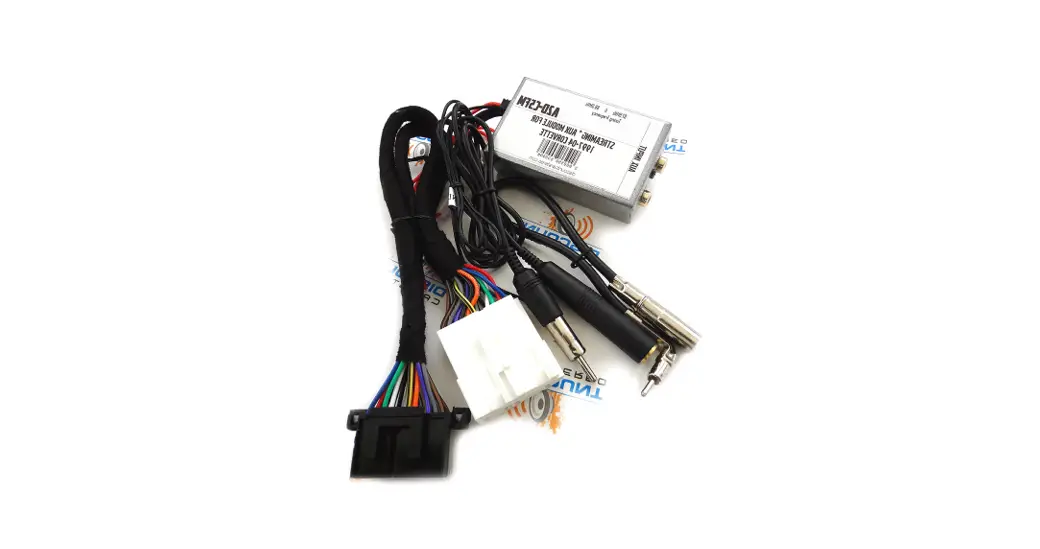
Be sure to connect the color-coded leaders correctly according to the diagram. Incorrect connections may cause the unit to malfunction or damage the vehicle’s electrical system.
Be sure to connect the speaker (-) leads to the speaker (-) terminal.
Do not connect the left and right channel speaker cables to each other or to the vehicle body. Do not block the vent or radiator panel. Blocking them will cause heat build-up inside and may result in fire.
Panel Introduction
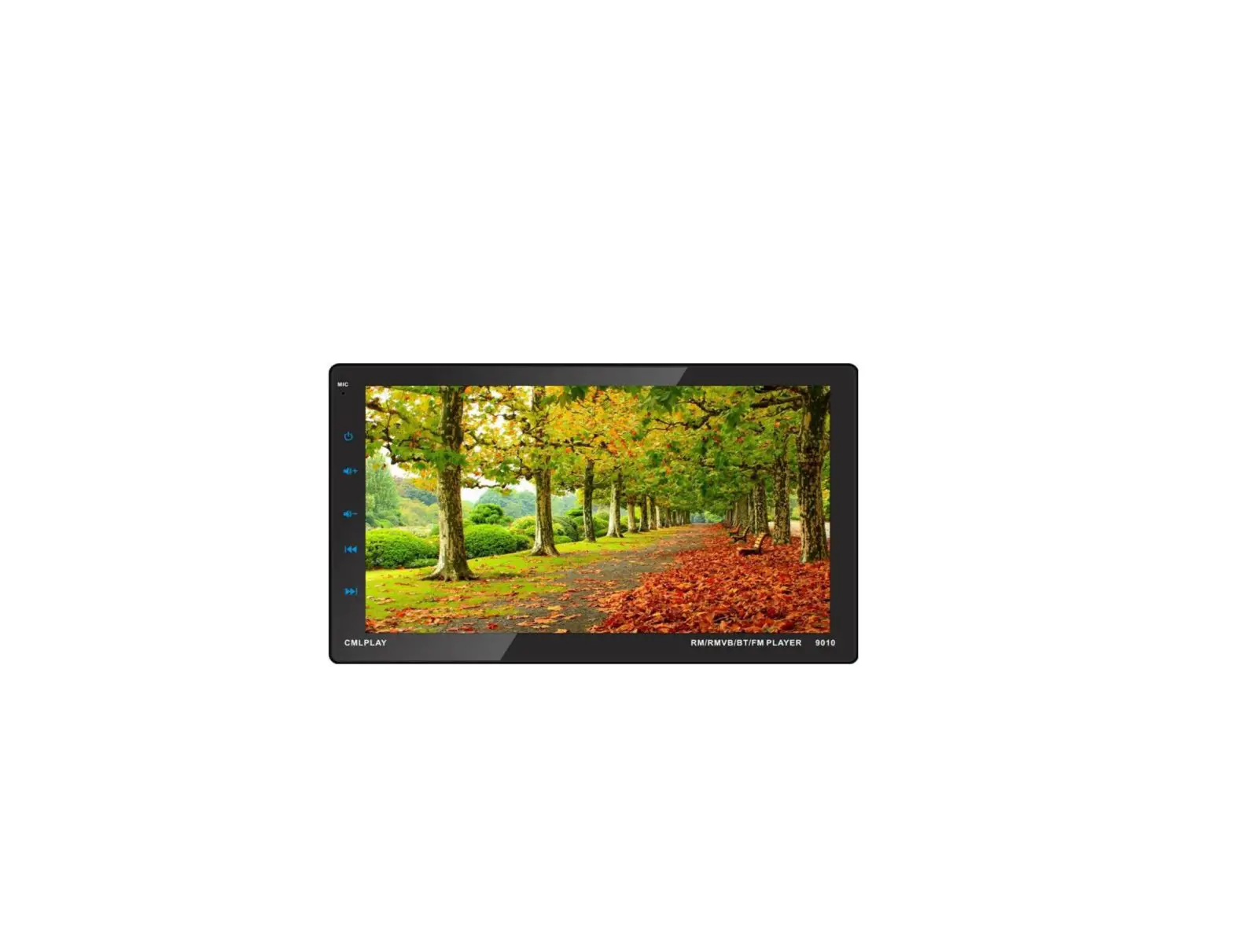
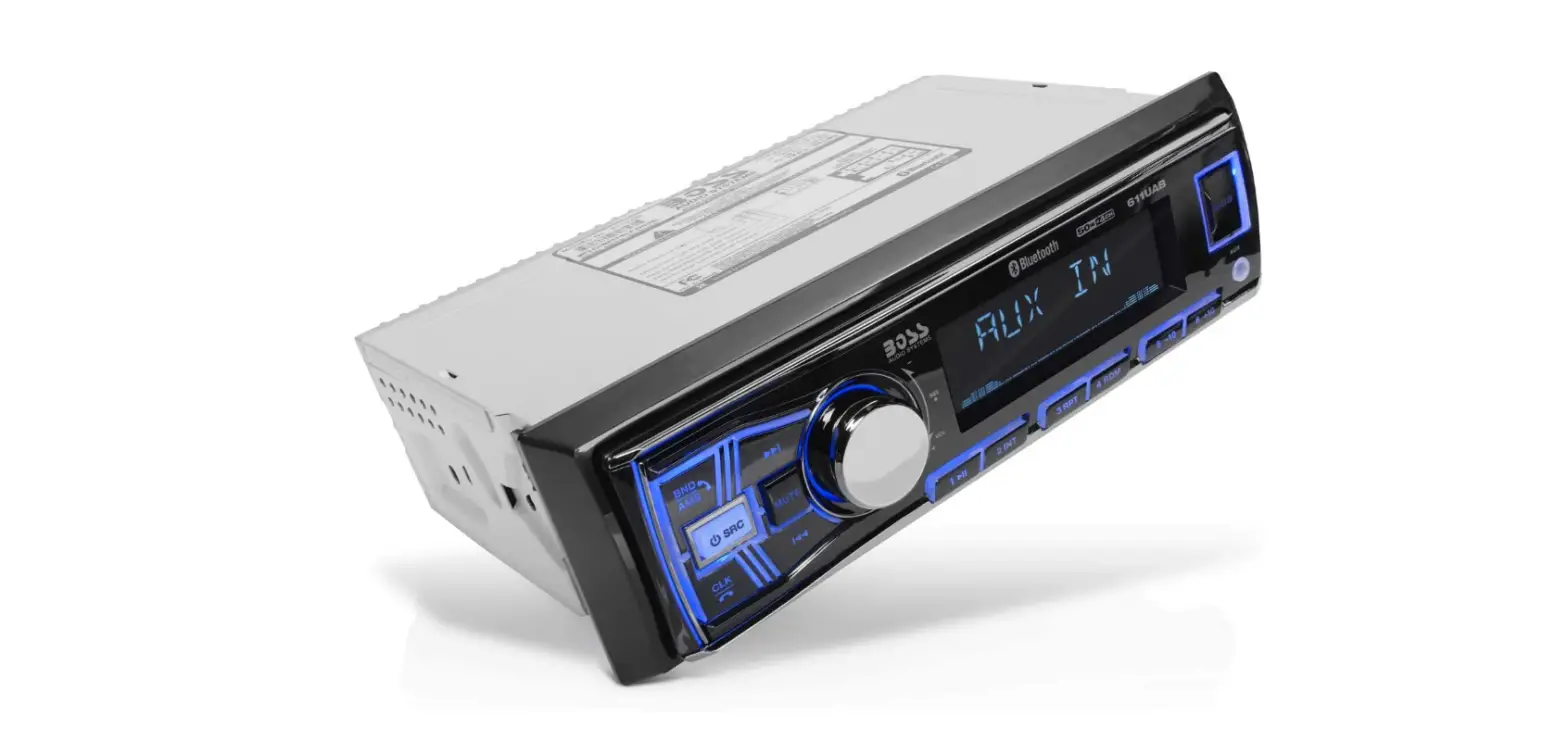
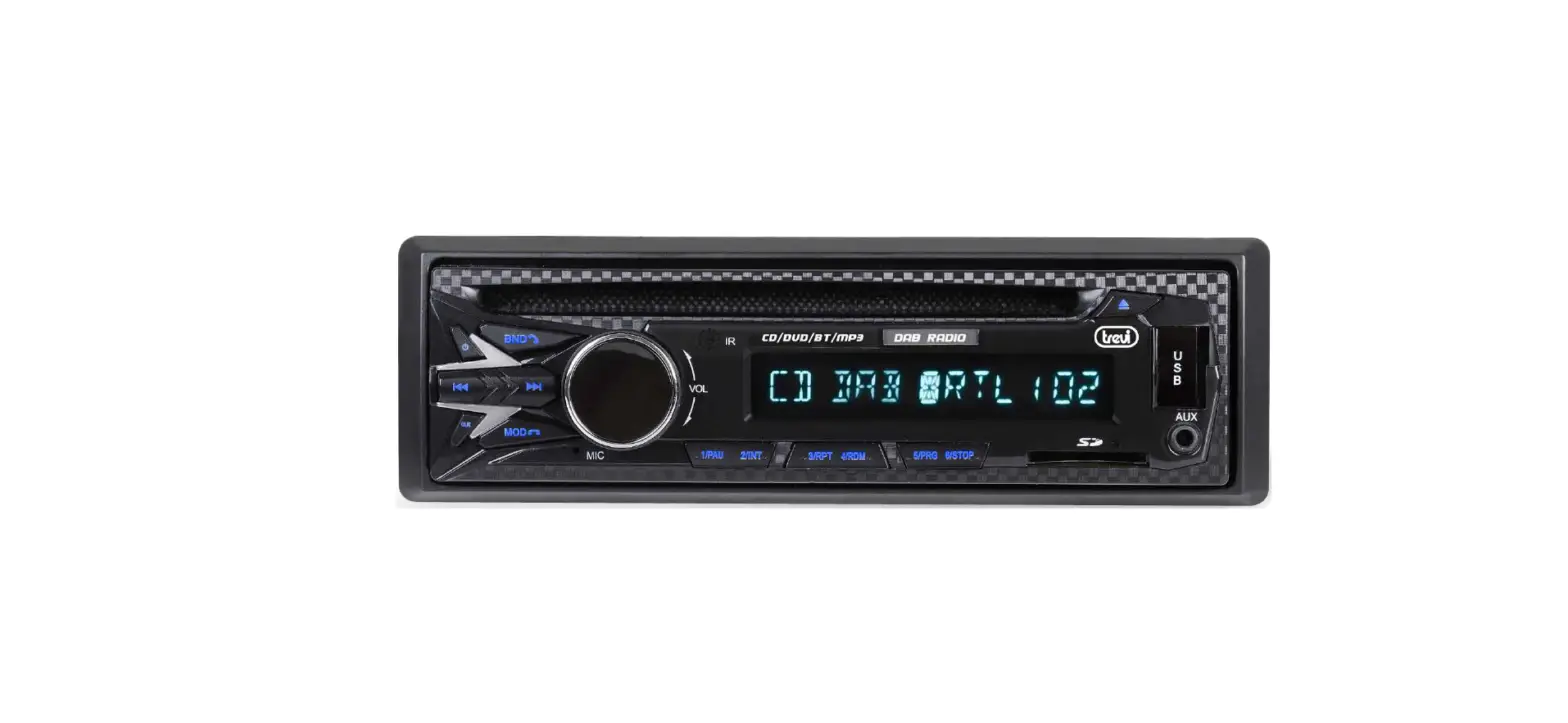
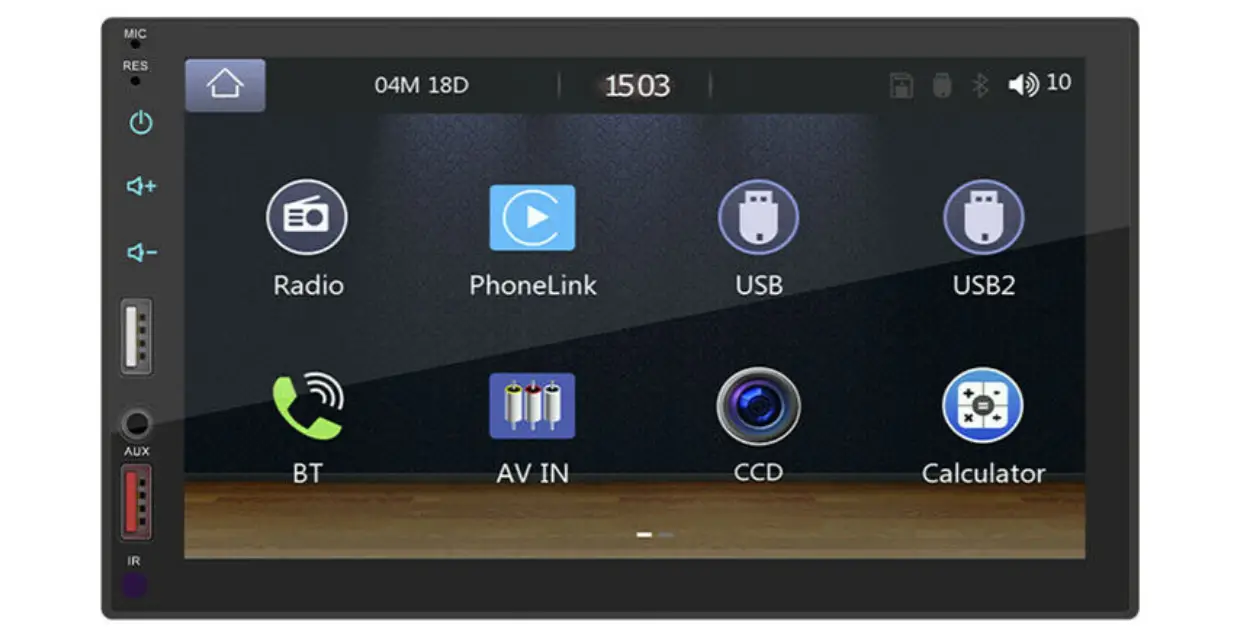
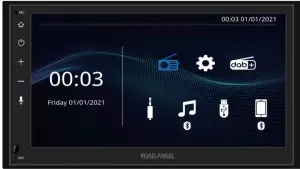
Please refer to the physical panel for the corresponding button introduction. (If there are any deviations in functions, please refer to the actual panel)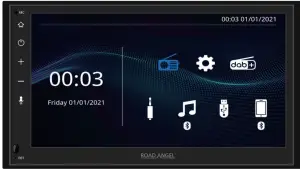
Detail operations as below:
- Click “
 ” to return to the home screen.
 - Click ”
 ” to mute and hold it down to turn the receiver off.
 - Click ” +” to increase the volume.
- Click “- “ to decrease the volume.
- Click “
 ” to go Hands-Free.
The Main Interface
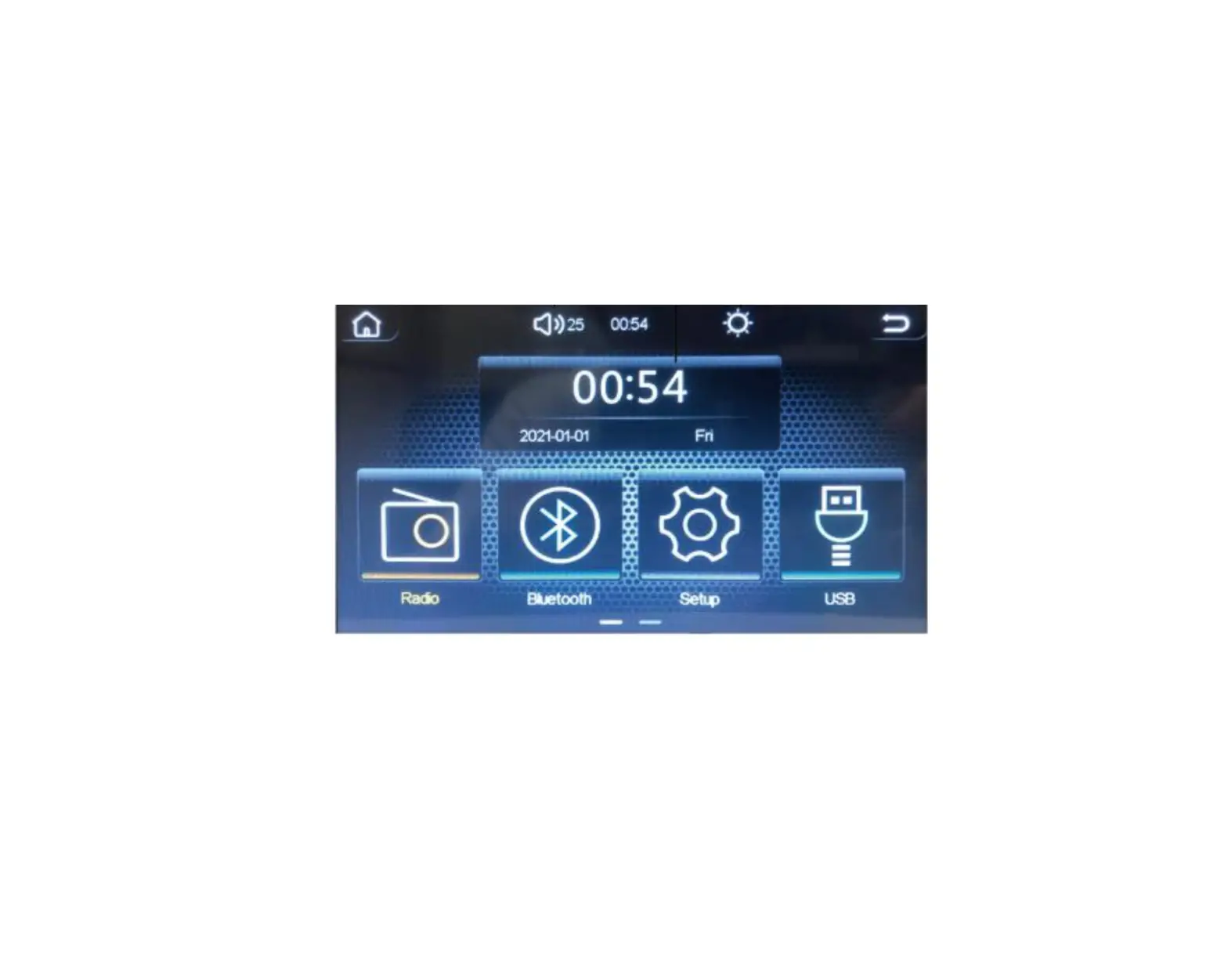
The first time you run this system, it will default to the main interface.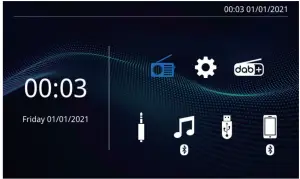
Detail operations are as below:
- Click ”
 ” to enter the AUX-IN interface.
 - Click ”
 ” to enter the settings interface.
 - Click “
 ” to play audio/ video/ photo files in U disk.
 - Click ”
 ” to enter the DAB interface.
 - Click ”
 ” to enter the BT Music interface.
 - Click ”
 ” to enter the radio interface.
 - Click ”
 ” to enter the BT Phone interface.
 ” to enter the AUX-IN interface.
 ” to enter the settings interface.
 ” to play audio/ video/ photo files in U disk.
 ” to enter the DAB interface.
 ” to enter the BT Music interface.
 ” to enter the radio interface.
 ” to enter the BT Phone interface.
4. Settings
Once in the Settings interface, you may adjust the Time, Sound, etc.
Time Drag up and down to set the Year, Month, Day, Hour, Minute, and Model.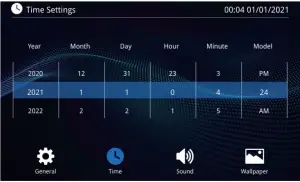 Sound
Sound
Tum ON/ OFF the beep, adjust the reverse sound, and use of sound effects. 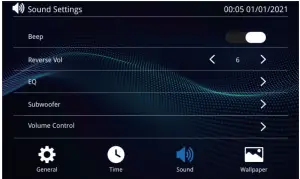
When adjusting the Sound Settings, you may also change the Equalization.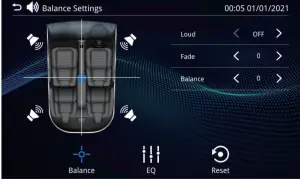
Detail operations as below:
- Click ”
 ” to increase or decrease the Fade, Balance, or Volume.
 - Drag ”
 ” to set the center point of the sound.
 - Click “
 ” to switch the sound modes: Custom, Standard, Soft, Rock, etc.
 - Click “
 ” to enter the sound field settings interface.
 - Click “
 ” to reset to factory settings.
 ” to increase or decrease the Fade, Balance, or Volume.
 ” to set the center point of the sound.
 ” to switch the sound modes: Custom, Standard, Soft, Rock, etc.
 ” to enter the sound field settings interface.
 ” to reset to factory settings.
General
Swipe up and down on the screen to go to the next page. 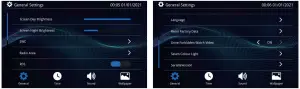
Detail operations are as below:
- Screen Day brightness – Adjust the display brightness of daytime
- Screen Night brightness -Adjust the display brightness of the night
- SWC – Set functions for Steering Wheel Controls.
- Radio Area – Choose your location.
- RDS – Click “
 ” to turn ON/ OFF the RDS Display Information.
 - Language – Choose your language.
- Reset Factory Data – The system will automatically restart with the factory presets. All stored data will be lost, make sure to back up all information you want to keep.
- Drive Forbidden Watch Video- Click “ “to turn ON/OFF the Drive-forbidden-watch-video function
- Seven Colour Light-Set the function of Seven Color Light
- Serial & Version – View the Serial Number and Version Information.
 ” to turn ON/ OFF the RDS Display Information.
Wallpaper
Change your wallpaper. 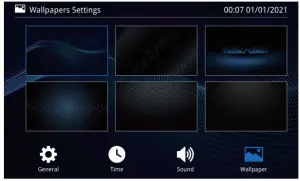
5. USB
When an external drive is connected, you can perform video and photo file playback.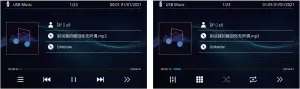 Detail operations as below:
- Click ”
 ” to enter the USB songs list interface.
 - Click ”
 ” to rewind. Hold to play the last song.
 - Click ”
 ” to play/ pause the current song.
 - Click ”
 ” to skip to the next song. Hold to fast forward.
 - Click ” >>” to enter the next page.
- Click ” ” to enter the EQ Settings interface.
- Click ”
 ” to select and play digitally.
 - Click “
 ” to shuffle songs randomly.
 - Click “
 ” to repeat and loop a song.
 ” to enter the USB songs list interface.
 ” to play/ pause the current song.
 ” to select and play digitally.
 ” to shuffle songs randomly.
 ” to repeat and loop a song.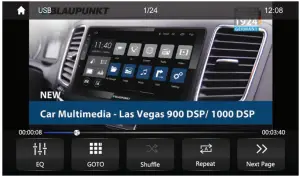
6. AUX In
Connect your video and audio inputs respectively, and enter into the AUXIN Icon to play.
7. Bluetooth Phone
Establish a point-to-point connection between your Bluetooth-enabled phone and this receiver and be able to dial, answer, and play music hands-free.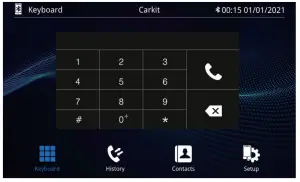 Usable Device
To pair a new phone to the receiver follow these steps:
- Open BT Phone, Click on “Usable Device”, and make sure “Auto Connect” is ON
- Turn on the phone’s wireless Bluetooth connection.
- Search for this device’s Bluetooth signal and connect to it.
- When the connection is confirmed, a prompt message will display on your phone’s screen; Confirm it is correct.
DO NOT try to connect your device while operating the vehicle. 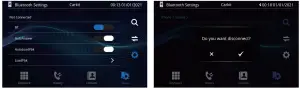
• Dial
With a successful connection to a phone, you can call out and hear the call over the speakers. Just touch the numeric buttons on the screen to dial.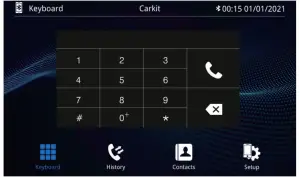
Detail operations as below:
- Click ”
 ” to dial the call.
 - Click ” x ” to delete numbers one by one. Hold down to delete all.
- Click ”
 ” to bring up and down the number pad.
 - Click ” ” to hang up the call.
- Click ” ” to mute the call.
 ” to bring up and down the number pad.
Recent
Call records are stored and marked by recently dialed, received, and missed calls. 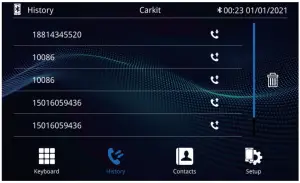
Detail operations as below:
- This icon ” ” signifies a missed call.
- This icon “
 ” signifies a dialed phone number.
 - This icon ” ” signifies a received call.
- Click “
 ” to delete all communication records.
 ” signifies a missed call.
 ” signifies a dialed phone number.
 ” to delete all communication records.
When connected to your phone, you can sync your contacts with the device. Go to “Settings” > “Synchronize Phone Book” on the Bluetooth Interface and click “Confirm” to set it up. Some phones may not be compatible with the Phone Book.
Setup
Call records are stored and marked by recently dialed, received, and missed calls.
8. Bluetooth Music
Once you’ve established a connection, you can play all of your audio files seamlessly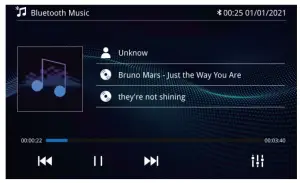 9. Radio
Scan, Save, and Scroll through your favorite stations.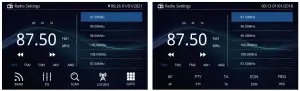 Detail operations as below:
- Click “
 ” to switch between FM1/ FM2/ FM3/ AM1/ AM2.
 - Click ” ” to set the EQ.
- Click “
 ” to scan saved stations. Hold to scan for a good signal
 - Click ”
 ” to switch LOC/DX.
 - Click “ ” to bring up the frequency keyboard. Input a station, or choose a pre-stored selection.
- Click ” ” to search for stations on the Low-Frequency side.
- Click ” ” to search for stations on the High-Frequency SIDE.
- Click ”
AF” to turn ON/ OFF the AF Mode. - Click ”
PTY” to display the program type. You can search for stations based on the type. - Click “
TA” to turn ON/ OFF the TA Mode. - Click “
EON” to show other network information; update the AF and TA. - Click “
REG” to select the station.
 ” to switch between FM1/ FM2/ FM3/ AM1/ AM2.
 ” to scan saved stations. Hold to scan for a good signal
 ” to switch LOC/DX.
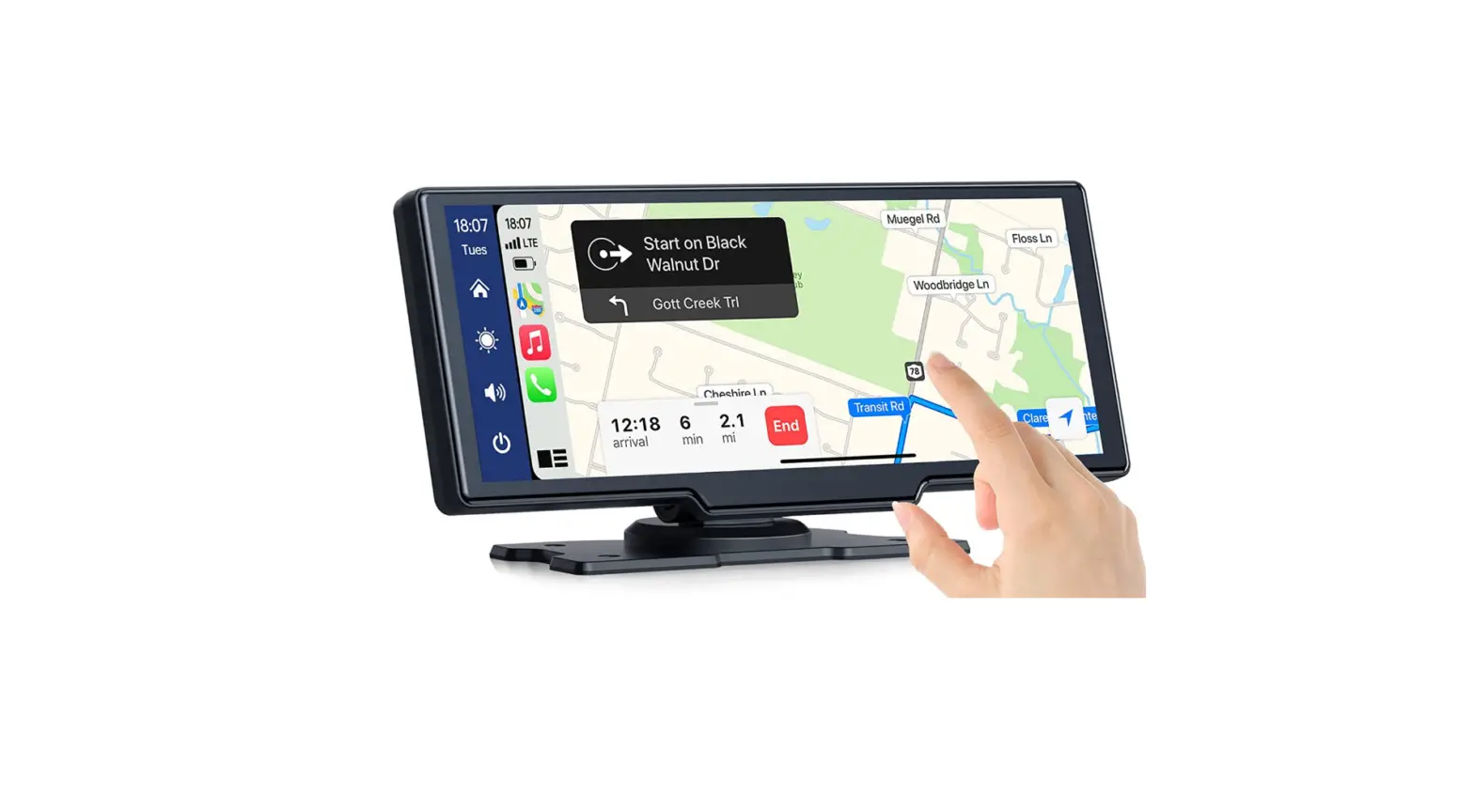
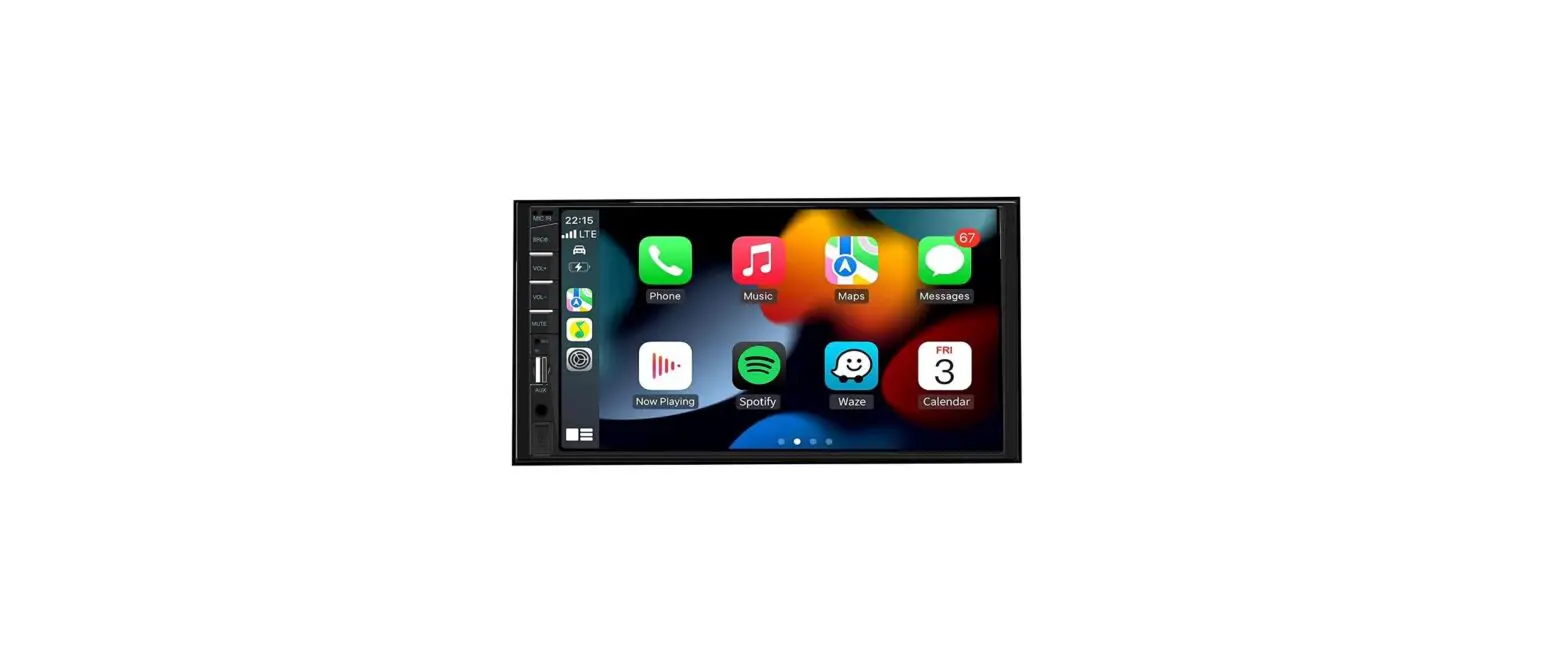
10. CarPlay
Connect your phone to call, view map information, play music, listen to podcasts, read audiobooks and so on.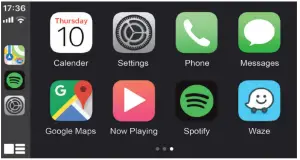 Android Auto-Connect
A prompt message will appear on your mobile phone like this, click “CONTINUE”.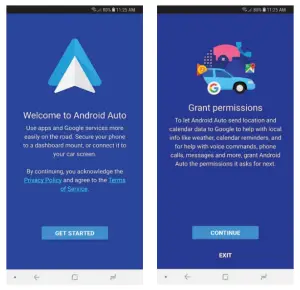 Car and Mobile Unit
Click “SKIP” on the car unit when you see steering wheel buttons and voice activation, you will not need this (Figure 1). At the same time, on your mobile phone, you will see the Android Auto-lock screen (Figure 2). 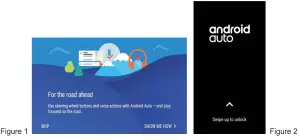
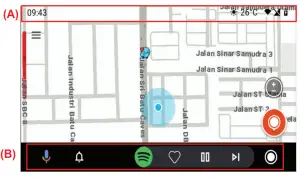
Android Auto Menu
(A) Displays Time, Weather, WIFI Connection, Signal Strength, Battery Level on the top of the screen.
(B) The operation icons are along the bottom of the screen
- Google Voice Search
- Notification
- Spotify Play Bar
- Home/ Menu