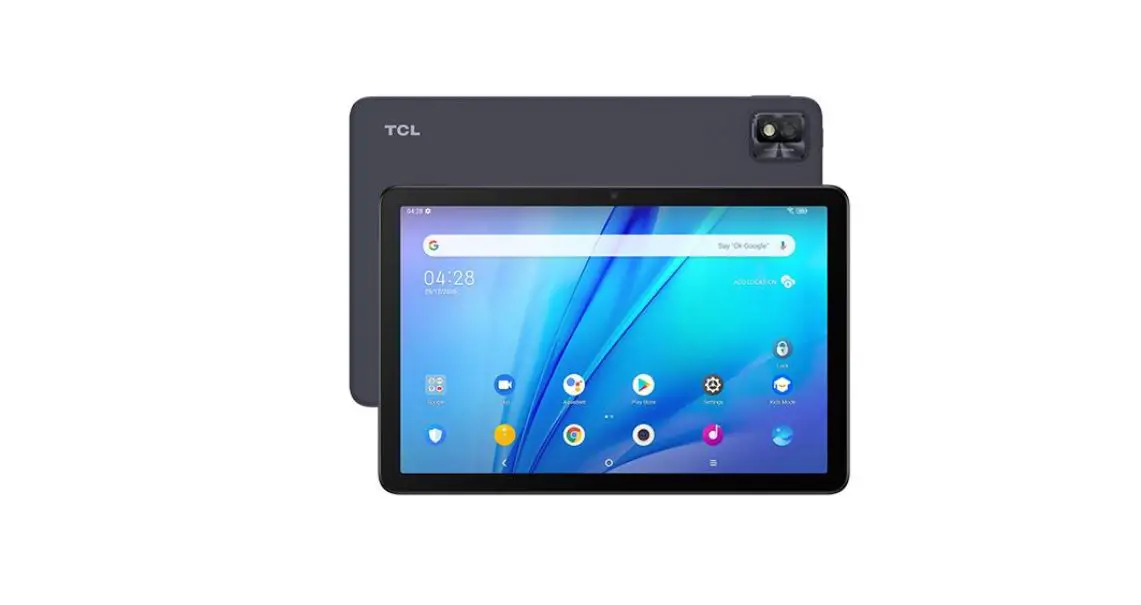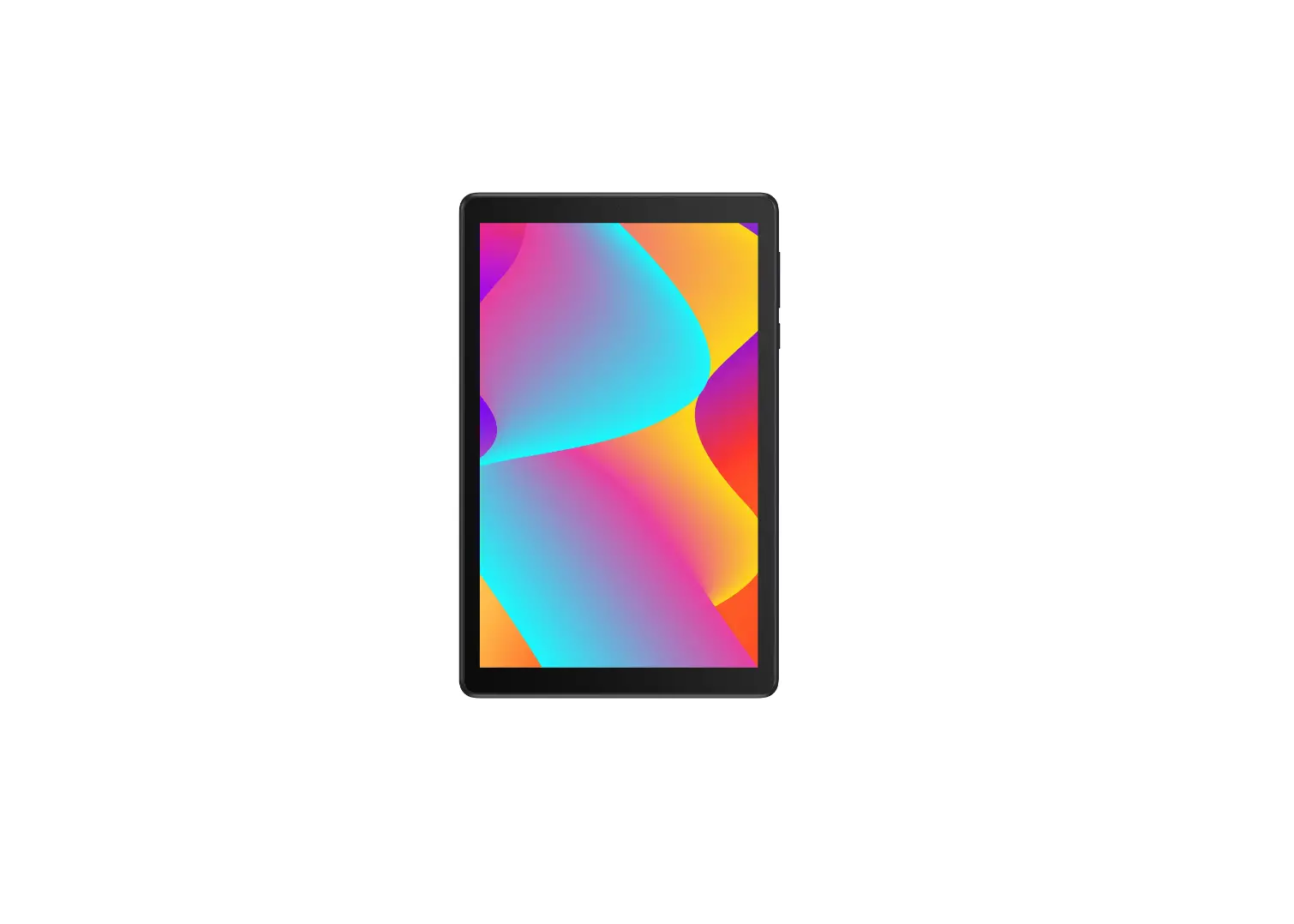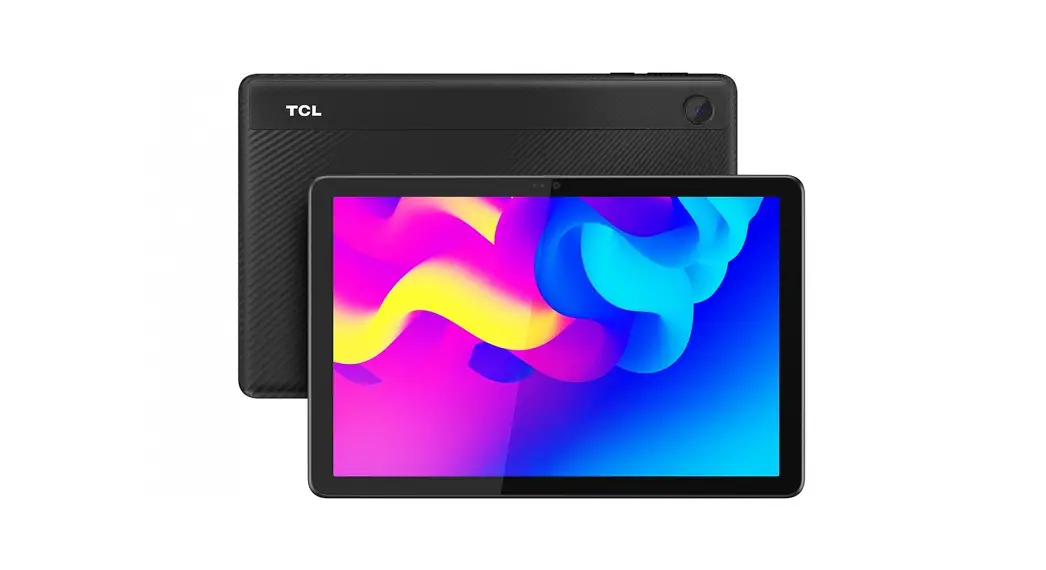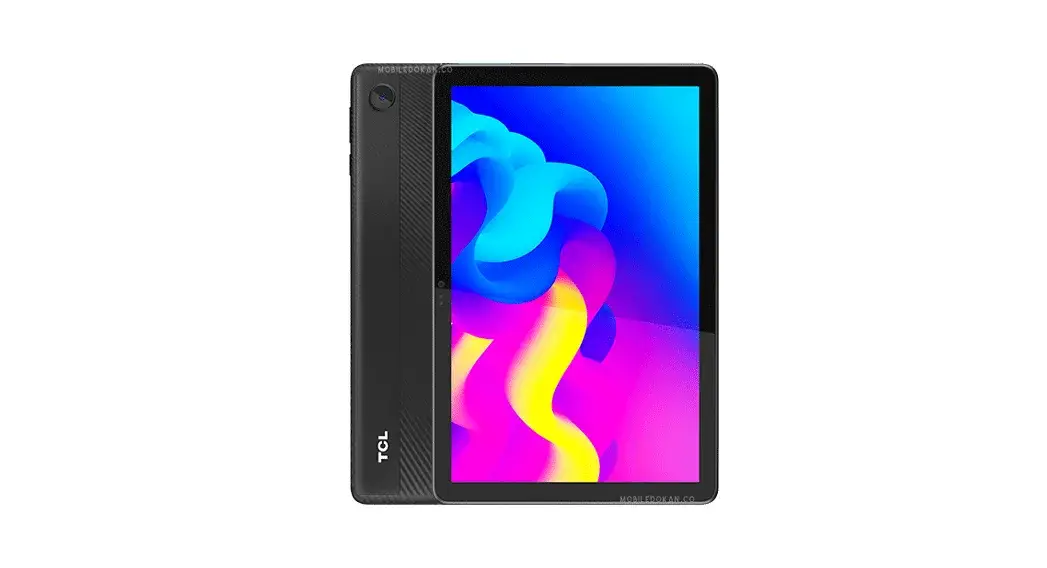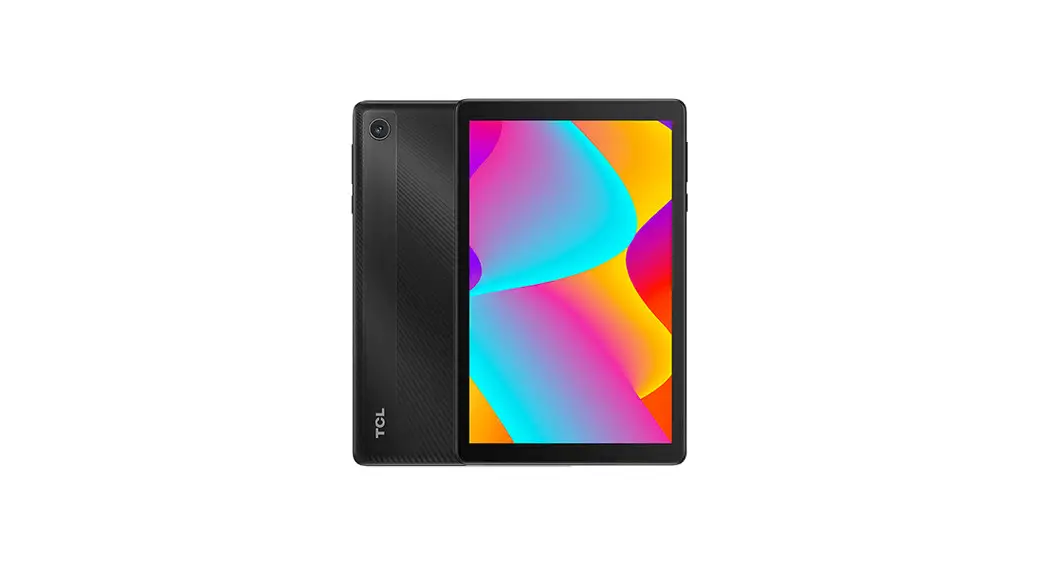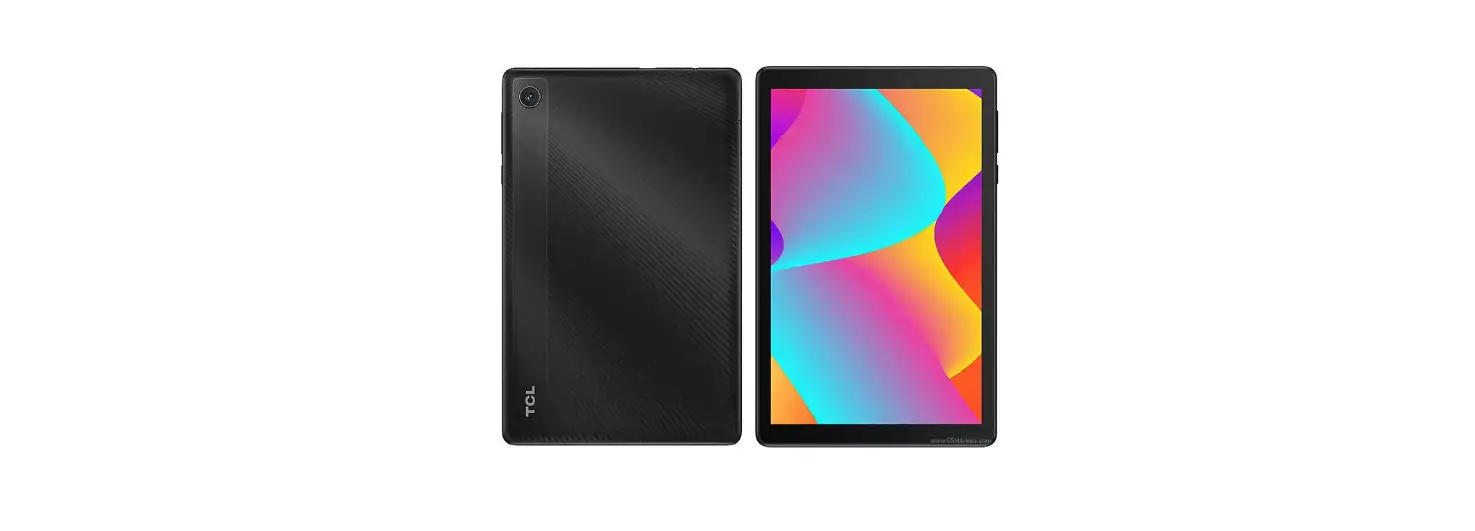
Quick reference guide
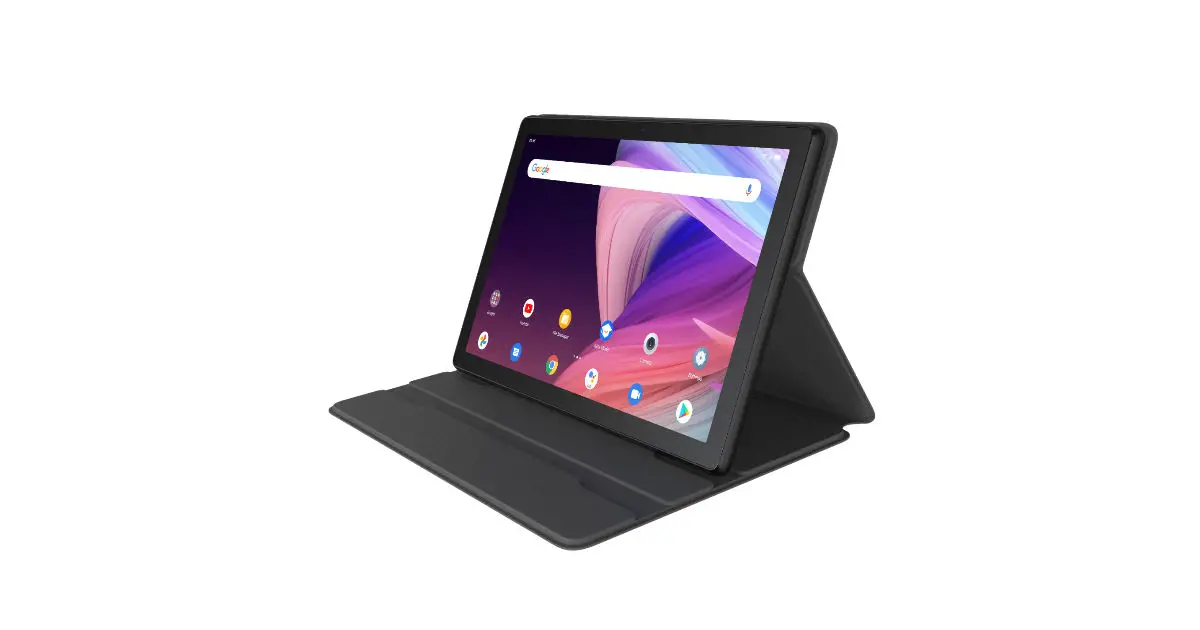
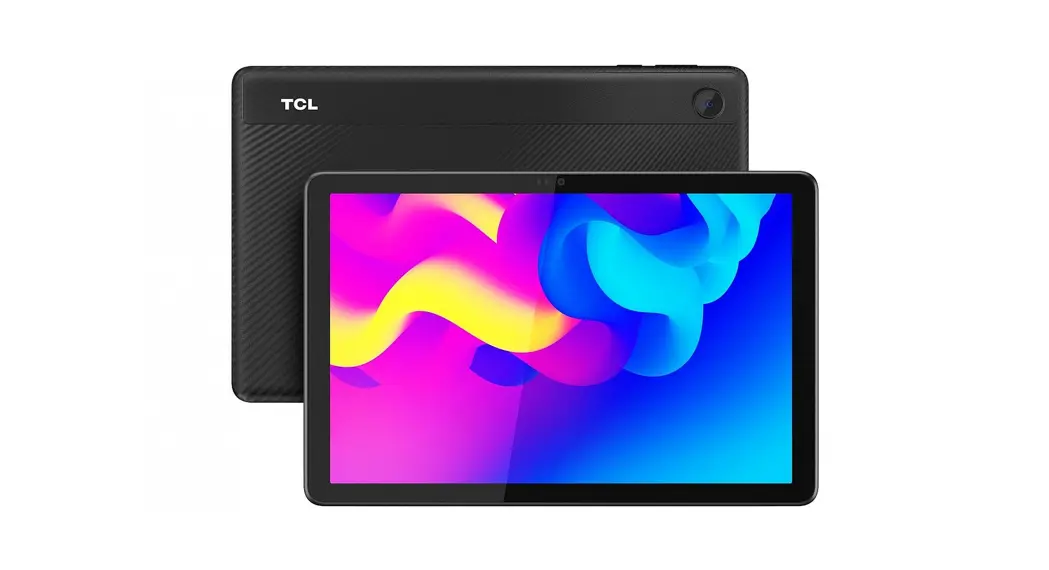
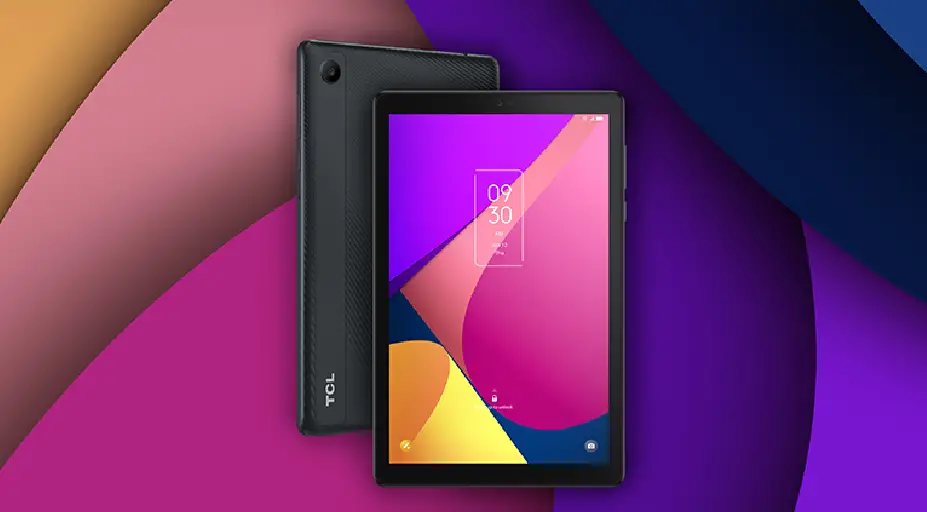
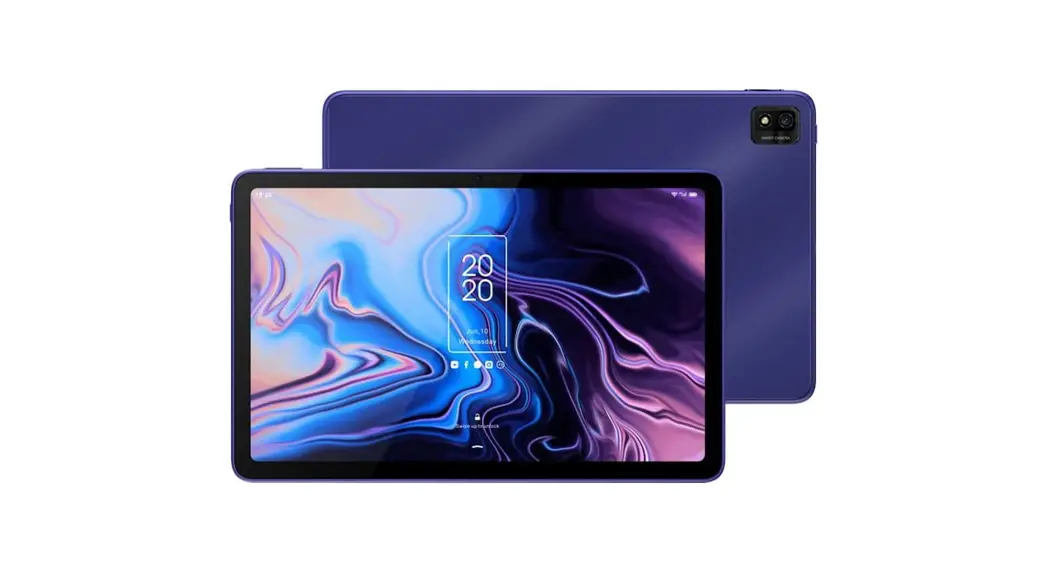
About your tablet
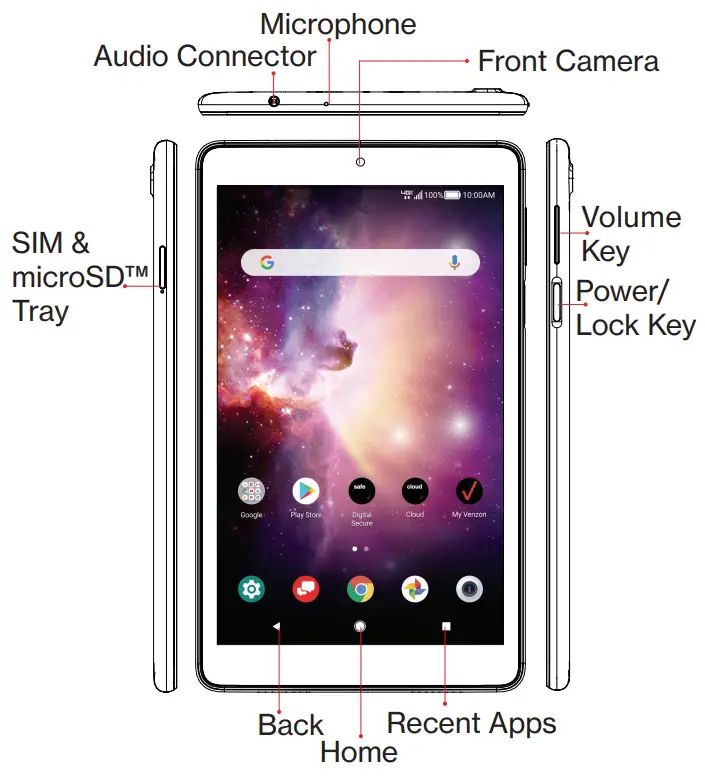 Not all features, apps, or services may be available with your plan, device operating system, and software version. Please contact your wireless service provider for more information.
NOTE: Devices and software are constantly evolving–the screen images and icons you see here are for reference only.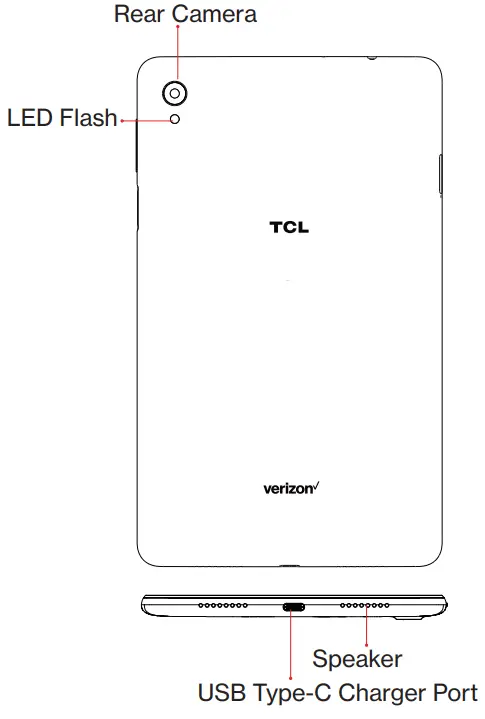
Setting up your tablet
Your tablet already has a NANO SIM card installed. MicroSD cards (capacity up to 256GB) may be purchased separately.
Insert the SIM card*/microSD card
Power off the tablet before opening the SIM tray to remove and/or insert the NANO SIM or microSD card.
Step 1. If you need to replace the NANO SIM card and/or insert an optional microSD card, use the SIM tool provided in the box to open the SIM tray.
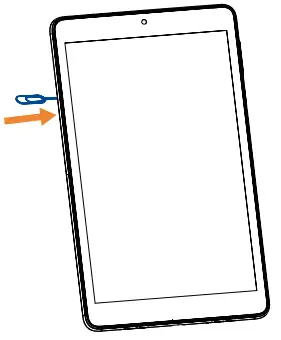
*A Subscriber Identity Module (SIM) card is a “smartcard” that houses personal information, such as your mobile number and account information. The Verizon 4G LTE SIM
card is compatible with any Verizon 4G LTE certified device that uses the same size SIM card. The 4G LTE SIM card can move from one device to another, and your wireless
service will support the services that are compatible with your new device and service plan. To see which devices are compatible with the Verizon 4G LTE SIM card, visit
verizonwireless.com/certifieddevice
Step 2.
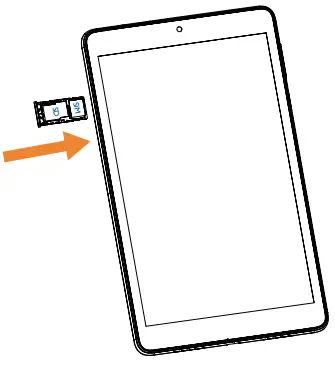
Remove the NANO SIM card/microSD card tray.
Step 3.
Position the SIM card and/or microSD the card in the tray correctly, align the cutout tab, and gently snap it into place. Be sure the edges are aligned.
Step 4.
Slide the tray slowly into the SIM tray slot. It only fits one direction. Do not force into place. Keep the SIM tool in a safe place for future use.
NOTE: The microSD card is sold separately.
Charge your tablet
You might need to charge the battery before using your tablet by inserting the small end of the charging cable into the charger port as shown.
Charge your tablet fully before turning it on and starting the setup process. Insert the other end of the USB cable into your wall charger and plug it into a wall outlet.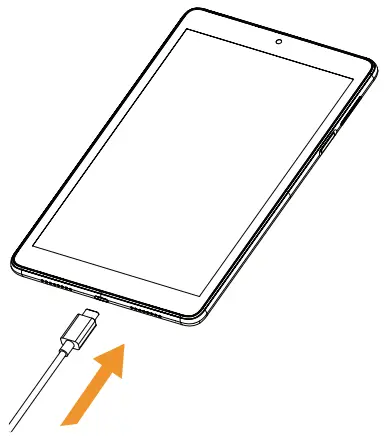 WARNING: Only use the charger and cable supplied with the tablet. Using incompatible chargers or tampering with the charging port could damage your tablet and void the
warranty.
Using your tablet
Turning your tablet on/off
NOTE: The first time you turn on your tablet, you may need to activate it. Follow the on-screen instructions to set up your device.
To turn on your tablet, press and hold the Power/Lock key.
To turn off your tablet, press and hold the Power/Lock key and tap Power Off on the screen when it appears.
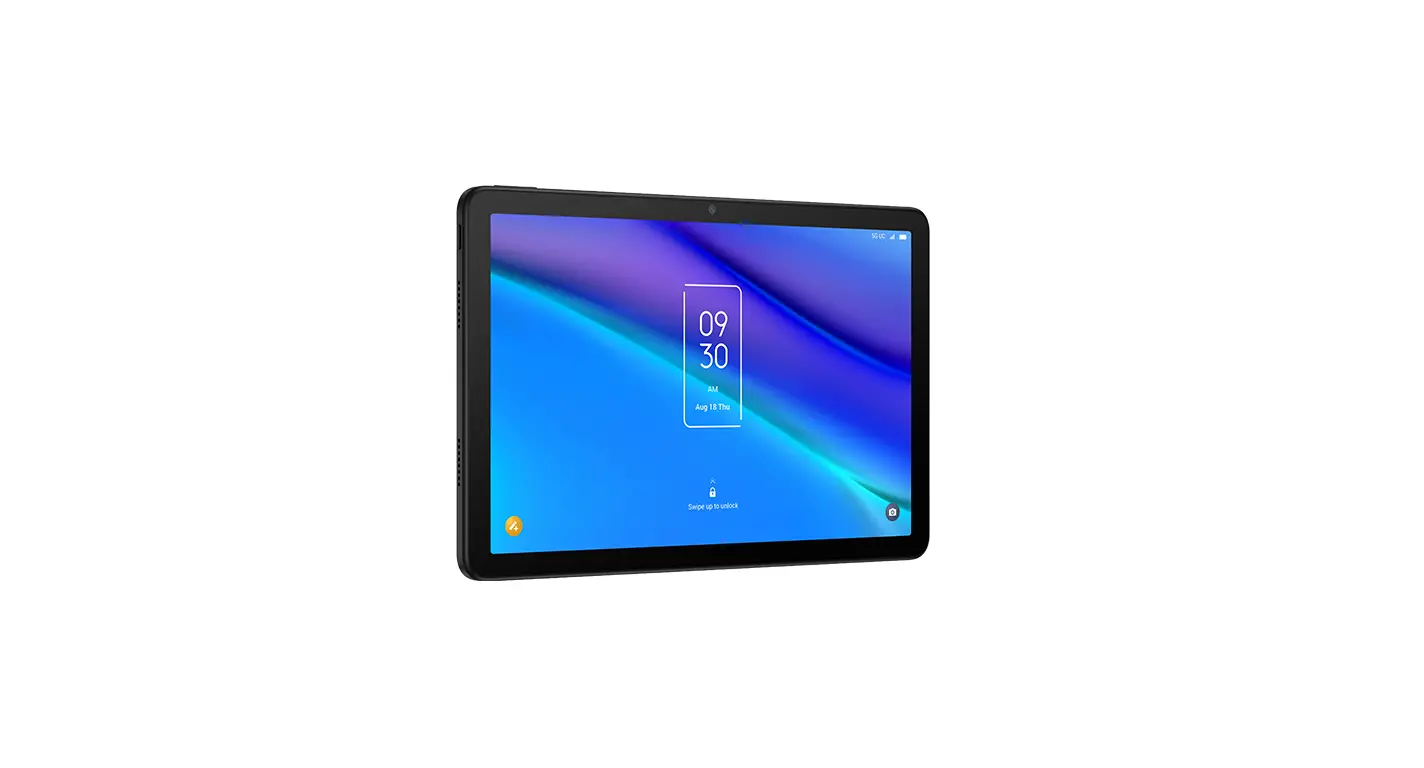
Locking/unlocking the screen
To turn on your screen, press the Power/Lock key.
Then swipe up on the screen to unlock it.
To create a screen unlock pattern, touch Settings > Security > Screen lock.
To turn off your screen and prevent accidental key presses press the Power/Lock key.
Touch screen tips
Use touch gestures to move around the screen, open menus, select items, zoom in and out of web pages, and more.
There are several touch gestures recognized by your tablet:
Tap—Tap the screen with your finger to select items or press buttons on the screen.
Touch and hold—Touch and hold an item on the screen (such as a link on a web page) to open available options.
Swipe—Swipe by quickly sliding your finger in any direction.
Drag—To drag, touch, and hold an item and move it to a new position.
Double-tap—Double-tap to zoom in/out on a web page or picture.
Multi-touch—Pinch or spread your thumb and index finger to zoom in or out.
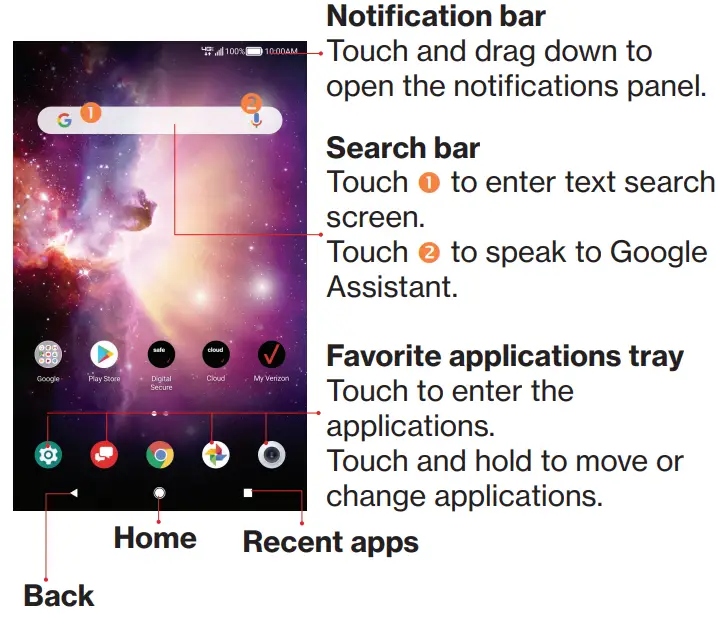
Home screen
The Home screen provides quick access to all the items (applications, shortcuts, folders, and widgets) you like to use most frequently.
Touch the Home symbol to get instant access to the Home screen.
Services and features
Text messaging
- Open the Messaging App by tapping
 on the
Home screen or within the App Drawer. - Tap
 to start a new text message.
 - Enter the name or number of the recipient, or tap
 to select a contact from your contacts list.
 - Compose the text message in the text box, and tap
 to send.
 on the
 to start a new text message.
 to select a contact from your contacts list.
 to send.
NOTE: Data charges will apply when sending and receiving a picture or video message. International or roaming text charges may apply to those messages outside of the United States of America. See your carrier agreement for more details about messaging and related charges.
Picture and video messaging
Take pictures or videos and send them to almost
any email address, or to other phones.
- From the Home screen, tap
- Enter the name or number of the recipient, or tap to select a contact from your contacts list.
- Tap
 and choose the pictures or videos you want to send.
 - After attaching the pictures or videos, tap to send.
 and choose the pictures or videos you want to send.
Apps and more
Play it up with music, wallpapers, apps, and games.
Keep up with Twitter™ and Facebook. We’ve got apps that help you do it all. Data charges may apply.
Installing apps
From the Home Screen, tap Play Store .
.
Web browsing
From the Home Screen, tap Chrome .
.
Transferring data from your previous device
When you activate your new tablet, you could see the Copy apps & data option in the Setup wizard, based on the instruction, you could transfer your apps, photos, contacts, Google Account, and more from the previous device.
Learning more
 Visit verizonwireless.com/support
 Download a User Guide from verizonwireless.com/support or call 800.922.0204 to order a copy.
Spanish User Guide can also be found at www.verizonwireless.com/support.
Managing your account
 My Verizon Mobile app
Manage your account, track your usage, edit account information, pay your bill, and more.
 International travel
For features and rates when traveling outside the US, visit verizonwireless.com/interna-tional
Customer service Call 1.800.922.0204
Twitter @VZWSupport
Additional information
Your wireless device and third-party services
Verizon is the mobile carrier associated with this wireless device, but many services and features offered are provided by or in conjunction with third parties. Verizon is not responsible for your use of this device or any non-Verizon applications, services, and products, including any personal information you choose to use, submit or share with others. Specific third-party terms and conditions, terms of use, and privacy policies apply. Please review carefully all applicable terms, conditions, and policies prior to using this
a wireless device and any associated application, product, or service.
English – CJB1SU0GMAAB
Printed in China
© 2020 Verizon Wireless. All Rights reserved
 Bring Your Own Device (BYOD) | How To & Deals | Verizon