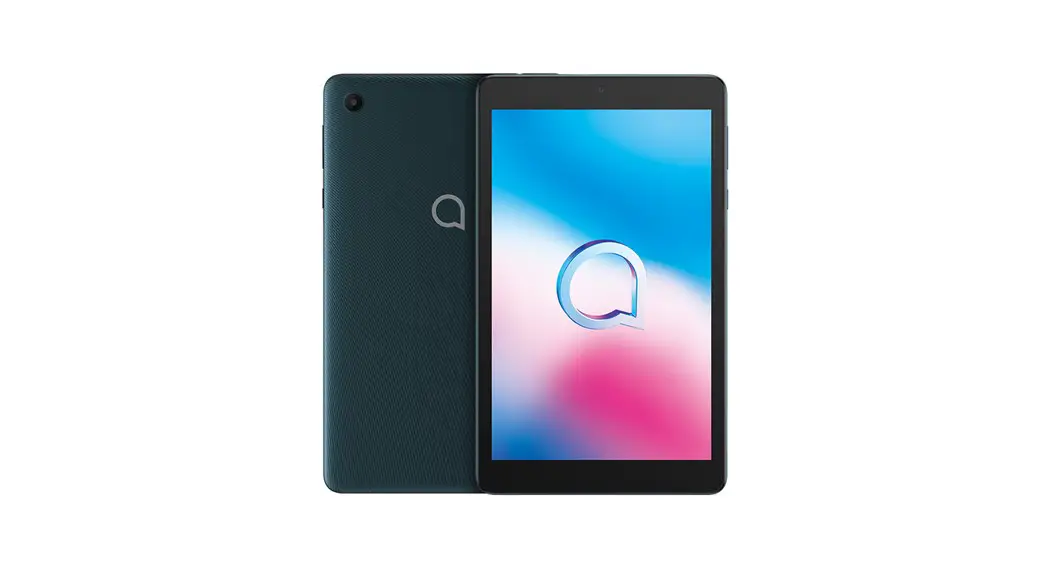


QUICK START GUIDE
9032T
CJB1S81ALAAB
User Manual and FAQ are available online
www.alcatelmobile.com
SAVE PAPER SAVE TREES
PLEASE CONSIDER THE ENVIRONMENT BEFORE PRINTING
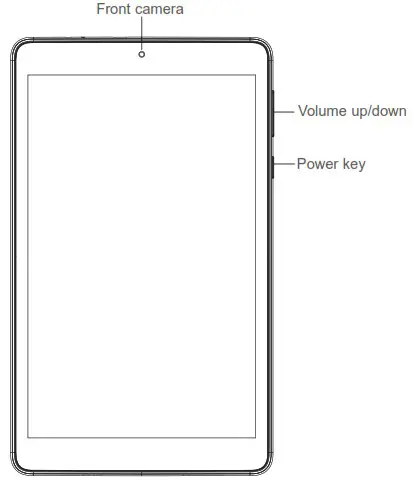
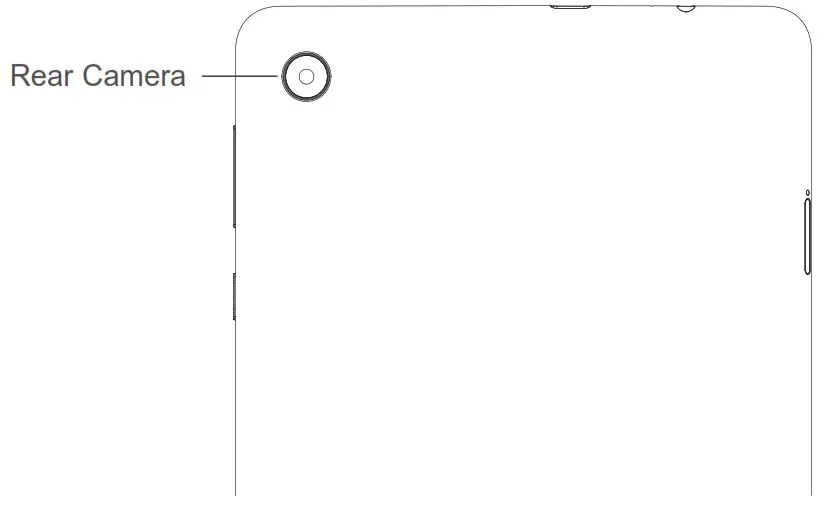
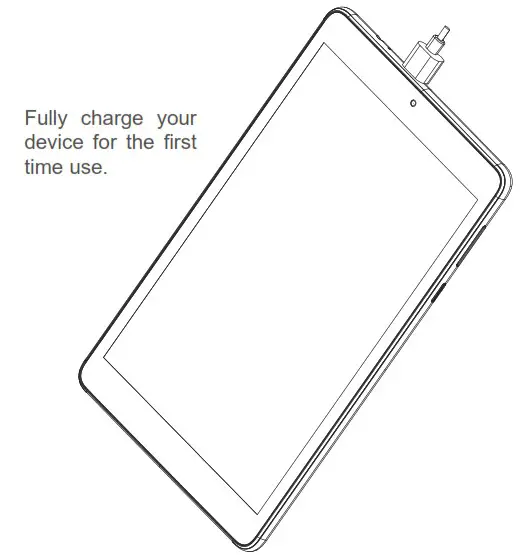
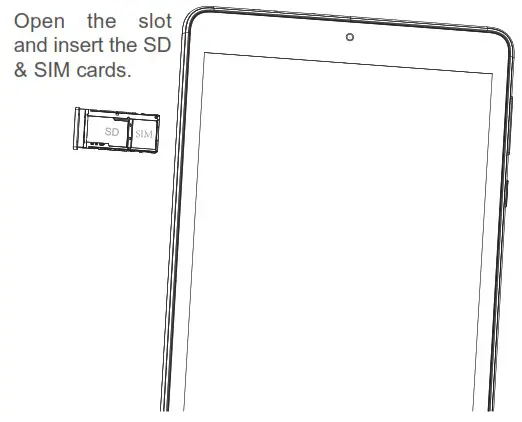
Home screen
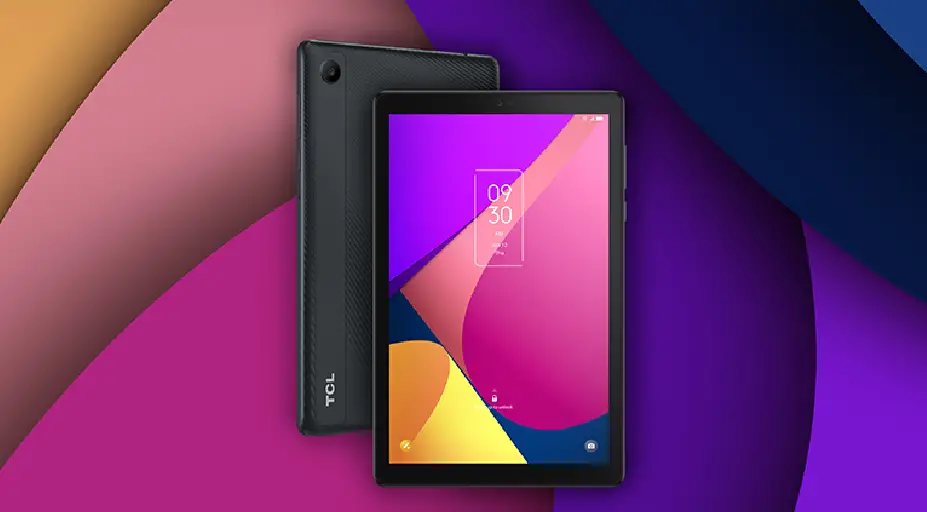
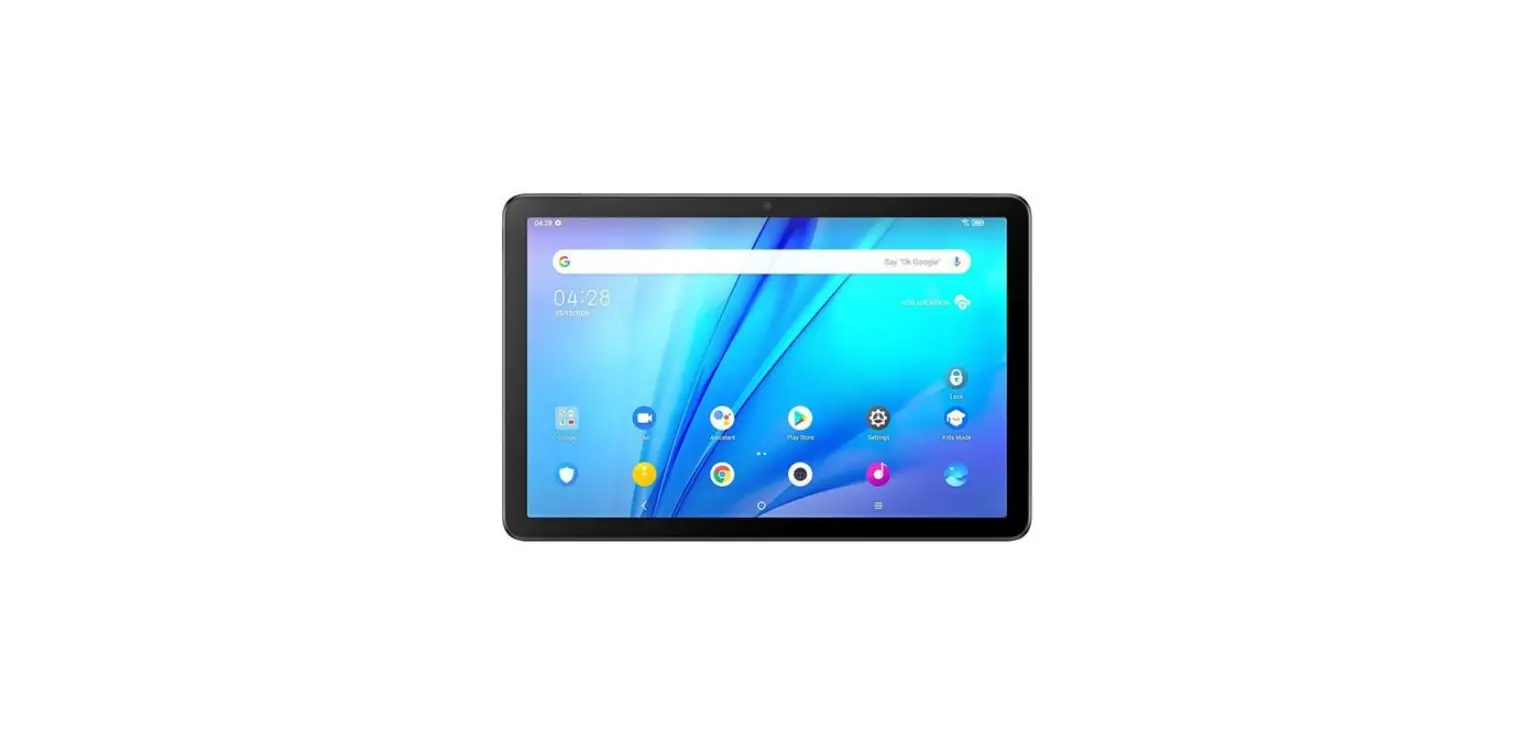
You can move frequently used items (applications, shortcuts, folders, and widgets) to your Home screen for quick access. Touch the Home key to switch to the Home screen.
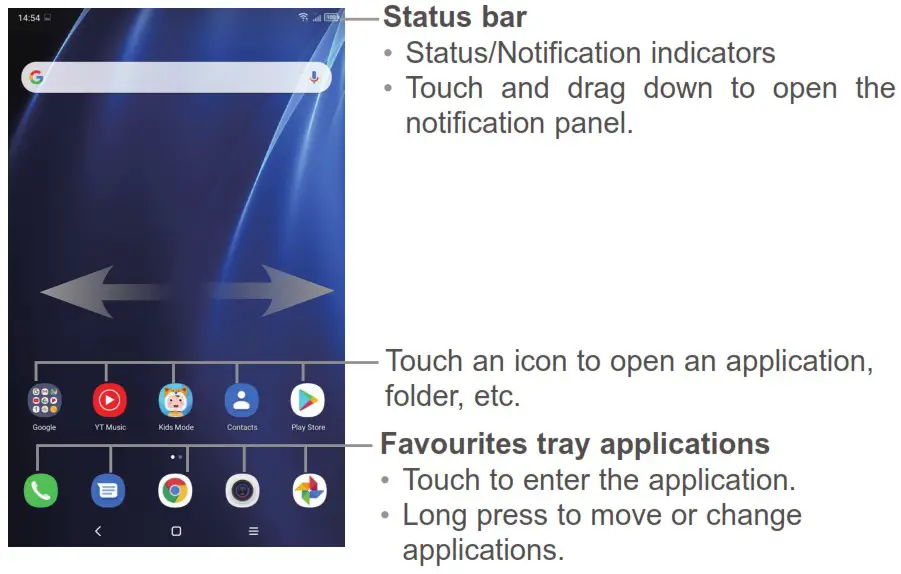
The Home screen is provided in an extended format to allow more space for adding application icons, shortcuts, etc. Slide the Home screen horizontally left and right to get additional view.
Status bar
In the status bar, you can see the notifications on the left side and the connection service status on the right side.
Swipe downward from the Status bar to access the Notification panel or the Quick Settings panel. To close the panel, touch and drag upward.
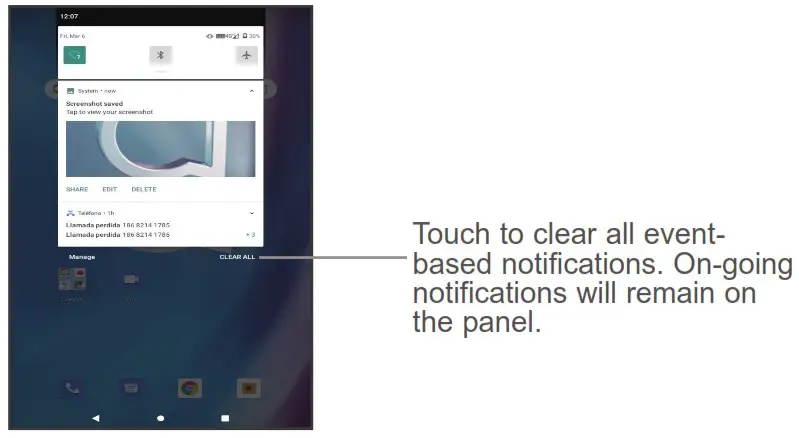
Notification panel
When there are notifications, you can touch them to view more information.
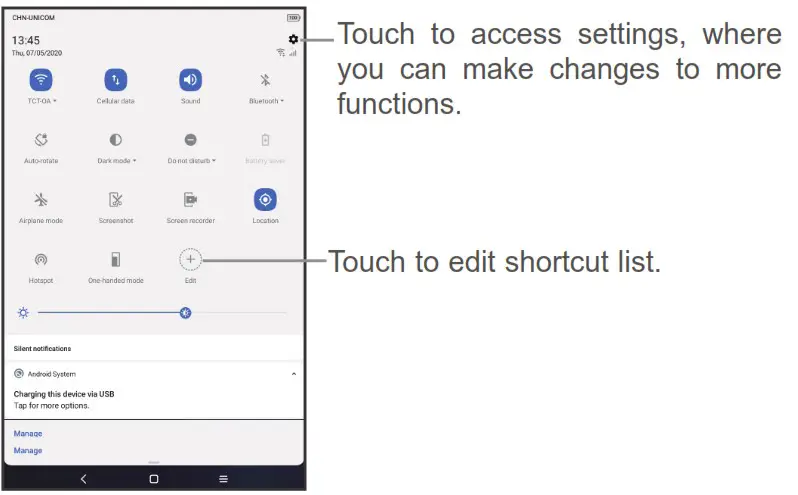
Quick settings panel
Swipe down from the status bar twice to open the Quick settings panel.
Then enable or disable functions or change modes by touching the icons.
Phone call
Placing a call
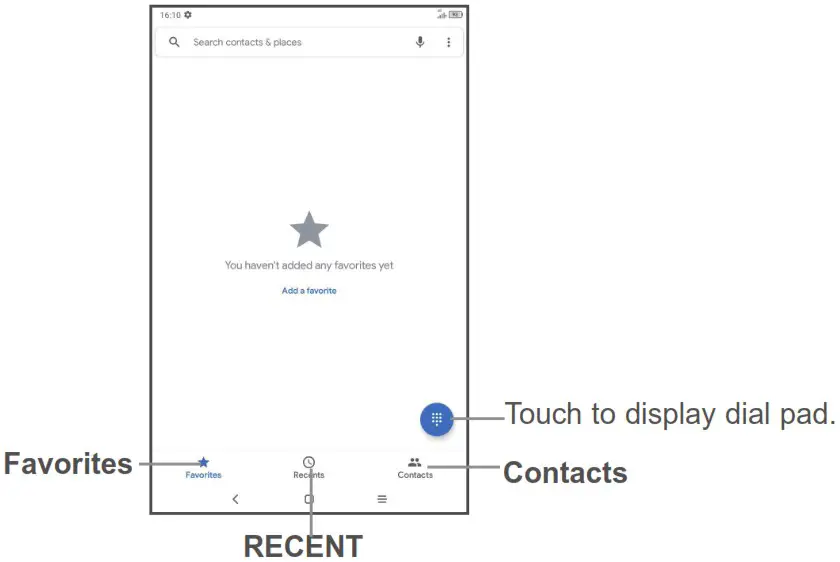
You can easily place a call using the Phone application. Touch the Phone icon on your Favourites Tray.
Call screen
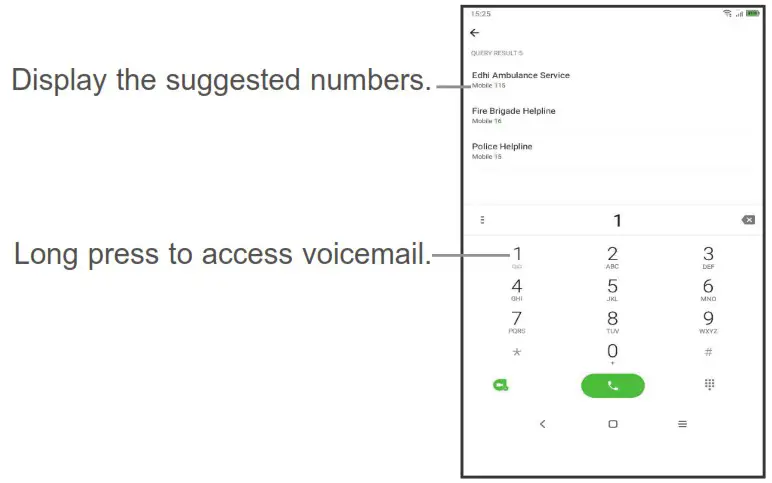
Enter the desired number from the dial pad directly and touch  to place the call or select a contact from Favorites or Contacts by touching tabs, then make the call
Dial pad
Enter the desired number from the dial pad and touch the Call icon to place the call. If you make a mistake, you can delete the incorrect digits by touching the Delete button  .
.
Answering or rejecting a call
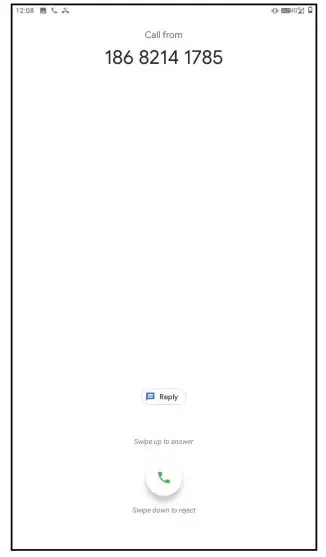
When you receive a call:
Slide up the icon to answer;
Slide down the icon to to reject;
Touch  to reject the call by sending a preset message.
To mute the ringtone volume of an incoming call, press the Volume Up/Down key
Call history
You can access your call history by touching the Recents tab  from the Call screen to view missed calls, outgoing calls, and incoming calls.
Contacts
Contacts are stored in your tablet with the Contacts app. It allows you to add, delete, or edit your contacts. You can also import or export your contacts from different locations such as a SIM card, an external storage, your Gmail or other email account.
Adding a contact
Open the Contacts app  from applications list, then touch the Plus button
  on the bottom right of the screen to add a new contact.
Synchronising contacts in multiple accounts
Contacts, data or other information can be synchronized from multiple accounts, depending on the applications installed on your tablet.
Messaging
This tablet comes with a pre-installed Messaging app that allows you to send and receive SMS (Short Message Service) or MMS (Multimedia Messaging Service) with your wireless service provider.
To open your Messaging app, go to the Home screen and touch the Messaging icon in the Favourites tray or from the application list. To check messages stored in your SIM card, touch the
  button from the Messaging screen, then touch Settings > Advanced > SIM card messages.
Write message
On the Messaging app screen, touch in the bottom right of the screen to begin.
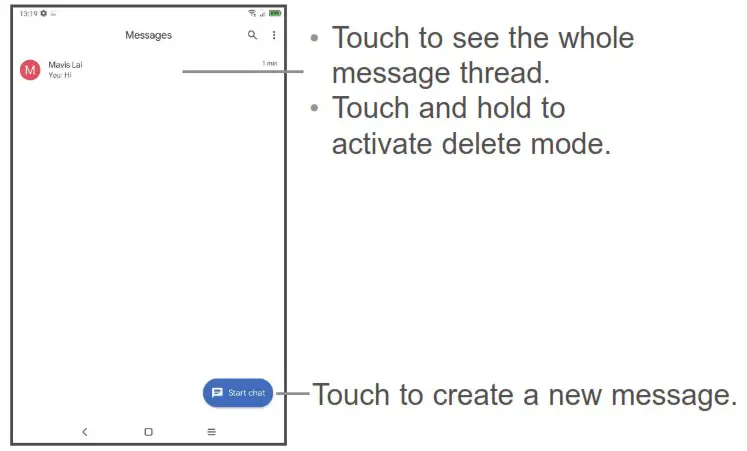
Touch to create a new message.
Sending a text message Enter the mobile phone number of the recipient in the “To” bar and touch the Text message bar to enter the text of the message. Touch the Smiley Face button  to insert emoticons. When finished, touch the Send button
  to send the text message.
An SMS of more than 160 characters (Actually maybe little less than 160) will be charged as several SMS. Specific letters (accent) will also increase the size of the SMS. This may cause multiple SMS to be sent to your recipient.
Sending a multimedia message
MMS enables you to send video clips, images, photos, animations, slides, and sounds to other compatible phones and email addresses.
An SMS will be converted to MMS automatically when media files (images, videos, audio, documents, etc.) are attached.
Gmail
Gmail is a Google web-based email service. When you first set up your tablet, it is automatically synchronized with your Google account. With this app, you can receive and send email, manage your email, and archive your email, etc.
To open Gmail
From the Home screen, touch the Gmail icon in the Google folder.
Gmail displays messages and conversations from one single Gmail account at a time. If you own more than one account, you can add an account by touching the Menu button  , then touch Setting > Add account. When finished, you can switch to another account by touching the name of the account you want to view.
To create and send emails
- Touch the Edit button
 from the Inbox screen.
 - Enter the recipient(s)’s email address in “To” field.
- To add Copy or Blind copy, touch the down arrow button
 and enter the email address in the Cc or Bcc line.
 - Enter the subject and the content of the message.
- Touch the Attach button
 an attachment. icon and select Attach file to add
 - Finally, touch the Send button
 to send.
 - If you do not want to send the email out right away, you can touch the Menu overflow button
 and then touch Save draft. To view the draft later, touch the Menu button and select the Drafts folder. Touch the draft email and then the Edit button to open it.
 from the Inbox screen.
 and enter the email address in the Cc or Bcc line.
 an attachment. icon and select Attach file to add
 and then touch Save draft. To view the draft later, touch the Menu button and select the Drafts folder. Touch the draft email and then the Edit button to open it.
Getting connected
To connect to the Internet with this tablet, you will need to have an internet connection via Cellular Data provider or via Wi-Fi.
Connecting to the Internet
Cellular Data
The first time you turn on your tablet with your SIM card inserted, it will automatically configure your network service: 2G, 3G. 4G
To check the network connection you are using, touch Settings > Network & internet > Cellular network, and touch Access Point Names. Your network service connection is also displayed on the Status bar.
Wi-Fi
The tablet can also be connected to a Wi-Fi internet service. This can be used without a SIM card or Cellular Data service.
To turn Wi-Fi on and connect to a Wi-Fi network
- Go to Settings > Network& internet > Wi-Fi.
- Touch the switch
 to turn on Wi-Fi.
 - Touch a Wi-Fi network to connect. If the network you selected is a secured network, you will need to enter a password or other credentials. When finished, touch CONNECT.
- For hidden network, slide up the screen and select Add network. Enter the SSID of the network, password and its secured credentials. Then, touch SAVE.
 to turn on Wi-Fi.
Support
- Enter from your Smartphone / Tablet to the application: SUPPORT CENTER
- Check our frequently asked questions or chat with us through https://www.alcatelmobile.com in the Support section.
- Call the Call Center Locate your number, below:
Argentina- 0800-444-7361
Australia- 1-800-218-730
Canada- 1-855-844-6058
Chile- 123-002-09025
Colombia- 01-800-518-3882
Ecuador- 800-000-635
Mexico- 01-800-112-4682
Nueva Zealanda- 800-451-708
Peru- 0800-55-639 Rep.
Dominicana- 1-800-203-9679
Uruguay- 000-401-90752 USA- 1-855-368-0829
Venezuela- 0800-136-2017
 Home | Alcatel Mobile | Alcatel 1S | Alcatel 1X | Alcatel 3