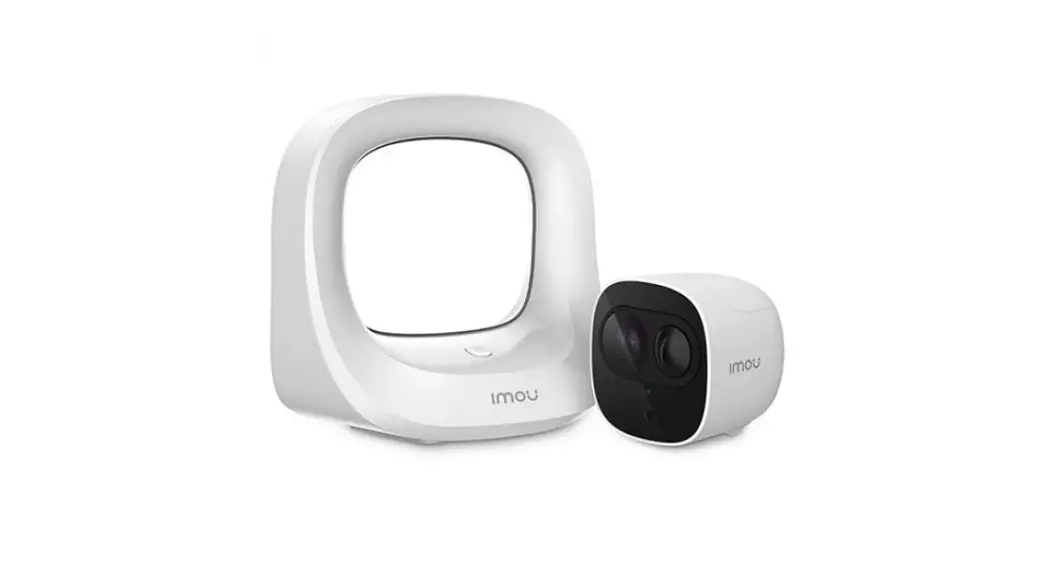

Enjoy Smart Life
Quick Start Guide
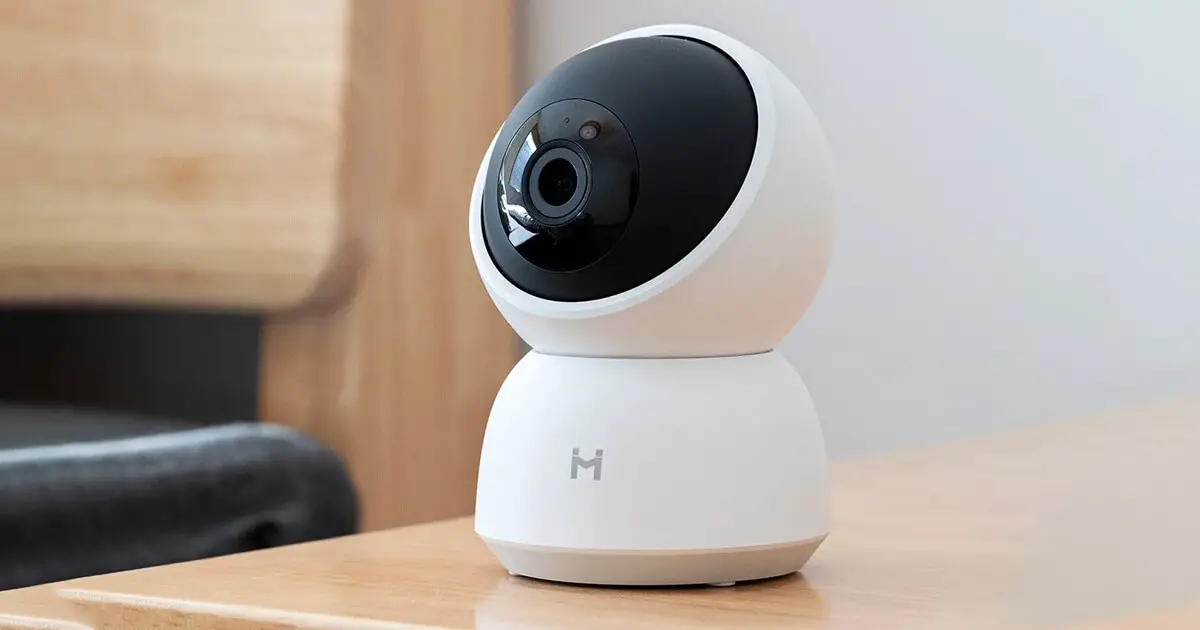
Cell Pro(Add-on Camera)
Cell Pro Kit(Hub+Camera)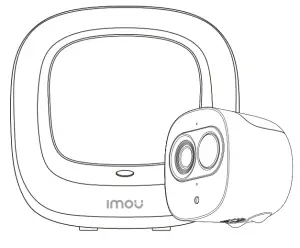
Welcome
Thank you for choosing IMOU We are devoted to providing you easy smart home products. If you have problems using the product, please contact
our service team before returning your product.
Our service mail: [email protected]
Frequently asked questions can be found at imoulife.com/support/help
http://www.imoulife.com/web/support/help
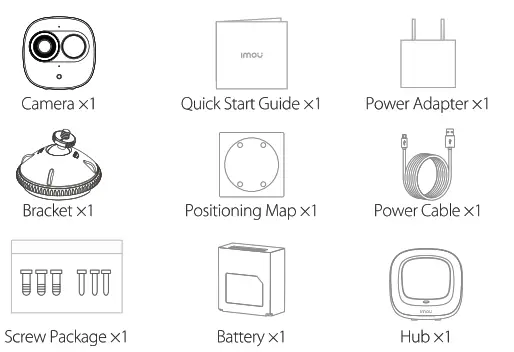
Package content
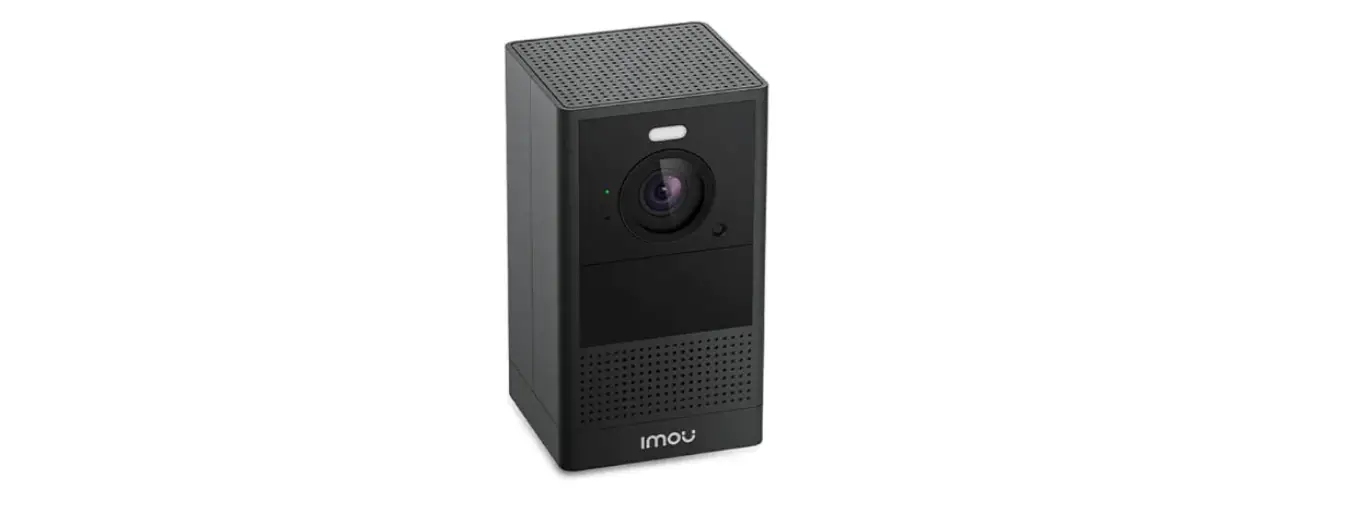
camera Introduction
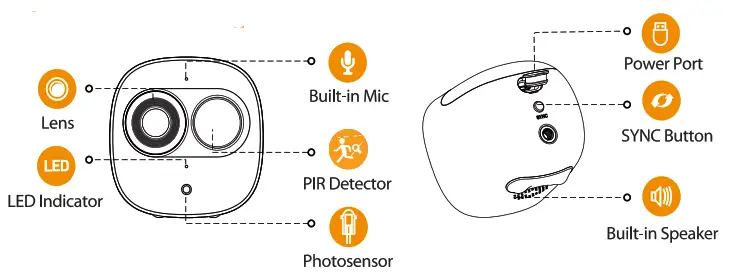
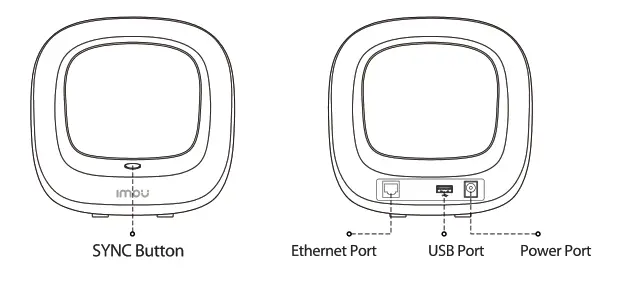
Note: Press the SYNC button to pair with the base station. Press and hold the SYNC button for 8s to reset the camera.
Installing Battery
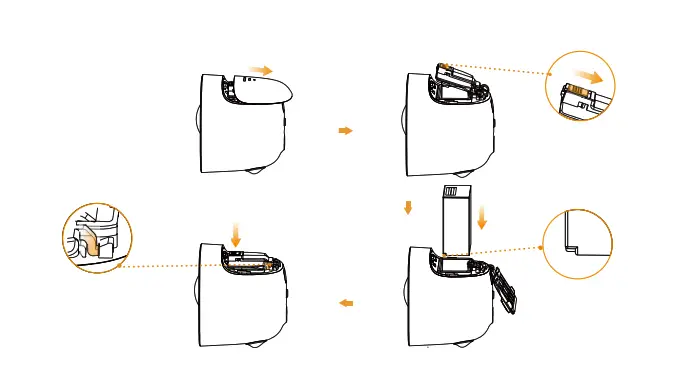
The pattern of the LED indicator is included in the following tabel.
| LED Indicator Status | Device Status |
| off | • Sleeping mode |
| • Run out of battery | |
| Greenlight on | • Alarm is triggered |
| • Instructed to wake | |
| Greenlight flashing | • Reconnecting Wi-Fi |
| Greenlight quick flashing | • Waiting for pairing with the base station |
| Greenlight stays on for 10 s, | • Pairing succeeded |
| then off | |
| The red light stays on for 10 s, then off | • Pairing timeout |
| The red light stay on for 1 s, then off | • Reset completed |
Hub
TiPS
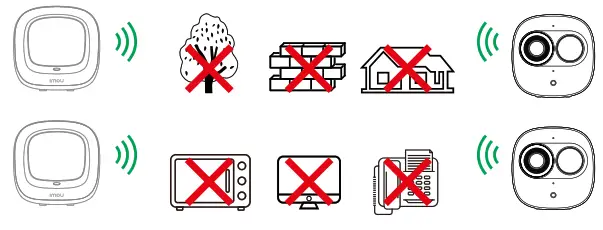
To ensure the best possible wireless performance, please make sure there are no obstacles and electromagnetic interference between the camera and hub.
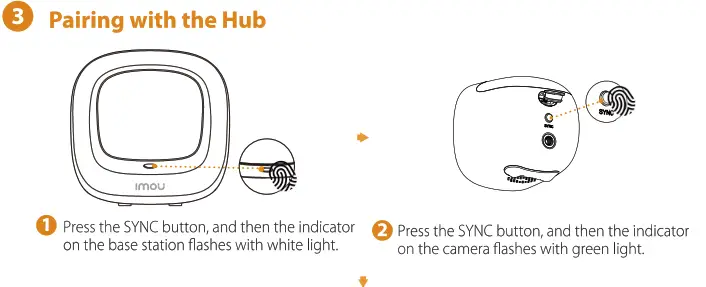
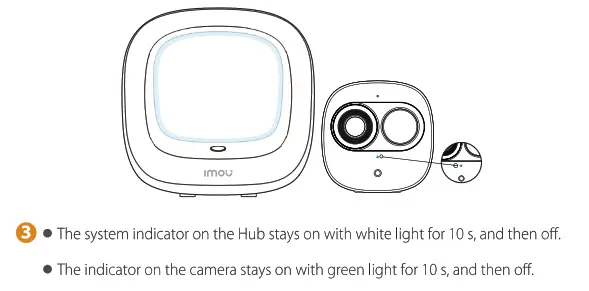
Note: You can pair six cameras at most with one Hub, and pair one camera at a time. Keep the distance of the Hub and the camera within 30 cm (12 inches)during pairing.
Installing Camera
Troubleshooting
Problem | Solution |
| Cannot set up camera | · Ensure your mobile device and the camera are within range of your Wi-Fi router. · Ensure the LED indicator on the camera flashing green before beginning setup. |
| The APP says “Failed to configure device network” | · Reset your Camera and connect it again. · Some cameras only support 2.4GHz, while some routers have dual-band, 2.4G/SG. Make sure you are connecting 2.4GHz only. |
| The app says ‘Failed to bind” | The camera is already connected to Wi-Fi, but the router is: · Not connected to the Internet · Poor network status · The VVi-Fi signal is not stable due to obstacles or electronic interference |
| No picture / signal | · Ensure the LED indicator on the camera is flashing steady green. See ‘LED Status’ section for details if otherwise. · Ensure the camera is properly connected to power using the included USB power adapter. · Try repositioning the camera, router, or both to improve signal strength. |
| Picture is not clear | · Check the camera lens for dirt, dust, spider webs. Clean the lens with a soft, clean cloth. · Remove the vinyl cover on the camera lens. |
| No audio | · Ensure audio function on the camera is turned on. · Ensure audio is turned up on viewing device. |
| The phone is not reading QR code | · Clean the camera lens of your Smartphone · Ensure that there is enough light on the QR code · Don’t hold the QR code too close to the camera |