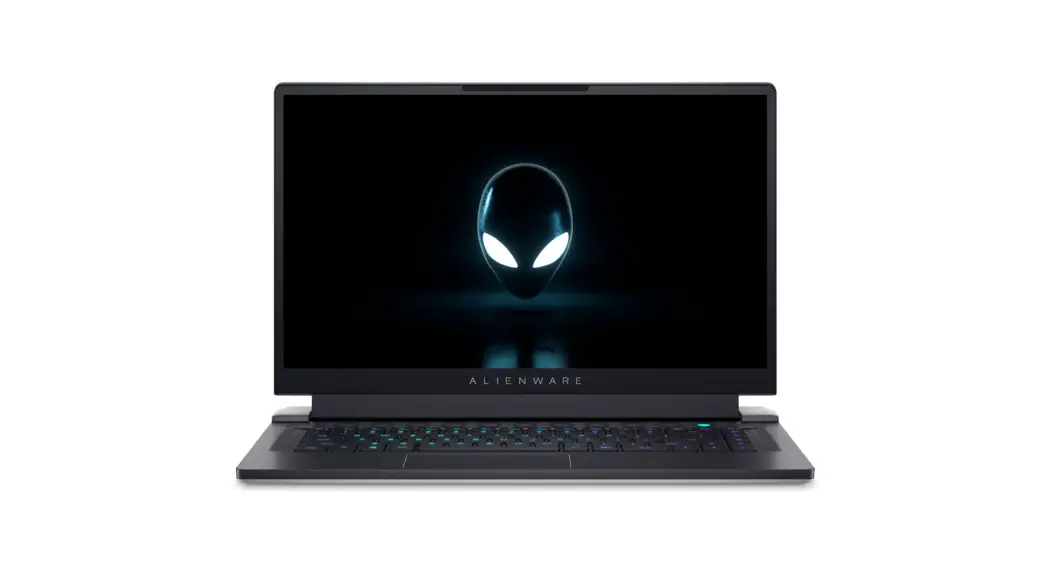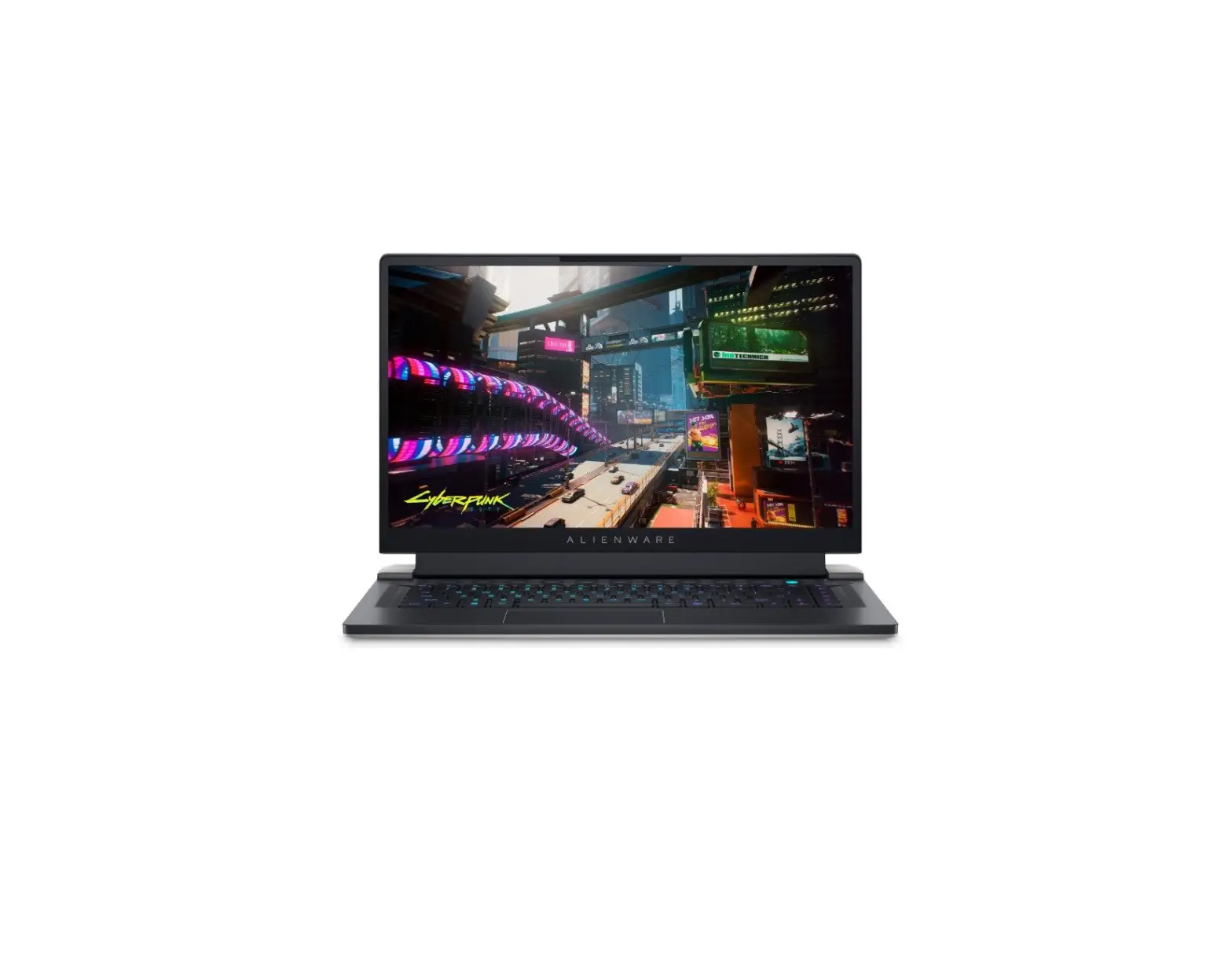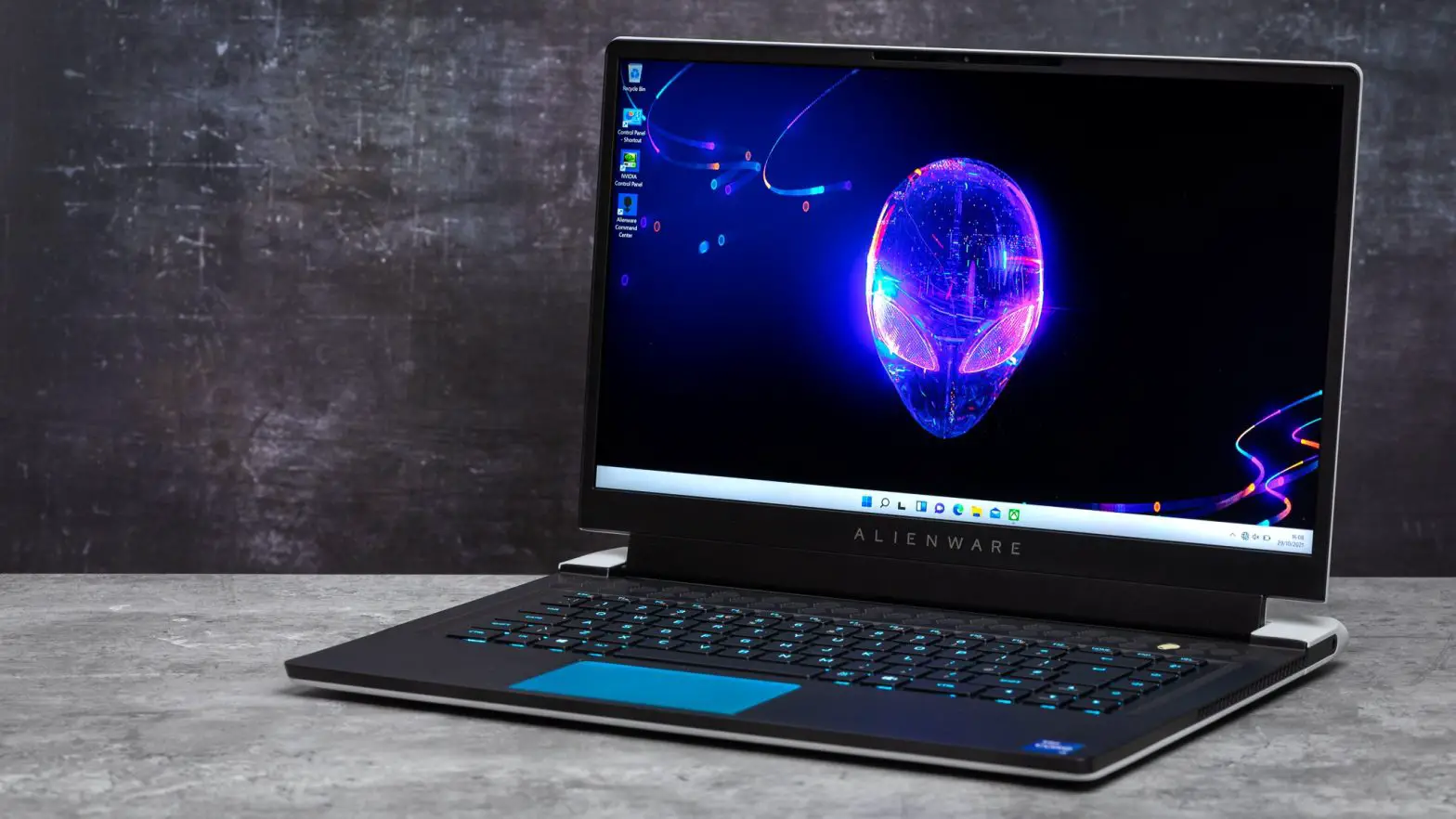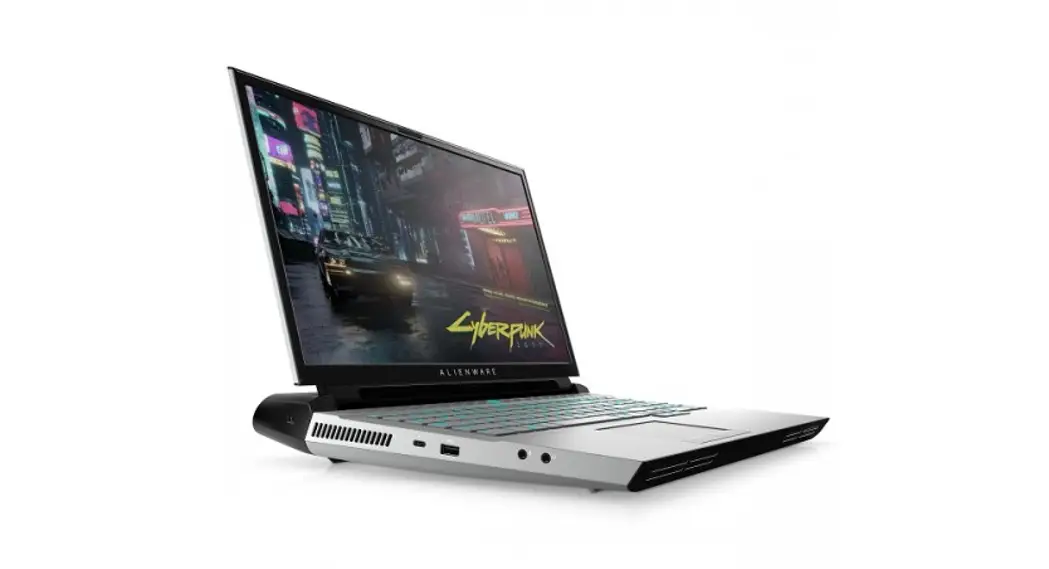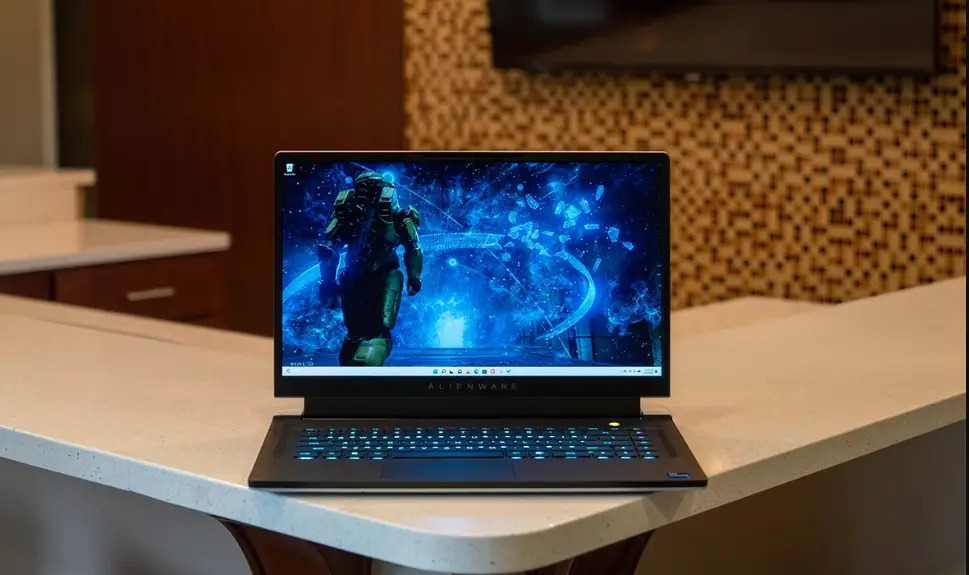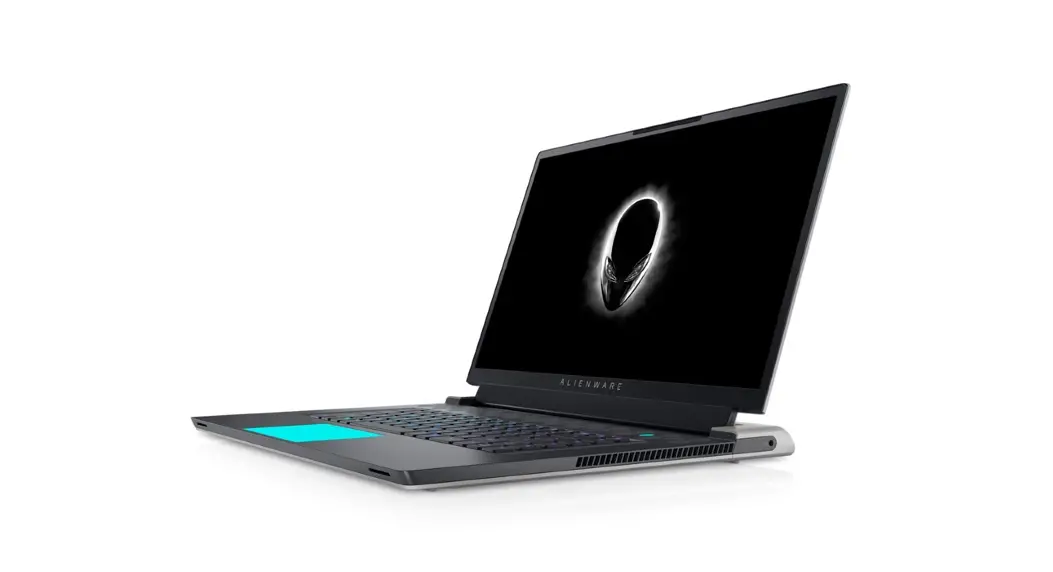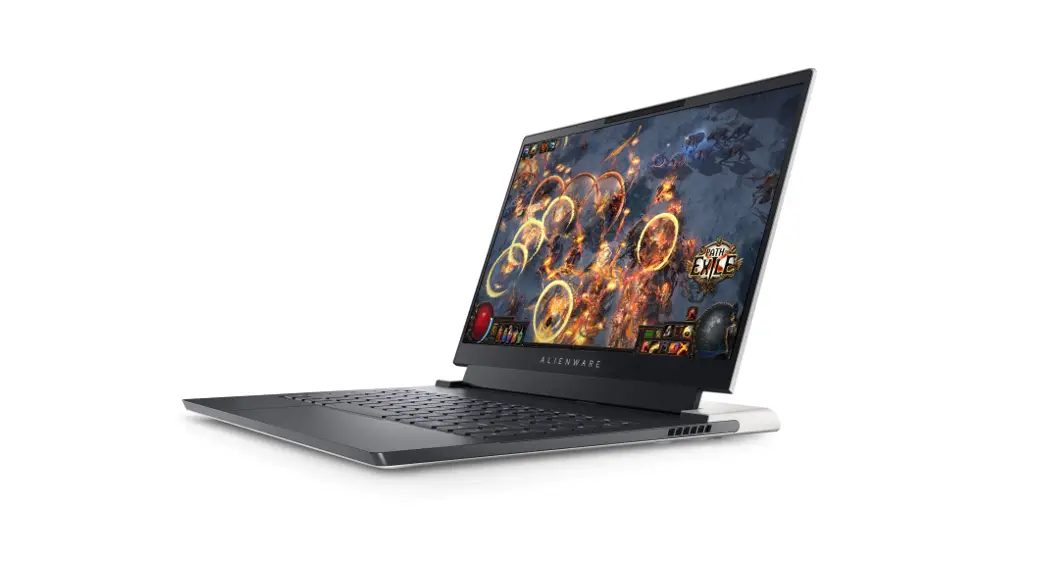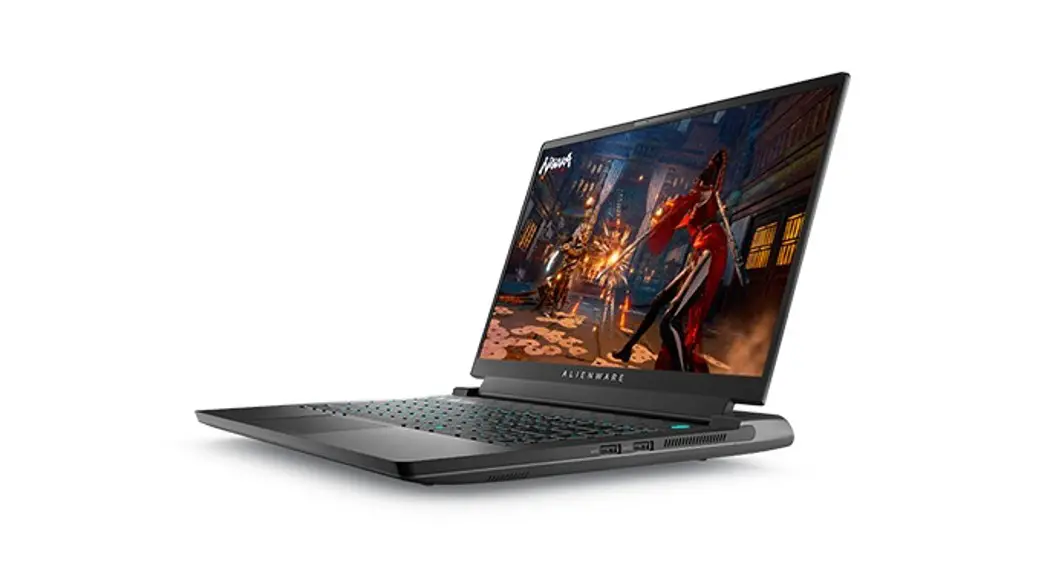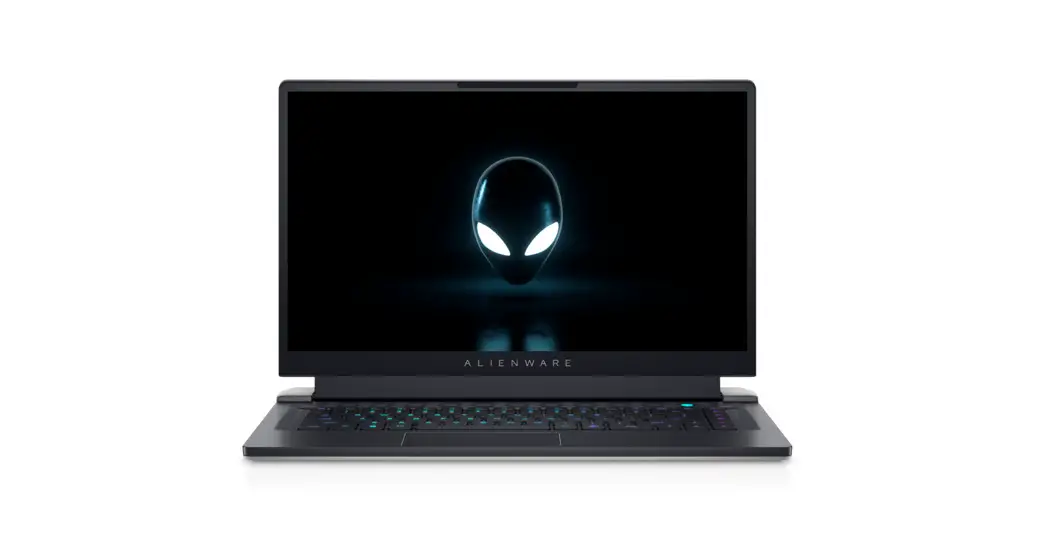
 x15 R2 Slim Gaming Laptop
Owner’s Manual
Notes, cautions, and warnings NOTE: A NOTE indicates important information that helps you make better use of your product.
 CAUTION: A CAUTION indicates either potential damage to hardware or loss of data and tells you how to avoid the problem.
 WARNING: A WARNING indicates a potential for property damage, personal injury, or death.
Set up your Alienware x15 R2
NOTE: The images in this document may differ from your computer depending on the configuration you ordered.
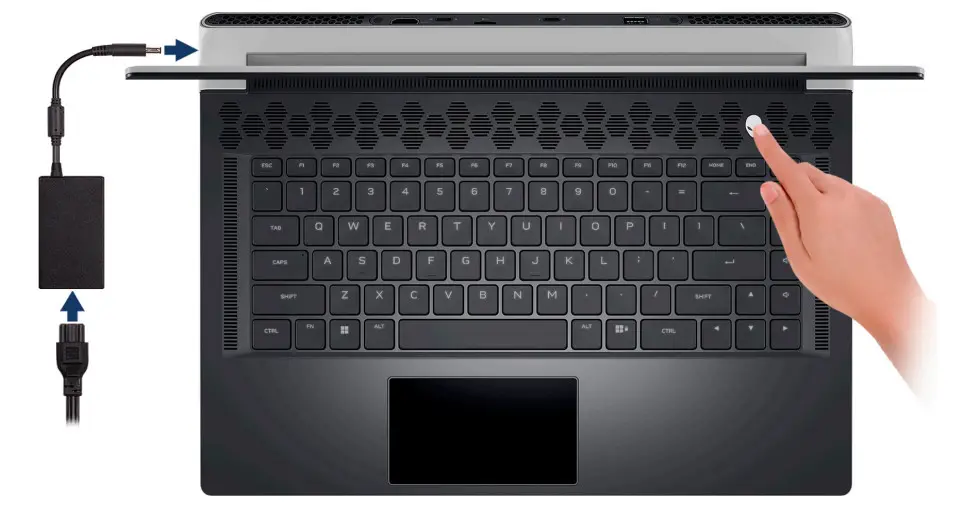
- Connect the power adapter and press the power button.

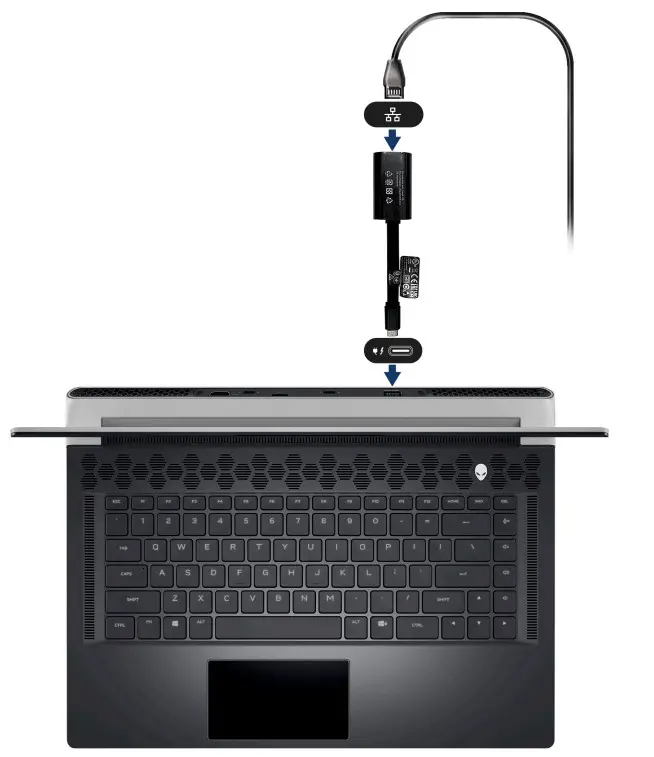
- Connect the USB Type-C Ethernet dongle to the Thunderbolt 4 port of your computer for the wired network (optional).
 NOTE: This computer is shipped with a USB Type-C Ethernet dongle.
Views of Alienware x15 R2
Front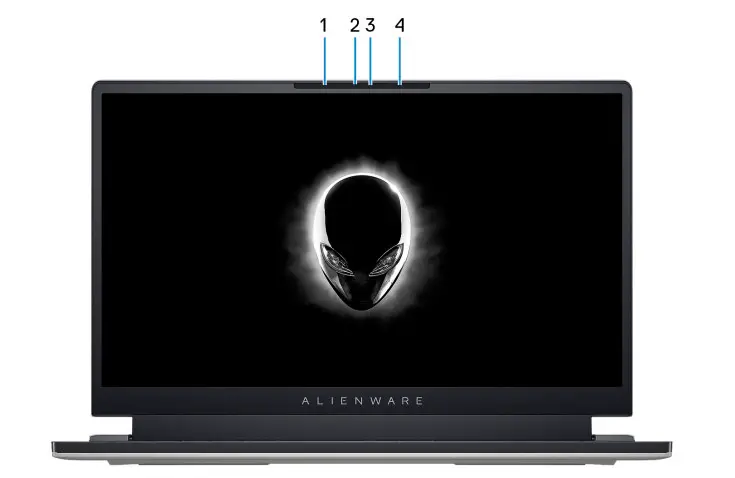
- Left microphone
Provides digital sound input for audio recording and voice calls. - RGB-infrared camera
This combined camera supports both infrared Windows Hello facial recognition and standard RGB imaging for photos and videos.NOTE: The device will also ship with a HD RGB camera that enables you to video chat, capture photos, and record videos.
For this configuration, the infrared emitters will not be featured in the camera module. - Camera-status light
Turns on when the camera is in use. - Right microphone
Provides digital sound input for audio recording and voice calls.
Right
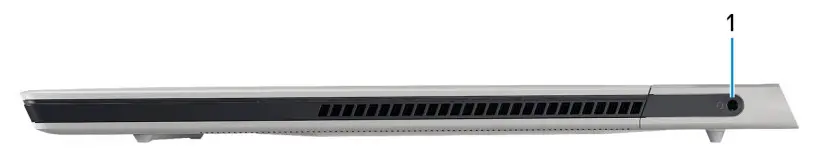
- Universal audio jack
Connect headphones or a headset (headphone and microphone combo).
Left
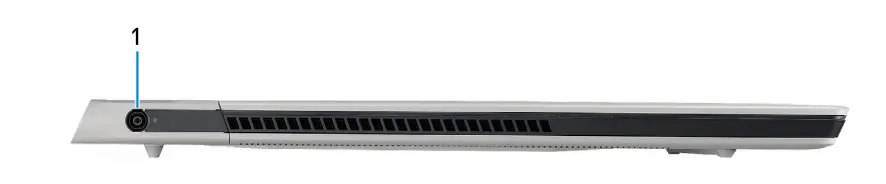
- Power-adapter port
Connect a power adapter to provide power to your computer and charge the battery.
Top
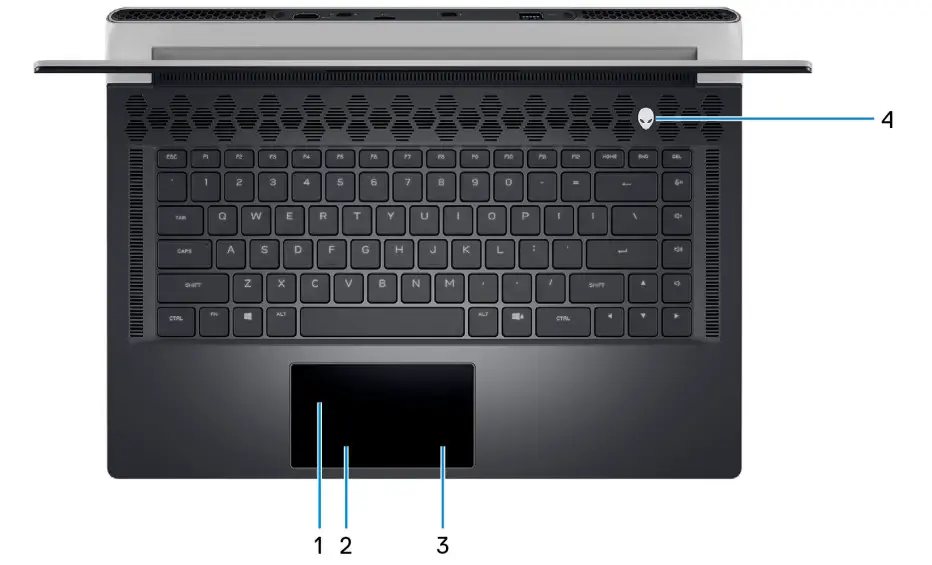
- Touchpad
Move your finger on the touchpad to move the mouse pointer. Tap to left-click and two fingers tap to right-click. - Left-click button
Press to left-click. - Right-click button
Press to right-click. - Power button (Alien head)
Press to turn on the computer if it is turned off, in sleep state, or in hibernate state.
Press to put the computer into sa leep state if it is turned on.
When the computer is turned on, press and hold the power button for four seconds to force shut-down the computer.NOTE: You can customize power-button behavior in Windows. For more information, see Me and My Dell at www.dell.com/support/manuals.NOTE: This computer supports AlienFX, which lets you choose from an array of color and transition effects across multiple zones
on the computer, including the keyboard and power button. For more information, see Alienware Command Center.
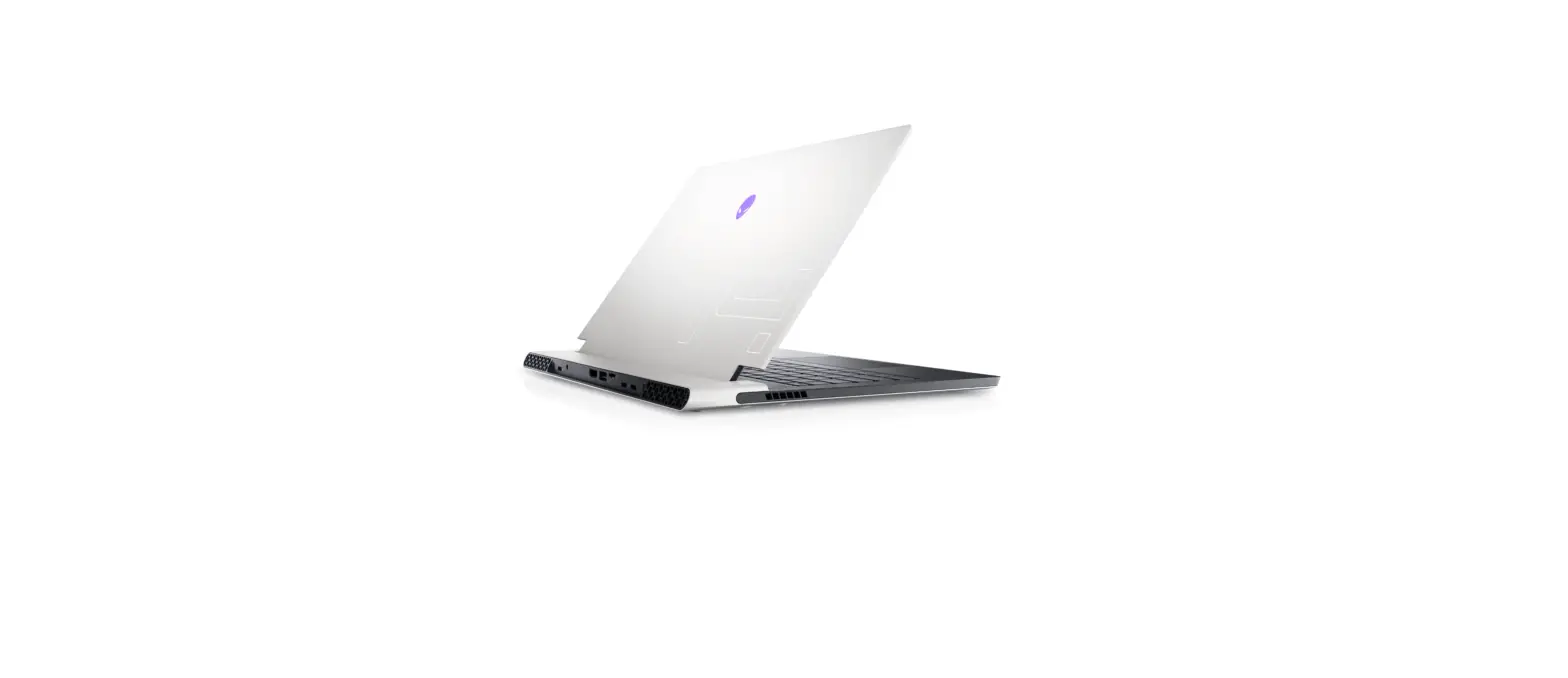
Back
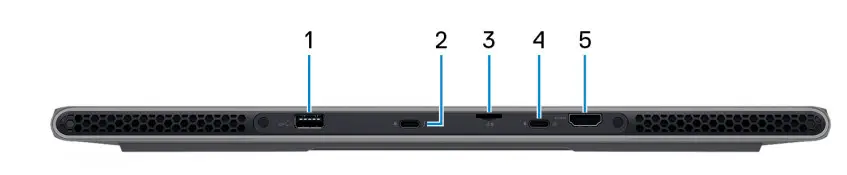
- USB 3.2 Gen 1 port with PowerShare
Connect devices such as external storage devices and printers.
Provides data transfer speeds up to 5 Gbps. PowerShare enables you to charge your USB devices even when your computer is turned off.NOTE: If your computer is turned off or in hibernate state, you must connect the power adapter to charge your devices using the PowerShare port. You must enable this feature in the BIOS setup program.NOTE: Certain USB devices may not charge when the computer is turned off or in a sleep state. In such cases, turn on the computer to charge the device. - Thunderbolt 4.0 port with Power Delivery
Supports USB4, DisplayPort 1.4, and Thunderbolt 4 and also enables you to connect to an external display using a display adapter.
Provides data transfer rates of up to 40 Gbps for USB4 and Thunderbolt 4.NOTE: A USB Type-C to DisplayPort adapter (sold separately) is required to connect a DisplayPort device.NOTE: USB4 is backward compatible with USB 3.2, USB 2.0, and Thunderbolt 3.NOTE: Thunderbolt 4 supports two 4K displays or one 8K display.NOTE: Displays connected through the Thunderbolt port get graphics acceleration only from the integrated graphics and not through your discrete graphics card. For the best gaming performance, connect your display directly through your computer’s HDMI port. - microSD-card slot
Reads from and writes to the MicroSD card. The computer supports the following card types:
● micro Secure Digital (microSD)
● micro Secure Digital High Capacity (microSDHC)
● micro Secure Digital Extended Capacity (microSDXC) - USB 3.2 Gen 2 Type-C port with DisplayPort 1.4 and Power Delivery
Connect devices such as external storage devices, printers, and external displays.
Supports Power Delivery that enables two-way power supply between devices. Provides up to 15 W power output that enables faster charging.NOTE: A USB Type-C to DisplayPort adapter (sold separately) is required to connect a DisplayPort device. - HDMI 2.1 port
Connect to a TV, external display or another HDMI-in-enabled device. Provides video and audio output.
Bottom
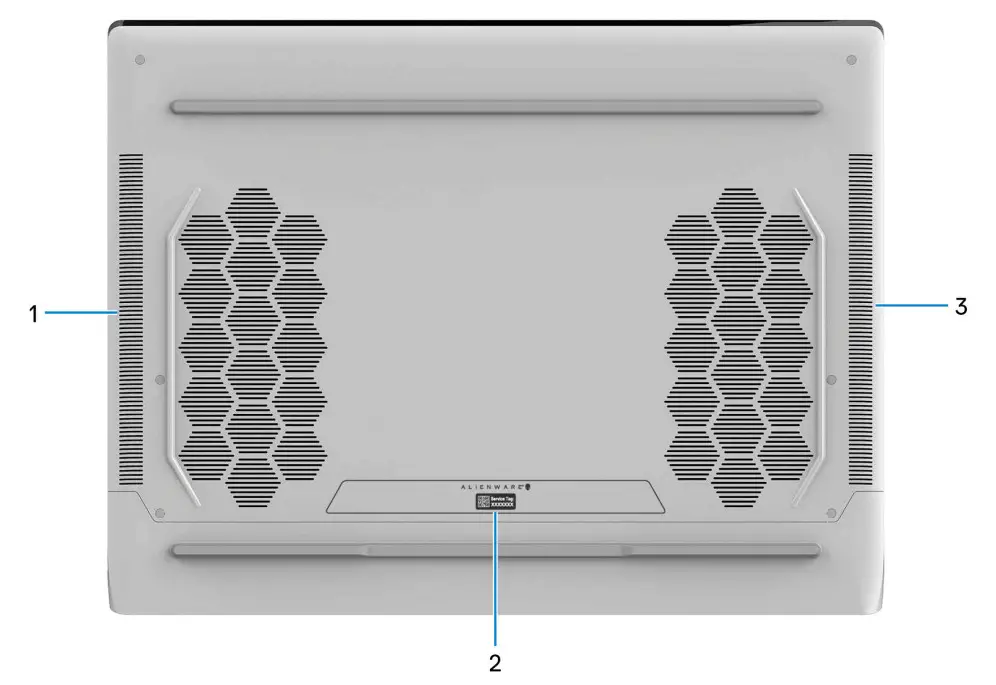
- Left speaker
Provides audio output. - Service Tag label
The Service Tag is a unique alphanumeric identifier that enables Dell service technicians to identify the hardware components in your computer and access warranty information. - Right speaker
Provides audio output.
Specifications of Alienware x15 R2
Dimensions and weight
The following table lists the height, width, depth, and weight of your Alienware x15 R2.
Table 1. Dimensions and weight
| Description I | Values | ||
| Height: | |||
| Front height | 12.50 mm (0.50 in.) | ||
| Rear height | 15.90 mm (0.62 in.) | ||
| Width | 359.70 mm (14.16 in.) | ||
| Depth | 277.33 mm (10.91 in.) | ||
| 0 | Weight NOTE: The weight of your computer depends on the 1 configuration ordered and manufacturing variability. | 2.50 kg (5.51 lb) – maximum | |
Processor
The following table lists the details of the processors supported by your Alienware x15 R2.
Table 2. Processor
| Description | Option one | Option two |
| Processor type | 12th Generation Intel Core i7-12700H | 12th Generation Intel Core i9-12900H |
| Processor wattage | 45 W | 45 W |
| Processor core count | 14 | 14 |
| Processor thread count | 20 | 20 |
| Processor speed | Up to 4.70 GHz | Up to 5 GHz |
| Processor cache | 24 MB | 24 MB |
| Integrated graphics | Intel Iris Xe Graphics | Intel Iris Xe Graphics |
Chipset
The following table lists the details of the chipset supported by your Alienware x15 R2.
Table 3. Chipset
Description | Values |
| Chipset | Integrated in processor |
| Processor | 12th Generation Intel Core i7/i9 |
| Description | Values |
| DRAM bus width | 128-bit |
| Flash EPROM | 32 MB |
| PCIe bus | Up to Gen4 |
Operating system
Your Alienware x15 R2 supports the following operating systems:
- Windows 11 Home, 64-bit
- Windows 11 Pro, 64-bit
Memory
The following table lists the memory specifications of your Alienware x15 R2.
Table 4. Memory specifications
Description | Values |
| Memory slots | Onboard memory |
| Memory type | LPDDR5 |
| Memory speed | 5200 MHz |
| Maximum memory configuration | 32 GB |
| Minimum memory configuration | 16 GB |
| Memory configurations supported | ●16 GB, LPDDR5, 5200 MHz, dual-channel, integrated ● 32 GB, LPDDR5, 5200 MHz, dual-channel, integrated |
External ports
The following table lists the external ports of your Alienware x15 R2.
Table 5. External ports
Description | Values |
| Network port | Not supported |
| USB ports | ● One USB 3.2 Gen 1 port with PowerShare ● One USB Type-C 3.2 Gen 2 port with Power Delivery and DisplayPort ● One Thunderbolt 4 port with Power Delivery and DisplayPort |
| Audio port | Universal audio jack |
| Video port | One HDMI 2.1 port |
| Description | Values |
| Media-card reader | One microSD-card slot |
| Power-adapter port | One 7.40 mm x 5.10 mm DC-in |
| Security-cable slot | Not supported |
Internal slots
The following table lists the internal slots of your Alienware x15 R2.
Table 6. Internal slots
| Description | Values |
| M.2 | Two M.2 2230/2280 slots for a solid-state drive NOTE: To learn more about the features of different types of M.2 cards, see the knowledge base article 000144170 at www.dell.com/support. |
Wireless module
The following table lists the Wireless Local Area Network (WLAN) module supported on your Alienware x15 R2.
Table 7. Wireless module specifications
Description | Values | |
| Model number | Killer AX1675 | |
| Transfer rate | Up to 2400 Mbps | |
| Frequency bands supported | 2.4 GHz/5 GHz/6 GHz | |
| Wireless standards | ● | WiFi 802.11a/b/g |
| ● | Wi-Fi 4 (WiFi 802.11n) | |
| ● | Wi-Fi 5 (WiFi 802.11ac) | |
| ● | Wi-Fi 6 (WiFi 802.11ax) | |
| Encryption | ● | 64-bit/128-bit WEP |
| ● | AES-CCMP | |
| ● | TKIP | |
| Bluetooth | Bluetooth 5.2 | |
Audio
The following table lists the audio specifications of your Alienware x15 R2.
Table 8. Audio specifications
| Description | Values |
| Audio controller | Realtek ALC3281 |
| Description | Values | |
| Stereo conversion | Supported | |
| Internal audio interface | High-definition audio interface | |
| External audio interface | Universal audio jack | |
| Number of speakers | 2 | |
| Internal-speaker amplifier | Not supported | |
| External volume controls | Keyboard shortcut controls | |
| Speaker output: | ||
| Average speaker output | 2 W | |
| Peak speaker output | 2.5 W | |
| Subwoofer output | Not supported | |
| Microphone | Digital-array microphones in the camera assembly | |
Storage
This section lists the storage options on your Alienware x15 R2.
Your Alienware x15 R2 supports one of the following storage configurations:
- One M.2 2230/2280 solid-state drive
- Two M.2 2230/2280 solid-state drives
The primary drive of your Alienware x15 R2 varies with the storage configuration. The primary drive of your computer is the drive where your operating system is installed.
Table 9. Storage specifications
Storage type | Interface type | Capacity |
| M.2 2230 solid-state drive | PCIe Gen3 x4 NVMe, up to 32 Gbps | Up to 256 GB |
| M.2 2230 solid-state drive | PCIe Gen4 x4 NVMe, up to 64 Gbps | Up to 256 GB |
| M.2 2280 solid-state drive | PCIe Gen4 x4 NVMe, up to 64 Gbps | Up to 2 TB |
Media-card reader
The following table lists the media cards supported by your Alienware x15 R2.
Table 10. Media-card reader specifications
| Description | Values |
| Media-card type | One microSD-card slot |
| Media-cards supported | ● Micro Secure Digital (microSD) ● Micro Secure Digital High Capacity (microSDHC) ● Micro Secure Digital Extended Capacity (microSDXC) |
 NOTE: The maximum capacity supported by the media-card reader varies depending on the standard of the media card installed in your computer.
Keyboard
The following table lists the keyboard specifications of your Alienware x15 R2.
Table 11. Keyboard specifications
Description | Values |
| Keyboard type | RGB per-key backlit keyboard |
| Keyboard layout | QWERTY |
| Number of keys | ● the United States and Canada: 85 keys ● United Kingdom: 86 keys ● Japan: 89 keys |
| Keyboard size | X=19.05 mm key pitch Y=19.05 mm key pitch |
| Keyboard shortcuts | Some keys on your keyboard have two symbols on them. These keys can be used to type alternate characters or to perform secondary functions. To type the alternate character, press Shift and the desired key. To perform secondary functions, press Fn and the desired key. NOTE: You can define the primary behavior of the function keys (F1–F12) by changing the Function Key Behavior in the BIOS setup program. For more information, see Keyboard shortcuts. |
Camera
The following table lists the camera specifications of your Alienware x15 R2.
Table 12. Camera specifications
Description | Values | |
| Number of cameras | One | |
| Camera type | HD RGB-Infrared camera | |
| Camera location | Front | |
| Camera sensor type | CMOS sensor technology | |
| Camera resolution: | ||
| Still image | 0.92 megapixel | |
| Video | 1280 x 720 (HD) at 30 fps | |
| Infrared camera resolution: | ||
| Description | Values | |
| Still image | 0.23 megapixel | |
| Video | 640 x 360 at 30 fps | |
| Diagonal viewing angle: | ||
| Camera | 75.80 degrees | |
| Infrared camera | 75.80 degrees | |
Touchpad
The following table lists the touchpad specifications of your Alienware x15 R2.
Table 13. Touchpad specifications
Description | Values | |
| Touchpad resolution: | ||
| Horizontal | 1217 | |
| Vertical | 681 | |
| Touchpad dimensions: | ||
| Horizontal | 105 mm (4.13 in.) | |
| Vertical | 60 mm (2.36 in.) | |
| Touchpad gestures | For more information about touchpad gestures available on Windows, see the Microsoft knowledge base article 4027871 at support.microsoft.com. | |
Camera
The following table lists the camera specifications of your Alienware x15 R2.
Table 12. Camera specifications
Description | Values | |
| Type | 240 W | |
| Connector dimensions: | ||
| External diameter | 7.40 mm (0.30 in.) | |
| Internal diameter | 5.10 mm (0.20 in.) | |
| Input voltage | 100 VAC–240 VAC | |
| Input frequency | 50 Hz–60 Hz | |
| Input current (maximum) | 2.50 A/ 3.50 A/ 5 A | |
| Output current (continuous) | 12.31 A | |
Description | Values | |
| Rated output voltage | 19.50 VDC | |
| Temperature range: | ||
| Operating | 0°C to 40°C (32°F to 104°F) | |
| Storage | -40°C to 70°C (-40°F to 158°F) | |
| CAUTION: Operating and storage temperature ranges may differ among components, so operating or storing the device outside these ranges may impact the performance of specific components. | ||
Battery
The following table lists the battery specifications of your Alienware x15 R2.
Table 15. Battery specifications
Description | Values | |
| Battery type | 6-cell “smart” lithium-ion (87 Wh) | |
| Battery voltage | 11.40 VDC | |
| Battery weight (maximum) | 0.33 kg (0.73 lb) | |
| Battery dimensions: | ||
| Height | 6.35 mm (0.25 in.) | |
| Width | 309.80 mm (12.20 in.) | |
| Depth | 82 mm (3.23 in.) | |
| Temperature range: | ||
| Operating | 0°C to 50°C (32°F to 122°F) | |
| Storage | -20°C to 60°C (-4°F to 140°F) | |
| Battery operating time | Varies depending on operating conditions and can significantly reduce under certain power-intensive conditions. | |
| Battery charging time (approximate) NOTE: Control the charging time, duration, start and end time, and so on using the Dell Power Manager application. For more information on the Dell Power Manager see Me and My Dell on www.dell.com. | From 0% up to 35% in as little as 20 minutes (ExpressCharge Boost) 2hr ( Express charge ), 3hr ( Standard charge) hours (when the computer is off) | |
| Coin-cell battery | Not supported | |
| CAUTION: Operating and storage temperature ranges may differ among components, so operating or storing the device outside these ranges may impact the performance of specific components. CAUTION: Dell recommends that you charge the battery regularly for optimal power consumption. If your battery charge is completely depleted, connect the power adapter, turn on your computer, and then restart your computer to reduce the power consumption. | ||
Display
The following table lists the display specifications of your Alienware x15 R2.
Table 16. Display specifications
Description | Option one | Option two | Option three | |
| Display type | Full High Definition (FHD) | Full High Definition (FHD) | Quad High Definition (QHD) | |
| Display-panel technology | Wide Viewing Angle (WVA) | Wide Viewing Angle (WVA) | Wide Viewing Angle (WVA) | |
| Display-panel dimensions (active area): | ||||
| Height | 193.59 mm (7.62 in.) | 193.59 mm (7.62 in.) | 193.62 mm (7.62 in.) | |
| Width | 344.16 mm (13.55 in.) | 344.16 mm (13.55 in.) | 344.21 mm (13.55 in.) | |
| Diagonal | 394.87 mm (15.55 in.) | 394.87 mm (15.55 in.) | 394.93 mm (15.55 in.) | |
| Display-panel native resolution | 1920 x 1080 | 1920 x 1080 | 2560 x 1440 | |
| Luminance (typical) | 300 nits | 300 nits | 400 nits | |
| Megapixels | 2.07 | 2.07 | 3.69 | |
| Color gamut | sRGB 100% | sRGB 100% | DCI P3 99% | |
| Pixels Per Inch (PPI) | 141 | 141 | 188.30 | |
| Contrast ratio (typ) | 1000:1 | 1000:1 | 1000:1 | |
| Response time (max) | 19 ms | 10 ms | 19 ms | |
| Refresh rate | 165 Hz | 360 Hz | 240 Hz | |
| Horizontal view angle | +/- 85 degrees | +/- 85 degrees | +/- 85 degrees | |
| Vertical view angle | +/- 85 degrees | +/- 85 degrees | +/- 85 degrees | |
| Pixel pitch | 0.18 mm | 0.18 mm | 0.13 mm | |
| Power consumption (maximum) | 6 W | 7.60 W | 8.55 W | |
| Anti-glare vs glossy finish | Anti-glare | Anti-glare | Anti-glare | |
| Touch options | No | No | No | |
| Adaptive sync support | None. G-SYNC, Advanced Optimus | G-SYNC, Advanced Optimus | G-SYNC, Advanced Optimus | |
GPU—Integrated
The following table lists the specifications of the integrated Graphics Processing Unit (GPU) supported by your Alienware x15 R2.
Table 17. GPU—Integrated
| Controller | Memory size | Processor |
| Intel Iris Xe Graphics | Shared system memory | 12th Generation Intel Core i7/i9 |
GPU—Discrete
The following table lists the specifications of the discrete Graphics Processing Unit (GPU) supported by your Alienware x15 R2.
Table 18. GPU—Discrete
| Controller | Memory size | Memory type |
| NVIDIA GeForce RTX 3060 | 6 GB | GDDR6 |
| NVIDIA GeForce RTX 3070Ti | 8 GB | GDDR6 |
| NVIDIA GeForce RTX 3080Ti | 16 GB | GDDR6 |
Operating and storage environment
This table lists the operating and storage specifications of your Alienware x15 R2.
Airborne contaminant level: G1 as defined by ISA-S71.04-1985
Table 19. Computer environment
Description | Operating | Storage |
| Temperature range | 0°C to 35°C (32°F to 95°F) | -40°C to 65°C (-40°F to 149°F) |
| Relative humidity (maximum) | 10% to 90% (non-condensing) | 0% to 95% (non-condensing) |
| Vibration (maximum)* | 0.66 GRMS | 1.30 GRMS |
| Shock (maximum) | 140 G† | 160 G† |
| Altitude range | 0 m to 3048 m (0 ft to 10000 ft) | 0 m to 10668 m (0 ft to 35000 ft) |
| CAUTION: Operating and storage temperature ranges may differ among components, so operating or storing the device outside these ranges may impact the performance of specific components. | ||
* Measured using a random vibration spectrum that simulates user environment.
† Measured using a 2 ms half-sine pulse.
Keyboard shortcuts of Alienware x15 R2
NOTE: Keyboard characters may differ depending on the keyboard language configuration. Keys that are used for shortcuts remain the same across all language configurations.
Some keys on your keyboard have two symbols on them. These keys can be used to type alternate characters or to perform secondary functions. The symbol shown on the lower part of the key refers to the character that is typed out when the key is pressed. If you press shift and the key, the symbol shown on the upper part of the key is typed out. For example, if you press 2, 2 is typed out; if you press Shift + 2, @ is typed out.
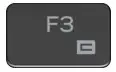
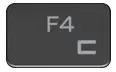
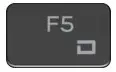
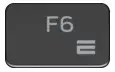
The keys F1-F12 at the top row of the keyboard are function keys for multi-media control, as indicated by the icon at the bottom of the key. Press the function key to invoke the task represented by the icon. For example, pressing F1 mutes the audio (refer to the table below).
However, if the function keys F1-F12 are needed for specific software applications, multi-media functionality can be disabled by pressing fn + Esc. Subsequently, multi-media control can be invoked by pressing fn and the respective function key. For example, mute audio by pressing fn + F1.NOTE: You can also define the primary behavior of the function keys (F1–F12) by changing the Function Key Behavior in the BIOS setup program.
Table 20. List of keyboard shortcuts
Keys | Description |
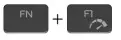 | Disable/enable Full Speed Mode |
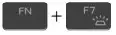 | Adjust the keyboard backlight brightness |
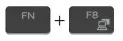 | Switch to an external display |
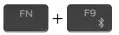 | Disable/enable Bluetooth |
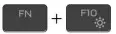 | Decrease display brightness |
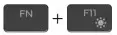 | Increase display brightness |
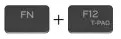 | Disable/enable the touchpad |
| Keys | Description |
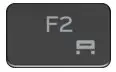 | Macro keys NOTE: You can configure modes and assign multiple tasks for the macro keys on the keyboard. |
 | |
 | |
 | |
 |
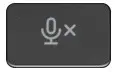
Your computer comes with dedicated keys that enable you to control the audio features of the computer with a single key press.
Table 22. List of keys to control audio features
Keys | Description |
 | Mute microphone |
 | Mute speakers |
 | Increase volume |
 | Decrease volume |
Low blue light
WARNING: Prolonged exposure to blue light from the display may lead to long-term effects such as eye strain, eye fatigue, or damage to the eyes.
Blue light is a color in the light spectrum which has a short wavelength and high energy. Chronic exposure to blue light, particularly from digital sources, may disrupt sleep patterns and cause long-term effects such as eye strain, eye fatigue, or damage to the eyes.
The display on this computer is designed to minimize blue light and complies with TÜV Rheinland’s requirement for low blue light displays.
Low blue light mode is enabled at the factory, so no further configuration is necessary. To reduce the risk of eye strain, it is also recommended that you:
- Position the display at a comfortable viewing distance between 20 and 28 inches (50 and 70 cm) from your eyes.
- Blink frequently to moisten your eyes, wet your eyes with water, or apply suitable eye drops.
- Look away from your display, and gaze at a distant object at 20 ft (609.60 cm) away for at least 20 seconds during each break.
- Take an extended break for 20 minutes every two hours.
Alienware Command Center
Alienware Command Center (AWCC) provides a single interface to customize and enhance the gaming experience. The AWCC dashboard displays most recently played or added games and provides game-specific information, themes, profiles, and access to computer settings. You can quickly access settings such as game-specific profiles and themes, lighting, macros, and audio that are critical to the gaming experience.
AWCC also supports AlienFX 2.0. AlienFX enables you to create, assign, and share game-specific lighting maps to enhance the gaming experience. It also enables you to create your own individual lighting effects and apply them to the computer or attached peripherals. AWCC embeds Peripheral Controls to ensure a unified experience and the ability to link these settings to your computer r game.
This computer features the following AlienFX Lighting Zones:
Programmable with up to 16.8 million distinct colors.
NOTE: Information about the location of AlienFX Lighting Zones on your computer is available in AWCC.
AWCC supports the following features:
- FX: Create and manage the AlienFX zones.
- Fusion: Includes the ability to adjust game-specific Power Management, Sound Management, and Thermal Management features.
- Peripheral Management: Enables peripherals to appear in and be managed in Alienware Command Center. Supports key peripheral settings and associates with other functions such as profiles, macros, AlienFX, and game library.
AWCC also supports Sound Management, Thermal Controls, CPU, GPU, and Memory (RAM) monitoring. For more information about
AWCC, see the Alienware Command Center Online Help or the knowledge base article 000179513 at www.dell.com/support.
Getting help and contacting Alienware
Self-help resources
You can get information and help on Alienware products and services using these online self-help resources:
Table 23. Alienware products and online self-help resources
Self-help resources | Resource location |
| Information about Alienware products and services | www.alienware.com |
| My Dell app |  |
| Tips |  |
| Contact Support | In Windows search, type Contact Support, and press Enter. |
| Online help for operating system | www.dell.com/support/windows |
| Access top solutions, diagnostics, drivers ,and downloads, and learn more about your computer through videos, manuals, and documents. | Your Alienware computer is uniquely identified by a Service Tag or Express Service Code. To view relevant support resources for your Dell computer, enter the Service Tag or Express Service Code at www.dell.com/support. For more information on how to find the Service Tag for your computer, see Locate the Service Tag on your computer. |
| VR Support | www.dell.com/VRsupport |
| Videos providing step-by-step instructions to service your computer | www.youtube.com/alienwareservices |
Contacting Alienware
To contact Alienware for sales, technical support, or customer service issues, see www.alienware.com.NOTE: Availability varies by country/region and product, and some services may not be available in your country/region.NOTE: If you do not have an active Internet connection, you can find contact information about your purchase invoice, packing slip, bill, or Dell product catalog.