
START HERE
Set up
Instructions For Use
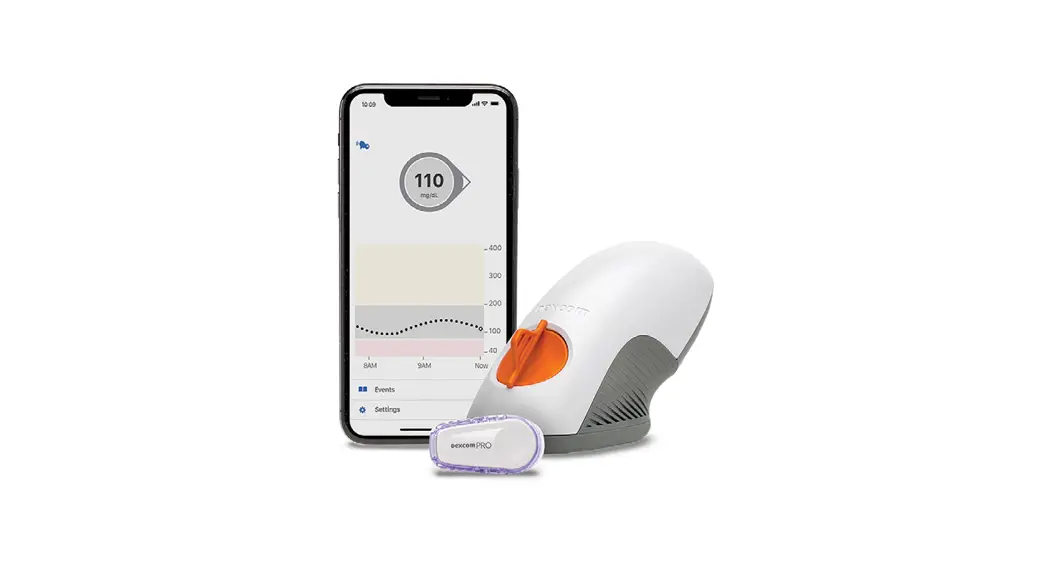
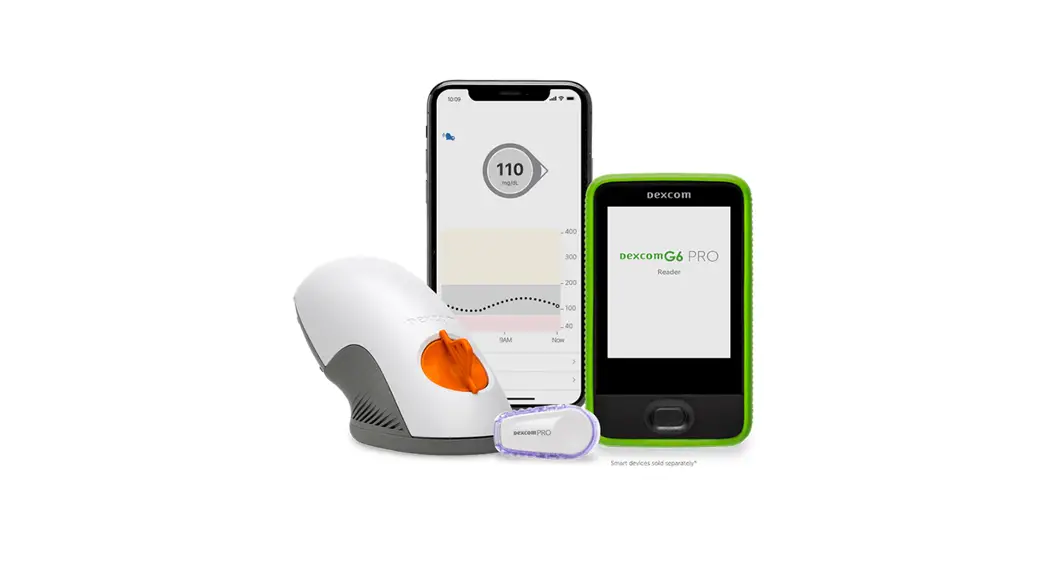
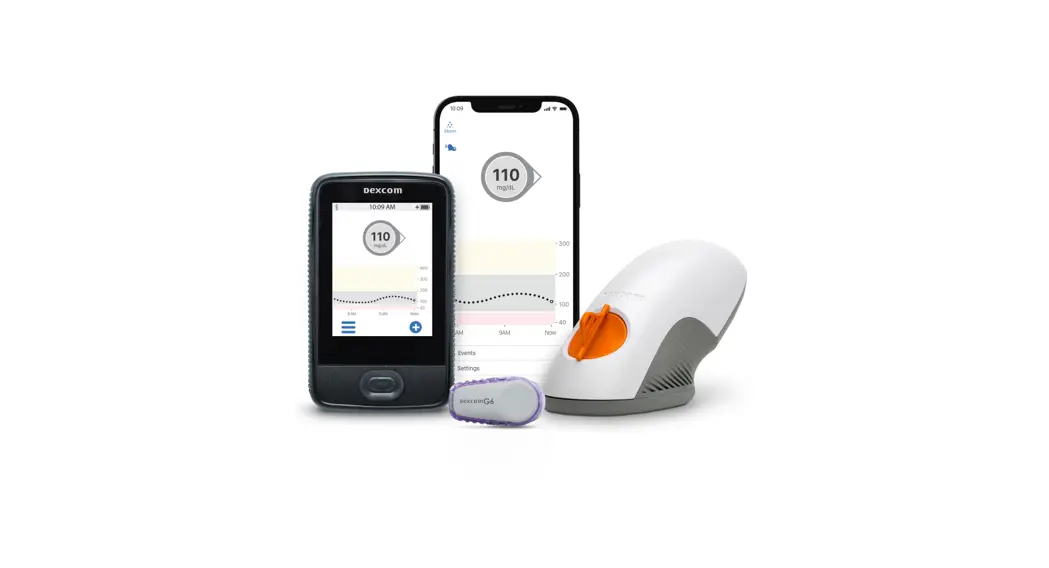
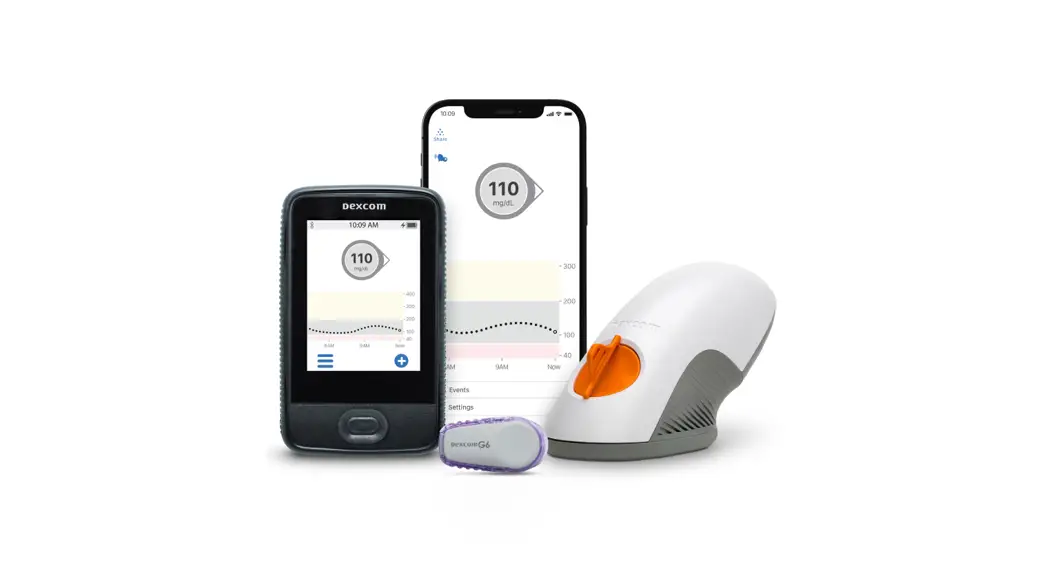
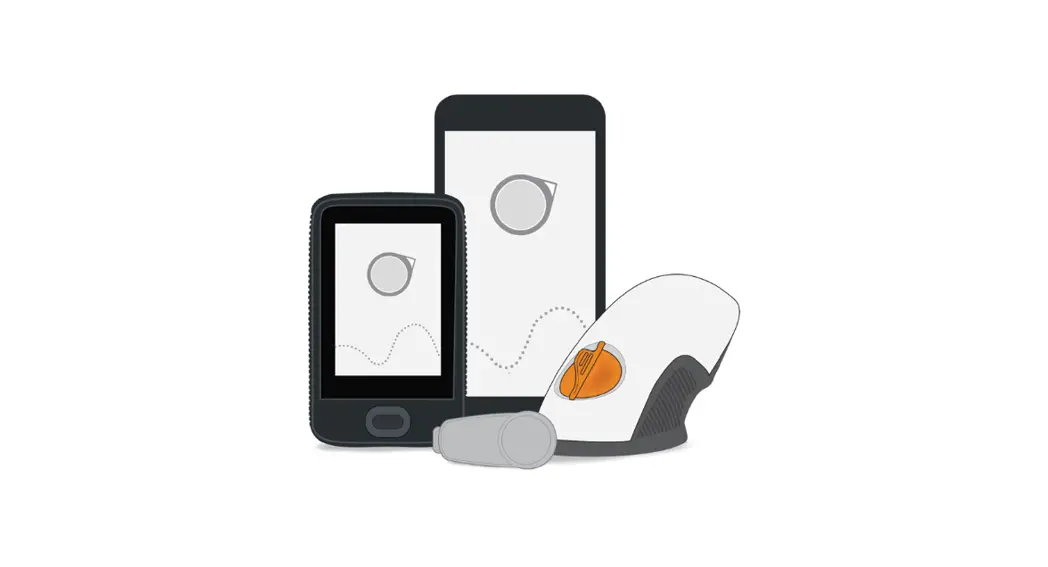
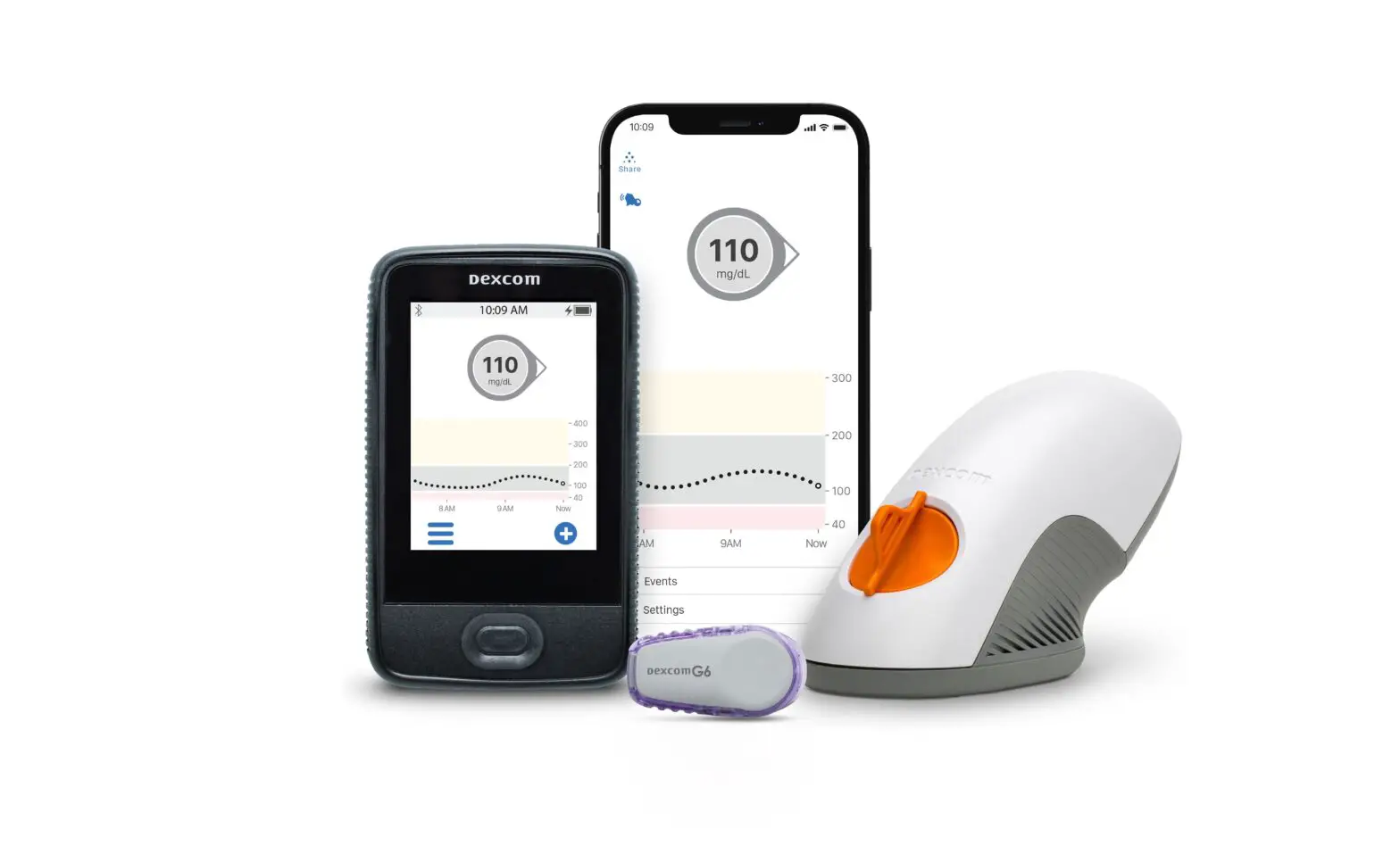
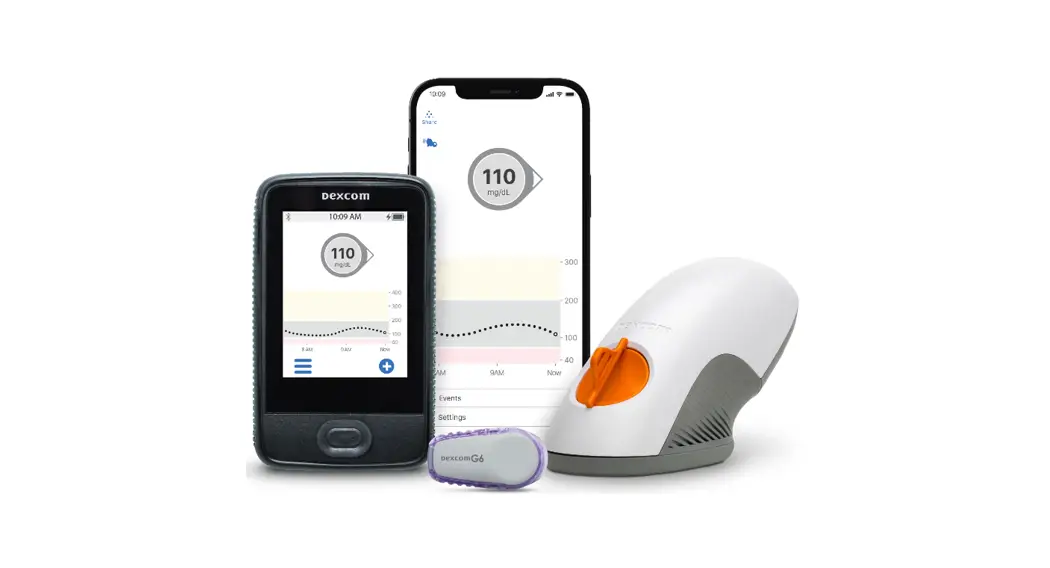
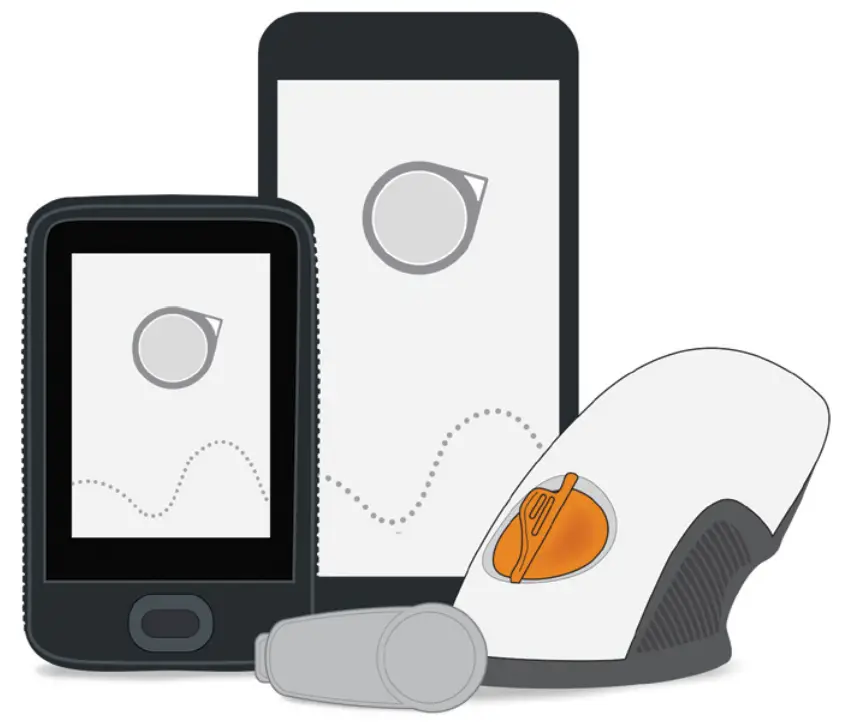
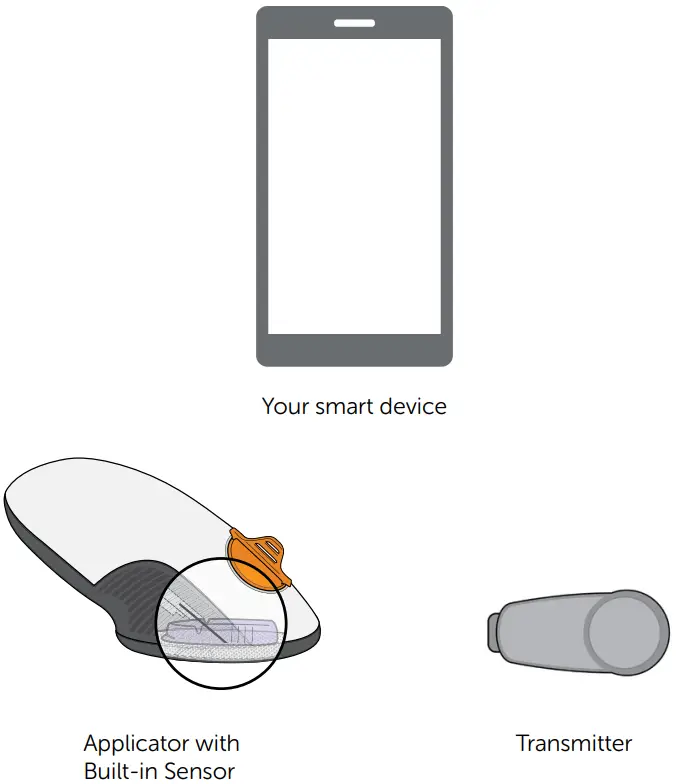
Dexcom G6 CGM (G6) Overview
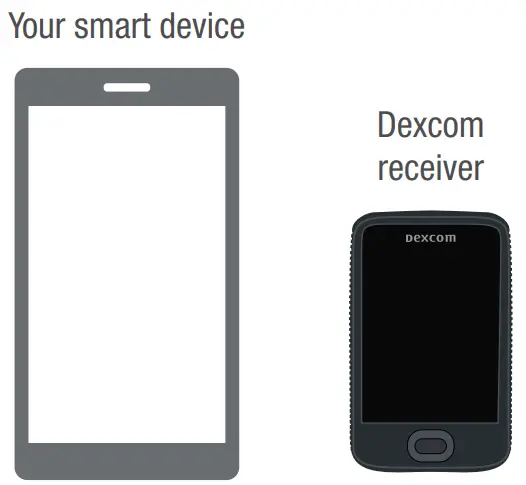
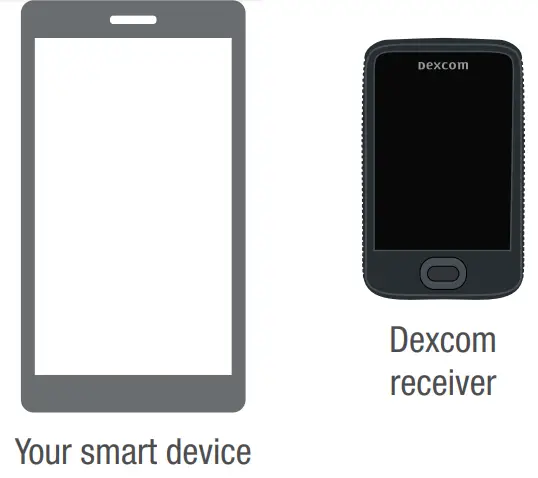
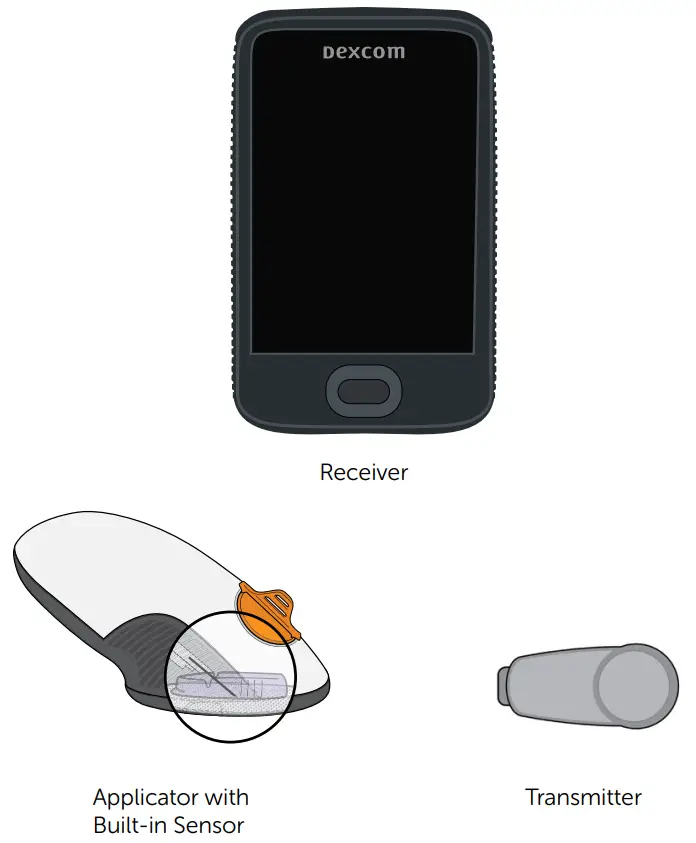
Display Device
- Shows glucose information
- Set up your smart device, Dexcom receiver, or both
- For a list of current compatible smart devices and operating systems go to: dexcom.com/compatibility
- The G6 app and receiver are compatible with all G6 systems
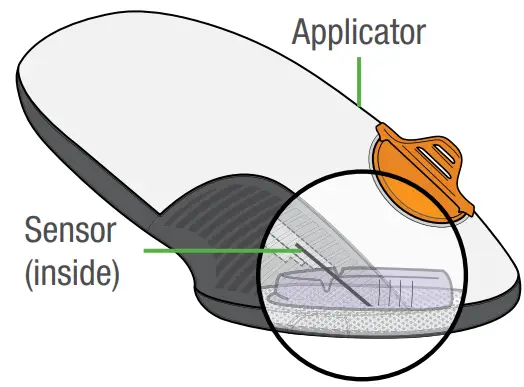
Applicator With Built-in Sensor
- Sensor applicator inserts sensor under your skin
- Sensor gets glucose information
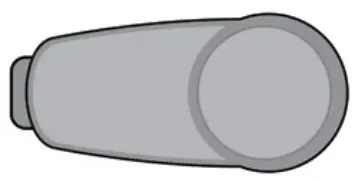
Transmitter
- Sends glucose information from sensor to display device
All graphics are representational. Your product may look different.
Review the Safety Statement in Using Your G6, Chapter 2 before using your G6.
What It Does
The G6 sends G6 sensor glucose readings (G6 readings) to your display device.
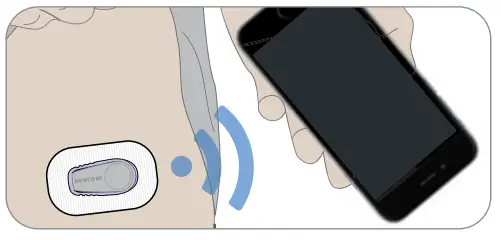
Choose App, Receiver, or Both
The receiver is a dedicated medical device. Your smart device is not, even though you can run the G6 app on it. Your smart device is not a dedicated medical device because the app could miss an alarm/alert just because it is on a smart device—for example, due to smart device settings, smart device or app shutting off, low battery, etc.
Use tabs below to set up the app, receiver, or both
Want to set up both? Pick one to set up first and turn to that tab. The last step shows you how to set up the second display device. Do not use both tabs.
 For other ways to learn how to set up your G6:
- Watch the tutorial at: dexcom.com/downloadsandguides
- Contact your local Dexcom representative for support
Set Up App
Step 1: Set Up App
A Download and open the Dexcom G6 app

B Follow onscreen setup instructions
1 When prompted:
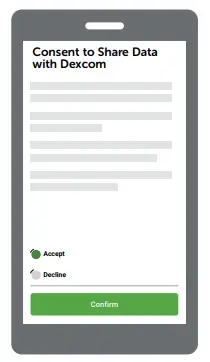
- Send your data to the cloud.
This lets you use: - Share: Send your G6 data to followers.
- CLARITY: Reflect on data with doctors; see patterns (may not available in all regions).
- Enter your Sensor code (from the sensor applicator you will insert).
- No sensor code?
See Using Your G6, Appendix A Troubleshooting.
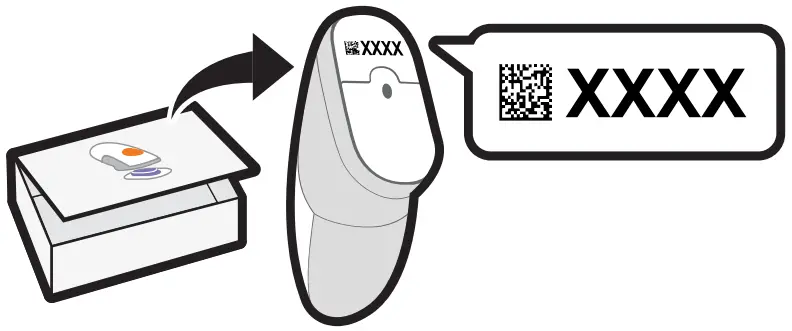
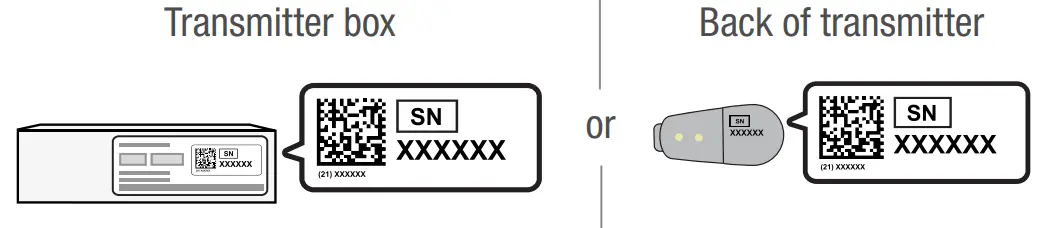
• Enter your Serial Number (SN) from:
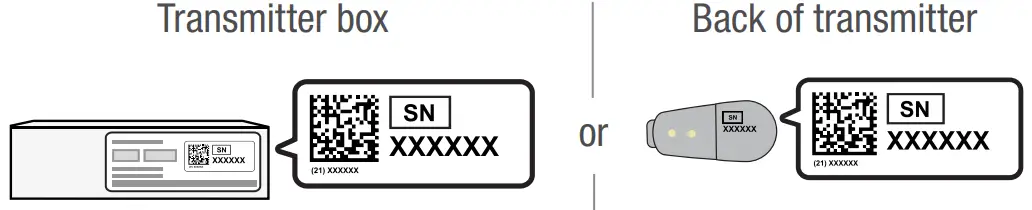
After you enter your SN, your G6 searches for the transmitter. While it is searching, you will not get G6 readings or alarm/alerts.]
2 See the blue sensor warmup timer?
That means your sensor is getting used to your body.
During warmup:
- No G6 readings or alarm/alerts
- Always keep smart device within 6 meters of transmitter
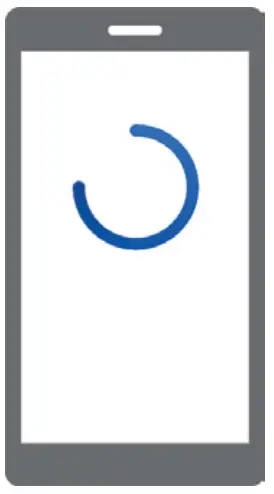
C Wait 2 hours
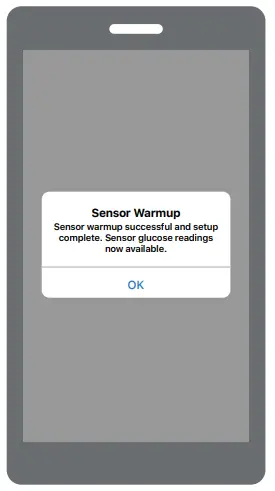
- When sensor warm-up is complete, tap OK to see the home screen
- Now you get G6 readings and alarm/alerts
Step 2: See Using Your G6
Learn how to:
- Read your home screen
- Use alarm and alerts
- Make treatment decisions
- Troubleshoot issues
Step 3: Optional – Set up Receiver
Turn on the receiver by pressing the power button down for 2-3 seconds. Then follow onscreen instructions.
Do not use the Set Up Receiver tab. Those steps are for setting up the receiver before setting up the app.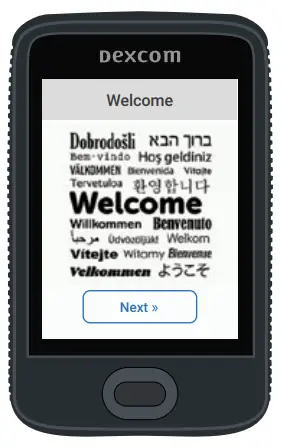
Set Up Receiver
Step 1: Set Up Receiver
A Take receiver out of box
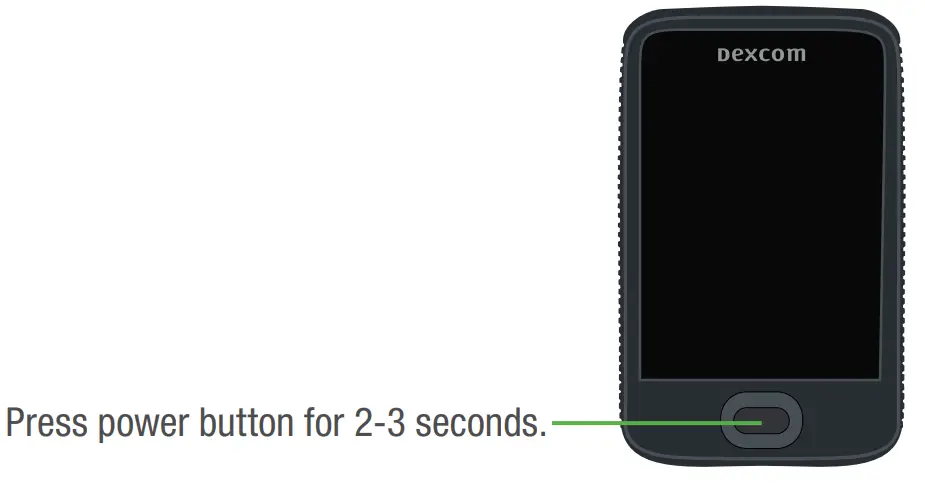
B Turn on receiver
C Follow onscreen instructions
1 When prompted, enter your:
- Sensor code from the sensor applicator you will insert
- No sensor code?
See Using Your G6, Appendix A Troubleshooting
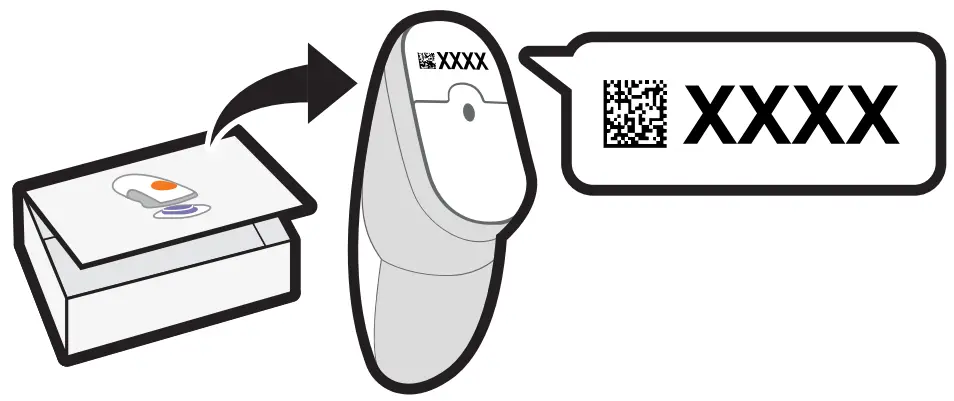
After you enter your SN, your G6 searches for the transmitter. While it is searching, you will not get G6 readings or alarm/alerts.
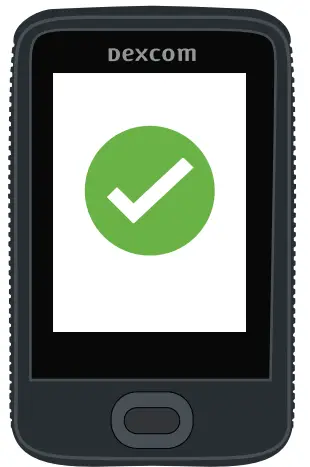
2 You are done with this step when you see this screen:
2 You are done with this step when you see this screen: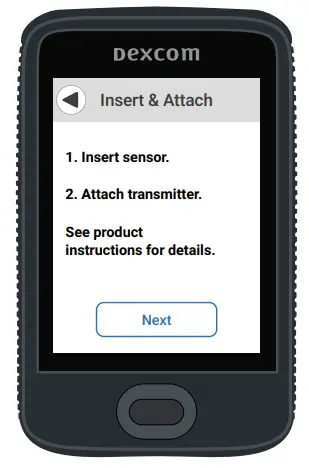
Step 2: Use Applicator to Insert Built-in Sensor
A Take applicator with built-in sensor out of sensor box
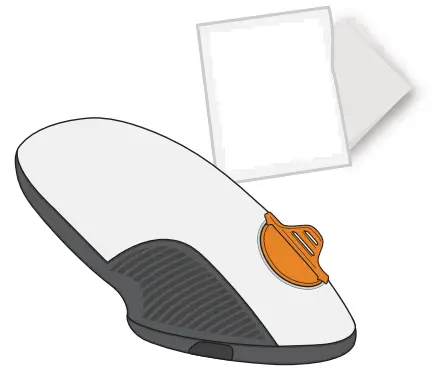
Gather materials: applicator (with code you just entered), transmitter, and wipes.
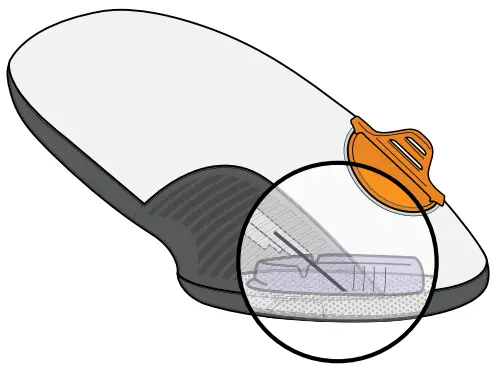
B Pick sensor site
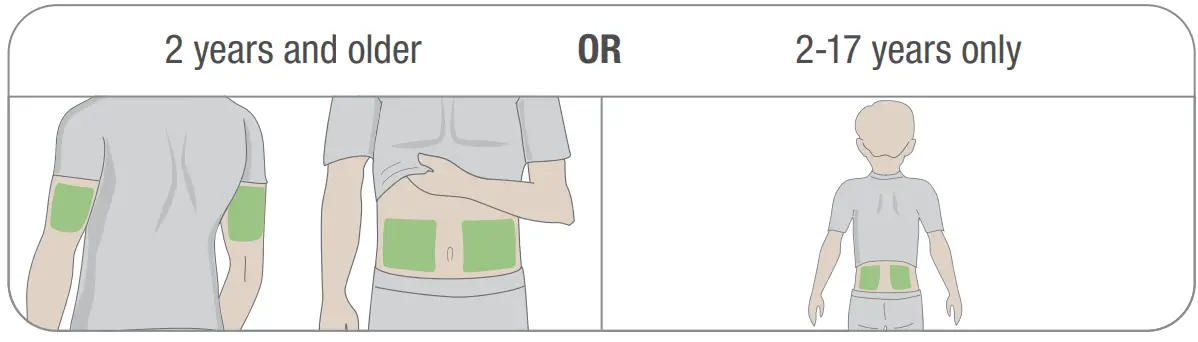
Avoid bones, irritated skin, tattoos, and areas that get bumped.
C Use applicator to insert built-in sensor
- Get sensor applicator and an alcohol wipe.

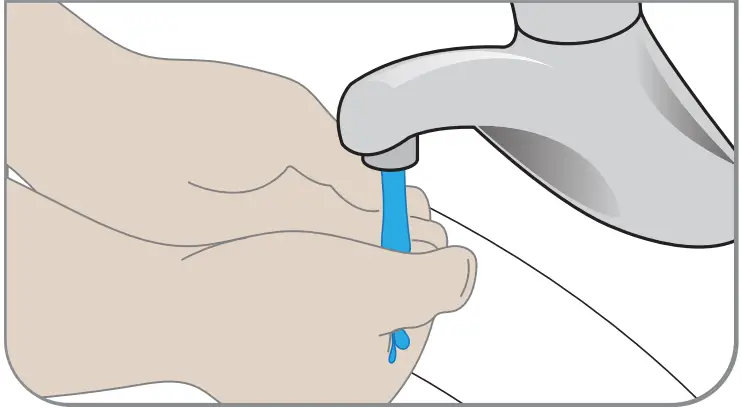
- Wash and dry hands.

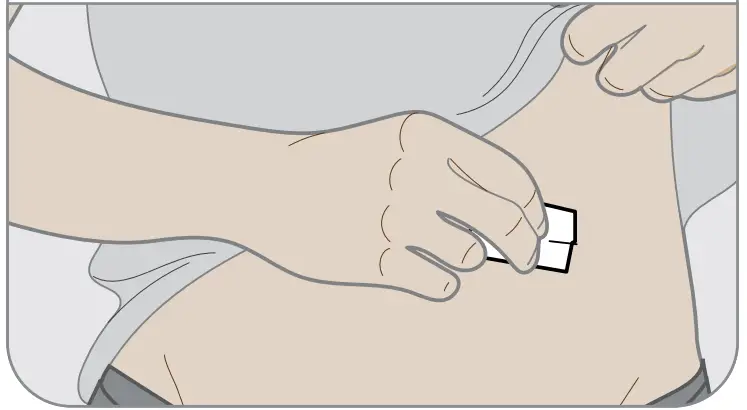
- Clean sensor site with alcohol wipe.

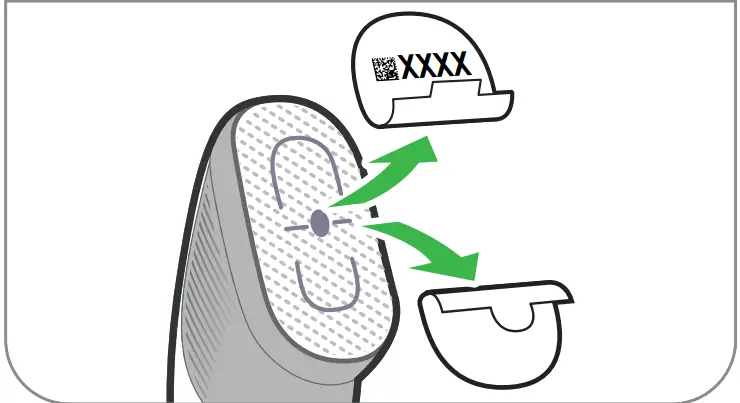
- Peel off adhesive backings.
Do not touch adhesive.
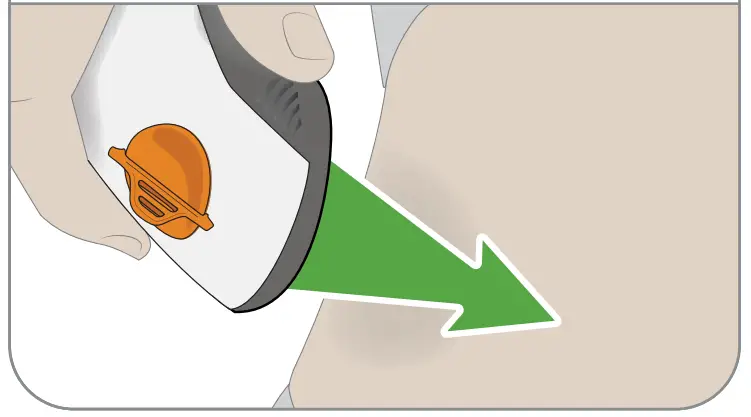
- Place applicator on skin.

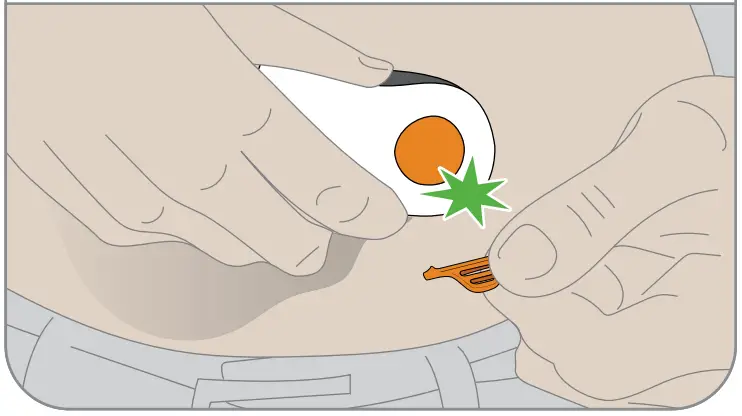
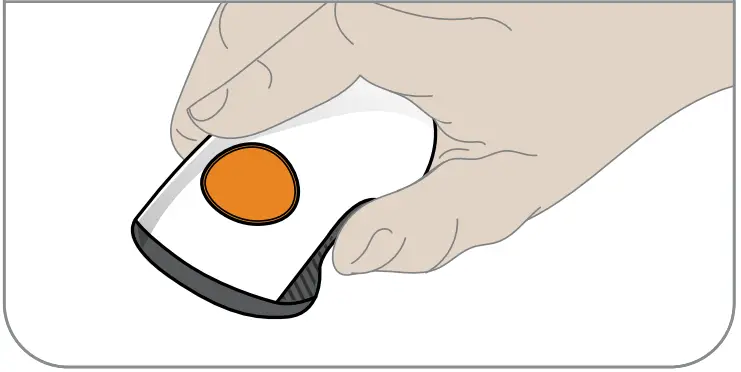
- Fold and break off safety guard.

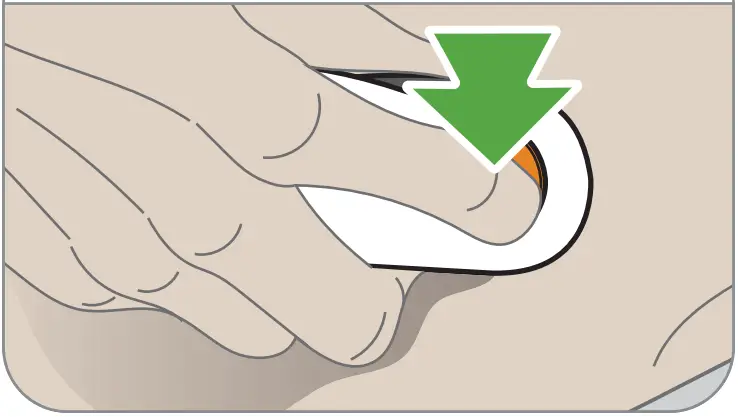
- Press button to insert sensor.

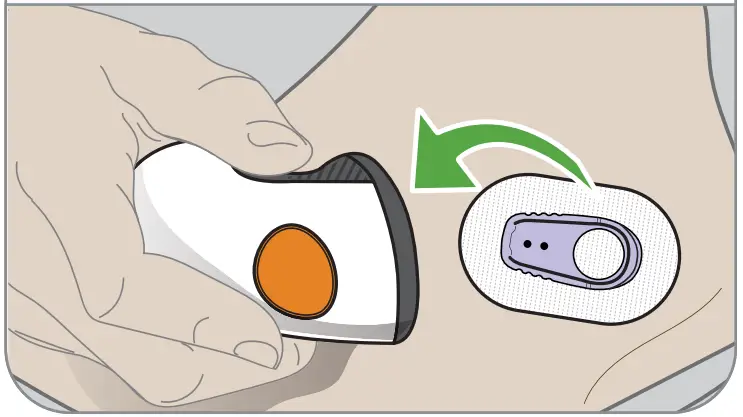
- Remove applicator from skin leaving patch and holder on.

- Discard applicator.
Follow local guidelines for blood-contacting components.
Step 3: Attach Transmitter
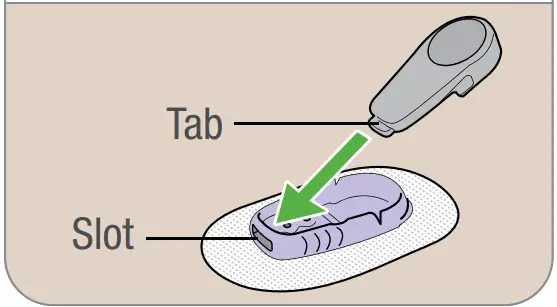
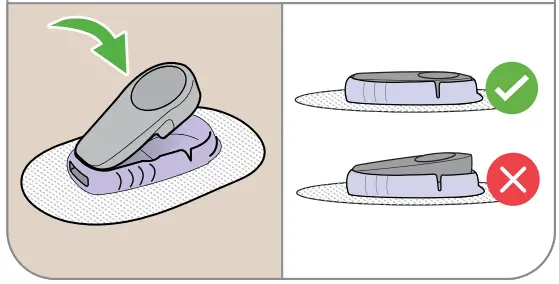
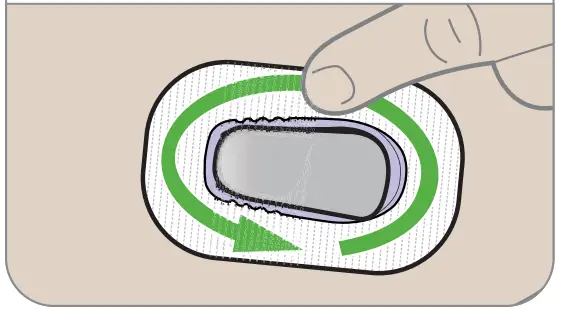
A Take transmitter out of box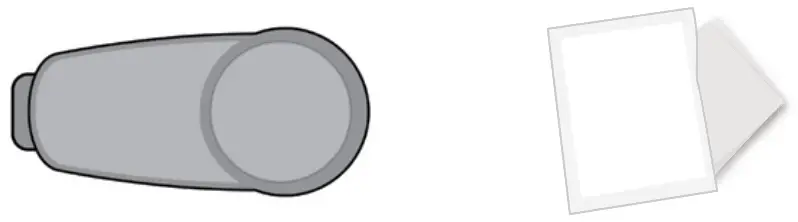 B Snap in transmitter
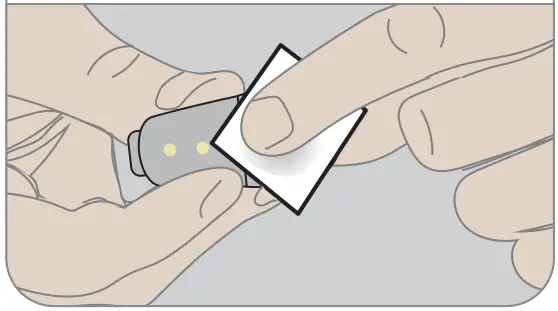
- Clean transmitter with alcohol wipe.

- Insert transmitter, tab first, into holder.

- Snap in transmitter. It clicks into place. Make sure it is flat and snug in holder.

- Rub around patch 3 times.

Step 4: Start Sensor on Receiver
A Wait up to 30 minutes for pairing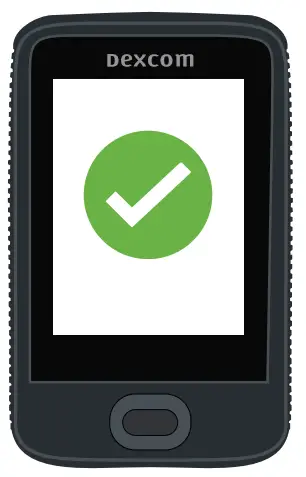 During pairing:
- No G6 readings or alarm/alerts
- Always keep receiver within 6 meters of transmitter
B Tap Start Sensor to begin 2-hour warmup
During warmup you will not get
G6 readings or alarm/alerts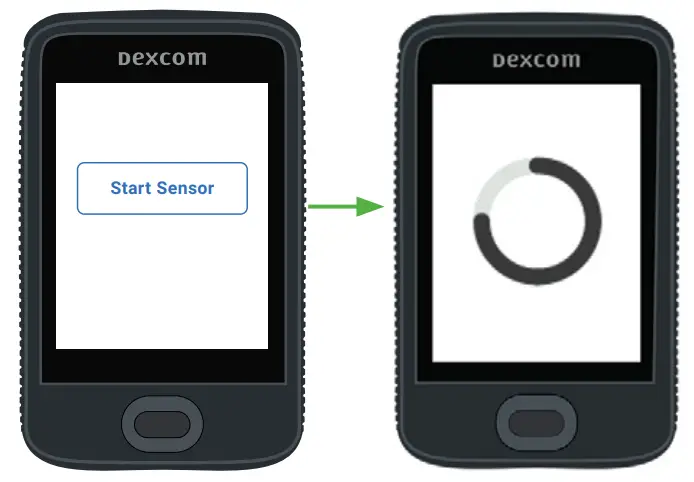
Wait
- When complete, tap Next to go to home screen
- Now you get G6 readings and alarm/alerts
Step 5: See Using Your G6
Learn how to:
- Read your home screen
- Use alarm and alerts
- Make treatment decisions
- Troubleshoot issues
Step 6: Optional – Set up App
Download the app onto your smart device and open it.
Then follow onscreen instructions.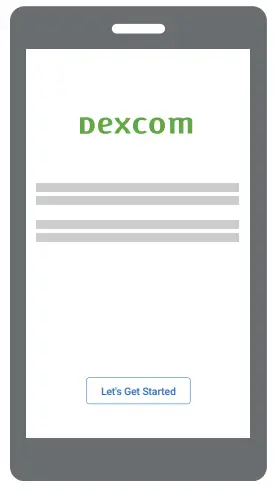 Do not use the Set Up App tab. Those steps are for setting up the app before setting up the receiver.
© 2019 Dexcom, Inc. All rights reserved.
Covered by patents dexcom.com/patents.
Dexcom, Dexcom Share, Dexcom Care, Dexcom Clarity, and Share are registered
trademarks of Dexcom, Inc. in the United States and may be in other countries.
Dexcom, Inc.
6340 Sequence Drive
San Diego, CA 92121 USA
+1.858.200.0200
dexcom.com
Outside US: Contact your local
Dexcom representative
MDSS GmbH
Schiffgraben 41
30175 Hannover, Germany LBL015882 Rev 004 MT25143
Rev Date: 2019/10
 International | Dexcom