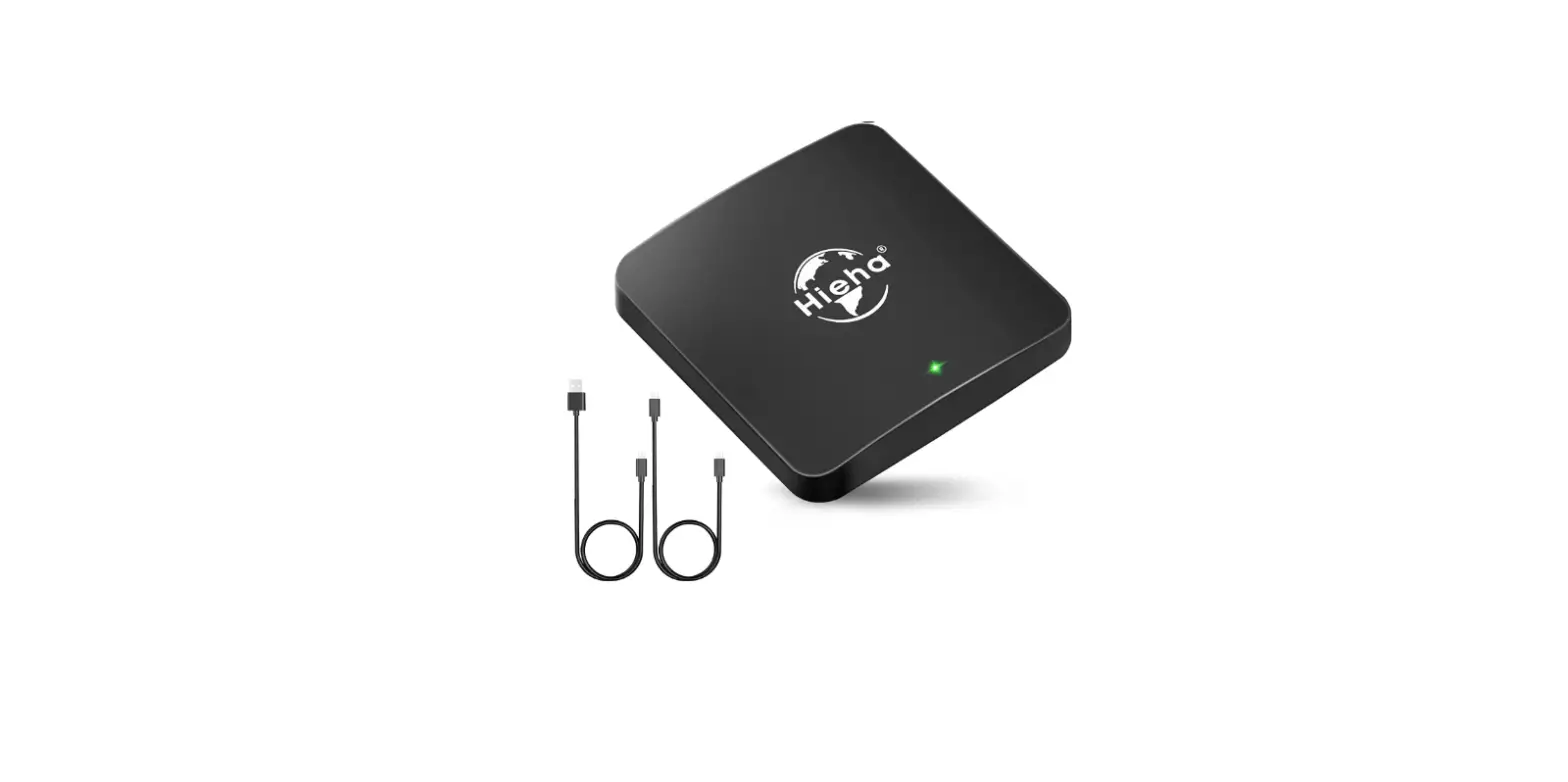
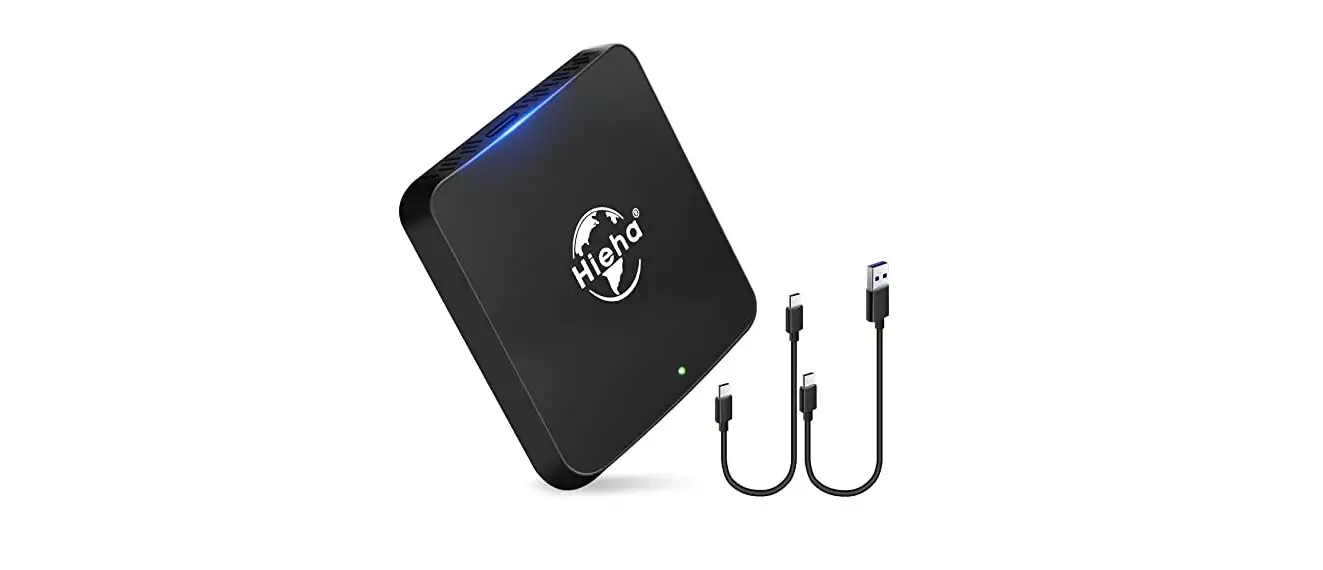
CarPlay Decoder
Product Information
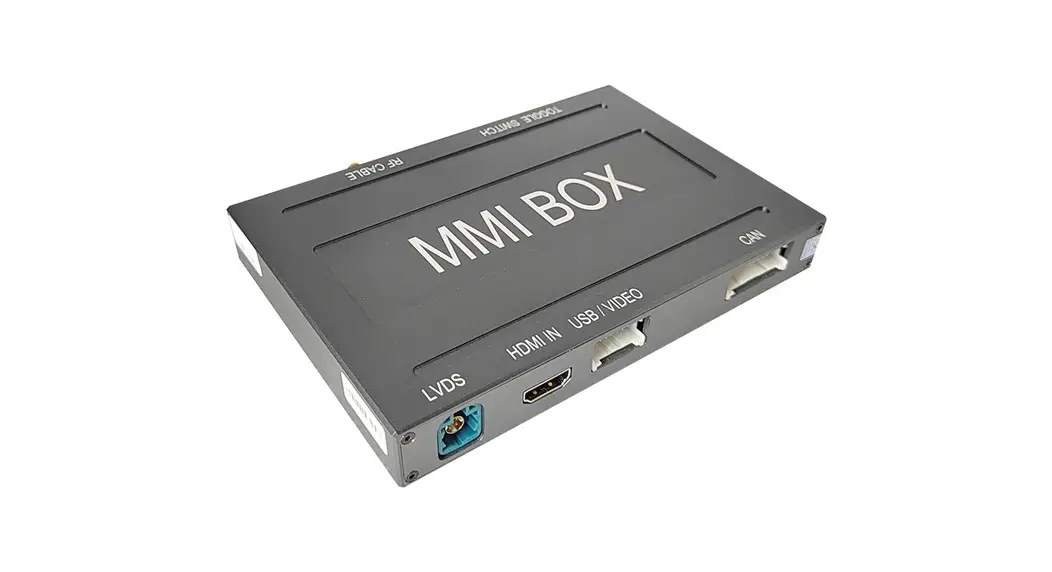
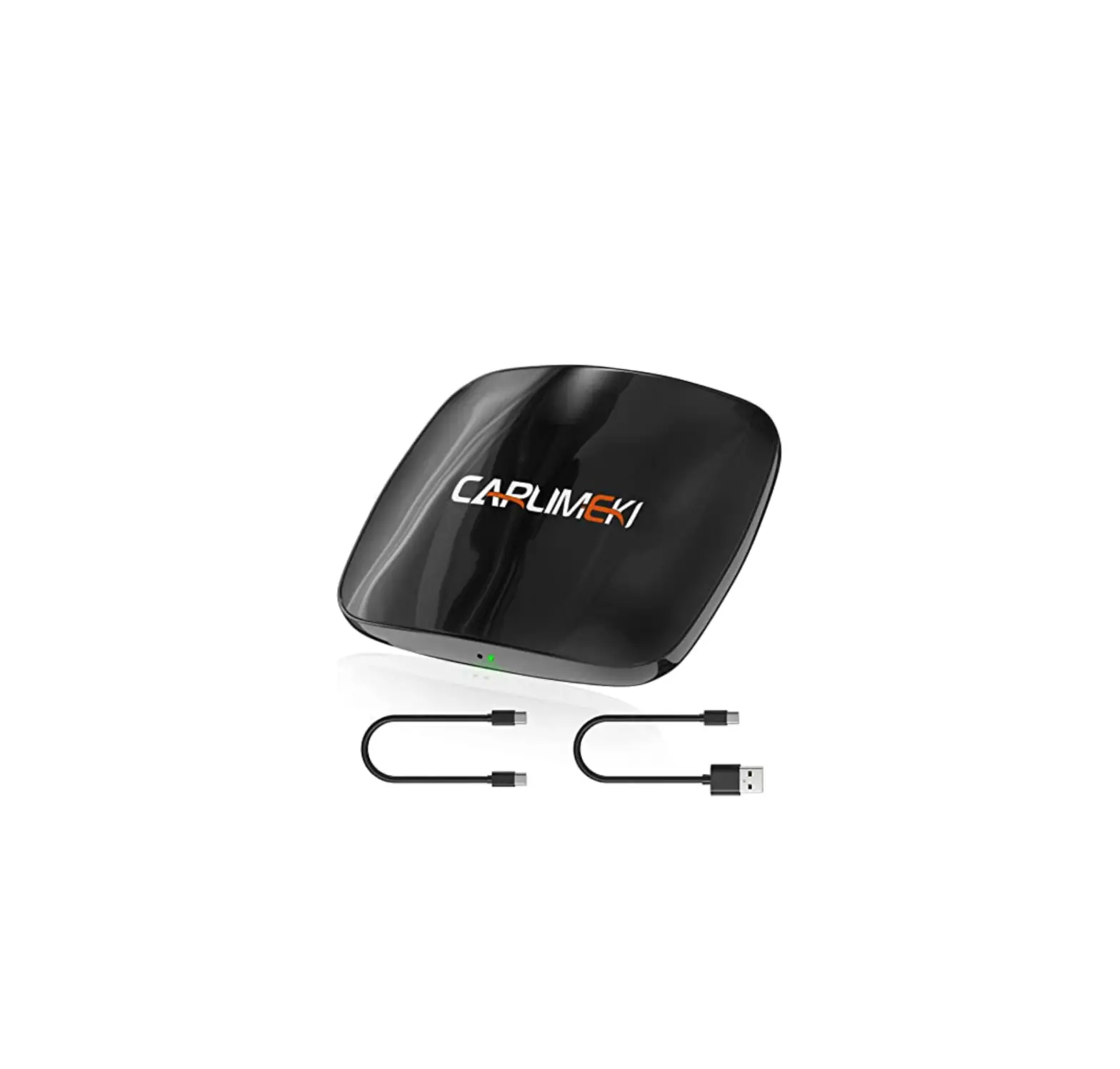
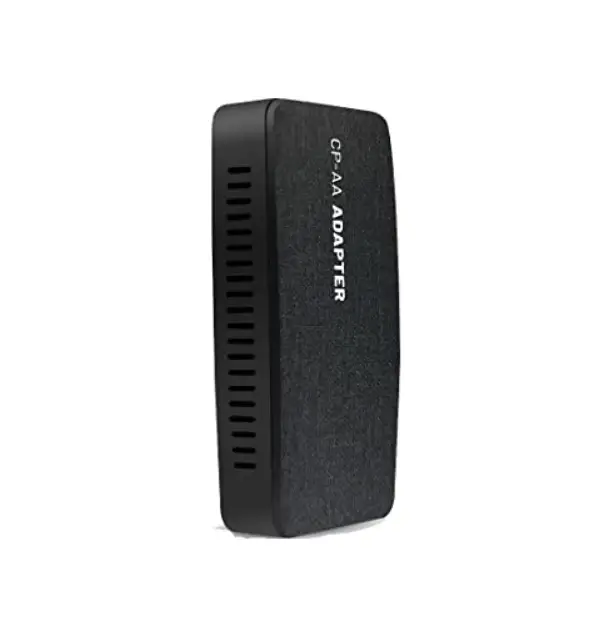
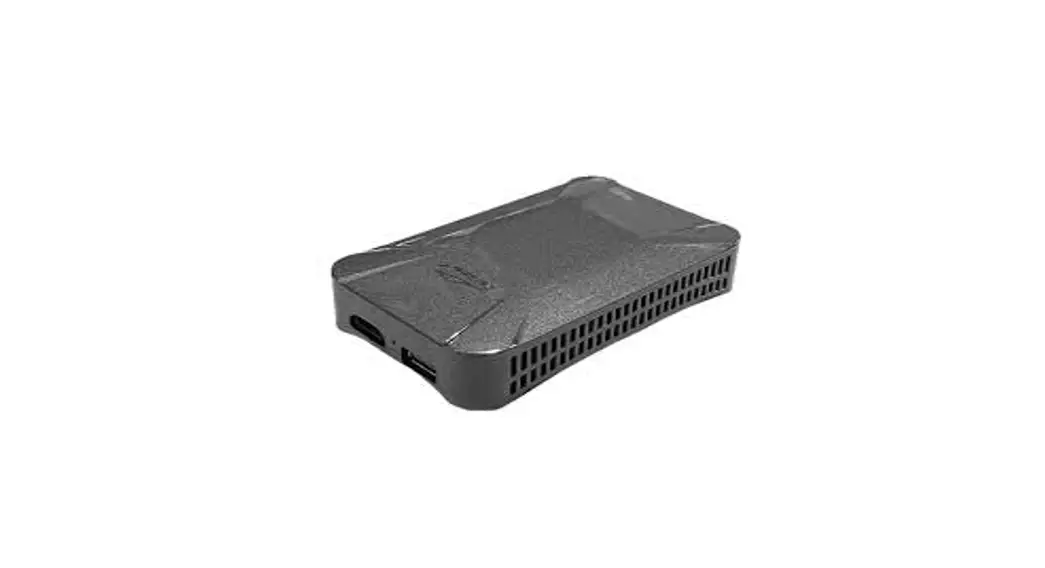
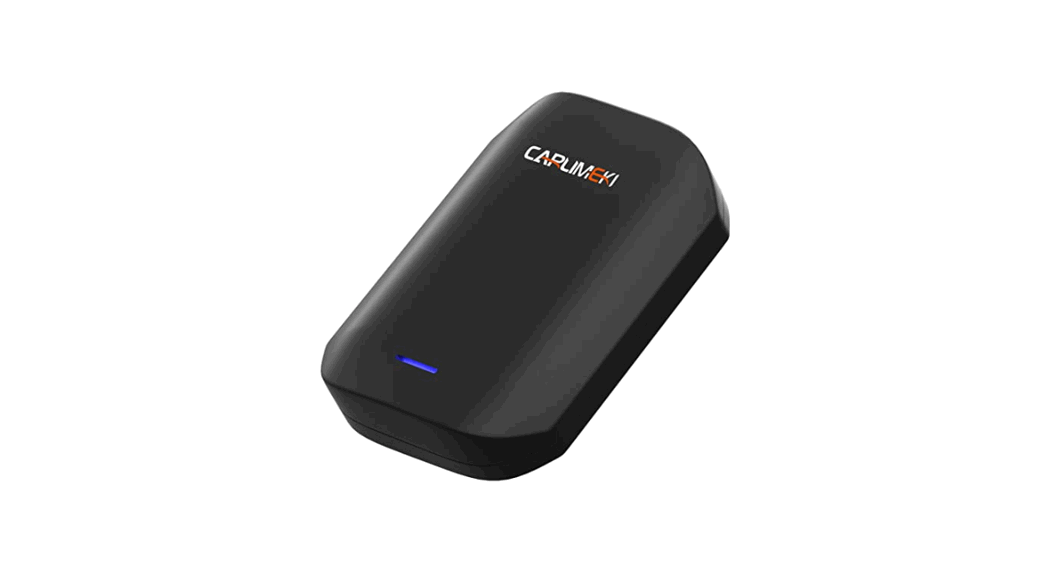
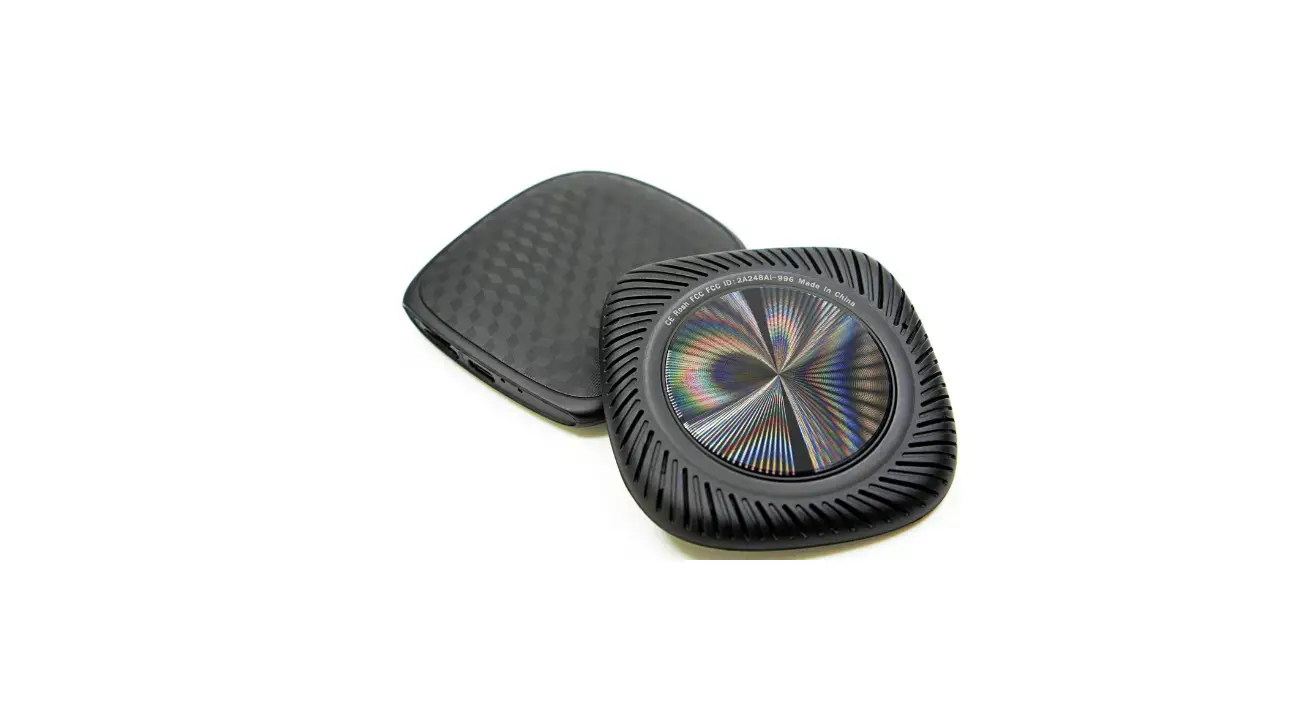
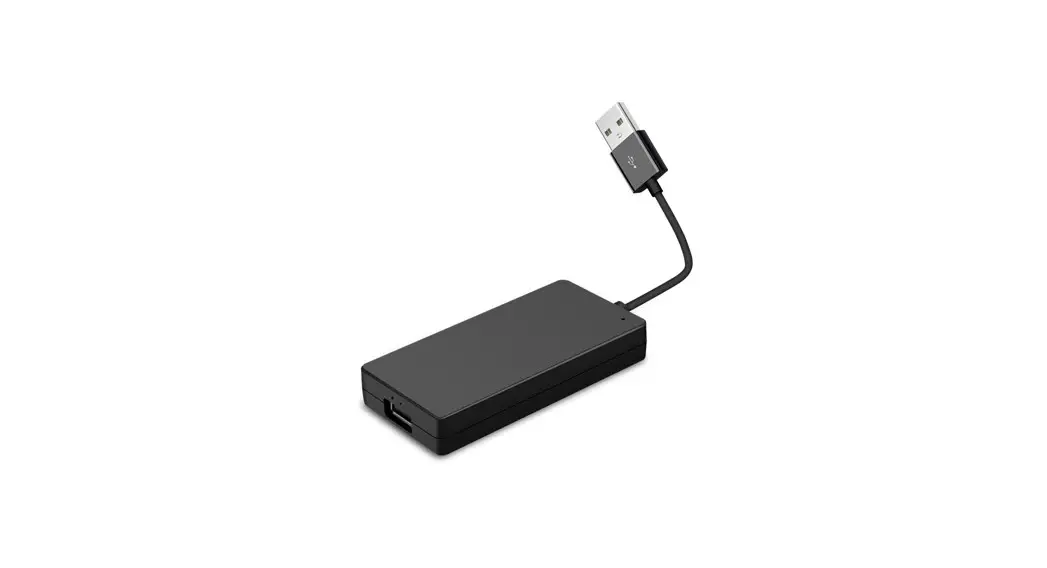
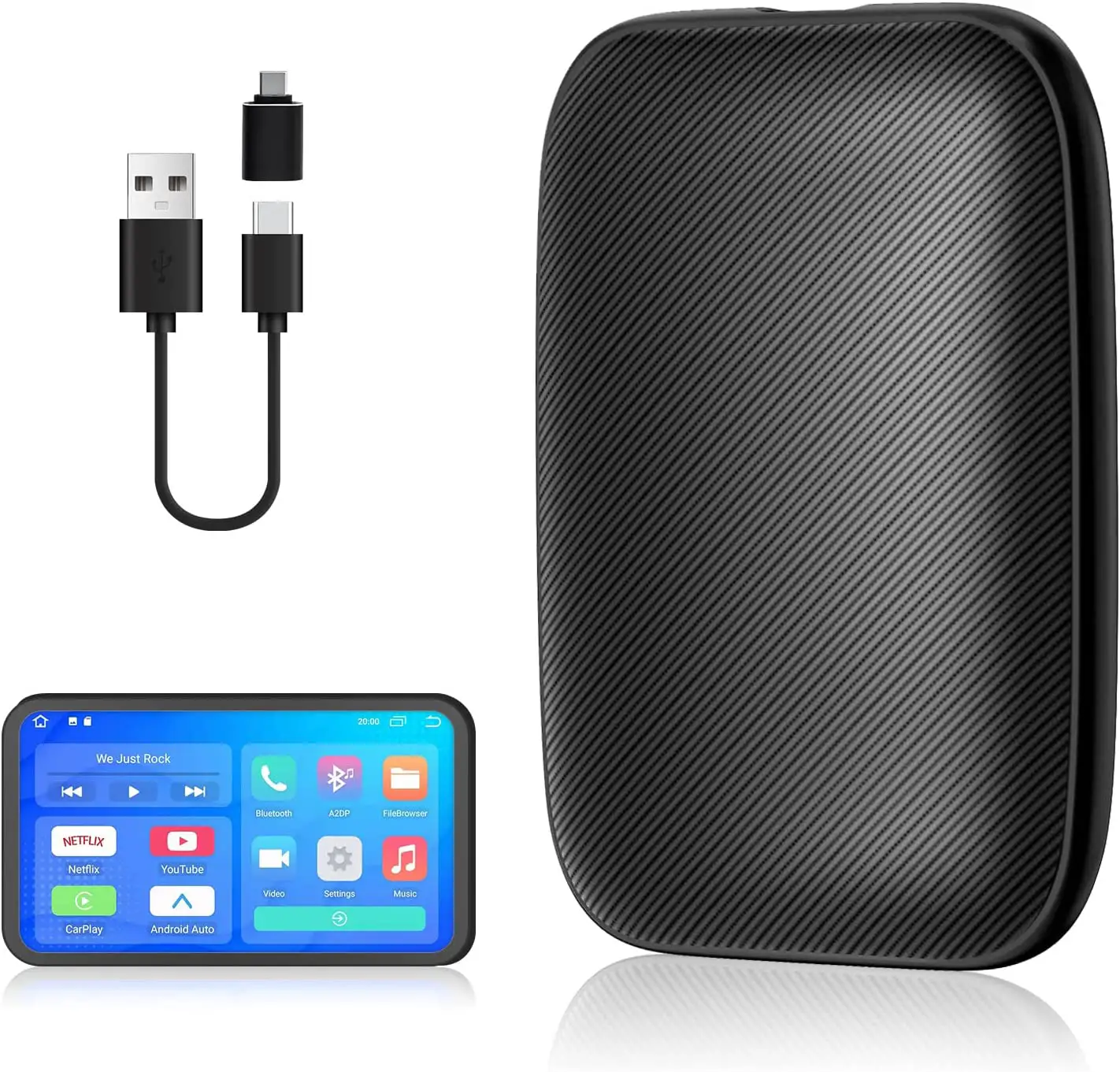
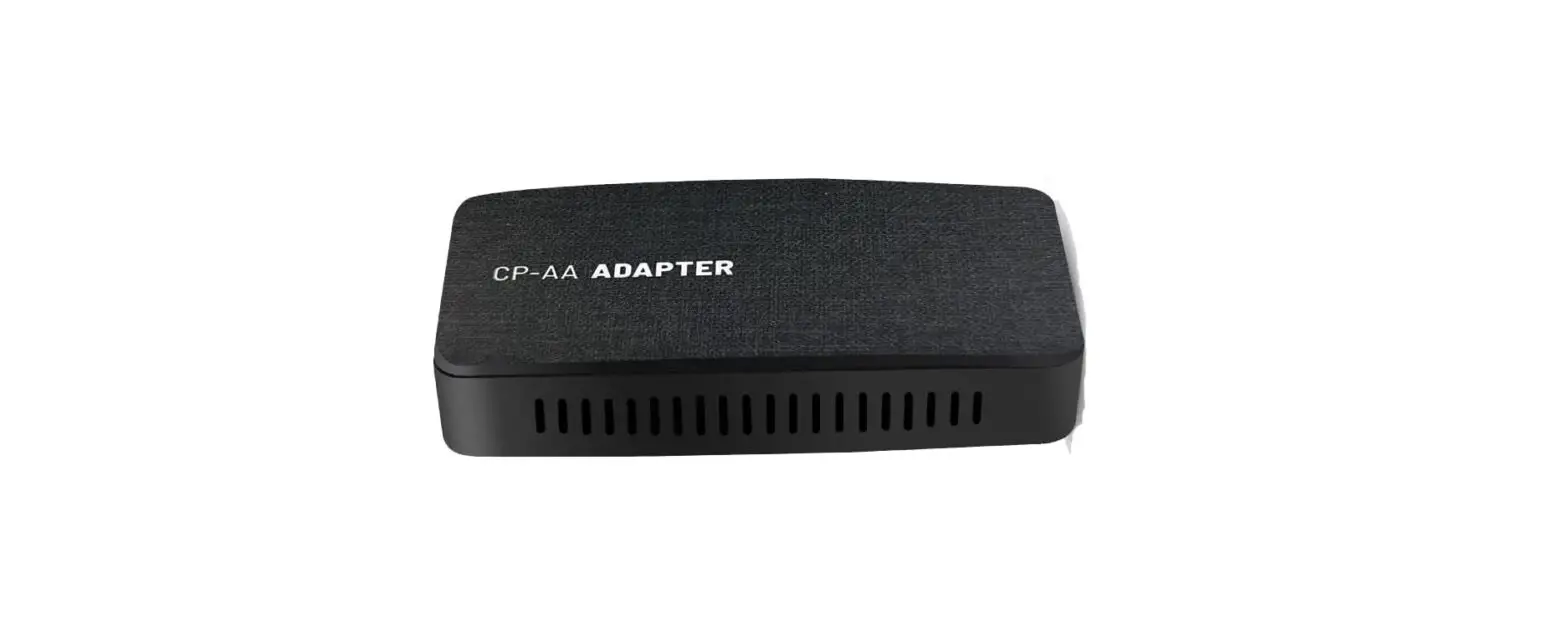
The product is a decoder that supports various functions such as
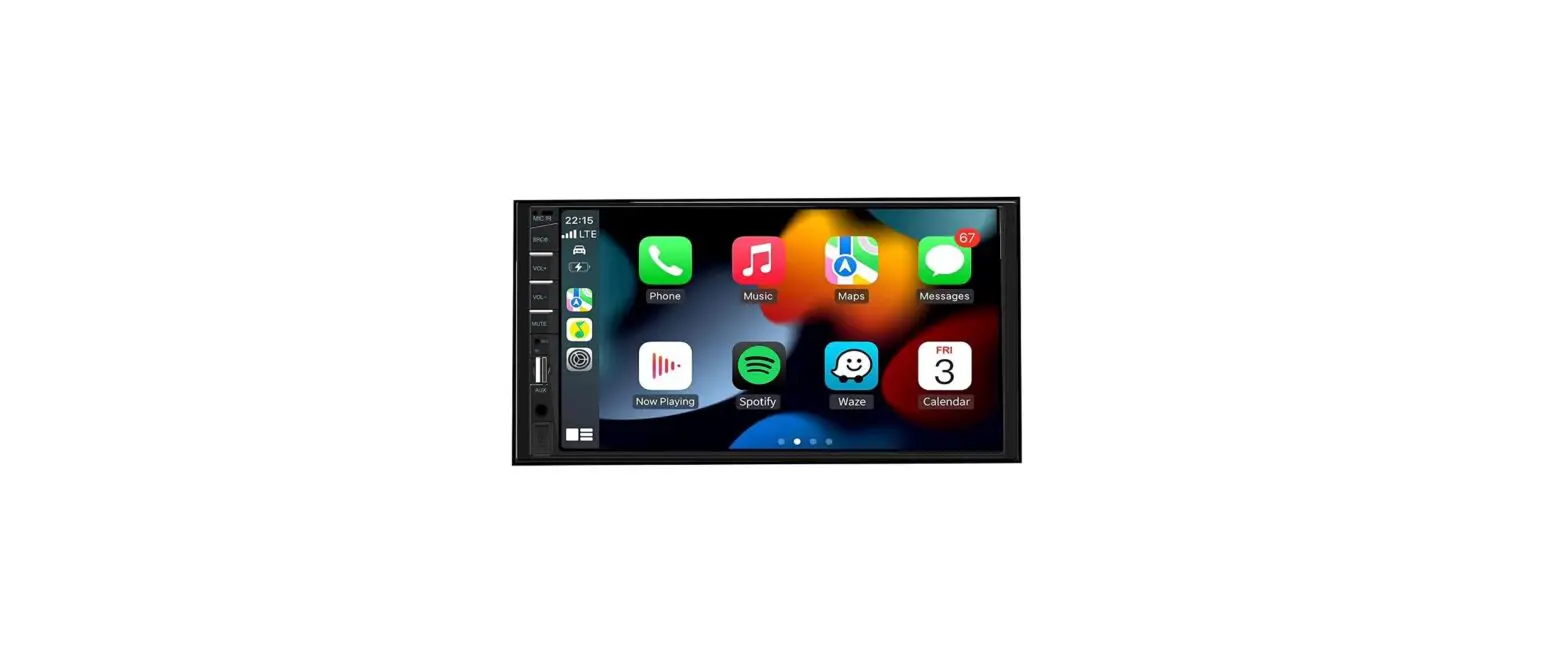
CarPlay, Android Auto, Airplay, Autolink, USB, EQ adjustment,
reversing radar and track display, front view input, microphone
sound quality adjustment, and user firmware upgrade. It can be
connected wirelessly or through a wired connection to mobile phones
and other devices that support these functions. The product also
comes with operating instructions for steering wheel buttons and
matters needing attention for installation and testing.
Product Usage Instructions
Instructions for Connect CarPlay
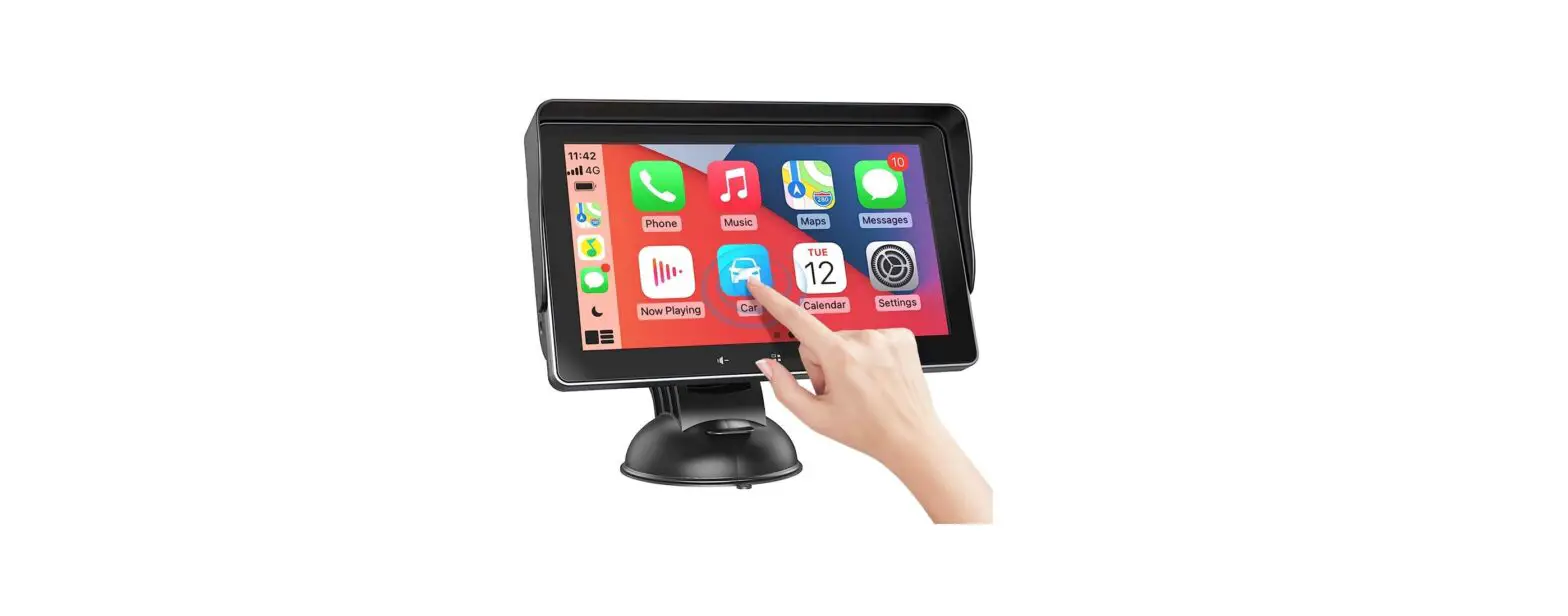
- Switch to the main interface of CarPlay.
- Find the settings of CarPlay main interface.
- Click settings and select wireless CarPlay settings.
- Select discover and connect devices.
- The decoder Bluetooth device name (beginning with CX) will be
displayed on the screen. - Click on the mobile terminal to search for Bluetooth devices
and select point pairing in turn. It is allowed to use
CarPlay.
Note: select the external sound source of the original vehicle
to AUX or Auxiliary before switching CarPlay.
Land Rover and Jaguar
- NAV(): Long press 3S to switch to CarPlay interface.
- Back(): Press any one to return from the CarPlay
interface. - Restart CarPlay(): In the Carplay interface, long press 10s in
the upper left corner of the screen to restart the CarPlay
decoder. - Siri(): Long press the small square in the lower left corner to
wake up Siri.
Peugeot & Citroen
- Switch CarPlay: Short press or long press 3S or long press the
upper left corner of the screen to switch the CarPlay
interface. - Siri(): Short press to wake up Siri.
- SRC: Press SRC () twice on the original vehicle interface to
switch aux channel.
Porsche PCM3.1
- Long press any key of them for 3 seconds to switch between the
original vehicle and the decoder interface. - In the CarPlay interface, short press any key of them is the
return function. - Short press to confirm function, long press to wake up Apple
voice Siri.
Porsche PCM4.0
Instructions for CarPlay Upgrade
The power cannot be cut off during the upgrade process. Pay
attention to whether the file name in the USB flash disk is
correct. Determine the version information before upgrading.
Matters Needing Attention
- If for extra camera, Set as Aftermarket for Reverse
camera. - When installing the decoder, the original vehicle must be
powered off. - After dialing, the decoder must be powered off and
restarted. - After the decoder wiring is completed, please be sure to test
the telephone, sound and reversing before resetting the original
vehicle.
User Manual
/Contents
NO1./Function statement NO2.CarPlay /Instructions for connect CarPlay NO3./Operating instructions for steering wheel buttons NO4.Carplay /Instructions for CarPlay upgrade NO5./Matters needing attention
NO1./Function statement
1. / CarPlay Support Apple wireless / wired CarPlay
2. / Android Auto Support wireless/wired Anroid Auto
3. Airplay Support Apple wired airplay
4. Autolink Support Android wired AutoLink
5. USB Support play video from USB equipment
6. EQ Support lossless sound quality, perfect presentation and EQ adjustment
7. Support reversing radar and track display
8. Support front view input, exit reversing and automatically switch to front view, with optional lead time
9. Support adjusting microphone sound quality
10. Support user firmware upgrade
NO2.CarPlay /Instructions for connect CarPlay
1. CarPlay 2. CarPlay 3. CarPlay 4. 5.CX 6. CarPlay
Steps to connect Apple wireless to mobile phone 1. Switch to the main interface of CarPlay 2. Find the settings of CarPlay main interface 3. Click settings and select wireless CarPlay settings 4. Select discover and connect devices 5. The decoder Bluetooth device name (beginning with CX) will be displayed on the screen 6. Click on the mobile terminal to search for Bluetooth devices and select point pairing in turn. It is allowed to use CarPlay
Proceed as follows
NO3./Operating instructions for steering wheel buttons
CarPlay AUX Note: select the external sound source of the original vehicle to AUX or Auxiliary before switching CarPlay
1. Land Rover and Jaguar
1-1.NAV 3S CarPlay 1-1.NAV(): Long press 3S to switch to CarPlay interface 1-2. CarPlay 1-2.Back(): Press any one to return from the CarPlay interface 1-3. CarPlay CarPlay 10S CarPlay 1-3.Restart CarPlay():In the Carplay interface, long press 10s in the upper left corner of the screen to restart
the CarPlay decoder
1-4. Siri(): CarPlay siri 1-4.wake up Siri voice():In the CarPlay interface, long press the small square in the lower left corner to wake up Siri
2.Peugeot & Citroen
2-1. CarPlay: List() 3s CarPlay 2-1.Switch CarPlay: short press or long press 3S or long press the upper left corner of the screen to switch the CarPlay interface 2-2. Siri(): List() siri 2-2.wake up Siri voice():short press to wake up Siri
2-3.SRC: SRC() AUX 2-3.SRCPress SRC () twice on the original vehicle interface to switch aux channel
3.Porsche PCM3.1
3-1.: 3 /Long press any key of them for 3 seconds to switch between the original vehicle and the decoder interface 3-2.: CarPlay /In the CarPlay interface, short press any key of them is the return function 3-3.:/Short press to confirm function, long press to wake up Apple voice Siri
4. Porsche PCM4.0
4-1.MEDIA(),CAR(),BACK(): 3S CarPlay/Press and hold any key for 3S to switch CarPlay 4-2.HOME(): CarPLay CarPLay /Return to the main interface of CarPLay in the CarPLay interface 4-3.(): siri/Short press to confirm, long press to activate voice Siri :/Left and right rotation: left and right selection 4-4.SOURCE: 10S carplay /Press and hold 10s to restart the CarPlay decoder 4-5.PHONE:: /When there is no phone, long press to activate voice. When there is a call: short press to answer the call, long press to hang up the call. 4-6.MAP,TUNER: APP/Press any key to open the map app 4-7.OPTION,CAR/Short press any of the keys to return to the original vehicle interface
NO4.CarPlay /Instructions for CarPlay upgrade
USB ISPBOOOT.BIN OSU_Settings update U USB USB USB The upgrade steps are as follows: In the USB device, copy the upgrade file from the computer, unzip the file, then put ISPBOOOT.BIN and OSU_Settings folder or update file placed in the root directory of the USB flash disk; Insert USB and return to the main interface settings version information about the device update click the corresponding file to upgrade upgrading (during the upgrading process, the USB device cannot be pulled out, and the USB device will be read automatically after the upgrading is completed)
U The power cannot be cut off during the upgrade process. Pay attention to whether the file name in the USB flash disk is correct. Determine the version information before upgrading
NO5./Matters needing attention
1. If for extra camera, Set as Aftermarket for Reverse camera
2. /When installing the decoder, the original vehicle must be powered off 3./After dialing, the decoder must be powered off and restarted 4./After the decoder wiring is completed, please be sure to test the telephone, sound and reversing before resetting the original vehicle