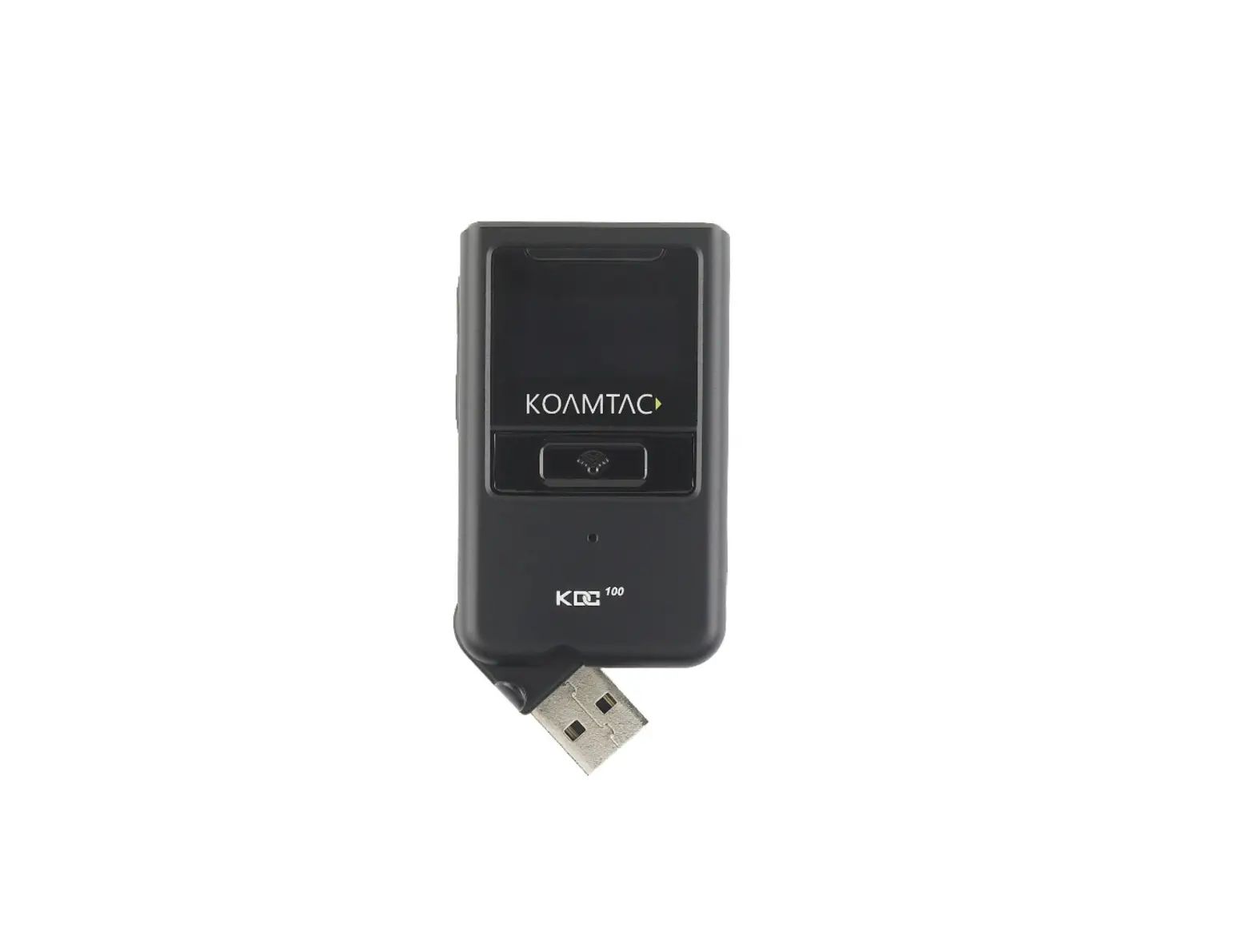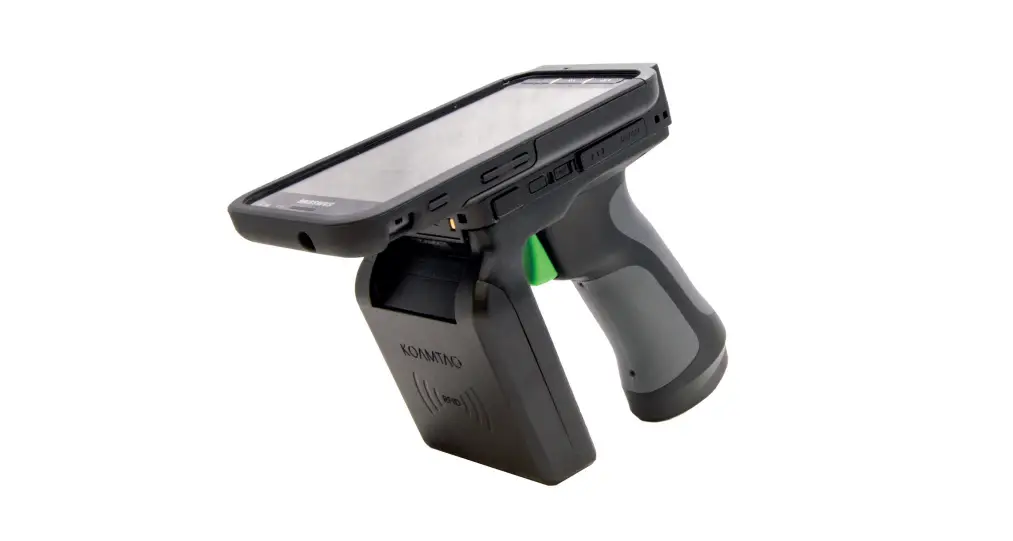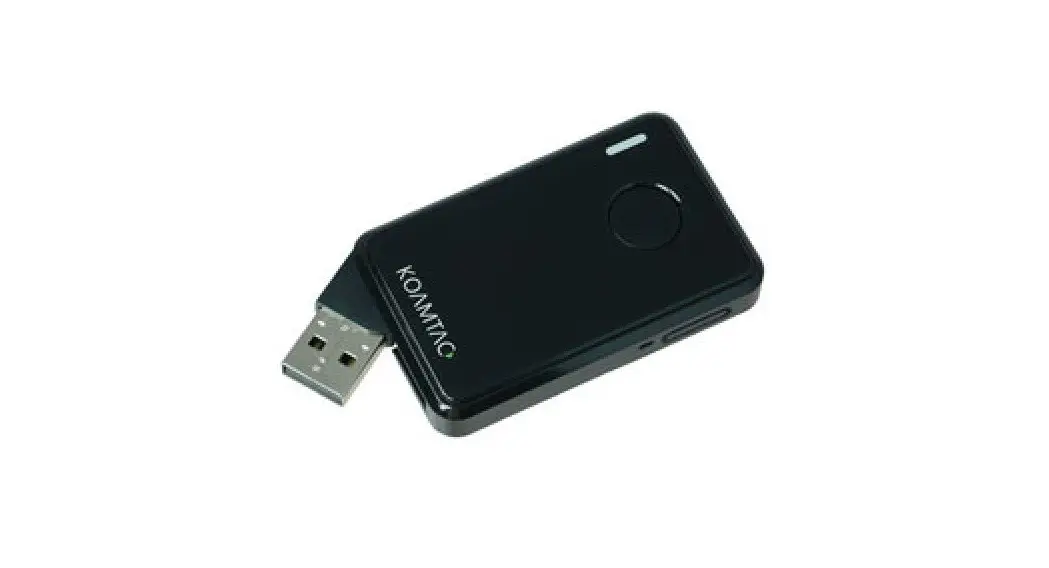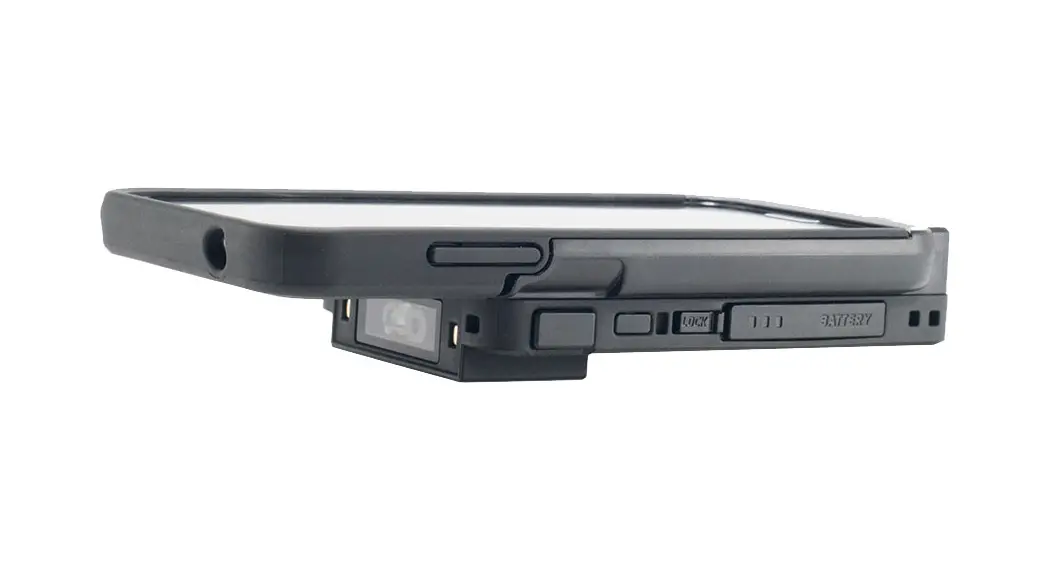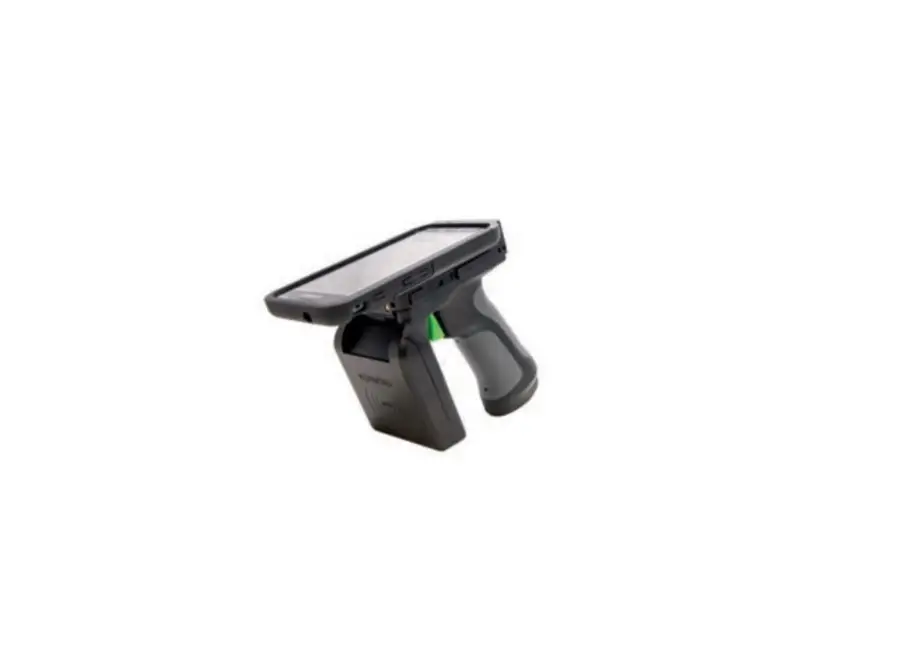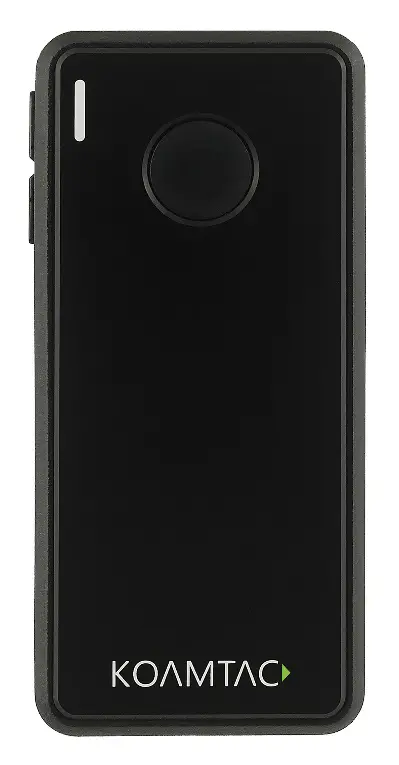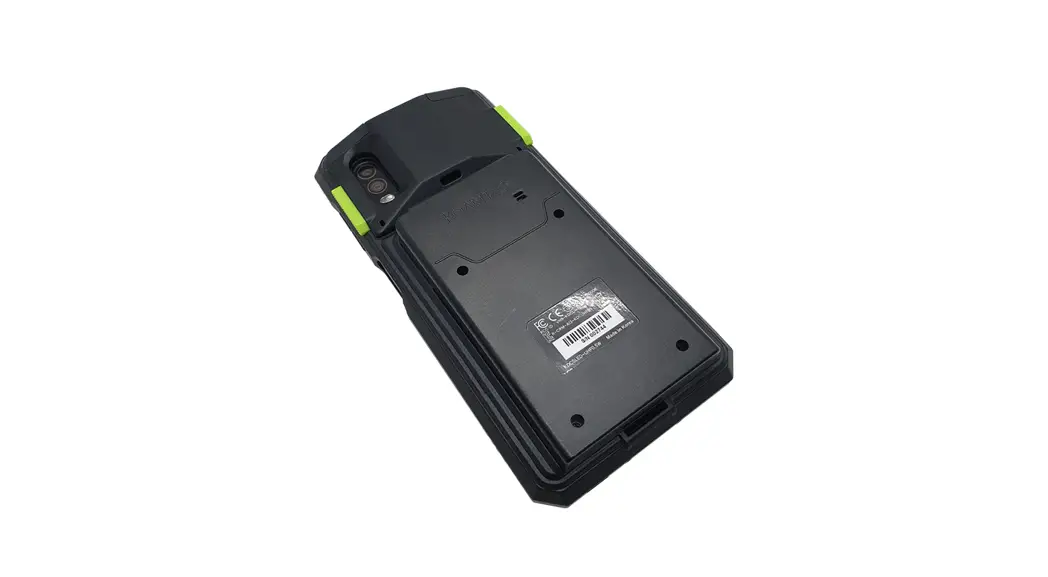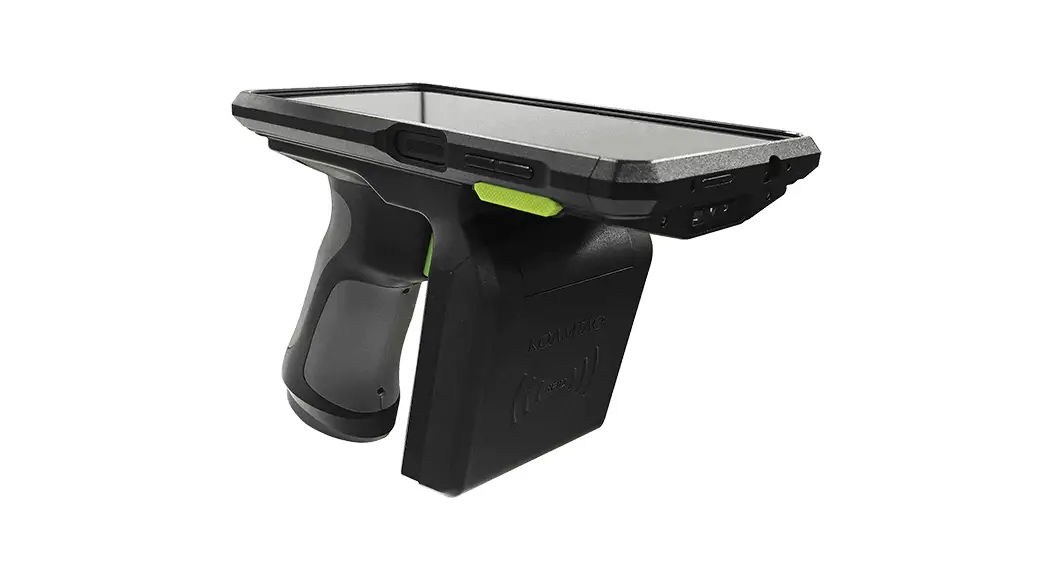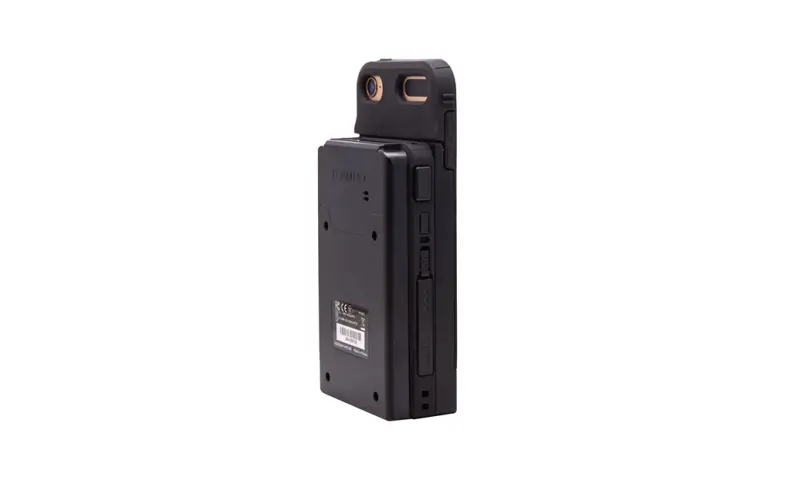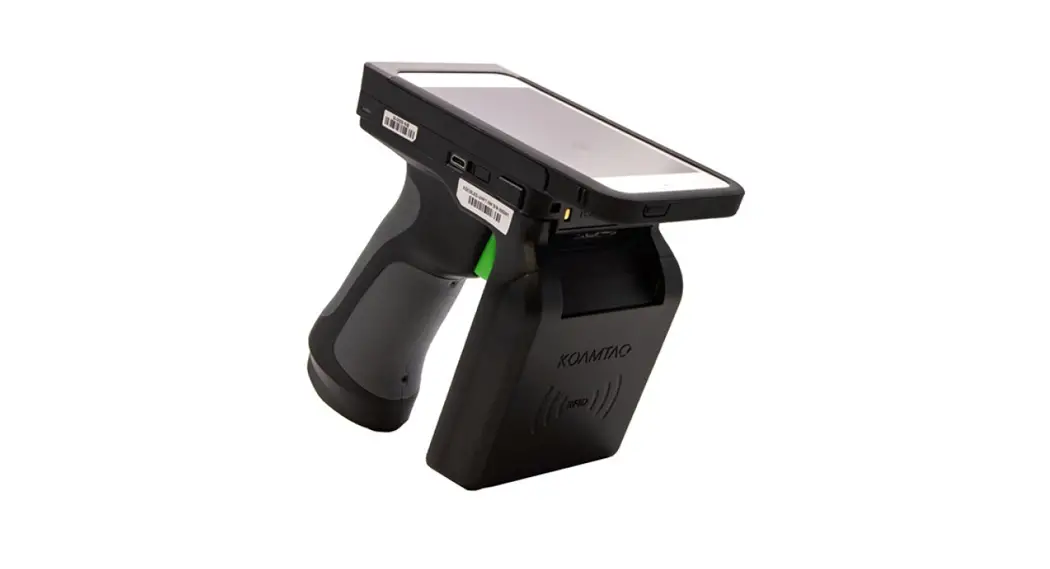
 KDC UHF
Tag Read/Write Demo
Install demo application
- You can download the demo application from Google Play Store or Apple App Store and install it: KDCUHF
Connect KDC with a smart device
- First, you should pair KDC with your host device through Bluetooth.
a. Send KDC to a pairing mode by scanning SPP & Pairing or MFi & Pairing barcode from the Quick Manual
b. Pair your smart device with KDC from the Bluetooth device list
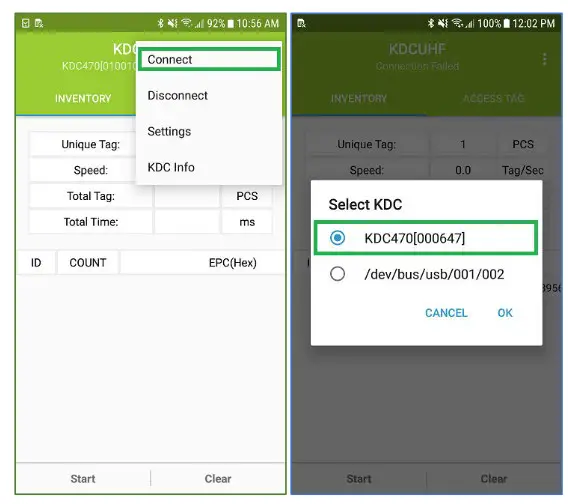
c. See the reference manual for a more detailed pairing process. - Start KDCUHF you just installed then KDCUHF is trying to connect with KDC among paired KDC list.
- If you want to connect to the specific KDC, please use the menu “Connect” from KDCUHF.
116 Village Blvd, Suite 305, Princeton, NJ 08540 USA
T: + 1-609-256-4700 F: +1-609-228-4373
[email protected] www.koamtac.com
© 2019 KOAMTAC, Inc.
Firmware_ReleaseHistory_20190530
Read UHF data
- Select “INVENTORY” and approach your UHF tags to read.
- Then tap on the “Start” button or press the physical SCAN button on the KDC.
- You might hear multiple fast beeps while reading depending on the number of UHF tags nearby.
- You can clear the current information with the “Clear” button.
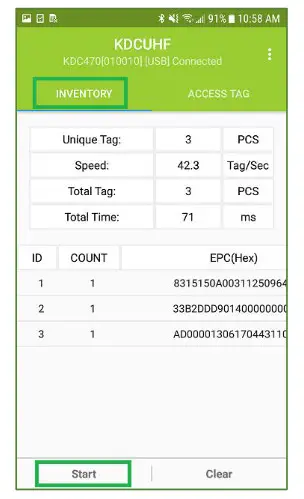
| Unique Tag | The number of the unique tags which have been read. |
| Speed | The rate to identity tags, in pcs/s. |
| Total Tag | A piece of EPC No. The total amount includes the data being repeatedly read. |
| Total Time | Total time it takes from the start point, in ms . |
Meaning of the data in the EPC column as below:
| ID | ID for identifying unique tags |
| COUNT | The number of reads each tag |
| EPC | EPC data of reading tag |
| PC | PC data of reading tag |
Select UHF tag
Scan tags nearby and select the tag with which you want to work with.
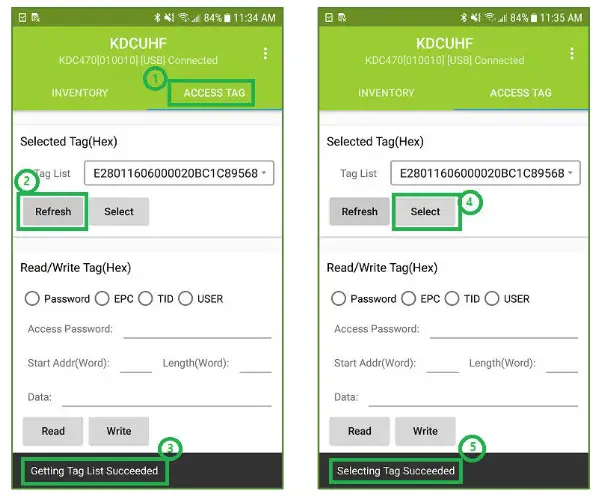
- Select “ACCESS TAG” to set up
- Approach UHF tag to write and tap on “Refresh” then you’ll see the tag information on the “Tag List” field if successful.
- Also, you’ll see the toast message at the bottom saying, “Getting Tag List Succeeded”.
- Choose one UHF tag to do manual operation and tap on “Select”.
- If successful, you’ll see the toast message at the bottom saying, “Selecting Tag Succeeded”.
Read or Write UHF tag
Read Password and Read/Write data
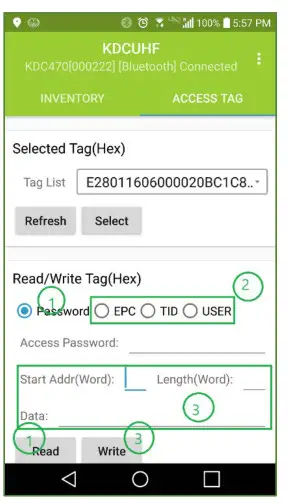
- The access password is required to read or write data. To get the password, select “Password” and tap the “Read” button.
– KDCUHF uses the default access password (00 00 00 00) to get the password. If the access password of the tag has been changed, the proper access password is required. - Once the password is read successfully, select the memory area to write ( Password, EPC, or USER).
- And then put the start address (Start Add) and the length (Length), together with the data in hex to write (Data) and tap the “Write” button.

SDK API
- The API to write a data to UHF tag is:
public boolean WriteUHFTagMemory(byte[] pwd, UHFMemoryBank bank, int start, int length, byte[] data, UHFStatus status) - You can check the guide document in the SDK package: KDC SDK Guide for Android.pdf
Lock UHF tag
Select UHF tag, Get access password and lock the tag.
- Select the UHF tag which you want to lock through the “Select Tag” menu. If the tag is selected already, skip it.
- The access password is required to proceed to lock the tag.
– It might be invalid to lock the tag with the default password. Please modify the access password first before locking - Choose memory bank and action (unlock, lock, permanent…) and tap “Lock” button on “Lock Tag” menu.

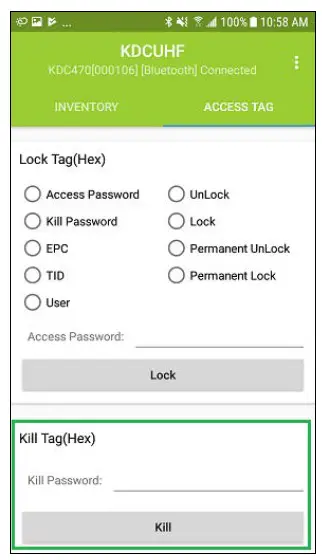
Kill UHF tag
Select UHF tag, Get kill password and kill the tag.
- Select UHF tag which you want to kill through the “Select Tag” menu. If the tag is selected already, skip it.
- Kill password is required to proceed to kill the tag.
– It is not possible to kill tags with the default kill password. Please modify the kill password first. - Tap “Kill” button on the “Kill Tag” menu.
– Killed tags are no longer available.
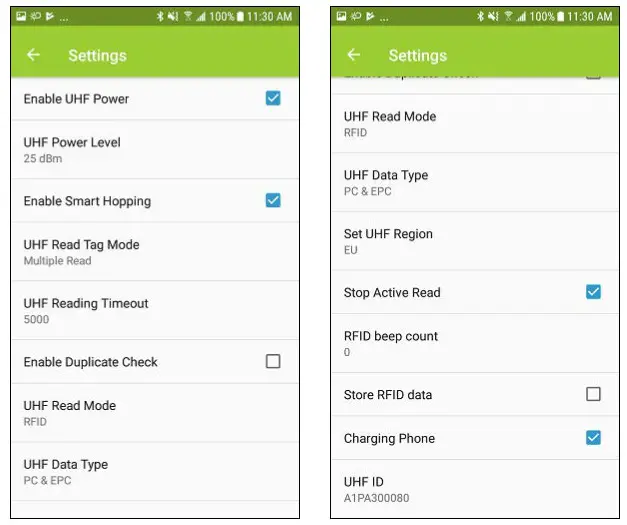
UHF Setting
Change the connected KDC UHF configurations.
- Enable UHF Power
Determine whether UHF Power is on or off. - UHF Power Level
Set UHF Power Level to the specific dBm. - Enable Smart Hopping
Enable or Disable “Smart Hopping” function.
It is depended on KDC which you are using. - UHF Read Tag Mode
Select UHF Read Tag Mode.
Single – Read only one tag.
Multiple – Read tags for a specific time.
Active – Read tags during “Scan” button is pressed - UHF Reading Timeout
Set Reading Timeout for Multiple Read Tag Mode. - Enable Duplicate Check
If enabled, duplicated tag data is not sent by KDC. - UHF Read Mode
Determine whether to scan Barcode or UHF when a Scan button of KDC is pressed or a scan the command is received from the application. - UHF Data Type
Select UHF Data Type. Received data is composed with EPC and PC or EPC only. - Set UHF Region
Set UHF bandwidth (Frequency, Power, …) to fit the region.
It is depended on KDC which you are using. - Stop Active Read
The “Active Read” function stops after a certain period of time. - RFID beep count
Select read beep count of KDC. - Store RFID data
Determine whether read tag data is stored or not. - Charging Phone
Enable or Disable the “Charging Phone” function when using 1.0W. - UHF ID
Show the UHF module ID
Application setting
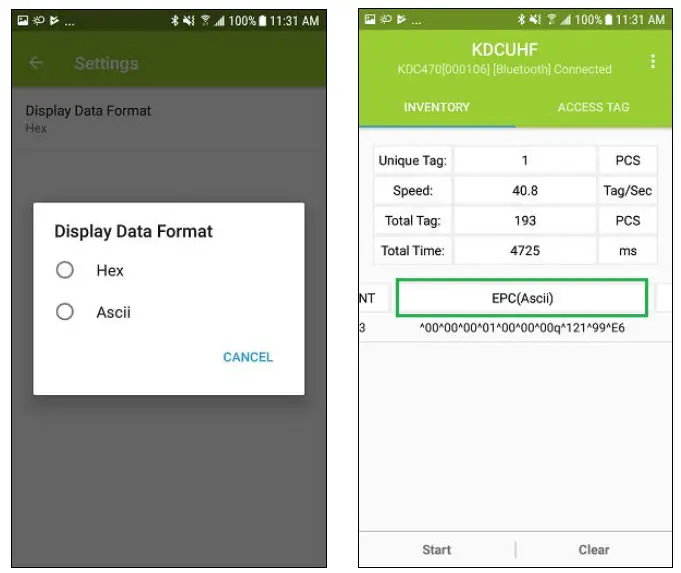
Change KDC UHF configurations.
- 1. Display Data Format
– Select Hex string or ASCII as the default display data format.
When “Display Data Format” is ASCII,
“^” is used to control characters like “\” so you should write “^^”, if you want to input “^” in
ASCII mode.
Characters that can’t be displayed are indicated by “^” and a two-digit hex string.
For example, 0x00 0xFF will be displayed ^00^FF.
KDC Information
Display the connected KDC information.
– Serial Number, Firmware Version, etc.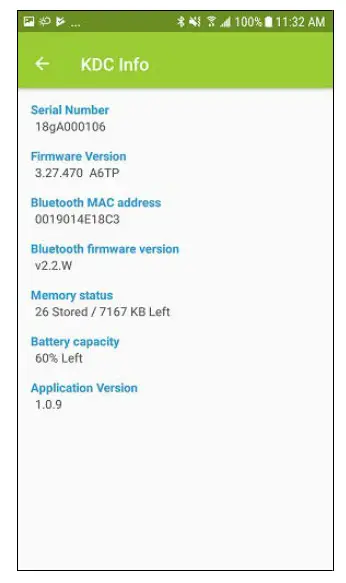
116 Village Blvd, Suite 305, Princeton, NJ 08540 USA
T: + 1-609-256-4700 F: +1-609-228-4373
[email protected] www.koamtac.com
© 2019 KOAMTAC, Inc.
Firmware_ReleaseHistory_20190530