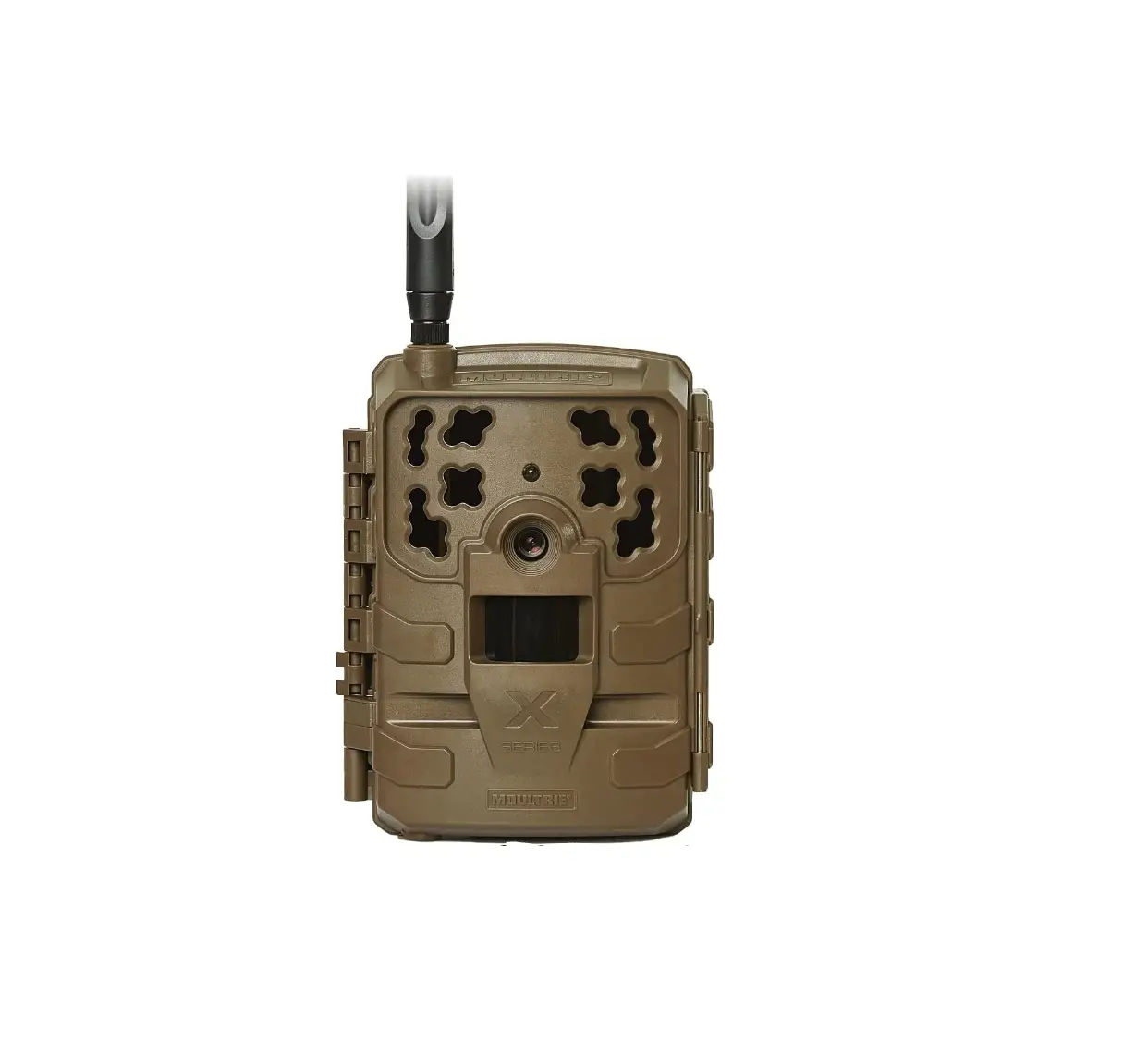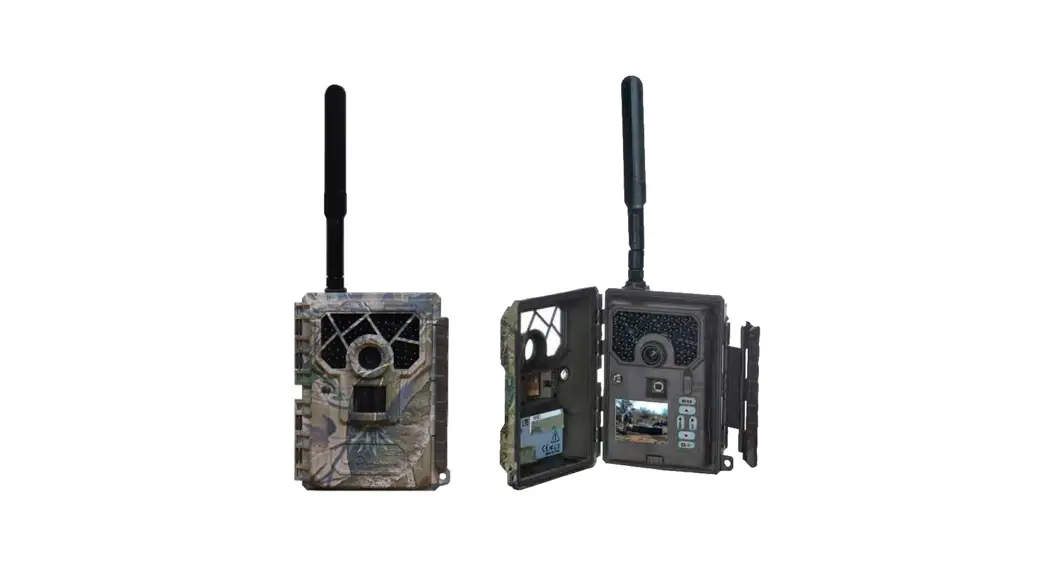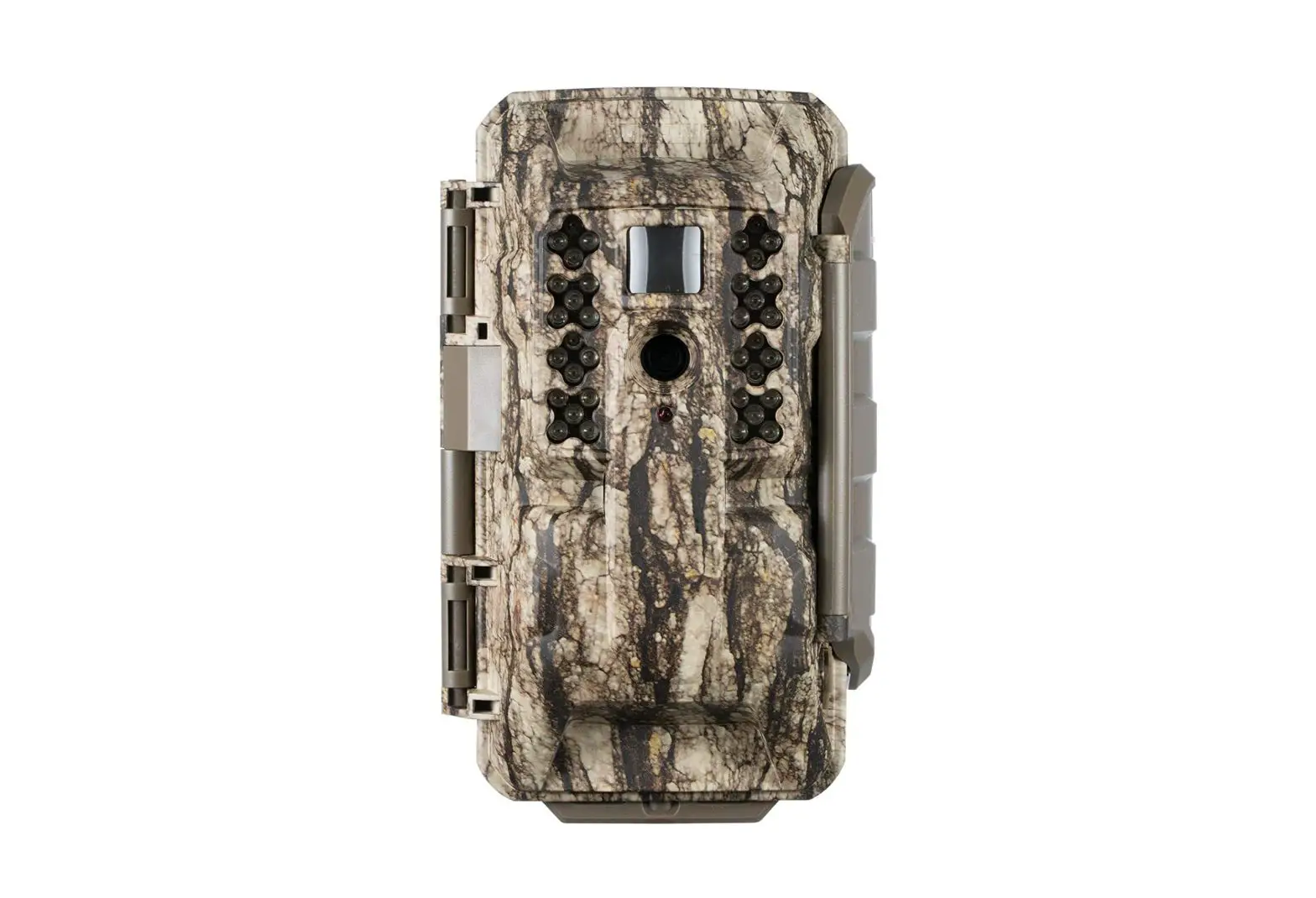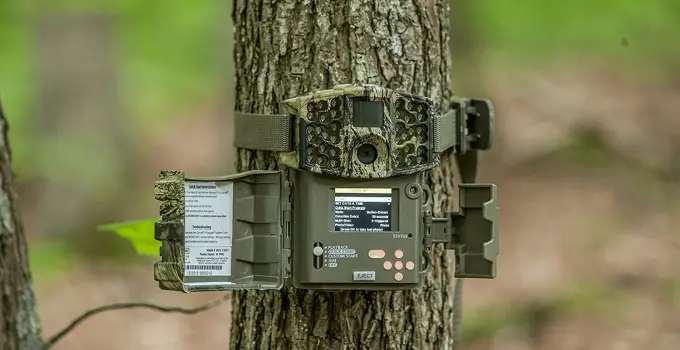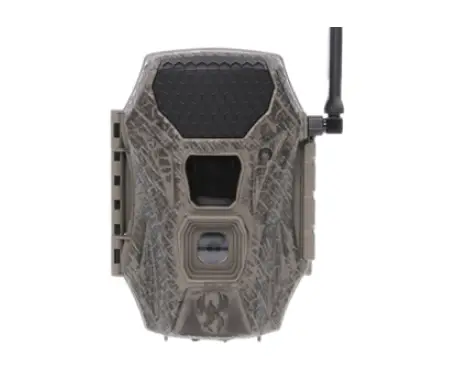


 OWNER’S
OPERATION
MANUAL
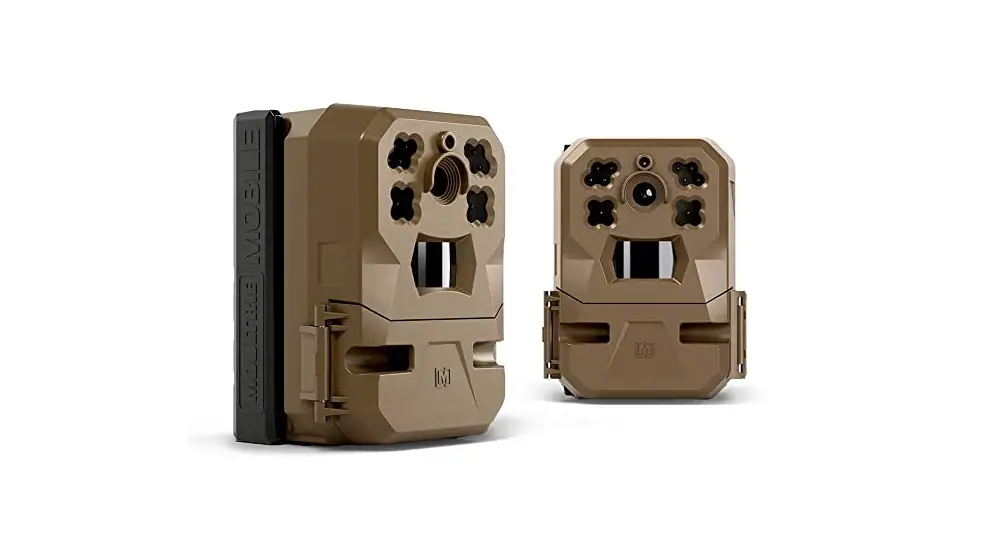
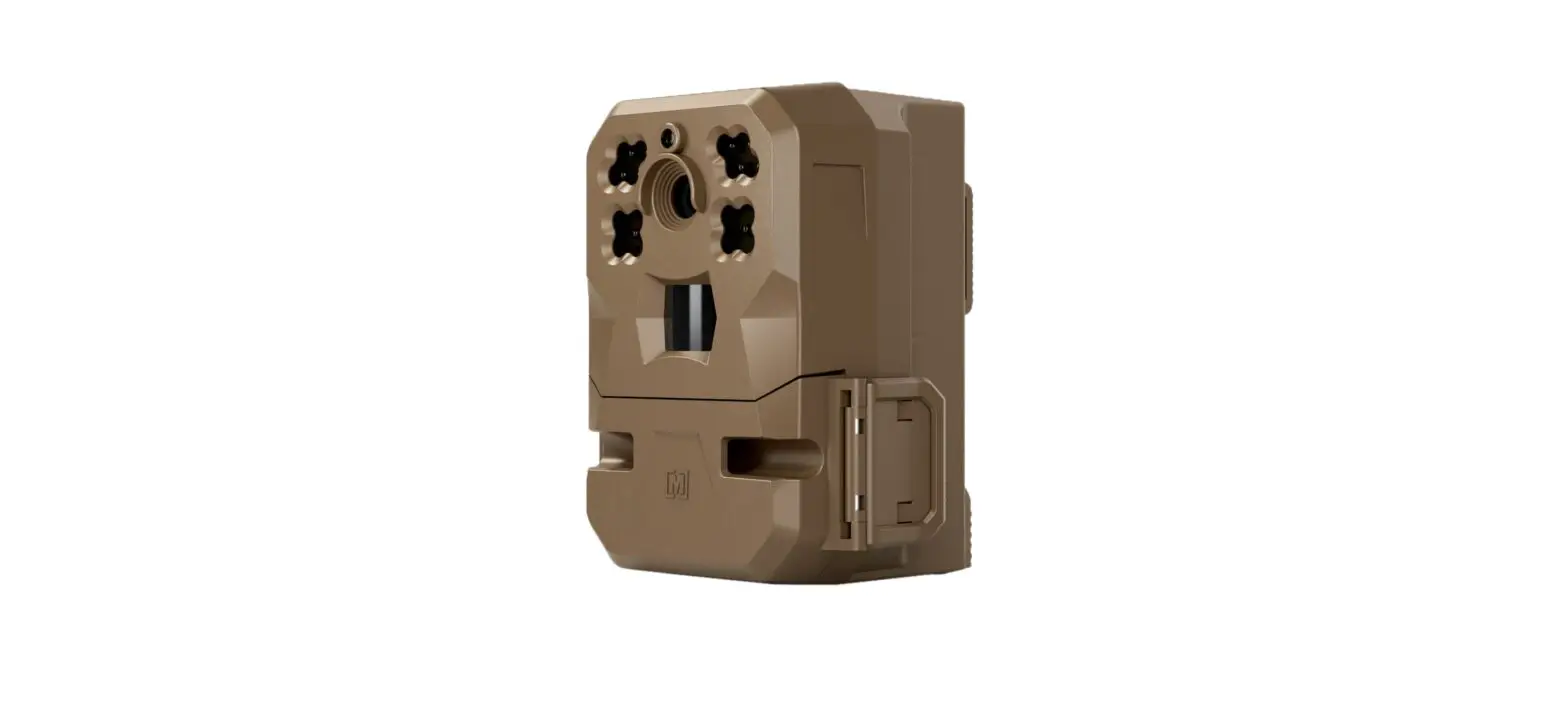
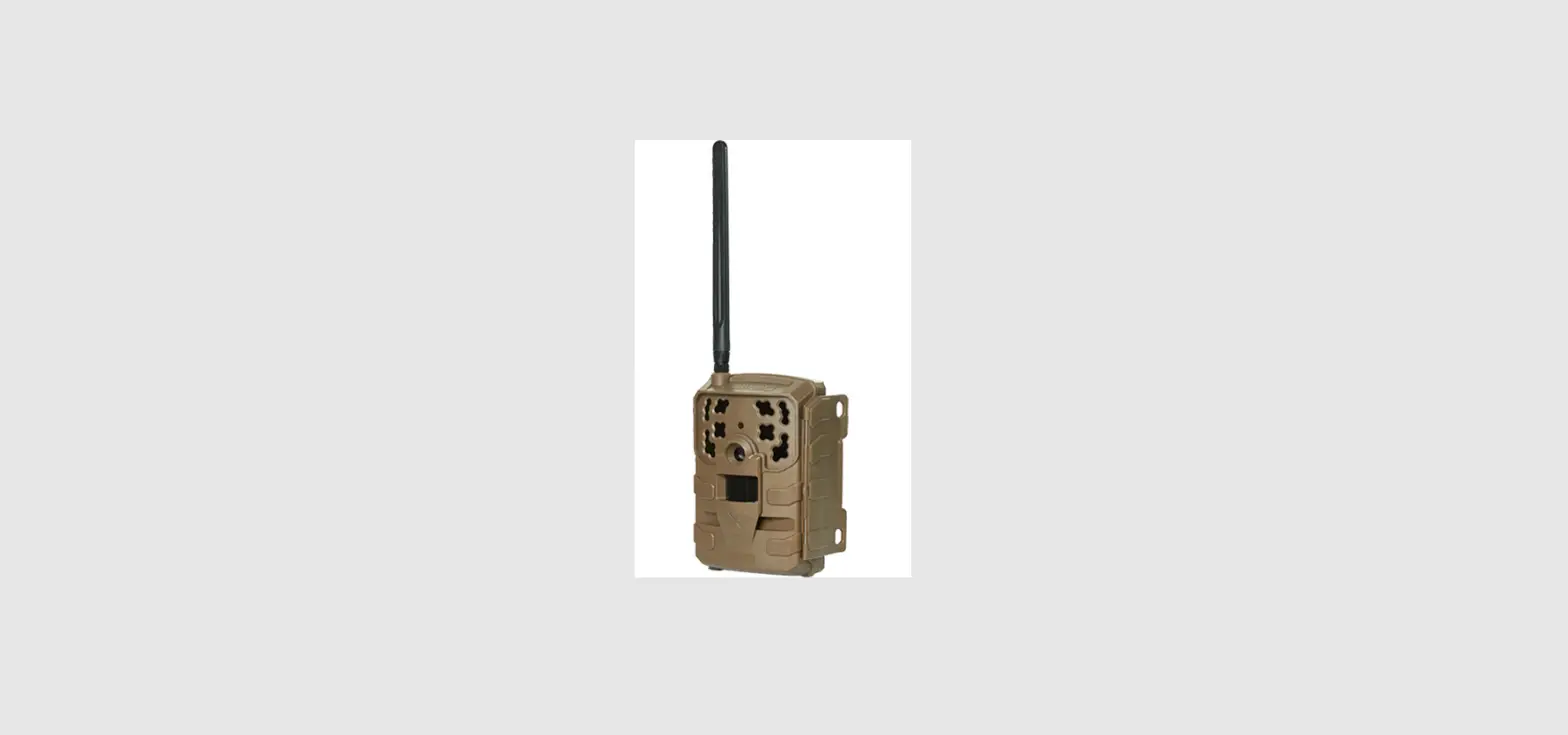
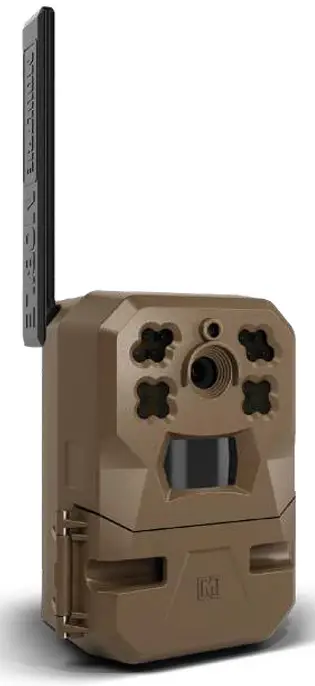
EDGE-NW
FIELD READY  FAST
FAST
TO GET STARTED, YOU’LL NEED:
 | ||
| THE MOULTRIE MOBILE APP | EDGE CAMERA | 8 OR 16 AA BATTERIES |
NOTE: This camera has Built-In Memory. You do not need to purchase or install an SD card.
BEFORE YOU BEGIN
Download the Moultrie Mobile app to set up your camera, view your pictures and videos, remotely control settings, and more.

Apple and the Apple logo are trademarks of Apple Inc., registered in the U.S. and other countries. App Store is a service mark of Apple Inc. Google Play is a trademark of Google Inc.

WELCOME TO MOULTRIE MOBILE
We believe that what you put into hunting is exactly what you get out of it. That’s why we’ve poured our passion into the scouting process, perfecting our technology to bring our community cutting-edge tools that are transforming the game.
CUSTOMER SUPPORT + CONTACT INFO
Before using your camera, please review this operation manual or the Quick Start Guide included with your Edge camera.
We’re here to help if you have questions or need support.
CONTACT US
Call, email or chat with our U.S.-based Customer Success team, available 7 days a week from 7 am – 5 pm CT.
Phone: 844.908.1219
Email: [email protected]
Live Chat: Go to https://support.moultriemobile.com/ and click “Chat with us”
KNOWLEDGE BASE
For camera or app details, troubleshooting, and how-to videos, check out our Knowledge Base at: https://support.moultriemobile.com
CONNECT WITH US
Facebook: https://www.facebook.com/MoultrieMobile
YouTube: https://www.youtube.com/moultriemobile
Instagram: https://www.instagram.com/moultriemobile/
TikTok: https://www.tiktok.com/@moultrie.mobile
OWNER’S OPERATION MANUAL
 IMPORTANT! PLEASE READ BEFORE USING THE
MOULTRIE MOBILE EDGE CELLULAR TRAIL CAMERA
We recommend that you go through the entire set up process at home to ensure your camera is operating as expected and images are transmitting before taking into the field for use.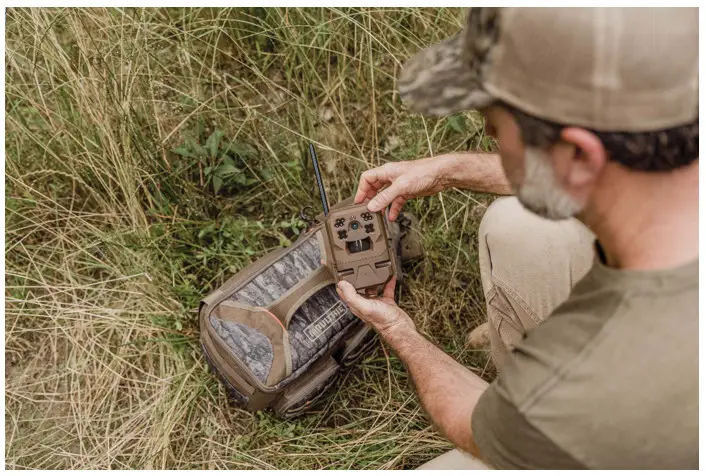
ABOUT EDGE
We set out to design the most user-friendly cellular trail camera ever built.
We did it by focusing on what hunters care about most battery life, cellular connectivity, and image quality.
The result is EDGE – an innovation-packed scouting tool.
INDUSTRY-LEADING INNOVATIONS
 | WORKS ON MULTIPLE MAJOR U.S. NETWORKS |
 | AUTO CONNECTS TO THE STRONGEST NETWORK IN YOUR AREA |
 | BUILT-IN MEMORY NO SD CARDS REQUIRED |
ENGINEERED FOR PERFORMANCE
 | RESOLUTION |
 | HD VIDEO DELIVERY WITH SOUND |
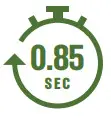 | TRIGGER SPEED |
 | DETECTION & IR FLASH RANGE |
THE MOULTRIE MOBILE APP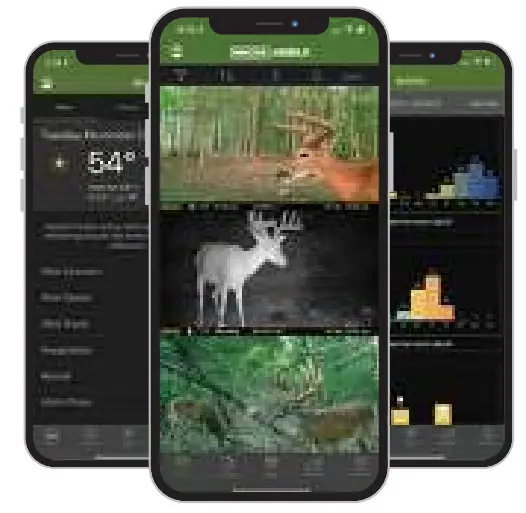
When using EDGE and the Moultrie Mobile app, you receive sharp images and video with sound from your cellular trail camera. Plus, these app features are available with all oultrie Mobile plans without any additional costs:
 | ||||
| ACTIVITY CHARTING | SPECIES RECOGNITION | WEATHER DATA | INTERACTIVE MAPS | 24/7 CLOUD STORAGE |
Plans are purchased directly from Moultrie Mobile and work independently from your cell phone plan.
Go to www.moultriemobile.com/plans/ to learn more.
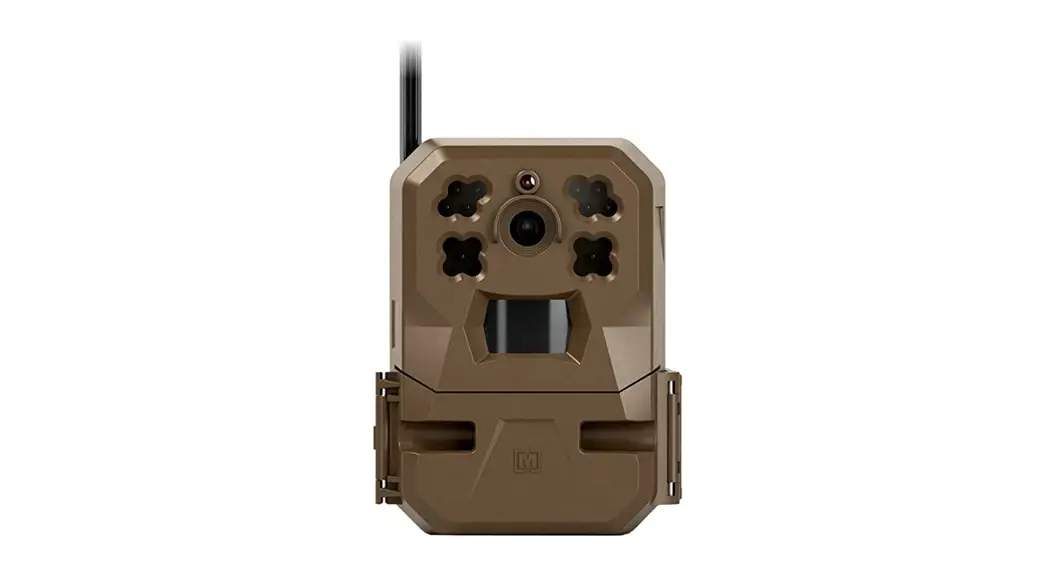
CAMERA COMPONENTS
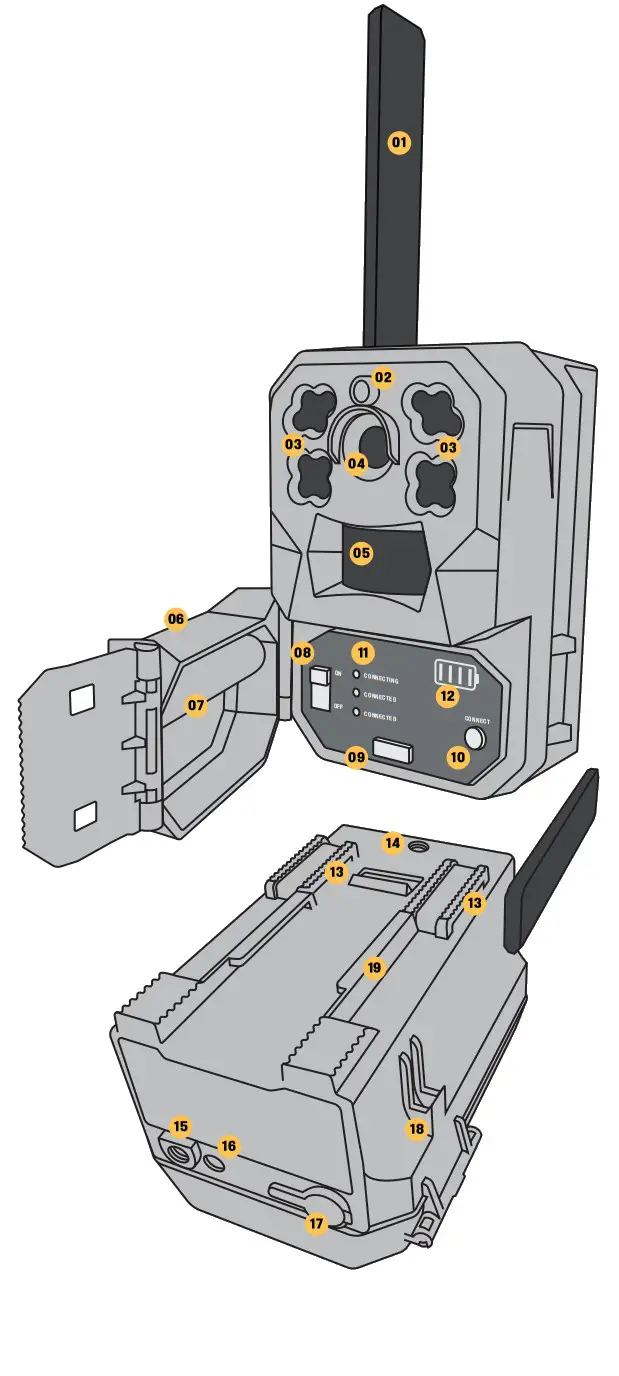
| 01 FOLDABLE ANTENNA 02 AMBIENT LIGHT SENSOR 03 HIGH-POWER IR LEDs 04 LENS AND IMAGE SENSOR 05 PIR SENSOR 06 CONTROL PANEL DOOR 07 CABLE LOCK CHANNEL 08 POWER SWITCH 09 BATTERY TRAY EJECT 10 CONNECT BUTTON 11 CONNECTION STATUS LEDs 12 BATTERY LEVEL LED | 13 STRAP ATTACHMENT LOOPS 14 BACK 1/4 20 MOUNTING PORT 15 BOTTOM 1/4 20 MOUNTING PORT 16 MICROPHONE 17 12V EXTERNAL POWER JACK INPUT 18 ANTENNA CATCH GUARD 19 ATTACHMENT SLIDE/LOCK |
Go to MoultrieMobile.com/accessories to purchase solar power products, camera mounts and other accessories.
FEATURES AND SPECIFICATIONS
| Network | Nationwide CoverageMultiple LTE Carriers |
| Technology | Auto Connect |
| MEMORY | 16GB Built-In Memory + Unlimited Cloud Storage in the Moultrie Mobile App No SD Card Required |
| Internal Memory | |
| POWER SOURCE | |
| Required Operation | 8 AA Batteries |
| Extended Operation | 16 AA Batteries |
| Battery Type | 1.5V AA, Alkaline or Lithium |
| Alternative Power | 12V Battery Box, Solar Panel |
| PHOTO + VIDEO | |
| Max Photo Resolution | 33MP |
| Video Resolution | HD 720p |
| Video Length | 15 seconds |
| Flash Type | Infrared |
| AUDIO | Yes |
| Video with Sound | |
| MOTION DETECTION | |
| Motion Triggered | Infrared |
| Detection Range | up to 80 feet |
| Flash Range | up to 80 feet |
| Trigger Speed | 0.85 seconds |
| Field of View | 40 degrees |
| OPERATING MODES | |
| Multi Shot | Single; 3 Trigger; 3 Burst |
| Scheduler Mode | Yes; Schedule camera on/off times |
| Timelapse | Timelapse or Motion + Timelapse |
| Detection Delay | 0 seconds up to 30 minutes |
IMAGE STAMPING
| Image Info Strip | Date, Time, Moon Phase, Temperature, Camera Name |
OPERATING CONDITIONS
| Weather Resistant | IP 53 |
| Temperature | -10˚F to 110˚F |
MOUNTING
| Mounting Options | Fits Moultrie and universal mounts with a 1/4-20 threaded male post |
| Strap Length | 6 feet |
DIMENSIONS
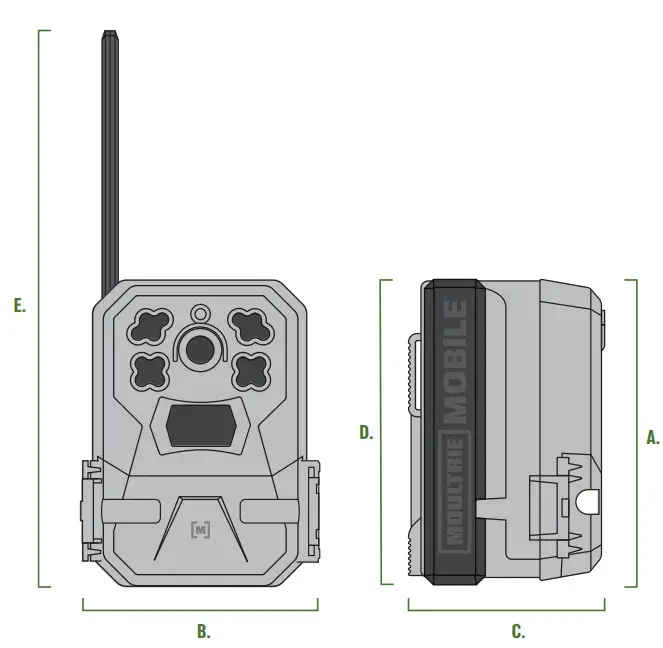
| A. Height | 5.39” |
| B. Width | 4.0” |
| C. Depth | 3.54” |
| D. Antenna Height | 5.375” |
| E. Overall Height | 9.875” |
| F. Weight | 0.9 lbs |
SEE HOW IT’S DONE
Scan the QR code to watch a video of the camera overview and step-by-step instructions for camera setup.
Need help?
Call Customer Success: 1-844-908-1219
CAMERA SETUP
ADD CAMERA TO ACCOUNT
- Download the Moultrie Mobile app, and log in or sign up for an account.
- For existing accounts, go to DEVICES > ACTIVATE.
- Scan the QR code on the camera (located inside the control panel door).
- Select a monthly or annual plan.
INSTALL BATTERIES
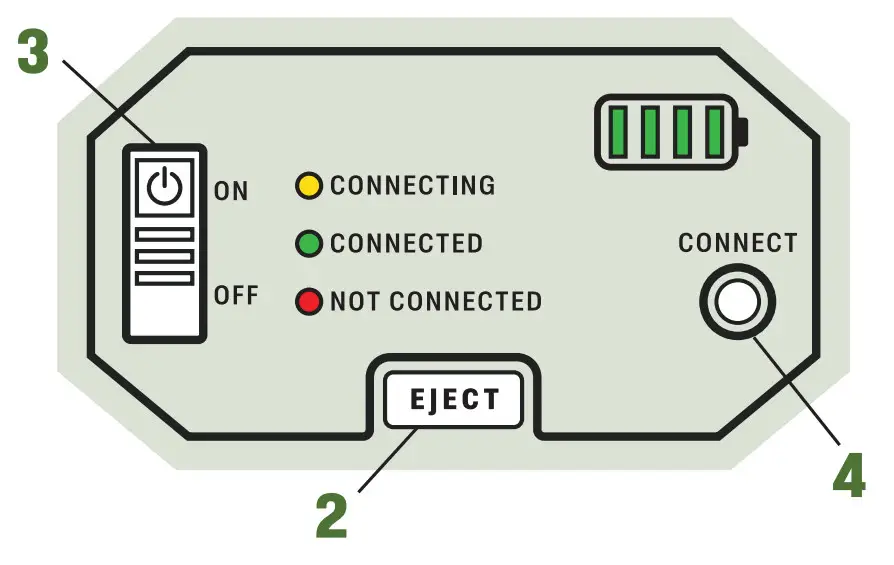
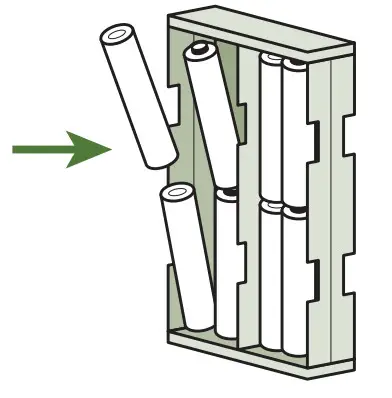
- Press EJECT to release the battery tray.
- Fill the tray with either 8 or 16 AA batteries. (Minimum of 8 required)
- If only using 8 batteries, completely fill one side.
- CAUTION: Battery tray should insert easily when oriented and aligned properly. Forcing the tray into the camera can cause damage.
DO:
Use recommended batteries:
- Moultrie Alkaline
- Energizer Alkaline
- Energizer Lithium
DON’T:
- Use rechargeable batteries.
- Mix old and new batteries or different brands.
TURN ON YOUR CAMERA
- Slide the power switch to ON. All LEDs will light up and then camera will begin connecting.
 CONNECTING
Flashes yellow as the camera connects. CONNECTED
Turns green upon successful connection. NOT CONNECTED
Turns red if the connection is not found. - Camera activation and connection should take 5 minutes or less. If a firmware update is available after connection, LEDs will flash and the camera will power itself off and back on.
- If not connected, you may need to move your camera to a stronger signal area.
- All lights will turn off once the camera is on and the connection attempt is complete.
 CONNECTING
 CONNECTED
 NOT CONNECTED
TEST YOUR CAMERA
- Once the camera has gone back into sleep mode (LEDs off), press the CONNECT button to trigger a test photo.
- In the Moultrie Mobile app, go to GALLERY, then pull down to refresh and see your photo.
CAMERA PLACEMENT TIPS
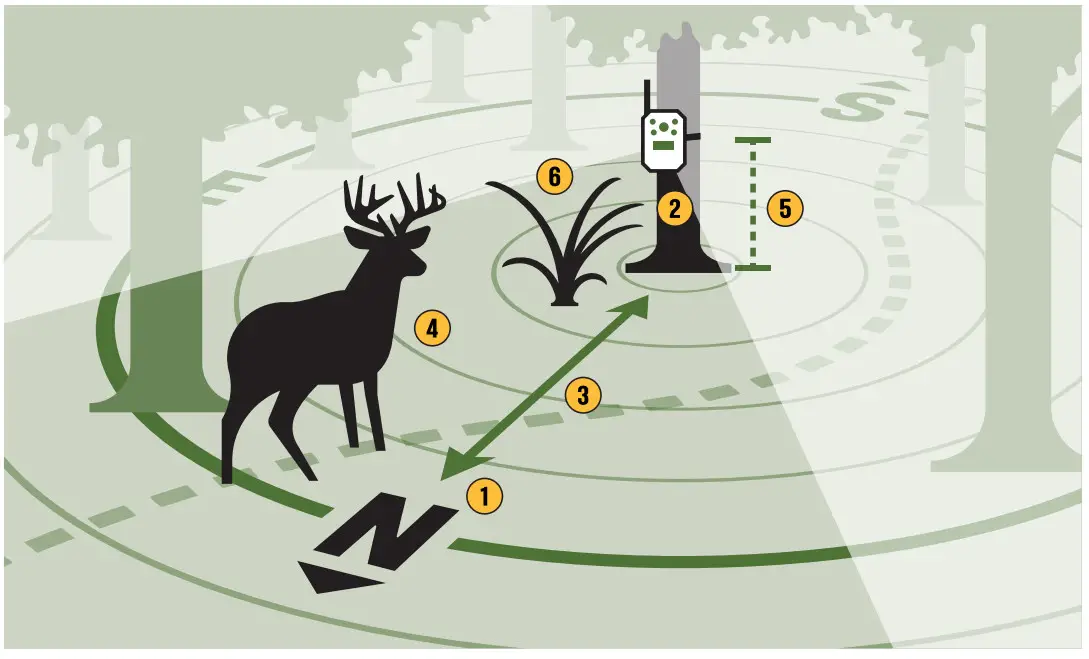
- POSITION THE CAMERA FACING NORTH OR SOUTH
The sun can cause false triggers with east or west camera placement. North is best. - POSITION THE CAMERA PERPENDICULAR TO THE GROUND
Ensure your camera is mounted straight up and down so the pictures you capture are level with the horizon. This will also help prevent false triggers and improve the camera’s ability to capture wanted motion. - POINT THE CAMERA AT A 45-DEGREE ANGLE
Position your camera at a 45-degree angle to a trail, allowing more time for an animal to trigger the camera’s sensors for a photo. Never place a camera directly across from a trail because it will leave less time for your camera to photograph a fast-moving deer or another object. - PLACE THE CAMERA ABOUT 20 FEET FROM YOUR TARGET
This distance helps provide good lighting for a clear photo of the entire target. - PLACE THE CAMERA 3 TO 5 FEET OFF THE GROUND
Mount your camera to a stand or a strong tree that won’t sway. This will help ensure you don’t receive any unwanted photos of small critters curious about your camera. - CLEAR VEGETATION FROM THE FRONT OF THE CAMERA
Remove grass, small limbs, and twigs away from the camera’s view to avoid getting unwanted pictures of moving vegetation.
Visit MoultrieMobile.com for additional camera mounting options.
ADJUST CAMERA SETTINGS
You can view your camera’s battery level and adjust settings remotely using the Moultrie Mobile app.
- Go to DEVICES to adjust settings and save changes.
- If you change settings from the app, the changes will be applied the next time the camera connects.
- To sync new settings faster, press CONNECT button on the camera to initiate a connection after updating settings in the app.
TROUBLESHOOTING
THE CAMERA WON’T CONNECT
If the red NOT CONNECTED light is on:
- Make sure the camera has an active subscription with Moultrie Mobile.
- Move the camera to a location with a stronger signal.
- Contact Customer Success
COMPARED TO CELL PHONE SIGNAL
Your camera’s signal strength may be higher or lower than your smartphone. Your camera is not tied to your cell phone plan. The Edge will automatically try to connect to the strongest available network in your area.
ACTIVATION / SCANNING THE QR CODE
If you see the QR code showing up in the scanner, but it can’t read the QR code, you may need to enter the information by typing it in. You can find the ID numbers for the camera beside the QR code, on the inside of the hinged door. Enter the serial number and ID for the camera.
If you don’t see an option to scan the QR code, you have previously denied permission for the Moultrie Mobile app to use your phone’s camera. You can manually enter the device ID numbers or enable your phone’s camera settings: Go to your phone’s Settings, then scroll down to the Moultrie Mobile app settings. When you see the app settings, enable camera access for Moultrie Mobile.
Force Quit/Close the Moultrie Mobile app, then open it again. Go to Devices > Activate > Scan, and scan the QR code.
CAMERA NOT SHOWING UP ON DASHBOARD AFTER ACTIVATION
Your camera may take up to 5 minutes to locate the cellular network and show in the list of active devices on the Device Dashboard. It will show in the list once it successfully connects. If the camera isn’t showing in the list after 5 minutes, check that you have the camera on an active plan, and move your camera to a better coverage area. Contact Customer Success if you have any questions when activating your camera.
FAQs
8.1 NATIONWIDE COVERAGE WITH AUTO-CONNECT
What is nationwide coverage?
The Edge works on multiple major networks, giving you nationwide coverage. You do not need to purchase a carrier-specific camera model. The Edge uses Auto Connect to automatically prioritize and connect to the strongest available network in your area.
The Edge and the Moultrie Mobile app work independently from your cell phone plan provider.
How do I know what carrier it’s connected to?
In the Moultrie Mobile app, you will see signal strength but not the specific carrier. The camera may switch to a new network if the camera loses connection or is powered off and moved. All of this will be seamless and automatic. Your carrier will show as “NW,” which stands for nationwide coverage.
8.2 BUILT-IN MEMORY – NO SD CARD REQUIRED
What is Built-In Memory?
Edge’s memory, or storage capacity for photos and videos, is built into the camera.
This is different than removable memory, like an SD card, where you can remove the memory from the camera. Built-In Memory is more reliable than removable memory
since SD cards can vary in brand, quality, age, and size.
How many images or videos will the Built-in Memory hold?
This depends on the camera settings, like image resolution and photo/video mode.
At 4MP resolution, the internal memory can hold approximately 14,000 images.
Is there any way to clear the memory on the camera?
Yes. Go to Settings and toggle the selection for Erase Memory. This will clear the Built-In Memory.
Does the camera need an SD card?
No. Edge has Built-In Memory, which is more reliable than external memory/SD cards.
You do not need to purchase or install an SD card. The memory is not removable.
Can I use an SD card if I don’t want to use Built-In Memory?
No, the memory is not removable. SD cards cannot be used with Edge.
How do I manage my images with internal memory?
As the Edge captures images and videos, thumbnails are automatically uploaded to the cloud at each connection. You can request the HiRes (full resolution) version of any image or full-length video using the Moultrie Mobile app or website. If the image or video is still stored in the camera’s memory, it will be uploaded at the next connection.
All uploaded pictures and videos can be viewed and managed in the Moultrie Mobile app, even if they have been cleared from the camera’s memory. The Edge automatically manages its built-in memory to make room for new pictures, deleting the oldest images first once memory becomes full.
How do I get high-resolution images and videos from memory?
All uploaded pictures and downloads can be viewed and managed in the Moultrie Mobile app, even if they have been cleared from the camera’s memory.
8.3 BATTERIES
Can I install extra batteries (like 9, 12, etc) to extend the battery life?
The camera requires a minimum of 8, or can be used with 16. If you install less than 8 batteries, the camera will not function. If you install 9-15 batteries, the camera will only receive power from the full 8 battery side.
Does the battery LED light up as “full” (4 bars) based on how many batteries are installed?
Both 8 or 16 fully charged batteries will show 4 bars or full battery life.
How can I maximize my battery life and change batteries less often?
We suggest installing 16 AA batteries to extend the battery life of the camera. Also, your camera settings impact your battery life. Set the upload frequency to 1-2 times per day,
increase your detection delay, and lower your PIR sensitivity to extend battery life.
How should I load batteries into the tray?
Make sure to load either 8 or 16 AA batteries. Load one side of the tray fully if using 8, and load both sides if using 16. If using 8, it does not matter which side you load. After loading batteries into the tray, position the battery tray with the orange gasket at the bottom. Carefully insert the tray back into the camera body until you hear a click.
8.4 FIRMWARE UPDATES
How do I know that my camera is running the latest firmware?
Go to Devices > Camera Details for your camera to check the firmware version.
How are firmware updates delivered to the camera?
Firmware updates are delivered automatically, over the air, when updates are available.
If the camera checks in and an update is available, it will automatically download to the device. You do not need to manually update the firmware. The bars in the battery LED will randomize during this process.
8.5 LEDs
How do I know when a picture or video is triggered?
You can trigger a test image by waving your hand in front of the camera or walking in front of it. Once the motion is detected, the Battery LED will either flash if taking a picture or stay lit for 15 seconds if recording video. If the camera is set to immediate upload frequency, the Connecting and Connected LEDs will alight as the camera transmits the picture.
The camera is powered on but all the LEDs are off. Is it still working?
Yes. If the power is set to on, and the batteries are not dead, the LEDs will all power off.
LEDs will light up again if the camera is triggered, or if it connects.
8.6 LOCATING YOUR CAMERA
How can I find where I placed my camera?
Use the Maps feature in the Moultrie Mobile app to pin your camera’s location and find it easily.
8.7 PLANS
How do I select the right plan?
If this is your first or second camera, we suggest purchasing an Unlimited plan.
If you already own two or more Moultrie Mobile cameras, we suggest upgrading all your cameras to our Pro Series Plan. Plans can be paid on a monthly or annual basis.
See https://www.moultriemobile.com/plans/ for a comparison of plans, or contact our Customer Success team.
WARRANTY

- This product has been thoroughly tested and inspected before shipment.
It is guaranteed from defects in material and workmanship from the date of purchase for 2 years. - Under this limited guarantee, we agree to replace or repair free of charge any part or parts which have been found to be defective in original material or workmanship.
- Physical damage, abuse, misuse, alterations, or tampering with the equipment is not covered and will void your warranty.
- For more warranty information, visit: MoultrieMobile.com/2022_MM_Warranty_Info
- Should you require warranty service, call our Customer Success Team: 1-844-908-1219
FCC STATEMENT
FCC Statements  EDGE CELLULAR TRAIL CAMERA NW MCG-14076 / 14078
THE MANUFACTURER IS NOT RESPONSIBLE FOR ANY RADIO OR TV INTERFERENCE CAUSED BY UNAUTHORIZED MODIFICATIONS TO THIS EQUIPMENT.
SUCH MODIFICATIONS COULD VOID THE USER’S AUTHORITY TO OPERATE THE EQUIPMENT.
This device complies with the limits for a Class B digital device, pursuant to Part 15 of the FCC Rules. These limits are designed to provide reasonable protection against harmful interference in a residential installation.
This device generates, uses, and can radiate radio frequency energy and, if not installed and used in accordance with the instructions, may cause harmful interference to radio communications. However, there is no guarantee that interference will not occur in a particular installation. If this device does cause harmful interference to radio or television reception, which can be determined by turning the equipment off and on, the user is encouraged to try to correct the interference by one or more of the following measures:
- Reorient or relocate the receiving antenna.
- Increase the separation between the equipment and receiver.
- Connect the equipment into an outlet on a circuit different from that to which the receiver is connected.
- Consult the dealer or an experienced radio/TV technician for help.
Changes and modifications not expressly approved by the party responsible could void the user’s authority to operate this device. This device complies with Part 15 of the FCC Rules. Operation is subject to the following two conditions: (1) This device may not cause harmful interference, and (2) this device must accept any interference received, including interference that may cause undesired operation.
References
 Moultrie Mobile | Cellular Trail Cameras, Plans & Accessories
-
MoultrieMobile.com/2022_MM_Warranty_Info
-
Trail Camera Accessories | Moultrie Mobile Accessories
-
Cellular Trail Camera Plans | Moultrie Mobile
-
Moultrie Mobile® (@moultriemobile) • Instagram photos and videos
-
Cellular Trail Camera Plans | Moultrie Mobile
-
TikTok
 Moultrie Mobile | Cellular Trail Cameras, Plans & Accessories
 Cellular Trail Camera Plans | Moultrie Mobile
 Moultrie Mobile® (@moultriemobile) • Instagram photos and videos
 TikTok