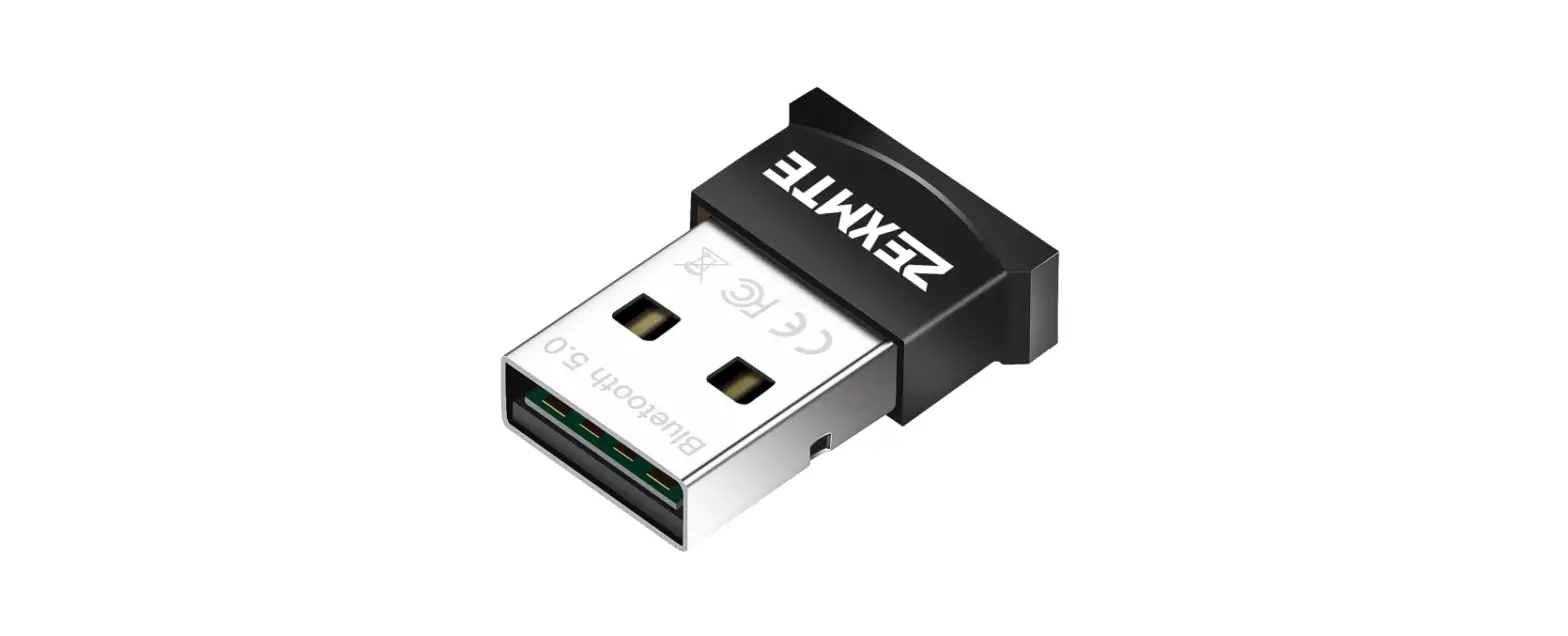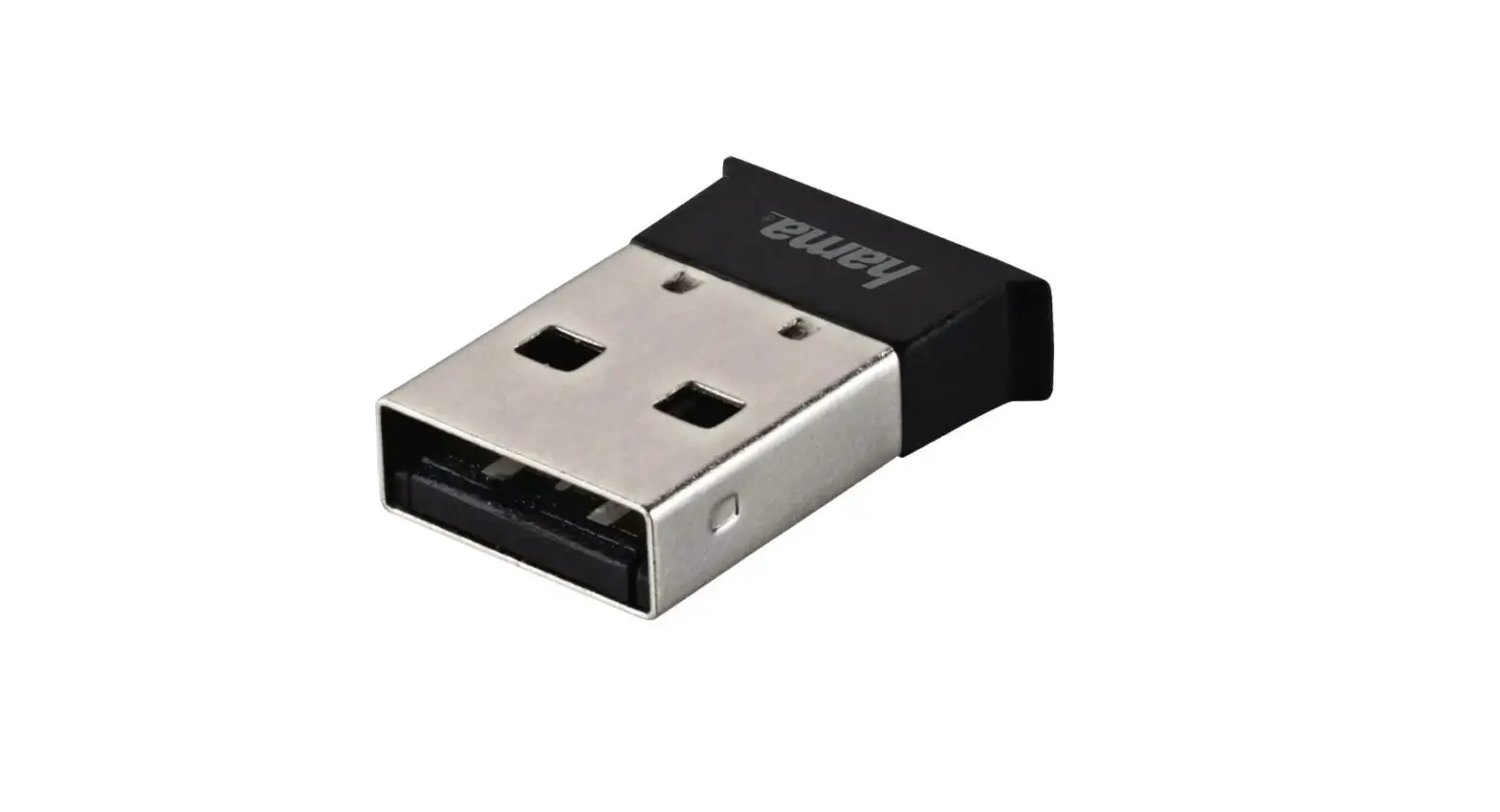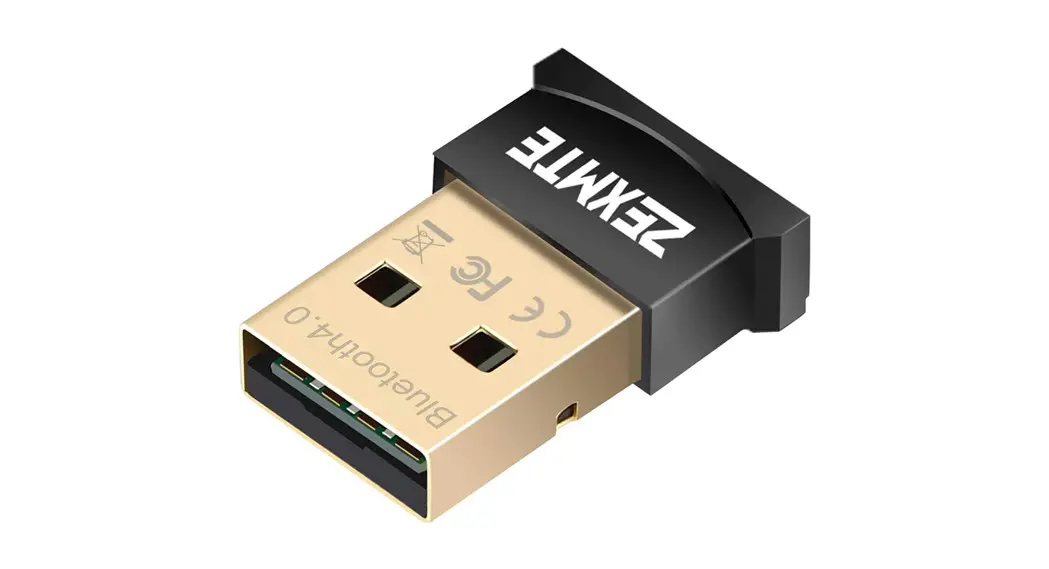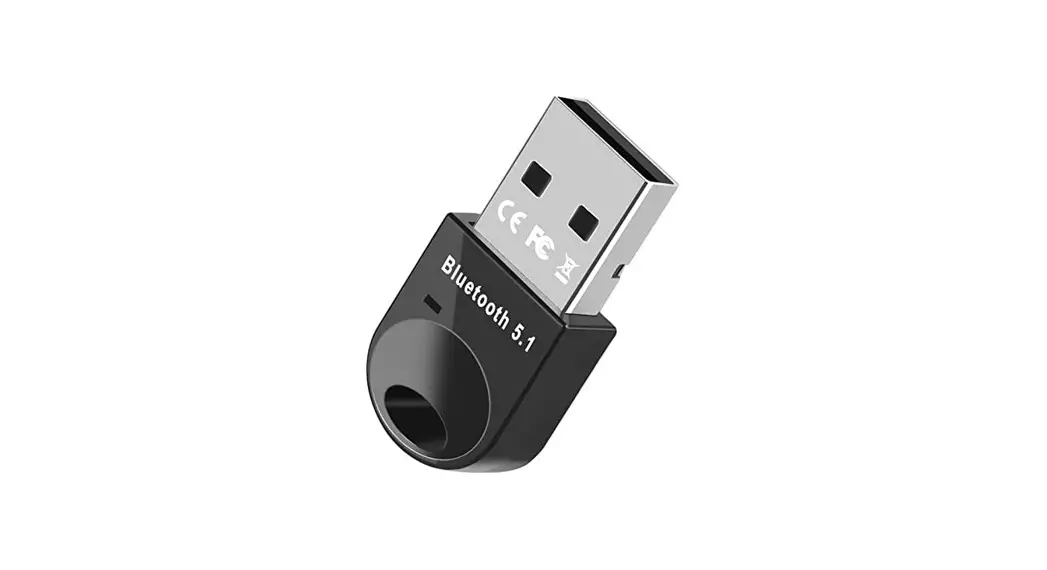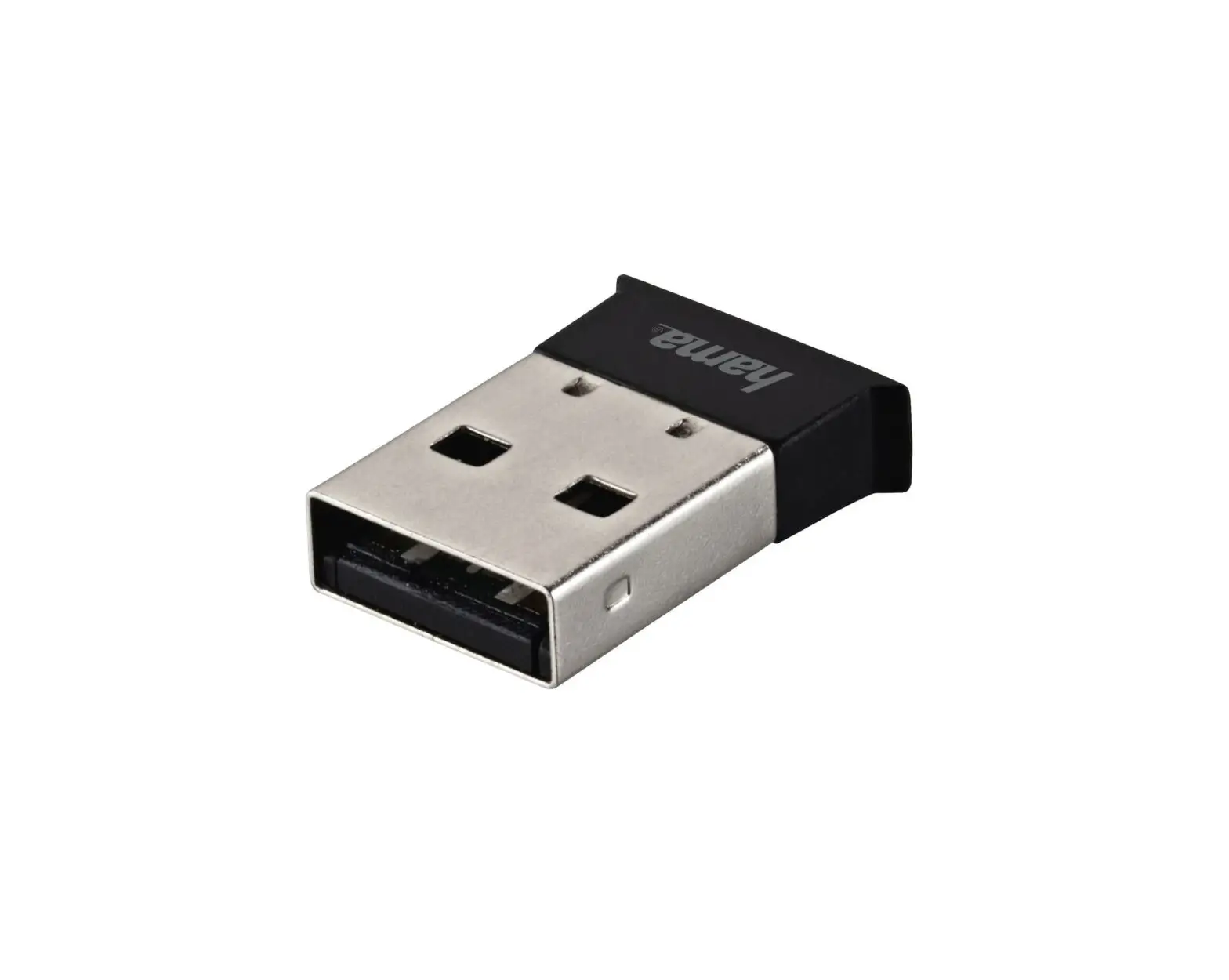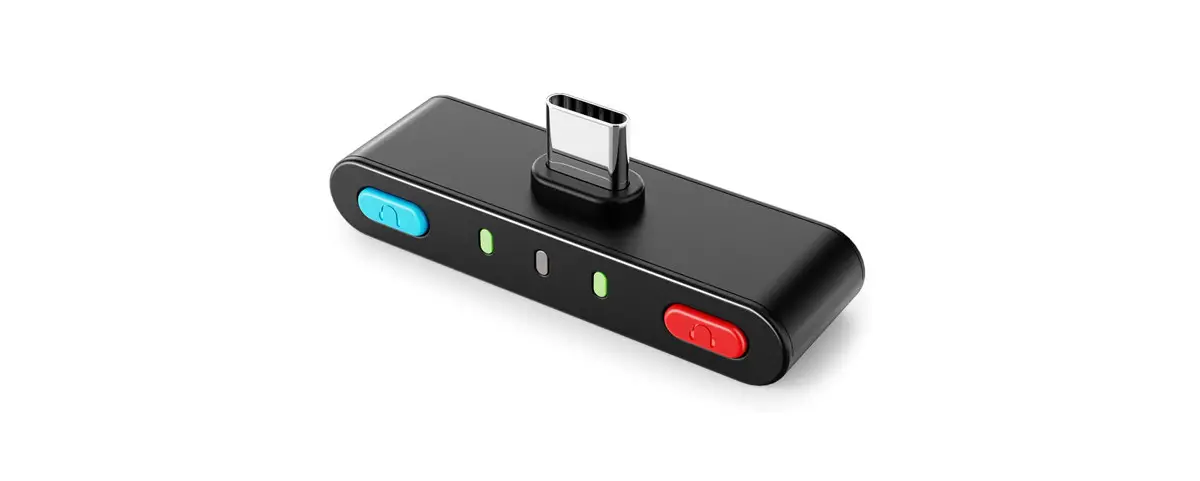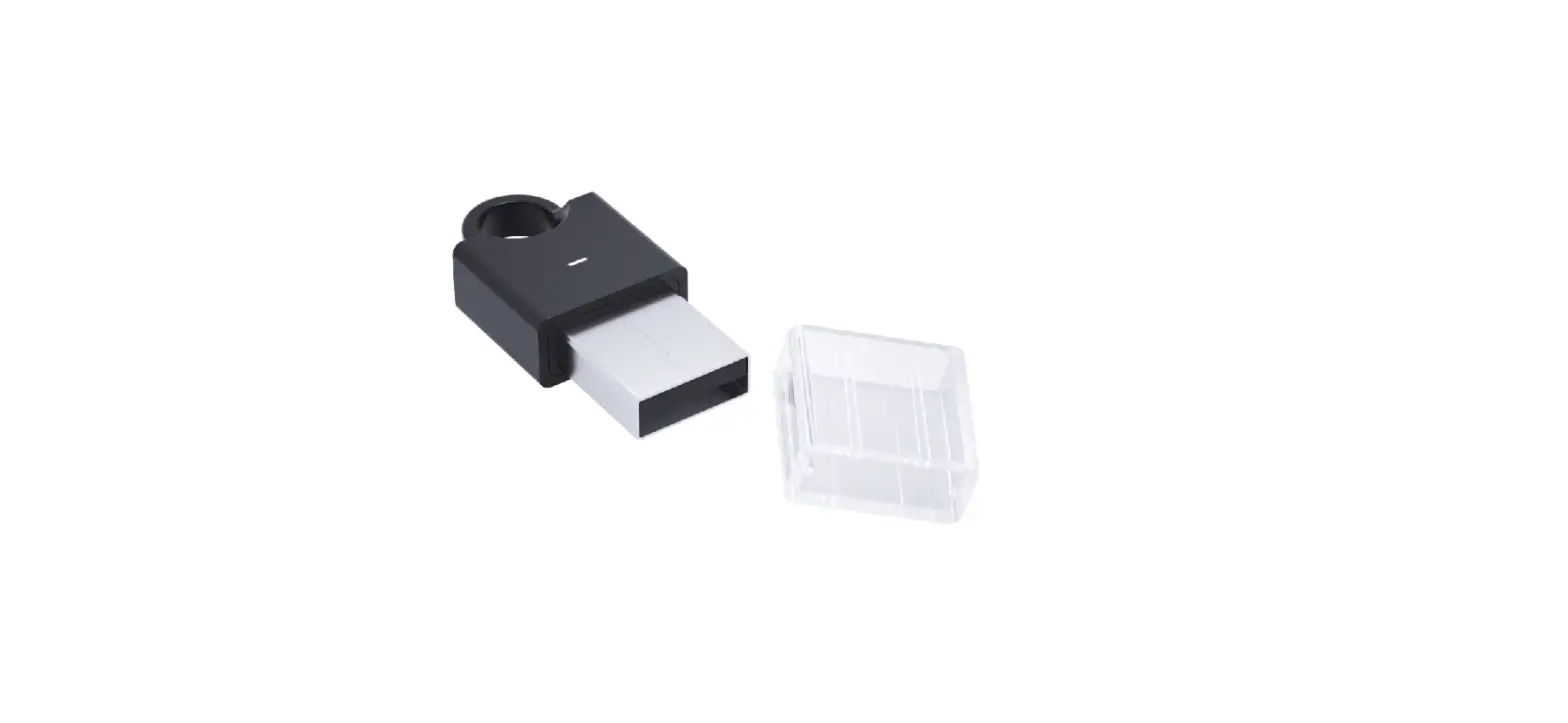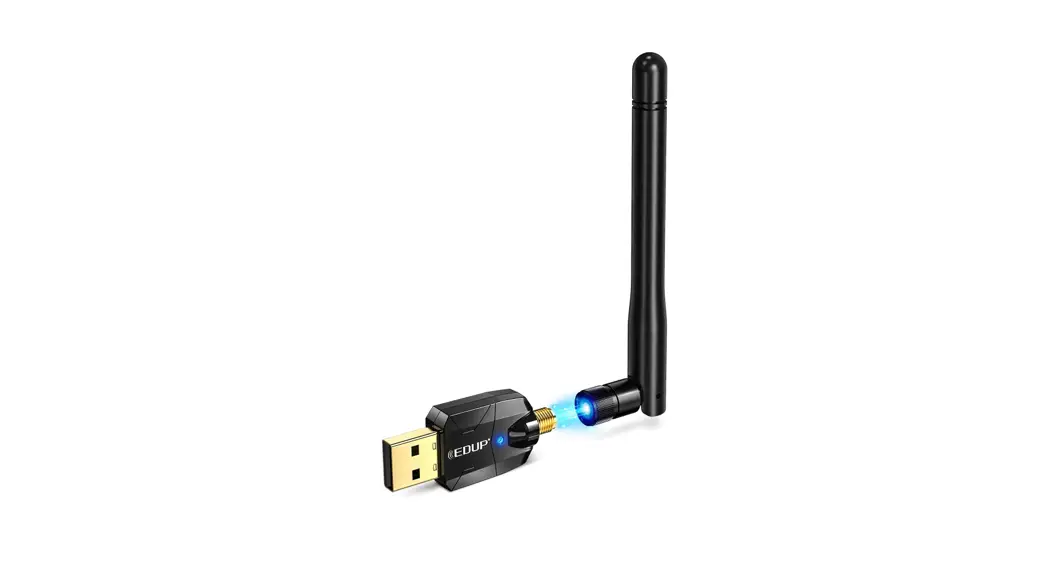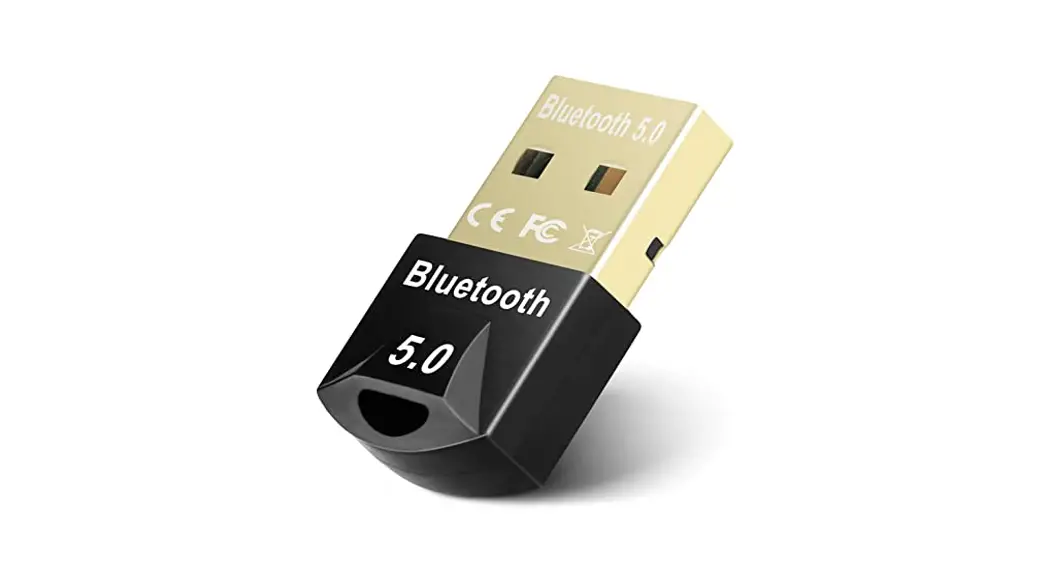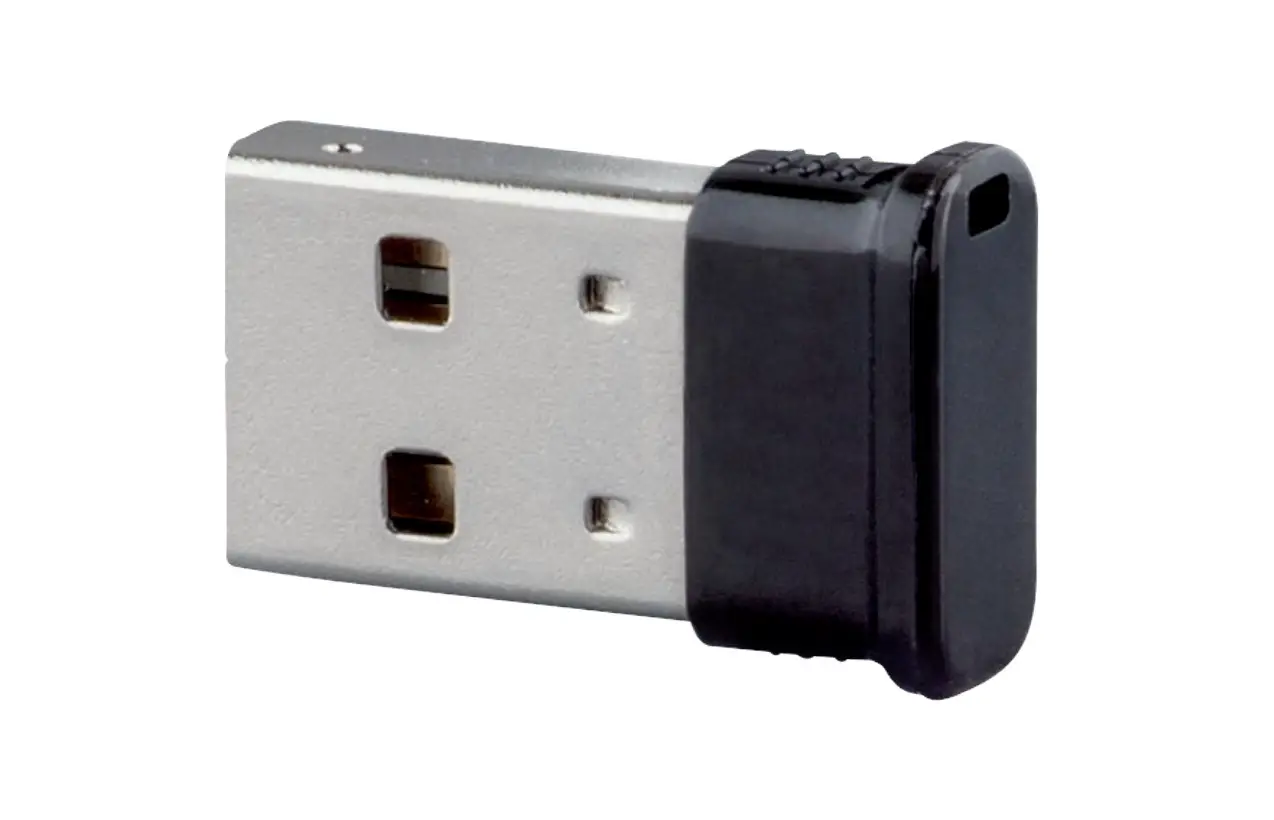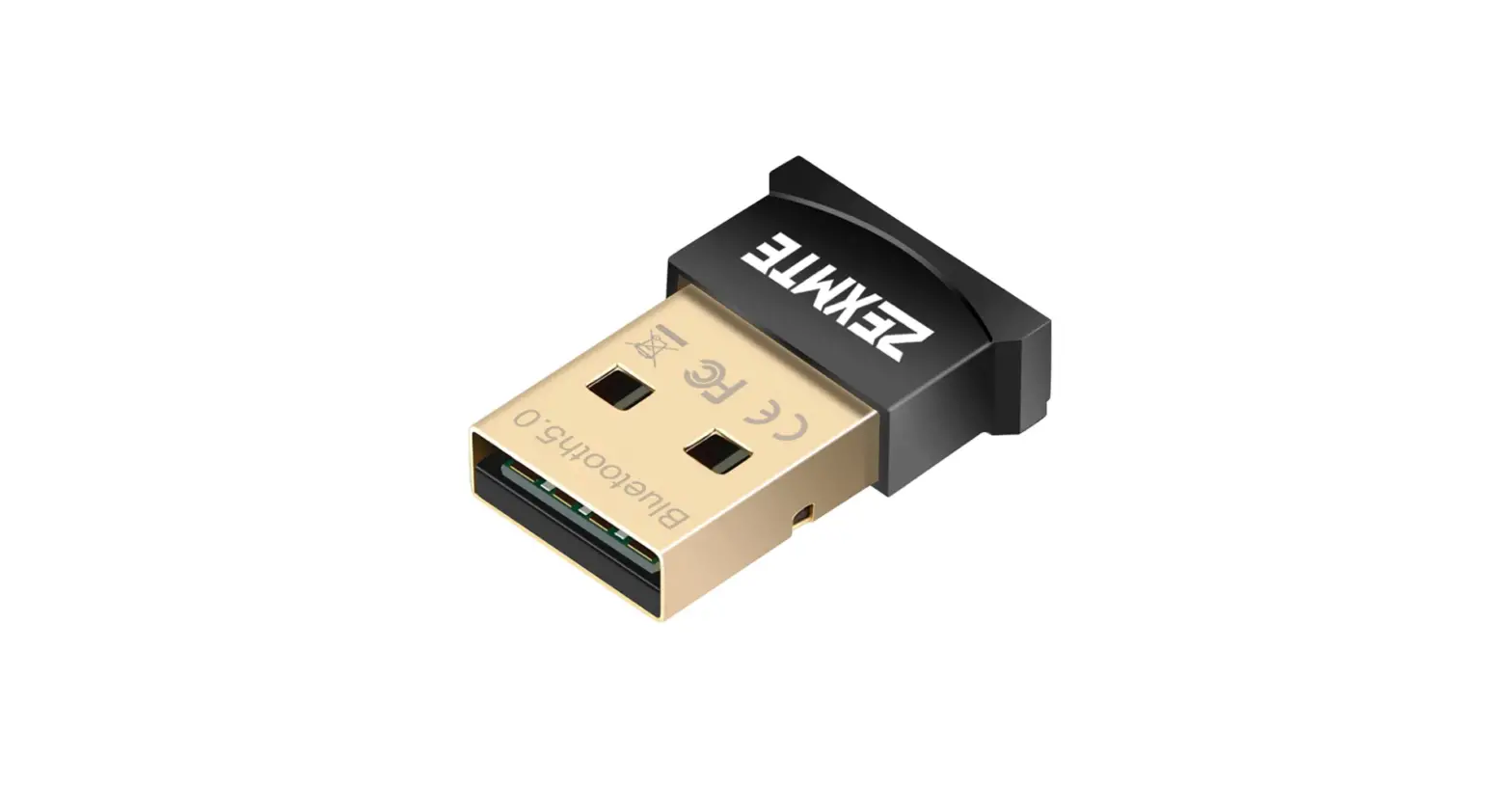

ZEXMTE 0054 Bluetooth Adapter for PC
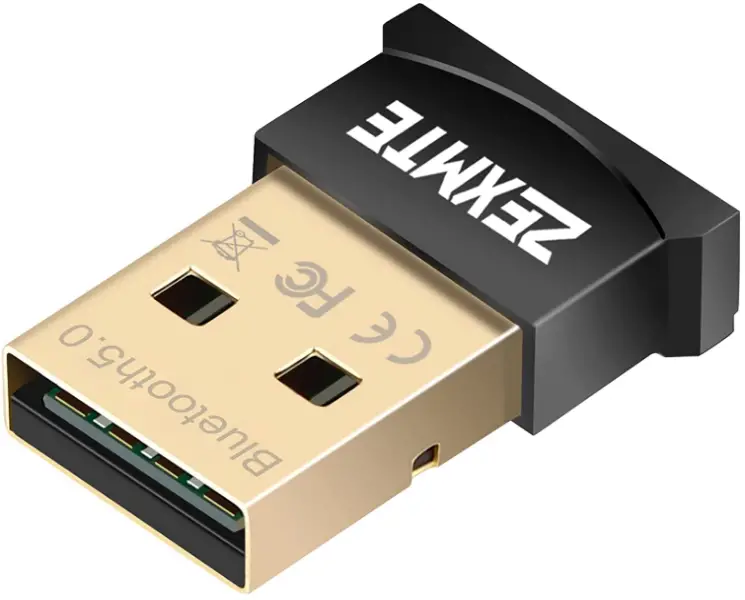
Instructions
How to troubleshoot “driver errors” or “yellow exclamation point” failures If your computer appears “driver error” or “yellow exclamation mark” when plug into this dongle computer, please check whether has previously installed Bluetooth drivers or built-in BlueTooth driver on the computer.
If so, you need to disable the built-in BlueTooth driver before you plug in the BT 5.1 dongle.
Here’s how to do so, step by step
Step 1
Right-click on the Windows icon.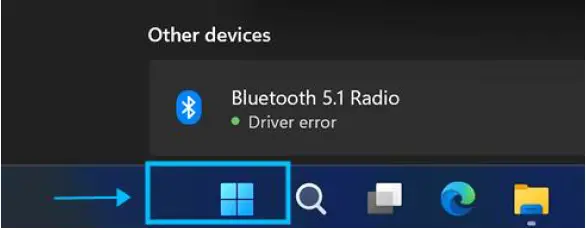
Step 2
Find “Device Manager” and left-click.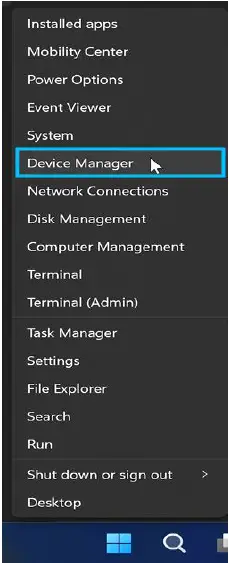
Step 3
Find “Bluetooth” and choose “Intel(R)Wireless Bluetooth” select “Disable device” and click on “Yes”.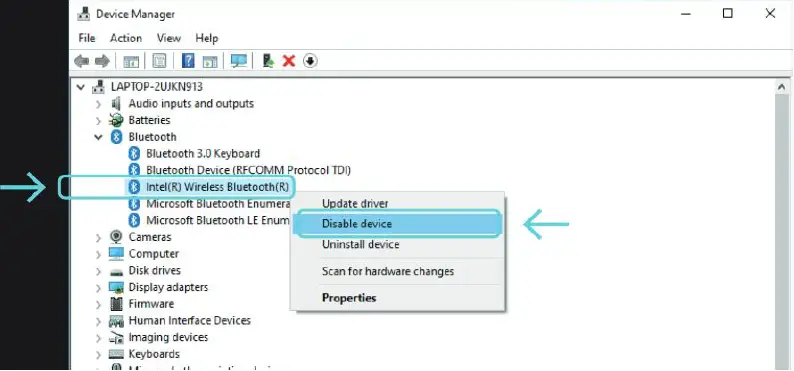
Step 4
Replug in the adapter and enjoy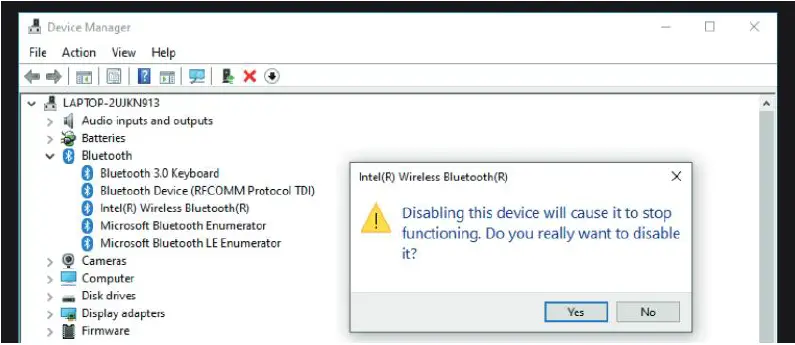
FAQ’s
Support for Windows 10/8/7, Not applicable for Mac OS, Linux, TV, Car
Plug and Play or Free Driver–Plug and play for Win 8/8.1/10 Driver required for Win7 and could be downloaded from the website free of charge
Make sure you have turned on the Bluetooth in Windows settings.
Please open the”Device Manager” page and open the Bluetooth, right-click on “Intel(R)Wireless Bluetooth” and select “Disable device”
Click the Bluetooth icon, select more Bluetooth devices on the right, check “Allow Bluetooth devices to find this computer” Restart the computer again, and search for devices
The USB port is broken, replace other USB ports. Check the driver if installed correctly. Enable the Bluetooth service function
Open the device manager and found Bluetooth, right click and “Update driver”, Click “Search Automatically for Updated Windows Driver”
Please unzip it with the compression software after the complete download, and then install it
Please click the “sound icon/playback device” in the lower right corner of the desktop to set the Bluetooth headphones as the default output.
Not to plug the BlueTooth adapter in the back of the computer(Operation range can be affected by physical obstructions (walls, people, etc.), wireless interference (Wi-Fi routers, Wireless TV adapters, etc)
Please check whether the adapter is in the list of supported adapters. If not, please contact us.
Yes, you can use it to connect your Android device to your PC via USB.
Yes, you can use it to connect your Macbook Pro to your PC via USB.
This red light indicates that the Bluetooth adapter is working properly.
This blue light indicates that the Bluetooth adapter is in pairing mode and ready for pairing with other devices.