 Boom! Audio HD-N01 10R Quick Start Guide
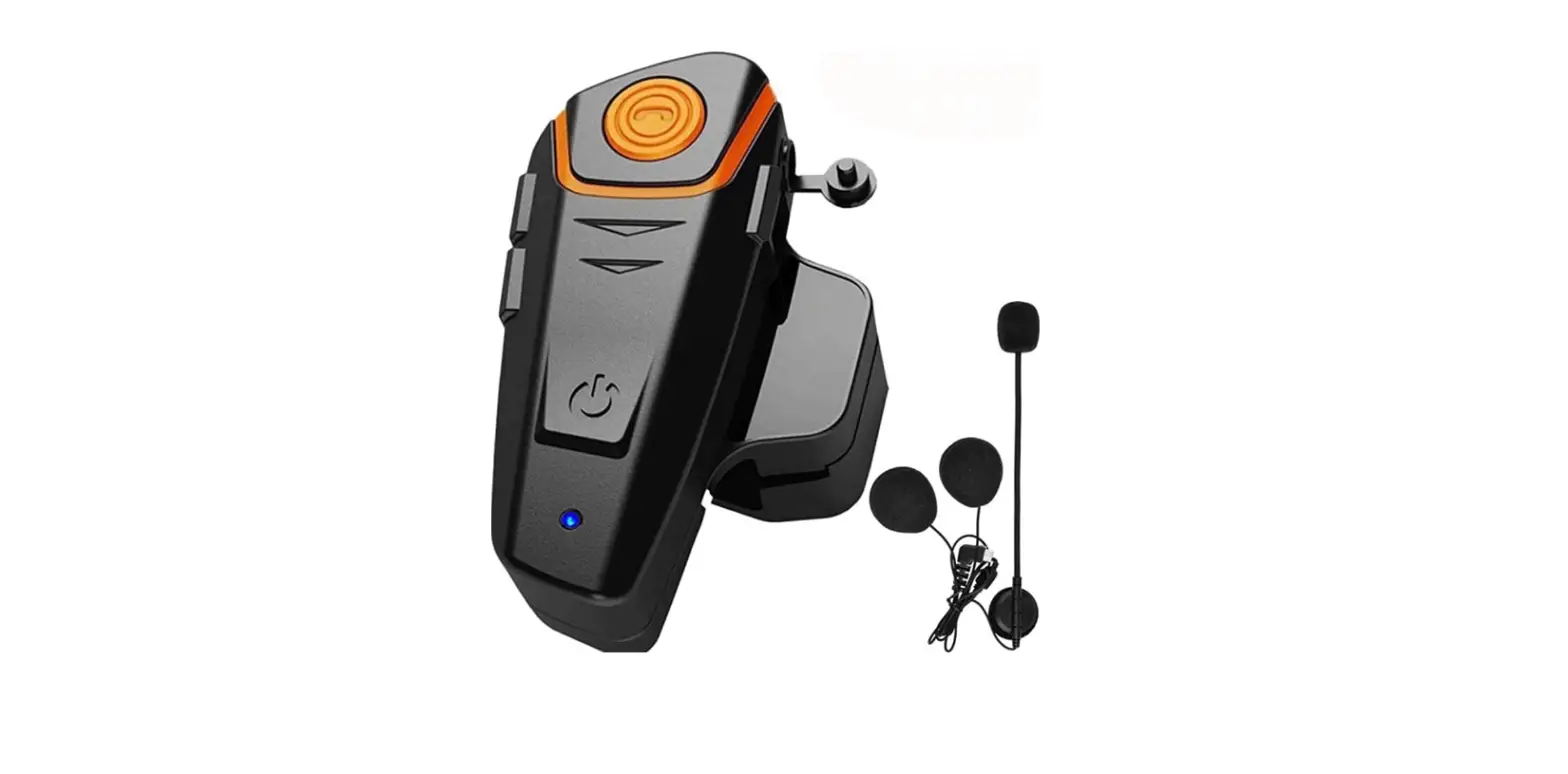
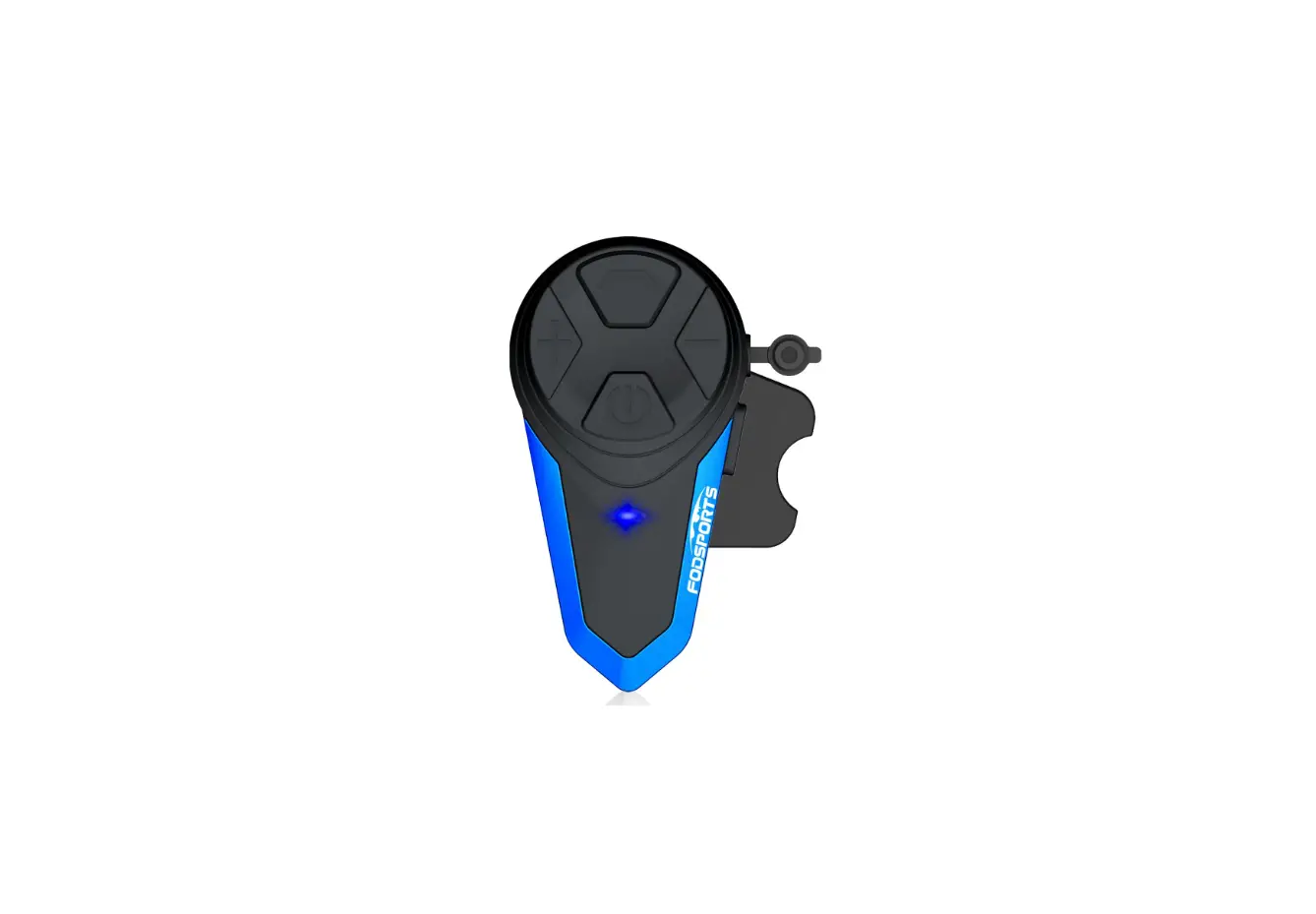
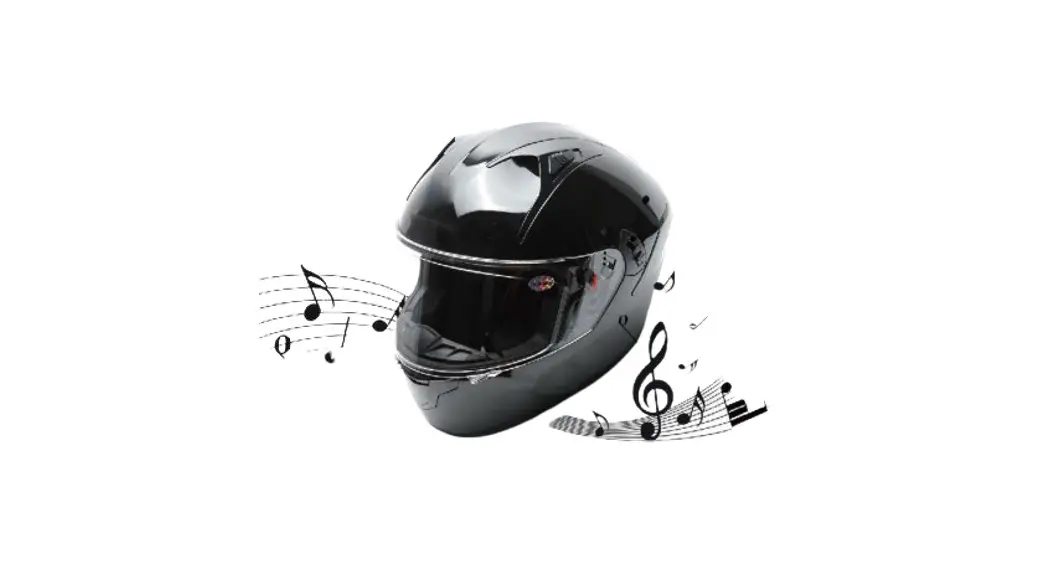
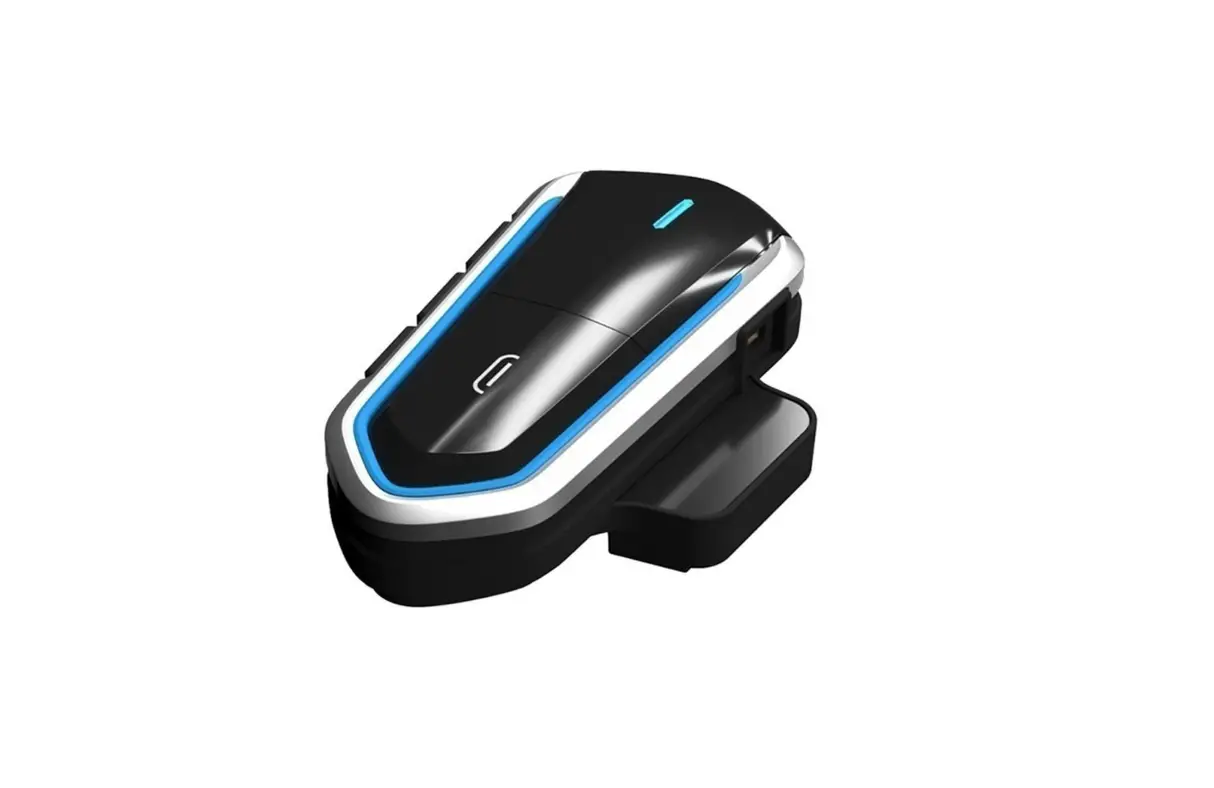
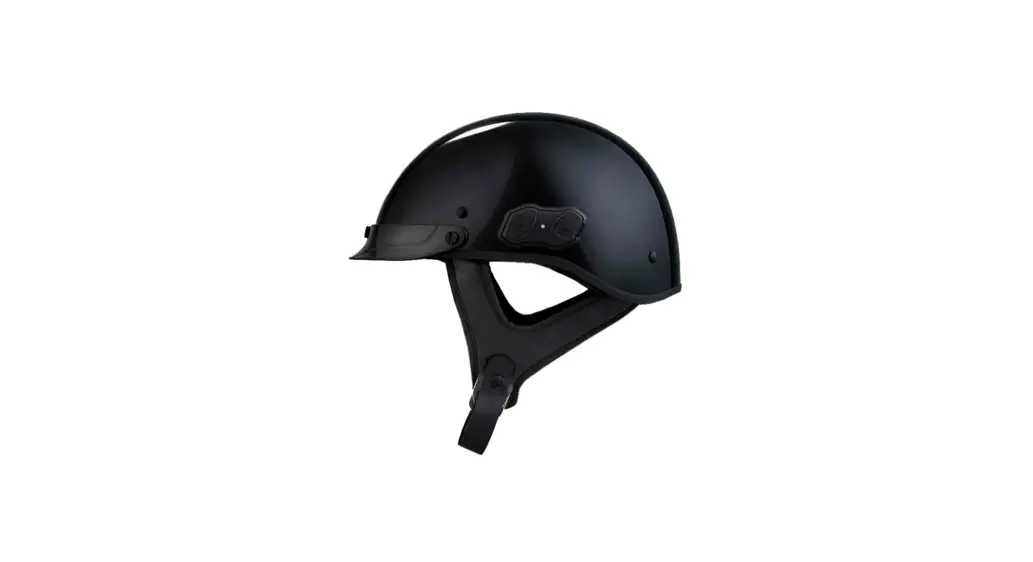
HD-N01 10R Audio Bluetooth Half Helmet
Charging
Power On/Off
Volume Adjustment
Bluetooth Pairing
Phone, MP3 and GPS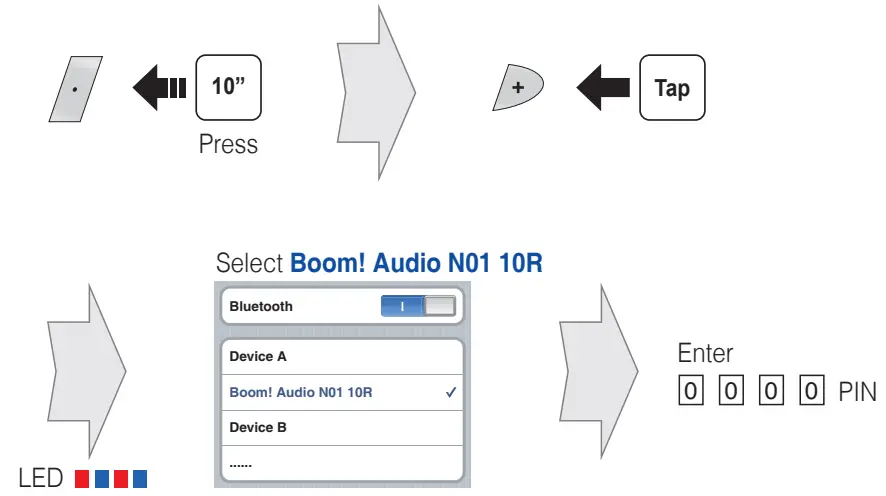
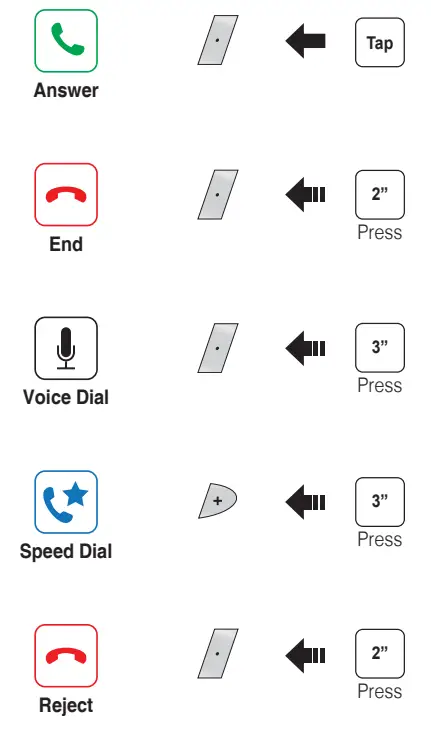
Mobile Phone
Music
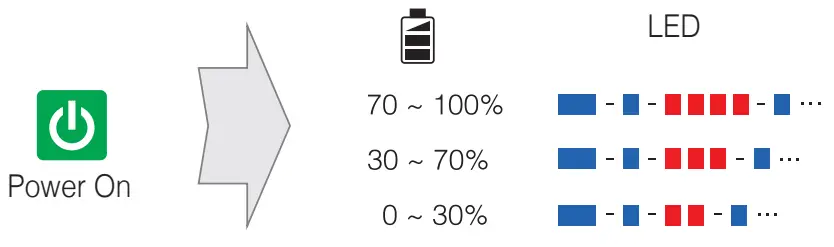
Battery Check
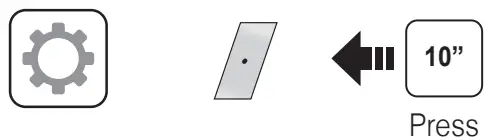 There is Universal Intercom Pairing in the Configuration Menu.
Pairing
Intercom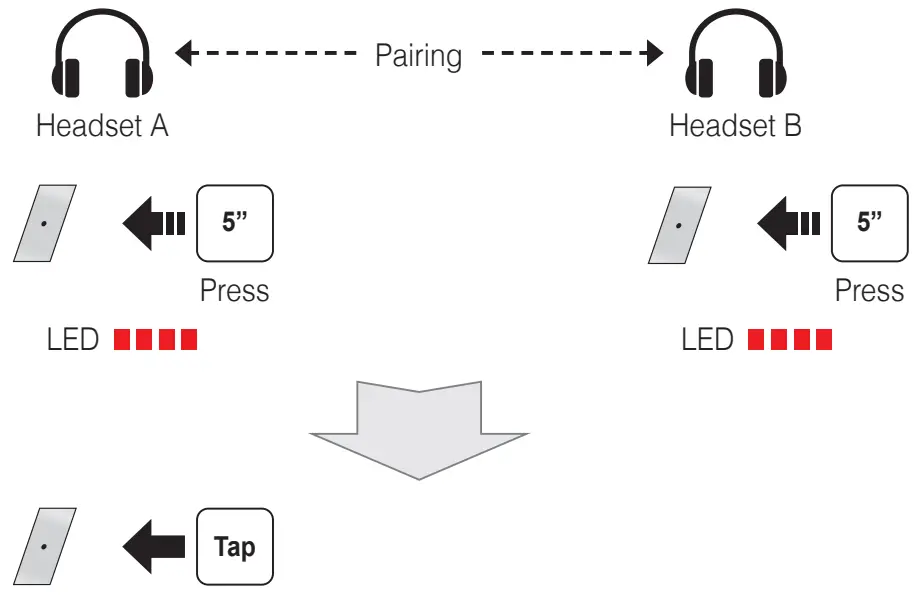
Start/End
Intercom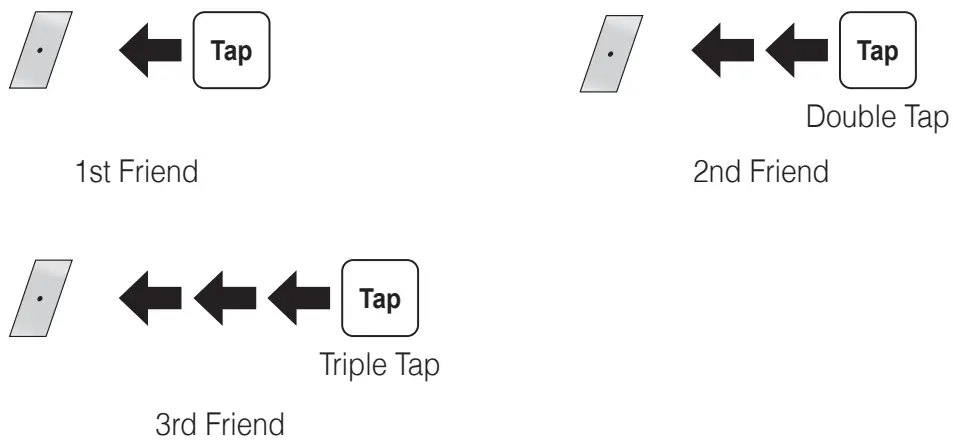
Start/End
Group Intercom
Start Group Intercom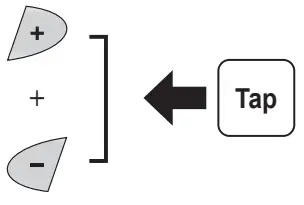 End Group Intercom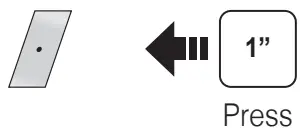
Radio
On/Off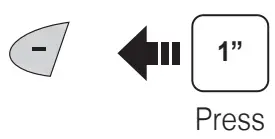
Radio Seek Stations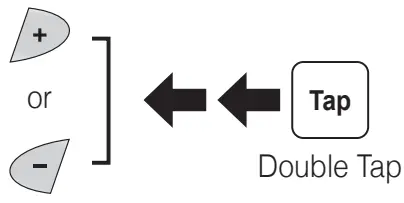
Radio Scan Up FM Band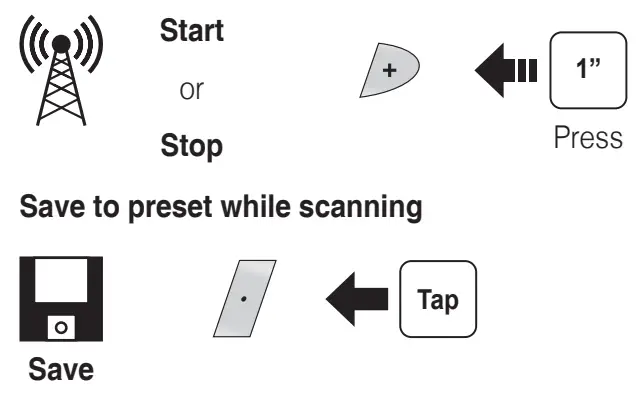 Radio Save or Delete Preset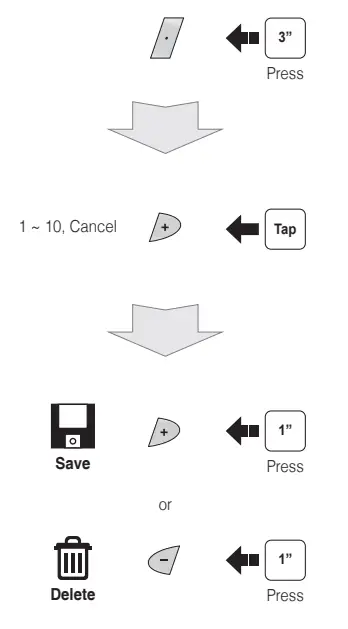
Radio Move to Preset Station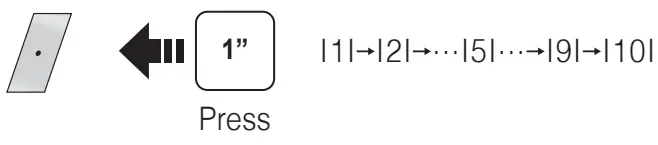
Setting
Using the Boom Audio Bluetooth Device Manager
The Device Manager allows you to upgrade the firmware and configure the device settings directly from your PC.
Using this software, you can assign speed dial presets, FM radio frequency presets and more. It is available to download for both Windows and Mac. For more information on downloading the Device Manager, please visit www.H-D.com/infotainment-support.
Using the Sena Motorcycles App
The Sena Motorcycles App allows you to configure the device settings, create groups of intercom friends, and view the quick start guide. Simply pair your phone with your Boom! Audio HD-N01 headset, run the Sena Motorcycles
App and you can configure its settings directly from your smartphone. You can download the Sena Motorcycles App for Android or iPhone from Google Play Store or App Store.
Troubleshooting
Factory Reset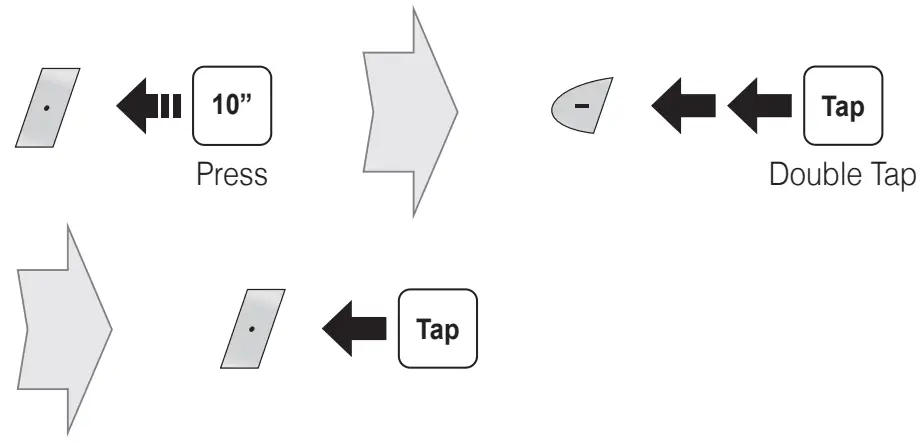
Customer Support:
www.H-D.com/infotainment-support
Boom! Audio HD-N01 10R Quick Reference
Fault Reset
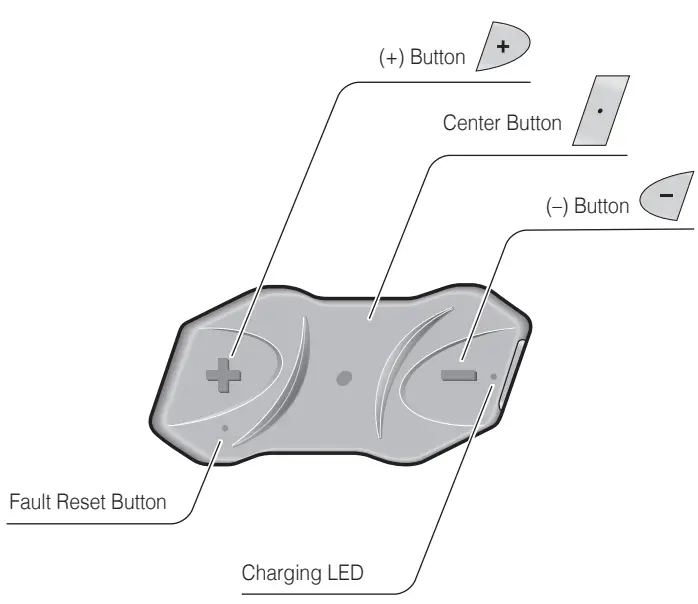
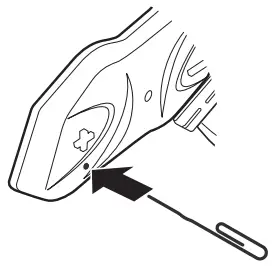
If the Boom! Audio HD-N01 headset is not working properly for any reason, reset by gently pushing the pin-hole reset button located below the (+) button.
Customer Support:
www.H-D.com/infotainment-support
Boom! Audio HD-N01 10R Quick Reference
| Type | Operation | Button Command | LED |
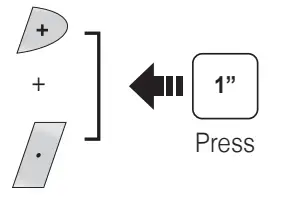
| Basic Function | Power on | Press the Center Button and the (+) Button for 1 second | Solid blue |
| Power off | Tap the Center Button and the ton (+) Button | Solid red | |
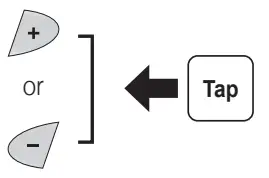
| Volume adjustment | Tap the (+) Button or the (-) Button | – | |
| Mobile Phone | Answer mobile phone call | Tap the Center Button | – |
| End mobile phone call | Press the Center Button for 2 seconds | – | |
| Voice dial | Press the Center Button for 3 seconds | – | |
| Speed dial | Press the (+) Button for 3 seconds | – | |
| Reject incoming call | Press the Center Button for 2 seconds | – | |
| Intercom | Intercom pairing | Press the Center Button for 5 seconds | Blue flashing |
| Tap the Center Button of any one of the two headsets | |||
| Start/End each intercom | Tap the Center Button | – | |
| End all intercoms | Press the Center Button for 1 second | – | |
| Start Group Intercom | Tap the (+) Button and the (-) Button at the same time | Blue and red Bashing | |
| End Group Intercom | Press the Center Button for 1 second | – | |
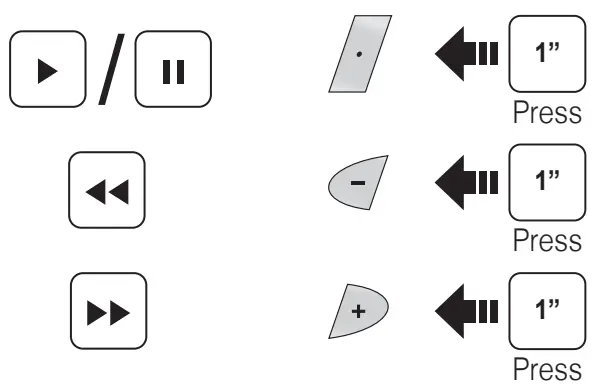
| Music | Play/Pause Bluetooth music | Press the Center Button for 1 second | – |
| Track poniard/back | Press the (+) Button or the (-) Button for 1 second | – | |
| FM Radio | FM radio on/off | Press the (-) Button for 1 second | – |
| Select preset | Press the Center Button for 1 second | – | |
| Seek stations | Double tap the (+) Button or the (-) Button | – | |
| Scan up FM band | Press the (+) Button for 1 second | – | |
| Stop scanning | Press the (+) Button for 1 second | – | |
| Save preset while scanning | Tap the Center Button | – | |
www.H-D.com/infotainment-support
22.Sep
 Login | Harley-Davidson SIP