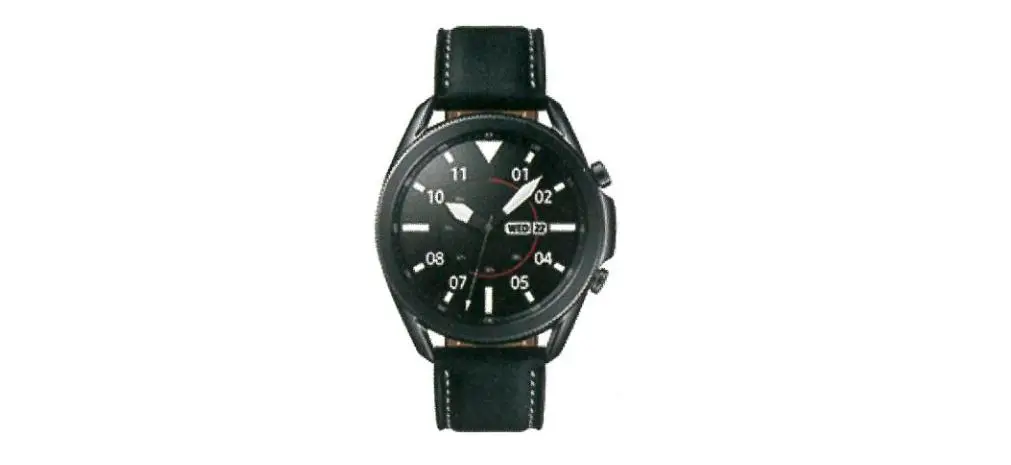
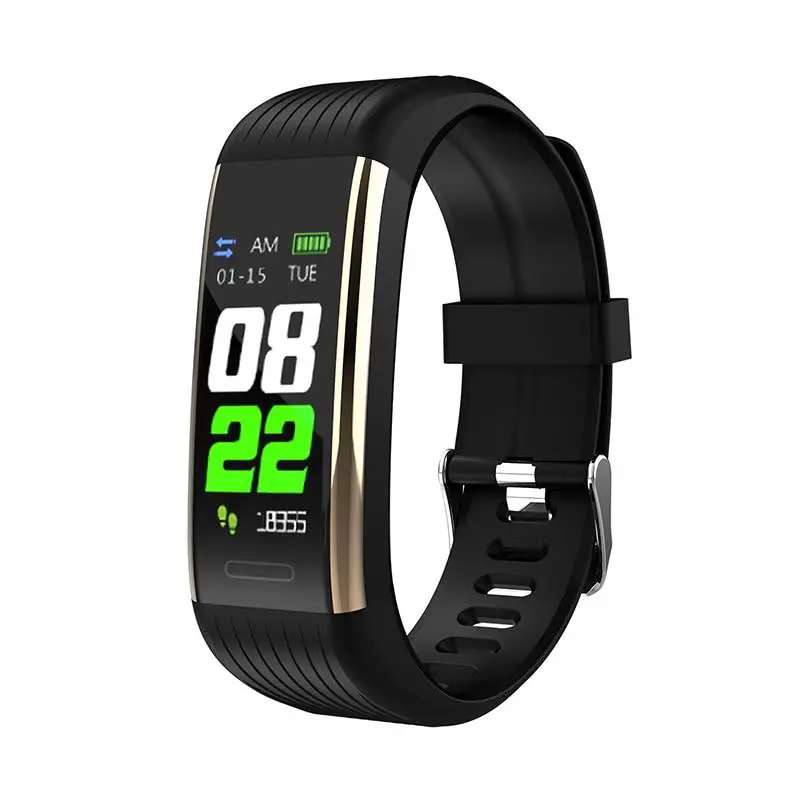
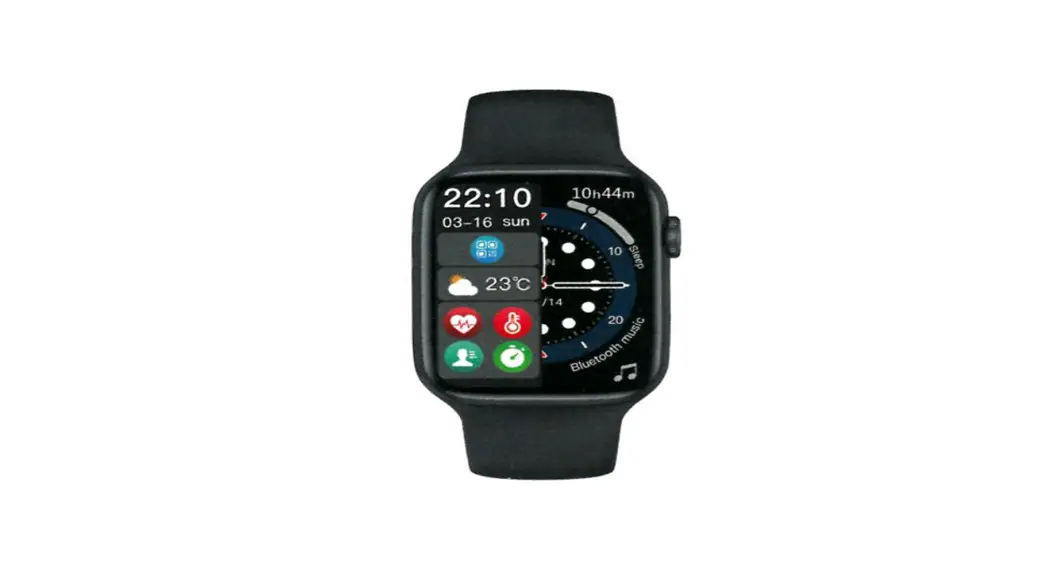
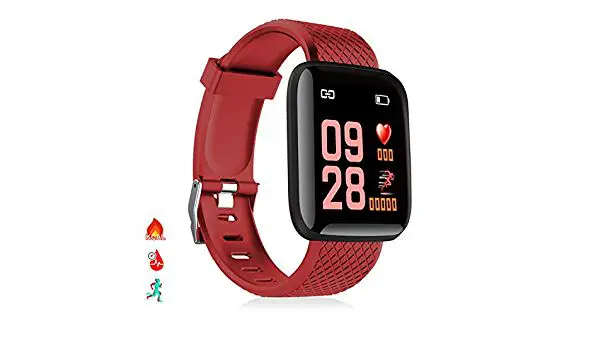
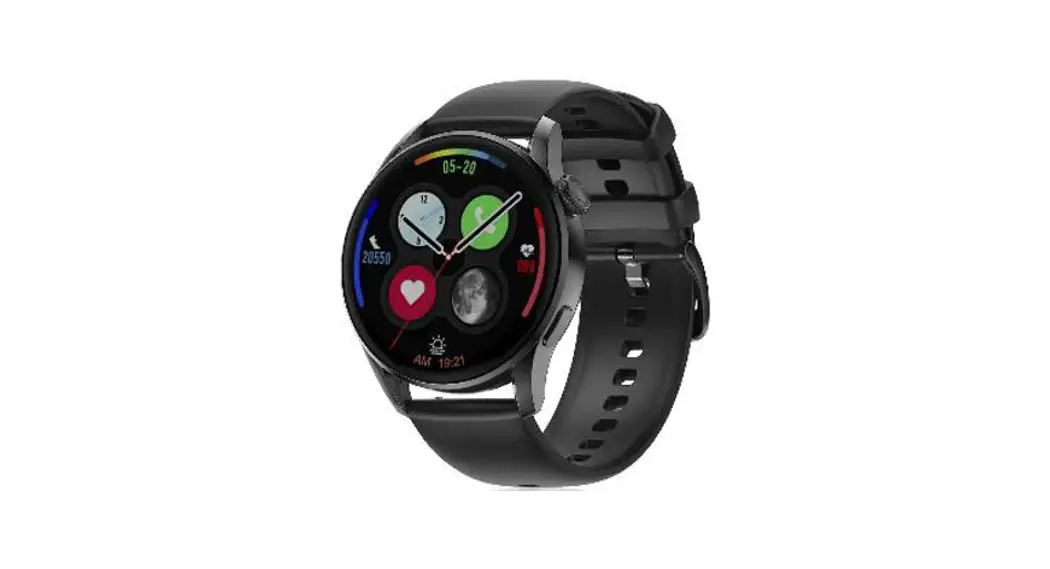
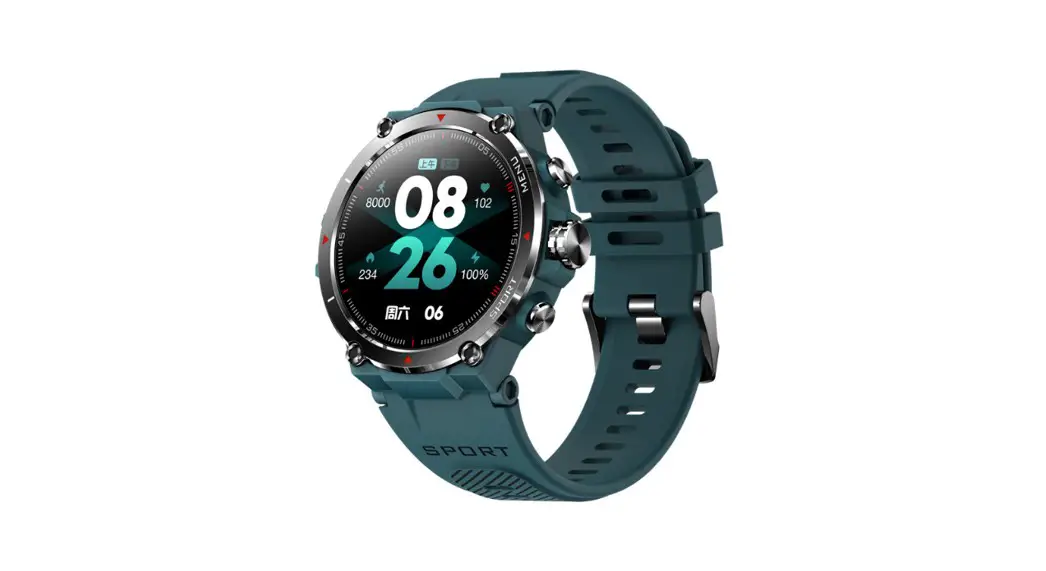
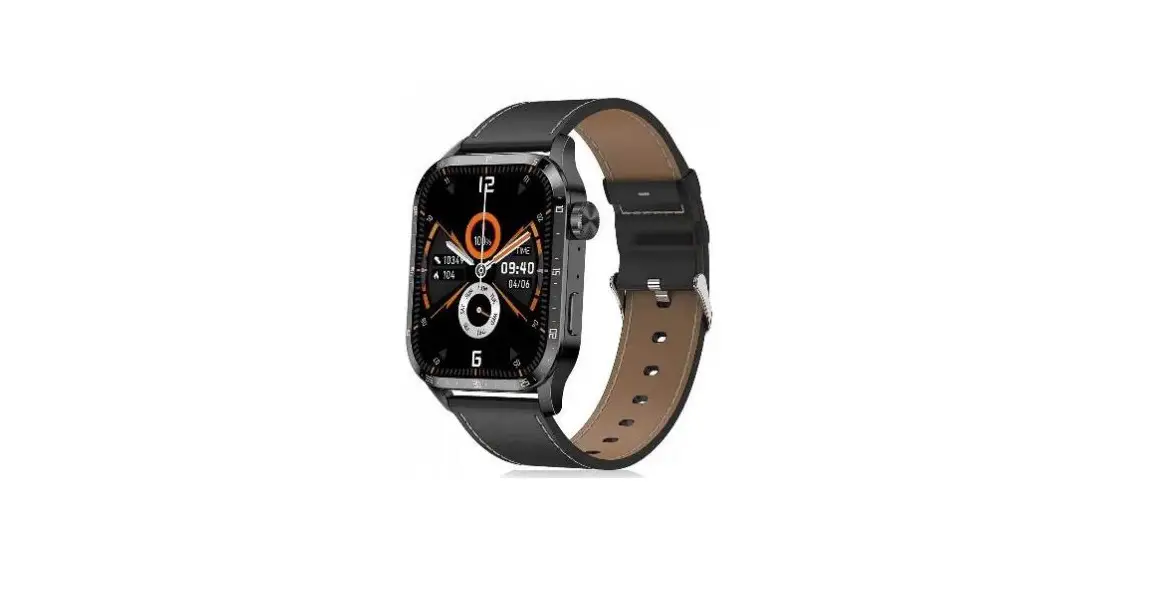
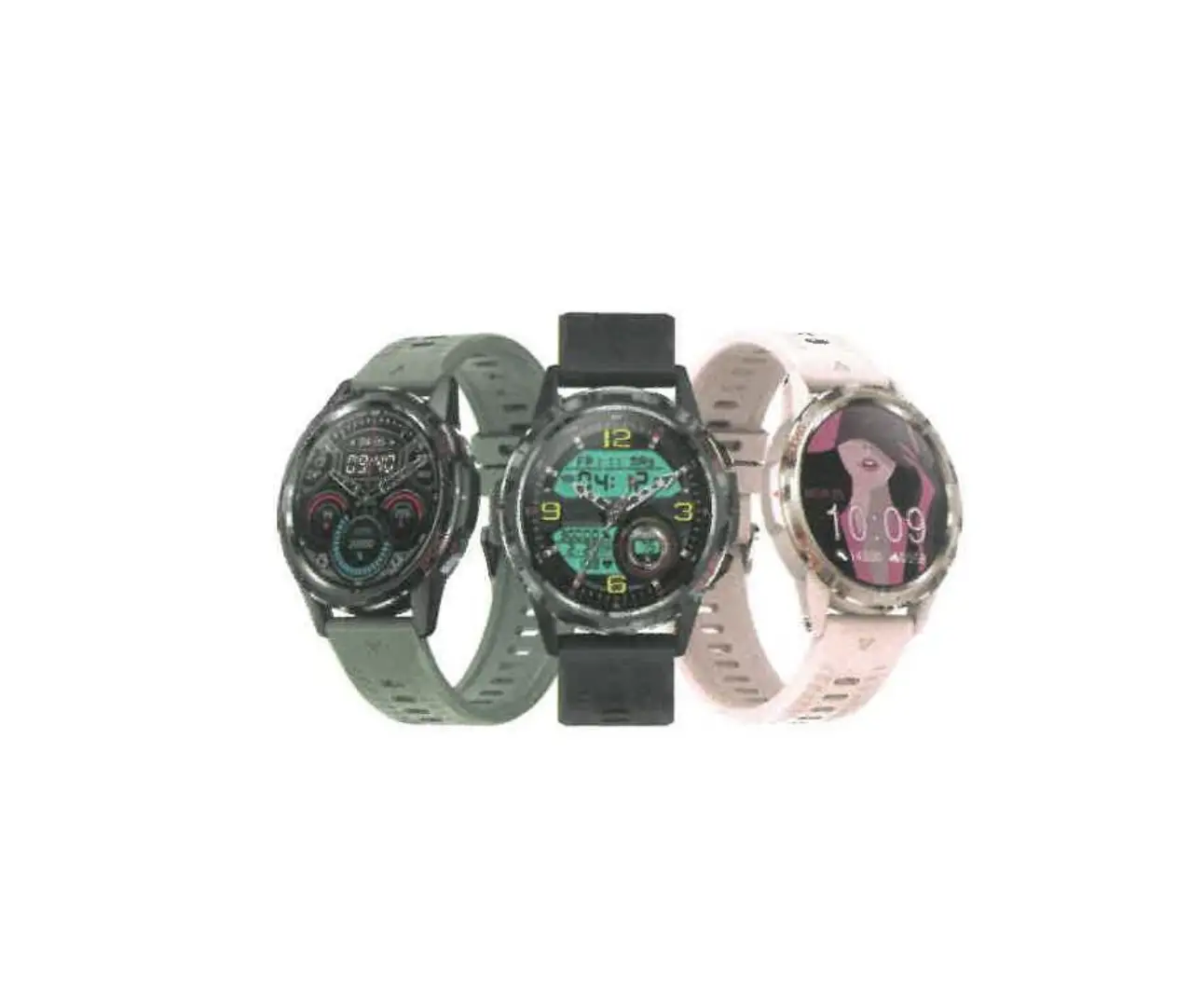
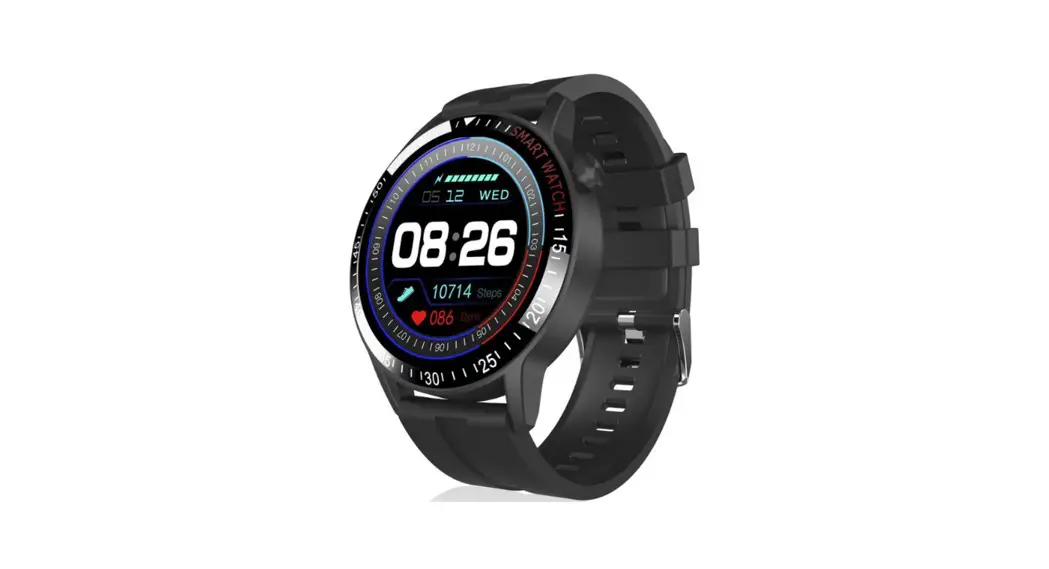
Y30 Smartwatch
Smartwatch Y30
User Manual
Notice for Use
When measuring, the sensor should be close to the skin and avoid
moving. Product measurement results are only used for reference and
not for medical purposes. Please fully charge the smartwatch before
using it. The charging time is approximately 2 hours. Use the
standard accessories provided for charging to avoid any charging
accidents. Do not charge the smartwatch under humid conditions or
when it is stained with water.
APP Installation & Connection
To install the app, scan the QR code or search for “Vband” in
the App Store and download and install the app. Note that Android
devices should have a version of 5.0 and above, while iOS devices
should have a version of 8.0 and above. The Bluetooth hardware
should be version 4.0 and above.
Device Connection
For the first use, follow these steps to connect the smartwatch
to your device:
- Click on the selection of binding device.
- Find the device you want to connect to.
- If there are several devices nearby, select the MAC address of
your own watch to bind. - If the watch successfully binds with your mobile, a Bluetooth
icon will appear on top of the watch.
Before using the Bluetooth function, make sure that the system
Bluetooth synchronization switch is turned on. To connect audio,
turn on the Bluetooth switch of the watch and then search for “Y30”
on your phone to connect. Android phones should grant all
notification permissions, such as reading contact information and
allowing the app to run in the background, in the phone settings.
For iOS devices, please pair the Bluetooth for the first time
connecting.
Watch Function Description
Buttons: Short press a button on any interface
to return to the dial. When the phone rings, press the side button
to answer the call. Turn the button to switch between the dial and
menu. Slide up on the dial interface to enter message notification.
Slide down on the dial interface to enter the shortcut menu. Slide
left on the dial interface to enter the menu interface. Slide right
on the dial interface to enter the audio interface.
Features
- Change main interface: On the main interface, touch the screen
to select the main interface. - Smart lock screen: Set a password in the settings to protect
privacy. - Bluetooth display: Enter the number on the dial interface of
the watch or mobile phone to enter the dial. The watch and mobile
phone will be synchronized in real time. - Bluetooth call: This watch supports Bluetooth call and allows
for play, pause, and other operations of the phone. - Message notification: Open the reminder on the app. When there
is QQ, WeChat, call, SMS, and other information on the mobile
phone, the watch will vibrate and display the content of the
message. - Find phone: When the bracelet is connected to the app, click to
enter “Find Phone” and the phone ringtone will ring. - Set up: Adjust volume, screen brightness, perform a factory
reset, shutdown, and view the version number. - More features: Weather, calculator, alarm clock, stopwatch,
remote photography, sedentary reminder, drinking water reminder,
charging reminder, etc.
APP Operation Introduction
- User Registration: Users can register using their mobile phone
number or email address. This allows users to save and share their
sports and health information. Unregistered temporary users cannot
record and save related information.
Smartwatch Y30
User manual
Notice for Use
When measuring, the sensor close to the skin and avoid moving Product measurement results are only used for reference instead of medical purposes and basis; Please fully charge before using. The charging time needs about 2 hours Please use the standard accessories for charging to avoid charging accidents Please do not charge under the condition of humidity or being stained with water
APP Installation & Connection
Scan the QR code or enter the APP Store and search for “Vband” in the App Store to download and install the APP.
Note: Android supports 5.0 and above, IOS supports 8.0 and above; Bluetooth hardware 4.0 and above .
Device connection
For the first use, To bind the watch, click selection of binding device and find out the device to be connected. If there are several devices nearby, select MAC address of own watch to bind, If the watch binds with mobile successfully, there will be bluetooth icon on top of watch.(Note: Before using the Bluetooth function, please confirm whether the system Bluetooth synchronization switch is turned on)
For audio connection, you need to turn on the Bluetooth switch of the watch, and then turn on the phone to search for Y30 to connect.
Android phones use all notification permissions such as reading contact information and giving the app background running in the phone settings.
Tips: For IOS devices, please press pair the Bluetooth for the first time connecting.
Watch function description
Buttons: Short press a button on any interface to return to the dial. When the phone comes in, press the side to answer the call. Turn the button to switch the dial and menu, Dial interface slide up to enter the message notification. Dial interface slide down to enter the shortcut menu. The dial interface slides to the left to enter the menu interface. The dial interface slides to the right to enter the audio interface.
Features
Change main interface On main interface, ltouch the screen to select the main interface. Smart lock screen Set a password in the settings to protect privacy. Bluetooth display Enter the number on the dial interface of the watch or mobile phone to enter the dial. The watch and mobile phone will be synchronized in real time.
Bluetooth call This watch supports Bluetooth call.
Address book Click the sync address book on the APP side, and the watch can import 1000 items. Sports record Display the current number of exercise steps, exercise mileage and calorie consumption. Heart rate Measure the current heart rate value and display the measurement result. Blood pressure Measure the current blood pressure value and display the measurement result. Blood oxygen Measure the current blood oxygen value and display the measurement result. Sleep It can record and display the total length of sleep, and the length of deep sleep and light sleep. For more detailed information analysis and data recording, you can log in to the APP to view. Note: Sleep data starts to detect sleep from 9pm. Sport mode The sport mode menu supports a total of six sport modes: walking, running, yoga, elliptical machine, mountaineering, and swimming. The sport time and calories are recorded on each mode interface. Click to enter and right to exit. Bluetooth music After connecting the mobile phone Bluetooth, click to control the previous song, next song,
play, pause and other operations of the phone.
Message notification
Open the reminder on the APP. When there is QQ, WeChat, call, SMS and other information on the mobile phone, the watch vibrates and displays the content of the message.
Find phone
When the bracelet is connected to the APP, click to enter to find the phone, and the phone ringtone will ring later.
Set up
Volume adjustment, screen brightness, factory reset, shutdown, version number.
More features
Weather, calculator, alarm clock, stopwatch, remote photography, sedentary reminder, drinking water reminder, charging reminder, etc.
[APP operation introduction]
1. 1. User registration: Users can be registered by mobile phone number and email address, which is convenient for users to save and share the records of sports and health information. For unregistered temporary users, they cannot record and save related information.
2. Connect the watch: In Add Device, search for the device, click and bind this device. Note: If you cannot find the name of the watch device, please check whether the bracelet is powered on and turned on; if the bracelet is turned on, but you cannot find the device, it means that the bracelet is connected to other mobile phones, then you should first If you are using an Apple mobile phone, you need to find the device name in the Bluetooth settings and click Ignore this device to connect to the new mobile phone normally.
3. Step counting function: In the step menu in the APP, the steps, calories and mileage are recorded, and the percentage of completion can be displayed according to the set target steps, which can be distinguished from jogging, jogging and fast running. Click to enter You can view the daily history of each week and month.
4. Sleep function: display the daily, weekly, and monthly sleep data in the form of a graph, and calculate the daily sleep quality and sleep duration, as well as query historical records.
5. Training function: It can facilitate real-time training, record exercise steps, time, calories, mileage and movement track, and query historical training records.
6. Detection function: The detection menu in the APP includes body temperature, heart rate, blood oxygen, and blood pressure detection. At the same time, the bracelet end
sends a test request, which will be displayed synchronously in the APP and also saved when viewing historical records. 7. About the software: If the APP or bracelet firmware is updated, the APP will automatically send an upgrade reminder, or you can manually upgrade through the menu.
Precautions for use
No soaking, diving, diving, bathing; This product is an electronic monitoring product, not for medical reference, the data is for reference only. Please use factory reset with caution. Restoring factory settings will result in the loss of all APP content settings and historical data of the bracelet.