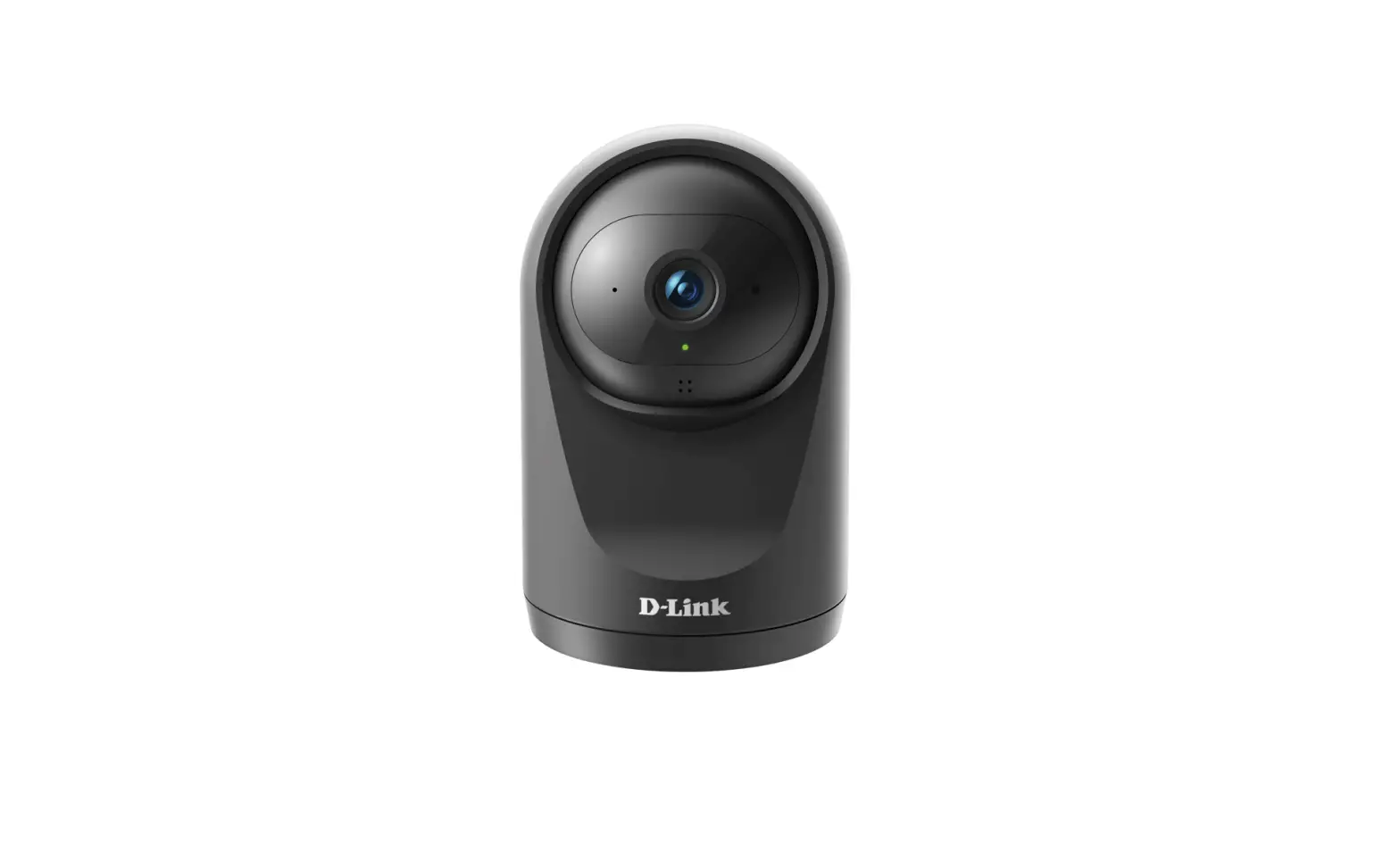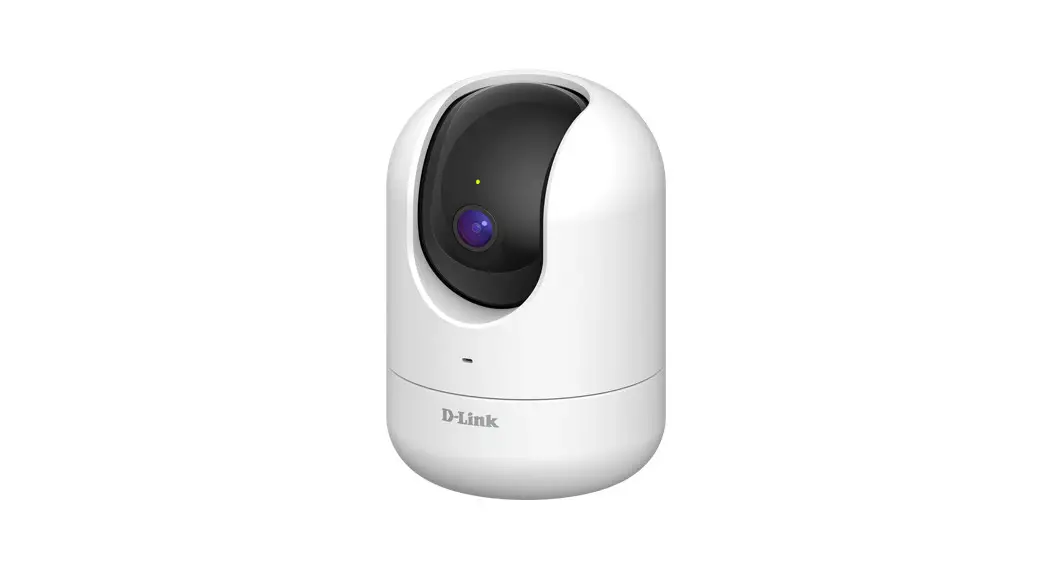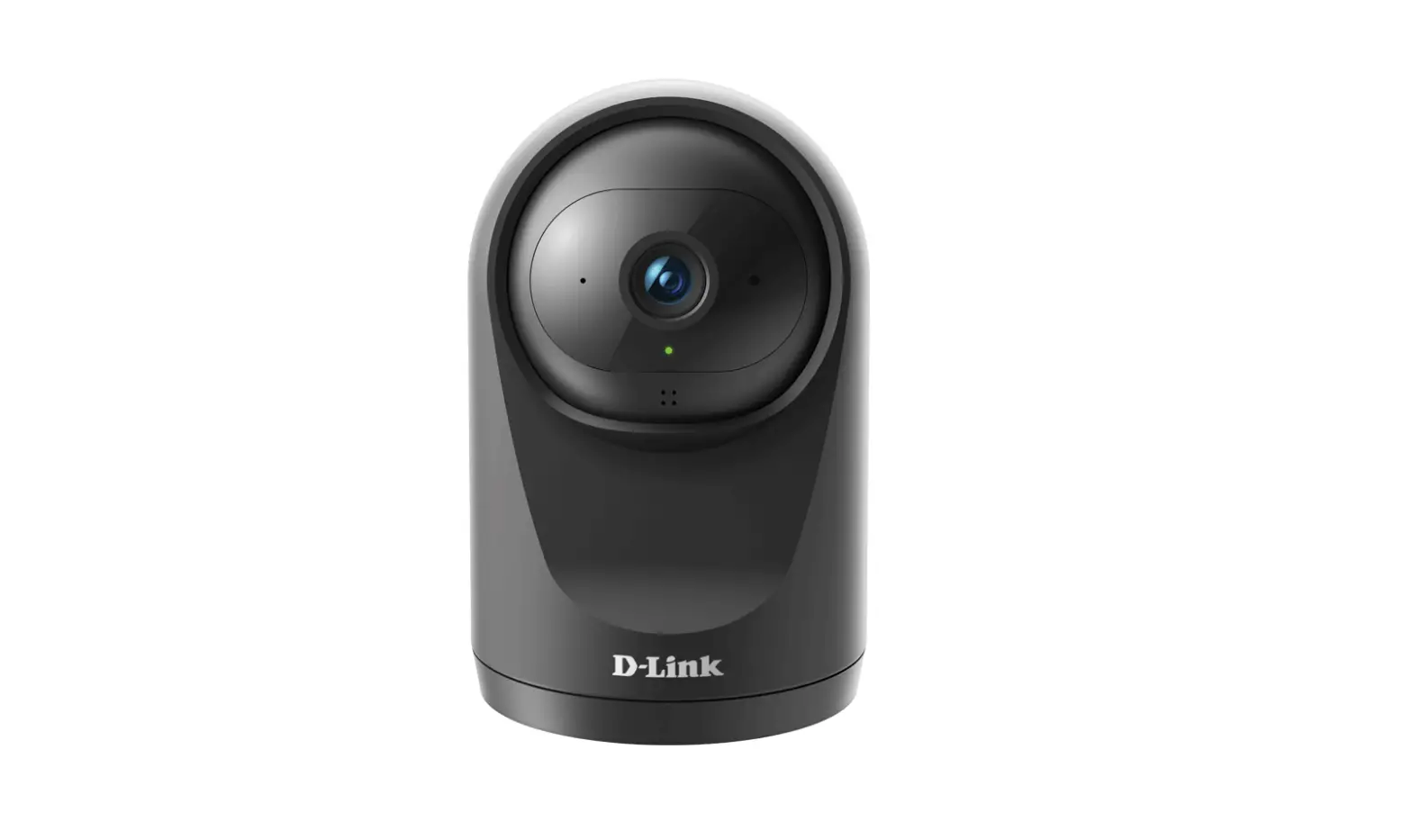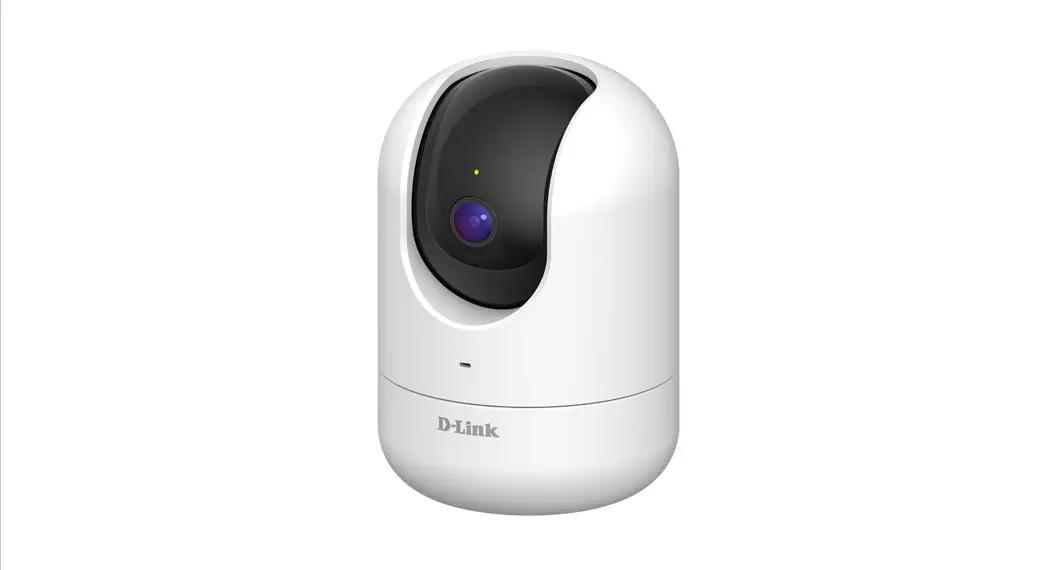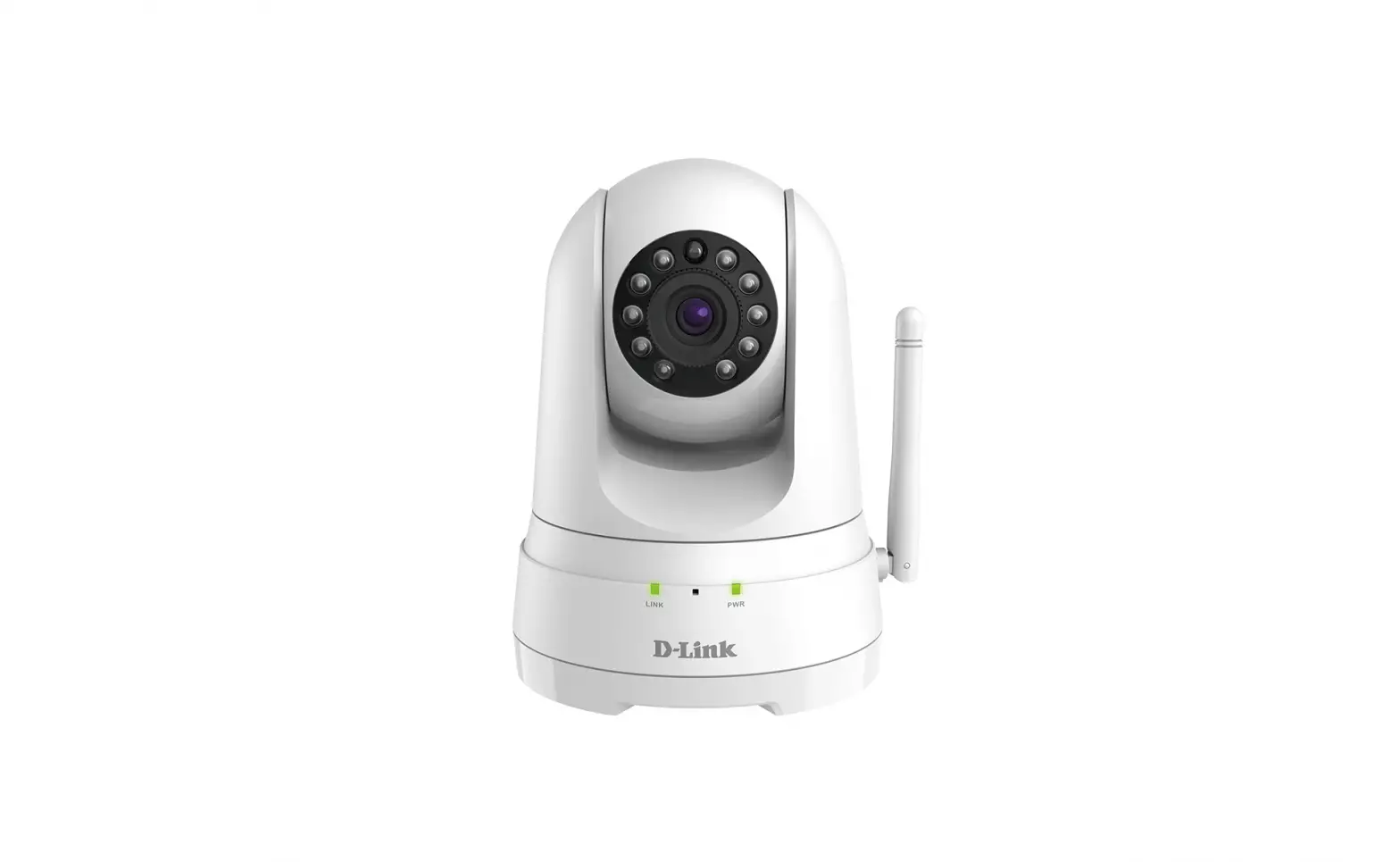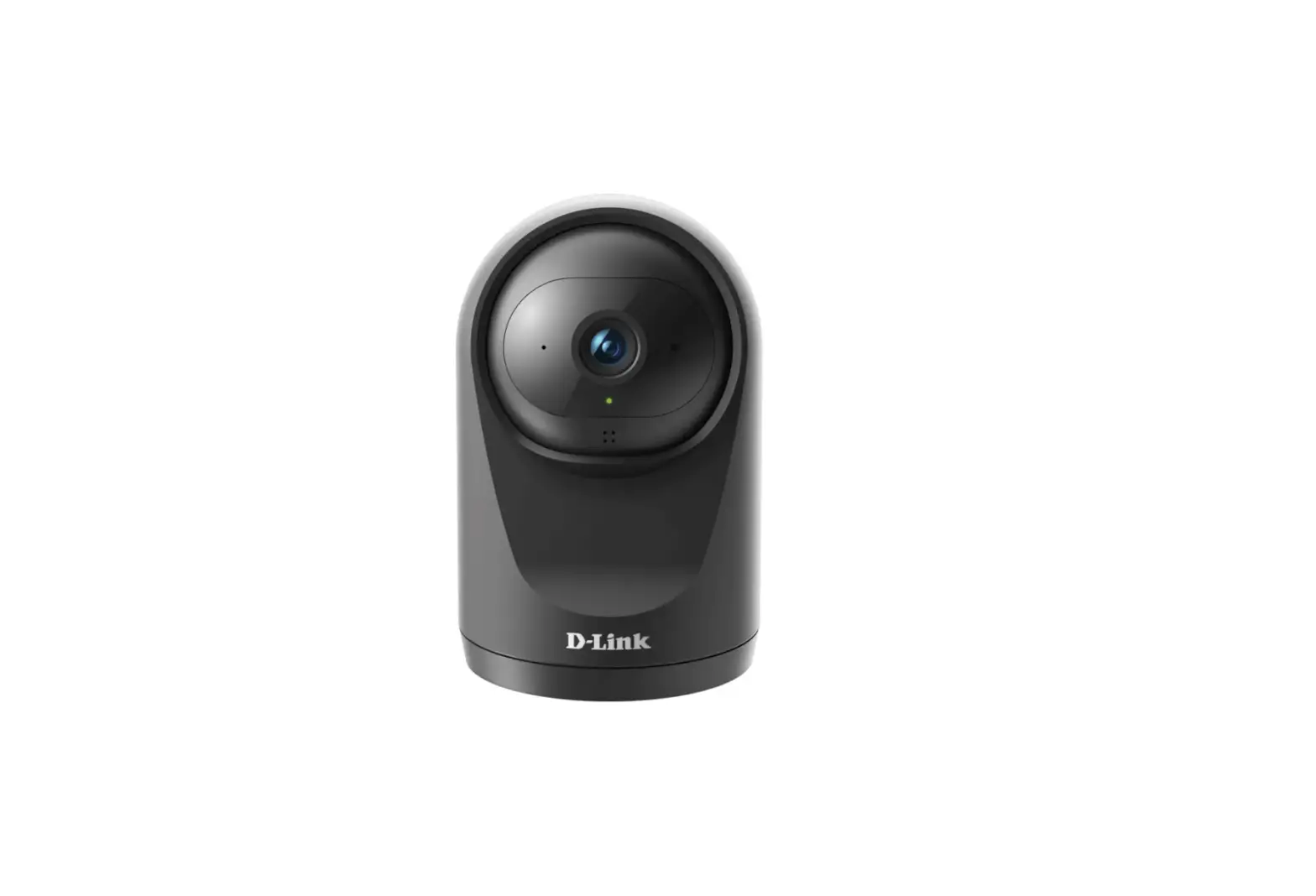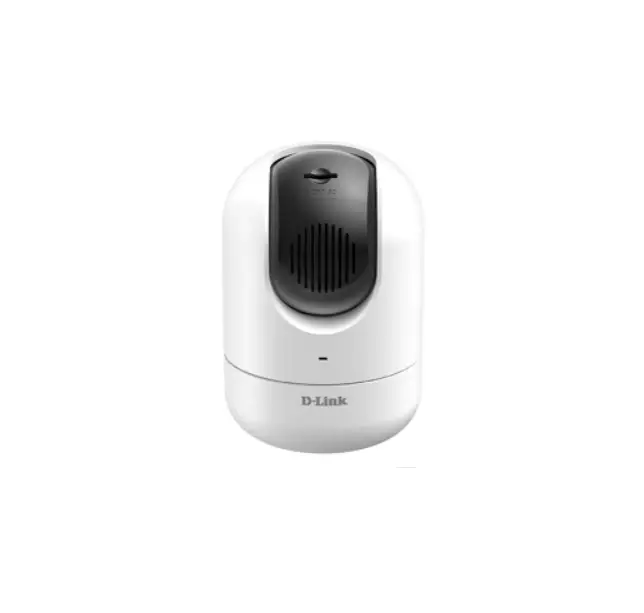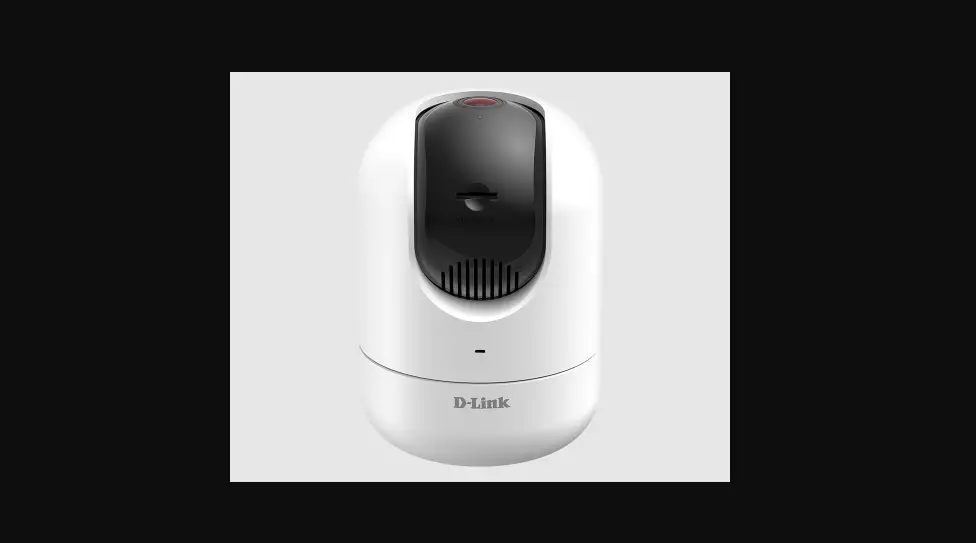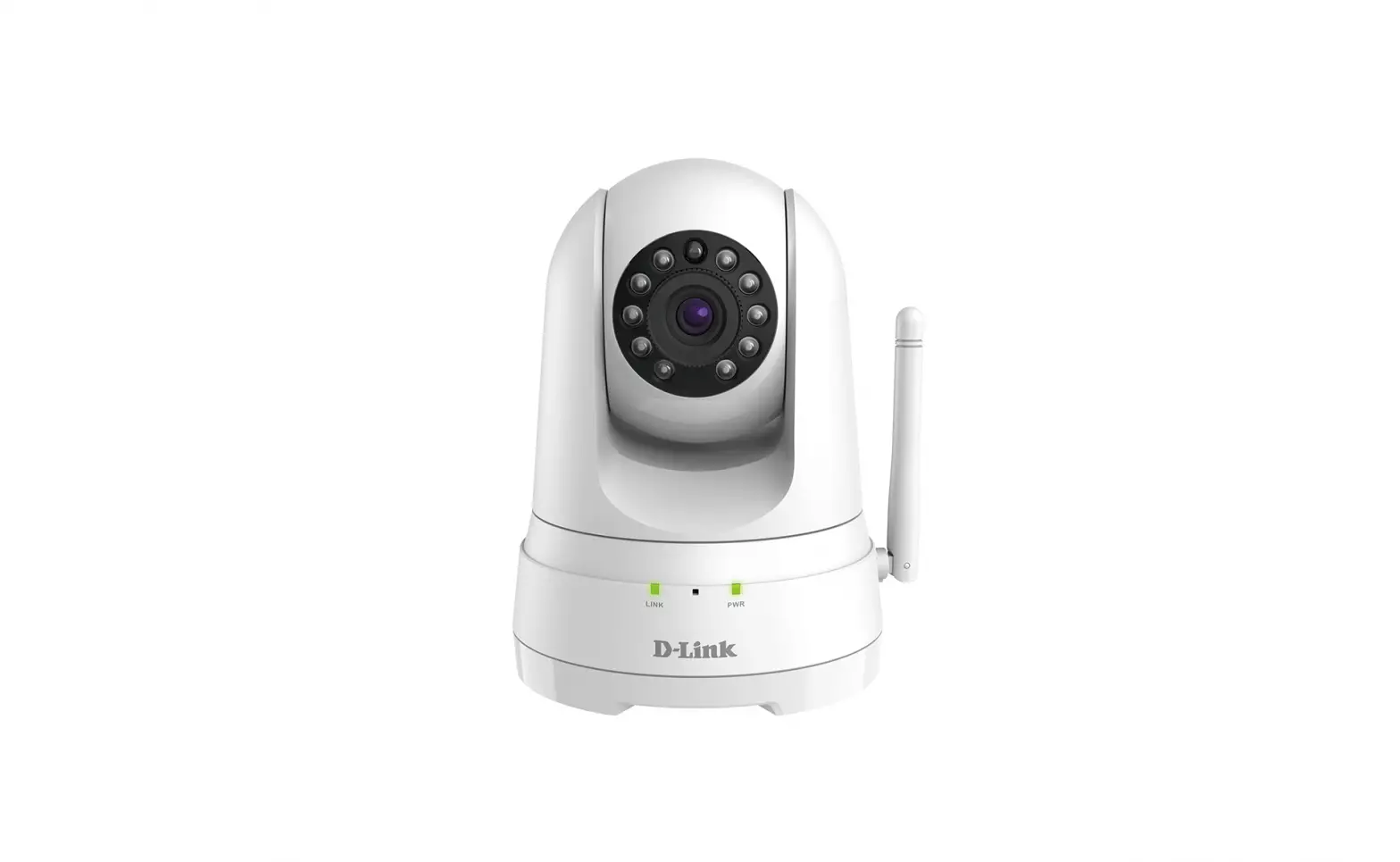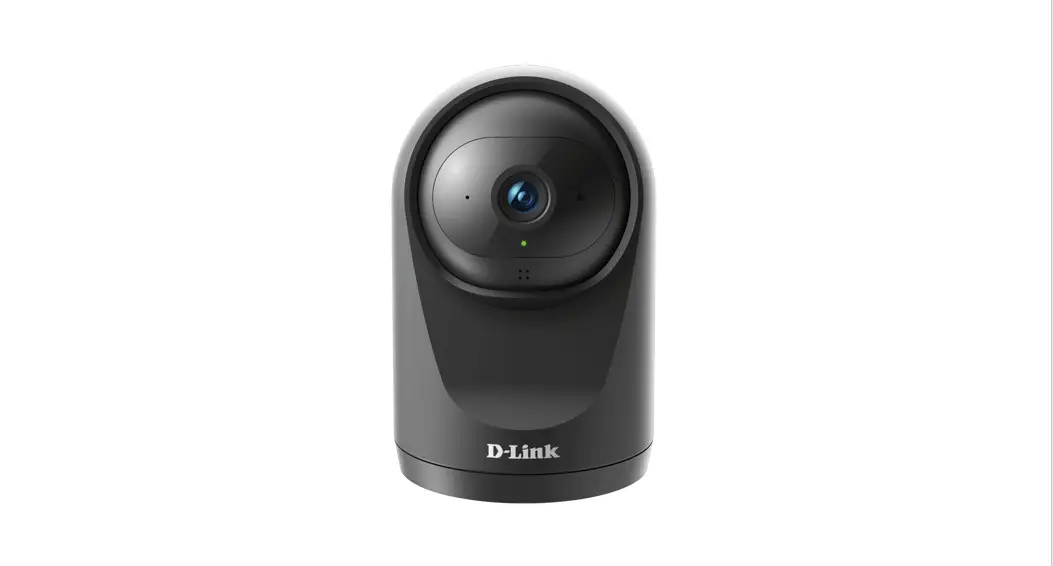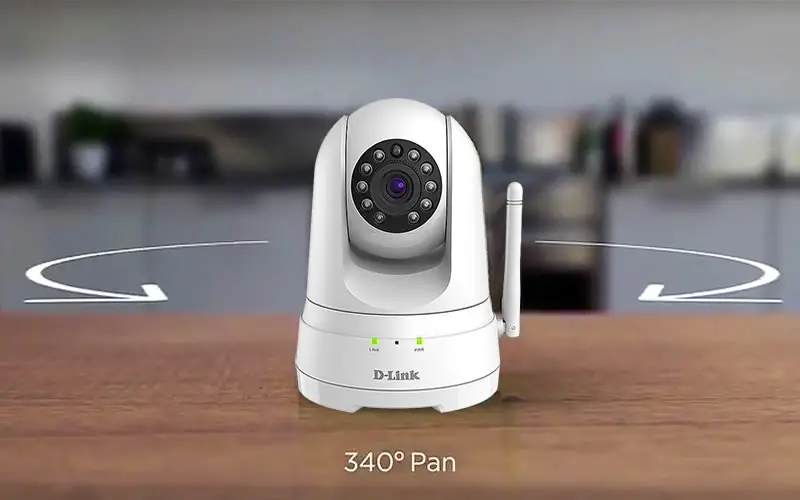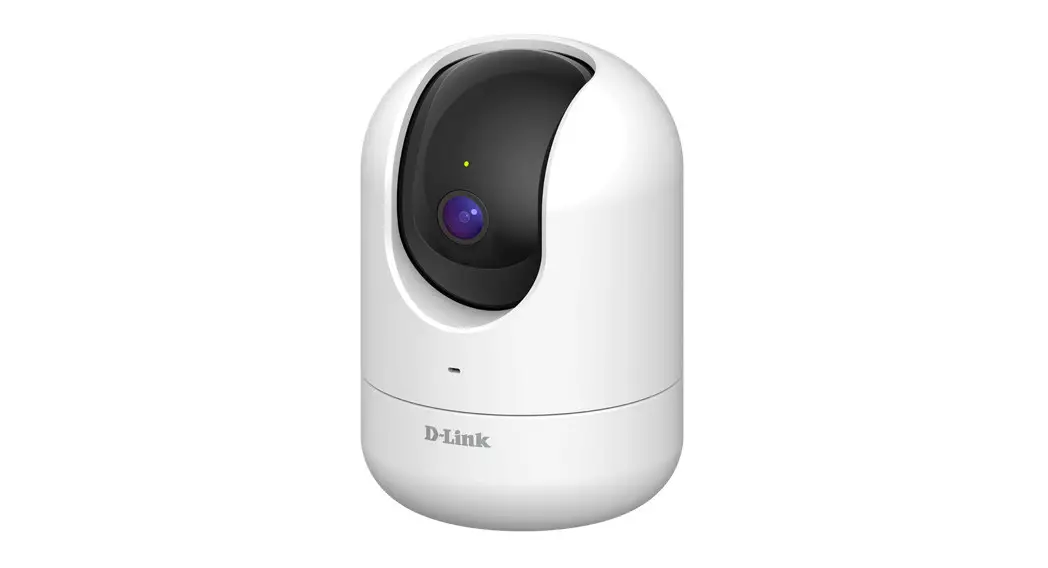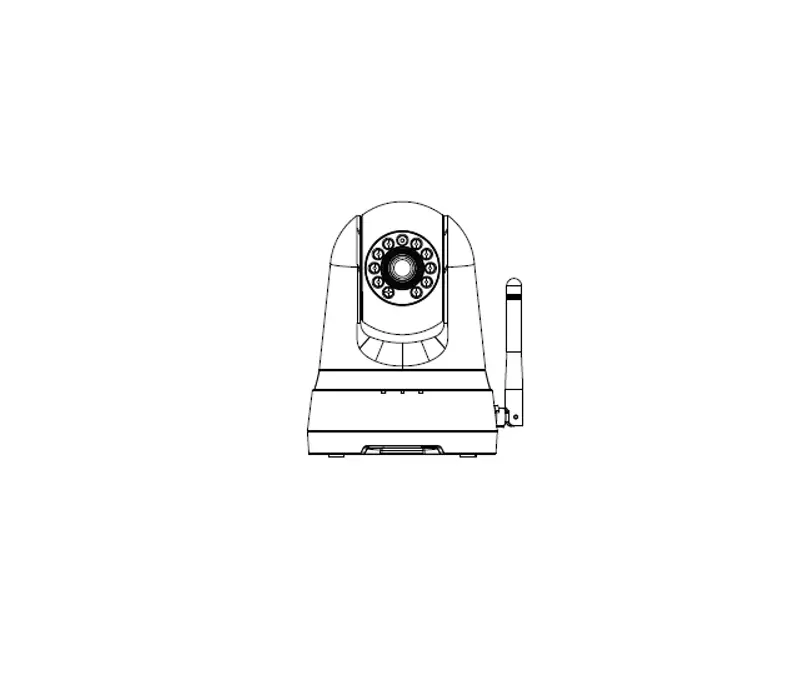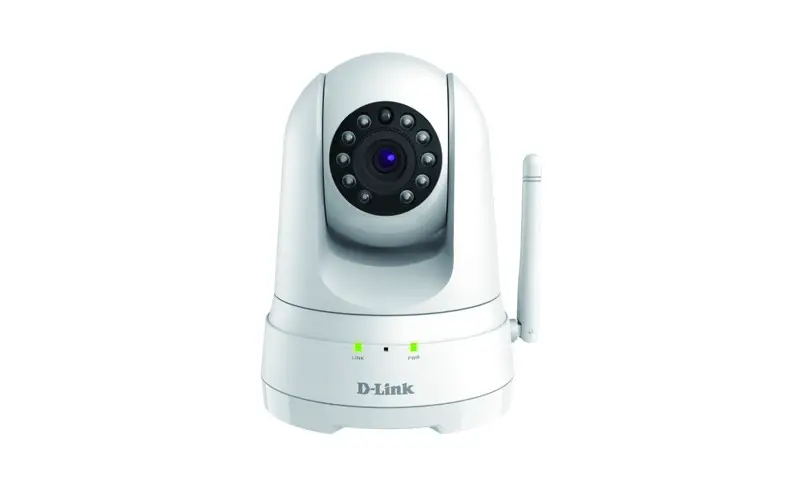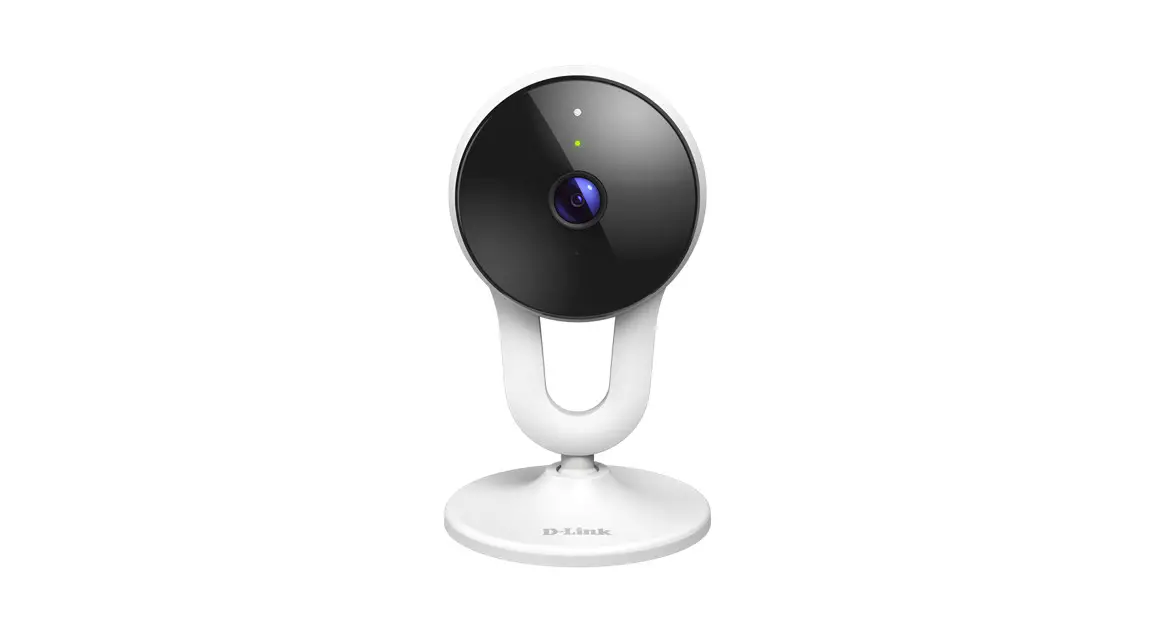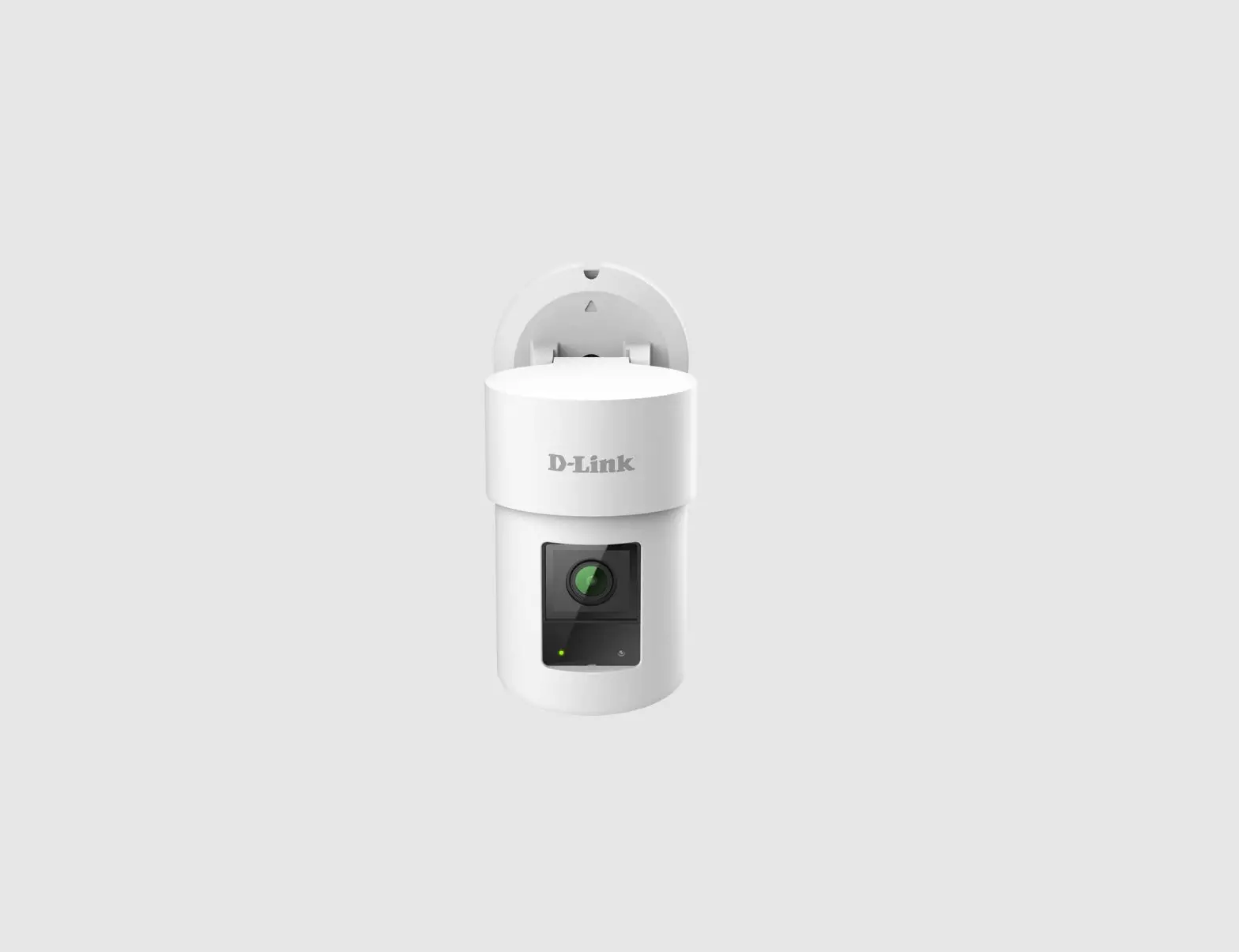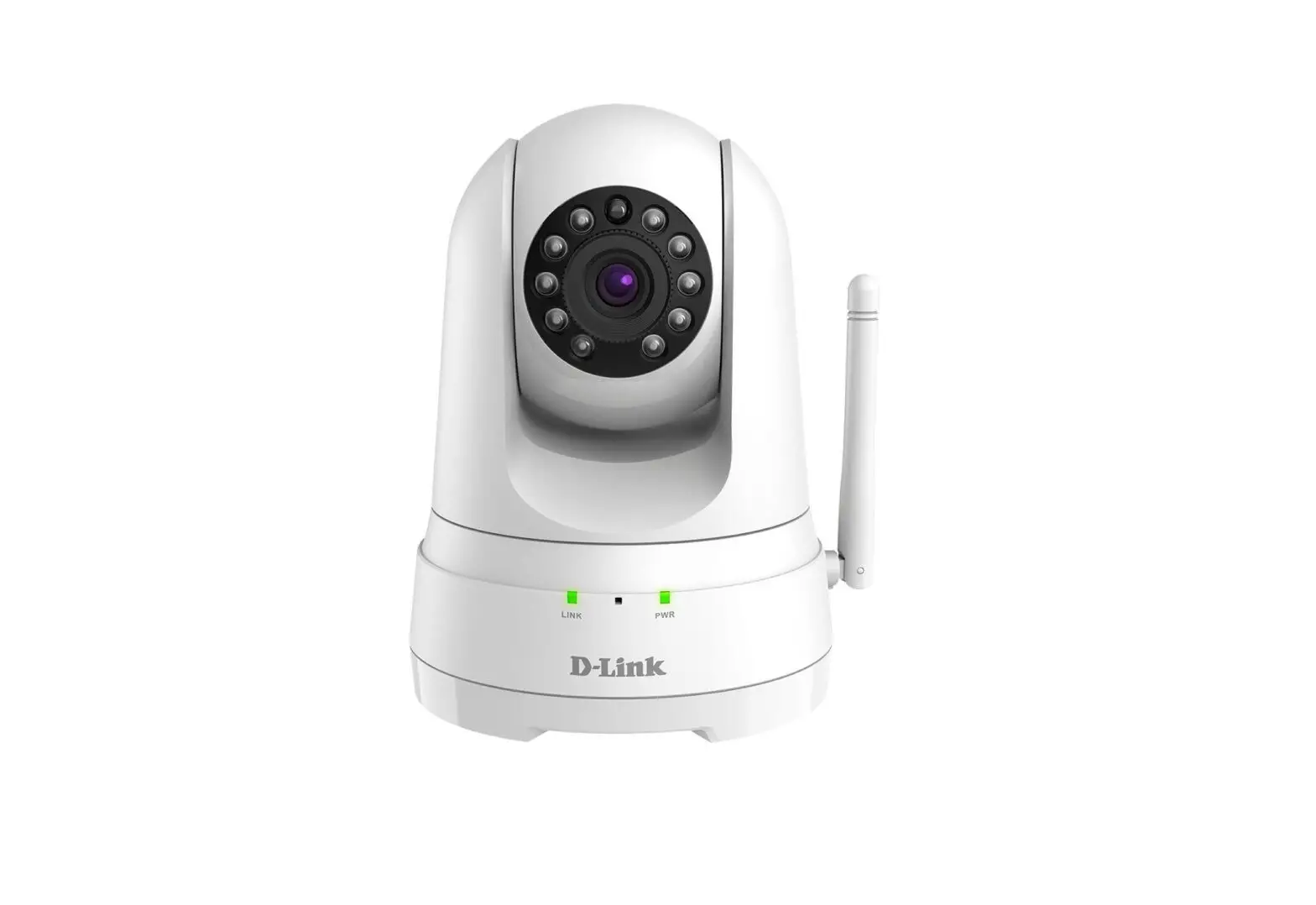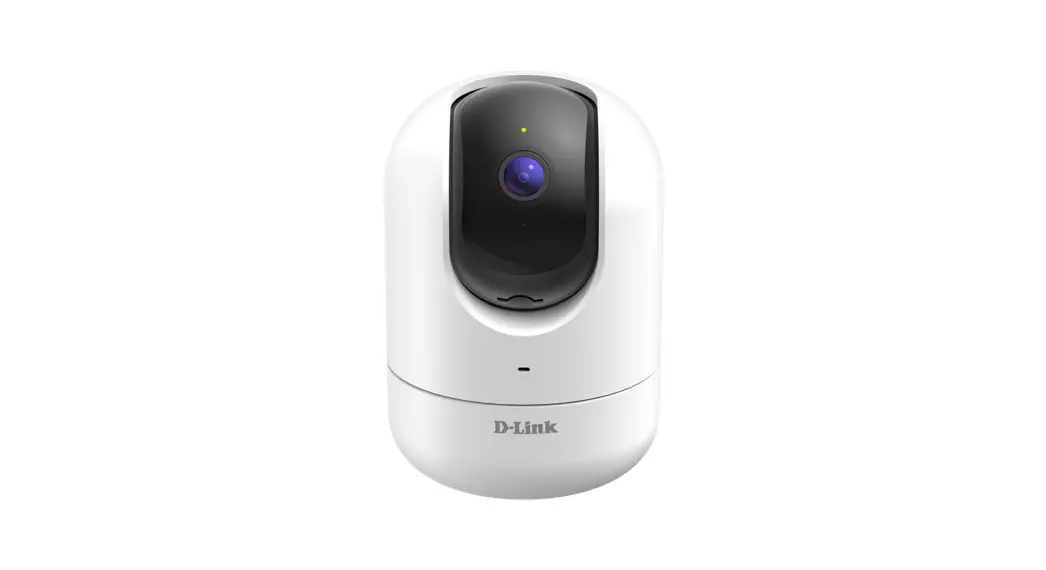
 Full HD Pan & Tilt Pro Wi-Fi Camera
DCS-8526LH
Quick Installation Guide
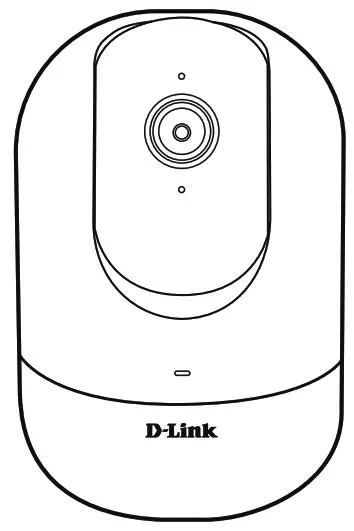
 | Full HD Pan & Tilt Pro Wi-Fi Camera |
 | Power Adapter |
 | Mounting Plate |
 | 2 x Screws 2 x Wall Anchors |
 | Quick Installation Guide |
Download the App
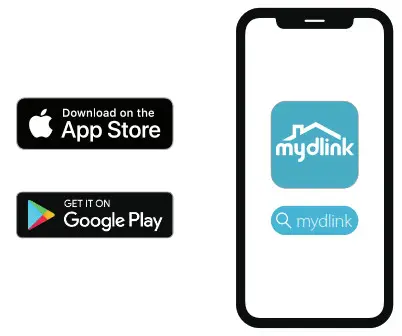
Search for mydlink and download the app.
Note: This product is incompatible with other mydlink apps such as ‘mydlink Home,’ ‘mydlink Lite,’ etc.
Log In
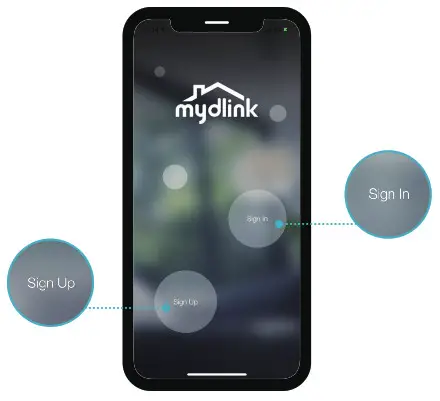
Sign In or Sign Up for a mydlink account.
mydlink Lite users may sign in with the same account.
Add the Device
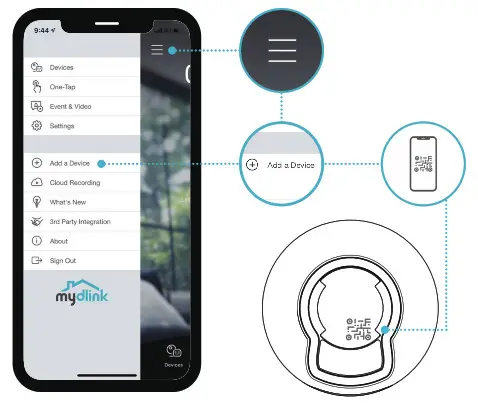
Tap the menu button then tap Add a Device. Scan the Setup Code on the device, then follow the app instructions.
 Device Information
 Device Information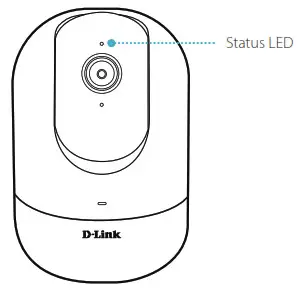
LED Behavior
 | Connected to Wi-Fi and mydlink |
 | Booting up |
 | Ready for setup |
 | Firmware being updated – do not power off |
 Placement
 Placement
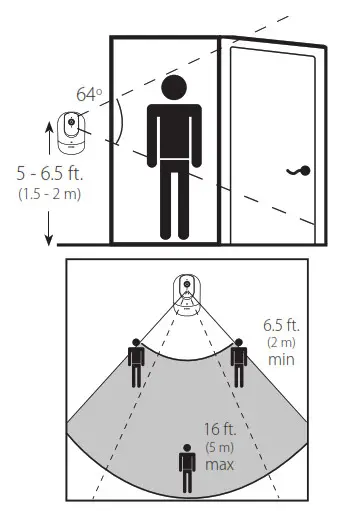
Place the camera 5 to 6.5 feet (1.5 – 2 meters) from the ground. Person Detection works best when the subject is between 6.5 to 16 feet (2 – 5 meters) away from the camera.
 Mounting
 Mounting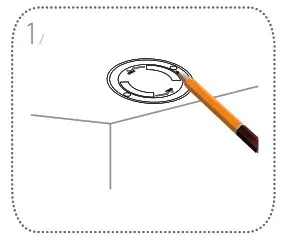
Place the mount at the desired location, ensuring that the location of the power cord thread is also at the desired location. Use a pencil to mark the holes.
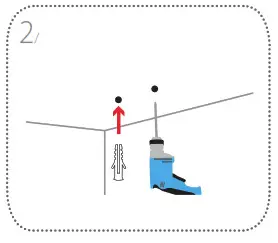
Use a 6 mm drill bit to drill two 26 mm deep holes over the pencil marks. Hammer in the plastic wall anchors to support the screws.
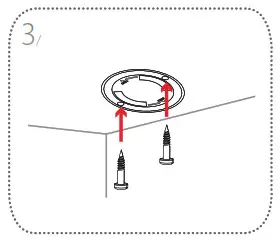
Align the mount over the holes that are in the wall. Use the supplied screwsto attach the mount to the surface of the wall.
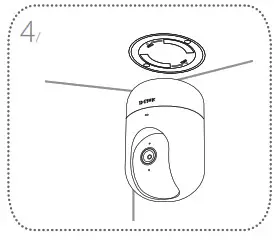
Align the bottom of the camera to the threads on the mount. Ensure that the camera is securely snapped in place. If the camera is mounted upside down, go to your camera’s settings in the app and enable Invert Image.
Note: For Person Detection optimization, it is recommended to place the camera on a table.
 FAQ
FAQ
 FAQ
FAQWhat do I do if my device is not working properly?
Reset the device and reinstall it. To reset your device, use a paper clip to press and hold the recessed Reset button until the LED turns solid red.
During installation, ensure that:
- your router is connected to the Internet and has Wi-Fi enabled
- your mobile device is connected to your router Wi-Fi and has Bluetooth enabled
- your mydlink device is in range of your Wi-Fi network
Why is there a white haze when viewing in night vision mode?
When viewing in night vision mode, the IR lights on your camera may be reflecting off a nearby surface. Try repositioning your camera to avoid glare from IR LEDs.
How can I use voice commands to control my device?
The device will work with both Amazon Alexa and Google Assistant. For setup instructions on these services, visit the following websites:
Alexa: dlink.com/en/alexa
The Google Assistant: dlink.com/en/google-assistant
Why is my microSD card not working/not supported?
The microSD card must be formatted into the correct file system (FAT32) before it can be used with this product. This can be done in the mydlink app by selecting the Format function in the storage menu under the Device settings.
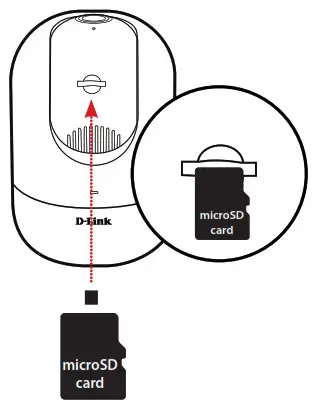
How do I access the device’s microSD card slot?
Power off the device, then gently roll the black camera ball up until you see the microSD card slot.
 Support
 Support
For troubleshooting tips and more information, visit: support.dlink.com (USA) or support.dlink.ca (CAN)
For technical support, call: 1-877-453-5465 (USA) or 1-800-361-5265 (CAN)
 Notice
This device complies with Part 15 of the FCC Rules. Operation is subject to the following two conditions:
- this device may not cause harmful interference, and
- this device must accept any interference received, including interference that may cause undesired operation.
©2020 All rights reserved. D-Link and the D-Link logo are registered trademarks of D-Link Corporation or its subsidiaries. Product specification, size and shape are subject to change without notice, and actual product appearance may differ from that depicted on the package.Visit dlink.com for more details.
2020/05/15 Ver 1.00(NA)_90x130