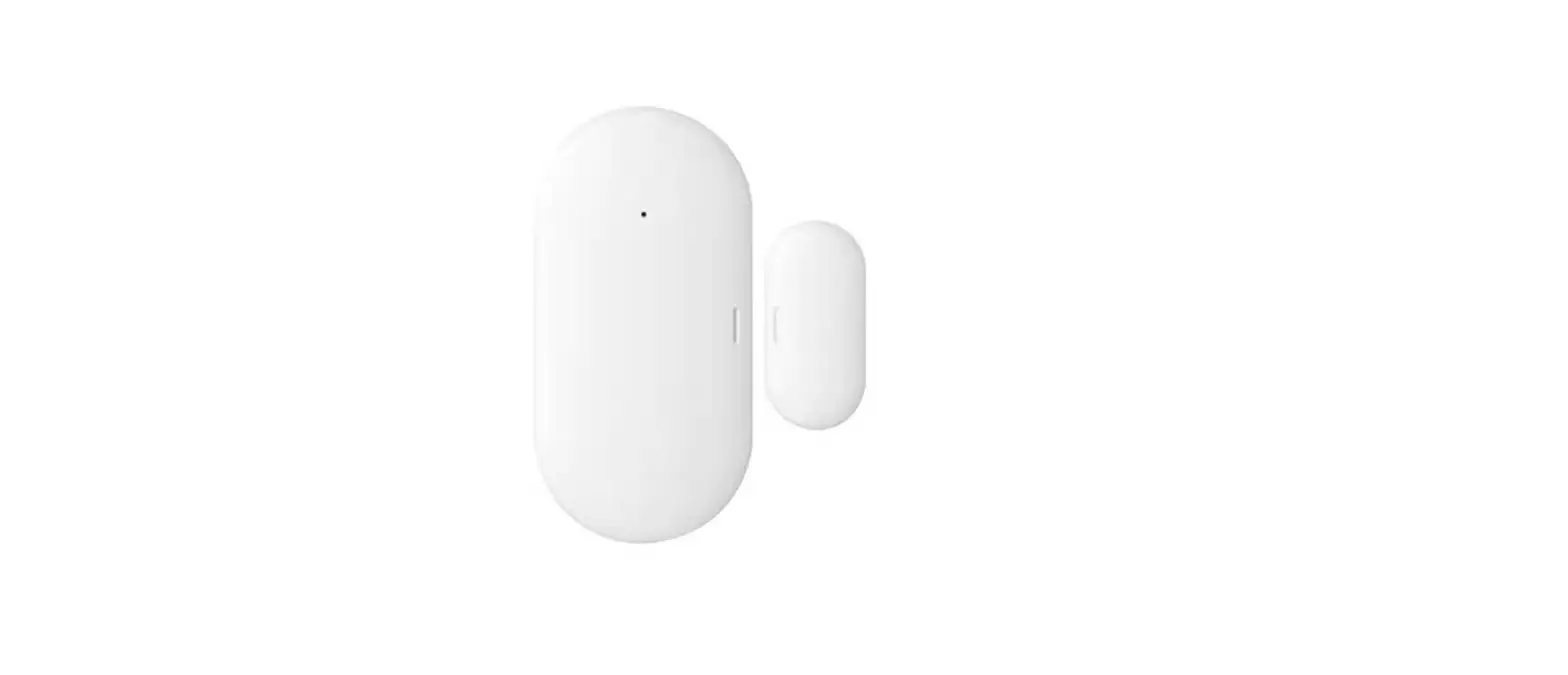
YS7707-UC Contact Sensor
Product Information:
Product Name: Contact Sensor
Model Number: YS7707-UC
Revision: Apr. 14, 2023
Manufacturer: YoLink
Product Usage Instructions:
Before You Begin:
Please note that this is a quick start guide intended to assist
you with the installation of your Contact Sensor. For detailed
instructions, download the full Installation & User Guide by
scanning the QR code provided.
Welcome Message:
Thank you for purchasing YoLink products! If you encounter any
issues during installation or have any questions not addressed in
this manual, please contact us immediately. See the “Contact Us”
section for more information.
Icons Used in the Guide:
- Very important information (can save you time!)
Contact Sensor Product Support:
You can find additional resources, such as videos and
troubleshooting instructions, on the Contact Sensor Product Support
page. Scan the QR code provided or visit: https://shop.yosmart.com/pages/contact-sensor-product-support
Hub Requirement:
The Contact Sensor requires a YoLink hub (SpeakerHub or the
original YoLink Hub) to connect to the internet. It does not
directly connect to your WiFi or local network. Ensure that the
YoLink app is installed on your smartphone and a YoLink hub is
installed and online for remote access and full functionality.
Included in the Box:
- Contact Sensor
- Magnet
- Self-tapping Screw (M3) (4)
- Quick Start Guide
- 2 x AA Batteries (Pre-installed)
- Double-sided Tape
Required Items:
You may need the following items for installation:
- Medium Phillips Screwdriver
- Drill & Drill Bits
- Velcro Strips
- Screws & Anchors
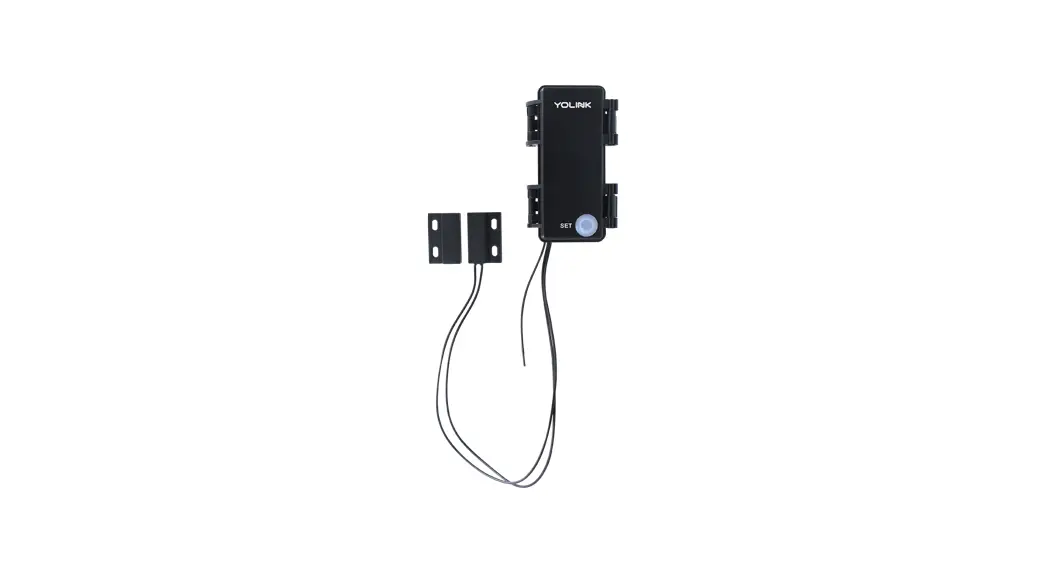
Get to Know Your Contact Sensor:
- Contacts
- Enclosure Clamp Latch (Houses two AA non-rechargeable
batteries) - SET Button
- Antenna Connection Cable
- Mounting Slot
- Reed Switch Magnet
- LED Behaviors:
- Blinking Red Once: Alert Mode (Contacts are Opened or
Closed) - Blinking Green: Connecting to Cloud
- Fast Blinking Green: Control-D2D Pairing in Progress
- Slow Blinking Green: Updating
- Fast Blinking Red: Control-D2D Unpairing in Progress
- Blinking Red And Green Alternately: Restoring to Factory
Default
- Blinking Red Once: Alert Mode (Contacts are Opened or
Install the App:
If you are new to YoLink, please follow these steps to install
the app:
- Scan the appropriate QR code below or find the YoLink app on
the respective app store. - Open the app and tap “Sign up for an account”. Provide a
username and password as instructed to create a new account. Allow
notifications when prompted. - You will receive a welcome email from [email protected] with
helpful information. Make sure to mark the yosmart.com domain as
safe to receive important messages in the future.
QR codes for app installation:
Apple phone/tablet: [QR code]
Android phone/tablet: [QR code]
B Before You Begin
Please note: this is a quick start guide, intended to get you started on the installation of your Contact Sensor. Download the full Installation & User Guide by scanning this QR code:
Installation & User Guide
Contact Sensor
YS7707-UC
Quick Start Guide Revision Apr. 14, 2023
A Welcome!
Thank you for purchasing YoLink products! We appreciate you trusting YoLink for your smart home & automation needs. Your 100% satisfaction is our goal. If you experience any problems with your installation, with our products or if you have any questions that this manual does not answer, please contact us right away. See the Contact Us section for more info.
Thank you!
Eric Vanzo Customer Experience Manager
The following icons are used in this guide to convey specific types of information:
Very important information (can save you time!)
You can also find all guides and additional resources, such as videos and troubleshooting instructions, on the Contact Sensor Product Support page by scanning the QR code below or by visiting:
https://shop.yosmart.com/pages/ contact-sensor-product-support
Product Support Support produit Soporte de producto
Your Contact Sensor connects to the internet via a YoLink hub (SpeakerHub or the original YoLink Hub), and it does not connect directly to your WiFi or local network. In order for remote access to the device from the app, and for full functionality, a hub is required. This guide assumes the YoLink app has been installed on your smartphone, and a YoLink hub is installed and online (or your location, apartment, condo, etcetera, is already served by a YoLink wireless network).
Pour des instructions en
Fr
français, scannez les codes
QR dans la section suivante.
Para obtener instrucciones en
Es
español, escanee los códigos
QR en la siguiente sección.
C In the Box
Contact Sensor
Magnet
Self-tapping Screw (M3) (4)
Quick Start Guide
2 x AA Batteries (Pre-installed)
Double-sided Tape
D Required Items
Items You May Need:
Medium Phillips Screwdriver
Drill & Drill Bits
&
Velcro Strips
Screws & Anchors
E
Get to Know Your Contact Sensor
Contacts
Enclosure Clamp Latch Houses two AA non-rechargeable batteries
SET Button
Antenna Connection Cable
Mounting Slot
Reed Switch Magnet
E
Get to Know Your Contact Sensor, Cont.
LED Behaviors
Blinking Red Once Alert Mode (Contacts are Opened or Closed)
Blinking Green Connecting to Cloud
Fast Blinking Green Control-D2D Pairing in Progress
Slow Blinking Green Updating
Fast Blinking Red Control-D2D Unpairing in Progress
Blinking Red And Green Alternately Restoring to Factory Default
F Install the App
If you are new to YoLink, please install the app on your phone or tablet, if you have not already. Otherwise, please proceed to the next section
Scan the appropriate QR code below or find the “YoLink app” on the appropriate app store.
Apple phone/tablet Android phone/ iOS 9.0 or higher tablet 4.4 or higher
Open the app and tap Sign up for an account. You will be required to provide a username and a password. Follow the instructions, to set up a new account. Allow notifications, when prompted.
F Install the App, Continued
You will immediately receive a welcome email from [email protected] with some helpful information. Please mark the yosmart.com domain as safe, to ensure you receive important messages in the future.
Log in to the app using your new username and password.
The app opens to the Favorite screen. This is where your favorite devices and scenes will be shown. You can organize your devices by room, in the Rooms screen, later.
Refer to the full user guide and online support for instructions on the use of the YoLink app.
Add Your Contact Sensor G to the App
1. Tap Add Device (if shown) or tap the scanner icon:
Scanner icon
2. Approve access to your phone’s camera, if requested. A viewfinder will be shown on the app.
3. Hold the phone over the QR code so that the code appears in the viewfinder.If successful, the Add Device screen will be displayed.
4. Follow the instructions to add your Contact Sensor to the app.
H Power Up
1. Observing the polarity indicators on the Contact Sensor, install the provided AA batteries into the Contact Sensor.
2. Observe the LED flashes red then green.
3. Close the cover and snap the two clasps in place.
I Install the App, Continued
Contact/door sensor basics
Before installing your new Contact Sensor, it is best if you understand how it works. The Contact Sensor is made up of three main parts. The large part is the main part, that houses the batteries and the electronics, and this is typically referred to as the contact sensor, or just “sensor”. Wired to the Contact Sensor is a small black part. This is a reed switch. A reed switch can be thought of like a simple switch, sort of like a doorbell switch, but instead of pressing it, you’d hold a magnet to it. A reed switch is sensitive to the force of a magnet, and when one is close enough, the reed switch completes a circuit and this informs the Contact Sensor that the door or gate or lid is in the closed position. The other black piece that resembles the reed switch is the magnet, of course.
The reed switch has a maximum distance between it and the magnet, while it will indicate the door is closed. This is often referred to as the “gap”. The Contact Sensor has a maximum gap of around ¾” or around 19 millimeters. The door material, such as steel versus wood, can adversely impact this distance.
The reed switch on the Contact Sensor can be removed, allowing for wiring to be connected to any set of dry (no voltage) normally-open or -closed contacts. This includes things like high-security, armored door contacts and contacts made for chain link fence gates. Refer to the full user guide for instructions on this application.
In this guide we’ll refer to the door, gate or lid, or other object you are installing the Contact Sensor on, simply as a gate.
When installed on your gate the two parts should remain less than ¾” away from each other with the gate in the closed position. When determining the appropriate location, placement and orientation of the Contact Sensor parts, you can view the status of the Contact Sensor in the YoLink app, as well as use the sensor’s LED indicator (which illuminates briefly when the door is opened or closed) to check your installation.
Sensor location considerations
The Contact Sensor can be used on many types of gates, doors, windows, lids, and drawers, etc. It is not within the scope of this guide to cover all applications, but additional information can be found in the full user guide. If you need guidance with your application, please contact us!
Please have your Contact Sensor added to the app and online before starting the installation process. This will allow you to check the status of the door sensor in the app, so you can verify and test your installation.
Before installing the Contact Sensor, consider the following:
The magnet can be on the door, or the reed switch can be on the door. Of course, the sensor body itself must be mounted with the reed switch.
The Contact Sensor should always be installed on the indoor and/or “secure” side of the door (that is on the locked or private side of the door, which should not be subjected to tampering or disabling by an intruder, etc.).
Avoid locations where the sensor will be subjected to physical damage, such as on the bottom of the door (where it might be kicked) or near the handle (where is might be struck by a hand or object).
Do not place the reed switch too close to the magnet. As play in the gate, or as the gate material can shrink or expand with temperature changes, the distance between the two pieces might change later, too, resulting in the two parts colliding.
Use care to not place your reed switch and magnet too far apart. If you have placed the reed switch and magnet at their absolute farthest distance from each other, expansion or contraction of the gate or frame, due to temperature or humidity
changes, could result in your Contact Sensor indicating the gate is open when it is not. Also, gates with too much play (movement while in the closed position), can contribute to false-open indications.
Preinstall the Sensor
After determining the location for your Contact Sensor, we recommend that you preinstall the sensor to test the proposed location for each part. You can use painter’s tape, for example, to told each part in place for testing. The Contact Sensor itself can be mounted to the surface using the included 3M mounting tape. The reed switch and magnet are designed to be screwed to the gate/frame surface. If the included screws are not appropriate for the gate/surface material, substitute them for the appropriate hardware. Or, you may consider trimming off a small piece of 3M mounting tape for the reed switch and magnet (or furnish your own).
1. Before using 3M mounting tape for any item, it is very important that you first clean the mounting surface! If the mounting surface is dirty, grimy, greasy or it is not clean and dry, the effectiveness of the tape’s adhesive will be reduced. The Contact Sensor might fall down later, resulting in damage (that is not covered by the warranty). The best way to clean most surfaces is with Rubbing Alcohol. Allow the alcohol to fully evaporate before installing your Contact Sensor. If using chemicals like soap or a degreaser, use a cloth or paper towel damp with water, to fully remove any cleaning substances from the surface.
2. To preinstall the reed switch, use painter’s tape, for example, to hold it in place at the desired location.
3. You may find it helpful to use painter’s tape to secure the Contact Sensor temporarily at its proposed location, otherwise set it aside, but allow for the length of wire that will be needed if the reed switch and Contact Switch are installed where desired.
4. With the gate in the normal/closed position, to preinstall the magnet, use painter’s tape, for example, to hold it in place at the desired location. While placing the magnet, observe the LED on the front of the Contact Sensor. It will briefly flash red when the magnet is sufficiently close to the reed switch. It will also briefly flash red when the two are separated.
5. Ensure the Contact Sensor indicates the gate is closed when it is closed, and that it indicates the gate is open when opened.
Install the Contact Sensor
After you are satisfied with the location and placement of the Contact Sensor, you can now permanently install it:
1. If you used painter’s tape to hold the parts in place, you may find it easiest to partially remove the tape, just enough to allow for screwing the reed switch and magnet in place. Otherwise, you may wish to remove the tape entirely, while marking the exact location of the sensor and magnet with a pencil or marker or painter’s tape. Using the supplied screws, screw the reed switch and magnet components to the gate/frame surface, while either observing the Contact Sensor status in the app, or by carefully observing the LED.
2. Test the gate opening and closing.
3. If you are satisfied with the Contact Sensor indications, permanently install the Contact Sensor. Remove one side of the mounting tape’s protective plastic. Place the mounting tape, sticky side down, on the back of the Contact Sensor. Remove the remaining piece of protective plastic. Place the Contact Sensor on the mounting surface. Press down and hold for at least 5 seconds, for the adhesive to bond to the surface.
Refer to the full user guide and/or online documentation to complete the setup of your Contact Sensor.
J Contact Us
We are here for you, if you ever need any assistance installing, setting up or using a YoLink app or product! Need help? For fastest service, please email us 24/7 at [email protected] Or call us at 831-292-4831 (US phone support hours: Monday – Friday, 9AM to 5PM Pacific) You can also find additional support and ways to contact us at: www.yosmart.com/support-and-service Or scan the QR code:
Support Home Page
Finally, if you have any feedback or suggestions for us, please email us at [email protected] Thank you for trusting YoLink! Eric Vanzo Customer Experience Manager
15375 Barranca Parkway Ste. J-107 | Irvine, California 92618
© 2023 YOSMART, INC IRVINE, CALIFORNIA
 Facebook icon
 Facebook icon