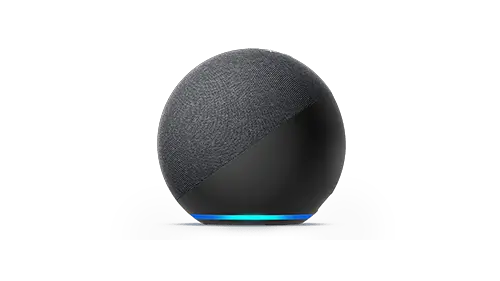
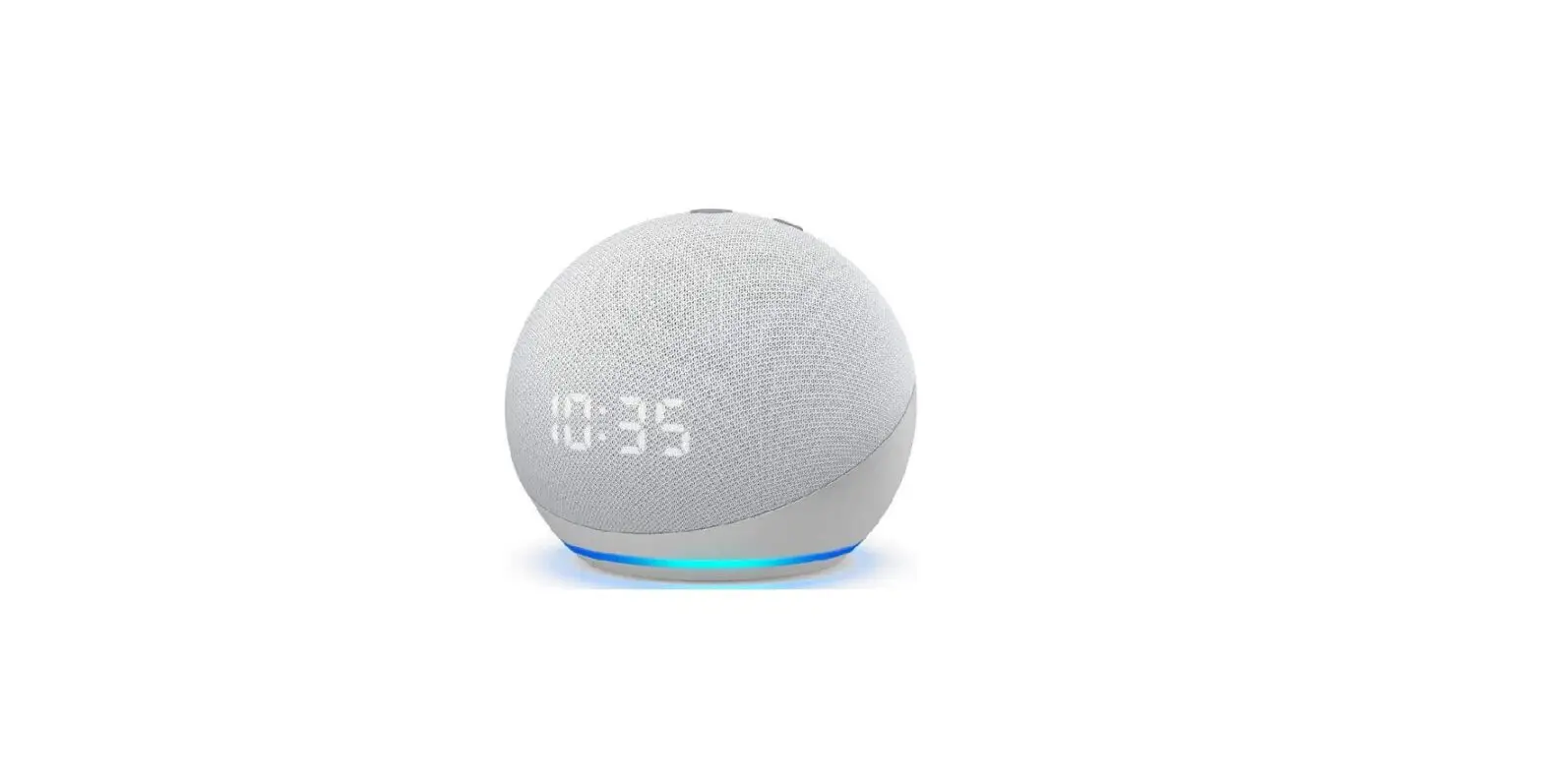
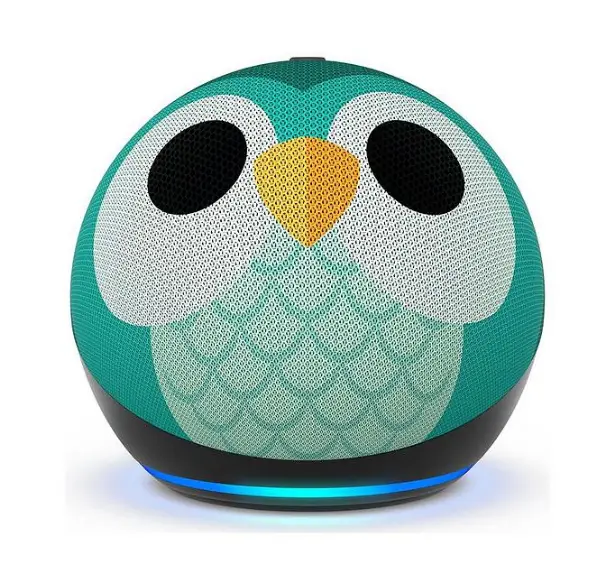
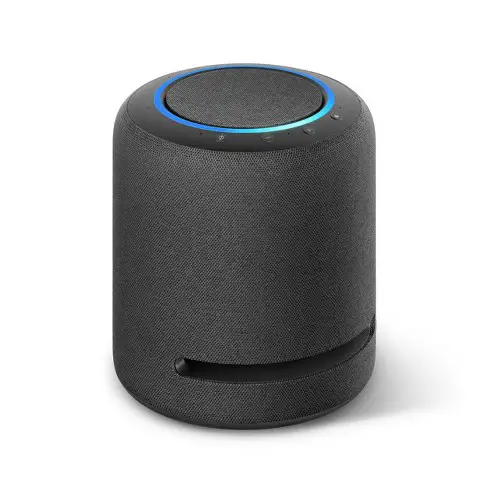
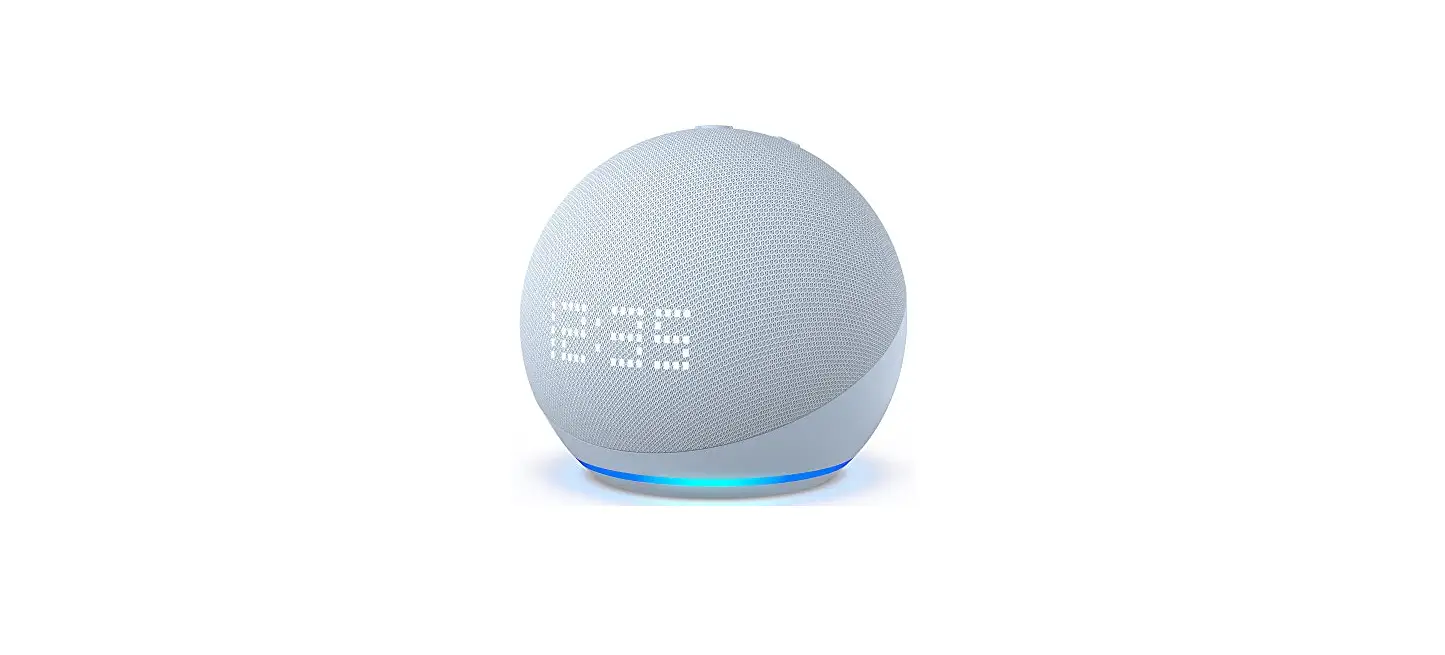
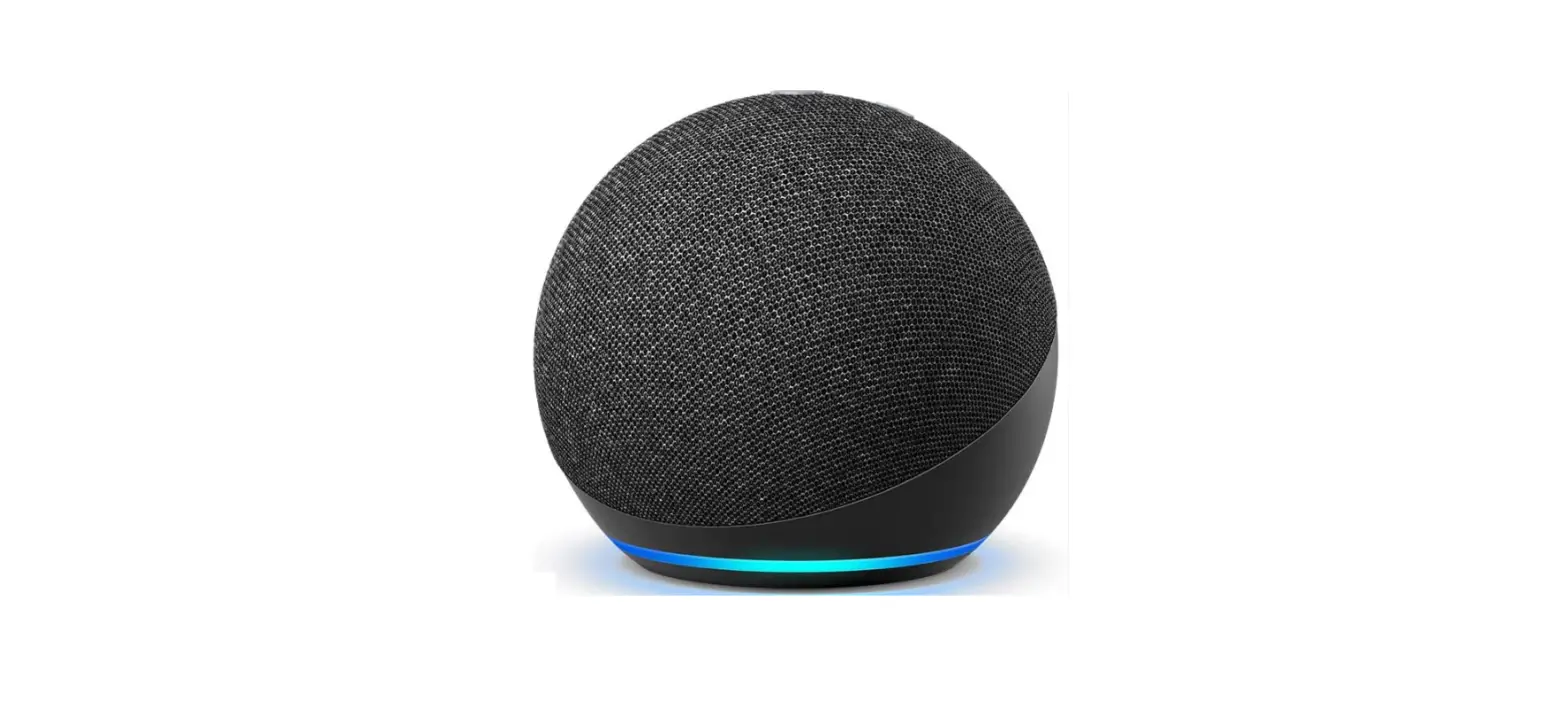
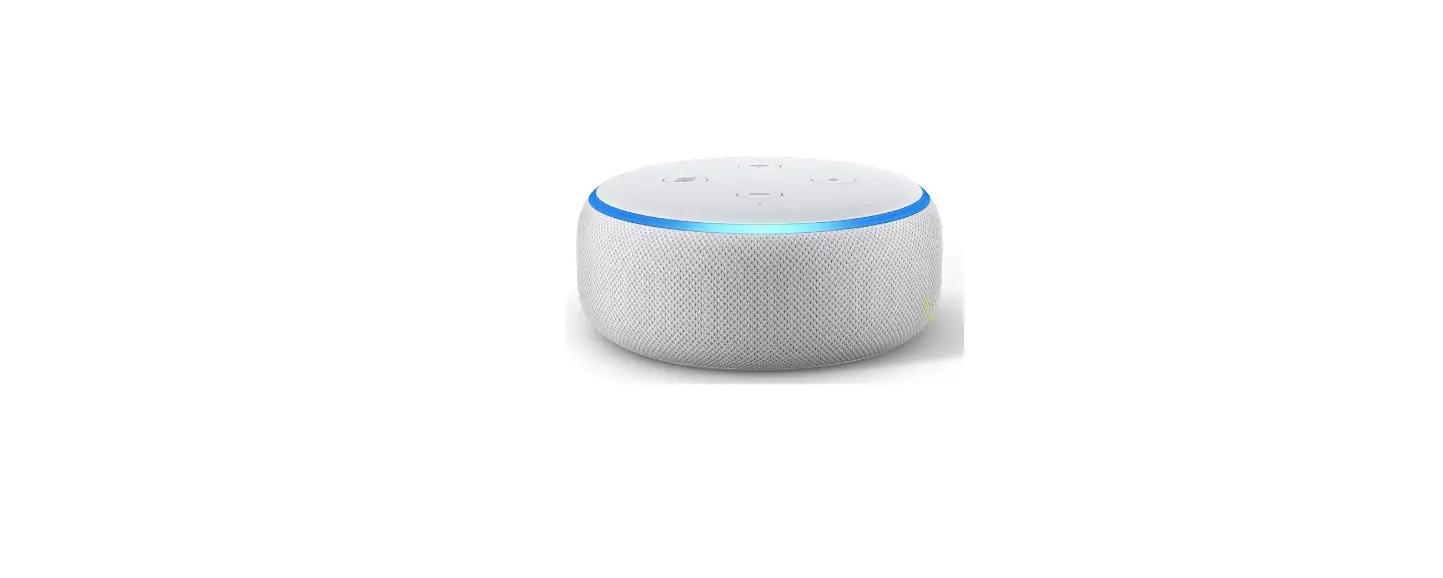
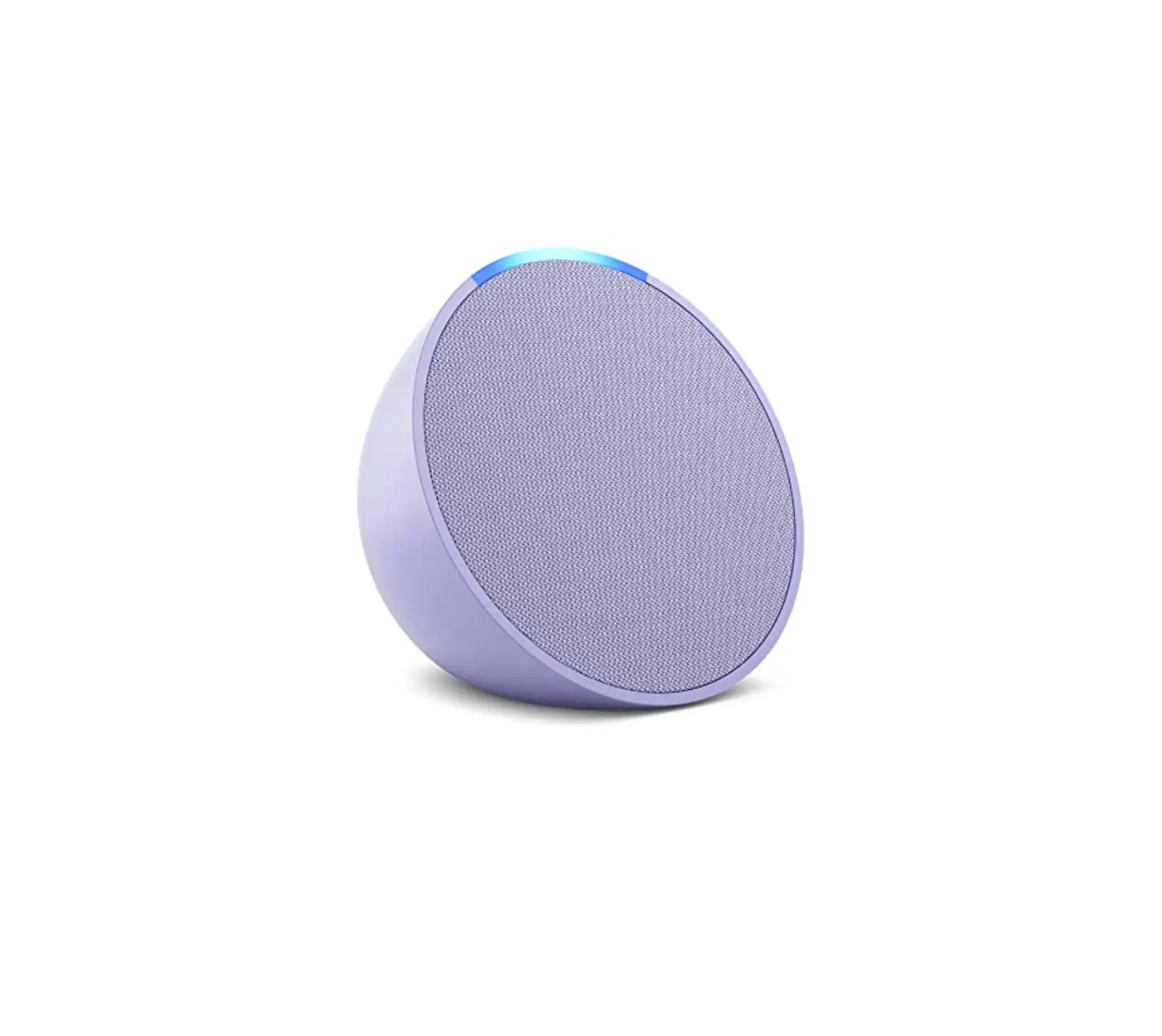
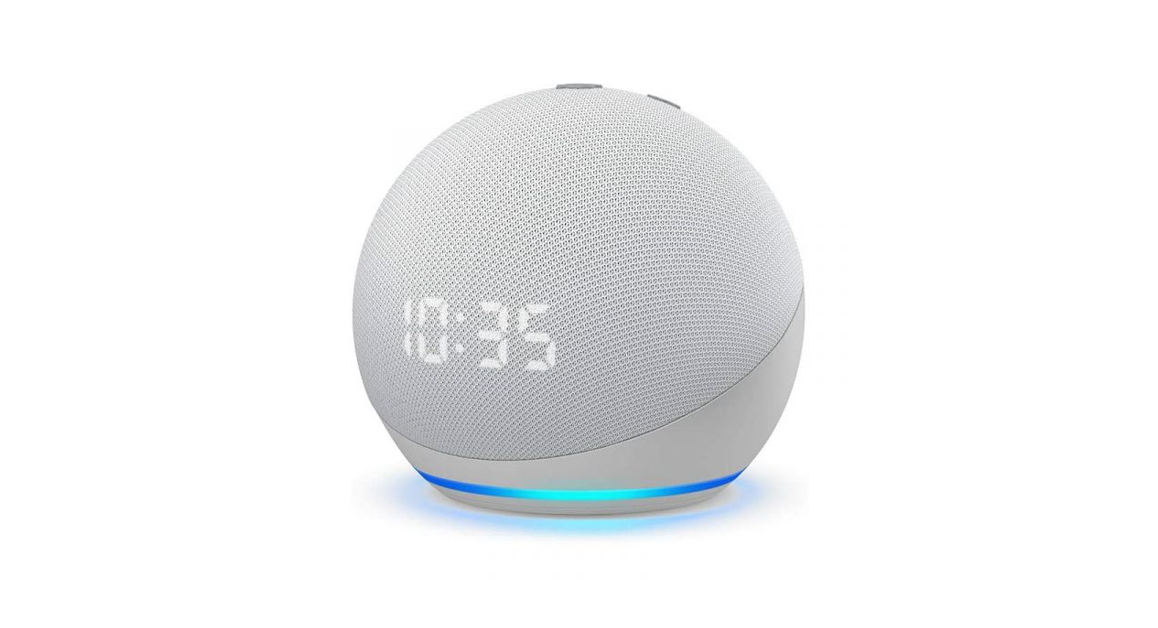
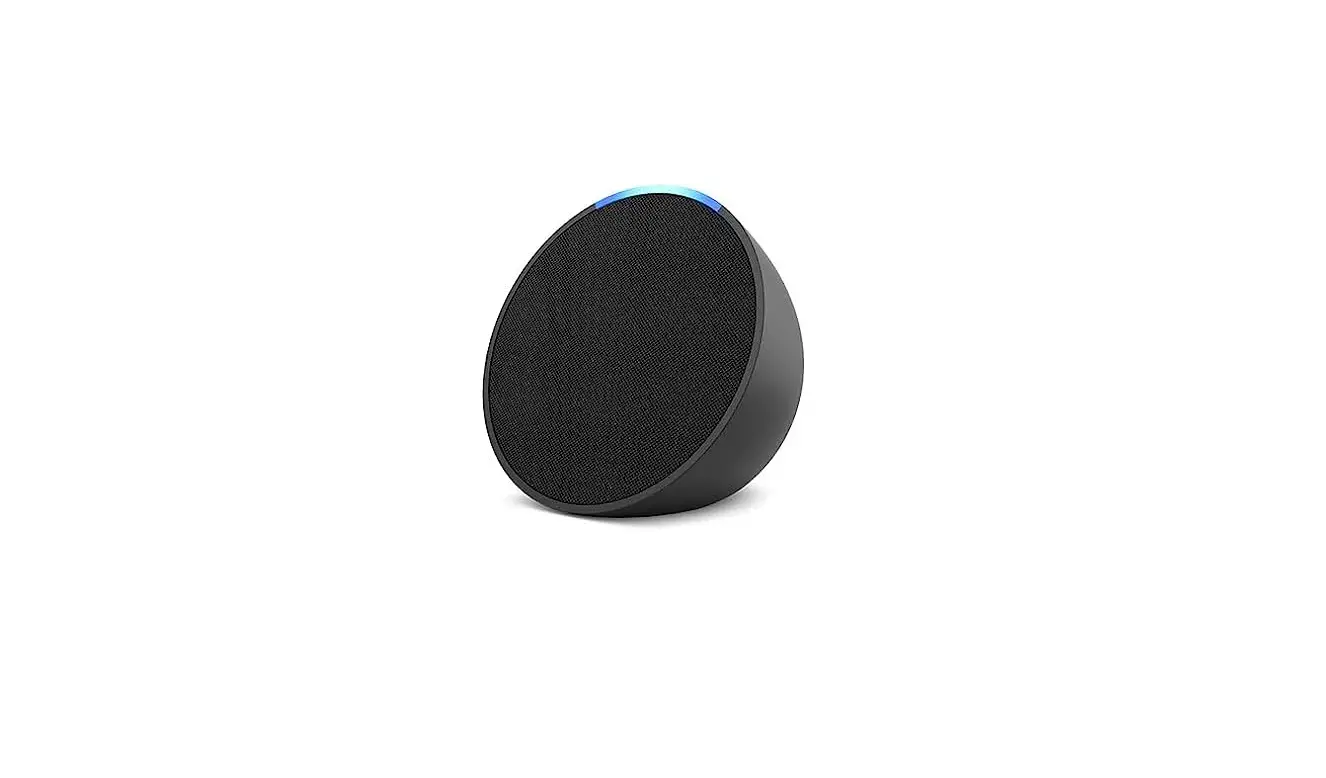
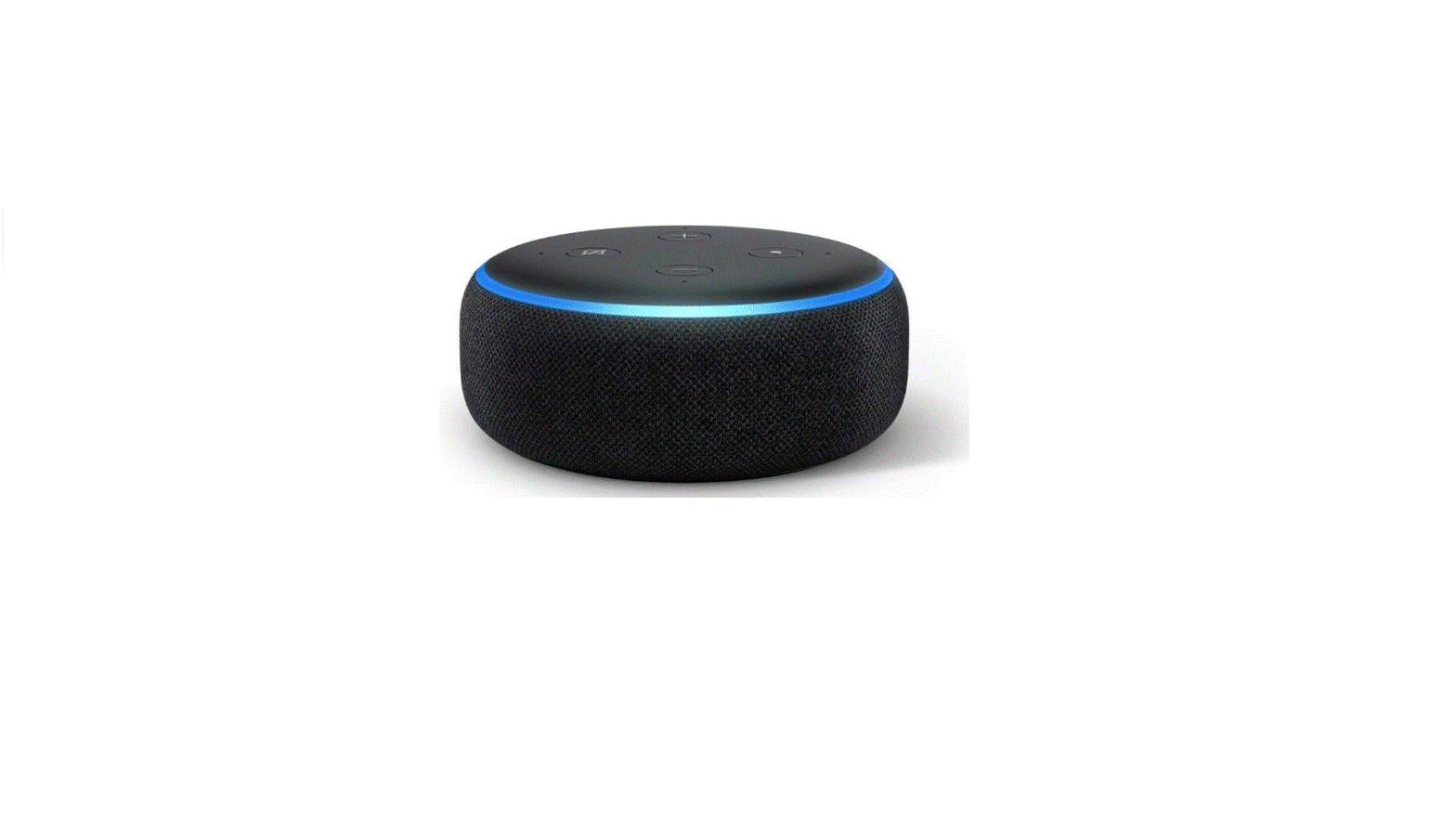
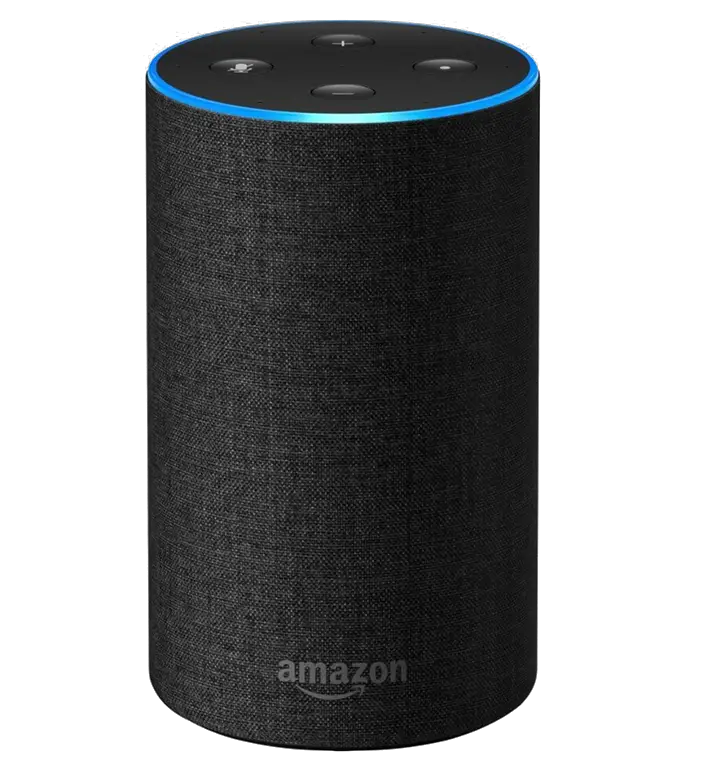
Amazon Echo Dot Smart Speaker
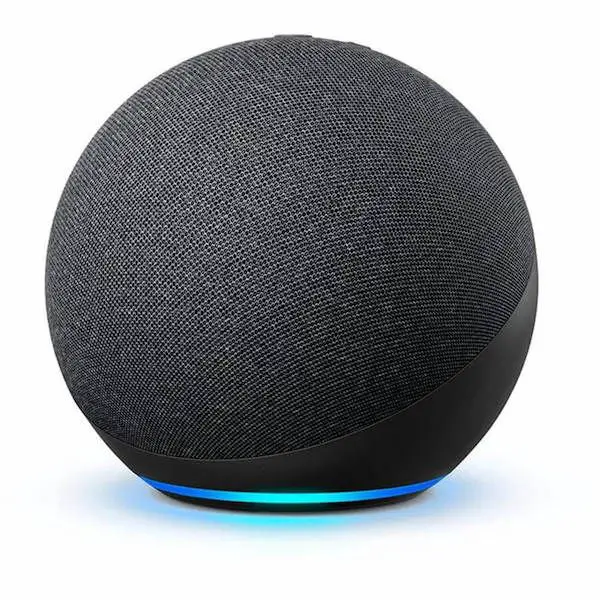
Support for Echo Dot
What Do the Lights on Your Echo Device Mean?
The lights on your Echo device are how the device communicates its status.
Getting Started
Download the Alexa App
Download and install the Alexa app from your mobile device app store. Add the Alexa widget for easy home screen access.
- Open the app store on your mobile device.
- Search for Amazon Alexa app.
- Select Install.
- Select Open and sign in with your Amazon Account.
- Install Alexa widgets (optional).
Set Up Your Echo Dot
Use the Alexa app to set up your Echo Dot, or Echo Dot with clock.
- Plug in your Echo Dot device.
- On your mobile device, open the Alexa app
 .
. - Open More
 and select Add a Device.
 - Select Amazon Echo, and then Echo, Echo Dot, Echo Plus and more.
- Follow the instructions to set up your device.
 .
. and select
 What Do the Lights on Your Echo Device Mean?
The lights on your Echo device are how the device communicates its status.
Tip: In many cases, just ask Alexa, “What does your light mean?”
Yellow
What it means:
- A slow yellow burst, every few seconds, means that Alexa has a message or notification, or there’s a reminder you missed. Say, “What are my notifications?” or “What are my messages?”

Cyan on blue
What it means:
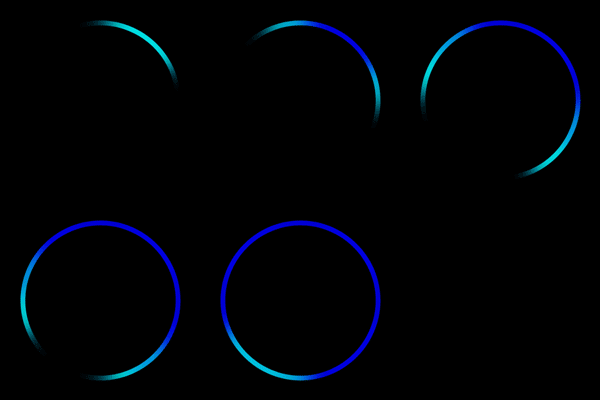
- A cyan spotlight on a blue ring means that Alexa is listening.
- The light ring glimmers briefly when Alexa has heard and is processing your request. A briefly glimmering blue light might also mean the device is receiving a software update.
Red
What it means:
- Solid red light shows when the microphone on/off button is pressed. That means the device microphone is disconnected and Alexa is not listening. Press it again to enable your microphone.
- On Echo devices with a camera, a red light bar means that your video will not be shared.

Spinning cyan
What it means:
- Slowly spinning teal and blue means that your device is starting up. If the device has not been set up, the light turns to orange when the device is ready for setup.

Orange
What it means:
- Your device is in setup mode, or is trying to connect to the Internet.

Green
What it means:
- A pulsing green light means that you’re receiving a call on the device.
- If the green light is spinning, then your device is on an active call or an active Drop In.

Purple
What it means:
- When the Do Not Disturb feature is on, the light briefly shows purple after you make any request.
- During initial device setup, purple shows if there are Wi-Fi issues.

White
What it means:
- When you adjust device volume, white lights show the volume levels.
- A spinning white light means Alexa Guard is turned on and in Away mode. Return Alexa to Home mode in the Alexa app.

Echo Device Low Power Mode
Low Power Mode reduces energy consumption on your Echo device when it’s idle, except in certain situations.
When an Echo device is idle it will automatically enter Low Power Mode to reduce its energy consumption. We are committed to building a more sustainable business for our customers and the planet. You do not need to manually turn Low Power Mode on or off. Your device automatically exits Low Power Mode when you interact with it, including when you use the wake word, press the action button, step in front of the camera (Echo Show devices only), or control it using the Alexa app. Low Power Mode is not available for certain user configurations listed below.
Configurations that disable Low Power Mode:
If you enable the features below, your device will not enter Low Power Mode:
- eero Built-in. For more information about eero Built-in, go to https://eero.com/eero-built-in.
- Motion Detection. For more information about Motion Detection, go to What Is Ultrasound Motion Detection?.
Wi-Fi and Bluetooth:
Connect Your Echo Device to Your eero Network
With eero Built-in, you can connect compatible Echo Dot and Echo devices to serve as eero mesh Wi-Fi extenders and improve coverage in your home.
Note: Before you connect your Echo device with your eero network, complete the following tasks:
To connect your Echo Dot 5th Generation device with your eero network:
- Open the eero App.
- Select Discover.
- Select Amazon Connected Home.
- Select Connect to Amazon, and follow the instructions for signing in with your Amazon account.
- Once you’ve set up Amazon Connected Home with eero, you can now configure your device.
- In the eero app, select Discover > Amazon Connected Home > eero Built-in. Turn on the eero Built-in option.
Update the Wi-Fi Settings for Your Echo Device
Use the Alexa app to update the Wi-Fi settings for your Echo device.
- Open the Alexa App .
- Select Devices
 .
. - Select Echo & Alexa.
- Select your device.
- Select Change next to Wi-Fi Network and follow the instructions in the app.
 .
.Echo Device Is Having Wi-Fi Issues
Echo device can’t connect to Wi-Fi or has intermittent connectivity issues.
- Make sure that your Echo device is within 30 feet (or 10 meters) of your wireless router.
- Check that your Echo device is away from any devices that cause interference (such as microwaves, baby monitors, or other electronic devices).
- Check that your router is working. Check the connection with another device to determine if it’s an issue with your Echo device or with your network.
- If other devices can’t connect, restart your Internet router and/or modem. While your network hardware restarts, unplug the power adapter from your Echo device for 3 seconds, then plug it back in. Make sure that you’re using the included power adapter for your Echo device.
- If other devices are able to connect, check that you are using the correct Wi-Fi password. You can also try turning off some of your other devices temporarily to reduce interference and see if that affects your Echo device’s ability to connect.
- If you have several devices connected to your Wi-Fi network, turn some of them off temporarily. That way you can check if multiple connected devices are impacting your Echo device’s ability to connect.
- Check if your router has separate network names (also called SSID) for the 2.4 GHz and 5 GHz bands. If you have separate network names, try moving your device from one network to the other.
- For example, if your router has both “MyHome-2.4” and “MyHome-5” wireless networks. Disconnect from the network that you’re using (MyHome-2.4) and try to connect to the other one (MyHome-5).
- If your Wi-Fi password recently changed, Update the Wi-Fi Settings for Your Echo Device or Update the Wi-Fi Settings on Your Echo Show.
- If your device is still having intermittent connection issues, Reset Your Echo Device.
Pair Your Phone or Bluetooth Speaker to Your Echo Device
Use the Alexa app to pair your phone or Bluetooth speaker with your Echo Device.
- Put your Bluetooth device in pairing mode.
- Open the Alexa app .
- Select Devices.
- Select Echo & Alexa.
- Select your device.
- Select Bluetooth Devices, and then Pair A New Device.
Remove Paired Bluetooth Devices from Your Echo Device
Use the Alexa App to remove previously paired Bluetooth devices.
- Open the Alexa app .
- Select Devices.
- Select Echo & Alexa.
- Select your device.
- Select Bluetooth Devices.
- Select the device you want to remove, and then select Forget Device. Repeat this step for each device you want to remove.
Device Software and Hardware:
Control Echo Devices with Tap Gestures
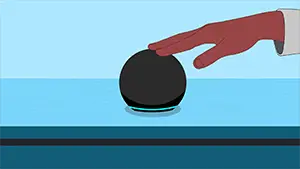
Control your Echo Device with tap gestures.
Firmly tap the top of your device to use Tap Gestures. Tap Gestures are on by default. To turn Tap Gestures off, open the Alexa app and navigate to Devices > Echo & Alexa > select your device > Settings > General > Tap Gestures.
| To Do This: | Touch Your Echo Device Like This: |
| Pause/resume media | Tap once on the top of the device while media is playing to pause, or within 15 minutes of pausing to resume playback. After 15 minutes, resume is no longer possible and playback must be reinitiated. |
| Snooze alarms | Tap once on the top of the device while an alarm is sounding. Snooze alarms also work with:
|
| End calls | Tap once on the top of the device while in a call. |
| End Drop-ins | Tap once on the top of the device while in a Drop In. |
| Dismiss Timers | Tap once on the top of the device while a timer is ringing. |
Note: Tap gestures are only available on Echo Dot 5th Generation devices (except snooze alarms).
Check Your Echo Device’s Software Version
View your current software version in the Alexa app.
- Open the Alexa app .
- Select Devices.
- Select Echo & Alexa.
- Select your device.
- Select About to see your device’s software version.
Update the Software on Your Echo Device
Use Alexa to update to the latest software version for your Echo device.
Say, “Check for software updates” to install software on your Echo device.
Change Your Echo Device’s Name
Use the Alexa app to update your device’s name.
- Open the Alexa app .
- Select Devices.
- Select Echo & Alexa.
- Select your device.
- Select Edit Name.
Change the Wake Word on Your Echo Device
Use the Alexa app to set the name you call to start conversations with Alexa.
- Open the Alexa app .
- Open Devices.
- Select Echo & Alexa and then select your device.If your device has active Reminders or Routines, you might have to select settings to reach the Device Settings page.
- Scroll under General and select Wake Word.
- Select a wake word from the list, and then select OK.
 to reach the Device Settings page.
Change the Wake Word on Your Echo Device
Use the Alexa app to set the name you call to start conversations with Alexa.
- Open the Alexa app .
- Open Devices.
- Select Echo & Alexa and then select your device.If your device has active Reminders or Routines, you might have to select settings to reach the Device Settings page.
- Scroll under General and select Wake Word.
- Select a wake word from the list, and then select OK.
Troubleshoot:
Set Up Doesn’t Work on Your Echo Device
Your Echo device doesn’t complete set up.
To fix setup issues with your Echo device:
- Check that your device is connected to Wi-Fi.
- Check that you have the latest version of the Alexa app.
- Restart your Echo device.
- Reset your Echo device.
Alexa Doesn’t Understand or Respond to Your Request
Alexa doesn’t respond or says she can’t understand you.
To fix issues with your Echo device not responding:
- Make sure you’re using the power adapter that was included with your device.
- Make sure you have an active internet connection.
- Check that your device isn’t muted. The light indicator is red when your device is muted.
- For devices without a screen: press the Action button to see if your Echo device responds.
- To make sure that Alexa hears you, move your device away from walls, other speakers, or background noise.
- Speak naturally and clearly.
- Rephrase your question or make it more specific. For example, there are many cities around the world called “Paris.” If you want to know the weather in Paris, France, say, “What’s the weather like in Paris, France?”
- Try saying, “Did you hear me?”
- Unplug your device and then plug it back in.
Restart Your Alexa Enabled Device
Restart your device to resolve most intermittent issues or if it is unresponsive.
- Unplug your device or the power adapter from the power outlet. Then plug it back in.
- For devices with removable batteries, remove and reinsert the batteries to restart the device.
Reset Your Echo Dot (2nd, 3rd, 4th, or 5th Generations)
If your device isn’t responding, and you’ve tried to restart it, reset your device.
If your device is unresponsive, first restart your device. Unplug the power adapter from the device or the outlet and wait for 10 seconds. Plug it back in to restart it.
To reset your device and keep your smart home connections:
- Press and hold the Action button for 20 seconds.
- Wait for the light ring to turn off and on again.
- Your device enters setup mode. For setup instructions, go to Set Up Your Echo Dot.
To reset your device to its factory settings:
- Press and hold the Volume down and Microphone off buttons for 20 seconds.
- Wait for the light ring to turn off and on again.
- Your device enters setup mode. For setup instructions, go to Set Up Your Echo Dot.
Deregister Your Device
If you no longer wish to use your device, you can deregister it from your Amazon account.
Apart from deregistering your device, you can also manage your Kindle content, and many other account settings through: Manage Your Content and Devices
To deregister your device:
- Go to Manage Your Content and Devices and log in to your account.
- Click Devices.
- Select your device and click Deregister.
Green Light Won’t Turn Off on Your Echo Device
A spinning or flashing green light on your Echo device means there’s an incoming call or an active call or an active Drop In. Flashing Green Light Spinning Green Light Your Echo device has an active call or Drop In ready for you. If you didn’t expect a call or Drop In, try these things:
There is an incoming call on your Echo device.
Yellow Light Won’t Turn Off on Your Echo Device
A flashing yellow light on your Echo device means that you have a notification or a message from an Alexa contact.

If you see a flashing yellow light on your Echo device, try the following steps:
- Say, “What notifications do I have?”
- Say, “What messages do I have?”
- Update your notification settings in the Alexa app.