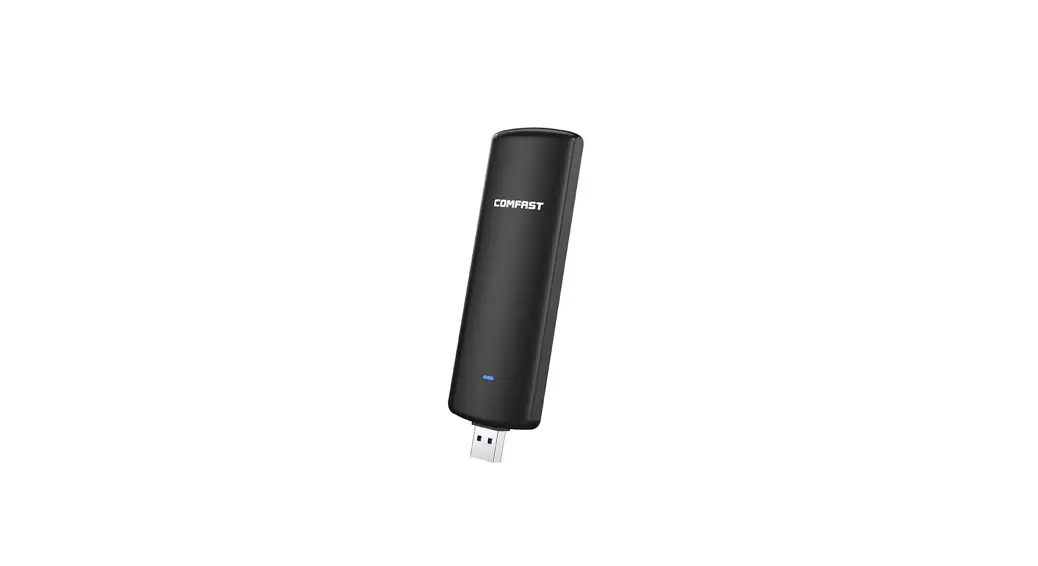
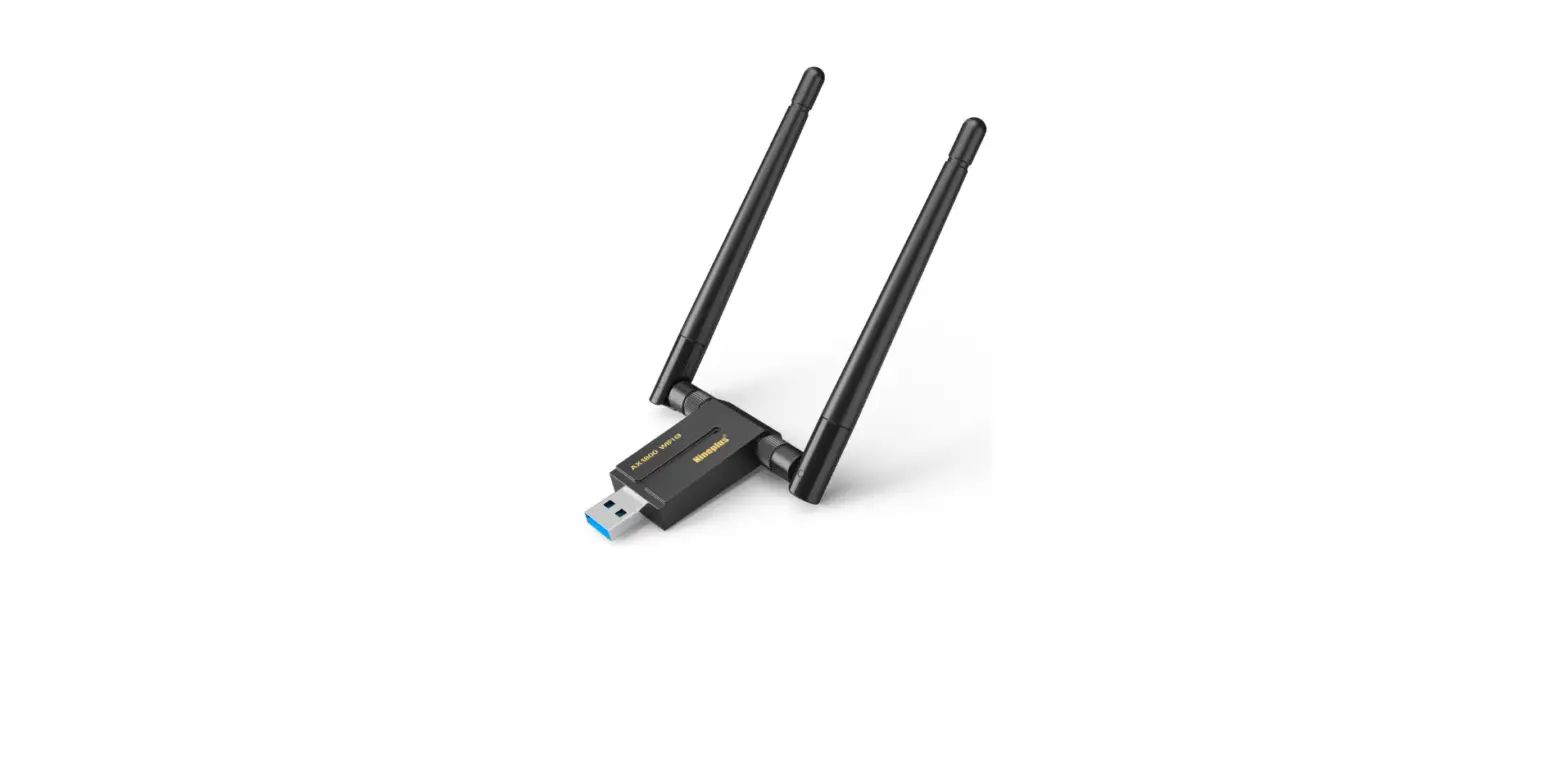
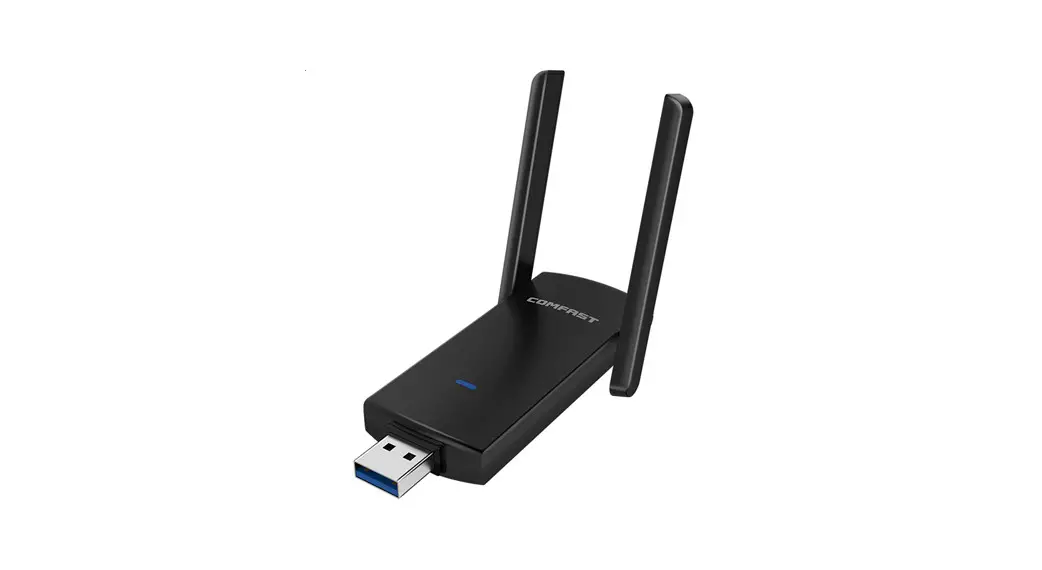
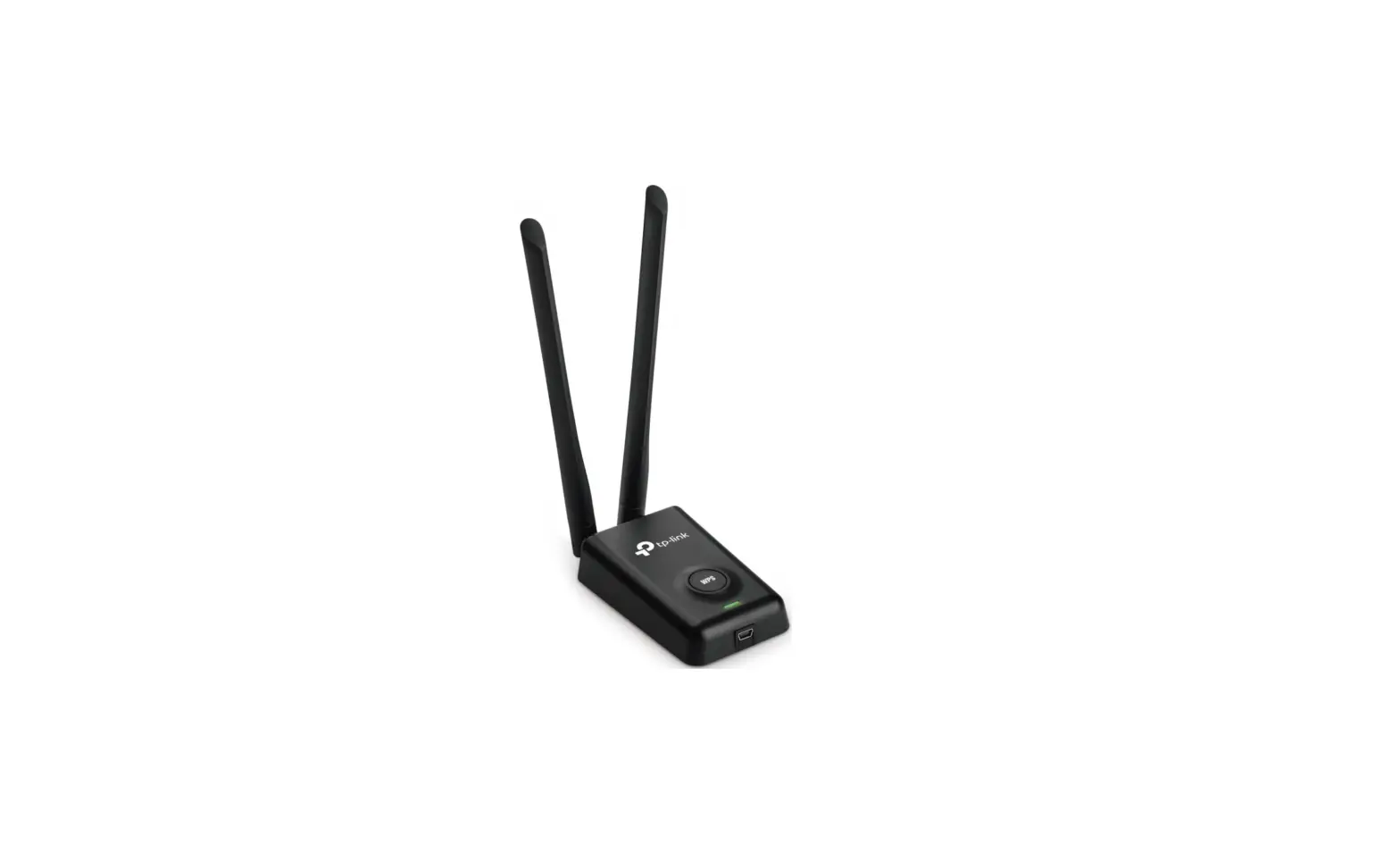
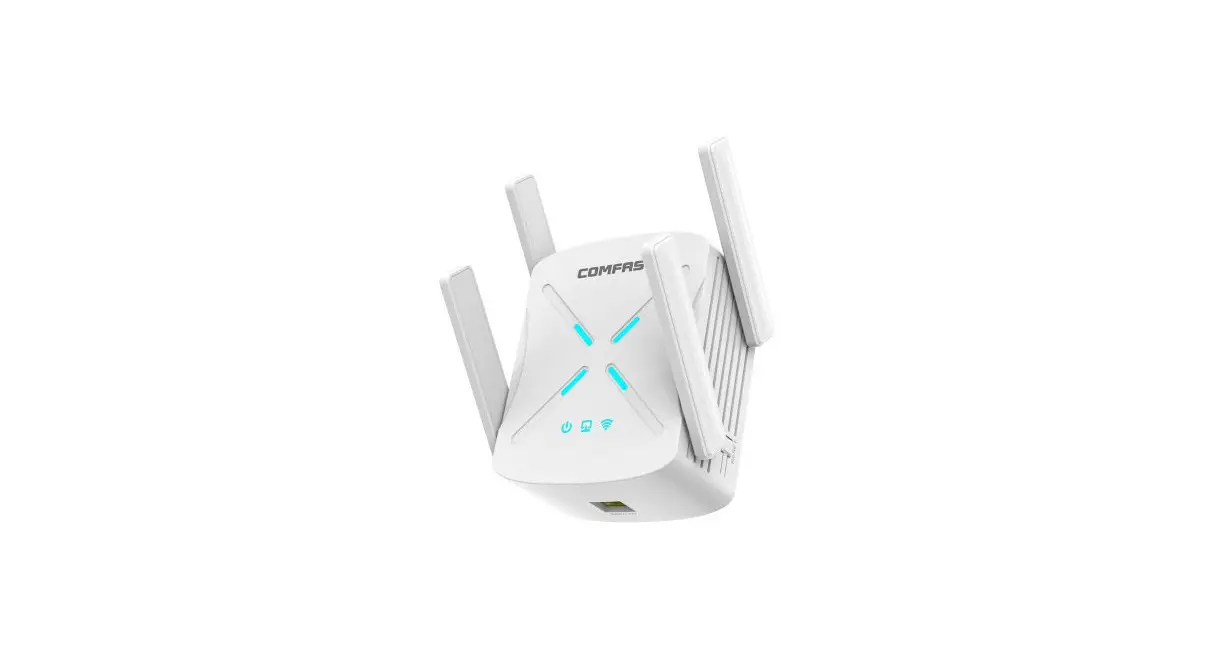
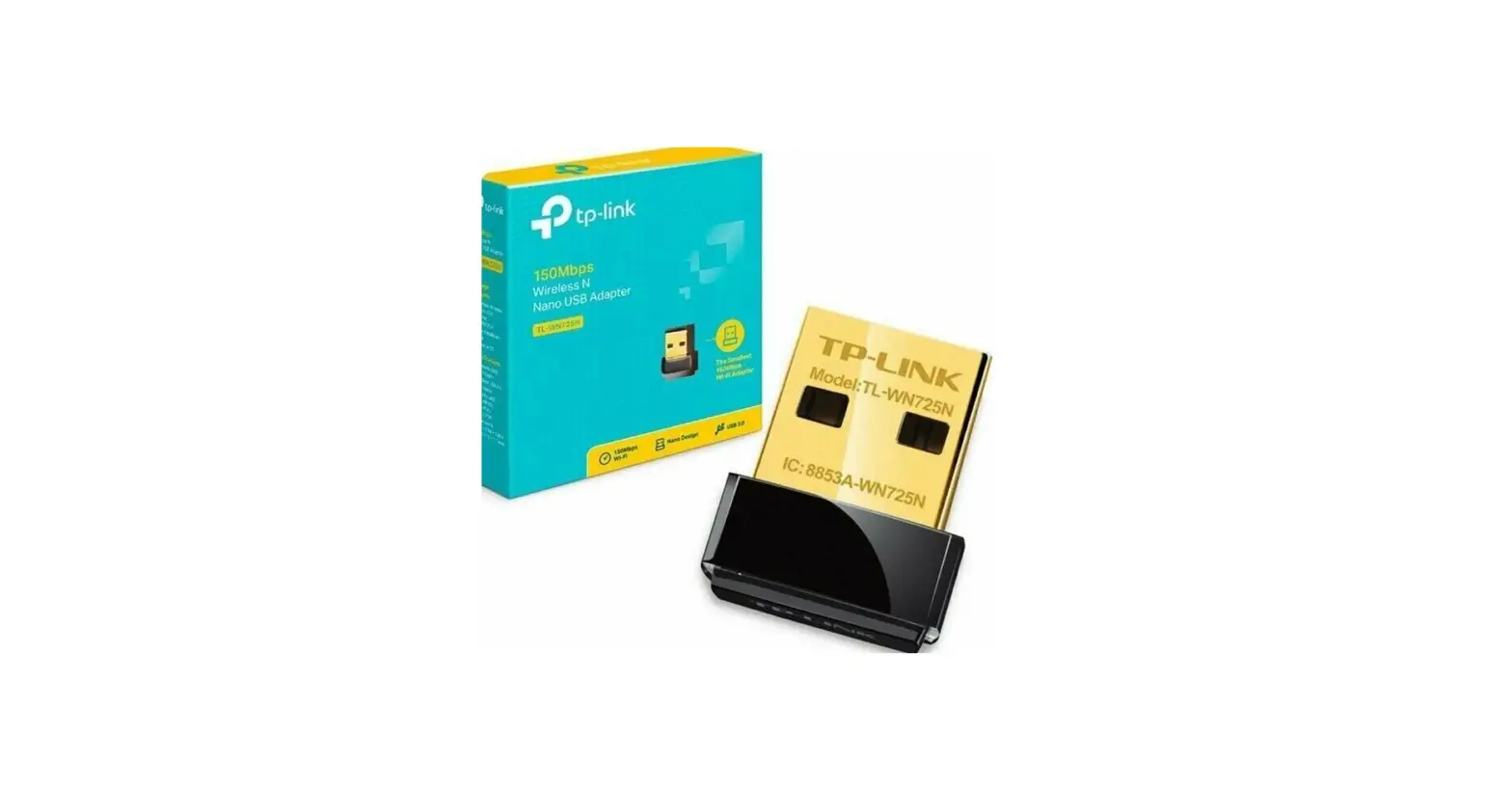
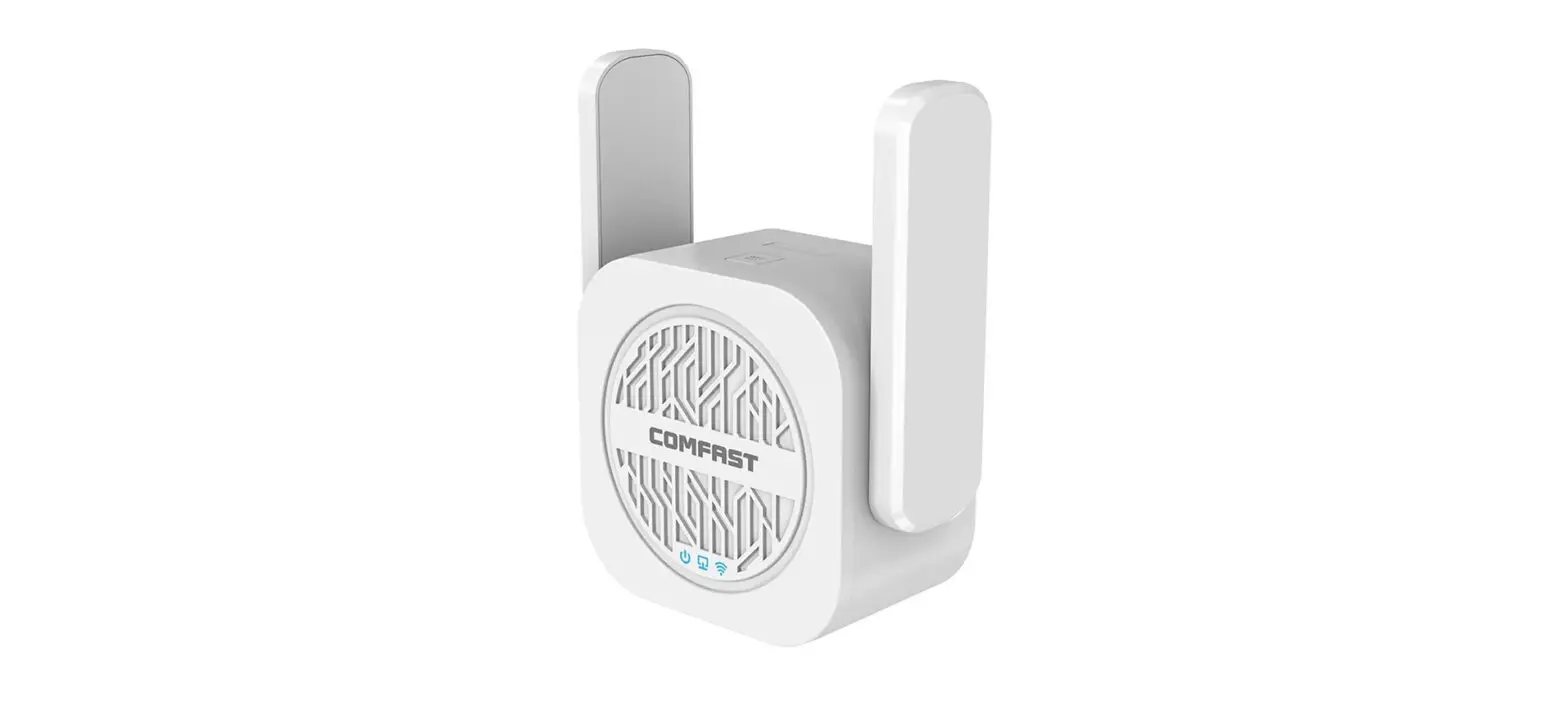
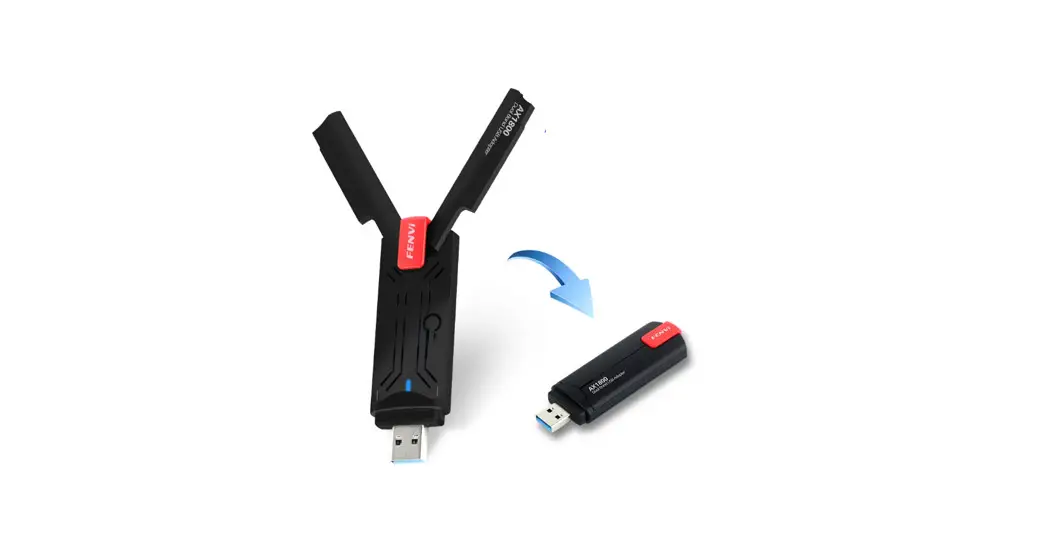
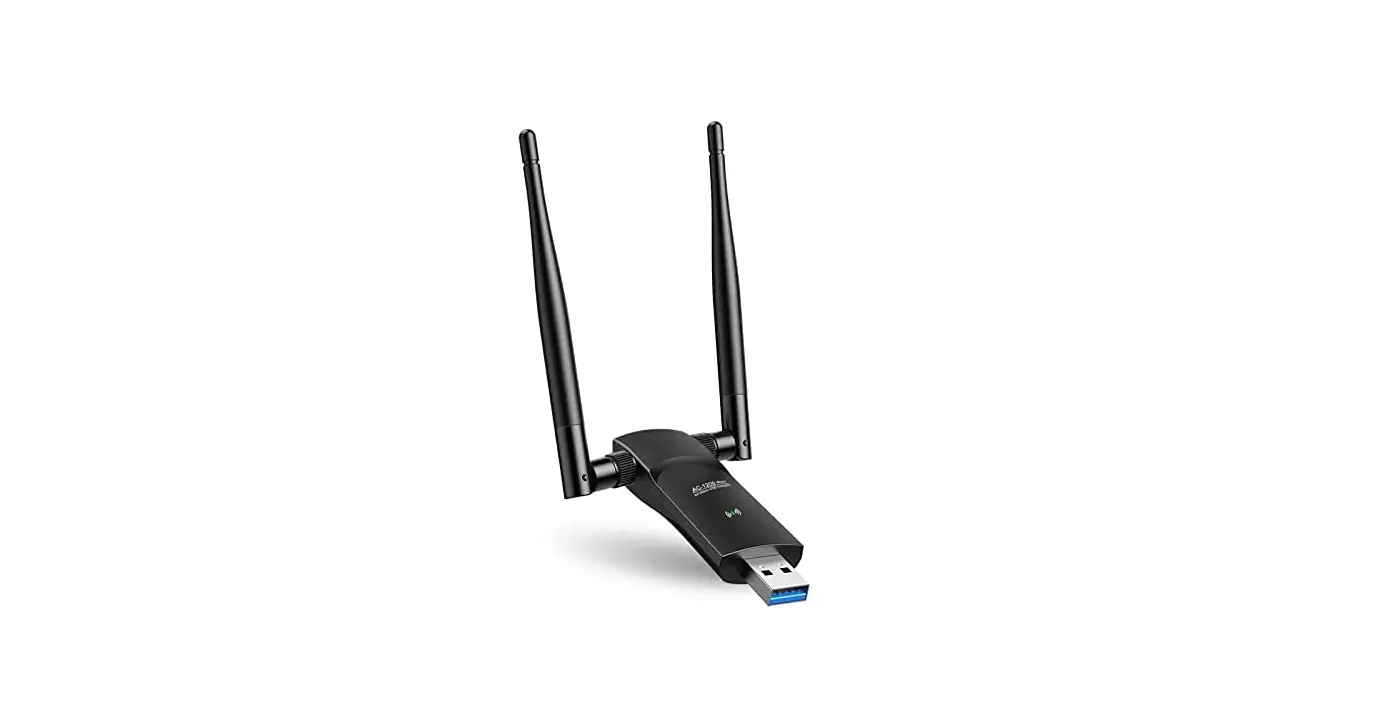
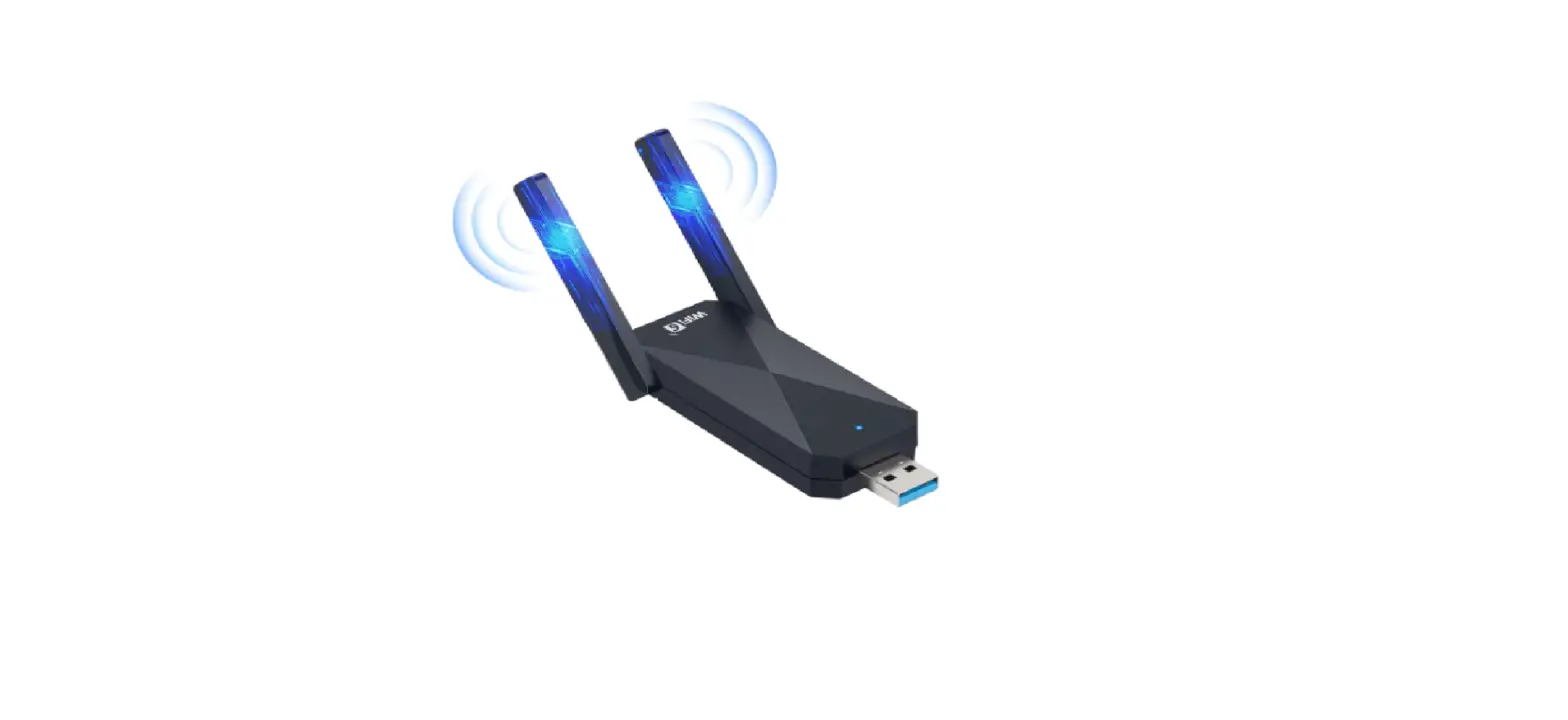
CF-955AX Wireless Adapter
Product Information
The product is the CDFAST Quick Installation Guide for the
Driver Installation Version 1.0. It includes instructions for
hardware installation and driver installation for a network
card.
The network card can be installed in two ways:
- Insert the network card directly into the USB port of the
computer. - Connect the computer USB port through a USB extension cord base
(USB extension base needs to be purchased separately).
The software installation process is similar under each Windows
10/11 system. The installation takes Windows 10 system as an
example.
After the installation is complete, it is recommended to restart
the computer. The driver installation will be complete after
restarting.
To view the driver status, open My Computer, right-click, select
Manage, and enter the management interface.
To view the device details, double-click on the device in the
management interface.
After confirming that the driver is installed correctly, you can
connect to a wireless network by double-clicking the wireless
network card icon in the lower right corner and selecting the
network you want to connect to.
Once the network is connected, the computer system icon will
change, and you can right-click the icon to access network and
internet settings.
In the network settings, you can view information such as IP,
MAC address, gateway, and driver version of the wireless
connection.
Product Usage Instructions
- Hardware Installation:
- Option 1: Insert the network card directly into the USB port of
the computer. - Option 2: Connect the computer USB port through a USB extension
cord base (USB extension base needs to be purchased
separately).
- Option 1: Insert the network card directly into the USB port of
- Driver Installation:
- Insert the network card into the USB3.0 port.
- Select the CD Drive (J:) CF WIFl6 STEP in My Computer.
- Open the program and follow the prompts to install the
driver. - Restart the computer after installation is complete.
- To view driver status, open My Computer, right-click, select
Manage, and enter the management interface. - Double-click to view device details.
- Network Connection:
- Confirm that the driver is installed correctly.
- Double-click the wireless network card icon in the lower right
corner. - Select the network you want to connect to and enter the
password.
- Network Connection Status:
- After the network is connected, the computer system icon will
change. - Right-click the icon and select Open Network and Internet
settings. - In the settings, click Wi-Fi and then Show connected wireless
to view network information.
- After the network is connected, the computer system icon will
CDFAST Quick Installation Guide
····
Driver Installation Version 1.0
ardware installation
There are two ways to install the network card; Note: The picture is a simplified schematic diagram, please refer to the actual product for details
(1) Insert the network card directly into the USB port of the computer;
L
‘
,
,
‘
,
,
‘
, , ‘ , ‘ , , ‘
J
‘
,
‘
‘ ‘ , , ‘
‘
,
(2) Connect the computer USB port through the USB extension cord base (USB extension base needs to be purchased separately);
: Note: When using a desktop computer, ii is recommended : ; to use a USB extension cord base to connect to the port on : : the back of the computer case (some desktop ports have : ; ,nsufficient power supply or cannot be used), and extend it :
; totheDesktopcomputerusbports. :
Driver Installation
2-1 The software installation process under each Windows 10/11 system is similar. The following installation takes Windows 10 system as an example. Insert the network card into the USB3.0 port, and choose to run “CD Drive (J:) CF WIFl6 STEP” in my computer.
CD Drive (J:) CF WIFl6P 0 bytes free of.58 MB CDFS
2-2 Open the program and follow the prompts to install the dnver.
COMFASTW6 USB wireless adapter In.,…. as!! tI!! SeinsWiflAutolnstal on yolJ'”
X
.
‘””‘
C
2-3 After the installation is complete, it is recommended to restart the computer. If there is work in progress or documents being written, you can restart it later. If there is nothing else, it is recommended to restart immediately.
2-4 After restarting, the driver installation is complete, you can move the mouse to My Computer, right-click and select Manage to enter the management interface to view the driver status;
Open
Pm
,ckaccm
9 Mana
Pm to Start
Map oetwo,k d, Disrnooe<t oetwo,k dnve
c,eat,shortrnt Delete Rmm,
Pmp,rt
2-5 After entering the management page, click Device Manager, Network Adapter in turn, you can see the installed network card driver (Note: This step requires the network card to be connected to the computer to see it.)
·
b
.,,.lmlll
·,I…
4’ >
,o …»Mo
C
> _,··-
,,…
> .,. W
>’9<0″W””””””
> “‘·…
,'”·” -”
VN…
“”” …·
,K,>FC
….. “e><>,m,,Co.,
mY_w,=.,..
“””‘”.,,.
W”‘”””” “””‘”‘
W”‘””,,uw,
W'”‘”‘.. ..,
“”””‘”‘=o
WM,m,,w,
“””‘”
> l’
‘°””””” “‘”‘..
2-6 Double-click to view the device details. If there 1s no abnormality, the driver is running normally as shown in the figure below and the driver details can be viewed;
·
F ” “w ,.
…. 1,liilfl,.lil!Ix@
·d
4. >
p-·
… ,
.,, O ·– > ··.. > …,.w.””‘” “”
··=·- > …. G
… ‘”
,a.,=w,
U..6
…. boo,,
…. “,.
mv-,MG
f/lW-··2
W··”””
W-·”
…·
… ··=···
… -·»·
… ,,.,w,
…
> I’, i ,,.,co··<>n =·,,m
–.-
· roms,–
O
1 I
–
-…. ,
~
e·h
.,..,a”
– .. h
m-
Network connection settings
3-1. After confirming that the driver is installed correctly, you can double-click the wireless network card icon ,1111 in the lower right comer, and click the icon with the left mouse button. The computer will display the connectable wireless
3-2. Click the wireless network you want to connect to and enter the password to connect.
Network connection status
4-1. After the network is connected, the computer system icon will change to ,1111 , and then you can right-click the icon and select “Open “Network and lntemet” settings” to enter the setting selection interface
1,00, SU
W pl WLAN22
a)oo
– “‘
“‘ ,,,, “,.
Raodomha,dw,,.,dd'”
::
4-2 Click the “Wi-Fi” option, and then click Show connected wireless, you can view the current IP, MAC address, gateway, driver version, etc. of the wireless
Network & internet > Wi-Fi > COMFAST_OSDS_SG
“””'”mC “”‘””.,,gom,o<
SKo,iO p<m
A,<o=fa,OHCO
A,<oma<k (DHC’l
COMCASUSDS_SG Wiei’I,….,, WPA2-“”” ,,.,s.mirnoaoctmCmp. COMs,w”””‘””””‘”””””
‘”
C
Ne°””””” Liak, “wo/T,aMmi(),
)20,{T,0((Mb
c,,.1oc,11″”” l6DNSs=,s,
Phi<ala”(MAC),
Ia06d305’S6 IdH039M3,”(“”””‘
“‘·’.10.1(0,ea,lea) OO-E<>-4C-B8-3′-01
Maintenance Regulations
Dear Valued Clients,
Thank you for purchasing CDMFAST products. To protect your rights and interessts in after-sales service, please read the following maintenance regulations
The following do not belong to free maintenance ,our company can provide paid service ,please note:
· Failure to require the installation manual , use ,maintenance, storage led to product failure or damage;
· Beyond the limited warranty , the warranty period, Unautorized alteratiion, tearing up the product bar code,
hout authorization to change the settings file or inherent disassemble;
· Unexpected factors or human actions lead to product damage, such as improper input voltage, temperature, watermechanical damage, break, rust or oxidation product of serious.etc;
· The damage caused by the transportation, loading and unloading caused by the customer’s return for repair; the product failure or damage caused by force majeure such as earthquake, fire, lightning, etc.; Other non-product itself, design ,technology,manufacturing ,quality and other quality problems causedby the failure damage.
Customer Data
Name Address Model MAC No. Machine unit sales Sale of machine address Date of sale machine
TEL Post Code Invoice No.
Certificate Of Qualification
Q u a t y _ n o C t
p ro d u C 0 D a t
0
E x e c u 1 v e S n d a r
Copyright Information
Statement Shenzhen Four Seas Global Link Network Technology CO.,Ltd. Company all rights reserved.
Without ours official writ permission, no unit or individual shall be copied, reproduced, transcribed or translated in part or whole book. In any form or by any means(electronic,mechanical,printing,recording or other possible means)or for the propagation of goods any commercial, profitable purposes
CMFTis the registered trademark of Shenzhen Four Seas Global Link Network Technology Co.,Ltd.Company. All other trademarks or registered trademarks mentioned in this document, by respective owners
Product specifications and information mentioned in this manual are for reference on subject to updates without notice. Unless there are other special agreed, this manual ,s used only as a user guide. All statements, information, etc are not constitute any form of guarantee
Manufacturer:Shenzhen Four Seas Global Link Network Technology Co.,Ltd.Company Address: Room 607-610,Block B Tao JINDI Electronic Business Incubation Base, Tenglong Road, Longhua District, Shenzhen, China Hotline:+86 755 83790059 Website:www.comfast.cn/ www.szcomfast.com
FCC Statement This device complies with part 15 of the FCC rules. Operation is subject to the following two conditions: (1) this device may not cause harmful interference, and (2) this device must accept any interference received, including interference that may cause undesired operation. Changes or modifications not expressly approved by the party responsible for compliance could void the user’s authority to operate the equipment. NOTE: This equipment has been tested and found to comply with the limits for a Class B digital device, pursuant to part 15 of the FCC Rules. These limits are designed to provide reasonable protection against harmful interference in a residential installation. This equipment generates uses and can radiate
radio frequency energy and, if not installed and used in
accordance with the instructions, may cause harmful interference to radio communications. However, there is no guarantee that interference will not occur in a particular installation. If this equipment does cause harmful interference to radio or television reception, which can be determined by turning the equipment off and on, the user is encouraged to try
to correct the interference by one or more of the following
measures:
·
Reorient or relocate the receiving antenna.
·
Increase the separation between the equipment
and receiver.
·
Connect the equipment into an outlet on a circuit
different from that to which the receiver is connected.
·
Consult the dealer or an experienced radio/TV
technician for help.
The device has been evaluated to meet general RF exposure
requirement. The device can be used in portable exposure
condition without restriction.
The SAR limit of FCC is 1.6 W/kg averaged over one gram of tissue. Device types Wireless network card has also been tested against this SAR limit with 5mm.
 COMFAST
 COMFAST