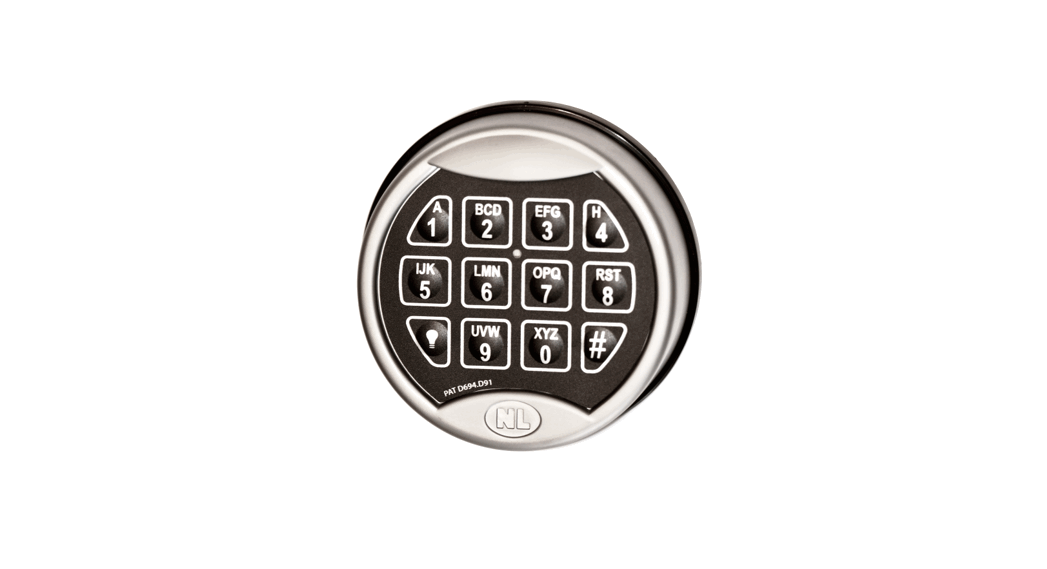
Electronic Lock App
Product Information
| Function | Sound Prompt |
|---|---|
| Features | Lock will prompt with sound when inputting wrong or correct password, battery is in low voltage, unlocking for a long time |
| Light Prompt | Green: correct operation Red: wrong operation Blue: low voltage White: standby status |
| Low Voltage Alarm | When the battery voltage is lower than 4.6V, after unlocking the battery, the LED blinks in blue and beeps for eight times. It is advised to replace the battery as soon as possible. |
| Last Unlocking | When the battery voltage is lower than 4V, the lock can only be unlocked for the last time. After that, the lock cannot be locked anymore until the user changes the battery. |
| External Power Supply | The lock can be powered by an external power supply through the front panel when the internal battery is out of power. |
| Manager Account | There are 12 manager accounts available. The manager account can be used to log in for the first time. After successful login, the administrative account cannot be changed except after initialization. |
| Manager Password | The default manager password is “0000”. It can be used to open the lock in emergency situations. |
| User Account | There are 12 user accounts available. The user account is created through the manager APP and cannot be the same as the manager account. |
| User Password | The user password is a 4-digit code that can be used to open and close the cabinet. |
| One-Time Password (OTP) | In case the user forgets the password, they can contact the manufacturer’s after-sales service with the SN number to unlock the lock. The OTP is a one-time emergency password that becomes invalid immediately after being used once. After using the OTP, all users will be cleared, and the manager password will revert to the initial password “0000”. The operation log will not be cleared. |
| Material | ABS+PC+Zinc alloy |
| Power Consumption | Load current |
| Working Voltage | |
| Working Environment | Anti-static |
Product Usage Instructions
To use the product:
- Ensure the lock is powered with sufficient battery voltage. If
the battery voltage is below 4.6V, replace the battery as soon as
possible. - Input the correct password to unlock the lock. If the password
is input incorrectly, the lock will prompt with a sound. - If the battery is in low voltage, the lock will display a blue
light prompt. If the battery is almost depleted (below 4V), the
lock can only be unlocked for the last time. - If the internal battery is out of power, use an external power
supply through the front panel to provide power for the lock. - There are 12 manager accounts available. Use the manager
account to log in for the first time. After successful login, the
administrative account cannot be changed unless the lock is
initialized. - The default manager password is “0000”. It can be used to open
the lock in emergency situations. - Create user accounts through the manager APP. Ensure that user
accounts are different from manager accounts. - The user password is a 4-digit code that can be used to open
and close the cabinet. - If a user forgets their password, they should contact the
manufacturer’s after-sales service with the SN number to unlock the
lock using the one-time password (OTP). The OTP is valid only once
and becomes invalid immediately after use. After using the OTP, all
users will be cleared, and the manager password will revert to the
initial password “0000”. The operation log will not be
cleared.
Technology Change Life
User manual
Technology Change Life
1. Function introduction
1. Main function and features
Function Sound Prompt
Feature Lock will prompt with sound when input wrong or correct password, battery is in low voltage, unlocking for a long time
Light prompt Low voltage alarm
Green: correct operation Red: wrong operation Blue: low voltage White: standby status Low voltage alarm When the battery voltage is lower than 4.6V, after unlocking the battery, the led blinks in blue and beeps for eight times. Advised to replace the battery as soon as possible Last unlockingWhen the lock is lower than 4V, the lock can only be unlocked for the last time, that is, the lock cannot be locked anymore until the user change the battery.
When the internal battery is out of power, the user can use
External power supply external power supply to provide power for the lock (with
(with front panel)
front panel).
Manager account1~12 Enter the account when logging in for the first time. After logging in successfully, you cannot change the administrative
account except after initialization.
Manager
password
4digit0000
User account1~12
Manager password can be used to open the lock in emergency
The user account created through the manager APP, and cannot be the same as the manager account.
User password 4
User password can be used to open and close the cabinet.
When the user forgets the password, he can ask the after-sales
service of the manufacturer to unlock the lock through the SN
number. The password is a one-time emergency password,
OTP
which will be invalid immediately after being used once
After using the one time password, all users will be cleared,
manager password back to the initial password 0000,
operation log will not be cleared.
1. Parameter
Material Power consumption
Working voltage
Working environment Anti-static
ABS+PC+Zinc alloy Load current<270mA@6V Locked rotor current<350mA@6V Standby current<30mA@6V Quiescent current<45uA6V DC6V(AA1.5×4)5# Wide voltage4.2V~6.3V Type-C connector4.2~6.3V Standby for more than 12 months Low voltage4.6V+0.1V Low voltage limitBelow 4.2V, provide the last open Working temperature -20 ~ +65 Working humidity 10% ~ 90%RH Air static 15KV
-2-
Touch static 8KV
2. Operation
1. Initialize the operation
Project
Operation
By Manager password
Input “*#9#”, lock will prompt with sound “di di”, green
light shines fast, Input “manager password #”, green light
shines slower,input “manager password #” again, lock will
prompt with sound ” di di di, Reset the lock successfully
Initialization
Rest button: Pressing button “Reset” for 2 seconds lock
will prompt with “di di di” and lock flashes in green
twice.Reset the lock successfully
OTP input”10 digit OTP password #” Reset the lock
successfully
Note By Reset button will clear the Bluetooth lock configuration user information,
initialize the manager password and clear logs, and By the manager password and password
OTP emergency initialization will not clear logs.
-3-
2. OTA operation
Project
Operation
1. APP 2.Open the software
OTA APP operation
,scan the password and download the
Open the “OTA”
allow to obtain the positioning function and enable Bluetooth.
3.Click Search for nearby devices, and select the SN number to be connected from the device list (as shown below).
-4-
4. Choose Bin file( the file for update) 5. Click ENTER OTA MODE to delete the original application and enter the OTA upgrade mode 6. Click OTA UPDATA 2 seconds after step 2 to start the upgrade
-5-
Update password default5678
Note The default upgrade password of
APP is 5678. If the upgrade password is not changed, you do not need to set it. If the update password is wrong , when click ENTER OTA MODE, you cannot delete the original app and enter the OTA upgrade mode.
Note: 1. If the Bluetooth device cannot be searched, restart the Bluetooth and open the APP search again 2. Exit the upgrade after the upgrade fails, and open the APP again to enter the upgrade
3. ADMIN APP
Project
Operation
Login and open the 1.Search the KERONG ADMIN APP store and install it
-6-
lock
Open APP—connect the SN number —input the PIN password (on
the back of lock body)—Input phone number input 1~12digits
—input manager passwordOriginal manager password is “0000”
—Connect successfully, and press the screen to open the lock
Open”KERONG ADMIN”
Click “Allow” to open the photo function and “allow to obtain the positioning function”. You can search for nearby devices,scan the device and input the SN number to connect the mobile.
Click the search device, and choose the SN number of lock(as below)
-7-
Input the pin password,such Input the phone number or
as”2903″
1-12 digits
Input the manager password, Original manager password is 0000
Press the red button to open the lock
4. APP operation
Project
Operation
-8-
Introduction to the unlocking interface
-9-
User information – 10 –
Set menu interface
Open method
ManuWhen user connect to the lock, need to click the red button on mobile to open the lock
AutoAs the App connect to the lock, the user can touch the panel to open the lock
– 11 –
Close method Record query Query lock ID
Add user
Delete user Cancel alarm Disable buzzer Sync lock
Emergency unlock Modify password Query unlock permission
ManuWhen open the lock, user need to press the red button on lock to close it
AutoAfter 5 seconds, the lock tongue will stretch out It can check 200 records Query the lock ID which is connected 1.Click the “+” button below to add periodic users or one-time users. The added users can only log in through “Kerong Smart Cabinet Lock”; 2.Periodic user: Used within a certain period of time, beyond or within the set period of time, the user cannot log in and use the APP of “Kerong Smart Cabinet Lock” 3.One-time user: The user can only log in the APP “Kerong Smart Cabinet Lock” once, and cannot use it again after exiting. Note: The password is automatically generated by the system and can be modified by APP “Kerong Smart Cabinet Lock”. A maximum of 100 users can be added. 1.Delete a single user: Hold down the user you want to delete – swipe right – click the red trash can button 2.Delete all userClick”-“press yes Choose turn on or turn off the hook alarm Choose turn on or turn off the buzzer Verify the clock to check whether the clock is normal. If the displayed clock is 00:00:00, the clock hardware is faulty. When the user forgets the password, he can ask the after-sales service of the manufacturer to unlock the lock through the SN number of the lock body. The password is a one-time emergency password, which will become invalid immediately after being used once Modify the password, and the password should be 4 digits query the password and validity period of an existing user
– 12 –
5. User APP
1.Search the “Kerong Smart Cabinet Lock” in APP store, and install it 2.Open the APP–Click search device–click the SN number –Input the PIN password- Verify user information
Login in
Open the APP
Click “Allow” to open the photo function and “allow to obtain the positioning function”. You can search for nearby devices,scan the device and input the SN number to connect the mobile.
– 13 –
Input Pin password, such as :”2903″
Input the account and password provided by manager
– 14 –
User interface – 15 –
User information – 16 –
Manu
Cancel alarm Emergency unlock Modify password
Turn on or turn off the hook alarm function When the user forgets the password, he can ask the after-sales service of the manufacturer to unlock the lock through the SN number of the lock body. The password is a one-time emergency password, which will become invalid immediately after being used once Modify the password, and the password should be 4 digits
2. Electronic key
Electronic key
Manager electronic key 1.Insert the manager electronic key into the panel, the lock will open the lock and clear the user electronic key pairing information. Note: If used for the first time, the lock will be paired with the electronic key, and the lock can only use this
– 17 –
electronic key.
User electronic key Insert user electronic key, the lock will open. Note: If used for the first time, the lock will be paired with the electronic key, and the lock can only use this electronic key. Note: 1. Using the manager electronic key can clear the lock body pairing user electronic key information at once, the user can re-pair a new user key after using the manager key 2. Clearing the lock body manager electronic key configuration information can only be done by RESET button on lock and initialisation of the electronic key, clearing the lock body user electronic key information by manager key or rest button on lock/initialisation of the electronic key, clearing the initialisation electronic key configuration information can only be cleared by reset button 3. initialising the electronic key does not initialise the log.
Translated with www.DeepL.com/Translator (free version)
6. Emergency methods
1) The * key is the clear key and the # key is the confirm key. 2) The initial manager password is “0000”; 3) Keep it properly after using external power supply, please do not
place it inside the cabinet. 4) The blue light flashes after opening the lock, indicating that the
internal voltage is insufficient, please replace the battery with a new one in time.
– 18 –
5) forget the password: please follow the “manager password” principles of use and use the way to operate, or contact the manufacturer after-sales service warm tips;
6) If the internal battery is dead, can be opened through external power supply external power supply;
7) Prohibit the use of different brands, different old and new batteries.
– 19 –
FCC Warnning: This equipment has been tested and found to comply with the limits for a Class B digital device, pursuant to part 15 of the FCC Rules. These limits are designed to provide reasonable protection againstharmful interference in a residential installation. This equipment generates, uses and can radiateradio frequency energy and, if not installed and used in accordance with the instructions, maycause harmful interference to radio communications. However, there is no guarantee thatinterference will not occur in a particular installation. If this equipment does cause harmfulinterference to radio or television reception, which can be determined by turning the equipmentoff and on, the user is encouraged to try to correct the interference by one or more of thefollowing measures: · Reorient or relocate the receiving antenna. · Increase the separation between the equipment and receiver. · Connect the equipment into an outlet on a circuit different from that to which the receiver is connected. · Consult the dealer or an experienced radio/TV technician for help.
Caution: Any changes or modifications to this device not explicitly approved by manufacturer could void your authority to operate this equipment.
This device complies with part 15 of the FCC Rules. Operation is subject to the following two conditions: (1)This device may not cause harmful interference, and (2) this device must accept any interference received, including interference that may cause undesired operation.
This equipment complies with FCC radiation exposure limits set forth for an uncontrolled environment. This equipment should be installed and operated with minimum distance 20cm between the radiator and your body.
 DeepL Translate: The world's most accurate translator