
Sunways PC Monitoring
User Manual
About This Manual
Target Group
This manual is intended for the distributors/installers of the Sunways.
Intended Use
This manual is intended to guide users in operating and managing Sunways Plants Monitoring System. About Sunways Plants Monitoring System.
About Sunways Plants Monitoring System
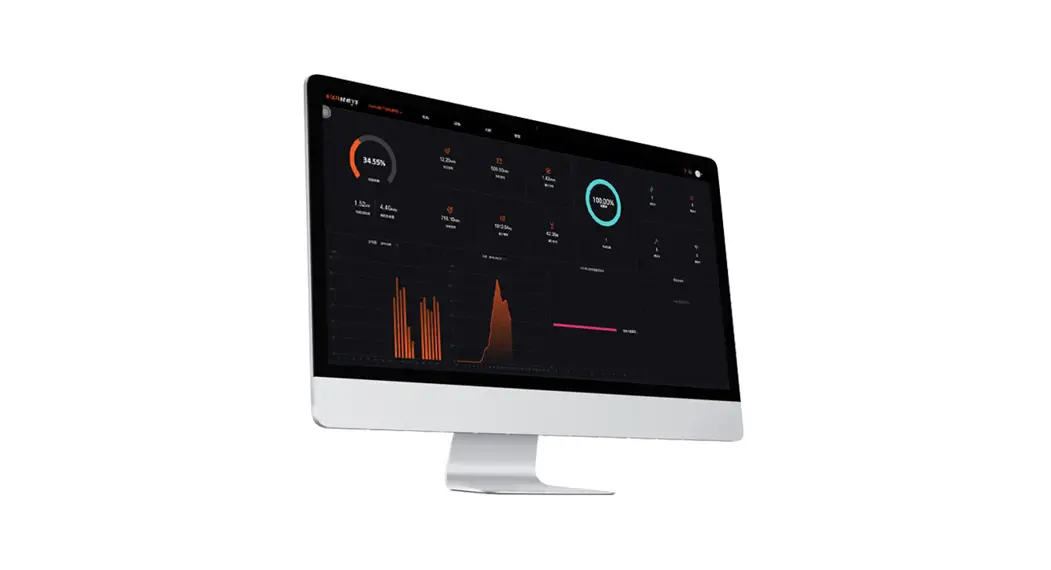
Note: This manual is prepared based in the month Jan 2021, part functions of this system are being developed, screenshots are for reference only, the actual interfaces may differ.
Major functions Sunways plants monitoring system mainly includes the following functions:
- Detailed information of plant&device: All plants’ generation overview, add&edit specific plant, and device, check plant&device status, view specific plant&device generation records. See chapter 4 for details. Plants.
- Device assign management: Assign devices to your sub-level distributor or installer to manage devices movement and warranty checking. See chapter 7 for details. Devices.
- Organization management: Manage the internal members’ accounts (See 8.1 Internal organization for details)and the external organizations such as sub-distributors&installers, see 8.2 Sub-organization for details.
- Other functions: Main Dashboard, Reports, Alarm, and System Setting.
Plant view permission explanation
- Distributor allows viewing all plants that bonded in the devices in its account.
- The distributor can view the plant of the device even though the device has been assigned to its sub-distributor.
Login, Homepage and Logout
Login
- Access the Suwnays plants monitoring system by visiting the URL https://monitor.sunways-tech.com in the browser address bar.
- Click the icon
 in the middle-lower position to switch languages.
 - Enter the username and password and click “Login”.
For the convenience of subsequent login, you can tick “Remember me”.
 in the middle-lower position to switch languages.
Logout
Click the button in the upper right corner of the home page to log out of the account from Sunways plants monitoring system.
Homepage
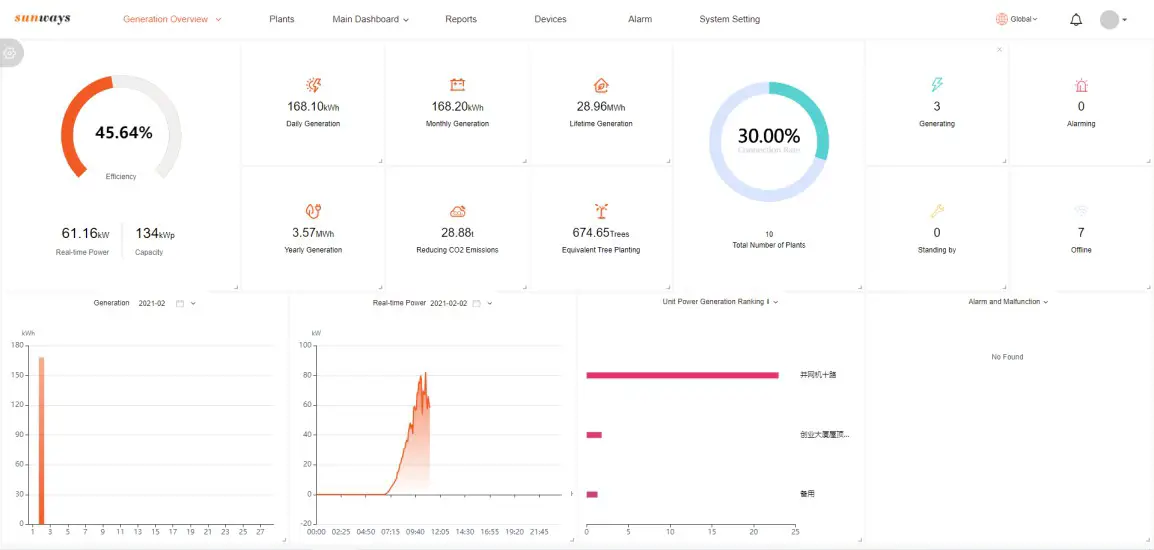 Menu Bar
The menu bar displays the main functional categories of the Sunways plants monitoring system. Users can switch to the corresponding function interfaces and perform related operations.
| Menu | Description |
| Generation Overview | View information such as Real-time power, Generation bar chart, Top 10 plants ranking, Efficency, Plants status and environmental contribution relative data etc. |
| Plants | View Plant List, Plant Name, Status/Communication, Real-time Power, Daily Generation, Capacity, Unit Generation, Username/Mail/Address, Plant Type, and Function operation buttons. |
| Main Dashboard | Dynamic display plants generation in fullscreen to attract customers viewing your installations and show your company strength (You need manually set the plant which you want to show to others) |
| Reports | Generate the report of inverter generation and alarm according to your selected conditions. |
| Devices | Display the basic information of all devices(Inverter, Logger) which you purchased and devide them into installed and uninstalled two categories which is convenient to manage the movement of the device. See details in chapter 7 Devices. |
| Alarm | View alarm plants and select them by different conditions. |
| System Setting | Account management relatives are located in this menu, including Internal organization management. Sub-distributor management, OEM configuration. and SN application approval. |
 | This button uses to add or delete the information blocks showing on the generation overview page. |
 | This button uses to switch languages. |
 | Message reminder icon. there’s an application waiting for your approval when this bell icon displaying in orange. |
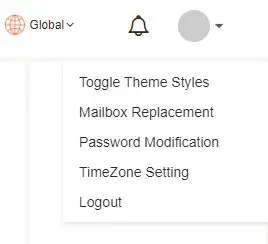
| Account setting button |
Plants
Click “Plants” to enter the corresponding interface where information such as
Plant Name, Status/Communication, Real-time Power, Daily generation,
Capacity, Unit Generation, Username/Mail/Address, Plant Type and Function operation buttons are displayed.
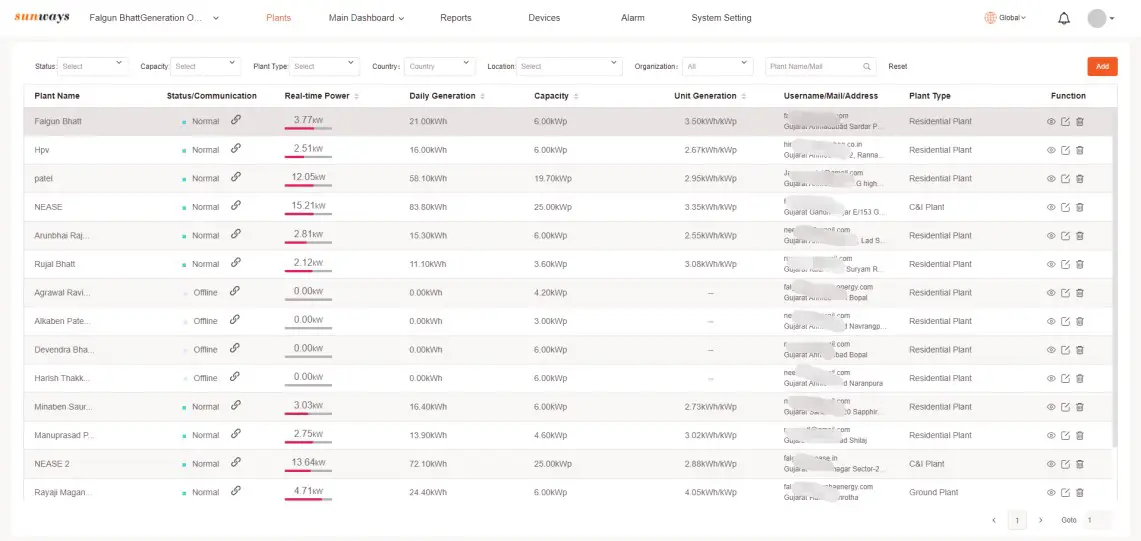
Plant Search Bar
Search category: You can search by Status, Capacity, Plant Type, Country, Location, and Organization, and the plants which meet your search conditions will be automatically displayed.
Exact search: Search by entering the exact Plant Name or User email and click the search icon to view the result.
Add plant
Click the icon in the upper right corner to go to the plant creation interface.
Fill in all blanks that are required here and click the icon .
.
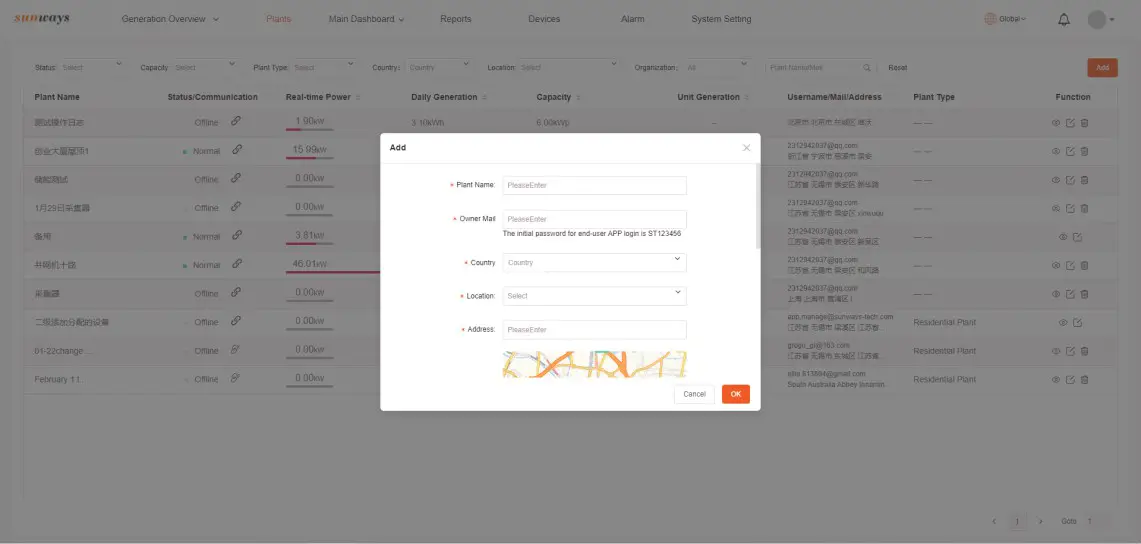
Note: If the email entered in the plant creation step was already registered by the end-user, the newly created plant will automatically appear to the end user’s account. Otherwise, the system will automatically create a new end-user account with the account entered email and password ST123456.
Detailed plant information
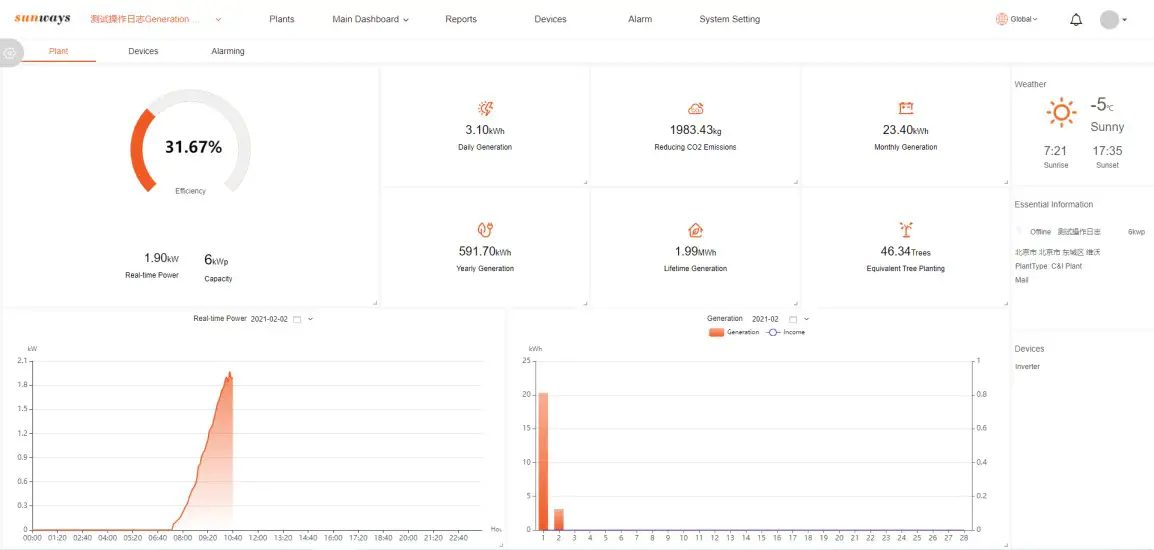
Click the icon in the function column to view the detailed plant information.
See details in section 4.6 Detailed plant information.
Edit plant
Click the icon in the function column to edit the plant information.
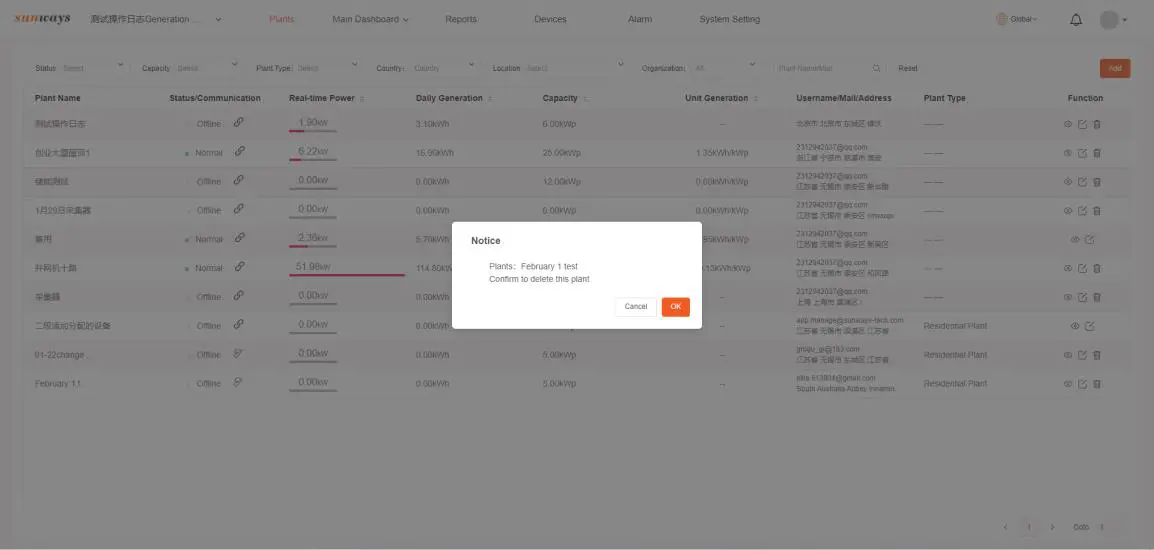
Delete plant
Click the icon in the function column to delete the plant(Which account creates which account allows to delete it).
Detailed plant information
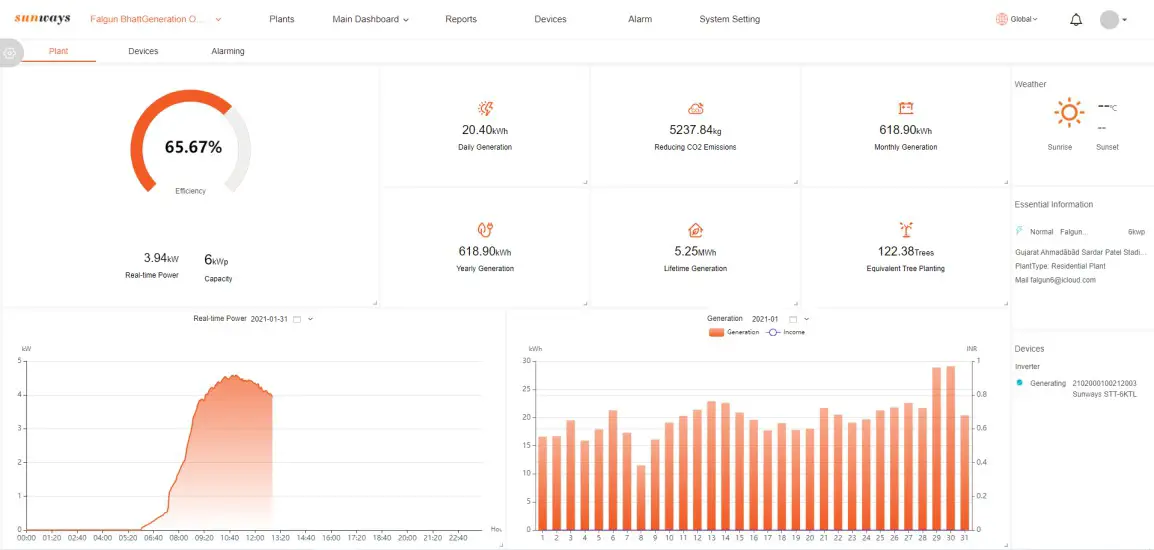
Single Plant Homepage
As mentioned in section 4.3 Detailed plant information, click the icon can go to the detailed interface of a single plant where information such as Efficiency, Real-time Power, Generation bar chart, and other information is displayed.
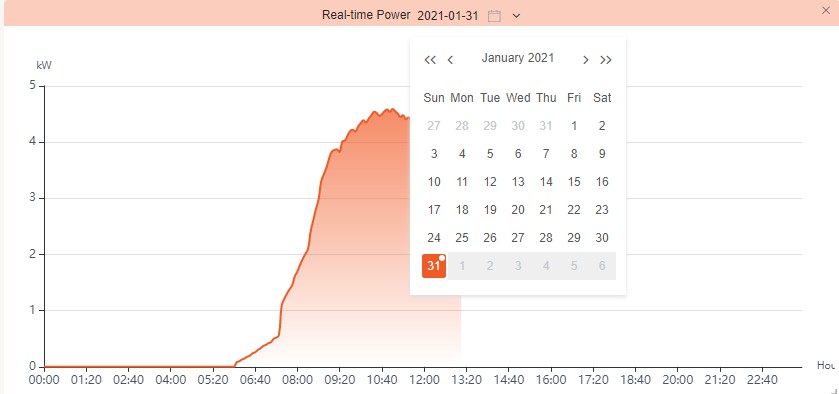
Real-time Power
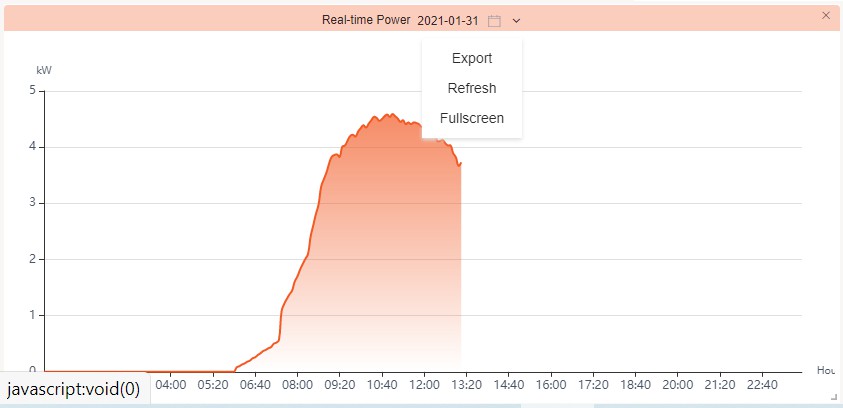
Click the icon to select Export the generation data, Refresh the page, or set this data block to Fullscreen. Click the calendar icon to
 check the other day’s generation.
Plant Generation Data
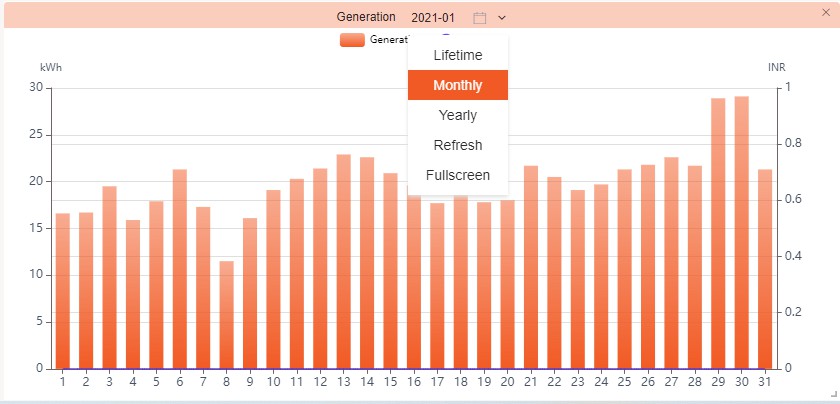
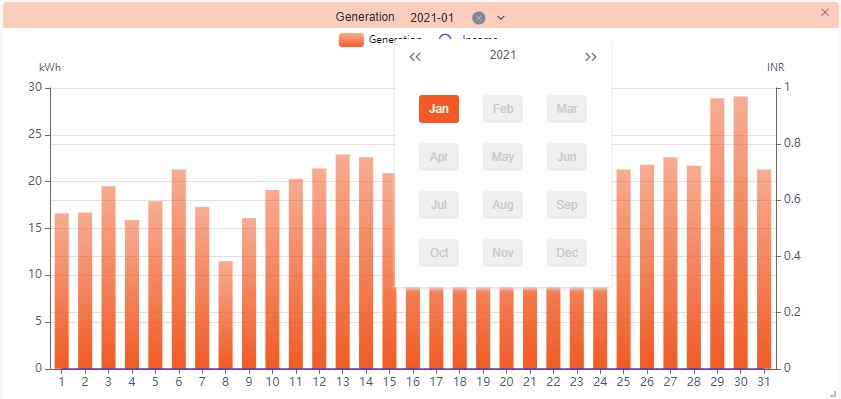
Plant generation data can be viewed based on the time unit “Monthly”, “Yearly” and “Lifetime”. Click the icon to switch the time unit and click the icon to select the desired period.
Plant Devices
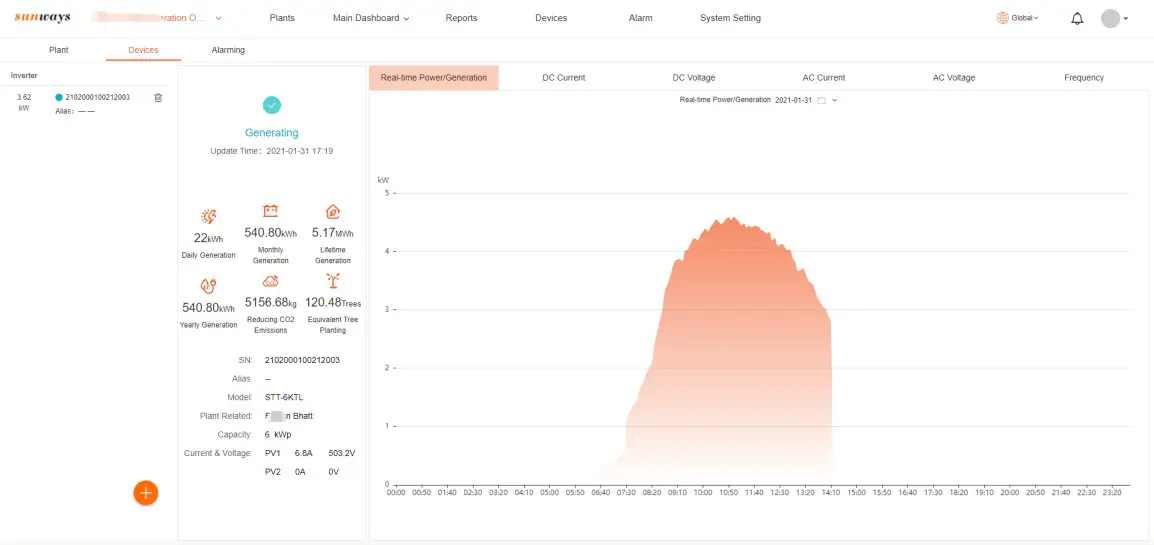
Click “Devices” on the right side of the plant to enter the device details interface. The interface will display the information such as Inverter list, Inverter basic information, and inverter specific parameters that include Realtime Power/Generation, DC Current, DC Voltage, AC Current, AC Voltage, Frequency.
Alarming
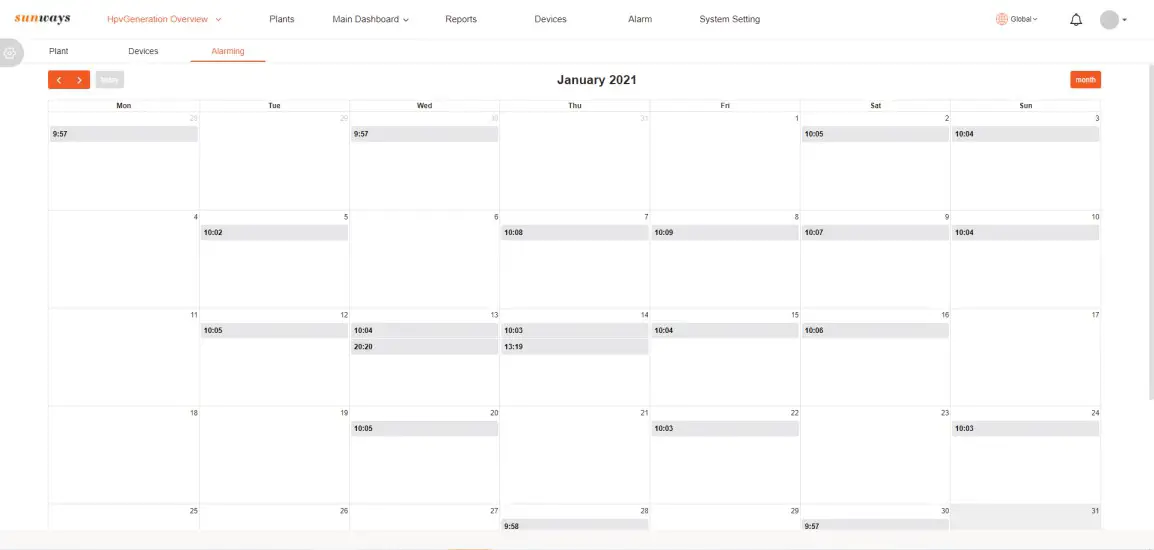
Click “Alarming” to view the list of history alarms in this plant and click the gray time bar to check the detailed information of the alarm.
Main Dashboard
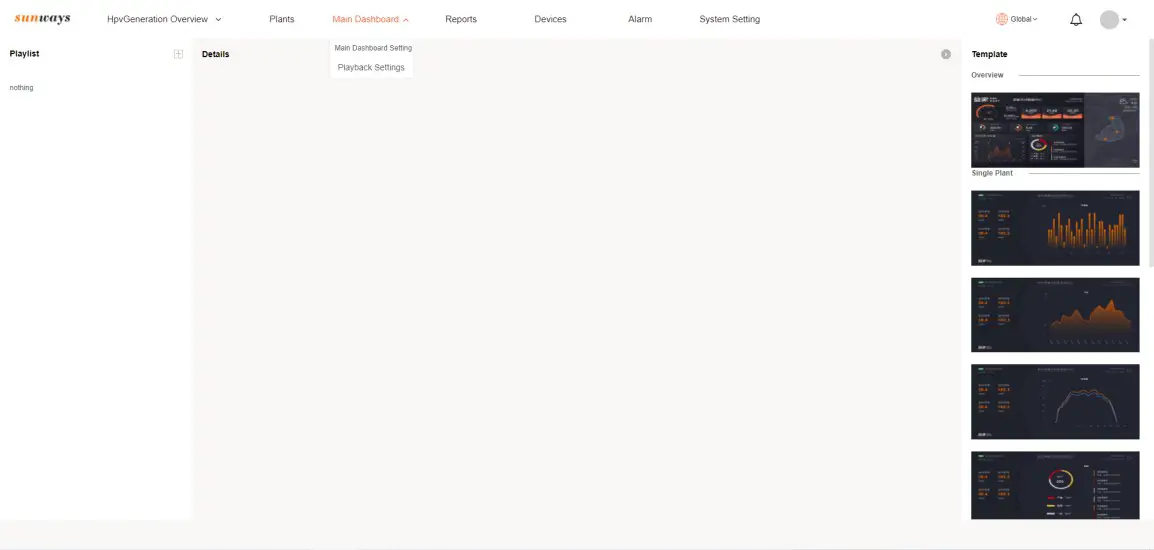
- Click “Playback Settings” under the menu “Main Dashboard” to enter the main dashboard setting page, move the cursor to cards in the “Template” list and click the “+” button to create your main dashboard.

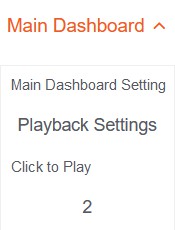
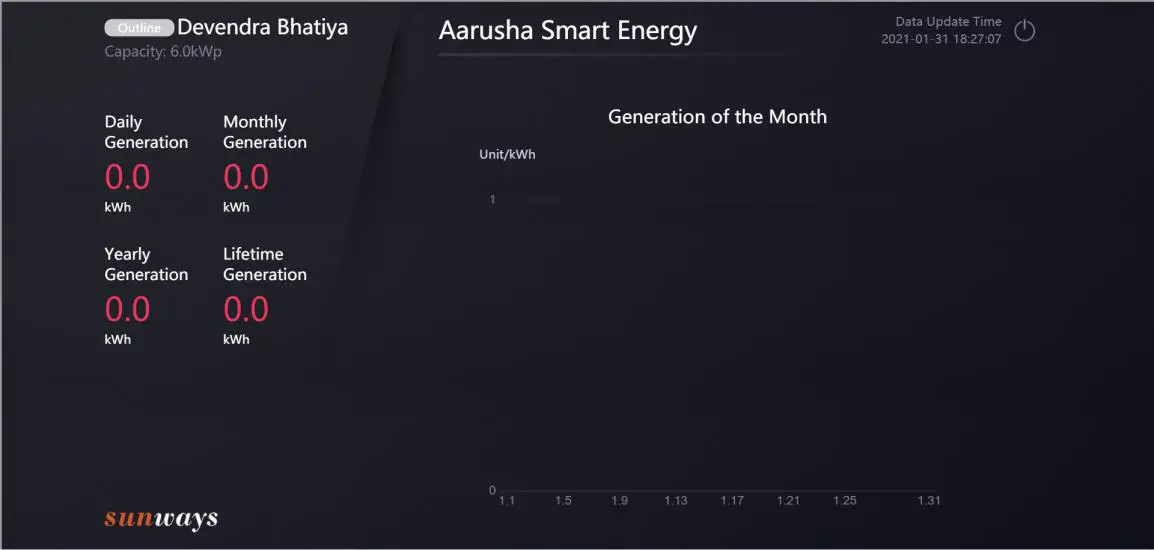
- After a template is done, click the name of the template under the main dashboard menu to play this template in fullscreen.
Reports
- Click the “Reports” button to enter the report page, click “Add” and make selections according to your preference on the pop-up page, click “Ok” a report will be generated.
- Click the “
 ” icon to save to the report template. Click the ”
  ” icon to download the report in Excel format. Report editing and deletion are also supported.
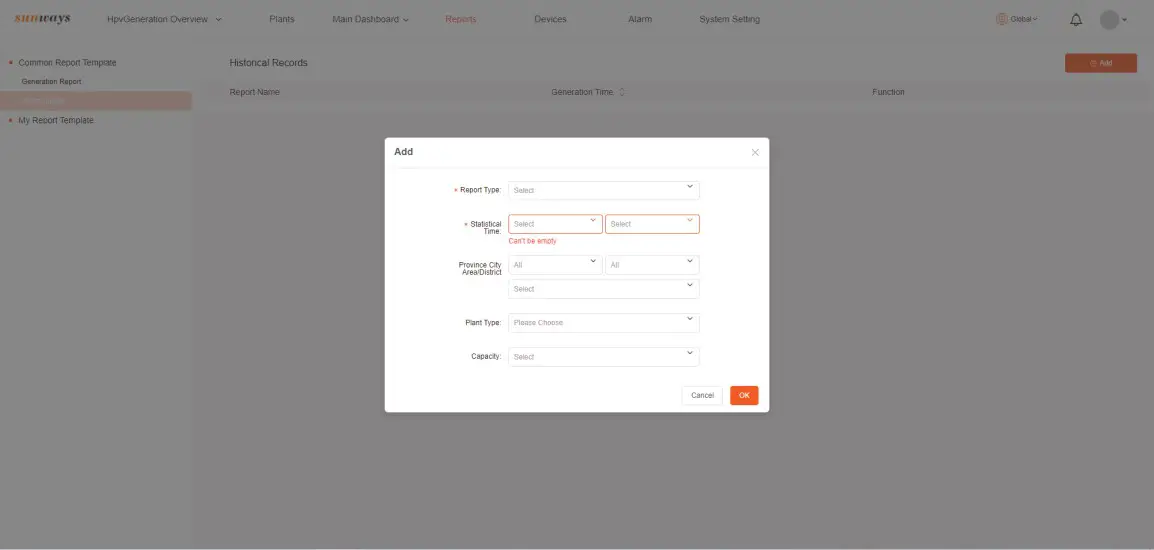
 ” icon to save to the report template. Click the ”
  ” icon to download the report in Excel format. Report editing and deletion are also supported.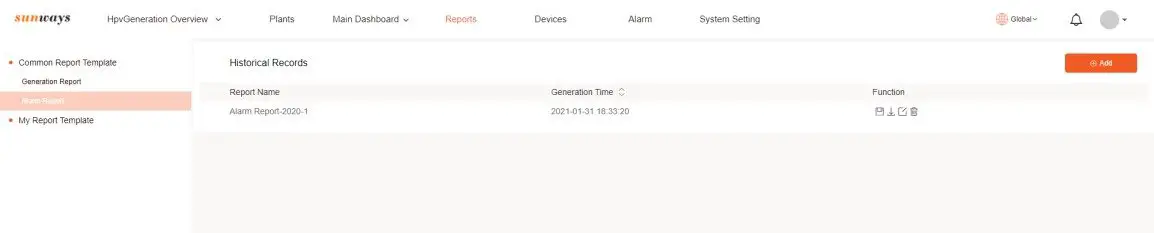
Devices
Click “Devices” to enter the interface of the inverter which includes Plant Related, SN, Model, Capacity, Status, Warranty Period, Expired Date, Firmware Version, Check Code, Internal Firmware Version, Assignee, Function. Logger relative information also can be viewed by clicking the “Logger” button.
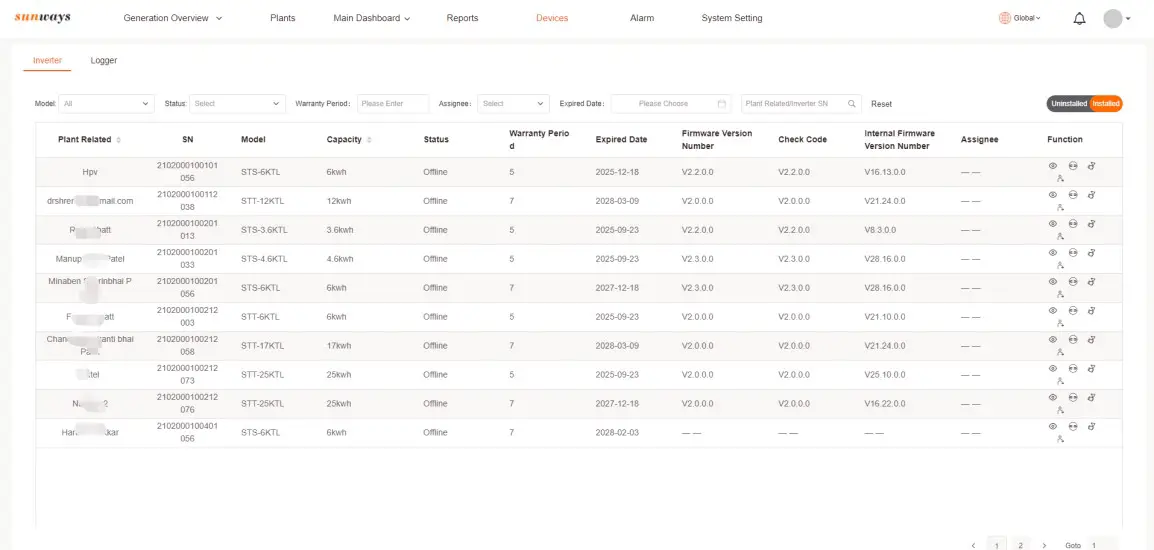
Devices Search Bar
Search category: You can search by Model, Allocate Status, Warranty Period, and Expired Date, and the devices which meet your search conditions will be automatically displayed.
Exact search: Search by entering the exact inverter SN and clicking the search icon to view the result.
Device Category Switching
Click the button “ ” to check the list of devices allocated to your account.
Installation Status List Switching
Click the button “ ” to check the list of installed devices and uninstalled devices separately.
- Installed: Devices that have been added to the end-users plant.
- Uninstalled: Devices that haven’t been added to the end-users plant.
Detailed Device Information
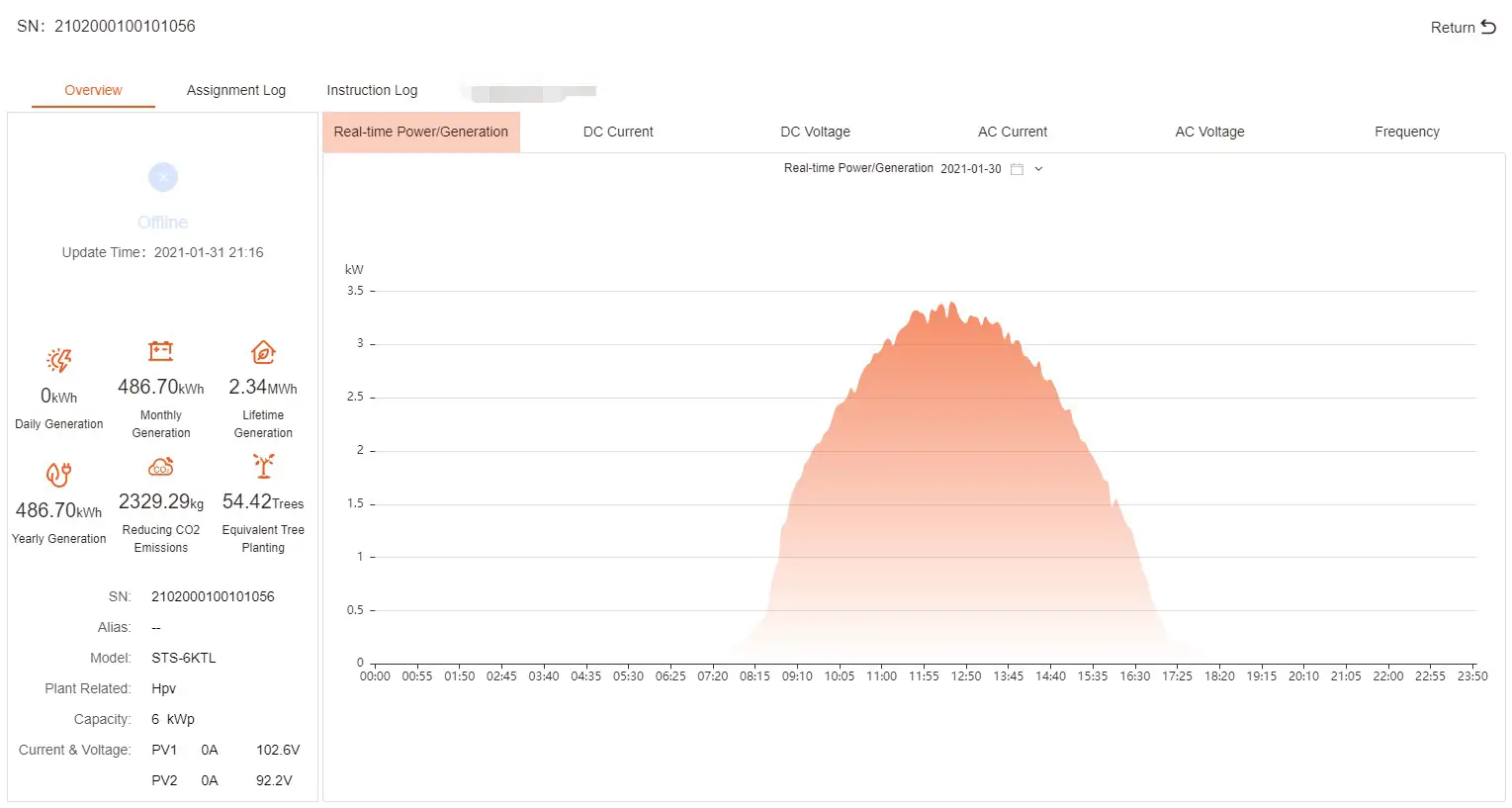
Click the icon “ ” to enter the detailed device interface where information such as Overview, Assignment Log, Instruction Log, and Configuration records are displayed.
Overview
Click “Overview” to enter the corresponding interface where information such as Real-time Power/Generation, DC Current, DC Voltage, AC Current, AC Voltage, Frequency, and other information is displayed.
Assignment Log
The records of this device’s assignment can be viewed on this page.
Click “Assignment Log” to enter the corresponding interface where information such as Time, Operation Type, Operator, Assignee is displayed.

Instruction Log
The records of the issued instructions of this device can be viewed on this page.
Click “Instruction Log” to enter the corresponding interface where information such as Time, Instruction Content, Register Header Address, Parameter Value, and Status is displayed.

Unbind
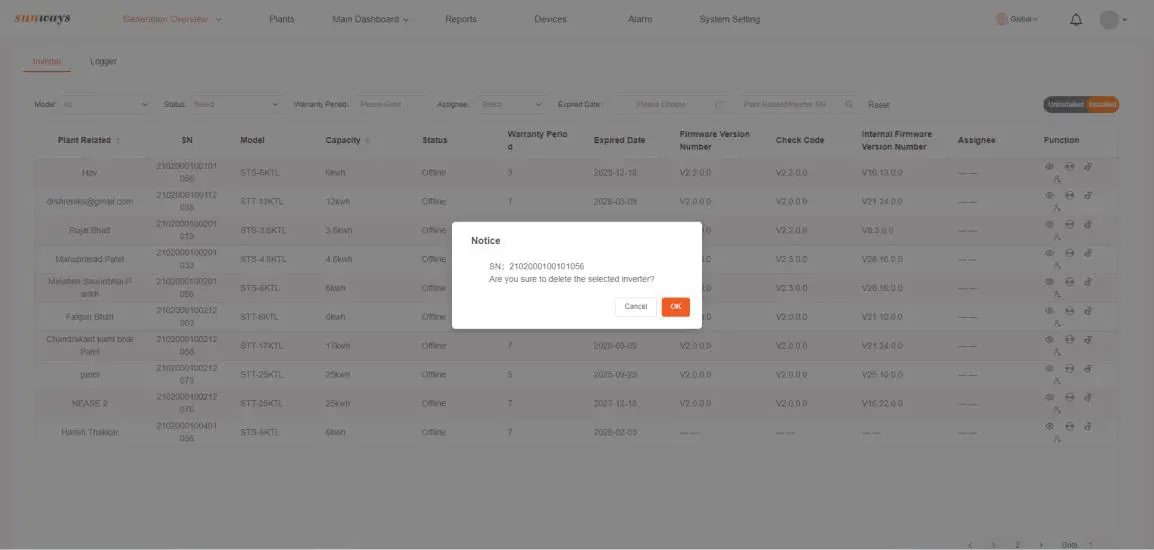
Click the icon “  ” can unbind the device from the associated plant.
Allocate
Click the icon “ can allocate this device to the distributor/installer who purchased this device.
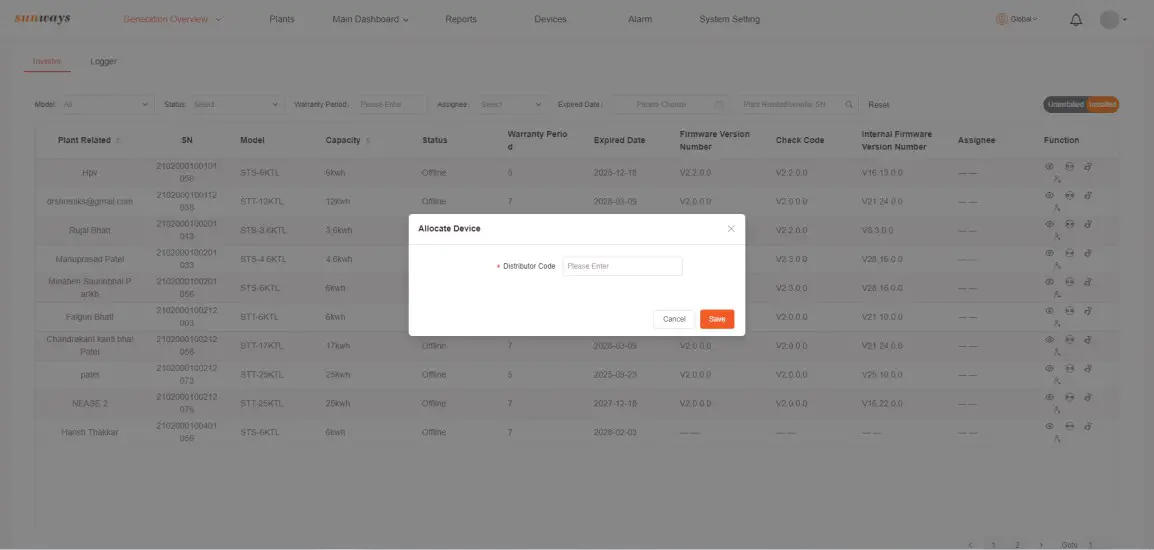
Note: Please confirm the distributor code you entered is correct while allocating the devices.
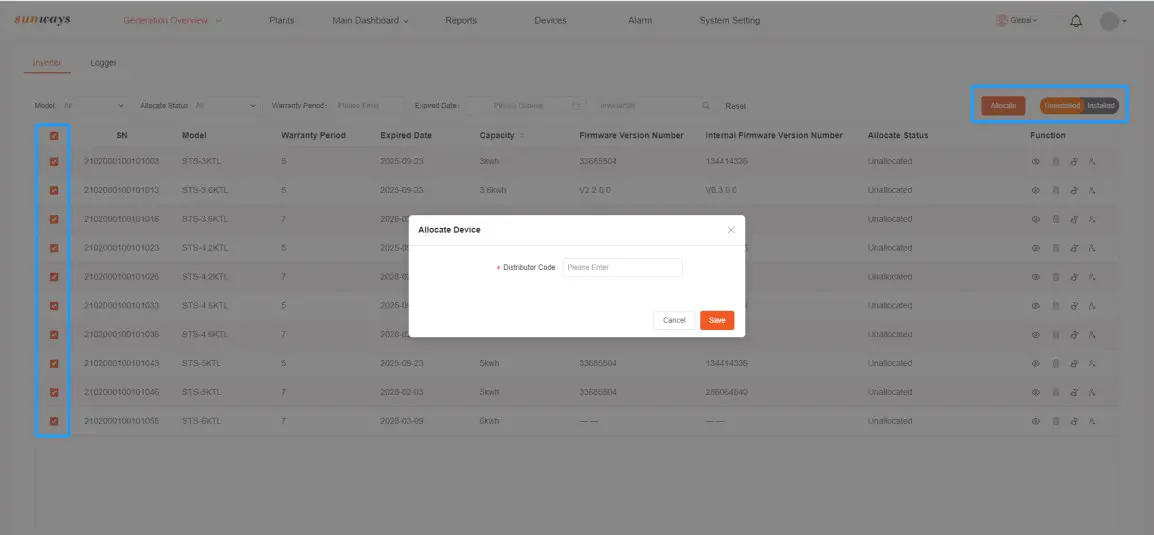
Note: Uninstalled devices allow batch allocating and installed devices don’t.
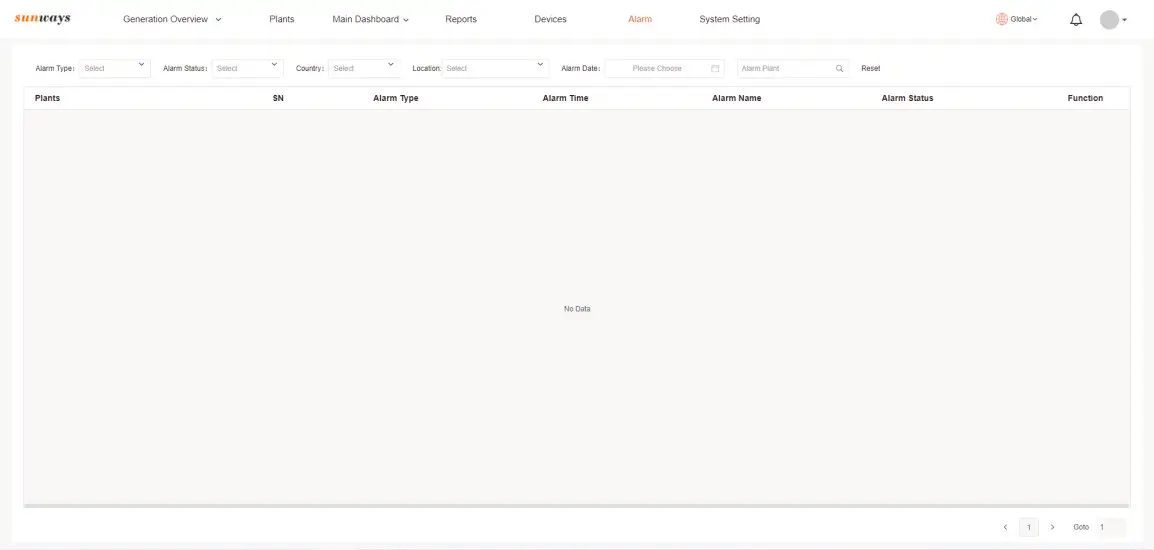
Alarm
Click “Alarm” to enter the corresponding interface where information such as Plants, SN, Alarm Type, Alarm Time, Alarm Name, Alarm Status, and Function is displayed.
System Setting
Click “System Setting” to manage Internal organization, Sub-organization, OEM configuration, SN application approval.
Internal organization
This menu is designed for the distributor/installer’s internal team management,
and the Administrator account is permitted to create a new account for other team members by clicking the button “  ”. The administrator account also allows to edit, delete and reset and other members’ accounts.
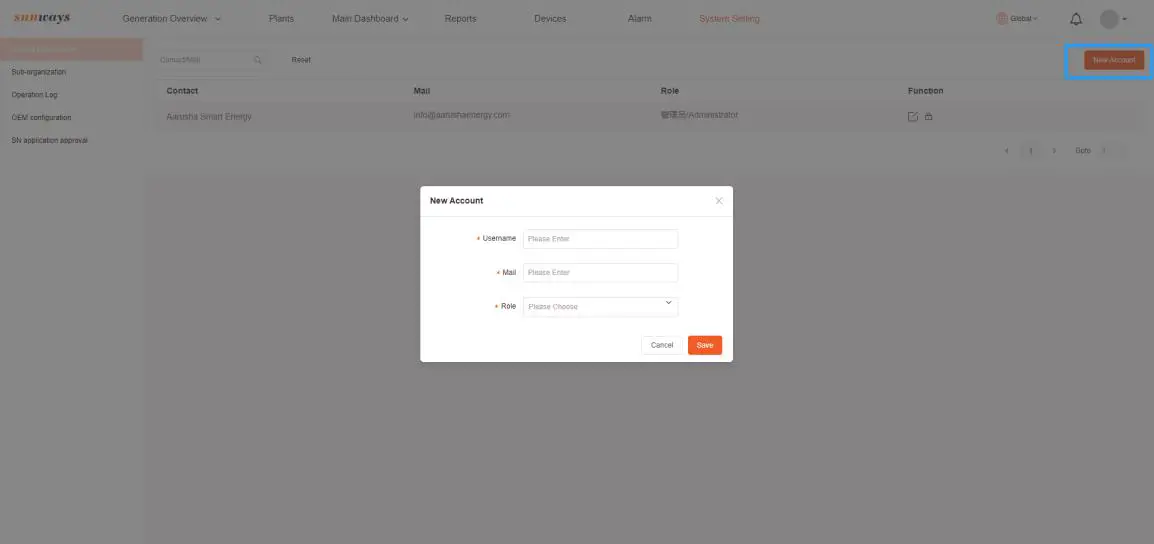
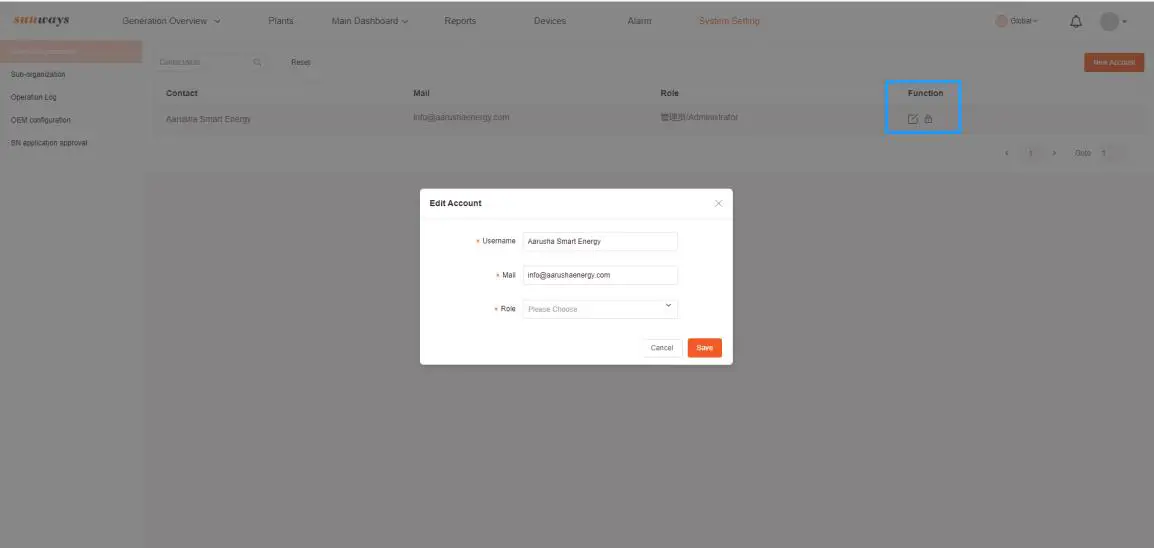
Note: The default password of the account created under internal organization is 123456.
Sub-organization
This menu is designed for the distributor to display or manage its sub-level distributors and installers. There’re four segments in this menu:
- An active account: Used to display the accounts which approved or activated.
- Pending approval: The account application that is done by the distributor or installer itself will be displayed in this menu waiting for approval, and after the application is approved it will move the menu “Active account”.
- Pending activation: The sub-level account created by the distributor or installer needs to be activated by the sub-level account owner through email, and it will be displayed in this menu before the account is activated.
Note: The activation must be done within 7days after being created, otherwise the account will be closed.
- Rejected: A rejected account will be displayed in this menu.
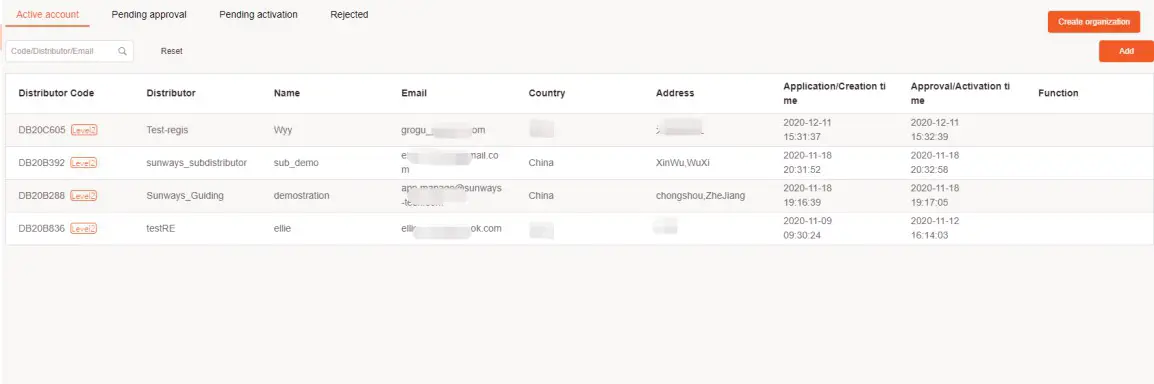
Create Sub-distributor
The “Administrator” account allows managing the sub-level distributor or installer account which includes creating and approving.
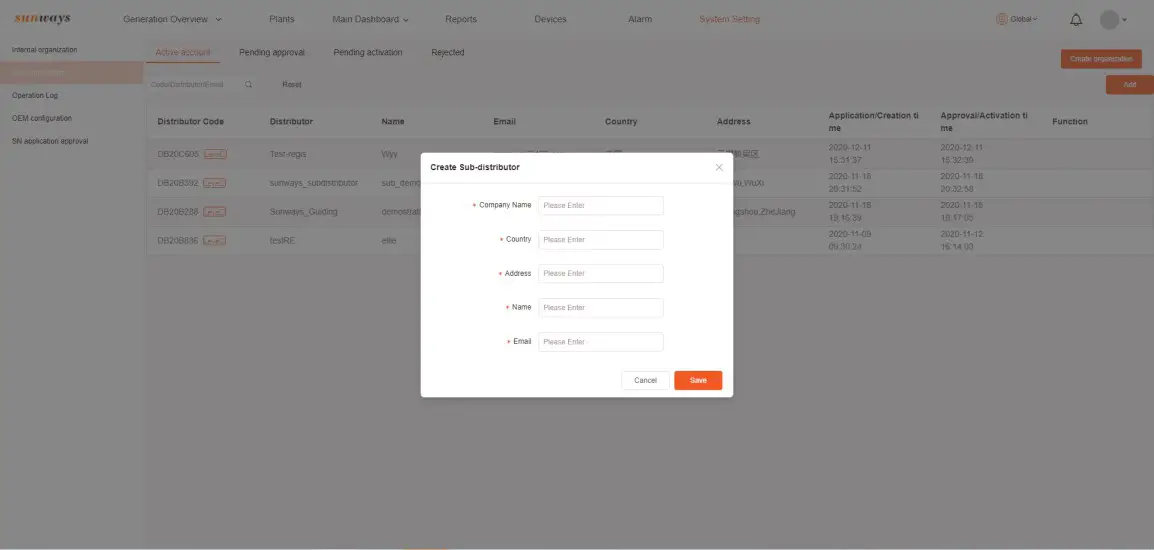
Note: The default password of the account created under the sub-organization is STDE1993, and the sub-level distributor/installer has to access the link in their email for account activation.
Add Sub-distributor
If you have a distributor or installer who already has an account in Sunways monitoring system, you can directly add their account to your sub-organization by using their distributor code, and their account will be displayed in the list of “Active account” after completed.
Note: The addition of a sub-distributor has to be processed in the administrator account.
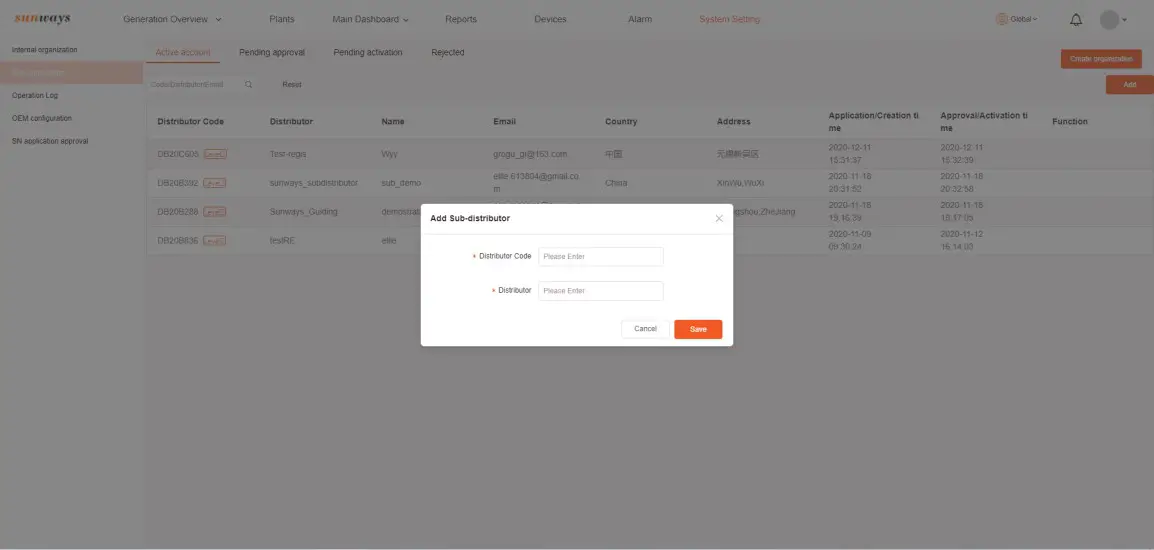
OEM configuration
OEM customer account configuration menu. Please operate under the guidance of the Sunways team.
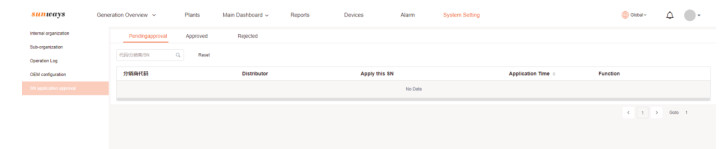
SN application approval
The distributor has to allocate the SN of all devices to its sub-level distributor or installer account according to the actual orders at the time of delivery. If the distributor forgot to allocate the SN, the sub-level customer will send you a SN application request which will be displayed in this list in the monitoring system.
If the applied SN is confirmed to sell to this customer, please approve it within a week, and otherwise, you can reject it.
Ningbo Sunways technologies Co., Ltd.
Hotline: +86 400-9922-958
Mail: [email protected]
Version: 2021-02
 monitor.sunways-tech.com