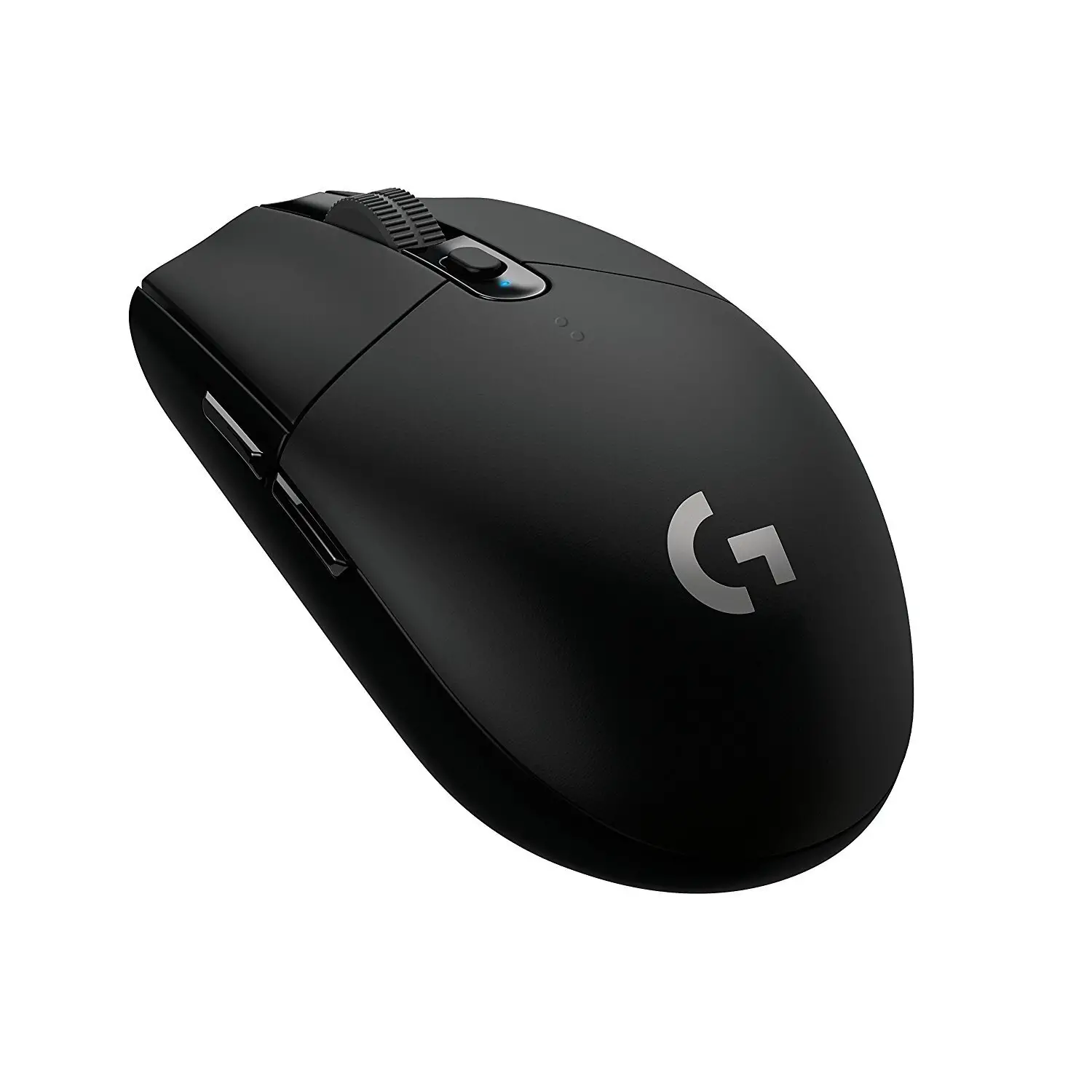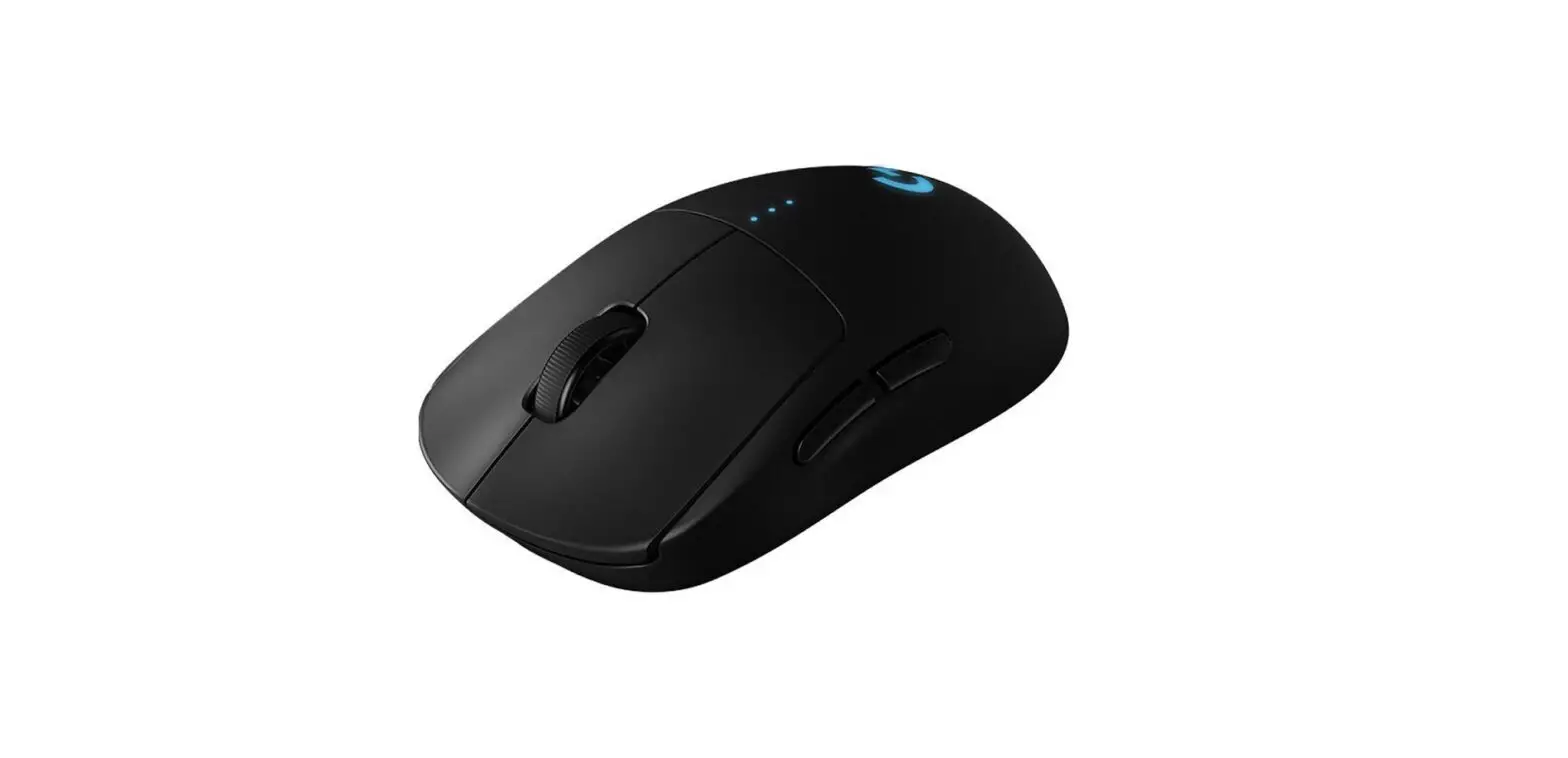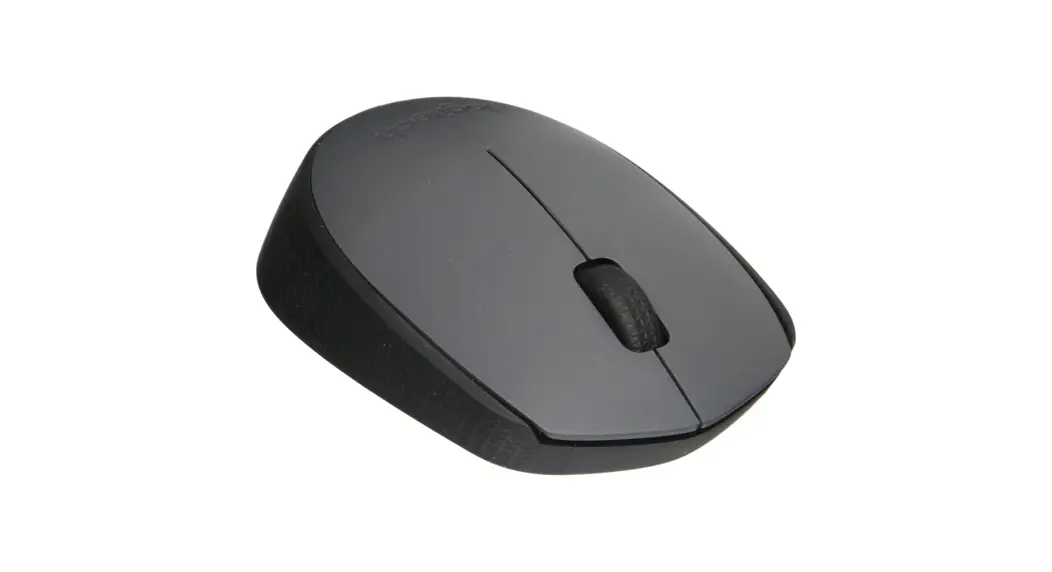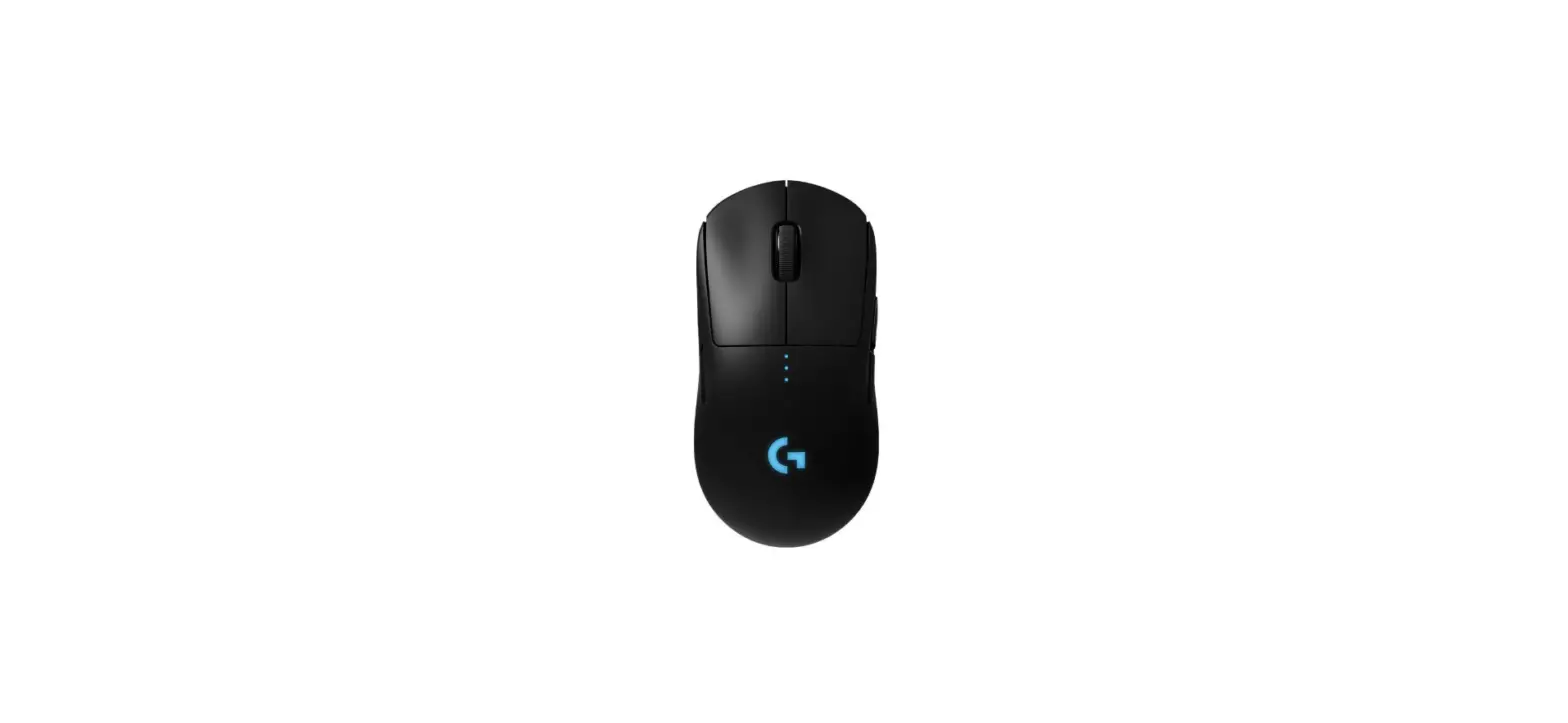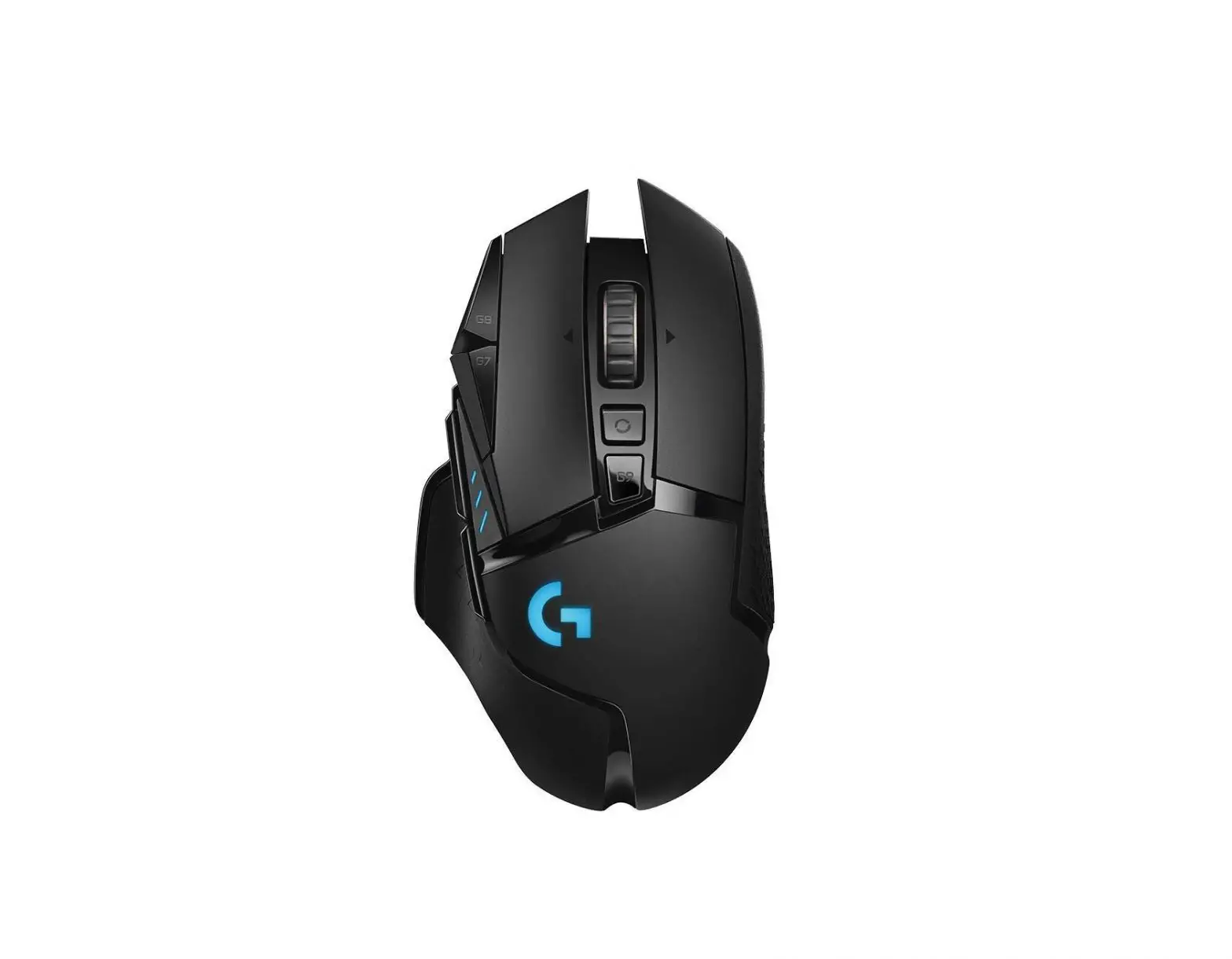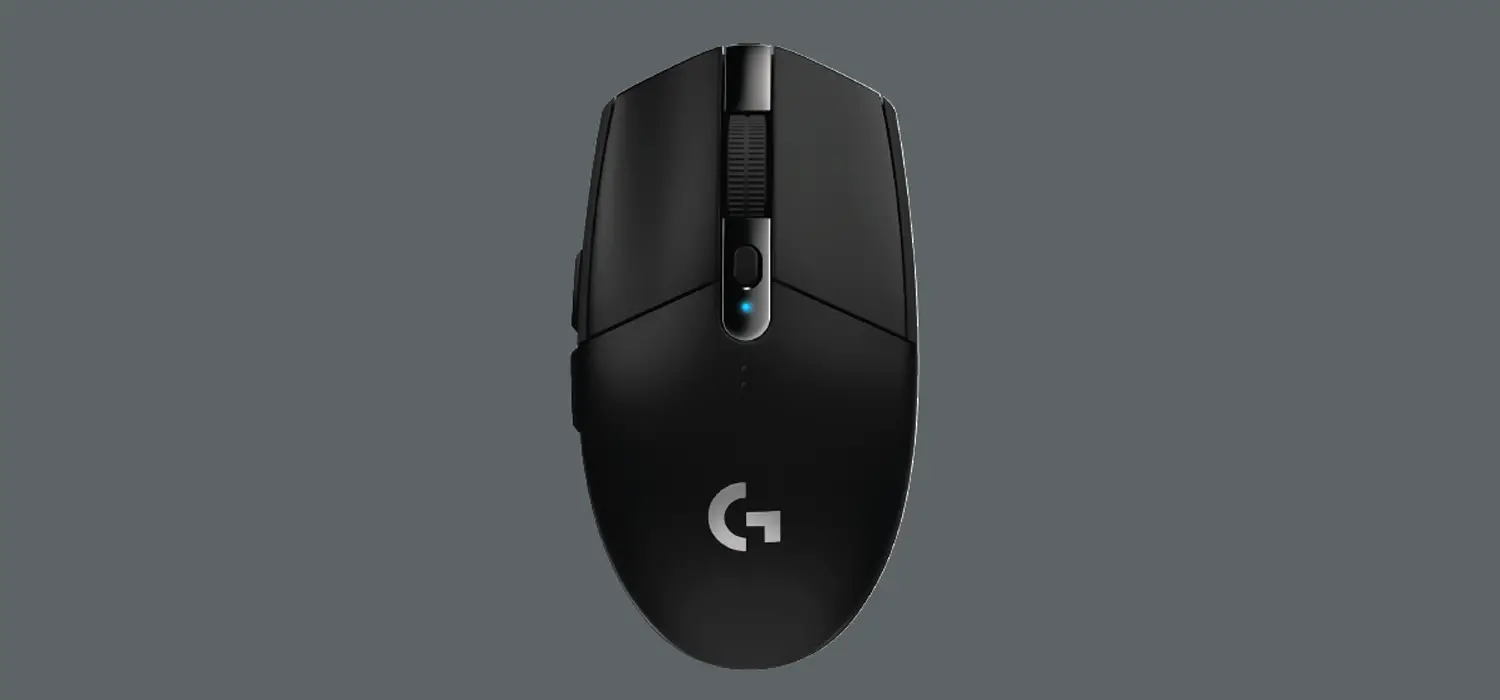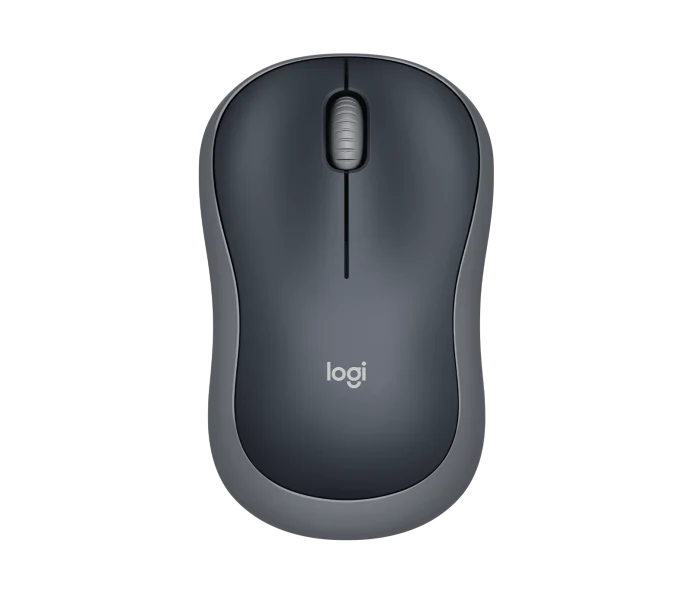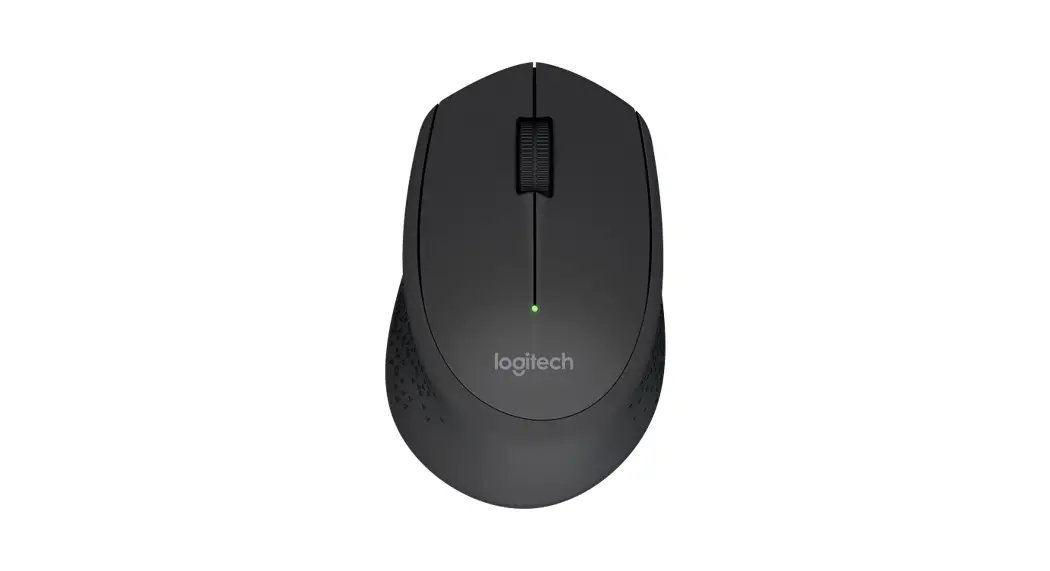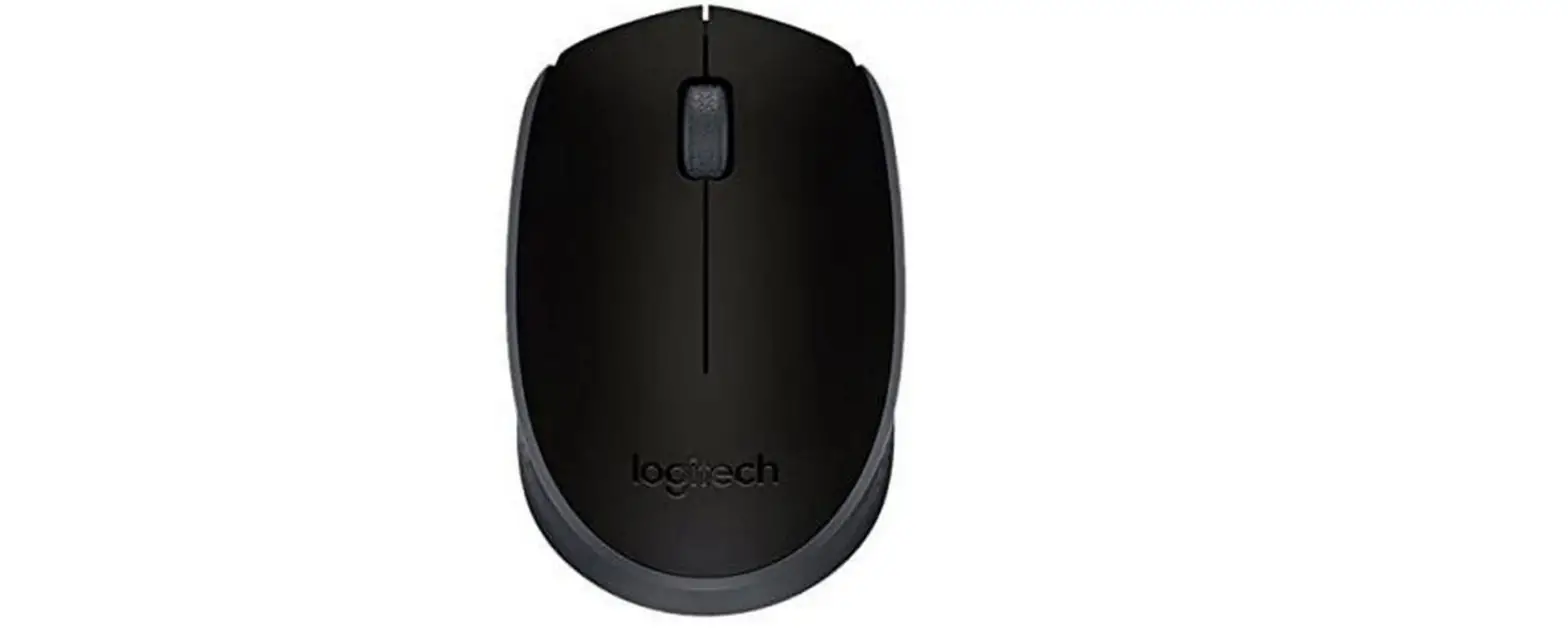

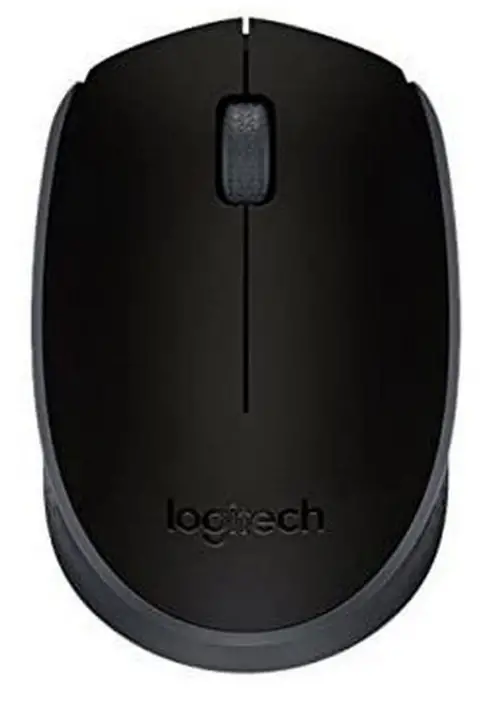
logitech M171 2.4Ghz Wireless Gaming Mouse
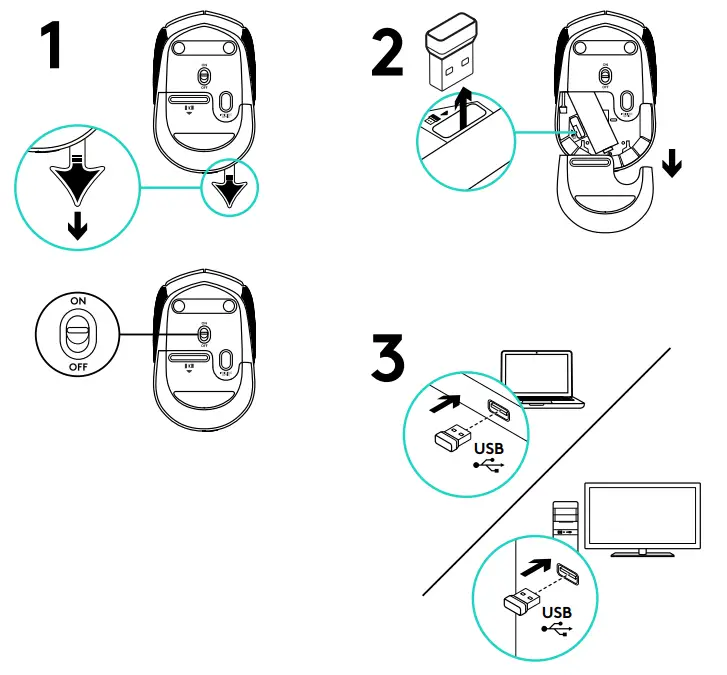
INSTALLATION
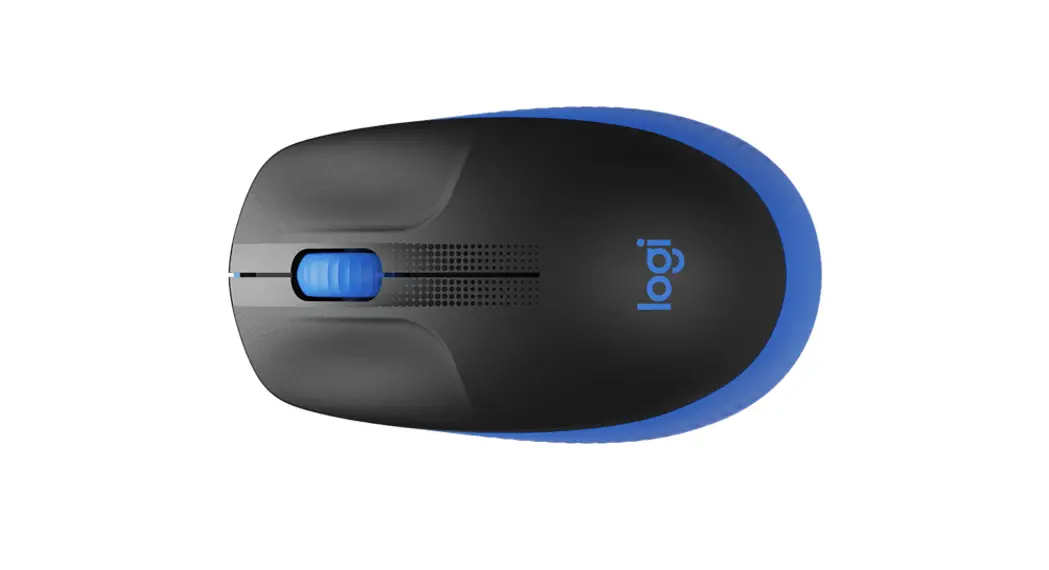
Features
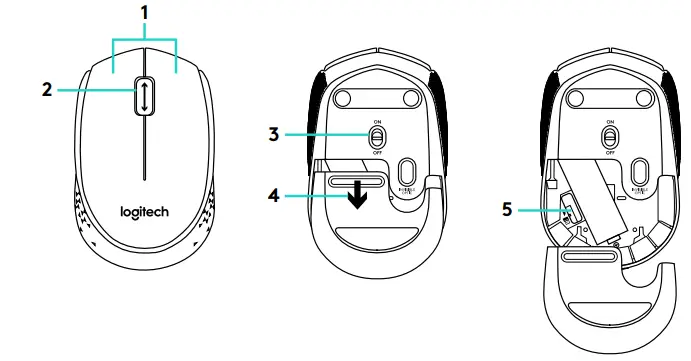
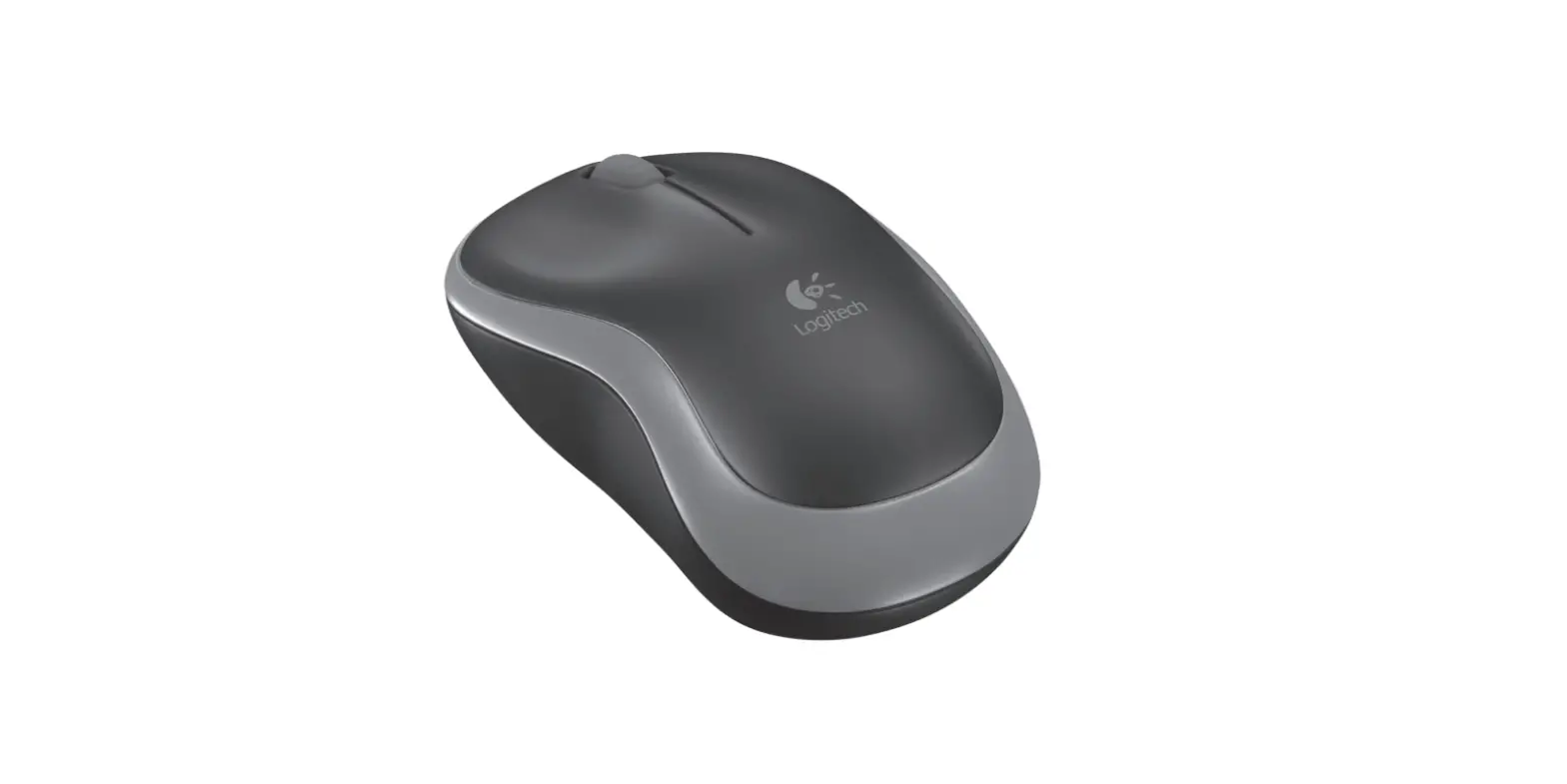
1. Left and right mouse buttons
2. Scroll wheel Press the wheel down for the middle button (function can vary by a software application)
3. On/Off slider switch
4. Battery door release
5. USB Nano-receiver storage
Help with the setup The mouse is not working

1. Is the mouse powered on?
2. Is the Nano receiver securely plugged into a USB port? Try changing USB ports.
3. If the Nano receiver is plugged into a USB hub, try plugging it directly into a USB port on your computer.
4. Check the orientation of the battery inside the mouse.
5. Try a different surface. Remove metallic objects between the mouse and the Nano receiver.
6. For Windows® operating systems, reconnect the mouse with the Nano receiver by launching the Connect utility from www.logitech.com/connect_utility