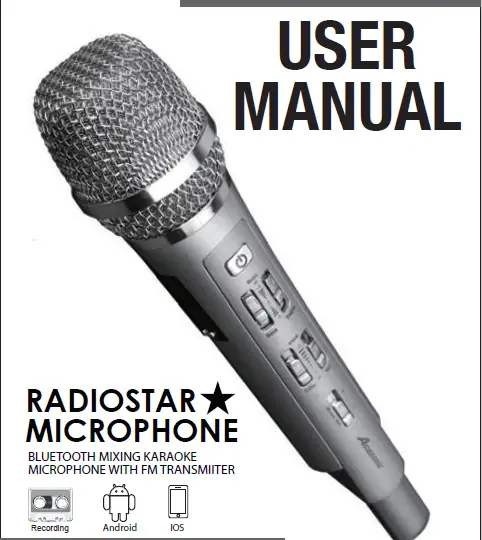
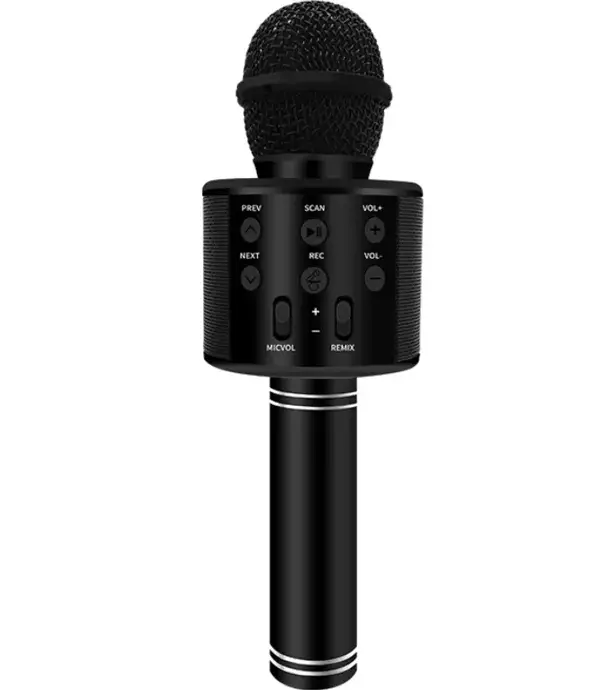
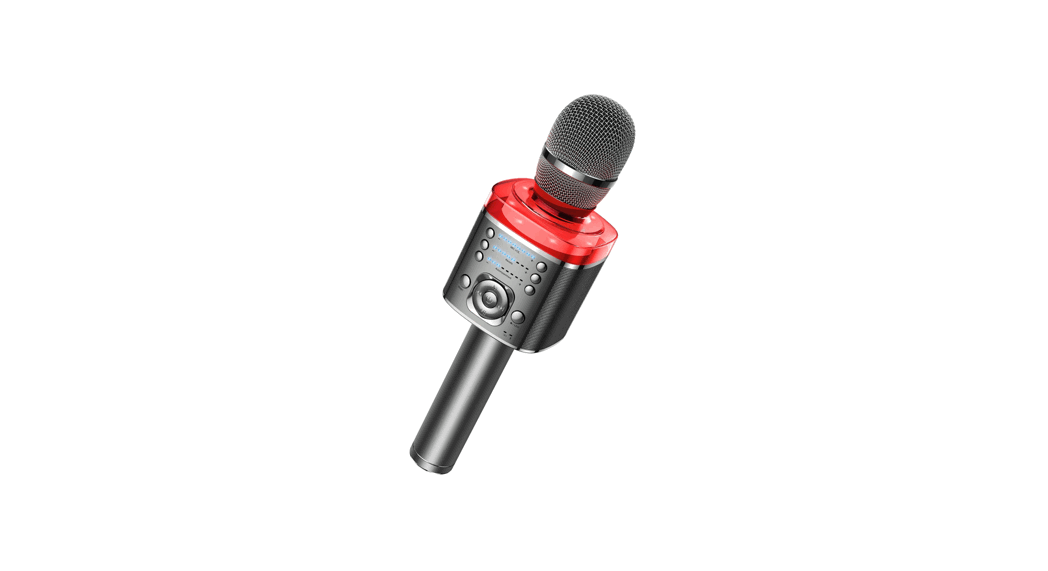
ISK101 Wireless Karaoke Microphone
Product Information:
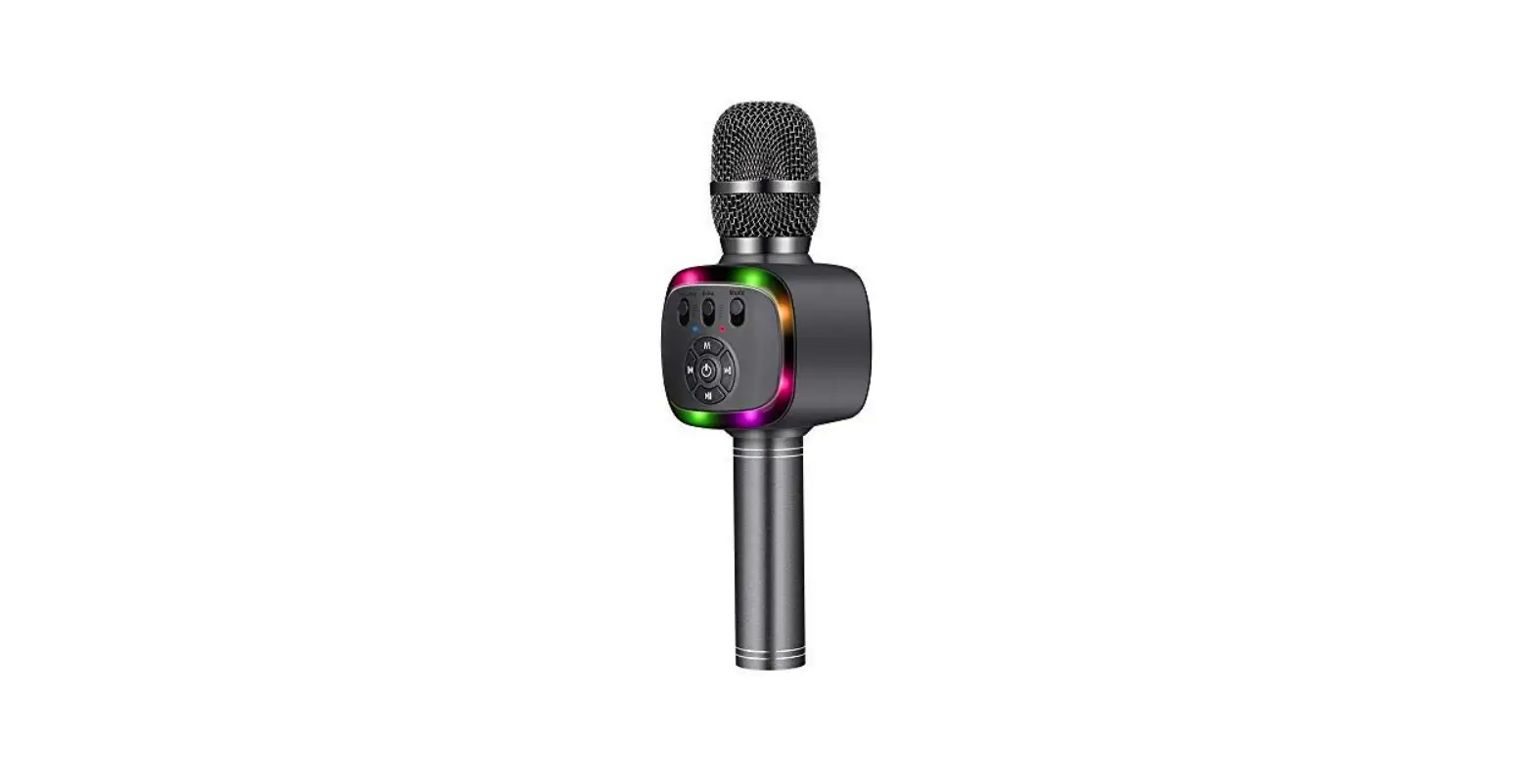
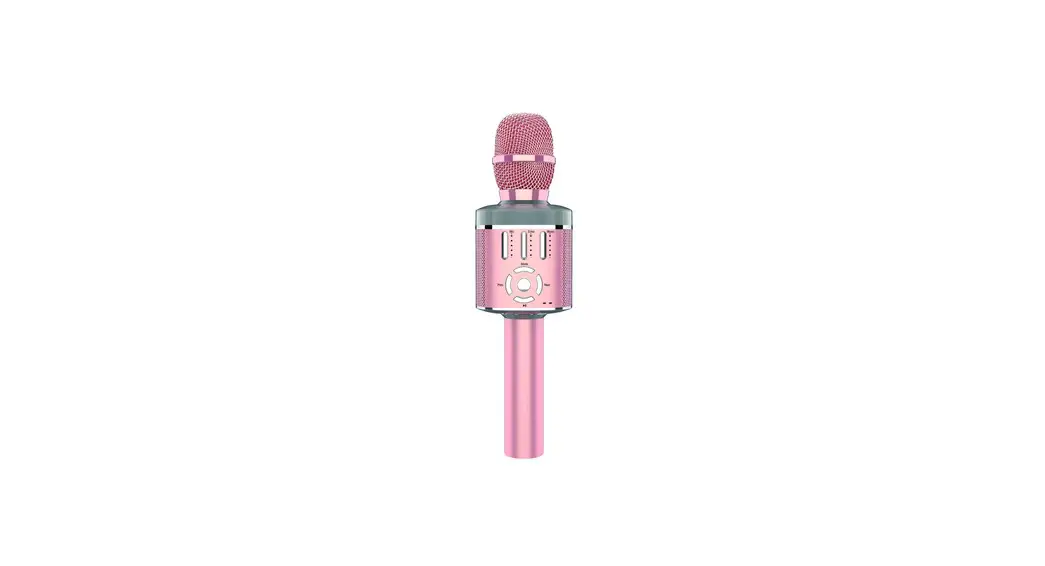
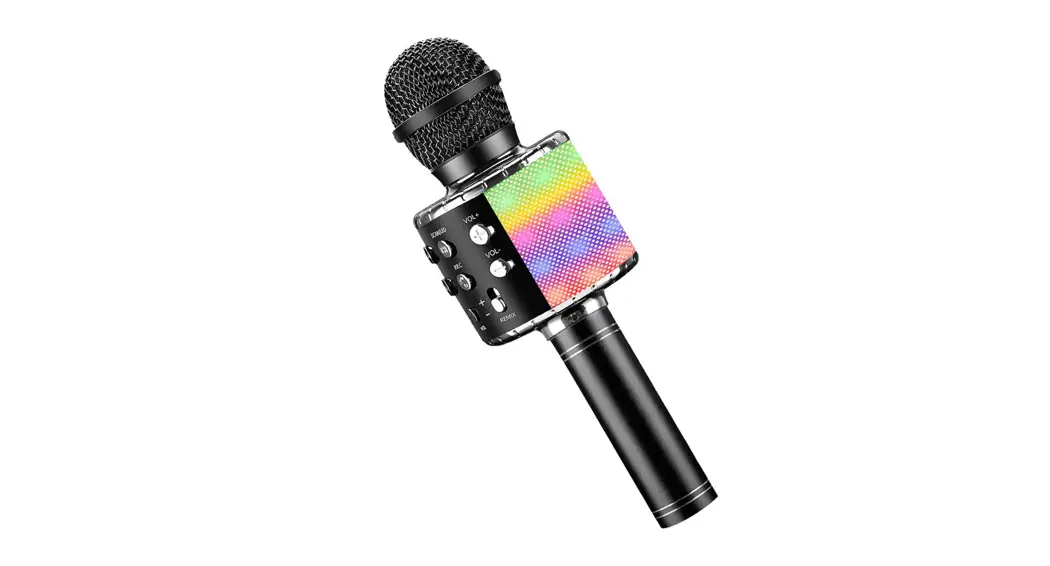
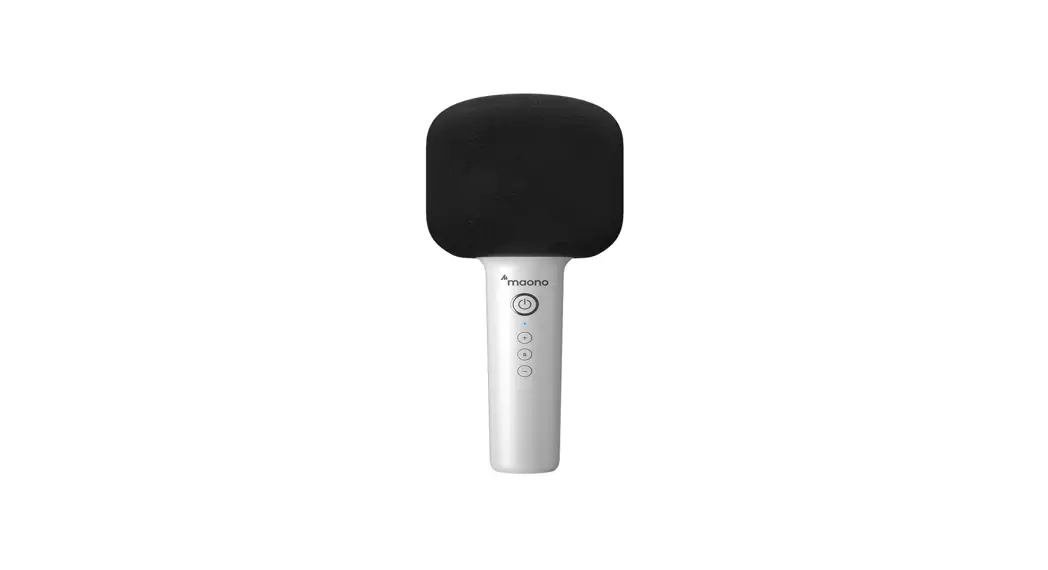
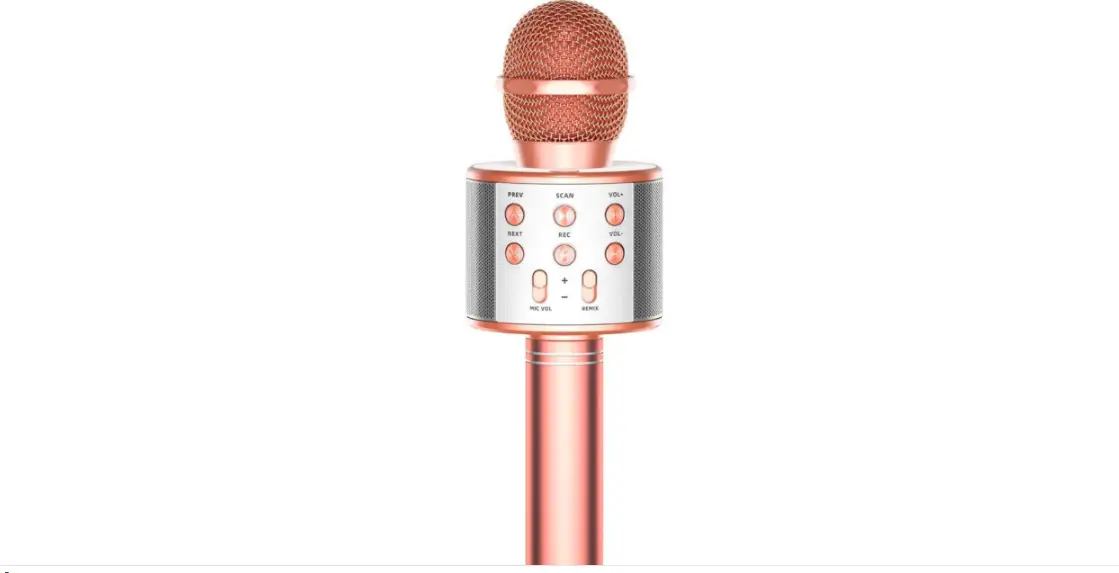
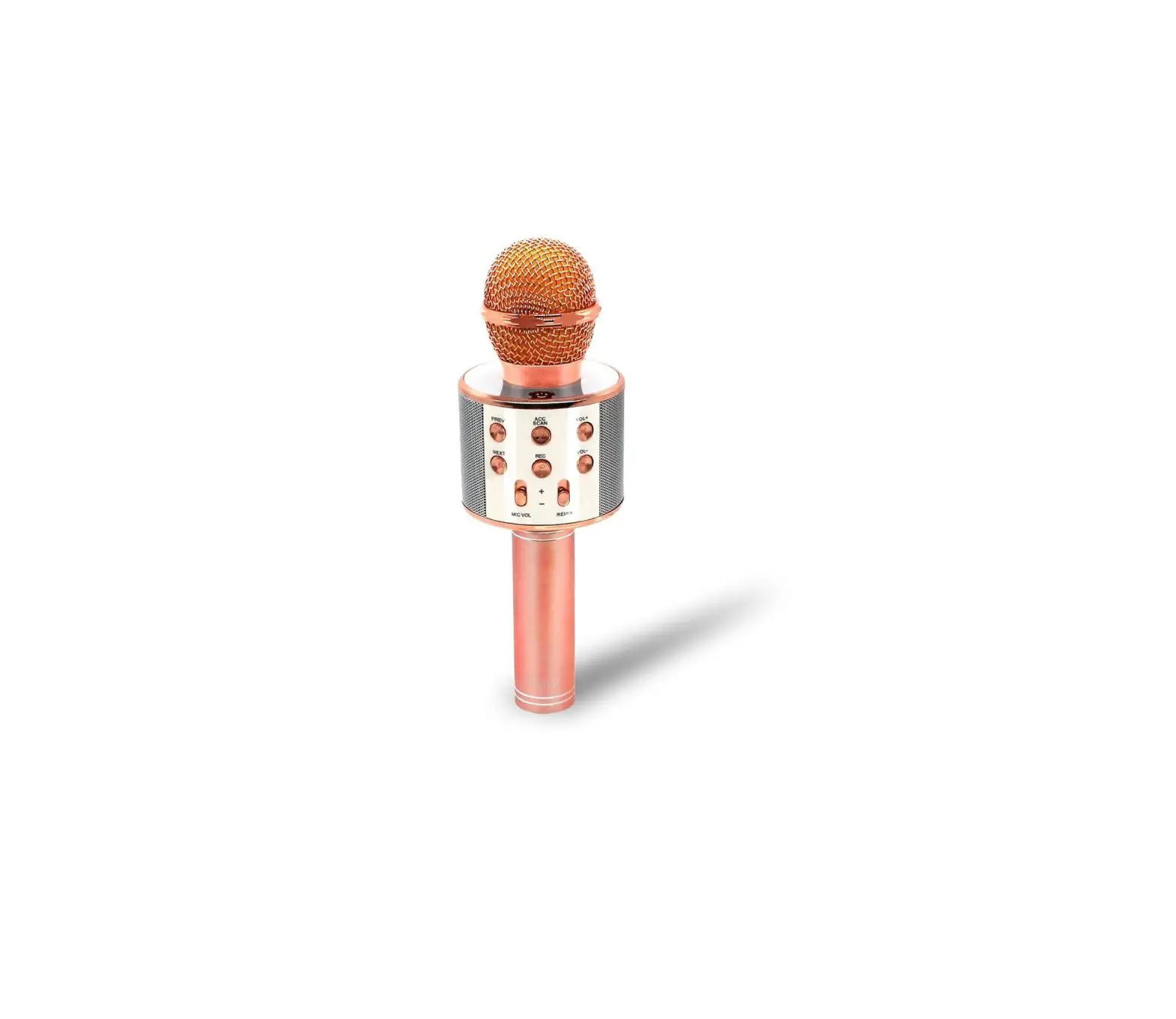
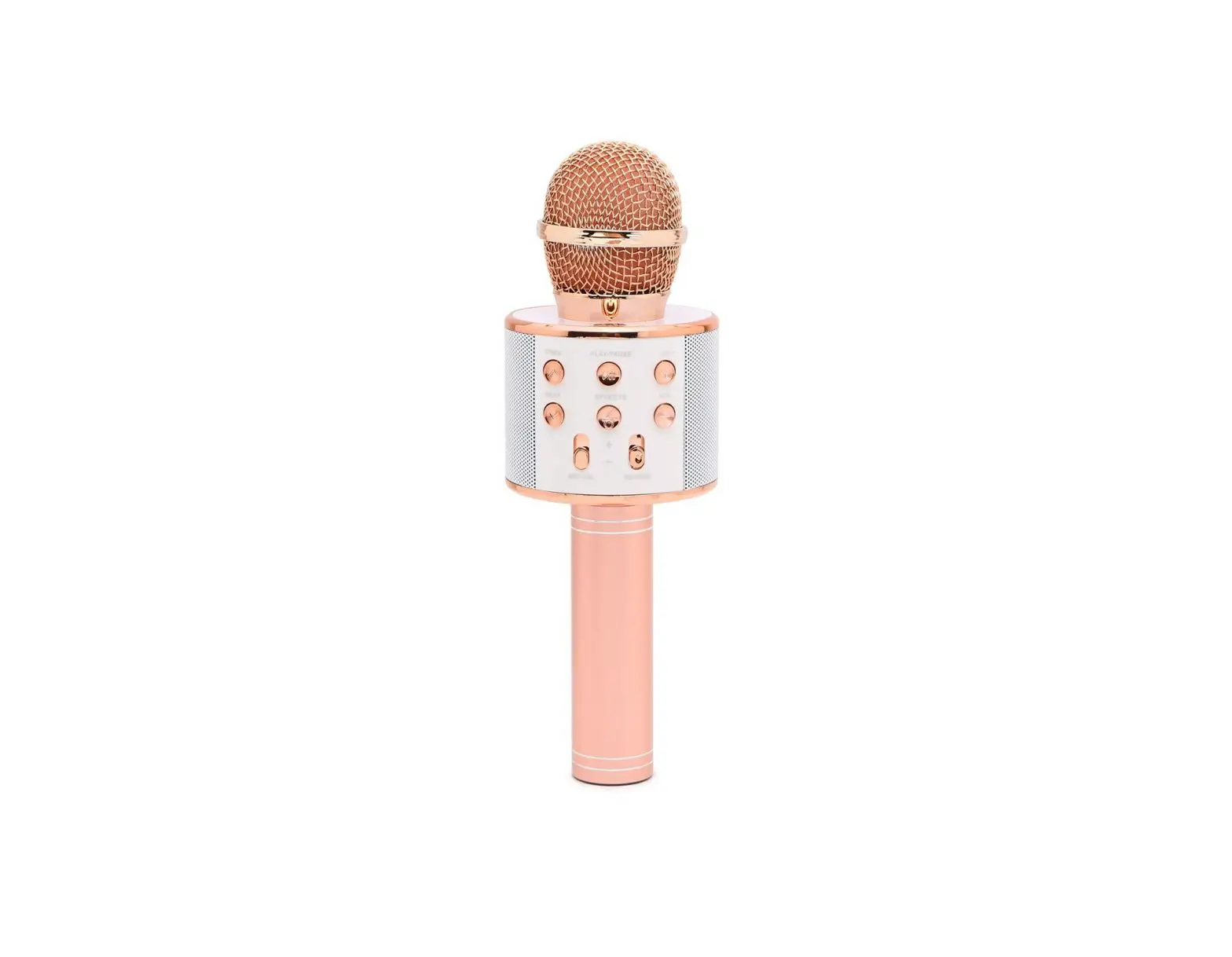
The Wireless Karaoke Microphone ISK101 is a portable device that
enables you to sing and perform karaoke anywhere. It has a built-in
3W speaker, media controls, TF and Micro SD memory card support (up
to 16GB), and comes with a micro-USB charging cable and user manual
with warranty information. The microphone has a range of features
including mic volume control, power/play/pause/remove button, echo
control, TF memory card slot, TWS/mode/voice changer button, USB
port, headphone jack, music control buttons, and voice changer.
Product Usage Instructions:
- To power on the microphone, press and hold the power button
until you hear “It’s Karaoke Time!”. To power off the microphone,
press and hold the power button again. - To adjust the speaker volume, press and hold down the volume –
button to decrease the volume or volume + button to increase the
volume. Alternatively, adjust the volume using the mic volume
slider. - To adjust the echo effect, push the echo slider up to increase
or push down to decrease. - To switch to memory card mode, insert an SD card into the TF
memory card slot. You will hear “Memory Card Mode”. To switch to
USB mode, insert a USB into the USB port. You will hear “USB
Mode”. - To play or pause music, press the play/pause button. To change
the music track, press the next track button to change to the next
track on a playlist or press the previous track button to change to
the previous track. - To mute the vocals from the microphone, press the power button
twice. You will hear “Music Removed” once the vocals have been
removed. - To switch between 5 different voice settings, press and hold
the mode button. - To charge the microphone, attach the small end of the micro-USB
charging cable (included) to the charging port located at the boom
of the microphone. Attach the other end to a USB power port on a
computer or USB charging adapter. A RED light will turn ON while
the microphone is charging, and will turn OFF once charging is
complete. - To connect two ISK101 Karaoke Microphones together, turn ON
both microphones at the same time, then quickly double press the
mode button. The two microphones will automatically find each other
and connect. When the connection is successful, you will hear a
beep. After the microphones are paired to each other, connect to
your Bluetooth-enabled device. - When a USB thumb drive or jump drive is inserted into the USB
Port, your microphone will play any .MP3, .WMA, or .WAV music file
stored on the drive. When a TF card is inserted into the TF Card
Slot, your microphone will play any .MP3 music file stored on the
card. - When using your microphone, basic safety precautions should
always be followed.
Contents
Wireless Karaoke Microphone
User Manual ISK101
Features
– 3 Hour Playme – Built-In 3w Speaker – Built-In Media Controls – TF and Micro SD Memory Card Support (up to 16GB)
Contents
– 1 Wireless Microphone – Micro-USB Charging Cable – User Manual with Warranty Informaon
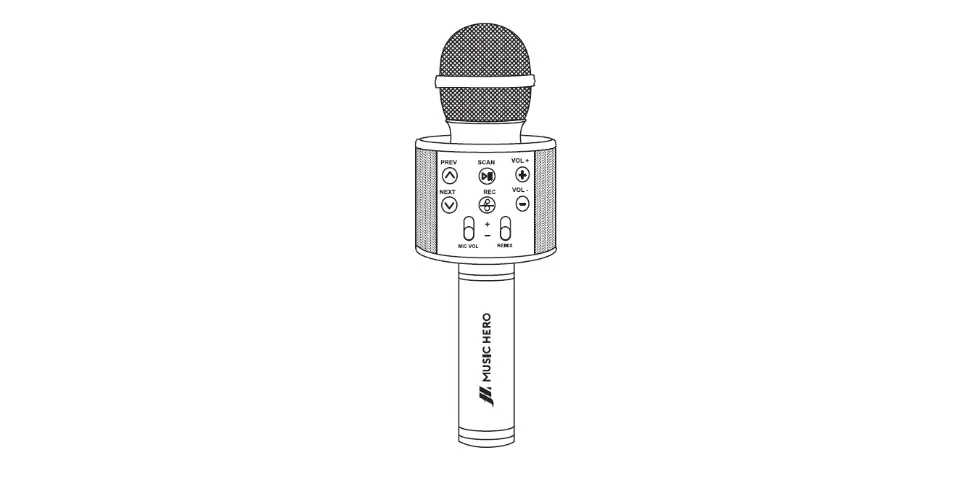
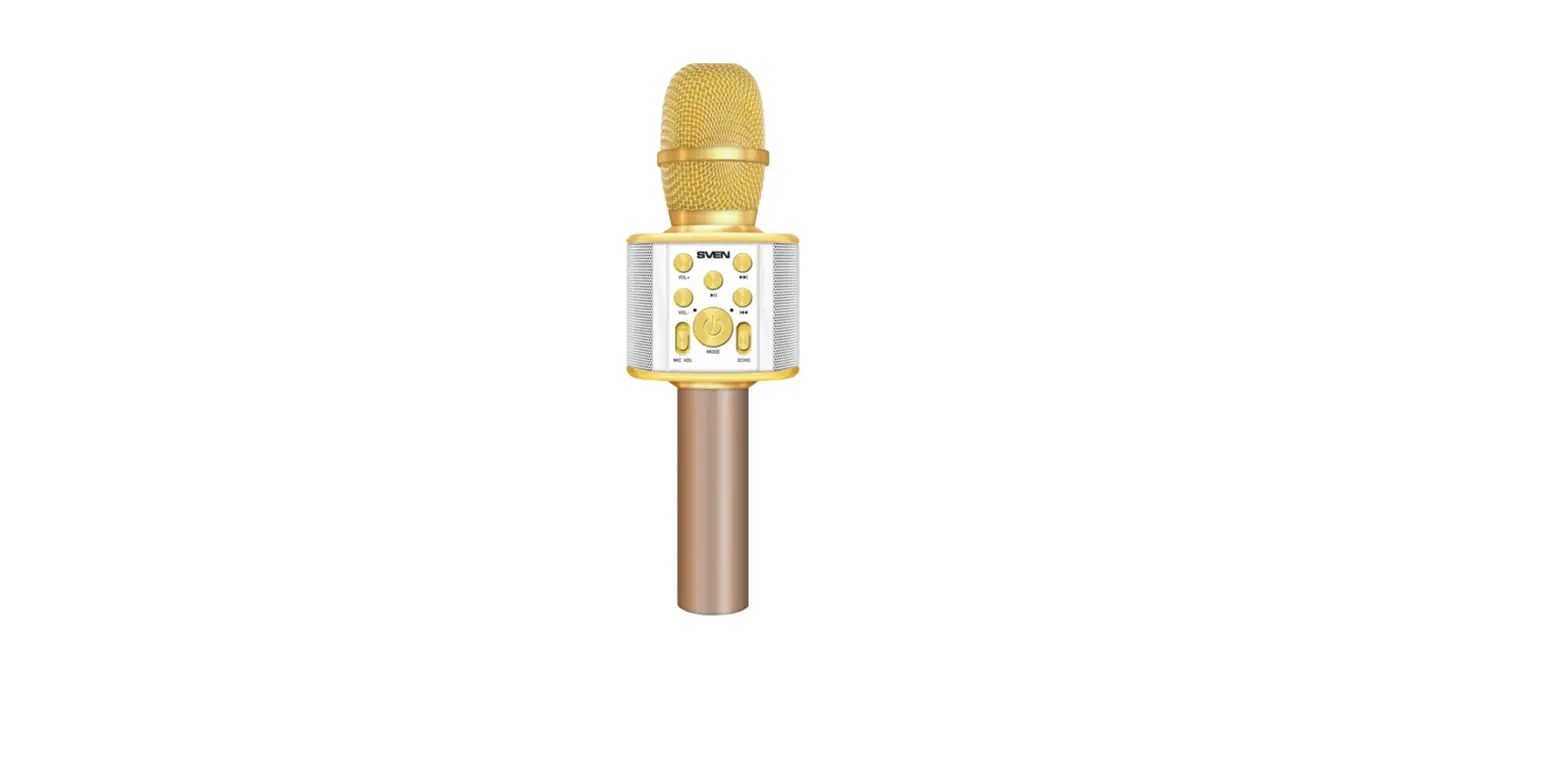
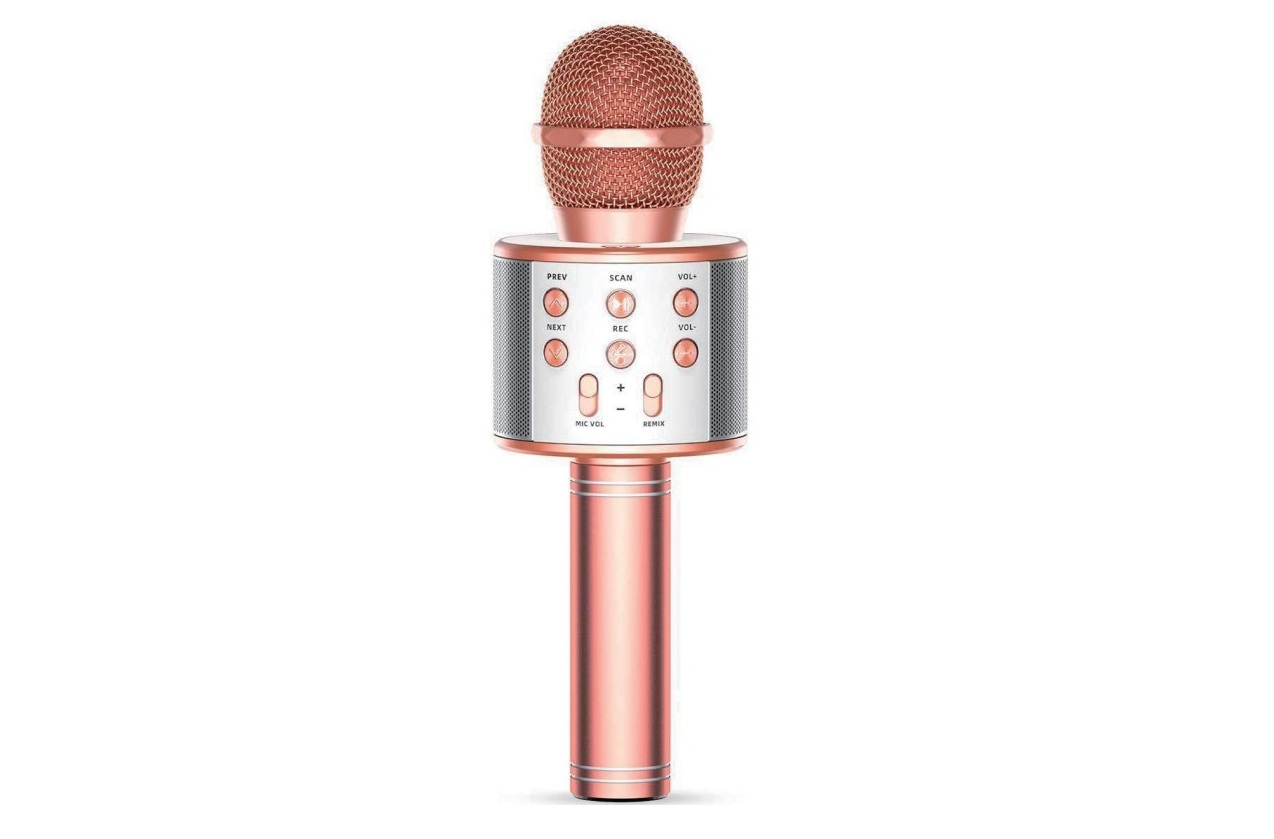
A Quick Look Microphone Controls and Ports
Mic Volume
Power/Play/ Pause/Remove
Music
Volume +/ Next Track
Echo
TF Memory
Card Slot
TWS/Mode/ Voice Changer
USB Port
Volume -/Previous Track
Pairing the Microphone
Bluetooth Pairing · Press and hold the Power buon to start pairing your device. Once the device
is ON you will hear “It’s Karaoke Time!”, and the Light Indicator will illuminate a solid blue light. · Open your smartphone’s Bluetooth menu to enable Bluetooth and search for Bluetooth devices. Select “ISK101” from the list of devices. · Aer successfully pairing, you will hear “Let’s Sing!” from the microphone and the blue light will turn solid.
Note: If a previously paired device is in range while the microphone is ON, the speaker will connect to it automacally.
Charging Port Headphone Jack
ISK101
ISK101
Using the Microphone
Power On/Off Press and hold the Power buon to turn the microphone ON. You will hear “It’s Karaoke Time!”. Press and hold the Power buon to turn OFF.
Adjusng Volume Press and hold down the Volume – buon to decrease the speaker volume. Press and hold down the Volume + buon to increase the speaker volume. Alternavely, you can adjust the volume using the Mic Volume slider, push up to increase the microphone volume or push down to decrease.
Adjusng Echo Push the Echo slider up to increase echo effect and push down to decrease.
Switching Modes To enter memory card mode, insert an SD card into the TF memory card slot. You will hear “Memory Card Mode”. To enter USB mode, insert a USB into the USB port. You will hear “USB Mode”.
Music Control To play or pause the music press the Play/Pause buon. To change the music track, press the Next Track buon to change to the next track on a playlist or press the Previous Track buon to change to the previous track.
Remove Music To mute the vocals from the microphone, press the Power buon twice. You will hear “Music Removed” once the vocals have been removed.
Voice Changer Press and hold the Mode Buon to switch between 5 different voice sengs.
Charging the Microphone
– To charge the microphone, aach the small end of the micro-USB charging cable (included) to the charging port located at the boom of the microphone.
– Aach the other end to a USB power port on a computer or USB charging adapter.
– A RED light will turn ON while the microphone is charging, and will turn OFF once charging is complete.
TWS Pairing To connect two ISK101 Karaoke Microphones together, turn ON both microphones at the same me, then quickly double press the Mode buon. The two microphones will automacally find each other and connect. When the connection is successful, you will hear “beep”. Aer the microphones are paired to each other, connect to your Bluetooth-enabled device.
**Note – make sure your microphone is not connected to Bluetooth before enter TWS pairing mode.
Using the USB Port and Memory Card Slot
Your microphone comes with a USB Port and a TF Memory Card Slot. – When a USB thumb drive or jump drive is inserted into the USB Port, your microphone will play any .MP3, .WMA, or .WAV music file stored on the drive. – When a TF card is inserted into the TF Card Slot, your microphone will play any .MP3 music file stored on the card.
Features
Safety PrecauFeoantusres
When using your microphone, basic safety precauons should always be followed including:
1. READ ALL INSTRUCTIONS BEFORE USING YOUR MICROPHONE. 2. Do not submerge microphone in water. Do not place microphone on wet surfaces. 3. Only clean using a clean, so cloth. 4. Do not allow children to play with this product. This product contains small pieces that can be a choking hazard. Parental supervision is advised. 5. Do not expose product to excessive heat or fire. 6. Do not expose product to extreme cold or hot temperatures to avoid baery damage. 7. Do not aempt to repair this product yourself. Contact a qualified service center if the product is in need of service. 8. Do not drop, crush, or expose this product to excessive physical force. 9. Do not charge while product is in contact with water, as electric shock may occur. 10. Unplug charging cable when not in use or during thunderstorms.
Specificaons
· USB/Memory Card Support: MAX 16GB · USB Output: 3W · Baery Capacity: 3.7V 1200mAh · Charging Time: Approximately 2-3 Hours · Play Time: Approximately 3 Hours* · Charging Cable: Micro-USB · Power Supply: Li-ion baery · Bluetooth Version: 5.3
*with 50% Volume
FCC Statement
One Year Warranty
This equipment has been tested and found to comply with the limits for a Class B digital device, pursuant to part 15 of the FCC rules. These limits are designed to provide reasonable protection against harmful interference in a residential installation. This equipment generates, uses and can radiate radio frequency energy and, if not installed and used in accordance with the instructions, may cause harmful interference to radio communications. However, there is no guarantee that interference will not occur in a particula r installation. If this equipment does cause harmful interference to radio or t elevision reception, which can be determined by turning the equipment off a nd on, the user is encouraged to try to correct the interference by one or mo re of the following measures: -Reorient or relocate the receiving antenna. -Increase the separation between the equipment and receiver. -Connect the equipment into an outlet on a circuit different from that to which the receiver is connected. -Consult the dealer or an experienced radio/TV technician for help. To assure continued compliance, any changes or modifications not expressly approved by the party.Responsible for compliance could void the user’s authority to operate this equipment. This equipment complies with Part 15 of the FCC Rules. Operation is subject to the following two conditions: (1) This device may not cause harmful interference, and (2) This device must accept any interference received, including interference that may cause undesired operation.
FCC Radiation Exposure Statement: The device has been evaluated to meet general RF exposure requirement. The device can ben used in the portable exposure condition with restiction.
This warranty covers the original consumer purchaser only and is not transferable.
This warranty covers products that fail to funcon properly UNDER NORMAL USAGE, due to defects in material or workmanship. Your product will be repaired or replaced at no charge for parts or labor for a period of one year.
What Is Not Covered by Warranty Damages or malfuncons not resulng from defects in material or workmanship and damages or malfuncons from other than normal use, including but limited to, repair by unauthorized pares, tampering, modificaon or accident.
To Obtain Warranty Service and Troubleshoong Informaon: Call 1-800-592-9541 or visit our website at www.vivitar.com.
To receive Warranty service along with the name and address of an authorized product service center, the original consumer purchaser must contact us for problem determinaon and service procedures. Proof of purchase in the form of a bill of sale or receipted invoice, evidencing that the product is within the applicable Warranty period(s), MUST be presented in order to obtain the requested service. It is your responsibility to properly package and send any defecve products along with a dated copy of proof of purchase, a wrien explanaon of the problem, and a valid return address to the authorized service center at your expense. Do not include any other items or accessories with the defecve product. Any products received by the authorized service center that are not covered by warranty will be returned unrepaired.
For Consumers in Australia Only Faulty product should be returned to point of sale, requiring proof of purchase for a refund or exchange. Our goods come with guarantees that cannot be excluded under the Australian Consumer Law. You are entled to a replacement or refund for a major failure and for compensaon for any other reasonably foreseeable loss or damage.
You are also entled to have the goods repaired or replaced if the goods fail to be of acceptable quality and the failure does not amount to a major failure.
For all Technical Support in Australia please dial 1-800-006-614
 Vivitar Consumer Electronics Store – Vivitar.com