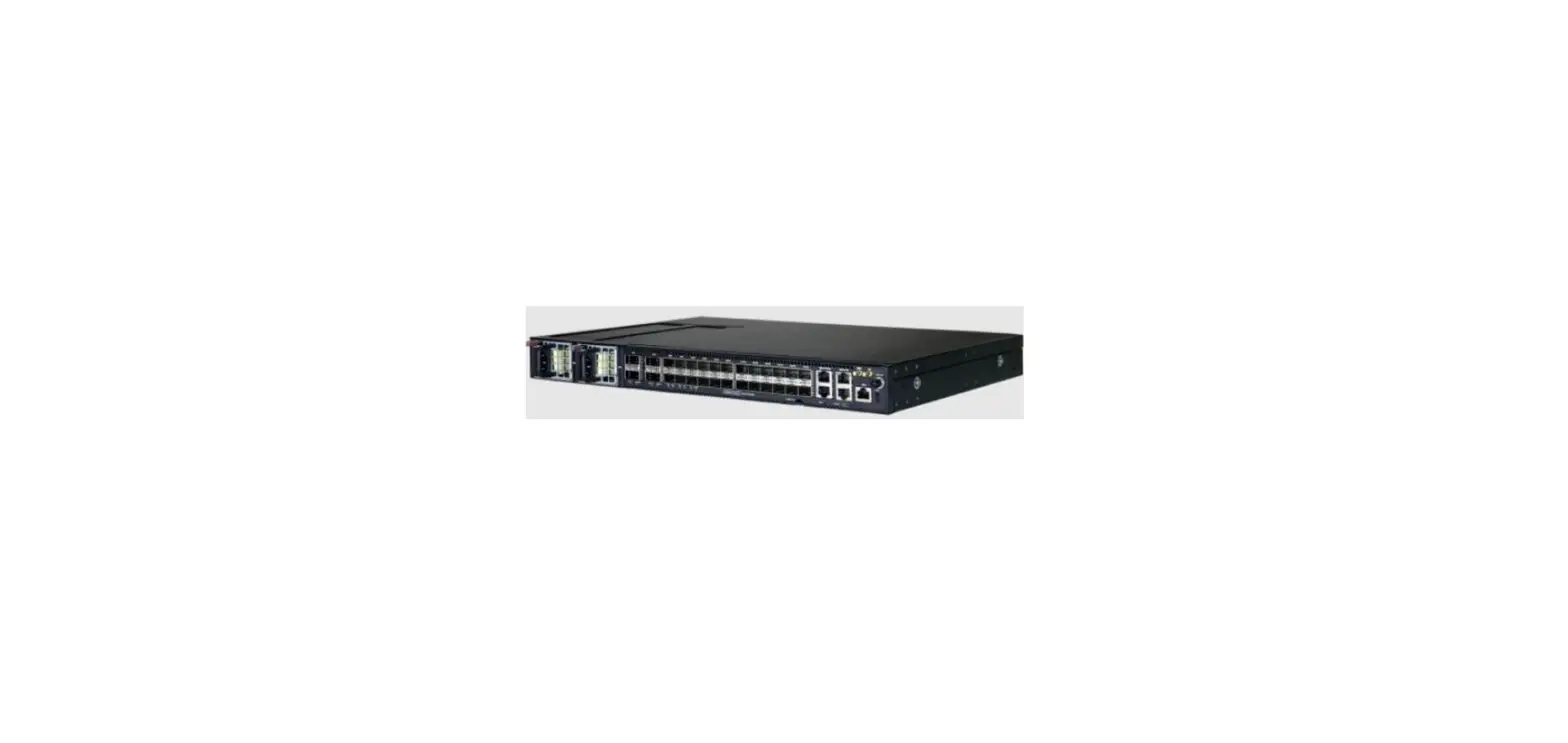
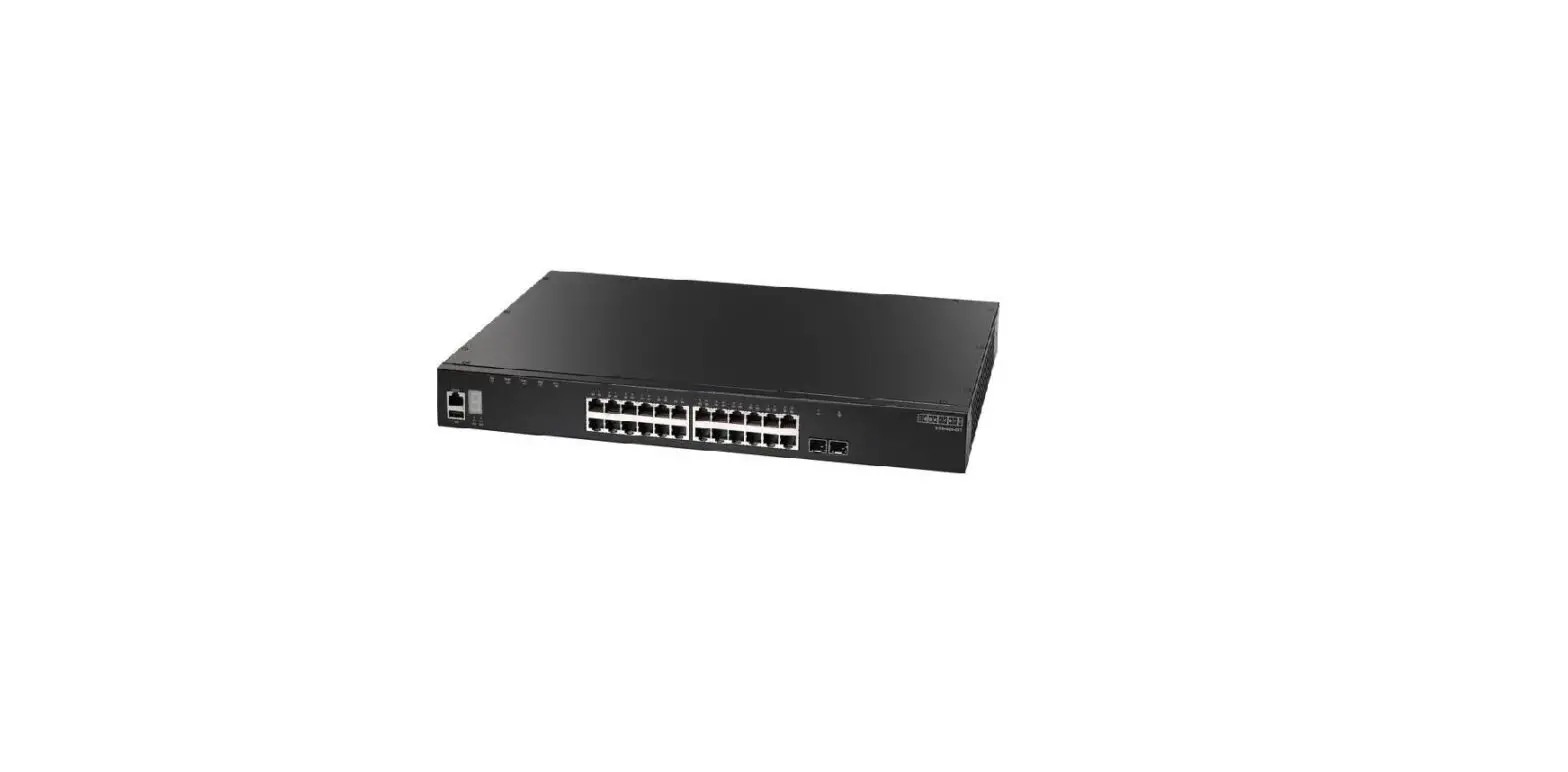
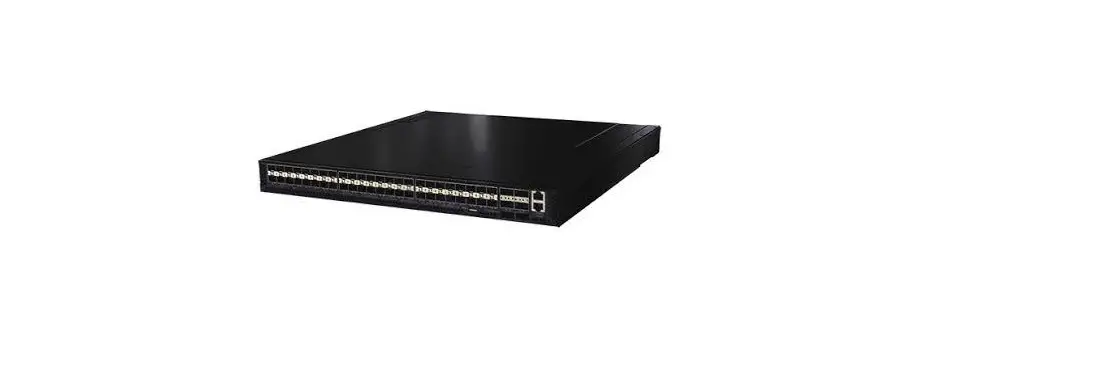
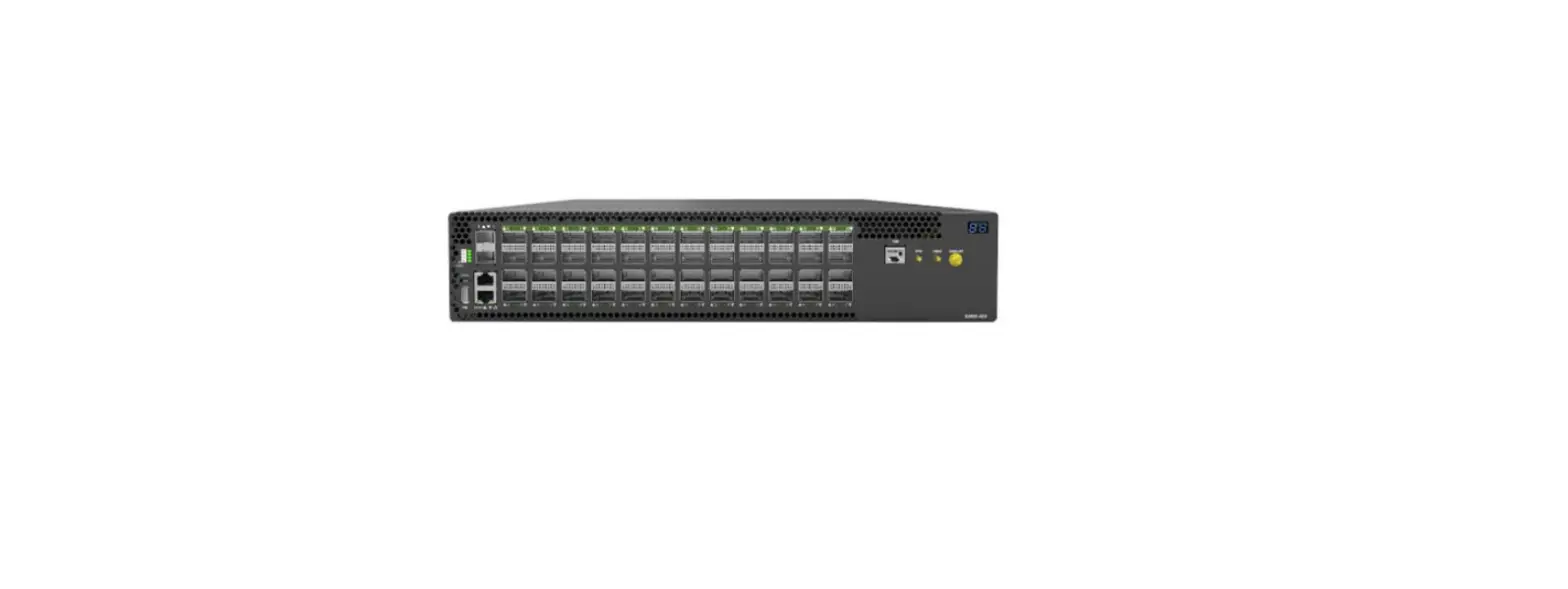
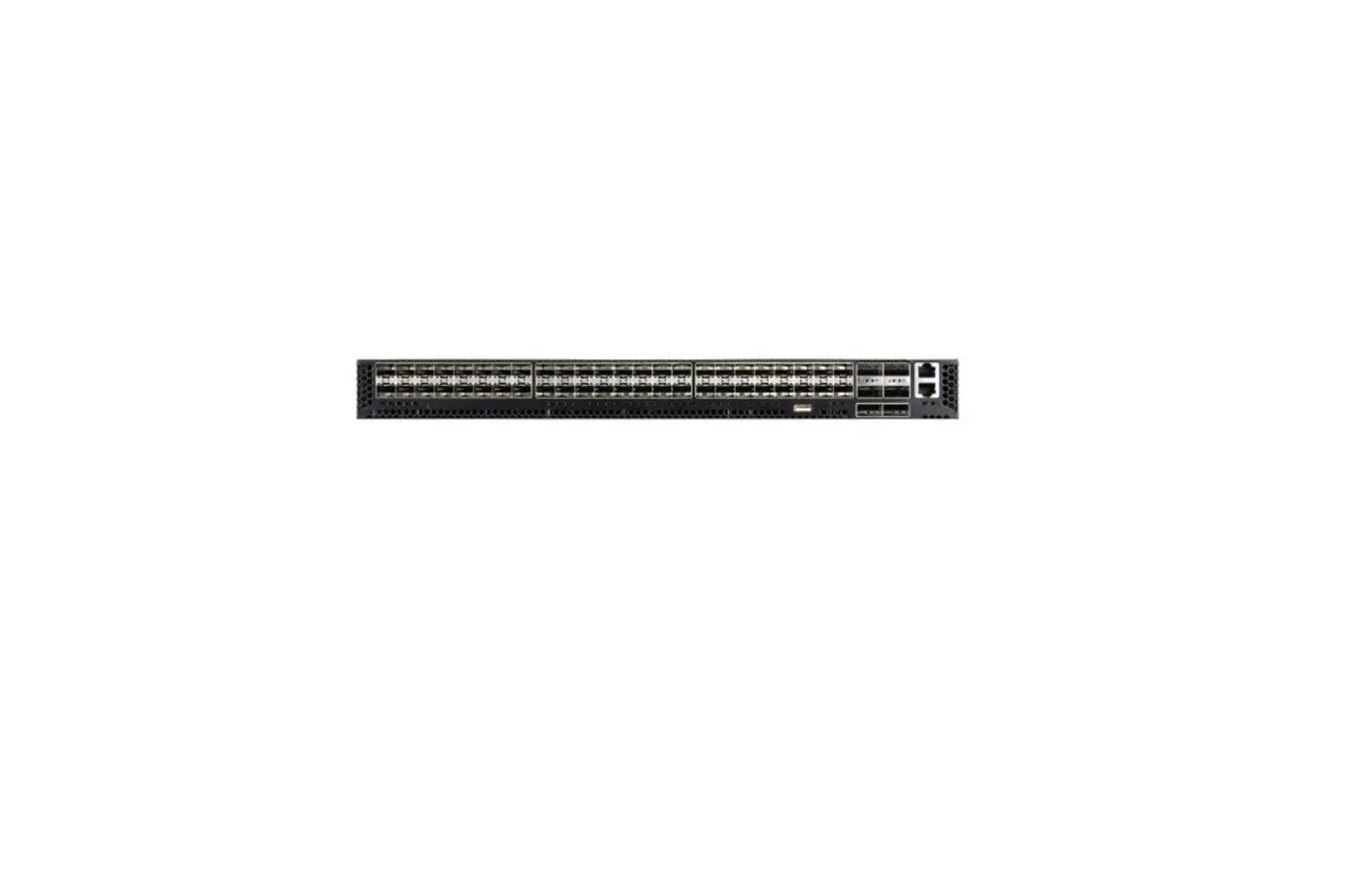
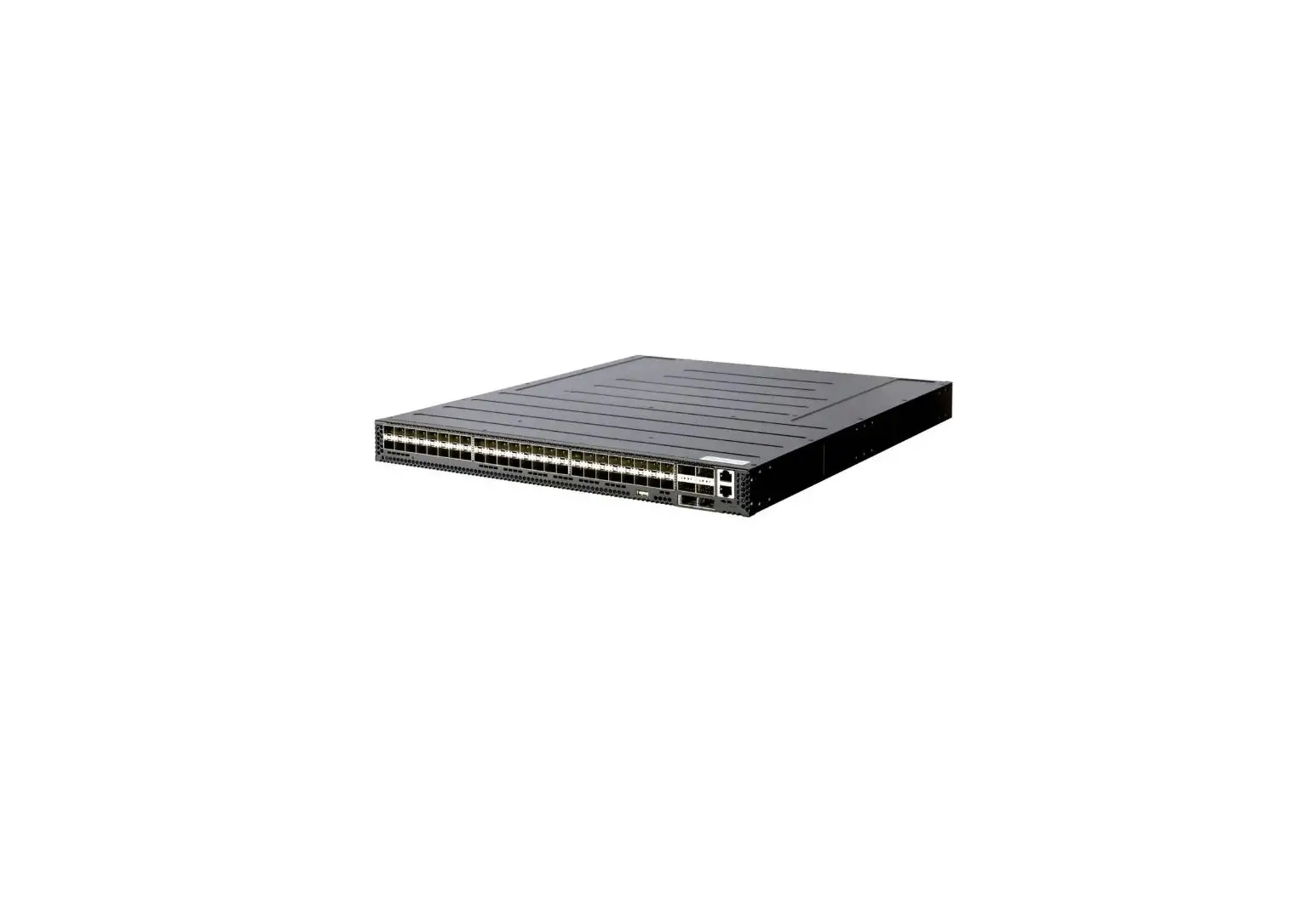
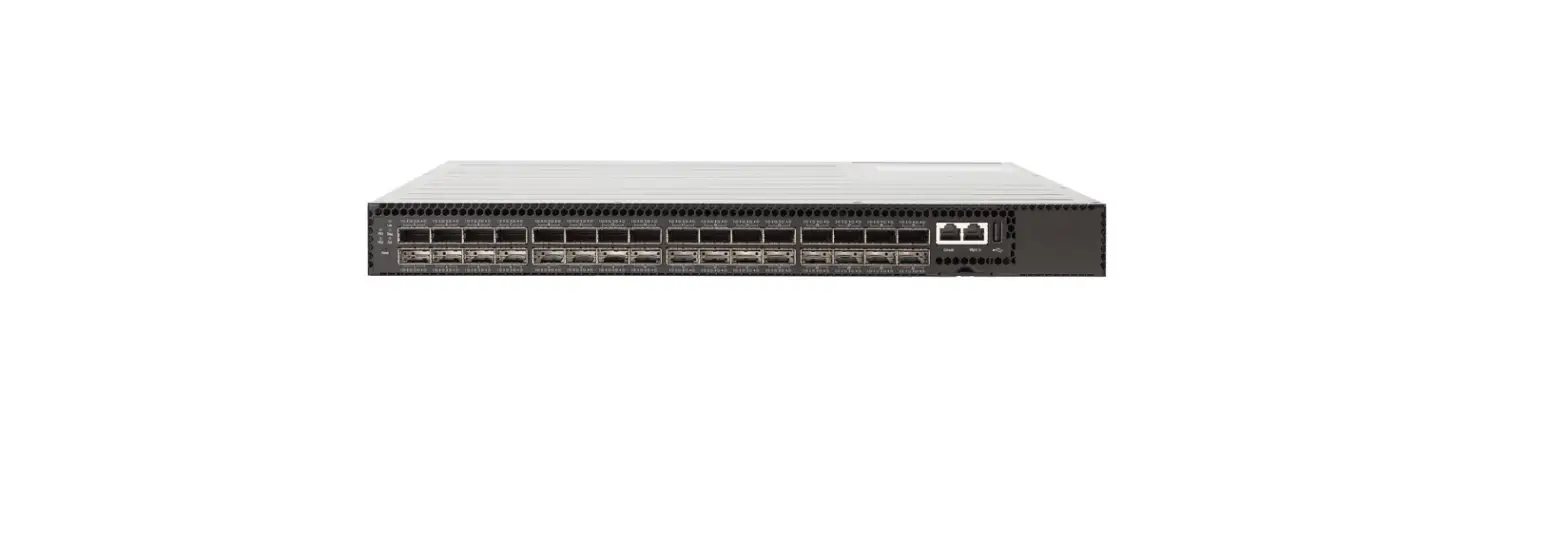
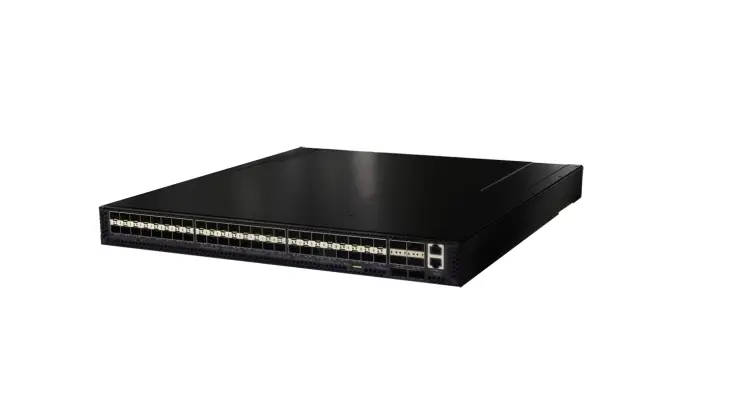
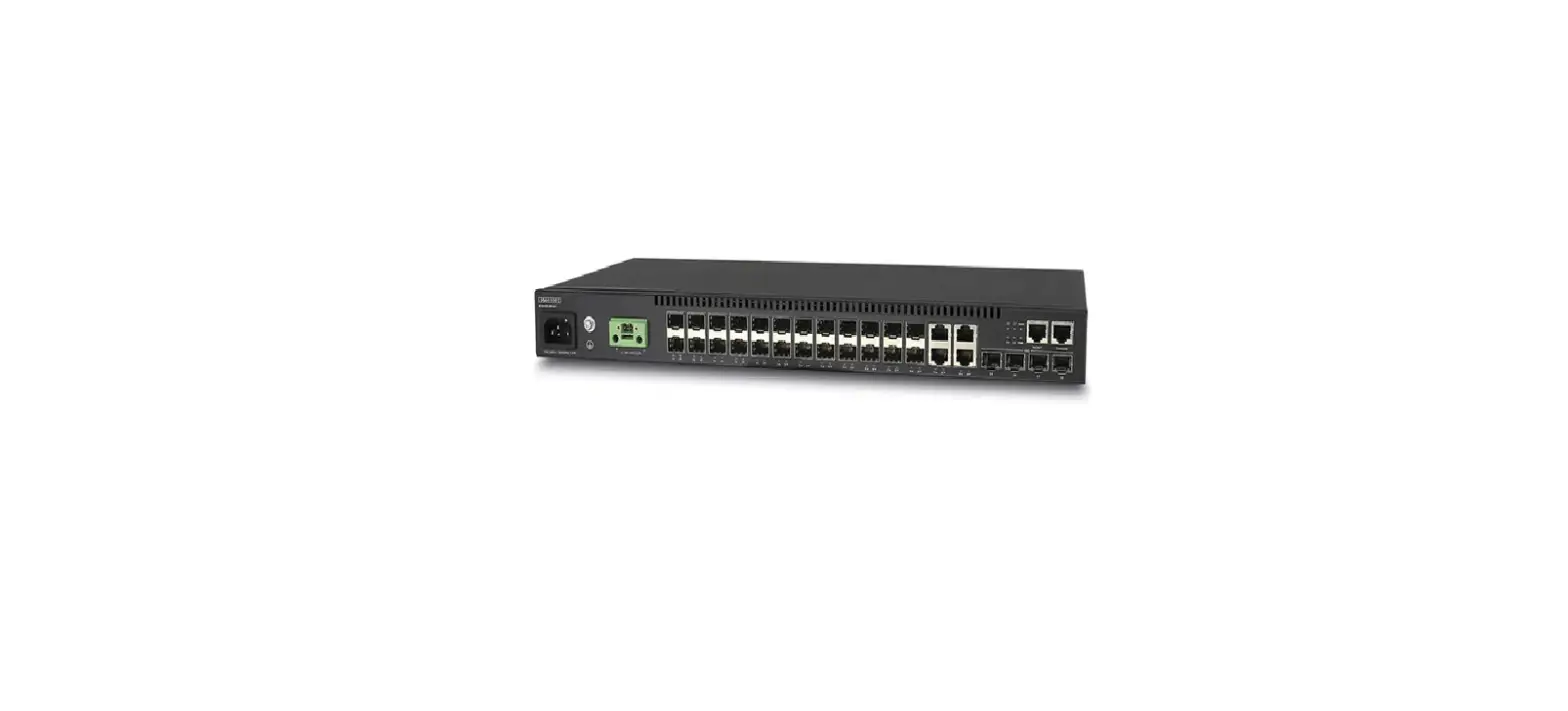
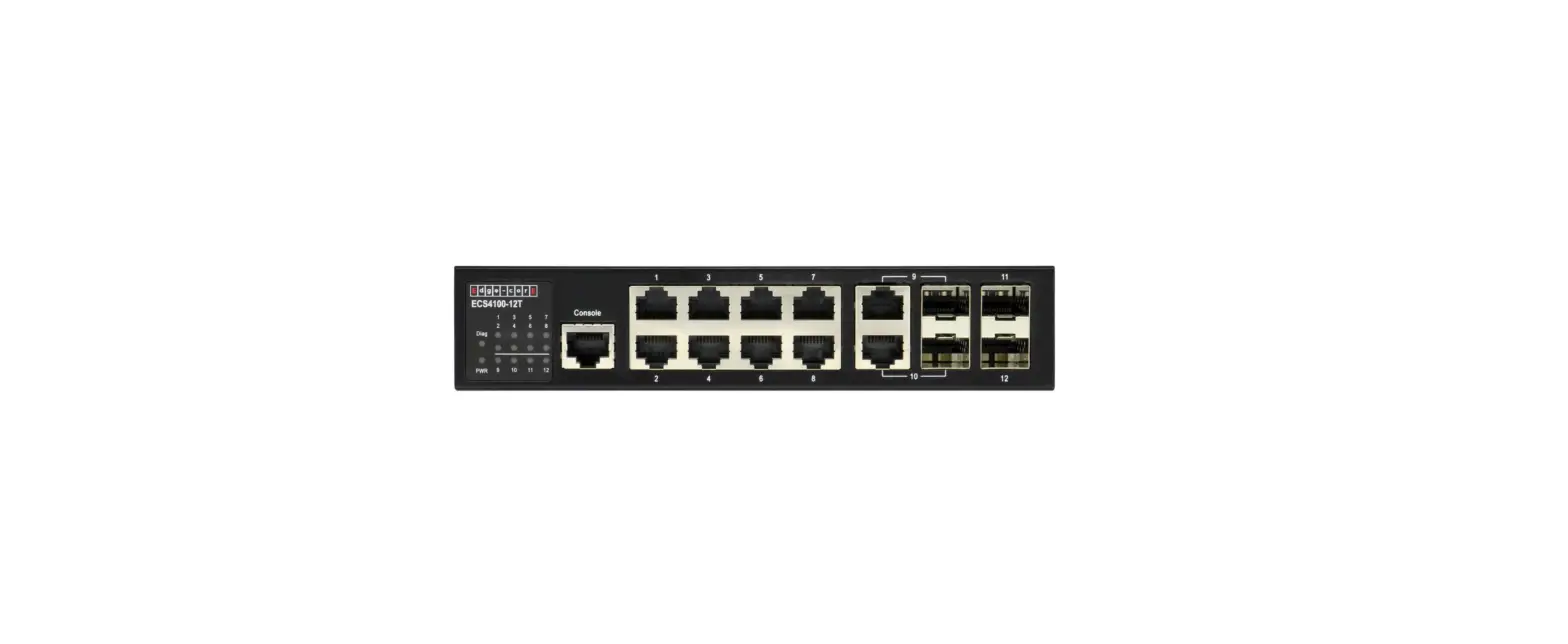
AS4630-54TE Ethernet Switch
Product Information: Ethernet Switch AS4630-54TE
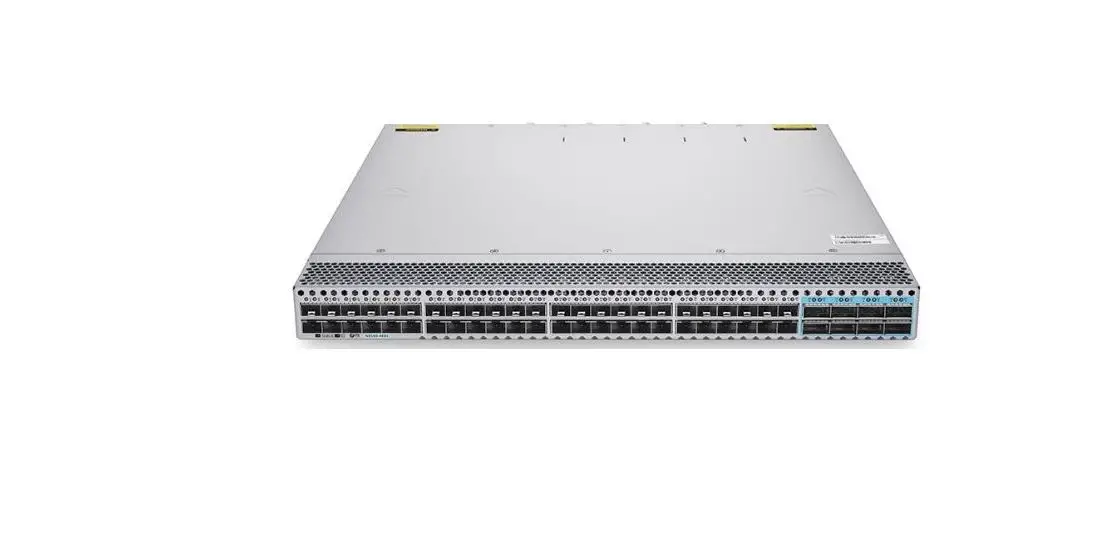
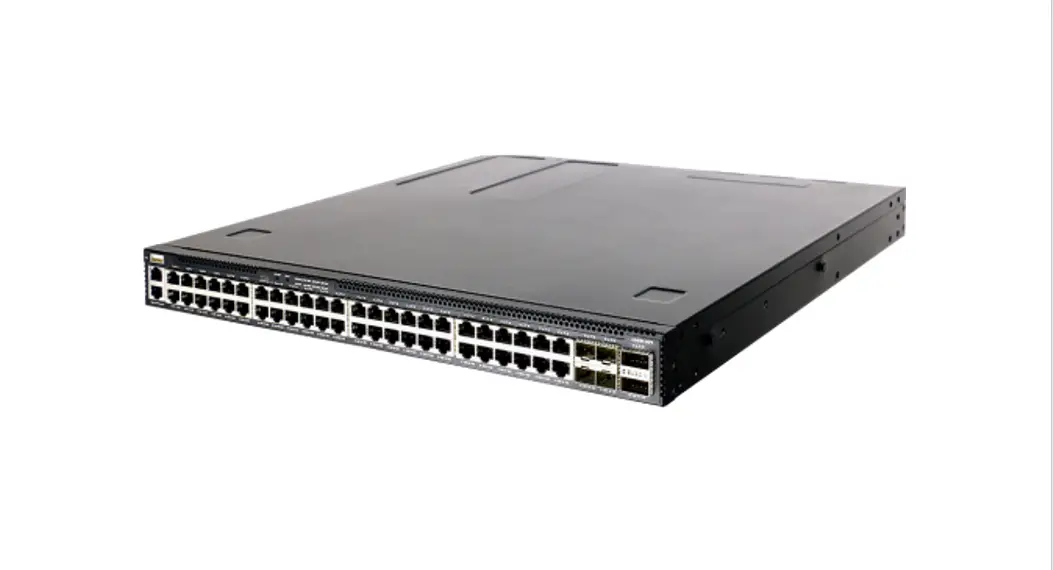
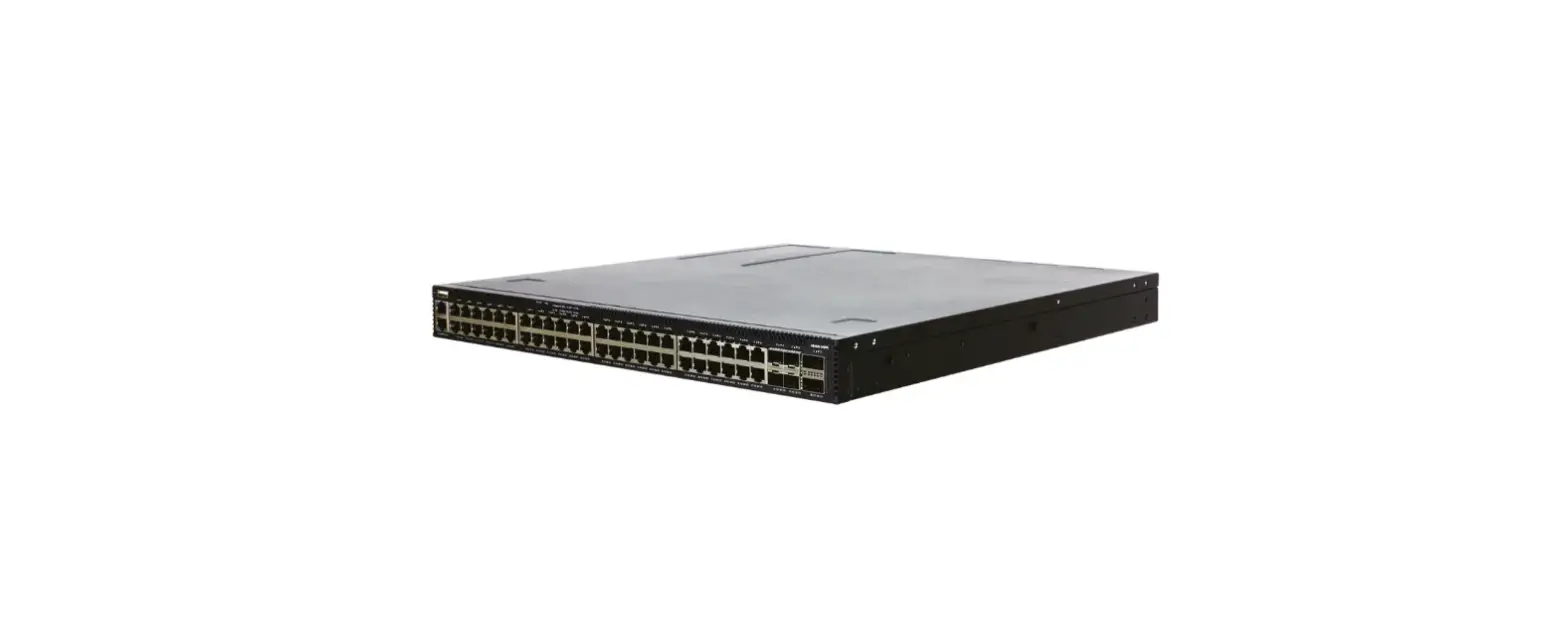
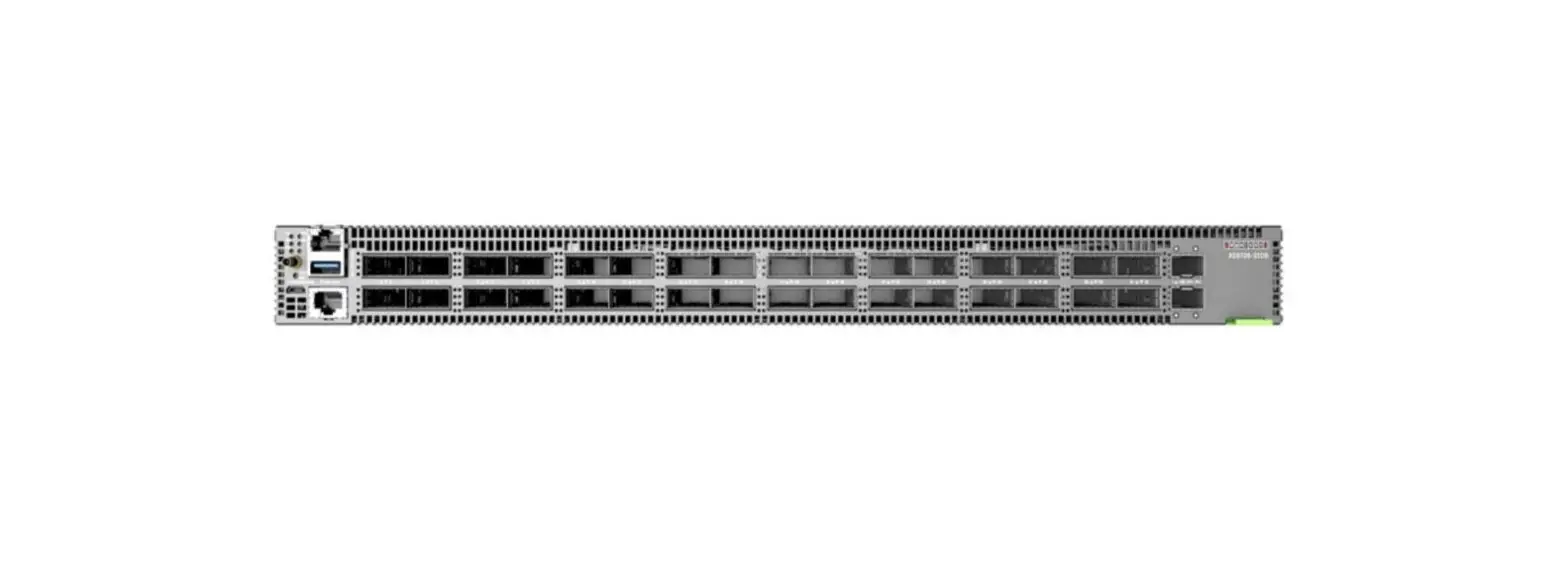
The AS4630-54TE Ethernet Switch is a high-performance switch
designed for enterprise network use. It comes with 48 RJ-45 1G
ports, 4 SFP28 10G/25G ports, 2 QSFP28 40G/100G uplink or stacking
ports, and 3 fan trays with 2 AC PSUs. The switch also features a
USB port, a management port, and a serial console port. The switch
has Open Network Install Environment (ONIE) software installer
preloaded on it, but no switch software image.
Package Contents:
- AS4630-54TE Ethernet Switch
- Rack mounting kit–2 front-post brackets, 2 rear-post brackets,
and screw kit - 2 x Power cord
- Console cable–RJ-45 to D-Sub
- Documentation–Quick Start Guide (this document) and Safety and
Regulatory Information
Overview:
The AS4630-54TE Ethernet Switch has a USB port, a management
port, a serial console port, and system buttons/LEDs. The switch
has 48 RJ-45 1G ports, 4 SFP28 10G/25G ports, 2 QSFP28 40G/100G
uplink or stacking ports, and 3 fan trays with 2 AC PSUs.
- STK M/S button
- Reset button
- System LED: Green (OK), Amber (fault)
- PRI LED: Green (primary unit), Amber (secondary unit)
- PSU LEDs: Green (OK), Amber (fault)
- STK LEDs: Green (stacking ports active)
- FAN LED: Green (OK), Amber (fault)
- PoE LED: Off
Port/FRU LEDs:
- RJ-45 Port LEDs: Green (link), Blinking (activity)
- SFP28 Port LEDs: White (25G), Green (10G), Blinking
(activity) - QSFP28 Port LEDs: White (100G), Green (40G link), Blinking
(activity) - PSU Status LED: Green (OK), Red (fault or fan failure)
- Fan Tray Status LED: Green (OK), Red (fault)
Product Usage Instructions:
FRU Replacement:
To replace a Field Replaceable Unit (FRU) such as RJ-45 port,
SFP28 port, QSFP28 port, PSU, or fan tray, follow the instructions
below:
RJ-45 Port Replacement:
- LED indication: Green (link), Blinking (activity)
- Replace the defective RJ-45 port with a new one.
SFP28 Port Replacement:
- LED indication: White (25G), Green (10G), Blinking
(activity) - Replace the defective SFP28 port with a new one.
QSFP28 Port Replacement:
- LED indication: White (100G), Green (40G link), Blinking
(activity) - Replace the defective QSFP28 port with a new one.
PSU Replacement:
- LED indication: Green (OK), Red (fault or fan failure)
- Remove the power cord.
- Press the release latch and remove the PSU.
- Install replacement PSU with matching airflow direction.
Fan Tray Replacement:
- LED indication: Green (OK), Red (fault)
- Loosen the fan tray screw.
- Remove fan tray from the chassis.
- Install replacement fan with matching airflow direction.
Installation:
Mounting the Switch:
- Attach the brackets using the included screws to attach the
front- and rear-post brackets. - Mount the switch in the rack and secure it with rack
screws. - Lock the rear-post brackets using the included screws to lock
the position of the rear-post brackets.
Connect Power:
Install two AC PSUs and connect them to an AC power source.
Check the PSU LEDs. The PSU1/PSU2 LEDs should be on green when
operating normally.
Perform Initial System Boot:
To perform the initial system boot, follow the instructions
below:
ONIE Installer Software:
- If the network operating system (NOS) installer is located on a
network server, first connect the RJ-45 Management (Mgmt) port to
the network using 100-ohm Category 5, 5e or better twisted-pair
cable. (Not required if the NOS installer is located on attached
storage.) - Boot the switch and wait for the ONIE software to locate and
execute the NOS installer, and then wait for the installer to load
the NOS software image. - Subsequent switch boots will bypass ONIE and directly run the
NOS software.
Compatible Switch Software:
Information about compatible switch software can be found at
www.edge-core.com.
Optional Slide-Rail Installation:
An optional slide-rail kit is available for rack installation.
Follow the installation procedure provided with the kit.
Quick Start Guide
Ethernet Switch
AS4630-54TE
Package Contents
www.edge-core.com
1
2
3
4
5
1. AS4630-54TE Ethernet Switch
2. Rack mounting kit–2 front-post brackets, 2 rear-post brackets, and screw kit
3. 2 x Power cord
4. Console cable–RJ-45 to D-Sub
5. Documentation–Quick Start Guide (this document) and Safety and Regulatory Information
Overview
1
4
2
3
5
1. 1 x USB port
2. 1 x Management port
3. 1 x Serial console port
4. System buttons/LEDs
System Buttons/LEDs
7
8
9
6
5. 48 x RJ-45 1G ports 6. 4 x SFP28 10G/25G ports 7. 2 x QSFP28 40G/100G uplink or stacking ports 8. 3 x Fan trays 9. 2 x AC PSUs
Port/FRU LEDs
STK M/S button Reset button System LED: Green (OK), Amber (fault) PRI LED: Green (primary unit), Amber (secondary unit) PSU LEDs: Green (OK), Amber (fault) STK LEDs: Green (stacking ports active) FAN LED: Green (OK), Amber (fault) PoE LED: Off
FRU Replacement
RJ-45 Port LEDs: Green (link), Blinking (activity) SFP28 Port LEDs: White (25G), Green (10G), Blinking (activity) QSFP28 Port LEDs: White (100G), Green (40G link), Blinking (activity) PSU Status LED: Green (OK), Red (fault or fan failure) Fan Tray Status LED: Green (OK), Red (fault)
PSU Replacement 1. Remove the power cord.
2. Press the release latch and remove the PSU.
3. Install replacement PSU with matching airflow direction.
Fan Tray Replacement 1. Loosen the fan tray screw.
2. Remove fan tray from the chassis.
3. Install replacement fan with matching airflow direction.
1
E022023-MR-R03 150200002356A
Quick Start Guide
Installation
Warning: For a safe and reliable installation, use only the accessories and screws provided with the device. Use of other accessories and screws could result in damage to the unit. Any damages incurred by using unapproved accessories are not covered by the warranty. Avertissement: Pour une installation sûre et fiable, utilisez uniquement les accessoires et les vis fournies avec l’appareil. L’utilisation d’autres accessoires et vis pourrait endommager l’appareil. Les dommages causés par l’utilisation d’accessoires non approuvés ne sont pas couverts par la garantie.
Caution: The device includes plug-in power supply (PSU) and fan tray modules that are installed into its chassis. Make sure all installed modules have a matching airflow direction. Attention: Le appareil comprend des modules d’alimentation et de modules de ventilation installés dans son châssis. Assurez-vous que tous les modules installés ont une direction d’air adaptée.
Note: The device has the Open Network Install Environment (ONIE) software installer preloaded on the switch, but no switch software image. Information about compatible switch software can be found at www.edge-core.com. Note: Model name and approval markings are indicated on the product label located on the bottom of the device.
Optional Slide-Rail Installation An optional slide-rail kit is available for rack installation. Follow the installation procedure provided with the kit.
2 Connect Power
AC Power Install two AC PSUs and connect them to an AC power source.
1 Mount the Switch
3 Verify Switch Power
Check the PSU LEDs The PSU1/PSU2 LEDs should be on green when operating normally.
1. Attach the Brackets Use the included screws to attach the front- and rear-post brackets.
4 Perform Initial System Boot
1. ONIE Installer Software If the network operating system (NOS) installer is located on a network server, first connect the RJ-45 Management (Mgmt) port to the network using 100-ohm Category 5, 5e or better twisted-pair cable. (Not required if the NOS installer is located on attached storage.)
2. Boot the Switch Wait for the ONIE software to locate and execute the NOS installer, and then wait for the installer to load the NOS software image. Subsequent switch boots will bypass ONIE and directly run the NOS software.
Note: For switches with ONIE software pre-loaded, refer to the network operating system (NOS) installer and NOS documentation for details on software options and set up for ONIE.
2. Mount the Switch Mount the switch in the rack and secure it with rack screws.
3. Lock the Rear-Post Brackets Use the included screws to lock the position of the rear-post brackets.
2
5 Make Network Connections
1. RJ-45 ports Connect 100-ohm Category 5, 5e or better twisted-pair cable. 2. SFP+/SFP28 slots First install SFP+/SFP28 transceivers and then connect fiber optic cabling to the transceiver ports.
6 (Optional) Make Stack Connections
Quick Start Guide
Hardware Specifications
Switch Chassis
Size (WxDxH) 438 x 474 x 44 mm (17.24 x 18.66 x 1.73 in)
Weight
6.98 kg (15.39 lb), with two installed PSUs
Temperature Operating: 0° C to 45° C (32° F to 113° F) Storage: -40° C to 70° C (-40° F to 158° F)
Humidity
Operating: 5% to 95% (non-condensing)
Power
150 Watts max.
Consumption
2 x 150 W Power Supplies
AC Input
100-240 Vac, 50-60 Hz, 3-1.5 A
Regulatory Compliances
Emissions
EN 55032:2015+AC:2016, Class A EN 61000-3-2:2014, Class A EN 61000-3-3:2013 FCC Class A VCCI Class A BSMI Class A, CNS 13438
Immunity
IEC 61000-4-2/3/4/5/6/8/11 EN 55024:2010+A1:2015 EN 55035:2017
Safety
UL (UL 62368-1 & CSA C22.2 No. 62368-1) CB (IEC/EN 60950-1, IEC/EN 62368-1) BSMI, CNS 14336-1
Taiwan RoHS CNS 15663
1. Connect the top device Plug one end of a DAC cable in the bottom QSFP28 port of the top unit.
2. Connect the next device Plug the other end of the DAC cable into the top QSFP28 port of the next unit.
3. Repeat Repeat for each unit in the stack.
4. (Optional) Connect the top and bottom devices Plug one end of a DAC cable into the bottom QSFP28 port on the bottom unit and the other end into the top QSFP28 port on the top unit.
5. Reboot Reboot each switch in the stack to start the stack operations.
Note: Stacking support is dependent on the switch software. For stacking support information, refer to the NOS software documentation.
3
AS4630-54TE
www.edge-core.com
1
2
1. AS4630-54TE 2. –2 2 3. 2
3
4
5
4. –RJ-45 D-Sub 5. —
1
4
2
3
5
1. 1 x USB
2. 1 x
3. 1 x
4. /LED
/LED
7
8
9
6
5. 48 x RJ-45 1G 6. 4 x SFP28 10G/25G 7. 2 x QSFP28 40G/100G 8. 3 x 9. 2 x PSU
/FRU LED
STK M/S LED PRI LED PSU LED STK LED LED PoE LED
FRU
RJ-45 LED : SFP28 LED : (25G) (10G) QSFP28 LED : (100G) (40G) PSU LED :
PSU 1. 2. PSU
3. PSU
1.
2.
3.
4
E022023-MR-R03 150200002356A
2
PSU
(ONIE) www.edge-core.com
1
PSU
3
PSU LED PSU1/PSU2 LED
1.
4
1.ONIE (NOS) 100 5 5e RJ-45 (Mgmt) NOS
2. ONIE NOS NOS ONIE NOS
2.
ONIE ONIE NOS NOS
5
3.
1.RJ-45 100-ohm 5 5e
2.SFP+/SFP28 SFP+/SFP28
5
6
1. DAC QSFP28 2. DAC QSFP28 3. 4. DAC QSFP28 QSFP28 5.
NOS
x 438 x 474 x 44 mm 17.24 x 18.66 x 1.73 x
6.98 kg (15.39 lb) PSU 0° C 45° C 32° F 113° F -40° C 70° C -40° F 158° F
5% 95%
150 W max.
2 x 150 W Power Supplies
100-240 Vac, 50-60 Hz, 3-1.5 A
RoHS
EN 55032:2015+AC:2016, Class A EN 61000-3-2:2014, Class A EN 61000-3-3:2013 FCC Class A VCCI Class A BSMI Class A, CNS 13438 IEC 61000-4-2/3/4/5/6/8/11 EN 55024:2010+A1:2015 EN 55035:2017 UL (UL 62368-1 & CSA C22.2 No. 62368-1) CB (IEC/EN 60950-1, IEC/EN 62368-1) BSMI, CNS 14336-1 CNS 15663
6
AS4630-54TE
www.edge-core.com
1
2
1. AS4630-54TE 2. –2 2 3. 2 x
3
4
5
4. Console Cable –RJ-45 D-Sub 5. —
1
4
2
3
5
1. 1 x USB 2. 1 x 3. 1 x 4. LED
LED
7
8
9
6
5. 48 x RJ-45 1G 6. 4 x SFP28 10G/25G 7. 2 x QSFP28 40G/100G 8. 3 x 9. 2 x AC PSU
/FRU LEDs
STK M/S LED PRI LED PSU LED STK LED LED (OK) PoE LED
FRU
RJ-45 LED SFP28 LED (25G) (10G) QSFP28 LED (100G) 40G PSU LED (OK) LED (OK)
PSU 1. 2. PSU
3. PSU
1.
2.
3.
7
E022023-MR-R03 150200002356A
(PSU) (ONIE) www.edge-core.com
2
1
AC AC PSU AC
3
PSU LEDs PSU1 PSU2 LED
1.
2.
4
1.ONIE NOS 100ohm 5 5e RJ-45 Mgmt NOS
2. ONIE NOS NOS ONIE NOS
ONIE (NOS) NOS ONIE
5
3.
1.RJ-45 100-ohm Category 55e
2.SFP+/SFP28 SFP+/SFP28
8
6
1. DAC QSFP28 2. DAC QSFP28 3. 4. DAC QSFP28 QSFP28 5.
NOS
x 438 x 474 x 44 mm 17.24 x 18.66 x 1.73 x
6.98 kg (15.39 lb) PSU
0° C 45° C 32° F 113° F -40° C 70° C -40° F 158° F
5% 95%
150
2 x 150 W Power Supplies
AC
100-240 Vac50-60 Hz 3-1.5 A
EN 55032:2015+AC:2016, Class A EN 61000-3-2:2014, Class A EN 61000-3-3:2013 FCC Class A VCCI Class A BSMI Class A, CNS 13438
IEC 61000-4-2/3/4/5/6/8/11 EN 55024:2010+A1:2015 EN 55035:2017
UL (UL 62368-1 & CSA C22.2 No. 62368-1) CB (IEC/EN 60950-1, IEC/EN 62368-1) BSMI, CNS 14336-1
CNS 15663 RoHS
9
 Edgecore Networks