 Global Management System 9.3
User Guide
This release notes provides the steps to upgrade the SonicWall® Global Management System (GMS) from versions 8.7 or 9.2 to GMS 9.3 release.
Topics:
- About GMS 9.3
- Platform Compatibility
- Product Licensing
- Upgrading GMS
- After the Upgrade
- SonicWall Support
About GMS 9.3
SonicWall Global Management System 9.3 is a Web-based application that can configure and manage multiple SonicWall appliances and monitor non-SonicWall appliances from a central location. GMS can be used in a variety of roles in a wide range of networks. Network administrators can use GMS in a Management Console role in a network containing a single SonicWall firewall or an enterprise-level network comprised of many firewalls.
GMS 9.3 is easy to install and configure. You can add appliances to GMS management and then monitor the system using the Intelligent Platform Monitor (IPM) functionality.
GMS 9.3 can be deployed either as a single server deployment or as a distributed deployment. You can upgrade from GMS versions 8.7 or 9.2 to version 9.3 or perform a fresh installation of GMS 9.3. Upgrades are described in this document. To install a new GMS configuration, upgrade to GMS 9.3, refer to the GMS 9.3 Getting Started Guide. NOTE: The upgrade procedure remains same for all GMS 9.3.x releases.
The GMS 9.3 release provides new features and functionality, and it fixes a number of known issues from previous releases.
Platform Compatibility
The SonicWall Global Management System 9.3 release can be hosted in two deployment scenarios:
- Microsoft Windows Server Software (Microsoft Server or Microsoft Azure cloud platform)
- VMware ESXi Virtual Appliance
Before selecting a platform to use for your GMS deployment, use the Capacity Planning Tool at https://www.sonicwall.com/gms-capacity-planning-tool/. This helps you set up the correct GMS system for your deployment. CAUTION: SonicWall recommends that you take steps to minimize abrupt shutdowns of the server hosting GMS. This can cause corruption of the Reporting database, potentially leading to loss of data for the current month. A possible solution includes using an Uninterrupted Power Supply (UPS) to protect your devices.
Before upgrading to GMS 9.3, ensure that your system meets the minimum hardware and software requirements described in the following sections.
- Supported Platforms
- Unsupported Platforms
- Hardware Requirements
- Hard Drive HDD Specifications
- GMS Virtual Appliance Supported Platforms
- Virtual Appliance Deployment Requirements
- Browser Requirements
- SonicWall Appliances Supported for GMS Management
- SonicWall Appliances Supported for GMS Management
Supported Platforms
The SonicWall Global Management System supports the following Microsoft Windows operating systems:
- Windows Server 2019 (Applicable for GMS 9.3.2 and above)
- Windows Server 2016 Standard (English and Japanese language versions)
- Windows Server 2012 Standard 64-bit
- Windows Server 2012 R2 Standard 64-bit (English and Japanese language versions)
- Windows Server 2012 R2 Datacenter
These Windows systems can either run in physical standalone hardware platforms, or as a virtual machine under Windows Server 2012 or above, Hyper-V, or ESXi. TIP: For best performance and scalability, use a 64-bit Windows operating system. Bundled databases run in 64-bit mode on 64-bit Windows operating systems. All listed operating systems are supported in both virtualized and non-virtualized environments. In a Hyper-V virtualized environment, Windows Server is a guest operating system running on Hyper-V. GMS is then installed on the Windows Server virtual machine that is layered over Hyper-V.NOTE: GMS is now supported on MS-Windows Server virtual machines running in Microsoft Azure cloud services.
Unsupported Platforms
The following platforms have been dropped from support:
- CDP management and reporting
- UMA EM5000 as part of the GMS deployment
- Windows 32-bit as part of the GMS deployment
- Firewalls with firmware older than SonicOS 5.0
- Gen4 or older Firewalls
Hardware Requirements
To determine the hardware requirements for your deployment, use the Capacity Planning Tool at https://www.sonicwall.com/gms-capacity-planning-tool/.
NOTE: A Windows 64-bit operating system with at least 16 GB of RAM is highly recommended for better performance of reporting modules. For more information, read the “Capacity Planning and Performance Tuning” appendix in the SonicWall Global Management System Administration Guide.
Hard Drive HDD Specifications
The following hard drive HDD specifications are required when using GMS Software on a Windows Server or a GMS Virtual Appliance:
Hardware Requirements
| Requirement | Details |
| Spindle Speed | 10,000 RPM or higher |
| Cache | 64 MB or higher |
| Transfer rate | 600 MBs or higher |
| Average latency | 4 microseconds or lower |
GMS Virtual Appliance Supported Platforms
The elements of basic VMware structure must be implemented prior to deploying the SonicWall Global Management System Virtual Appliance. The GMS Virtual Appliance runs on the following VMware platforms:
- ESXi 6.7
- ESXi 6.5
- ESXi 6.0
- ESXi 5.5
Virtual Appliance Deployment Requirements
Before deploying the GMS Virtual Appliance, consider the following parameters:
- GMS management is not supported on Apple MacOS.
- All modules are 64 bit.
- Using the Flow Server Agent role requires a minimum of:
- Quad Core
- 16 GB of memory
- 300 GB available disk space
To determine the hardware requirements for your deployment, use the Capacity Planning Tool at https://www.sonicwall.com/gms-capacity-planning-tool/.
The performance of GMS Virtual Appliance depends on the underlying hardware. You should dedicate all the resources that are allocated to the Virtual Appliance, especially the hard-disk (datastore). In environments with high volumes of syslogs or AppFlow (IPFIX), you need to dedicate local datastores to the GMS Virtual Appliance.
Read the “Capacity Planning and Performance Tuning” appendix in the SonicWall Global Management System Administration Guide.
Browser Requirements
SonicWall Global Management System uses advanced browser technologies such as HTML5, which are supported in most recent browsers. SonicWall recommends using the latest Chrome, Firefox, or Safari browsers for administration of the SonicWall Global Management System.
This release supports the following Web browsers:
- Chrome 42.0 or higher (recommended browser for dashboard real-time graphics display)
- Firefox 37.0 or higher
- Microsoft Edge 41 or higher
- Safari 11 or higher (MAC only)
Mobile device browsers are not recommended for SonicWall Global Management System system administration.
SonicWall Appliances Supported for GMS Management
NOTE: GMS 9.3 does not support legacy SonicWall appliances, including:
- Firewall appliances running firmware earlier than SonicOS 5.0
- CSM Series
- CDP Series
SonicWall Global Management System 9.3 supports the following SonicWall appliances and firmware versions:
Component Requirements
| SonicWall Platforms | SonicWall Firmware Version |
| Network Security Appliance | |
| SuperMassive 10000 Series | SonicOS 6.0 or newer NOTE: Only partial policy management and reporting support is currently available. The following SuperMassive specific features are not supported for centralized policy management in GMS: • Multi-blade Comprehensive Anti-Spam Service (CASS) • High Availability/Clustering • Support for Management Interface • Flow Reporting Configurations • Multi-blade VPN • Advanced Switching • Restart: SonicOS versus Chassis Contact your SonicWall Sales representative through https://www.SonicWall.com/en-us/support for more information. |
| SuperMassive 9000 Series | SonicOS 6.1 or newer |
| NSA Series | SonicOS 5.0 or newer |
| TZ Series and TZ Wireless | SonicOS 5.0 or newer |
| SonicWall SOHO | SonicOS 5.9.1.3 or newer 5.9 versions |
| SonicWall SOHO Wireless | SonicOS 6.2.6 or newer 6.x versions |
| SonicWall SOHO 250 and 250 Wireless | SonicOS 6.5.4.1 or newer |
| Gen7 Hardware | |
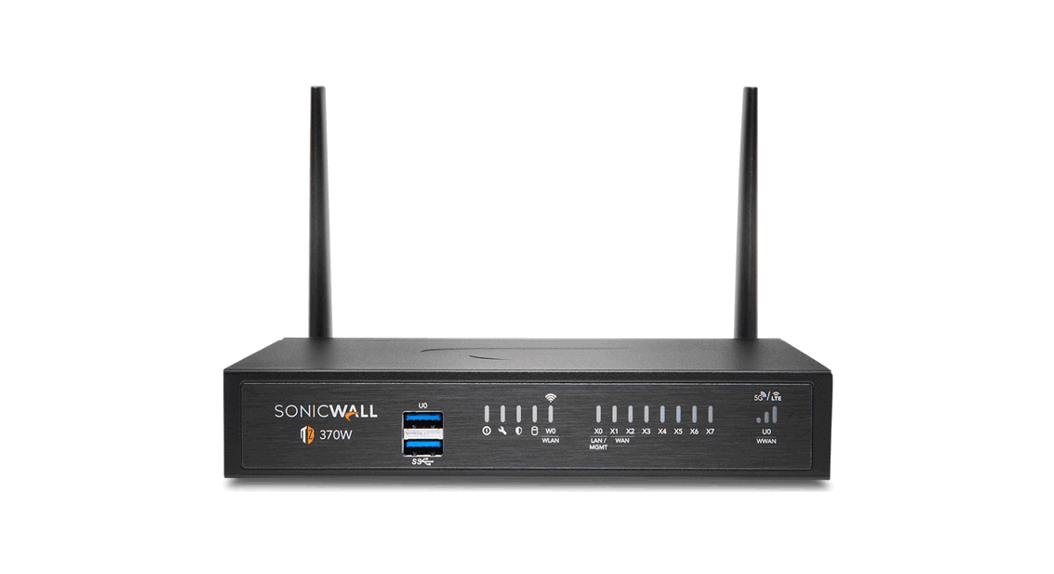
| TZ Series – TZ 270, TZ 370, TZ 470, TZ 570,TZ 670 | SonicOS 7.0 or newer |
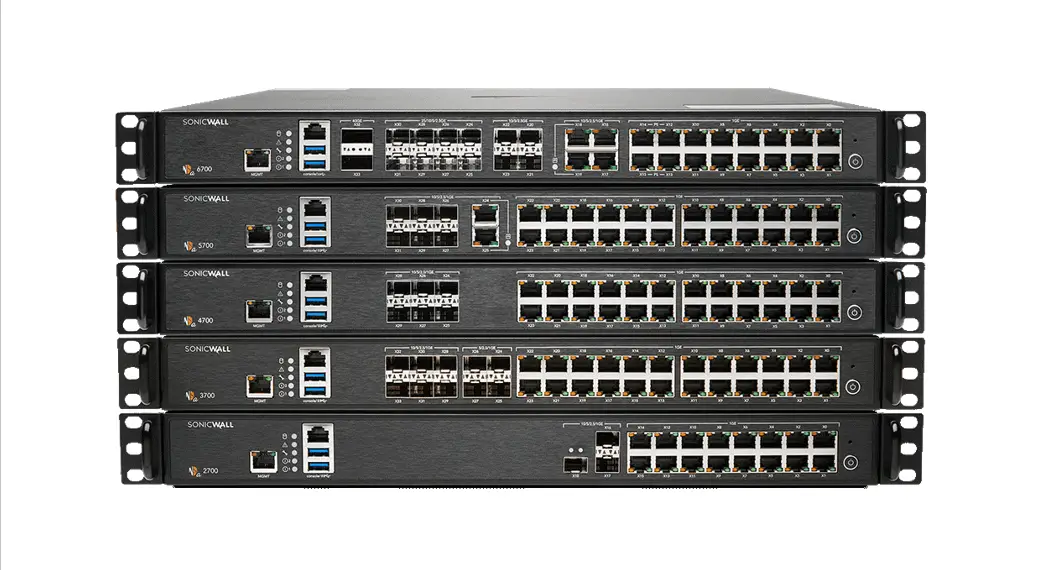
| NSa Series – NSa 2700, NSa 3700, NSa 4700, NSa 5700, NSa 6700 | SonicOS 7.0 or newer |
| NSSp Series – NSsp 10700, NSsp 11700, NSsp 13700 | SonicOS 7.0 or newer |
| Email Security/Anti-Spam | |
| Email Security Series | Email Security 7.2 or newer (management only) |
| Secure Mobile Access | |
| SMA 1000 series | SMA 10.7.2 or newer |
| SMA/SRA/SSL-VPN Series | SSL-VPN 2.0 or newer (management) SSL-VPN 2.1 or newer (management and reporting) |
| SonicWall Platforms | SonicWall Firmware Version |
| E-Class SRA Series | E-Class SRA 9.0 or newer |
Notes:
- GMS 9.3 supports SonicWall firewall App Control policy management and App Control reporting support. Refer to the SonicOS documentation for information on the supported SonicOS firmware versions.
- Appliances running firmware newer than this GMS release can still be managed and reports can still be generated. However, the new features in the firmware will be supported in an upcoming release of GMS.
Product Licensing
All instances of SonicWall Global Management System Software must be registered and licensed before use.
This requirement applies to both single server deployments or distributed deployments on multiple servers, to fresh or upgraded installations, and to software installations on Windows servers or VMware Virtual Appliances.
SonicWall Global Management System registration is done using the /appliance Universal Management Host (UMH) system interface. When installing Universal Management Suite on a server or host, a Web server is installed to provide the /appliance UMH system interface. The system interface is available by default after restarting the system at: https://localhost/. To complete registration, the system must have access to the Internet and you must have a MySonicWall account. The SonicWall License Manager, available on the System > Licenses page of the UMH system interface, allows you to log in and enter your registration information at https://MySonicWall.com.
Upgrading GMS
Topics:
- Before Upgrading
- Prerequisites for Deploying a GMS Virtual Appliance on VMware ESXi
- Upgrading Procedure
Before Upgrading
Before upgrading to GMS version 9.3, review your 8.7 or 9.2 system and assess the following prior to upgrading:
- Be sure you have active GMS support.
- Perform a backup of GMS before applying the upgrade.
- For appliances under management using a GMS Management Tunnel or Existing Tunnel, make sure that HTTPS management is allowed from the GMS servers. This is needed because GMS 9.3 logs into the appliances using HTTPS only.
- In a distributed environment, shut down all GMS servers except the one that is running the database.
GMS servers with the SonicWall Universal Management Suite — Database service should be upgraded first, and then you can upgrade the other servers. You must upgrade all GMS servers in your deployment to the same version of GMS. You cannot have some servers running version 9.3 and others running older versions.
NOTE: Do not start or stop the SonicWall Universal Management Suite—Database service manually, before or after upgrading to 9.3. After the upgrade, the SonicWall Universal Management Suite— Database service stays down until the MySQL upgrade process has completed as well. Login to the /appliance interface to track the progress.
Prerequisites for Deploying a GMS Virtual Appliance on VMware ESXi
SonicWall recommends using versions of ESXi 6.7 or higher. With ESXi 6.7 to protect an ESXi host against unauthorized intrusion and misuse, VMware imposes constraints on several parameters, settings, and activities. For increased security, SHA-256 with the PKCS#1 RSA encryption signature algorithm is used for the default certificates in both:
- SonicWall GMS 9.3 Virtual Appliance firmware
- VMware ESXi 6.7
Upgrading Procedure
The following upgrade scenarios are supported:
- GMS 8.7 to GMS 9.3 on Windows
- GMS 8.7 to GMS 9.3 on Linux
- GMS 9.2to GMS 9.3 on Linux
Upgrading 8.7 to 9.3 on Windows
To upgrade to GMS 9.3 on a Windows system:
- Download the GMS 9.3 executable file from www.MySonicWall.com and save it to the computer where GMS 8.7 is installed.
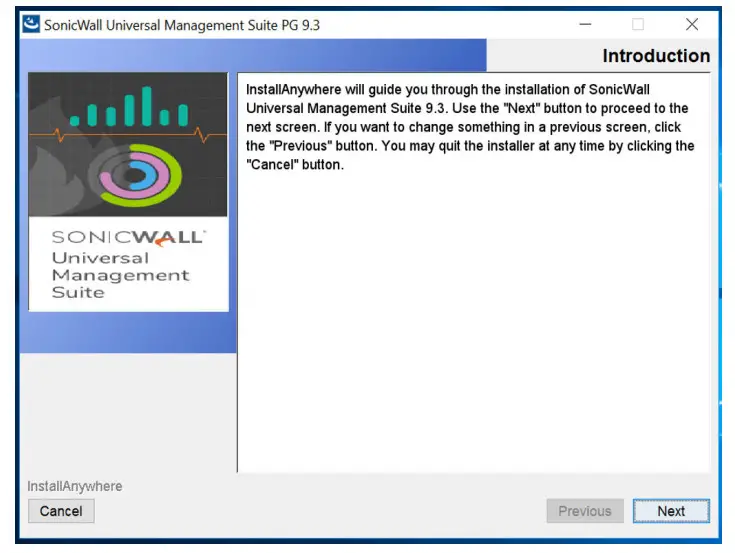
- To begin the process, double-click on the GMS 9.3 executable file.
- Follow the instructions on the installation wizard and click on Next to proceed.

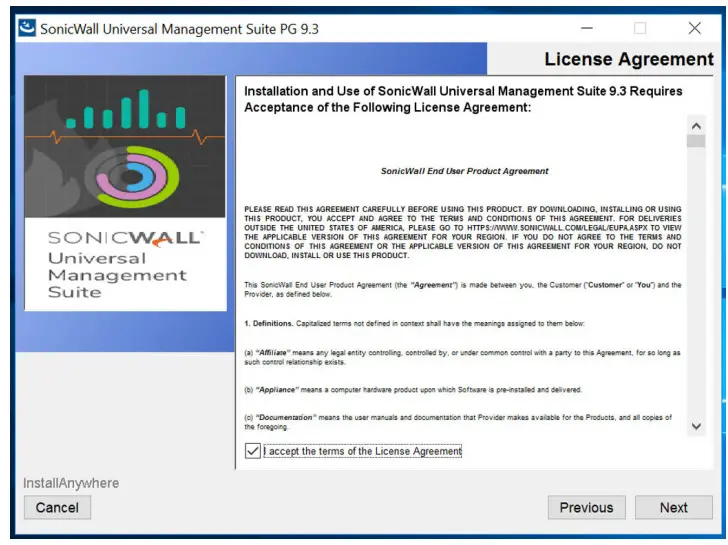
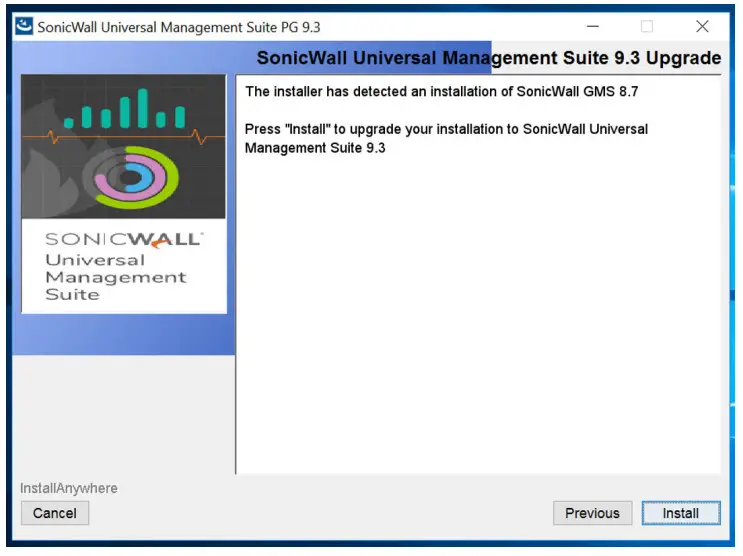
- Accept the terms of the License Agreement and click Next. The installer detects the existing installation of SonicWall GMS 8.7.

- Click Install to begin the upgrade process. The upgrade process takes a few minute to complete.

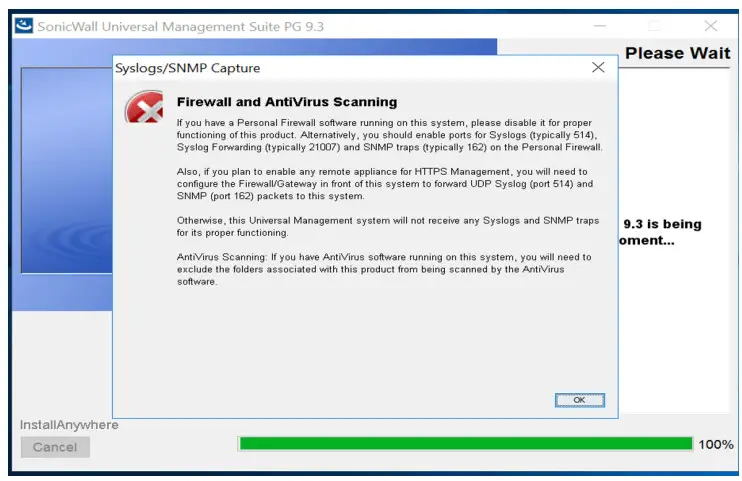
- Click OK to complete the upgrade process.
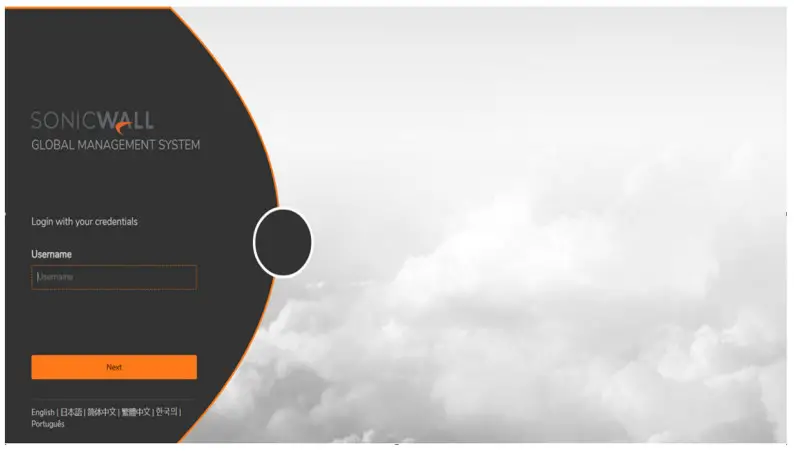
 When the changes are complete, you are redirected to the GMS 9.3 login page.
 When the changes are complete, you are redirected to the GMS 9.3 login page.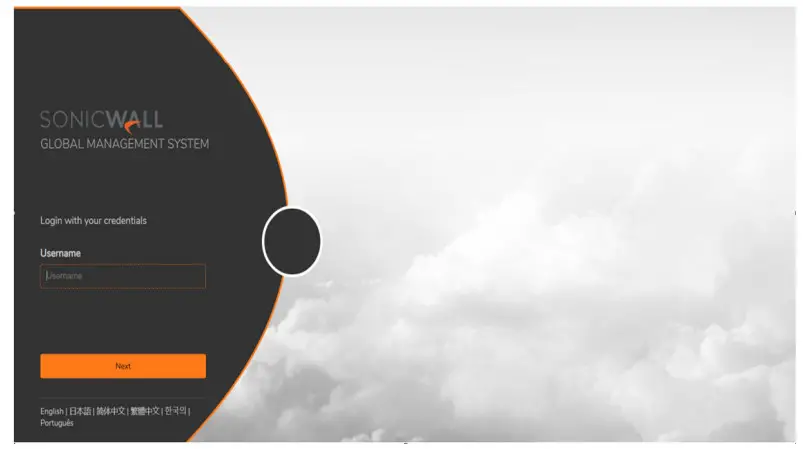
Upgrading 8.7 or 9.2 to 9.3 on Linux
- Download the GMS 9.3 .sh file from www.MySonicWall.com.
- Log in to the /appliance interface of the GMS server.

- Navigate to the System > Settings page.

- Click Choose File and navigate to the location where you saved the .sh file, and select it.
- Click Apply to begin the firmware upgrade installation and Confirm your action when asked.
- Click I Accept to accept the License Agreement.

- Wait as the file uploads and unpacks. The system reboots and starts applying the 9.3 changes. When all the changes are done you are redirected to the 9.3 login page.

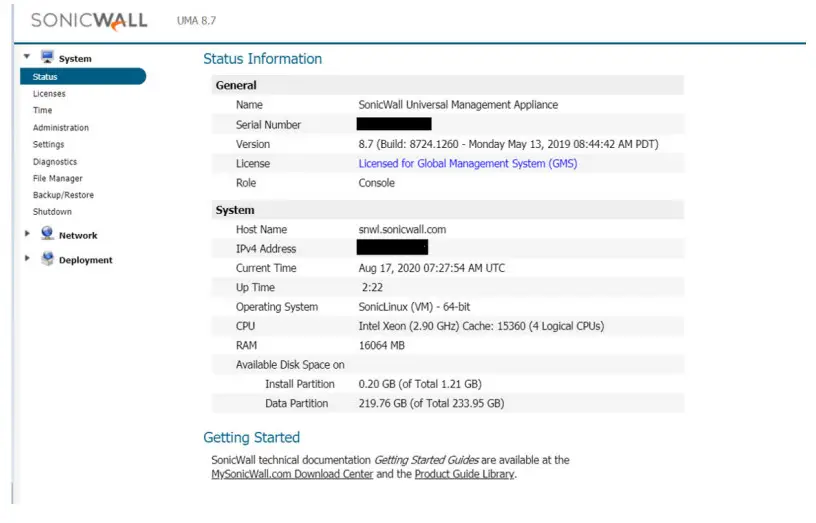
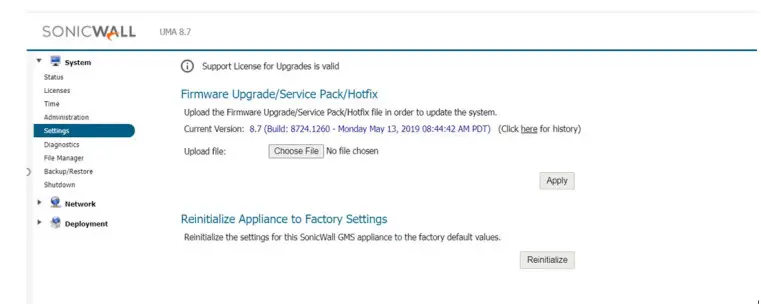
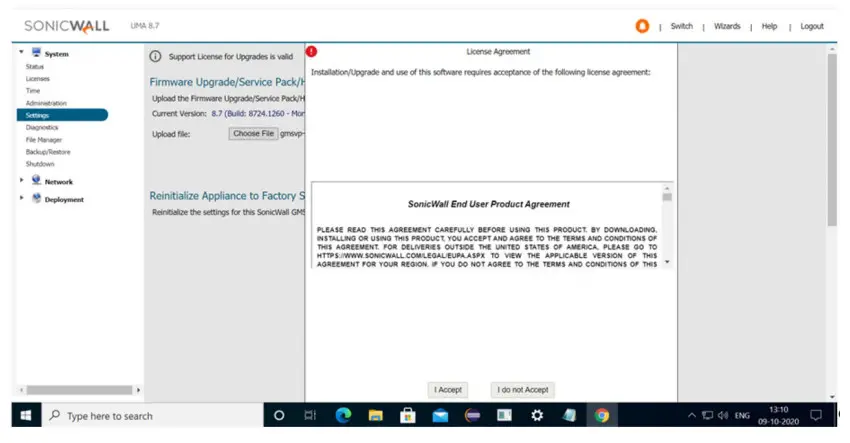
After the Upgrade
As you work with GMS 9.3, some changes will be immediately apparent; others impact how things work in the
background. The following summarizes the key changes:
- GMS 8.7 supported mixed reporting mode within the deployment, so servers upgraded to from GMS 8.7 also get access to both Syslog and IPFIX (Flow) reporting.

- When upgrading from GMS 9.2, the new 9.3 implementation supports only one type of reporting mode per installation. You can select either Syslog or IPFIX (Flow).
- Flash based Syslog reporting screens are replaced with JavaScript user interface.
- GMS 8.7 All-in-One servers that are upgraded to GMS 9.3 will be converted to Console. All the functionality remains intact.
- The Windows installations do not support IPFIX (Flow) reporting or IPM.
- GMS 9.3 supports Sonic Switch management through the firewall.
- GMS 9.3 supports SonicOS versions 6.5.4.5 and 6.5.4.6.

SonicWall Support
Technical support is available to customers who have purchased SonicWall products with a valid maintenance contract.
The Support Portal provides self-help tools you can use to solve problems quickly and independently, 24 hours a day, 365 days a year. To access the Support Portal, go to https://www.sonicwall.com/support.
The Support Portal enables you to:
- View knowledge base articles and technical documentation
- View and participate in the Community forum discussions at https://community.sonicwall.com/technology-and-support.
- View video tutorials
- Access MySonicWall
- Learn about SonicWall professional services
- Review SonicWall Support services and warranty information
- Register for training and certification
- Request technical support or customer service
To contact SonicWall Support, visit https://www.sonicwall.com/support/contact-support.
About This Document
LegendNOTE: A NOTE icon indicates supporting information.IMPORTANT: An IMPORTANT icon indicates supporting information that may need a little extra attention.TIP: A TIP indicates helpful information. CAUTION: A CAUTION icon indicates potential damage to hardware or loss of data if instructions are not followed.WARNING: A WARNING icon indicates a potential for property damage, personal injury, or death.
GMS Upgrade Guide
Updated – October 2022
Software Version – 9.3
232-005541-00 Rev C
Copyright © 2022 SonicWall Inc. All rights reserved.
The information in this document is provided in connection with SonicWall and/or its affiliates’ products. No license, express or implied, by estoppel or otherwise, to any intellectual property right is granted by this document or in connection with the sale of products. EXCEPT AS SET FORTH IN THE TERMS AND CONDITIONS AS SPECIFIED IN THE LICENSE AGREEMENT FOR THIS PRODUCT, SONICWALL AND/OR ITS AFFILIATES ASSUME NO LIABILITY WHATSOEVER AND DISCLAIMS ANY EXPRESS, IMPLIED OR STATUTORY WARRANTY RELATING TO ITS PRODUCTS INCLUDING, BUT NOT LIMITED TO, THE IMPLIED WARRANTY OF MERCHANTABILITY, FITNESS FOR A PARTICULAR PURPOSE, OR NON-INFRINGEMENT. IN NO EVENT SHALL SONICWALL AND/OR ITS AFFILIATES BE LIABLE FOR ANY DIRECT, INDIRECT, CONSEQUENTIAL, PUNITIVE, SPECIAL OR INCIDENTAL DAMAGES (INCLUDING, WITHOUT LIMITATION, DAMAGES FOR LOSS OF PROFITS, BUSINESS INTERRUPTION OR LOSS OF INFORMATION) ARISING OUT OF THE USE OR INABILITY TO USE THIS DOCUMENT, EVEN IF SONICWALL AND/OR ITS AFFILIATES HAVE BEEN ADVISED OF THE POSSIBILITY OF SUCH DAMAGES. SonicWall and/or its affiliates make no representations or warranties with respect to the accuracy or completeness of the contents of this document and reserves the right to make changes to specifications and product descriptions at any time without notice. and/or its affiliates do not make any commitment to update the information contained in this document.
For more information, visit https://www.sonicwall.com/legal.
 MySonicWall
 SonicWall Community | Technology and Support
 MySonicWall
 Support Portal & Downloads - SonicWall