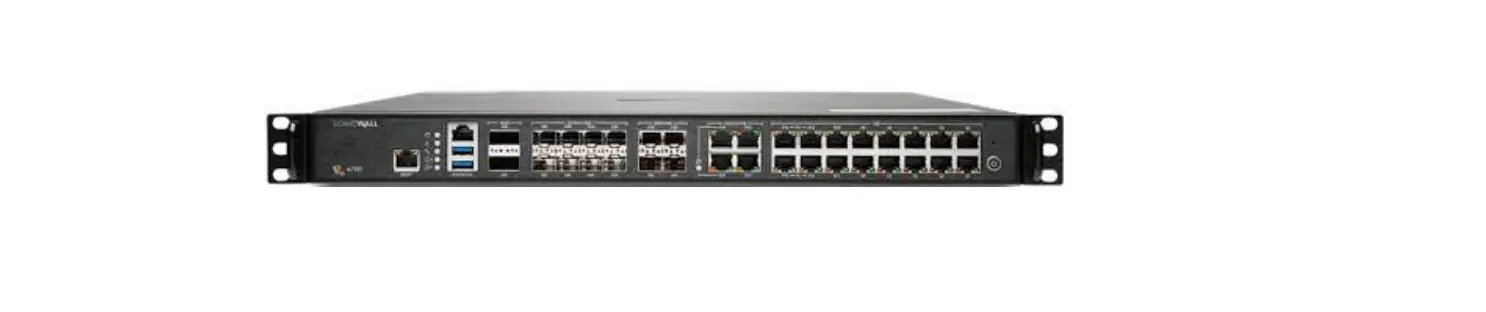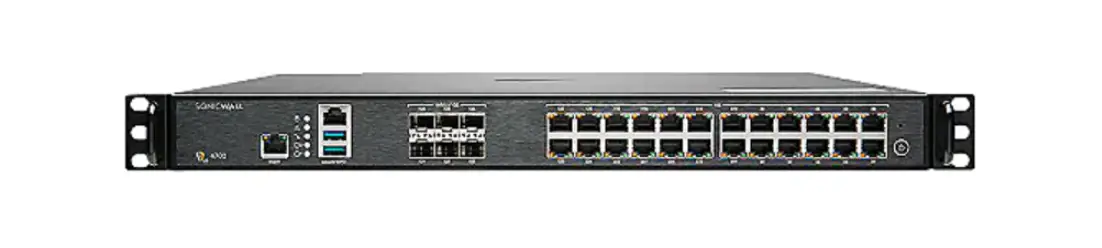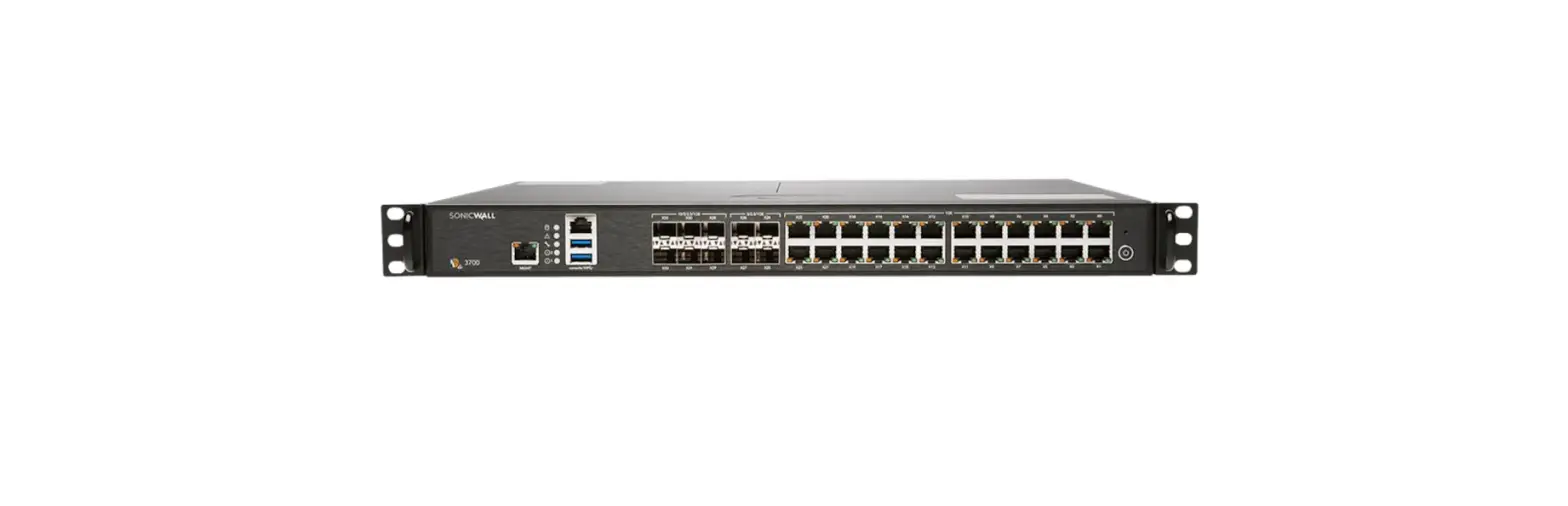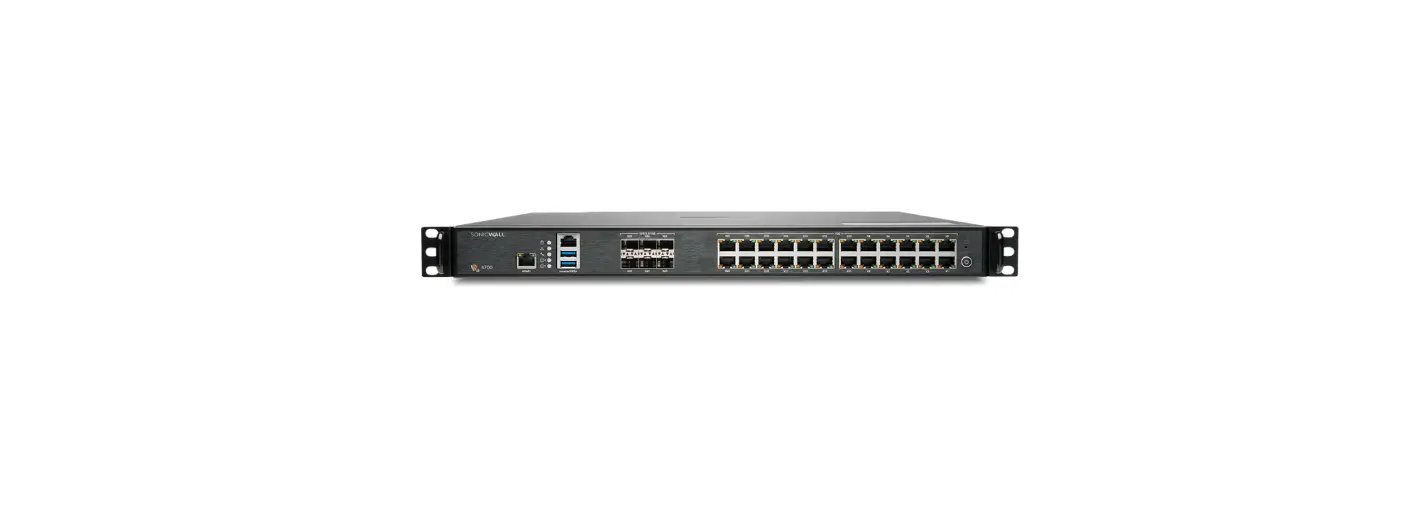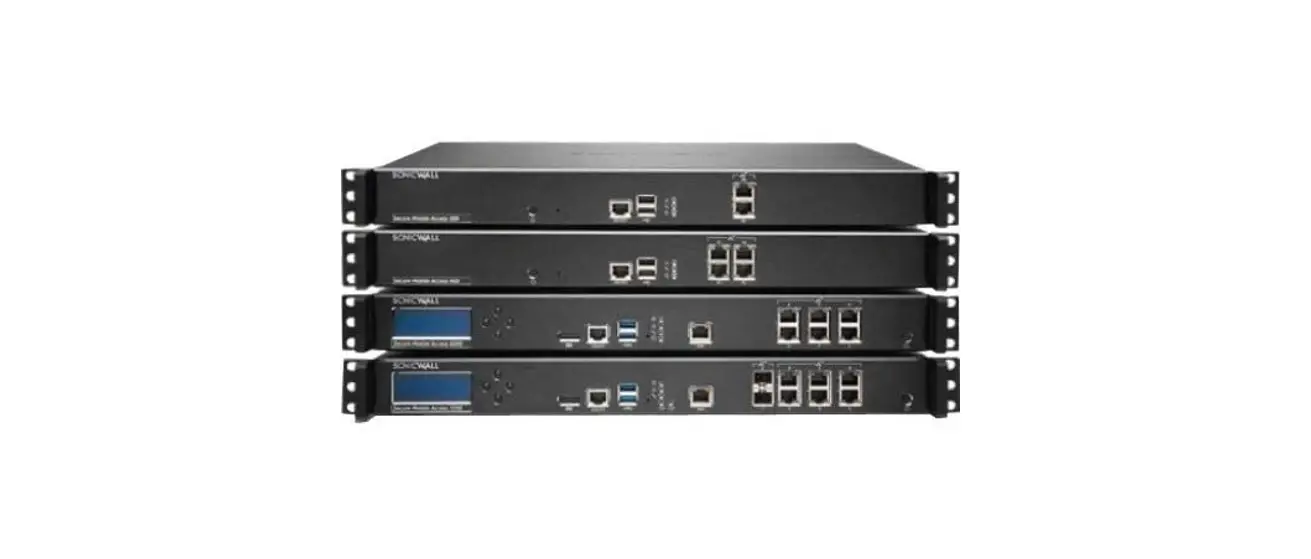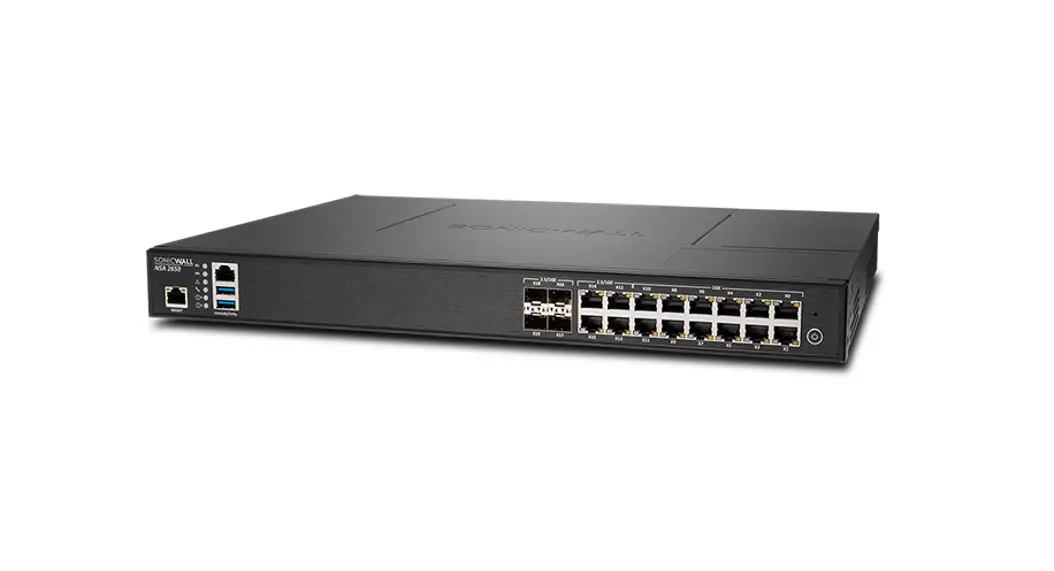
 SonicWall® NSA 6700
Quick Start Guide
For product information, use the QR code or go to
SonicWall Tech Docs for NSA https://www.sonicwall.com/support/technical-documentation/?language=English&category=Firewalls&product=NSa%20Series
| Regulatory Model Number | Product Name |
| 1RK54-118 | NSA 6700 |
Package Contents
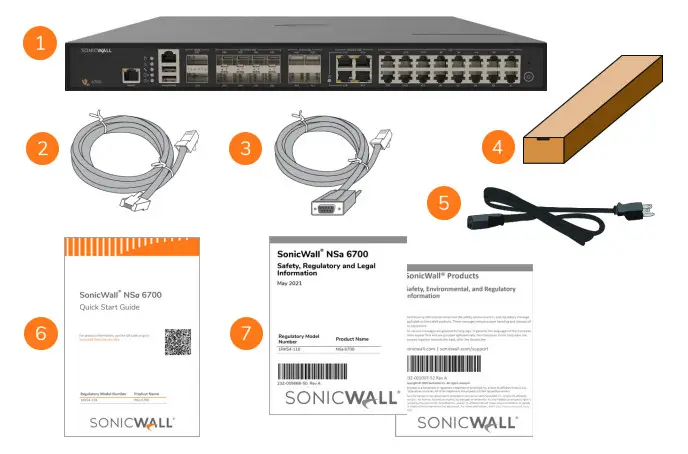
| 1 | NSA 6700 appliance |
| 2 | Ethernet cable |
| 3 | Serial console cable (RJ45 to DB9) |
| 4 | Rackmount kit |
| 5 | Power cord (1) |
| 6 | SonicWall NSA 6700 Quick Start Guide |
| 7 | Safety, Environmental, and Regulatory Information documents |
NOTE: The included power cord is approved for use only in specific countries or regions.
Before using a power cord, verify that it is rated and approved for use in your location. The power cord is for AC mains installation only. Refer to the NSA 6700 Safety, Regulatory, and Legal Information document for additional safety information.
Items missing? Contact SonicWall Technical Support at:
https://www.sonicwall.com/support/contact-support
Front Panel
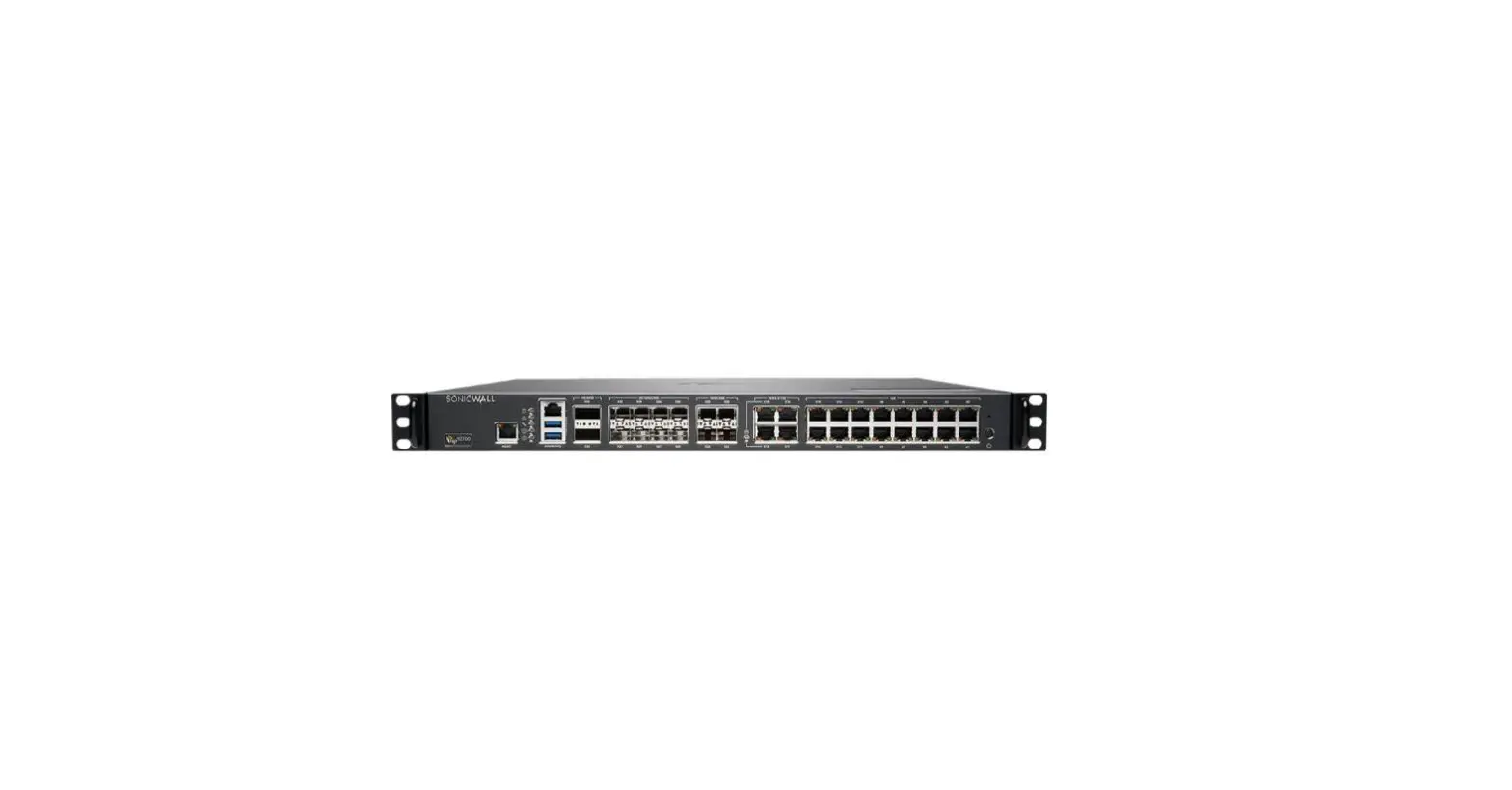
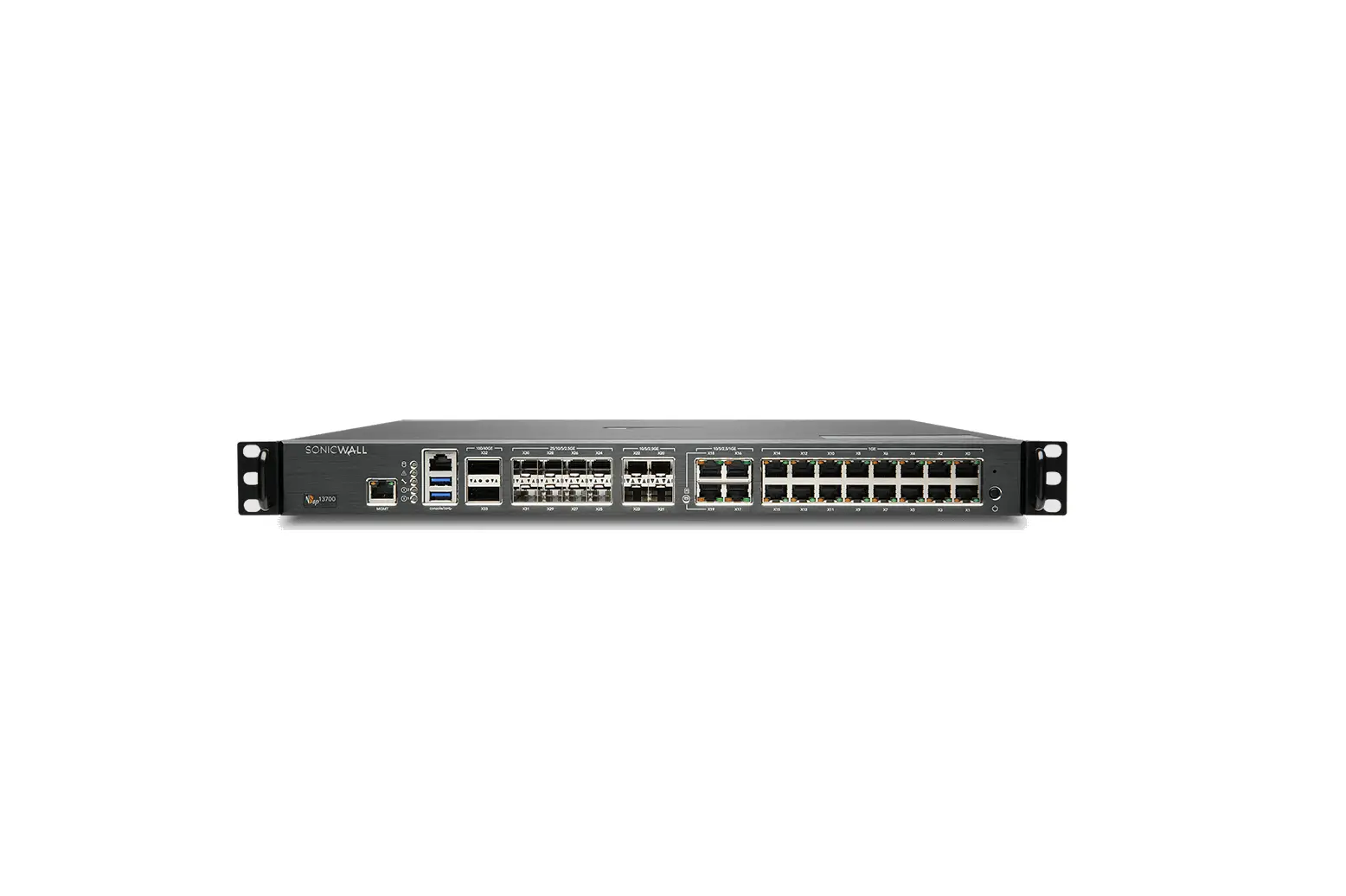
NSA 6700 Front Panel
| 1 | MGMT | MGMT Port – RJ45: The MGMT port is a dedicated 1GE interface for appliance management and SafeMode access. Solid Green = Link at 1G or lower, Blinking Green = Activity |
| 2 | console | Console Port – RJ45: Serial Console for CLI access |
| 3 | 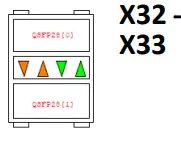 | 40GE QSFP28 Ports and LEDs: Solid Amber = Link at 40G, Blinking Amber = Activity Solid Green = Link at 1G or lower, Blinking Green = Activity Off = No link NOTE: Breakout cables are not supported on these ports. |
| 4 | 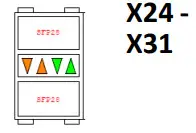 | 25/10/5/2.5GE SFP28 Ports and LEDs: Solid Amber = Link at 25G, 10G, 5G or 2.5G, Blinking Amber = Activity at 25G, 10G, 5G or 2.5G Solid Green = Link at 1G or lower, Blinking Green = Activity Off = No link |
| 5 | 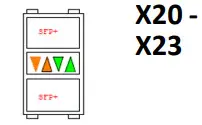 | 10/5/2.5GE SFP+ Ports and LEDs: Solid Amber = Link at 10G, 5G or 2.5G, Blinking Amber = Activity Solid Green = Link at 1G or lower, Blinking Green = Activity Off = No link |
| 6 | 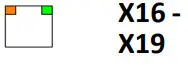 | 10/5/2.5/1GE Copper RJ45 Ports and LEDs: Solid Green = Link at speeds 1G or lower, Blinking Green = Activity at 1G or lower, Amber = Unused, Off = No link |
| 7 | 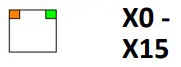 | 1GE Copper RJ45 Ports and LEDs: Solid Green = Link at speeds 1G or lower, Blinking Green = Activity at 1G or lower, Amber = Unused, Off = No link |
| 8 |  | SafeMode Button: A recessed button used to enter SafeMode: If NSA is up: Press the button with a narrow, straight object. If NSA is down: Press while connecting NSA to power and hold until Test LED blinks yellow 3 times. |
| 9 |  | Power Button: Short press powers ON if button was used to power system off. Short press powers OFF with Graceful Shutdown. Test and Alarm LEDs turn Red. Standby power to some circuitry stays on. Long Press (5+ sec) = Forced Shutdown. Standby power to some circuitry stays on. |
| 10 |  | LAN Bypass LED: When NSA is without power and LED is OFF, LAN Bypass state is difficult to distinguish. It can be either: • Bypass Disabled (default), traffic cannot pass • Bypass Enabled, power is lost, traffic can pass Yellow = Bypass Active and traffic is passing while NSA is powered but not available, such as during reboot. Green = Bypass Enabled, traffic can pass if the firewall goes down. |
| 11 |  | USB SS 3.0 Ports: For Configuration, Recovery, Re-imaging the NSA, and USB WWAN device support |
| 12 |  | Storage LED: Status on internal and external storage. Blinking Green = Activity, Yellow = Storage warning Off = No activity |
| 13 |  | Alarm LED: Red = High-Level Alarm (such as Fan Failure) / Power down requested, Yellow = Lower Level Alarm |
| 14 |  | Test LED: Red = Power down requested, Yellow = Initializing, Blinking Yellow = SafeMode / FIPS test in progress, Off = Normal |
| 15 |  | Power LED: 1 = Primary, 2 = Redundant Blue = Powered on, Yellow = Defective redundant power supply |
Rear Panel
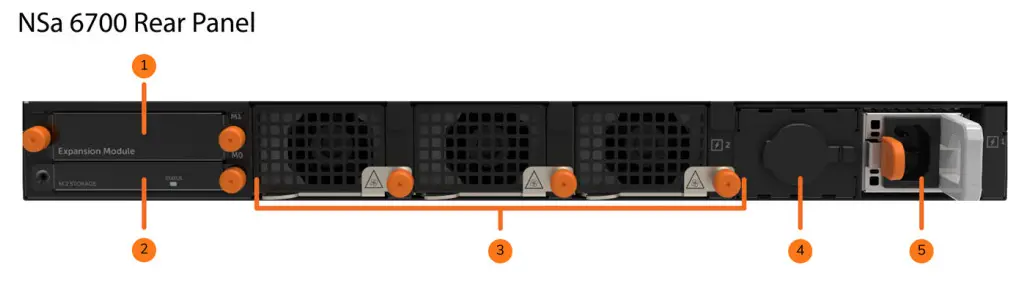
| 1 | M1 Slot for SSD: Optional extended storage drive |
| 2 | M0 Slot for M.2 Module: Boot drive |
| 3 | System Fans (3) |
| 4 | Redundant Power Input (with cover plate): A redundant power supply can be ordered separately. |
| 5 | Primary Power Input |
Connect and Power On
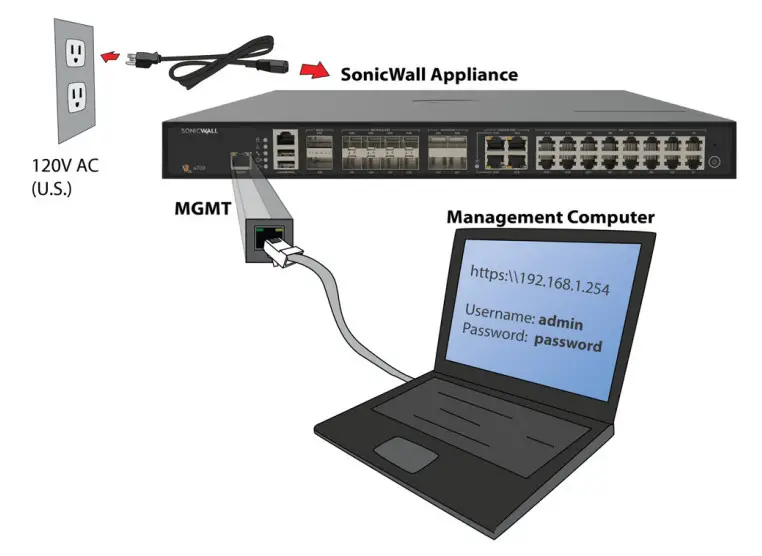
To power on your NSA and connect the LAN and WAN:
- Connect the provided power cord to the appliance and to an electrical outlet (100-240 volts). The NSA powers on. The startup sequence takes about 8 minutes.
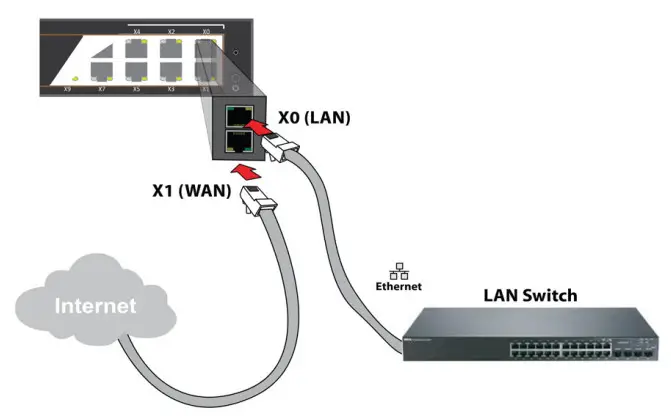
- Connect the NSA LAN interface (X0 by default) to your local, internal network.
- Connect the NSA WAN interface (X1) to the Internet.
Setup Options
Setup using Local Management
 Set up and manage your NSA by connecting it to a management computer via Ethernet cable.
To minimize scrolling, set your screen resolution to at least 1920 x 1080 pixels.
Setup using Cloud Management Use SonicWall Capture Security Center (CSC) and Network Security Manager (NSM) with
Zero Touch to manage and configure your NSA from the cloud.
Setup using SonicExpress App Use SonicWall SonicExpress on your smartphone to register and configure your NSA.
 NOTE: After initial setup and registration, be sure to download the latest firmware from MySonicWall and upgrade your NSA. Your appliance must be registered to download the latest firmware from MySonicWall.
Initial Setup and Registration Using Local Management
- Configure your computer with a static IP address in 192.168.1.x subnet, such as 192.168.1.100, and set the network mask to 255.255.255.0.
- Using the provided Ethernet cable, connect the MGMT interface to your computer.
- Navigate to https://192.168.1.254 in your web browser and log in with the default credentials:
Username: admin
Password: password
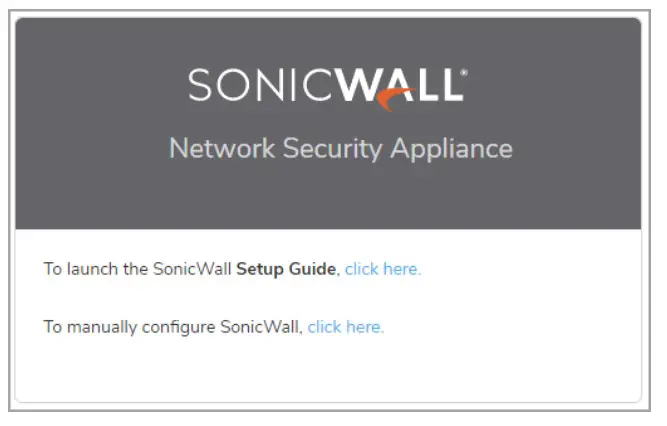
- Launch the Setup Guide wizard or manually configure the NSA to configure your WAN interface, change the admin password, and select other settings.
- After completing the setup wizard, reconfigure your computer to automatically obtain an IP address and DNS server address or to the appropriate static network settings.
- Connect your computer to the LAN or WAN network and log into SonicOS/X. The LAN provides a DHCP IP address to your computer. The default LAN IP address is https://192.168.168.168.
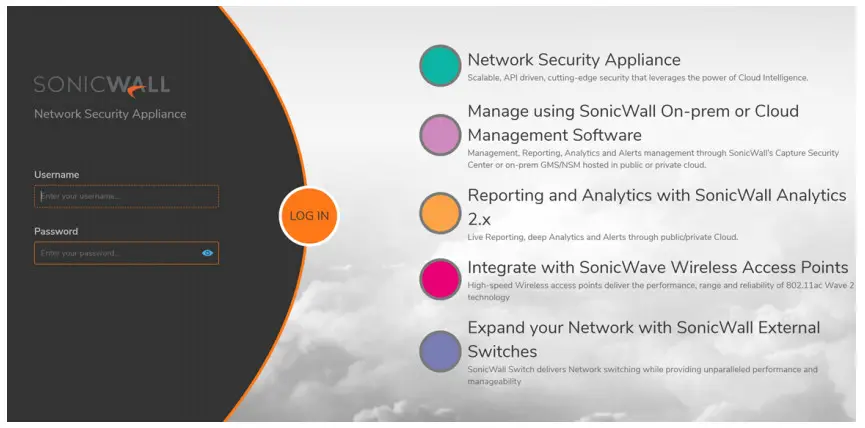
NOTE: You cannot reach the internet or other external destinations while connected to the MGMT interface without first configuring a default gateway in its interface settings.
7Click Register and enter your MySonicWall credentials to register your NSA.
TIP: Registering the appliance from SonicOS/X requires that DNS settings are configured for the WAN interface. For DHCP WAN type, DNS is set automatically.
Cloud Management
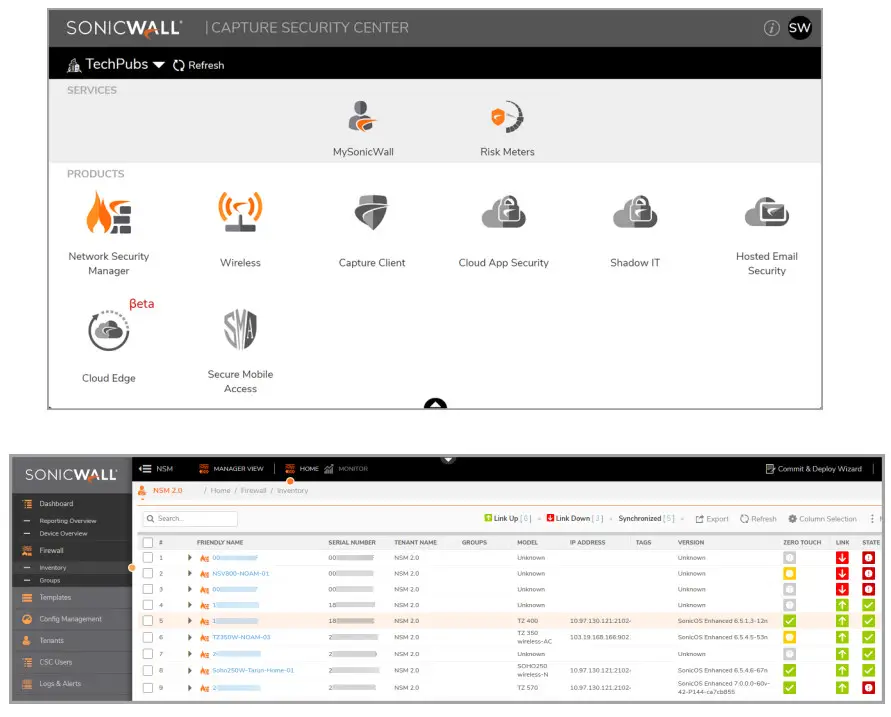
 Use CSC to access MySonicWall and NSM to register and manage your NSA.
NOTE: This option requires a Cloud Management license.
- Log into CSC at cloud.sonicwall.com using your MySonicWall credentials.
- Select the MySonicWall tile to register your NSA.
- Enable Zero Touch and NSM licensing on your NSA in MySonicWall.
- Select the Network Security Manager tile in CSC to manage your NSA from the cloud.
SonicExpress App
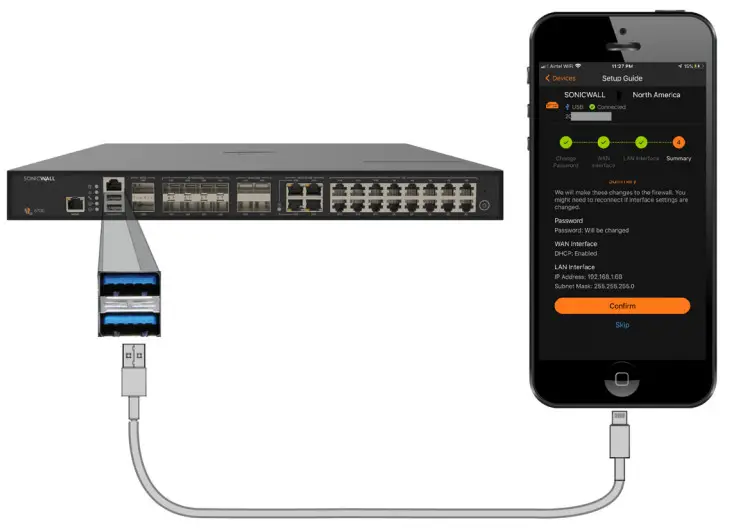
Use SonicExpress on your smartphone to register and configure your NSA.
- Download and launch the SonicExpress App on your iOS or Android device.
- Tap Login and login with your MySonicWall credentials.
- Select the Tenant for the NSA. Tenants can contain multiple SonicWall appliances.
- Connect your iOS/Android device to the NSA with the smartphone USB cable. This cable is not supplied with the NSA.
 NOTE: Use the USB cable from your mobile device.
 - Use the Setup Guide to register the NSA, synchronize service licenses, change the password, and configure essential interface settings.
 NOTE: Use the USB cable from your mobile device.
SonicWall Secure SD-Branch
SD-Branch combines SD-WAN, SD-LAN, unified security, and centralized management for distributed enterprises.
Related Products
 | TZ, NSA, NSsp Series Next-generation Firewalls with Integrated SD-WAN |
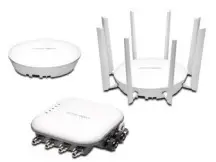 | SonicWave APs Wireless Access Points |
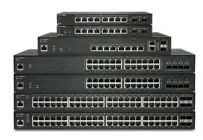 | SonicWall Switch Network Access Switch |
 | Capture Client Endpoint Security |
 | Cloud App Security Secure Cloud Applications |
| Capture Security Center Single-pane-of-glass Management with Zero-Touch Deployment |
Copyright © 2021 SonicWall Inc. All rights reserved.
SonicWall is a trademark or registered trademark of SonicWall Inc. and/or its affiliates in the U.S.A. and/or other countries. All other trademarks and registered trademarks are property of their respective owners.
The information in this document is provided in connection with SonicWall Inc. and/or its affiliates’ products. No license, express or implied, by estoppel or otherwise, to any intellectual property right is granted by this document or in connection with the sale of SonicWall products. EXCEPT AS SET FORTH IN THE TERMS AND CONDITIONS AS SPECIFIED IN THE LICENSE AGREEMENT FOR THIS PRODUCT, SONICWALL AND/OR ITS AFFILIATES ASSUME NO LIABILITY WHATSOEVER AND DISCLAIMS ANY EXPRESS, IMPLIED OR STATUTORY WARRANTY RELATING TO ITS PRODUCTS INCLUDING, BUT NOT LIMITED TO, THE IMPLIED WARRANTY OF MERCHANTABILITY, FITNESS FOR A PARTICULAR PURPOSE, OR NON- INFRINGEMENT. IN NO EVENT SHALL SONICWALL AND/OR ITS AFFILIATES BE LIABLE FOR ANY DIRECT, INDIRECT, CONSEQUENTIAL, PUNITIVE, SPECIAL OR INCIDENTAL DAMAGES (INCLUDING, WITHOUT LIMITATION, DAMAGES FOR LOSS OF PROFITS, BUSINESS INTERRUPTION OR LOSS OF INFORMATION) ARISING OUT OF THE USE OR INABILITY TO USE THIS DOCUMENT, EVEN IF SONICWALL AND/OR ITS AFFILIATES HAVE BEEN ADVISED OF THE POSSIBILITY OF SUCH DAMAGES. SonicWall and/or its affiliates make no representations or warranties with respect to the accuracy or completeness of the contents of this document and reserves the right to make changes to specifications and product descriptions at any time without notice. SonicWall Inc. and/or its affiliates do not make any commitment to update the information contained in this document.
For more information, visit https://www.sonicwall.com/legal/.
Legend  WARNING: A WARNING icon indicates a potential for property damage, personal injury, or death.
 CAUTION: A CAUTION icon indicates potential damage to hardware or loss of data if instructions are not followed.
 IMPORTANT, NOTE, TIP, MOBILE, or VIDEO: An information icon indicates supporting information.
To access the Support Portal, go to https://www.sonicwall.com/support.
SonicWall NSa 6700 Quick Start Guide
Updated – May 2021
232-005667-50 Rev A
 MySonicWall
 sonicwall.com/legal/